
iTour Go2 FAQs
16 questions. Select a question to view the answer. This product has been discontinued.
iTour GO2 translation glasses standby time
iTour GO2 can last the longest in standby mode 4 days. Under continuous high-intensity use of major functions such as translation and internet connectivity, the battery life is approximately 2 hours, the specific duration may fluctuate depending on usage conditions such as screen brightness and network connection strength.
It is worth noting that these glasses support local independent computing, which provides a faster and smoother user experience, but will also increase power consumption accordingly. It is recommended that you reasonably plan charging based on your actual usage.
iTour GO2 AR Translation Glasses User Operation
These AR glasses are alone device,Turn on the glasses — after connecting to the network, enter the corresponding function to use the feature. For specific usage of the function, please refer to the corresponding function introduction.
How to use iTour GO2 with a smartwatch
in Conversation Feature used in combination Smartwatch, can be used for On-site dialogue and communication Scenario, the specific operation is as follows:
1. Glasses and watch devices Bluetooth is on in a state
2. Turn on the glasses' conversation function
3. The smartwatch enters the iTourTranslator APP–Audio Playback on AR Glasses Interface
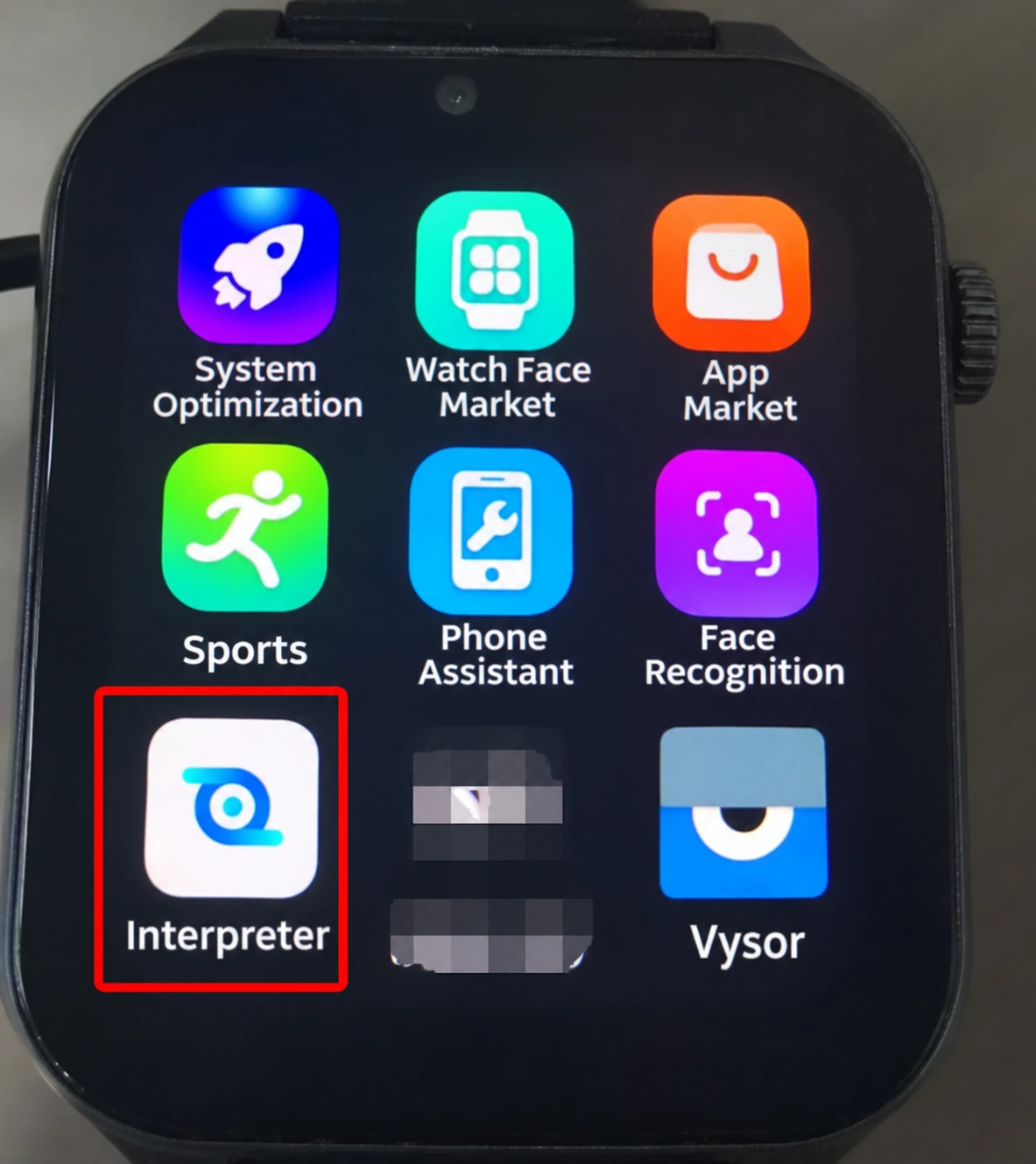
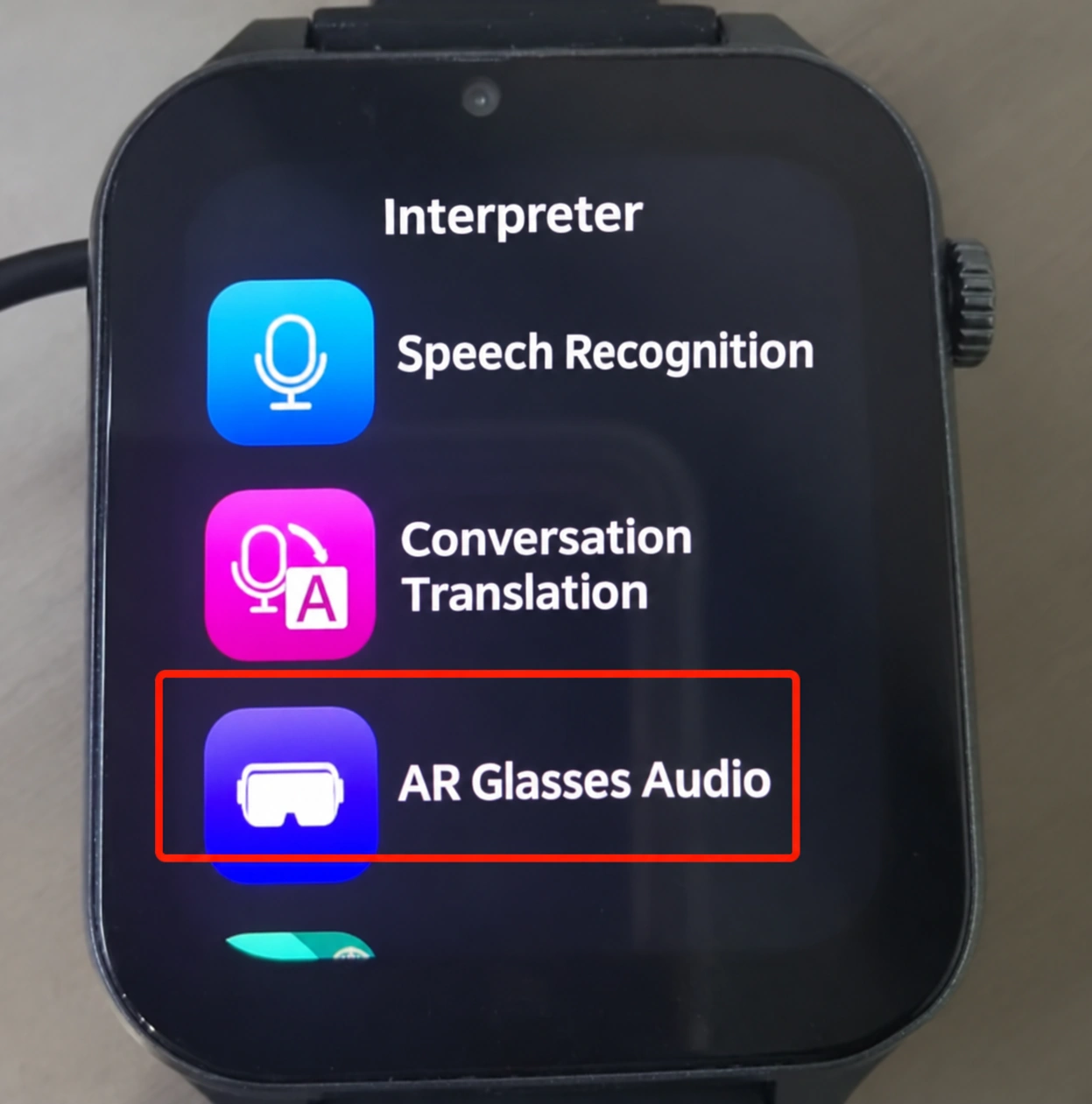
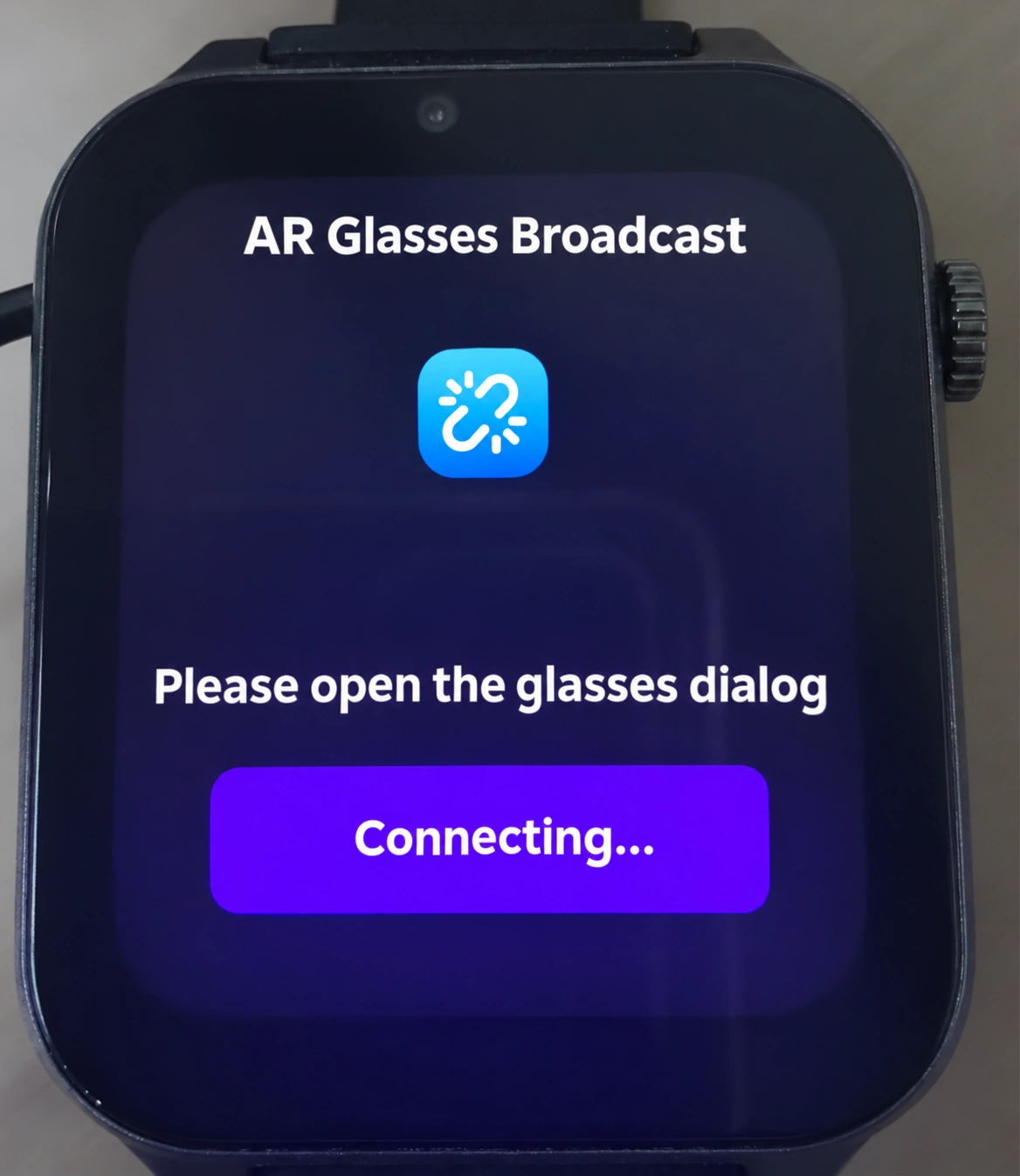
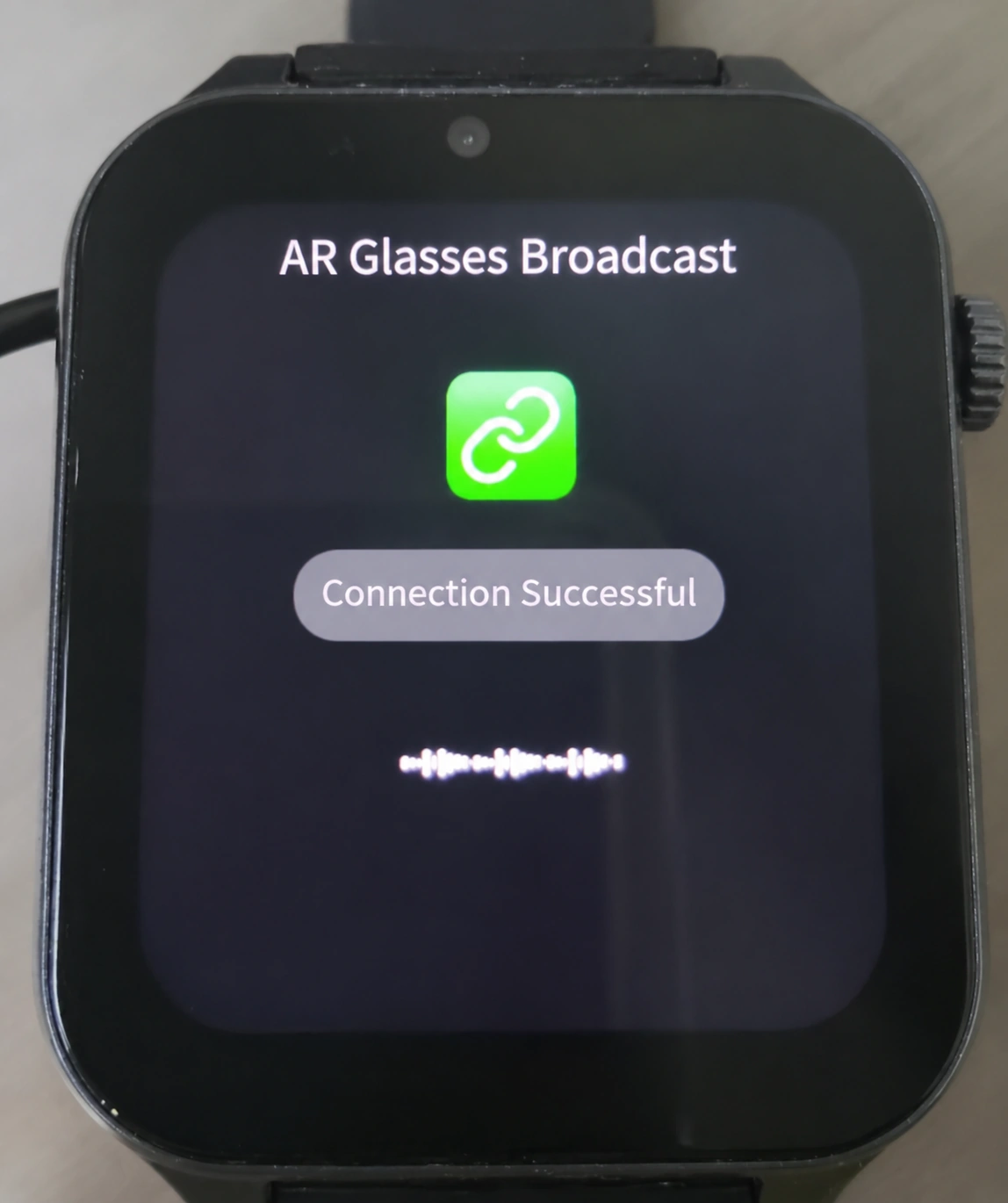
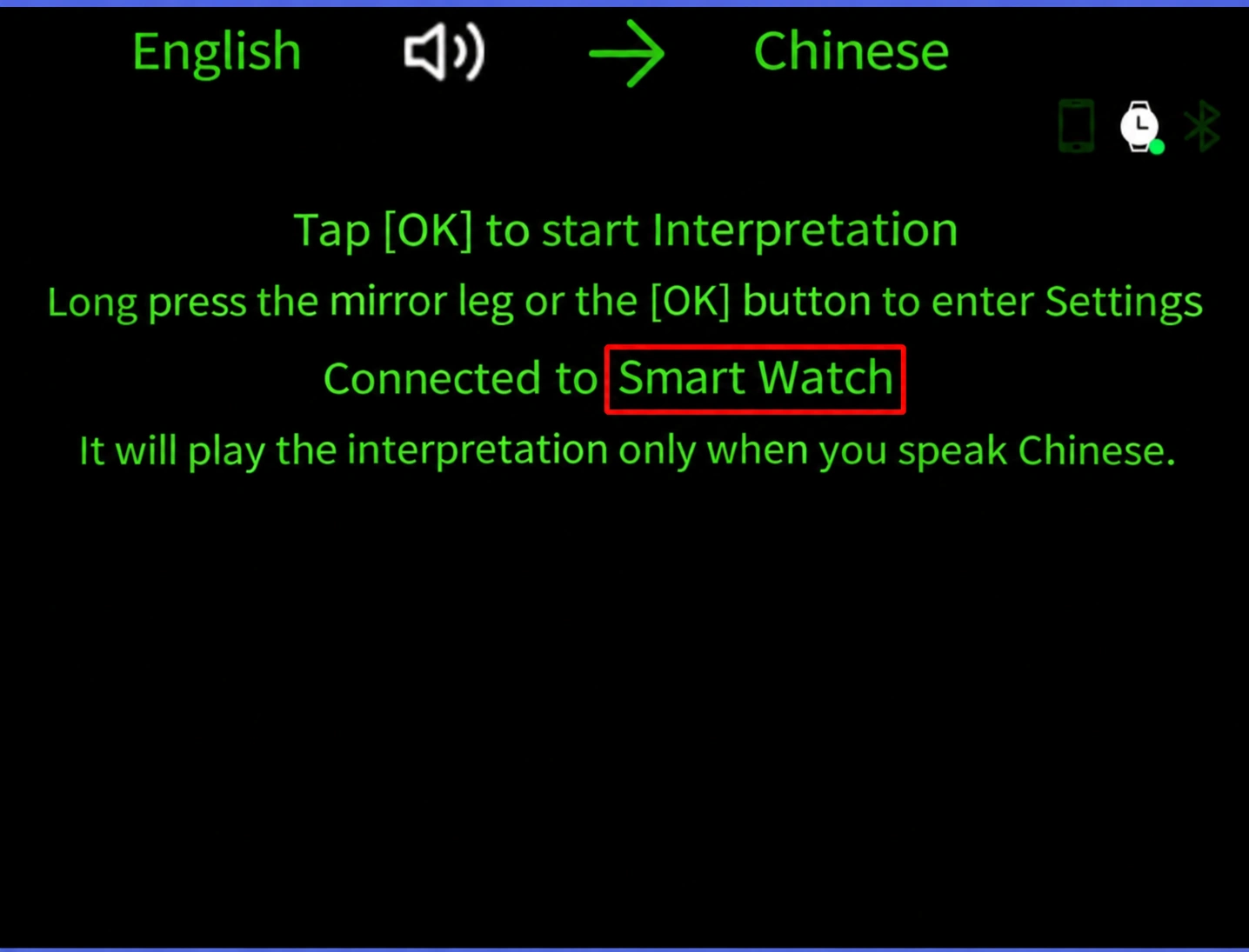
4. Waiting for glasses and watch Automatic connection Done (connection successful, as shown in the picture below)
How to Use iTour GO2 with a Broadcasting Watch (U6)
in Conversation Feature used in combination Audio Playback Watch (U6), can be used in on-site conversational scenarios, the specific operation is as follows:
1. at Settings – Headphones/Speakers, search Connection Audio Playback Watch (U6)
2. After the connection is successful, in AR glasses Enable translation for the chat function
3. After identifying the language on the right and translating it into the language on the left, it will be in Audio Playback Watch (U6) carried out on Audio Playback
Introduction to iTour GO2 Conversation Function
can Automatic recognition translate between the two selected languages.
Applicable to:
1. Bilingual meeting minutes, interpreter translation assistance scenarios
2. After connecting the iTour with the paired/sold watch (see specific operation) How to use with a smartwatch、How do I use it with the U6 audio playback watch?), can be used for on-site dialogue communication scenarios click Right temple/ring [OK]Key to Enable Translation
Introduction to iTour GO2 Transcription and Translation Function
Only recognize and translate one language, Identify the language on the left and translate it into the language on the right, showing both languages
Applicable to:
1. International students attending classes
2. International Business Monolingual Conference
Pair with Earbuds supplied or sold by iTour, you can hear the translated speech
iTour GO2 Offline Function Introduction
No connection / Poor connection In such cases, the offline translation function can be used,First-time use requires connecting to the internet to download the offline resource package., the operation is as follows:
1. You can enter the offline translation page Long Press Ring“OK” Key / Right Temple, go to the settings page, select the source language for download and the target language for translation (if you do not need to change the language, click Right temple/ring [OK] button Automatically download the currently selected language)
2. After the download is successful, you can operate it to enable translation, recognize the spoken content, and translate it.
iTour GO2 Voice Recognition Feature Introduction
Transcription only Speech content subtitle display, no translation, can be used for meeting minutes, click to save audio and text Right temple/ring [OK] button Start translation
iTour GO2 Intelligent Q&A Function Introduction
Integration Deepseek The large model can answer the questions you raise, with the specific operations as follows:
1. Click Temple/ Ring [OK] Button, start recognizing your speech content
2. Click again Temple/ Ring [OK] Button, end recognition,Deepseek Will provide a corresponding reply based on your question
iTour GO2 Spoken Language Learning Feature Introduction
The translation officer (iTour) will role-play with you according to the scenario you choose to complete the dialogue practice. After the dialogue, the system will automatically correct your grammar and give a score based on your dialogue content. The specific operations are as follows:
1. Enter the chat page,Press the ring’s OK button or tap the glasses’ temple, start recognition
2. Click again“OK” key or temple (of glasses)End recognition. At this time, the system will perform error correction scoring based on the recognized content.
3. You canLong Press Temple/ Ring [OK] ButtonGo to the settings page and turn on conversation translation and conversation prompts
Note:
1. Currently only English speaking learning is supported
2. This feature only supports go2 glasses version 1.0.31 and above. You can check the current version or upgrade in Settings — About Us.
iTour GO2 Teleprompter Function Introduction
Glasses display teleprompter content, suitable for speeches/live broadcasts/meetings, requiringConnect to the mobile iTourAR
App Usage:
1. Connection steps, see Direct Subtitle Projection — Steps to Connect the Mobile App
2. After a successful connection, you can add prompt content on the mobile device and then upload it to the glasses for use.
3. Select a teleprompter script to open its details,Automatically turn onTeleprompter
4. Page-turning settings can be adjusted in the mobile app, with the default set to follow the reading.
5. Delete the prompt from the glasses terminal, in the prompt list — select the prompt to delete — Long Press Ring [OK] button/temple — Delete
The function of the earphones that come with iTour GO2
1. Audio playback on the glasses may haveSound leakageQuestion
2. Adding broadcasts on the glasses will reduce the glassesBattery life
EarbudsCan solve the above problems
Note:Headphones connected to AR translation glassesOfficial onlyearbuds sold by iTour. Other earbuds cannot connect
What are the main differences between the iTour GO2 translation glasses and other styles of glasses?
The main difference lies in Usage mode:
- iTour GO2 supports independent use without a phone, allowing core functions such as translation to be performed without the phone app.
- Models such as iTour-Clip and iTour A1 need to be connected and operated with a mobile app, allowing functions such as translation to be realized through the phone.
What is iTour GO2 subtitle direct projection?
Direct subtitle projection:Needs to be pairedApp Usage, cast the content recognized and translated by the app to the glasses for display
Steps:
1. Download the iTourAR App on your phone, download link

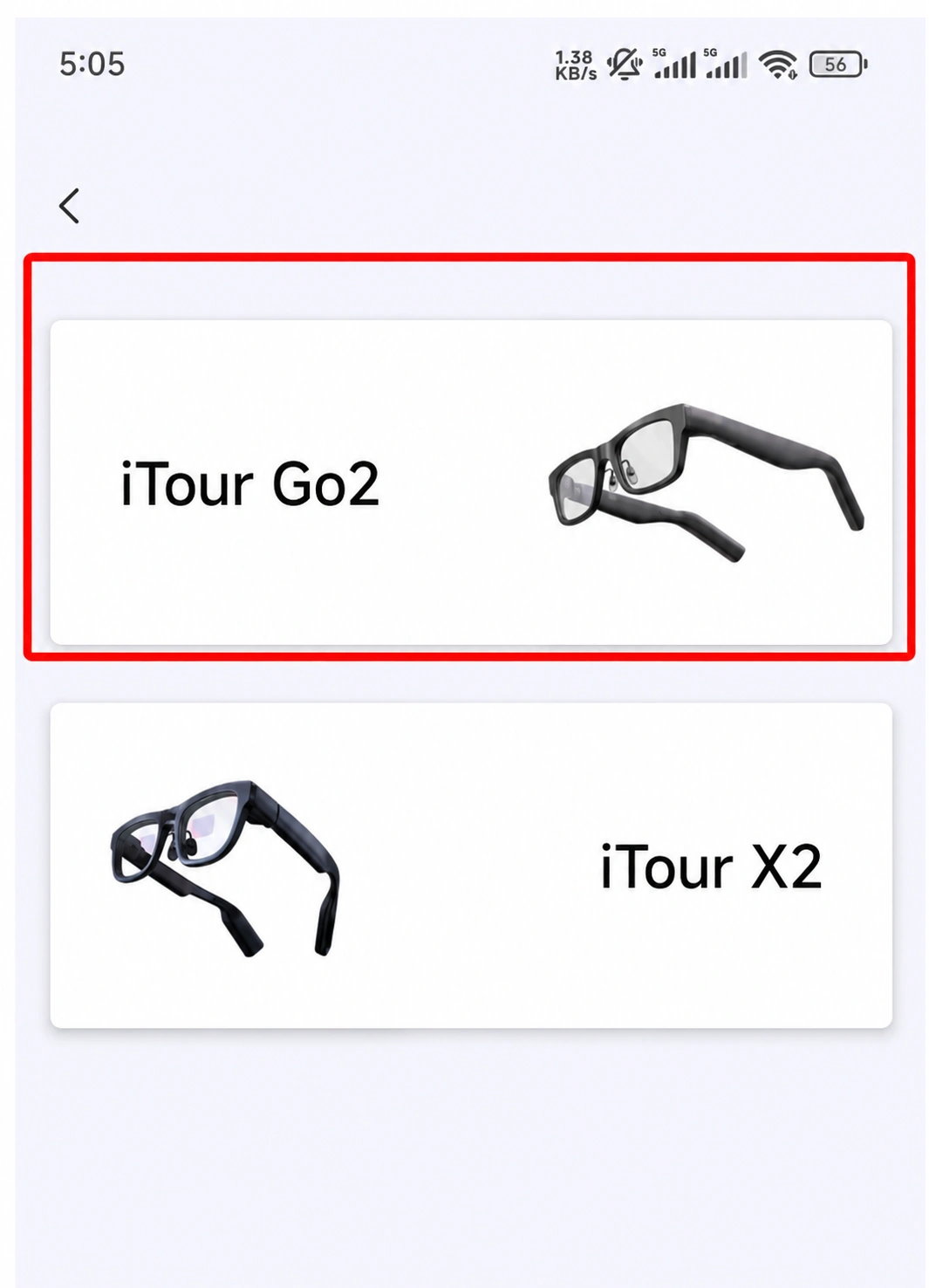
2. Open the iTourAR App and select iTour Go2
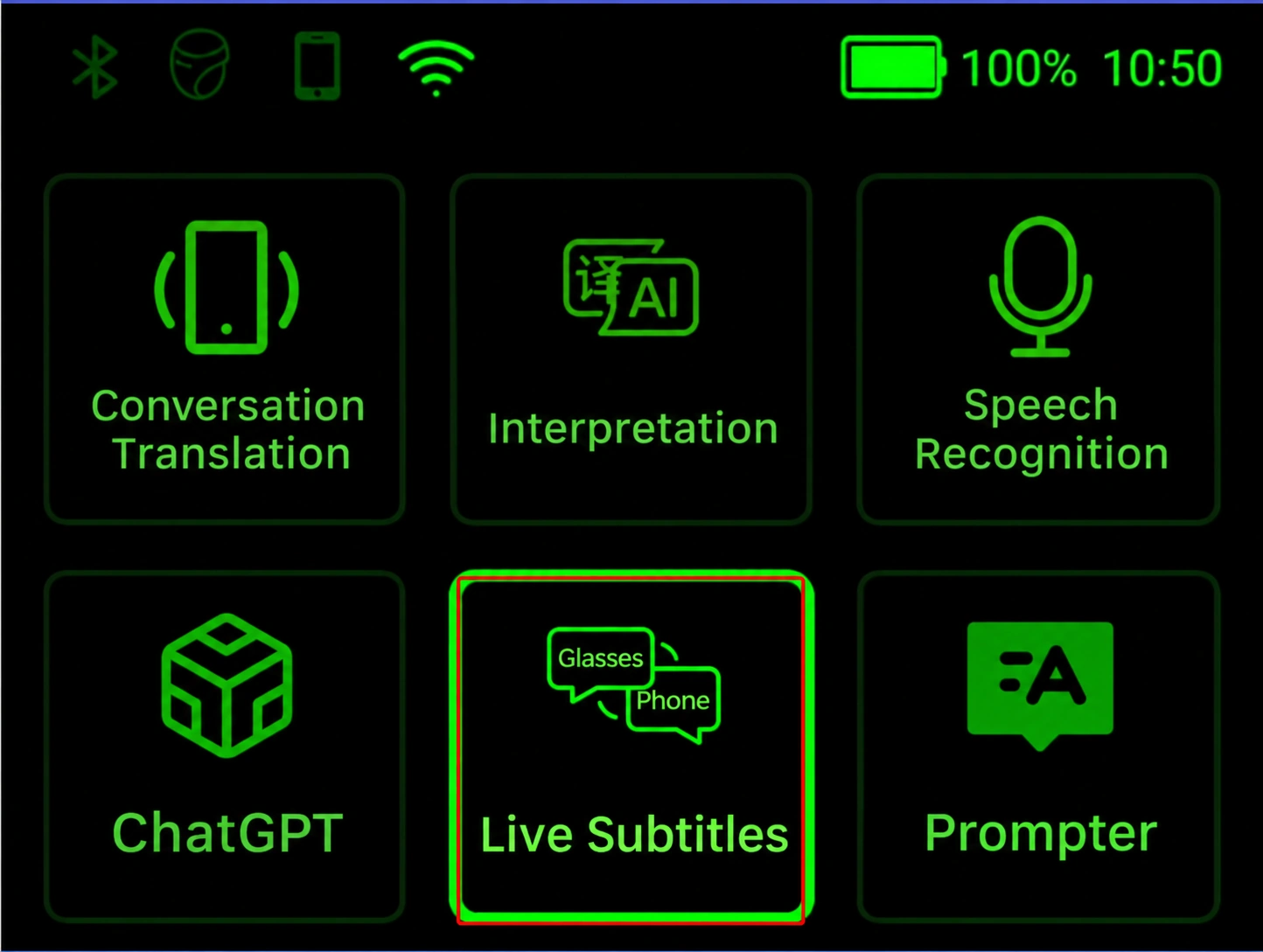
3. Open the glasses end — Direct subtitle projectionFeatures
4. Follow the prompts on the phone to connect. Once the connection is successful, the glasses' subtitle projection page will display the connection.Phone model
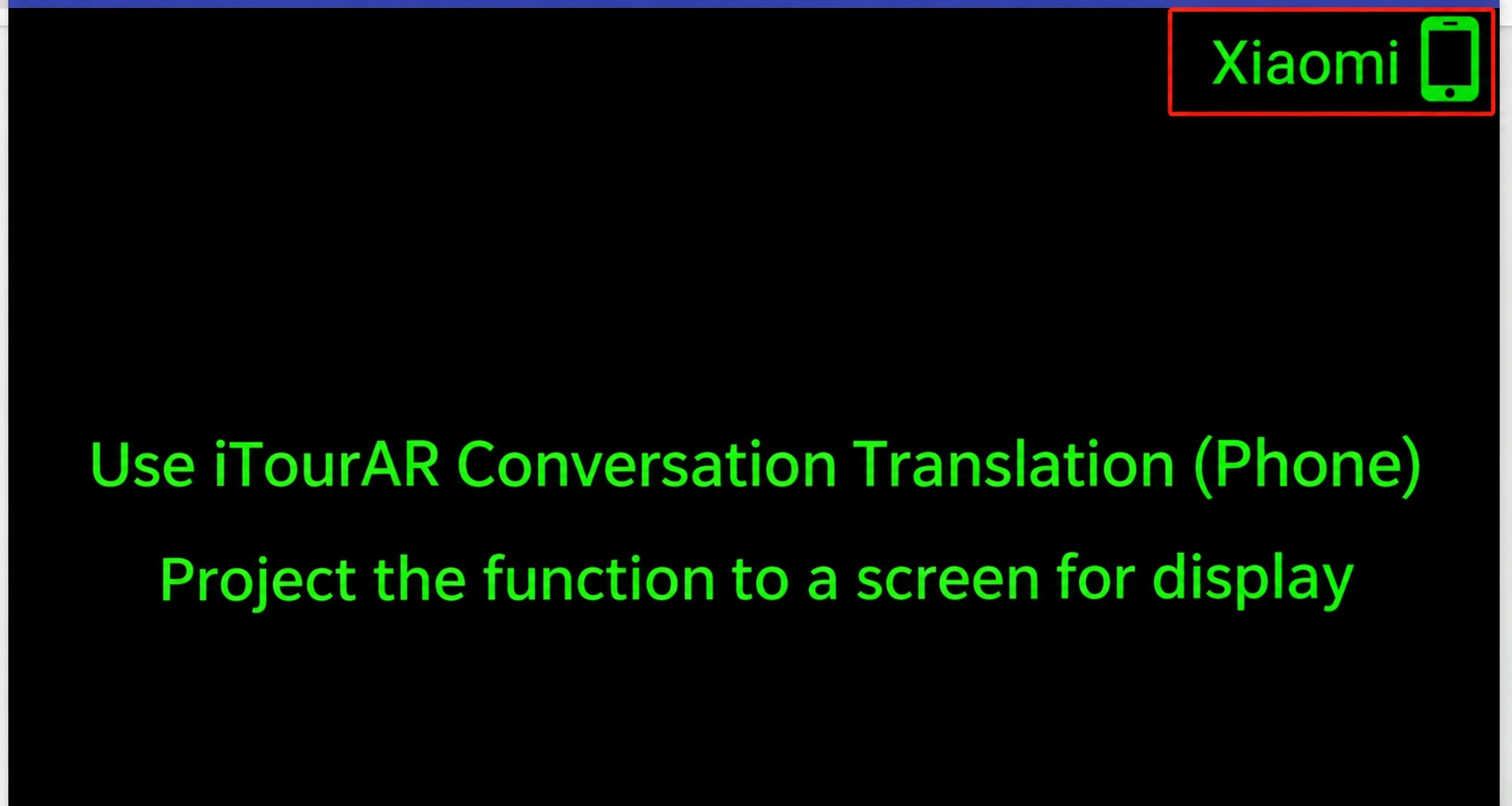
5. After the connection is successful, enterMobile app — Conversation (Mobile)After enabling translation, the content recognized and translated on the mobile device will be projected in real-time to the go2 glasses display.
How does the iTour GO2 ring connect to glasses?
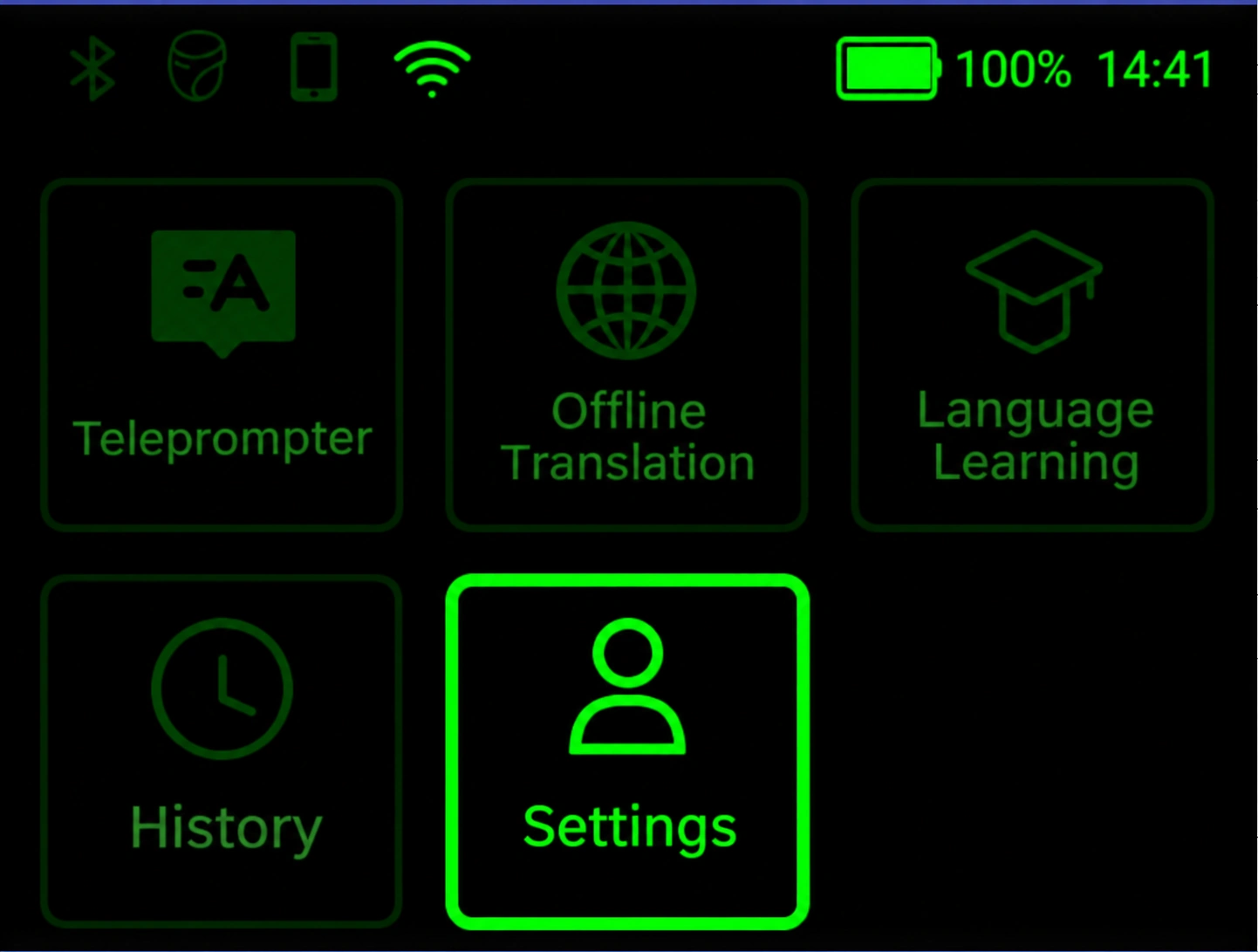
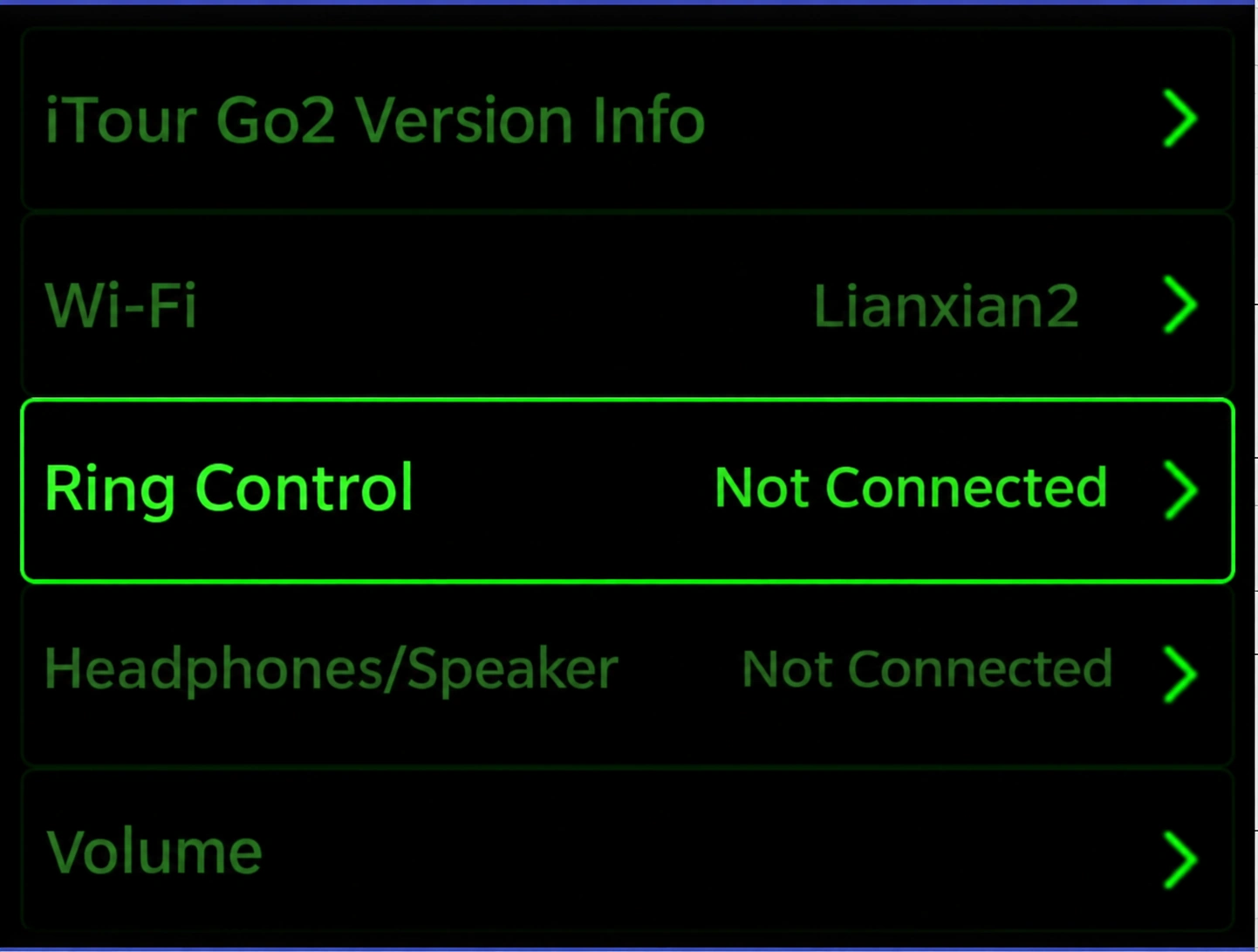
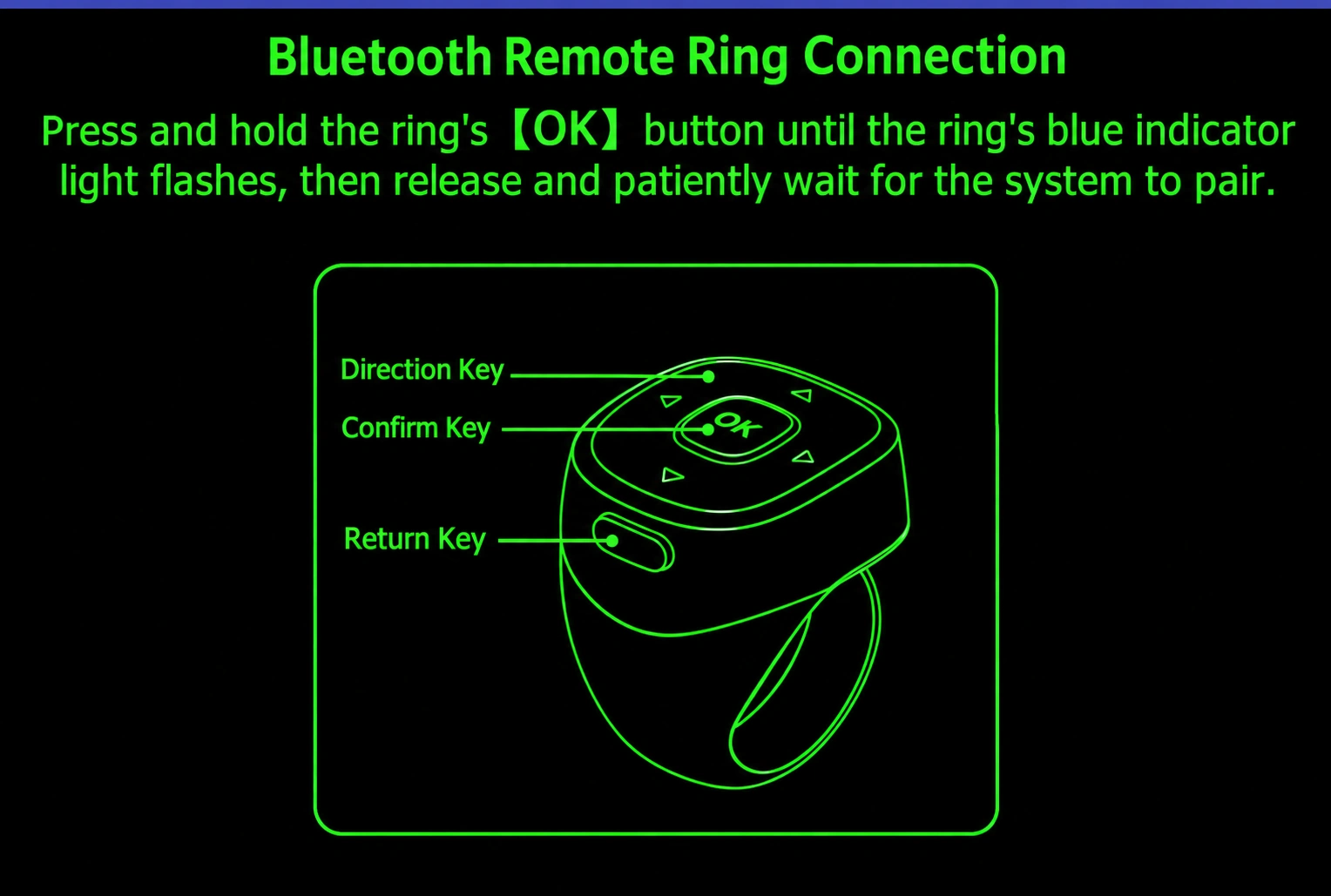
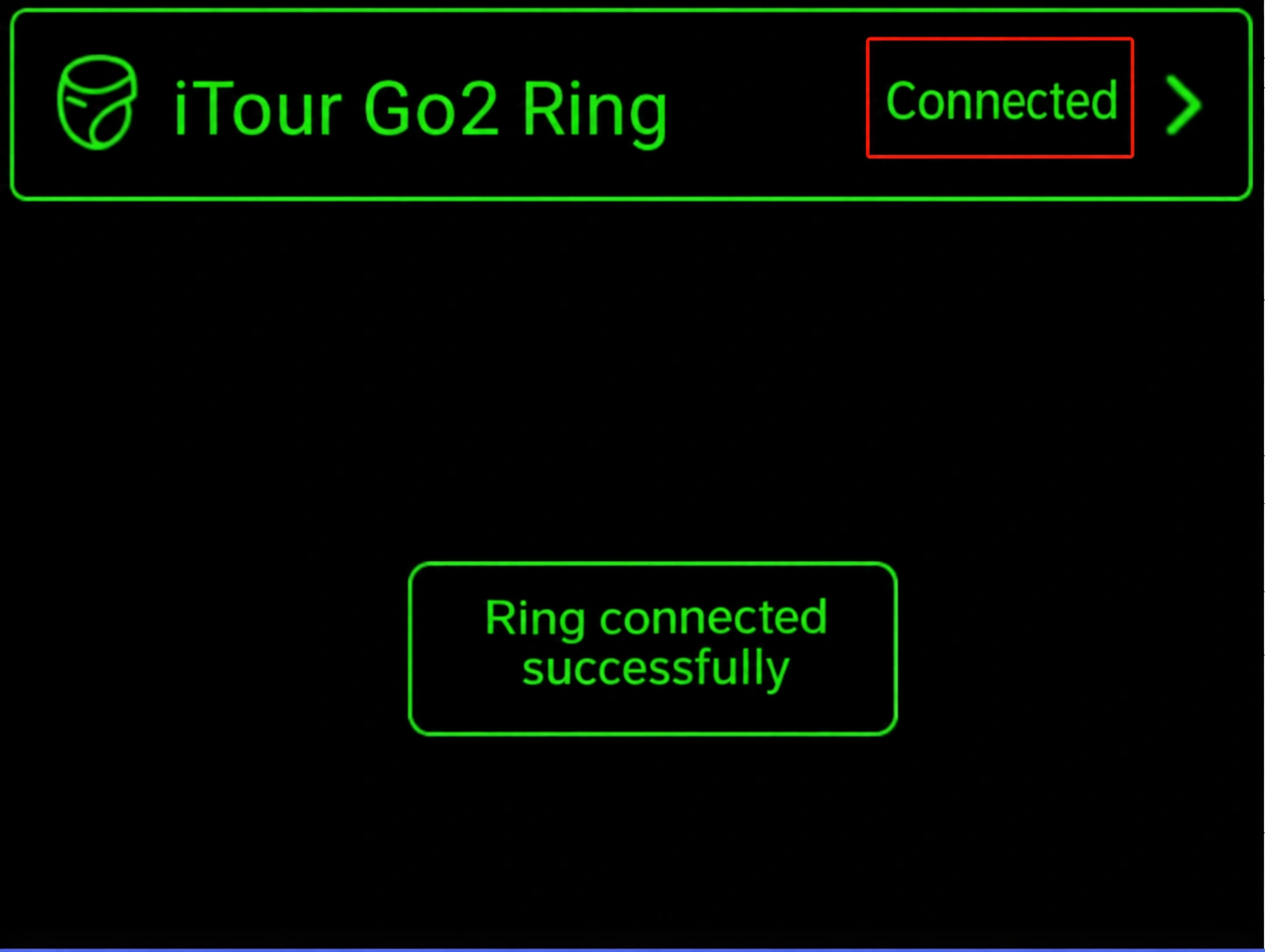
inSettings — Ring page,Long PressUntil the ringBlinking blue lightAfterwards, wait for the glasses to search(iTour Go2 Ring)Just connect
How do you connect the iTour GO2 glasses to the app?
iTour GO2 is an AR smart glasses, which requires a dedicated app. “iTourAR” You can connect and use it, but connecting to other applications is not supported for now.
For specific connection steps and operational instructions, please refer to the app. “Direct subtitle casting → Connect mobile app” for detailed instructions.
Didn't find the answer?Contact Online Customer Service ↗ · Contact us · Return to Help Center

 Support