
iTour-Clip FAQs
11 questions. Select a question to view the answer.
What is the standby time of the iTour-Clip translation glasses?
When powered on but not using any functions (such as translation, audio playback, etc.), the device can stay on standby for approximately 1.5 hours.
How to connect and use the iTour-Clip translation glasses with the app
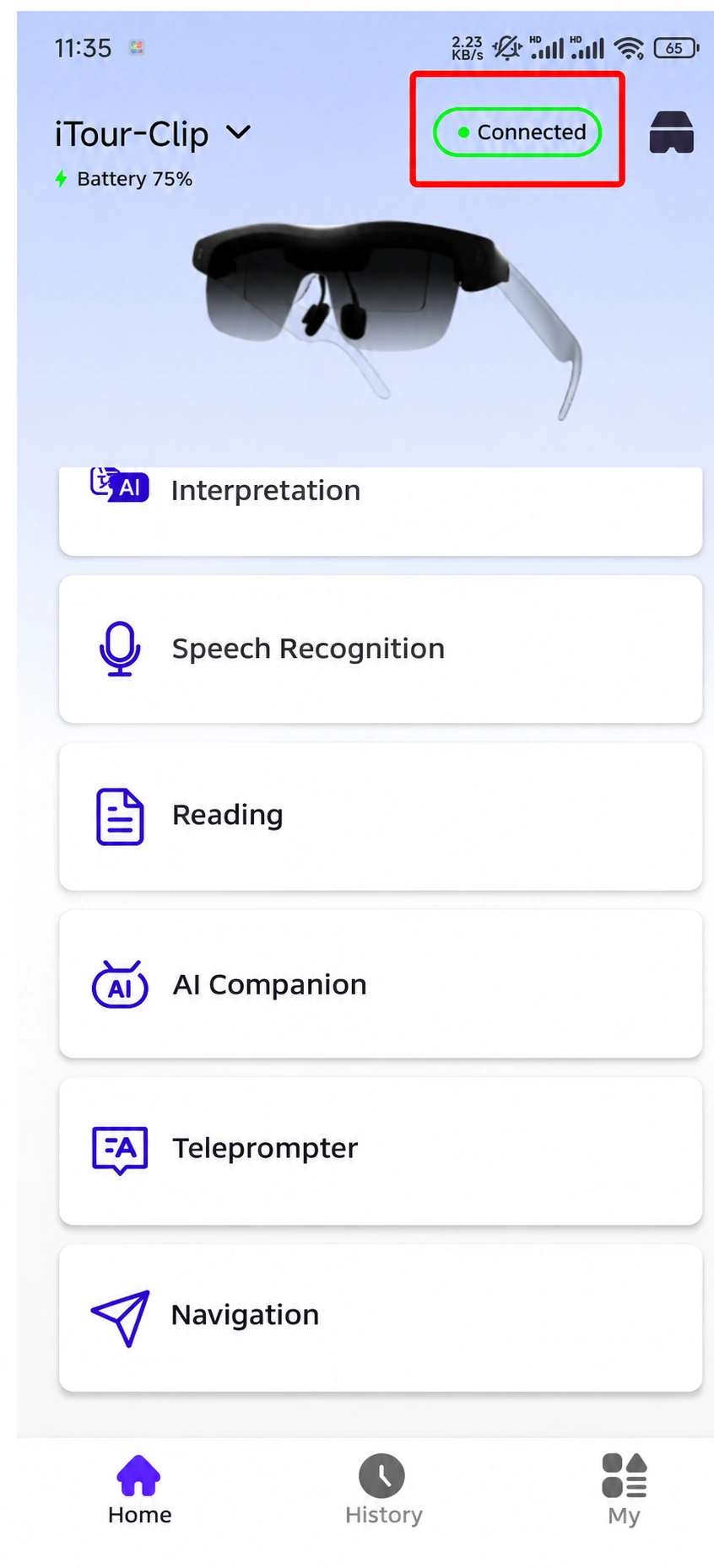
1. Identify/scan the following QR code to download the iTourAR APP

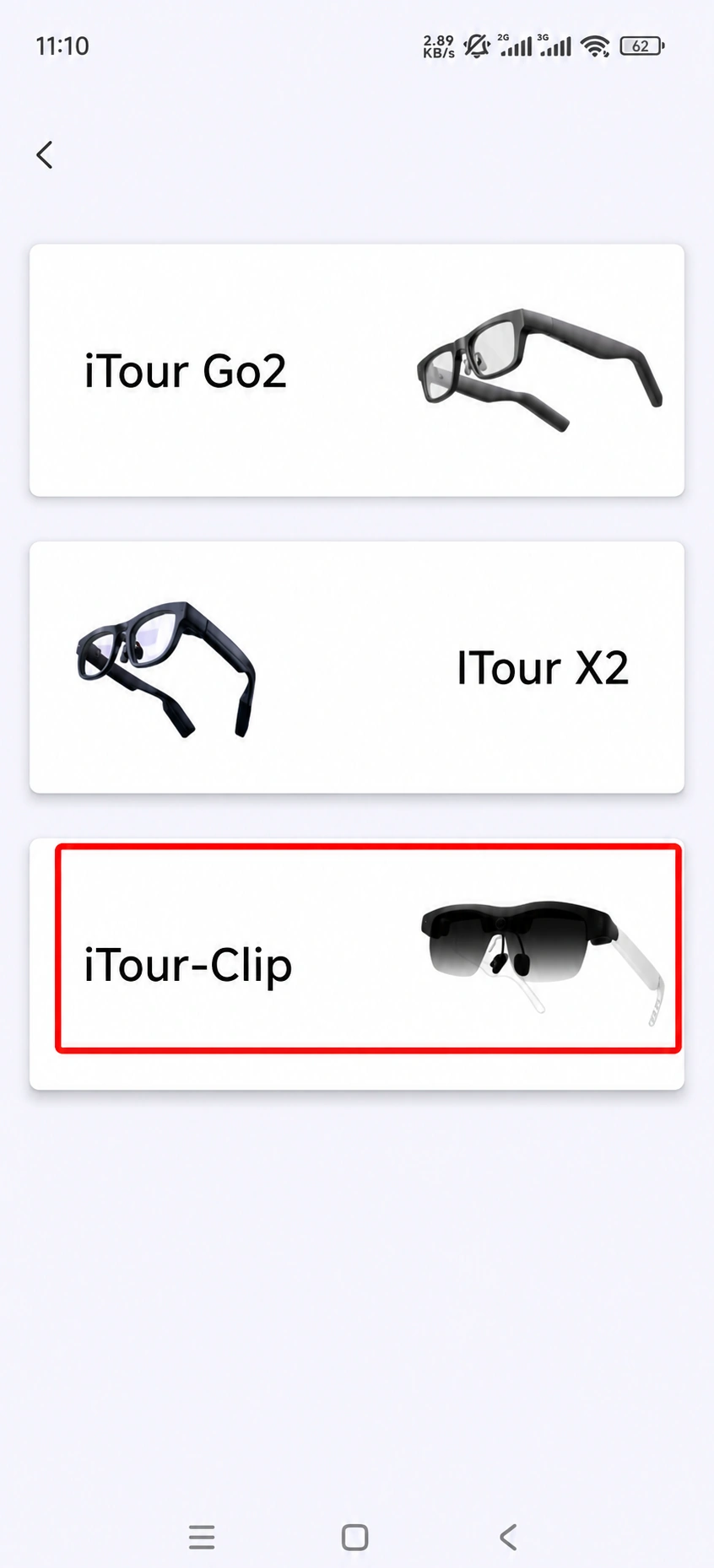
2. Open the iTourAR App and selectiTour-Clip
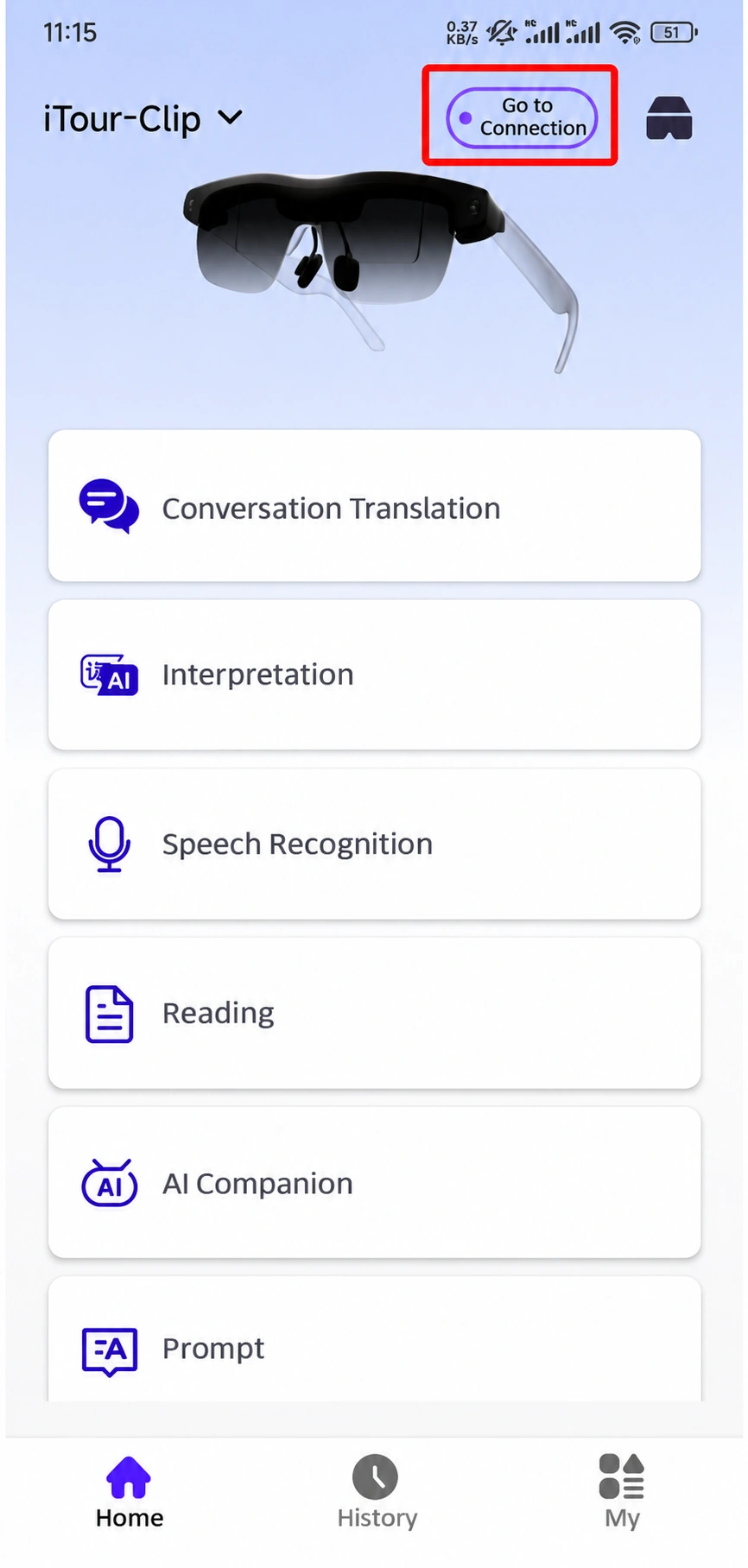
3. Ensure the glasses arePower on and screen lights upStatus, click[Connect]
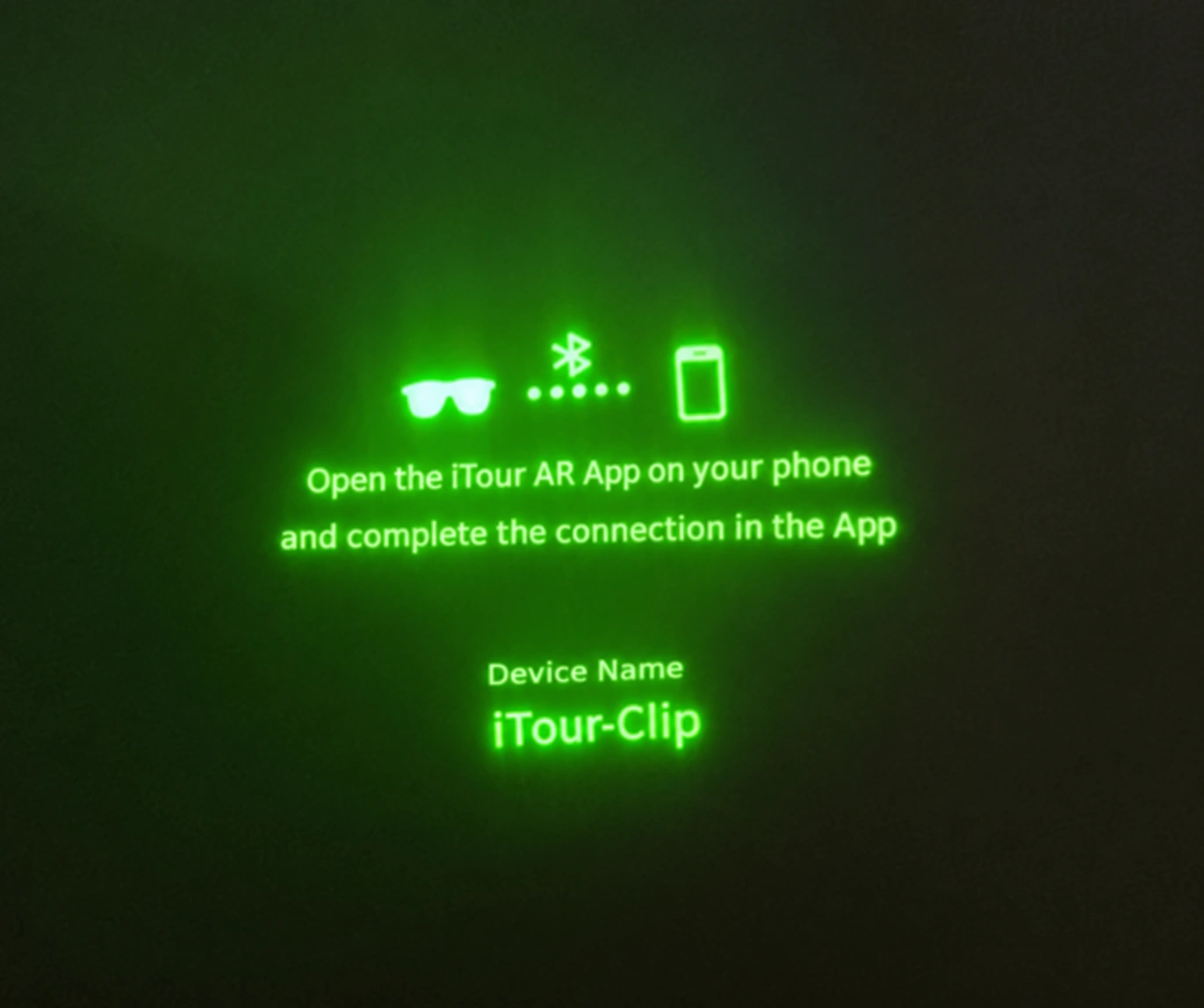
4.First connection, click[Connect], the glasses will automatically connect
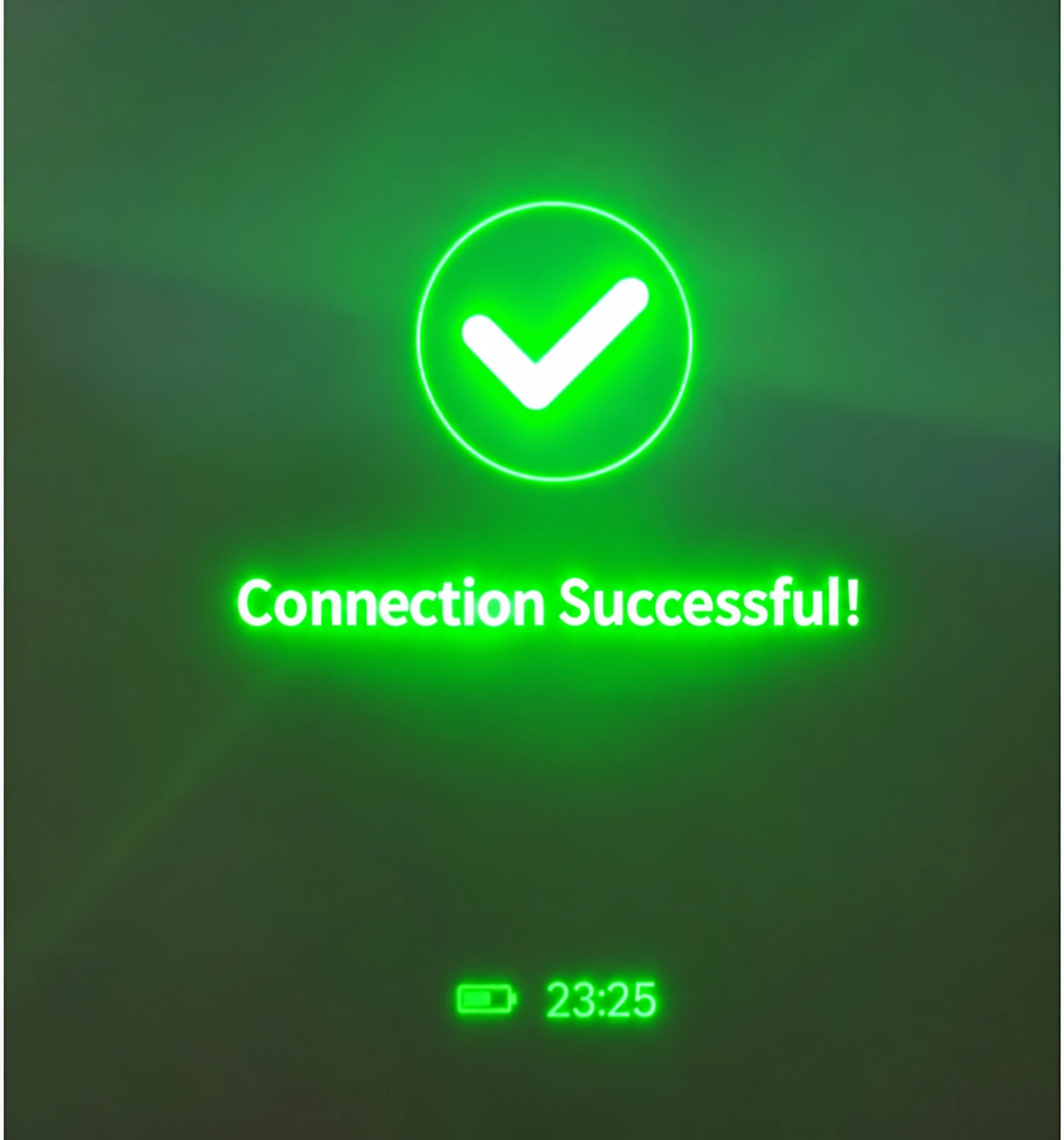
5. After a successful connection, both the glasses end and the mobile end will display"Connected"At this state, the corresponding function can be used.
How to use the iTour-Clip translation glasses conversation function
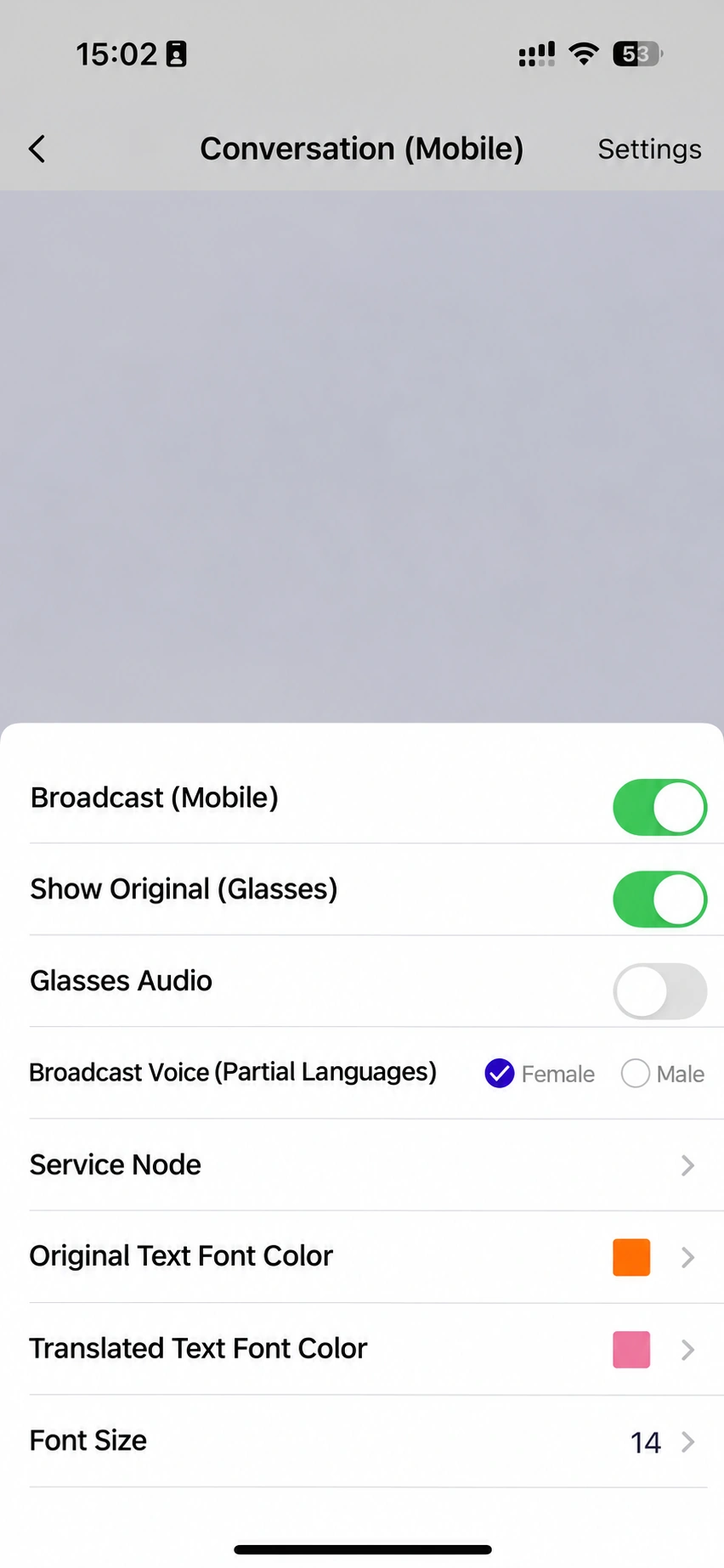
Dialogue: Online Real-TimeBilingual translation, with the translation results able to be cast to a display on glasses,Supports bilingual subtitlesDisplay, when translated into the language on the left, the phone speaker will play it. Applicable toFace to faceCommunication scenario
1. Supports audio input from the glasses
2. Support setting the subtitle size and color on mobile devices
How to use the iTour-Clip translation glasses listening and translation function
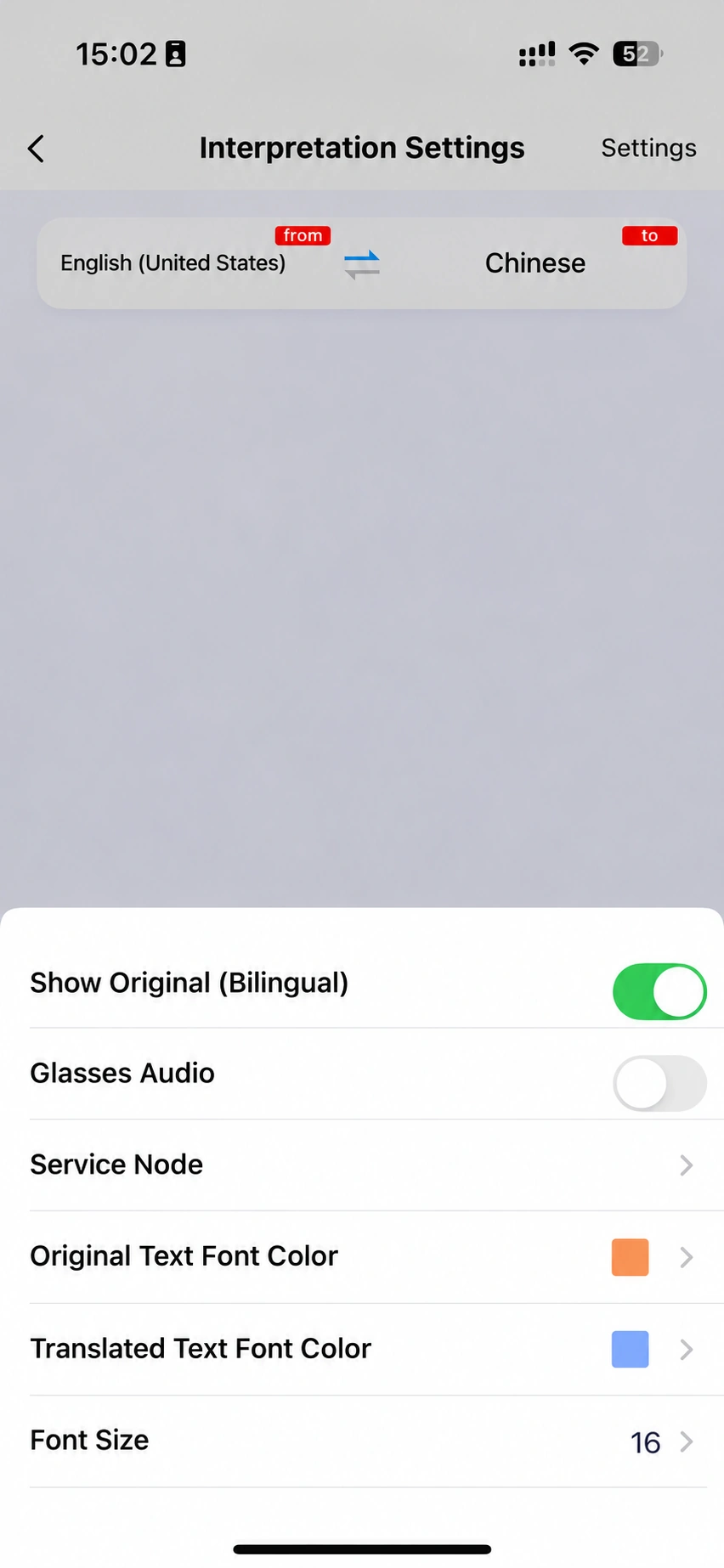
Listening Translation:OnlineReal-time One-way TranslationTranslate, and the translation results can be cast to the glasses display.Supports bilingual subtitlesDisplay, suitable for classroom use for international students and translation records for international business meetings
1. Supports audio input from the glasses
2. Support setting the subtitle size and color on mobile devices
How to Use iTour-Clip Translation Glasses for Offline Translation
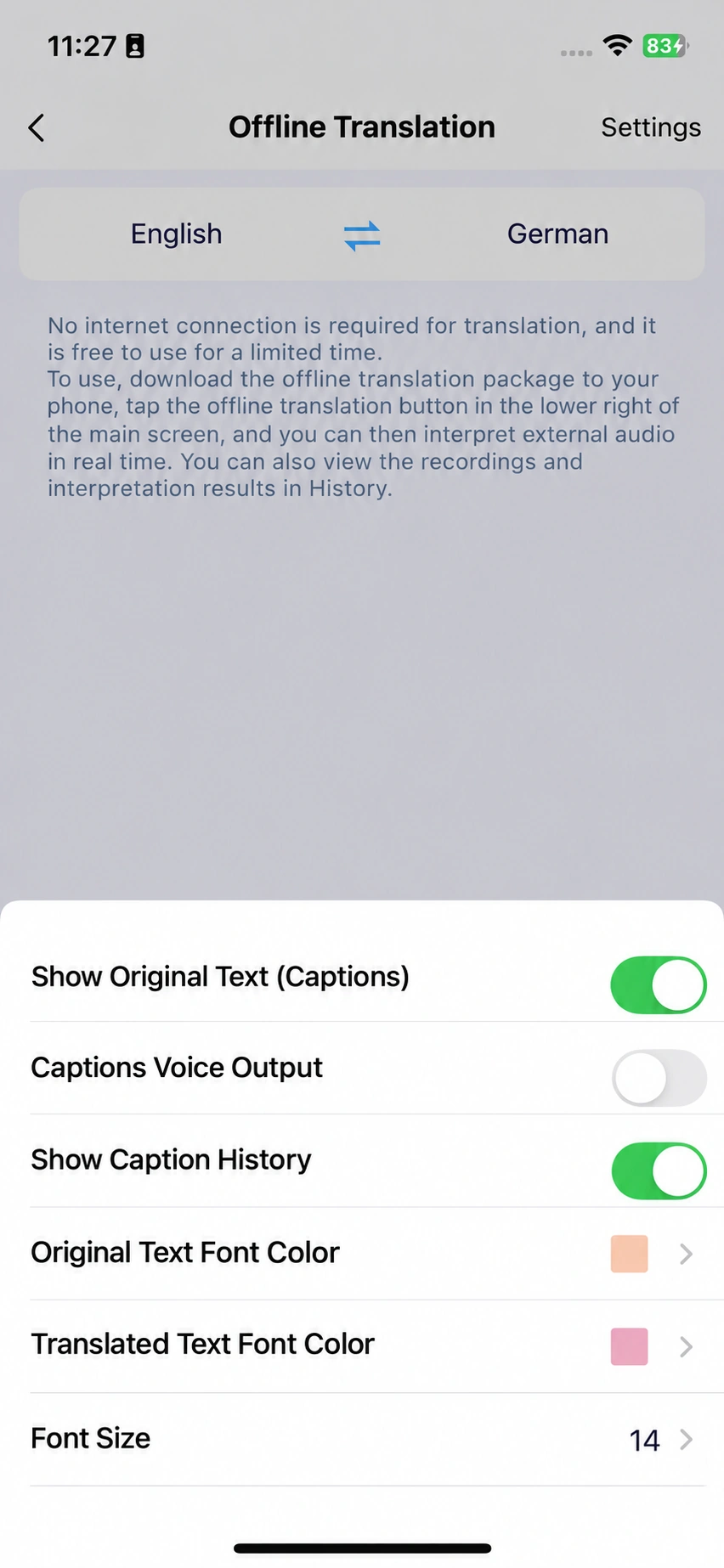
Offline translation:can doOnlineAlso possibleOfflinereal-timeOne-wayTranslate, and project the translation results onto the glasses display.Supports bilingual subtitlesDisplay, suitable for use when the network is unstable or the signal is poor
1. Click the microphoneAutomatic downloadthe offline resource packs for the default language pair. You can also go to the language selector toManual download, supportBatch queue downloadResource pack
2. SupportGlasses Microphone
3. Support setting up on mobile devicesSubtitle size and color
4. SupportSave HistoryRecord
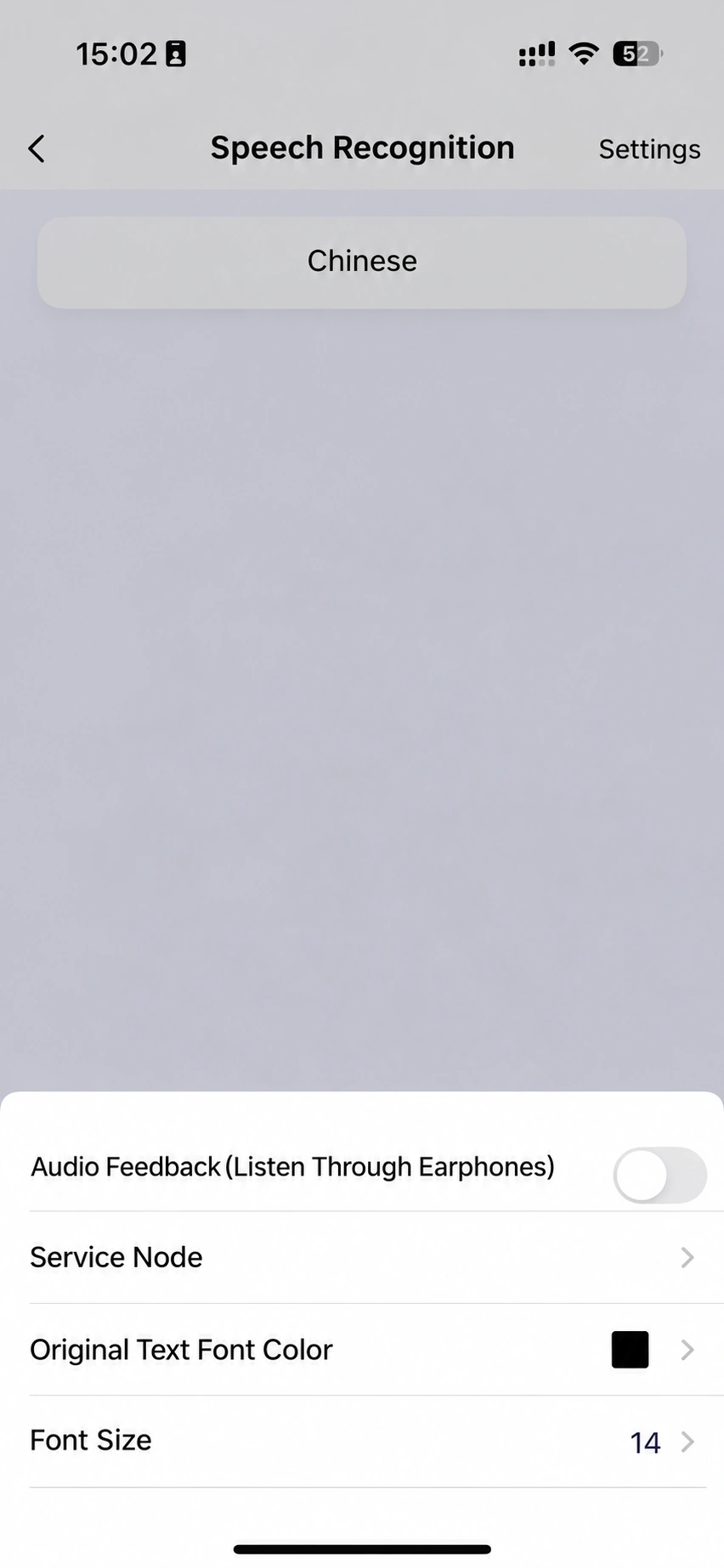
iTour-Clip Translation Glasses Voice Recognition Feature Introduction
Speech Recognition: Online Real-Time Recognition Display, Recognition results are projected onto glasses for display, suitable for recording text recognized in meetings
1. SupportGlasses Microphone
2. Support setting up on mobileSubtitle size and color
How to use the iTour-Clip translation glasses reading function
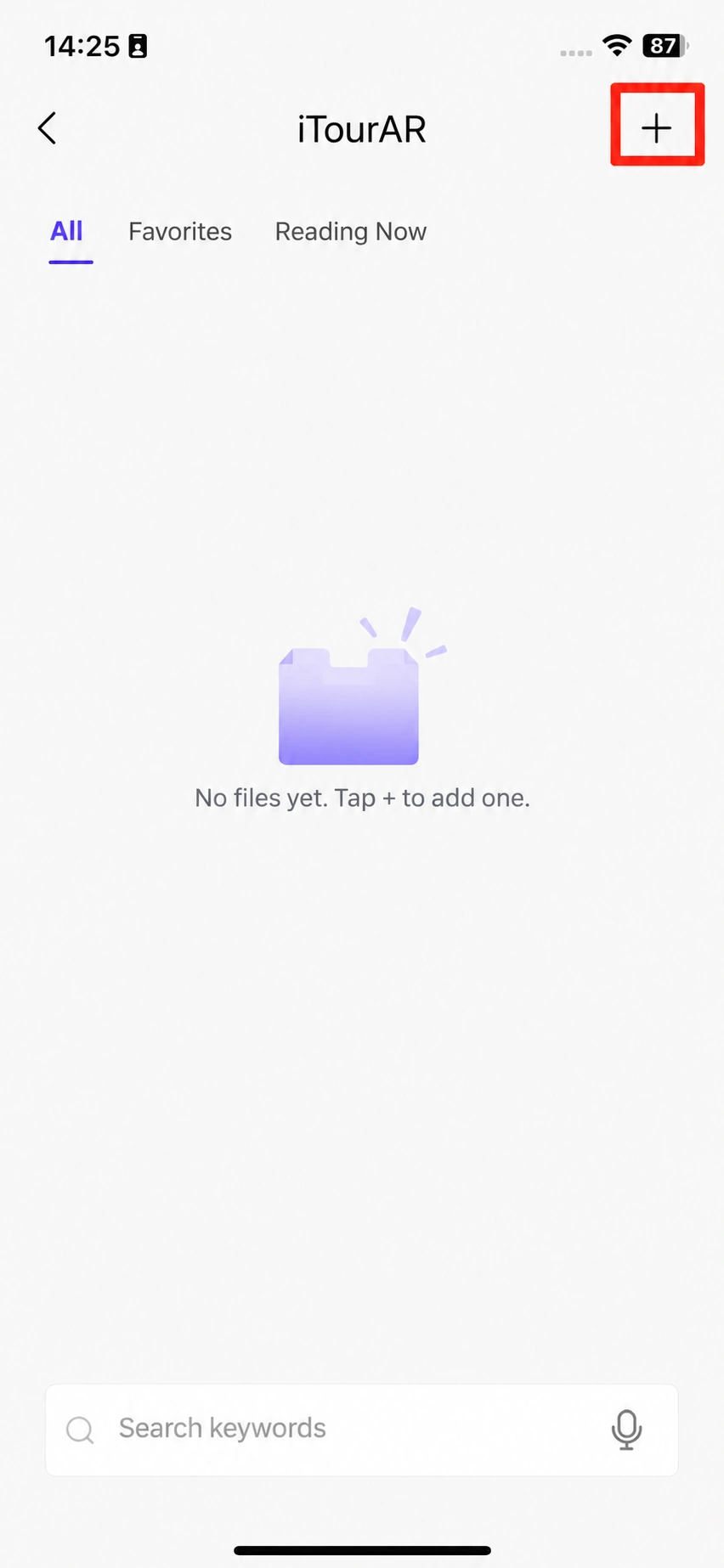
Read:Upload a text file from your mobile phone, and cast the text content to the glasses display. To cast it to the glasses for reading, the specific steps are as follows:
1. First click the add file button in the upper right corner to upload the file you need to read.(The Android version supports searching for books in the bookstore)
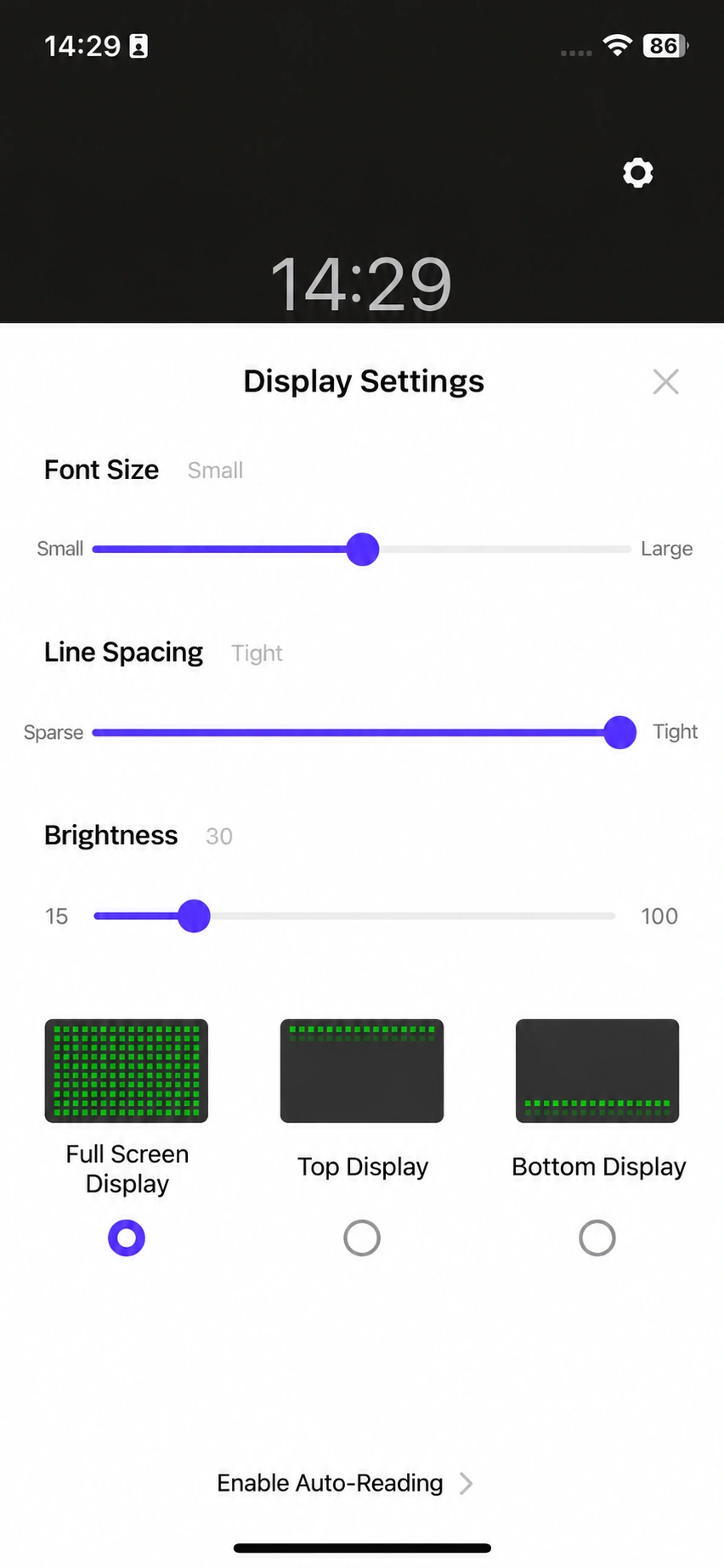
2. Open the file, click the glasses button on the page, and you can directly cast the screen to the glasses display
3. Click the settings button in the top right cornerAdjust on your own: font size, line spacing, screen brightness, and display mode
How to use iTour-Clip Translation Glasses AI Companion
AI Companion:Ask it questions to get answers and explanations.
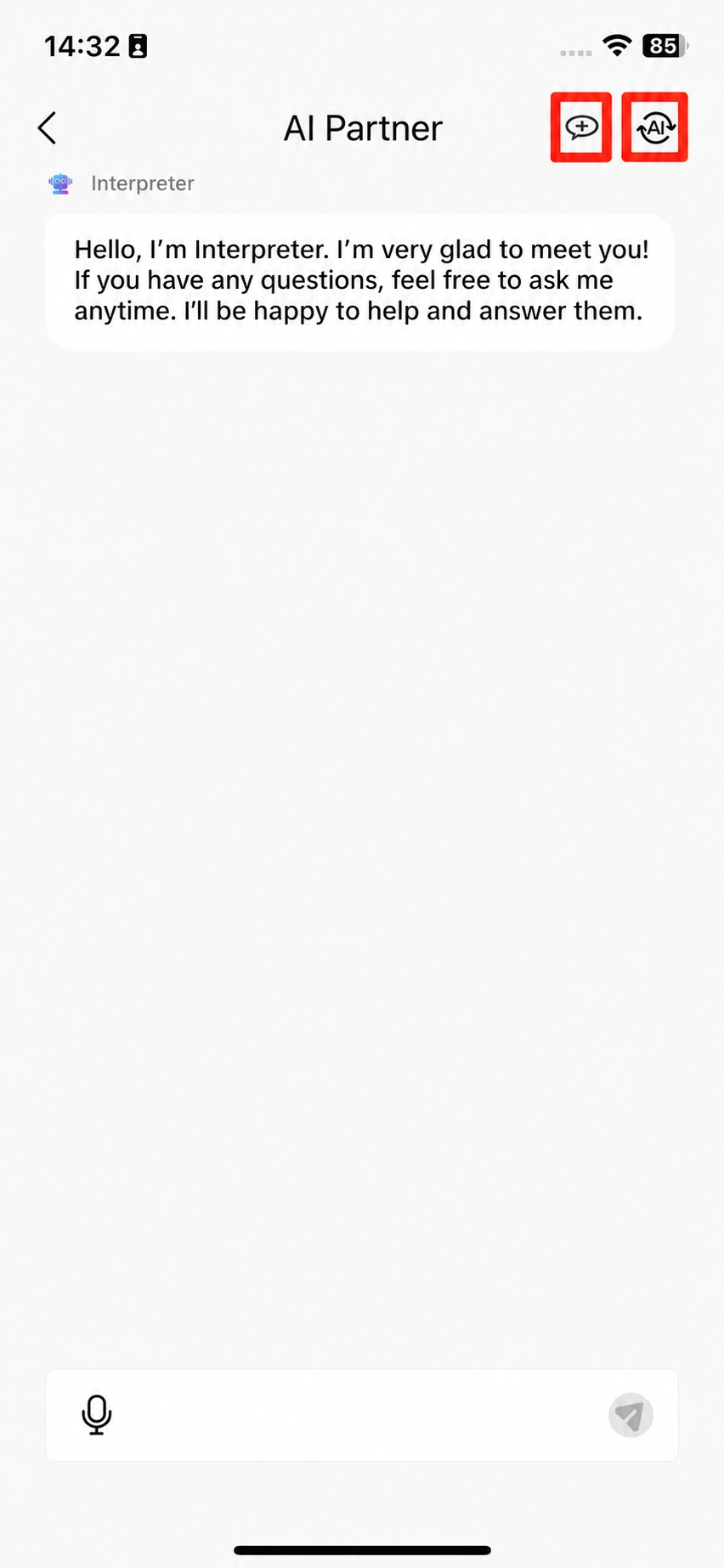
How to turn onStart a new conversation or switch AI engines, the specific operation is as follows:
1. Click the plus button in the top right corner to create a new conversation page, or you can exit and re-enter the feature page to start a new conversation.
2. Click the AI conversion button in the top right corner to switch and select the AI engine.
3. Support asking questions by voice
How to use the iTour-Clip translation glasses teleprompter function
Teleprompter:By projecting text content onto the glasses, you create your invisible teleprompter, suitable for speeches, live streaming, and meeting scenarios.
How to use the teleprompter function, the specific steps are as follows:
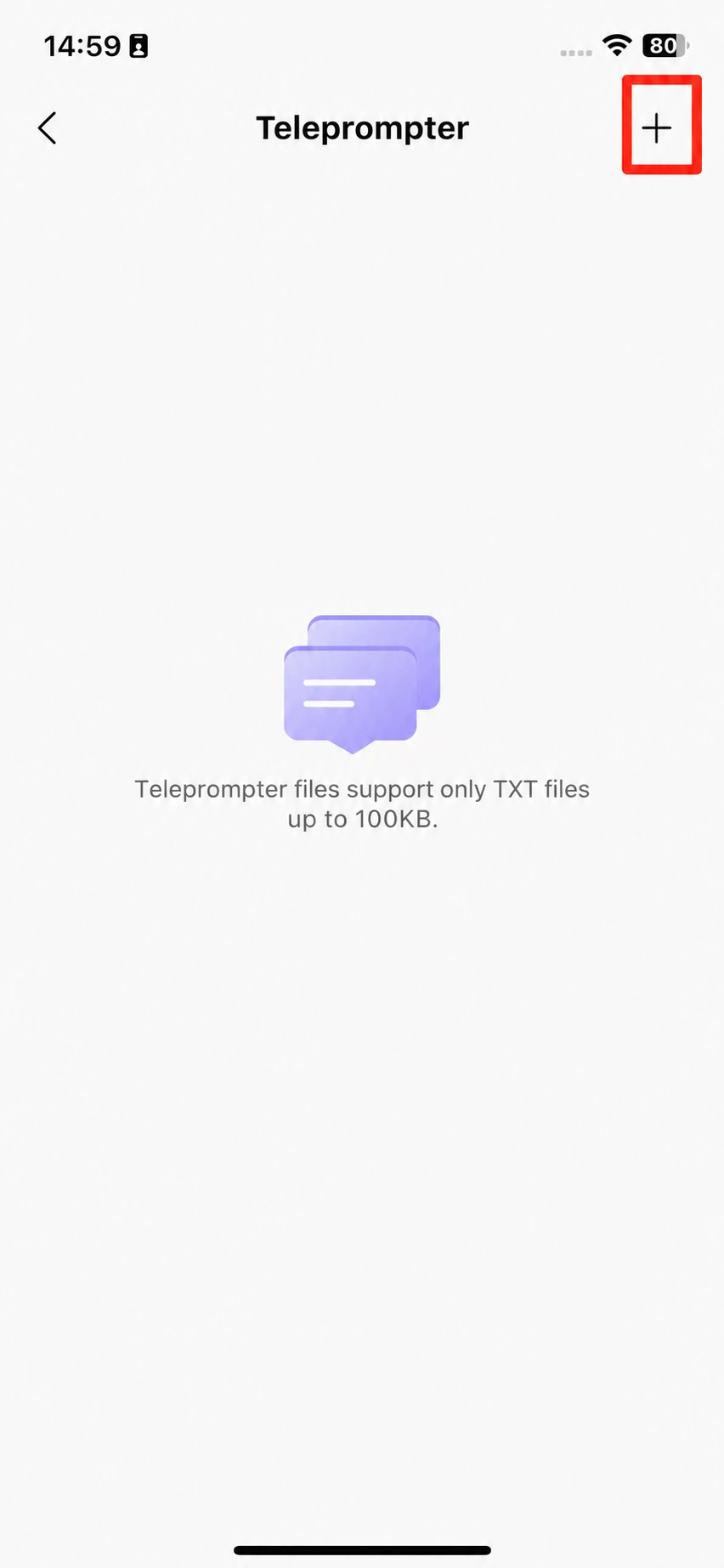
1. Click the add button in the upper right corner to add the files you need to use, file sizeNo more than 100KB
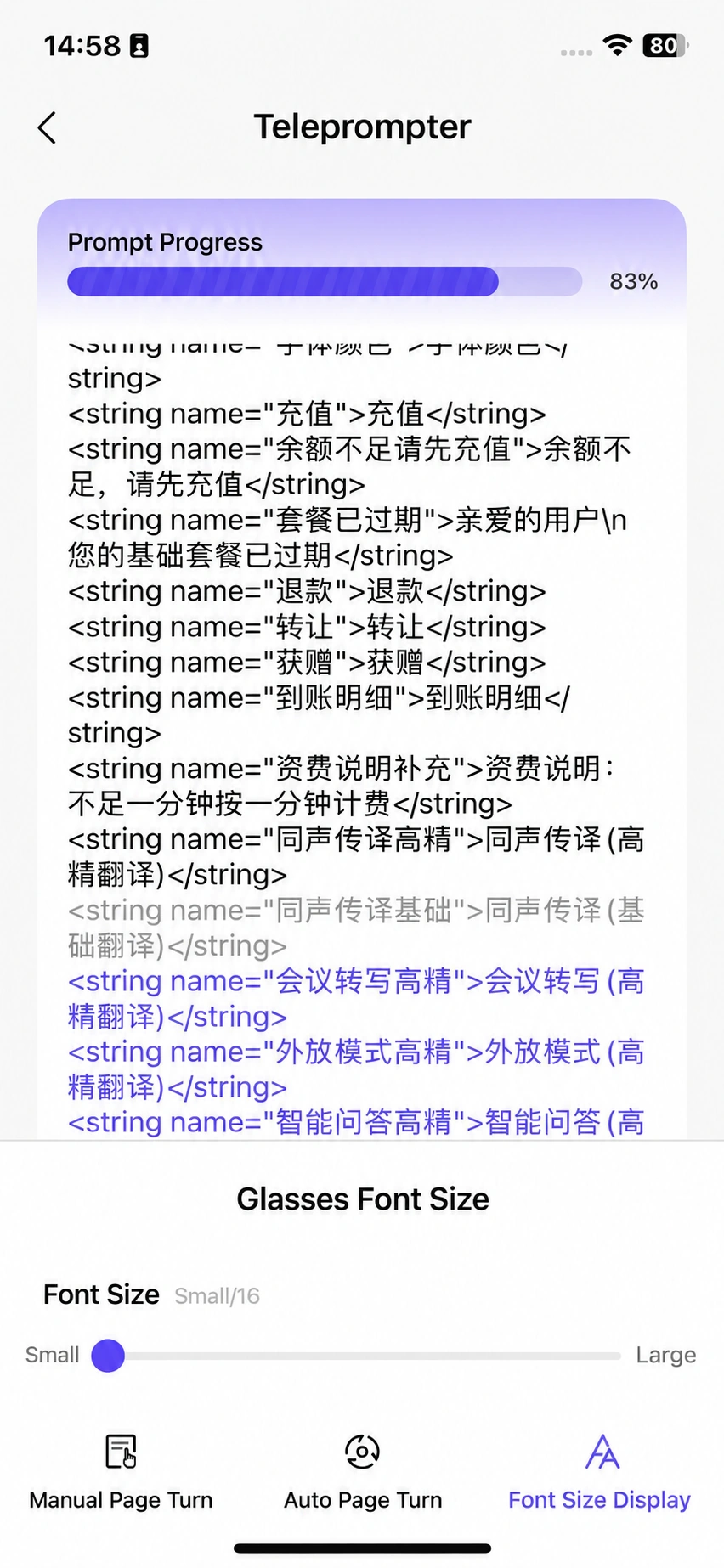
2. Click the added file, and the file will automatically be cast to the glasses display, default isAutomatic page turningMode, can also be switched toManual translation
3. You can also set the font size displayed on the glasses
How to use the iTour-Clip translation glasses navigation function
The specific operations are as follows:
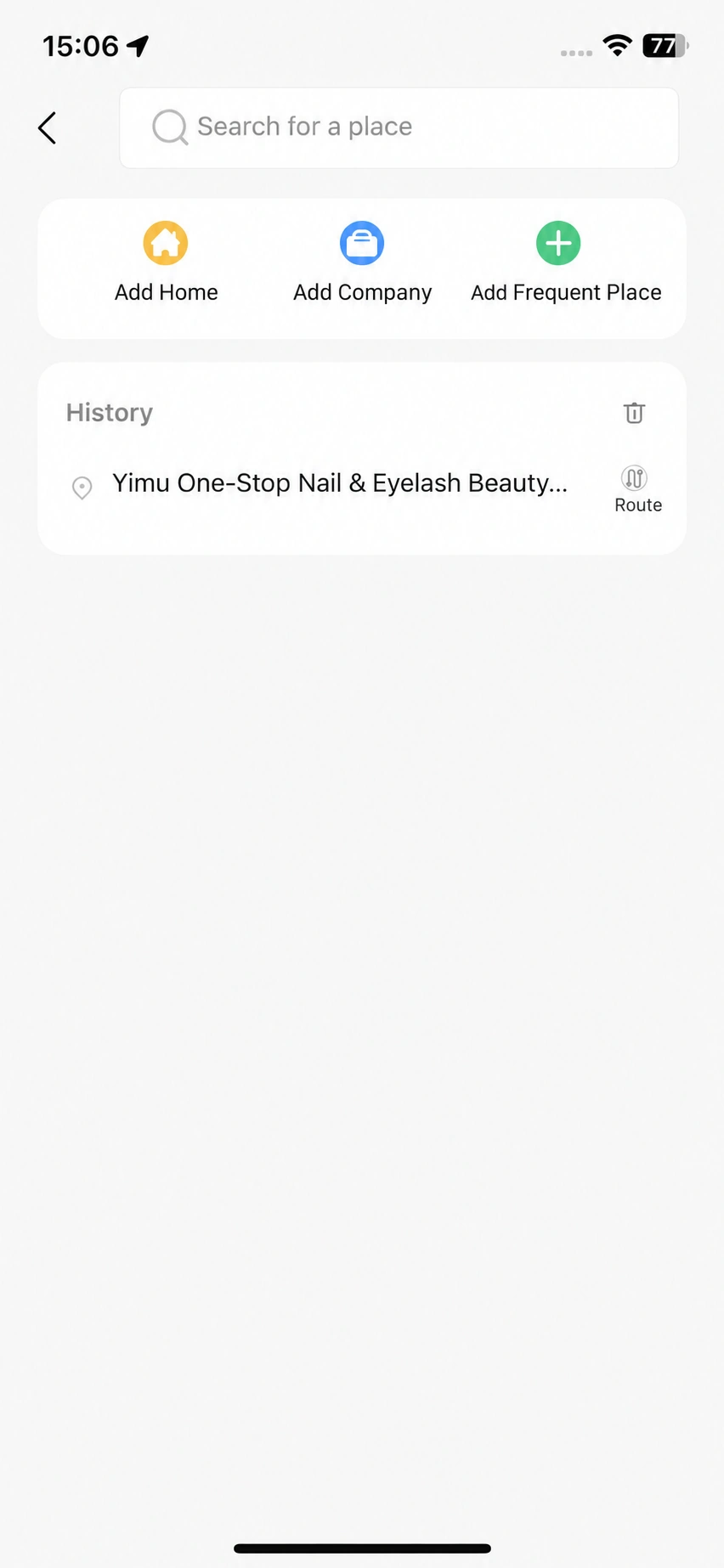
1. Click the input bar and enter the address you want to navigate to
2. Click Start Navigation to project the navigation onto the glasses display, and you can also preview the route.
3. You can also add some common addresses and home addresses, etc.
What are the requirements for the iTour-Clip translator glasses charger?
Type – CEither is fineUse
Didn't find the answer?Contact Online Customer Service ↗ · Contact us · Return to Help Center

 Support