
Single-screen Translator FAQs
3 questions. Select a question to view the answer.
Steps to Export History Records (Windows Version)
Complete the device side[History Records]After the export operation, please follow the steps below to obtain and save the file on your computer:
1. Use a data cable to connect the translation device to a Windows computer.
2. Open 'This PC' on the computer, find and click on the device disk Z3Pro, then enter 'Shared Memory Storage Space' in sequence → History Folder.
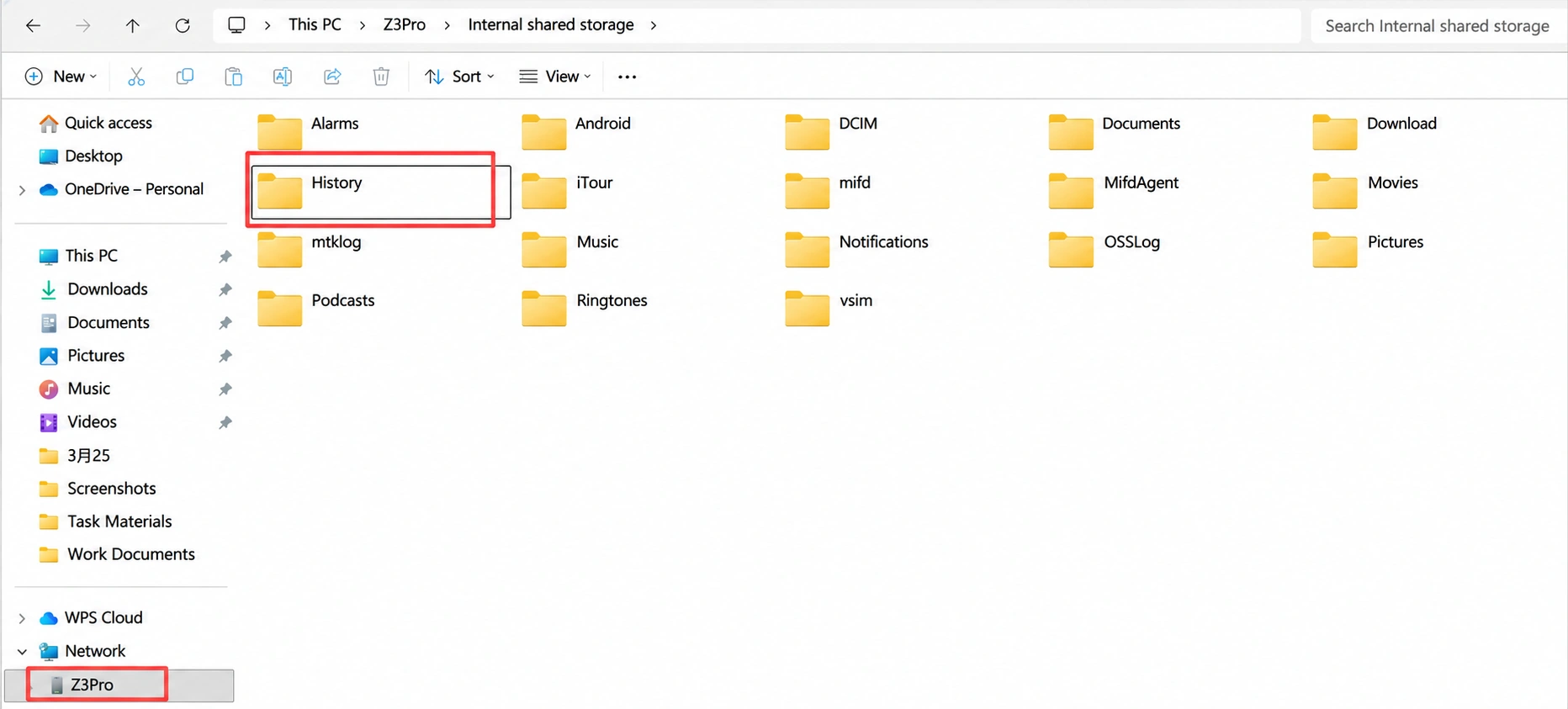
3. Selected History Copy and paste all the exported history files in the folder to a local folder on the computer for proper backup.
Two-way delete sync rule:
- Only delete files in the History directory on the computer: the history within the device's app will not be deleted and will still display normally
- Delete history directly within the device app: the corresponding files in the History directory on the computer will be permanently deleted synchronously
Important advice: To avoid accidental data loss, it is recommended that you back up and copy the files in the History directory to another location on your computer after exporting the history records.
Steps to Export History Records (Mac)
First, complete the 'History' export on the device side, then follow the steps below on the Mac computer to obtain and back up the exported files:
1. Install software
1) Click the link below to download"Android File Transfer"Tool installation package
Download link: https://www.tranzi.cn/help/AI-ssd/file/AndroidFileTransfer.dmg.zip
2)After the download is complete, unzip the compressed file and double-click to open the extracted installer.
3)will Android File Transfer Assistant Icon, manually drag to"Applications (Applications)"The folder, and the installation can be completed
2. Connect the device and export the file
1) Use a data cable to connect the device to the Mac computer
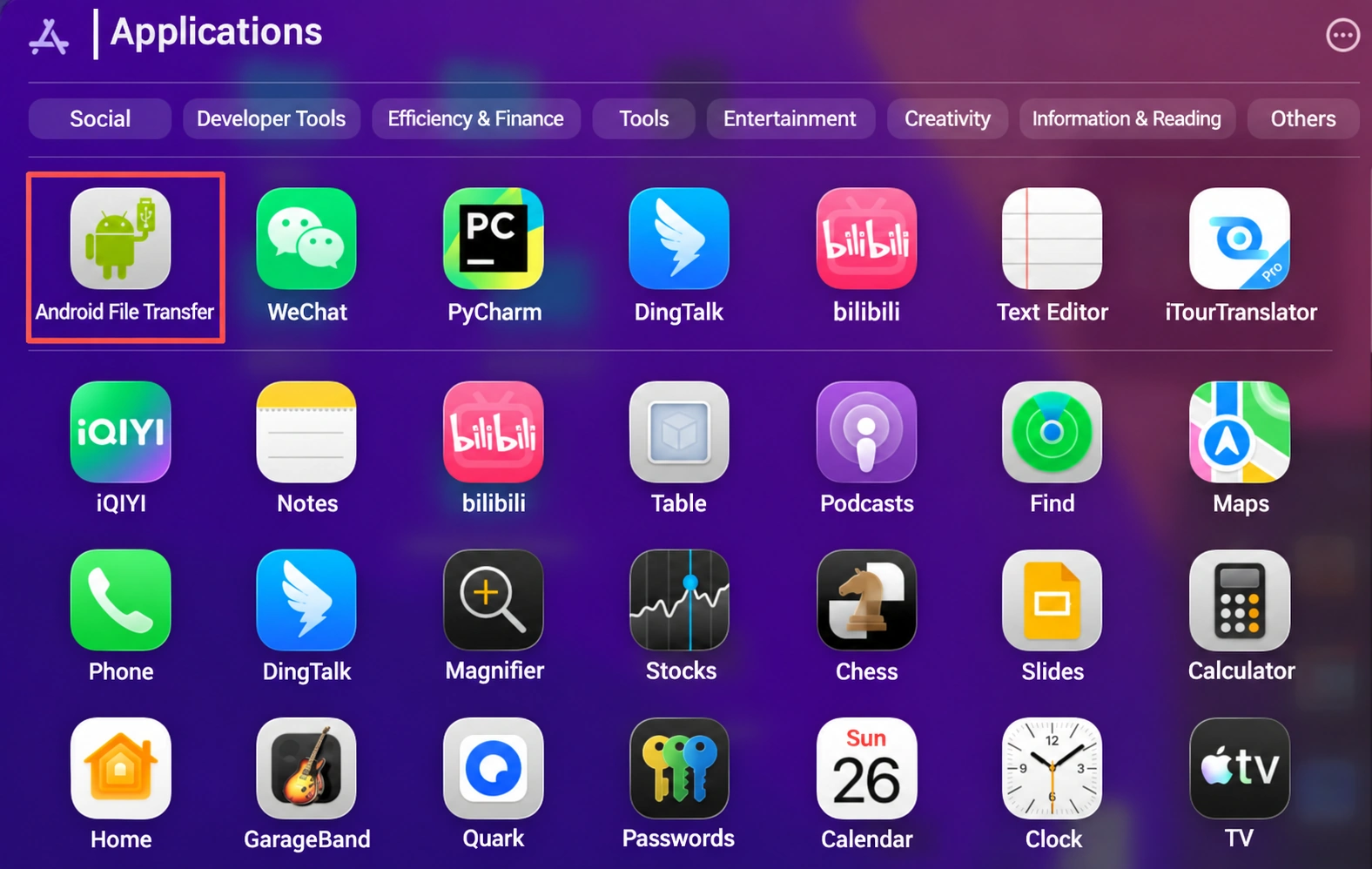
2) Open Mac Launchpad, find and double-click to run"Android File Transfer"Software
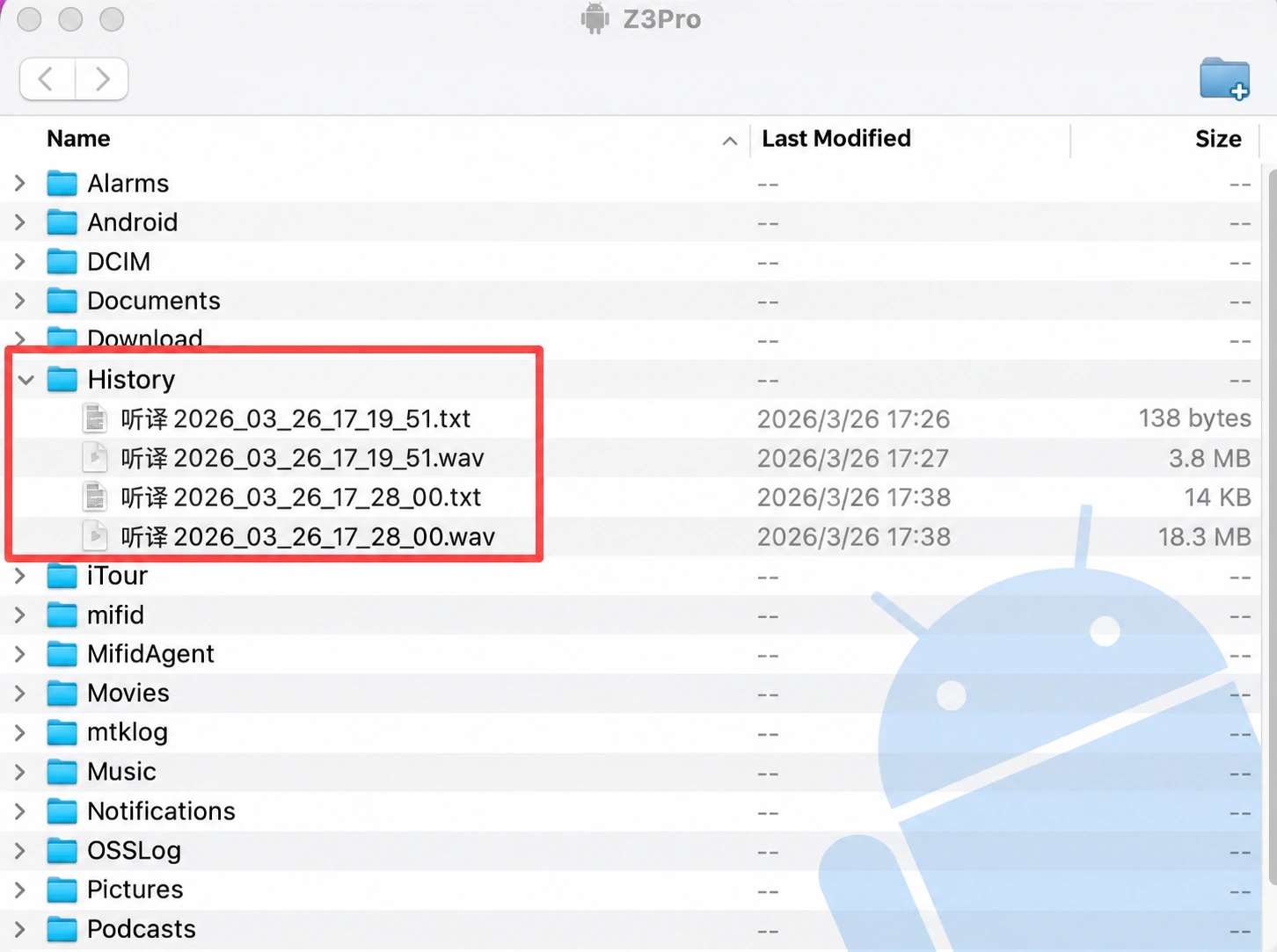
3)In the software window, select and open History Folder
4) Drag or copy the record files and audio files in the folder to the Mac Specify a local folder and just keep it as a backup
Two-way delete sync rule:
- Only delete files in the History directory on the computer: the history within the device's app will not be deleted and will still display normally
- Delete history directly within the device app: the corresponding files in the History directory on the computer will be permanently deleted synchronously
Important advice: To avoid accidental data loss, it is recommended that you back up and copy the files in the History directory to another location on your computer after exporting the history records.
How long is the battery life of a single-screen translator?
🔋 Continuous use About 3-4 hours(Actual battery life varies with usage.)
Didn't find the answer?Contact Online Customer Service ↗ · Contact us · Return to Help Center

 Support