
iTour 22 Pro Earphones FAQ
A total of 21 questions. Click on a question to expand the answer.
Why can't the iTour 22 Pro (T2) headphones translate properly when using the audio and video simultaneous translation feature?
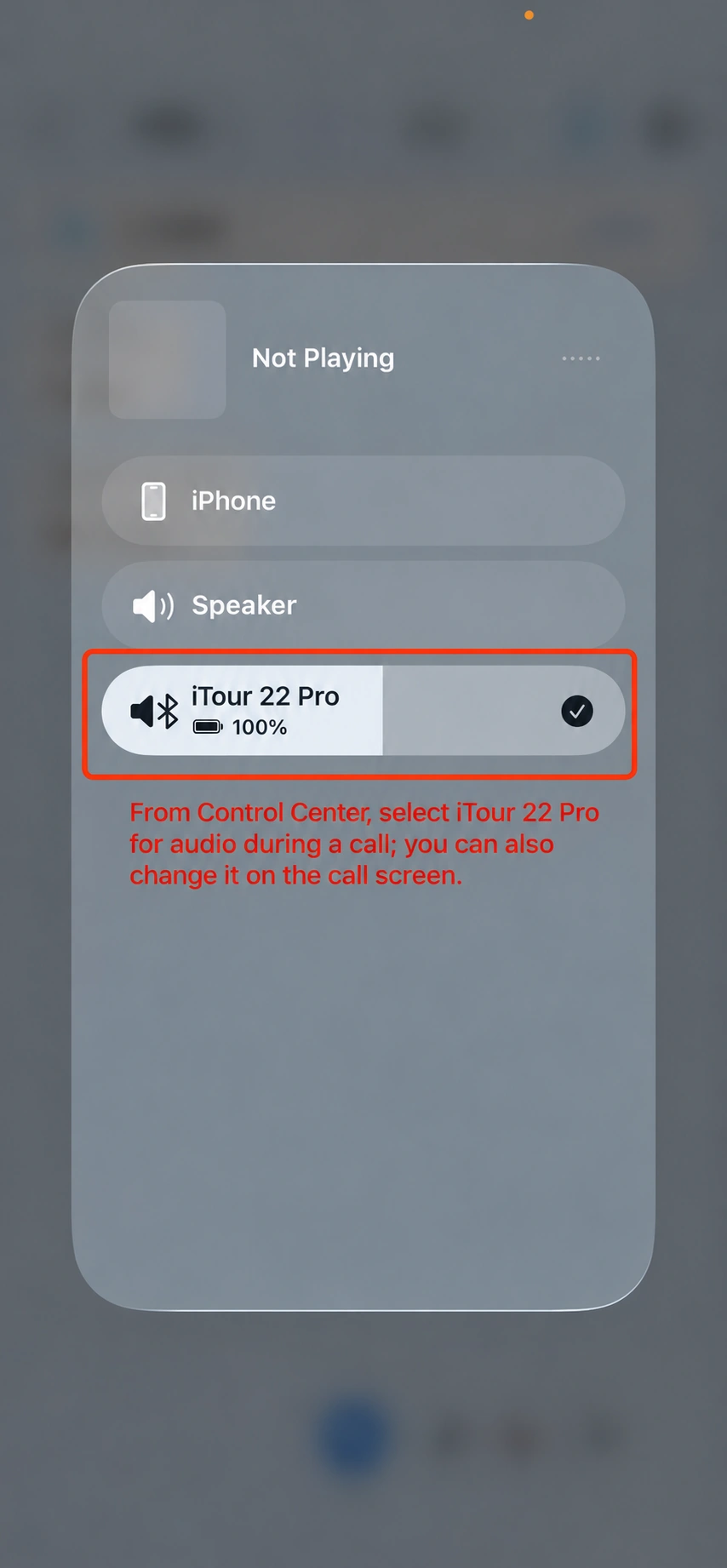
Please make sure the phone Audio output device The selected device is the iTour 22 Pro headset. Using the phone speaker or other Bluetooth devices will result in translation failure.
🔊 Key: Choose the right audio output device
✅ Use iTour 22 Pro headphones → Normal recognition and translation
❌ Using the phone speaker or other Bluetooth devices → Translation cannot be recognized
Note: An unstable network or using a VPN may also affect the translation quality.
View output devices in the iOS Control Center, as shown in the figure below:
What can the iTour 22 Pro translation earphones help me do?
It can serve as your personal translator and meeting assistant, mainly addressing the following scenarios:
Scenario 1: Direct conversation with foreigners
- Recommended functions: binaural conversation, listening mode, system/VOIP call translation.
- What can (one) do? In face-to-face meetings or phone calls, real-time translation works as if it eliminates language barriers.
Scenario 2: Attending meetings, taking classes, or watching foreign-language videos
- Recommended features: on-site simultaneous interpretation/conference translation, audio-visual simultaneous interpretation.
- What can (one) do?: Provide real-time translation of live speeches, video dialogues, or narration, and offer text transcription records.
Scenario 3: Traveling abroad or outdoors without internet
- Recommended feature: offline translation.
- What can (one) do? Download the language pack in advance to carry out basic conversations without a mobile signal.
Scenario 4: Need to quickly look up information
- Recommended feature: intelligent Q&A.
- What can (one) do? Directly ask about the weather, translate simple sentences, and conduct encyclopedia queries using voice.
All features work through “iTourBuds” APP Perform operations and switch. Please select the corresponding mode on the APP homepage according to your needs to start using it.
I purchased the iTour 22 pro (T2) translation earphones. How do I use them?
Before use, please install the official app on your phone. “iTourBuds” APP, and complete the Bluetooth pairing between the headset and the phone as well as account binding. You can complete the setup through the following two equivalent paths:
Path 1: Connect via app guidance
- Download the App: Use your mobile phone to scan the QR code below to download and install iTourBuds APP.

- Sign Up / Log In: Open the app and complete account registration and login.
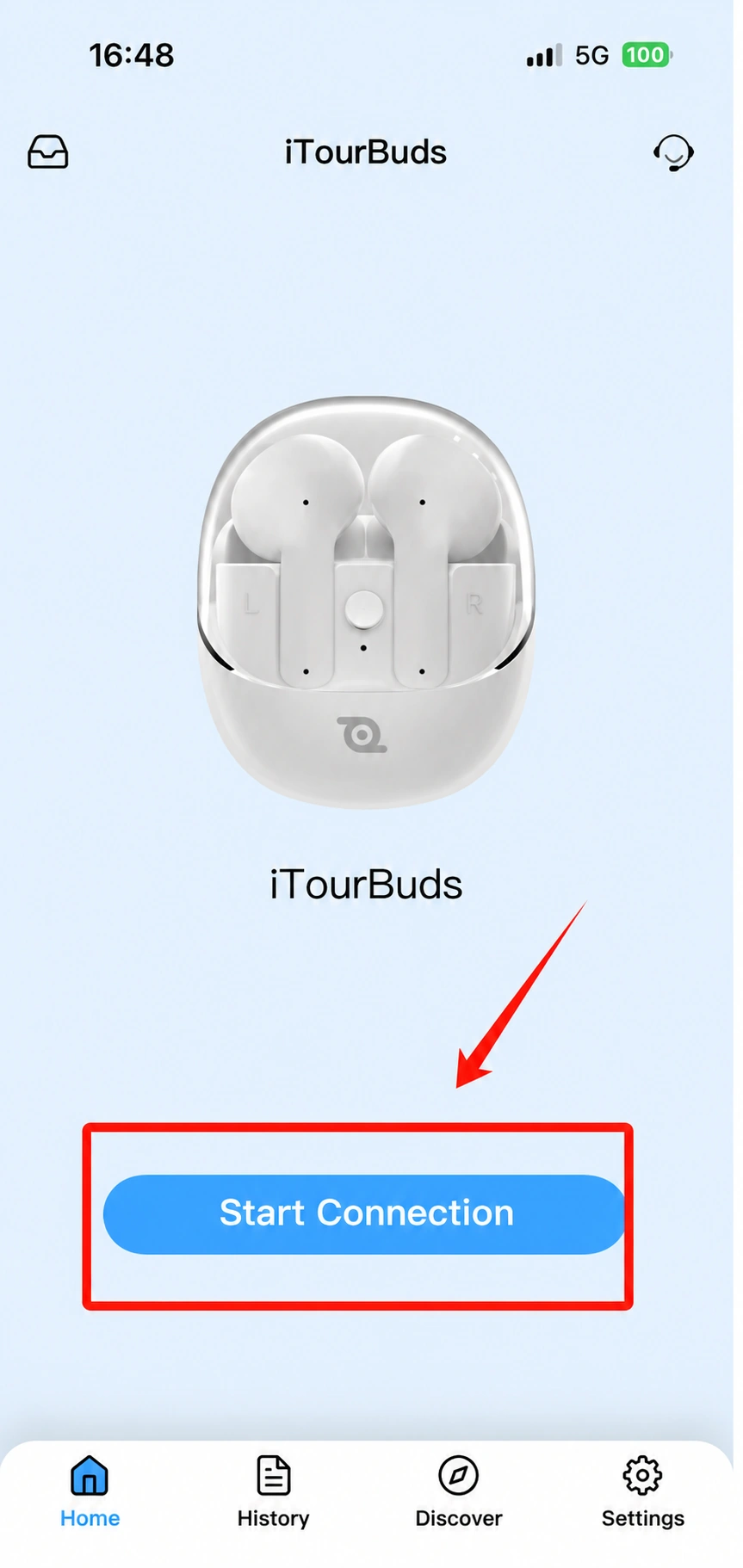
- Starting connection: After logging in successfully, click “ on the app home page Start connecting”.
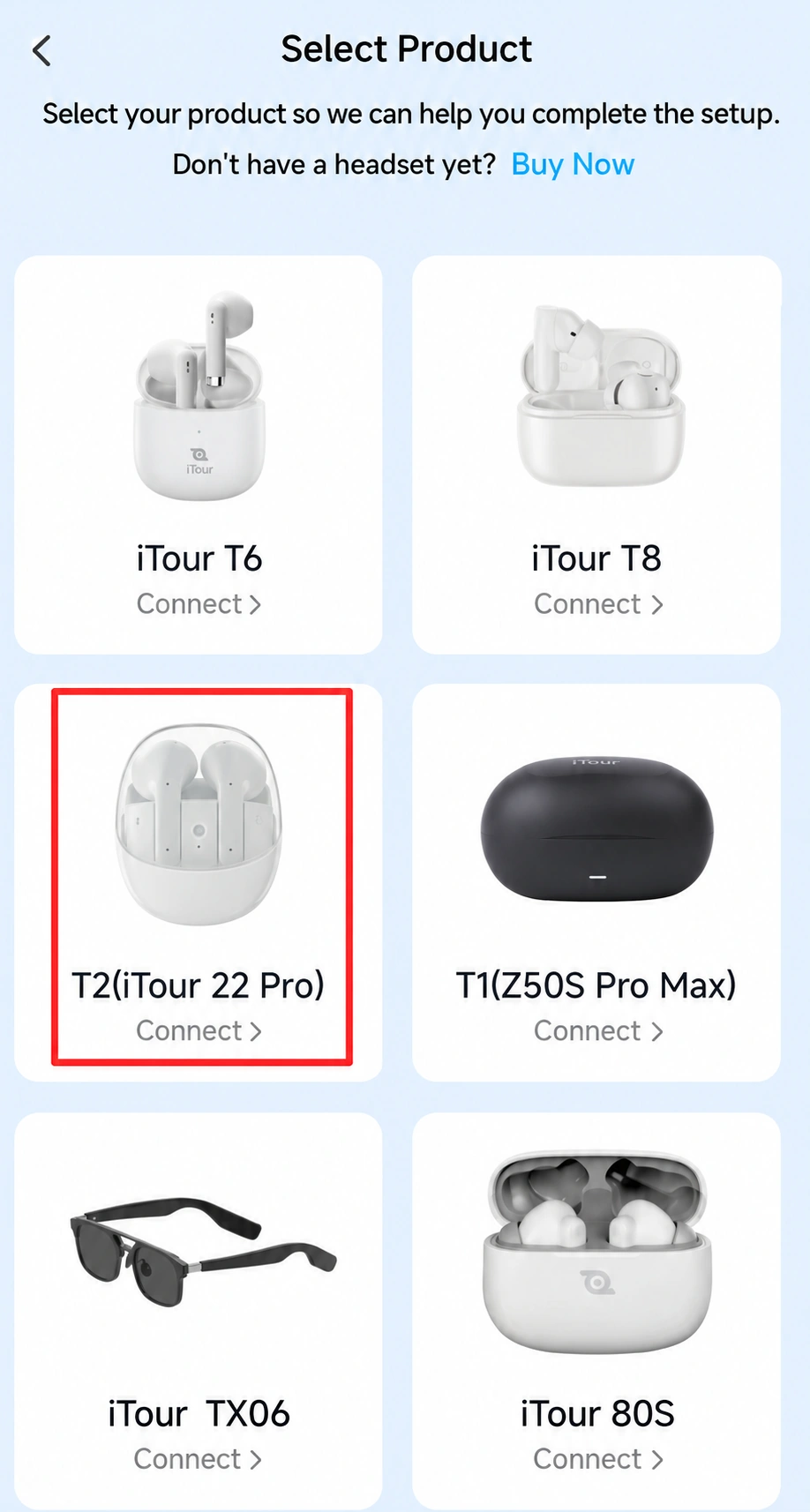
- Select Product: On the device list page, select "iTour 22 Pro Headphones.
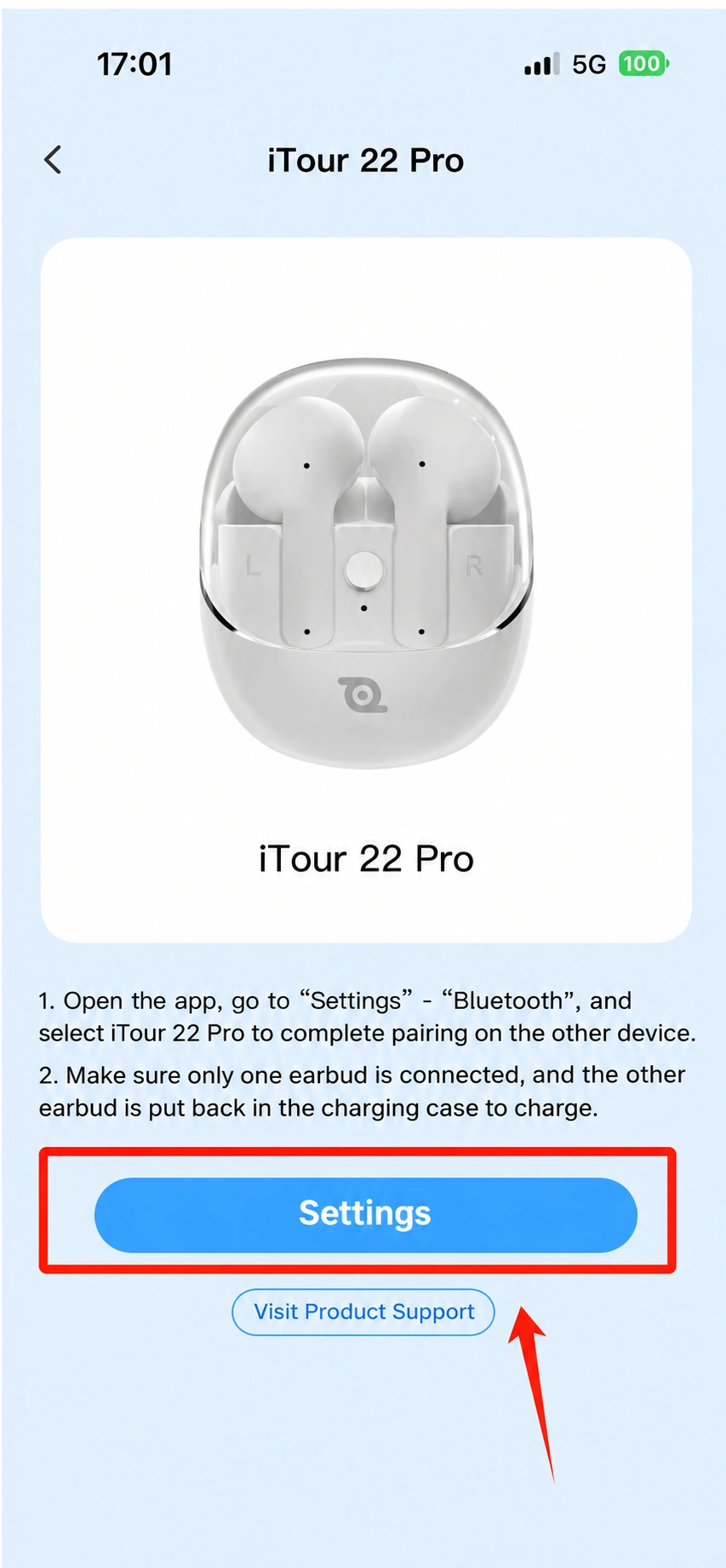
- Open Bluetooth Settings: Click “Go to settings”, and your phone’s Bluetooth settings will open automatically.
- Connect device: In the Bluetooth device list, find and click "iTour 22 Pro Pairing completed.
- Complete Pairing: After the connection is successful, return to the APP page. When the page displays the headset function list, it indicates The headphones have been successfully paired with your account, you can start using various translation functions.
Path Two: Connect to Bluetooth first, then bind the APP
- Manual Bluetooth pairing: Enter phone System Settings > Bluetooth, turn on Bluetooth and search for devices, then manually select "iTour 22 Pro Connection completed.
- Open the app to pair the account: After the Bluetooth connection is successful, turn on iTourBuds APP, click on “ on the homepage Start connecting”.
- Completed Automatically: The app will automatically search for connected headphones and complete account binding. Once the binding is successful, all functions can be used.
Tip: Both methods yield the same result. If you encounter connection issues, you can try switching the path or restarting Bluetooth before trying again.
After completing the above steps, you can experience all the features in the APP, including real-time conversation, meeting translation, and offline translation.
Tip:
- Before Connecting for the First Time: When pairing the headphones via Bluetooth for the first time, both earbuds need to be taken out of the charging case to enter pairing mode so that they can be detected by the phone. This requirement does not apply during subsequent normal use.
Why can't an iTour 22pro connect to one of the headphones?
When a headset cannot connect, the most common reason is The earphones themselves have run out of battery or were not properly placed in the charging case to charge. Please follow the steps below to quickly troubleshoot:
Step 1: Check the charging status
1. Put the headphones that cannot connect back into the charging case, observe the indicator light status.
2. Situation 1: The indicator light is flashing red normally
- This indicates that the headphones are currently charging. It is recommended to charge them continuously in the case for at least 30 minutes to ensure sufficient power before taking them out and trying to reconnect.
3. Scenario 2: The indicator light does not turn on at all
- This usually indicates that the headphones are not making good contact with the charging points and have not started charging.
- Solution: Please gently press the tail of the earphone with your hand and place it firmly into the charging case, making sure to see the indicator light start flashing red, which indicates that charging has begun.
Step 2: Re-pair
If you still cannot connect after ensuring the headphones are fully charged, you can try:
- Place both earphones back into the charging case, close the lid, and wait for 10 seconds.
- Open the case again, take out both earbuds, and wait for them to automatically enter pairing mode.
- In the phone's Bluetooth settings, ignore or forget "iTour 22 Pro"This device, and then reconnect it according to the initial pairing process."
Step 3: Restore to Factory Settings
If the above still does not solve the problem, you can try:Restore factory settings View Detailed Instructions
If the above steps still cannot resolve the problem, there may be a hardware fault in the headphones, and you can contact Customer Support Conduct further testing.
The iTour 22 Pro headphones have sufficient battery, but one earphone has no sound. How should this be handled?
When encountering this problem, it is usually between the headphones A temporary interruption in internal pairing or Software state conflict Caused by this, it can be attempted to resolve through the following methods:
Solution (please try in order)
Step 1: Reset pairing between headphones
- Place both earphones back into the charging case, close the lid, and wait for about 10 seconds.
- Reopen the box lid and take out both earphones to allow them to reconnect with each other. This operation can resolve most cases of one-sided silence caused by an interrupted internal pairing.
Step 2: Restore factory settings (if Step 1 is ineffective)
If the above methods do not work, you can try resetting the headphones to factory settings to clear possible software faults:View Detailed Instructions
Precautions
- Restoring to factory settings will Clear all paired device records, you need to go to the Bluetooth settings on your phone Forget this device, and then re-pair it as if using a new headset.
- If neither of the above two methods can solve the problem, it is possible that the speaker hardware of that earphone has a fault. You can contact the customer service of the purchasing platform for inspection.
It is recommended that you try the first step first, as this usually solves the problem quickly.
Why can't the phone find the iTour 22pro headphones via Bluetooth?
Confirm whetherConnected to a phoneEquipment, replaceNew DeviceConnect or the deviceConnected beforeHeadphones, with options to ignore this device / unpair.
If the above operations are performed, it can be resolved in the following way:
1) After taking the earphones out of the box,Wait for 1 minuteapproximatelyAfter the red and blue flash, then goPhone Settings — Bluetoothsearch within iTour 22 Pro
2) If the above does not solve the problem, you can tryRestore factory settings
How to operate the iTour 22 pro earphones to restore factory settings?
Please strictly follow the steps below to complete the factory reset of the iTour 22 Pro headphones:
🔧 Step 1: Prepare the equipment
- Place both earphones into the charging case.
- Keep the box lid open.
▶️ Step 2: Perform the recovery operation
- Press and hold the touch controls on both earbuds while they are in the charging case, as shown below.
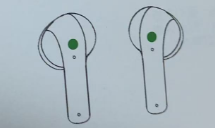
- Press and hold for 5 seconds or more until both earphones show a purple indicator light.
- At this time, release your fingers, and restoring to factory settings is considered successful.
✅ Step 3: Operation Confirmation
The purple indicator light is on steadily It is a clear signal that the factory reset was successful.
🔄 Step 4: Subsequent Pairing (First Use)
After recovery, the headphones will enter pairing standby mode.Please take both earphones out of the case at the same time, then search for and connect to 'iTour 22 Pro' in your phone's Bluetooth list.
⚠️ Important Notice:
After restoring factory settings, for the first pairing, both earphones need to be taken out of the case.
How do you use the 'System Call Translation' feature of the iTour 22 Pro headphones?
This feature supports when you answer or make a regular Native Phone App At that time, perform real-time bilingual translation. The operation process is as follows:
Operating steps:
- Answer the call: As usual, answer or make a call on your phone.
- Start translation:
- Keep the call on, turn on iTourBuds APP.
- Enter "T2(iTour 22 Pro)Device page -> Select "Native Phone Call Translation" function.
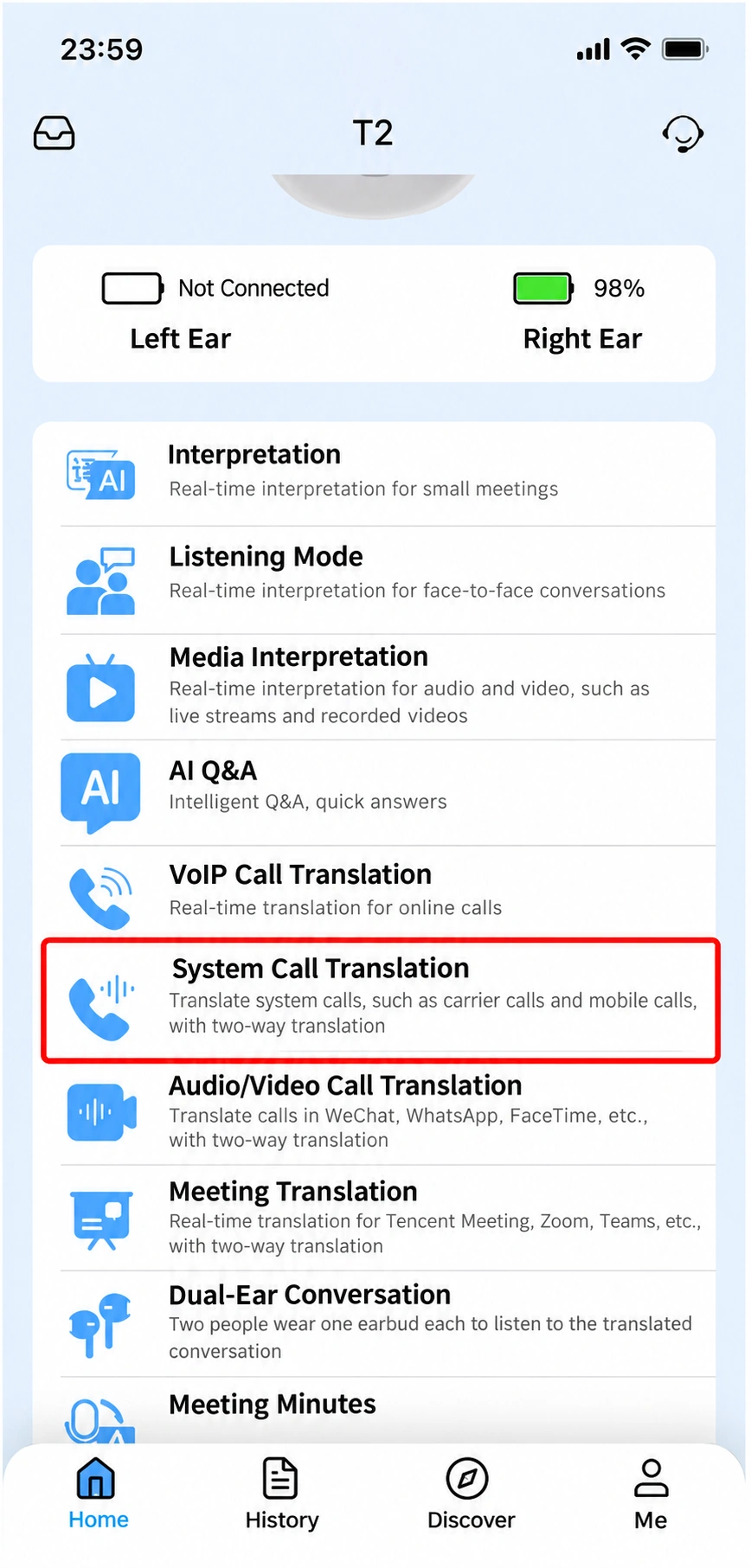
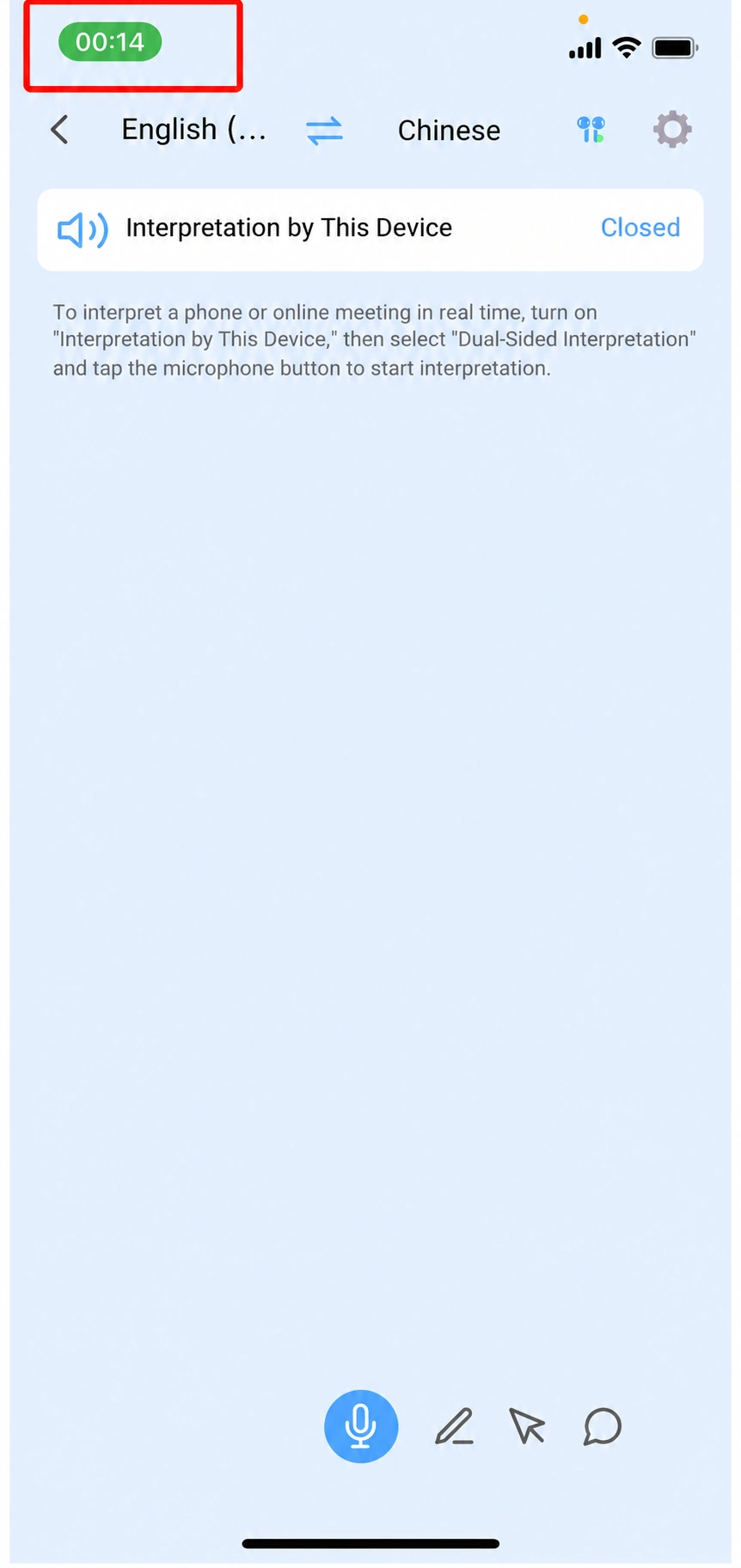
3. Enable Translation:
Click in the page Microphone icon Start translating. At this moment,By default, only translate the other party The spoken content will be displayed in real time on the APP page.
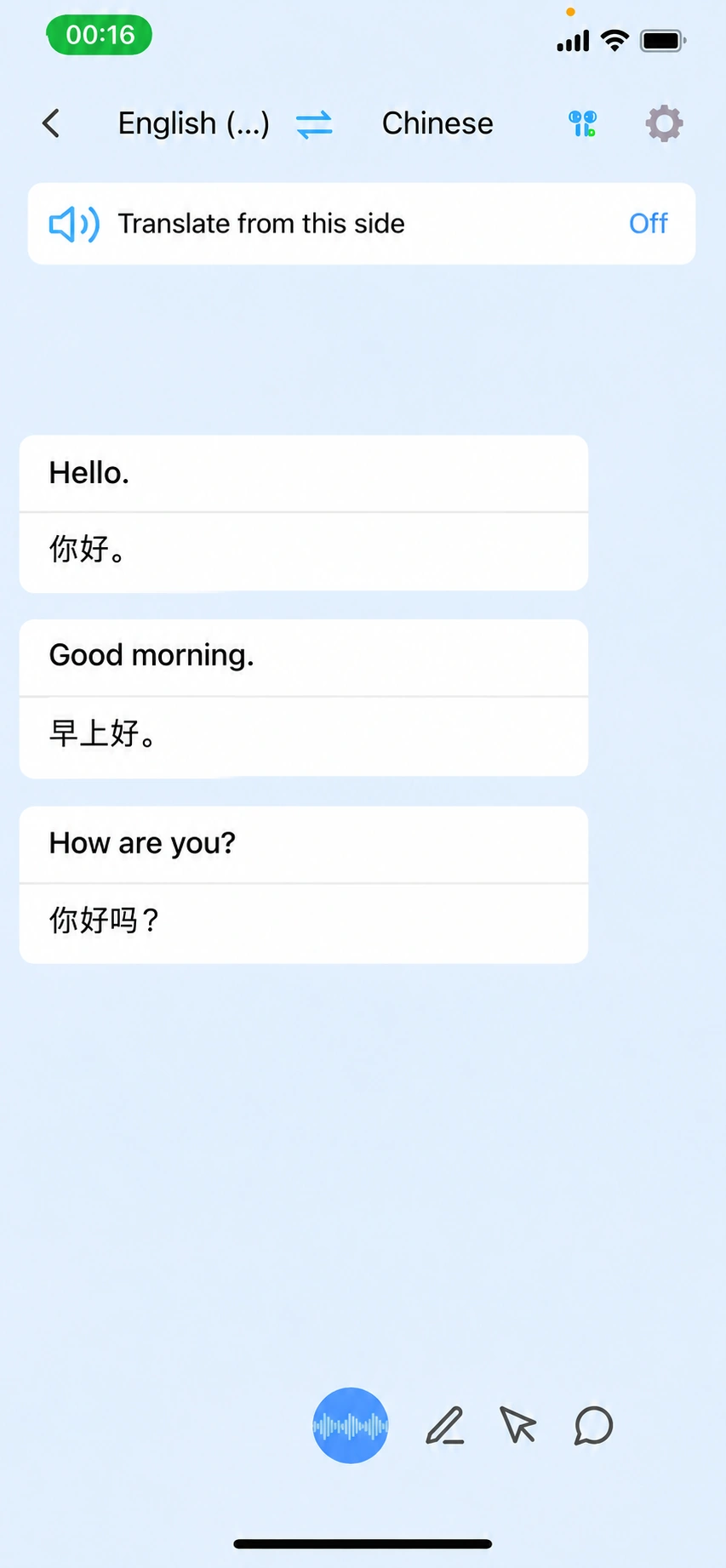
4. Enable two-way translation (if needed):
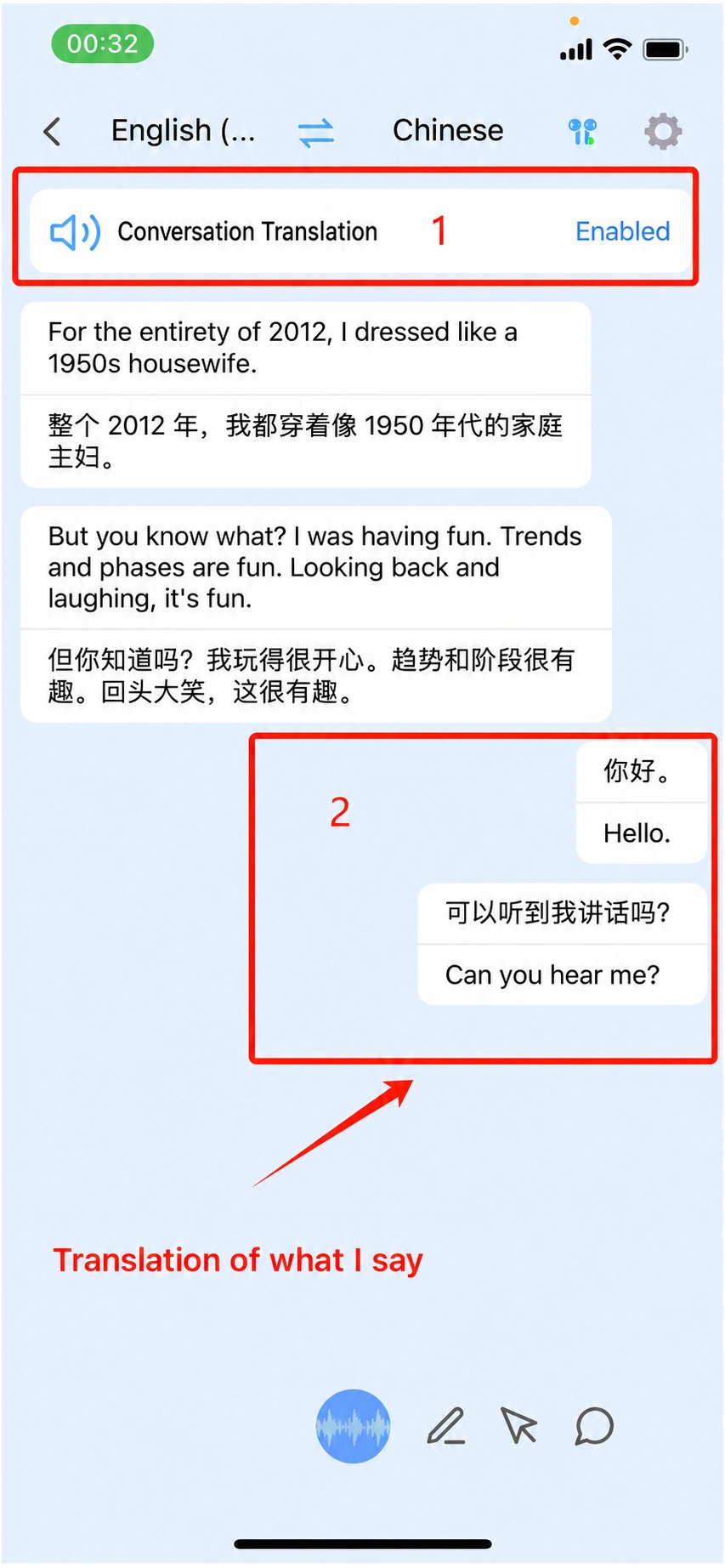
1) If you need to translate your own words for the other party, please click to turn on [Translation of Your Speech Switch.
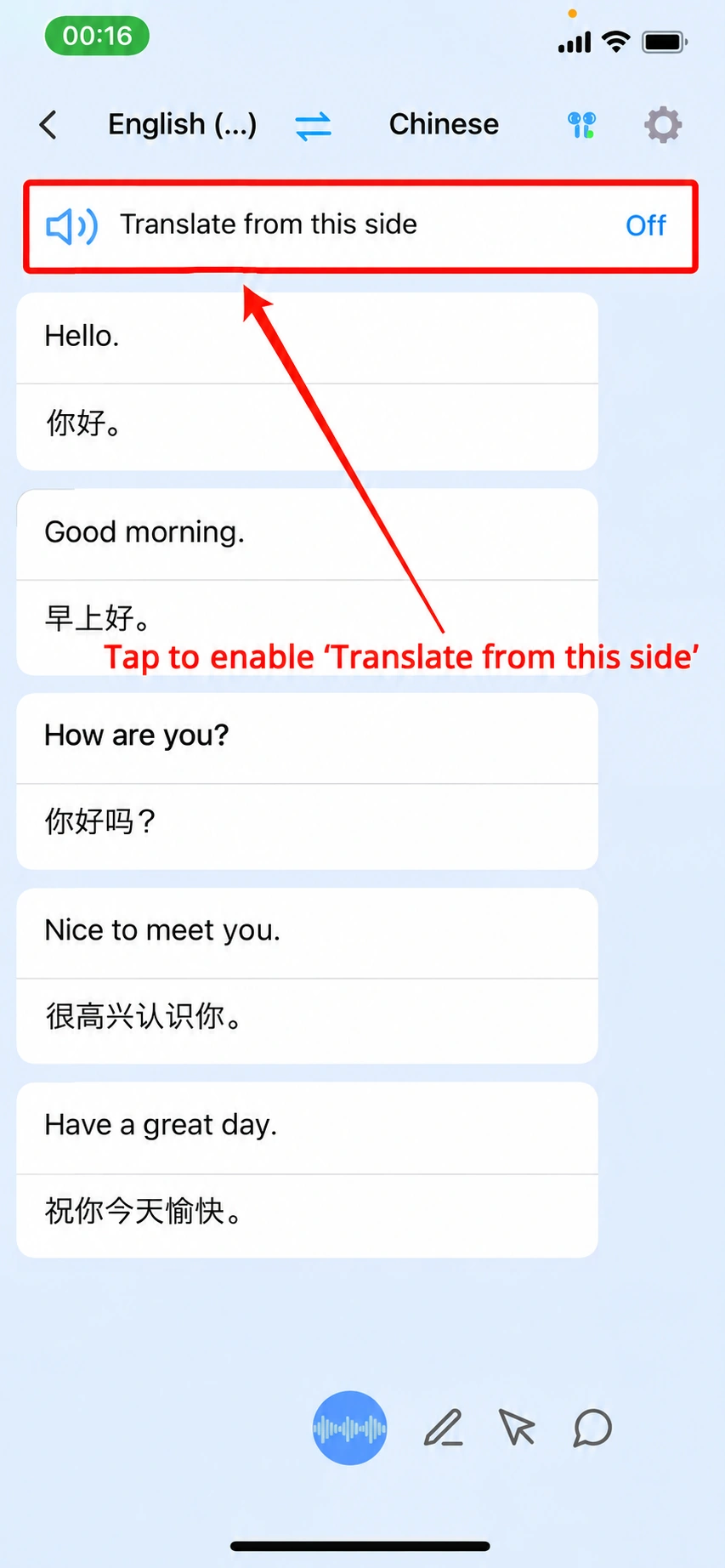
2) Once activated, the content of your speech will be translated and transmitted over the telephone line.play the translated speech to the other participant.
⚠️ Important Version Requirements
- Use “Translation of Your Speech Function, must meet the following conditions:
- App version: Not lower than 1.3.20
- Headphone Firmware Version: Not lower than 0.0.1.30
- Please make sure that both your app and headphone firmware are updated to the required version, otherwise this feature may not function properly.
Function Tip This feature will convert your phone call in real time into a 'three-way call' (you, the other party, and the translator). Before starting, please make sure your network connection is stable.
Is the iTour 22pro headset translation feature permanently free?
Yes. You through the official app iTourBuds APP All translation functions supported by the headset, such as system phone translation, face-to-face conversation, offline translation, etc., are Permanently free, does not charge any service or subscription fees.
Tip:
- This free benefit is limited to this Functions supported by the headphones themselves If you need to use other translation app services, you will need to adapt to other billing rules.
- Please make sure to download through official channels iTourBuds APP And use genuine headphones to ensure your right to free use.
How do you use the "Live Simultaneous Interpretation" feature of the iTour 22 Pro headphones?
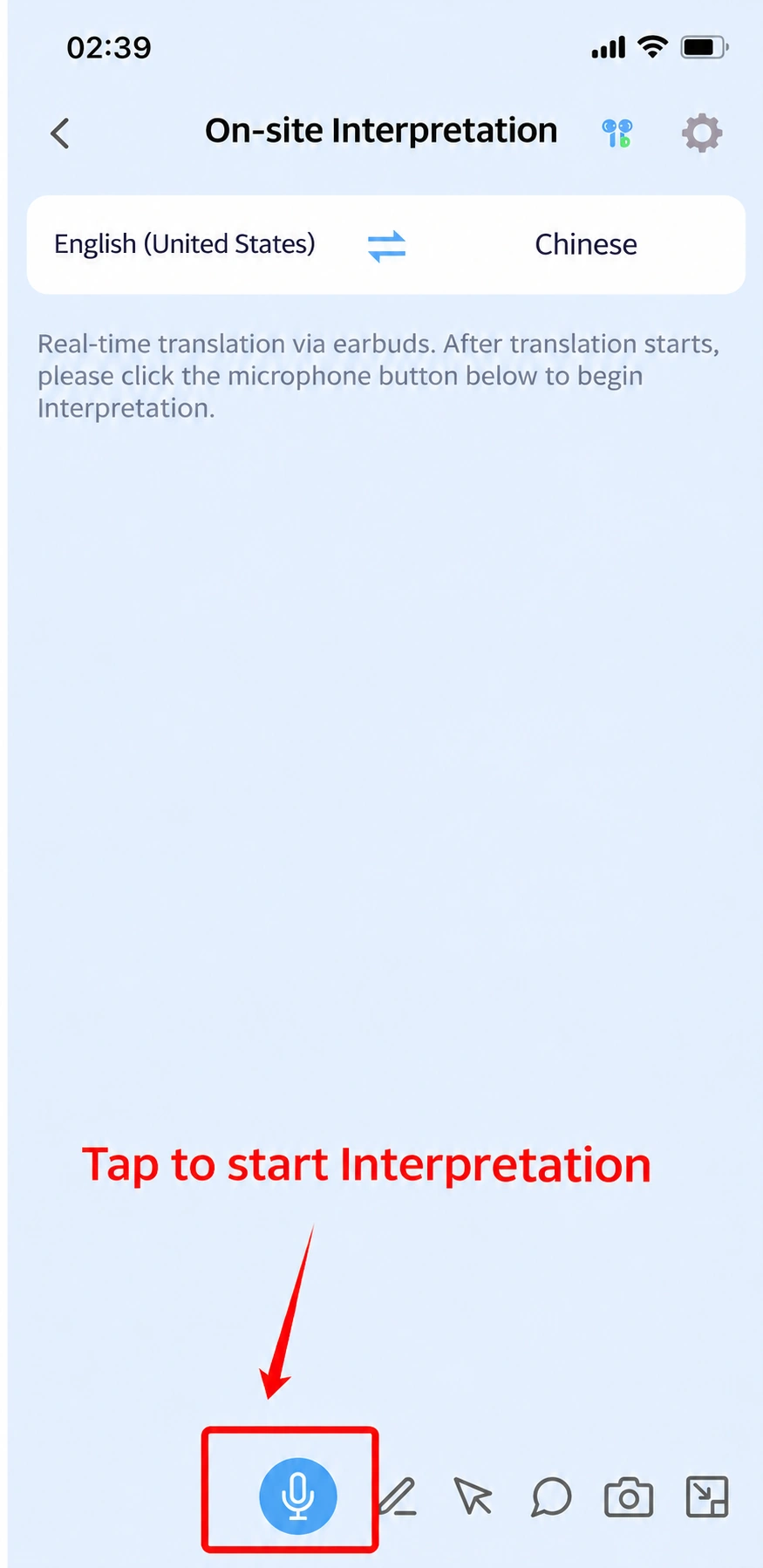
The 'on-site simultaneous interpretation' function is applicable to Small in-person meetings, business discussions or lectures and other scenarios. Once enabled, it will be through Phone Microphone Audio Input, recognize the speech content of the speaker on site in real time, and translate it into the target language you have set.
Core Functions and Operations:
- Start: Select " in the iTourBuds APP On-site simultaneous interpretation Mode, click to enable translation.
- Display: The original text and the translation will scroll in real-time on the mobile screen, just like meeting subtitles.
- Audio Playback: The translation results can be played in real-time through headphones (can be set to off), allowing you to listen clearly.
Usage recommendations:
- Place the phone near the speaker to achieve the best sound pickup.
How to use the 'Listening Mode' of the iTour 22 Pro headphones?
Listening mode is specifically designed for Face-to-face alternating conversation Designed to automatically recognize the direction of conversation and achieve natural and smooth bidirectional translation.
The workflow is as follows:
- Listen to the other person speaking: After the mode is activated,The button on the left automatically enables audio input., identify the other party's language and translate in real time, with the translation transmitted through Your headphones played aloud so you can hear it clearly.
- Speak to the other party: When you need to respond,Tap the button on the right Speak, the device will recognize your language and translate it, and the translation will be delivered through Phone Speaker play it aloud to the other participant.
Mode Features: This mode provides "Automatic listening, press the button to speak" Intelligent interaction eliminates the hassle of manual switching, making cross-language conversations as simple and natural as everyday communication.
How do you use the 'Audio-Visual Simulcast' feature on the iTour 22 Pro headphones?
The audio and video simultaneous transmission feature is suitable for what is currently playing on a mobile phone or tablet Foreign language videos, audio, live broadcasts and other content, translated in real time and displayed as subtitles. Please note, this feature Provide text translation only, no speech playback.
You can start in any of the following ways, with the same effect:
Method One: Start the translation first, then play the audio and video (it is recommended to set it up in advance)
- in iTourBuds In the app, enter "T2" > "Audio-Visual Simultaneous Translation", click to start translation.
- Click “Floating By pressing the button, the app will automatically move to the background and display a floating window.
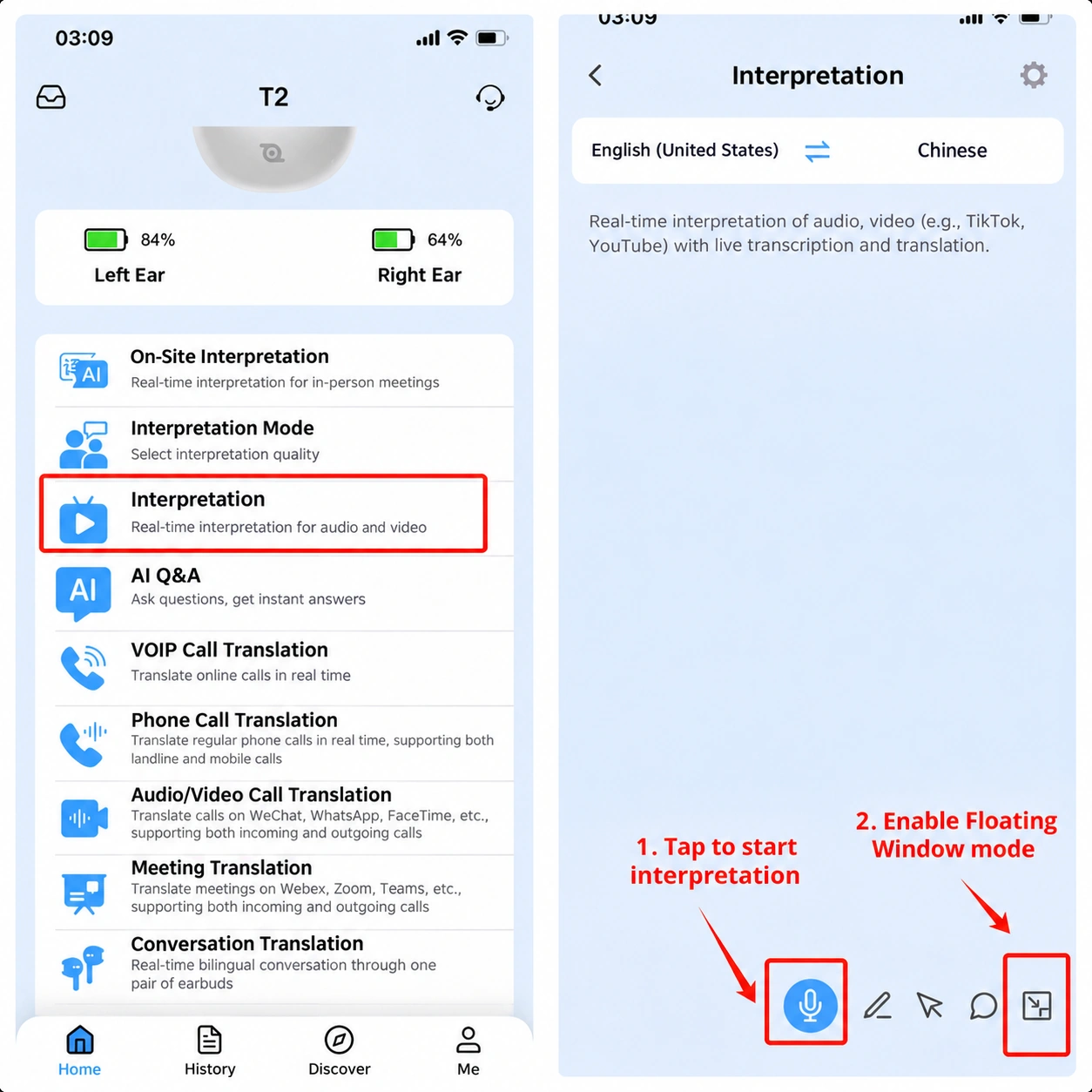
- At this time, open any video, music, or live streaming app (such as Bilibili, YouTube, online course software, etc.) and start playing, and the translated subtitles will be displayed in real-time in the floating window.
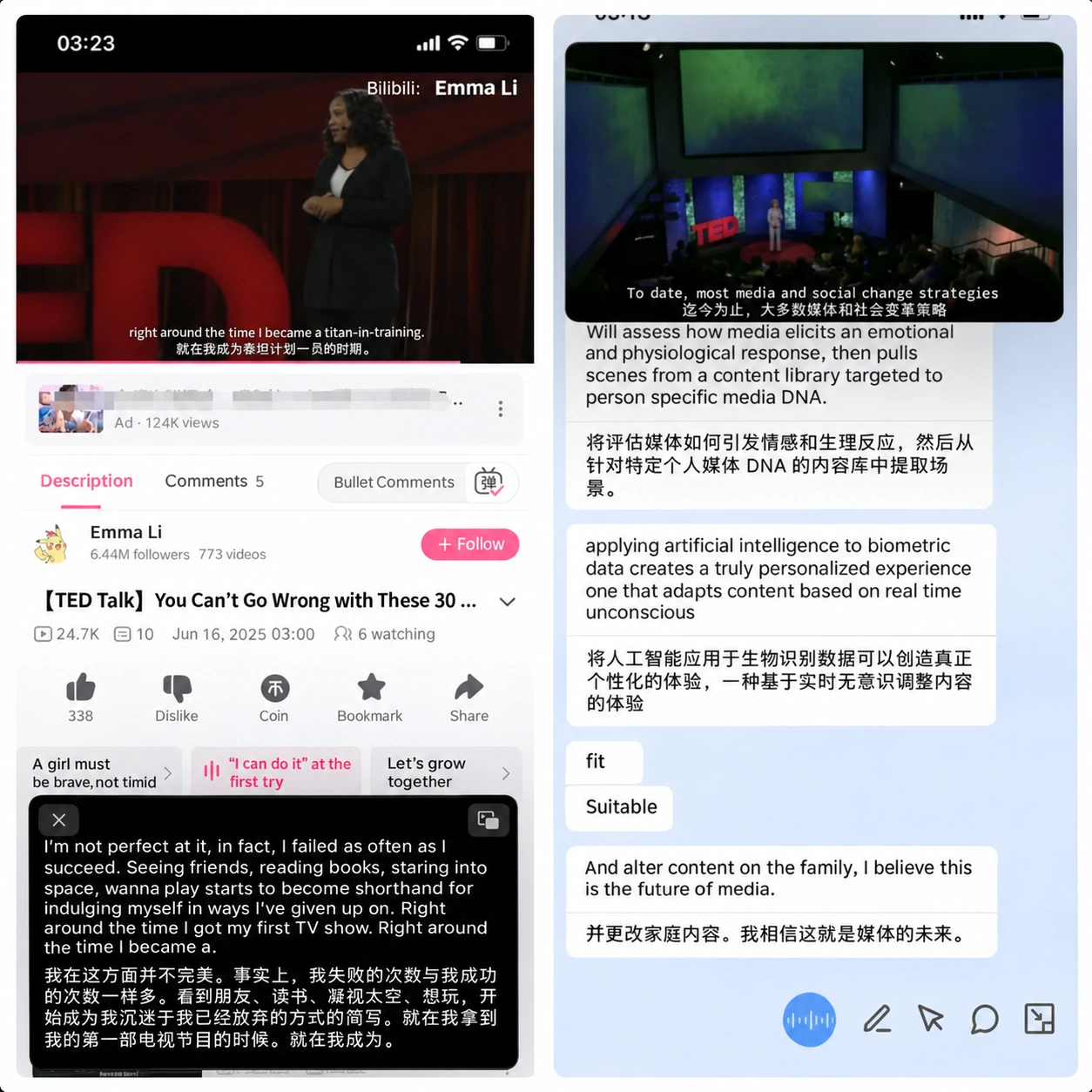
Method 2: Play audio and video first, then start translation (suitable for temporary use)
- First, normally open your video or audio app and start playing content.
- Switch to without stopping playback iTourBuds APP, enter "T2" > "Audio-Visual Simultaneous Translation".
- Click Start translation Once the button is pressed, the system will immediately start recognizing and translating the currently playing audio content, and the translation will also be displayed on the function page.
How do you use the "Smart Q&A" feature of the iTour 22 Pro headphones?
To be precise, 'intelligent Q&A' is integrated into iTourBuds APP one inside Built-in AI text assistant feature. It itself Not interacting with the headphones via voice, the user needs to manually enter questions in the app interface for plain text Q&A.
How the Feature Works
- How It Works: This is an intelligent chat robot based on the DeepSeek model, built into a mobile app. Its main form is text-based conversation, rather than a voice assistant realized through headphones.
- Operation method (completed entirely within the app):
- Input: The user needs to manually input text/voice transcription to ask questions in the 'Intelligent Q&A' interface of the app.
- Output: The AI's responses will be displayed in plain text in the app's chat interface.
- Headphone Role: In this function, the headphones do not participate in voice picking or broadcasting, and their core translation and audio functions are not applicable in this scenario.
3.Core Features:
- Can conduct multi-turn text conversations and answer questions in various fields.
- Can assist with translation comparison, content summarization, creative writing, and more.
How to use the iTour 22pro 'VOIP Phone Translation' feature?
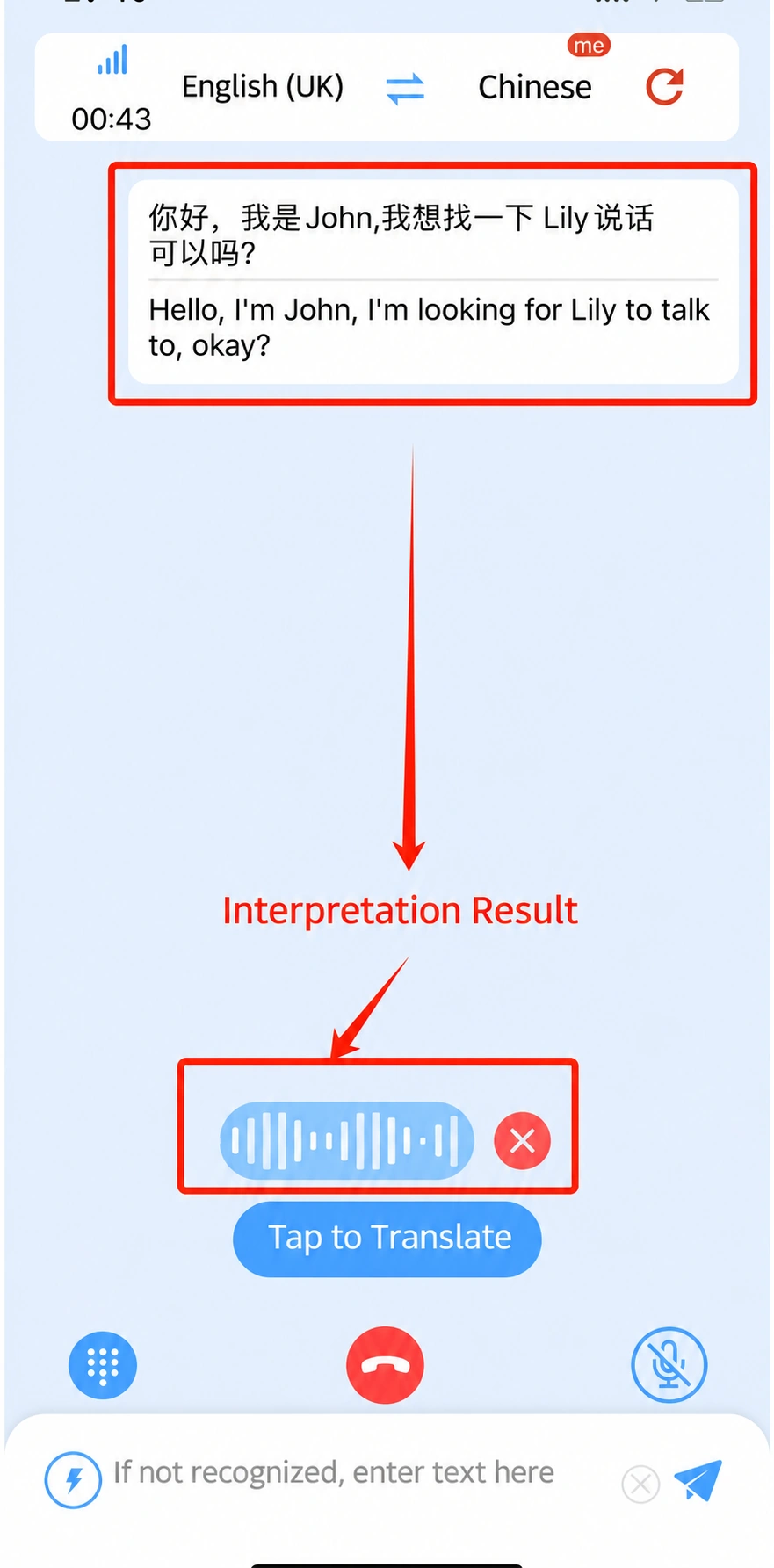
VoIP phone translation is an internet phone, only supportedMake a call to the United States,by default, only the other party is translated; if you want to translate your own side, you need to click the translation button to enable translation
The specific operations are as follows:
1. Select the languages of both parties, choose the country and area code for the number to be dialed, enter the number to be called, and click[Dial]can do
2. Enter the call page, the other party's spoken content,Real-time displayOn the call page, the translation of our spoken content needs to be enabled[Translation]After the button, it can normally recognize the translation and broadcast it.
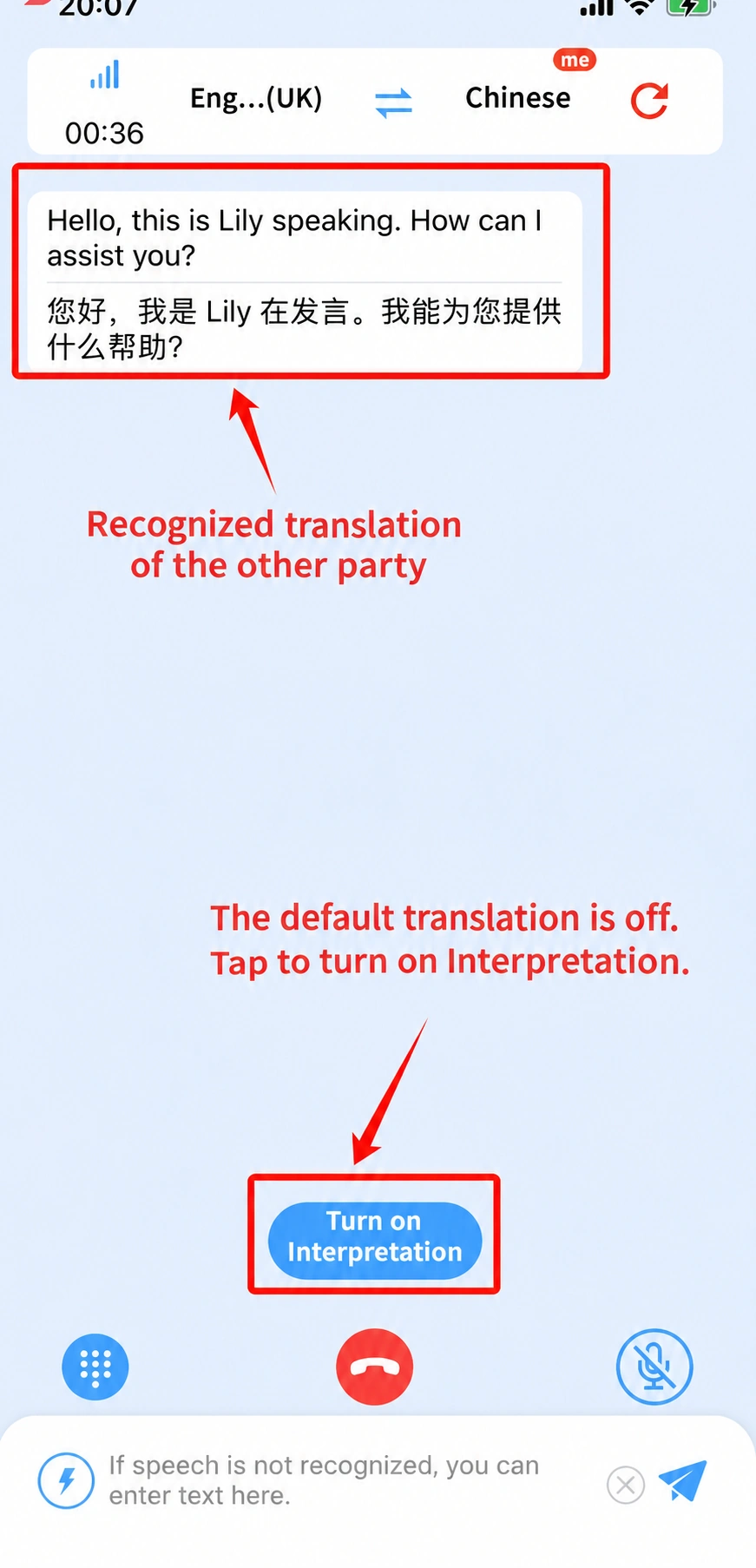
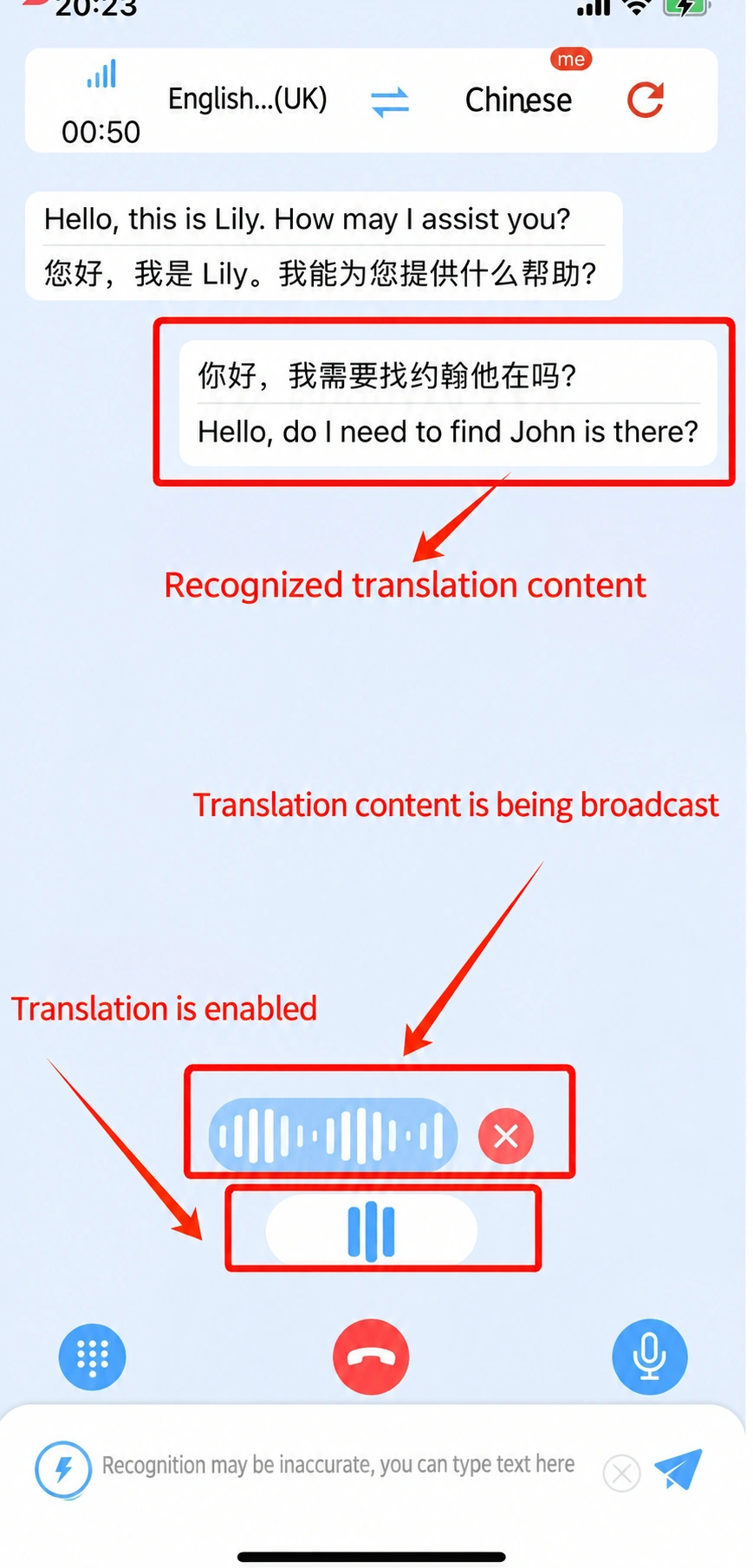
3.Support editing textSend translation andplay the translated speech to the other participant
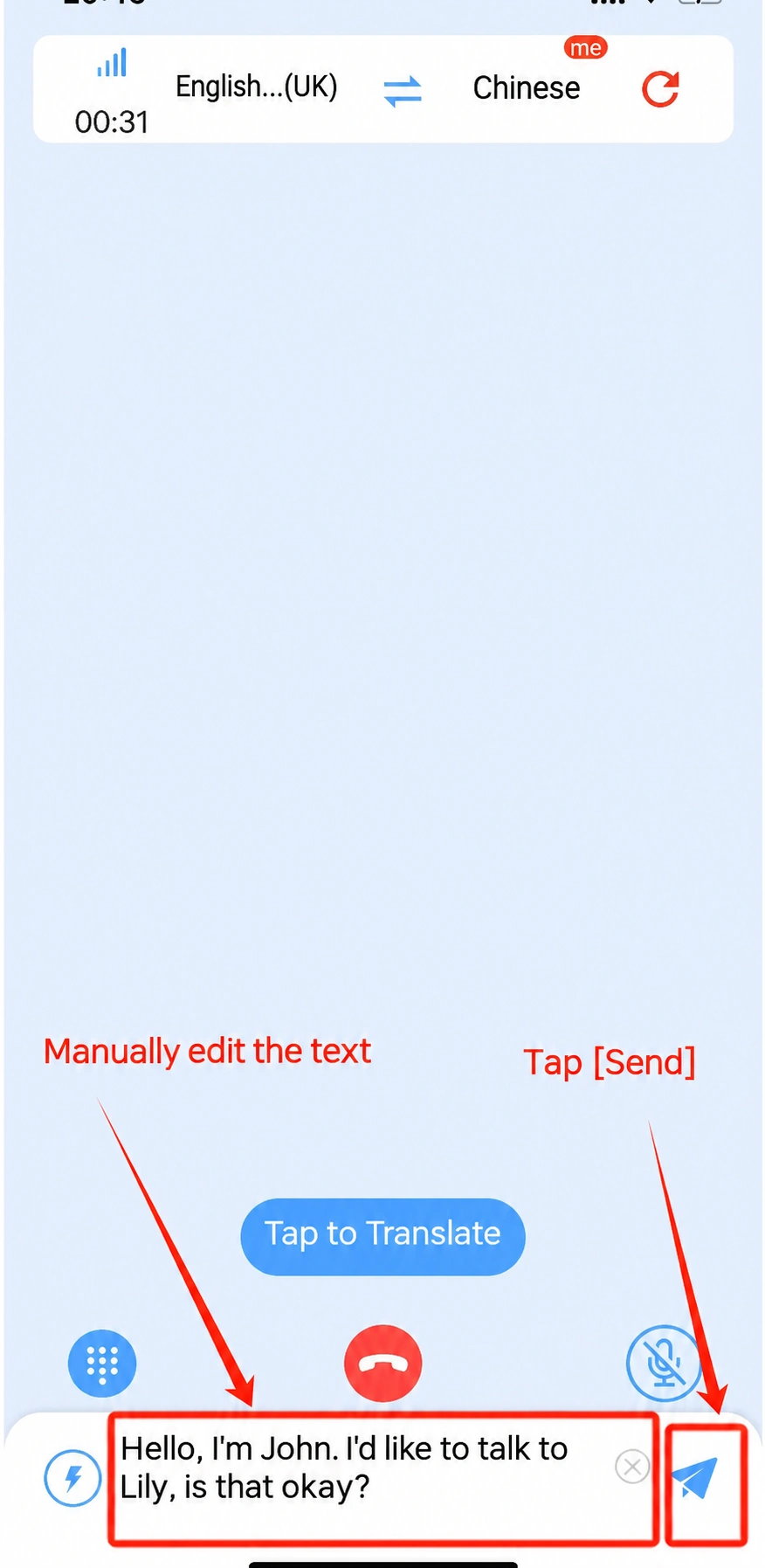
Button Description:
 Dial the keypad. If you are calling a service platform such as a bank or hotel and need to operate an extension number, you can click this icon to perform key operations.
Translate key,Default off, after clicking to enable, it will recognize the speech content on your side andtranslate and play the speech to the other participant,As shown in the figure below:
 Preset phrases can be set in advance according to different scenarios. During a call, you can choose the preset phrases and click send to improve communication efficiency.
How to use the iTour 22pro 'Video Call Translation'?
Video call:By sending an invitation link to a friend and the friend clicking the link,Join CallAfterwards, it canreal-timeCall and chat translation, supportedVoice call, video call and Text chat, the specific operation steps are as follows:
1. EnterVideo CallOn the page, select the third-party social platform you need to call.
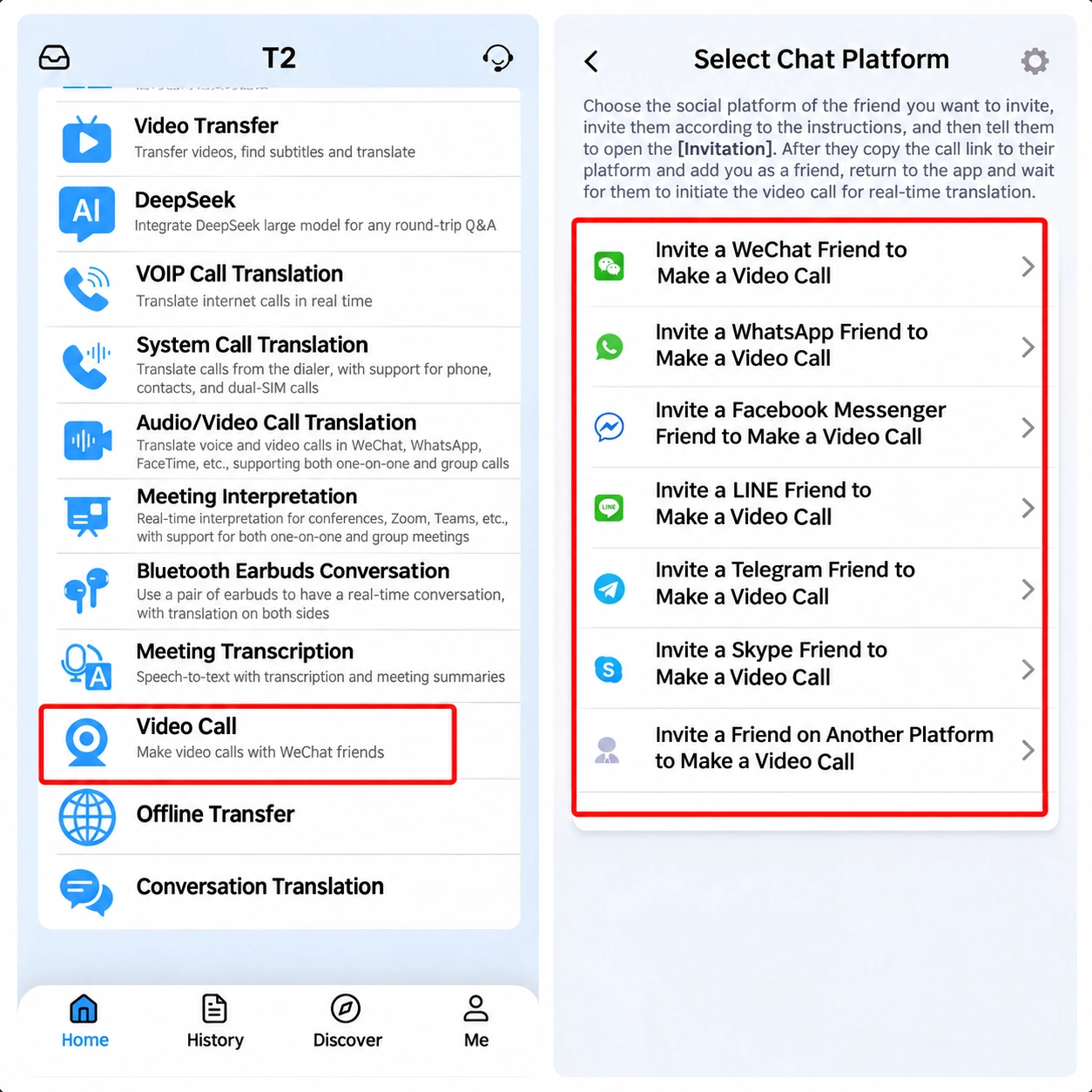
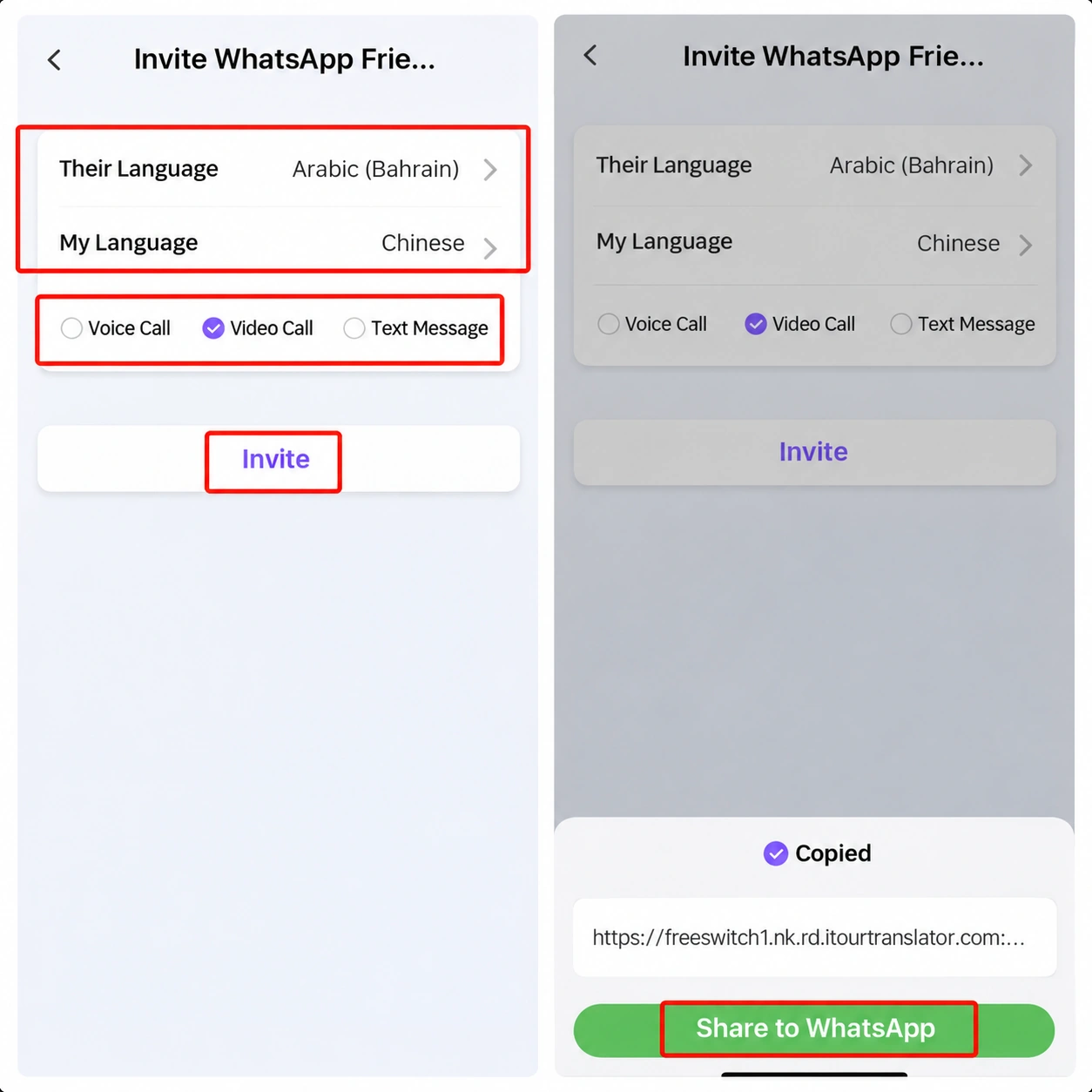
2. ChooseLanguages of both parties, call type, click[Invite]
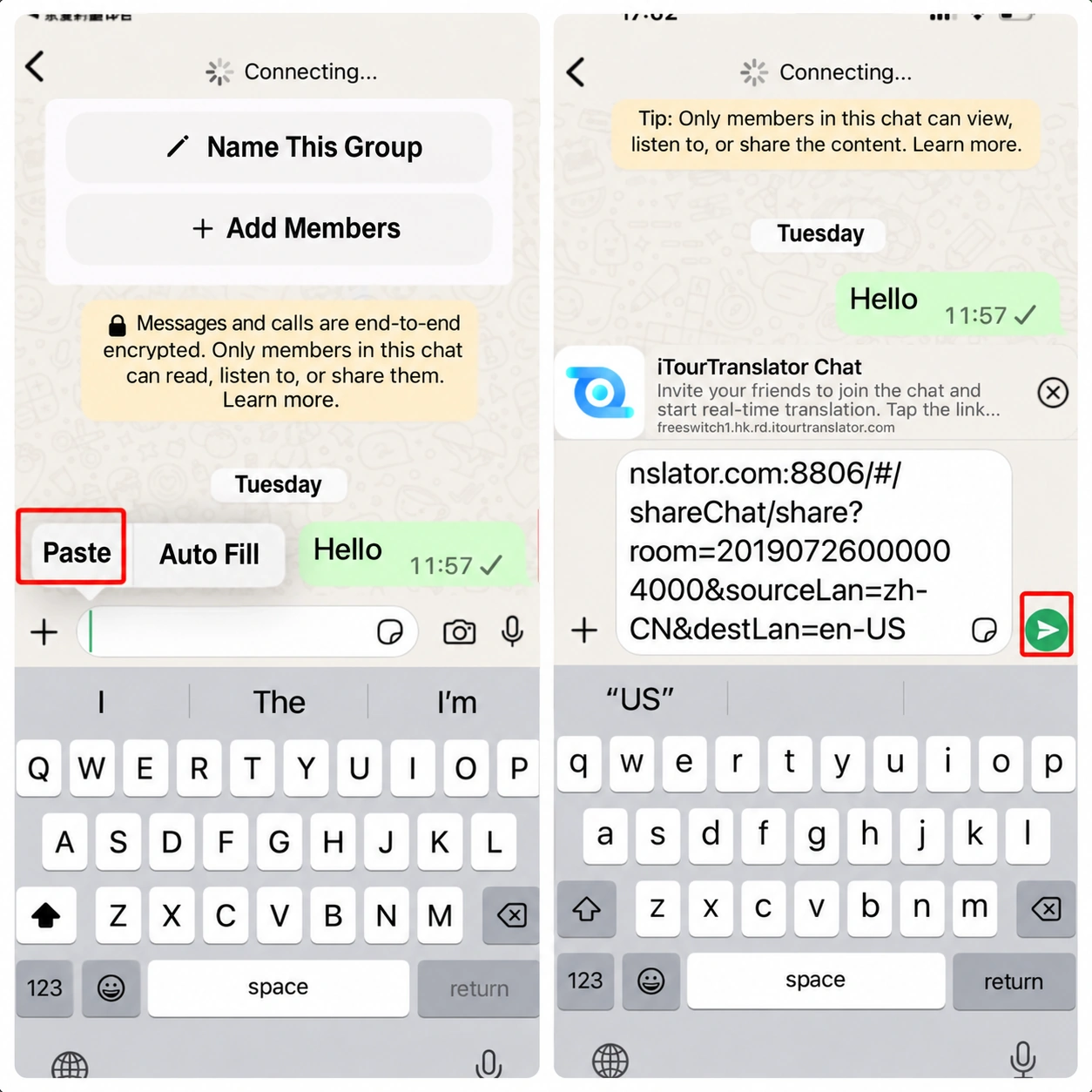
3. Click"Go to XXX to paste to a friend"
4. After pasting the link to a friend,Return to the iTourBuds APP dial page, waiting for the other partyJoin to chat and make calls in real timeTranslate
How to use the 'Conference Translation' feature of iTour 22pro?
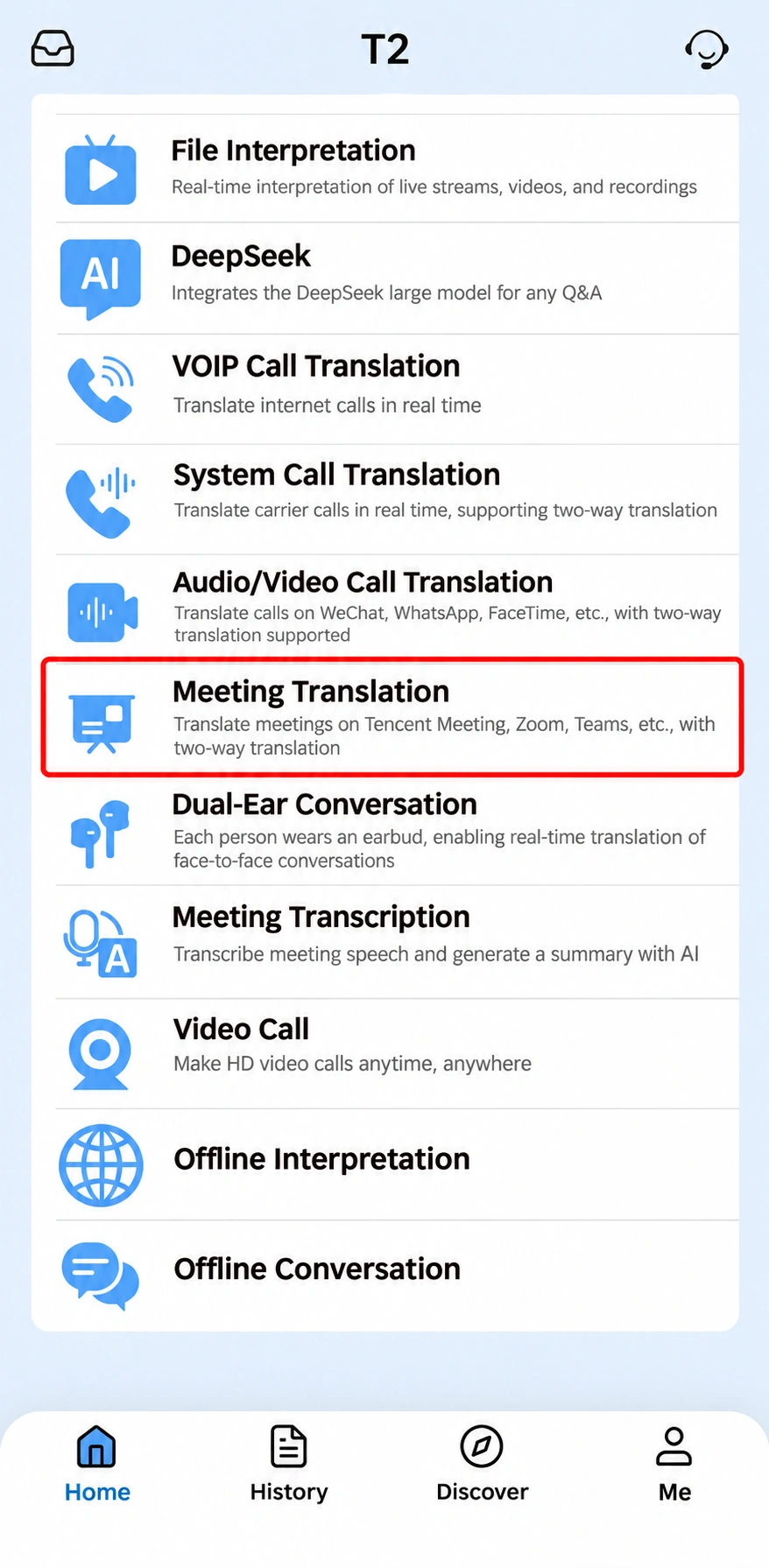
The 'Meeting Translation' feature is specifically designed for Zoom, Teams, Tencent Meeting Waiting for online video conference design, it can provide you with real-time bilingual translation during the meeting, making cross-national and cross-language communication barrier-free.
Operating Steps
- Enter the meeting: On your phone, normally join or start a Zoom, Teams, or Tencent meeting.
- Start translation:
- Keep the meeting going, open it on your phone iTourBuds APP.
- Enter "T2Device page -> Select "Conference interpretation" function.
3.Start translation:
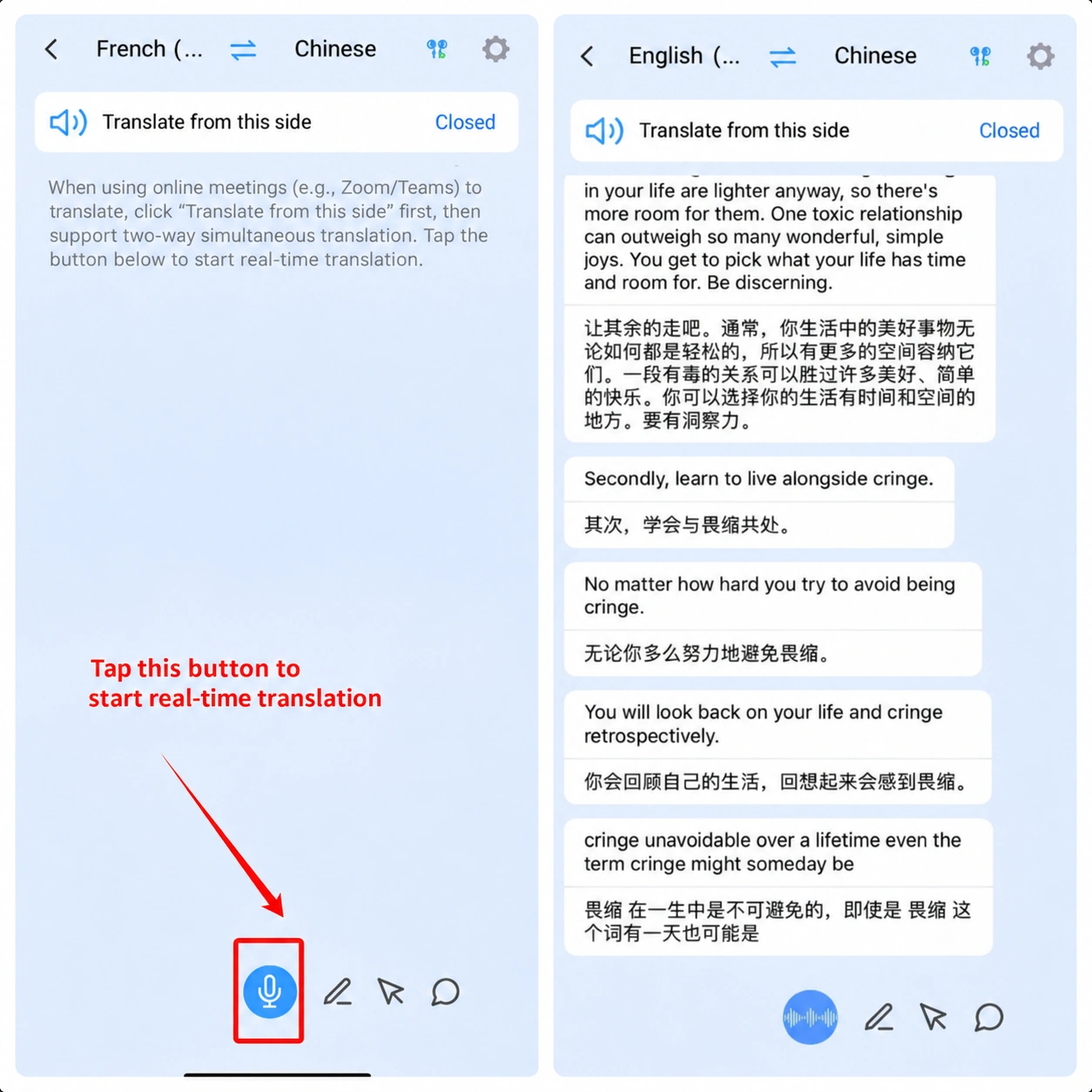
- Click in the page Microphone Icon Turn on translation. At this time, default Translate only the other party and other participants speech, the translation will be displayed in real-time on the app page.
4. Enable two-way translation (if needed):
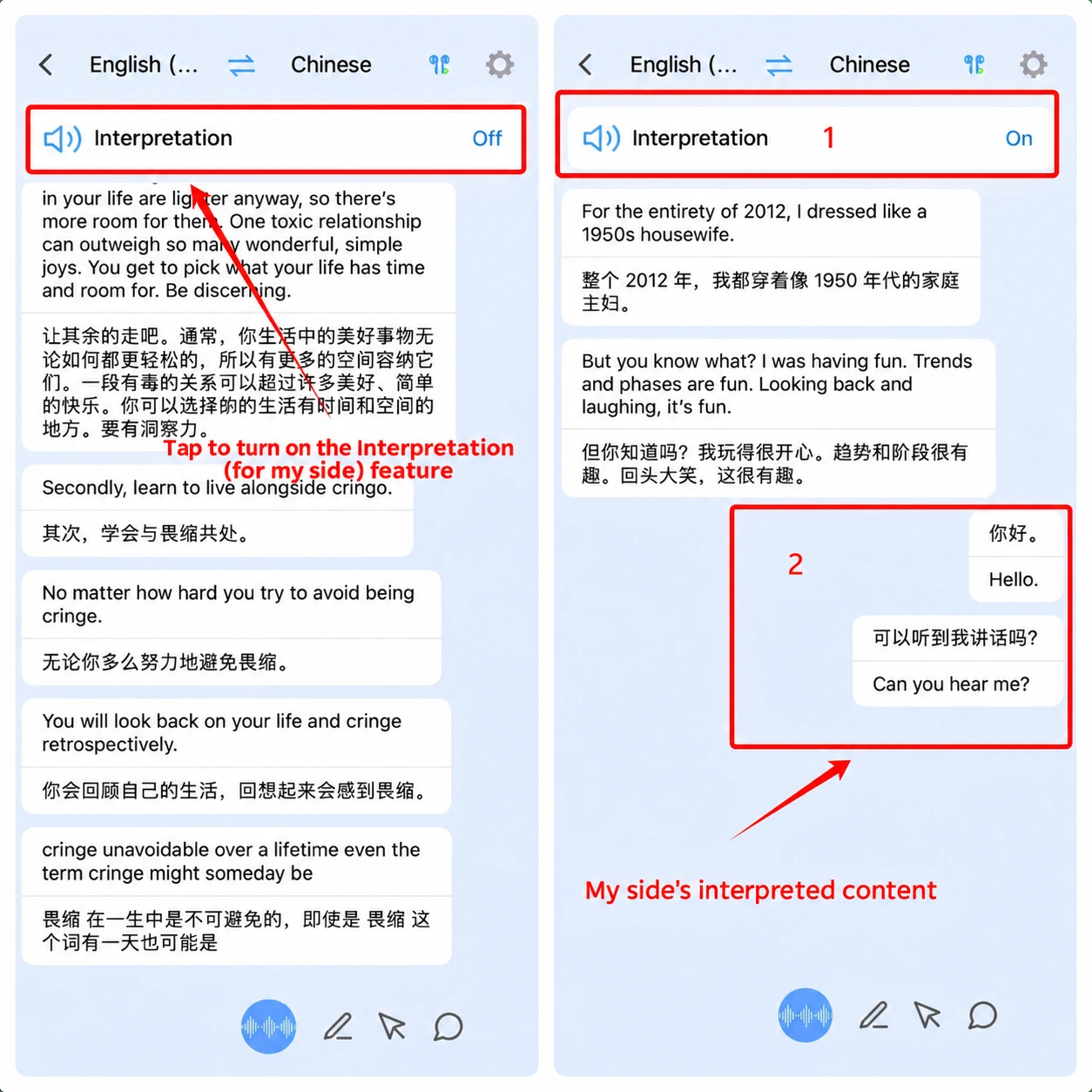
- If you need to translate your own speech to the other party, please click to enable [Translation of Your Speech Switch.
- Once activated, what you say will be translated and transmitted through the headset to all participants in the meeting.
Important Versions and Configuration Requirements
- Use “Translation of Your Speech Function, must meet the following conditions:
- App Version: Not lower than 1.3.20
- Earbud Firmware Version: Not lower than 0.0.1.30
How to enable and use the 'Audio and Video Call Translation' feature of iTour 22 Pro?
This feature allows real-time voice translation during calls on chat apps such as WeChat, WhatsApp, and Facebook. The steps are as follows:
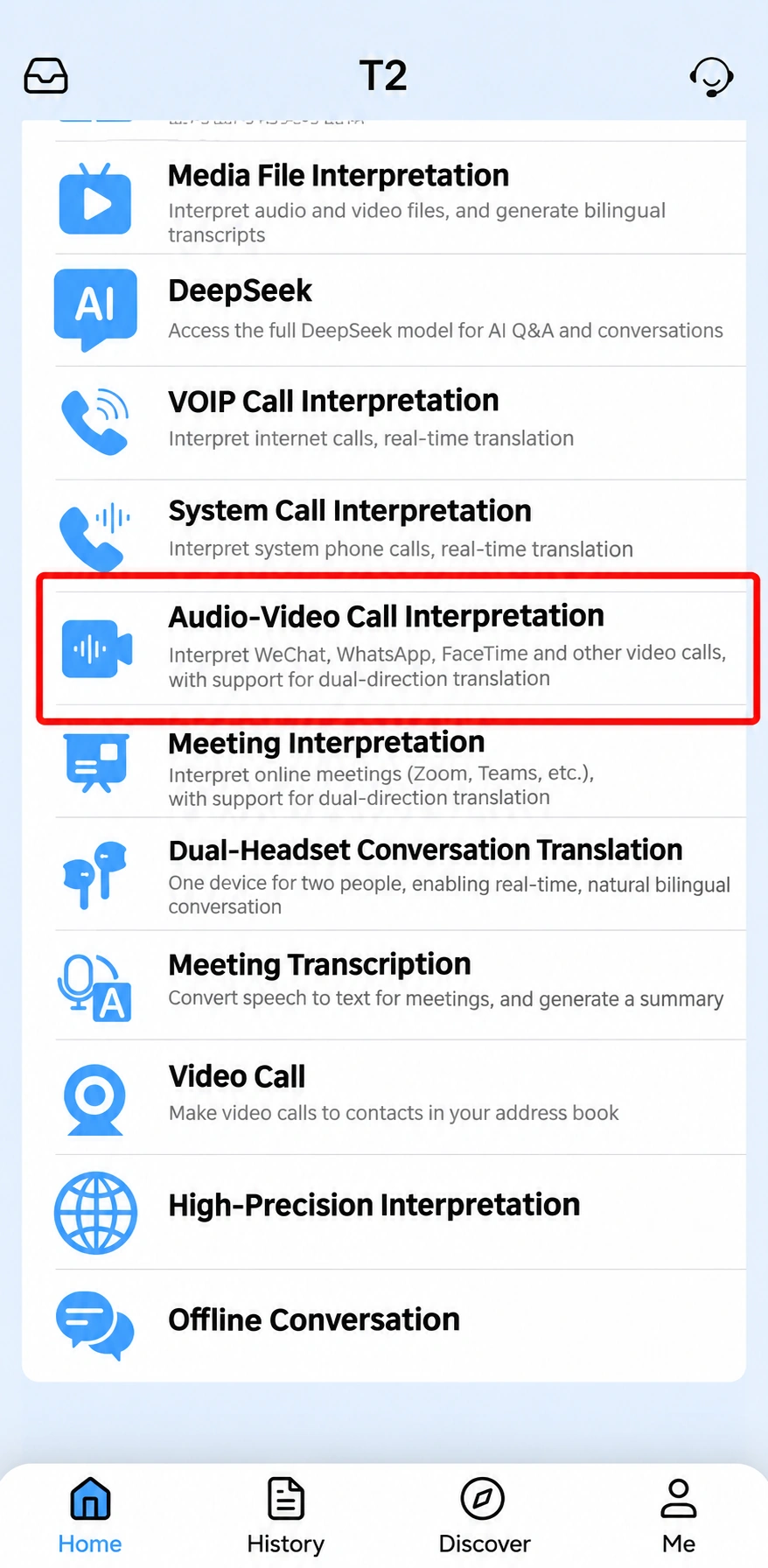
- During a call on chat apps (such as WeChat, WhatsApp, Facebook), enter iTourBuds App → T2 → Audio and Video Call Translation;
2. Click on the page Microphone Icon Turn on translation, the system will default Translate the other party's language The audio and text translation results will be displayed on the current page;
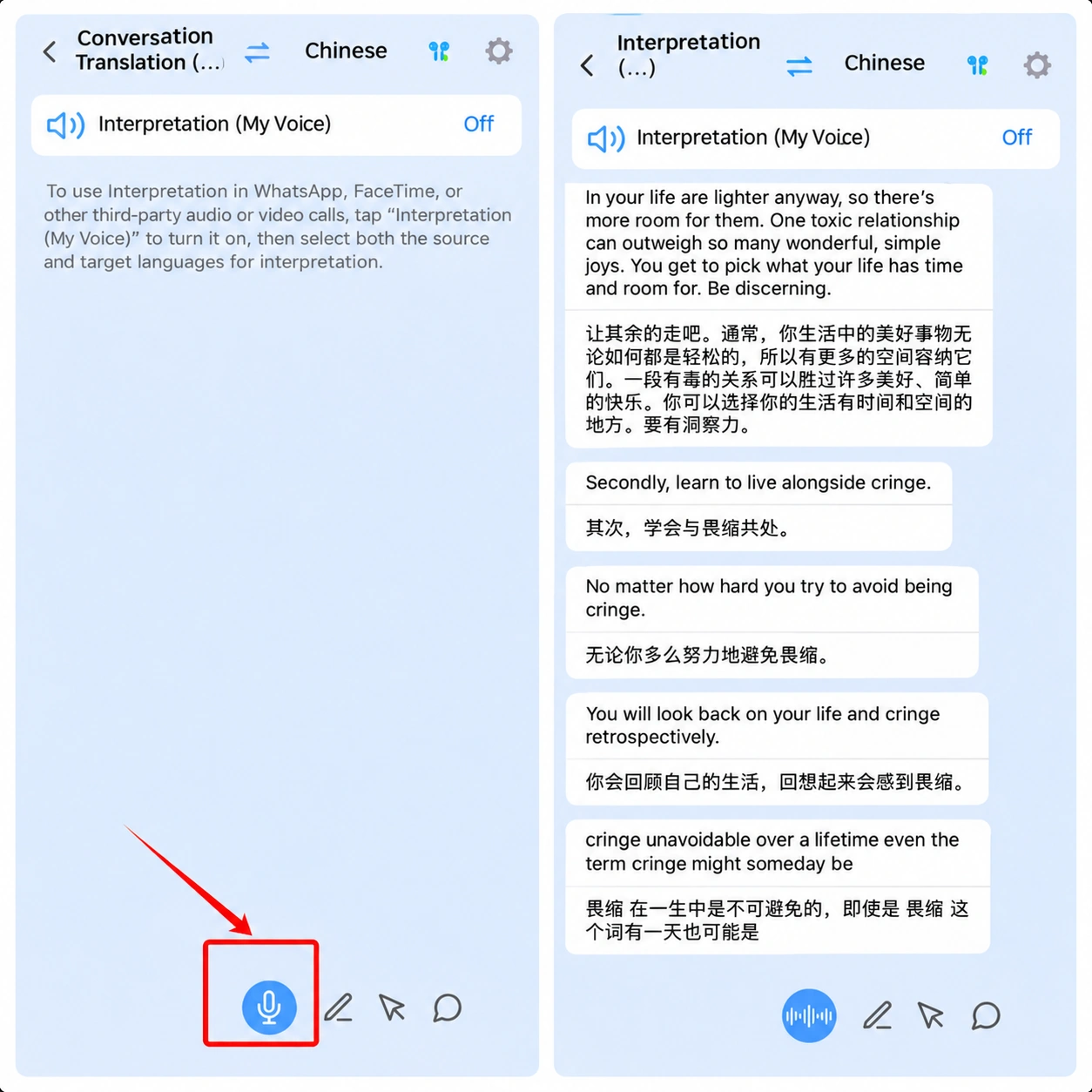
3. If you need to translate the dialogue between both parties, please enable [Translation of Your Speech Function;
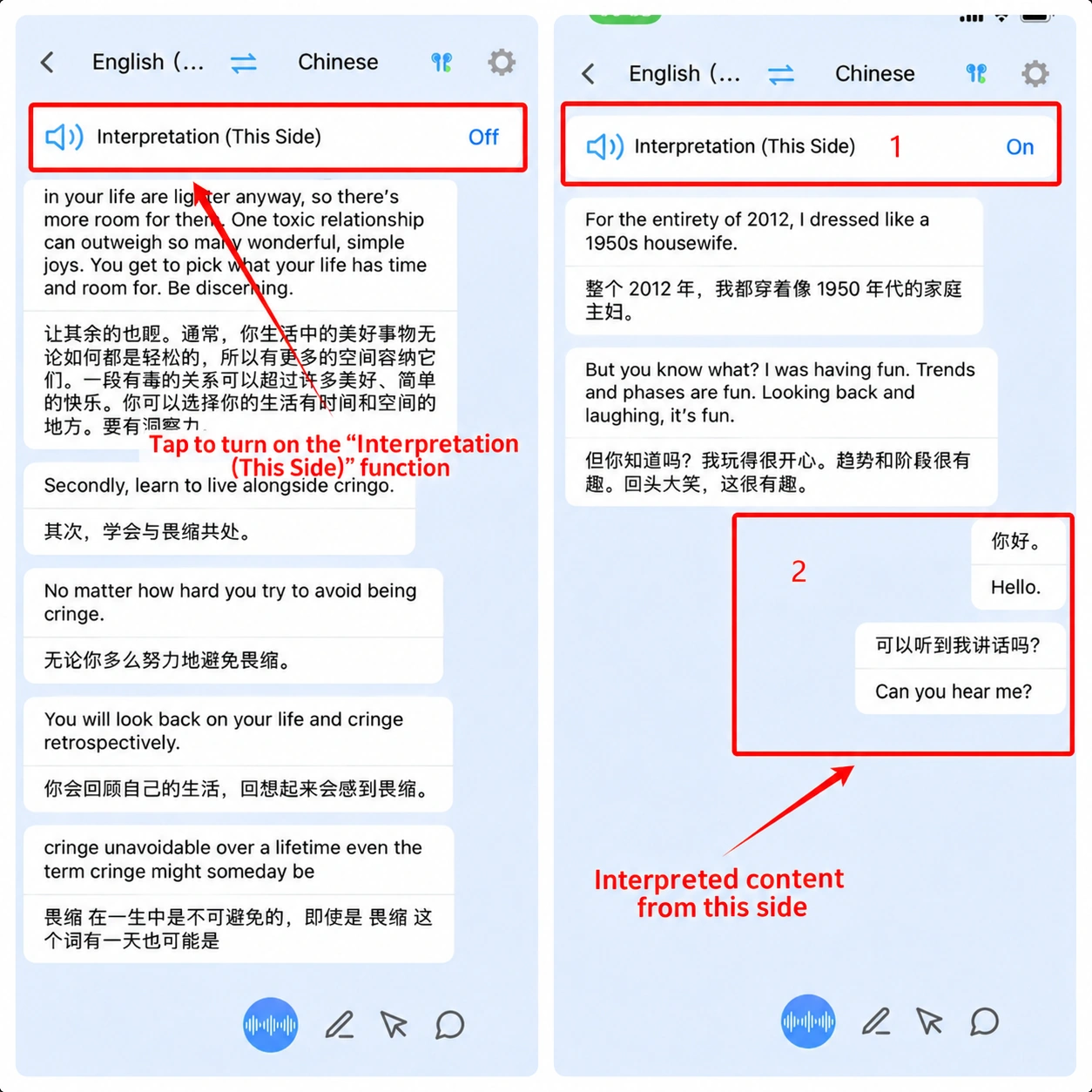
4. Open [Translation of Your Speech Afterwards, the speech you make will also be translated into the other party's language and broadcast to them through the device.
Prompt: To translate your own speech, the following conditions must be met:
App version ≥ 1.3.20 and Headphone firmware version ≥ 0.0.1.30.
How do you use the 'dual earphone conversation' translation feature of the iTour 22 Pro?
This feature supports Online real-time bilingual translation, suitable for scenarios where two people communicate face-to-face.
Usage Steps:
- Each participant wears one earbud.
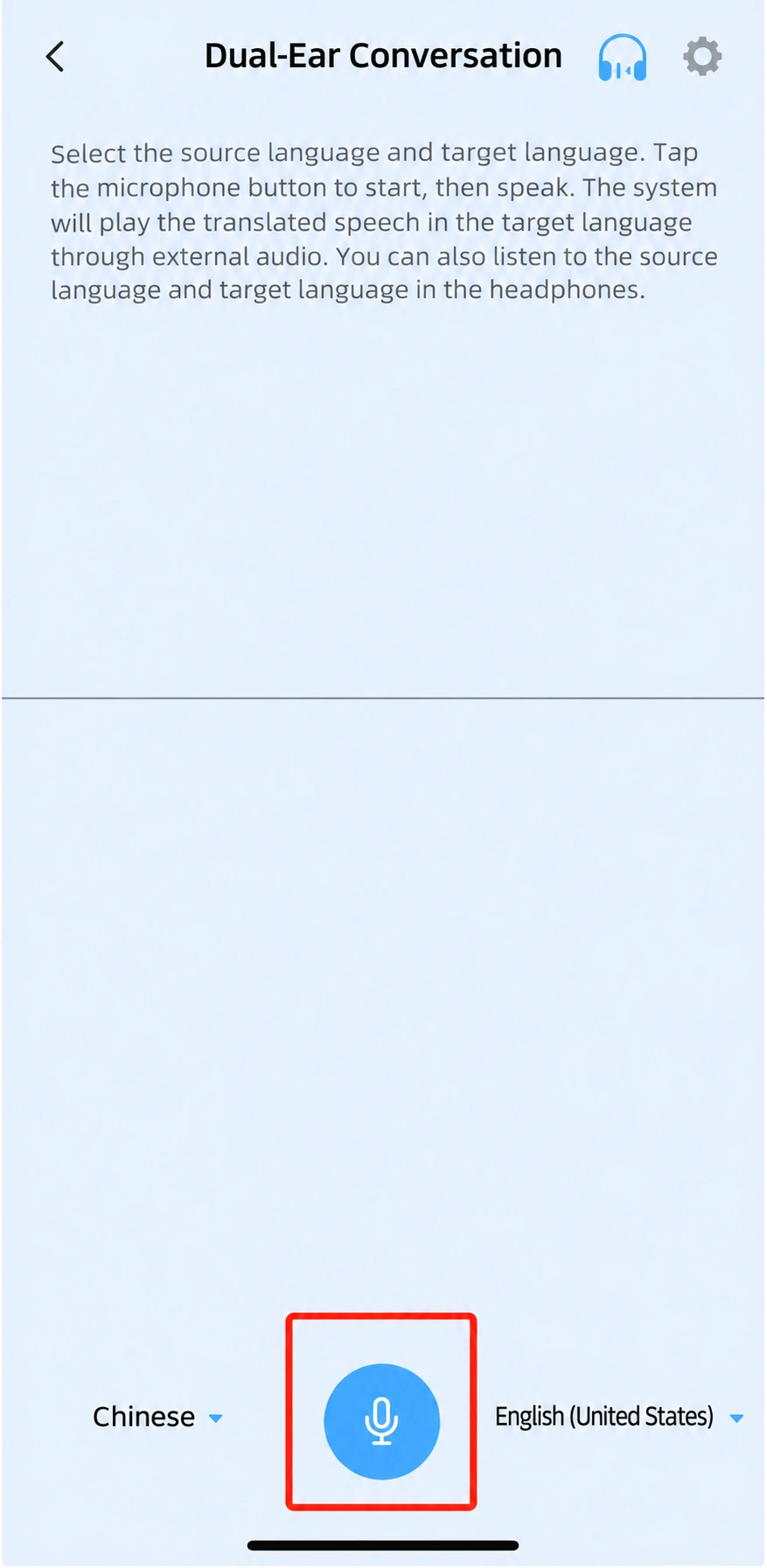
- After enabling translation, the system will automatically recognize speech and translate it, and the translation results will be broadcast through the headphones.
- Click the microphone button in the picture below to start using the translation function.
Earbud Audio Playback Modes:
- Android system version 1.4.42 and above, iOS system version 1.7.00 and above:
- Identify the language on the left (English) and translate it into the language on the right (Chinese).Left-ear Audio Playback.
- Identify the language on the right (Chinese) and translate it into the language on the left (English).Right-ear Audio Playback.
- On the feature page, the left- and right-ear translated audio can be Top right → Settings → Audio Playback Mode Modify
- iOS system versions below 1.7.00, Android versions below 1.4.42:
- Simultaneously broadcast the translation results of two languages in both ears, without distinguishing between left and right ear
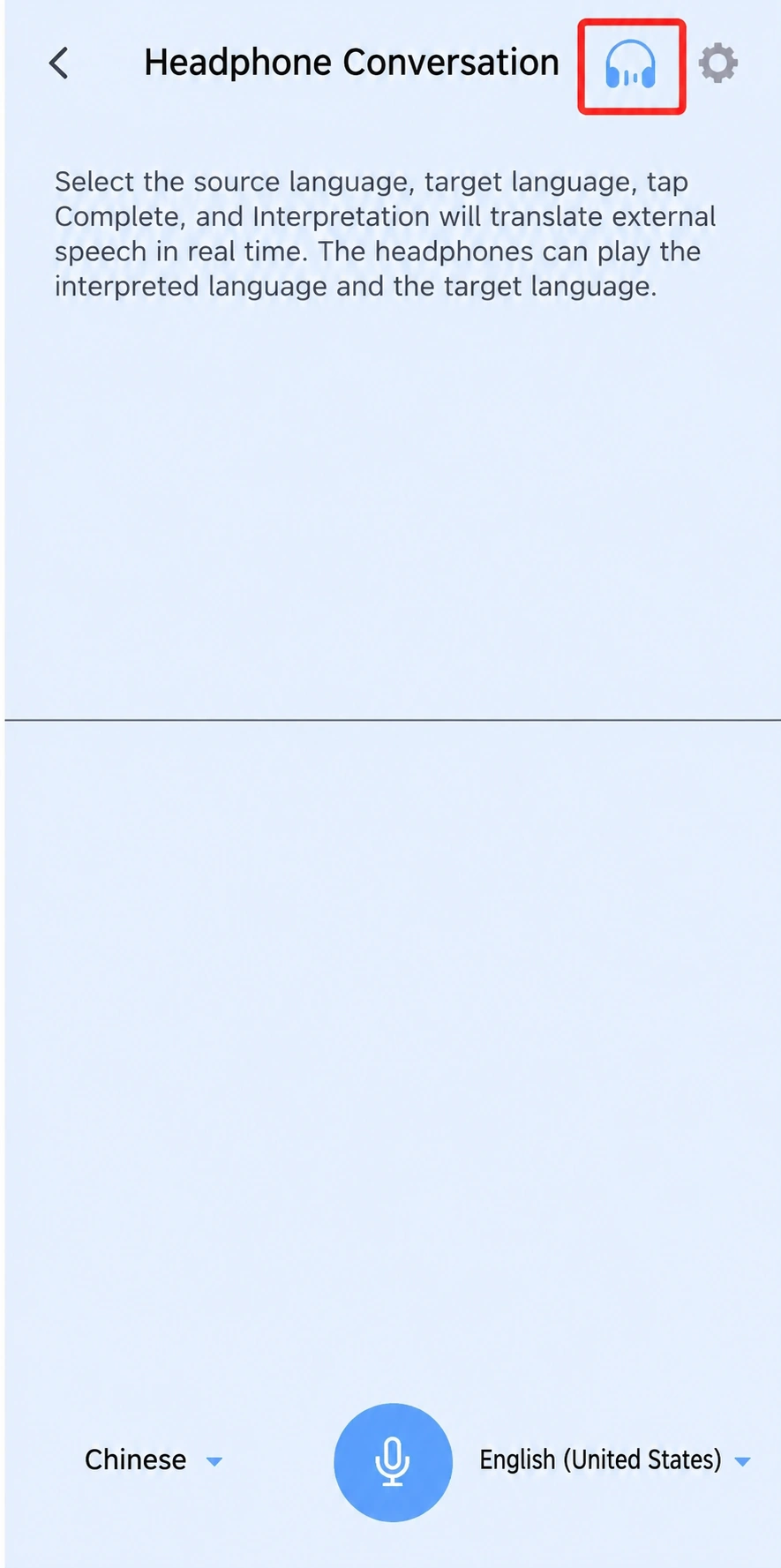
Supports switching to Phone Speakeraudio playback. Select to switch as shown below
iTour 22 Pro headphones are connected via Bluetooth, but why can't the app connect?
Please check whether the following situations exist:
1. The phone connects to multiple Bluetooth devices simultaneously
Solution:Please temporarily disconnect other Bluetooth devices in your phone's system settings, and then try connecting to the app again.
2. The Bluetooth name of the headphones has been changed
Solution:Please restore the earphone Bluetooth name to the default iTour 22 Pro, restart the APP and try again after making changes.
How to use the 'offline simultaneous translation' feature of iTour 22pro headphones?
Offline simultaneous interpretation: when there is no internetYou can also enable simultaneous interpretation, the specific steps are as follows:
1. Click the microphone, a prompt indicates that you need to download the offline resource pack
2.First timeDownloadDefault language pairOffline resource pack
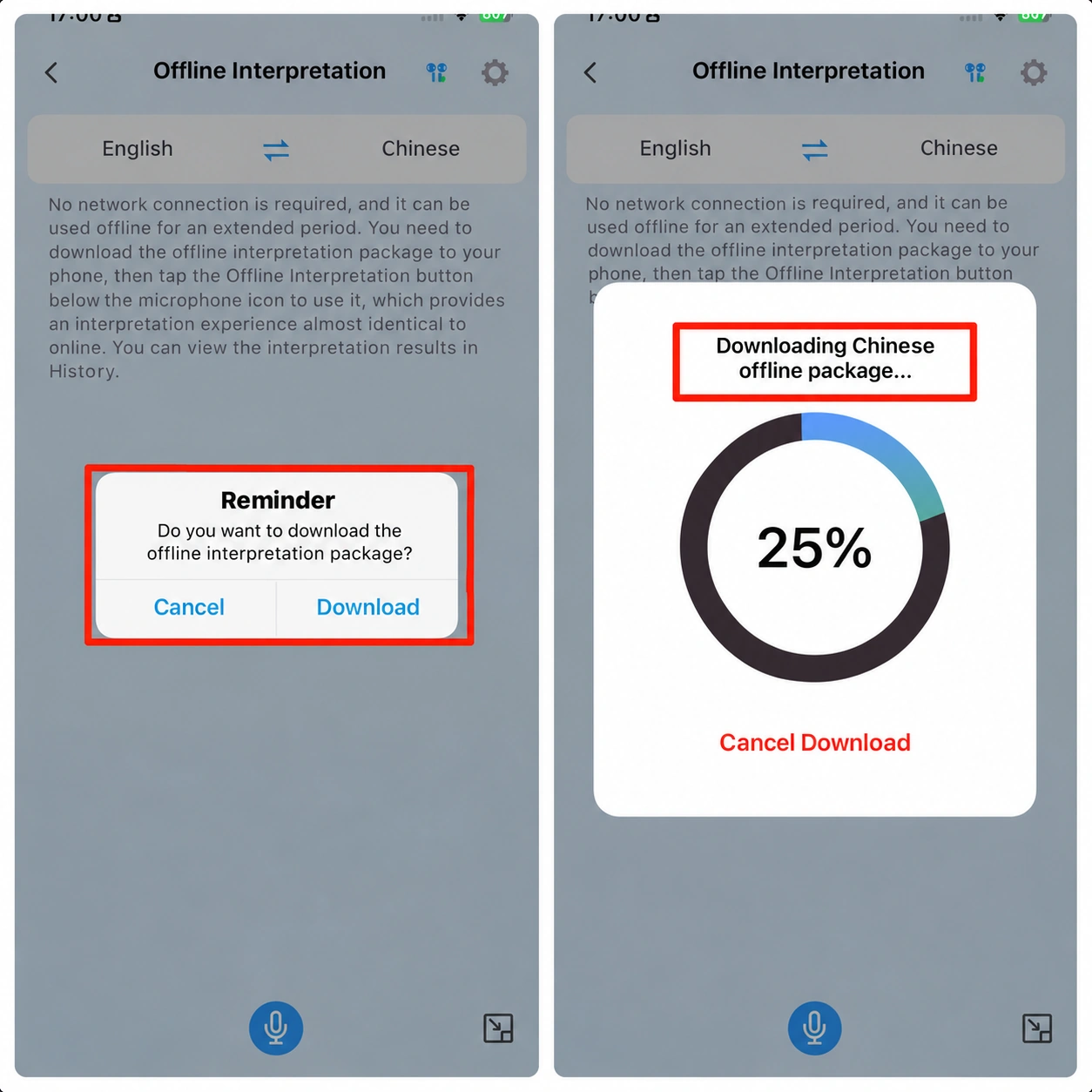
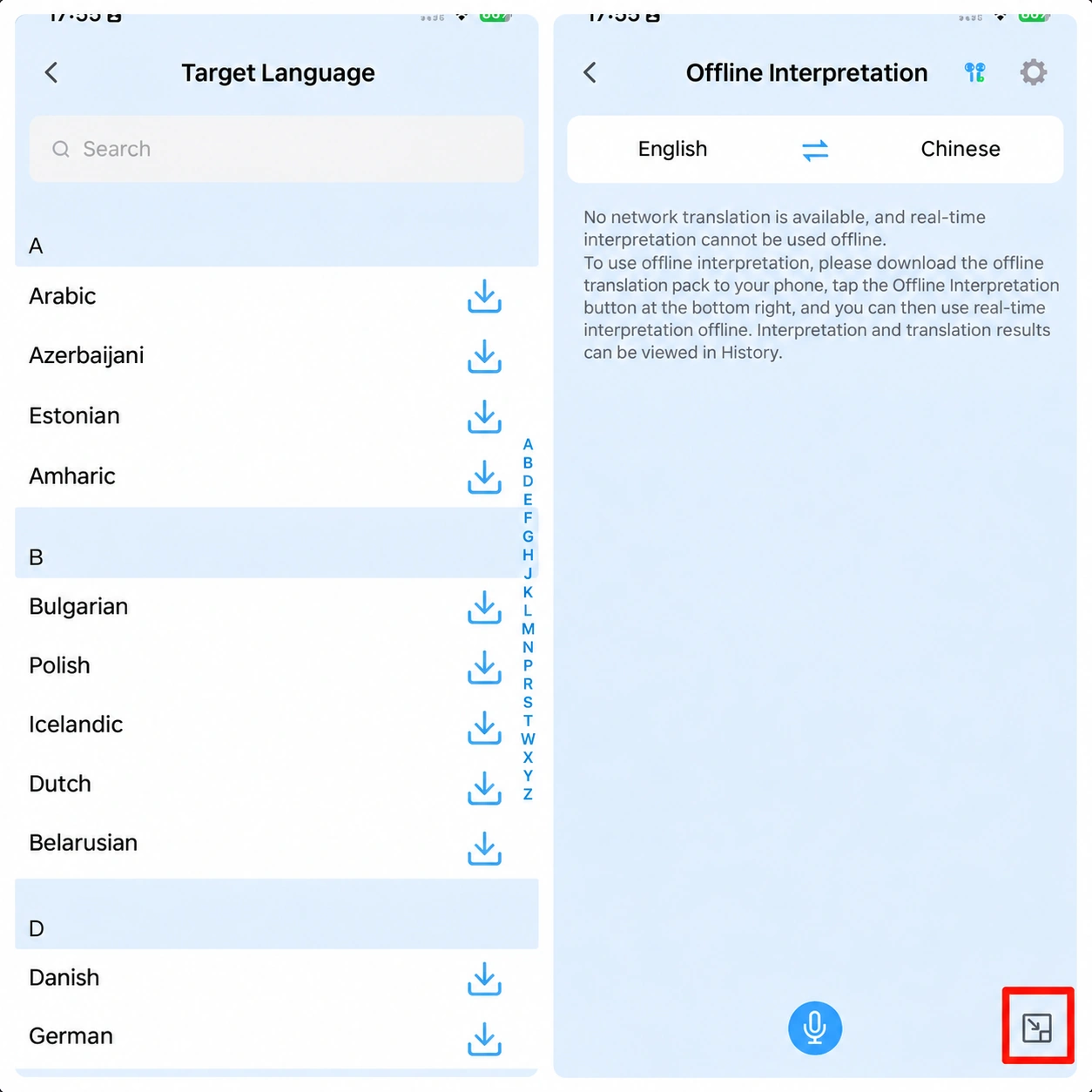
3. You can also clickdownload from the language selectorthe required offline resource pack
4. Click after enabling simultaneous interpretationFloating window in the bottom right cornerButton, can display simultaneous translation content in a floating window
How to use the 'Offline Conversation' feature on the iTour 22pro headphones?
Offline conversation:After downloading the offline language pack,In an offline environmentYou can also start a conversation, the specific steps are as follows:
1. ClickMicrophone, prompt to download offline resource package
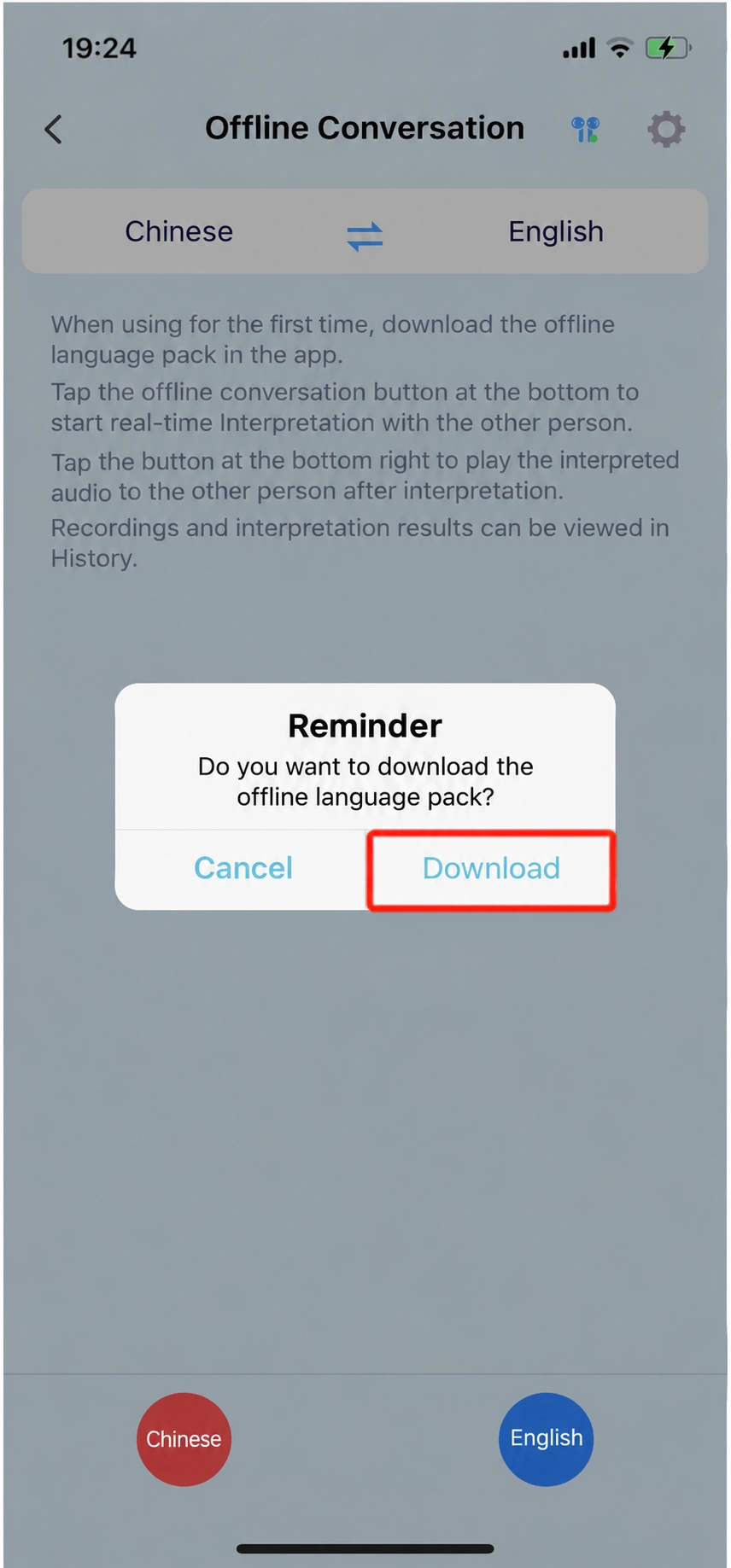
2.First timeDownloadDefault language pairOffline resource pack
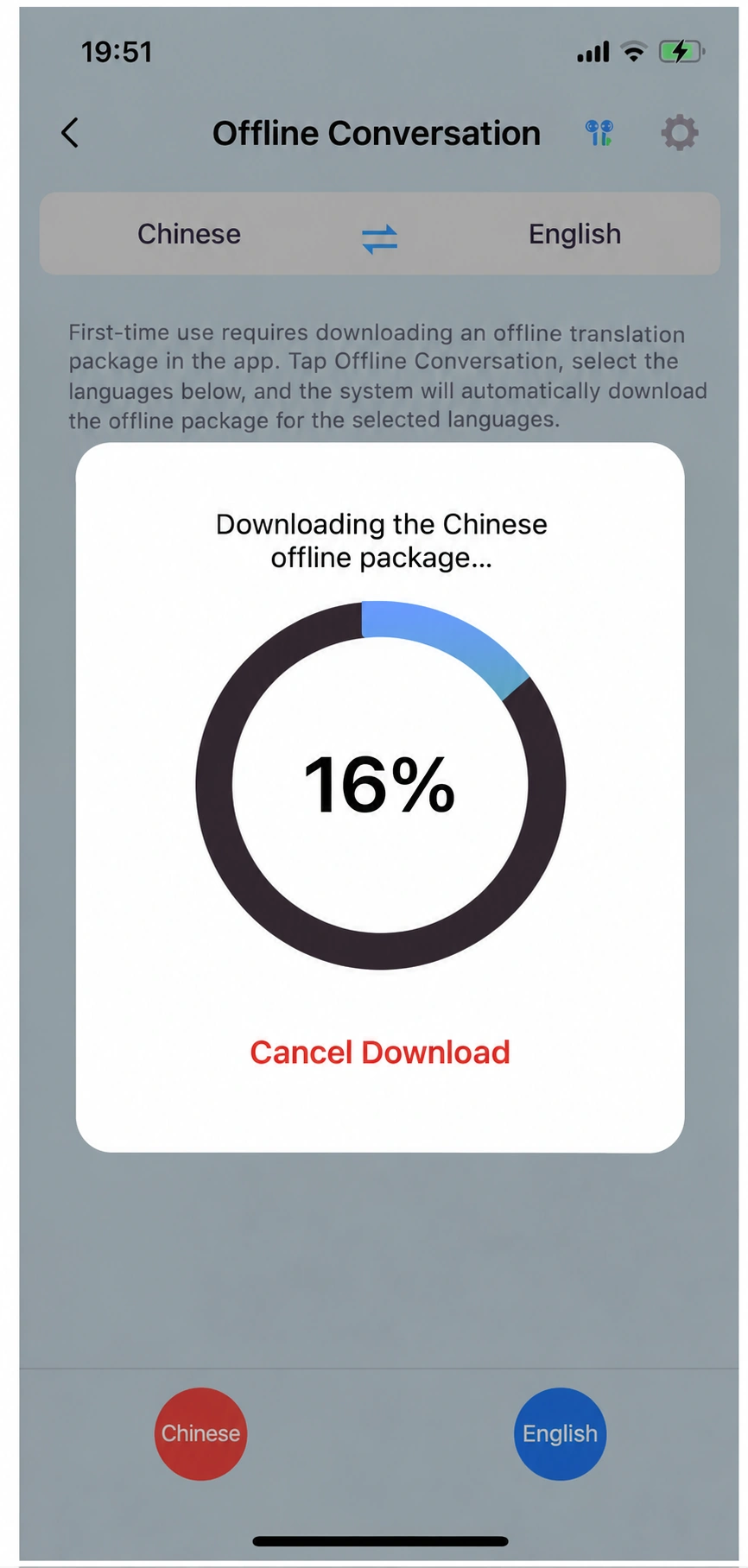
3. You can also clickLanguage barDownload the required offline resource pack
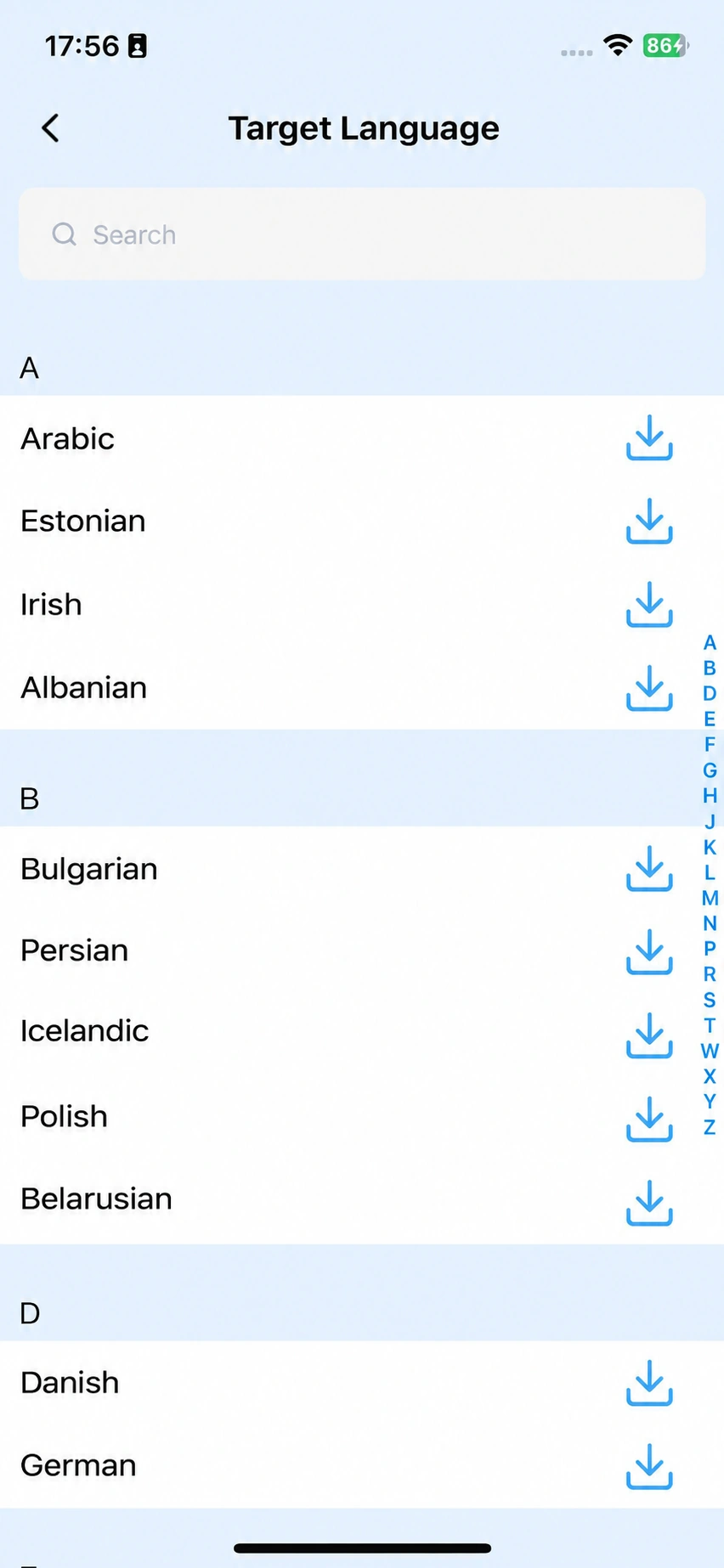
4. After the offline language pack is downloaded successfully, you can click the language buttons on the left/right.Start a conversation/Click again to turn off recognition, send the translation and play it aloud
5.Left sideButtonIdentify the other partyLanguagetranslate into your languageLanguage, translated contentHeadphone announcement, Right sideButtonIdentify our sideLanguagetranslate into the other participant’s language, translation contentPhone SpeakerAudio Playback
Didn't find the answer?Contact Online Customer Service ↗ · Contact us · Return to Help Center

 Support