
Z50S Pro Max Earbuds FAQs
12 questions. Select a question to view the answer.
Is the translation feature fee for the Z50S Pro Max translation earphones permanently free?
Yes. After you purchase the Z50S Pro Max, Corresponding functionPermanently free, Just download the official app iTourBuds All functions can be used once the earphones are connected.
Can the Z50S Pro Max headphones be used independently of the phone?
This headset cannot be used independently from the phone and must remain connected to the phone at all times.
To ensure the stable operation of the translation function, there are the following two key requirements when using it:
- Must connect to the phone All translation functions of the earphones rely on the iTourBuds App. They must be connected to the phone and the app via Bluetooth in order to be used normally.
- Keep the Phone Screen On: It is recommended to use during translation,Do not manually lock the screen The phone screen turning off may cause the translation service to be interrupted or the connection to be unstable.
How do you use the Z50S Pro Max headphones' conversation mode for translation?
The conversation mode is used for face-to-face communication scenarios. In this mode, you and the other party can conduct two-way voice translation through your phone and headphones, just like a normal conversation.
The specific workflow is as follows:
- When the other person is speaking: After the content is recognized and translated by the phone, the translation result will be delivered through Your headphones play the translated speech.
- When you speak: After the content is recognized and translated by the headphones, the translation result will be transmitted through The speaker of your phone play the translated speech aloud to the other participant.
Operating instructions:
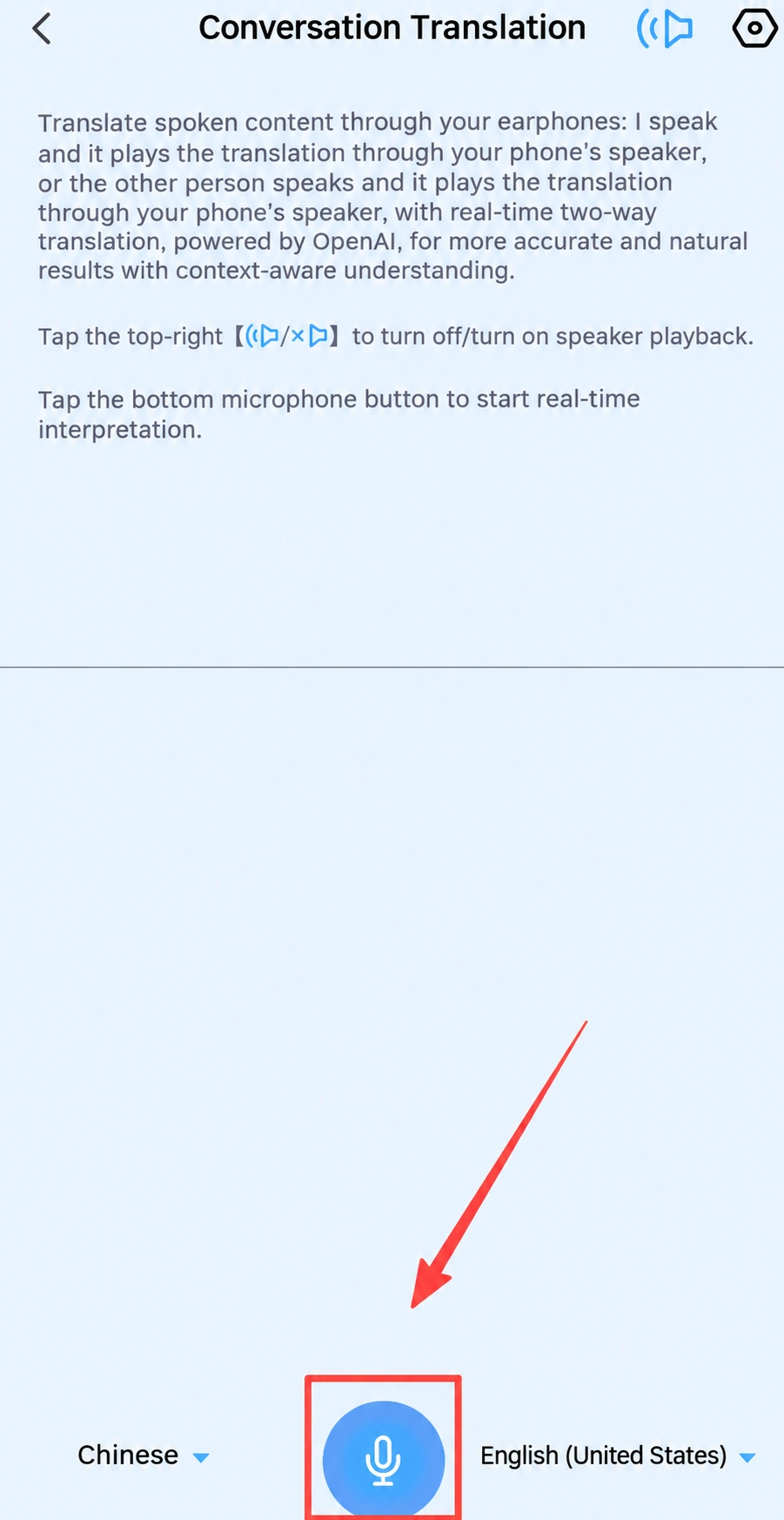
- Start translation: In the corresponding interface of the iTourBuds App, click Microphone”Button You can start recognizing and translating (as shown in the picture below).
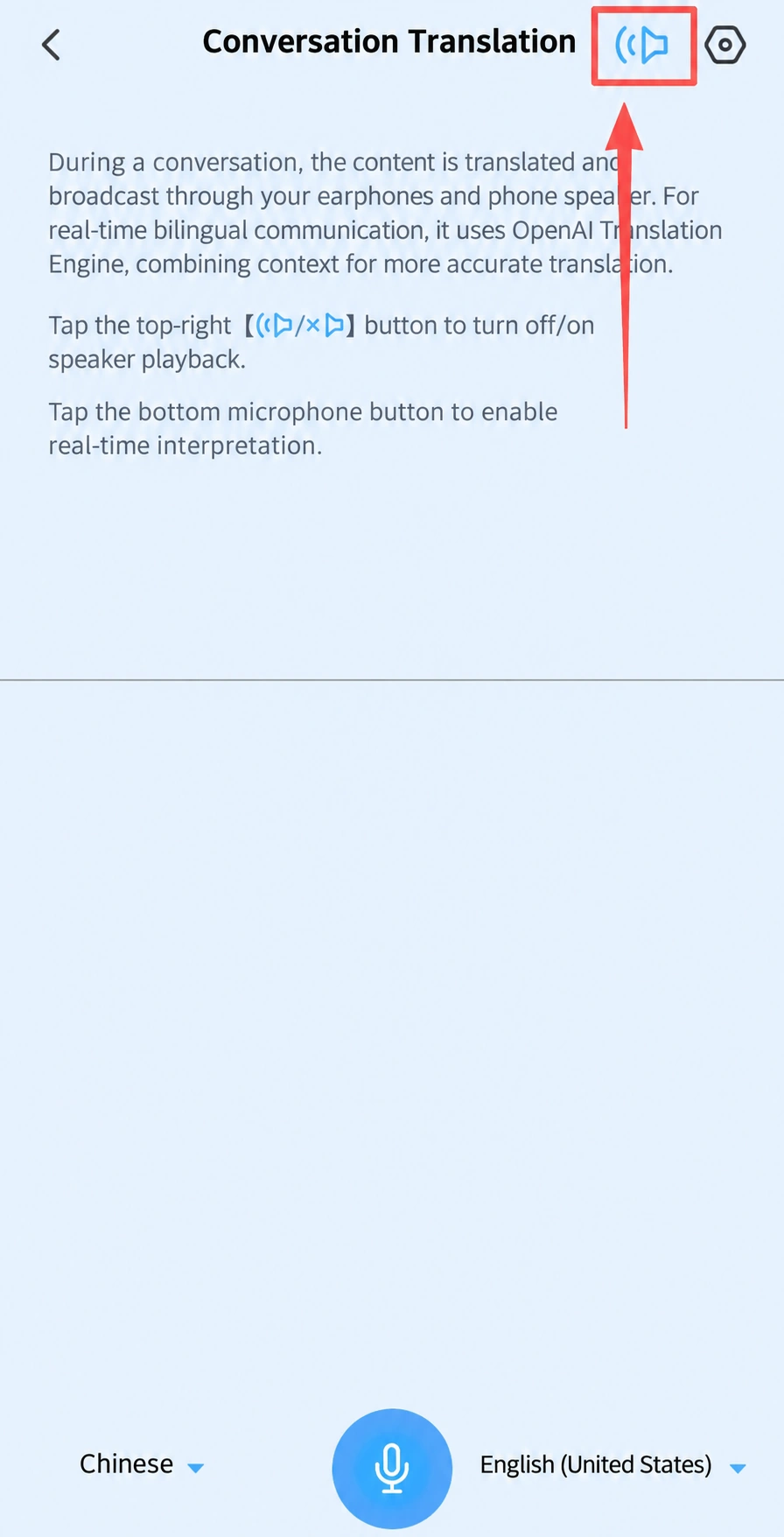
- Turn Off Phone Audio Playback: If you do not want our translated content to be played through the phone's speaker, you can turn off the speaker broadcast at the location shown in the image below.
What DeepSeek features does the Z50S Pro Max headset have?
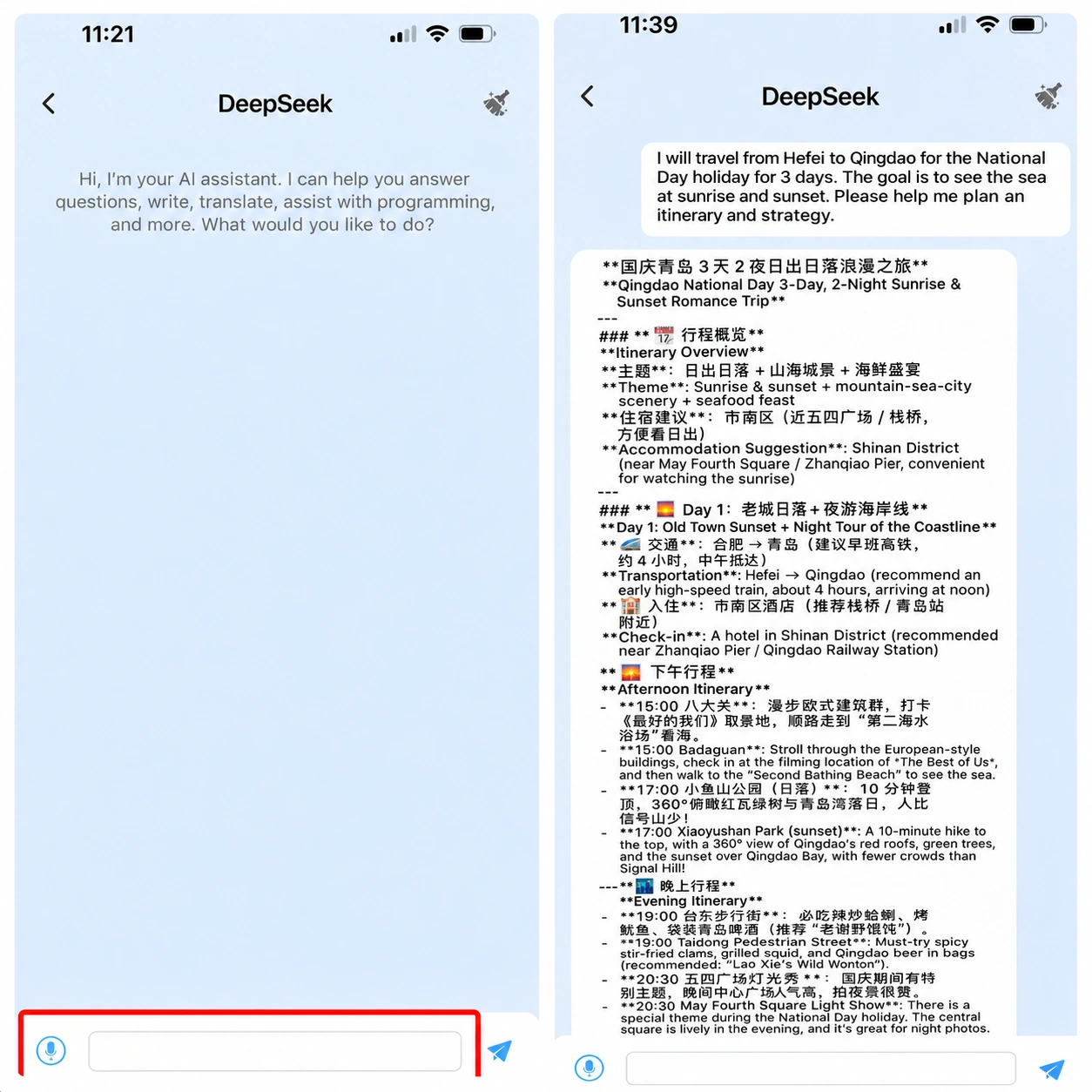
This feature integrates the advanced DeepSeek large model, making the headphones not only capable of real-time translation but also a powerful portable AI assistant. You can use it to Text or voice Ask it questions at any time.
The main help it can provide for you includes:
- Creation and Copywriting: Writing assistance, copy polishing, creative generation.
- Programming and Code: Code problem solutions, error debugging, logic explanation.
- Translation and Language: Multilingual translation (as a supplement to simultaneous interpretation) and language learning.
- Life and Planning Plan travel itineraries, provide strategy suggestions, and answer everyday knowledge questions.
- Dialogue and Companionship: Engage in open-topic intelligent chat.
Simply put, besides professional translation, it can also handle various problems in work, study, and life.
If you need to use it, please connect the headphones and find the DeepSeek feature entry in the iTourBuds App to experience it.
How do you use the VOIP call translation feature on the Z50S Pro Max headphones?
This feature allows you to make international calls directly over the internet and achieve real-time translation. After using it,The other party will hear your original voice and the translated voice in turn.
Basic Workflow
- Calls and Translation: After the call is established, the system will translate the other party's language into your language (default English → Chinese) and broadcast it in your headphones.
- Translate this prescription(Activate proactively): If you need to translate your Chinese into English for the other party to hear, you need to manually click the [Enable Translation] button in the call interface. Once enabled, the other party will first hear your original Chinese voice, followed by the English translation.
Important Notice of Limitations
- Supported Regions: This VOIP phone feature currently only supports calling phone numbers in the United States and Canada; calls to other countries and regions are not supported at this time.
- Two-way translation Translation services are bidirectional, but translating the content spoken by the user's side needs to be manually enabled and is not enabled by default.
How do you use the listening function on the Z50S Pro Max headphones?
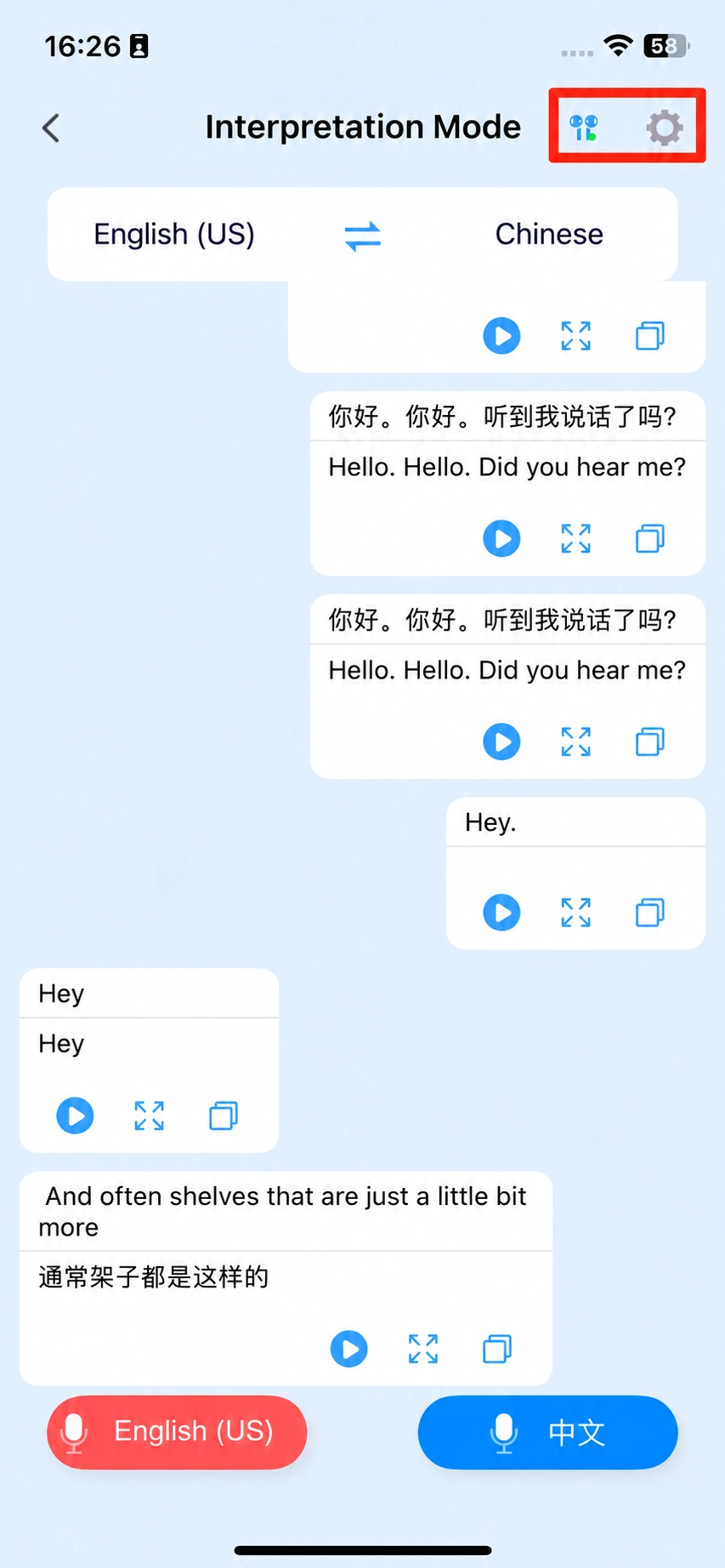
The 'Listen' feature is specifically designed for real-time environment translation, allowing you to flexibly control the language of recognition and translation as well as the playback method.
Core function: Select voice recognition and playback channel
You can control the entire audio path with a simple 'switch':
- Enable left-side recognition (identify the other person's voice)
- Audio Input Source: Mainly identify the content of what the other person is saying (the language on the left) and translate it into your language (the language on the right)
- Audio Playback Method: The translation result will be broadcast through your headphones, and only you can hear it.
- Enable right-side recognition (recognize the sound of your voice)
- Audio Input Source: Mainly recognizes and translates the voice you speak (right-side language) into the other person's language (left-side language).
- Audio Playback Method: The translation result will be played aloud from the phone speaker so that the other party can hear it.
Personalized settings
You can adjust the way translation results are presented in detail in the settings according to your personal preferences:
- Display Settings: Adjust the font size of the translated text.
- Speech Playback Settings:
- Switch control: One-button to turn on or off the headphone's speech playback.
- Voice Adjustment: Customize the speech speed and the speaker's gender (male/female).
How to use the Z50S Pro Max headphone audio-visual simultaneous translation function?
The audio and video simultaneous translation function is specifically designed for real-time translation of videos, live broadcasts, and other content played on mobile phones. The following are detailed usage steps and precautions.
Steps for using an Android phone
- Start translation: Tap the “Microphone” button in the app to enable the feature, and confirm by selecting “Start Now”.
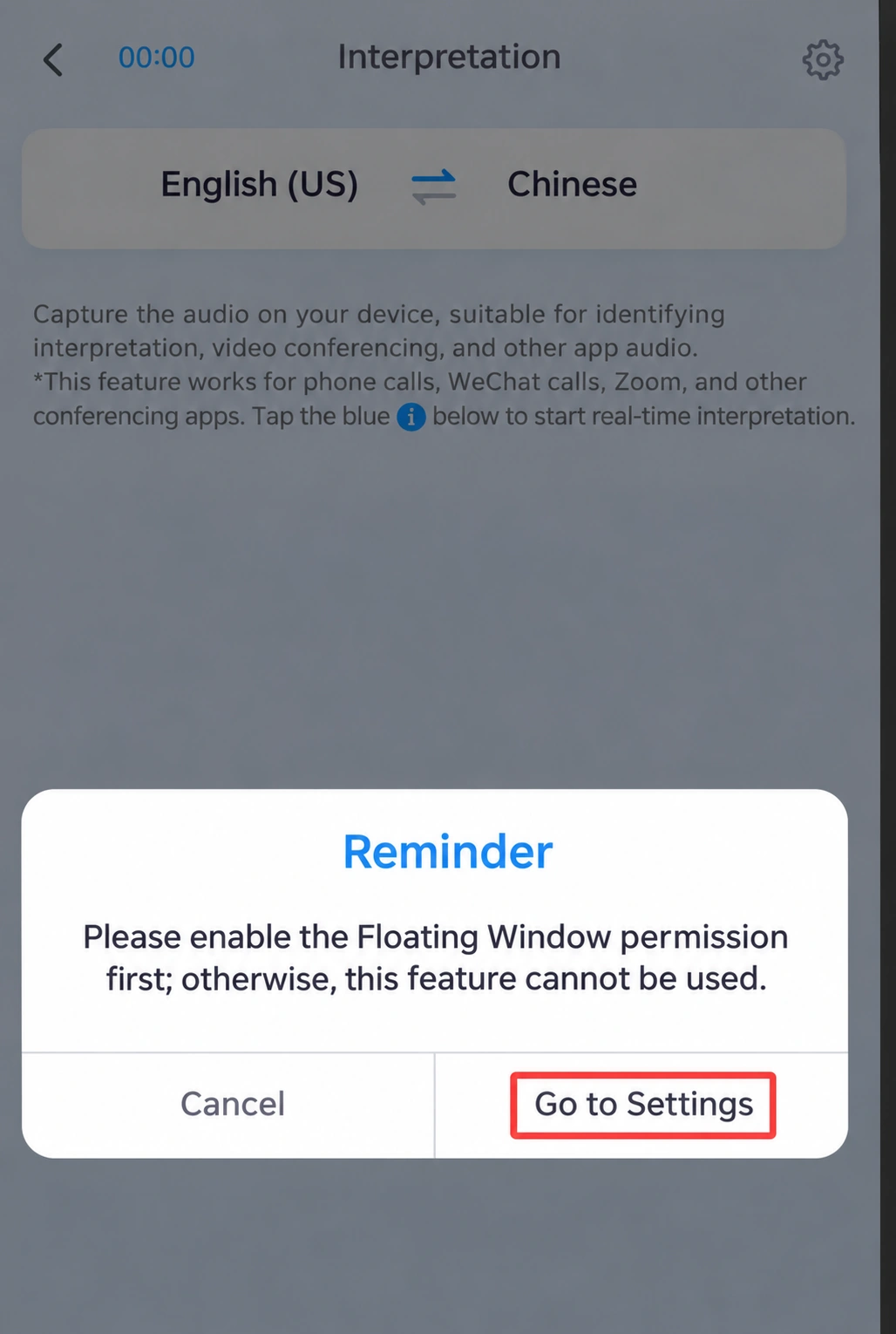
- Enable floating window permission (key step):
- When using it for the first time, the app will prompt you to enable permissions. Please click [Enable].
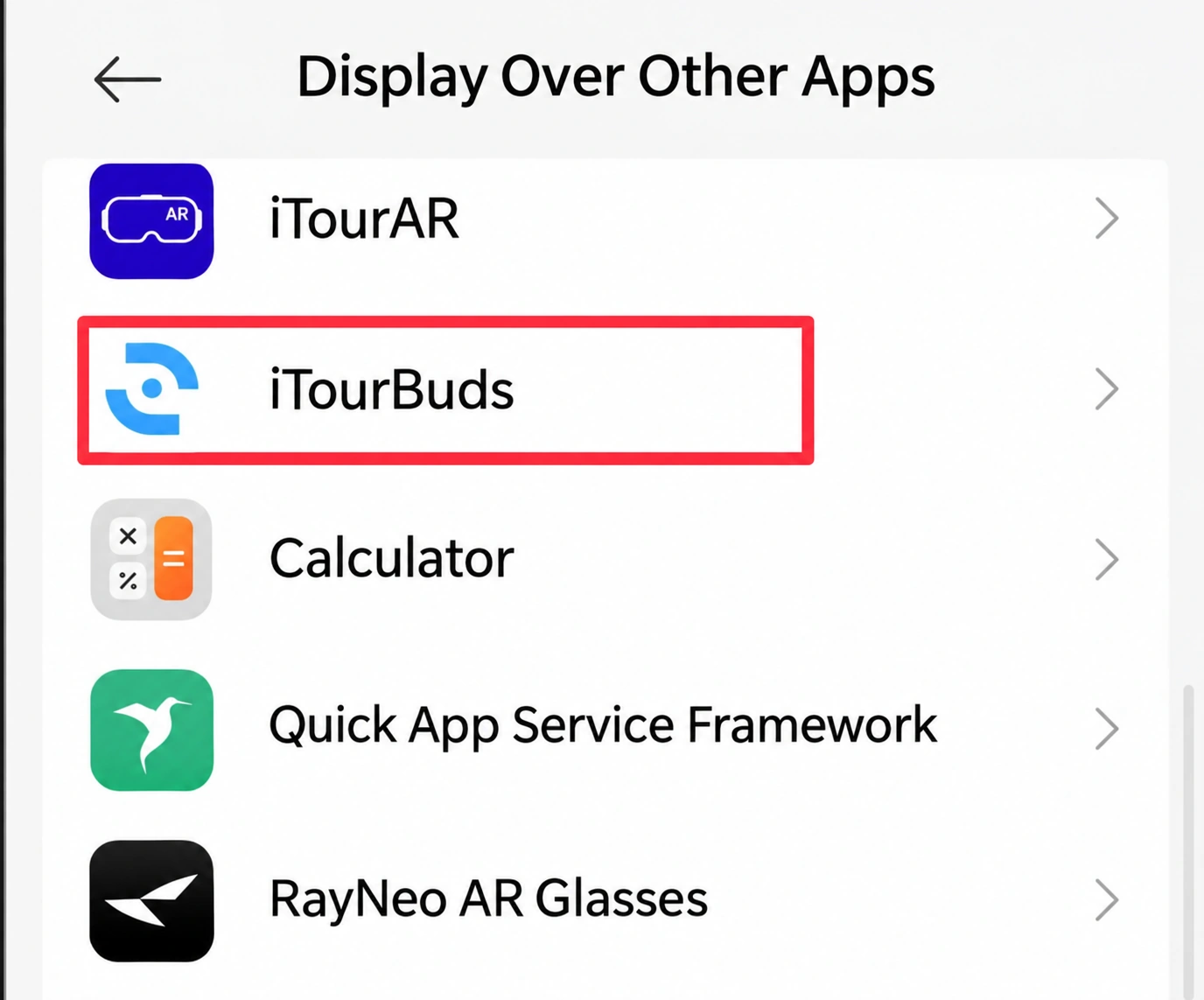
- Go to 'Display over other apps' or a similar permission option, select 'iTourBuds' (or the name the app shows on your phone) in the app list, and enable 'Allow display over other apps'.
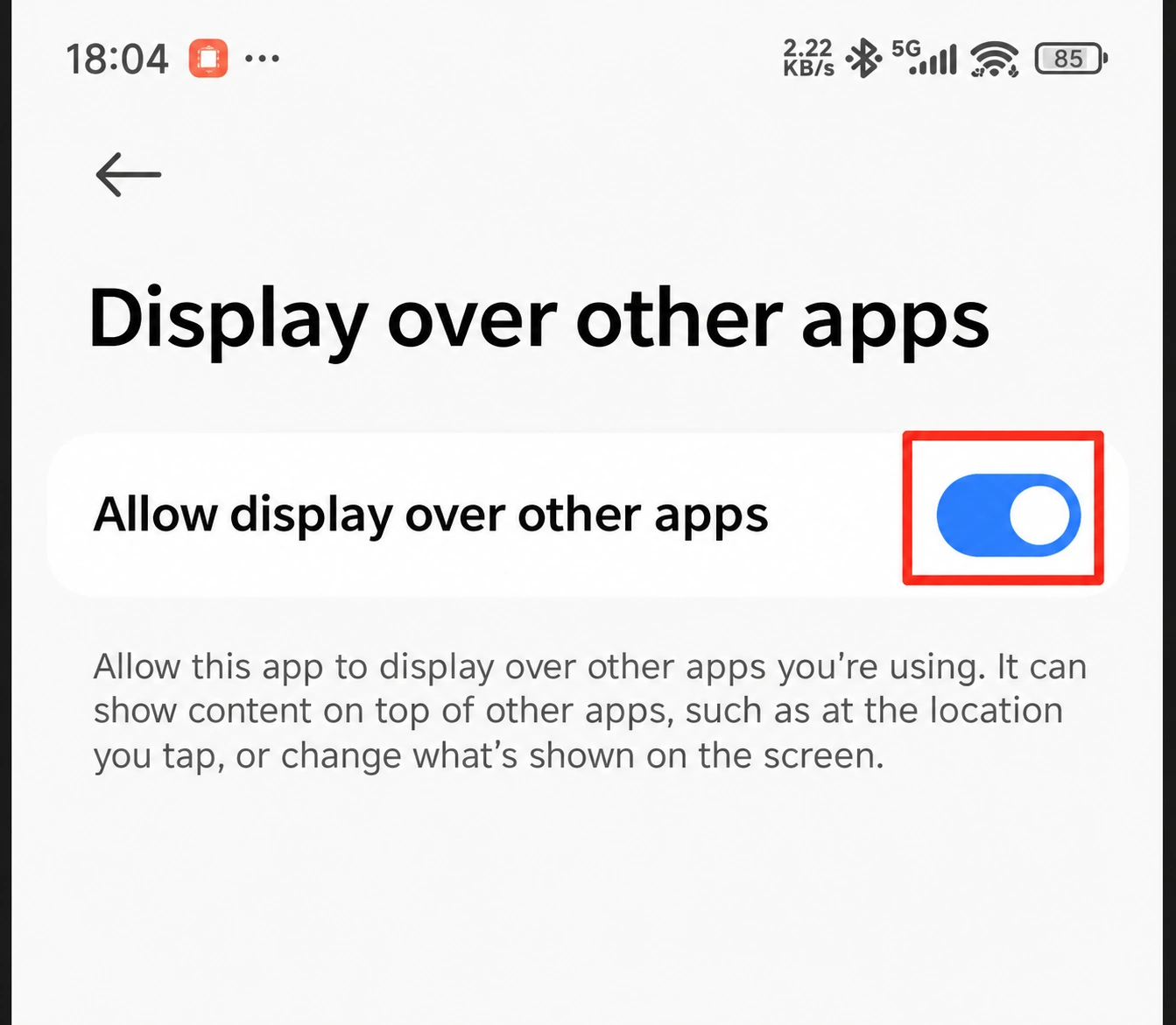
3. Get Started: Return to the app, and the function will start immediately.
Then open any video app (such as YouTube, Bilibili, etc.) to play a video, it will recognize the audio played within the phone (such as the sound from the video app), and the translation results will be displayed in the floating window.
iOS phone usage steps
- Enable feature: Tap the “Microphone” button in the app to turn on 'Live' mode.
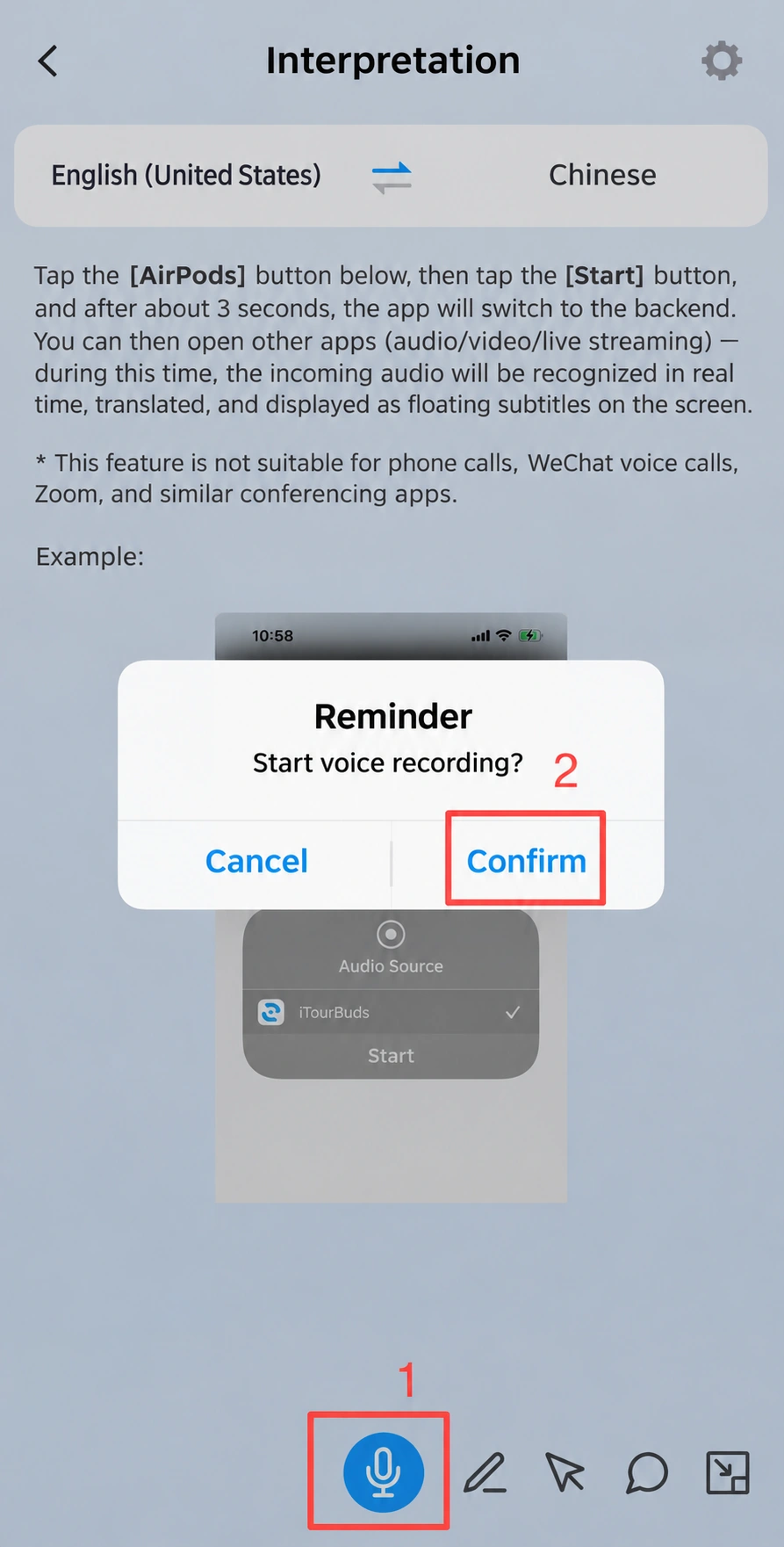
- Switch App: Wait for about 3 seconds, let the app go to the background, and then open any video app (such as YouTube, Bilibili, etc.) to play a video.
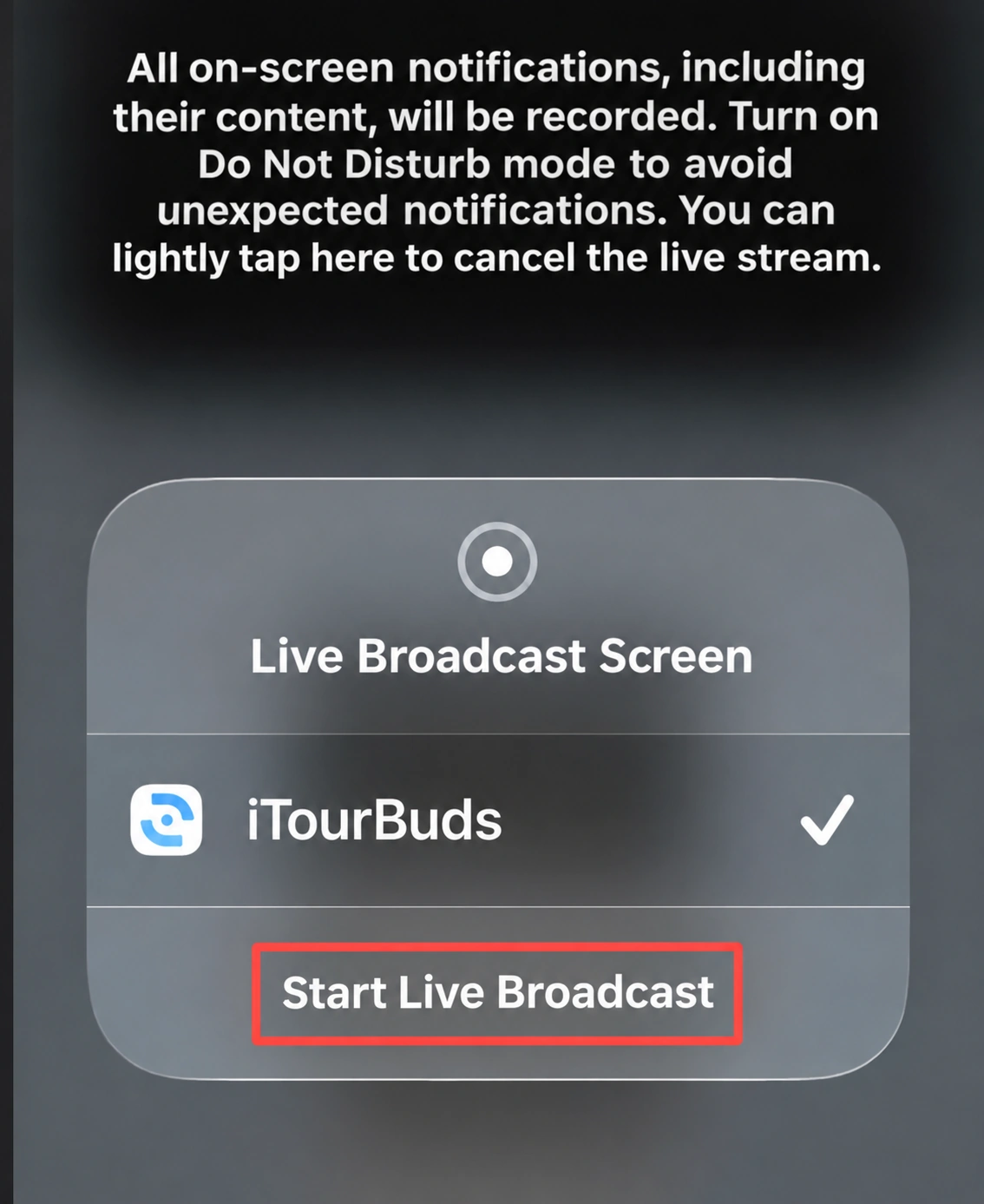
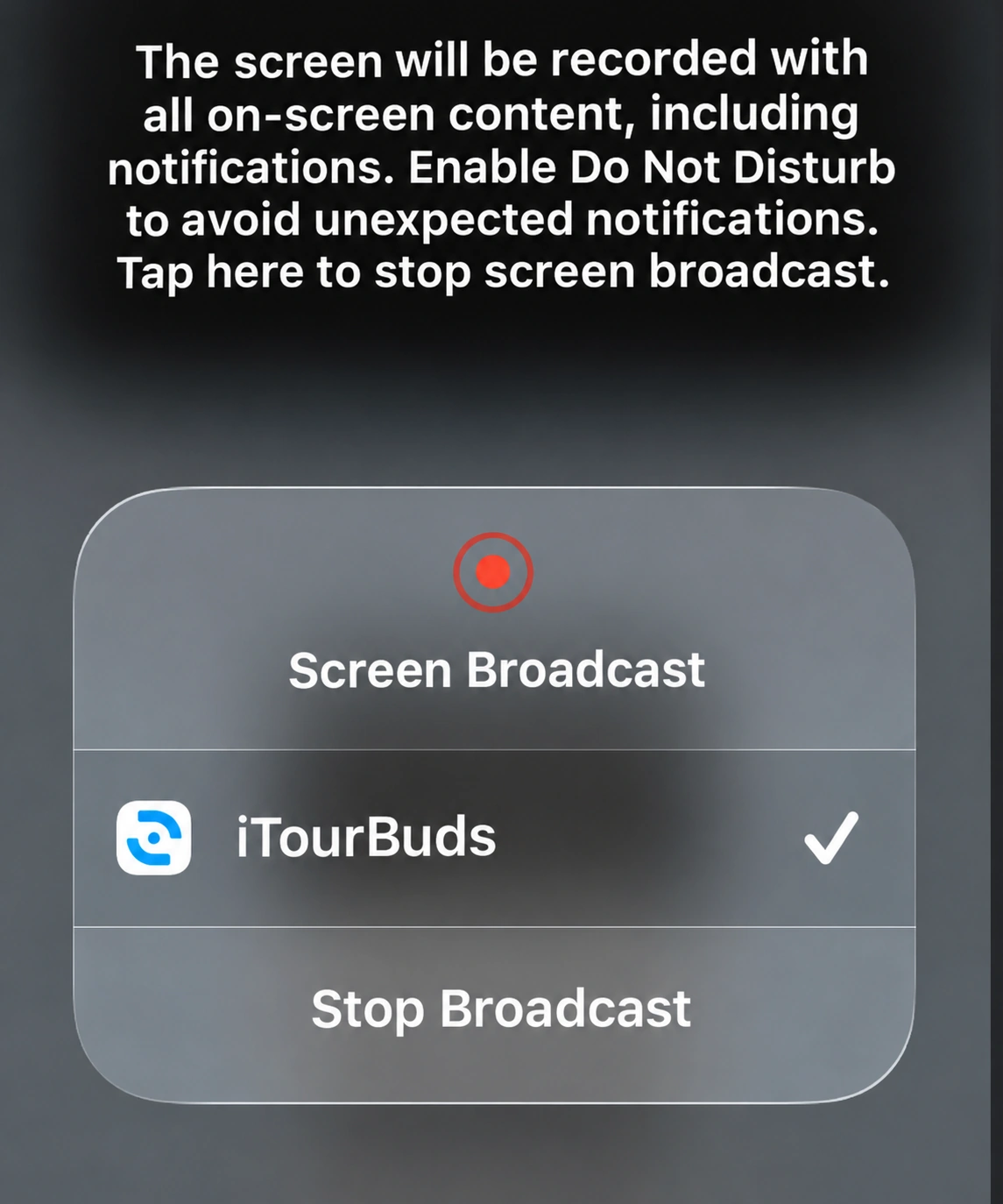
- Watch translation: The system will automatically recognize the video's voice, and the translated text will be displayed in a floating window.
📌 Important Note about Unification
- Core Uses: This feature is specifically designed to translate media audio played on the phone (videos, live broadcasts, audio content).
- Unsupported scenarios: It cannot be used for any real-time call scenarios, including: system calls, WeChat/social software calls, Zoom/Teams and other meeting software. For these scenarios, please use the dedicated 'call translation' mode.
- Permissions and Background Operation: Please ensure that all necessary permissions are enabled according to the instructions (especially the floating window permission on Android), and allow the app to run in the background to avoid interruptions in translation.
How do you use the dual-earphone mode function on the Z50S Pro Max headphones?
Online real-time bilingual translation
Core Features Online real-time bilingual translation, enabling barrier-free communication across languages.
Main Features and Operations:
- Earbud Audio Playback Mode
- After starting the conversation, the translated content is played through the headphones by default.
- Independent output for left and right ears:
- Left earphone:Report the content translated from the language on the left (such as English) to the language on the right (such as Chinese).
- Right earphone: Report the content translated from the language on the right side (such as Chinese) into the language on the left side (such as English).
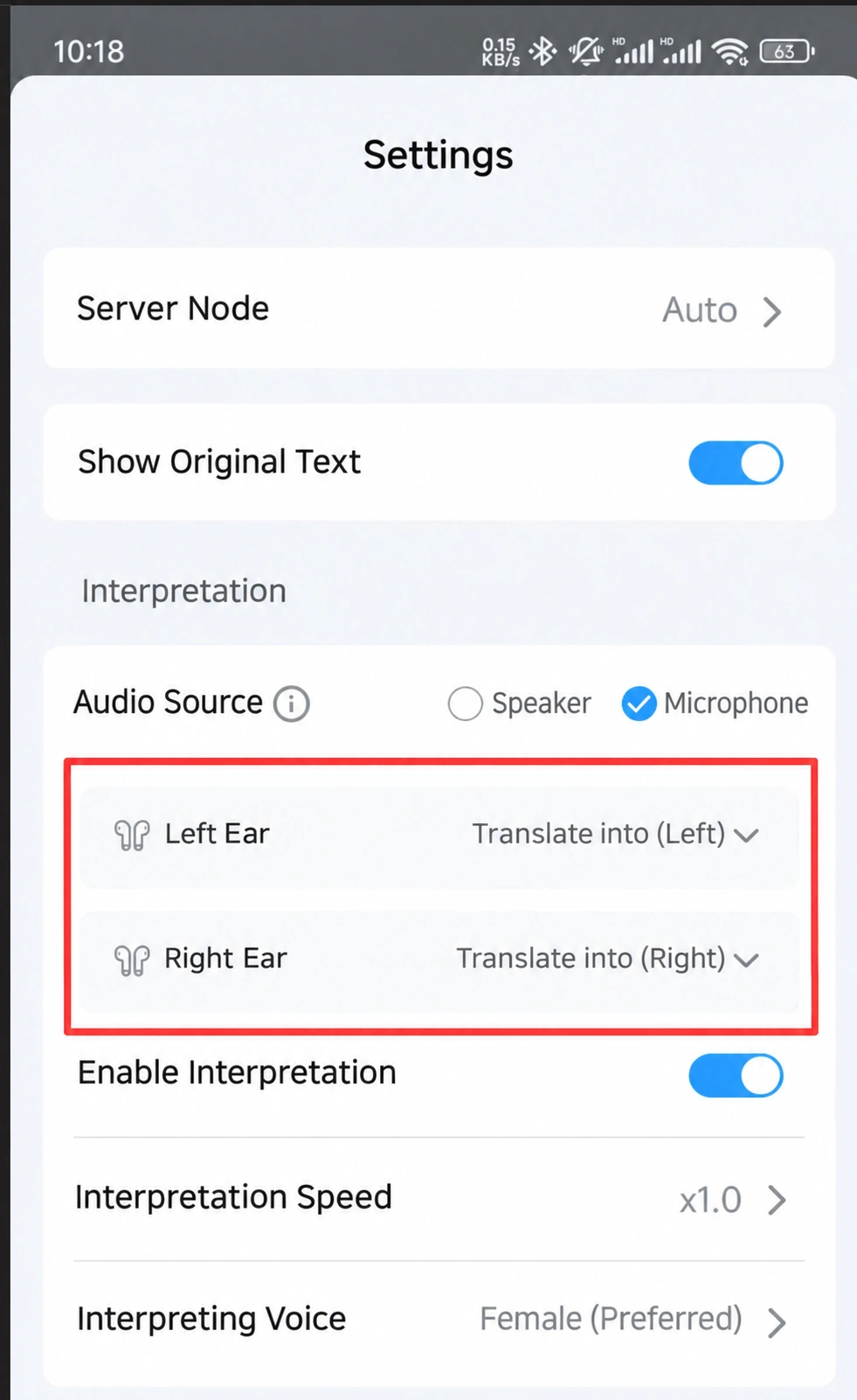
- Note:
- Supports switching the broadcast language between the left and right ears, but does not support broadcasting two languages in a single ear or the same language in both ears simultaneously.
- Currently only Android app version 1.4.42 or later,iOS app version 1.7.00 or later Support
2. Speaker Audio Playback Mode
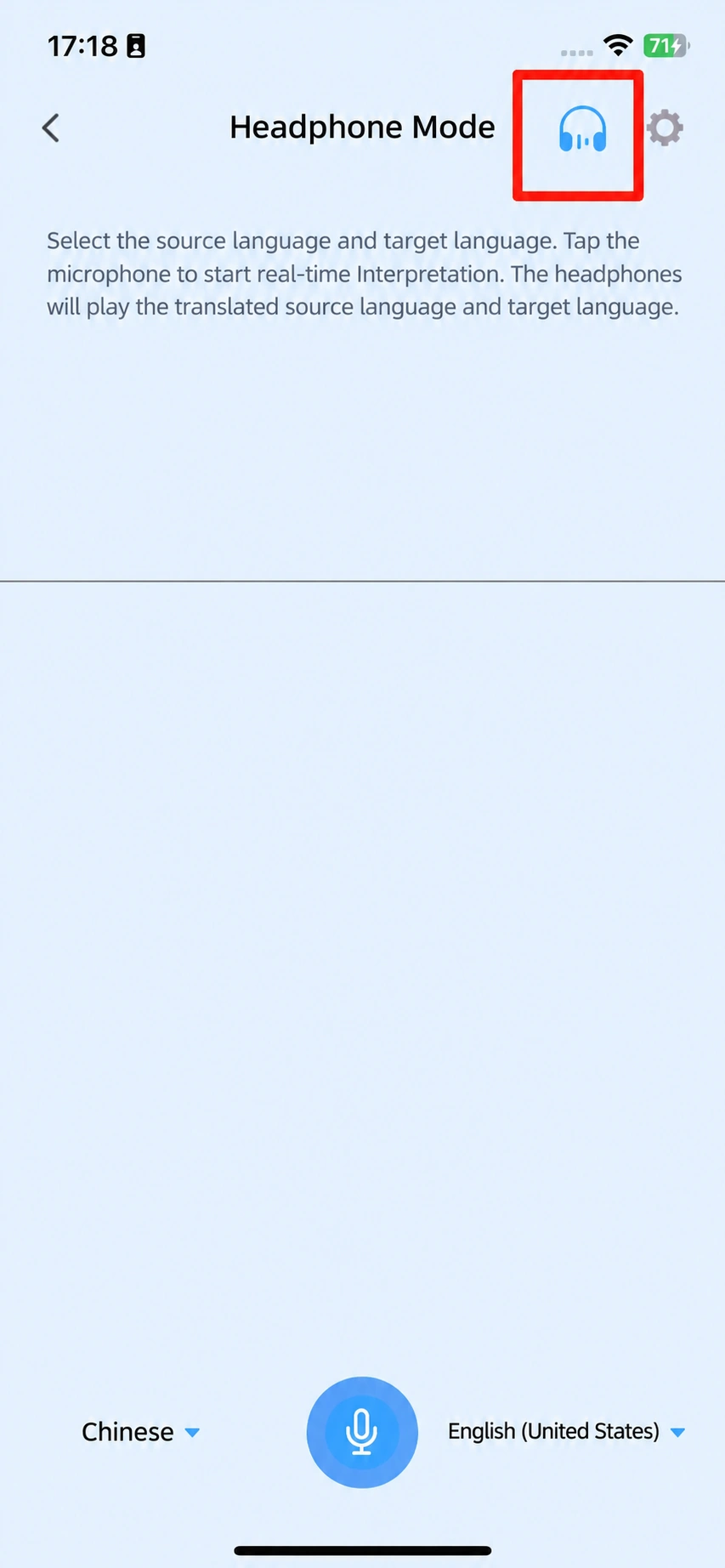
- By clicking the mode switch button, you can switch the translation broadcast from the headphones to the phone speaker at any time, making it convenient to share the conversation content with people nearby.
How to use the meeting transcription feature on the Z50S Pro Max headphones?
It's very simple. When you need to record, go to the 'Meeting Transcription' page → click the 'microphone' icon to start. It will transcribe the spoken words into text in real time, making it easier for you to organize later. Please note, this feature For speech recognition transcription only, does not include translation.
How to use the Z50S Pro Max headset video call function?
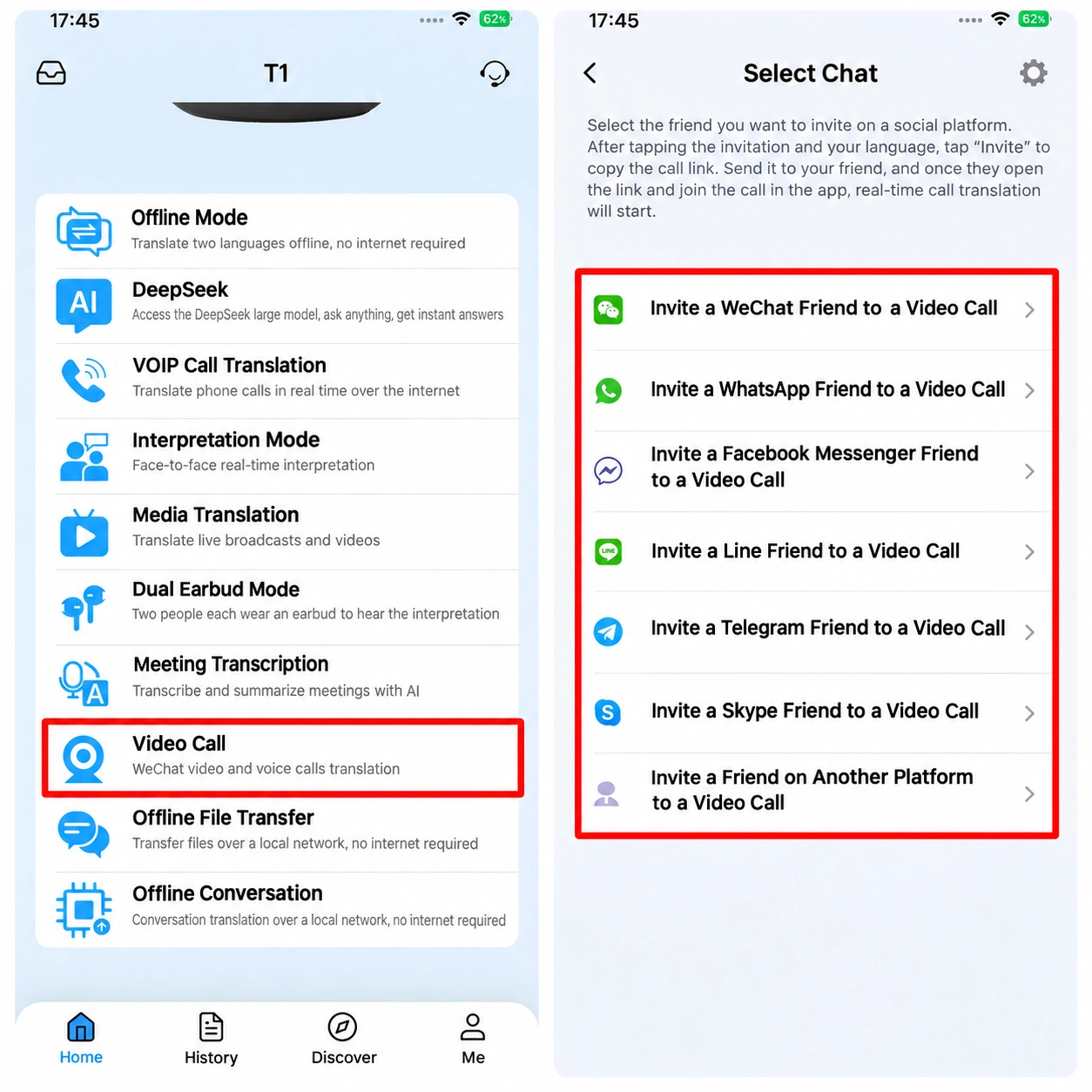
The video call feature allows you to connect with friends Real-time cross-language video, voice, and text chat By sending an invitation link to a friend, once the friend clicks to join, you can start a real-time call and synchronized translation.
Operating Steps
- Initiate Call: Enter the app's "Video call"On the page, select the social platform you want to use (such as WhatsApp, WeChat, etc.)."
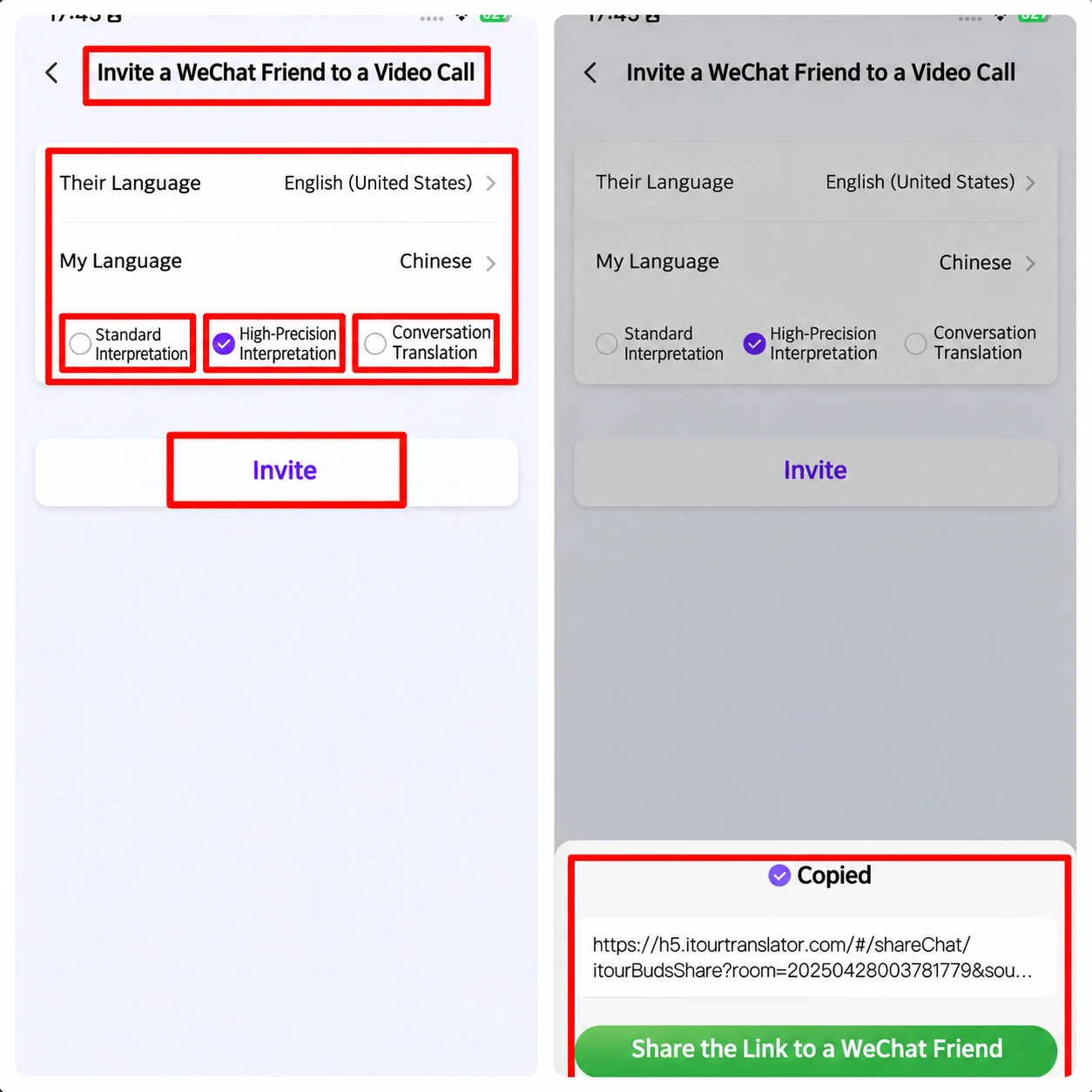
- Set up call: Select your language and your friend’s language Languages and call types of both parties(voice or video), then click [Invite”→Click “paste it into a message to your friend At this time, we will by default copy the corresponding link.
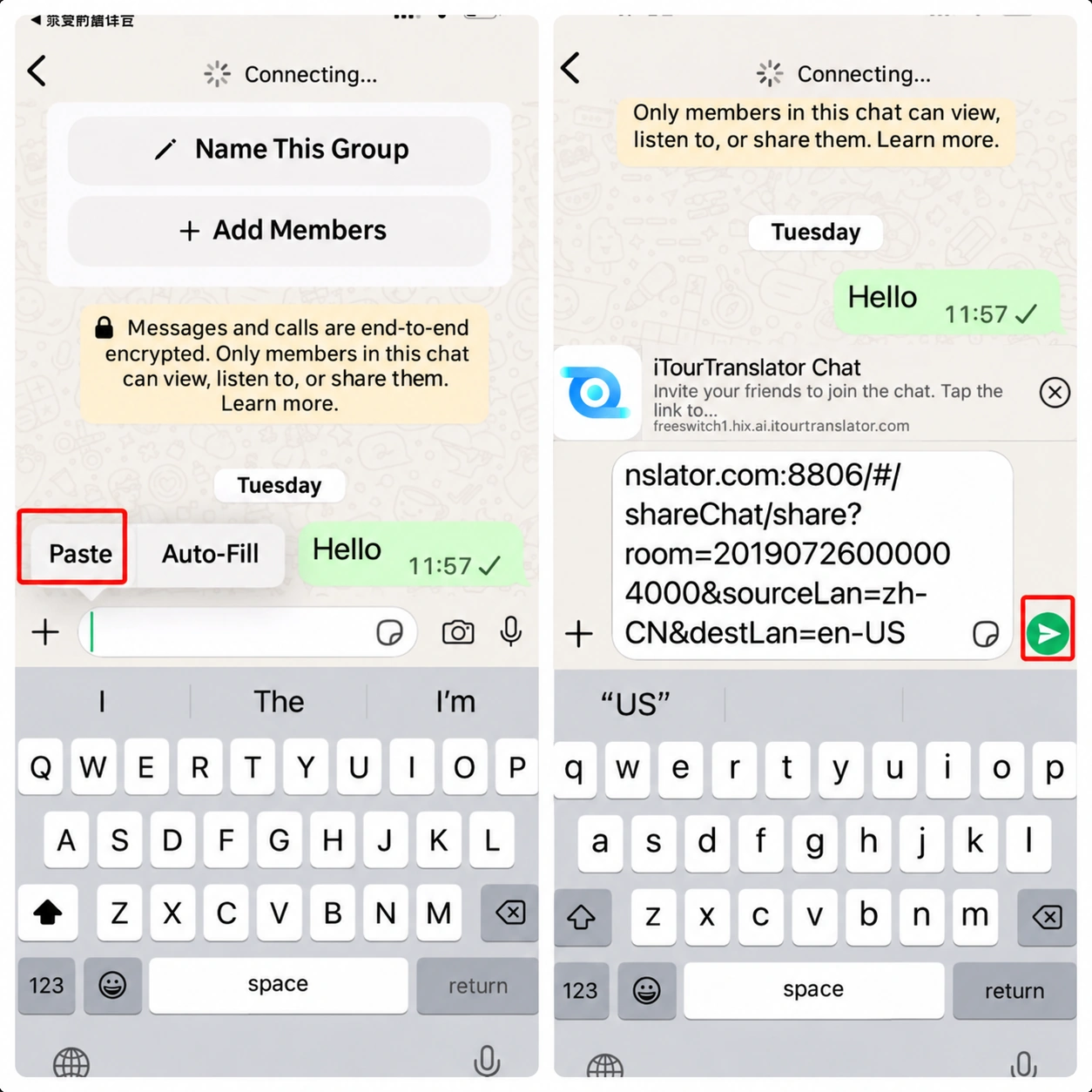
- Share link: Share the copied link to the chat window of the friend you choose.
- Waiting to join: After sharing, return to iTourBuds APP the call page, wait for your friend to click the link to join. Once they join, you can start leading Real-time translation video/voice call.
Tip
- Network requirements: To ensure call and translation quality, it is recommended to use in a stable Wi-Fi or mobile network environment.
Z50S Pro Max Offline Simultaneous Translation Feature Introduction
Offline simultaneous interpretation:After downloading the offline language pack,In an offline environmentYou can also enable simultaneous interpretation, the specific steps are as follows:
1. ClickMicrophone, prompt to download offline resource package
2.First timeDownloadDefault language pairOffline resource pack
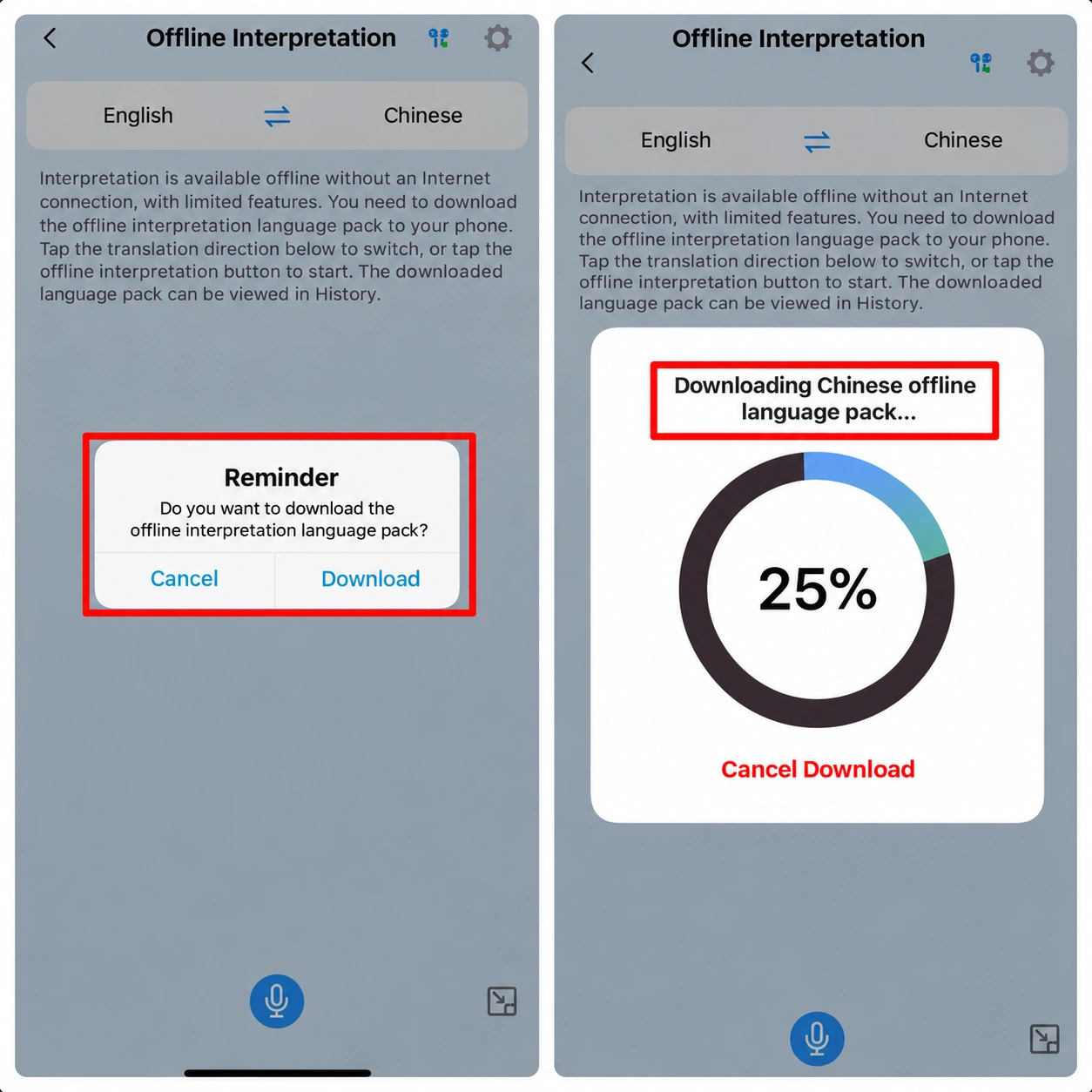
3. You can also clickLanguage barDownload the required offline resource pack
4. Click after enabling simultaneous interpretationFloating window in the bottom right cornerButton, can display simultaneous translation content in a floating window
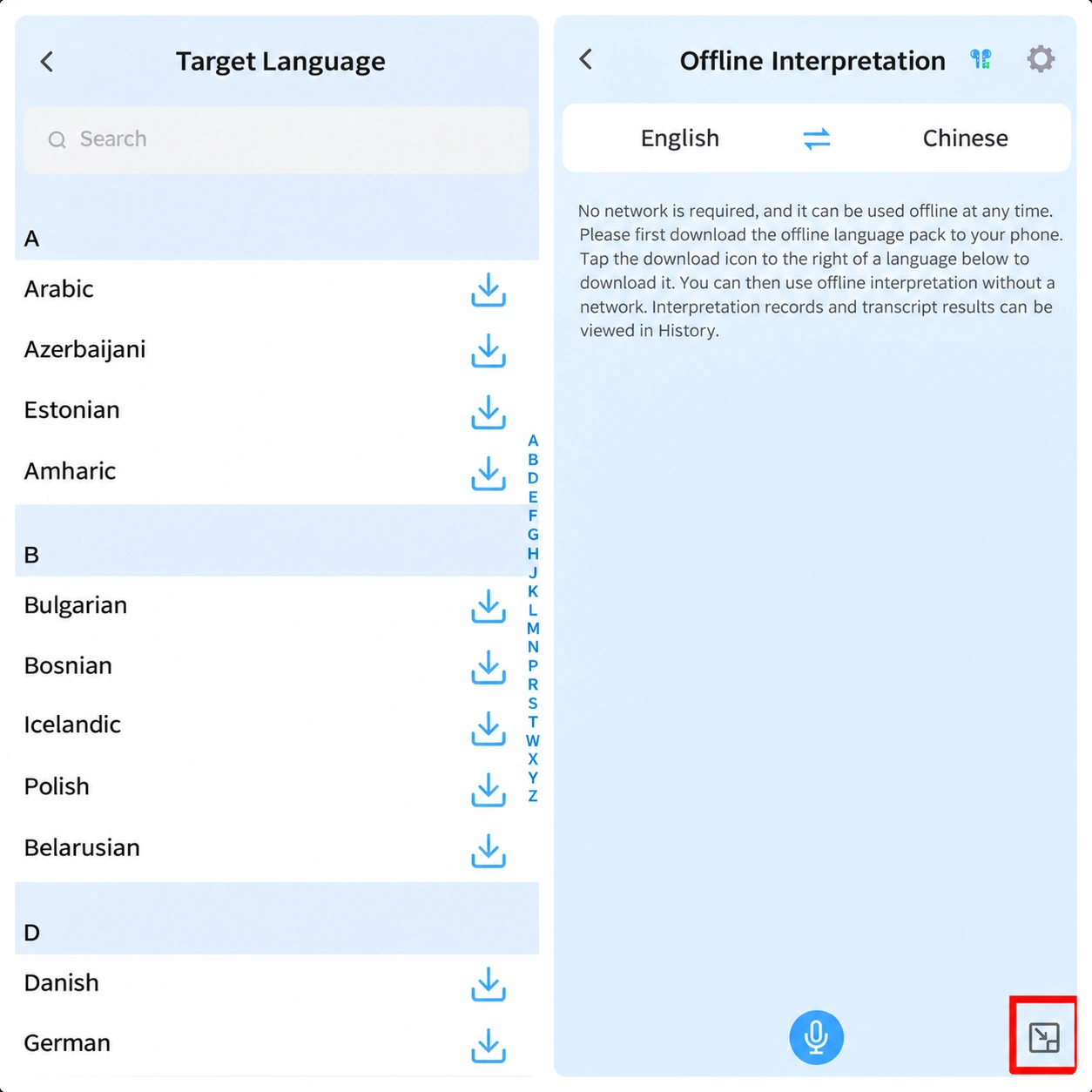
Z50S Pro Max Offline Chat Feature Introduction
Offline conversation:After downloading the offline language pack,In an offline environmentYou can also start a conversation, the specific steps are as follows:
1. ClickMicrophone, prompt to download offline resource package
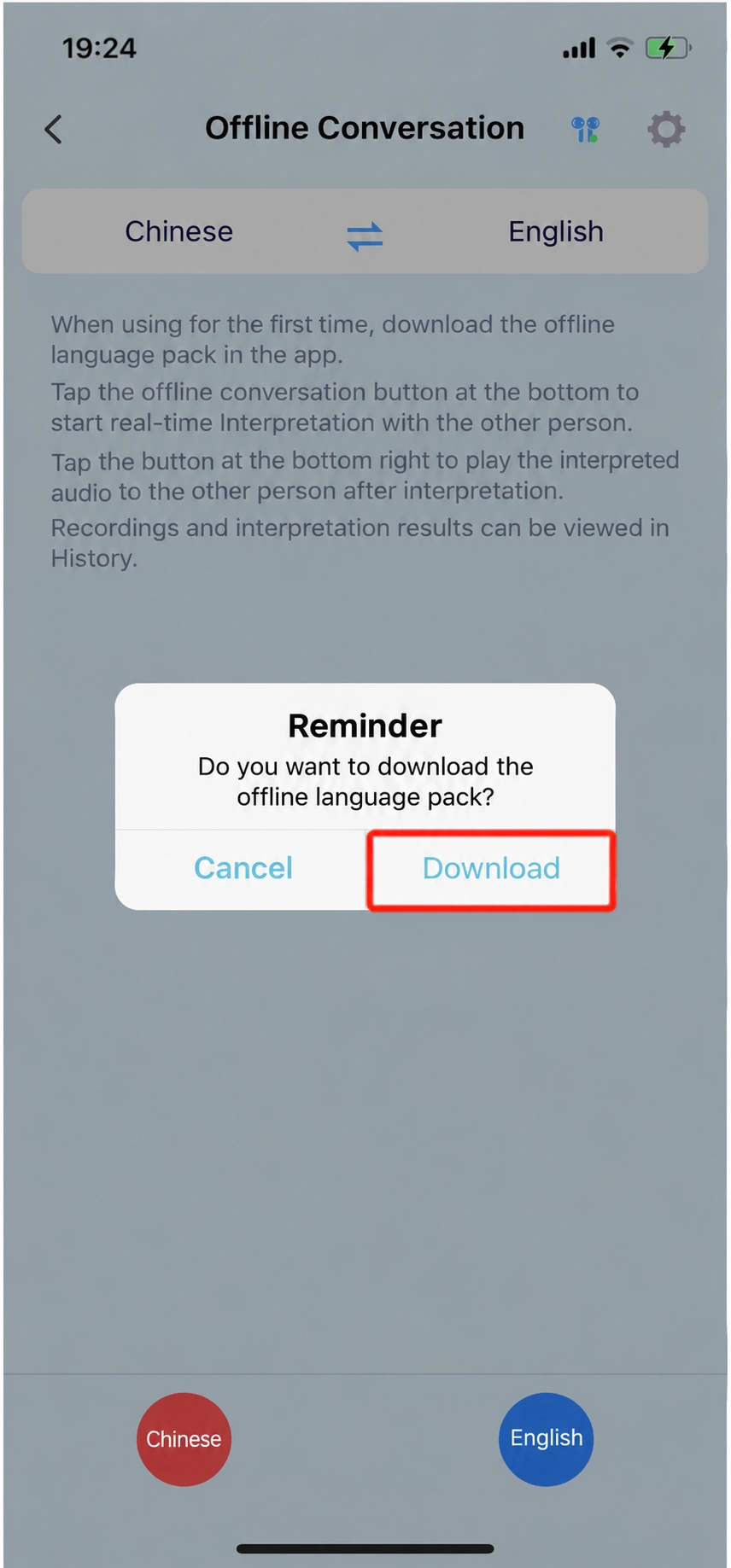
2.First time Download Default language pairOffline resource pack
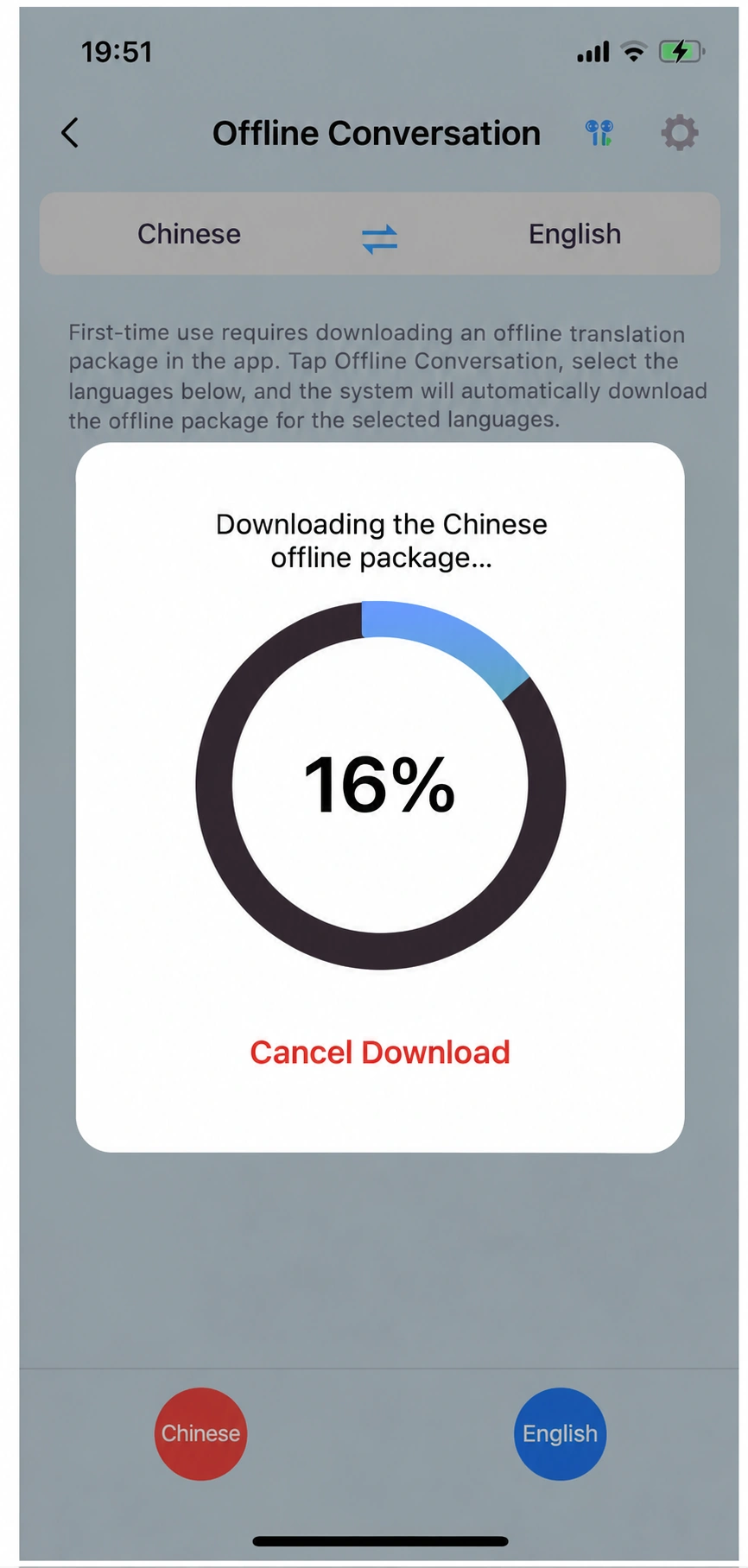
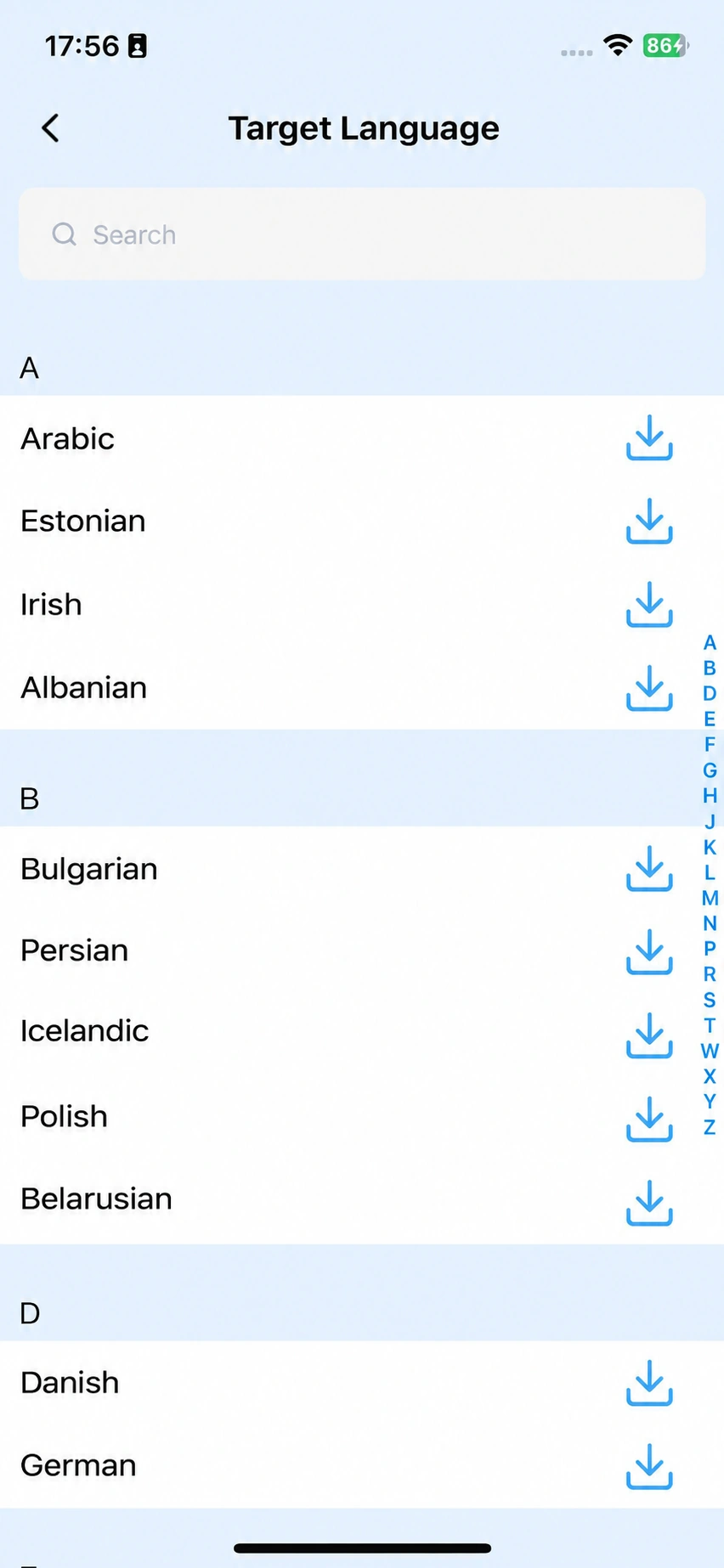
3. You can also clickLanguage barDownload the required offline resource pack
4. After the offline language pack is downloaded successfully, you can click the language buttons on the left/right.Start conversation / Click again to turn off recognition, send the translation and play it aloud
5.Left sideButtonIdentify the other party Language translate into your language Language, translated content Headphone announcement, Right side Button Identify our side Language translate into the other participant’s language, translation content Phone SpeakerAudio Playback
Didn't find the answer?Contact Online Customer Service ↗ · Contact us · Return to Help Center

 Support