
Video Translation Browser Extension FAQs
A total of 6 questions. Click on a question to expand the answer.
Why can't the Video plugin be used? After clicking [Start Translation], nothing happens.
1. If the plugin was installed after opening the webpage, pleaseRefreshThis webpage orRestartRetry in the browser
2. IfRefreshwebpage orRestartAfter the browser, if the problem still cannot be resolved, it may be the current webpageNot supportedGenerate plugin floating window, it is recommended to use the desktop client[Click here]
How do you use the browser extension features?
Click[Start Translation], you can choose from the following two options:
1) If you need translation Web video, you can select the Chrome tab, choose the video tab you want to translate, and click[Share]can do
2) If you need translation Voice content on desktop platforms like Zoom, then you need to choose[The entire screen”— Click the middle of the screen — Select “Share system audio” — Click to share
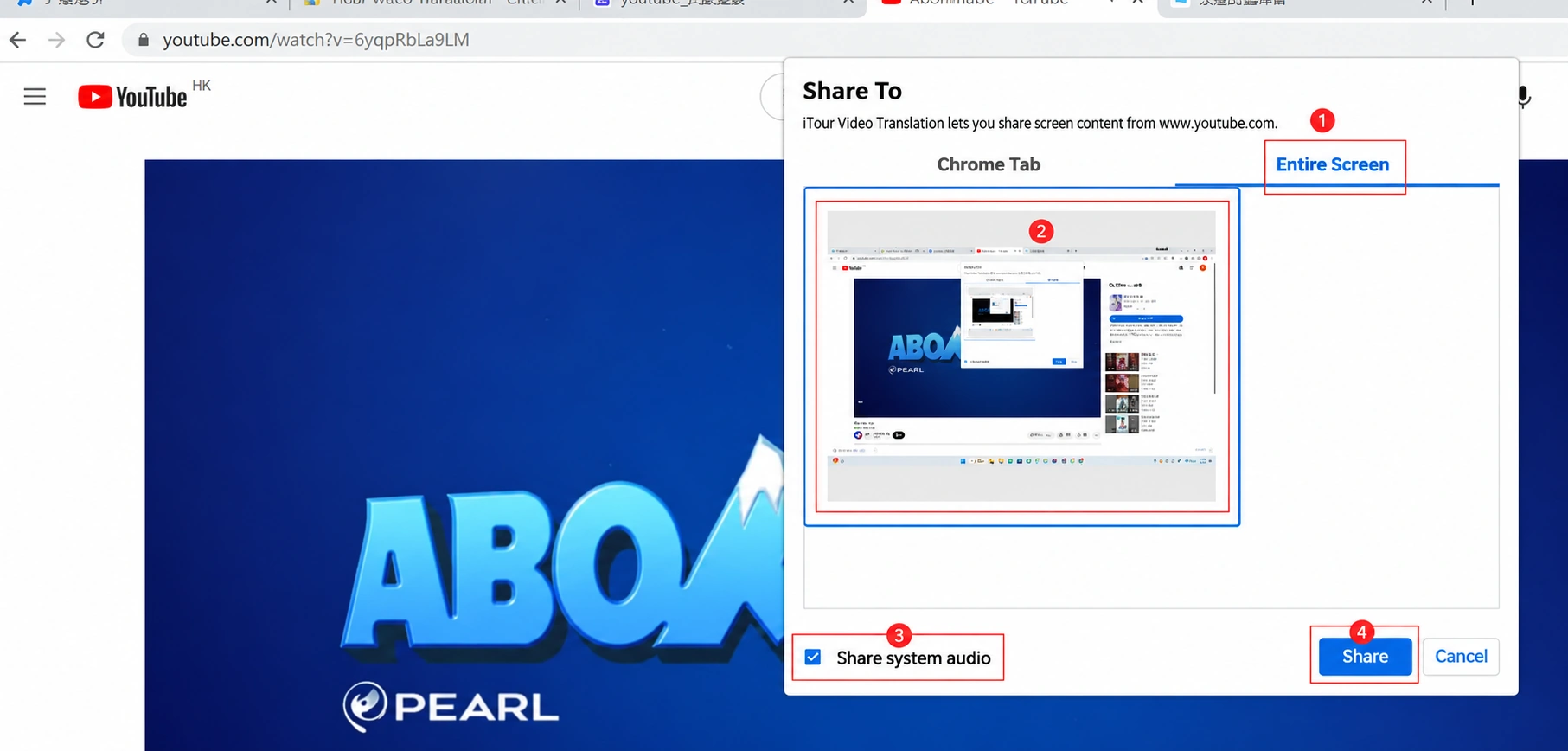
Audio Source Selection
Web: Online meetings, courses, web videos, etc., sound source selection Web
Microphone: For in-person meetings and speech, select the audio source Microphone
Note:
If the page you want to use was opened before iTour Video was installed, you need to reload this page in order to use the iTour Video translation feature.
How do you install a plugin?
Google Chrome:
1) In overseas/with a VPN situation, you can go to the Google Play Store to install [Click here to download”
2) In mainland China without using a VPN“Click to download locally ”
Local download and installation operation steps (Taking Chrome browser as an example):
1.First, click download iTourVideoTranslation-vx.x.x.zip, unzip it to the current folder, enter chrome://extensions in the address bar or click the top right corner -> More tools -> Extensions to open the Chrome Extensions interface
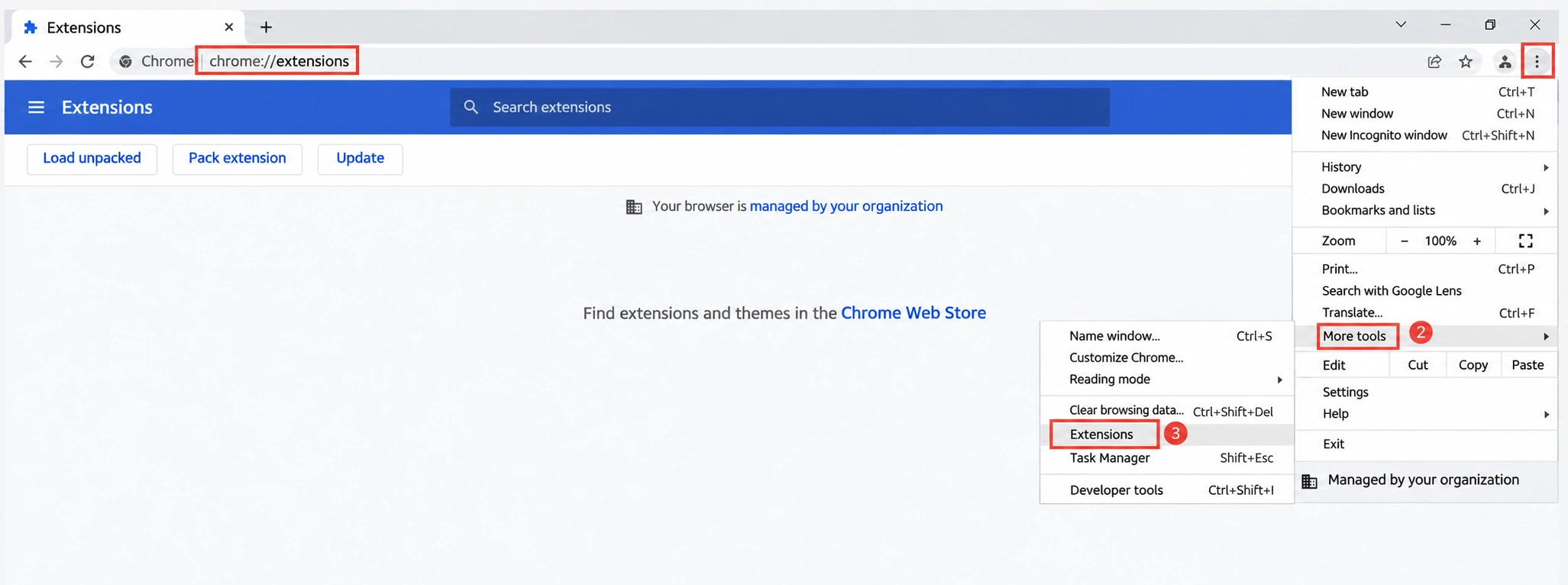
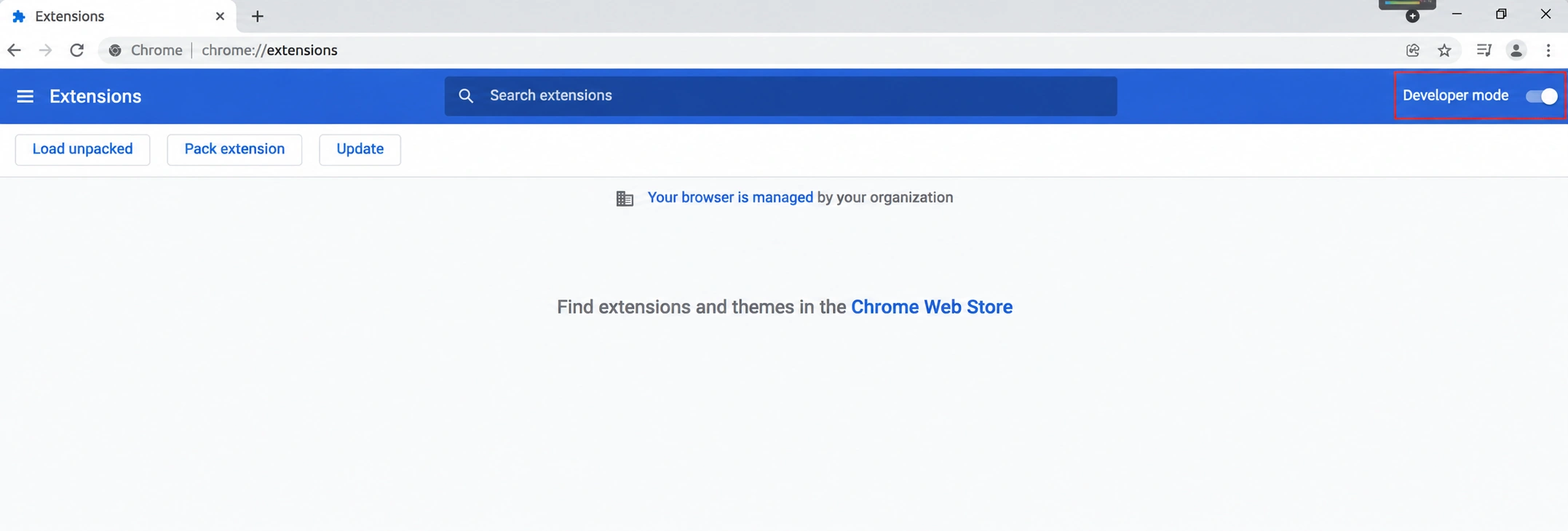
2. Enable Developer Mode
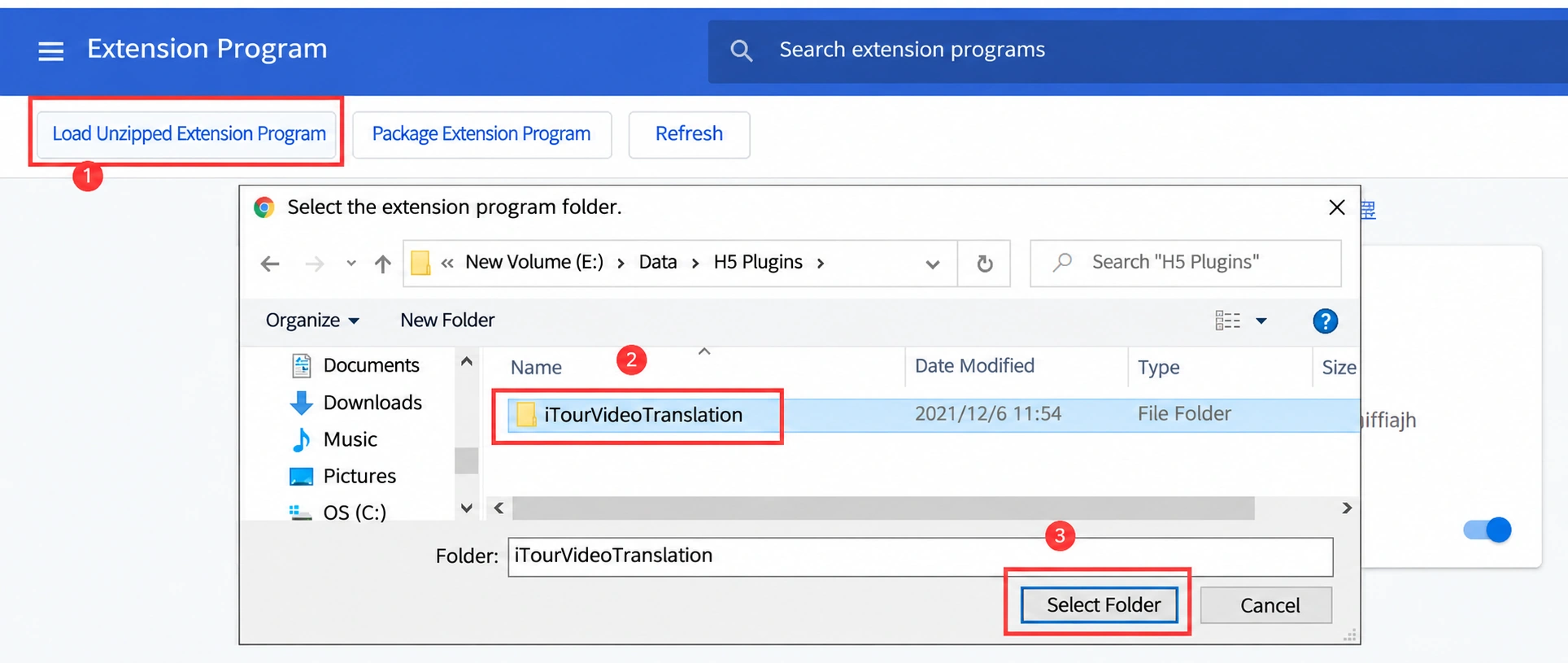
3. Click 'Load unpacked extension' and select the folder that you have extracted.
4. Click on the extensions in the browser and select Pin
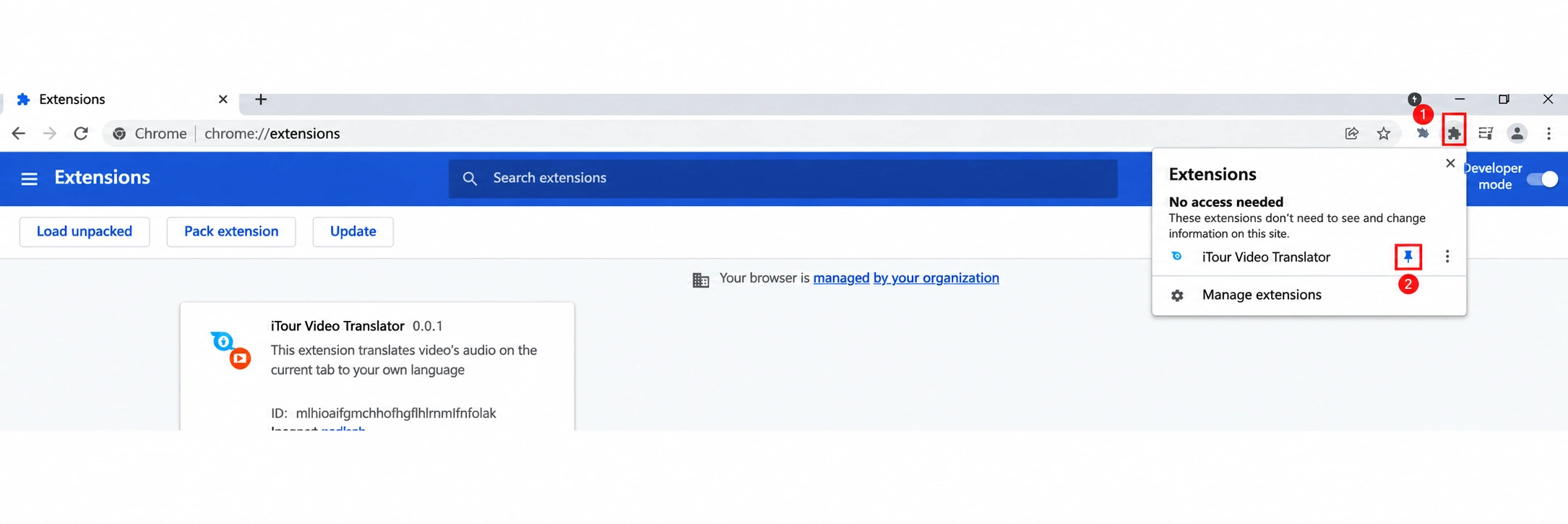
5. Once fixed, the iTour logo will appear in the upper right corner of the browser. Click this logo to pop up the iTour video translation plugin window, then click[Login”You can then jump to the login page to register and log in.
Suggestion: After installation, please restart the browser before use
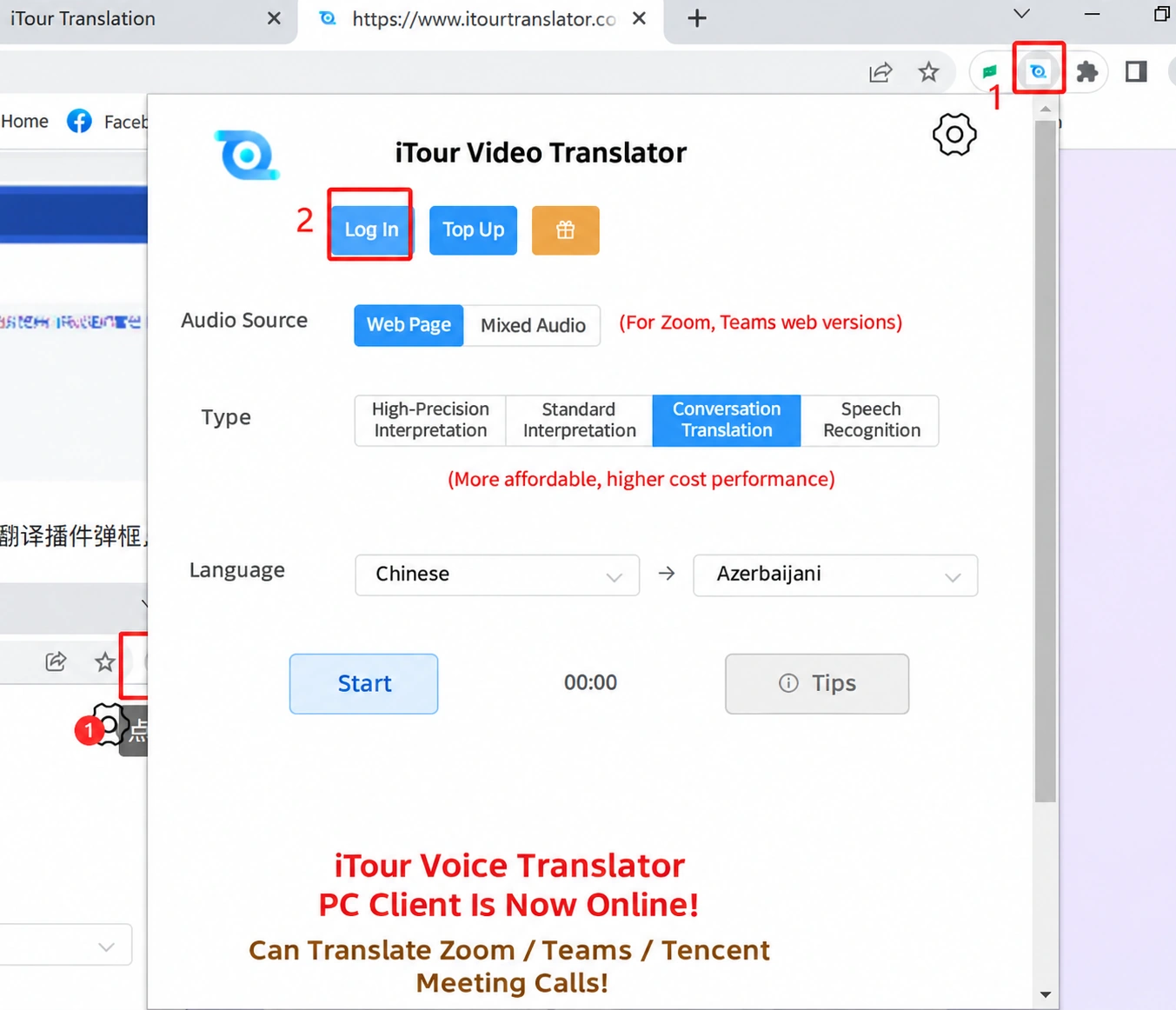
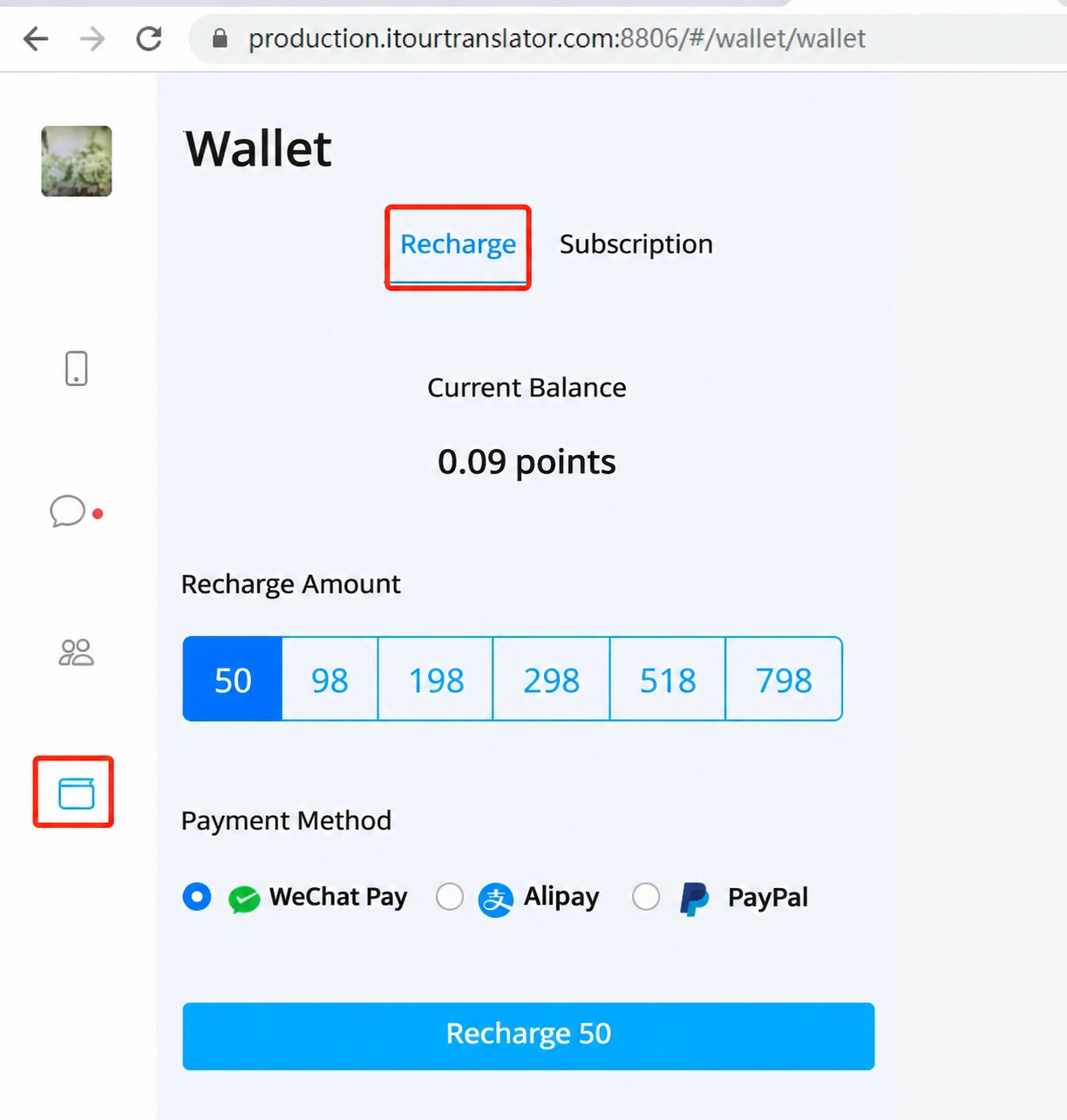
Top Up: After successfully logging in, you can go to the wallet page to top up. You can top up directly or choose a package to top up.
Edge Browser:Install from the Microsoft Edge Add-ons store“Click here to download”
Plugin side: Can it translate Zoom, Teams, and Tencent clients?
Sure, the specific operation steps are:
1. Click[Start Translation]
2. Choose[The entire screen]–> Click the middle of the screen –> Select “Share system audio” –> Click to share
Note: The plugin translation pop-up cannot be used outside the browser
Does the browser extension save audio recordings?
Plugin versionNoneAudio recording
Where do I find translation history in the browser extension?
Open the plugin page — HistorySearch
Didn't find the answer?Contact Online Customer Service ↗ · Contact us · Return to Help Center

 Support