
iTourTranslator for Desktop FAQs
A total of 19 questions. Click on a question to expand the answer.
External microphone devices (such as simultaneous interpretation machines) cannot be recognized by the software
It is recommended that you first check whether the computer can normally record sound from the external microphone.
Step 1: Confirm whether the computer can normally record sound from an external microphone
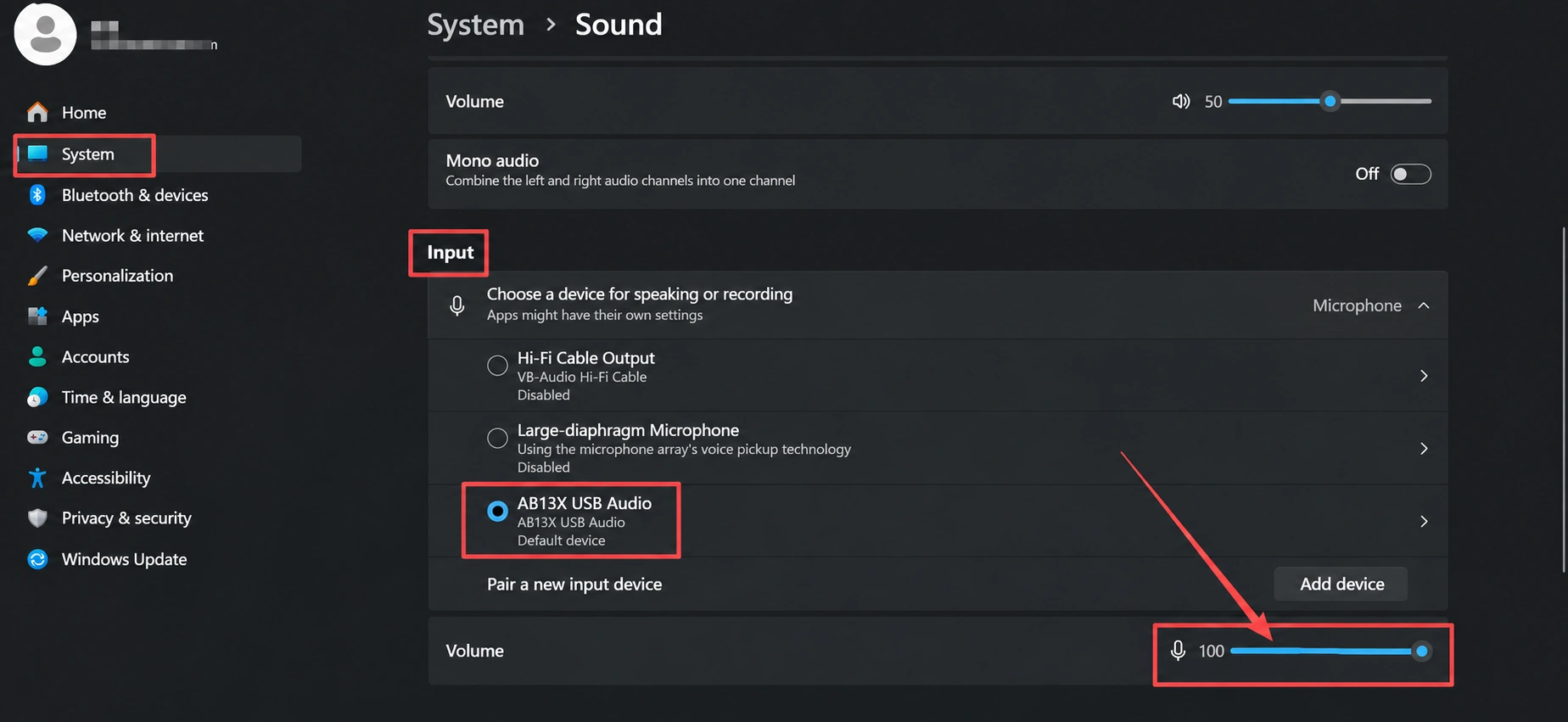
Windows computer
- Right-click the sound icon (small speaker) at the bottom right of the taskbar and select 'Sound Settings'.
- In the Input area, choose your external microphone from the Select input device dropdown (usually shown as the device model or "USB Audio Device").
- Speak into the microphone and observe whether the test volume bar below has blue fluctuations.
Mac computer
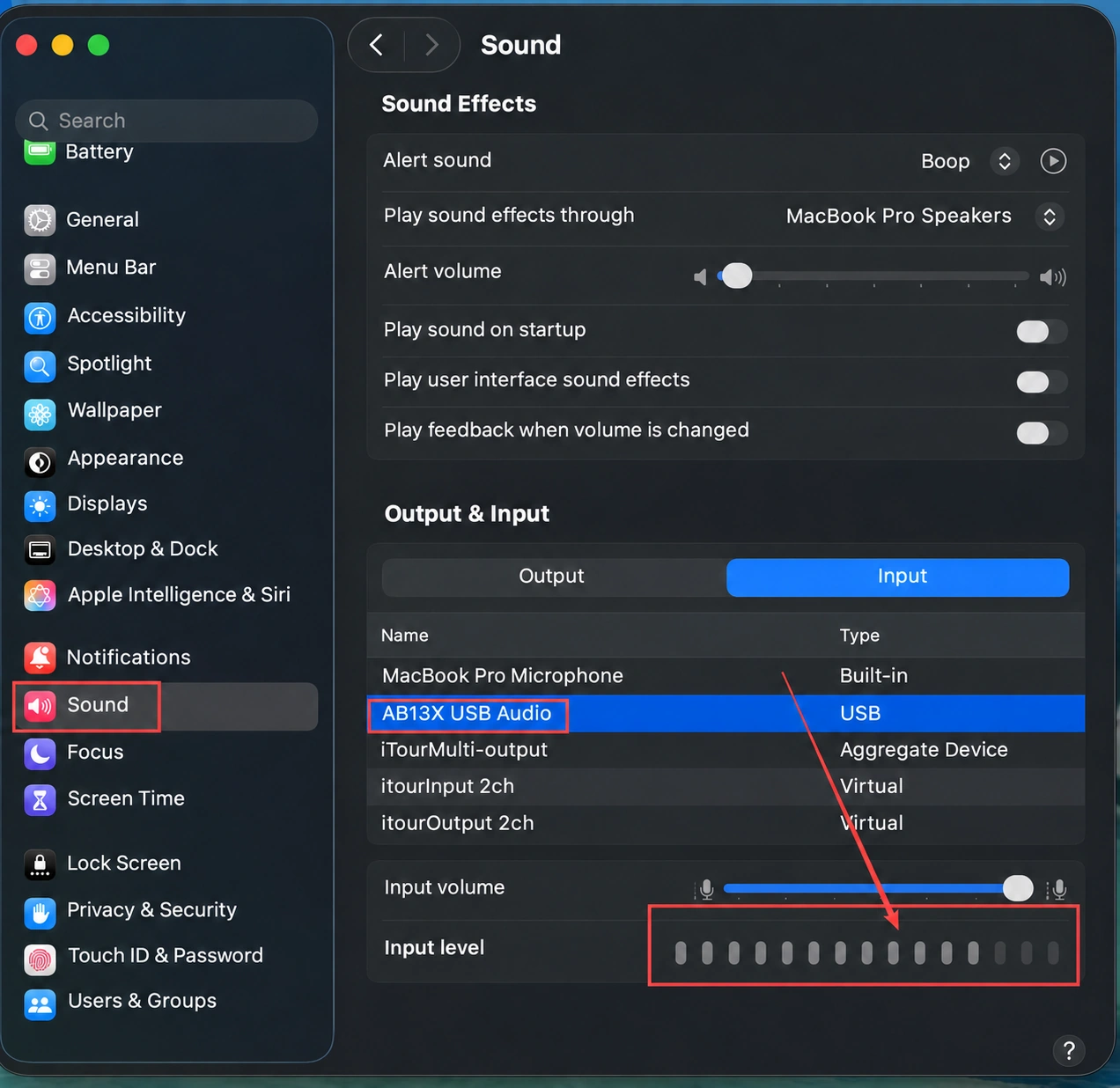
- Click the Apple icon in the top left corner → 'System Settings' → 'Sound' → 'Input' tab.
- Select your external microphone in the device list (usually shown as "USB Audio Device" or the device model).
- Speak into the microphone and observe whether the input volume indicator bar fluctuates.
Results and Next Steps
- No activity → This indicates that the problem may be with the computer or external devices. It is recommended that you first check the device connections or consult the device manufacturer.
- Activity detected → Indicates that the computer can record sound normally, please proceed to step two.
Step 2: Check the software settings and test the microphone
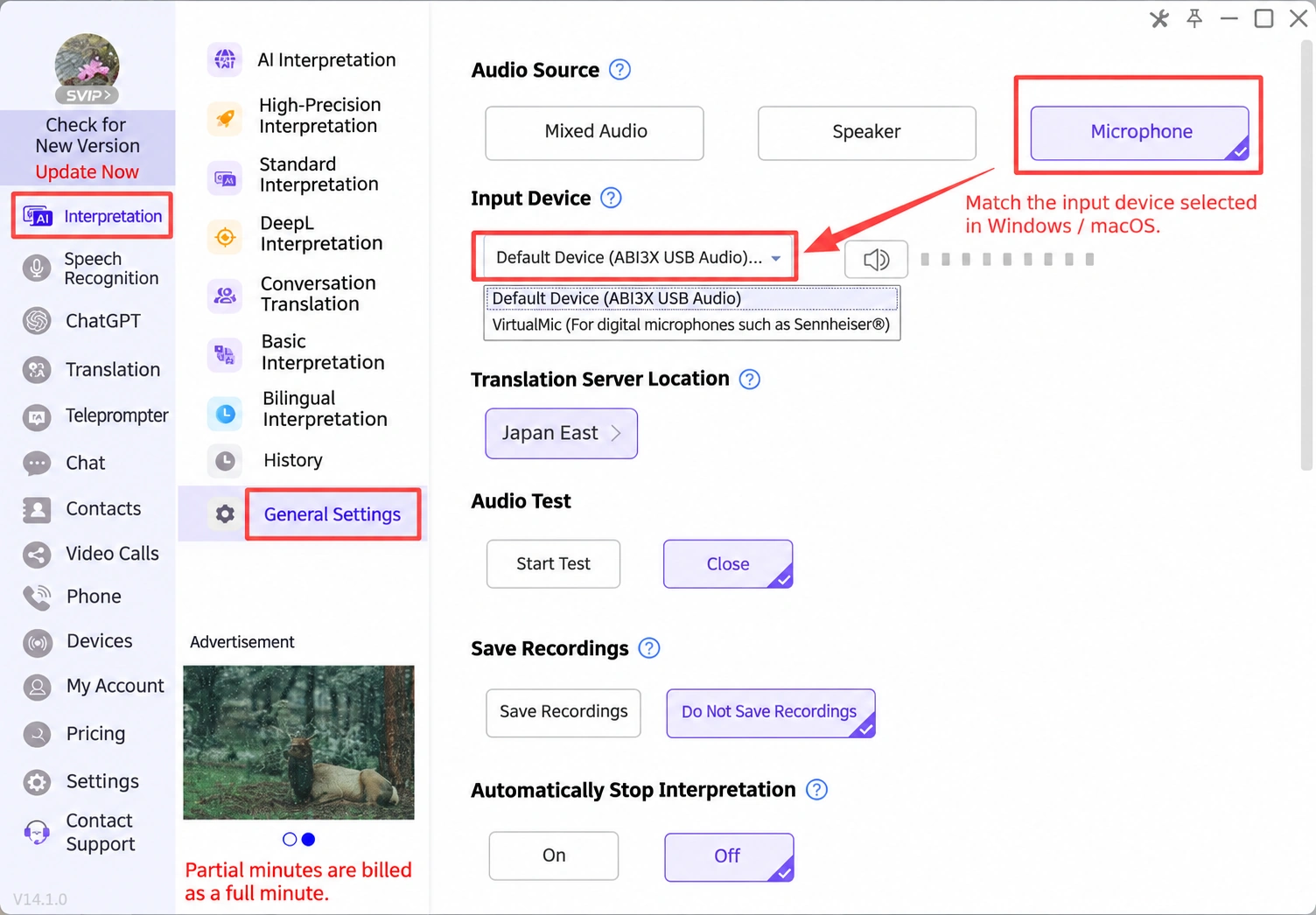
Windows computer
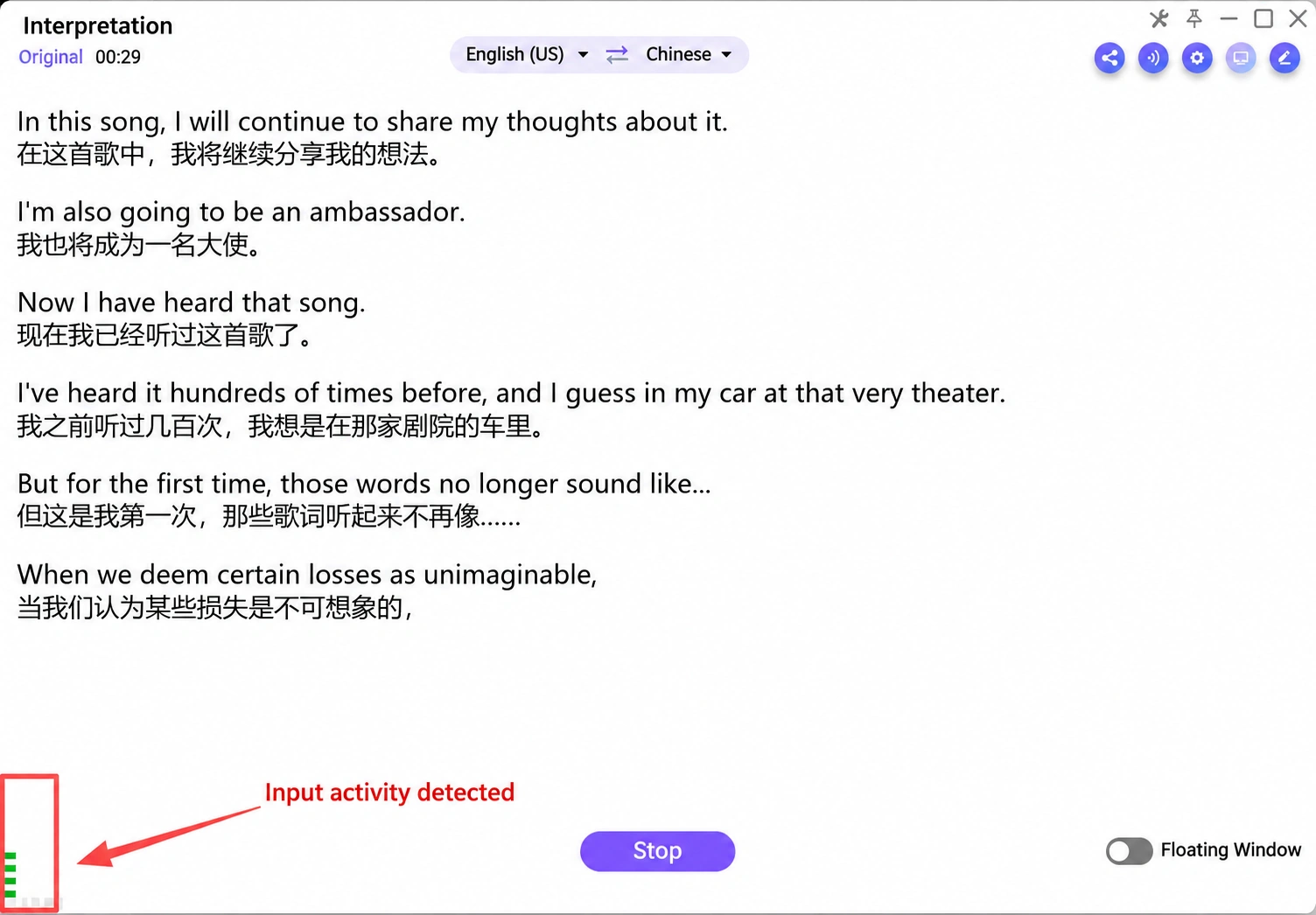
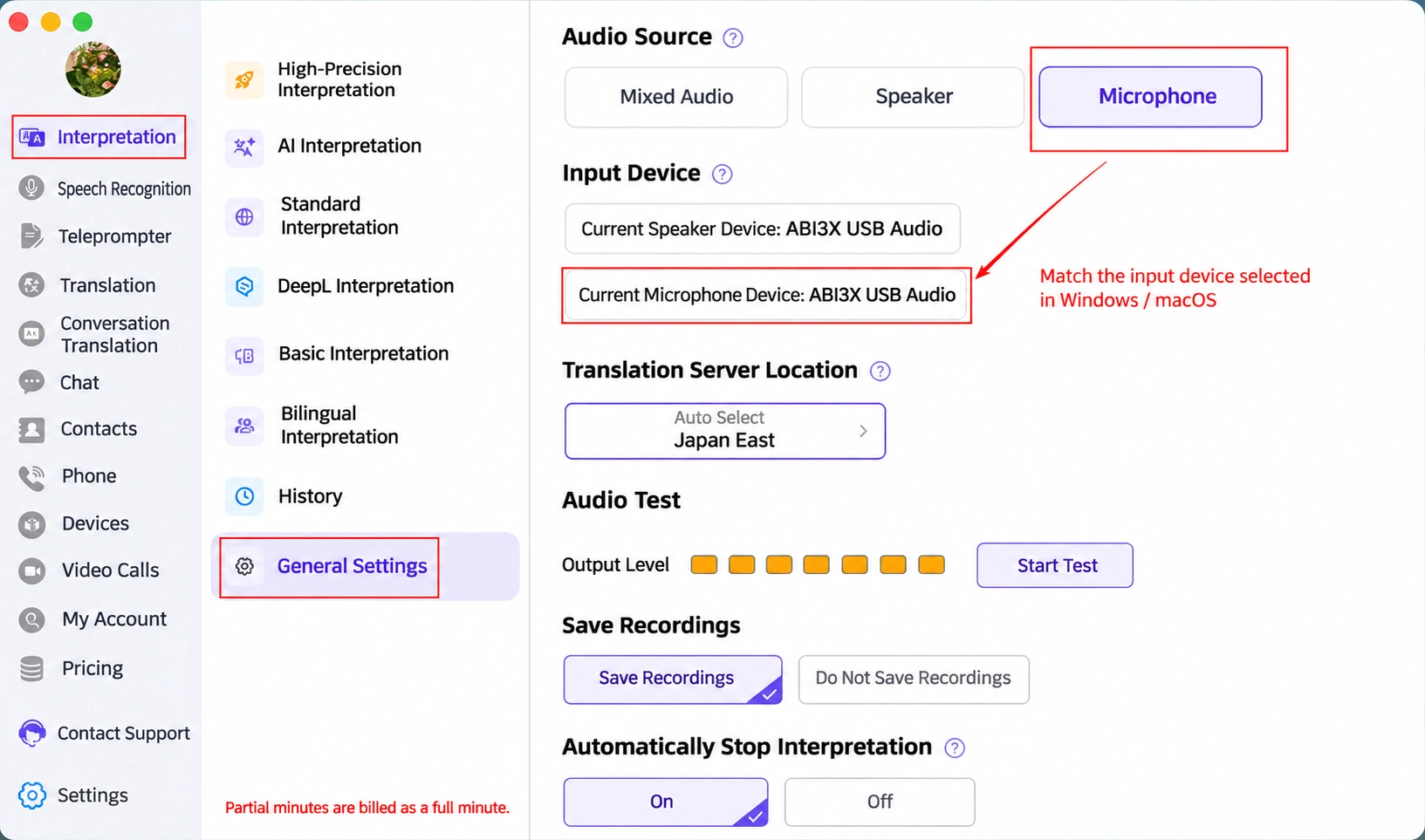
- Make sure the audio source is set to "Microphone" and that the selected capture device matches the input device name in your computer system settings.
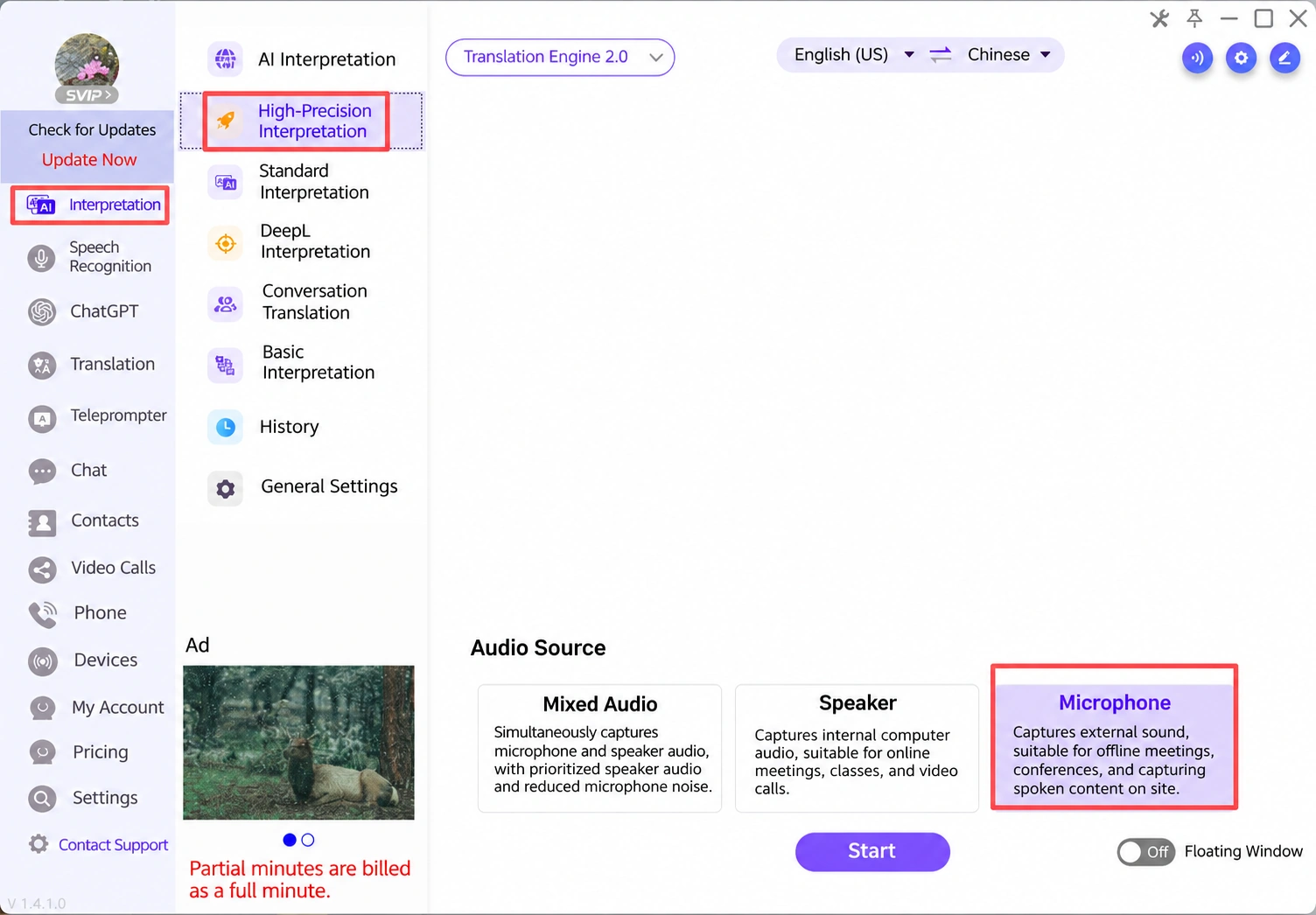
- Turn on the translation, speak into the external microphone, and observe whether there are volume fluctuations in the lower left corner of the software.
Mac computer
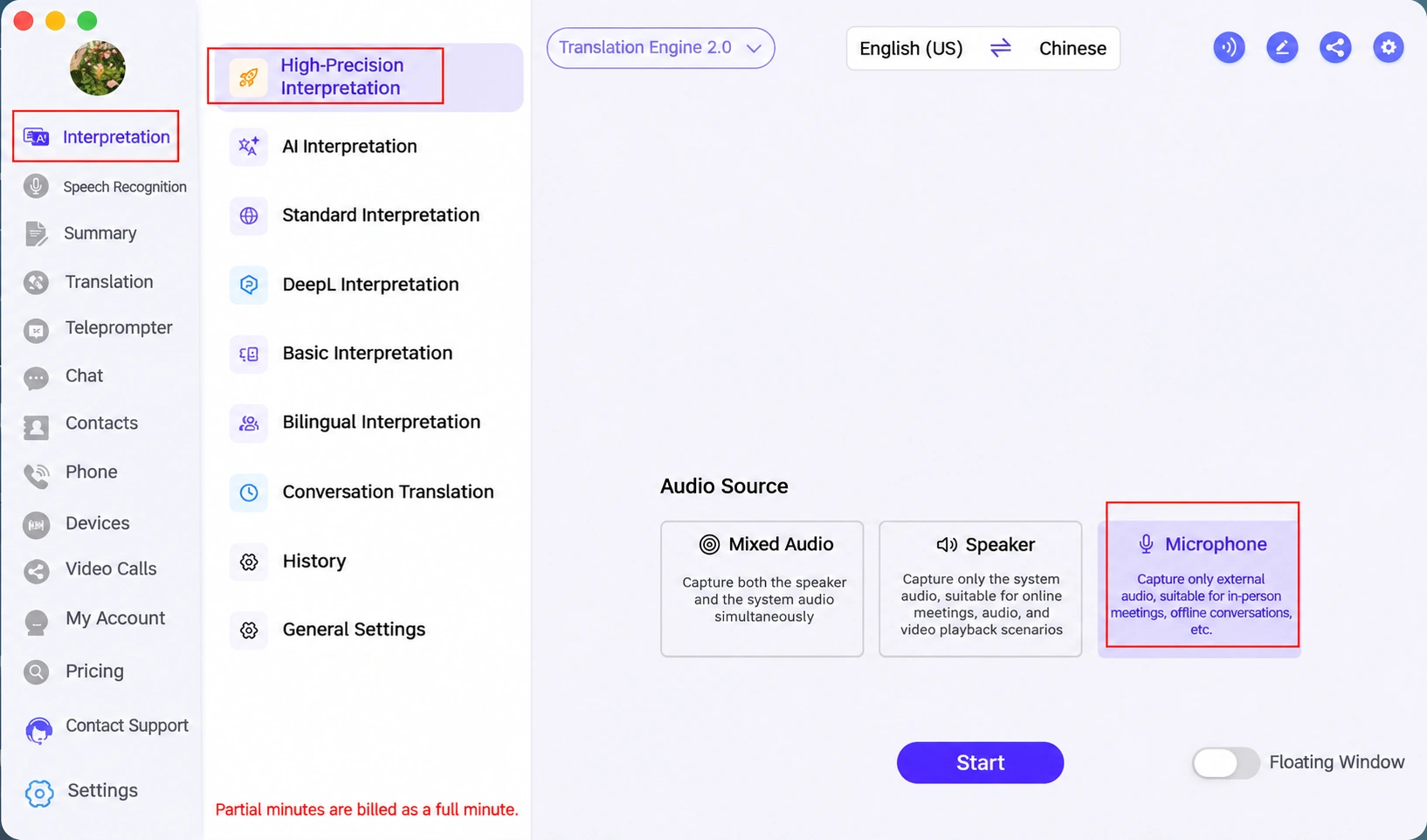
- Make sure the audio source is set to "Microphone"
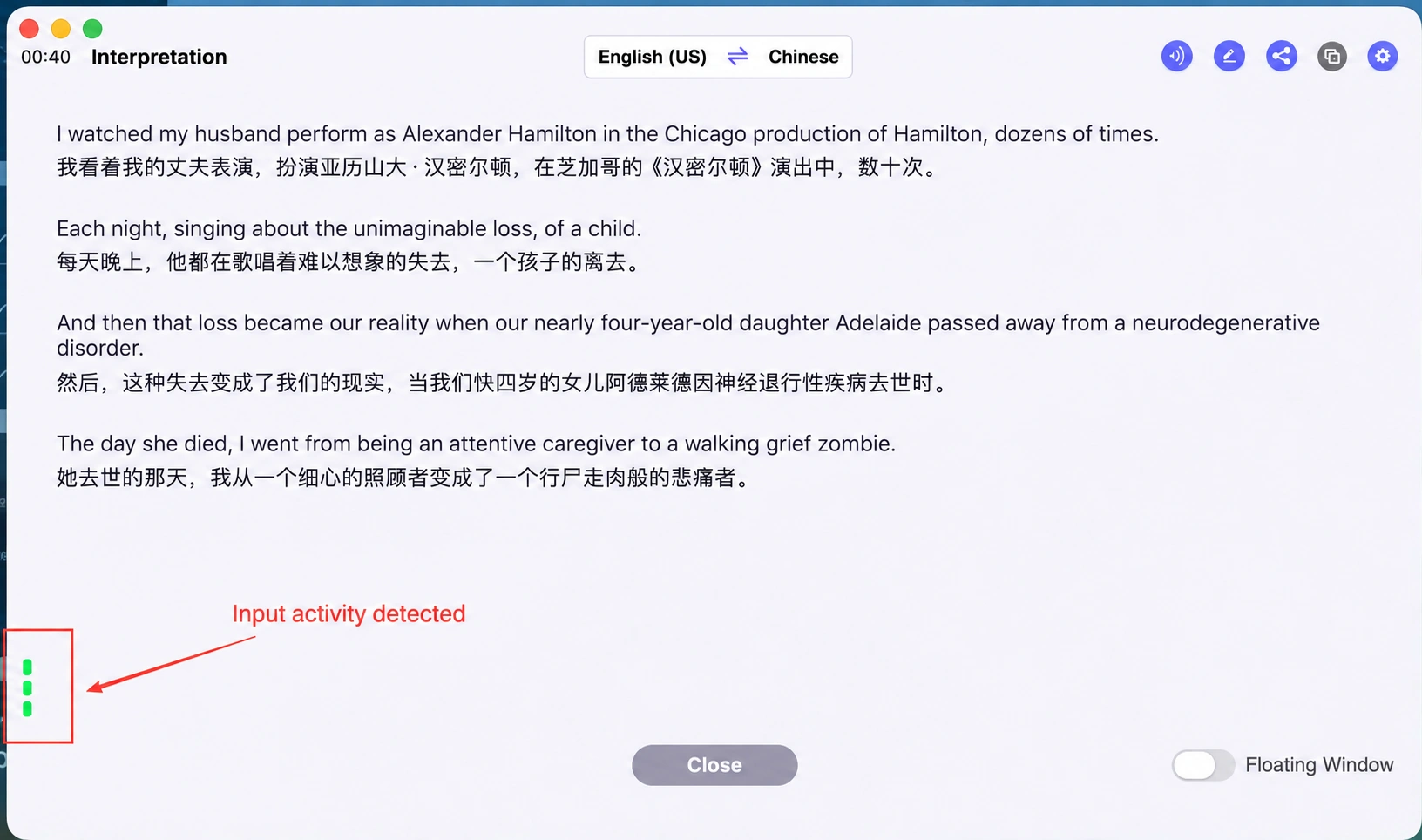
- Turn on the translation, speak into the external microphone, and observe whether there are volume fluctuations in the lower left corner of the software.
Results and Next Steps
- Activity detected → Audio input is working correctly. You can use the translation feature.
- No fluctuations → Please contact Customer Support Troubleshooting (please inform customer service that you have completed the above troubleshooting steps when providing feedback).
Where can I download the iTourTranslator desktop version?
You can download the iTourTranslator desktop version through the following methods:
Download directly from the official website
- Visit the official download address: iTourTranslator
Download from the app store
- Mac: Open the App Store and search for “亲爱的翻译官” or “iTourTranslator” to download the app.
- Windows PC: You can search for 'iTourTranslator' in Tencent PC Manager or the Microsoft Store to obtain it.
Does the iTourTranslator desktop version support translating Zoom, Teams, Tencent, Webex, and other conference software?
Yes, it does. The iTourTranslator desktop app is compatible with mainstream meeting software such as Zoom, Microsoft Teams, Tencent Meeting, and Webex. The operation is very simple:
- Start a meeting: Start or join a meeting as usual in the software you commonly use (such as Zoom).
- Start simultaneous interpretation: In iTourTranslator open “Simultaneous — Simultaneous type (e.g. High-precision)” and tap Start.
- Real-time translation: The software can automatically capture meeting audio and translate it in real time, allowing you to view bilingual subtitles.
Tip:
1. Please make sure that the speaker in the meeting software and the speaker device selected in iTourTranslator are consistent.
2. Make sure the other party’s language (left) and your language (translation language — right) are selected correctly
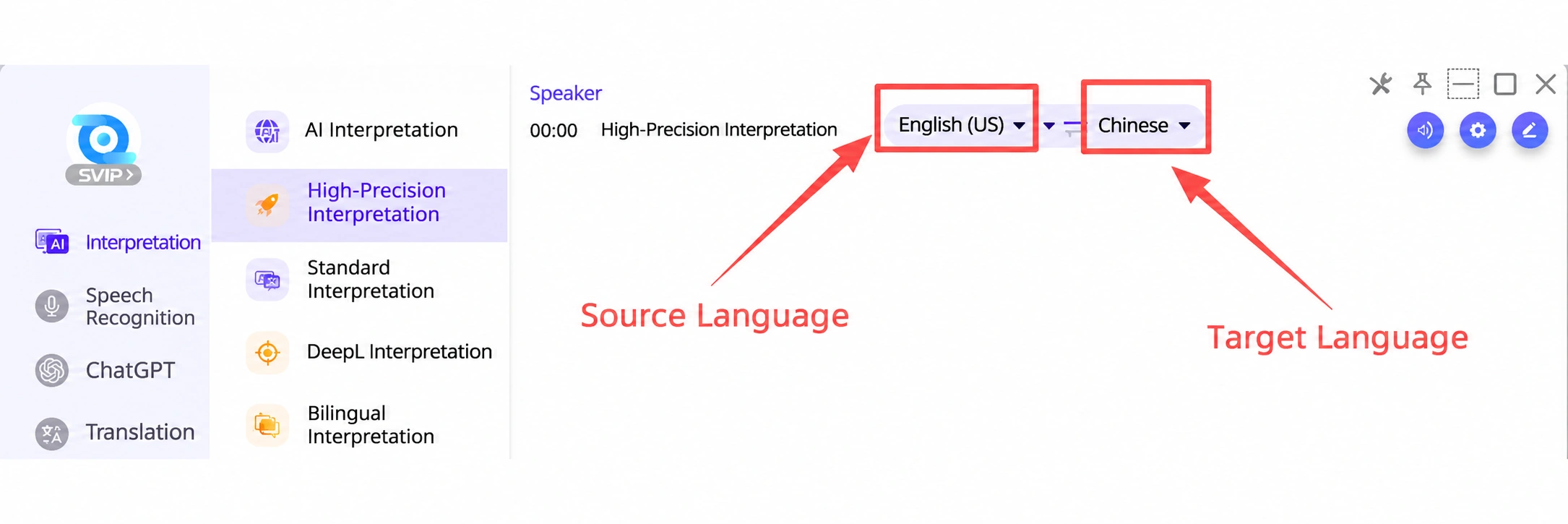
Why does iTourTranslator on the computer not display any translated content after turning on translation?
If no content is displayed after enabling translation on the iTourTranslator desktop app, you can follow these steps to troubleshoot:
1. Check the audio source selection
- Online meeting(Only translate the other party's voice): Select Speaker
- Face-to-face on-site communication: Choose Microphone
- Online meeting(Voice translation required for both parties): Select Mixed Audio
- Mixing Mode: Primarily uses the computer's internal sound (speaker output). When both you and the other party speak at the same time, the other party's voice will be prioritized for recognition.
2. Confirm device and software settings
- If the correct audio source is selected and there is still no translation, please check:
- Online meeting: Ensure the meeting software's Speaker output device matches the device selected in iTourTranslator Speaker.
- On-site meeting: Confirm whether the computer microphone is working properly
3. Still unresolved
If the above steps still cannot resolve the problem, you can contact Customer Support, and we will help you troubleshoot.
What function should be used for Chinese-English translation on the iTourTranslator desktop app?
If you need to perform Chinese-English bilingual translation on the iTourTranslator desktop app, it is recommended to use “Bilingual Interpretation / Conversation Translation” under “Simultaneous Interpretation” feature.
This feature is designed for real-time bidirectional translation between Chinese and English. It can automatically recognize Chinese and English in conversations and output translation results simultaneously, making it suitable for meetings, communication, learning, and various other scenarios.
How do I redeem the top-up card I bought on WeChat Mini Program/Taobao for iTourTranslator on the computer?
If you purchased a top-up card on the WeChat Mini Program or Taobao, you can redeem it on the iTourTranslator desktop version as follows:
Windows computer
Open the software → Go to 'My Account' → Select 'Coupon Redemption' → Click 'Top-up Card Redemption' and enter the card code
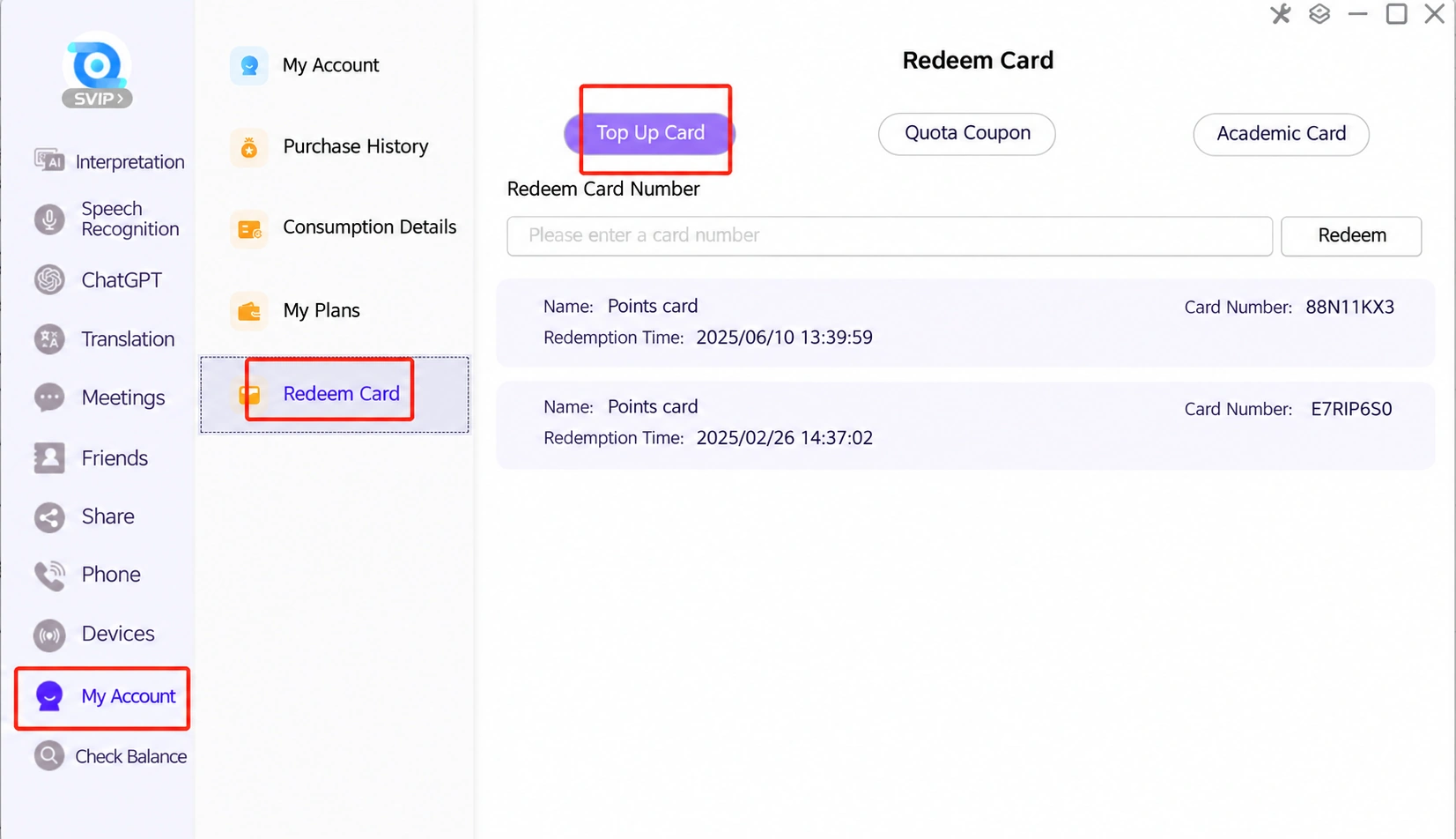
Mac computer
- For software downloaded from the official website: please redeem it within the software following the same path as above (My Account → Coupon Redemption → Top-up Card Redemption)
- For software downloaded from the App Store: please scan the QR code below and complete the redemption through the webpage (you can insert the corresponding QR code image here)
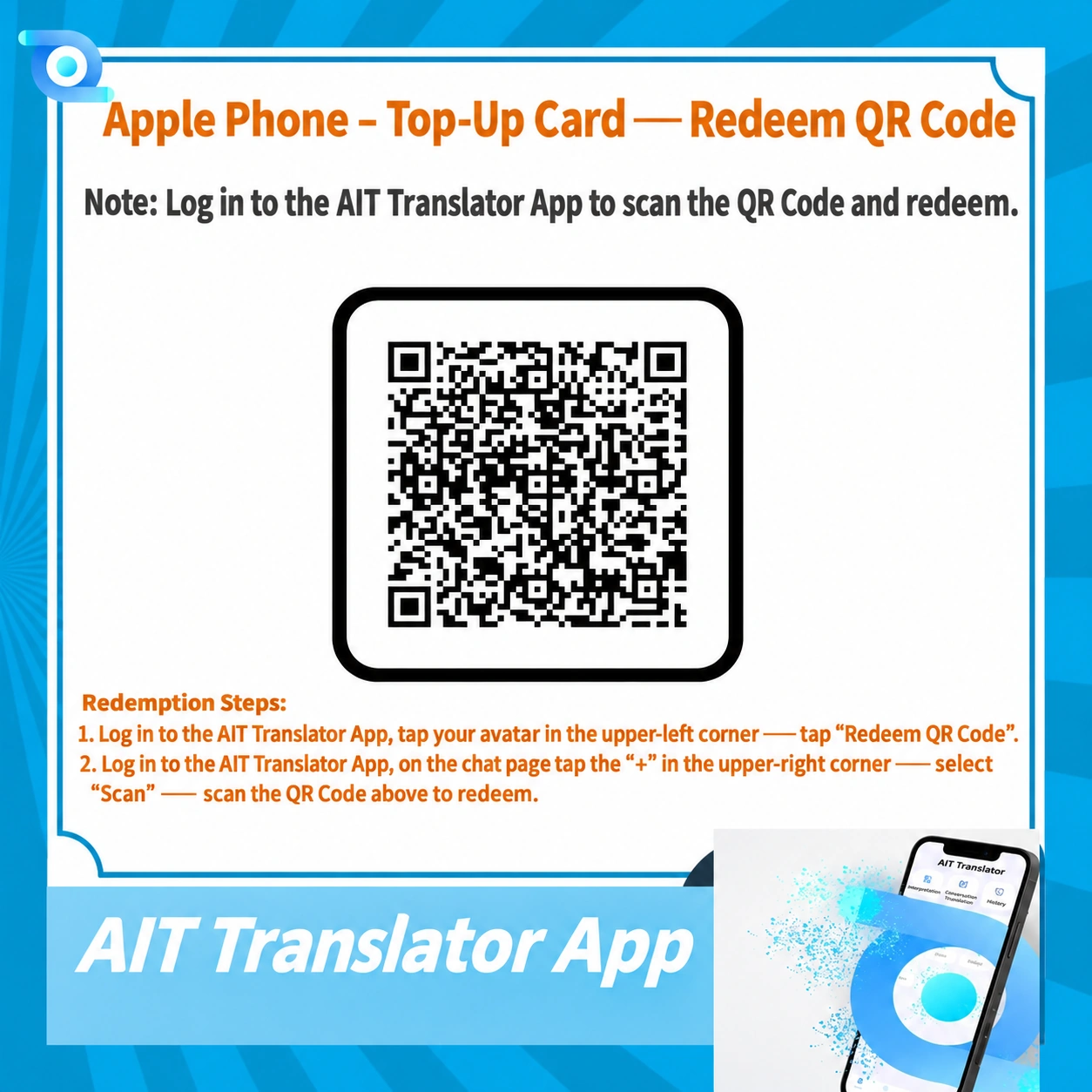
If you encounter any problems during the redemption process, you can contact us at any time Customer Support for assistance.
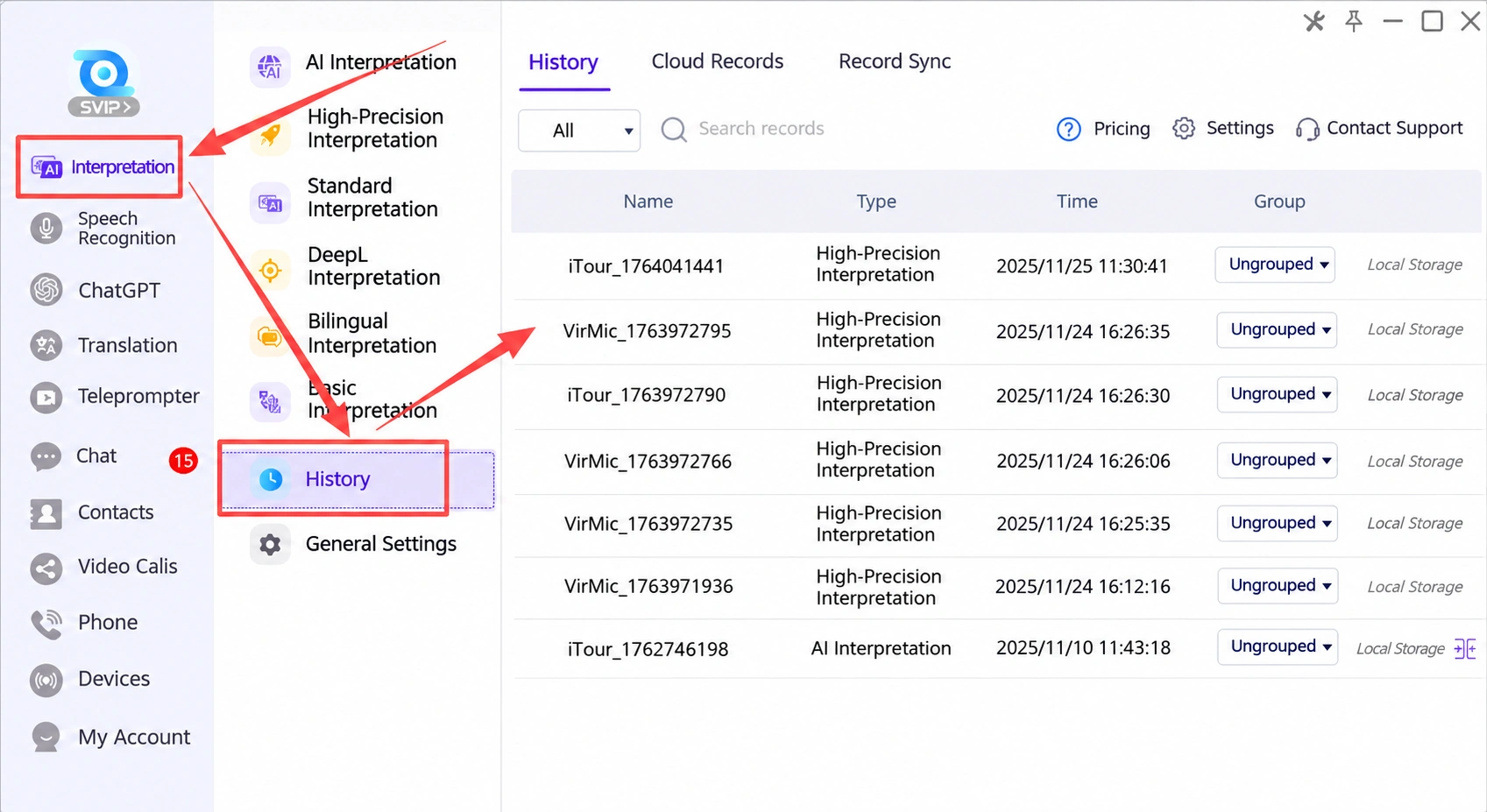
Can iTourTranslator on the computer record meeting content while recognizing it at the same time?
Yes. During the simultaneous interpretation process, the iTourTranslator desktop app will Simultaneously record audio and generate text transcripts in real time.
After the translation is complete, you can in Simultaneous Interpretation → History Records View the full conversation text and listen to the corresponding recording playback.
What is the difference between iTourTranslator and iTour Voice Translator?
iTour Voice Translator is iTourTranslator a simplified version. The main differences are listed below:
| Features | iTourTranslator | iTour Voice Translator |
|---|---|---|
| Real-time Voice Translation | ✔️ Supports (High-precision Interpretation, AI Interpretation, Bilingual Interpretation, etc.) | ✔️ Support (simultaneous interpretation, audio translation) |
| Text and Document Translation | ✔️ Supported | ✖️ Not supported |
| GPT-related features (chatting, interviews, polishing, etc.) | ✔️ Supported | ✖️ Not supported |
| Cross-application audio and video call translation | ✔️ Supported | ✖️ Not supported |
| Phone Call Translation | ✔️ Supported | ✖️ Not supported |
In summary:
- If you only need real-time voice translation or audio translation, you can choose iTour Voice Translator (lightweight and simple);
- For more comprehensive features such as document translation, GPT conversations, and cross-application call translation, it is recommended to download iTourTranslator.
You can choose the appropriate version according to your actual usage scenario. If you are unsure about specific functionality requirements, you can contact Customer Support.
For iTourTranslator computer-based online meetings, where you need to translate both sides of the conversation—translate Chinese into English and English into Chinese—how do you operate it?
For online meetings that need real-time translation in both directions(For Chinese⇄English), you can use any of the following options:
Option 1: Bilingual Interpretation + screen sharing
- Operation: Enable the 'Simultaneous Translation → Bilingual Interpretation/Conversation Translation' feature. This mode can automatically recognize and translate Chinese and English in conversations.
- Output method: Translation result is not played aloud to the other participant, but you can use the translation window or Display to show them the translated text.
- Best for: Suitable for meetings where both parties can view the screen (such as online training, collaborative discussions, etc.).
- Cost:0.45 per minute
- Audio Source Settings: Select Mixed Audio mode, or choose Microphone
- Choose Microphone mode Make sure the computer sound is played out loud (do not use headphones, otherwise the other party's voice cannot be captured).
Option 2: High-precision / DeepL Interpretation + Speech Translation
- Steps:
- Use High-precision Interpretation or DeepL Interpretation Translate the other party's speech content (automatically recognize and display text).
- Turn on at the same time Speech translation Function: translate what you say yourself.
- Output method: Your translated speech can be played aloud for the other participant.
- Best for: Communication scenarios that require speech playback to the other party (such as international meetings, interviews, etc.).
- Cost: High-precision Interpretation → 0.35/minute × 2; DeepL Interpretation → 0.69/minute × 2
- Audio Source Settings: Select Speaker
Note: For specific settings of speech translation, please refer to:
Instructions for Using Windows Speech Translation
Instructions for Using Mac Speech Translation
You can choose the appropriate method based on whether speech playback is needed and whether both parties can conveniently view the screen. If you have specific questions about meeting software or further operations, you can contact Customer Support
iTourTranslator PC Windows: How to use the speech translation feature?
The speech translation feature allows you to translate your own speech during a meeting and play it back to the other party. Currently, this feature requires High-precision Interpretation or DeepL Interpretation. Follow the steps below on Windows:
1. Function Description
- Only recognize and translate your own speech, and the translation result can be broadcast to the meeting counterpart through a virtual driver.
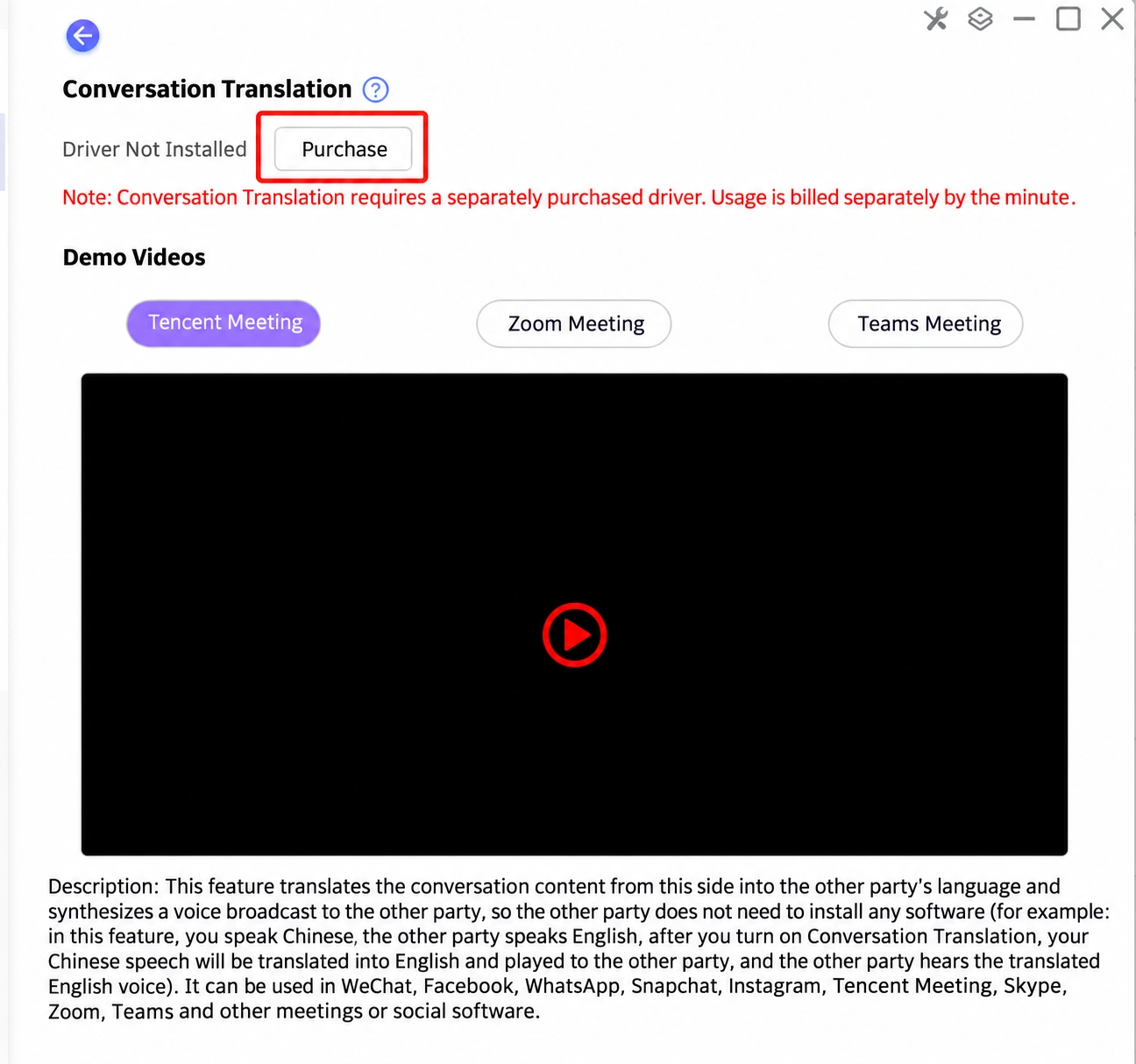
- You need to purchase in advance and install a virtual microphone driver to use it.
2. Operating Steps
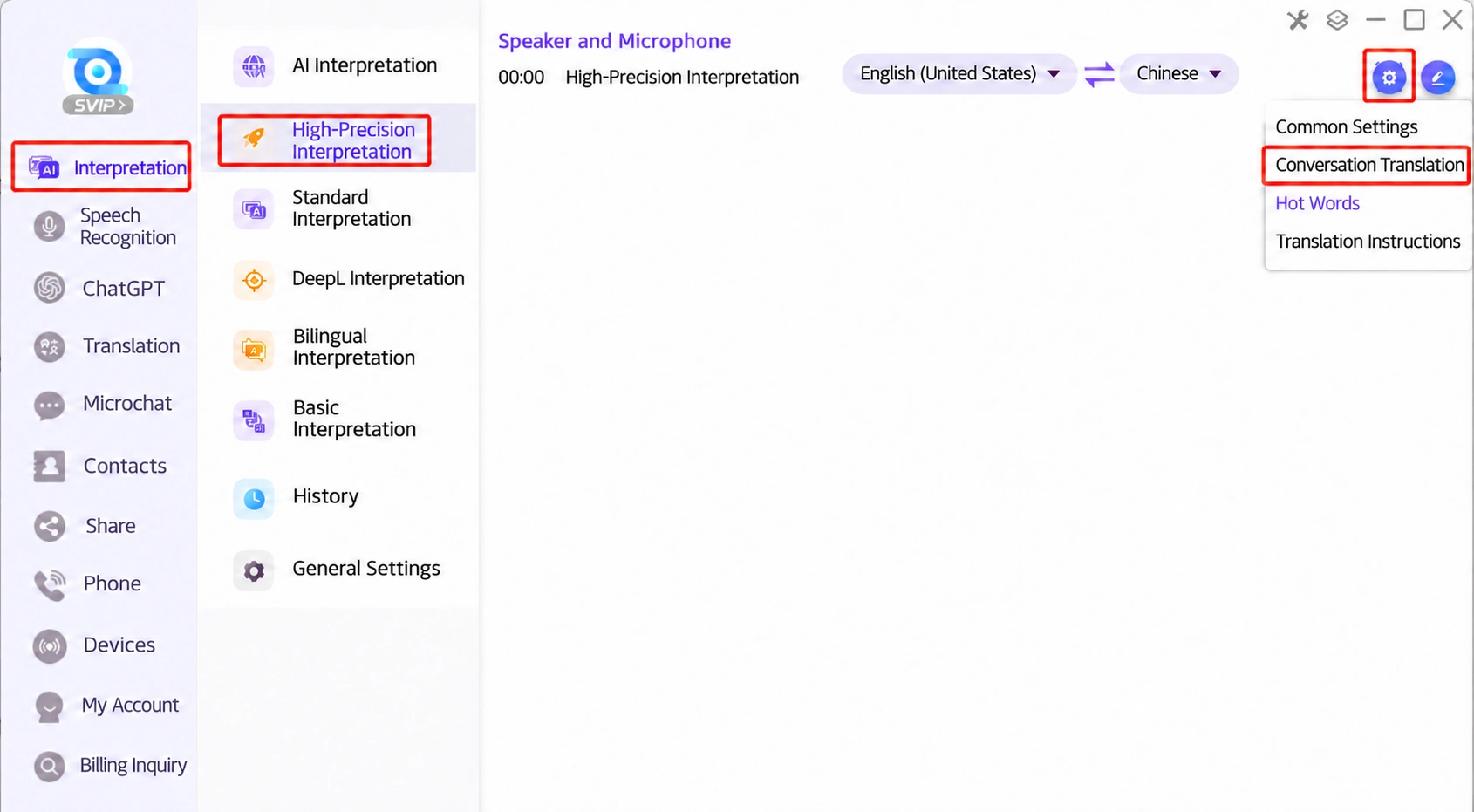
① Turn on speech translation: Enter High-Precision Simultaneous/DeepL Simultaneous → Click the top right corner [Settings] → Select [Speech Translation]
② Purchase and install the driver: If you have not purchased the virtual audio driver, follow the on-screen instructions to purchase it, then click “Install” in Speech Translation settings.
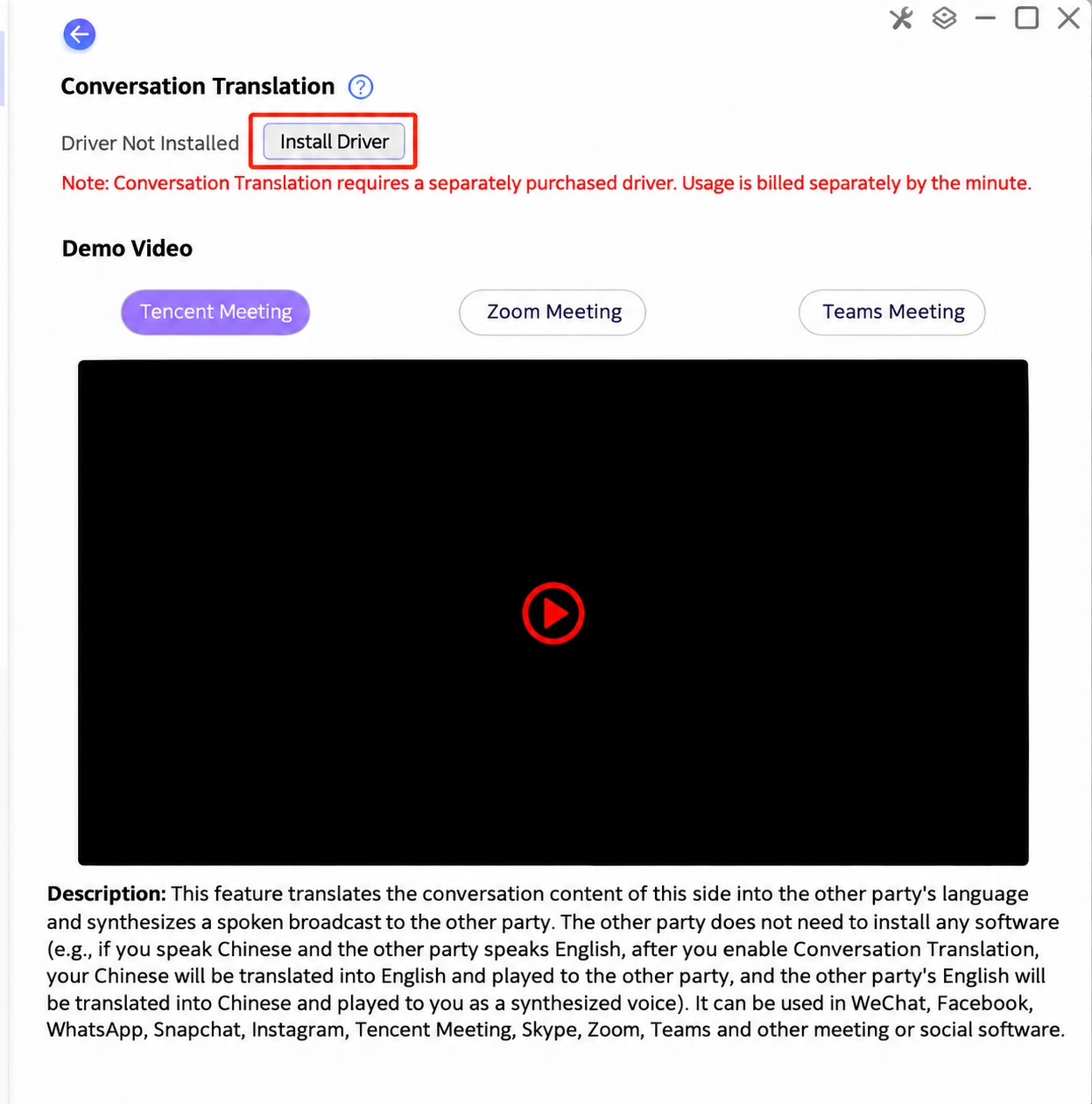
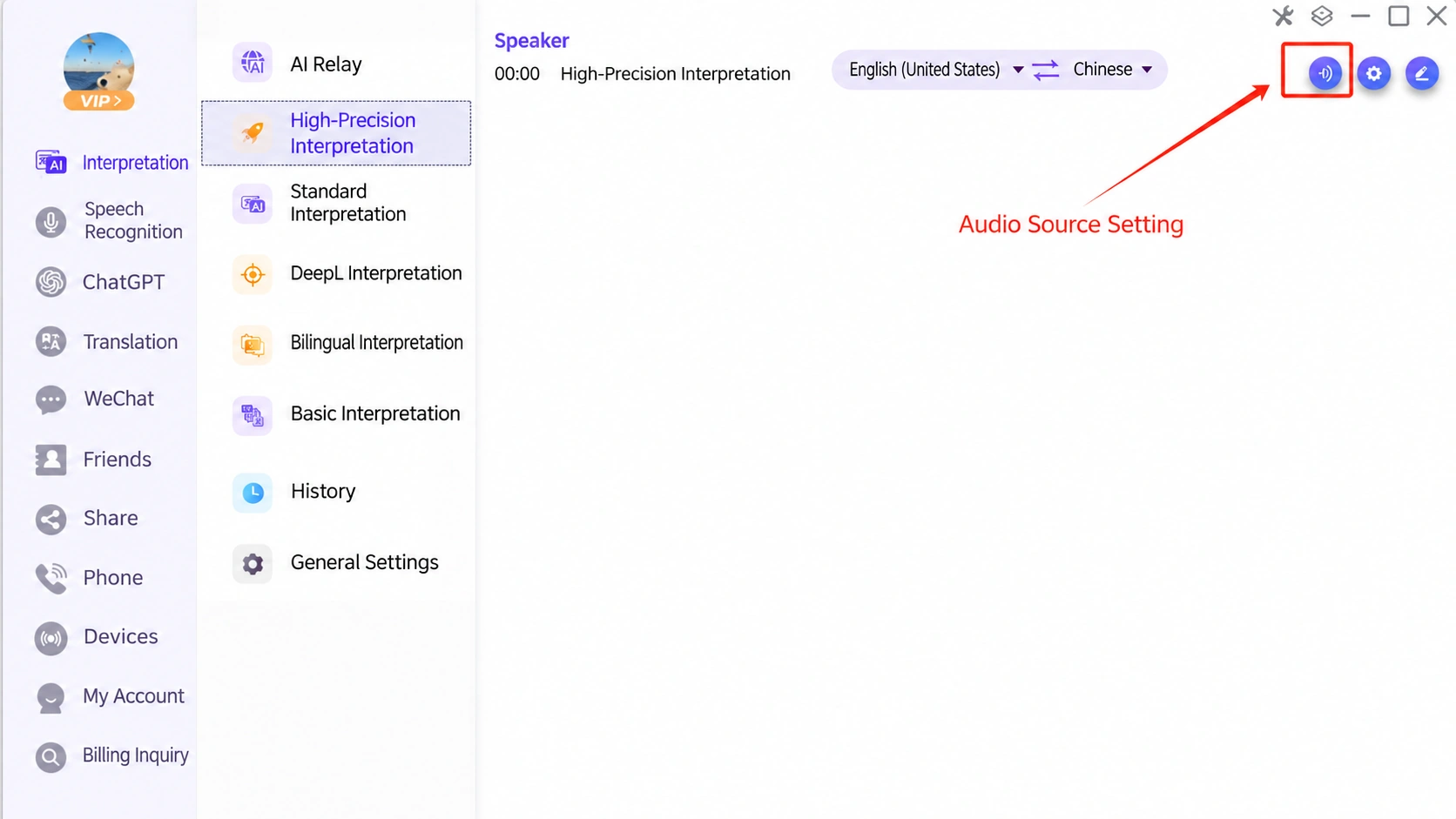
③Effective after restarting the software: After the installation is successful, please restart the software. The translation page will display the 'Speech Translation' button.
④ Meeting software settings: In software like Zoom, Tencent Meeting, Teams, set the microphone to: Hi-Fi Cable Output (VB-Audio Hi-Fi Cable)
Note: Order of use:
- Open the speech translation floating window
- Start translation
- Click the [Mute/Microphone] icon button in the meeting software
- Make sure the meeting microphone is set to the virtual audio driver: Hi-Fi Cable Output (VB-Audio Hi-Fi Cable).
- Speak into the computer microphone
- The recognition result will be automatically translated and announced to the other party.
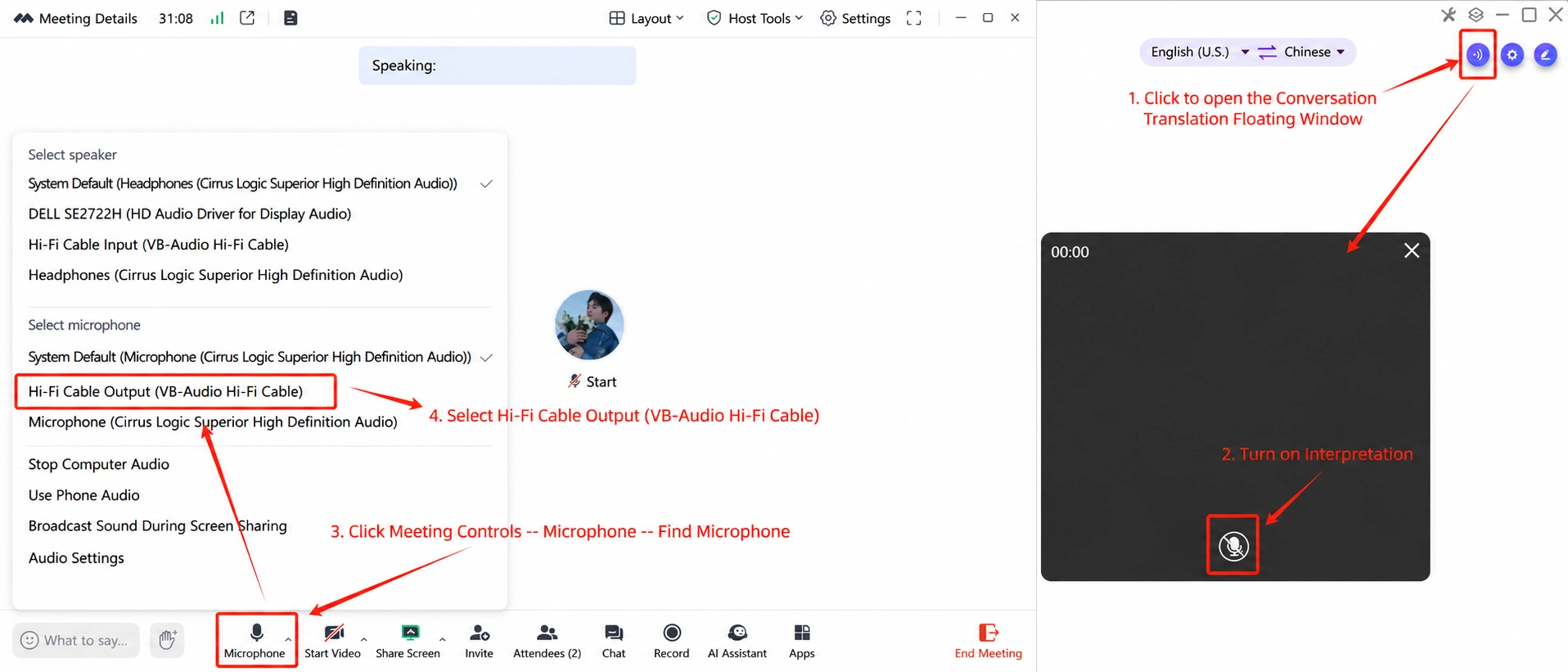
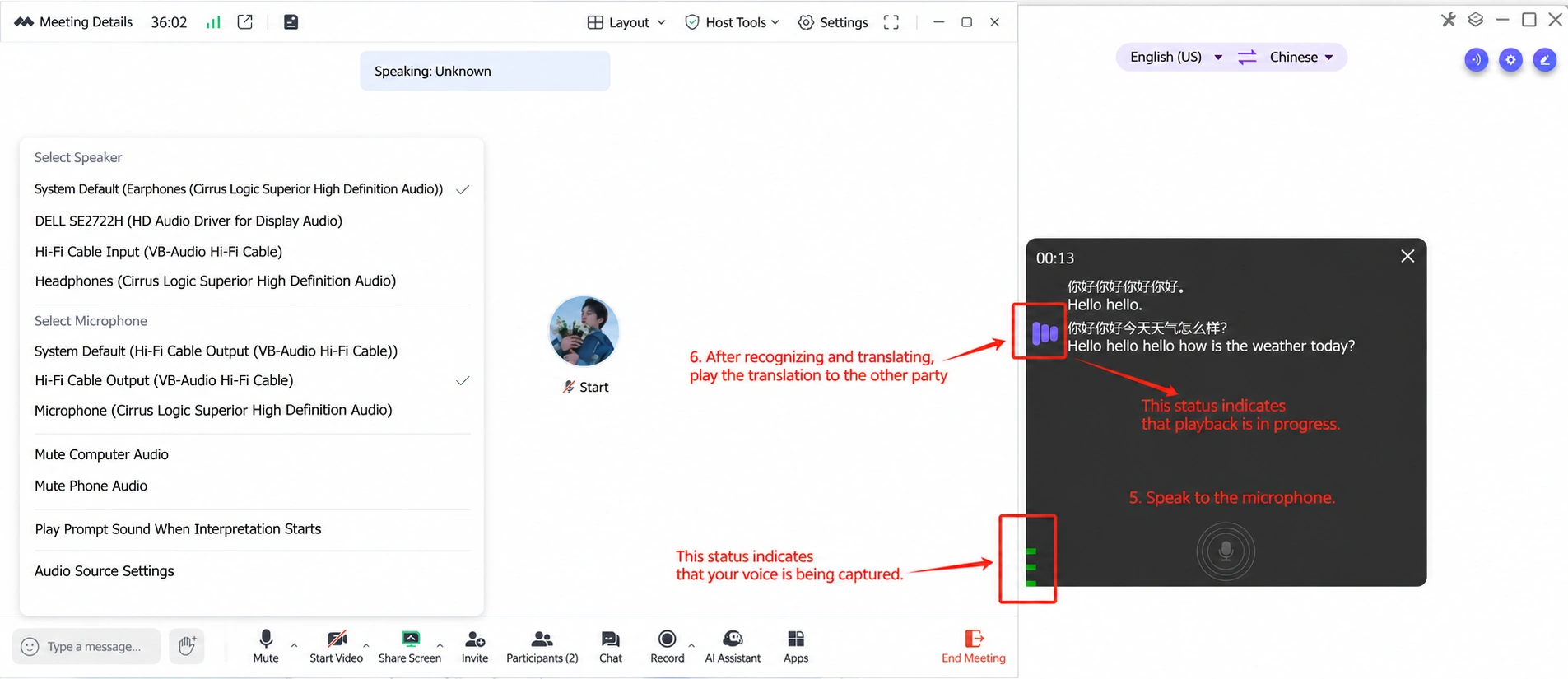
3. Precautions
- Please follow the above order strictly, otherwise it may not broadcast properly.
- If you encounter recognition or broadcasting issues, please check whether the virtual driver is installed successfully, or reselect the meeting microphone device.
- It is recommended to test in advance
If you have any other questions, you can contact Customer Support.
How do I use Speech Translation in iTourTranslator on Mac?
The speech translation feature is currently only supported High-precision Interpretation and Deepl simultaneous interpretation Two modes, mainly used to recognize and translate your own speech content.
Please note before use:
This feature is only available in Audio Input Mode is set to Speaker . It is unavailable with other audio sources.
Operating steps:
- Turn on the speech translation switch
Enter Simultaneous Interpretation → Select High-precision Interpretation or Deepl simultaneous interpretation → Click the top right corner Settings → Open Speech translation Option.
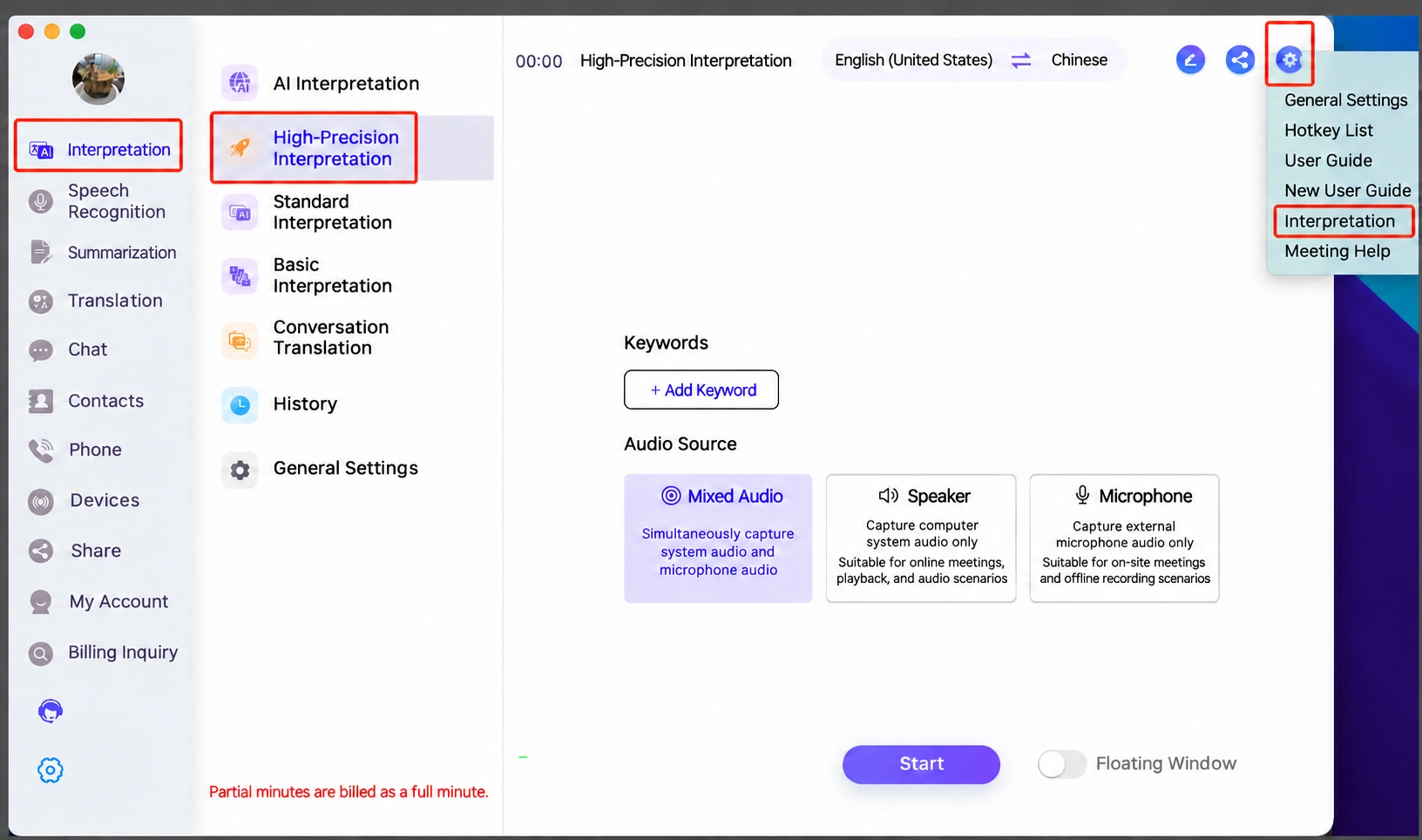
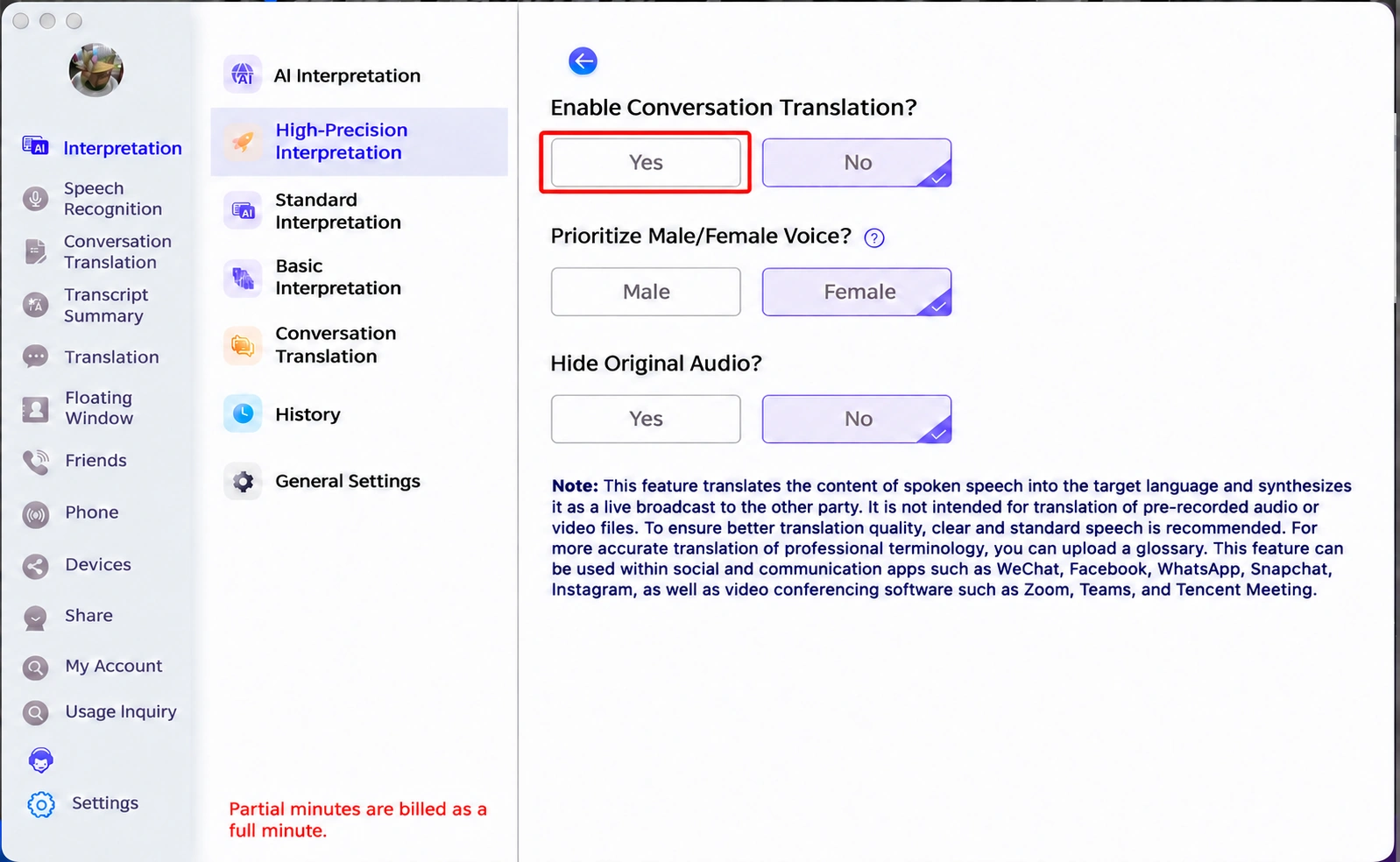
2. Return to the simultaneous interpretation interface
After setting it, the top right corner of the page will display "Speech translation” button.
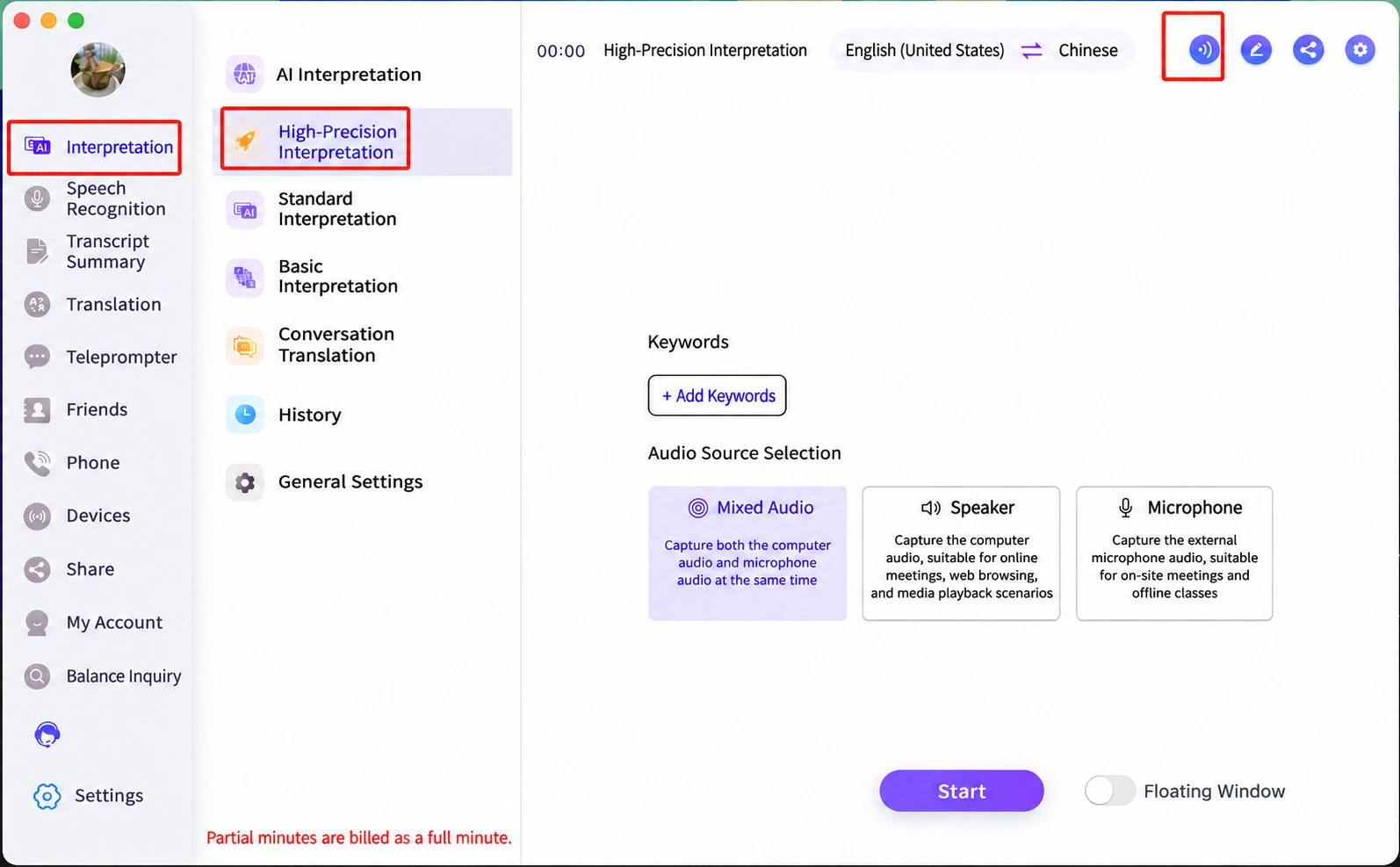
3. Start translating and using
- Click "Speech translation” to enable the feature, then start translation.
- In meeting software such as Zoom, Tencent Meeting, and Teams, set the microphone to 'itourInput 2ch'.
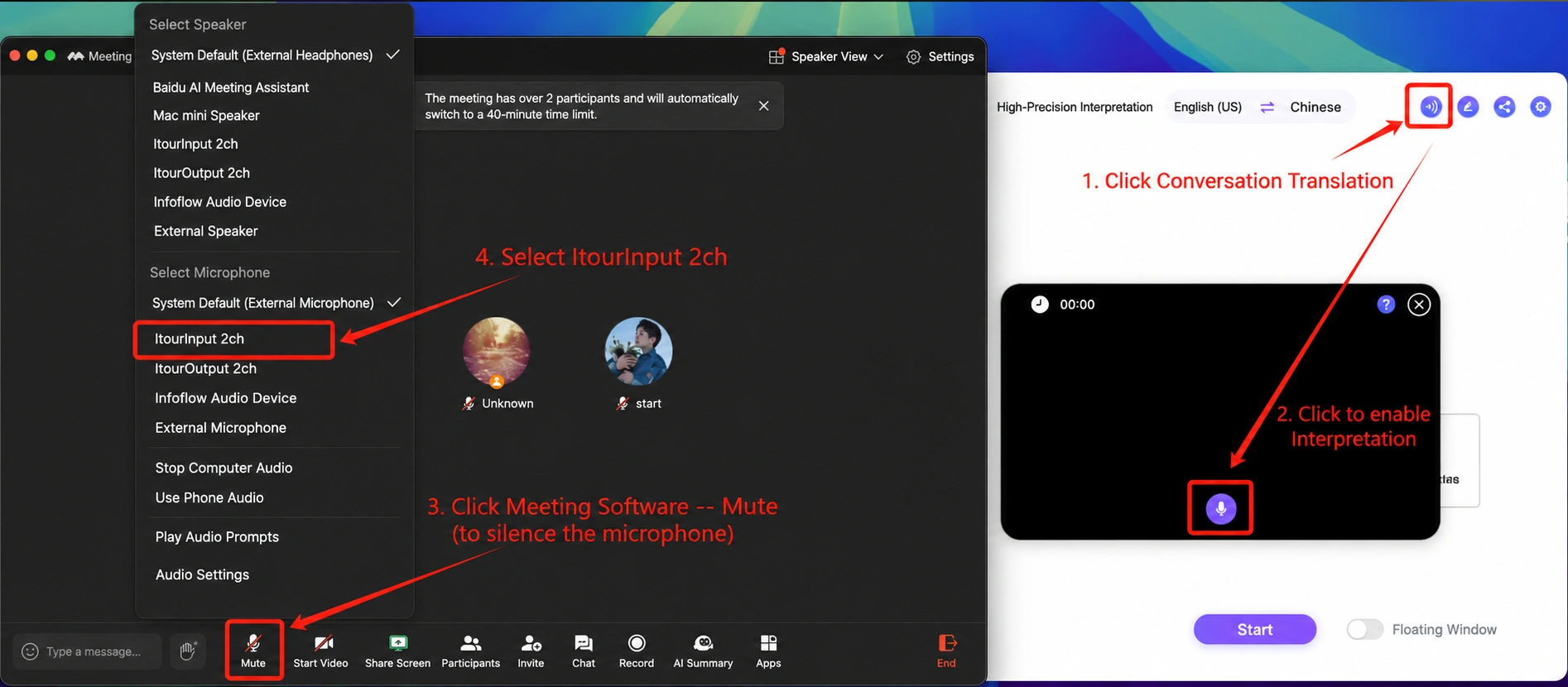
4. Speak into the microphone
Speak directly into the computer microphone, and the system will recognize your voice and translate it. The translation will be played to the other party through the speakers.
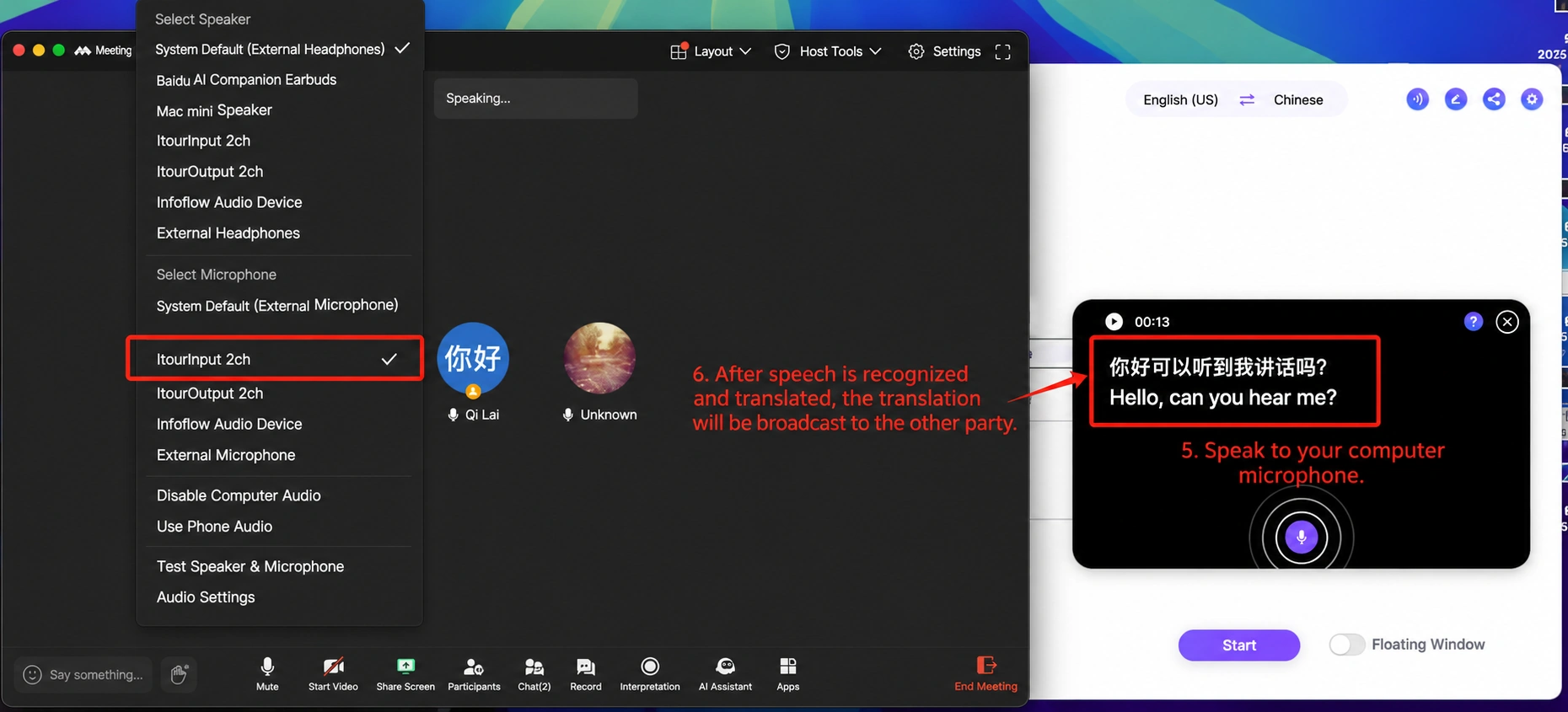
After using the speech translation function on the iTourTranslator desktop app, why is the other party's speech not being translated?
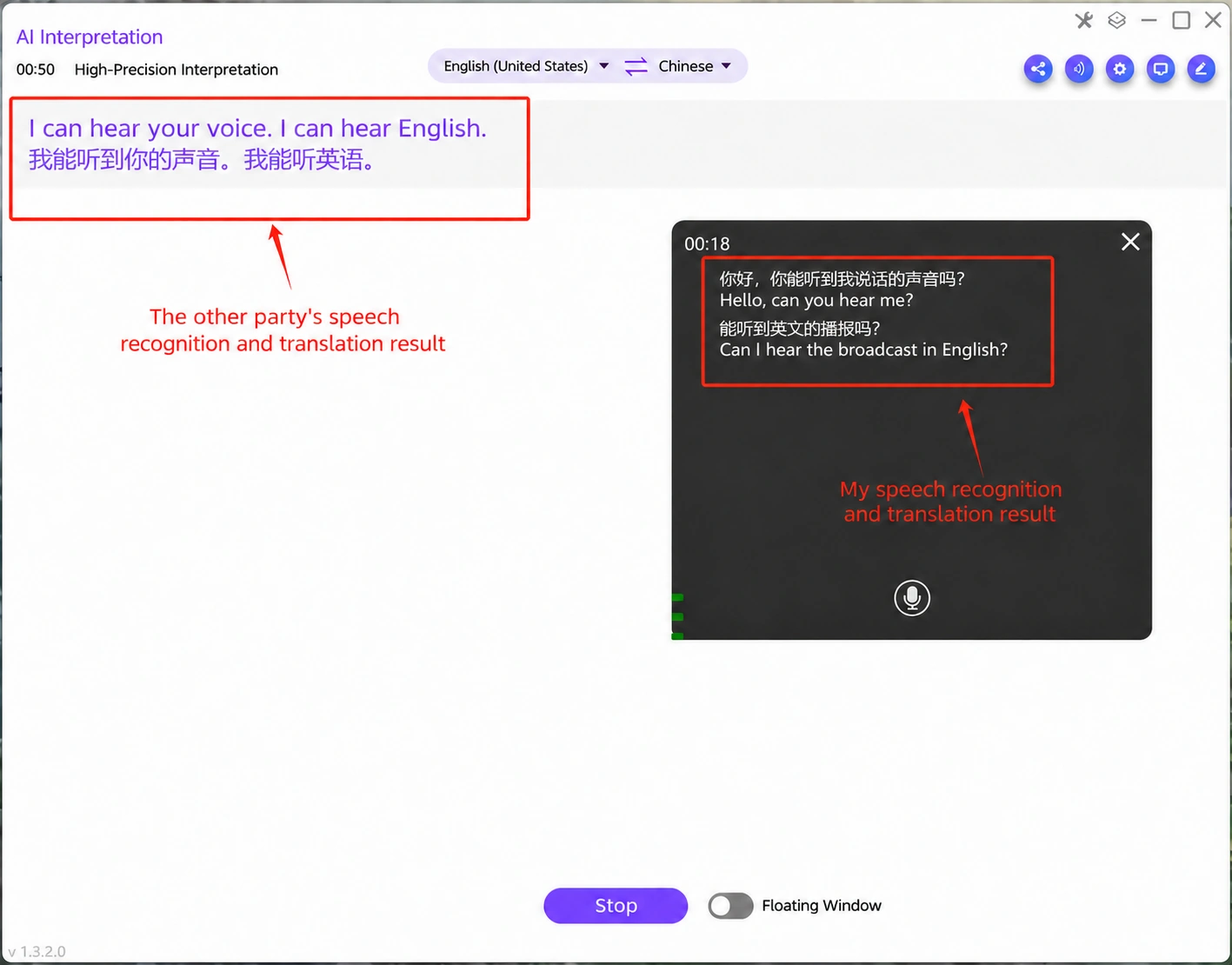
When using speech translation on the iTourTranslator desktop app, the reason the other party's speech is not translated is because The speech translation function is mainly used to translate your own voice in real time and play it to the other party..
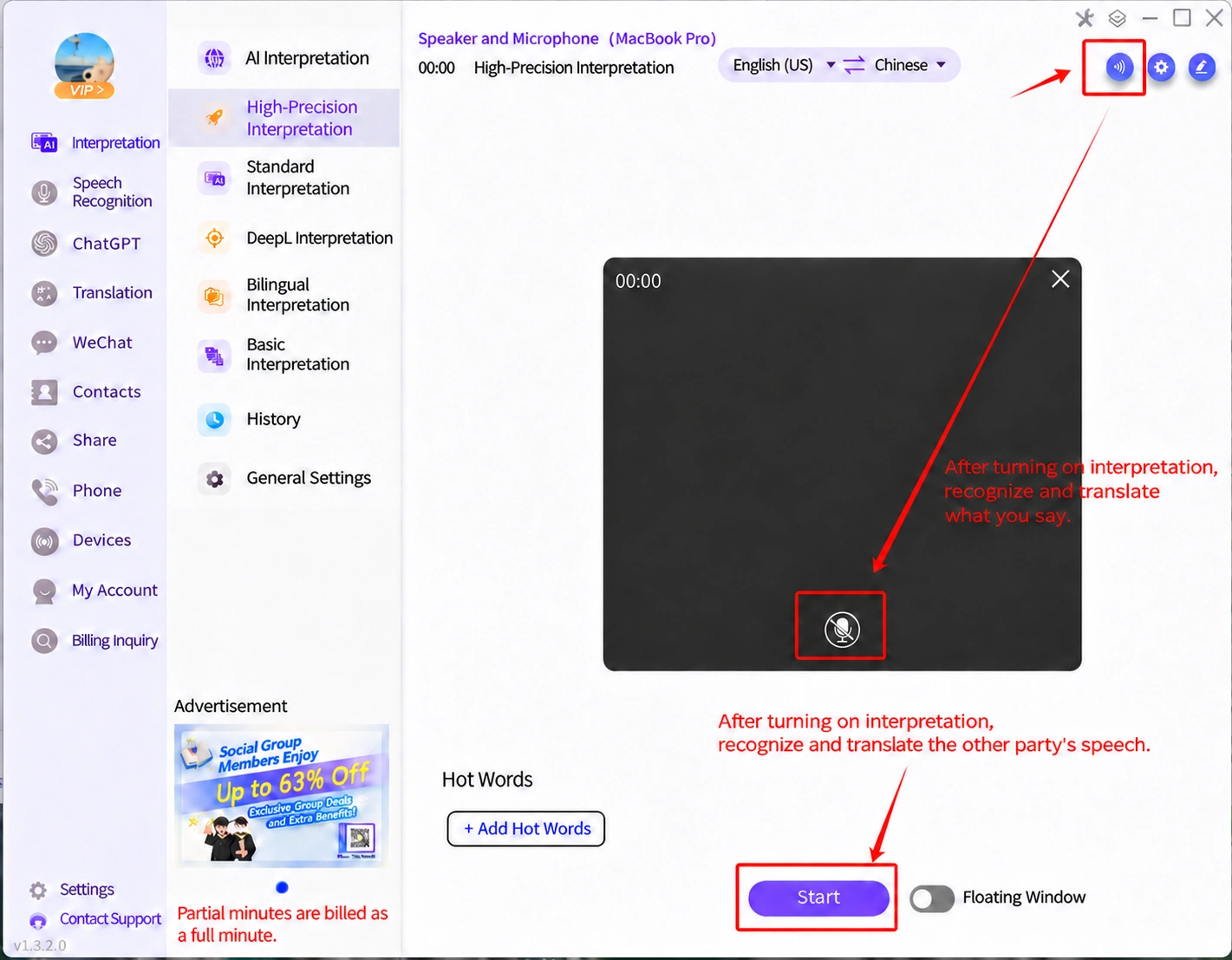
If you need to translate what the other party is saying in real time, you can additionally enable any of the following features:
✅ High-precision Interpretation
✅ Deepl simultaneous interpretation
Once enabled, the system will simultaneously translate the other party's speech and display it on the screen, achieving two-way conversation translation.
The specific setting location is shown in the figure below:
Can the iTourTranslator desktop app's speech translation feature be set so that the other party doesn't hear your voice if you don't want them to?
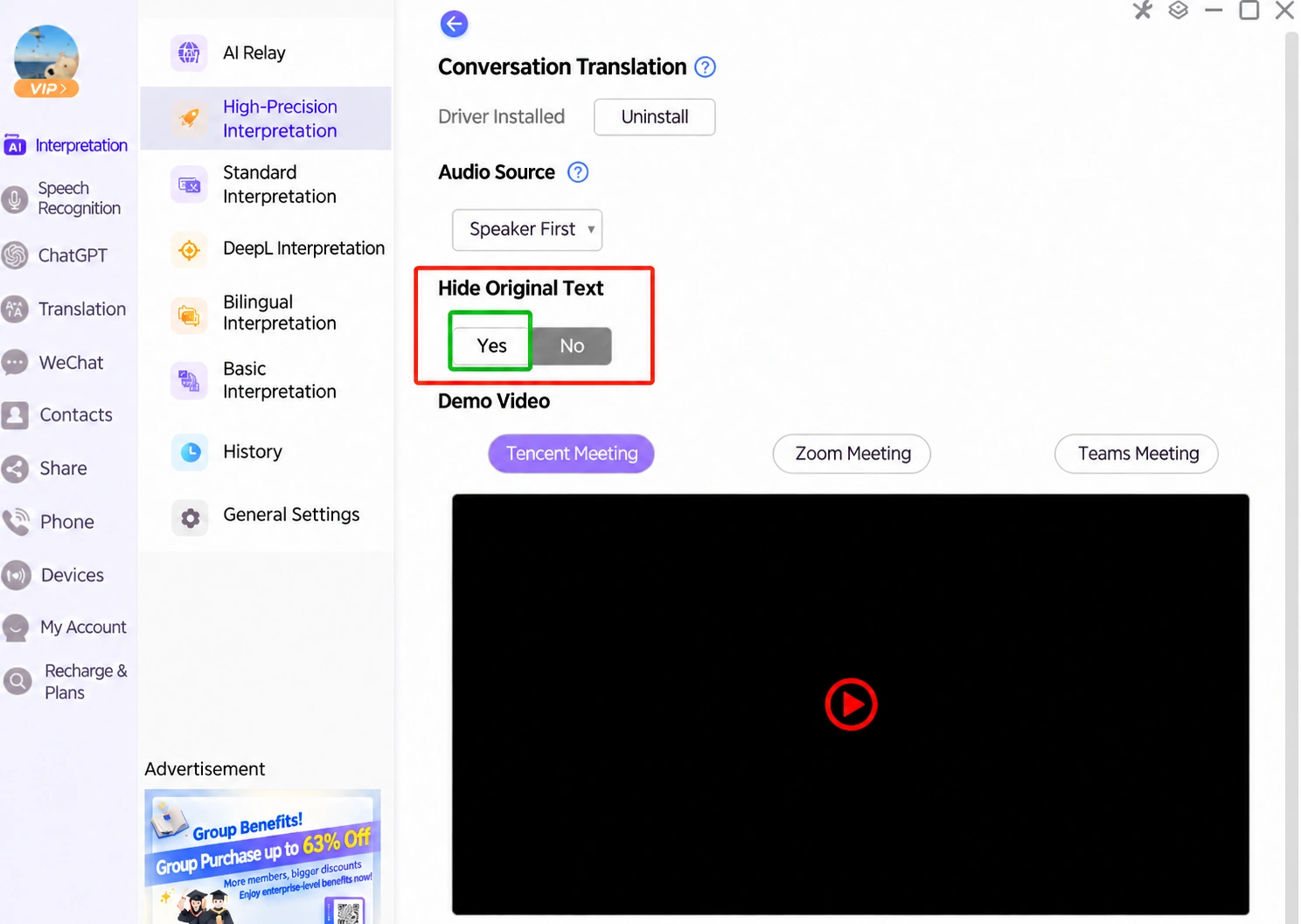
Of course. When using the speech translation feature on a computer, you can use the following settings to prevent the other party from hearing your original voice:
Operation path:
Enter [High-Precision Simultaneous Translation/Deepl Simultaneous Translation] → Top right corner 'Settings' → Select [Speech Translation] page → Switch the 'Hide Original Voice' option to yes.
Once enabled, the system will only play the translated voice to the other party.
Please note:After enabling 'Hide Original Sound,' due to a certain delay between translation and voice playback, the other party will not hear any sound during the period before the translation result is played.
After installing the speech translation driver on the iTourTranslator Windows computer, the other party in the meeting cannot hear my voice. What should I do?
After using speech translation on the iTourTranslator desktop app, if the other party in the meeting cannot hear your voice, you can check and adjust the following settings in order:
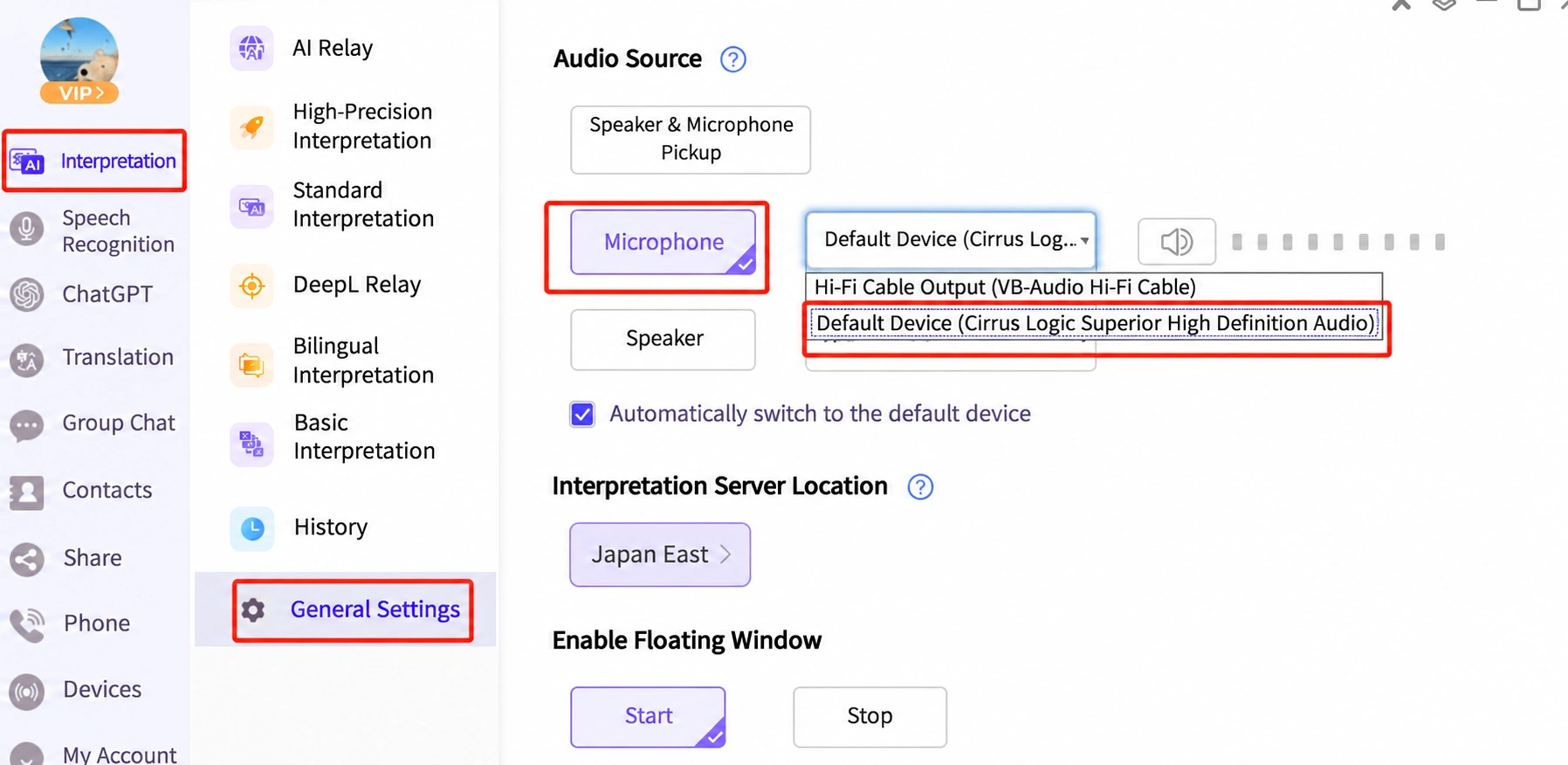
Step 1: Check the microphone settings in the iTourTranslator software
In iTourTranslator, go to: [Simultaneous Interpretation → Common Settings → Audio Source Settings] and check whether the 'Microphone' option is “Hi-Fi Cable Output (VB-Audio Hi-Fi Cable)”.
➜ If so, change it to your "Other Microphone" option.
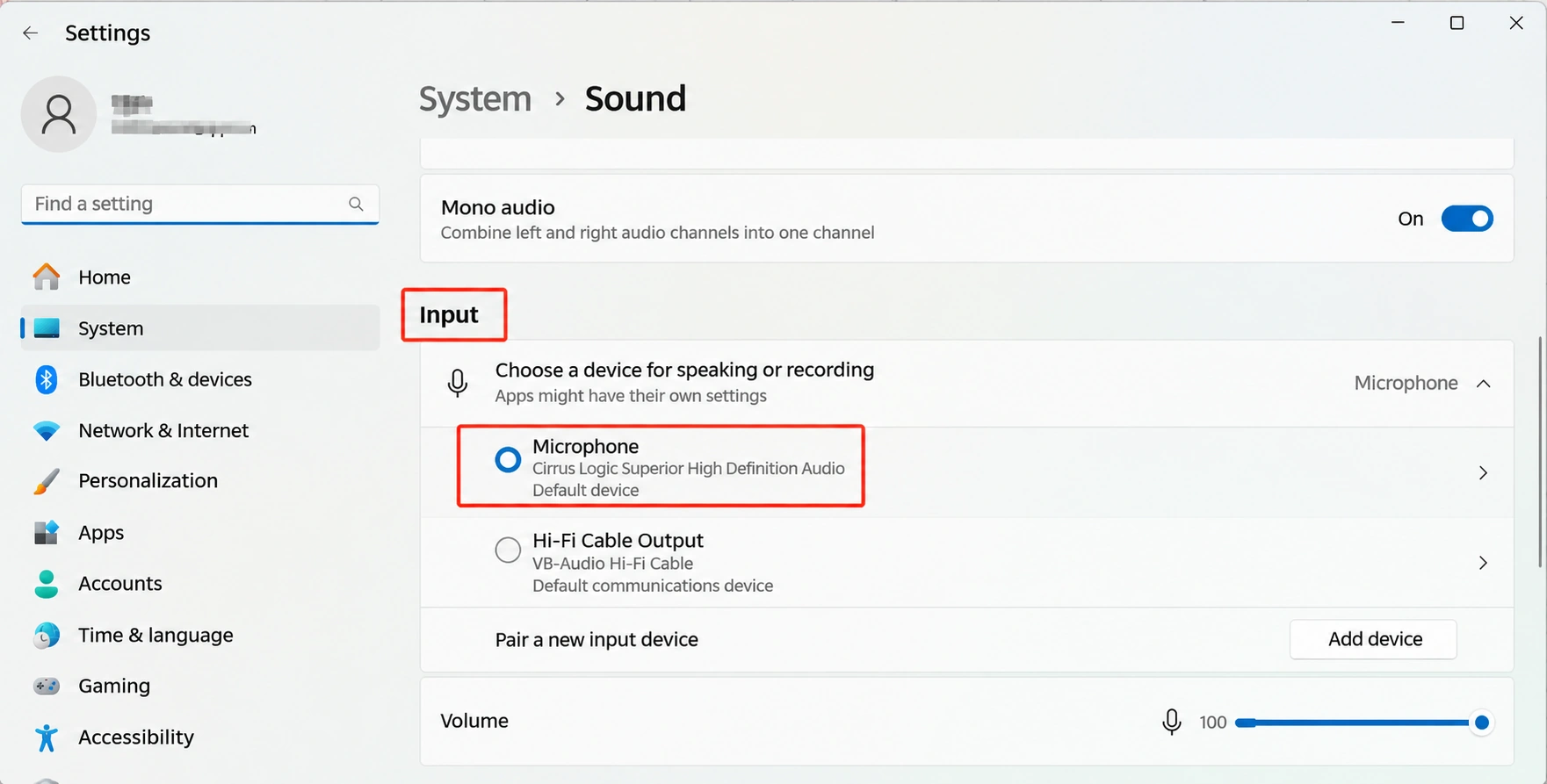
Step 2: Check the computer system sound settings
Go to System Settings → Sound → Input and check whether the selected device is “Hi-Fi Cable Output”.
➜ If so, switch to your regular microphone.
Please note:
- "Hi-Fi Cable Output" should only be selected in the microphone options of the conferencing software when the speech translation function is enabled.
- When not using speech translation, please do not select this option in the microphone settings of the meeting software, otherwise the other party will not be able to hear your voice.
If the problem persists after following the above steps, you can try unplugging and plugging the microphone back in or restarting the relevant software.
Why can't iTour Translator recognize translations after putting on headphones on a Mac?
This is due to macOS system restrictions on microphone permissions Caused. Especially in macOS 13 and earlier versions, some applications downloaded through the App Store may not be able to directly access system internal audio (including the sound transmitted through headphones), resulting in the speech translation function failing.
You can try the following solutions:
✅ Option 1: Reinstall the official version (recommended)
- Uninstall the currently downloaded version from the App Store.
- Go to the official iTour Translator website to download and install the latest version of the software.Click here to go to the official website to download(The official website version usually has more complete system permission compatibility)
✅ Option 2: Upgrade macOS system
If your Mac system version is below 13, you can try upgrading to macOS 14 or later, the system's management of audio permissions will be more comprehensive, which may directly solve this problem.
✅ Option 3: Temporarily Use Speaker Mode
If it is temporarily inconvenient to reinstall or upgrade the system, you can first Unplug the earphones and use the computer speakers for output, the software can usually recognize the microphone sound normally and perform the translation.
iTour Translator Mac computers with systems below version 13, why does the translation content not display after enabling translation?
When using iTour Translator on Mac computers with macOS 13 or earlier, if the translation does not appear after enabling it, you can check and configure it according to the following steps:
Step 1: Confirm that iTour Translator has been correctly switched on for simultaneous interpretation
- In iTour Translator, go to the 'Simultaneous Interpretation' page.
- Select and turn on Any type of simultaneous interpretation(e.g. High-precision SI, DeepL SI, Standard …)
Step 2: Check and set the meeting software speakers
- Open the one you use conference software(such as Zoom, Tencent Meeting, etc.).
- Enter the 'Audio Settings' or 'Sound Settings' of the software.
- in Speaker In the options, select "iTourMulti-Output", as shown in the figure below:
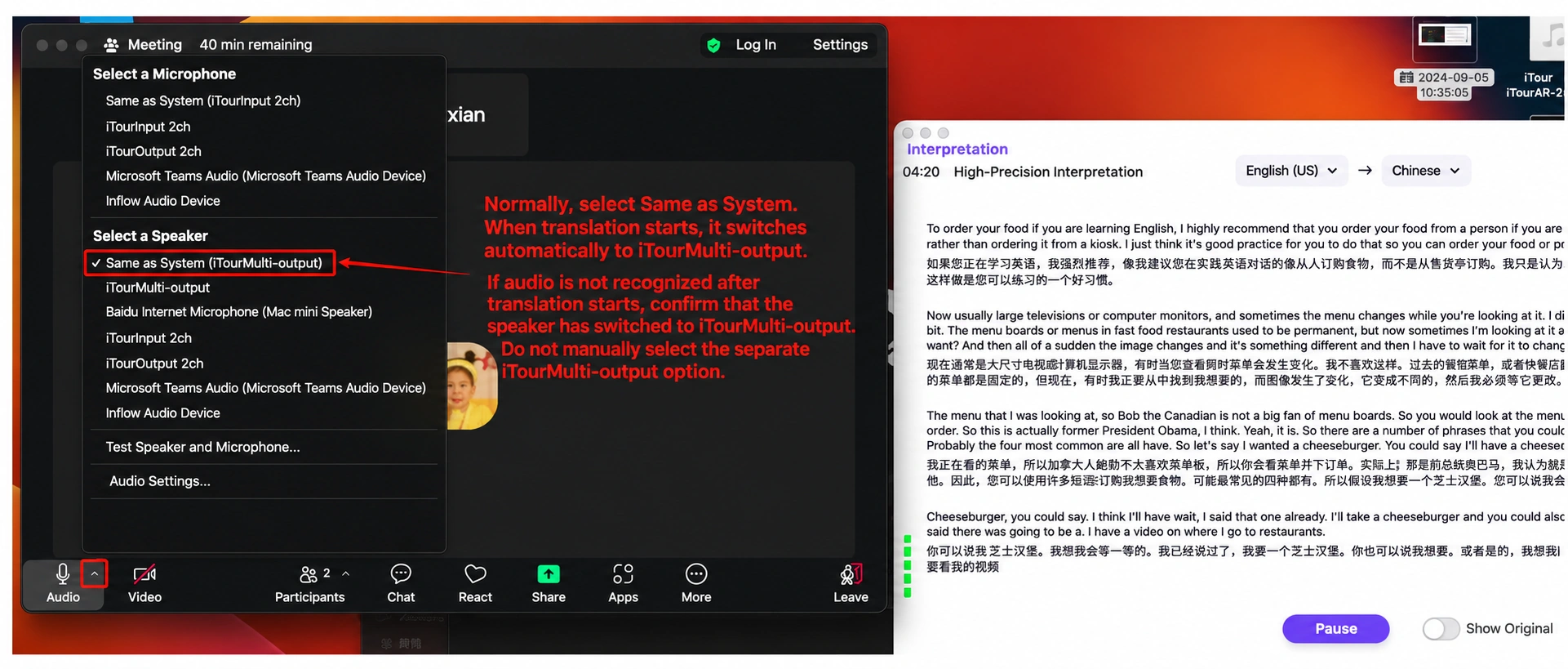
Please note:
Must first In iTour Translator Turn on simultaneous translation, Go to the meeting software again the audio Settings Select the corresponding one Speaker, reversing the order may result in the translation content being unable to display.
iTour Translator on MAC systems above 13, why can't I enable translation? I have already given screen recording permission.
In macOS 13 and later, if iTour Translator has been granted screen recording permissions but still cannot start translation, it is because System permissions require restarting the application after authorization to take full effect.
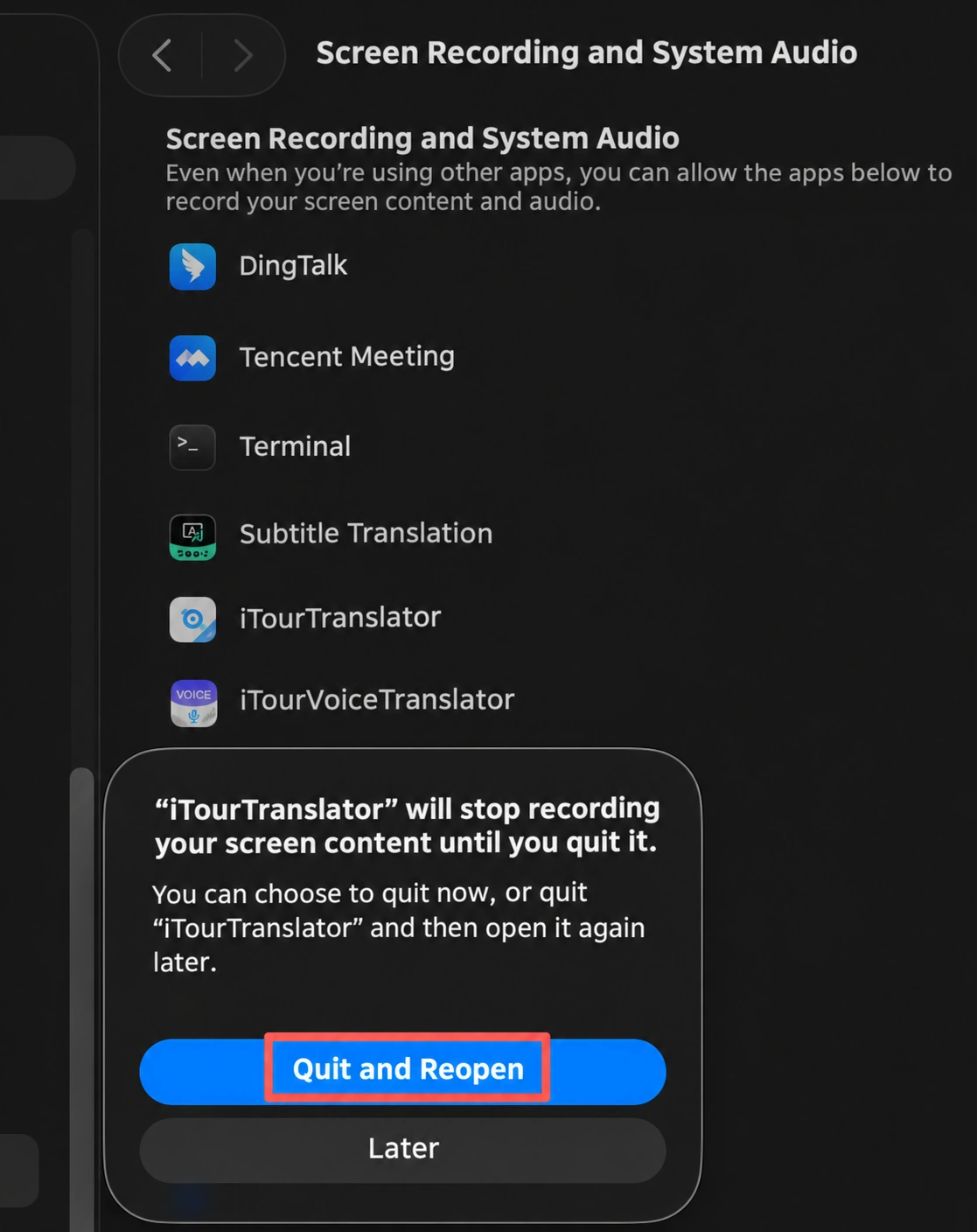
Please follow the steps below:
- Completely exit iTour Translator
Please make sure to right-click the icon in the Dock and select 'Quit', or use the Command (⌘) + Q shortcut to completely close the application.
- Restart the application
Open iTour Translator again and try to turn the translation function back on.
If the problem still exists after restarting, it is recommended that you:
- Check whether the permissions are granted correctly: Go to System Settings > Privacy & Security > Screen Recording, make sure the iTour Translator permission toggle in the list is turned on (the button on the right is blue ✅).
- Try re-authorizing: You can temporarily turn off this permission switch, then turn it back on, and then restart the application again.
Usually, the permissions take effect after completing the restart steps, and the translation function will return to normal. If the problem persists, please check whether the software is up to date, or contact Customer Support
iTour Translator Mac computer: After PPT or meeting software goes fullscreen, the translation floating window disappears. What's going on?
This is because macOS system of Design Constraints, when an application (such as PPT or conferencing software) enters full-screen mode, the system treats it as an exclusive 'desktop space,' and other applications (including translation pop-ups) will not be able to display above that full-screen window.
You need to resolve it using the following method:
Exit full screen mode: In PPT or meeting software, click the green 'Full Screen' button in the upper left corner of the window, or press the ESC key on the keyboard to exit full screen, change to Windowed mode You can use it, and the translation pop-up will display normally.
When using the PC version of iTourTranslator for simultaneous translation, how can I pause the refresh and view the previous translation content?
You can use the “Meeting Minutes” feature to view and review the complete translation history. The specific operation location is shown in the figure below:
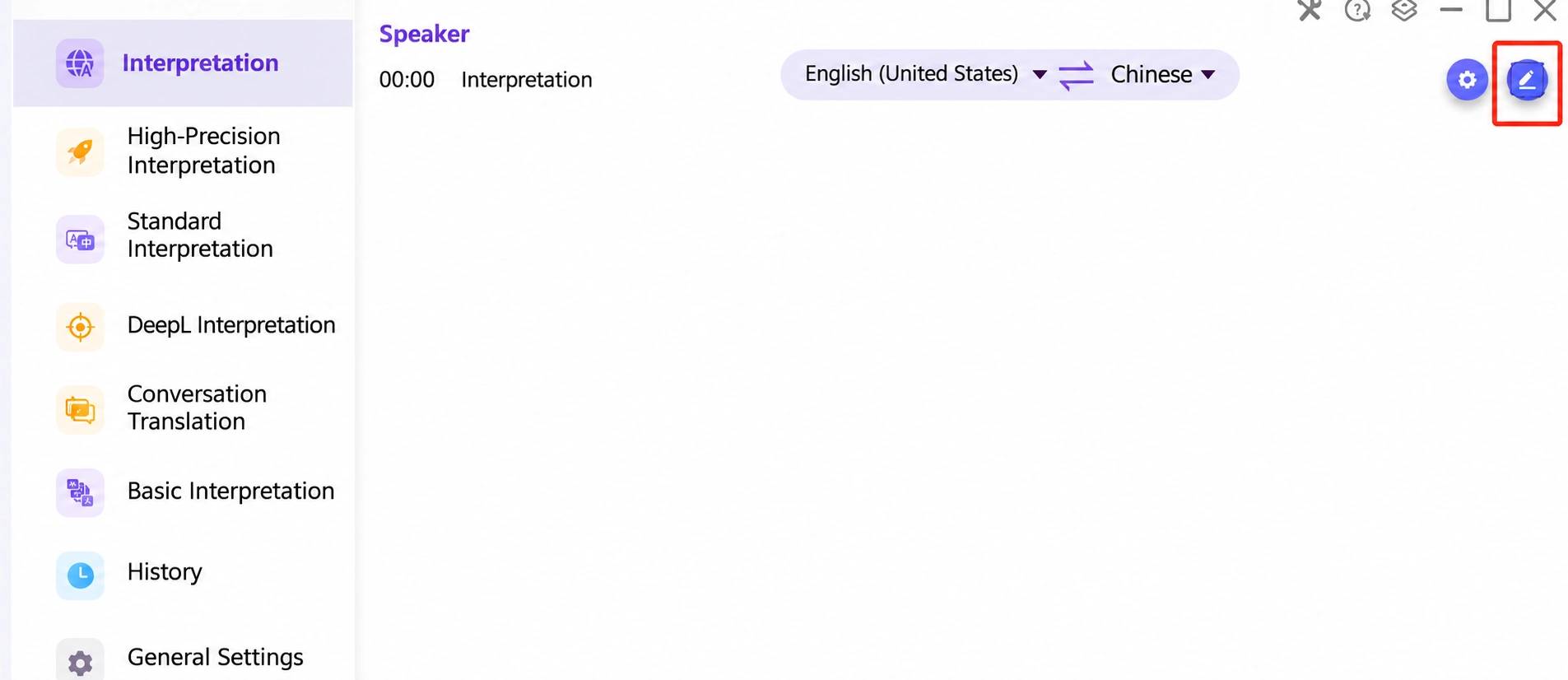
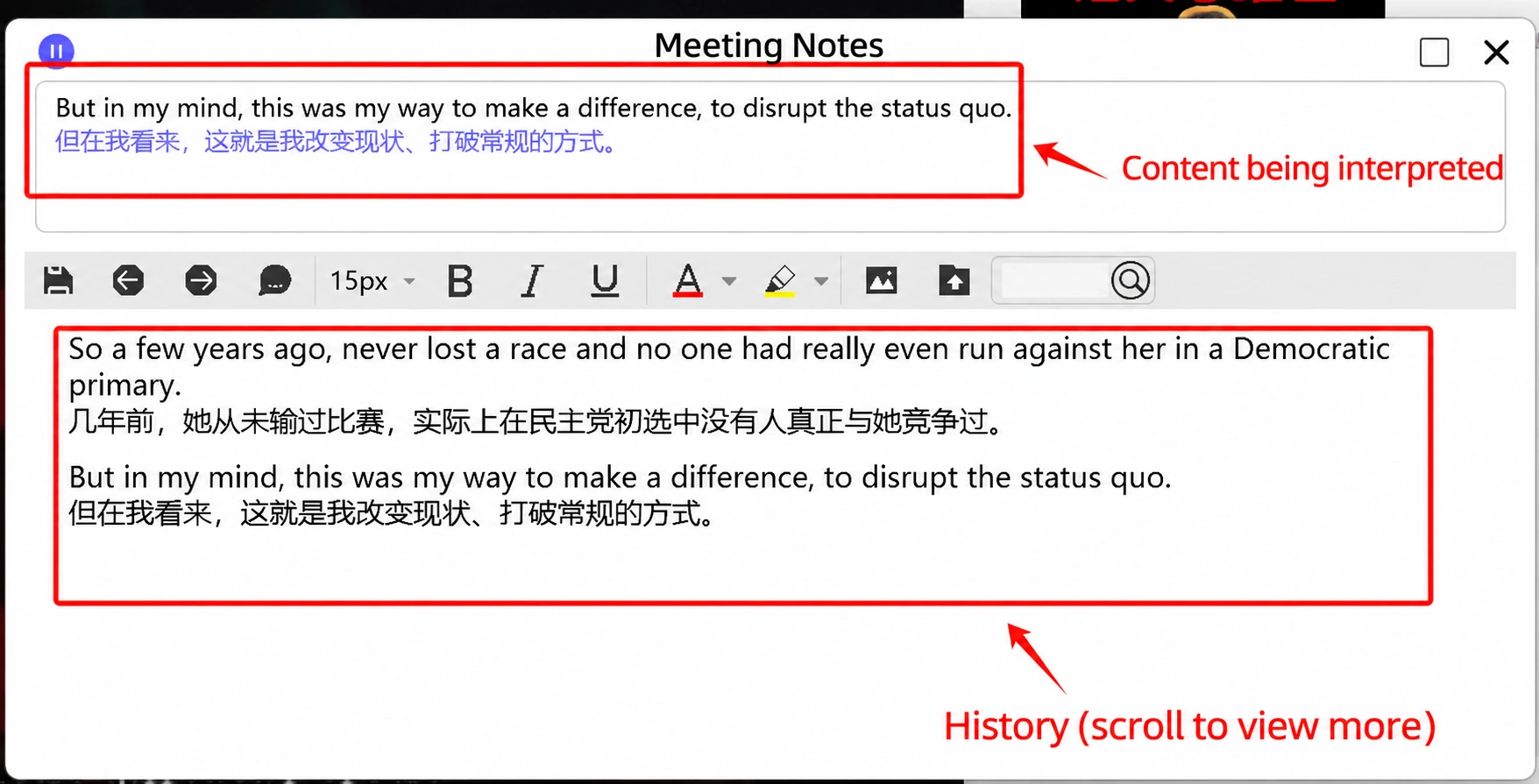
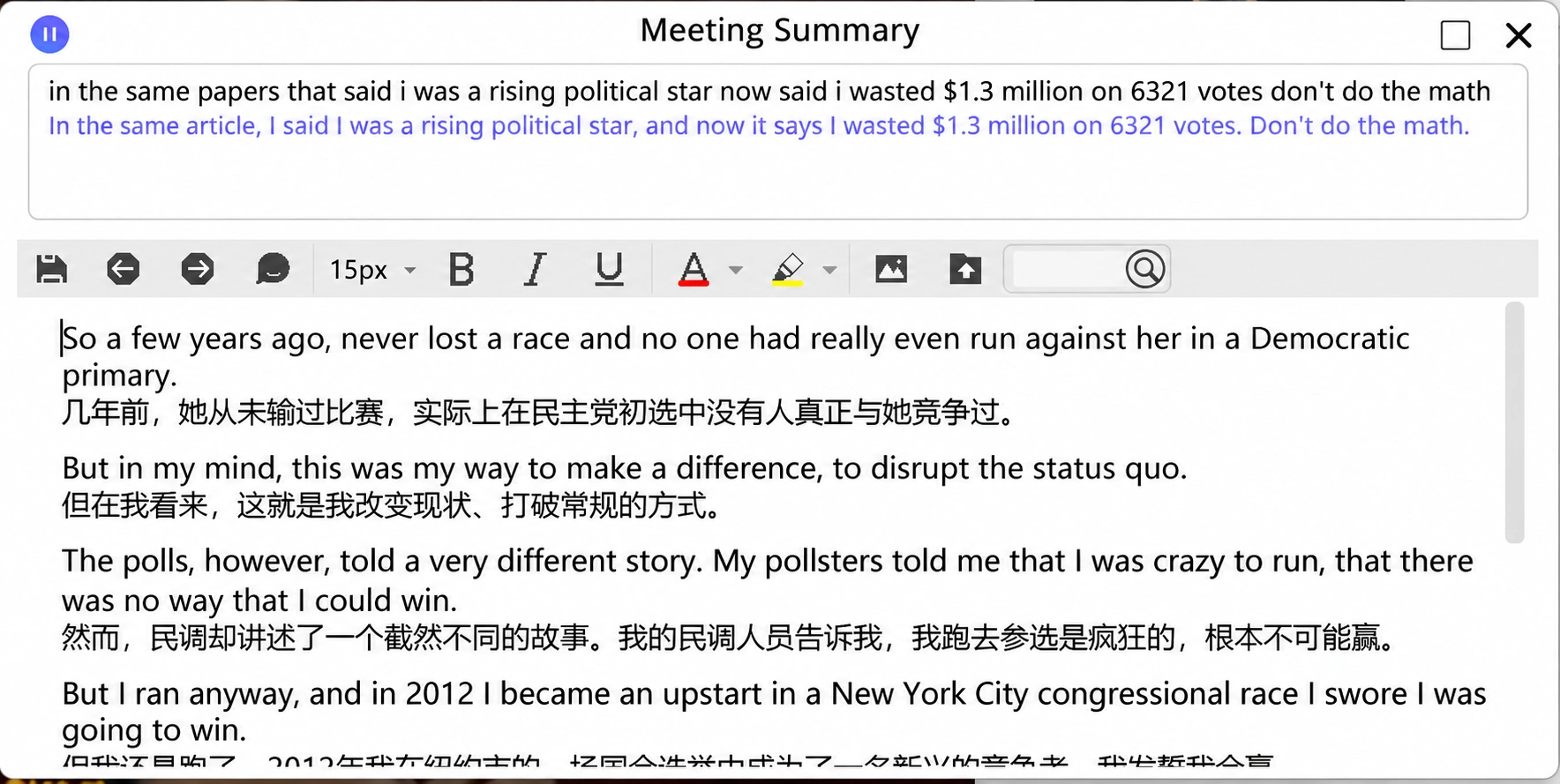
This feature will fully preserve all translation content during the conversation, allowing you to pause the real-time scrolling at any time and scroll up to view previous translation records.
Didn't find the answer?Contact Online Customer Service ↗ · Contact us · Return to Help Center

 Support