
Smartwatch FAQs
4 questions. Select a question to view the answer.
Why does using the offline translation feature of the iTour smart watch prompt: Offline resources are incomplete?
This prompt usually occurs because the pre-installed offline resource files are corrupted, causing the extraction to fail. Please follow the steps below to re-download:
1. Enter the offline language list
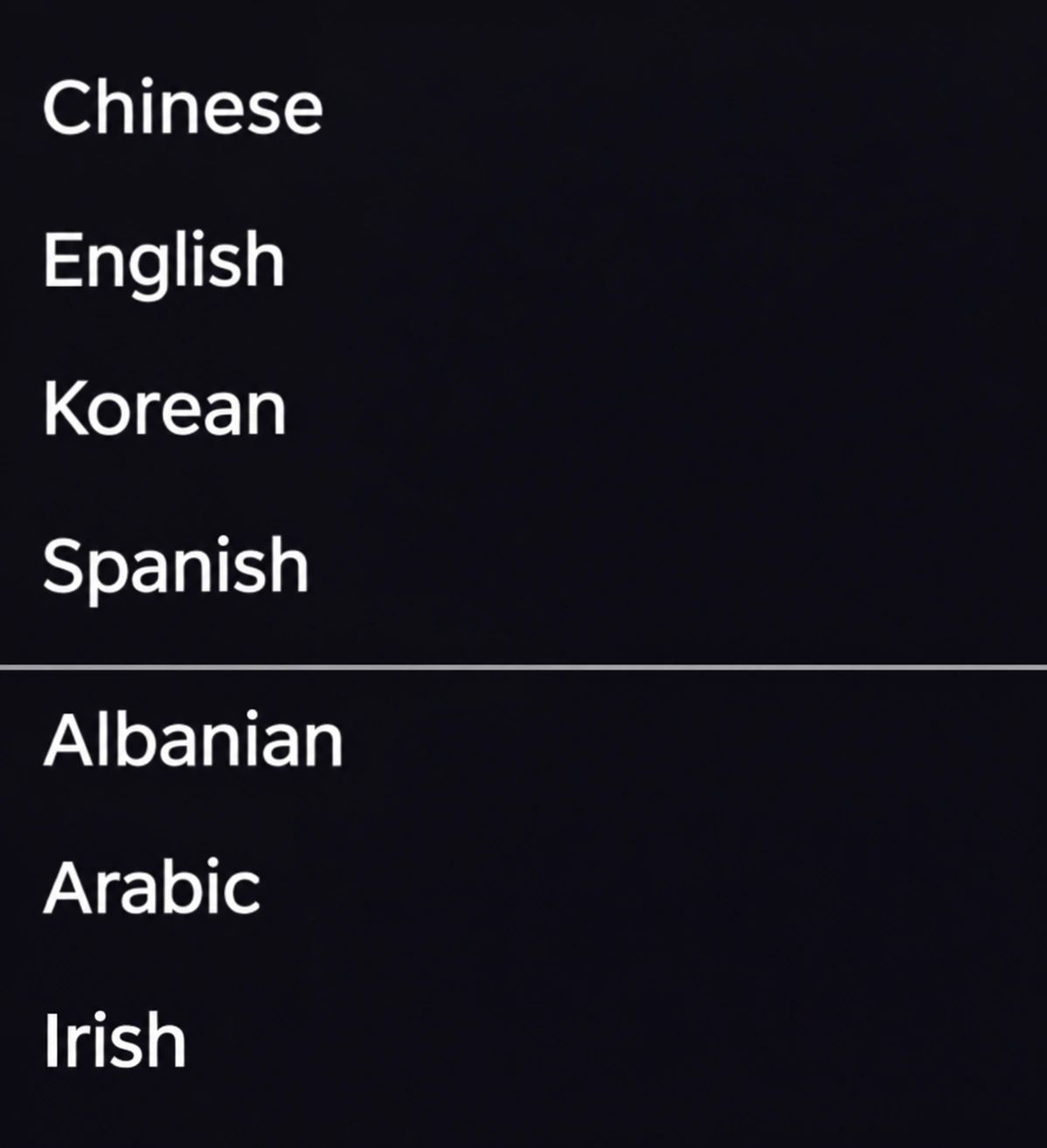
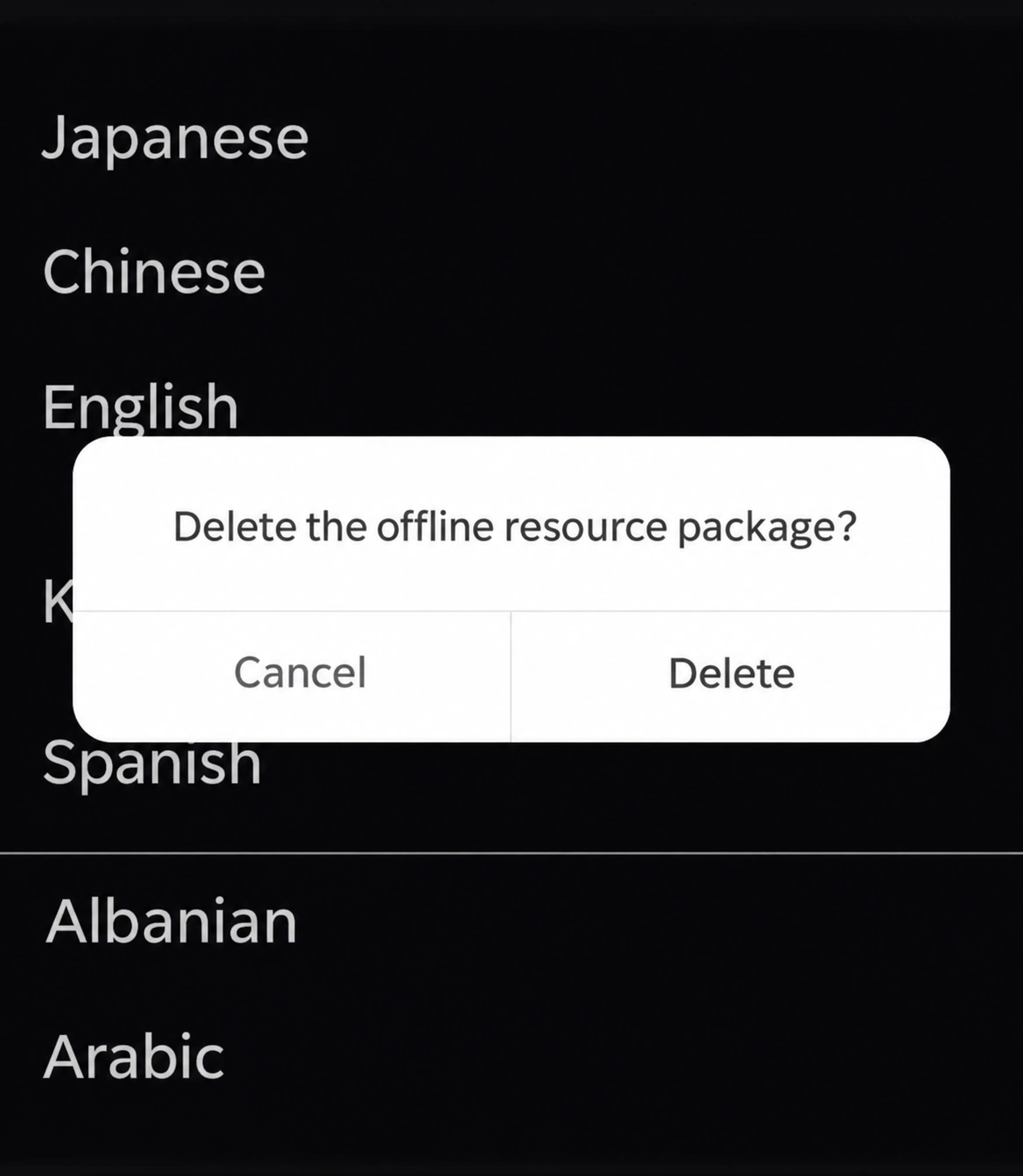
2. Long press the corresponding language and select delete
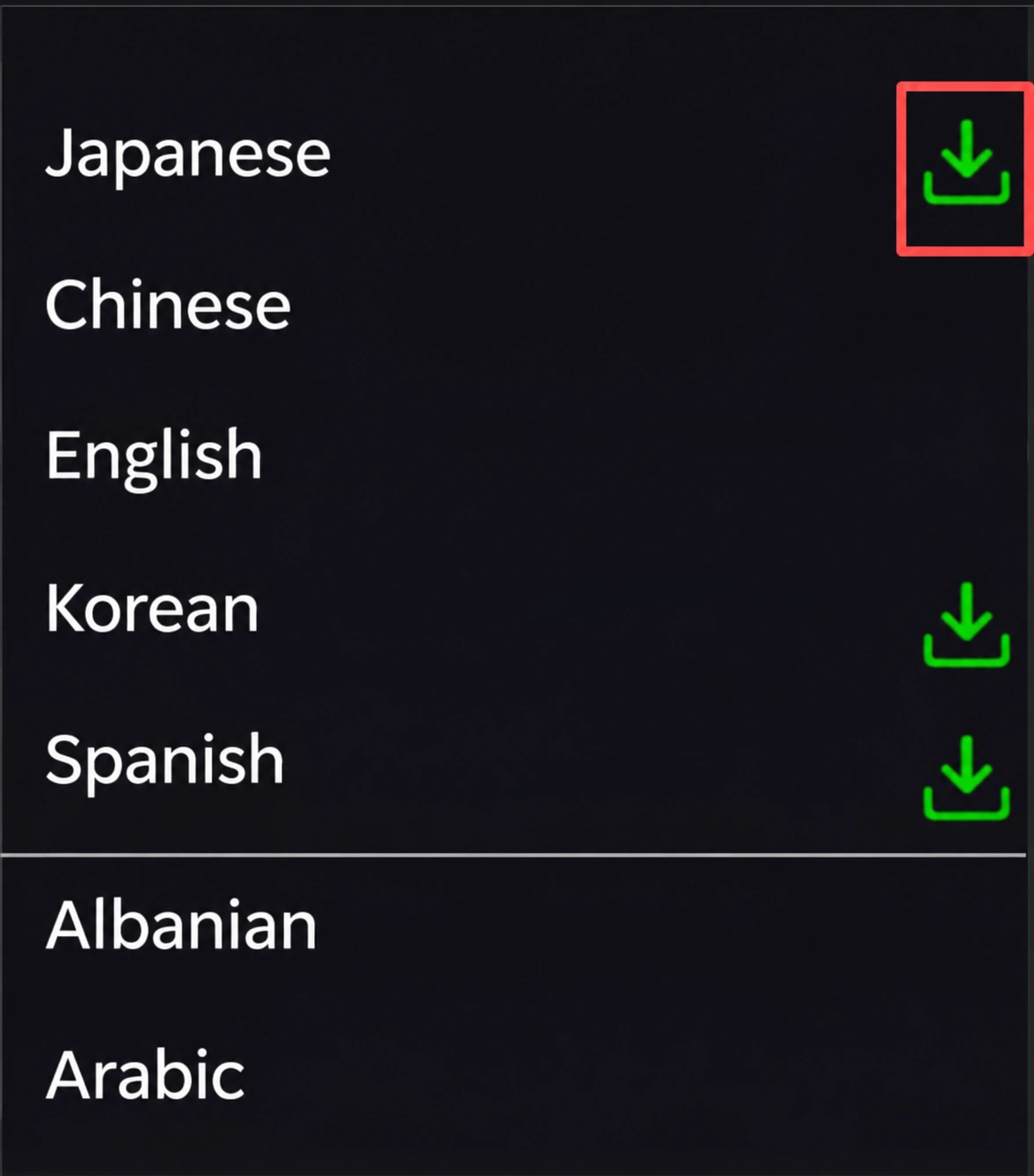
3. Just re-download the resource pack
What should I do if the watch cannot automatically change the time zone after crossing borders?
Since the watch runs on the native Android 9.0 system, it currently does not support automatically obtaining the local time zone through a hotspot (Wi-Fi, mobile network, etc.).
You can make adjustments in the following two ways:
Method 1: Manually Set the Time Zone
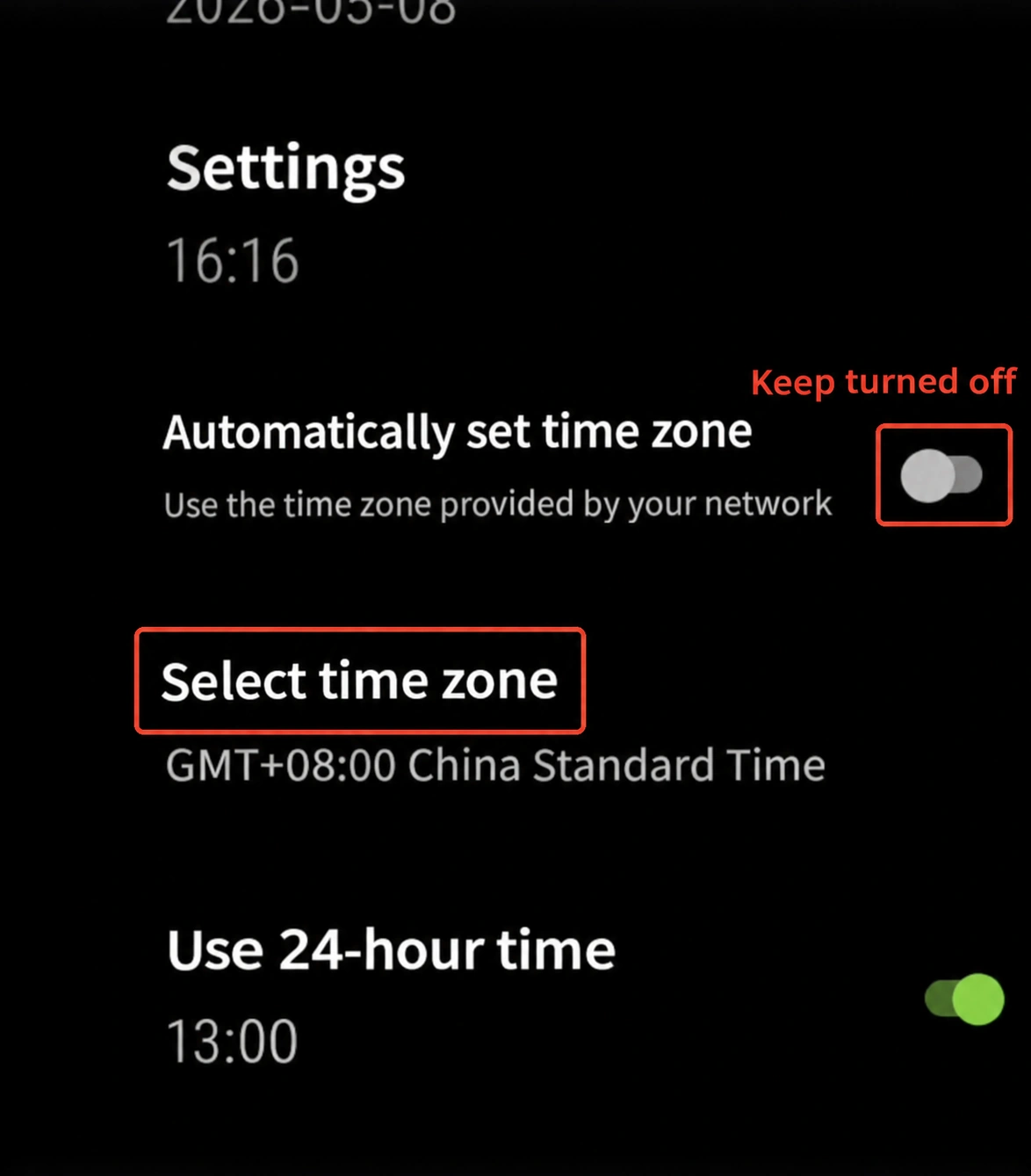
1. Enter the watch[Settings]>[System]>[Date and Time];
2. Turn off first[Set Time Zone Automatically]Switch;
3. Click after closing[Select Time Zone], manually switch to the time zone corresponding to your current location.
Method 2: Synchronize Time Zone via GaoFit APP
1. Download and install the GaoFit APP on your mobile phone
You can obtain the app by downloading it:
(1) Method 1: Guided installation via the watch
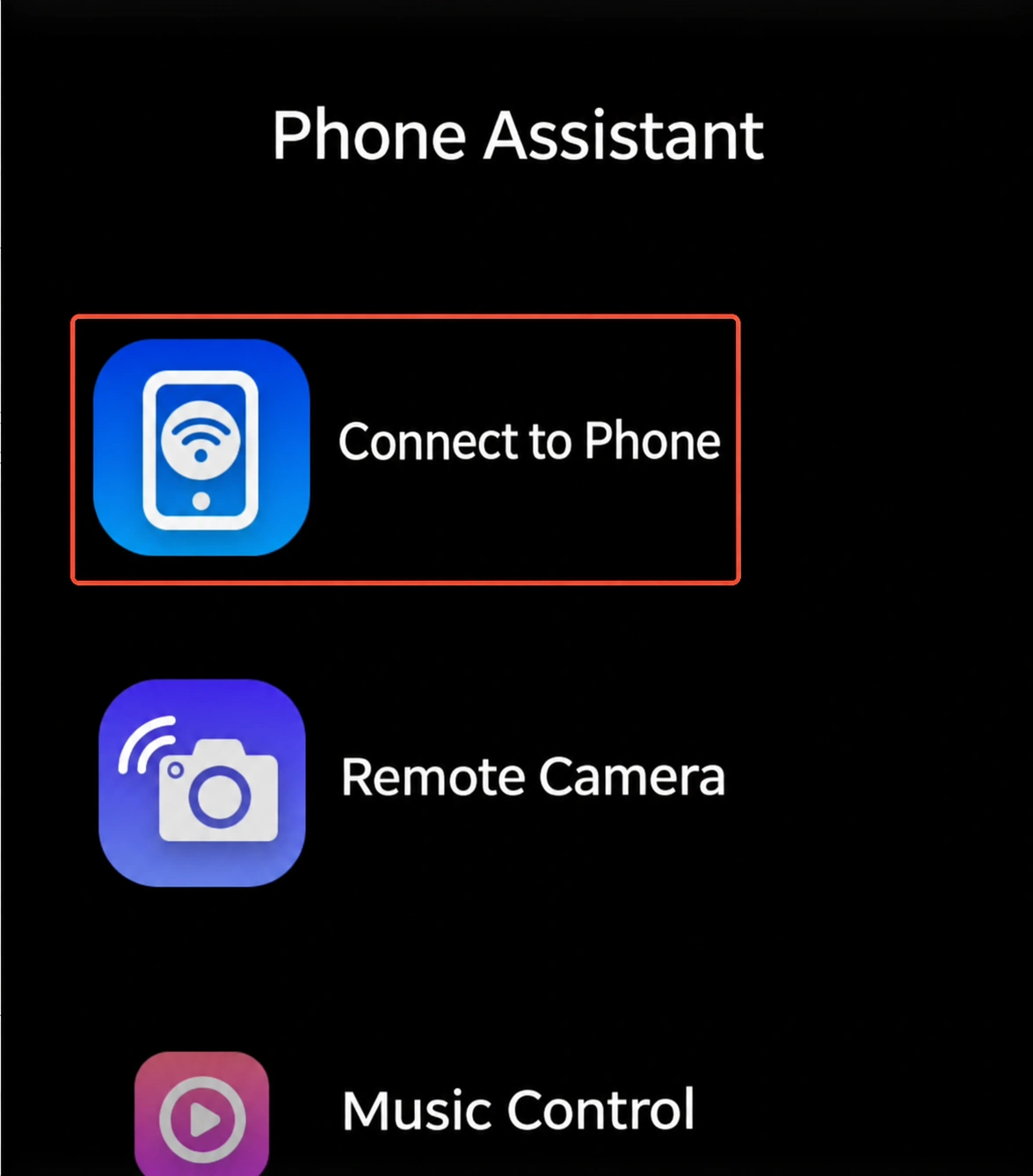
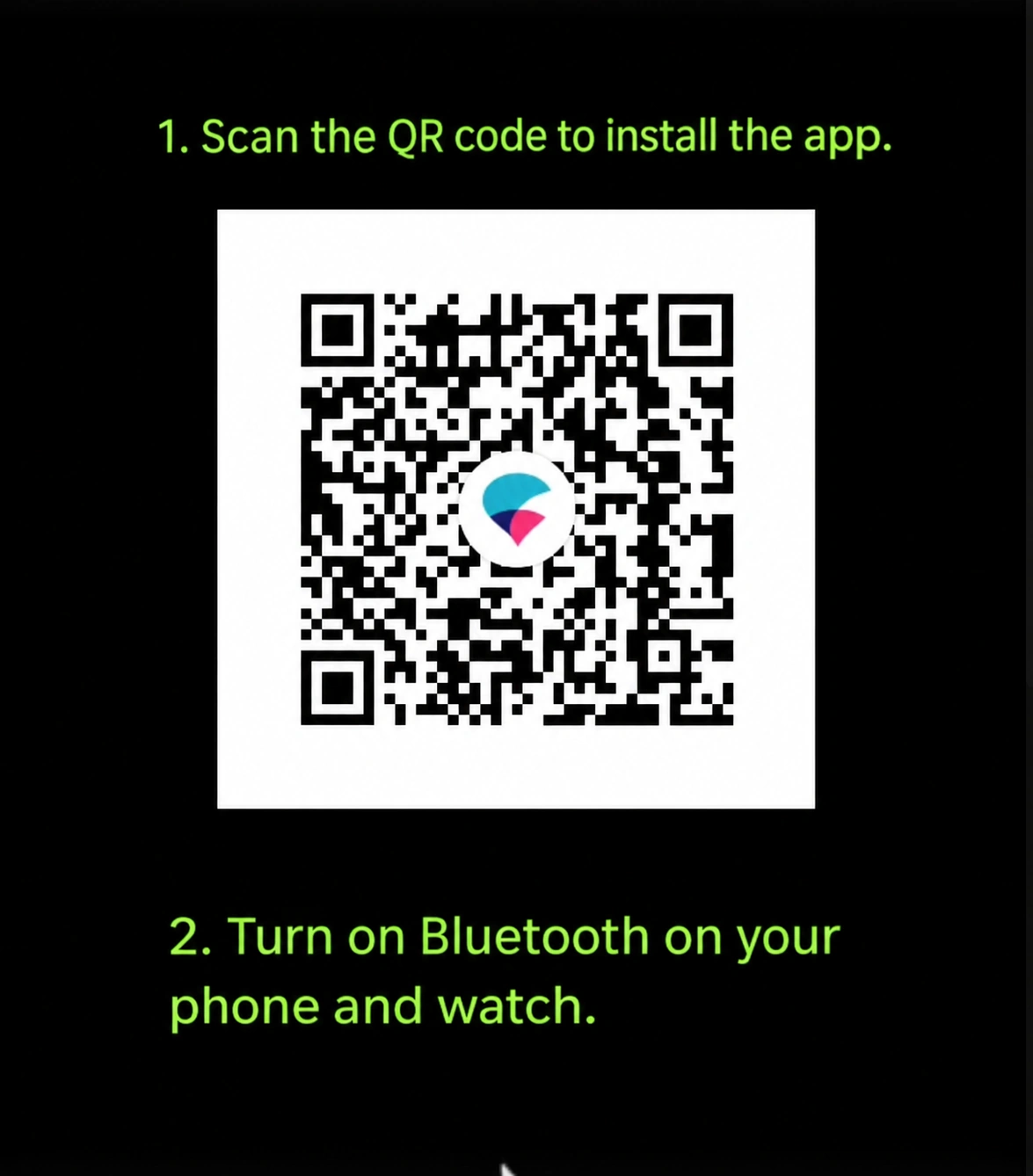
Open the watch's [Phone Assistant] feature → Click 'Phone Connection' → Click the question mark icon at the top of the screen, scan the QR code to download and install.
(2) Method 2: Search and install from the store
iPhone users: search for 'GaoFit' directly in the App Store to download;
Android users: Search for 'GaoFit' in the mobile app store or Google Play to download
2. Bind and add a watch device
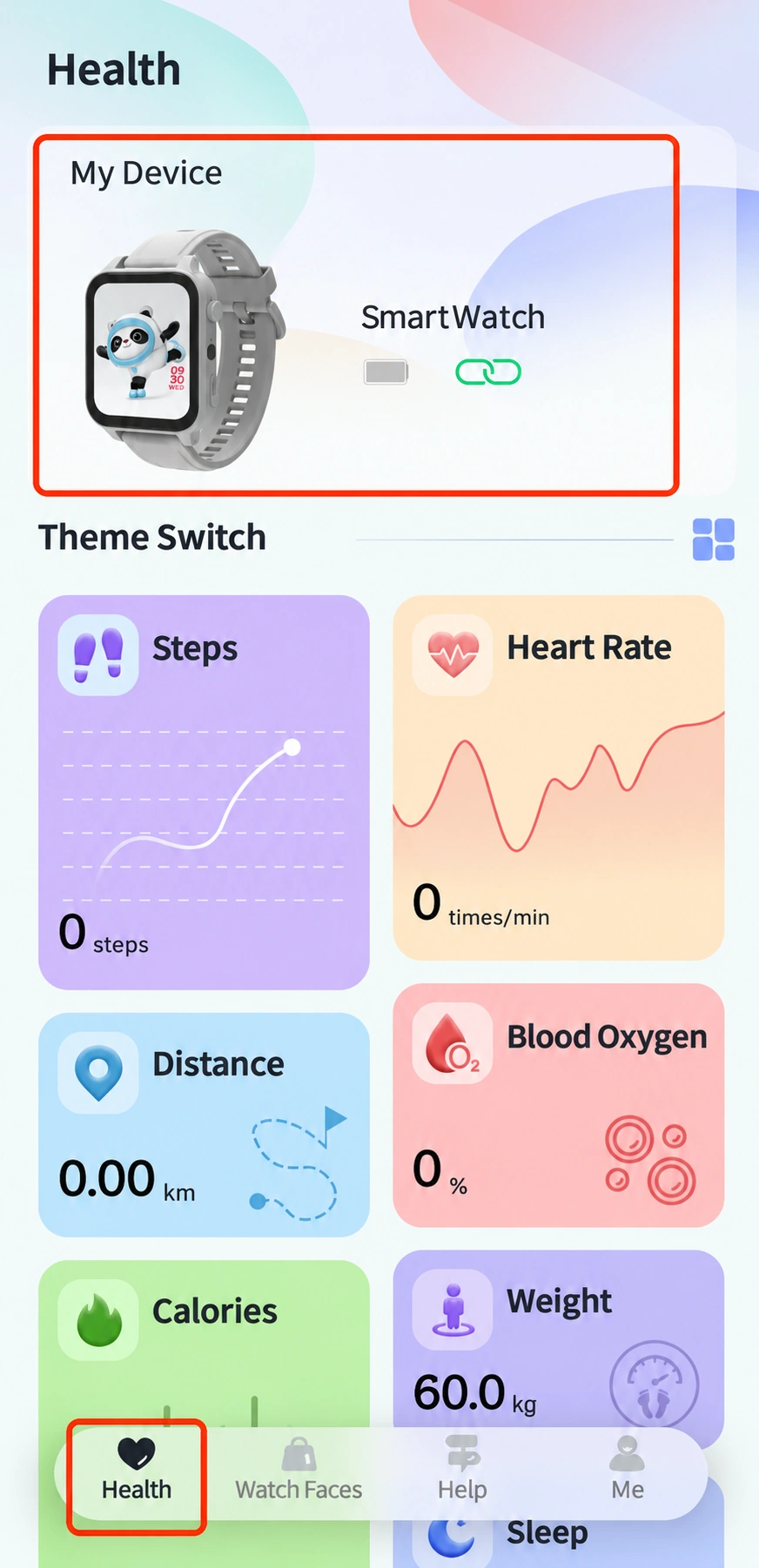
(1) Open the GaoFit APP, click 'Add Device' on the [Health] page, and enter the scan code mode;
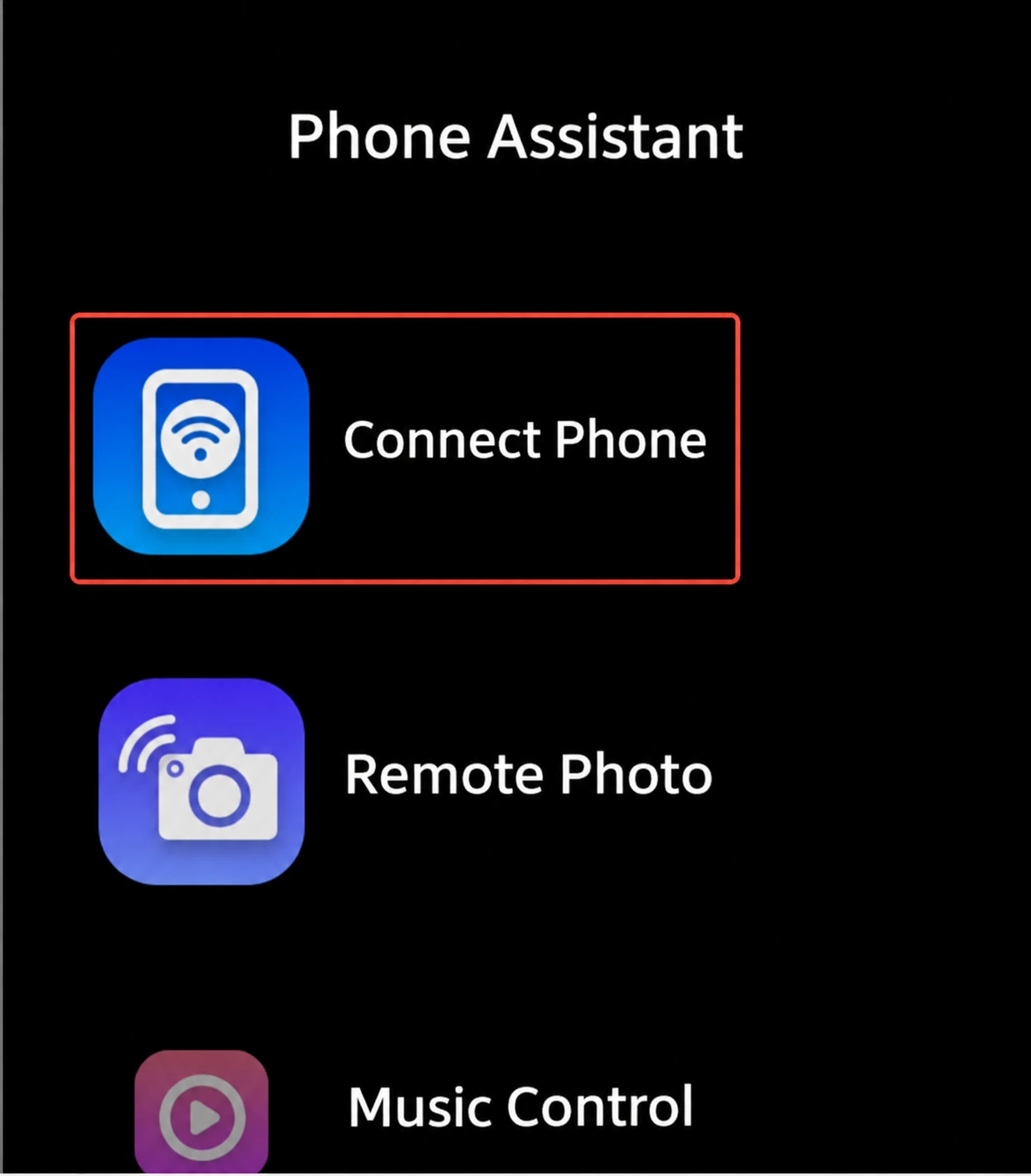
(2) Open the watch's [Phone Assistant] → click 'Connect Phone', and the watch will display the pairing QR code;
(3) Use the APP to scan the QR code on the watch to complete the pairing connection (when connecting an Android phone, if a permission authorization notification pops up, please click 'Allow').
3. Sync Time Zone
Adjust the phone's time zone to the correct local time zone, and the watch will automatically sync with the phone's current time zone.
What should I do if a HarmonyOS phone cannot use the GaoFit APP to connect to a watch?
Currently, the HarmonyOS system has some permission restrictions.The GaoFit APP downloaded from the Huawei store is temporarily unavailable.
You The following steps can be used to resolve this (using WeChat Scan as an example):
1. Open the watch's [Mobile Assistant] → Tap [Phone Connection] → Tap the question mark icon at the top of the screen to get the QR code.
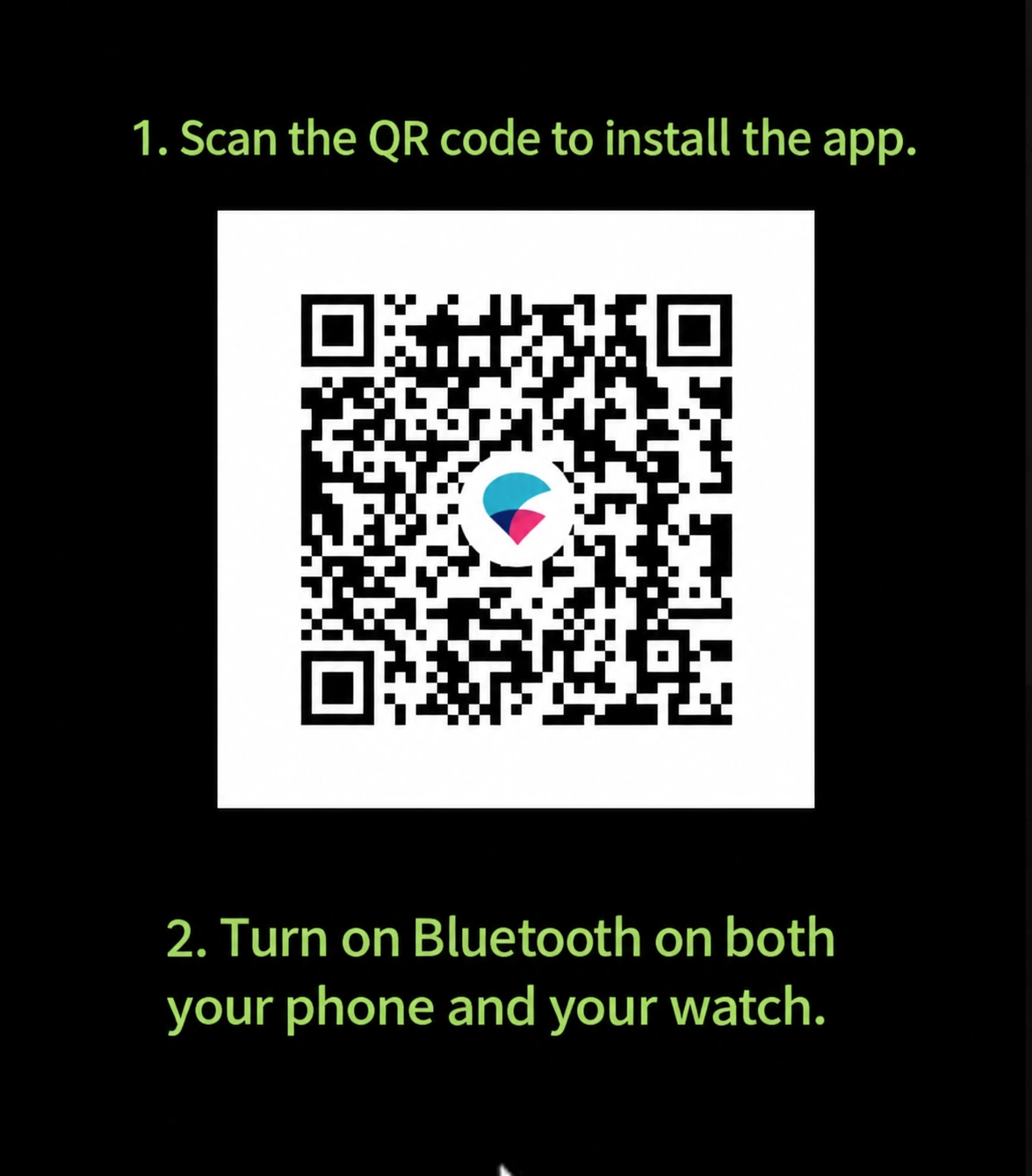
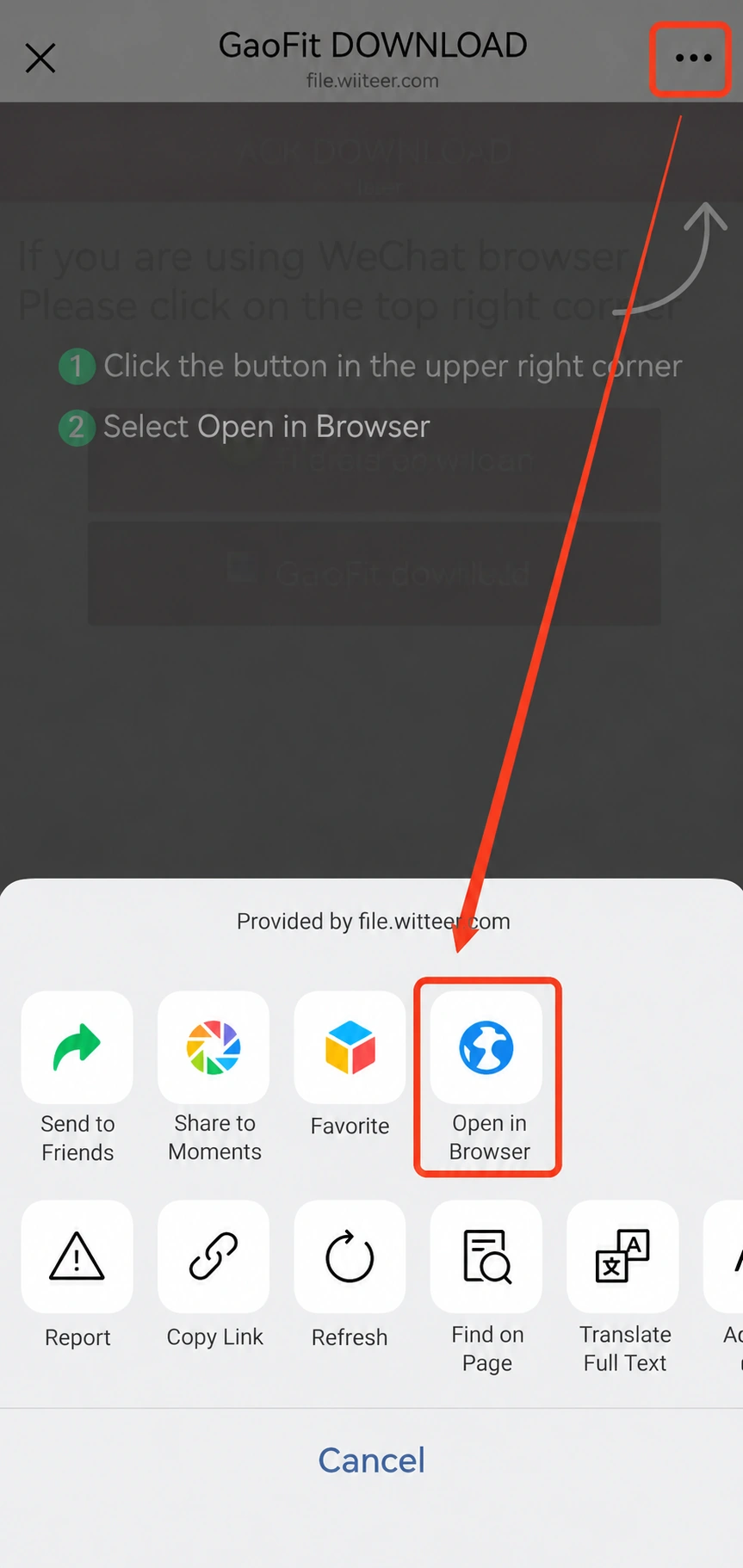
2. Use WeChat to scan this QR code, click the '···' in the top right corner, and select 'Open in Browser.'
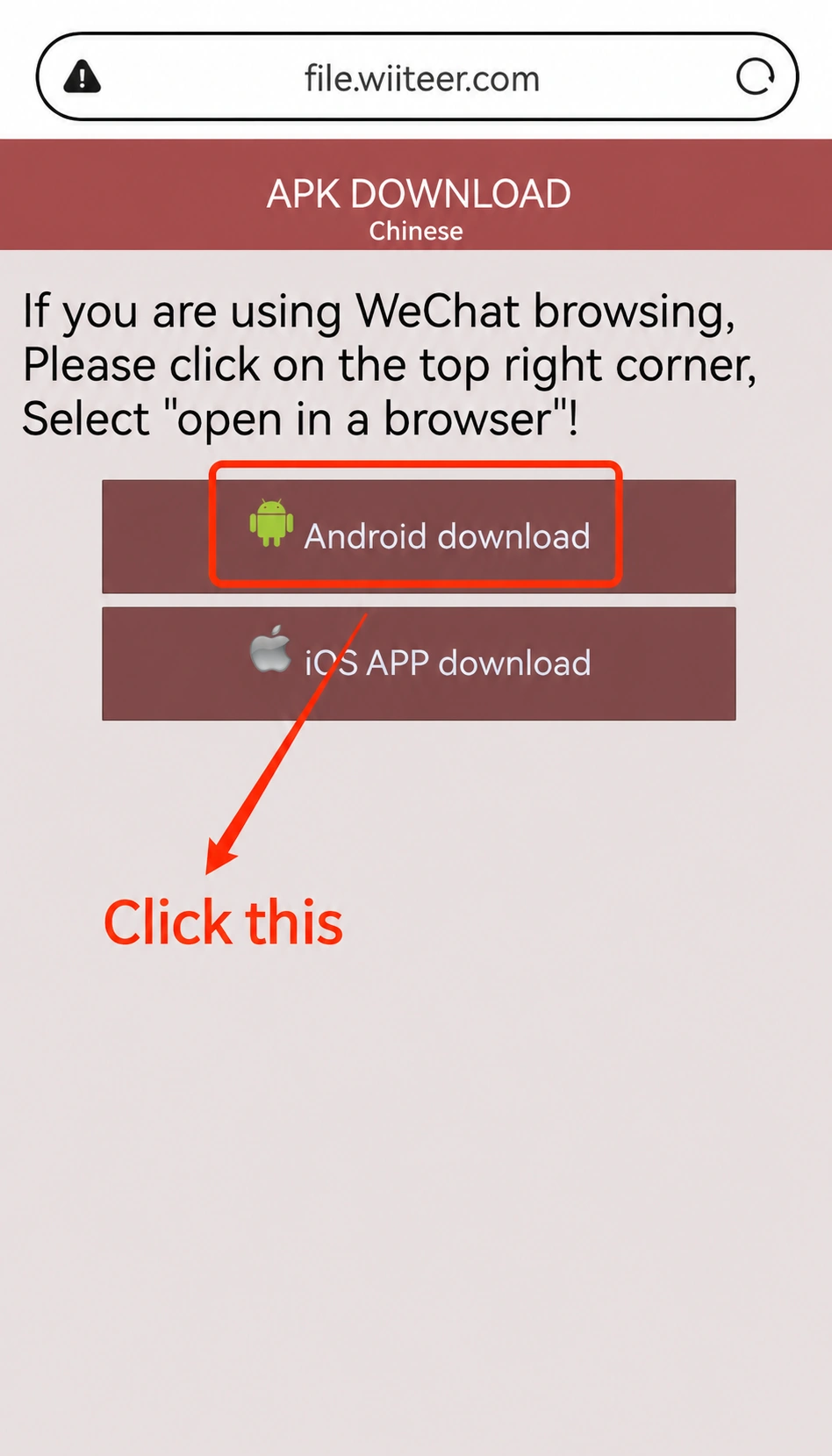
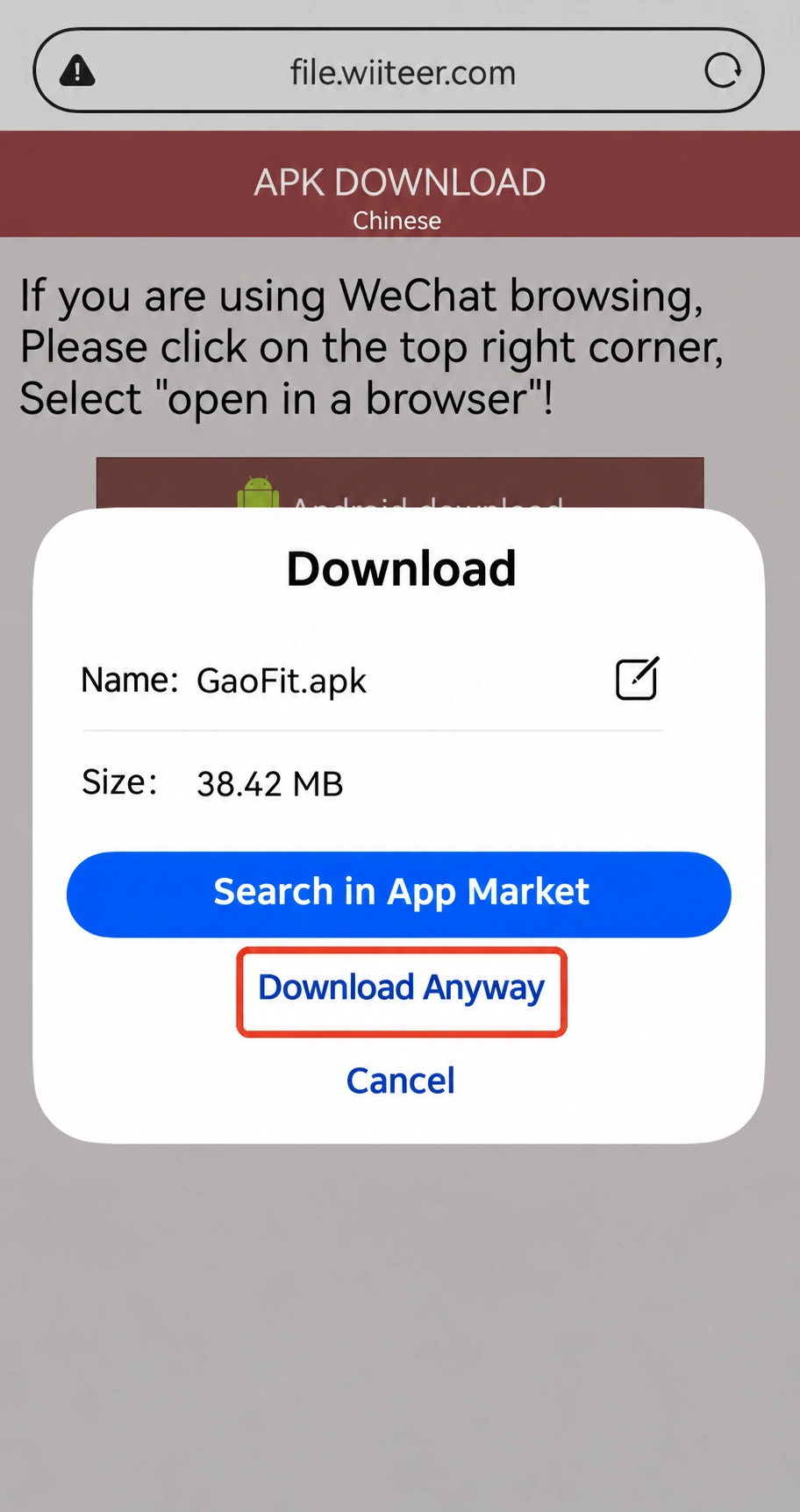
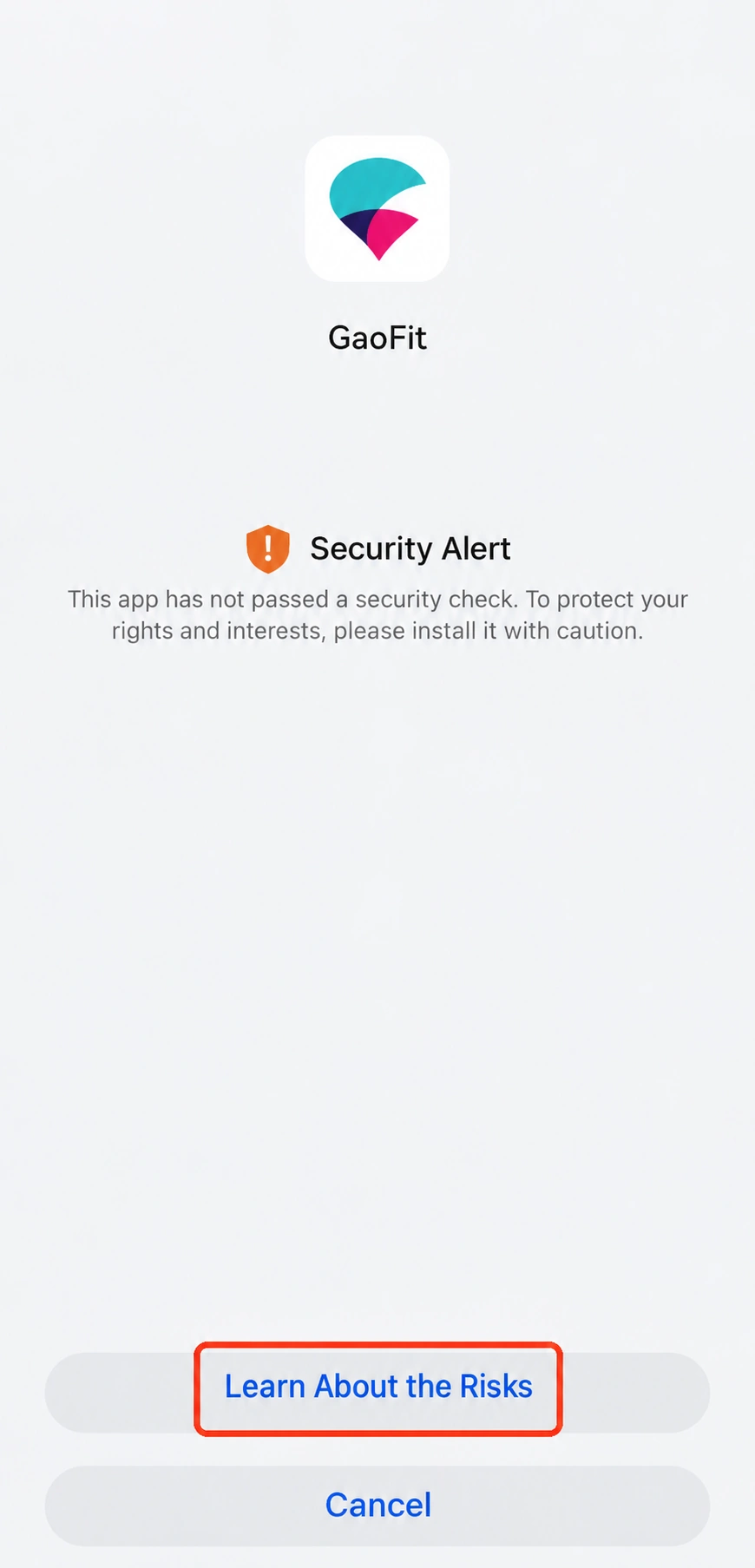
3. On the opened page, click Android download, and in the pop-up prompt box, click 'Still want to download'.
4. During the download process, you can view the files being downloaded and their progress in the browser's 'Download Manager'.
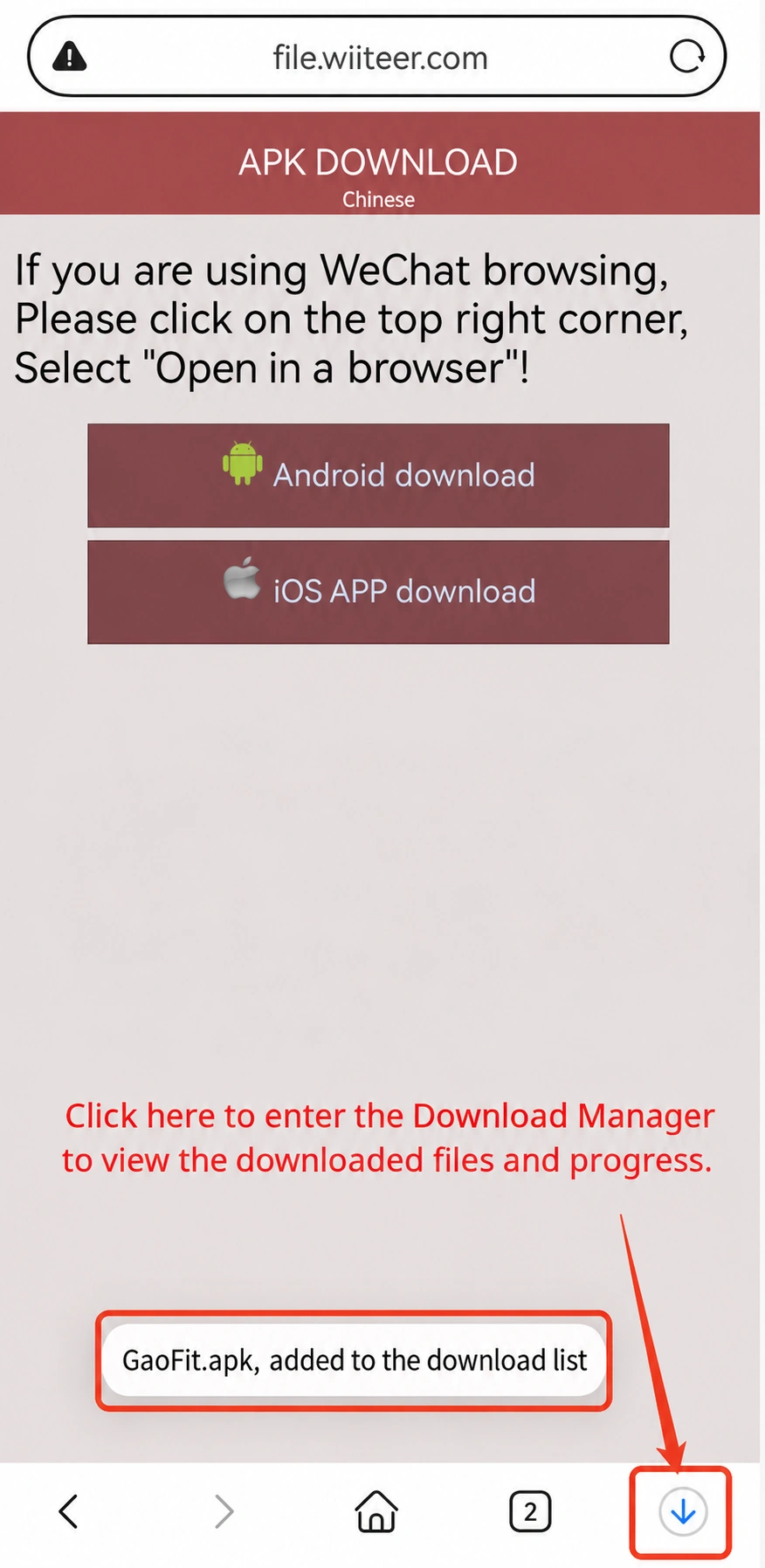
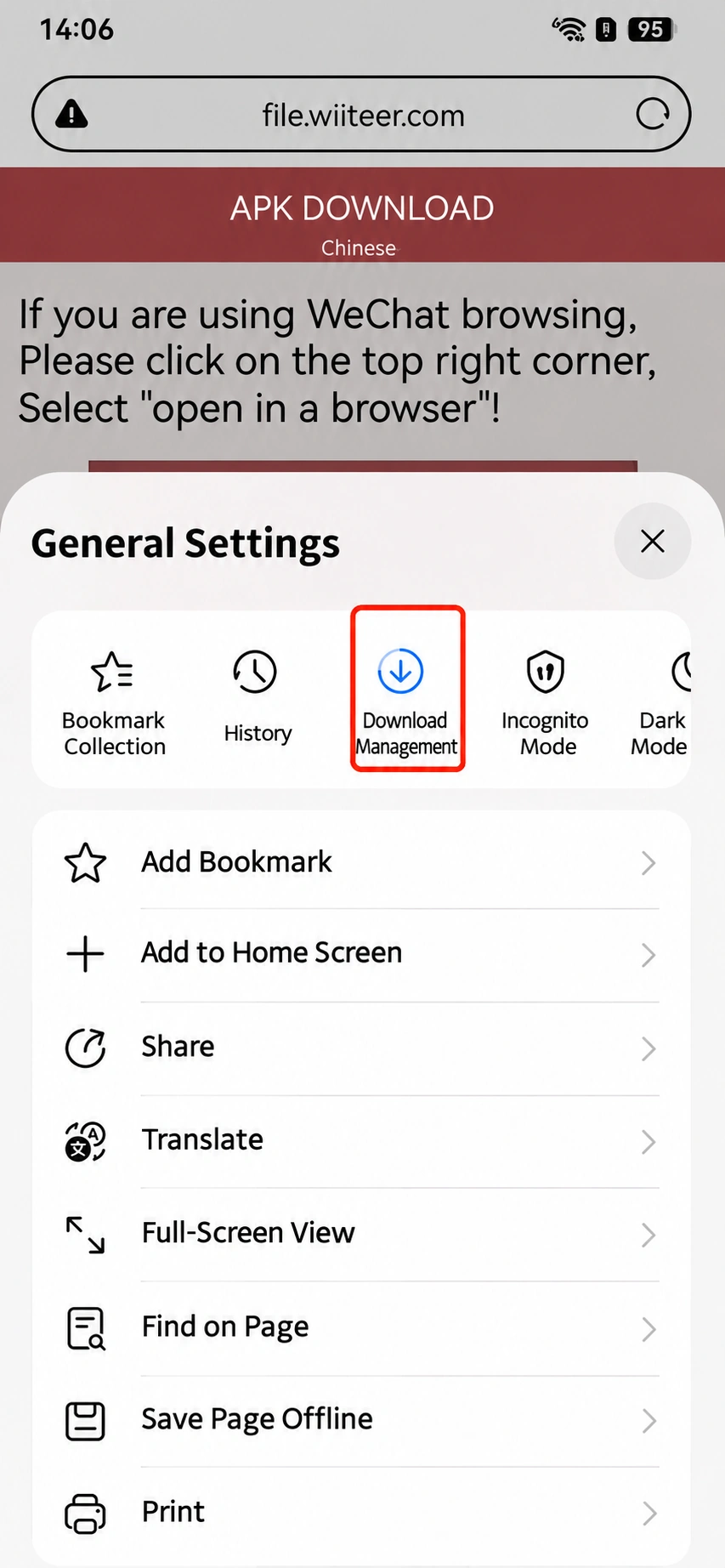
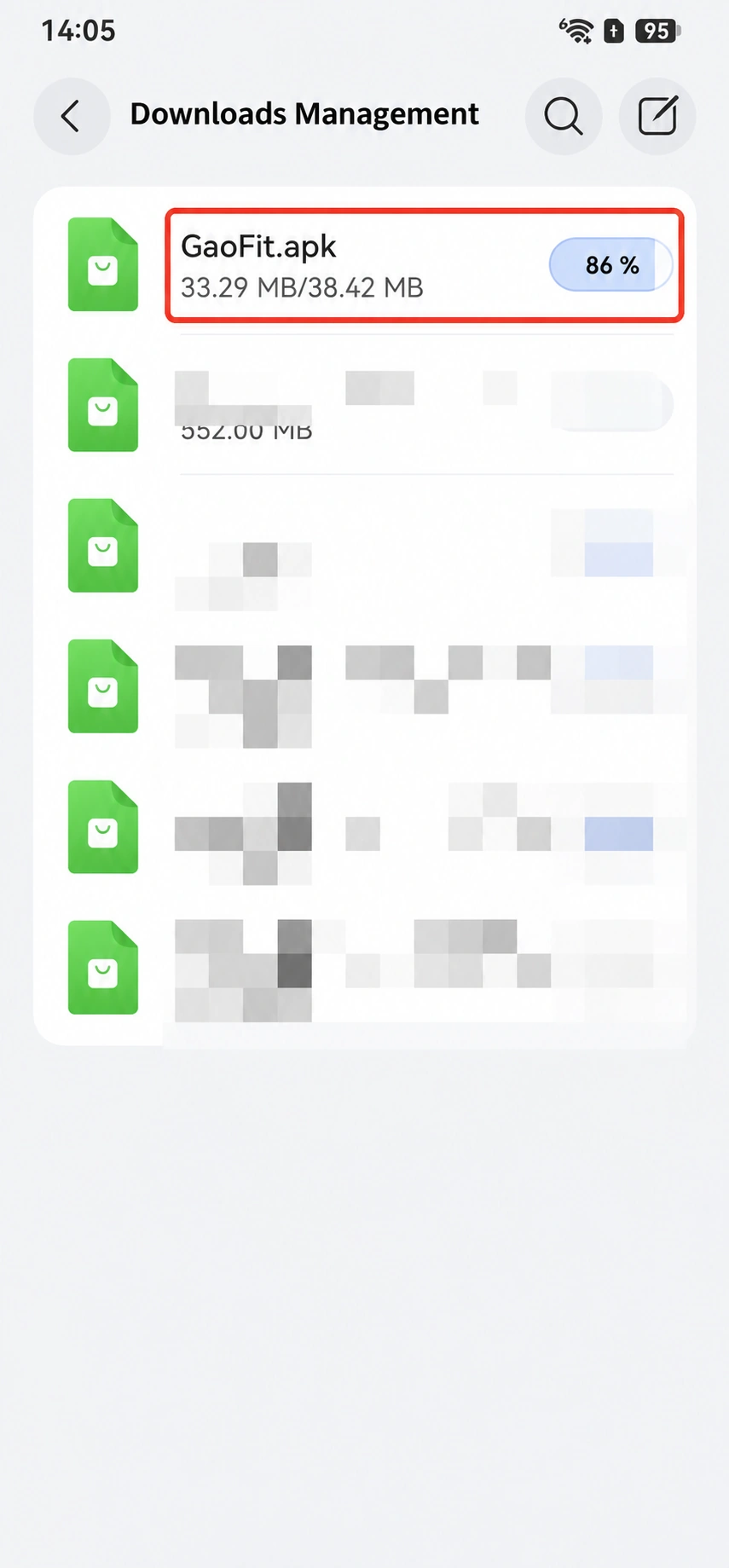
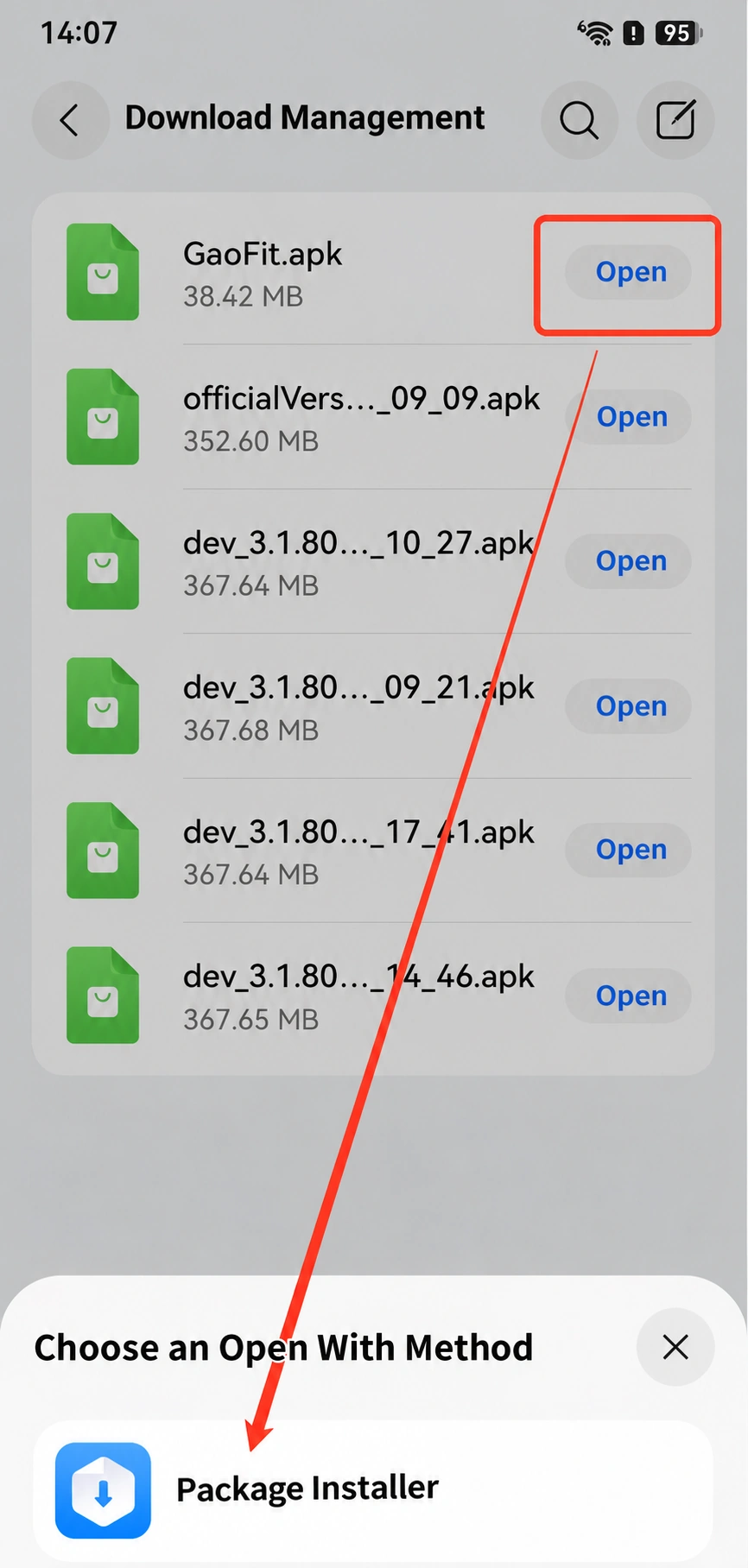
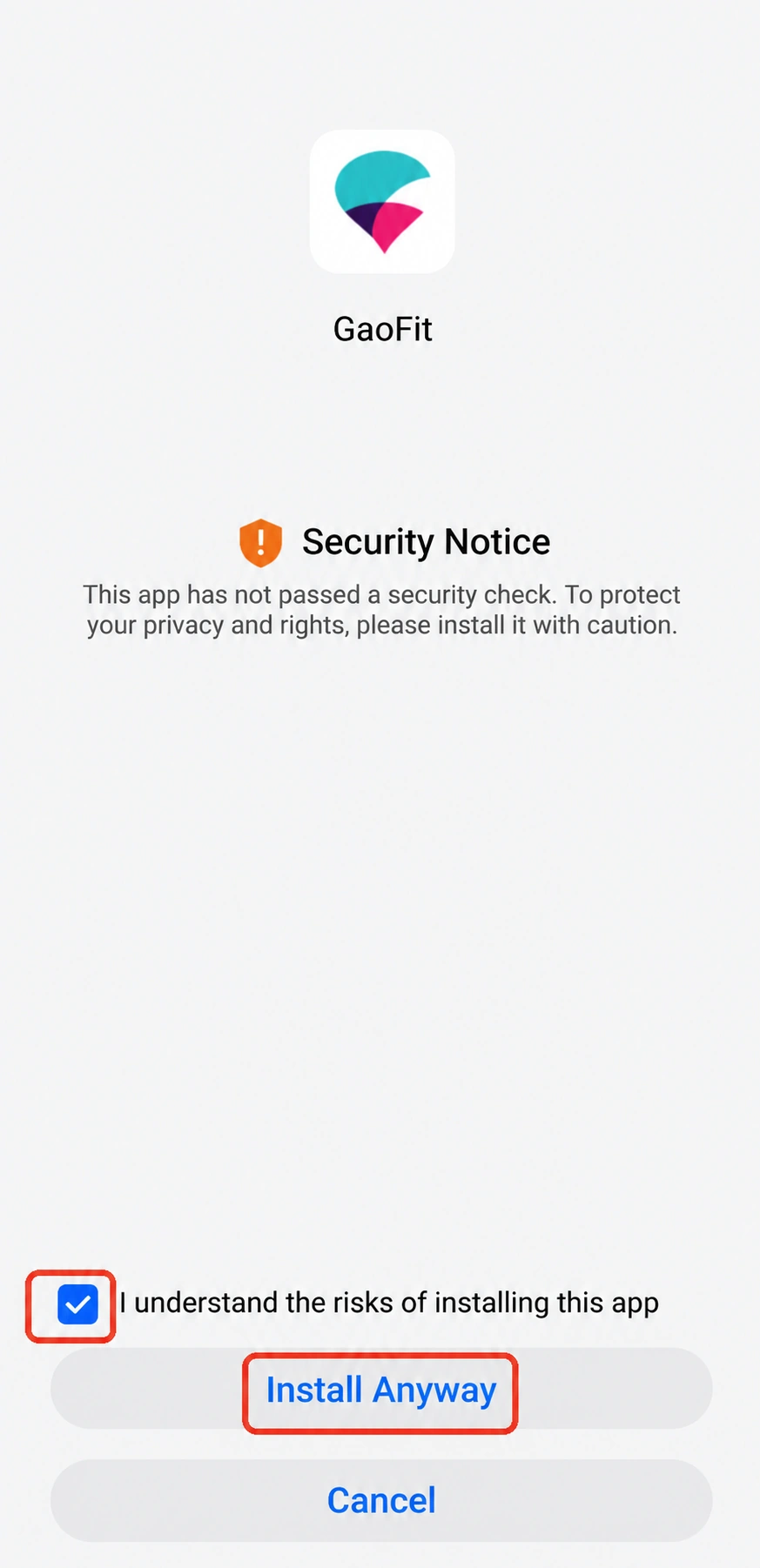
5. After the download is complete, find the installation package in the download list and click Install (the specific operation is shown in the figure below):
6. After the installation is successful, open the GaoFit APP, add and bind the watch
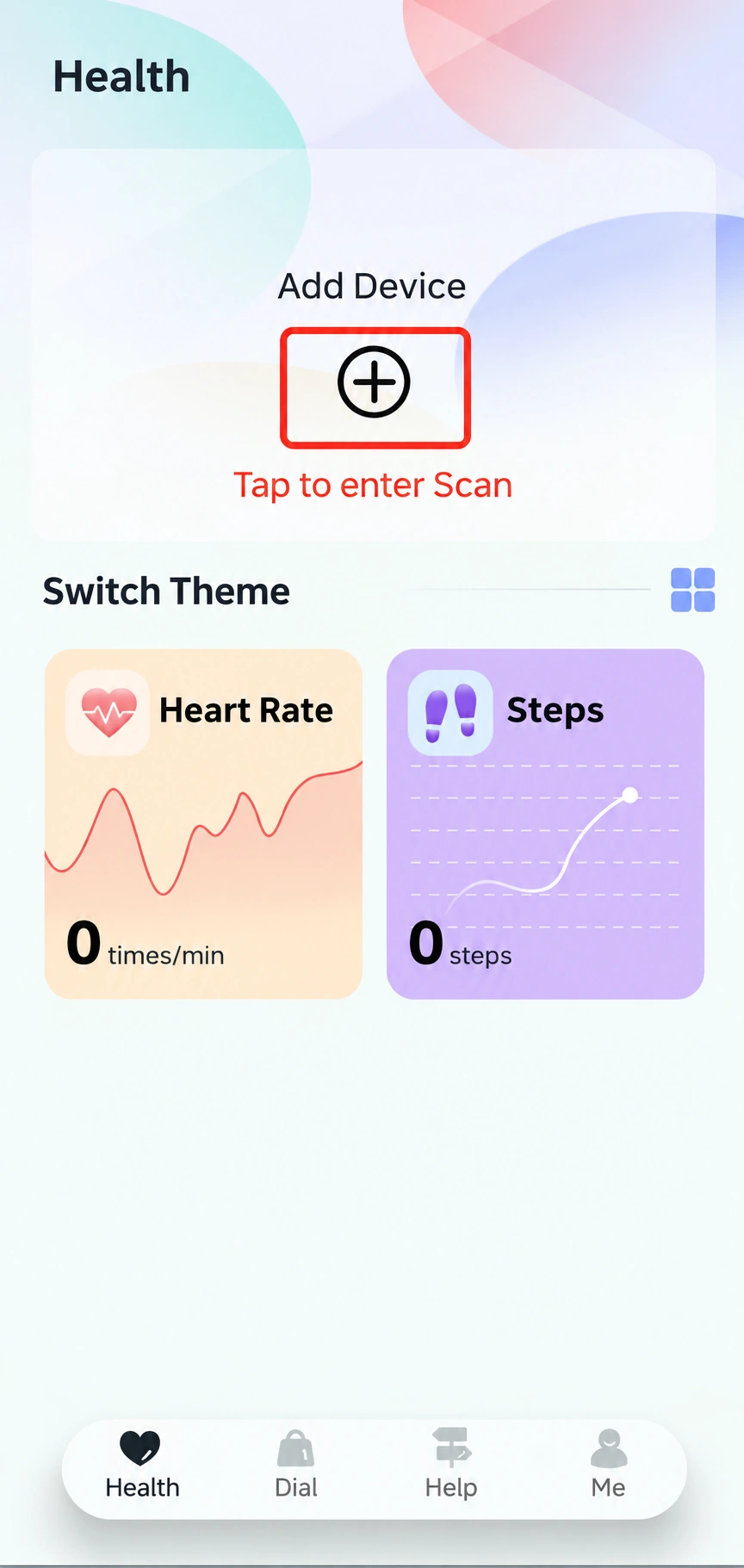
(1) Open the GaoFit APP, go to the [Health] page and click [Add Device] to enter the scanning mode;
(2) Open the watch [Mobile Assistant] and click [Connect to Phone], the watch will display a pairing QR code:
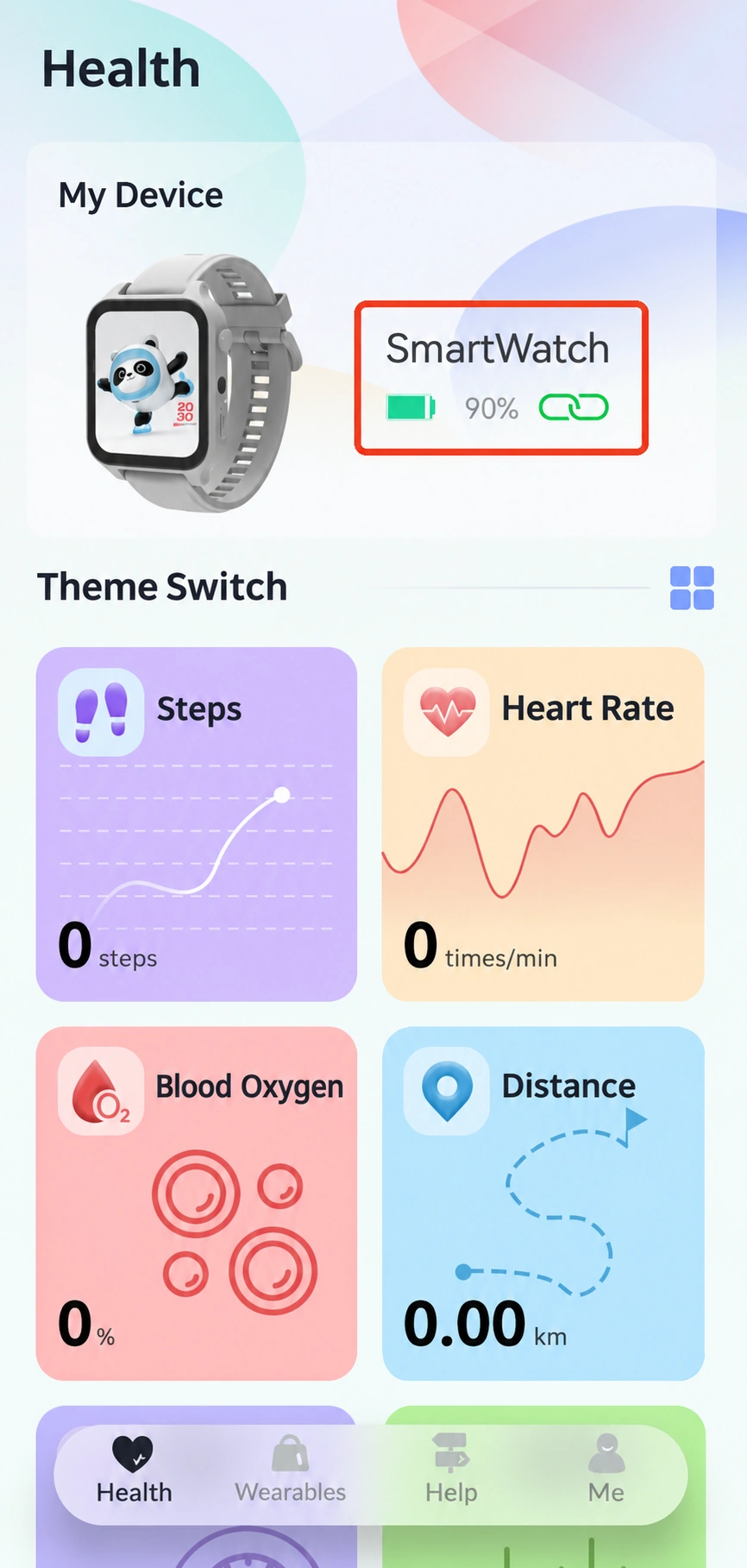
(3) Use the app to scan the QR code on the watch to complete pairing and connection.
Why can't the iTour smart watch be found or connect to a hotspot?
iTour smartwatch fails to search for or connect to the mobile hotspot, usually due to the phone's Hotspot frequency band or compatibility settings Caused by a mismatch. Please follow the steps below according to your phone's system to troubleshoot:
Android phone setup steps
- Open "Settings」 > 「Personal hotspot"(or "Network Sharing and Portable Hotspot")".
- Enter "Set up a WLAN hotspot") (or "configuration hotspot")."
- Find "AP band") (or "frequency band") option.
- Set it to "2.4 GHz Frequency band (please be sure Do not choose 5 GHz).
- After saving the settings, turn on the hotspot again, and then use the watch to search and connect.
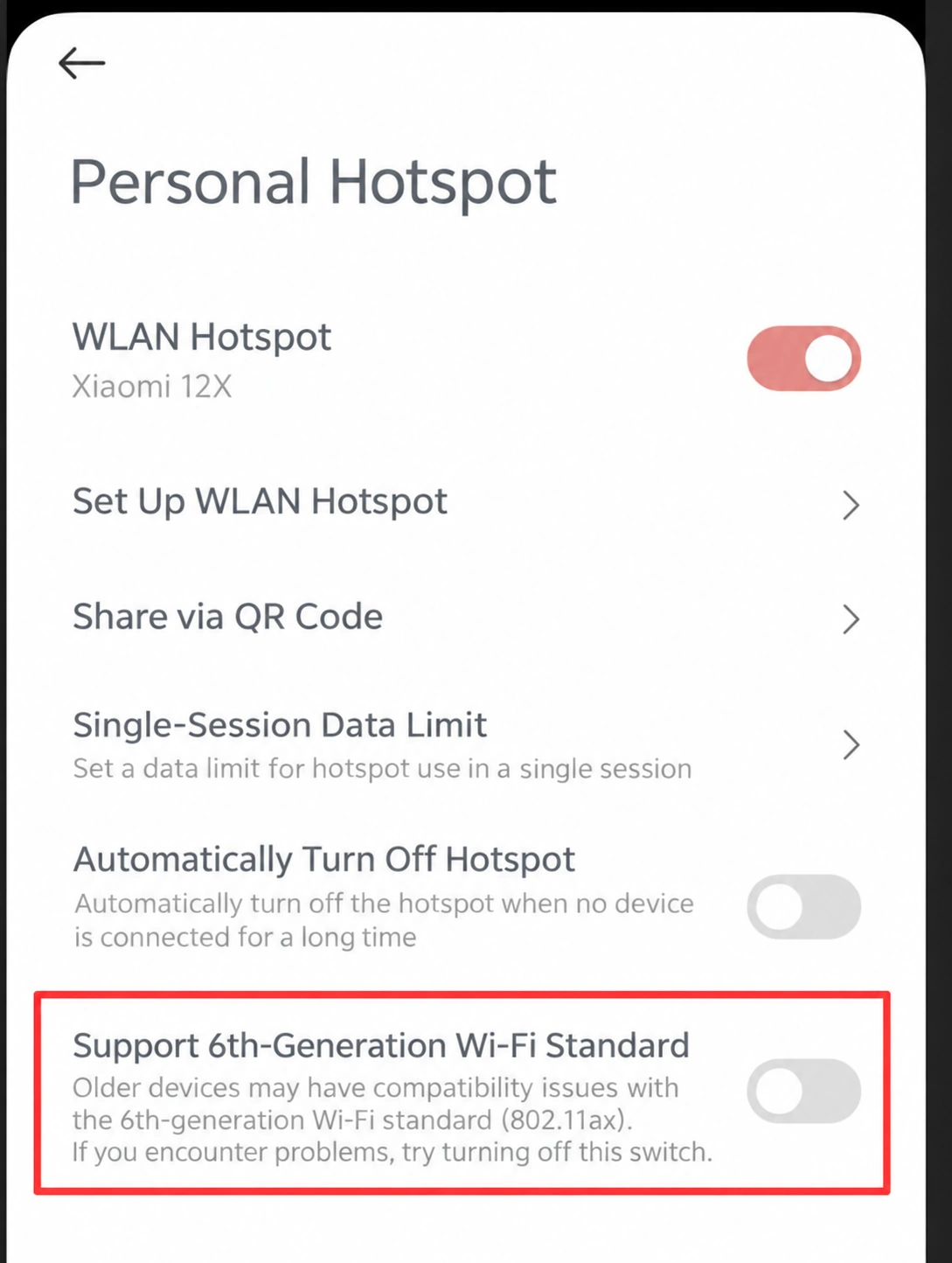
Note: Supports 6th generation technology standards, required for Close Status
iPhone (iOS) Setup Steps
- Open "Settings」 > 「Cellular network」.
- Click "Personal hotspot」.
- Ensure "Allow others to join" has been turned on, and Turn on「Maximum Compatibility"Switch.
- Prerequisite: When turning on the personal hotspot, be sure to confirm "Settings」>「Wi-Fi" Already in place On state(Even if not connected to Wi-Fi). This is a necessary condition for iOS devices to be discoverable by the hotspot.
- After completing the above settings, search for the connection again using the watch.
Problem Summary and Tips
| Possible cause | Android solution | iOS Solution |
|---|---|---|
| Hotspot frequency bands are not compatible | Manually set to 2.4 GHz Frequency band | Turn on Maximum Compatibility |
| The hotspot cannot be detected | Make sure the hotspot is turned on and visible | Ensure The wireless LAN switch is turned on |
General Advice: After completing the setup, it is recommended Restart the watch's Wi-Fi → Search again, then try again. If the problem persists, please try setting the mobile hotspot name to pure English and check if there is a limit on the number of connected devices.
Didn't find the answer?Contact Online Customer Service ↗ · Contact us · Return to Help Center

 Support