
Translation Earbuds FAQs
A total of 6 questions. Click on a question to expand the answer.
Why does the Chinese voice playback turn into Cantonese when using the translation function on an iPhone?
This is because the default voice reading settings of the iOS system are incorrect. You only need to adjust the settings in the following two places in order to resolve this:
Step 1: Check the Device’s Region Setting
Go to [Settings] > [General] > [Language & Region], confirm that the "Region" option is set to "Mainland China".
Step 2: Adjust the Spoken Language
- Go to [Settings] > [Accessibility] > [Spoken Content].
- Click to enter [Sound] Option.
- Find " in the language list Chinese" and click open.
- Under “Spoken Language”, select “Mandarin" or "Default”.
After completing these two steps, the Chinese translation broadcast will return to standard Mandarin.
How to switch the translation earphones to use with a new device?
Replacing the device requires two steps: first unpair it from the old device, then reconnect it with the new device. Follow these steps:
Step 1: Unpair (disconnect) on the old device
This is the most crucial step. Please make sure the headphones are currently connected or can be detected by the old device, then proceed according to the type of device:
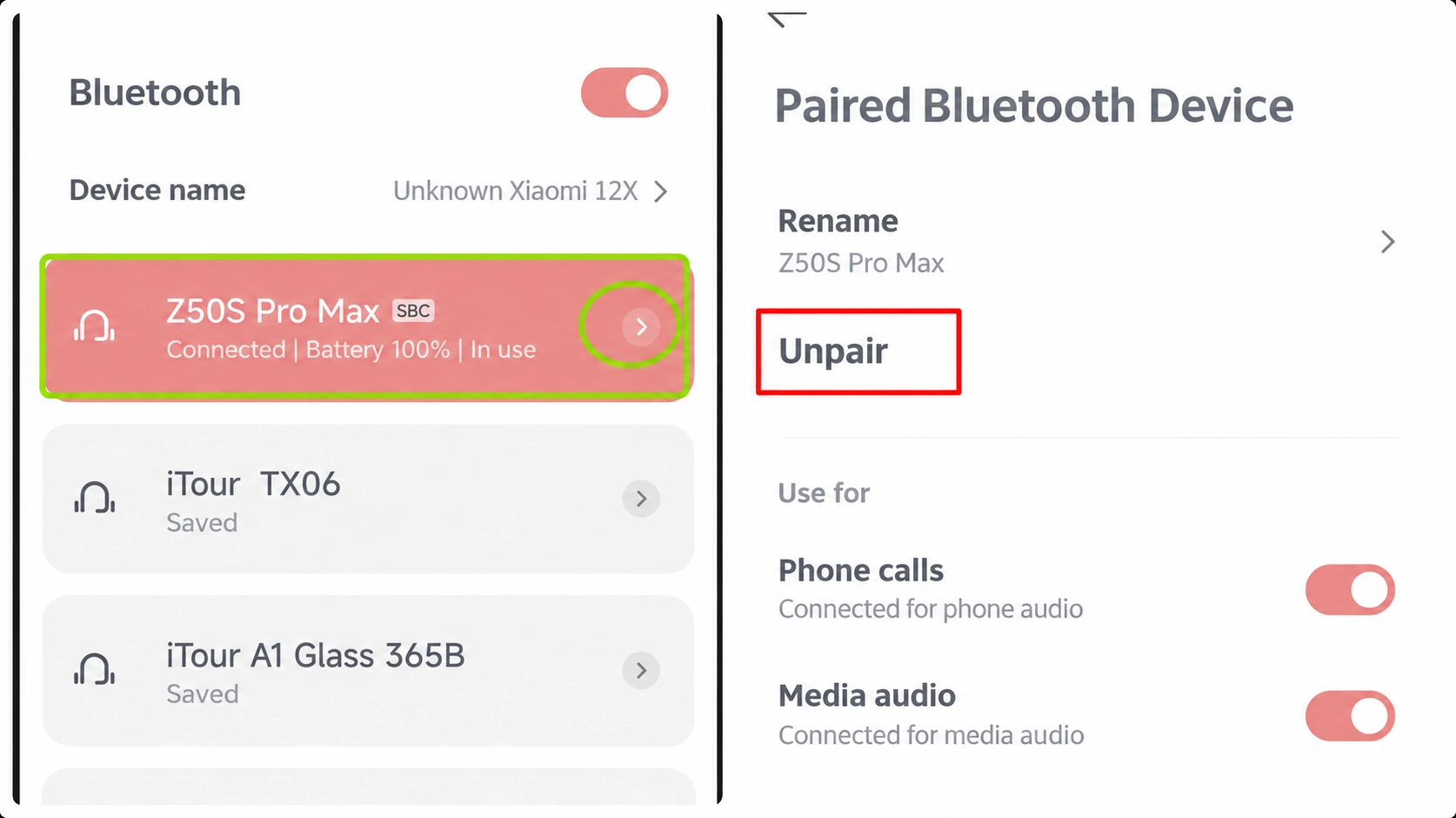
- Android phone/computer:
- Enter the system [Settings] > [Bluetooth].
- Find your headphones (such as Z50 Pro Max) in the list of paired devices.
- Click the settings icon on the right side of the device to enter the details page.
- Select [Unpair] or [Forget this device”.
- iPhone/iPad:
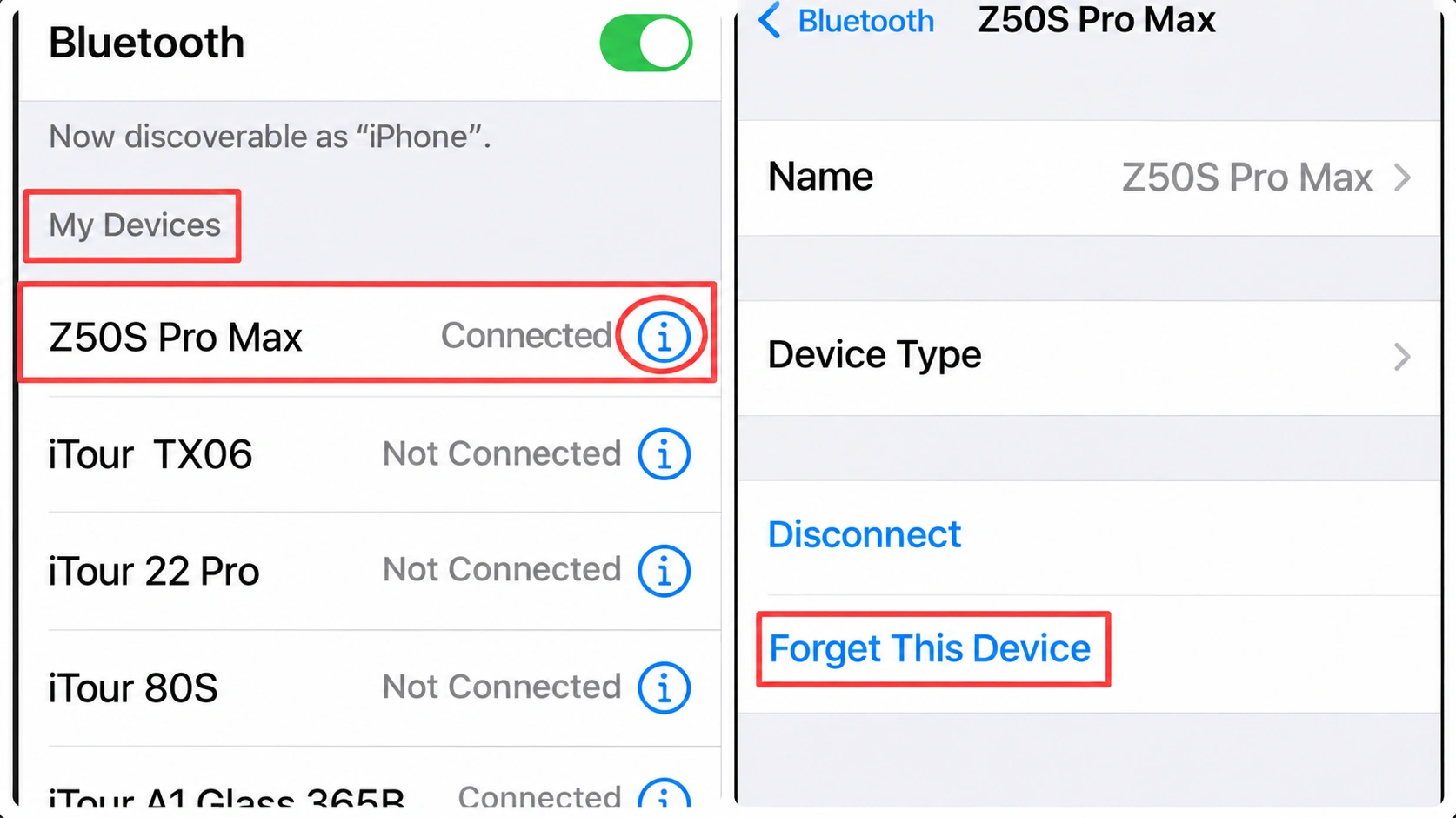
- Enter the system [Settings] > [Bluetooth].
- Find your headphones in the 'My Devices' list.
- Click the right side of the device “i” Information icon.
- Click the bottom-most “Forget This Device”.
- Windows/Mac Computer: The operation logic is similar: find the device in the system Bluetooth settings and select 'Remove' or 'Forget'.
Translate Earphones: How to adjust earphone broadcast volume and phone speaker playback volume in speaker mode/listening mode/offline conversation mode?
iPhone:
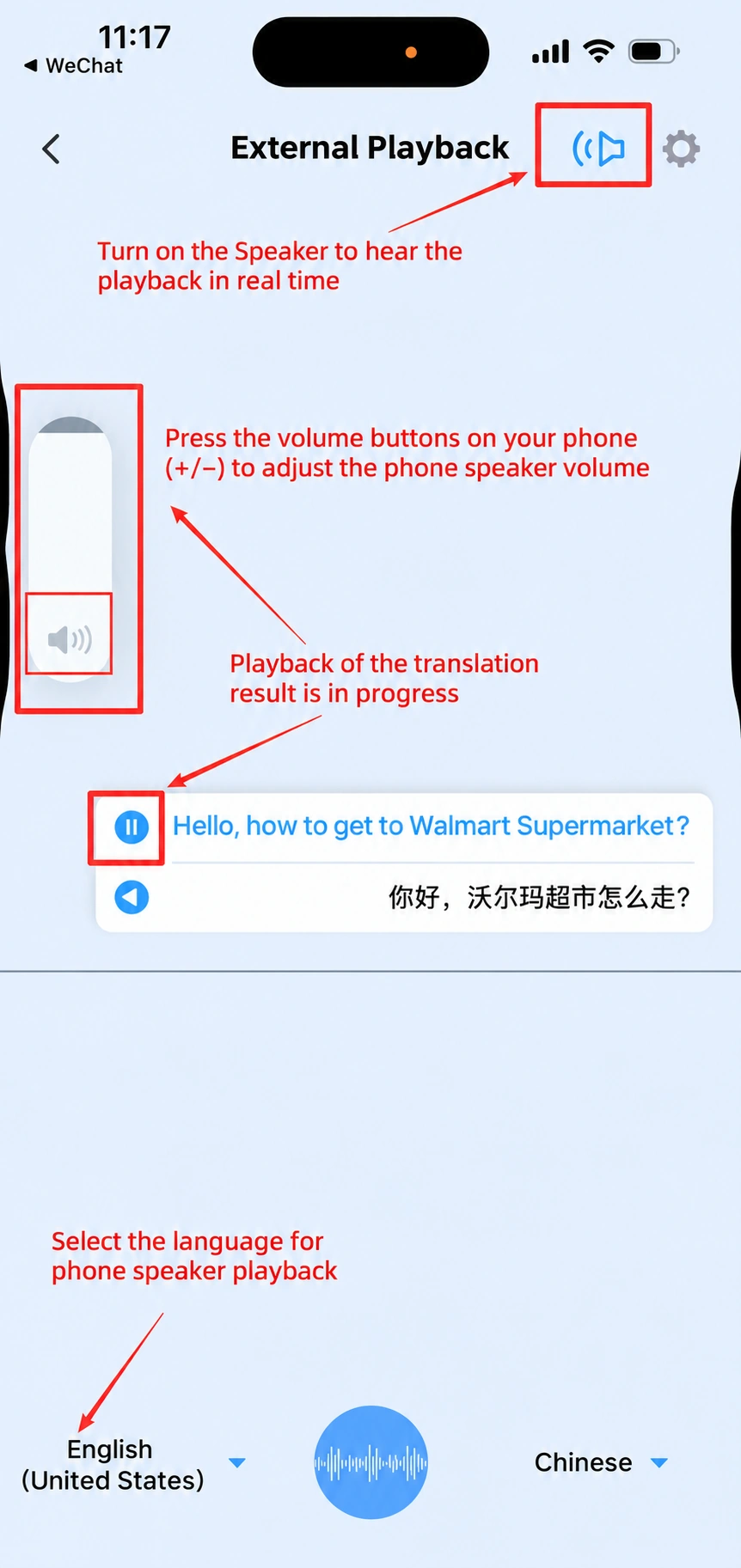
Adjusting the Phone Speaker Volume:
With the speaker broadcast turned on → In the phone's speaker speech playback → Use the phone's volume +/- buttons to adjust the phone's speaker volume
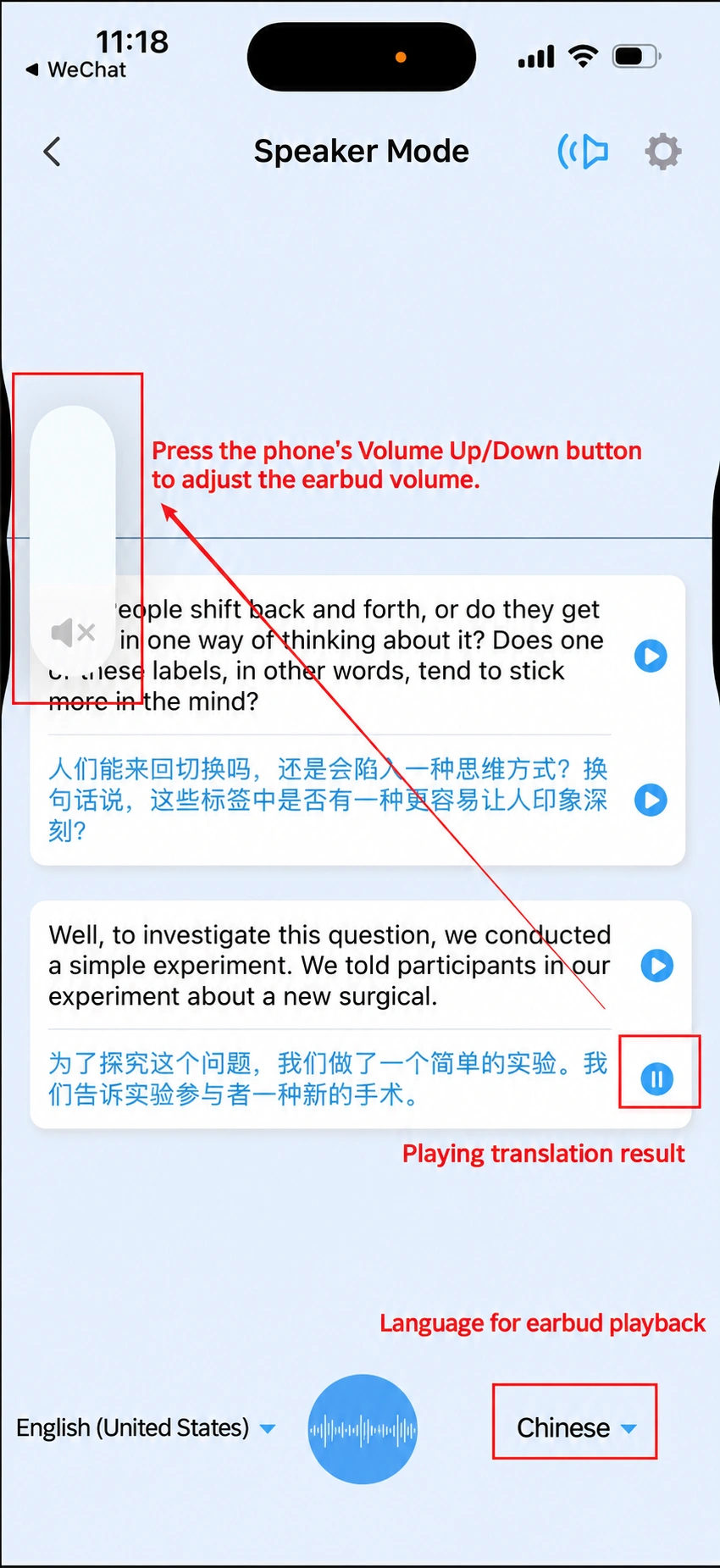
Adjusting Earbud Volume:
During the headphone's corresponding translation language broadcast → Use the phone's volume +/- buttons to adjust the headphone volume
Android phones (hereinafter taking Xiaomi phones as an example):
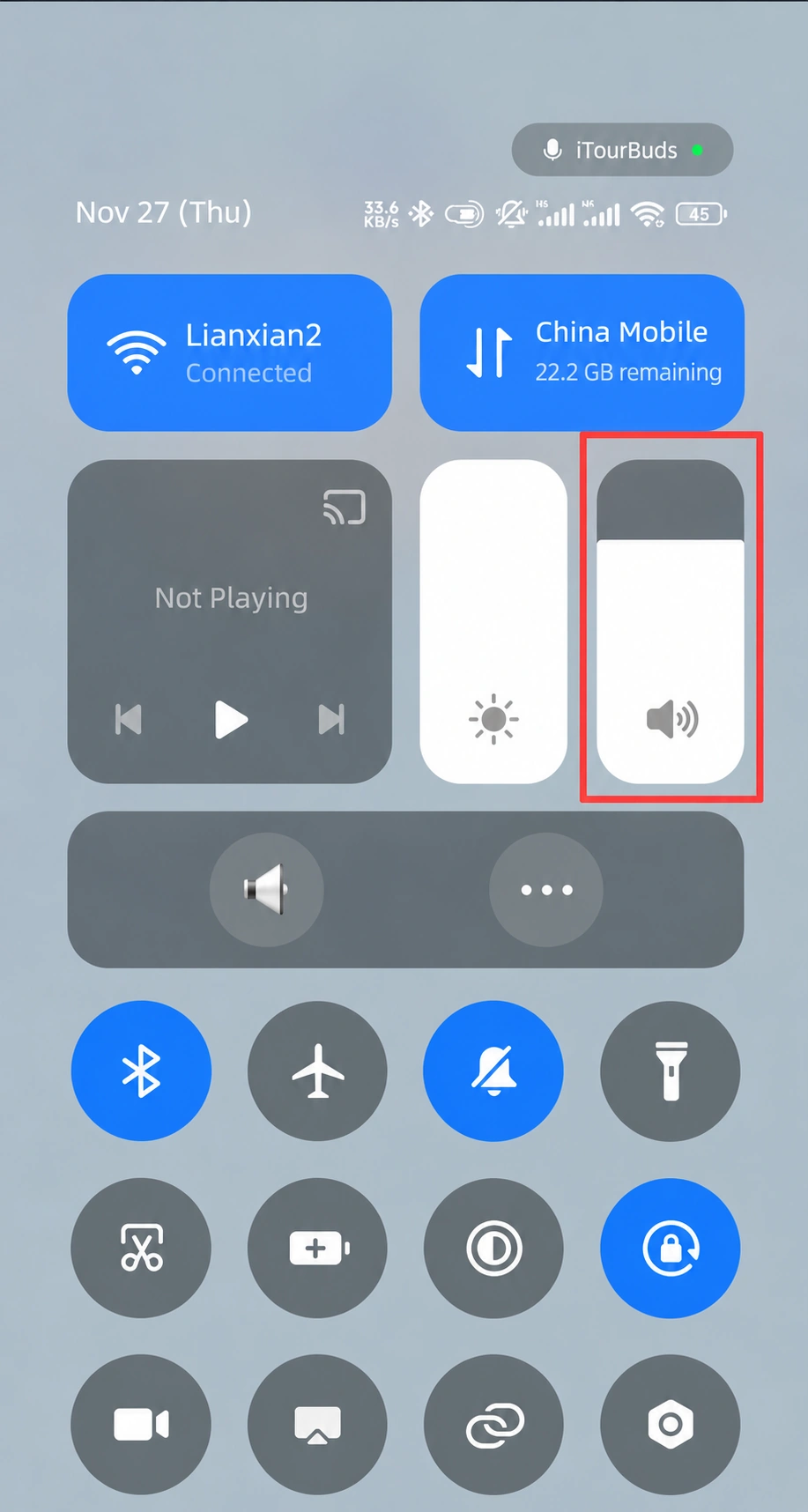
When using headphones/mobile phone speakers for playback, if briefly pressing the phone volume +/- does not work, you can pull down the phone taskbar → control center, and adjust the media volume as shown in the figure below:
Note:
1.When broadcasting the translation results, please swipe down to enter the Control Center to adjust the volume. Here, you can adjust the volume separately for the ongoing broadcast Headphones or mobile phone speaker Set different volume levels.
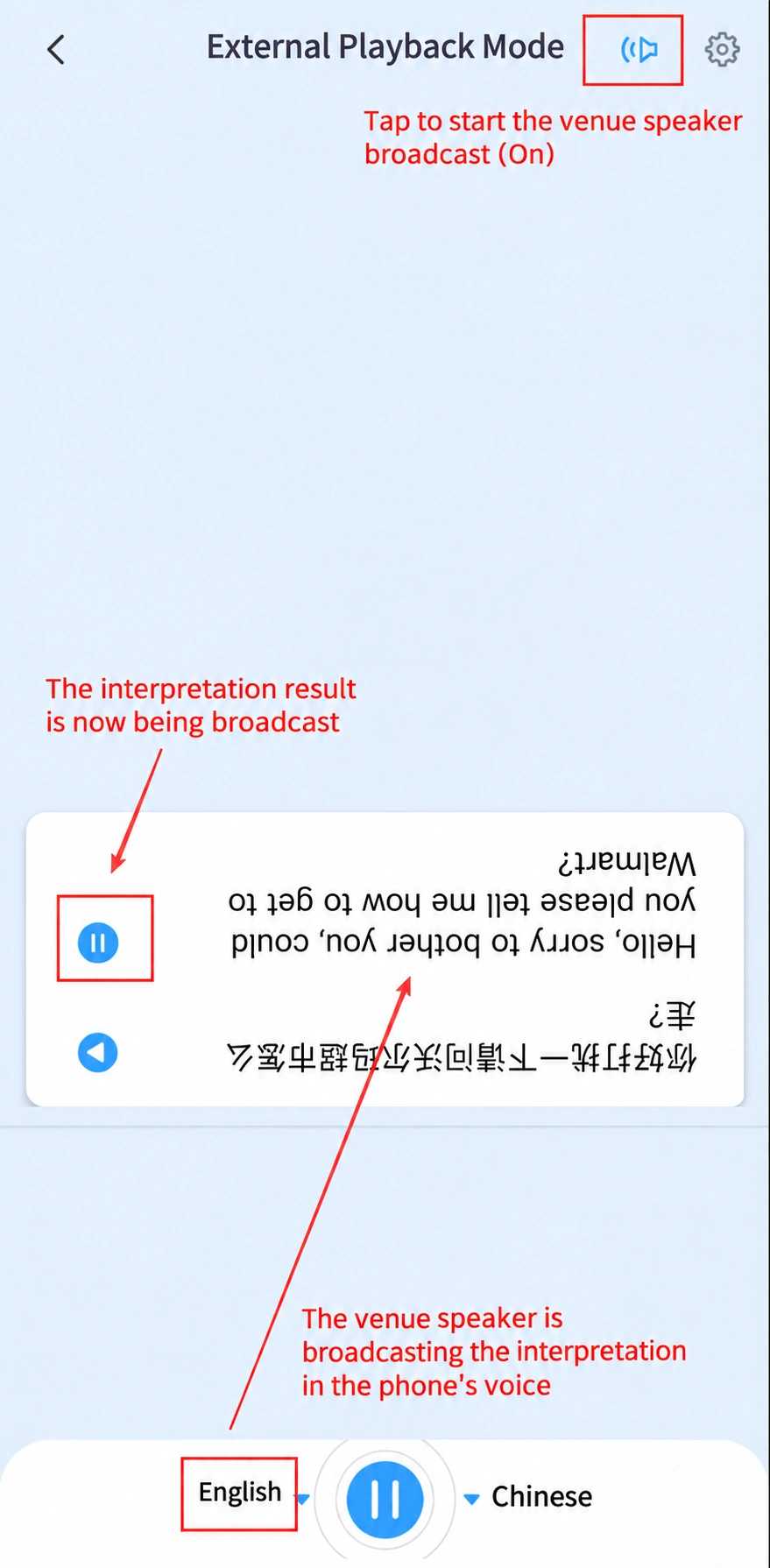
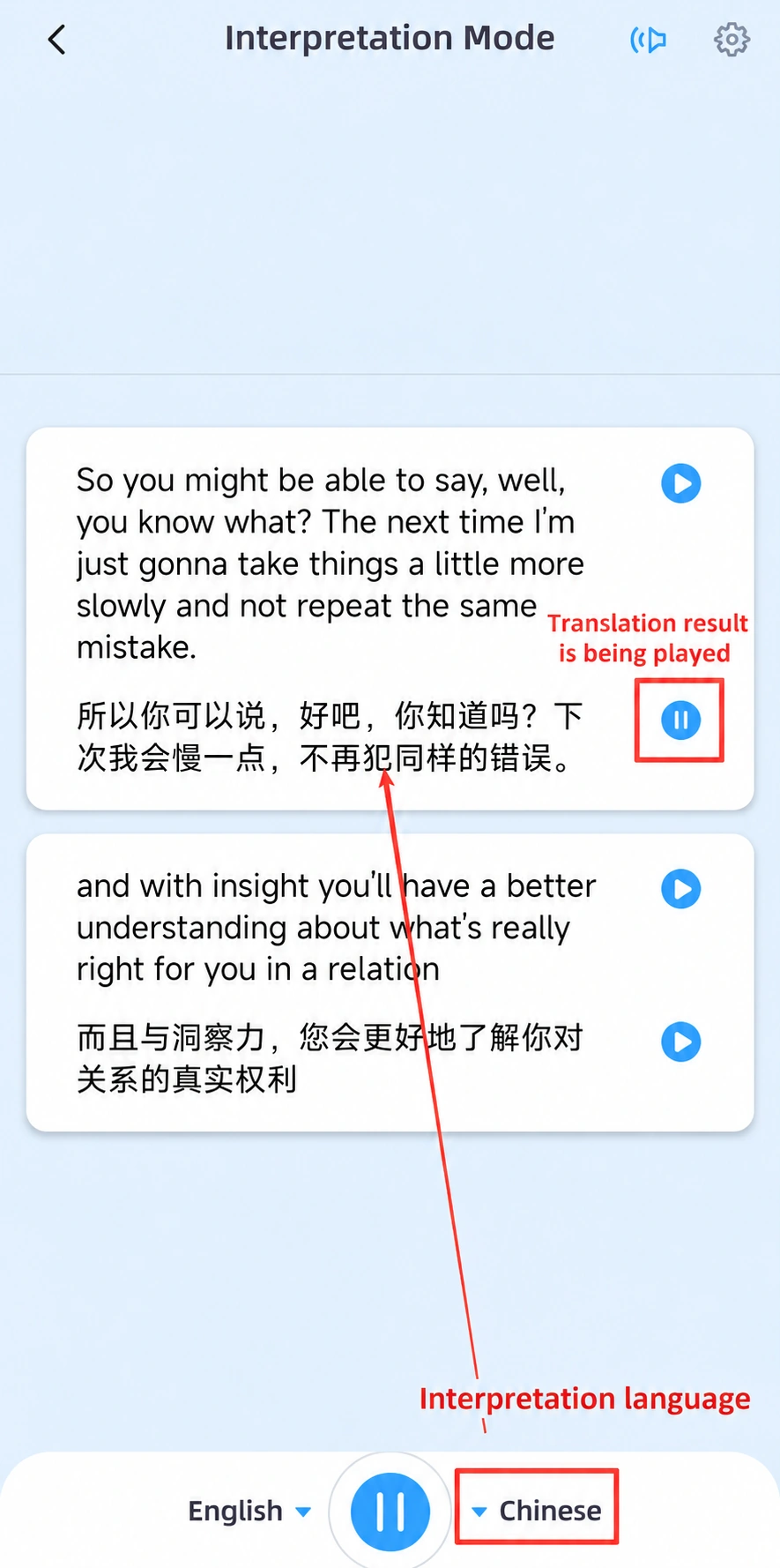
2. If the page translation result is in the left language, it will be played through the phone speaker; if the translation result is in the right language, it will be played through the headphones.
The dual-ear headset conversation is set to report separately in the left and right ears, but in practice, both ears play the translation of both sides.
This problem is usually related to the phone system Mono audio Settings related. Please follow the steps below to turn it off.Mono audio Function:
Apple iPhone:
1. Open “Settings”
2. Go to [Accessibility]
3. Click “Audio and Visual”
4. Simply turn off the 'Mono Audio' switch
Android phone:
The paths for different brands of Android phones vary slightly, but they are generally located within “Settings” > “Accessibility”.
Quick operation method:
Open the phone's “Settings”, enter 'Mono' or 'Mono Audio' in the search box at the top, and the system will automatically locate this option. Just turn it off.
Note: In some newer iOS versions (such as iOS 16 and above), the search bar is located at the bottom of the Settings page; scroll down to find it.
Is the translation fee for the translation earphones permanently free?
The free policy for translation services varies depending on the headphone model, as follows:
✅ Permanently Free Model
- T1, T2, T8 headphones: All of their translation functions and services are permanently free of charge.
⚠️ Limited-time free + point-based model
- T6 Earbuds: Its services are divided into two categories, with different free policies.
- AI Translation(Basic Service): Includes 2 years of free usage; after expiration, an annual package must be purchased to continue using it.
- VIP Service (High-precision translation)A certain amount of free points are given. After the points are used up, additional recharge is required to continue using them.
📱 Instructions for Use
- Please download through the official app store “iTourBuds Use the app to connect and use the headphone translation function.
- Please note: Another software 'iTourTranslator'Not supported pair or use the translation earbuds.
Does the translation headset support making and receiving calls on a mobile phone system?
Yes, currently iTour 22 Pro (T2) Translation Earphones Support this feature. You can, during a call, through the accompanying iTourBuds App Achieve real-time two-way translation.
For detailed operation methods, please refer to the following guidelines:
Didn't find the answer?Contact Online Customer Service ↗ · Contact us · Return to Help Center

 Support