
Dual-screen Translator FAQs
17 questions. Select a question to view the answer.
How long can the dual-screen translation device be used continuously?
The battery life of the dual-screen translator varies depending on the main unit and the sub-unit, as detailed below:
| Device | Typical battery life | Explanation |
|---|---|---|
| Main Unit | About 3 to 4 hours | As the main operating and display device, it has a relatively long battery life. |
| Secondary Unit | About 1.5 hours | As an auxiliary device, it is usually used for handing over to the other party. |
Tips and Recommendations:
- Battery life variables: The above times are typical values. Actual usage time will vary depending on factors such as screen brightness, volume level, network connection status (if online translation is required), and usage frequency.Both low and high temperature environments may lead to reduced battery life.
- Charging plan: For long periods (e.g., all-day) of meetings or outings, it is recommended to prepare a portable power bank for the handset, or plan charging times during the day.
- Power-saving tips: appropriately lower the screen brightness, reduce the volume in quiet environments, and lock the screen promptly when not in use, which helps extend usage time.
- Usage in combination: The handset is mainly used for real-time interaction, and its battery life can basically meet the needs of most single meetings or conversations. For longer use, the main unit can be used as the primary translation interface.
Overall, the main unit can support intermittent use for most of the day, while the sub-unit is suitable for a single in-depth conversation. It is recommended to plan your power usage in advance based on your specific itinerary.
What does the secondary unit of the dual-screen translator do?
The sub-device of the dual-screen translator has the core function of realizing "One device, two screens, dual display" .
Main Uses:
When communicating face to face, you hold Main Device, the other party holds Secondary Unit. Both parties can On your own screen, simultaneously see the other person's speech and the translated subtitles for yourself., no need to pass around devices or huddle together to watch the same screen.
Supported features:
Dual-screen conversation, listening, offline translation, remote conversation
Key Features:
- Two-way independent display: Provides a private and clear conversation view.
- Detachable design: convenient for handing directly to others.
- Suitable scenarios: business meetings, in-depth social interactions, medical consultations, and other situations that require smooth and formal conversations.
Simply put, the sub-device upgrades cross-language conversations from 'sharing a single screen' to 'each having its own screen,' making the experience more natural and efficient.
How to Use Group Translation on the Dual-screen Translator
of the dual-screen translator Group Translation Function, supports multiple devices (multiple dual-screen translators) to create temporary group chats, realizing Real-time translation conversations for multiple people and multiple languages, suitable for team meetings, group discussions, and other scenarios.
Core functional process
Step 1: Create or join a group
- On the group translation function page of one of the devices, click [Create].
- Add members by entering the 'Group Translation ID' of other devices, and the group can be created once this is completed. Other devices can join the group using the same ID.
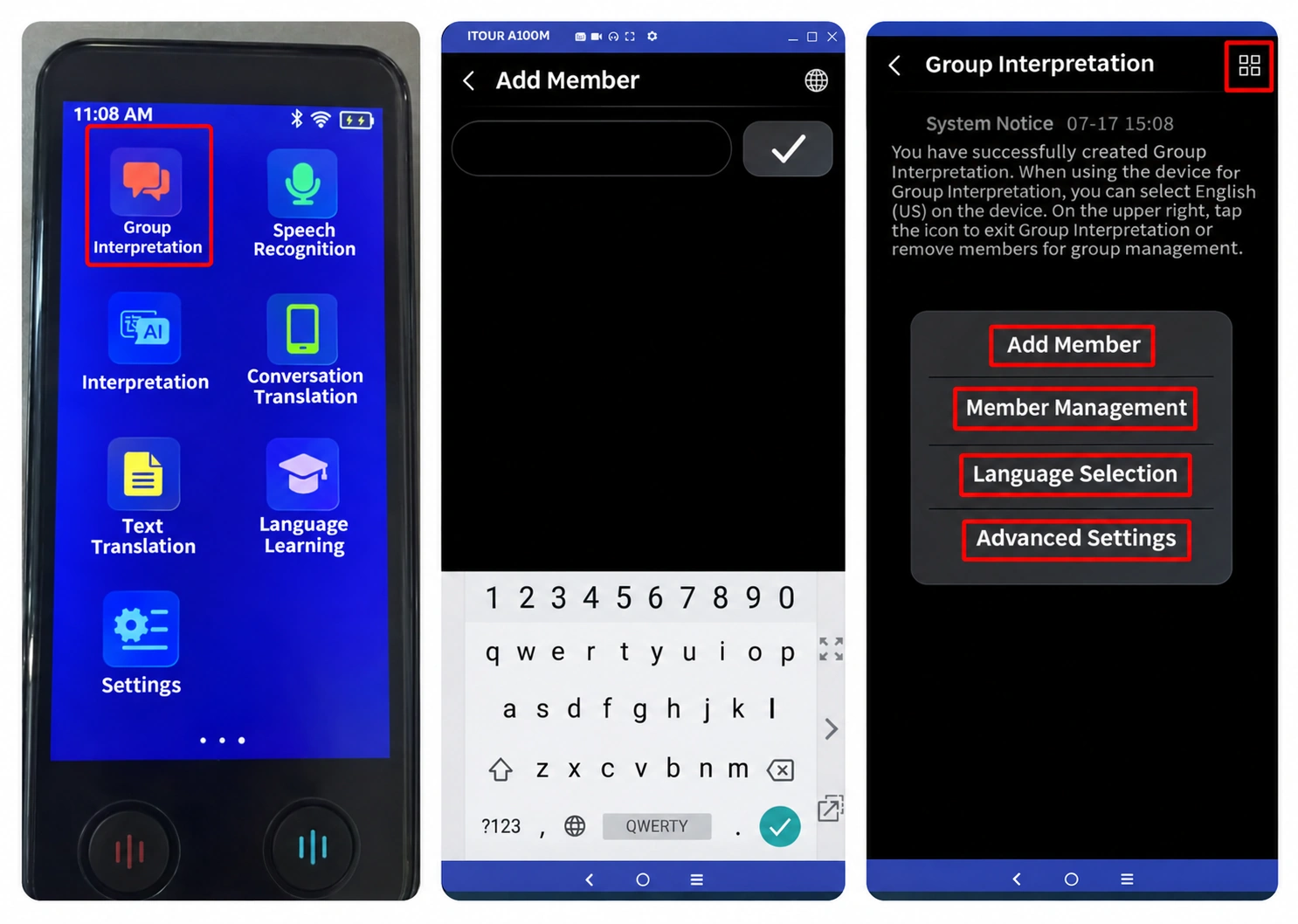
Step 2: Speak and listen within the group
3. When speaking,Long Press on the side of the device Speak button Start talking,Let go Afterwards, your voice and translation content will be automatically sent to the group chat.
4. On the screens of all other devices in the group, it will Real-time display The one you sent Original text and translated text, and play the translated speech at the same time.
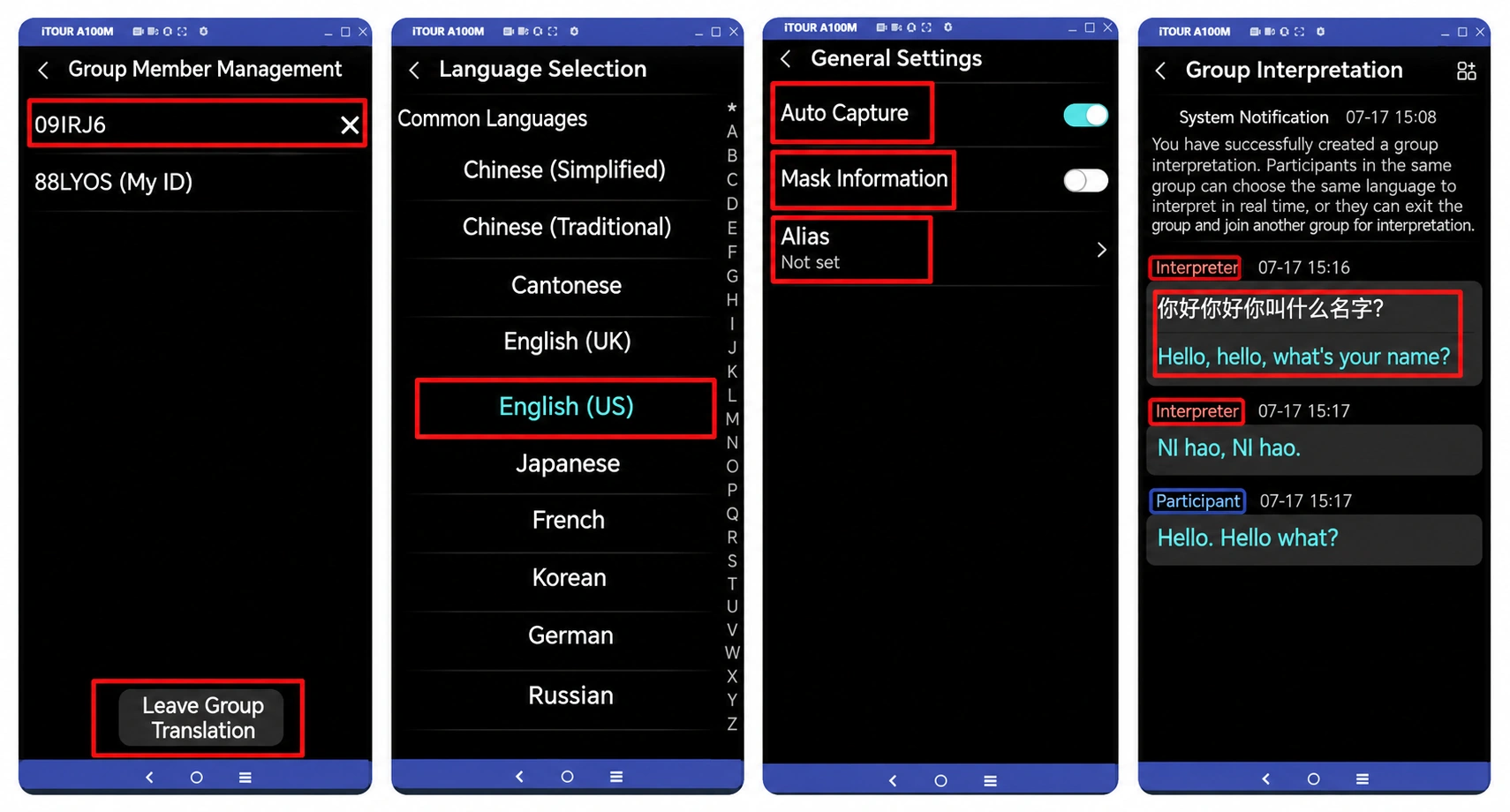
Effect: Each participant can clearly see the bilingual content of all speeches on their own device screens and hear the broadcast, as if having a Real-time, multilingual meeting captioning system.
In what scenarios can a dual-screen translator be used for single-screen conversations?
of the dual-screen translator Single-screen conversation mode, used for Face-to-face bilingual communication. It will transmit the translation results through a screen and Speaker Provide separately to both parties to achieve real-time translation.
Work Modes and Use Scenarios
- Screen display: Real-time display of the other party's speech content and translation.
- speech playback: Plays the translation of what you say through the device's speaker for the other person to hear.
- Typical scenarios: Suitable for temporary, light face-to-face interactions, such as asking for directions, ordering food, or simple inquiries.
Operation Overview
- Turn the translator screen to face both parties in the conversation.
- When you speak, the device will recognize and announce the translation.
- When the other person is speaking, you look at the translation subtitles on the screen.
Core Features
This mode No need to pair with a secondary device, a single person can hold a device and complete a two-way conversation, which is Fastest and portable Face-to-face translation solution.
How to Use Dual-screen Conversation on the Dual-screen Translator
of the dual-screen translator Dual-screen conversation is specially designed for Efficient, private face-to-face cross-language conversation Design. It needs to be used with the sub-device, providing both parties with independent translation screens.
Core functional process
Step 1: Connect the Secondary Unit
- Enter the 'Dual Screen Conversation' feature on the main screen (host device).
- The first time you use it, you will be prompted to scan the QR code displayed on the sub-device screen to complete Bluetooth pairing.
- After pairing successfully, subsequent use will automatically connect, without the need to scan the code again.
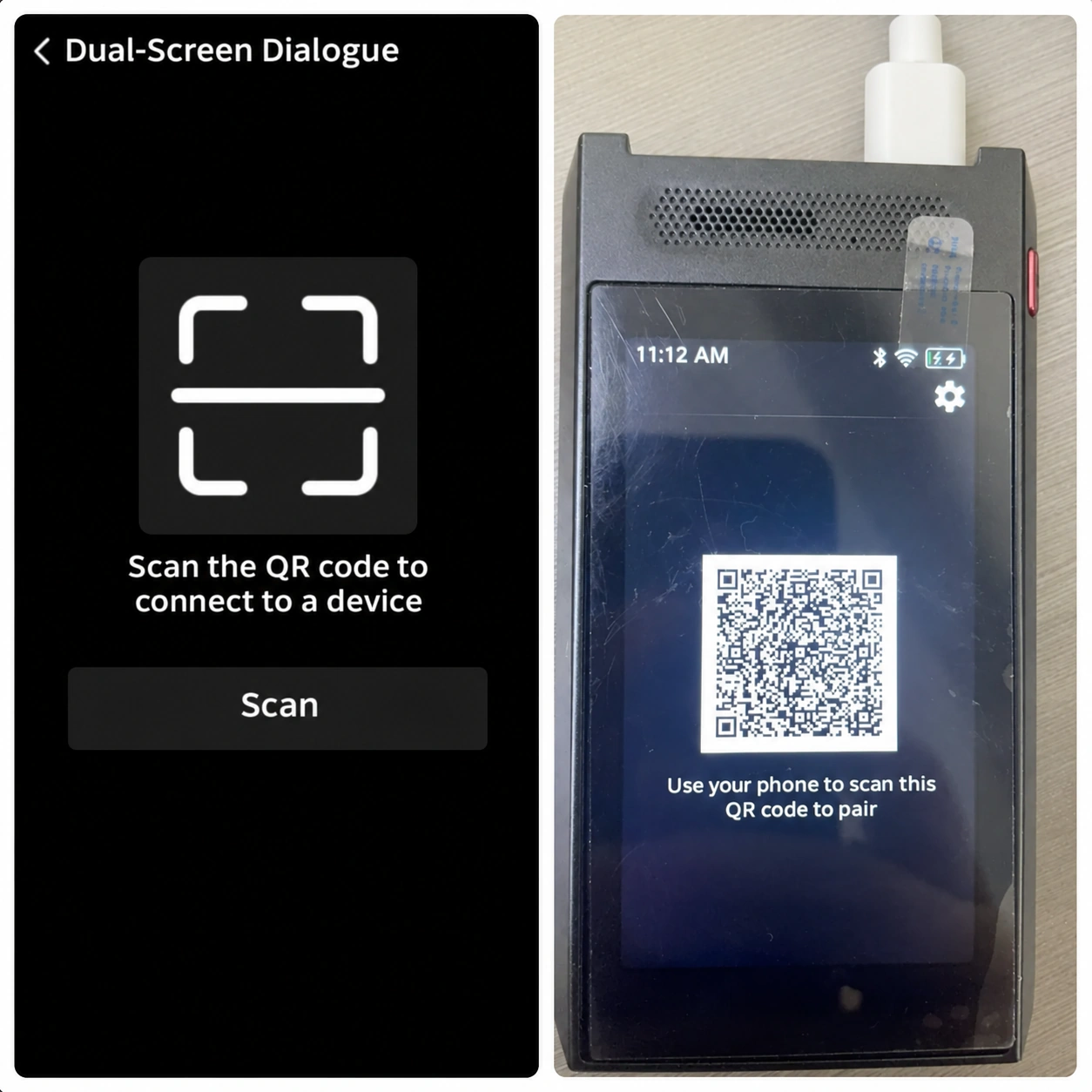
Step 2: Start the conversation
4. Once connected, the main and secondary devices automatically enter translation standby.
5. Either Party Tap any button at the bottom of your device's screen, and you can start speaking. The device will recognize and translate in real time, and provide the translation results Displayed on the screen of the other device, and play it aloud.
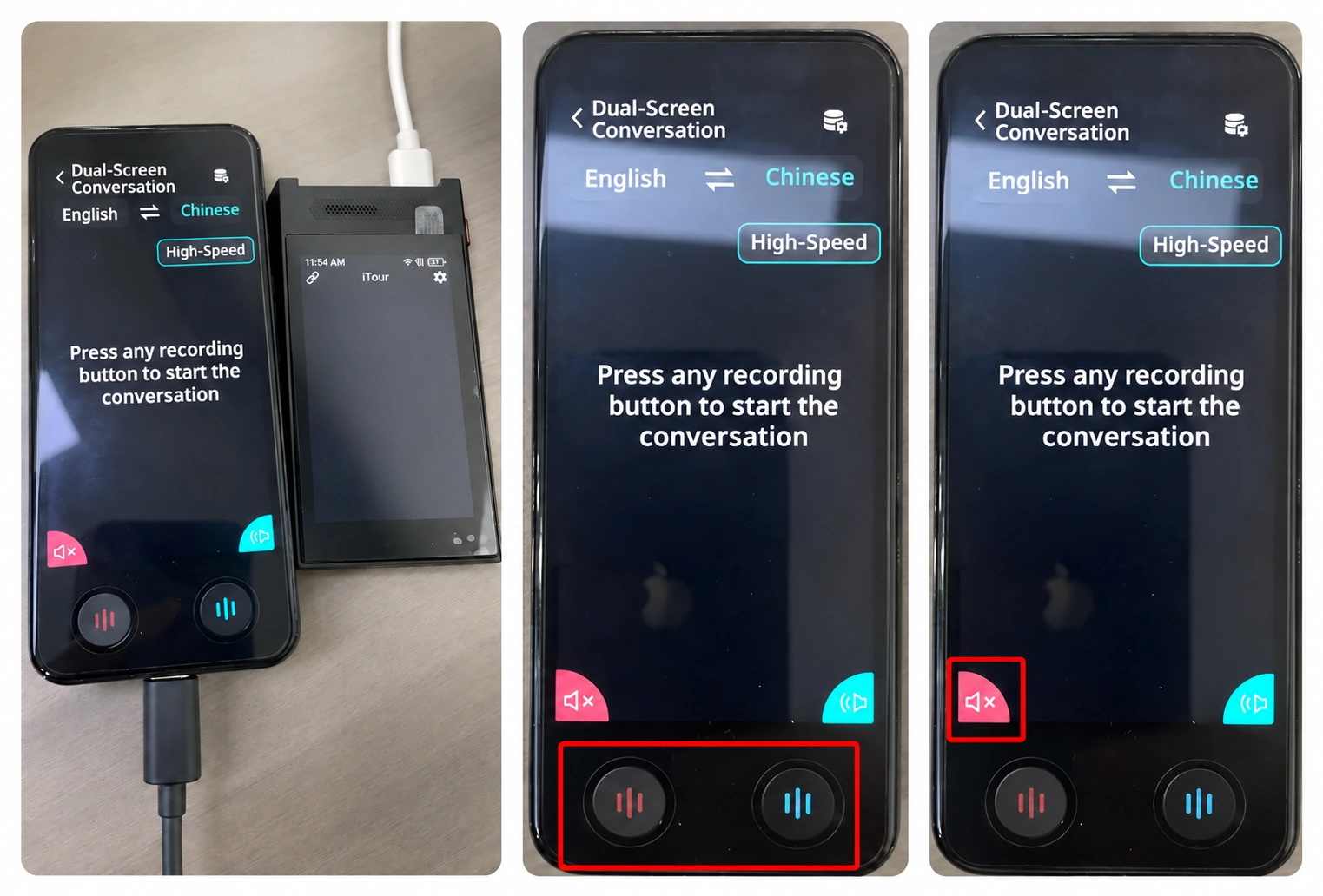
Key Settings and Options
- Broadcast switch: The broadcast of the translation into the language on the left (usually the language set on the host device) is turned off by default. You can manually click to turn it on to enable two-way speech playback.
- Translation Mode: The default is 'Fast Mode' (focuses on speed), which can be switched to 'Balanced Mode' (balances speed and accuracy) or 'Accurate Mode' (focuses on accuracy in complex contexts) as needed.Click to learn about the differences between the three modes]
Features and Scenarios
- Bidirectional independent display: Both parties can clearly view the translation on their own screens without sharing devices.
- Natural dialogue experience: follows the natural conversation rhythm of 'you speak, I listen; I speak, you listen.'
- Core applicable scenarios: business meetings, in-depth social interactions, medical consultations, guided tours, and all other occasions that require smooth, accurate, and formal conversations.
How do you operate the single-screen conversation function on a dual-screen translator?
Operating Steps:
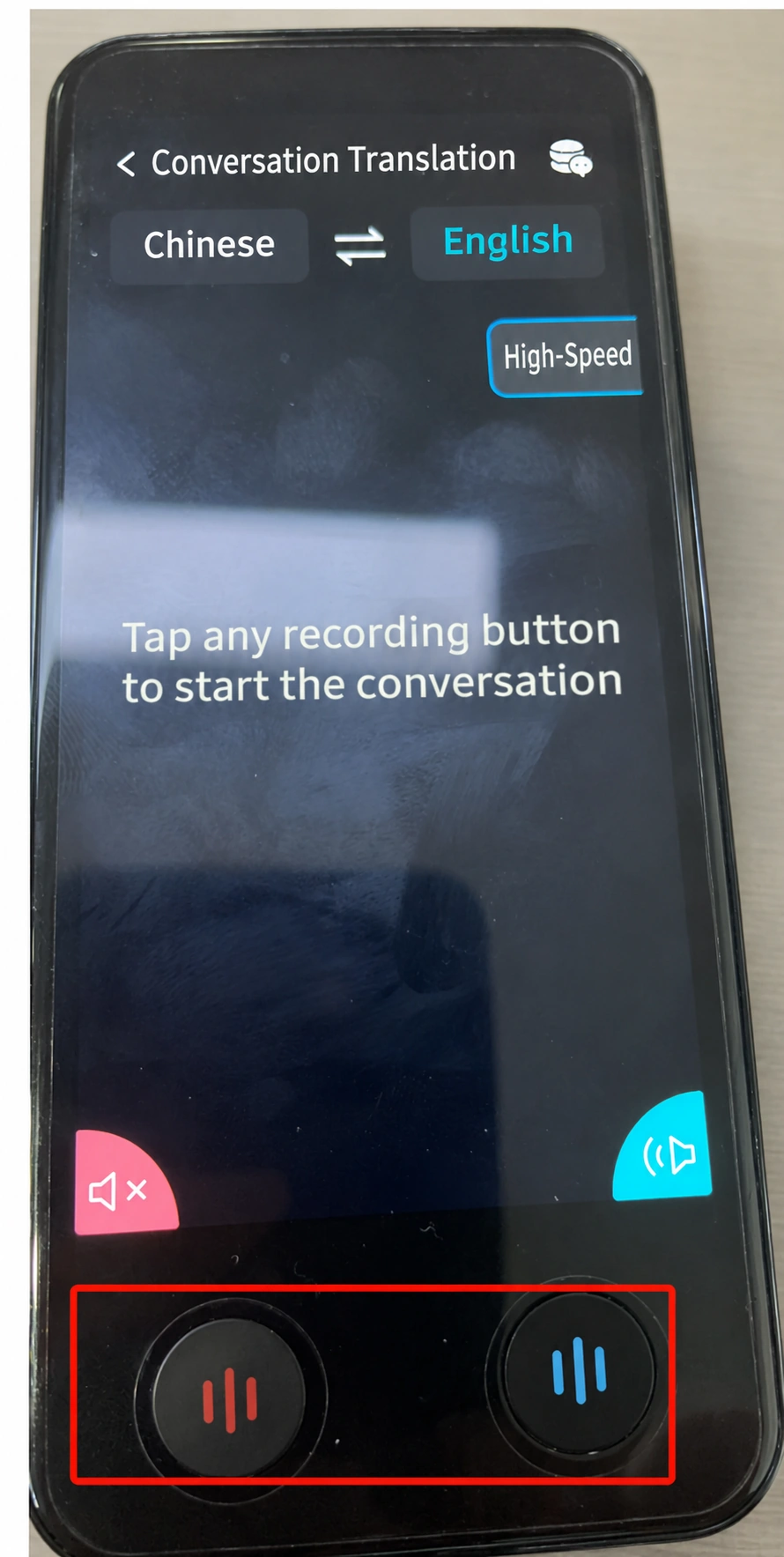
- On the main device’s home screen, open “Single-screen Conversation”.
- Tap any button at the bottom of the screen to start speaking, and the system will recognize and translate in real time. Your translated content will be played to the other party, and the other party's translated content will be displayed on your screen.
Key Settings
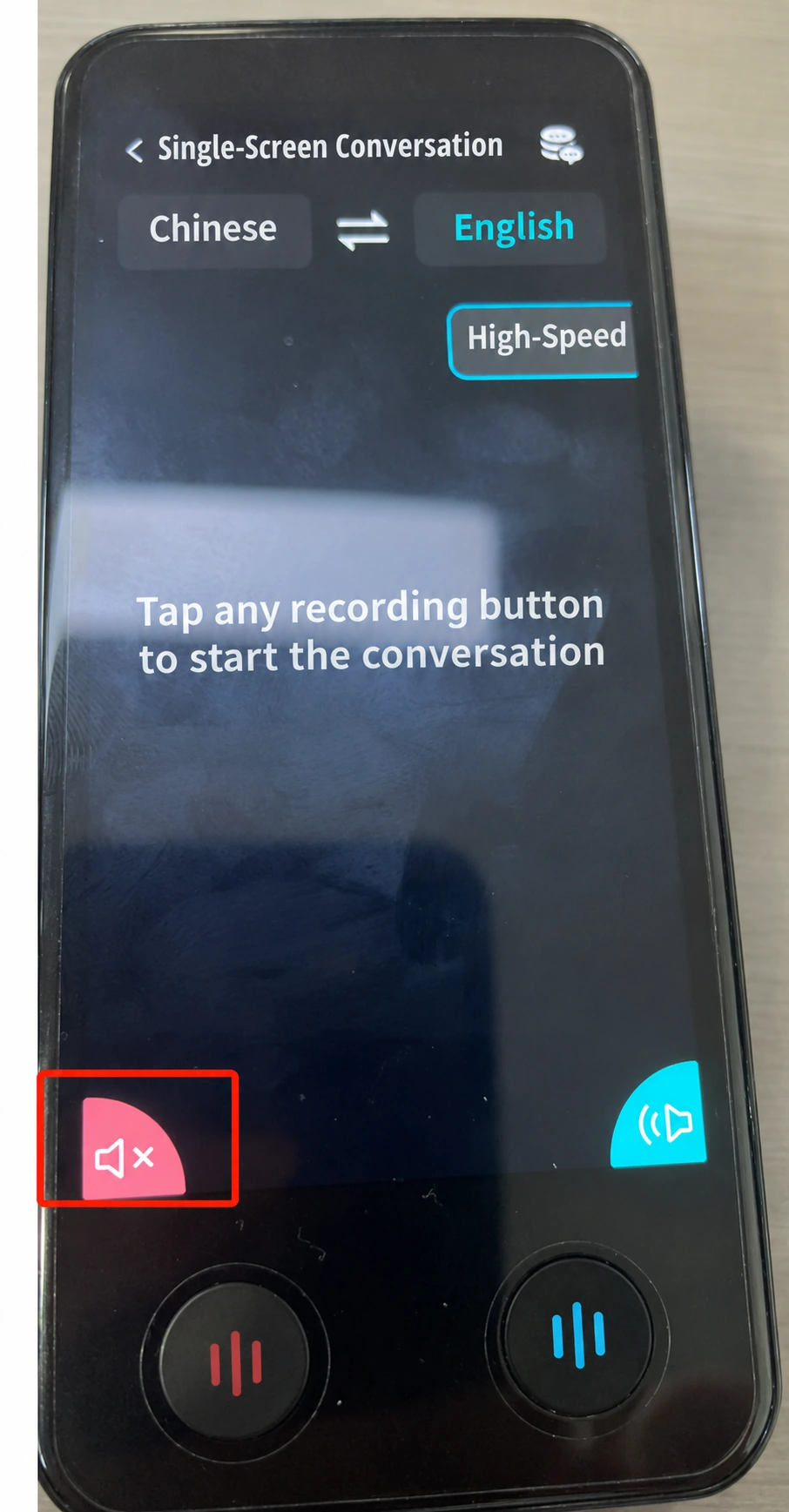
- Broadcast switch: The result translated into the language on the left is broadcasted by default as off. If you need two-way speech playback, you can manually turn it on.
- Translation mode: The default is 'Fast Mode', which can be switched to 'Balanced Mode' or 'Accurate Mode' in the settings depending on the complexity of the conversation.Click to learn about the differences between the three modes]
What are the differences between the three translation modes of the dual-screen translator?
The dual-screen translator provides three translation modes, mainly in Translation speed and Translation Accuracy You can achieve different balances and flexibly choose according to the complexity of the conversation scenario.
Comparing Modes and Choosing One
| Mode | Core Features | Translation speed | Translation Accuracy | Recommended use scenarios |
|---|---|---|---|---|
| Turbo Mode | Priority is given to speed, responds the fastest | ⚡ fastest | Relatively low, sufficient for basic understanding | Daily simple conversations, asking for directions, ordering food, etc.Requires Low Latency scenario |
| Smooth Mode | Balance Speed and Accuracy, using the optimization model | ⏱ Medium | ✅ Higher | General discussions, social chats, work communications, etc.Most everyday situations |
| Precision Mode | Prioritize accuracy, using large language models | ⏳ slowest | ✅✅ The best | Business negotiations, professional seminars, medical terminology, etc.Requires extremely high precision in word choice scenario |
Operational recommendations
- For first-time users or when unsure, it is recommended to start with the default 'Smooth Mode,' which offers a more balanced experience.
- You can click to switch between these three modes at any time on the settings page for single-screen or dual-screen conversations.
According to the importance and professionalism of the conversation, choosing the appropriate mode can significantly enhance your translation experience.
Number of online and offline languages supported by the dual-screen translator
The number of languages supported by the dual-screen translator varies depending on whether it is connected to the internet, as detailed below:
Online and offline language support
| Mode | Number of supported languages | Explanation |
|---|---|---|
| Online translation | About 130 languages | Requires an internet connection. Covers the vast majority of commonly used languages worldwide, some dialects, and languages, with a very wide range of applications. |
| Offline Translation | 17 languages | No internet required Covers the most commonly used core languages (such as Chinese, English, Japanese, Korean, Spanish, French, German, etc.) to ensure basic conversation. |
Usage Recommendations
- Daily Life and Travel: In environments with internet access, you can freely use 130 languages for translation, handling various complex scenarios.
- Offline emergency: In situations without internet, such as on airplanes, outdoors, or abroad with no signal, you can download offline packages in advance to conduct basic conversations such as asking for directions, ordering food, or seeking help in 17 core languages.
Please note: Some offline language packs require you Download in advance when the device is connected to the internet You can find and manage these offline language packs in the device [Settings → Offline Resource Packs].
Introduction to the Offline Function of the Dual-Screen Translator
of the dual-screen translator Offline Translation feature, allowing you to Without an internet connection It can also carry out basic cross-language conversations in situations such as on airplanes, outdoors, or in areas abroad without signal. It supports Chinese, English, Japanese, Korean, German, French, Spanish, Russian and so on, total17The most commonly used core language.
Key Operation: One-tap Conversation
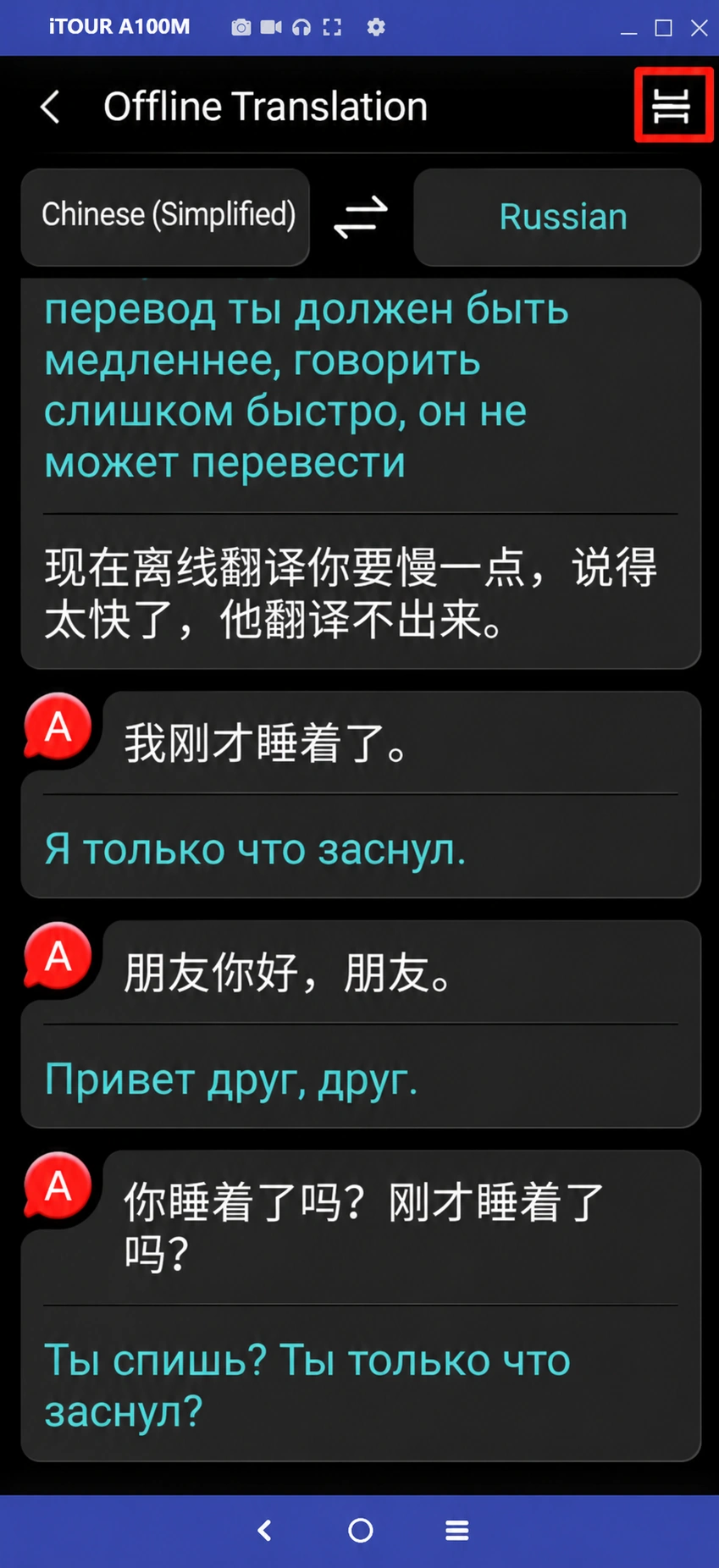
Offline translation uses an intuitive Push-to-talk Conversation Method, operation is very simple:
- Press and hold the button on the left: recognize and translate the left-side language → into the right-side language.
- Press and hold the button on the right: recognize and translate the language on the right → into the language on the left.
Feature Notes
- Prepare in advance: Some offline language packs need to be downloaded to your device in advance when you have internet access. It is recommended to test them beforehand.
Why can't the dual-screen translator be found and connected to the hotspot?
The dual-screen translator fails to search for or connect to the phone's hotspot, usually due to the phone's Hotspot frequency band or compatibility settings Caused by a mismatch. Please follow the steps below according to your phone's system to troubleshoot:
Android phone setup steps
- Open "Settings」 > 「Personal hotspot"(or "Network Sharing and Portable Hotspot")".
- Enter "Set up a WLAN hotspot") (or "configuration hotspot")."
- Find "AP band") (or "frequency band") option.
- Set it to "2.4 GHz Frequency band (please be sure Do not choose 5 GHz).
- After saving the settings, turn the hotspot back on, and then use the translator to search for a connection.
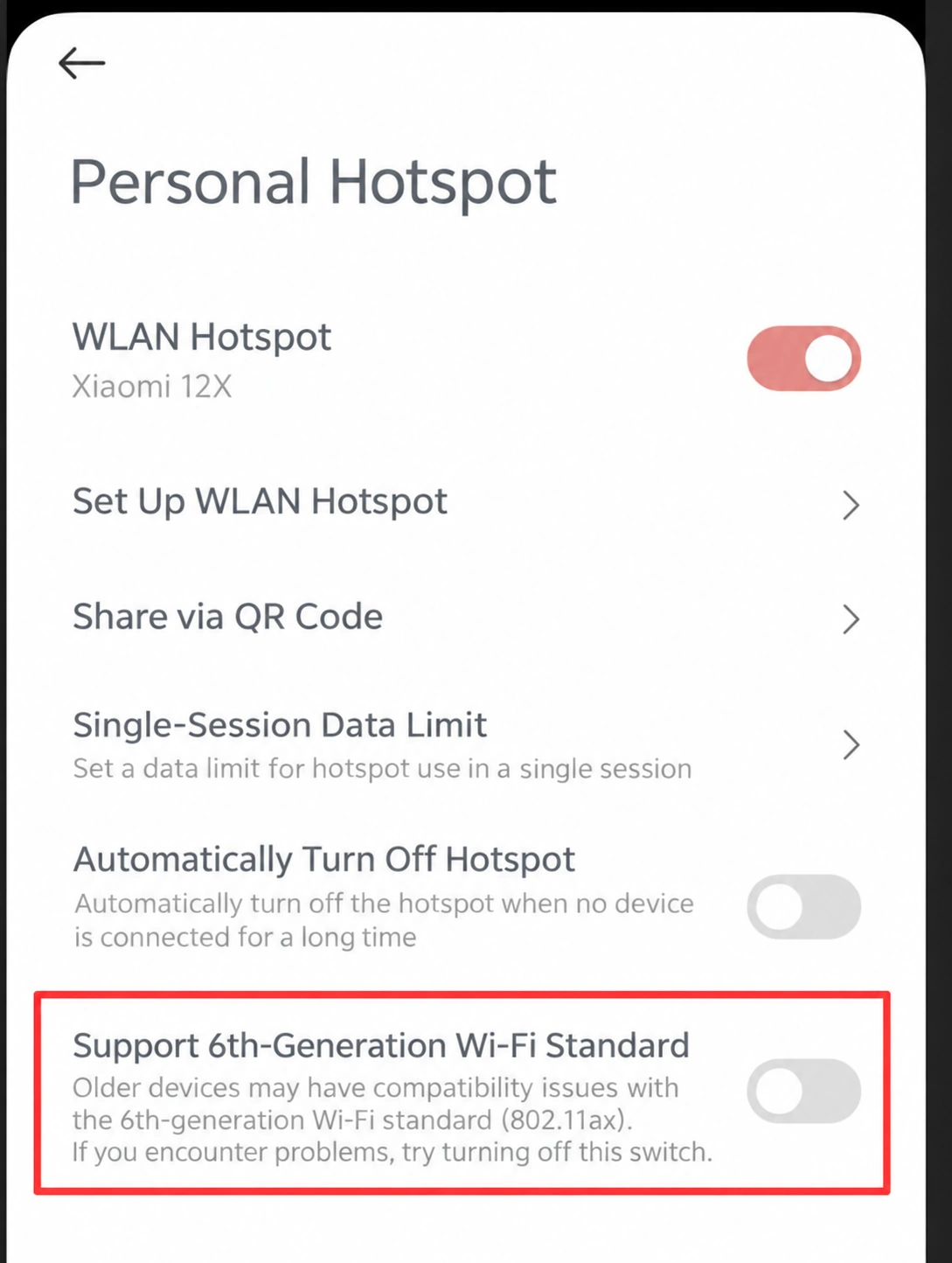
Note: Supports 6th generation technology standards, required for Close Status
iPhone (iOS) Setup Steps
- Open "Settings」 > 「Cellular network」.
- Click "Personal hotspot」.
- Ensure "Allow others to join" has been turned on, and Turn on「Maximum Compatibility"Switch.
- Prerequisite: When turning on the personal hotspot, be sure to confirm "Settings」>「Wi-Fi" Already in place On state(Even if not connected to Wi-Fi). This is a necessary condition for iOS devices to be discoverable by the hotspot.
- After completing the above settings, use the translator to search for the connection again.
Problem Summary and Tips
| Possible cause | Android solution | iOS Solution |
|---|---|---|
| Hotspot frequency bands are not compatible | Manually set to 2.4 GHz Frequency band | Turn on Maximum Compatibility |
| The hotspot cannot be detected | Make sure the hotspot is turned on and visible | Ensure The wireless LAN switch is turned on |
General Advice: After completing the setup, it is recommended Restart the dual-screen translator's Wi-Fi → Rescan, then try again. If the problem persists, please try setting the mobile hotspot name to pure English and check if there is a limit on the number of connected devices.
Does the dual-screen translator support a SIM card?
Dual-screen Translator SIM card not supported, unable to use cellular mobile networks directly like a phone.
This device No independent mobile internet function All of its translation services that require the internet (such as online translation and language downloads) must connect to the internet through the following two methods:
- Connect to a Wi-Fi network
- Connect to the phone's personal hotspot (share the phone's mobile data)
Usage Recommendations for You
- Indoors or fixed locations: Can connect to a stable Wi-Fi to use online features.
- Outdoor mobile scenario: The most convenient way is to turn on your phone's personal hotspot and let the translator connect to the internet.
- Completely offline environment: Can rely on its offline translation function (supports 17 languages) for basic conversations.
The dual-screen translator is connected to Wi-Fi, but it prompts: unable to access the Internet. What’s going on?
When the dual-screen translator prompts 'Cannot access the Internet' while connecting to Wi-Fi, it is usually a normal detection process of network handshake or connection status. Please follow the steps below to determine and handle it:
Step 1: Distinguish between normal and abnormal states
Situation 1: Returns to normal after a brief prompt (usually not a problem)
- Phenomenon: The 'No Internet Access' prompt appears immediately after connecting to Wi-Fi, but Automatically disappears after 6-8 seconds and displays 'Connected'.
- Reason: This is the process during which the device obtains an IP address and completes network authentication.Normal detection status.
- Operation: As long as it ultimately displays "Connected", and you can use all the online features of the translator normally, without any further actions.
Scenario 2: Continuous notifications of inaccessibility (needs troubleshooting)
- Phenomenon: Prompt continuously, Do not disappear, or online translation remains unavailable.
- Reason: The currently connected Wi-Fi network itself Unable to access the external network, or the device did not successfully pass verification.
Step 2: Targeted Investigation and Resolution
If it belongs to the above Situation Two, please check in order:
- Verify the network itself: Please use your Mobile phone or computer connected to the same Wi-Fi, test whether you can access the internet normally. If other devices also cannot access the internet, the problem lies with the router or broadband line, and you need to contact your internet service provider to resolve it.
- Reconnect: On the translator‘Forget’ this network, and then re-enter the password to connect.
- Check the router settings: Some routers (such as public networks) may be configured with Limit on the number of connected devices、MAC address filtering or may need Web Authentication Please check whether the translator is restricted or if you need to open a browser to complete the authentication.
- Try another network: Connect to another known good Wi-Fi or mobile hotspot to rule out whether the issue is with this particular network.
The dual-screen translator connects to Wi-Fi, but shows: authentication failed. What does this mean?
When the dual-screen translator connects to Wi-Fi and prompts 'authentication failed', this clearly indicates The connection request was rejected at the 'password' or 'access permission' stage.
Please check step by step according to the following steps:
Main Causes and Solutions
1. Incorrect password entry (most common reason)
- Symptom When manually entering the password, errors may occur due to case sensitivity, special characters, or incorrect number of digits.
- solve: Please carefully check the Wi-Fi password, and after entering it, click the 'Show Password' option to verify it a second time. After confirming it is correct, select "Forget this network" and reconnect.
2. The hotspot has reached the maximum number of connections
- Symptom: the router or phone hotspot has Maximum number of connected devices, once the limit is reached, new devices will not be able to join.
- Solution: If it is Router, please log in to the management backend and disconnect some unused devices. If it is Mobile hotspot, please go to the 'Personal Hotspot' settings on your phone to view and manage connected devices.
Other Possible Causes (Advanced Troubleshooting)
If the above two points are correct, the issue may involve more complex network settings:
- 3. Incompatible encryption/security mode
- In rare cases, if the router uses outdated or uncommon encryption methods (such as WEP), it may cause compatibility issues.
- solve: Try changing the router's wireless encryption method to a more common one WPA2-PSK(AES).
- 4. MAC Address Filtering
- Some advanced routers have enabled the 'MAC address filtering' feature, allowing only devices on the list to connect.
- Solution: Log in to the router's backend, in the wireless settings or security settings, find the 'MAC Address Filtering' option, add the translator's MAC address (which can be viewed in the translator's network settings) to the allowed list, or temporarily disable this feature.
What is the difference between the high-end version and the low-end version of the dual-screen translator?
The high-end version and the low-end version of the dual-screen translator mainly differ in Target scenarios, translation engine, recording methods, and terminology support There are fundamental differences in existence to meet the needs of different users.
Key Differences
| Feature Dimension | Advanced Model | Base Model |
|---|---|---|
| Positioning and Scenario | High-end business and professional scenarios (such as formal negotiations, international conferences, academic seminars) | Daily Communication and Basic Situations (such as tourism shopping, simple directions, and daily social interactions) |
| Translation Engine and Accuracy | Powered by Large AI Models, regarding Complex sentence structure Optimize,The official claim is that accuracy reaches 98.6% | Optimized General engine, meet the accuracy requirements for daily conversations |
| Core Features | 1. Smart Audio Input: One-Touch Start Continuous Automatic Audio Input, no need to operate by hand 2. Terminology Database: Built-in100,000+ Business and industry terminology 3. Meeting minutes: Support translation content recording and export | 1. Push-to-talk Audio Input: Tap to speak, release translation, support60 seconds Continuous conversation 2. Lightweight and easy to use: Intuitive operation, focused on core conversation functions |
Selection Recommendation
- Choose the advanced model, if you: primarily use it in serious professional settings such as business, academic, or medical contexts, with very high requirements for translation accuracy, specialized terminology, and handling of complex sentence structures, and also need efficiency functions such as automatic recording and meeting transcription.
- Choose the base model, if you: mainly use it for traveling abroad, daily social interactions, basic business trips, and other scenarios, need a solution that is lightweight, easy to use, and cost-effective, with conversation content focused on everyday common language.
How do I adjust speech playback speed on the dual-screen translator?
The broadcasting speed of the dual-screen translator can be adjusted in specific functions. Currently,Only in single-screen conversation, dual-screen conversation, and listening functions Supports adjusting the playback speed of translated speech.
Navigation Path: When you use any of the above functions, go to the translation page and click The 'Settings' icon in the top right corner, can be found Speech Playback Speed Adjust the options.
Can the dual-screen translator set the broadcast voice gender (male/female)?
The speaking voice gender (male/female) of the dual-screen translator can be independently set in specific functions.
Adjustable functions and operations
- Supported features: Currently, this setting is only available in the three core dialogue functions: single-screen dialogue, dual-screen dialogue, and listening.
- Operation path: On the translation page of any of the above functions, click The 'Settings' icon in the top right corner. In the settings menu, find “Left-side Voice Settings" and "Right-side Voice Settings"). After clicking to enter, select the corresponding language (such as Chinese or English), and you can in "Speaker Choose different ones from the list Male voice or Female voice Voice.
Settings Features
- Set independently: You can set different voices for the left and right languages (for example, a female voice for Chinese and a male voice for English) to better distinguish them in conversations.
- Adjust as needed: You can make changes at any time according to personal preference or usage scenarios (for example, a business setting may prefer a calm male voice).
- use these premium custom voices(Usually a non-default standard sound) is not free indefinitely. The system usually provides one Initial Allowance(for example 1 million characters). After the quota is used up, custom voice settings may Automatic expiration, the system will Switch back to the default standard voice, but the basic translation function is not affected.
Why does the secondary unit not play translations automatically in Remote Conversation / Main–Secondary Mode on the dual-screen translator?
When using Remote conversation or Main–Secondary Mode At this time, the translation result of the child device may not be played automatically by default. This is normal, because this feature requires you On the secondary device, manually enable.
Solution:
- solve: Configure the following settings on the secondary unit:
- On the secondary unit’s translation page, select The 'Settings' in the top right corner Icon.
- Find " in the settings menu Audio Playback Mode"After entering, change the Audio Playback Mode from 'Manual' or 'Off' to 'Automatic'."
After completing this setup, the handset will automatically perform voice playback during translation.
Didn't find the answer?Contact Online Customer Service ↗ · Contact us · Return to Help Center

 Support