
Help Centre
View common questions and answers by product, with search support.
View FAQs by Product
Select a product and click on a question to view the answer.
FAQs
iTourTranslator App77 questions
Open in a separate page →How do I request a refund?
If you need to apply for a refund, please first confirm your top-up channel:
1. In-app/top-up within the software (APP, PC client, Web client, official website)
For these refunds, contact Customer Support. To help us process your request quickly, provide your WeChat Pay or Alipay order number.
2. Non-software top-up (WeChat Mini Program, Taobao, and other third-party platforms)
For this type of refund, please contact the original purchase channel (the respective merchant's customer service) for processing.
I am a content creator/blogger. When live streaming or recording videos, how can I have what I say translated in real-time into other languages and displayed as subtitles for my audience?
Hello! For real-time translation and subtitle display for content creation, it currently requires the use of external software combinations. The specific solution varies depending on your content format (live/recorded):
🎥 Option 1: Display translated subtitles in real time during live broadcast
At present, iTourTranslator has not yet launched a direct live streaming plugin. To overlay real-time translated subtitles on the live broadcast screen,The core is to achieve 'screen capture' between software., the operation path is as follows:
- Run translation: Open and run " on the computer iTourTranslator PC version, use simultaneous interpretation mode – Sound source selection: Microphone to obtain real-time translated text.
- Capture subtitle window: Use the 'Window Capture' or 'Browser Capture' function of your live streaming software (such as OBS, Streamlabs, etc.) to add the translation subtitle window displayed by the translator software as a layer to your live stream screen.
- Adjustment and Output: In the live streaming software, adjust the position, size, and style of the subtitle layer, then start streaming normally.
📹 Option 2: Add translated subtitles to a pre-recorded video
For post-produced videos, we provide more convenient dedicated tools:
- Please download and install "iTour Subtitle desktop application.
- This feature can automatically generate and embed translated subtitle tracks for your video files. For specific instructions, please refer to: [How to Use Video Subtitles].
Regardless of the option, it is recommended that you conduct testing before official use to ensure that the translation effect and layout meet expectations.
Where is the history of 'Bilingual Conversation' in the iTourTranslator app?
History of 'Bilingual Dialogue'Will not be saved separately in the app's general 'History' list, it Saved inside this feature page.
Where to View and Export
- View records:
Open the app and go to the 'Bilingual Conversation' feature page.
The translated text record of your most recent conversation with this friend will be displayed directly on the page.
- Export and Save (Important):
Due to the limited scope of record keeping, it is strongly recommended that you, after the conversation ends, go to the top right corner of the page → Settings → Export
Important Notice
- Local temporary storage: All records are only saved locally on your current phone, and only the bilingual subtitles of the conversation are saved, without audio. Once the app is uninstalled, the records cannot be recovered.
- No cloud sync: This record will not automatically sync to the cloud or other devices.
- Difference from 'simultaneous interpretation': Please note, this is completely different from the 'history' mechanism that can be viewed by category in the 'simultaneous interpretation' function.
- If you need to save the recording audio at the same time, you can use Simultaneous Interpretation → Bilingual Interpretation Features
To ensure that your important conversation content is not lost, please complete a manual backup promptly after the conversation ends.
iTourTranslator Mobile App: Is it possible to use it on a smartwatch?
It is not recommended to download and use it on smartwatches, including Apple Watch, Android watches (such as Samsung, Xiaomi, OPPO), and HarmonyOS watches (such as the Huawei Watch series).
Currently, this app has not yet adapted its interface for watch screens. The small screen size of the watch may cause buttons on functional pages to be blocked, affecting the normal user experience.
How to use the iTourTranslator APP to translate phone system calls (making or answering)?
The app currently cannot directly translate the phone's built-in system calls (making/receiving calls on your own phone). However, you can achieve call translation through the following methods:
Option 1: Dual Device Collaboration Method (applicable for both making and answering calls)
Prepare two devices:
- Device A: Answering or making calls normally, turning on the speakerphone
- Device B: Run the iTourTranslator APP, enable 'Simultaneous Interpretation', and set 'Recording Mode' to 'External Phone Sound/Microphone' to capture the call audio from Device A for translation
👉 This plan does not require purchasing additional services or headphones, and is suitable for temporary use.
Option 2: Use the iTour 22Pro translation headset (supports both making and receiving calls)
By purchasing the iTour 22Pro headphones, you can directly translate the system calls on your phone.
👉 For specific operations, please refer to the headphones' “Native Phone Call Translation” feature.
Option 3: In-app functionality or dedicated number (separate for making and receiving calls)
- Make a phone call: Use the 'Phone Translation' feature within the app, enter the other party's number to make a call with real-time translation, and the other party does not need to install the app. Supports calling over 200 countries; please use it Turn off VPN.
- Answer the call Purchase a dedicated translation number. When the other party calls this number, you can answer within the app and have real-time translation. For purchase and activation, please inquire.Customer Support.
iTourTranslator mobile app: How are the functions charged?
Please check the cost detailsPricing Table
When making a video call using the 'iTourTranslator' APP, the other party joins the call through a browser. The camera permission is properly enabled, but the screen shows black. What should I do?
This may be caused by a compatibility issue between the browser and the video call function. We have noticed this phenomenon and provide the following temporary solutions, which can effectively restore the picture in most cases:
Solution:
1. Switch the browser to the background and then back to the foreground (Most effective)
Press the Home button on your phone or swipe up to send the browser to the background, wait for 2–3 seconds, and then reopen the browser to enter the call page. The screen usually returns to normal immediately.
2. Exit the page and re-enter
If Method 1 does not work, please first hang up the current call, close the call page, and then re-enter through the link.
3. Restart the browser
If the problem still persists, please completely close the browser process (swipe it away from the background), then reopen it and join the call again.
What is the difference between 'High-precision Interpretation' and 'Bilingual Interpretation'?
"High-precision Interpretation" and "Bilingual Interpretation" are two different real-time translation modes, with the main difference lying in the translation Language direction and Output result The specific comparison is as follows:
| Comparison item | High-precision Interpretation | Bilingual Interpretation |
|---|---|---|
| Core Features | Monolingual recognition, one-way translation | Bilingual recognition, two-way translation |
| Workflow | Recognize one language → translate in real time into another target language | Simultaneously recognize two languages → Display translations in both languages in real time |
| Output result | Provide at the same time side-by-side original and translated text(Displayed in both Chinese and English) | Provide at the same time side-by-side original and translated text(Displayed in both Chinese and English) |
| Typical scenario | • International students attend foreign language courses • Participate in monolingual international conferences • Listen to foreign language podcasts/videos | • Bilingual meetings or negotiations • The translator provides translation assistance and proofreading |
💡 How to choose?
- If you need an immersive understanding of content in a foreign language, choose 'High-precision Interpretation'.
- If you need precise comparison and translation between two languages, choose 'Bilingual Interpretation'.
What is the difference between 'Bilingual Interpretation' and 'bilingual dialogue'?
Both 'Bilingual Interpretation' and 'bilingual dialogue' support real-time bilingual translation. The core difference lies in “Whether spoken translation is supported” , this directly determines their suitability for different communication scenarios.
| Comparison item | Bilingual Interpretation | Bilingual Dialogue |
|---|---|---|
| Function Definition | Silent Bilingual Subtitle Translator | with spoken translation Bilingual Dialogue Assistant |
| Interaction Method | Visual output only: Real-time display of bilingual subtitles,No spoken translation | Text and Audio Output: Real-time display of bilingual subtitles, and Play the translated speech through the phone speaker |
| Output result | Provide a silent bilingual text comparison for easy reading and recording | Provides dual output of 'display + broadcast' to facilitate instant communication |
| Typical scenario | • Watch bilingual meeting/course recordings • Bilingual situations that require silent recording • Interpreter Assistance Work | • Face-to-face conversation with foreigners • Conversations that require real-time voice feedback • Language Learning Practice Partner |
💡 One-Sentence Selection Guide:
- If you need to quietly read the translation or take notes, choose 'Simultaneous Bilingual Translation'.
- You need to speak to have a conversation and let the other person hear the translation, choose 'Bilingual Conversation'.
What is the difference between 'High-precision Interpretation' and 'DeepL Simultaneous Interpretation'?
"'High-precision Interpretation' and 'DeepL simultaneous interpretation' both provide high-quality real-time one-way translation, and their core difference lies in The integrated translation engines are different, thereby placing some emphasis on language and professionalism.
| Comparison Dimension | High-precision Interpretation | DeepL Interpretation |
|---|---|---|
| Core Technology | Uses its own optimised translation engine | Integration DeepL Professional Translation Engine |
| Main Advantages | Optimized for daily and general scenarios, responds quickly | in Other Languages and Specialist content and complex sentences In terms of translation, the accuracy and naturalness are higher |
| Language performance | Mainstream languages (such as Chinese and English) perform excellently | Particularly effective for languages such as German, French and Japanese |
| Recommended Scenarios for English | Suitable for daily conversations and general English content | More recommended for Professional subject courses, academic lectures, complex written language and similar situations |
💡 How to choose?
- For daily communication, general English meetings, or content, either can be used, and you can choose according to your preference.
- If it involves less common languages such as German, French, or Japanese, or requires translating English materials that are highly specialized and complex in sentence structure, it is strongly recommended to use 'DeepL Simultaneous Translation' to achieve better results.
What is the difference between 'Deepl simultaneous interpretation' and 'AI Interpretation'?
Both are top-notch translators, but their 'personalities' are different:
⚡ DeepL Simultaneous Translation: Efficient 'Professional Translator'
- Core technology: DeepL text translation engine.
- Main features: faster speed, precise and accurate wording, stable translation style, and particularly high reliability when translating less common languages.
- Price: 0.69/minute
🤖 AI Interpretation: The Smart 'Local Guide'
- Core technology: GPT large language model (similar to ChatGPT).
- Main features: Better at understanding context, idioms, and implied meanings, producing language that is more authentic and flexible, like real human communication.
- Price: 0.35/minute
What are the differences between the various types of simultaneous interpretation?
The various modes of simultaneous interpretation differ in technical engine, core advantages, and applicable scenarios. You can quickly understand and choose the feature that best suits your current needs according to the table below.
| Mode | Core Features | Technology/Engine | Best for | Precautions |
| High-precision Interpretation | Balanced choice, taking both into account Speed and Precision | Using end-to-end speech translation technology belongs to machine translation | Daily meetings, courses, general content | Strong overall performance, with no obvious weaknesses |
| DeepL Interpretation | Other Languages Translation Accuracy The best | Powered by the DeepL translation engine | Content in less common languages such as German, French, Japanese, Spanish, or professional English documents | Performs well in its strongest languages |
| AI Interpretation | Understanding and Paraphrasing The most capable, the most natural translation | Powered by the GPT large language model | Dialogue, film and television, and creative content containing slang and cultural references | Slightly slower, but with smarter contextual understanding |
| Basic Interpretation | Basically usable, has low requirements for network and devices | Lightweight translation engine | Simple scenarios with poor network or low requirements for translation quality | Supports few languages and has relatively weak noise resistance |
| Standard Interpretation | High-precision recognition + Intelligent Translation | Using cascade speech technology, high-precision speech recognition engine + OpenAI large model intelligent translation engine | Users who have high requirements for translation quality and need translation content customized according to scenarios/industry terminology | Slightly slower than High-precision Interpretation, but the recognition accuracy is higher than AI Interpretation; supports scene selection and the addition of industry terms |
| Bilingual Interpretation | Side-by-side Bilingual Text, no speech playback | Real-time bidirectional translation engine | Bilingual meetings requiring silent recording and reference, translation assistance | Display only bilingual subtitles, do not play sound |
| Bilingual Dialogue | Bilingual Audio Playback, promote instant communication | Real-time bidirectional translation + speech synthesis | Face-to-face conversation, a communication scenario where the other party needs to hear the translation | The translation will be broadcast through the speaker |
Can purchasing SVIP allow unlimited free use of High-precision Interpretation/Basic Interpretation?
Cannot be used for free indefinitely. The free usage time for SVIP members is limited:
• Given every month128 General-purpose Points(Can be used for High-precision Interpretation and other translation services)
• Given every month Basic Interpretation duration 600 minutes (only supports Basic Interpretation, other functions are not supported)
⚠️ Important Reminder:
• These complimentary allowances Valid for the current month, it will automatically clear and reset in the following month
• History records support manual upload to the cloud
• During the validity period, recharging general points can give an additional 10% bonus
In iTourTranslator, how do you use top-up cards purchased from WeChat Mini Programs or Taobao?
You can redeem it according to the device you are using as follows:
- Android phone:
Open the app, tap 'My' at the bottom -> find and tap 'Top-up Card' -> enter the card number to complete the redemption.
- Windows Computer:
Log in to the official website or client, go to 'My Account' -> click 'Voucher Redemption' -> select 'Top-up Card Redemption' and enter the card number.
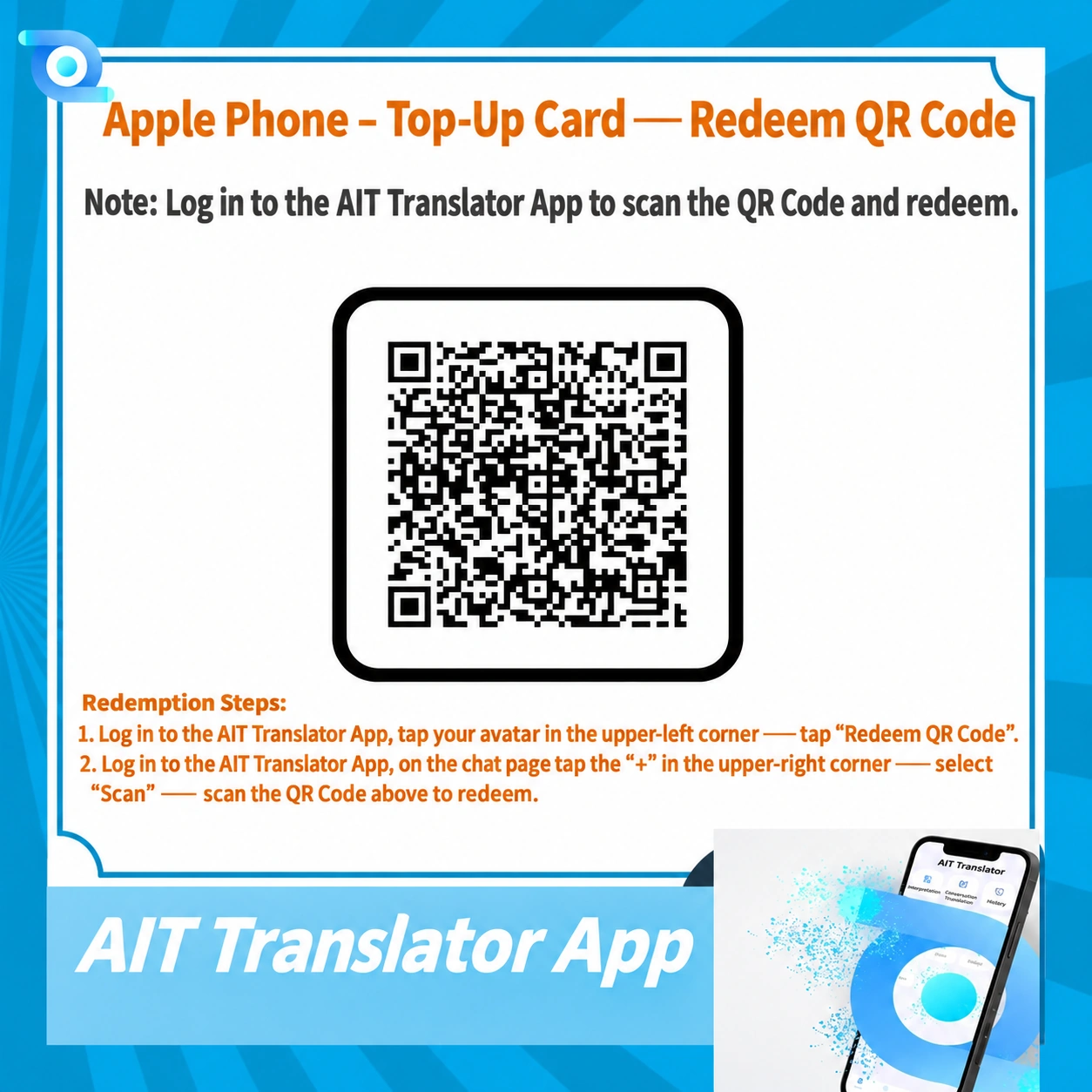
- iOS phone or Mac computer:
Please open the 'iTourTranslator' or 'iTourTranslator' app, scan the QR code below to go directly to the redemption page, and enter the card number to redeem. (For ease of operation, it is recommended to save this QR code image to your photo album first, and then recognize it within the app through the album.)
In the iTourTranslator app, if you want to chat with WhatsApp friends, which feature should you use?
You can use ours Video call Function, the specific operation is as follows:
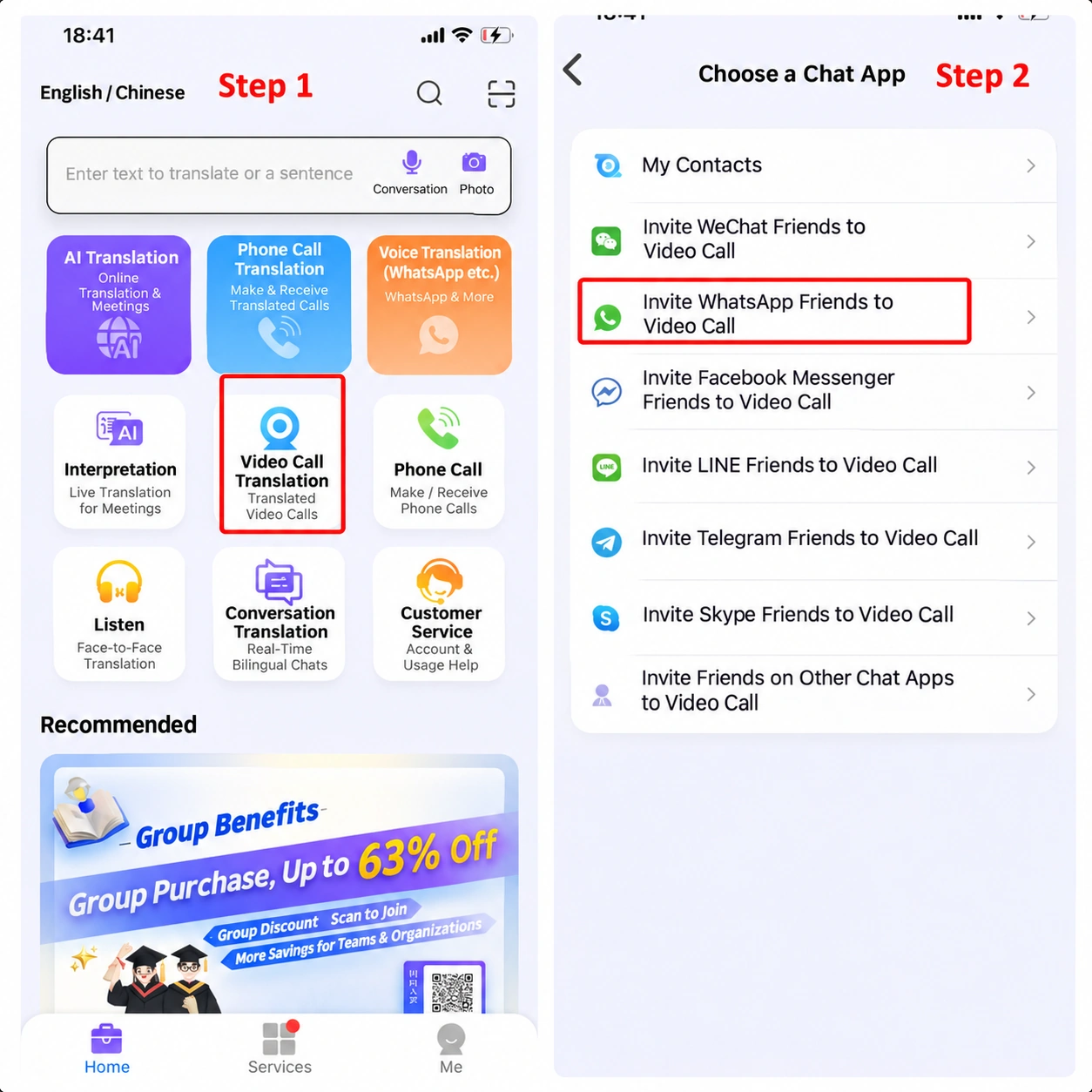
You can conveniently use our Video Call Translation Function to achieve. The specific operation steps are as follows:
Step 1: Create a call invitation
- Enter the app homepage and click 'Video Call'.
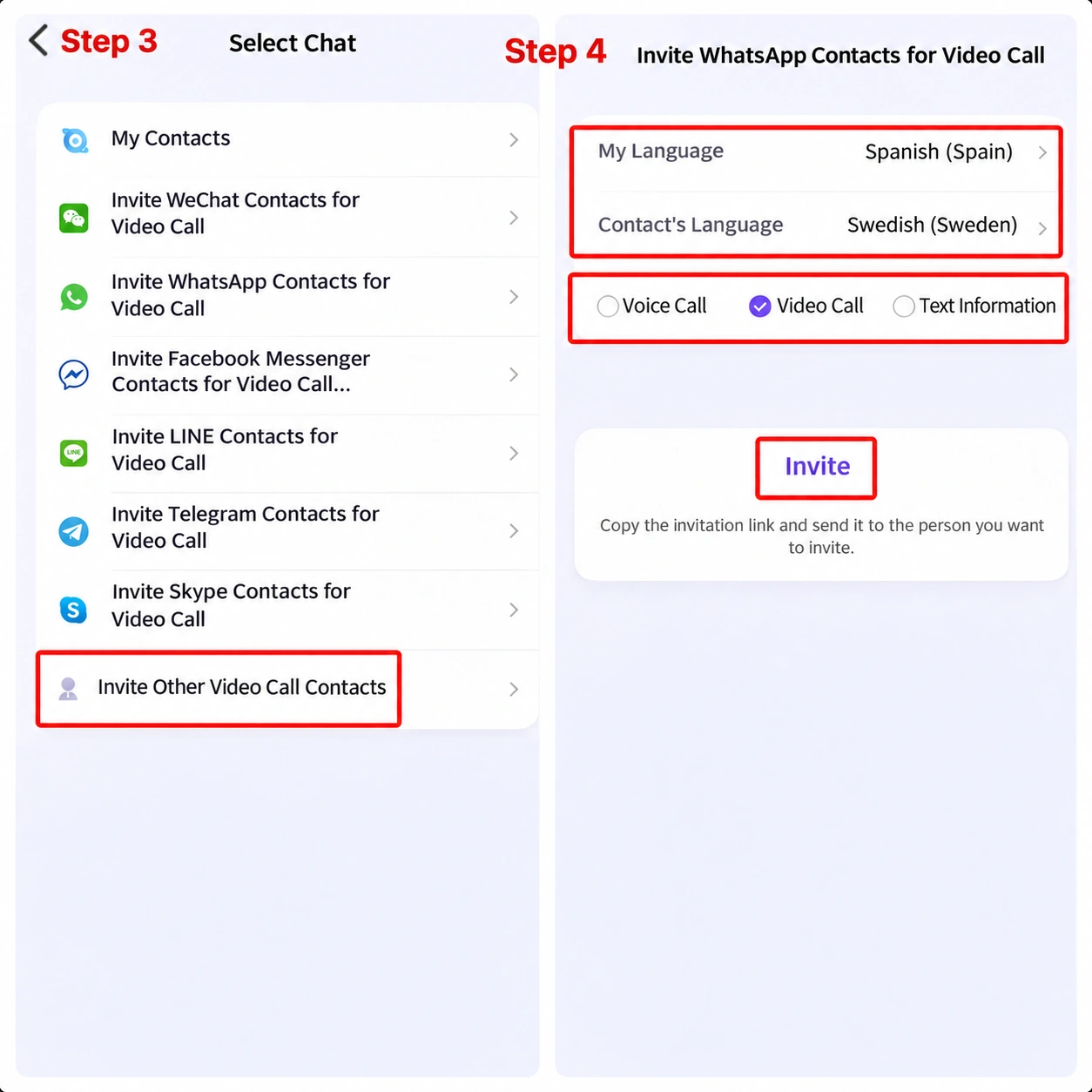
- On the video call page, please select 'Invite WhatsApp friends for a video call.' (If you don't see this option directly, you can choose 'Friends on other social platforms' or 'Invite to another video call' to enter.)
3.On the invitation settings page, select the items that need to be translated for both parties Language and Call Method, and then click Invite.
4.The system will generate an invitation link; click Paste to Friend(or a similar confirmation button).
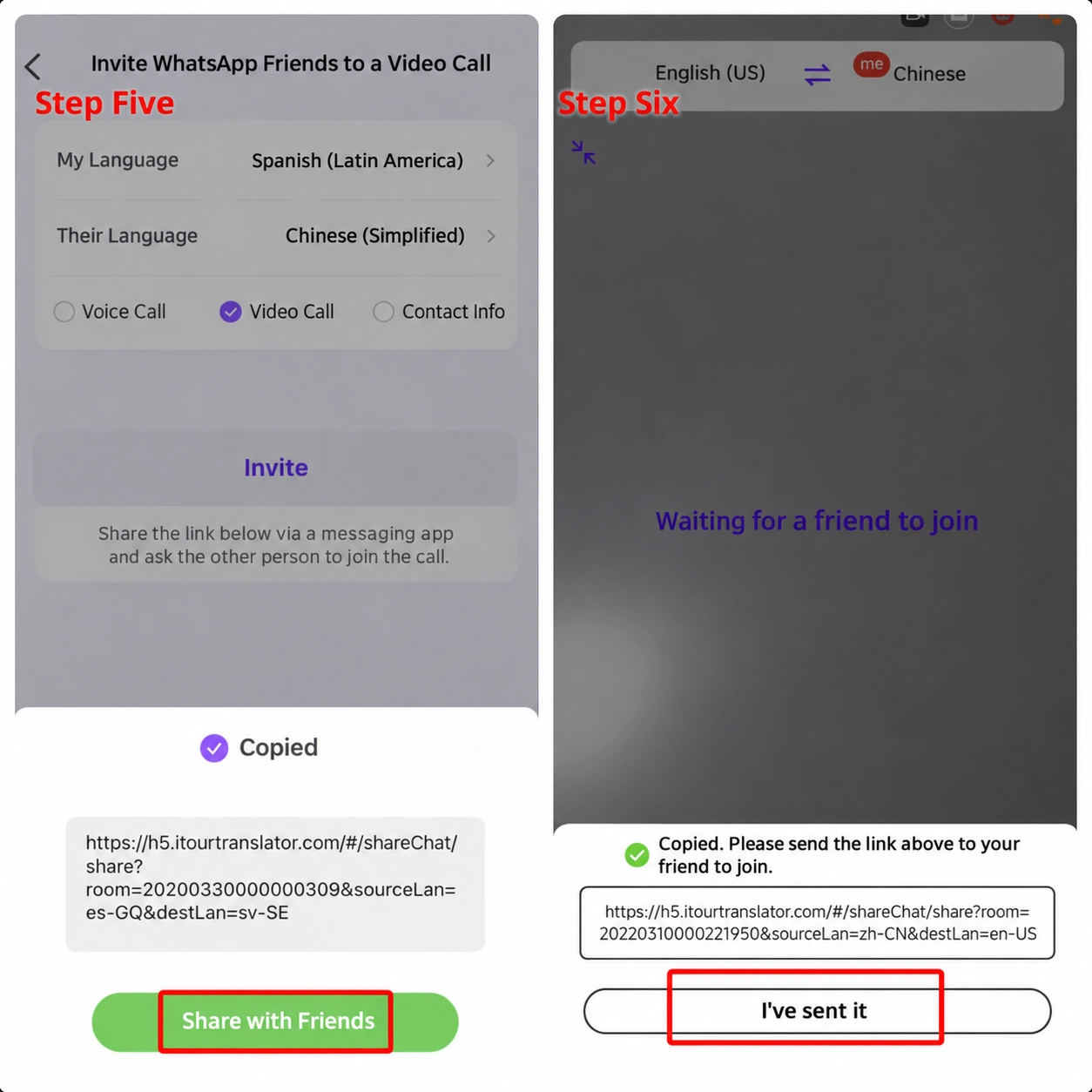
Step 2: Send the invitation via WhatsApp
5. Switch the 'iTourTranslator' app to the background and open it WhatsApp, enter the chat interface of the friend you want to invite.
6. In the chat input box Long Press, choose Paste, and then click Send, share the call invitation link with friends.
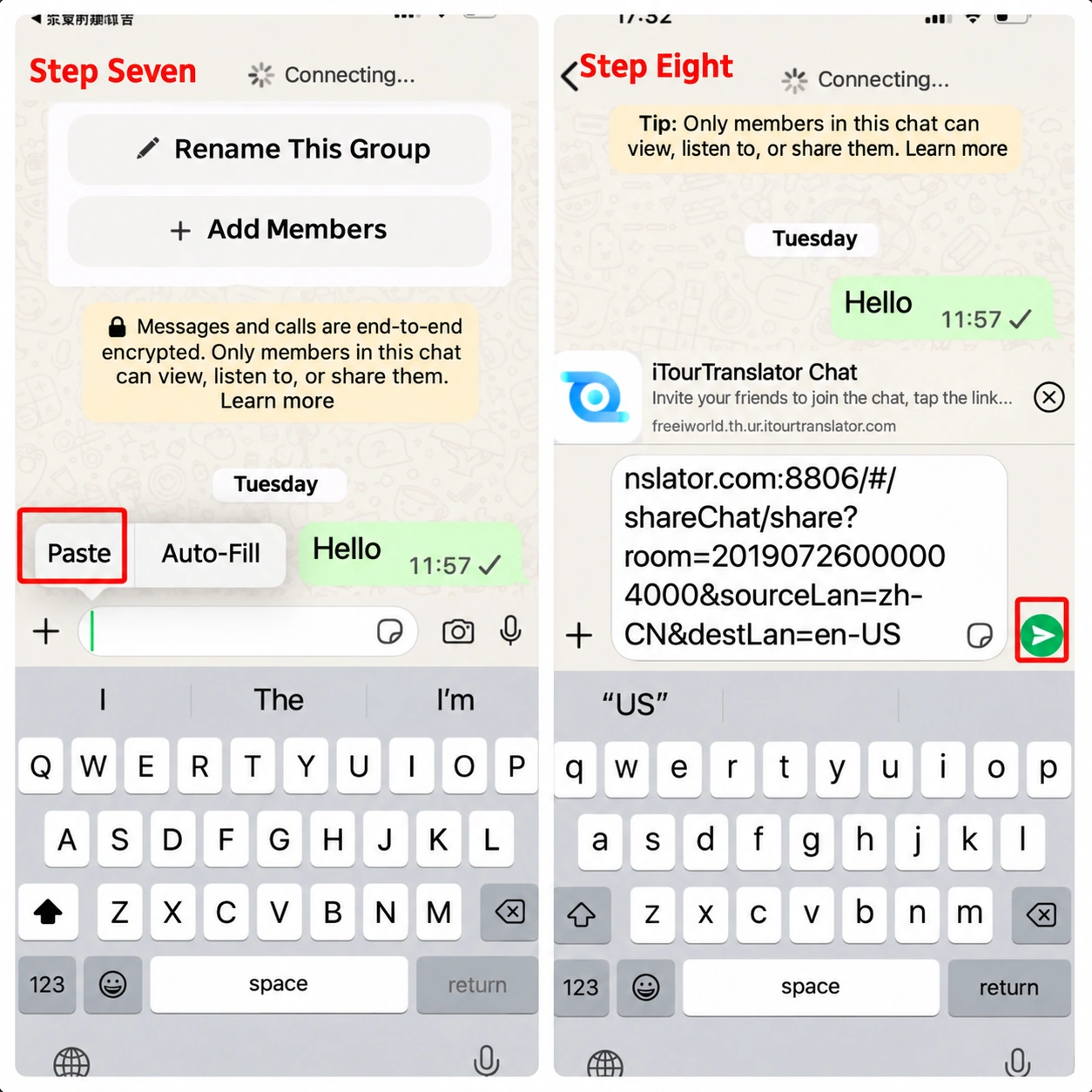
Step 3: Start the call
7. Switch back to the 'iTourTranslator' app, stay on the call page, and wait for your friend to join via the link. Once they join, you can start a video call with real-time translation.
Where is the 'Cross-App Simultaneous Interpretation' feature in the iTourTranslator APP?
This feature is located at the following path, and please note the relevant usage restrictions:
Where to Find It
- Path 1: On the app home page, click 'More' → enter 'Cross-App Live Translation'.
- Path two: Use 'Simultaneous Interpretation' → Select 'High-precision Interpretation' (or a similar mode) → Set 'Audio Source Selection' to 'Internal Phone Sound'.
2. Important Usage Instructions
- Unsupported applications: In the current version, meeting software such as Zoom, Teams, and Tencent Meeting, as well as social chat software like WeChat and Facebook, and mobile system calls, cannot be translated using this feature.
- Alternative suggestion: If you need real-time call translation in the above software, it is recommended to download and use our more fully-featured desktop client. Desktop client download link: [ iTourTranslator for PC ]
I want to use the iTourTranslator mobile app to translate content in software like Zoom and Tencent Meeting. How should I do it?
Due to mobile system restrictions, it is not possible to run the meeting software and real-time translation simultaneously on a single phone. We recommend that you use the following solutions:
Option 1: Dual-device Collaboration (Recommended)
- Operating method: Use two devices, one (such as a computer or tablet) to run Zoom, Tencent Meeting, or other software, and the other (a mobile phone) to open the 'iTourTranslator' APP for real-time listening and translation.
- Advantages: No need to purchase additional hardware, high flexibility.
Option 2: Use the Desktop App
- Operating method: Download and install the iTourTranslator PC client, run the conference software directly on the computer, and use the translation function simultaneously.
- Advantage: It can be completed with a single device, making the operation more integrated and smooth.
- Download Guide: [iTourTranslator for PC]
Option 3: Use dedicated translation headphones
- Instructions: Purchase the iTourTranslator iTour 22 Pro (T2) translation earphones. This device is designed specifically for conference translation scenarios. After connecting to a mobile phone via Bluetooth, it can be directly used to translate conference audio.
- Learn more: click to view iTour 22 Pro Conference Translation Function Introduction
How to use the iTourTranslator mobile app to translate videos and live streams?
It can be translated. The iTourTranslator APP translates by capturing the sound of videos/live broadcasts, according to you Whether to wear headphones, the setup method is different.
🎧 Scene 1: Not wearing headphones (using the phone's speaker)
- Open the app, go to 'Simultaneous Translation,' and choose any mode (such as High Precision/AI/DeepL, etc. simultaneous translation).
- Set 'Recording Mode' to 'External Phone Sound'.
- At this time, the app will use the phone's microphone to pick up ambient sounds (including the audio from videos/live streams playing on your phone) for translation.
🎧 Scenario 2: Wearing headphones (for better sound quality and privacy)
- Open the app, go to 'Simultaneous Translation,' and choose any mode (such as High Precision/AI/DeepL, etc. simultaneous translation).
- Set 'Recording Mode' to 'Internal Phone Audio'
Or:
- The 'Cross-App Simultaneous Interpretation' feature in 'More' (this feature is specifically optimized for system internal audio).
This method allows the app to directly obtain the audio of videos/live streams through the system's internal channels for translation, resulting in clearer sound quality with no environmental noise.
⚠️ Important Restriction Notice
Please note the above methods Cannot be used for translation Real-time interactive scenarios that require specific audio permissions, for example:
- Meeting software: such as Zoom, Teams, Tencent Meeting, etc.
- Social communication calls: such as WeChat voice/video calls.
- Mobile system calls: that is, regular incoming/outgoing calls.
If you need to translate the above 'meeting software, social communication', you can visit the official website on your computer to download the PC version:
👉 https://www.itourtranslator.com/service-pc/
If you need to translate the mobile phone system calls, you can refer to Native Phone Call Translation: Detailed Instructions Use.
iTourTranslator Mobile App – where is the history of the simultaneous interpretation (High Accuracy/Normal/AI/Deepl) used?
The history of all simultaneous interpretation services (high-precision/standard/AI/DeepL) is saved uniformly, and you can find it via the following path:
Mobile app: Home → Simultaneous Interpretation → History or Me → History
Desktop App: Main Interface → Simultaneous Interpretation → History
Tip:
Both history records and audio Saved on the phone locally To avoid accidental loss, it is recommended that you back up important content in a timely manner through export or other methods. Once records are lost, they cannot be recovered from the server.
How to save and view the simultaneous interpretation (high-precision/standard/basic/deepl/AI) history in the iTourTranslator app?
The translation content of all simultaneous interpretation modes (including High-precision Interpretation, Standard Interpretation, etc.) will Auto Save, you can view the history through any of the following methods:
Where to Find It
- Home page entry: Open the APP → Select the 'Simultaneous Interpretation' feature → Click 'History'.
- Enter Personal Center: Click 'My' at the bottom → Go to 'History'.
On the history records page, the system clearly displays all your simultaneous interpretation records in chronological order, making it easy to listen back or consult at any time.
Tip:
Both history records and audio Saved on the phone locally To avoid accidental loss, it is recommended that you back up important content in a timely manner through export or other methods. Once records are lost, they cannot be recovered from the server.
When using the iTourTranslator app for simultaneous interpretation, is it possible to save the translation records and audio?
Can be saved. All simultaneous interpretations Text Records and Audio It will be automatically saved, and you can check it at any time through any of the following methods:
Viewing method
- Path one: Open the app, go to the 'Simultaneous Interpretation' page, and click 'History'.
- Path Two: Click 'My' at the bottom to enter the personal center, then click 'History'.
In the history records, you can play back audio and check the text, making it convenient for you to organize or review later.
Tip:
Both history records and audio Saved on the phone locally To avoid accidental loss, it is recommended that you back up important content in a timely manner through export or other methods. Once records are lost, they cannot be recovered from the server.
iTourTranslator APP, can the saved history be synchronized to a computer or other devices?
Current History Saved on the phone locally, does not support automatic syncing to computers or other devices
If you need to sync and view records across multiple devices, you can choose:
- Upgrade to the SVIP package: After purchase, you can use the cloud synchronization feature. You can manually upload important records to the cloud on your phone, and then you can sync and view them on your computer or other devices after logging in.
iTourTranslator mobile app: Simultaneous interpretation (high-precision/normal/Deepl/AI), can I use ordinary headphones to listen to the translation broadcast?
No. Real-time spoken translation requires Official iTourTranslator Earbuds For use, ordinary headphones cannot support this feature.
iTourTranslator Mobile APP Phone Translation: Why can't I get through when making a call?
The call not going through is usually caused by the following reasons. Please check step by step in order:
🔧 Step 1: Check the network and software conflicts
- Turn off VPN: Please temporarily disable any VPN or proxy software running on your device, as these tools may conflict with our VoIP services.
- Switch network: Try switching between Wi-Fi and mobile data networks to ensure a stable network connection.
📞 Step 2: Confirm the number format and type
- Corrected Number: If the dialed number starts with '0' (such as a domestic long-distance area code), please delete the leading 0 and try again.
- Limitations: Emergency numbers (such as 110 and 119) and some short customer service numbers cannot be called via internet telephony because of policy restrictions.
If none of the above steps resolve the issue, contact Customer Support. We will help you check whether the number is supported.
When using the phone translation function of the iTourTranslator app, if I speak Chinese, will the other person hear English directly?
Not heard directly. During the phone interpretation process:
- After you speak Chinese, the other party will first hear your original Chinese voice, followed by the translated English broadcast.
- If you do not enable the translation feature, the other party will only hear your original Chinese voice and will not hear the translation.
Tip: Before the call, make sure you have already Start translation Function, otherwise the translation will not be able to be properly recognized and read aloud.
When using the phone translation function of the iTourTranslator APP, why is my speech not being translated?
This is because the phone translation function is set by default to Only translate the other party's voice If you need to translate what you are saying, please do so during the call Manually click the button to turn on translation, can achieve two-way translation.
As shown in the figure below:
How to use the iTourTranslator mobile app to translate/transcribe WhatsApp and WeChat calls?
Due to mobile system restrictions, it is not possible to run the meeting software and real-time translation simultaneously on a single phone. We recommend that you use the following solutions:
Option 1: Dual-device Collaboration (Recommended)
- Operating method: Use two devices, one (such as a computer or tablet) to run software like Zoom, Tencent Meeting, WhatsApp, WeChat, etc., and the other (a phone) to open the 'iTourTranslator' app for real-time listening and translation.
- Advantages: No need to purchase additional hardware, high flexibility.
Option 2: Use the Desktop App
- Operating method: Download and install the iTourTranslator PC client, run the conference software directly on the computer, and use the translation function simultaneously.
- Advantage: It can be completed with a single device, making the operation more integrated and smooth.
- Download Guide: [ iTourTranslator for PC ]
Option 3: Use dedicated translation headphones
- Instructions: Purchase the iTourTranslator iTour 22 Pro (T2) translation earphones. This device is designed specifically for conference translation scenarios. After connecting to a mobile phone via Bluetooth, it can be directly used to translate conference audio.
- Learn more: click to view iTour 22 pro audio and video call
You can choose the solution that best suits you based on your existing equipment and specific needs. If you have any other questions, feel free to consult us at any time. 👉Customer Support
How to use the iTourTranslator mobile app to communicate with foreigners?
Use the iTourTranslator mobile app to communicate face-to-face with foreigners, you can choose from the following features:
Recommended plan: bilingual dialogue
- Usage scenario: Suitable for face-to-face real-time conversations on site.
- Operating Method: Open the app and enter the 'Bilingual Conversation' mode. The system will automatically recognize both parties' voices and translate them in real time.
- Audio Playback Method: The translation result will be directly broadcast through the phone speaker, making it easy for both parties to hear clearly.
Recommendations for Other Situations
If you need to communicate with foreigners by phone or video, you can also choose the following functions according to the actual situation:
- Phone Translation: Real-time translation of call content (translation must be manually enabled during the call)
- Video call translation: Two-way translation that supports cross-platform video calls
- Simultaneous interpretation: Suitable for real-time translation and broadcasting of one-way audio
If there are specific scenarios that require further guidance, you are welcome to ask at any time. 👉Customer Support
Is there a monthly membership plan?
Currently, we have not launched a standalone monthly membership service, but you can obtain the corresponding service duration through the following options:
Option 1: SVIP Membership Package
- Package contents: includes 128 general points + 600 minutes of Basic Interpretation time
- Validity period: 30 days from the date of purchase
- Notice: During the membership validity period, recharged points can get an additional 10% bonus; unused points and time will be automatically cleared the following month, please use them in time.
Option 2: Directly Top Up General Points
- Operation path: Enter the APP 'My' → Select 'Point Recharge'
- Note: After recharging, you can use each translation service as needed on a pay-per-use basis.
You can choose a plan that suits you based on your own usage frequency. If you have any questions, you are welcome to consult further. 👉Customer Support
Are there plans with no expiry date?
Currently, we do not have unlimited plans. You can choose from the following options based on your usage needs:
Option 1: High-precision Interpretation Plans
If you primarily use High-precision Interpretation, you can choose flexibly:
- Subscription Plans: Monthly / Annual Plans (Time-limited)
- Hour-based plans: purchased hours do not expire
Option 2: SVIP Membership Package
Suitable for users who need multiple functions, package contents:
- General Points: 128 points
- Basic Interpretation duration: 600 minutes
- Validity period: 1 month
- Membership Benefits: During the validity period, recharge points will receive an additional 10% bonus
- Notice: Unused points and time will be automatically cleared in the following month
Option 3: Top Up General-purpose Points
Pay as You Go:
Go to 'My' → 'Point Recharge' to top up your account with universal points at any time.
You can choose the plan or top-up method that best suits your usage habits and frequency. If you have any other questions, feel free to consult us at any time. 👉Customer Support
iTourTranslator App: How come I can't find my history?
History records as Save locally, please check in the following way:
1. Confirm the device search
- Please make sure you search on the same phone you have used before.
- History records will not sync across devices, and you cannot see previous records when logging in on different devices.
2. Check if it has been cleaned
- If you have cleared the app cache, uninstalled and reinstalled the app, or cleared local data, your history will be lost and cannot be recovered.
3. Record Export Recommendations
- It is recommended to back up important records in a timely manner using the export function.
- Once the record is lost, it cannot be recovered through the server.
If you need daily multi-device synchronized records, you may consider upgrading to SVIP Plan After manually uploading the records to the cloud, you can log in on other devices to view them.
iTourTranslator mobile app, why doesn't the phone translation function support making calls to mainland China (domestic) numbers?
Subject to Mainland China (domestic)Communication Policy Restrictions for Internet Phone (VoIP), the current phone translation function is temporarily unable to dial domestic phone numbers. We are continuously monitoring relevant policies and technological developments, and will provide updates promptly if there are any.
iTourTranslator App: How do I change the login phone number?
The modification method depends on the type of account you registered.
1. Accounts registered directly with a phone number
- Directly changing the phone number is not supported.
2. Accounts registered through third parties such as WeChat and Apple ID
- Operation path: Enter the APP 'My' → Click 'Profile/Account Nickname' → Enter the account information page → Click 'Phone Number' → Select 'Edit'.
- You can bind or change the phone number associated with your current account here.
If you have other account issues, you are welcome to further consult through in-app feedback or customer service channels. 👉Customer Support
iTourTranslator mobile app: How do I change the login password?
Currently Only accounts registered directly with a phone number are supported Change password, other login methods are temporarily not supported.
Modify path:
Enter the app 'My' → Click 'Change Password' → Follow the on-screen instructions to complete the change.
Tip:
- If you log in using third-party accounts such as WeChat or Apple ID, the password is managed by the corresponding platform. Please go to the respective app to make changes.
- If you forget your password, go to 'My' → 'Log Out' → 'Phone/Email Login' → 'Forgot Password'
What are the benefits of subscribing to SVIP?
Subscribing to an SVIP membership allows you to enjoy the following exclusive benefits:
✨ Core Package Contents
- General points: Receive 128 points, which can be used for multiple translation services
- Basic Interpretation duration: 600 minutes granted, can be used for「Simultaneous Interpretation」 → 「Basic Interpretation」 Functionality, meeting daily translation needs
- Validity period: 1 month from the activation date
⚡ Member Exclusive Benefits
- Top-up Bonus: During the membership validity period, top-up general points will receive an additional 10%.
- Cloud sync: Supports manually uploading history to the cloud, enabling multi-device synchronized viewing
- Other privileges: continuously being updated to bring you more convenience
📌 Important Reminder
- Unused points and simultaneous interpretation hours for each month will be automatically cleared in the following month, so please use them in time.
- The cloud sync feature requires manual upload of records, which can be viewed on other logged-in devices after uploading.
Subscribe to SVIP to enjoy a freer and more efficient translation experience. If you have any questions, you can contact customer service at any time. 👉Customer Support
Can it be used abroad?
Yes, dear, the Translator Mobile App supports use abroad. As long as the area you are in The network signal is stable, and then all translation functions can be used normally.
Tip When used abroad, some features may be affected by the local network environment. It is recommended to ensure that mobile data or Wi-Fi connections are stable in advance to obtain a better user experience.
If you have any other questions about usage, please feel free to contact us at any time. 👉Customer Support
iTourTranslator Mobile App: Can it be downloaded abroad? What is the search name?
Yes, dear, the Translation Officer app can also be downloaded and used overseas.
Downloads Outside China
- Search Name: Please search for iTourTranslator in the App Store / Google Play.
- Notes: Because regional versions may vary slightly, please make sure to use the version released by the official source.
If you have any questions about downloading or using it, feel free to contact us anytime. 👉Customer Support
Are the top-up amounts for the iTourTranslator mobile app fixed? Is it possible to top up a small amount for a trial?
Currently, in-app top-ups have a minimum amount requirement, but you can also experience it with a lower amount through the WeChat mini program. Details are as follows:
1. In-app top-up (fixed denominations)
- The minimum top-up amount is 118 yuan (corresponding to a certain amount of general points or a package).
- Path: Go to the APP 'My' → 'Points Recharge'.
2. WeChat Mini Program Top-up (More Flexible)
- Minimum top-up of 50 yuan, suitable for small-scale trial use.
- Operation: In WeChat, search for the mini program 'iTourTranslator iTour' → Enter to select the products or points you need.
You can choose to experience the mini program or recharge directly through the APP according to your needs. If you have any other questions, you are welcome to contact customer service at any time. 👉Customer Support
iTourTranslator App: How do I top up the video call/bilingual conversation/listening features? Are there any packages available?
Video call: The '30-Day Unlimited Chat Package' is now available. You can go to the APP homepage → Video Call → Subscribe to Package.
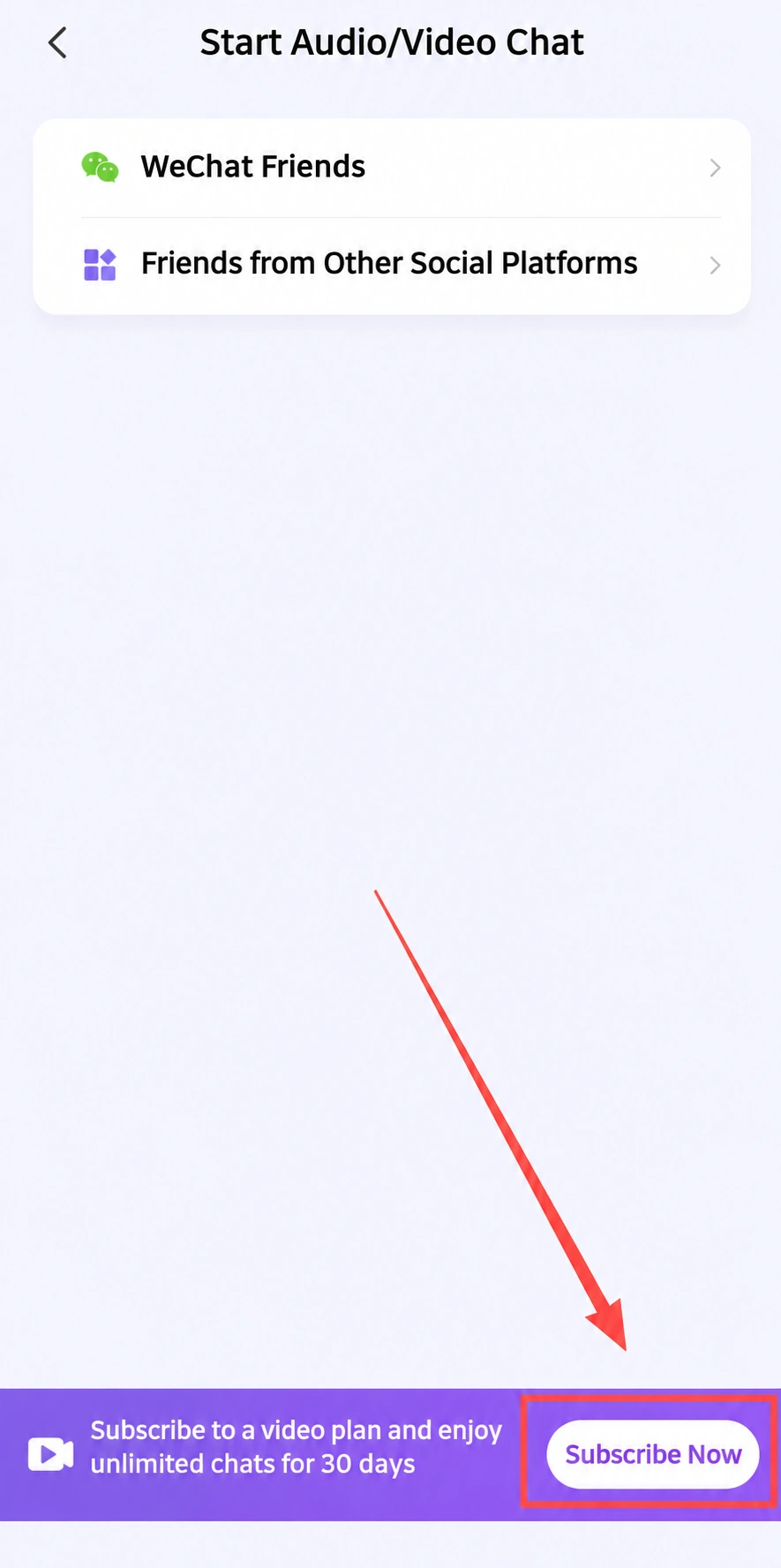
Bilingual Conversation / Listening Function: Currently, only point-based billing is supported, and there are no separate plans. You can recharge points through the following two methods:
1. In-app Top-up
Go to 'My' → 'Point Recharge', select the desired point package to complete the payment.
2. Purchase and Redeem via WeChat Mini Program
Search for the Mini Program 'iTourTranslator iTour' on WeChat, then select and purchase a points package or the desired product, and redeem it to your account for use.
Both methods can conveniently add points to your account, making it easy to use various translation features at any time. If you have any other questions, feel free to ask. 👉Customer Support
iTourTranslator Mobile App: How long can I use it if I recharge 118 points?
The specific usage duration depends on the features you actually use. You can estimate it through the following methods:
Calculation method
Usage time ≈ 118 yuan ÷ the per-minute rate of the selected function
Reference for charges of each function (in points/minute)
Note: The above are example unit prices. For the actual prices, please refer to the latest announcement in the "Pricing Details" or recharge page within the app.
Suggestion
You can check the real-time unit price on the 'My' → 'Tariff Inquiry' page, or Customer Support Obtain a detailed tariff table to plan usage more accurately.
How do I request an invoice?
If you need to request an invoice, please contact first Customer Support, customer service will assist you in completing the invoicing process.
Please prepare the following information before applying:
- Order Information: Screenshot of recharge/purchase record, order number or transaction number
- Invoice Recipient: Full legal name of the company or individual
- Taxpayer Identification Number (required if it is a business entity)
- Receiving Email: Used to receive electronic invoices
- Invoice Amount: The specific amount that needs to be invoiced
- Invoice type: choose one from recharge fee, translation fee, or technical service
How to export various types of simultaneous interpretation records (High-precision Interpretation/AI Interpretation, etc.)?
All types of simultaneous interpretation records are uniformly saved in the history, and the export method is as follows:
1. Enter history
- Path 1: Home 'Simultaneous Interpretation' → Click 'History'
- Path 2: Bottom 'My' → Enter 'History'
2. Select and export records
- Find the record you want to export in the history list and click to enter the details page.
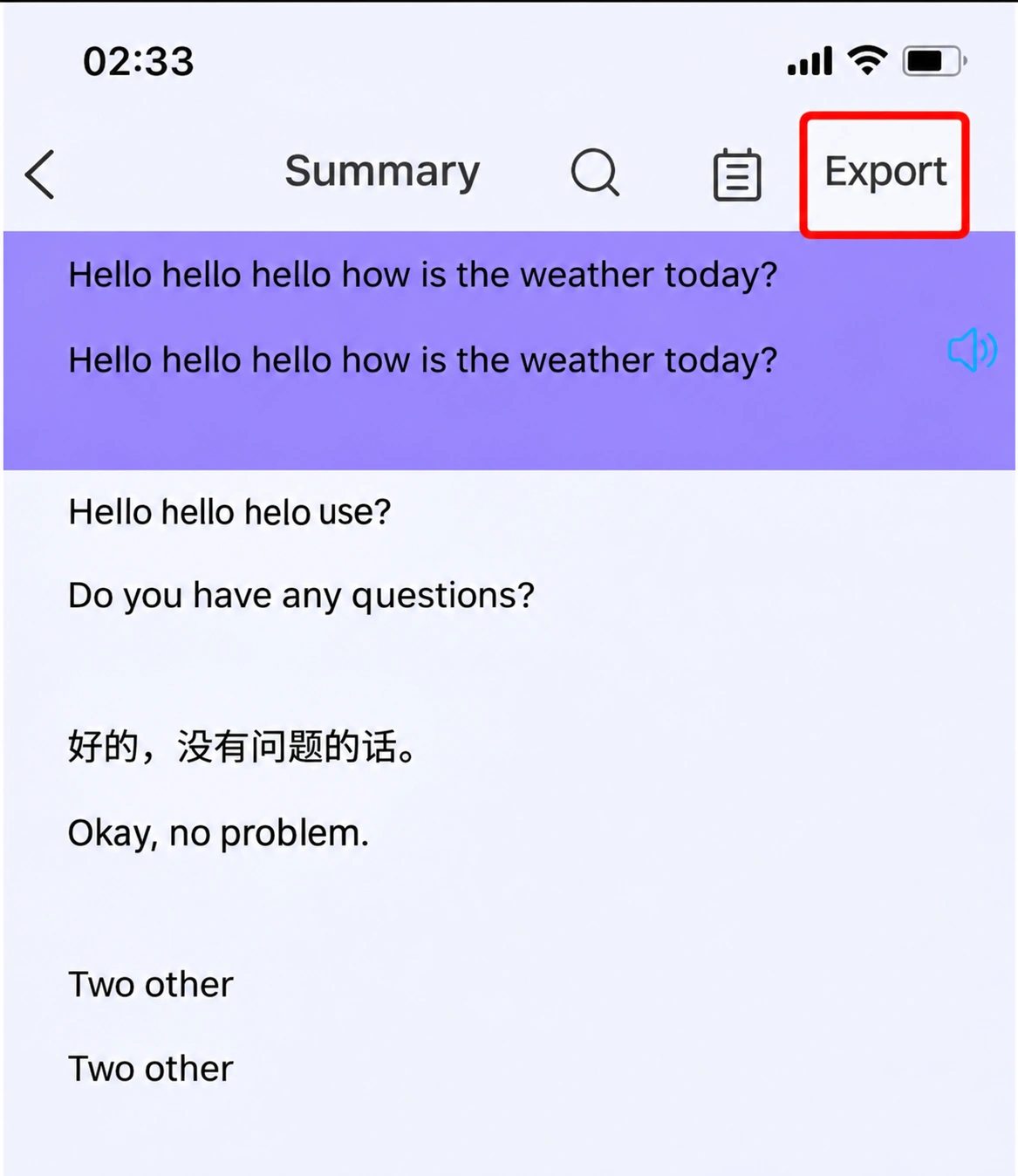
- iOS phone: Tap the "Export" button at the top right corner of the details page, as shown in the figure below:
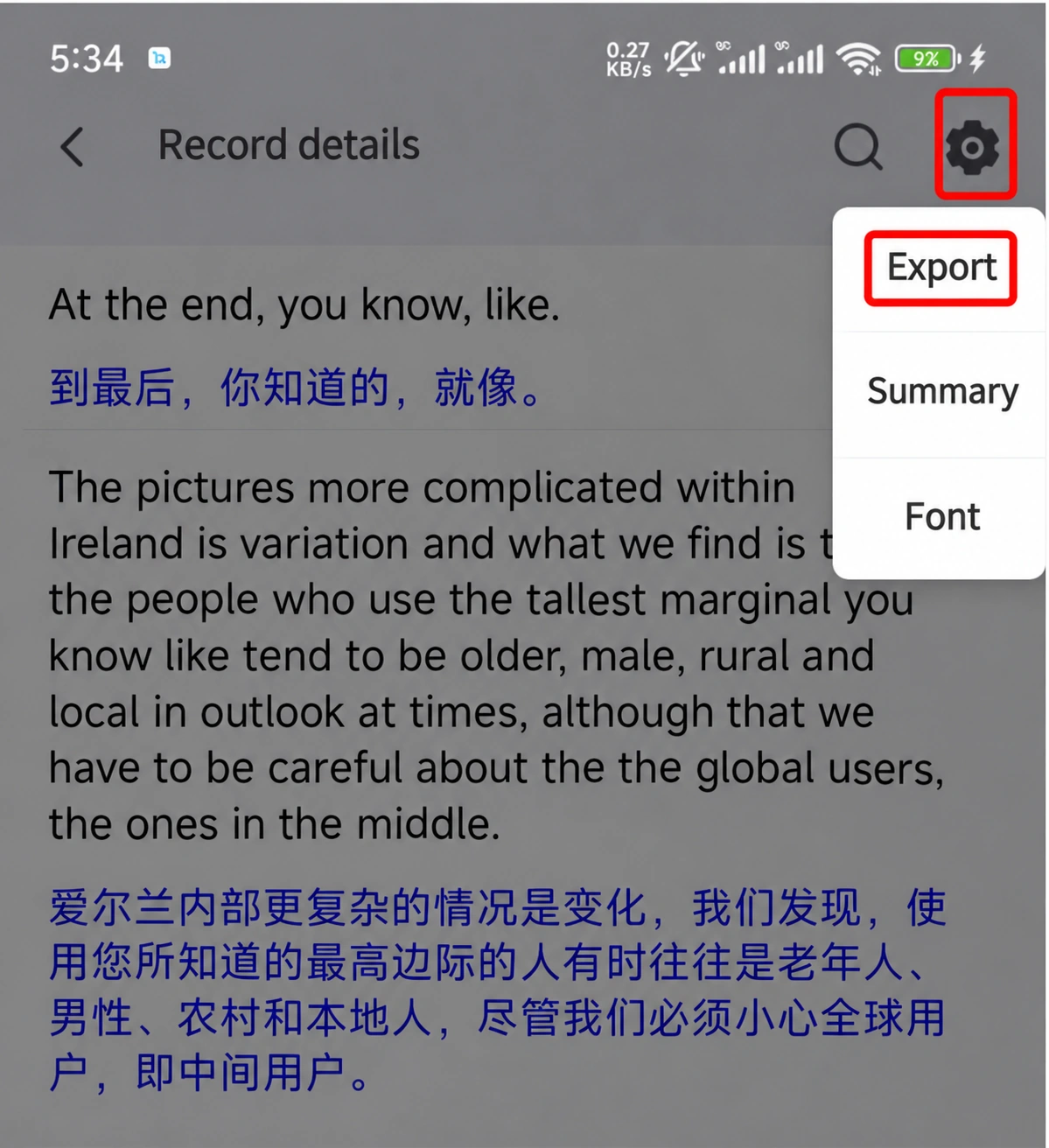
- Android phone: Click the top right corner 'Settings' → Export
Tip:
- Export text and audio separately: Currently, text records and audio files need to be exported separately, and merging them into one file is not supported.
- Text export format: Text content supports multiple formats such as TXT, SRT, PDF, etc., and can be selected as needed when exporting.
- Audio Export: Audio files are usually in wav format.
- Storage Reminder History records are stored locally on the phone. It is recommended to export and back them up in time to avoid loss due to uninstalling the app or clearing data.
iTourTranslator Mobile App: What does it mean when you answer a call and it shows an unpurchased number?
The call answering page shows 'Number not purchased,' indicating that you have not yet purchased or activated the dedicated service for iTourTranslator.Internal phone number, therefore the call answering function of the phone translation cannot be used.
Solution:
Please contact Customer Support, consult and purchase the internal number package required for the service, and once completed, you can normally answer and translate incoming calls.
I purchased a package, so why does my balance still show as 0?
This is a normal phenomenon. The purchased package (such as call minutes or simultaneous interpretation duration) will be stored separately in "My Plan" It will not be directly added to the general points balance.
Check Your Remaining Plan Allowance
- Open the app and go to 'My' → click 'My Package' to check the remaining duration or number of uses of your purchased package.
Balance Explanation
- Balance (Universal Points): Applicable to all functions, charged per use, and can also be used for usage beyond the package.
- Package resources: independent of points, exclusively used for the corresponding function within the validity period.
If you cannot find the purchased content in 'My Plan', or have questions about using the resources, you can at any time Customer Support for help checking the issue.
I recharged some points, why haven't they been credited?
If points are not credited in time, you can handle it through the following methods:
Please have the following information ready and contact 👉Customer Support:
- Top-up bill screenshot (including order number, payment time, amount, and other information)
- Top-up account (registered mobile number or third-party login account)
- Problem description (recharge time, payment method, not received prompt, etc.)
After receiving the information, customer service will verify your order and handle the account issue as soon as possible. Thank you for your understanding and cooperation!
I topped up money before, so why does it show a balance of 0 now?
This situation usually occurs because the account currently logged in is not the same as the account you used when making the recharge. It is recommended to troubleshoot according to the following steps:
1. First, confirm the login account
- Check whether the currently logged-in phone number, WeChat, or Apple ID is the account used for the top-up.
- If you are unsure, you can try logging out and then logging back in with the account you remember recharging.
2. Contact customer service for assistance with inquiries
If the account is confirmed to be correct but the balance still shows as 0, please contact us promptly.Customer Support And provide:
- Recharge account information (such as phone number, WeChat account, etc.)
- Relevant recharge vouchers (order screenshots, payment records, etc.)
Customer service will verify your order status and handle it as soon as possible.
How is document translation charged?
The document translation function uses Charged by page method, standard price is 0.8 yuan/page.
Explanation:
- The billing is based on the total number of pages of the uploaded document, regardless of the language pair or content difficulty.
- Supports common formats (such as PDF, Word, PPT, etc.), and the system will automatically recognize the number of pages.
- After the translation is completed, the corresponding fee will be deducted from your account points.
Tip:
Please note, upload PDF document composed of images(For scanned copies or PDFs generated from screenshots) it may result in the inability to recognize text, causing:
- Unable to translate
- Translation garbled
- The original text cannot be edited or deleted, causing the original and translated texts to overlap.
It is recommended to check whether the document content is before uploading Selectable and copyable text, to ensure the translation effect.
I purchased SVIP, why haven't the points been credited?
The points given to SVIP members belong to Package-specific points, Will not be directly added to the general points balance, need to check on the SVIP benefits page.
Where to Find It:
Enter the app 'My' → Click 'SVIP' or 'My Package' → Check the gifted points and remaining balance in the package details.
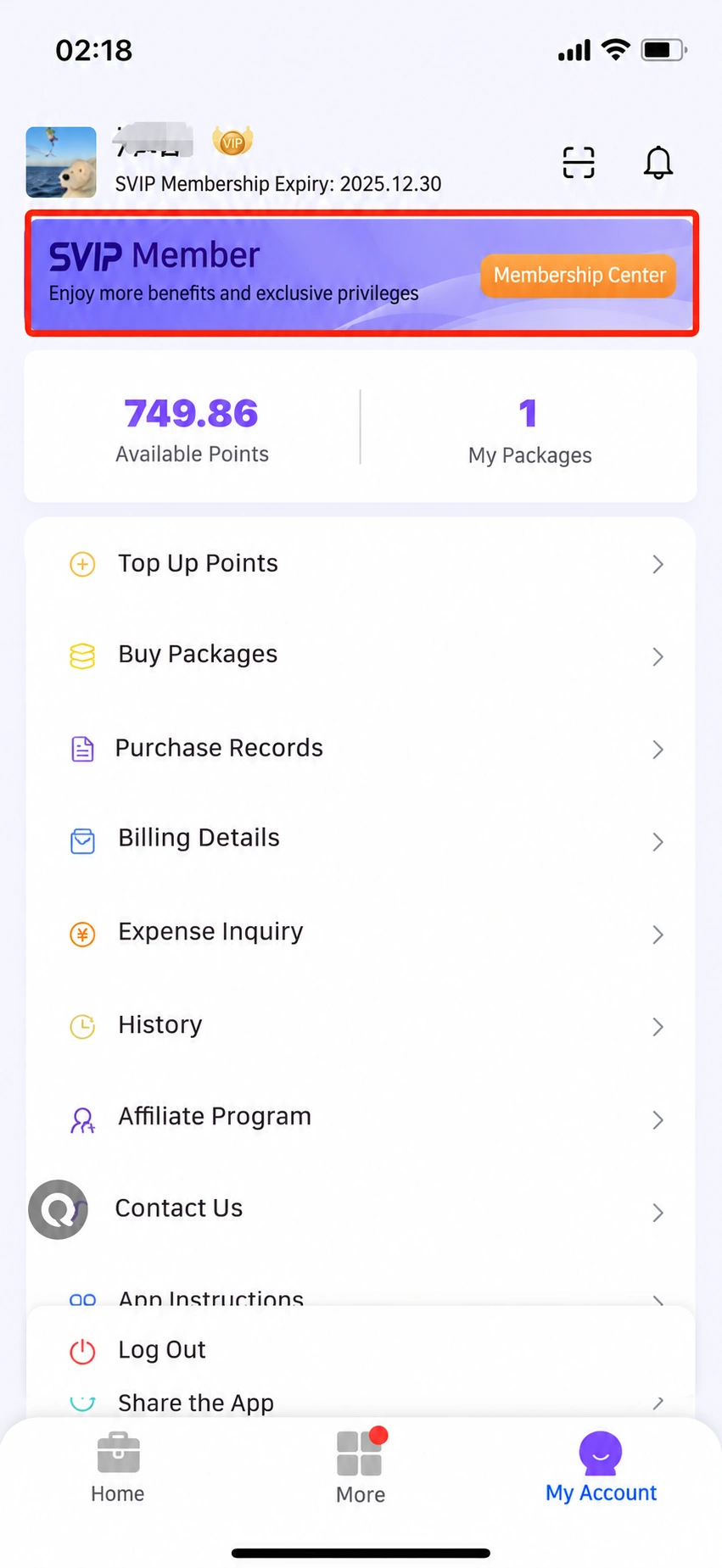
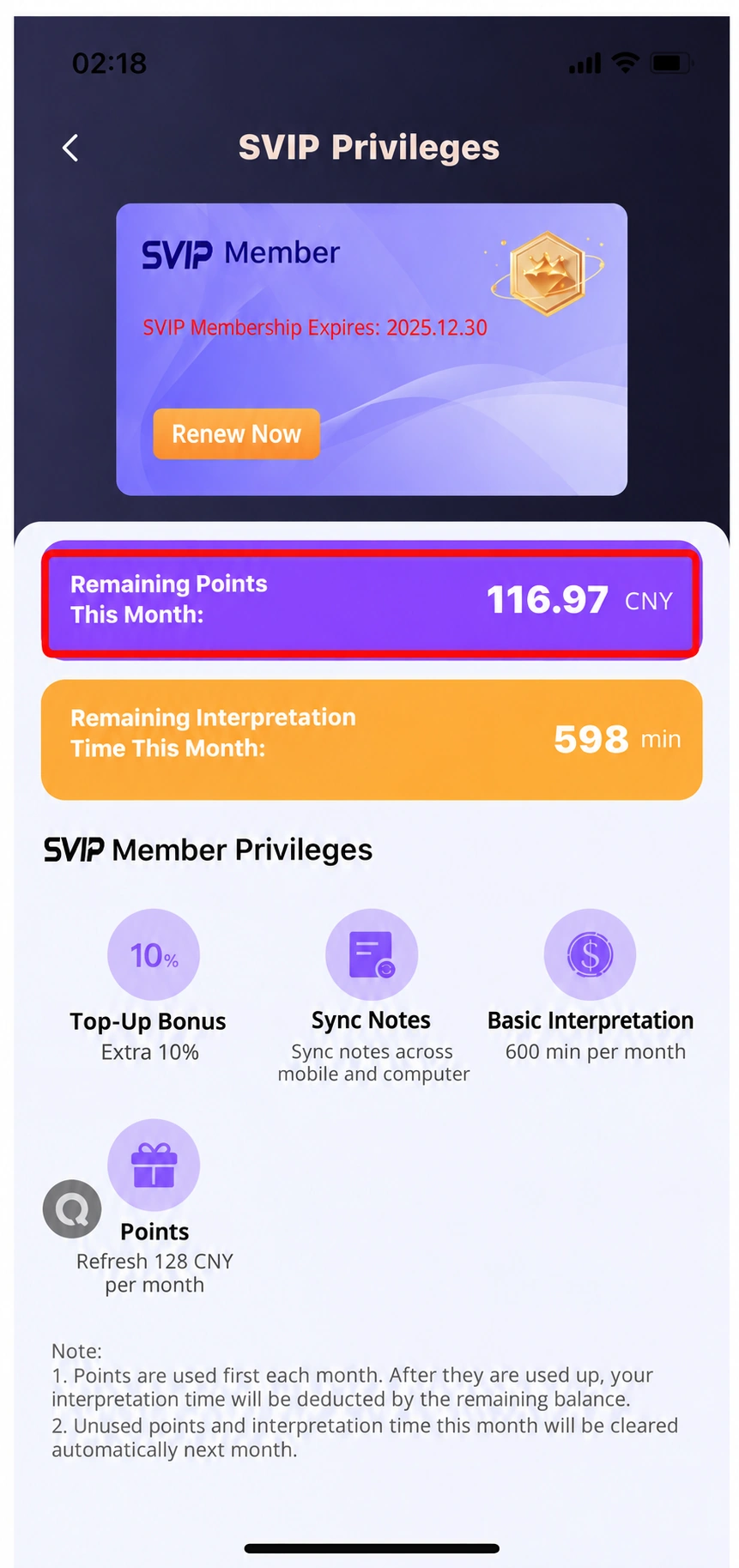
Instructions:
- Package points can only be used during the membership validity period, and any unused portion will be automatically cleared in the following month.
- If you need general points, you can purchase them separately in 'Point Recharge.' Recharging within the membership validity period also gives an additional 10% bonus.
If you have any questions or if there are display abnormalities, you can do so at any time Customer Support for help checking the issue.
iTourTranslator App, how do I use the video call feature?
You can use the video call translation feature by following these steps:
Step 1: Create a call invitation
- Open the app and go to the 'Video Call' page.
- Select the social platform you want to use (such as WhatsApp, WeChat, etc.).
- Set both languages, choose the call method, and click 'Invite'.
Step 2: Share the invitation link
- Click Paste to Friend Or a similar option to enter the dialing page.
- Switch the app to the background, open the corresponding chat software (such as WhatsApp), and enter the friend's chat interface.
- In the input box Long press → Select 'Paste' → Click 'Send', share the invitation link with the other party.
Step 3: Start the call
- Switch back to the 'iTourTranslator' app and stay on the dialing page, waiting for the other party to join.
- Once the other party joins, you can start Video calls with real-time translation.
iTourTranslator mobile app for on-site meeting translation, which feature should I use?
For on-site meeting scenarios, you can choose the following functions according to the translation direction and needs:
1. One-way translation (real-time translation of conference speeches into the target language)
- Recommended feature: Various simultaneous interpretation options in 'Simultaneous Translation' mode
- Scenario Selection:
- High-precision Interpretation: Suitable for formal meetings that require high accuracy in English translation
- AI Interpretation: Suitable for English content with strong professionalism and numerous technical terms
- Deepl simultaneous interpretation: Recommended for translation of languages other than English (languages)
- Standard Interpretation: cost-effective, suitable for general English meetings
- Basic Interpretation: suitable for scenarios with low translation requirements and seeking cost-effectiveness
2. Two-way dialogue translation (both parties speak alternately, real-time interpretation)
- Recommended Feature: 'Simultaneous Interpretation' → Bilingual Interpretation
- Use case: Suitable for conversations or small seminars where both parties need to take turns speaking frequently and require immediate interpretation.
Usage Recommendations:
- You can test the translation effects of different modes before the meeting and choose the one that best meets the meeting's needs.
- If the meeting involves multiple languages or specialized fields, it is recommended to test the corresponding mode in advance to ensure accurate terminology recognition.
- Keep the device network stable.
If there are other scenarios that require recommendations (such as remote meetings, phone communication, etc.), you are welcome to inquire further.Customer Support.
What is the difference between general-purpose points and High-precision Interpretation plans?
The main difference lies in Scope of use and Applicable functions Different, specifically as follows:
Top Up Points
- Nature: General in-app balance, can be used across functions.
- Available features: All features can be used with points deduction (such as video calls, bilingual conversations, listening translation, various types of simultaneous interpretation, etc.).
- Billing method: Real-time charges based on the point price corresponding to each function.
- Flexibility: Suitable for users who need to mix multiple scenarios and functions.
High-precision Interpretation Plans
- Nature: Exclusive time package, only for use with the corresponding function.
- Available feature: Only for use in the 'High-precision Interpretation' mode within 'Simultaneous Interpretation'.
- Billing method: After purchase, you receive a fixed duration, during which usage within this package does not consume general points.
- Applicable scenarios: Suitable for users who frequently require high-precision English simultaneous interpretation and have concentrated usage scenarios.
Selection Recommendation:
- If you mainly use High-precision Interpretation and use it frequently, purchasing a package may be more cost-effective.
- If you need to frequently switch between different translation functions, it is recommended to top up general points first.
If there are specific usage needs, it is also possible Customer Support Recommend suitable solutions for you.
The monthly/yearly package I purchased has been used up. Why can't I buy it again?
This is because the monthly/annual package belongs to Subscription Plan, at Repeated purchases are not supported during the current validity period If you wish to continue using the related functions, you can choose the following options:
Alternative
- Purchase hourly packages: Within the validity period, you can additionally purchase hourly packages for the corresponding functions, flexibly supplementing usage time.
- Recharge general points: Directly recharge the points balance and use various functions as needed (including the functions corresponding to the subscription package).
Suggestion
- If you often find that your plan duration is insufficient, you may consider choosing a higher-tier monthly/yearly plan when renewing next time.
- After the current plan expires, you can subscribe to the original type of plan again.
If you have any questions, you can ask at any time Customer Support Assist you in choosing the suitable plan.
Where is the offline translation feature of the iTourTranslator app?
Offline translation is currently Dedicated features of hardware products, the mobile app itself does not provide it. If you need to use it, you must first purchase official translation headphones or other hardware devices.
Navigation Path:
1. APP Home Page → Click 'More' → Enter 'Hardware' → Select the corresponding headphone functions you have purchased
On this page, you can connect devices and manage them Offline language pack, thereby allowing the use of translation in an offline environment.
2. Download 「iTourBuds APP」, the offline translation function can only be used after connecting the headphones
If you have already purchased the device, you can connect and use it according to the above path; if you have not purchased it yet and have a strong need for offline translation, it is recommended to pay attention to the official translation earphones or translation devices and other hardware products.
Why does speech recognition only recognize spoken content and not display the translation result?
The speech recognition function is mainly used for Transcribe your voice to text in real time, it itself does not have the ability to translate.
If you need to translate the spoken content into other languages, you should use the in-app Simultaneous Interpretation Function. This function will perform real-time translation and display the results while recognizing speech.
You can choose according to your needs in simultaneous interpretation High-precision Interpretation, Standard Interpretation, AI Interpretation and other available modes to use the translation service.
iTourTranslator Mobile App: Where is the call translation history?
Call records of phone translations have a separate viewing path. Due to system differences, the operating steps for iOS and Android devices are slightly different. Please refer to the following instructions according to your mobile system:
Steps to check on iOS phone
- Open the app and click the 'Phone' icon on the homepage.
- Enter the 'Call History' list.
- Find the call you want to view, long-press on that record → select View.
- You can enter the details page to view the complete text record and audio of this phone translation.
Steps to check on an Android phone
- Open the app and click the 'Phone' icon on the homepage.
- Enter the 'Call History' list.
- Click on the number you want to view to go to the details page of that number.
- On this page, click the specific 'time point' record of a call.
- Click to enter the details page to view the full transcript and audio of this phone translation.
Important Notice
- Local storage All call records are stored locally on the phone. Uninstalling the app or clearing data will result in the loss of records, so please export important content in time.
- Record content On the detail page, you can replay call recordings and view bilingual translated text.
- Synchronization Instructions These records will not be automatically synced to the cloud or other devices. To view them on multiple devices, you can manually export a backup.
If there are still questions, it is recommended to go through Customer Support Get direct help.
iTourTranslator App Video Call: Are WeChat/WhatsApp calls recorded and saved?
Yes, the system will save it.Translated Call Transcripts You can view it through the following path:
Where to Find It
Step 1: Open the iTour Chat List
Open the app and click at the bottom More → Enter iTour Chat Function, you can see all the video call chat lists initiated through the app.
Step 2: Search for and view specific records
- Find the corresponding friend or conversation you want to view in the chat list, and click to enter the chat details page.
- In the message history on the details page, long-press the video call record corresponding to the call time.
- In the pop-up menu, select 'View' to browse the detailed transcription of the call.
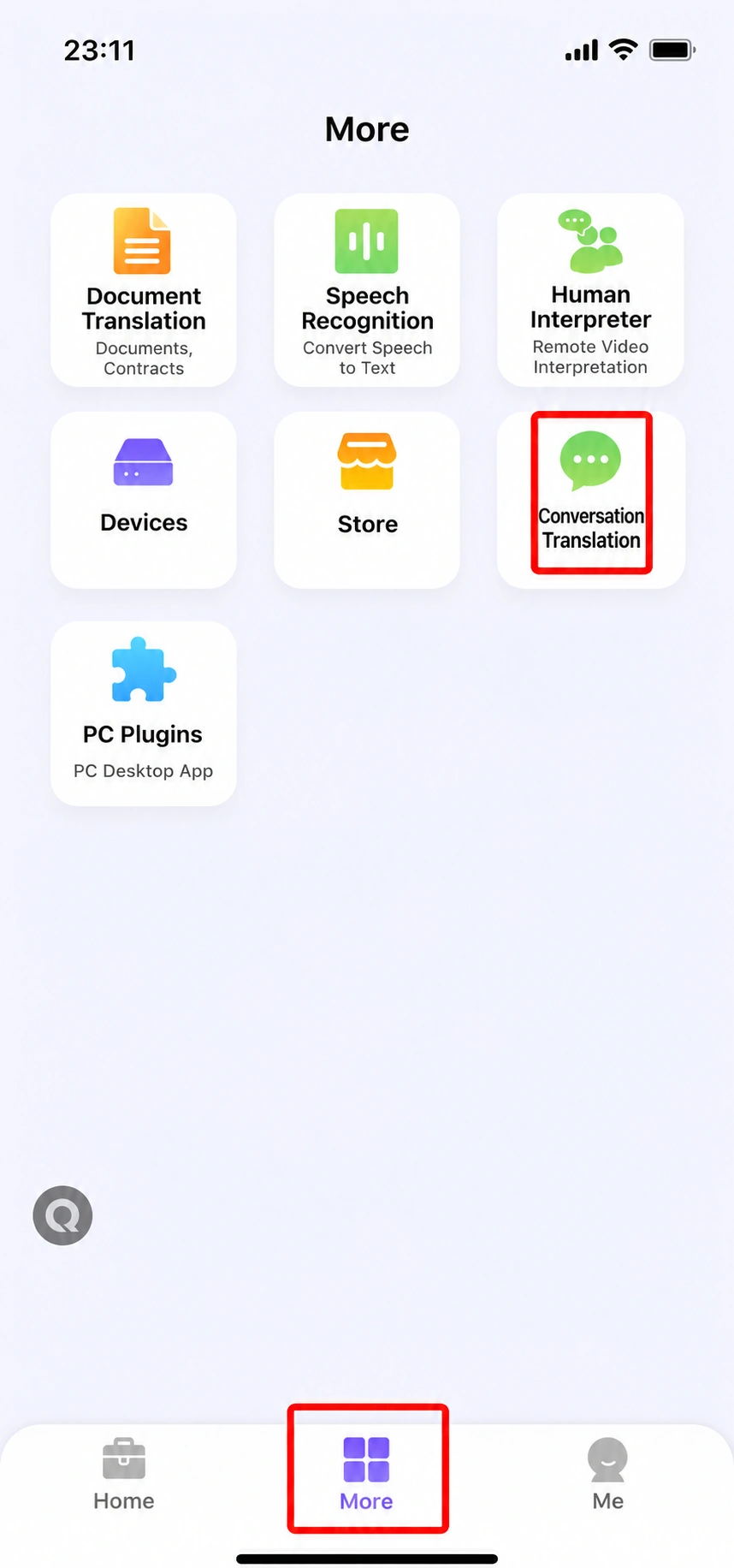
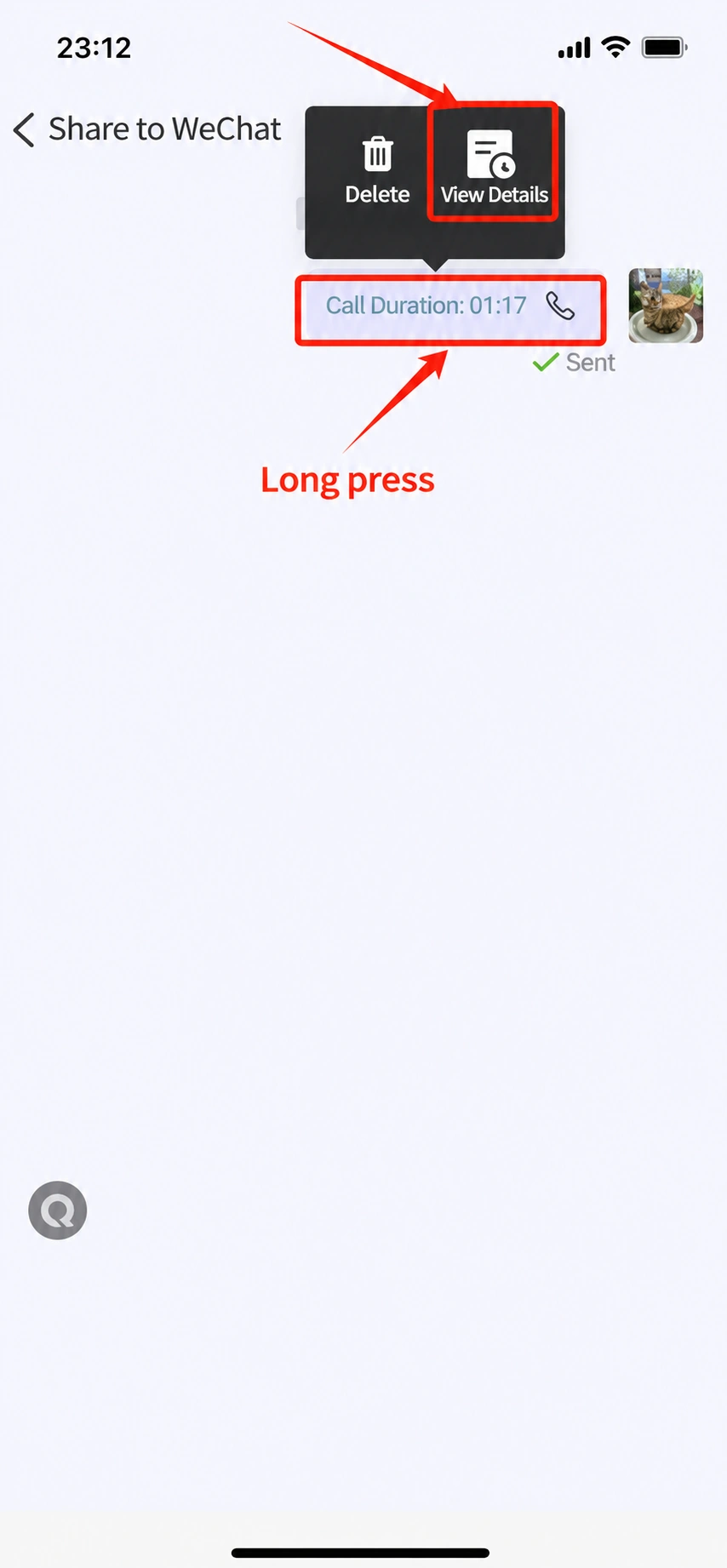
Tip
- Record content Currently, what is mainly saved are the bilingual text records from the call process, excluding video footage and original audio recordings.
- Save locally All records are saved locally on your phone. To prevent records from being lost due to uninstalling the app or changing devices, it is recommended to take screenshots or export backups of important records in a timely manner.
- Sync Behaviour This record will not automatically sync to the cloud or your other devices.
If there are multiple records that need to be organized, it is recommended to export backups regularly. If you need further assistance, you can contact us at any time.Customer Support
How to buy a number for the iTourTranslator APP?
The dedicated number provided by this app is mainly used to receive and translate incoming calls. It currently cannot receive registration or verification text messages from other apps or services, such as WeChat or banks.
Contact Customer Support for available numbers, rates and activation instructions.
How can I share the translation results from the iTourTranslator app with colleagues or classmates to view together?
You can generate it through the 'simultaneous interpretation' feature A shareable link that can sync in real time, allowing others to view the translation content on your mobile device online through a browser.
Share and view steps
Step 1: Generate a share link within the app
- Enter 'Simultaneous Interpretation' on the homepage, and select any mode (such as High-precision Interpretation, AI Interpretation, etc.) to start translating.
- During the translation process, click the 'three dots' or 'share' icon at the top right corner of the page.
- Select 'Share' from the pop-up menu, and the system will generate a unique link.
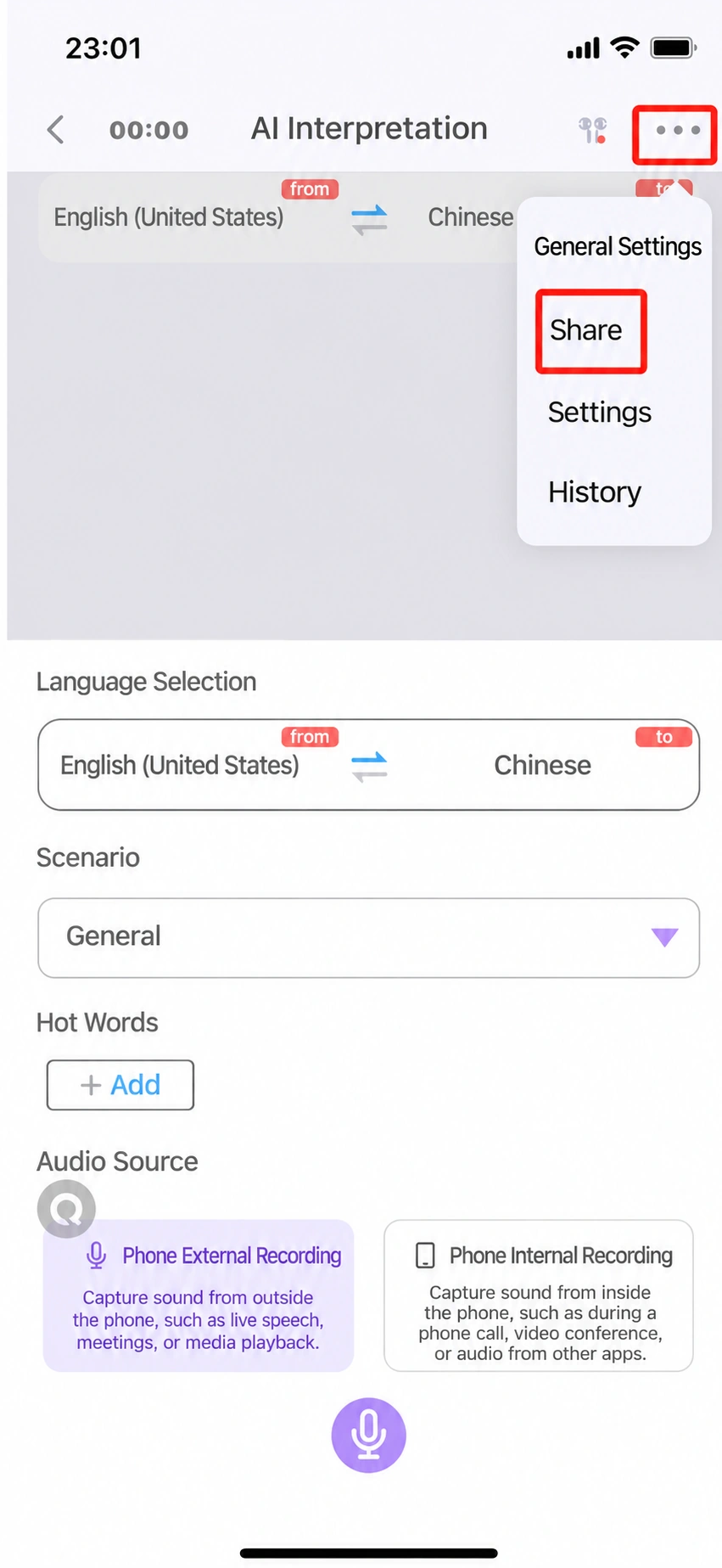
Step 2: Send the link and view it simultaneously
- You can send the link generated in the previous step to colleagues or classmates via WeChat, email, or other methods.
- The other party does not need to download an app and can directly open the link in a mobile or computer browser.
- The webpage opened by the other party will display the translated text from your mobile device in real-time.
Important Notice (Especially About Fees)
- Additional languages for High-precision Interpretation: If you share a High-precision Interpretation link, the other party can modify or add target languages for translation on the webpage. Please note: for each additional language, an extra fee of 6 yuan/hour will be charged, which will be deducted from your account balance.
- Precondition for Charging: The charging function for this 'Add Language' will only take effect if there is an available point balance in your account. If the balance is insufficient, you will not be able to add a language.
- General sharing: Sharing links for other simultaneous interpretation modes (such as Standard Interpretation, Basic Interpretation, etc.) usually do not charge extra for changing the language, but the recipient cannot modify the translation language.
With this feature, you can conveniently conduct teaching demonstrations, remote collaboration, or group discussions. Before sharing, please pay attention to your account balance.
How to use the iTourTranslator mobile app cross-app simultaneous translation on iOS phones?
The 'Cross-App Simultaneous Translation' feature is suitable for translating content played by other applications (such as video or audio software) into text in real time and displaying it in a floating window. Below are its usage methods, features, and precautions.
📱 Function Overview and Core Features
- Main use: When you are watching foreign language videos or listening to foreign language audio on applications such as Bilibili, YouTube, or music apps, this feature can recognize the speech in real time and translate it into the target language you set, displaying the translated text in a floating window.
- Core Features: This is a 'visual' translation feature, not an 'auditory' translation. It only provides text translation results and does not perform voice playback. At the same time, it does not support use in real-time call scenarios such as Zoom, WeChat, or system phone calls.
🔧 Detailed operating steps
Step 1: Start cross-application simultaneous interpretation
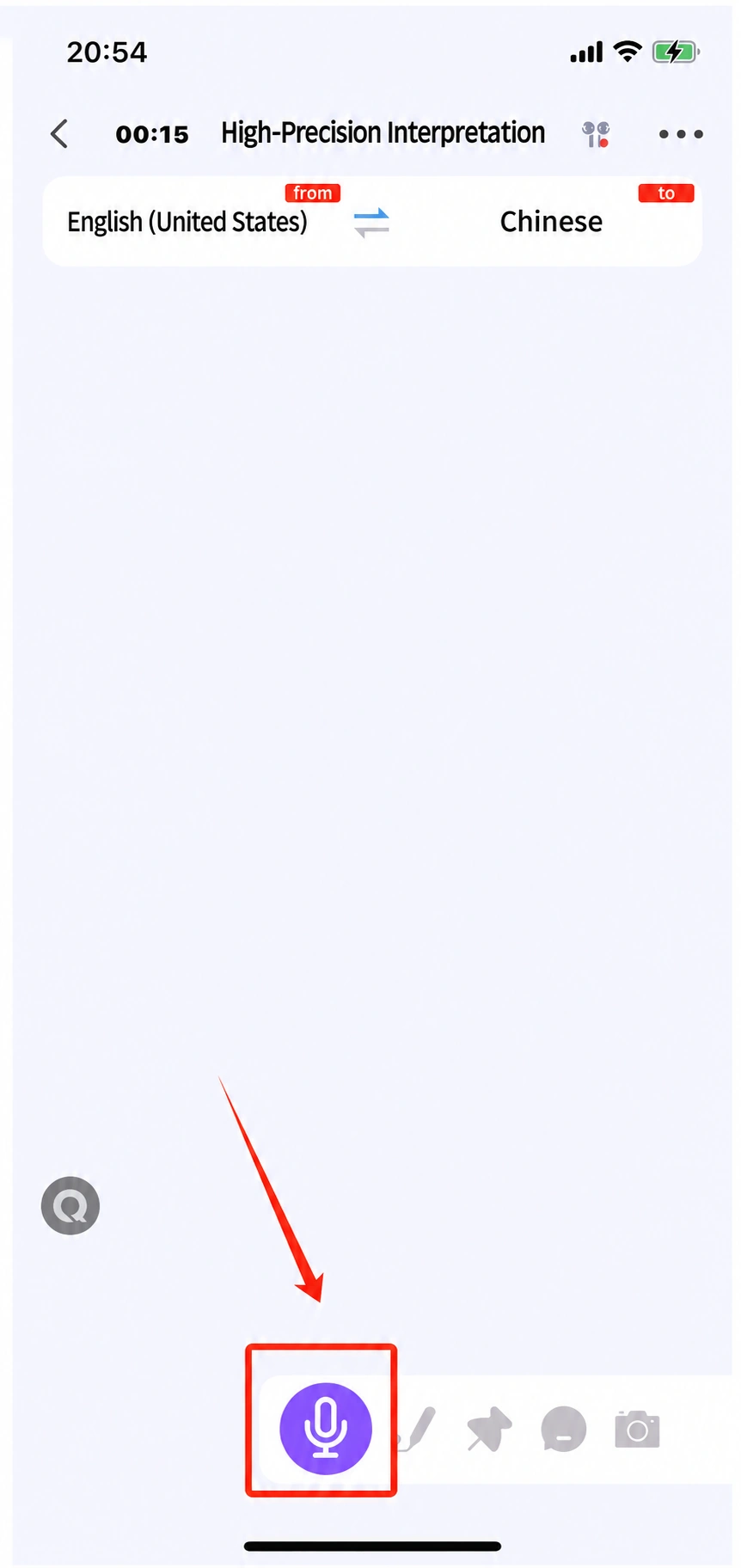
- In the app, go to More > Cross-App Simultaneous Interpretation, or enter through Simultaneous Interpretation > High-precision Interpretation > Audio Source Selection (Internal Phone Sound).
- Click the microphone icon, and in the pop-up permission request, click [OK] to allow the app to record audio.
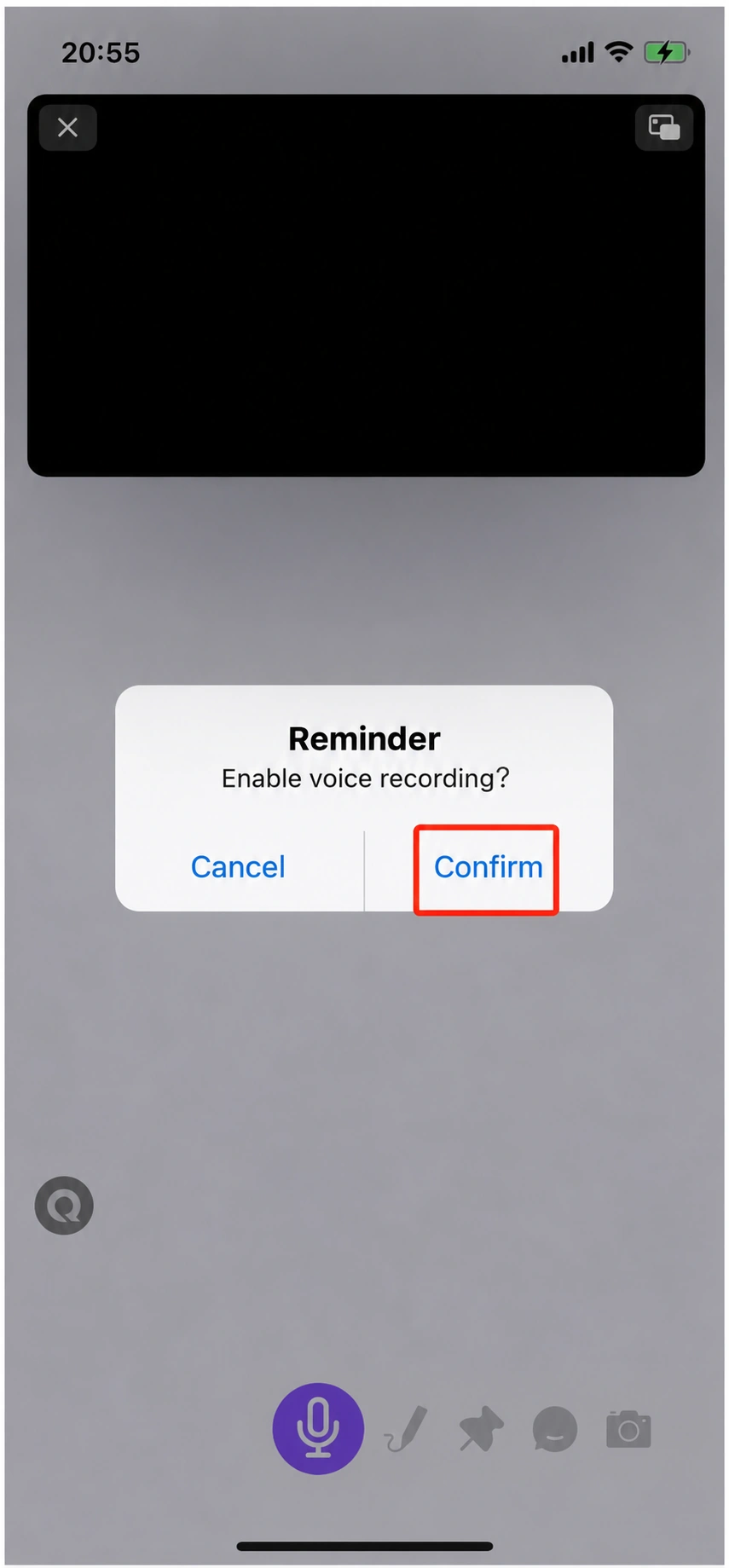
Step 2: Start the live broadcast and switch applications
3. Click [Start Live Broadcast] Button, wait about 3 seconds to prepare.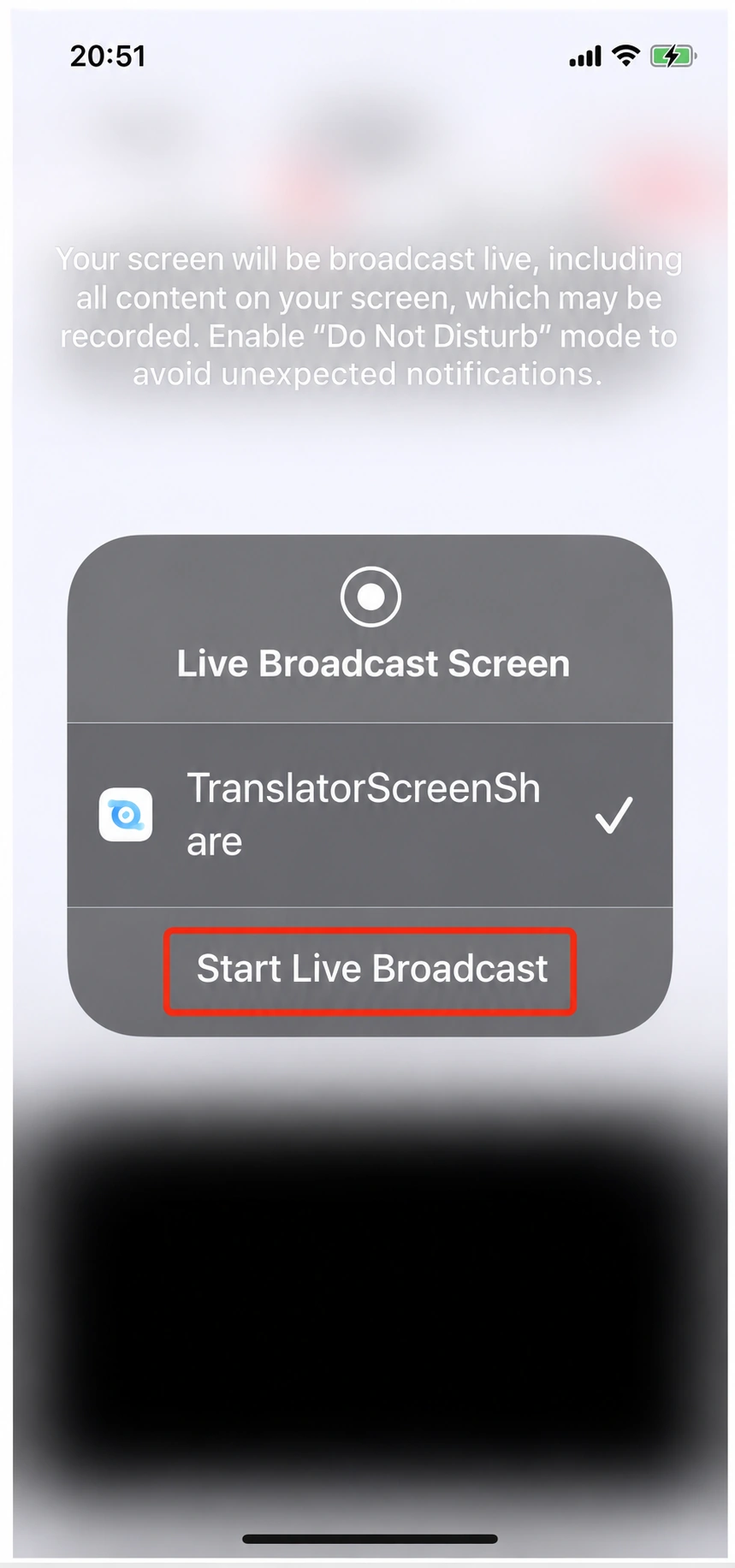
4. After turning on, the screen will display Live streaming Status prompt.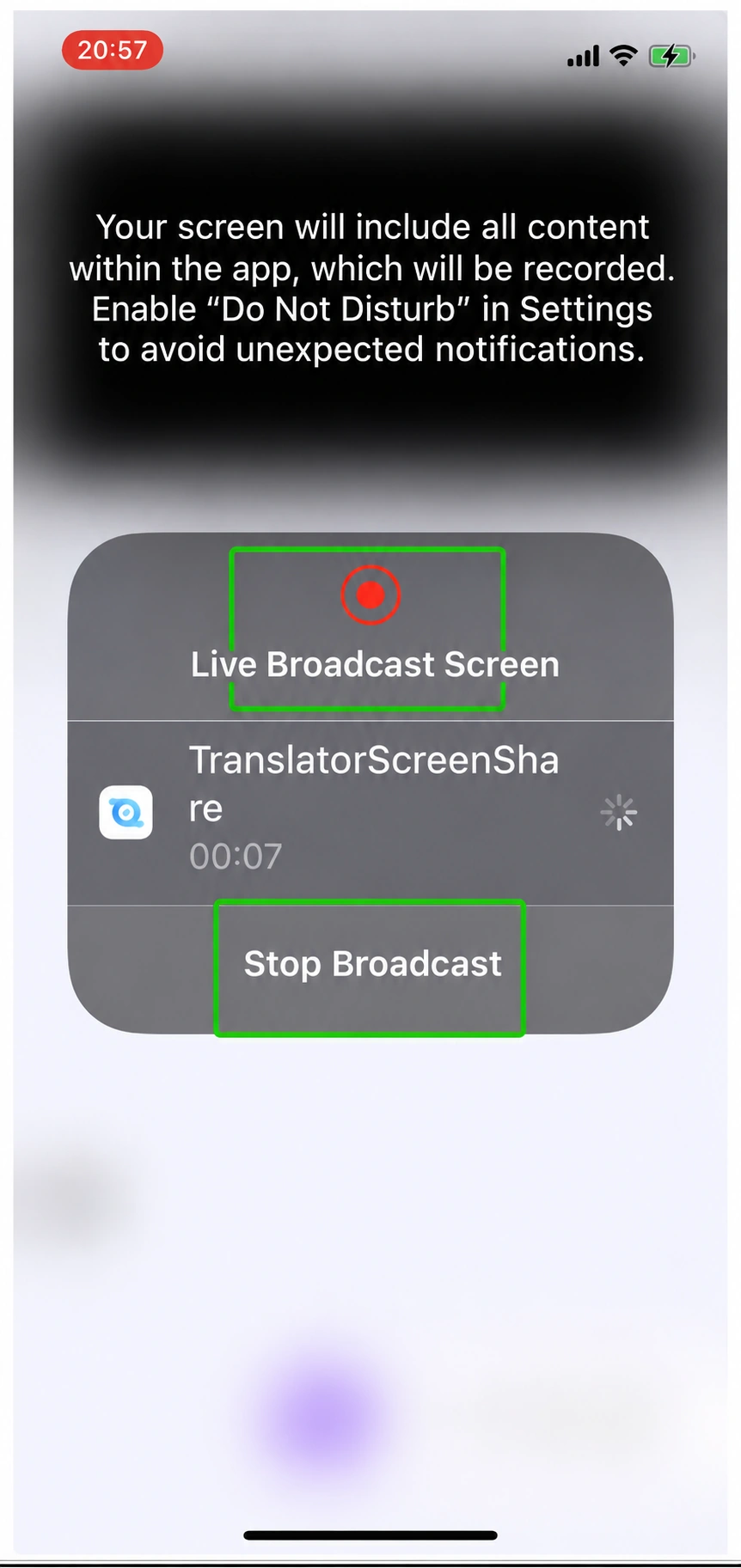
5. At this time, apply 'iTourTranslator'Switch to the background.
6. Open the video or audio app you want to use (such as Bilibili, YouTube, etc.) and start playing content.
7. After playback begins, the translation results will be displayed in real time in a Movable floating small window within it.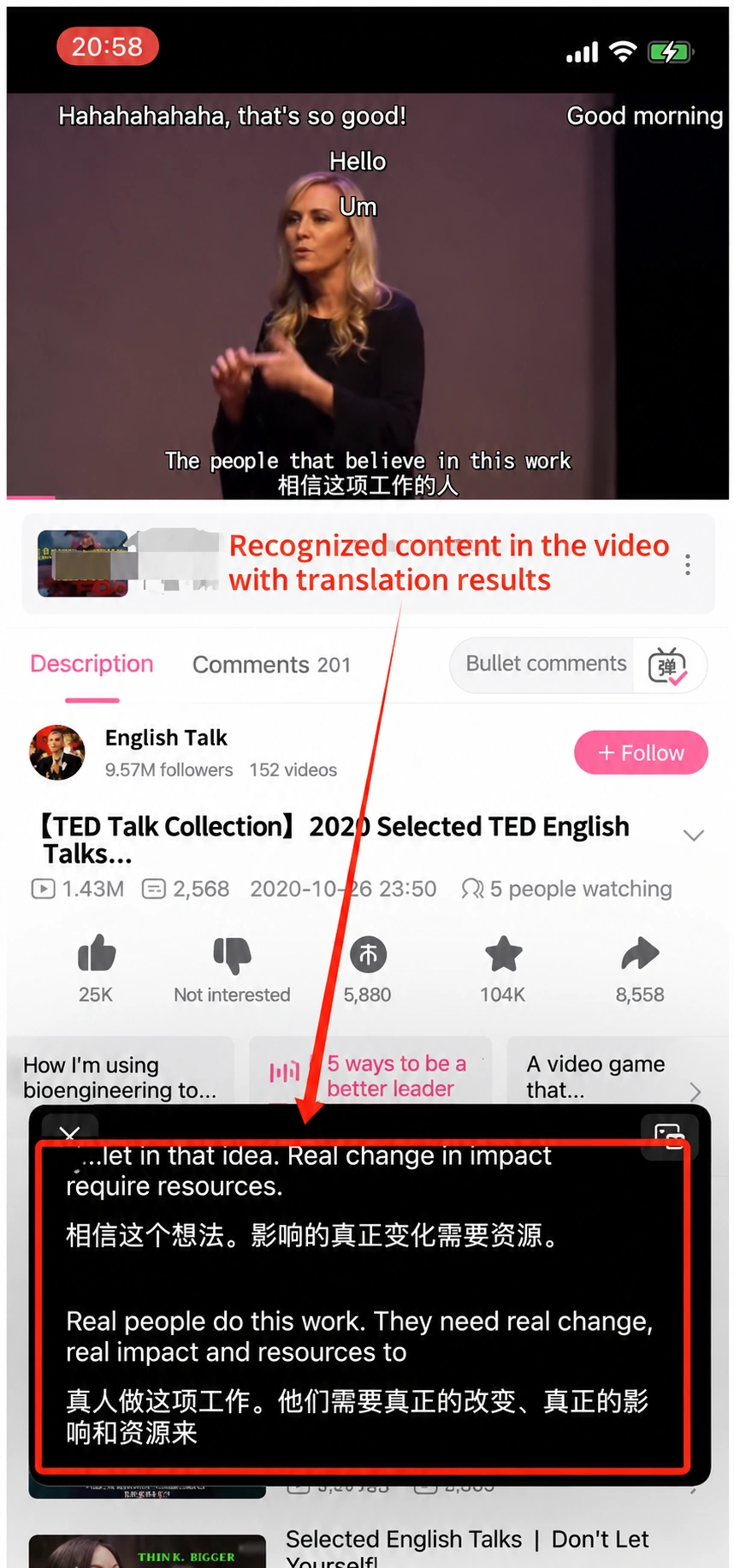
⚠️ Important Restrictions and Notices
- Unsupported applications: This feature cannot be used with meeting software such as Zoom, Tencent Meeting, Teams, or with real-time chat or voice calls on WeChat, Facebook Messenger, etc. To translate these types of calls, please use the dedicated "Video Call Translation" feature or the desktop client.
- No speech playback: The translation result is displayed only in text form in the floating window and will not be read aloud.
- System permissions: Using this requires granting the 'Audio Recording' permission, which is fundamental for the feature to work properly.
In simple terms,Cross-application simultaneous translation is your 'real-time subtitle board' when watching foreign-language videos.. If you want to get translations with narration in real-time conversations, please use 'Bilingual Conversation'.
After I purchase points or a package, is the previously given free 10-minute trial still valid?
It is effective and will be consumed first. The system will follow a clear consumption order to ensure that your gifted benefits are not wasted.
How Usage Is Charged
Your account balance consumption will be carried out strictly in the following order:
- Priority consumption: first deduct the remaining free trial time in your account.
- Subsequent consumption: After the free time is used up, the system will automatically start deducting the package time or general points you have purchased.
Tip
- No manual switching required: The entire process is fully automatic, and you don't need to make any manual settings.
- Progress Check: You can view the remaining balance of various packages/points at any time on the 'My' -> 'My Packages/Universal Points' page.
This design is intended to ensure that you can fully enjoy the complimentary trial benefits, and then use the paid resources afterward, thereby obtaining a better user experience.
If I purchase points or a package, will the translation be interrupted after the free time is used up?
The translation will not be interrupted or disconnected. The system will automatically switch billing sources seamlessly, ensuring a continuous and smooth user experience.
Explanation of Billing Rules
- Seamless Connection: When your free trial period ends, the system will automatically and imperceptibly start deducting the duration of the plan or general points you have purchased, so the translation process will not be interrupted.
- Usage Restrictions: Please note that the High-precision Interpretation package you purchased is limited in duration to the 'High-precision Interpretation' function and cannot be used for other translation modes (such as Standard Interpretation, video calls, etc.).
Tip
- It is recommended that you regularly check the remaining balance of various resources on the 'My' -> 'My Plan' page to plan your usage reasonably.
- If you mainly use High-precision Interpretation, buying a dedicated package is usually more cost-effective; if you need to use multiple functions, recharging general points offers greater flexibility.
In simple terms, as long as your paid account has enough points or package time, the translation service will continue.
I purchased a package, but why does it show '10 minutes remaining' when I use it?
This is because the one you are currently using The functionality does not match the purchased package.
Core reason
Each package usually has Specified scope of use. Taking the High-precision Interpretation package as an example:
- ✅ Package applicability: Only applicable for the 'High-precision Interpretation' feature.
- ❌ Other functions: When you use AI Interpretation, listening, bilingual conversation, video calls, and other functions, the package time cannot be consumed.
Provide detailed explanation
- Meaning of the "10 minutes remaining" prompt: When you use features outside of your plan, the system will default to consuming the trial time provided to your account (usually 10 minutes). This prompt refers to the remaining amount of that trial time.
- Billing order: After this 10-minute trial period expires, if you continue to use this feature, the system will automatically start deducting from your general points balance.
- How to properly use the package: To make full use of the High-precision Interpretation package you purchased, be sure to select the 'Simultaneous Interpretation' feature on the homepage and enter the 'High-precision Interpretation' mode.
View and Manage
- Package status: You can check the applicable scope and remaining duration of your purchased package anytime in 'My' -> 'My Packages'.
- Points Balance: You can check your general points balance at the top of the 'My' page or on the 'Points Recharge' page.
When using phone translation, why does it automatically hang up after about 30 seconds?
This is usually due to the device Network interference caused by enabling a VPN (circumvention software)Communication software is relatively sensitive to VPN connections, which may cause calls to be unexpectedly disconnected.
Solution
Please when using the phone translation function,Temporarily turn off the VPN or other network proxy software on your phone, maintaining a regular network connection can solve this problem.
Tip
- Temporary shutdown: Only need to turn off the VPN during call translation, and it can be turned back on after use.
- Network check: If the problem persists after turning off the VPN, please check whether the phone's basic network (Wi-Fi or mobile data) is stable.
- Function Notice: The phone translation feature itself has high requirements for network latency. Using a clean and stable network environment helps achieve the best call quality.
If you have turned off the VPN but still frequently encounter automatic disconnections, it is recommended to contact Customer Support, in order to further investigate the issue.
iTourTranslator on the iPhone, why does it play Cantonese when translating into Chinese?
This is because of the device's System Text-to-speech Settings It has affected the app's broadcast voice. Please follow the steps below to check and adjust your phone settings:
Adjustment Steps
Please check and adjust the following two system settings in order:
1. Check the 'Language & Region' settings
- Path: Open iPhone's 'Settings' -> 'General' -> 'Language & Region'.
- Goal: Ensure the 'Region' option is set to 'Mainland China'.
2. Check the voice settings under “Spoken Content”
- Path: Open iPhone 'Settings' -> 'Accessibility' -> 'Spoken Content' -> 'Voices' -> 'Chinese'.
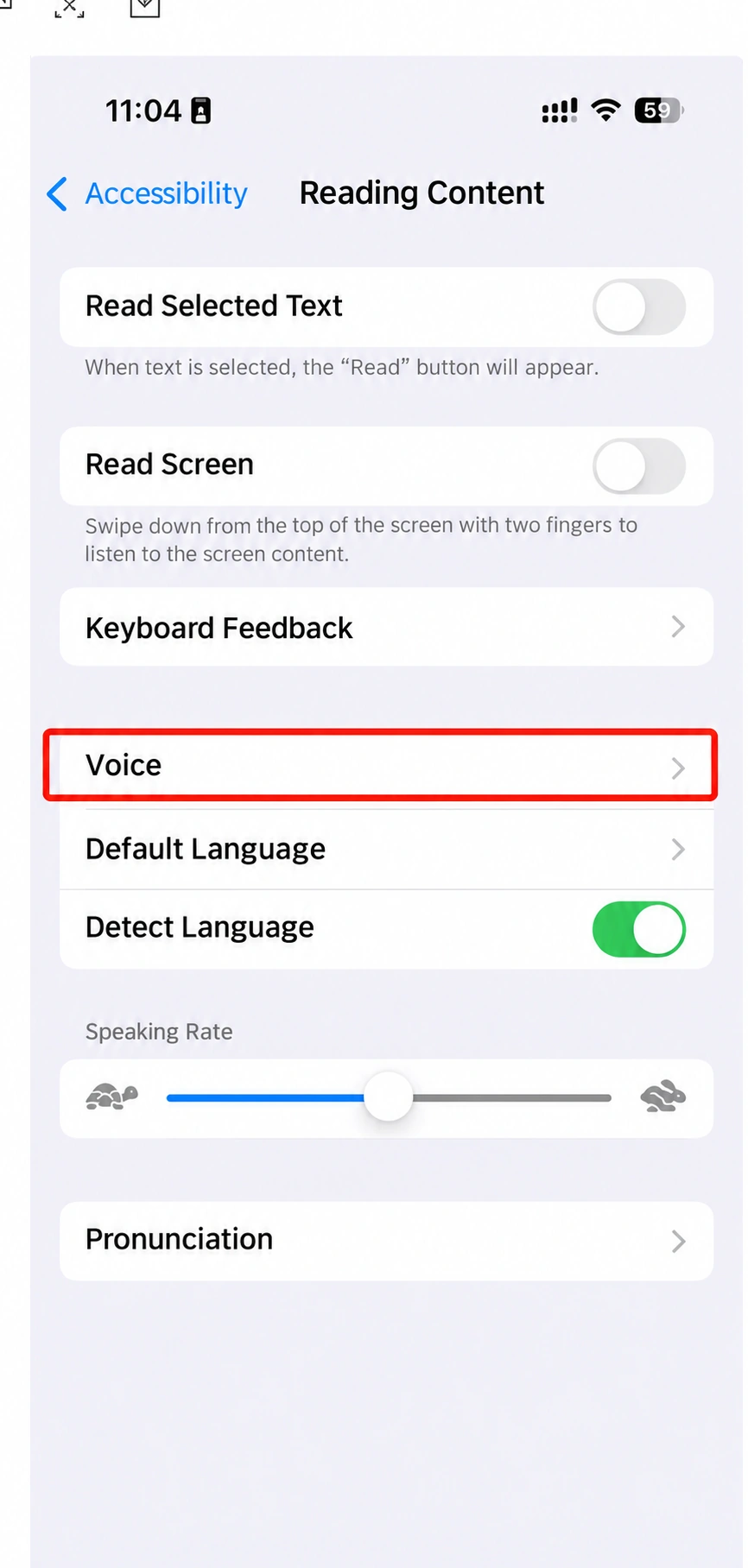
- Goal: In the 'Speaking' list, select the 'Mandarin' or 'Default' option.
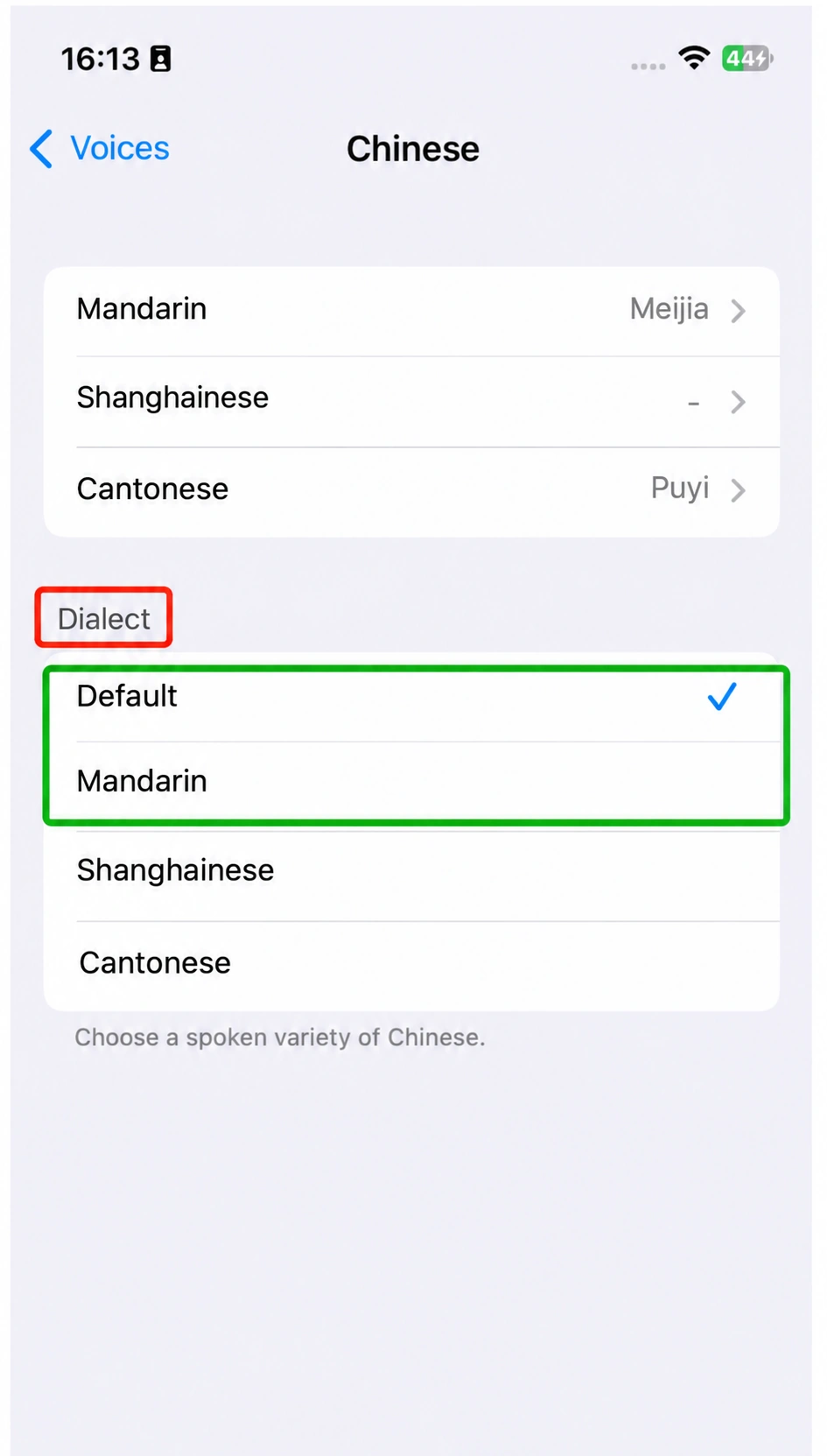
After completing the above settings, please restart the iTourTranslator app, and the Chinese translation broadcast should return to normal Mandarin.
Why This Happens
- Reason: The "Read Aloud" feature (VoiceOver/TTS) of the Apple system is a global setting. When the system default "Chinese voice" is set to Cantonese or other dialects, all apps that use this system engine (including iTourTranslator) will follow this setting for voice playback.
- App Permissions: The speech playback of this app relies on the phone system's speech synthesis engine and cannot independently override this system-level setting within the app.
iTourTranslator APP on iPhone, why does the floating window for simultaneous interpretation (high-precision/normal) disappear after switching the app to the background?
This is because of Apple's iPhone Picture-in-picture The function is not enabled, causing the app to be unable to run in the background in the form of a floating window.
Solution
Please follow the steps below to open the system settings:
- Open the iPhone's 'Settings' app.
- Scroll down and go to 'General'.
- Find and click 'Picture-in-Picture'.
- Set the 'Automatically turn on Picture-in-Picture' switch to On (green state).
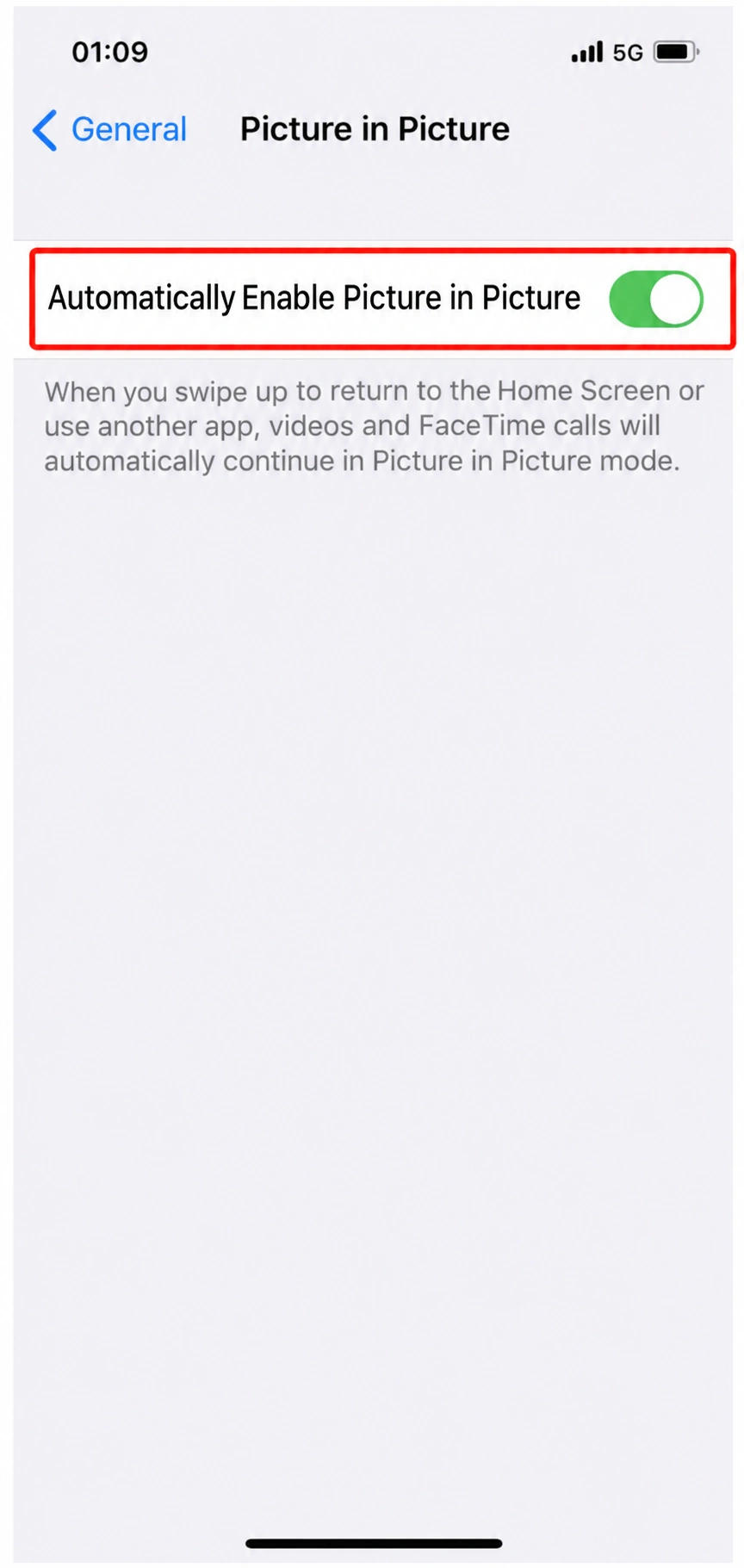
Operate after setting
After completing the setup, please return to the iTourTranslator app and restart simultaneous interpretation (such as High-precision Interpretation), then switch the app to the background as usual. At this time, the translation The floating window should be able to appear normally and continue working..
Tips and How It Works
- Function dependency: This floating window feature completely depends on the 'Picture-in-Picture' permission built into the Apple system, and the app itself cannot bypass this system limitation.
- Permission Check: If it still does not work after being enabled, please check whether the microphone permission for the iTourTranslator app has been mistakenly turned off (Settings > iTourTranslator > Microphone should be turned on).
Completing the above settings will resolve the issue of no floating window in the background. If the problem persists, it is recommended to restart the phone or Customer Support Get help.
When using various simultaneous interpretation features on an Android phone, how can you switch to other apps or lock the screen while still maintaining proper translation?
This requires enabling a key for the APP “Display over other apps” permission (Usually, the system describes it as 'allow display over other apps' or 'display over other apps'). Once enabled, the translation can continue running in the background and appear as a floating window.
Steps to Enable Permissions
Please follow the steps along the following path (the settings names may vary slightly for different phone brands):
- Access permission management: In the iTourTranslator APP, go to the translation page of any simultaneous interpretation feature (such as High-precision Interpretation). Click the 'Floating Window' icon or a similar prompt button usually located in the corner of the page. The system will pop up a guide; click 'Go to enable' or 'Go to settings'.
- Enable key permissions: The above operation will directly jump to the app permissions management page of your phone. You need to manually find the "iTourTranslator" app. In its permission list, find "Display over other apps," "Floating window," or similar descriptions. Set the switch for this permission to "Allow."
After the permission is enabled
After completing the setup, return to the translation page. When you switch to other apps, return to the home screen, or lock the screen again, iTourTranslator should appear as A small floating window continuously displays the translation results, ensure that the translation is not interrupted.
Important Instructions and Tips
- Brand differences: Due to the high customization of the Android system, the name and setting path of this permission may not be exactly the same on different brand phones (such as Xiaomi, Huawei, OPPO, vivo, etc.). If the above general path cannot be found, you can also manually locate and enable it through your phone's 'Settings' > 'App Management' > 'iTourTranslator' > 'Permissions'.
- Background Protection: To ensure that the translation is not cleared by the system, it is recommended that you also add the iTourTranslator APP to your phone's 'background whitelist' or enable 'background persistence' and other protection settings (usually found in the phone manager's battery optimization or app launch management).
Enable these two settings to ensure that your simultaneous interpretation runs steadily in the background. If problems persist, you can provide your specific phone model for more precise guidance.
iTourTranslator Mobile App: Can simultaneous interpretation be cast to other displays?
On Apple (iOS) phones You can use the system's built-in screen mirroring capability to project the translated content in real time onto a TV, computer monitor, or conference big screen.Android phones currently do not support this feature.
Methods to screen mirror an iPhone
iPhones mainly screen mirror in the following two ways:
1. Wireless screen mirroring to Apple devices (such as Apple TV) operation:
- Swipe down from the top right corner of the iPhone screen to open Control Center, tap 'Screen Mirroring', and select your Apple receiving device (such as Apple TV) from the list.
- Characteristics Convenient and fast, no cables needed, but requires the receiving device to support Apple's AirPlay protocol.
2. Wired connection to other displays (such as TV or projector) operation:
- Use Apple's official Lightning to HDMI adapter or a similar certified cable to connect the iPhone to the monitor's HDMI port.
- Characteristics Stable connection, low latency, compatible with most display devices with HDMI interfaces, it is a reliable choice for conference presentations.
Display After Screen Mirroring
No matter which method you use, once the screen casting is successful, you can start it on your mobile device Simultaneous Interpretation(such as High-precision Interpretation) afterward,The device being cast to will display the recognized and translated text from the mobile device in full screen and in real time., very suitable for meetings, teaching, or scenarios where multiple people watch together.
Tip
- Ensure network: When using wireless screen casting, make sure that your phone and the receiving device are connected to the same Wi-Fi network to ensure smoothness.
iTourTranslator Mobile App: After screen mirroring with an iPhone, how do you set the font size and color on the device being mirrored?
After you cast the real-time translation from your iPhone to a large screen (such as a TV or projector), you can directly set the text to be displayed on the cast device from your phone.Font size and Color.
Set Path
- Ensure the screen projection is successful: First, please make sure that your iPhone has successfully mirrored its screen to the target device via wireless (AirPlay) or wired connection.
- Enter the screen casting settings: In the iTourTranslator APP, go to the page of the simultaneous interpretation feature that is currently running. At the top of the page (usually to the right of the [Back button]), you will see a screen casting icon.
- Make adjustments: Click the screen casting icon to enter the settings menu. Here, you can adjust the font size and font color displayed on the cast device until you achieve the desired visual effect.
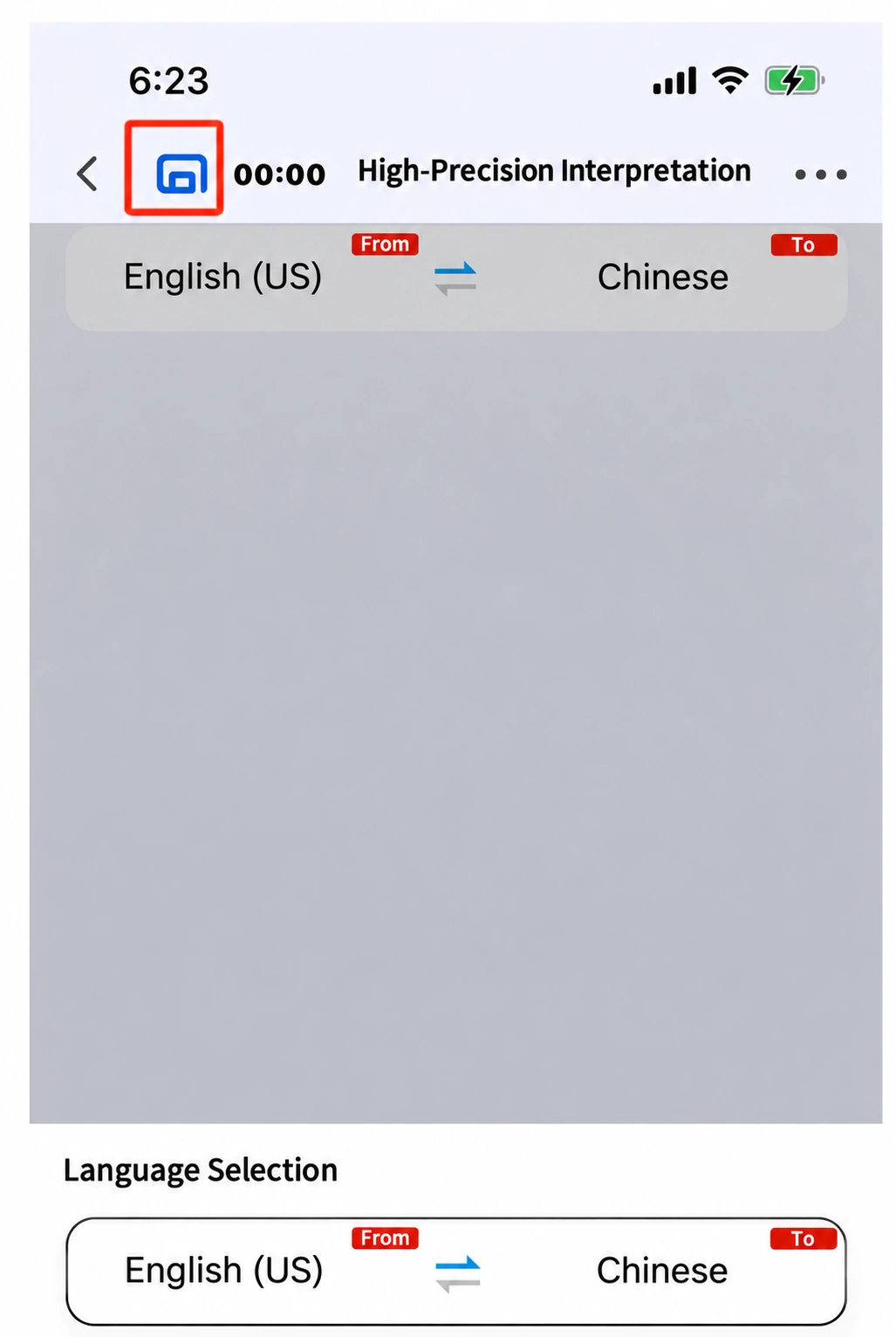
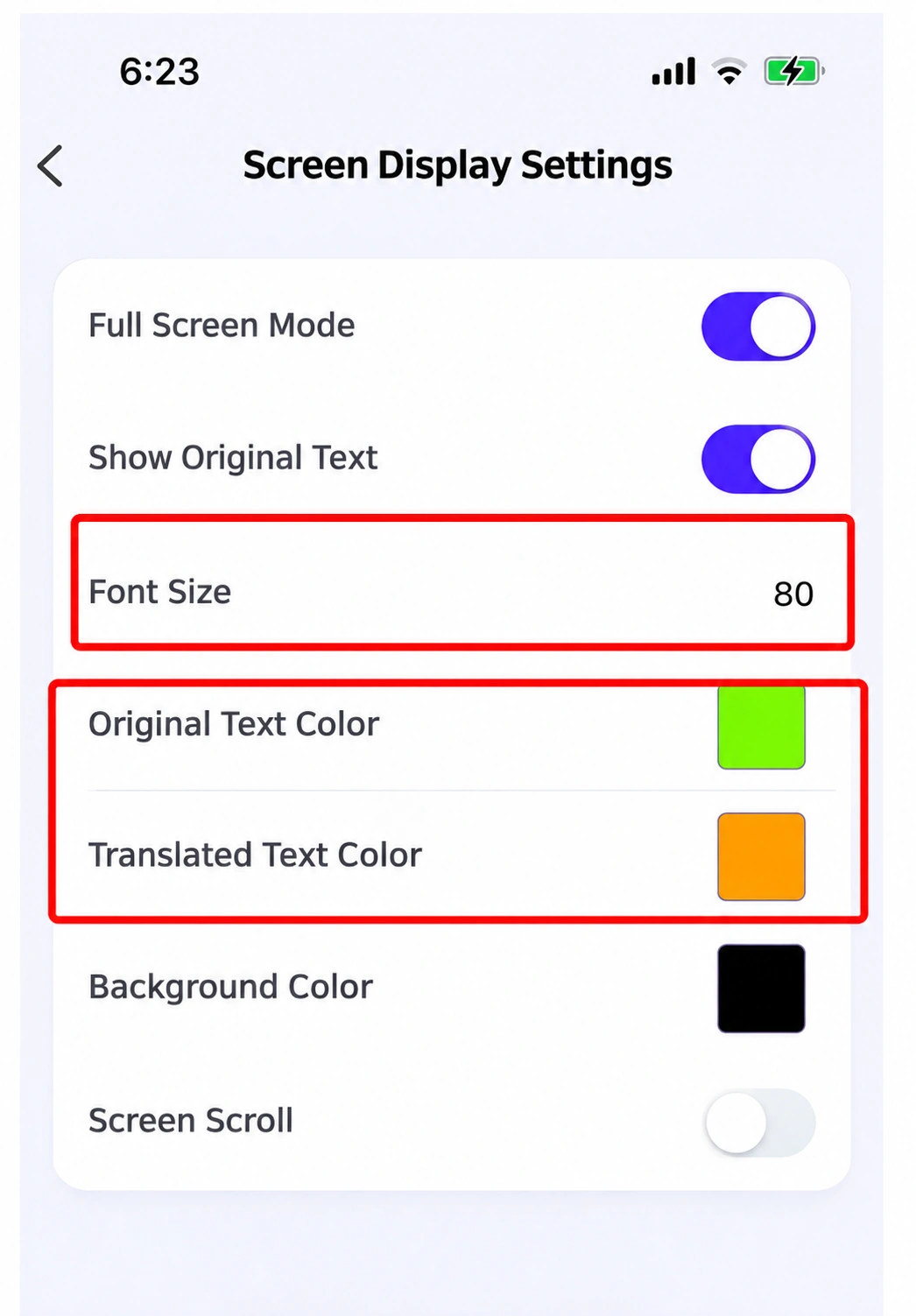
Important Notice
- Takes effect immediately: All your adjustments take effect in real time, and you will immediately see the changes on the screen being cast.
- Control only the remote: This setting only changes the display effect on the screen-mirrored device; the font size and color on your phone screen remain unchanged.
- Available Features This setting only applies to the screen projection of the simultaneous interpretation feature. If you are mirroring the entire phone screen, the display of other apps will not be affected by this setting.
By following the above steps, you can easily customize the translation text style on the large screen during presentations or meetings, ensuring that audience members in the back can also read clearly.
iTourTranslator Mobile App: After screen mirroring on iPad/Apple phone, how can the simultaneous translation feature be set to not display in full screen?
After casting the simultaneous interpretation feature on an iPad or iPhone, you can control it from the phone/tablet.Not in full-screen mode Display on the device being cast to.
Set Path
- Ensure the screen projection is successful: First, please ensure that your device is successfully connected to a display device such as a TV or projector via AirPlay (wireless) or an adapter cable (wired).
- Enter the screen casting settings: In the iTourTranslator App, go to the currently running simultaneous interpretation feature page. In the top navigation bar of the page (usually to the right of the [Back Button]), find and click the screen casting icon.
- Turn off full-screen display: In the pop-up screen casting settings menu, find 'Full Screen Display' or a similar option, and turn it off (switch it to gray mode).
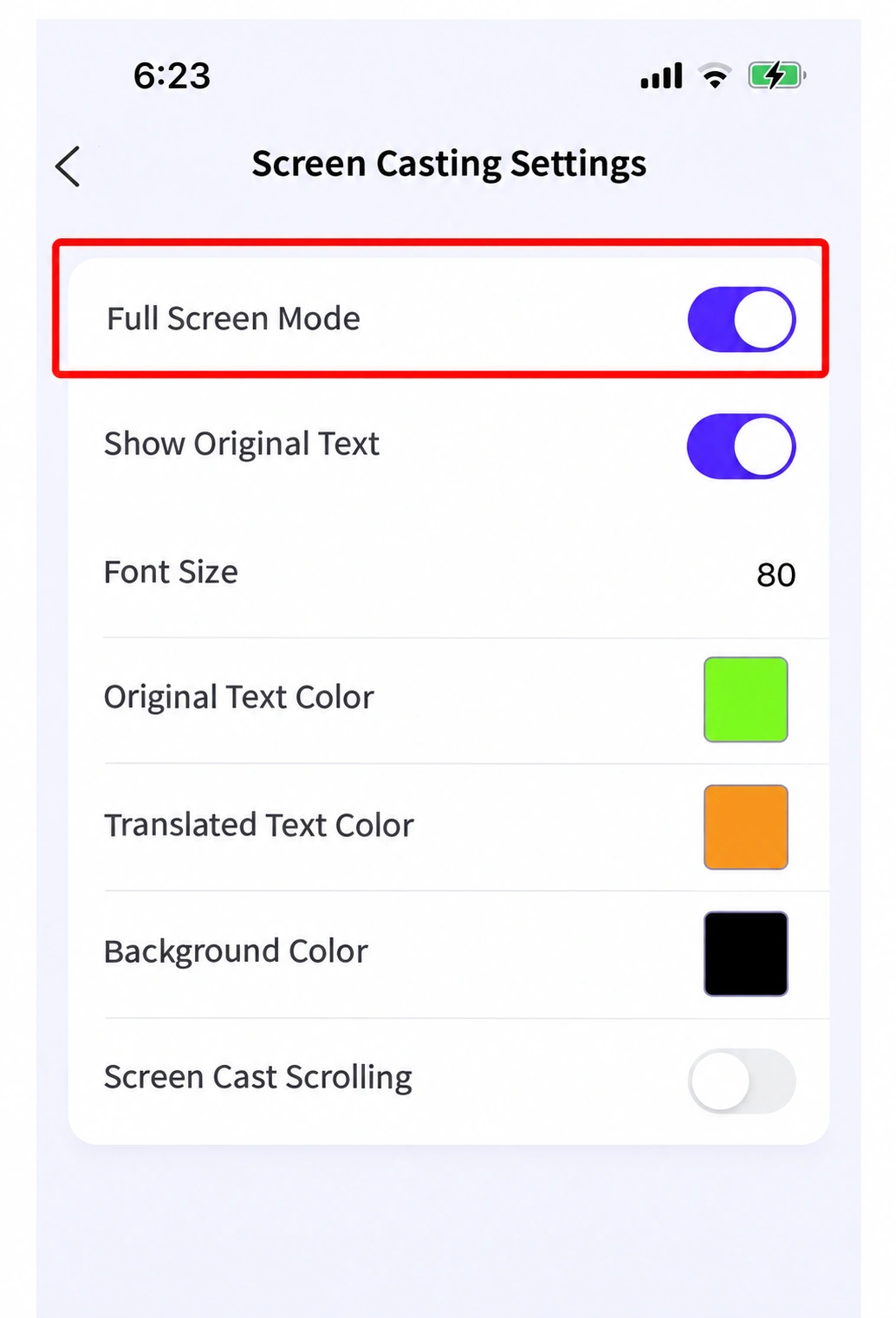
Set Effect
After turning off this option, the screen being cast to will No longer display translation content in full screen You can adjust the position and size of this window in the settings menu on your mobile device as needed.
Tip
- Real-time adjustment: This setting adjustment takes effect in real time, and you will immediately see changes in the display mode on the screen-cast device.
- Separate App: This setting only applies to the simultaneous interpretation screen casting of the 'iTourTranslator' app. If you are casting the entire device screen, this setting does not apply.
- Applicable scenarios: Non-fullscreen mode is suitable for scenarios where you need to display other content (such as PPT or web pages) during a presentation, allowing the translation window to be shown as supplementary information.
By following the above steps, you can flexibly control the display mode of screen casting to meet the presentation needs of different scenarios.
iTourTranslator App: Can I upload video files for translation?
iTourTranslator app currently does not support uploading videos for translation.
If you need this feature, please download our PC client application.Video subtitles(This app is specifically used for video subtitle translation). Download link: iTour Subtitle
iTourTranslator Mobile App: Can I upload audio files for translation?
Currently, the mobile app does not support uploading audio for translation. Please use this feature by downloading the PC client:
- iTourTranslator: Click to download
- iTourVoiceTranslator: Click to download
iTourTranslator mobile app: Can I upload files/documents for translation?
Except for Huawei phones, the current mobile apps support uploading common files (such as Word and PDF) for translation. If more professional document processing is needed, you can also download our PC client, which offers more comprehensive features.
Mobile App Supported Range: Mainstream brand phones (excluding Huawei)
Desktop App (Recommended): iTour Document Translator More powerful, supports more formats Click to download
iTourTranslator mobile app: How do I delete my account?
To delete your iTourTranslator account, follow the steps for your phone’s operating system:
iPhone
Enter the app 'My' → Click 'Profile Picture/Nickname' → Go to the 'Personal Information' page → Select 'Account' → Choose 'Delete Account'
Android phone
Enter the app 'My' → Click 'Avatar/Nickname/Account' → Go to the 'Personal Information' page → Select 'Delete Account'
Tip:
- If there is still a balance in the account, unused packages, or purchased virtual numbers and other assets, the account cannot be deactivated. Please try again after using or handling them.
- Account support for automatic recovery within 7 days after cancellation. After 7 days, data will be permanently deleted and cannot be recovered. Please proceed with caution.
iTourTranslator App: How do I change the bound phone number?
You can change your bound phone number in the app by following this path:
Navigation Path
My → Profile Picture/Nickname/Account → Phone Number → Change Phone Number
Tip
- Changing your phone number may require the original number to receive a verification code. Please make sure the original number is available.
- After changing the binding,Sign In with a Verification Code Will use a new phone number.
- If the original phone number is no longer available, please contact Customer Support for assistance.
If you need more detailed step-by-step screenshots or operation instructions, I can explain further for you.
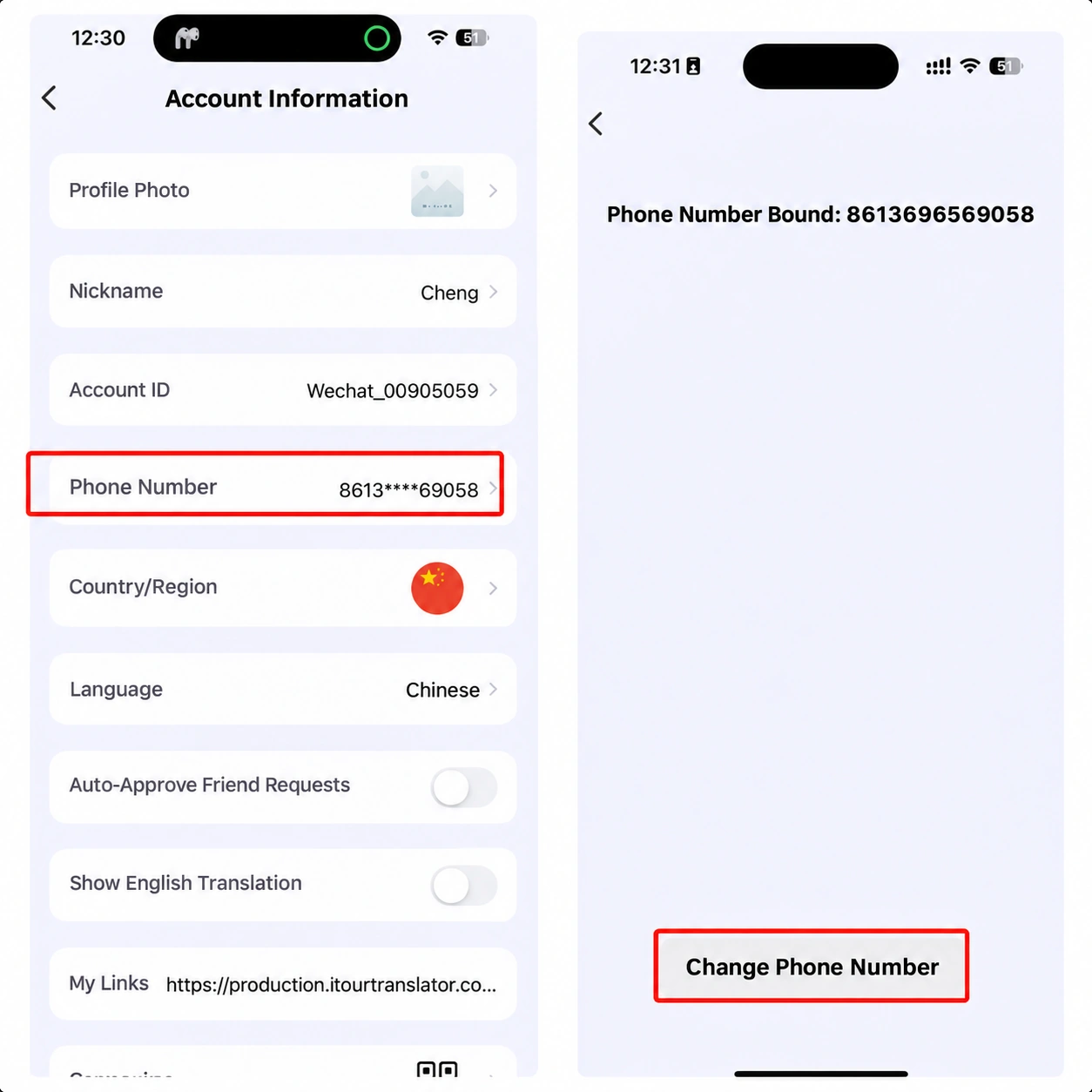
iTourTranslator App: Can I recover my account after deleting it?
After canceling your account, you will Within 7 days You can automatically restore your account by logging in again.More than 7 days The data will be permanently deleted and cannot be recovered.
Please note:
- Recovery method: Within 7 days, log back into the APP with the original account. Prompt: Do you want to restore the account? → After confirming recovery, you can automatically log in to the APP.
- Risk Reminder: If you do not log in during the recovery period, all data in the account (including history) will be unrecoverable after expiration. Please proceed with caution.
iTourTranslator App: For Facebook and WhatsApp video calls, which feature should I use?
Due to Mobile phone restrictions The app currently does not support direct translation of WhatsApp or Facebook calls. You can refer to the following solutions to meet your translation needs:
Scenario 1: Need to quickly resolve the current call translation
- It is recommended to temporarily adopt a 'dual-device solution': one device for calls, and the other device to open the mobile app for real-time translation.
Scenario 2: Hoping to achieve a more stable call translation experience
- Recommended download iTourTranslator PC Client: Get better call translation effects on the computer, supporting more features.
- or download iTour Chat Translation Client: Specifically optimized for real-time conversation and chat translation.
Scenario 3: Professional call translation in situations requiring mobility
- Recommended to use iTour 22 Pro (T2) translation earphones: specially designed for audio and video call translation, suitable for mobile, business, and other scenarios.(Specific function operation:iTour 22 Pro audio and video call)
iTourTranslator Mobile App: How do I set the font size/font color for the simultaneous interpretation feature?
You can set the font size and color by following these steps on the simultaneous interpretation feature page of the mobile app:
Navigation Path
Enter any interpretation mode (such as High-precision Interpretation/AI Interpretation/Basic Interpretation, etc.) → click the page The 'Settings' icon in the upper right corner → Select"Font Settings" → You can adjust the font size and color
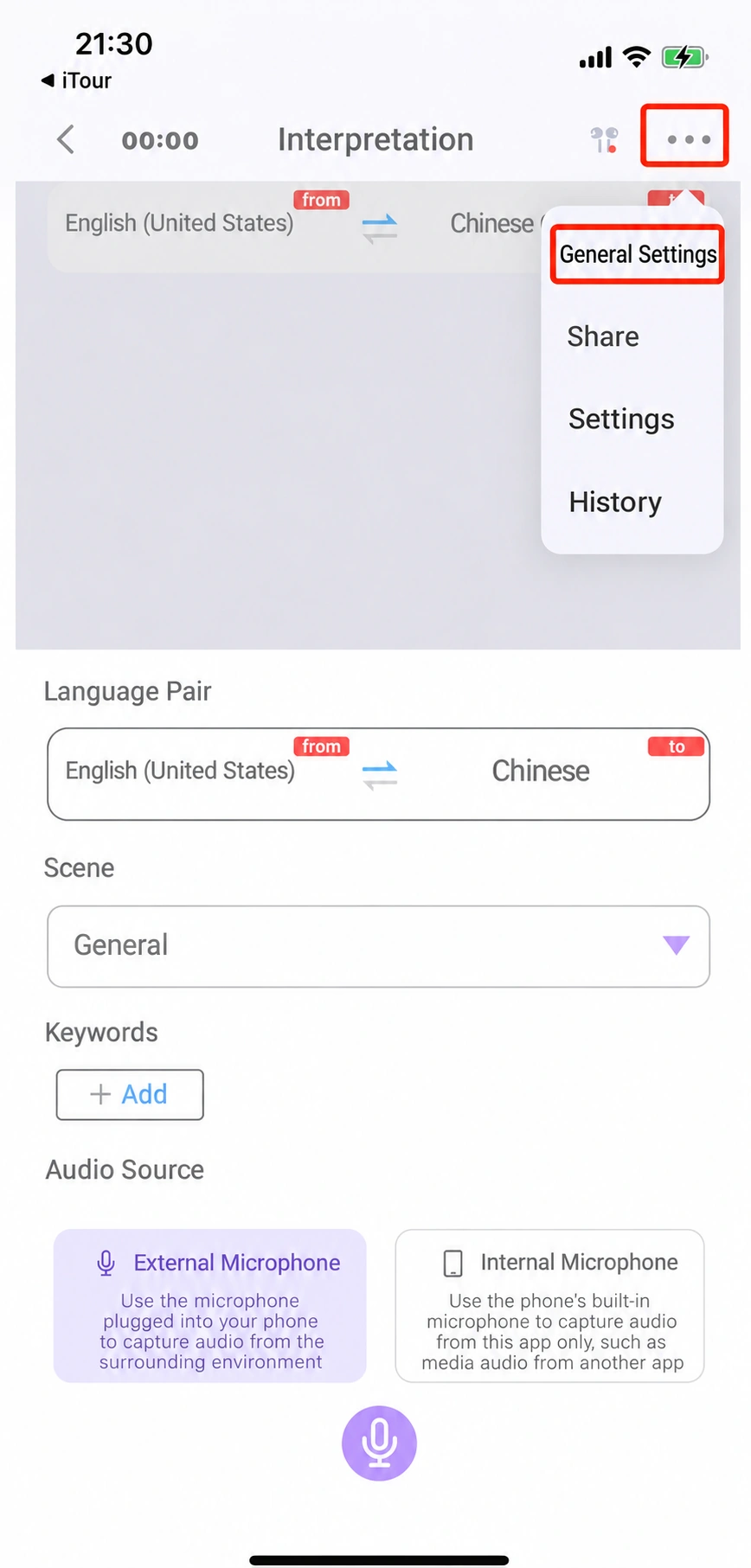
iTourTranslator for Desktop19 Questions
Open in a separate page →External microphone devices (such as simultaneous interpretation machines) cannot be recognized by the software
It is recommended that you first check whether the computer can normally record sound from the external microphone.
Step 1: Confirm whether the computer can normally record sound from an external microphone
Windows computer
- Right-click the sound icon (small speaker) at the bottom right of the taskbar and select 'Sound Settings'.
- In the Input area, choose your external microphone from the Select input device dropdown (usually shown as the device model or "USB Audio Device").
- Speak into the microphone and observe whether the test volume bar below has blue fluctuations.
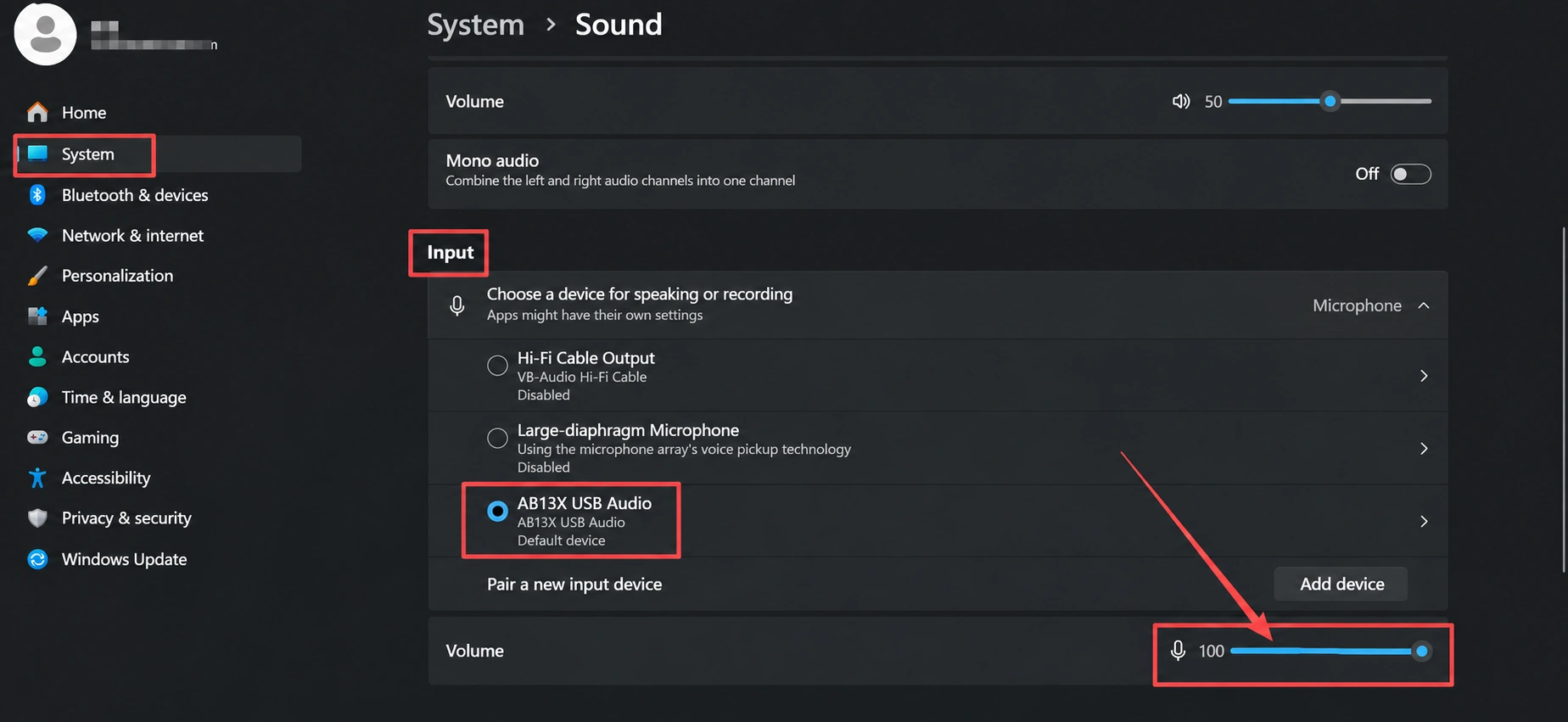
Mac computer
- Click the Apple icon in the top left corner → 'System Settings' → 'Sound' → 'Input' tab.
- Select your external microphone in the device list (usually shown as "USB Audio Device" or the device model).
- Speak into the microphone and observe whether the input volume indicator bar fluctuates.
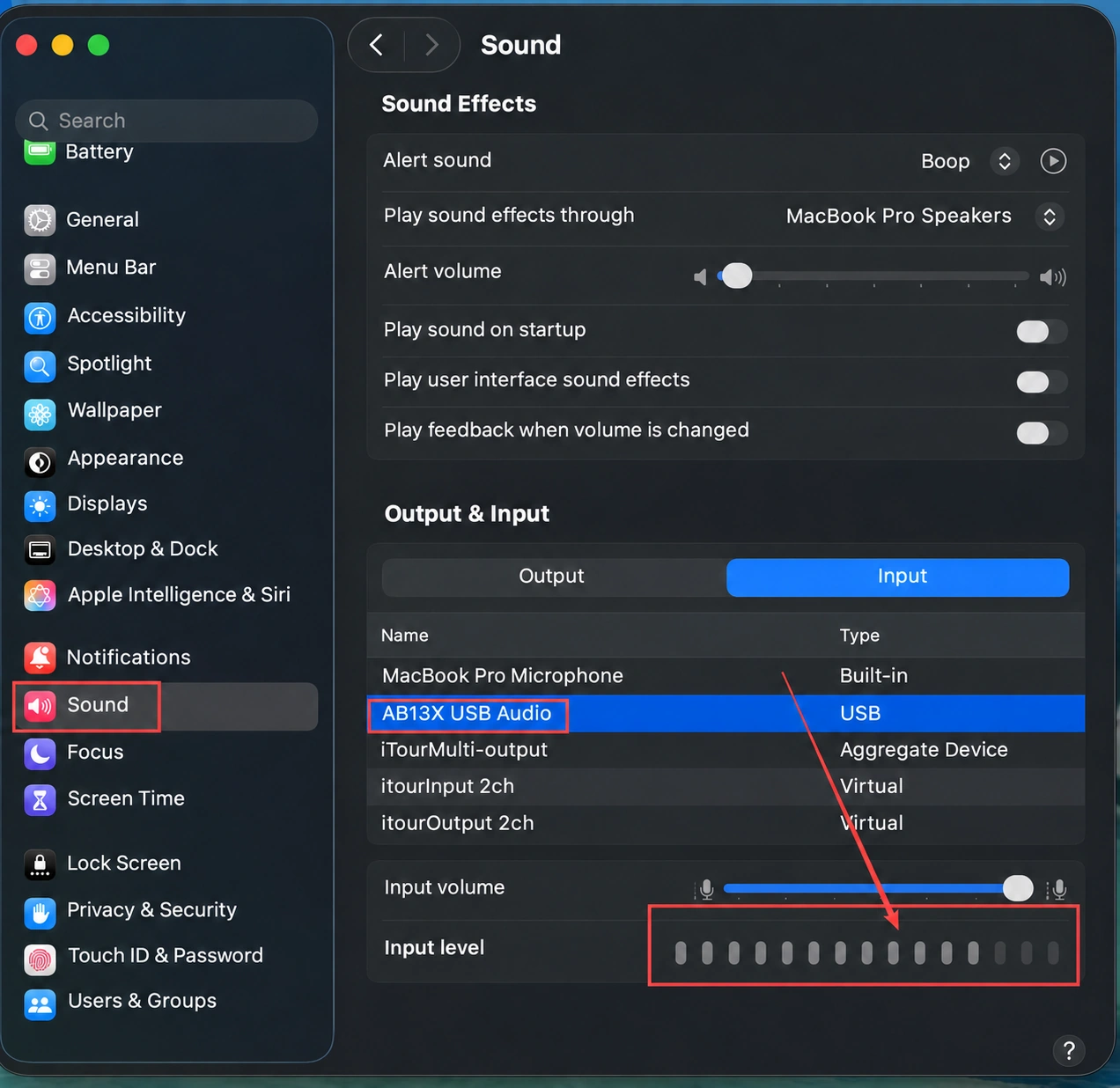
Results and Next Steps
- No activity → This indicates that the problem may be with the computer or external devices. It is recommended that you first check the device connections or consult the device manufacturer.
- Activity detected → Indicates that the computer can record sound normally, please proceed to step two.
Step 2: Check the software settings and test the microphone
Windows computer
- Make sure the audio source is set to "Microphone" and that the selected capture device matches the input device name in your computer system settings.
- Turn on the translation, speak into the external microphone, and observe whether there are volume fluctuations in the lower left corner of the software.
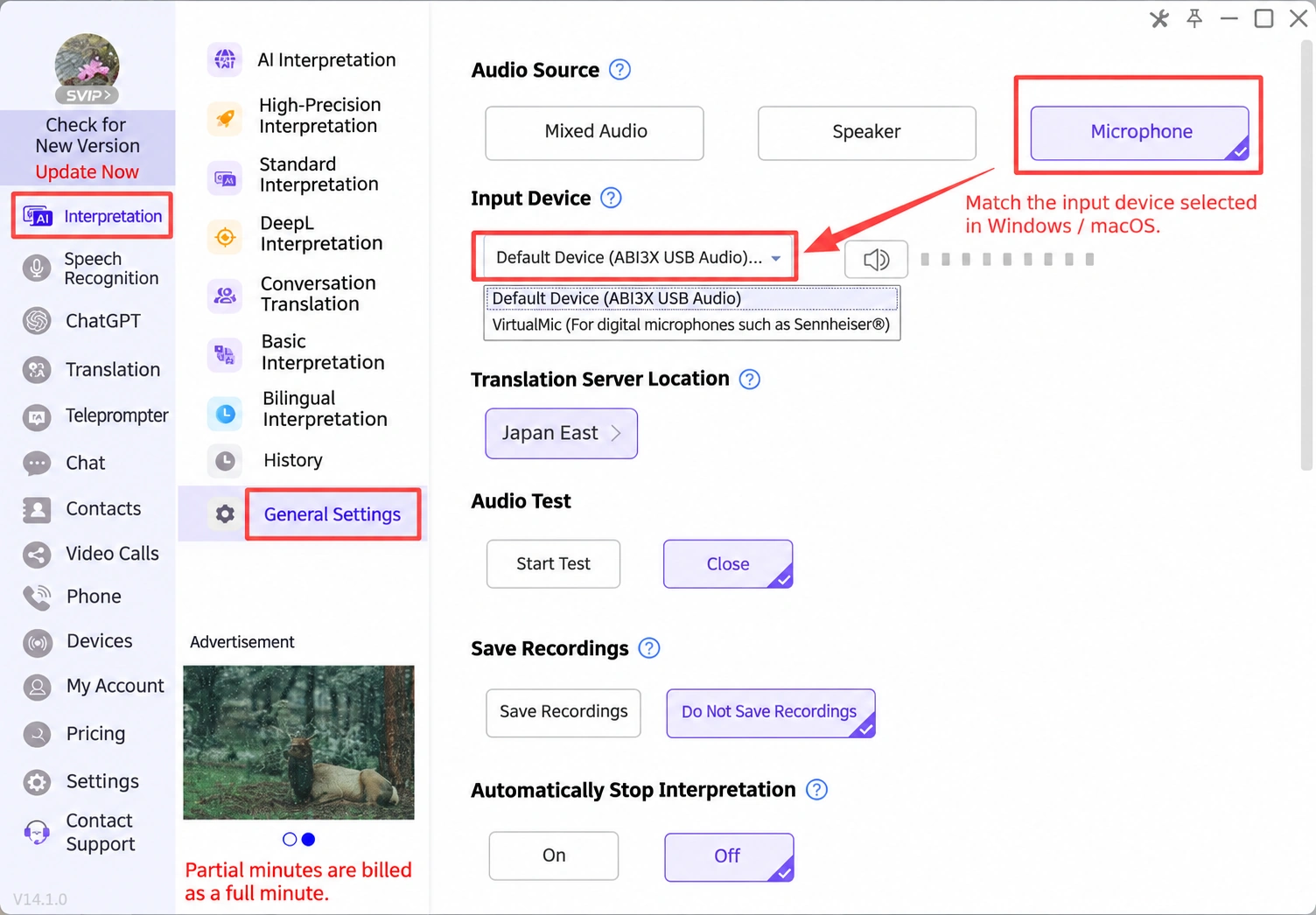
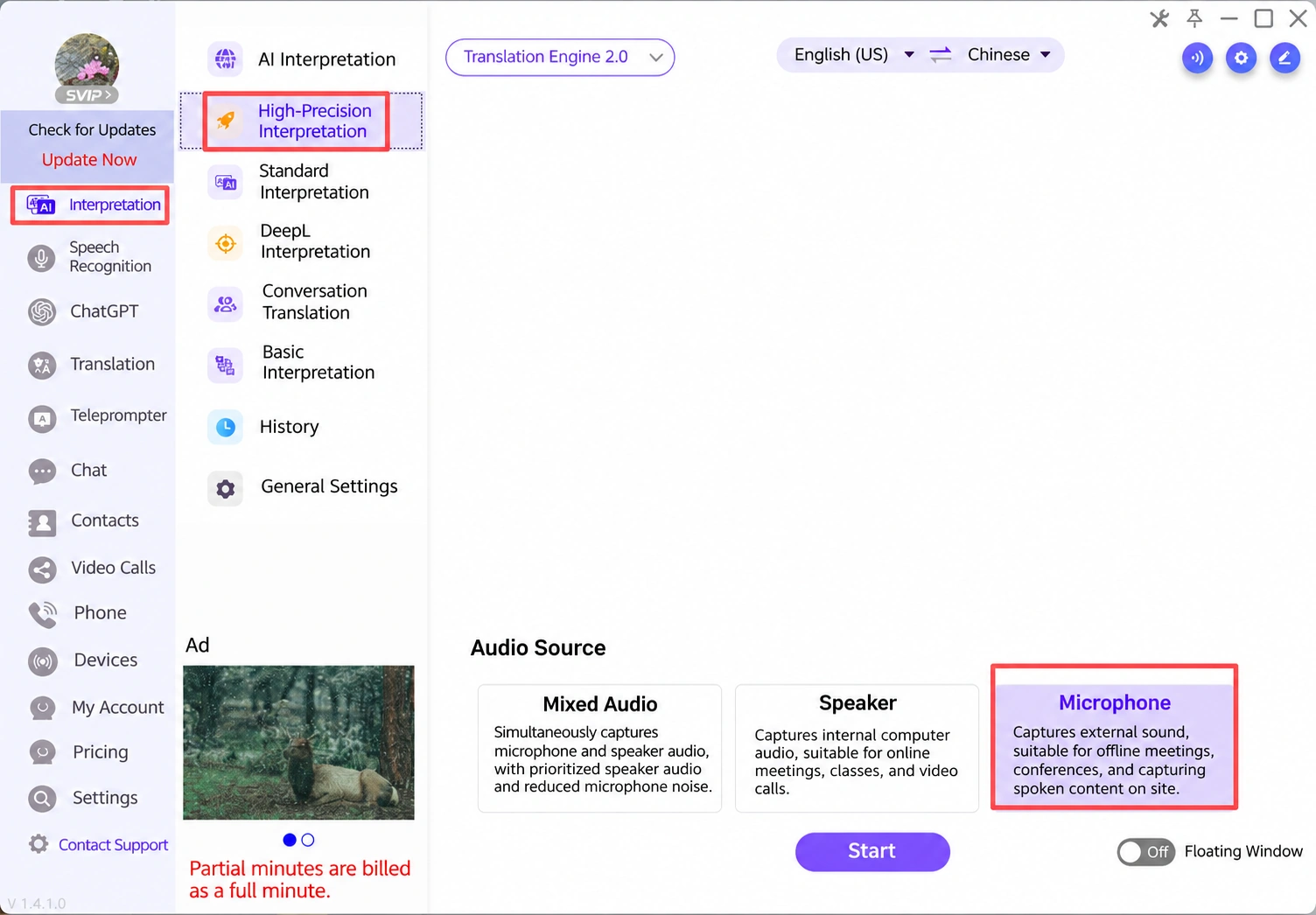
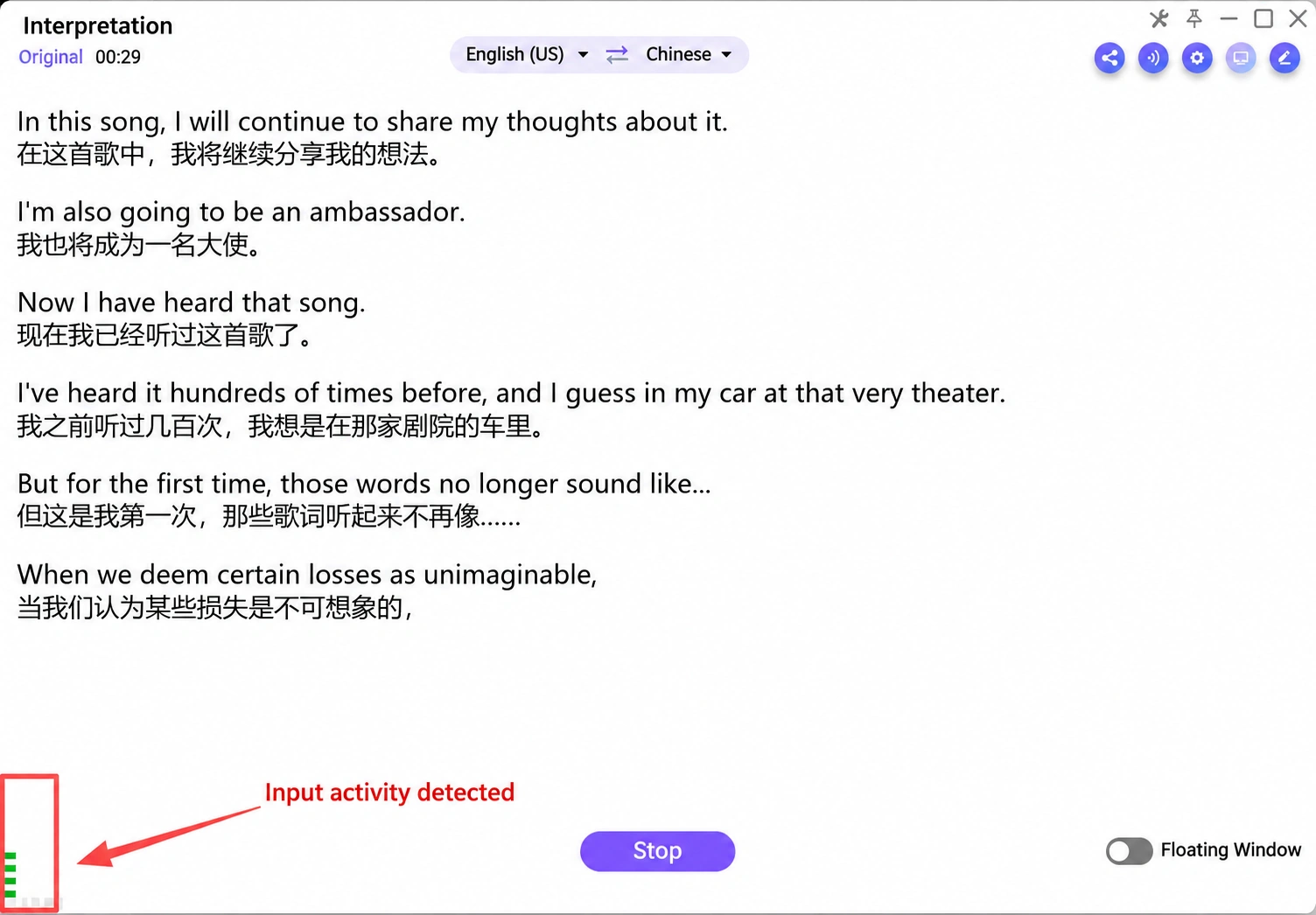
Mac computer
- Make sure the audio source is set to "Microphone"
- Turn on the translation, speak into the external microphone, and observe whether there are volume fluctuations in the lower left corner of the software.
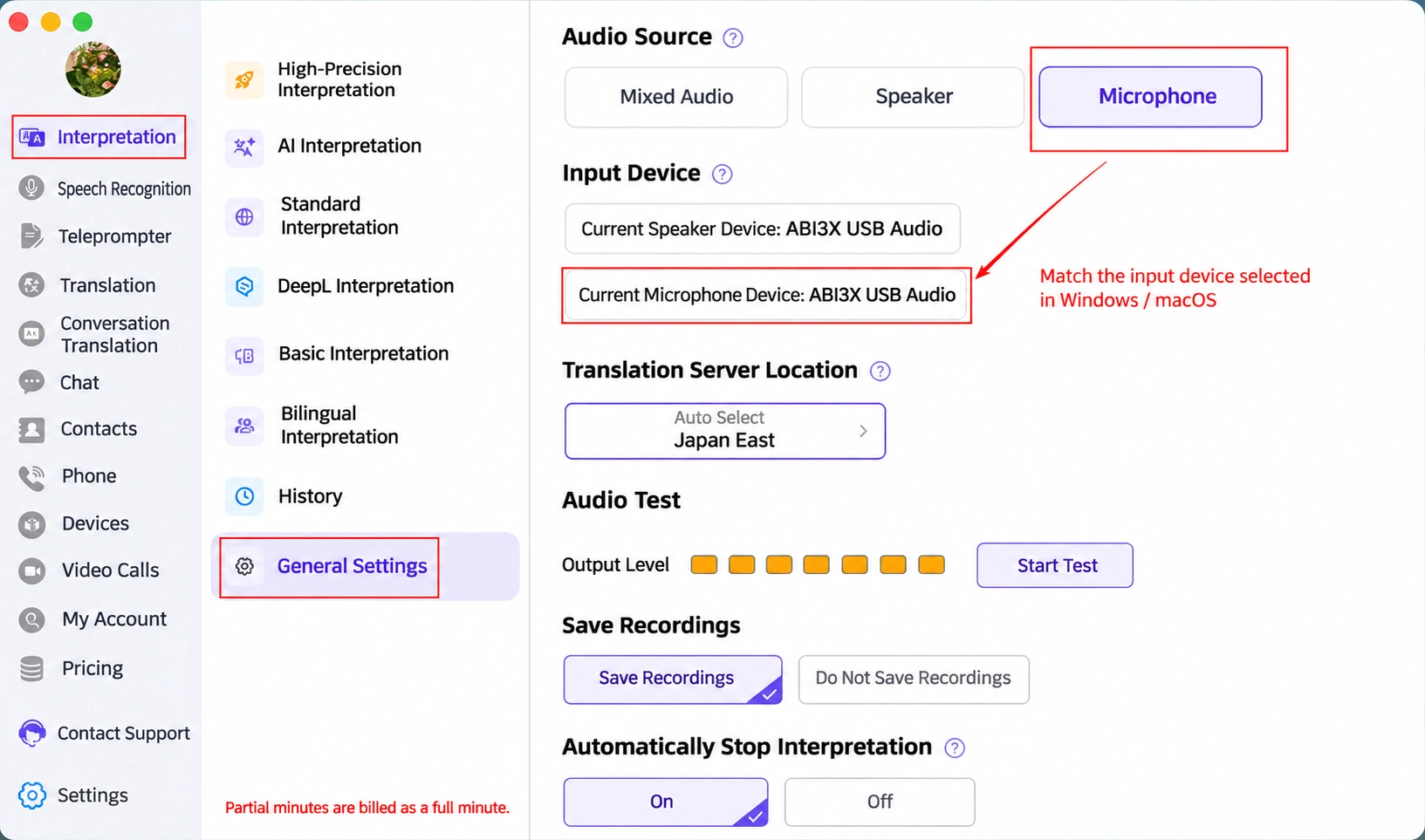
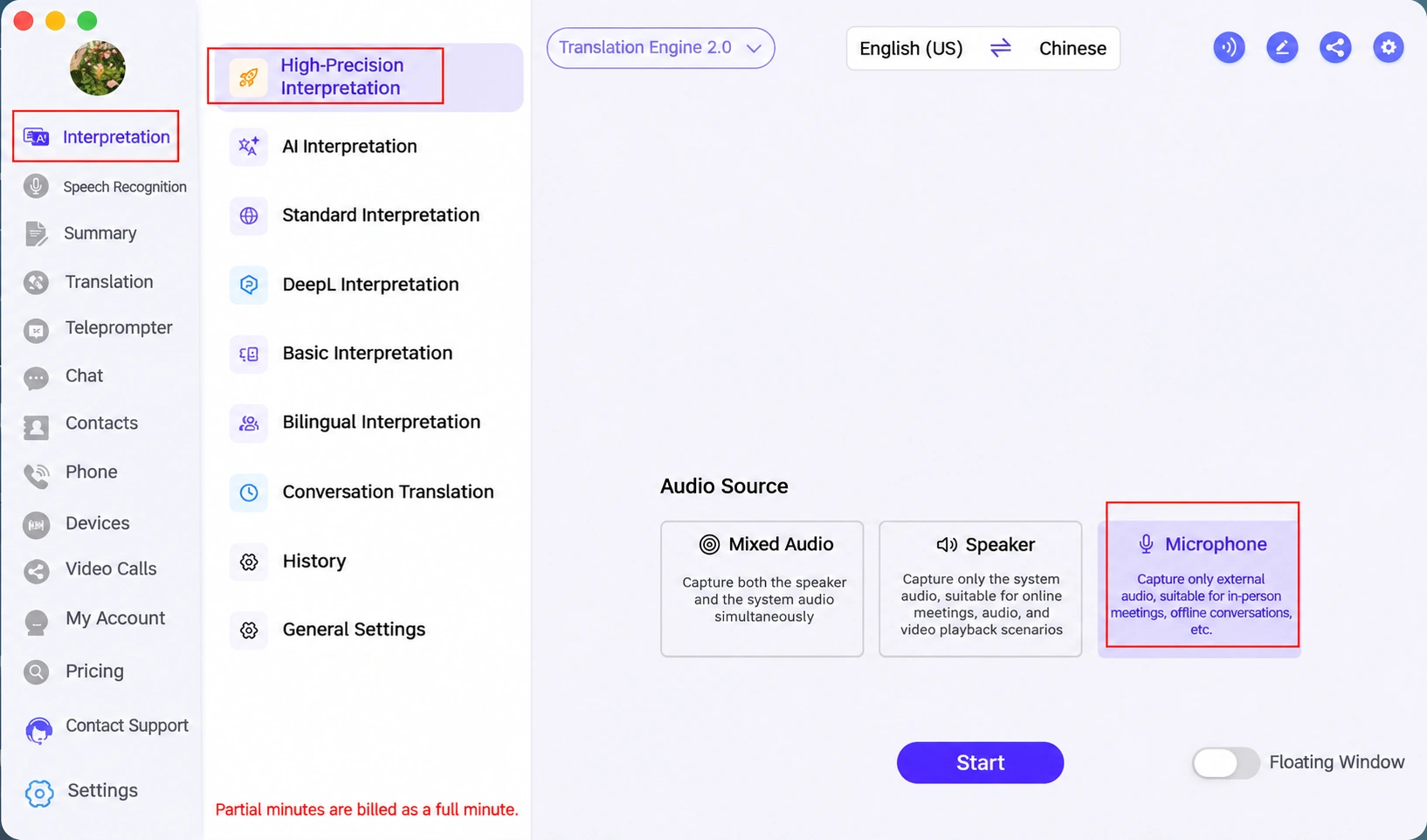
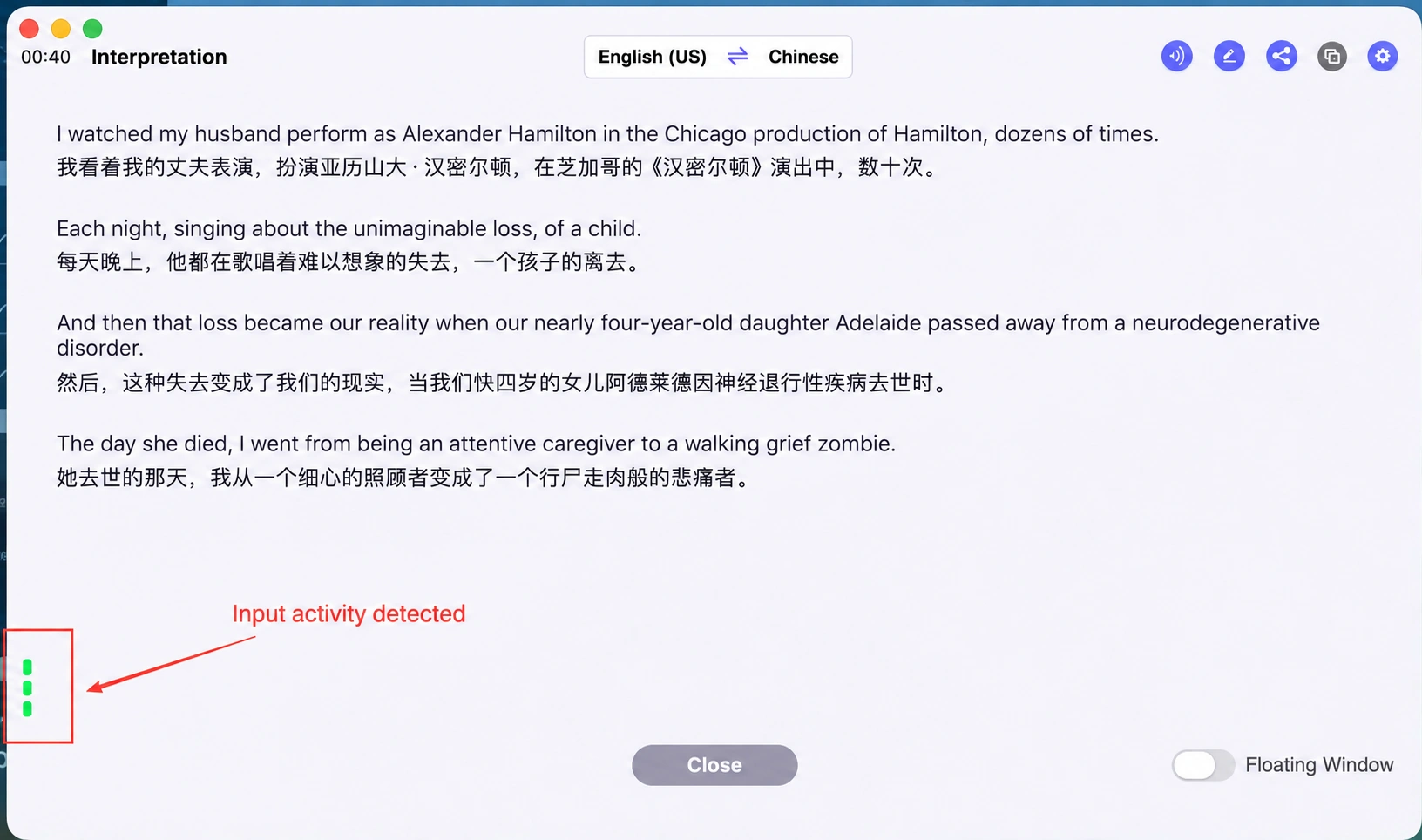
Results and Next Steps
- Activity detected → Audio input is working correctly. You can use the translation feature.
- No fluctuations → Please contact Customer Support Troubleshooting (please inform customer service that you have completed the above troubleshooting steps when providing feedback).
Where can I download the iTourTranslator desktop version?
You can download the iTourTranslator desktop version through the following methods:
Download directly from the official website
- Visit the official download address: iTourTranslator
Download from the app store
- Mac: Open the App Store and search for “亲爱的翻译官” or “iTourTranslator” to download the app.
- Windows PC: You can search for 'iTourTranslator' in Tencent PC Manager or the Microsoft Store to obtain it.
Does the iTourTranslator desktop version support translating Zoom, Teams, Tencent, Webex, and other conference software?
Yes, it does. The iTourTranslator desktop app is compatible with mainstream meeting software such as Zoom, Microsoft Teams, Tencent Meeting, and Webex. The operation is very simple:
- Start a meeting: Start or join a meeting as usual in the software you commonly use (such as Zoom).
- Start simultaneous interpretation: In iTourTranslator open “Simultaneous — Simultaneous type (e.g. High-precision)” and tap Start.
- Real-time translation: The software can automatically capture meeting audio and translate it in real time, allowing you to view bilingual subtitles.
Tip:
1. Please make sure that the speaker in the meeting software and the speaker device selected in iTourTranslator are consistent.
2. Make sure the other party’s language (left) and your language (translation language — right) are selected correctly
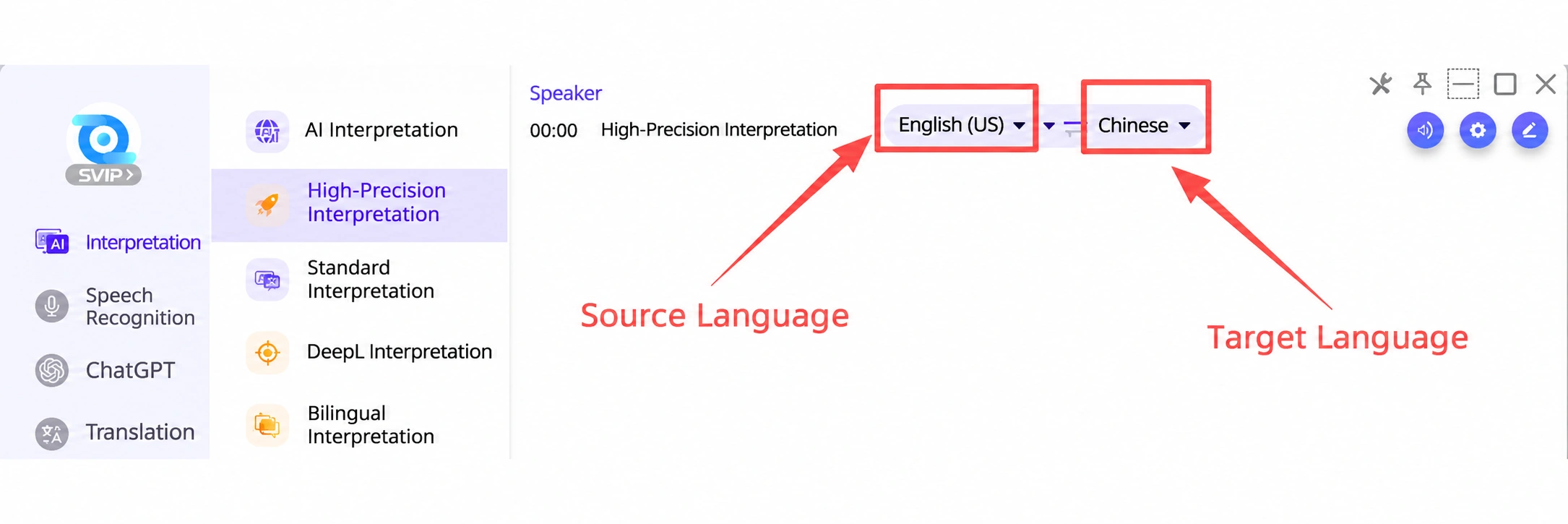
Why does iTourTranslator on the computer not display any translated content after turning on translation?
If no content is displayed after enabling translation on the iTourTranslator desktop app, you can follow these steps to troubleshoot:
1. Check the audio source selection
- Online meeting(Only translate the other party's voice): Select Speaker
- Face-to-face on-site communication: Choose Microphone
- Online meeting(Voice translation required for both parties): Select Mixed Audio
- Mixing Mode: Primarily uses the computer's internal sound (speaker output). When both you and the other party speak at the same time, the other party's voice will be prioritized for recognition.
2. Confirm device and software settings
- If the correct audio source is selected and there is still no translation, please check:
- Online meeting: Ensure the meeting software's Speaker output device matches the device selected in iTourTranslator Speaker.
- On-site meeting: Confirm whether the computer microphone is working properly
3. Still unresolved
If the above steps still cannot resolve the problem, you can contact Customer Support, and we will help you troubleshoot.
What function should be used for Chinese-English translation on the iTourTranslator desktop app?
If you need to perform Chinese-English bilingual translation on the iTourTranslator desktop app, it is recommended to use “Bilingual Interpretation / Conversation Translation” under “Simultaneous Interpretation” feature.
This feature is designed for real-time bidirectional translation between Chinese and English. It can automatically recognize Chinese and English in conversations and output translation results simultaneously, making it suitable for meetings, communication, learning, and various other scenarios.
How do I redeem the top-up card I bought on WeChat Mini Program/Taobao for iTourTranslator on the computer?
If you purchased a top-up card on the WeChat Mini Program or Taobao, you can redeem it on the iTourTranslator desktop version as follows:
Windows computer
Open the software → Go to 'My Account' → Select 'Coupon Redemption' → Click 'Top-up Card Redemption' and enter the card code
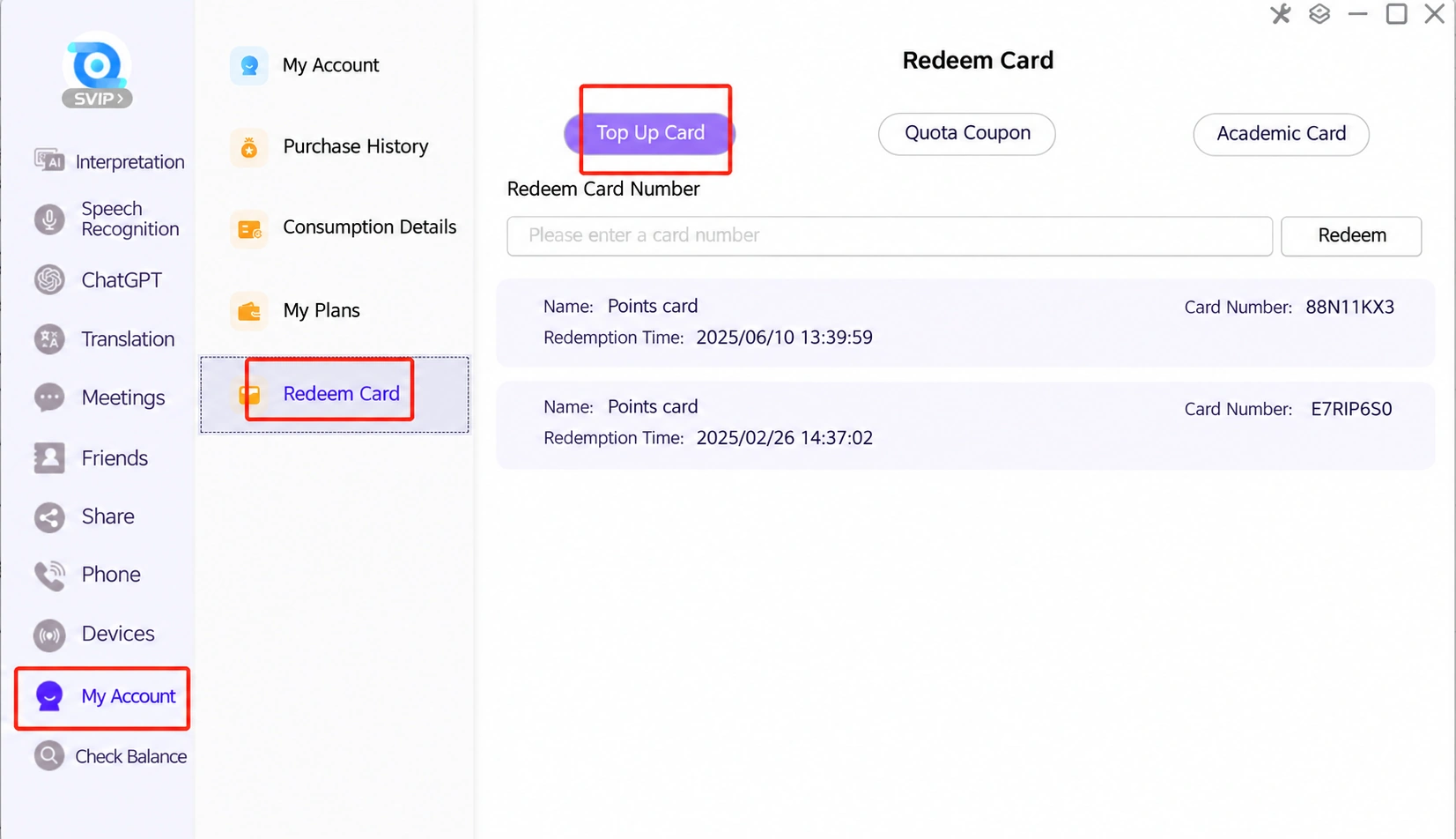
Mac computer
- For software downloaded from the official website: please redeem it within the software following the same path as above (My Account → Coupon Redemption → Top-up Card Redemption)
- For software downloaded from the App Store: please scan the QR code below and complete the redemption through the webpage (you can insert the corresponding QR code image here)
If you encounter any problems during the redemption process, you can contact us at any time Customer Support for assistance.
Can iTourTranslator on the computer record meeting content while recognizing it at the same time?
Yes. During the simultaneous interpretation process, the iTourTranslator desktop app will Simultaneously record audio and generate text transcripts in real time.
After the translation is complete, you can in Simultaneous Interpretation → History Records View the full conversation text and listen to the corresponding recording playback.
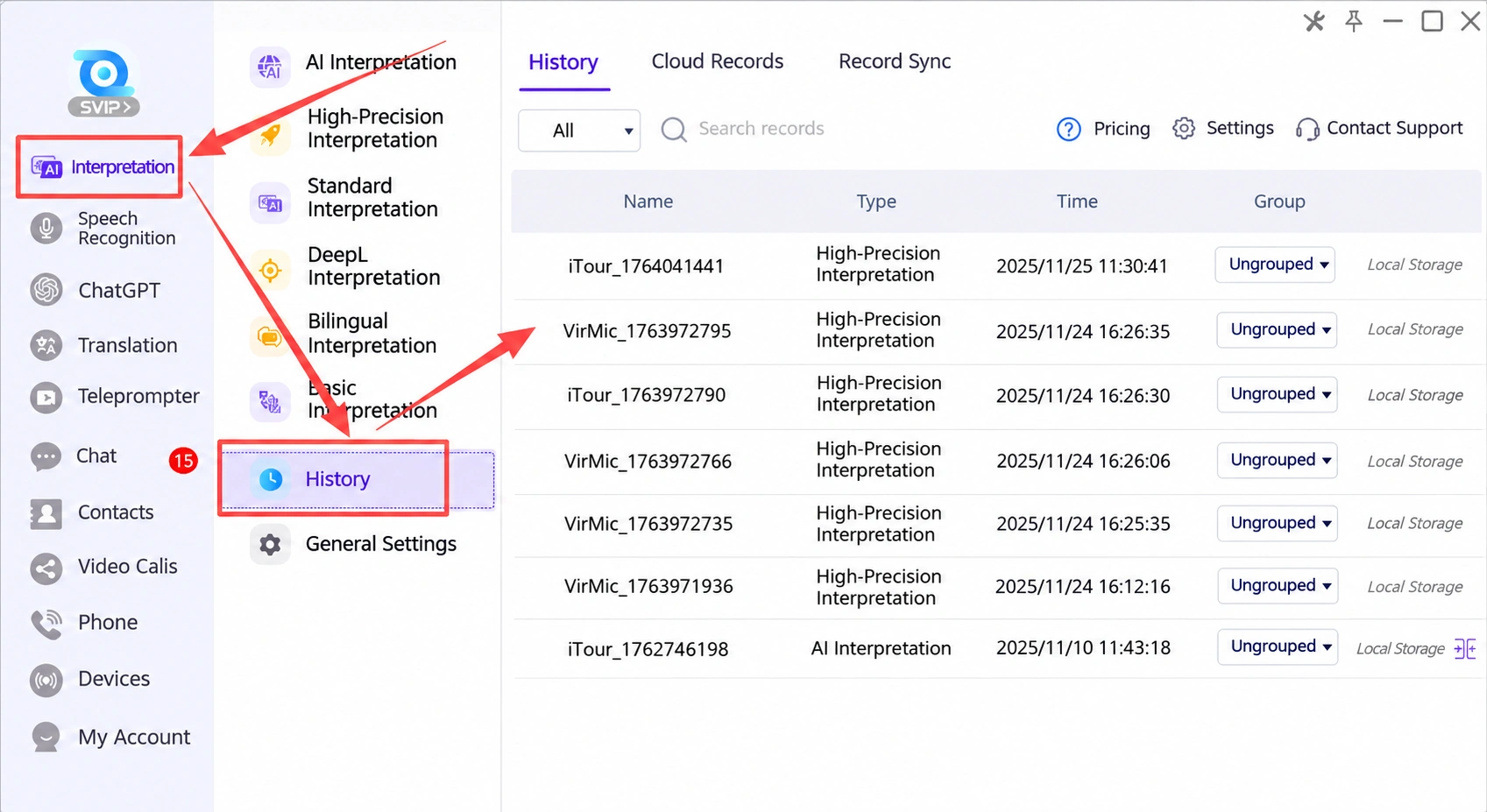
What is the difference between iTourTranslator and iTour Voice Translator?
iTour Voice Translator is iTourTranslator a simplified version. The main differences are listed below:
| Features | iTourTranslator | iTour Voice Translator |
|---|---|---|
| Real-time Voice Translation | ✔️ Supports (High-precision Interpretation, AI Interpretation, Bilingual Interpretation, etc.) | ✔️ Support (simultaneous interpretation, audio translation) |
| Text and Document Translation | ✔️ Supported | ✖️ Not supported |
| GPT-related features (chatting, interviews, polishing, etc.) | ✔️ Supported | ✖️ Not supported |
| Cross-application audio and video call translation | ✔️ Supported | ✖️ Not supported |
| Phone Call Translation | ✔️ Supported | ✖️ Not supported |
In summary:
- If you only need real-time voice translation or audio translation, you can choose iTour Voice Translator (lightweight and simple);
- For more comprehensive features such as document translation, GPT conversations, and cross-application call translation, it is recommended to download iTourTranslator.
You can choose the appropriate version according to your actual usage scenario. If you are unsure about specific functionality requirements, you can contact Customer Support.
For iTourTranslator computer-based online meetings, where you need to translate both sides of the conversation—translate Chinese into English and English into Chinese—how do you operate it?
For online meetings that need real-time translation in both directions(For Chinese⇄English), you can use any of the following options:
Option 1: Bilingual Interpretation + screen sharing
- Operation: Enable the 'Simultaneous Translation → Bilingual Interpretation/Conversation Translation' feature. This mode can automatically recognize and translate Chinese and English in conversations.
- Output method: Translation result is not played aloud to the other participant, but you can use the translation window or Display to show them the translated text.
- Best for: Suitable for meetings where both parties can view the screen (such as online training, collaborative discussions, etc.).
- Cost:0.45 per minute
- Audio Source Settings: Select Mixed Audio mode, or choose Microphone
- Choose Microphone mode Make sure the computer sound is played out loud (do not use headphones, otherwise the other party's voice cannot be captured).
Option 2: High-precision / DeepL Interpretation + Speech Translation
- Steps:
- Use High-precision Interpretation or DeepL Interpretation Translate the other party's speech content (automatically recognize and display text).
- Turn on at the same time Speech translation Function: translate what you say yourself.
- Output method: Your translated speech can be played aloud for the other participant.
- Best for: Communication scenarios that require speech playback to the other party (such as international meetings, interviews, etc.).
- Cost: High-precision Interpretation → 0.35/minute × 2; DeepL Interpretation → 0.69/minute × 2
- Audio Source Settings: Select Speaker
Note: For specific settings of speech translation, please refer to:
Instructions for Using Windows Speech Translation
Instructions for Using Mac Speech Translation
You can choose the appropriate method based on whether speech playback is needed and whether both parties can conveniently view the screen. If you have specific questions about meeting software or further operations, you can contact Customer Support
iTourTranslator PC Windows: How to use the speech translation feature?
The speech translation feature allows you to translate your own speech during a meeting and play it back to the other party. Currently, this feature requires High-precision Interpretation or DeepL Interpretation. Follow the steps below on Windows:
1. Function Description
- Only recognize and translate your own speech, and the translation result can be broadcast to the meeting counterpart through a virtual driver.
- You need to purchase in advance and install a virtual microphone driver to use it.
2. Operating Steps
① Turn on speech translation: Enter High-Precision Simultaneous/DeepL Simultaneous → Click the top right corner [Settings] → Select [Speech Translation]
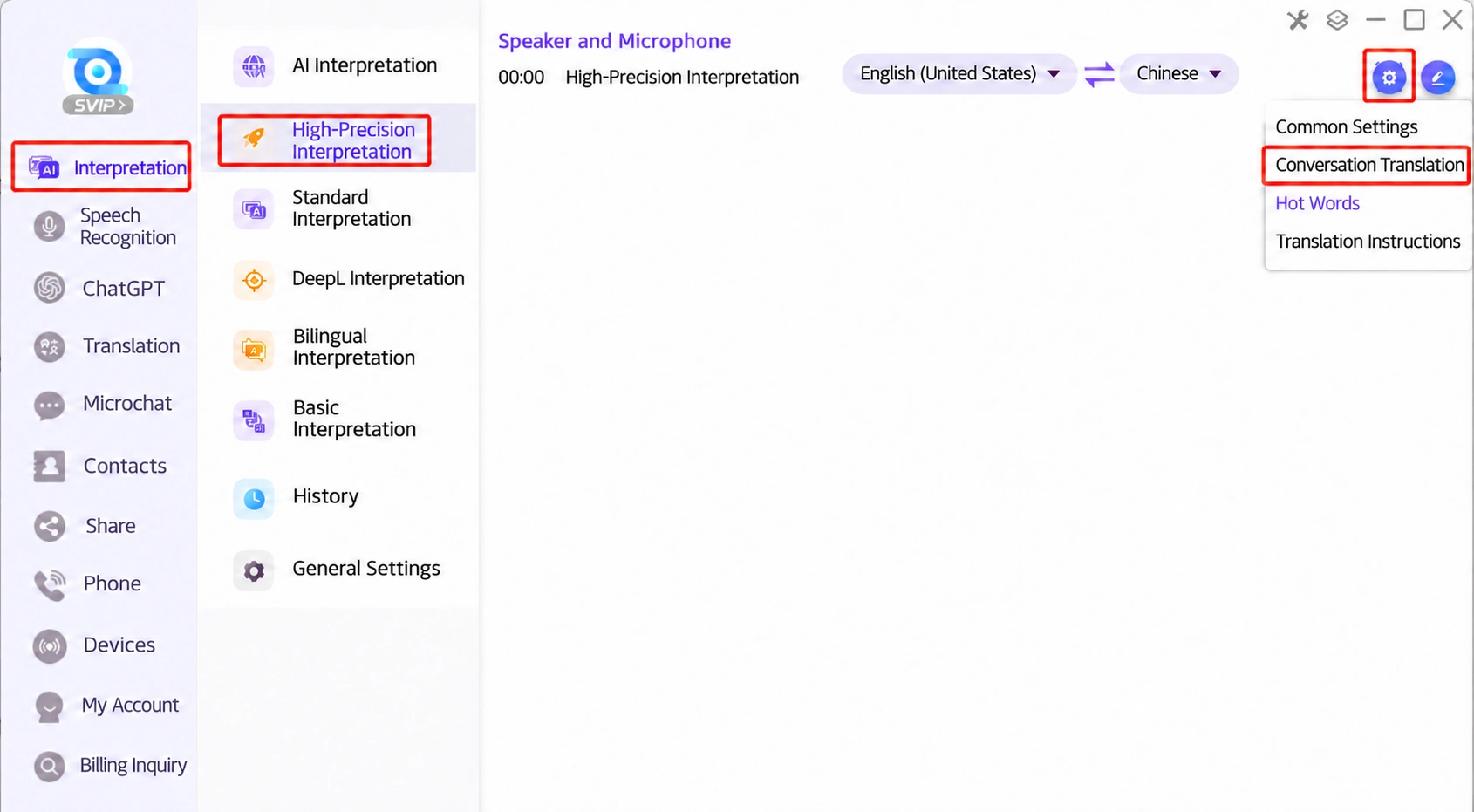
② Purchase and install the driver: If you have not purchased the virtual audio driver, follow the on-screen instructions to purchase it, then click “Install” in Speech Translation settings.
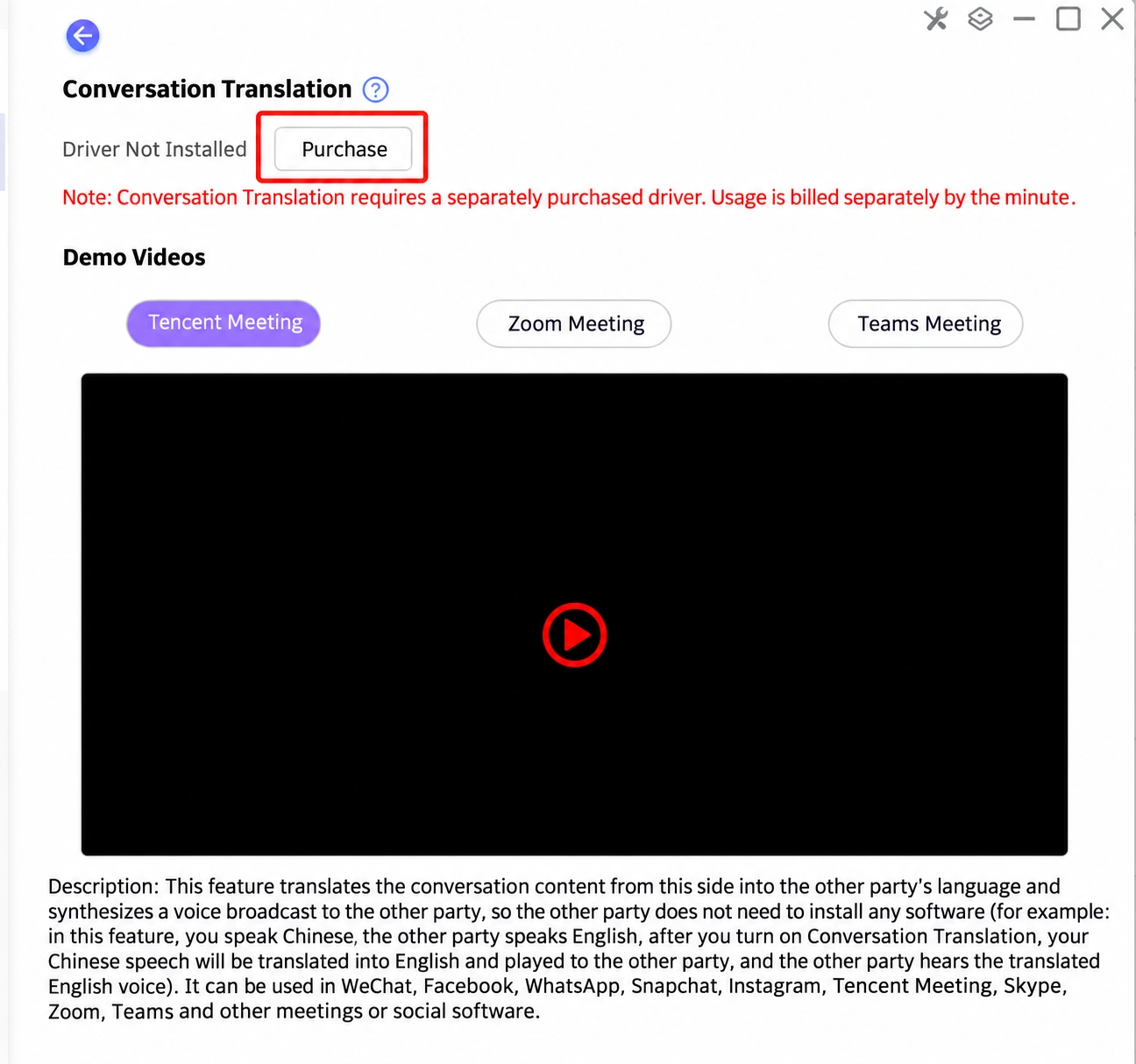
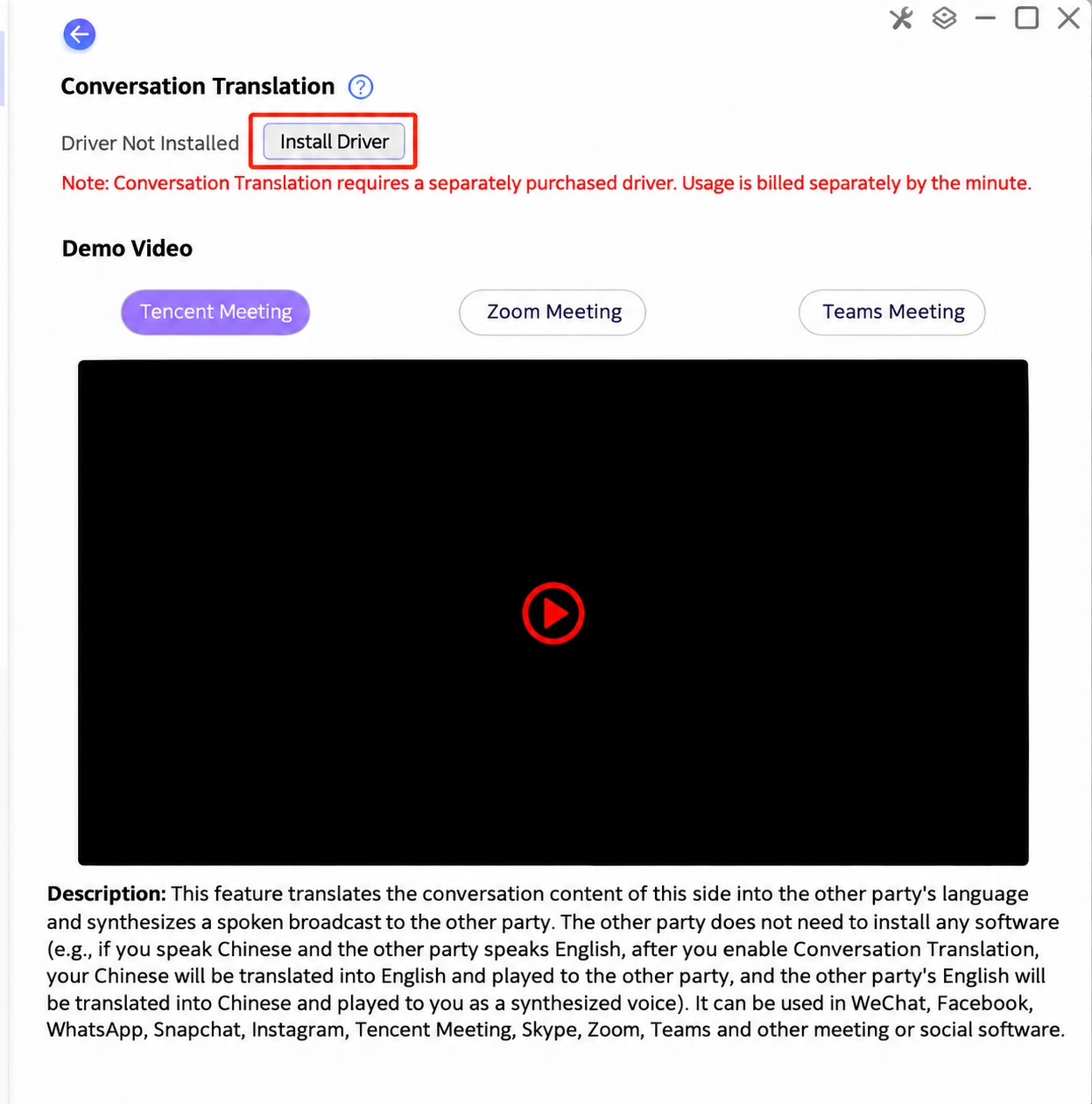
③Effective after restarting the software: After the installation is successful, please restart the software. The translation page will display the 'Speech Translation' button.
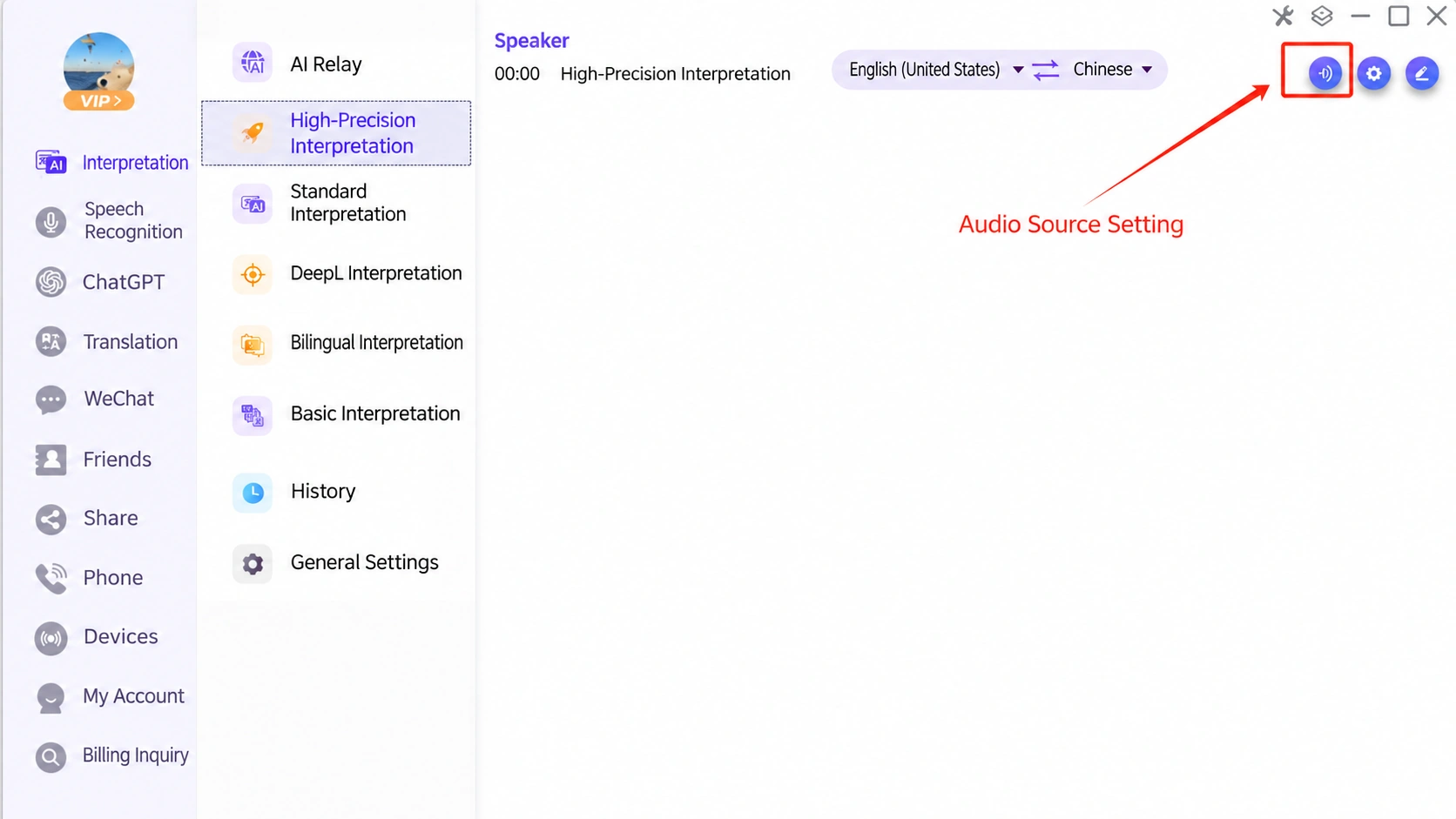
④ Meeting software settings: In software like Zoom, Tencent Meeting, Teams, set the microphone to: Hi-Fi Cable Output (VB-Audio Hi-Fi Cable)
Note: Order of use:
- Open the speech translation floating window
- Start translation
- Click the [Mute/Microphone] icon button in the meeting software
- Make sure the meeting microphone is set to the virtual audio driver: Hi-Fi Cable Output (VB-Audio Hi-Fi Cable).
- Speak into the computer microphone
- The recognition result will be automatically translated and announced to the other party.
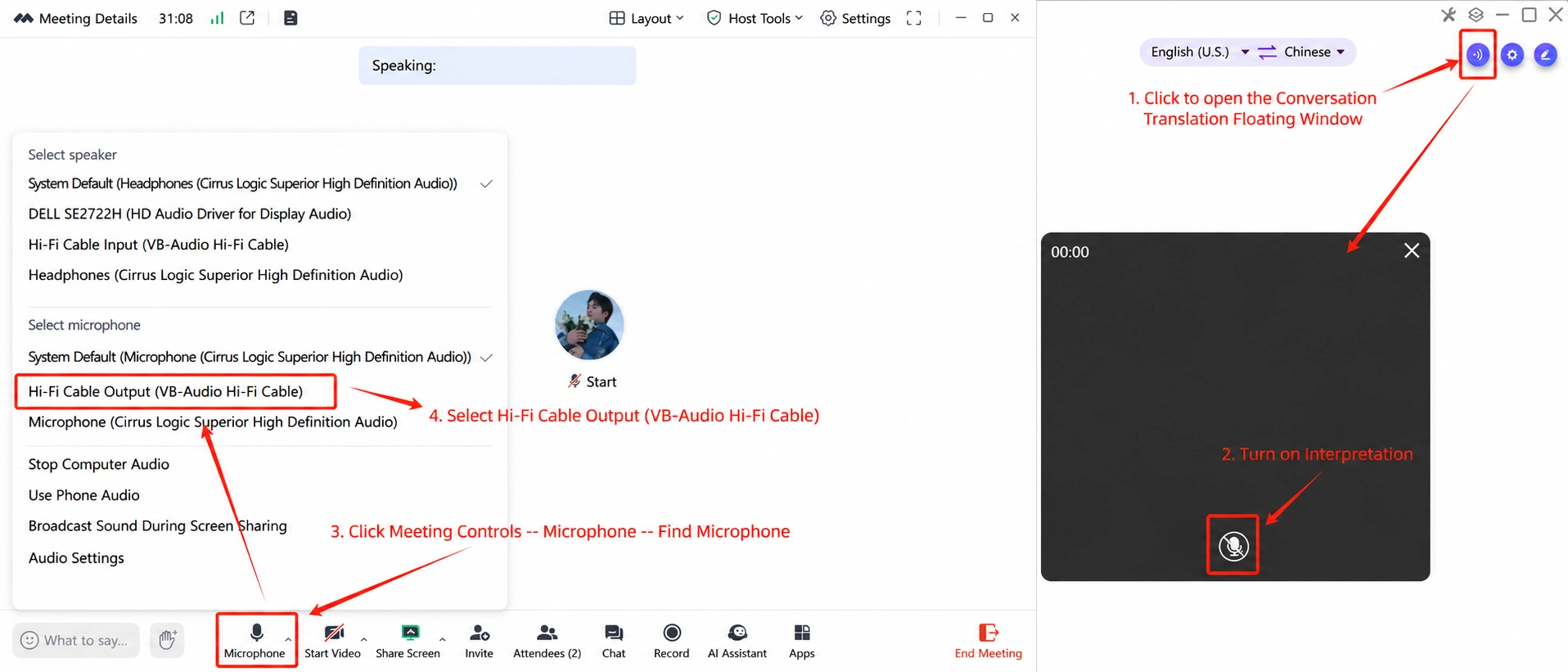
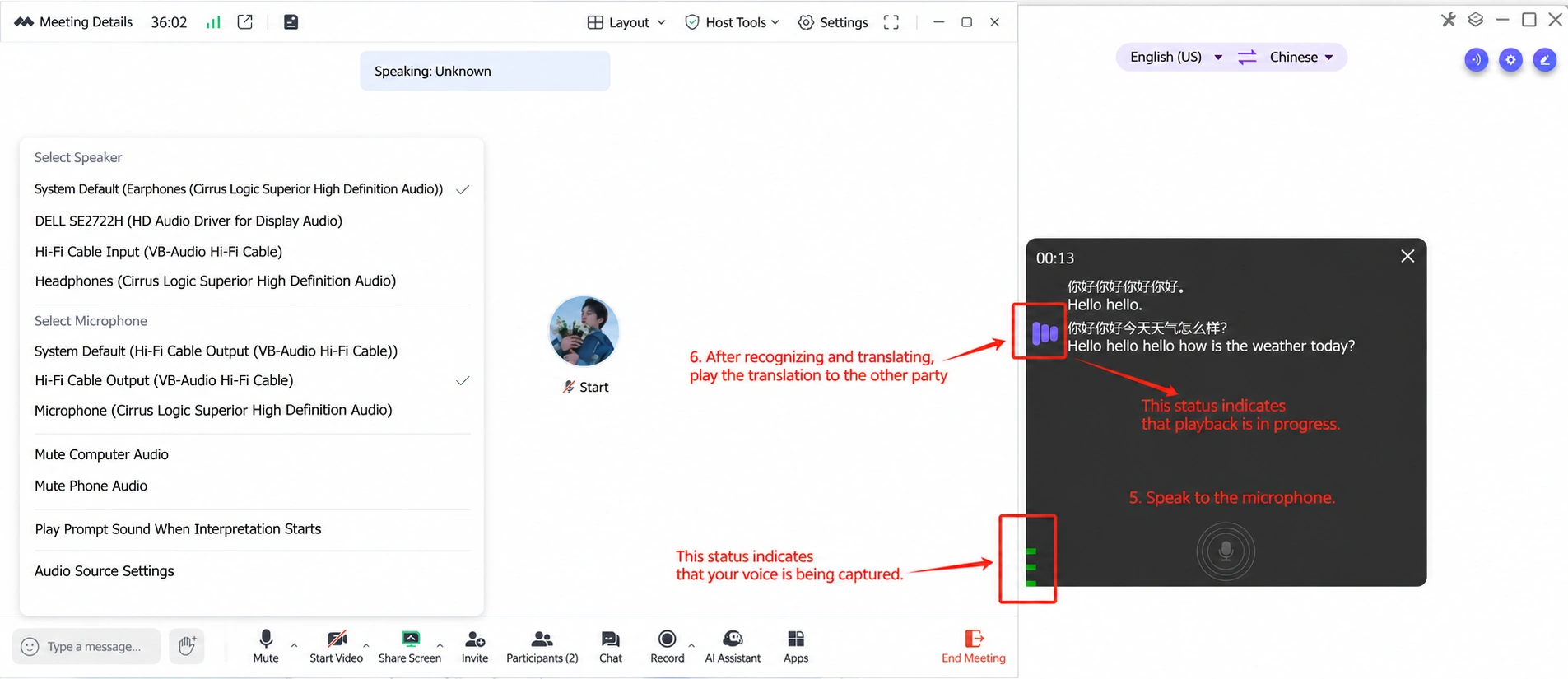
3. Precautions
- Please follow the above order strictly, otherwise it may not broadcast properly.
- If you encounter recognition or broadcasting issues, please check whether the virtual driver is installed successfully, or reselect the meeting microphone device.
- It is recommended to test in advance
If you have any other questions, you can contact Customer Support.
How do I use Speech Translation in iTourTranslator on Mac?
The speech translation feature is currently only supported High-precision Interpretation and Deepl simultaneous interpretation Two modes, mainly used to recognize and translate your own speech content.
Please note before use:
This feature is only available in Audio Input Mode is set to Speaker . It is unavailable with other audio sources.
Operating steps:
- Turn on the speech translation switch
Enter Simultaneous Interpretation → Select High-precision Interpretation or Deepl simultaneous interpretation → Click the top right corner Settings → Open Speech translation Option.
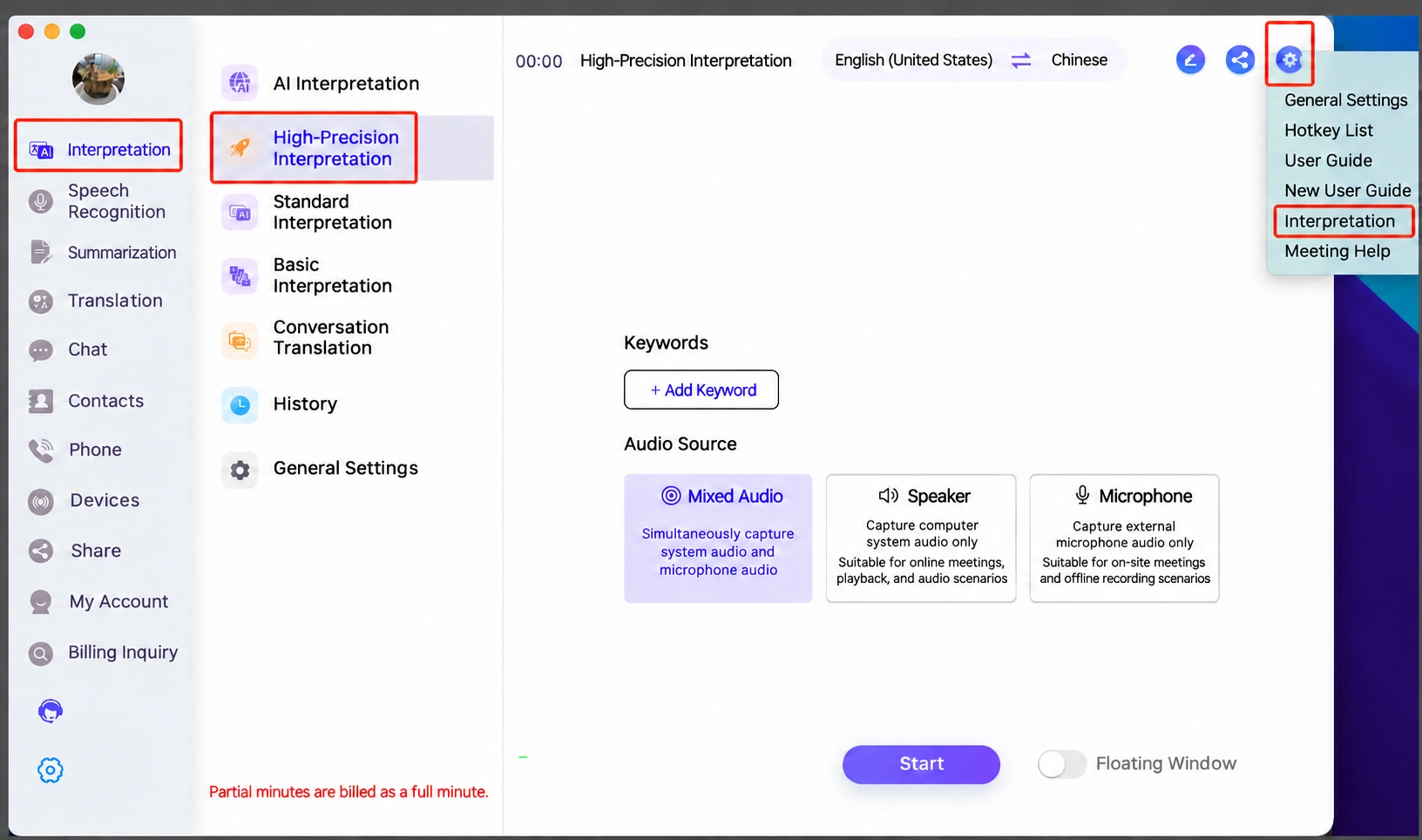
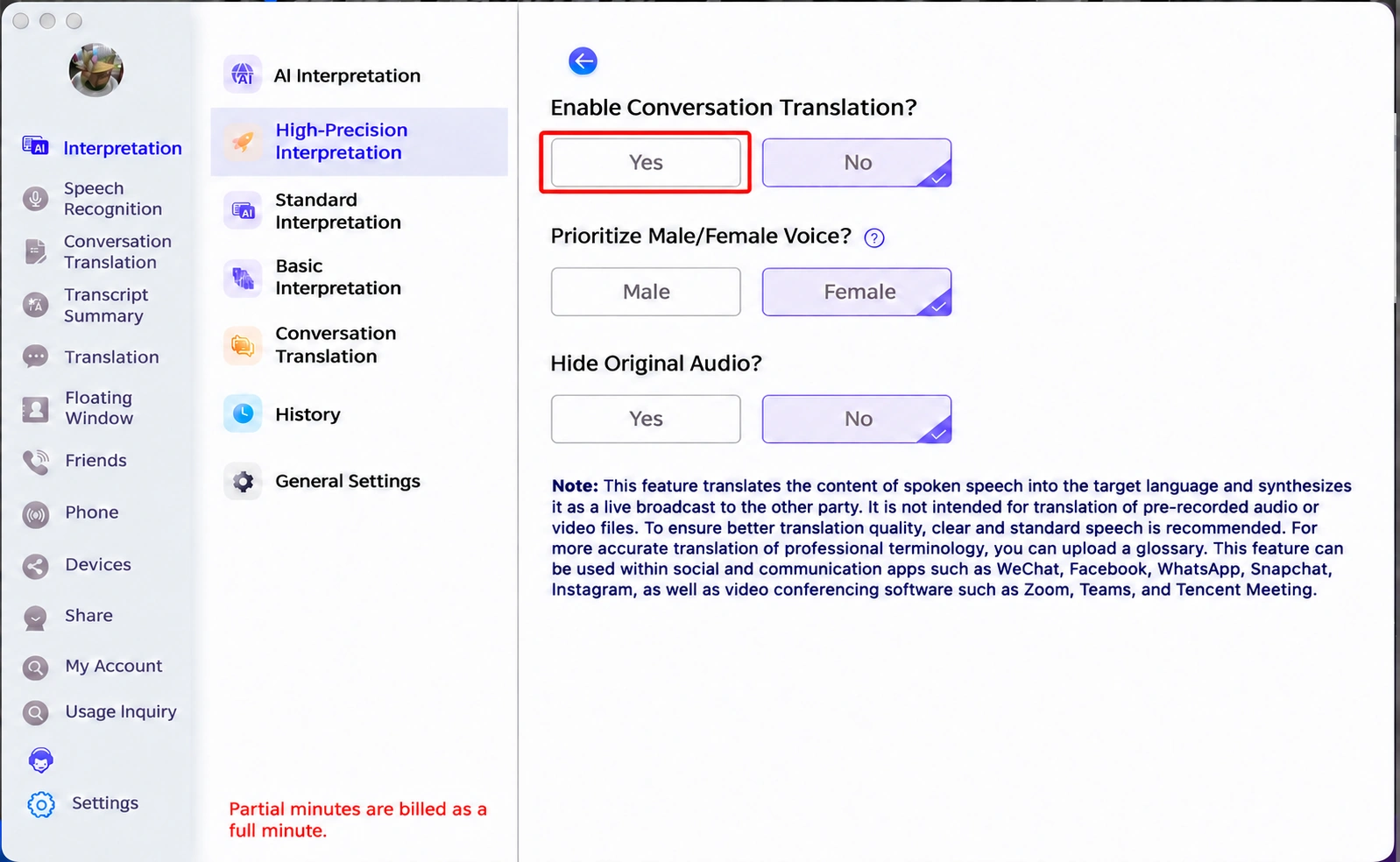
2. Return to the simultaneous interpretation interface
After setting it, the top right corner of the page will display "Speech translation” button.
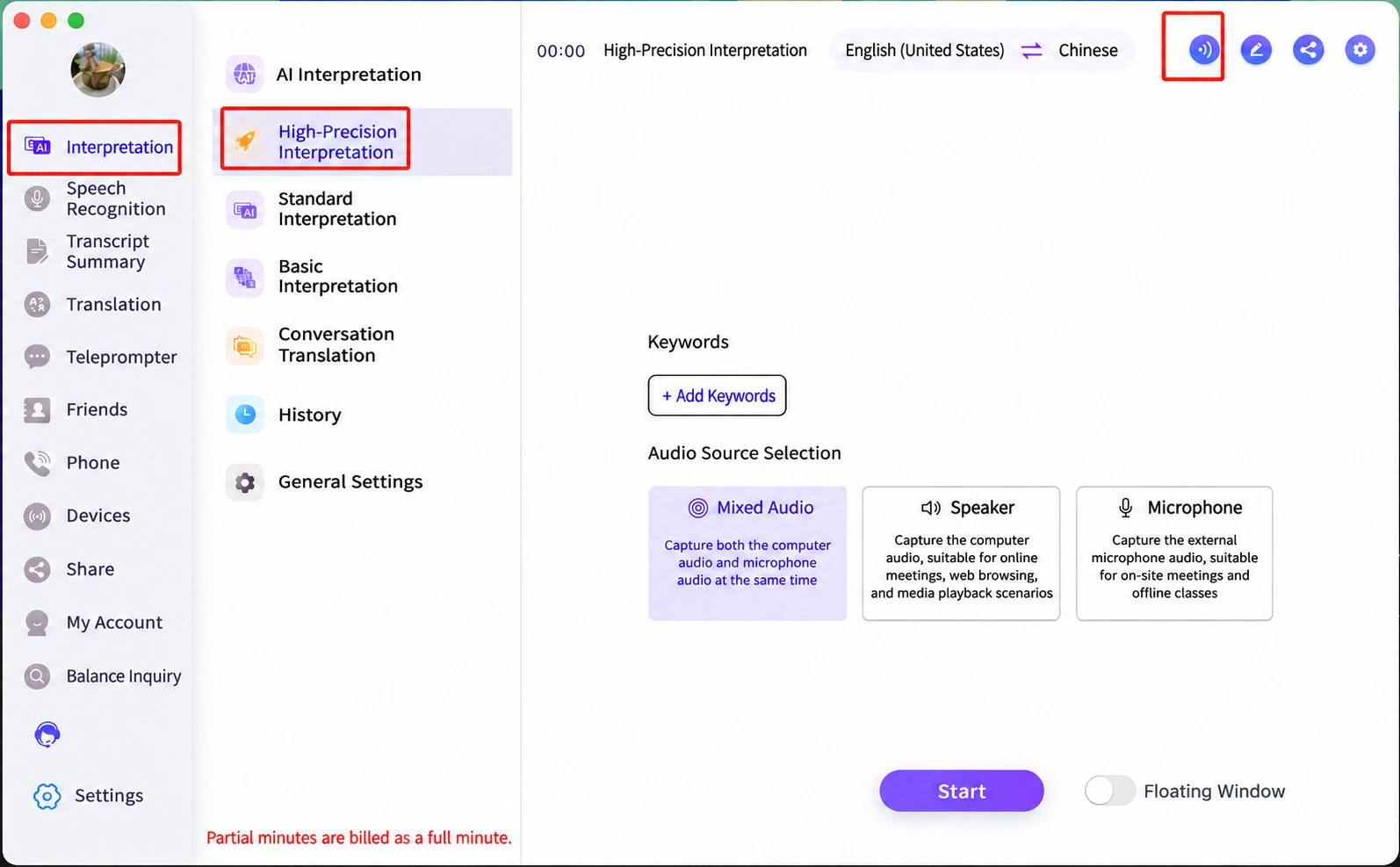
3. Start translating and using
- Click "Speech translation” to enable the feature, then start translation.
- In meeting software such as Zoom, Tencent Meeting, and Teams, set the microphone to 'itourInput 2ch'.
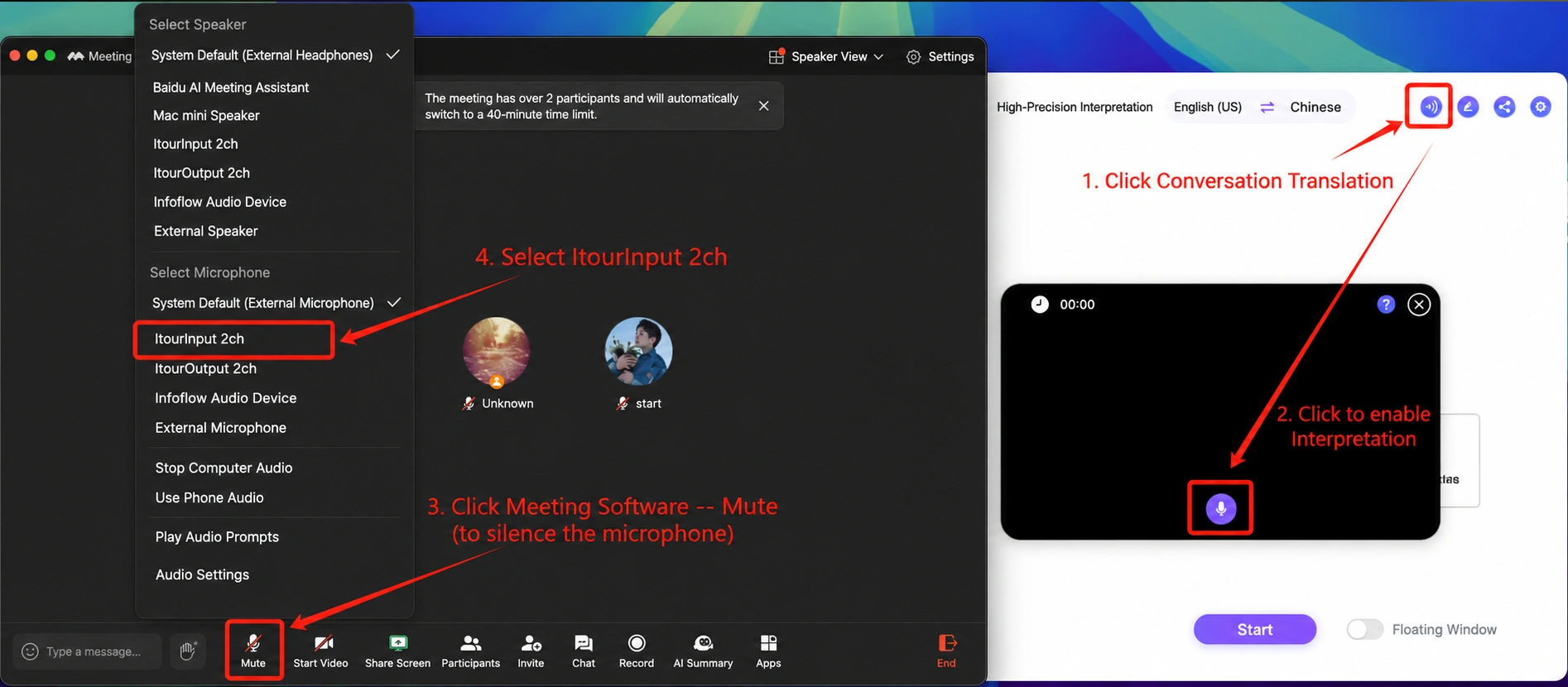
4. Speak into the microphone
Speak directly into the computer microphone, and the system will recognize your voice and translate it. The translation will be played to the other party through the speakers.
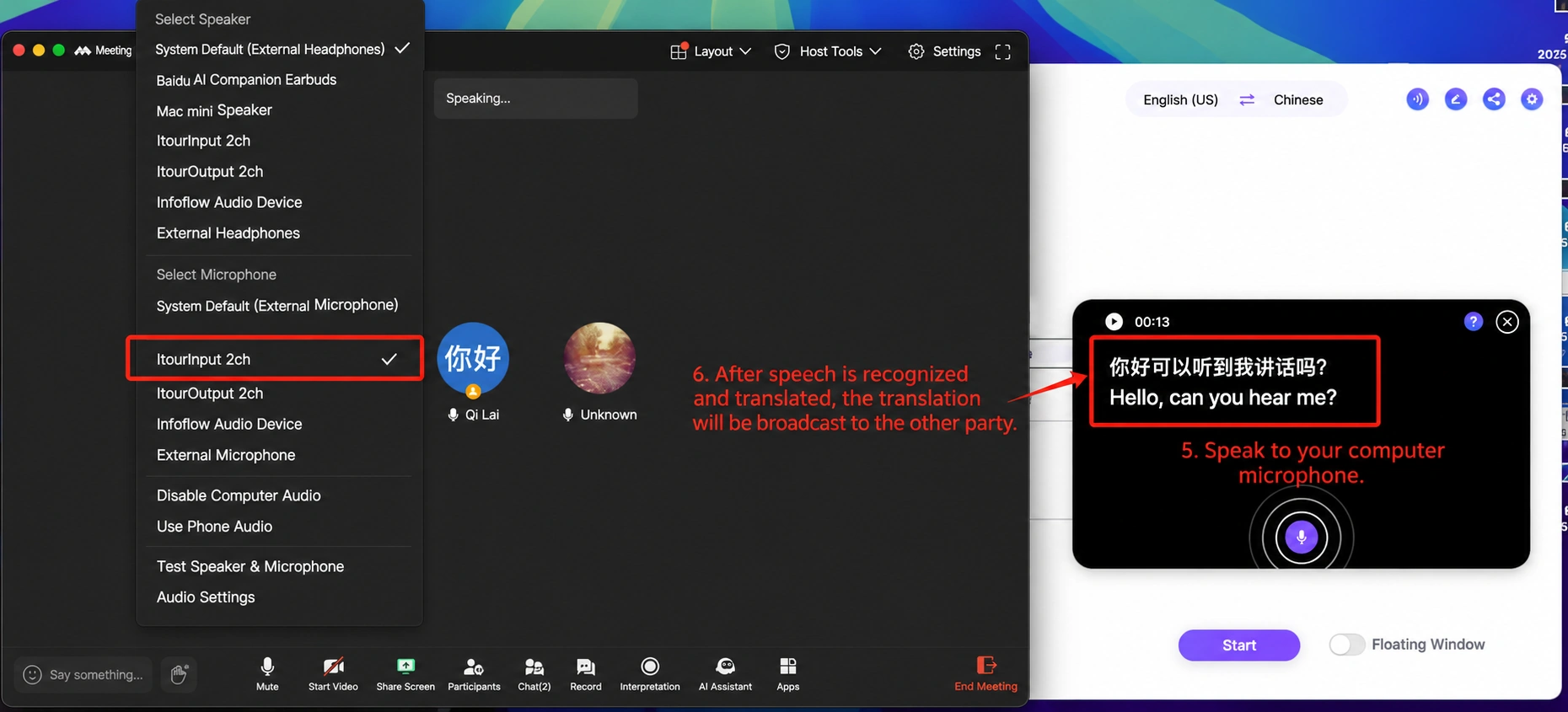
After using the speech translation function on the iTourTranslator desktop app, why is the other party's speech not being translated?
When using speech translation on the iTourTranslator desktop app, the reason the other party's speech is not translated is because The speech translation function is mainly used to translate your own voice in real time and play it to the other party..
If you need to translate what the other party is saying in real time, you can additionally enable any of the following features:
✅ High-precision Interpretation
✅ Deepl simultaneous interpretation
Once enabled, the system will simultaneously translate the other party's speech and display it on the screen, achieving two-way conversation translation.
The specific setting location is shown in the figure below:
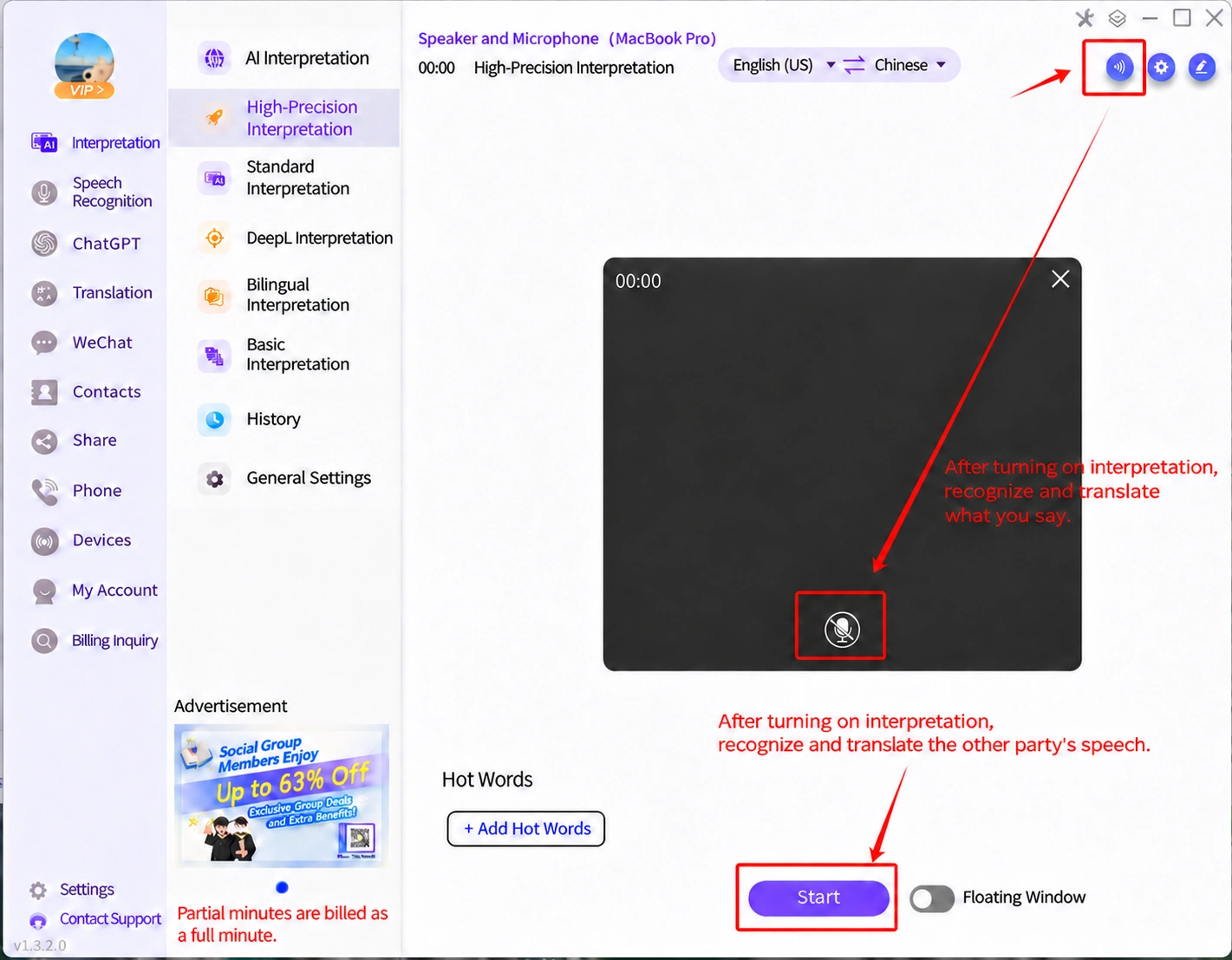
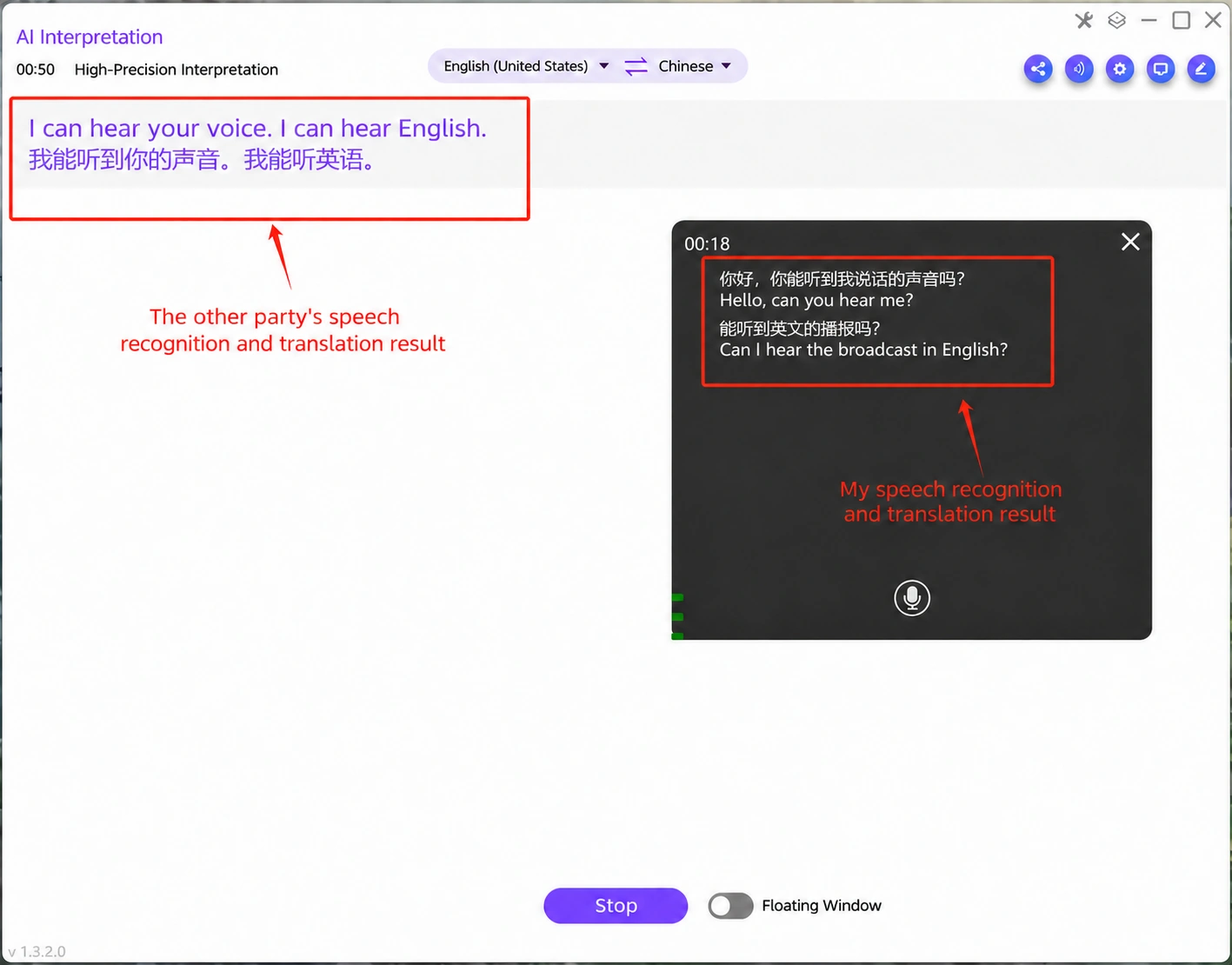
Can the iTourTranslator desktop app's speech translation feature be set so that the other party doesn't hear your voice if you don't want them to?
Of course. When using the speech translation feature on a computer, you can use the following settings to prevent the other party from hearing your original voice:
Operation path:
Enter [High-Precision Simultaneous Translation/Deepl Simultaneous Translation] → Top right corner 'Settings' → Select [Speech Translation] page → Switch the 'Hide Original Voice' option to yes.
Once enabled, the system will only play the translated voice to the other party.
Please note:After enabling 'Hide Original Sound,' due to a certain delay between translation and voice playback, the other party will not hear any sound during the period before the translation result is played.
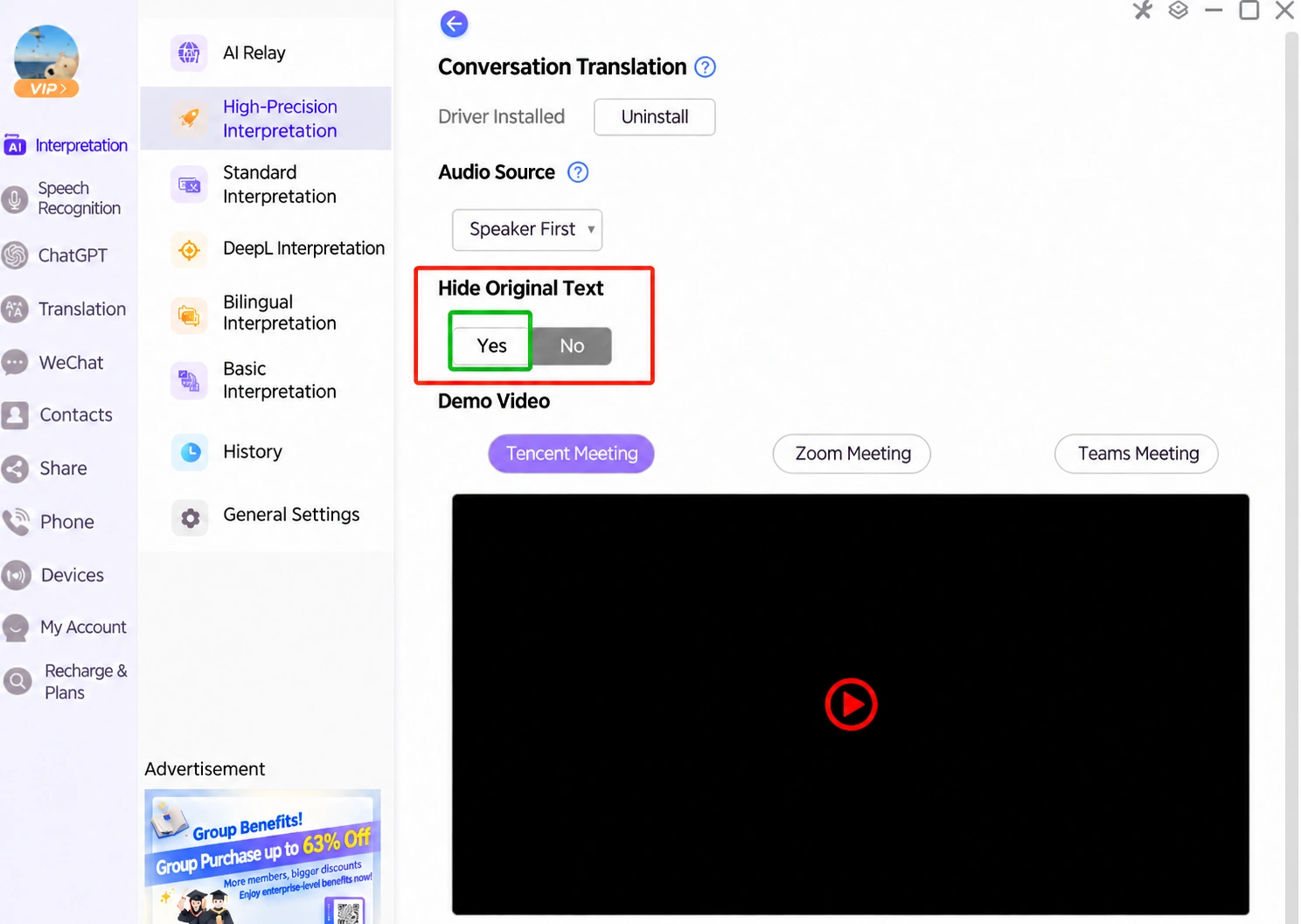
After installing the speech translation driver on the iTourTranslator Windows computer, the other party in the meeting cannot hear my voice. What should I do?
After using speech translation on the iTourTranslator desktop app, if the other party in the meeting cannot hear your voice, you can check and adjust the following settings in order:
Step 1: Check the microphone settings in the iTourTranslator software
In iTourTranslator, go to: [Simultaneous Interpretation → Common Settings → Audio Source Settings] and check whether the 'Microphone' option is “Hi-Fi Cable Output (VB-Audio Hi-Fi Cable)”.
➜ If so, change it to your "Other Microphone" option.
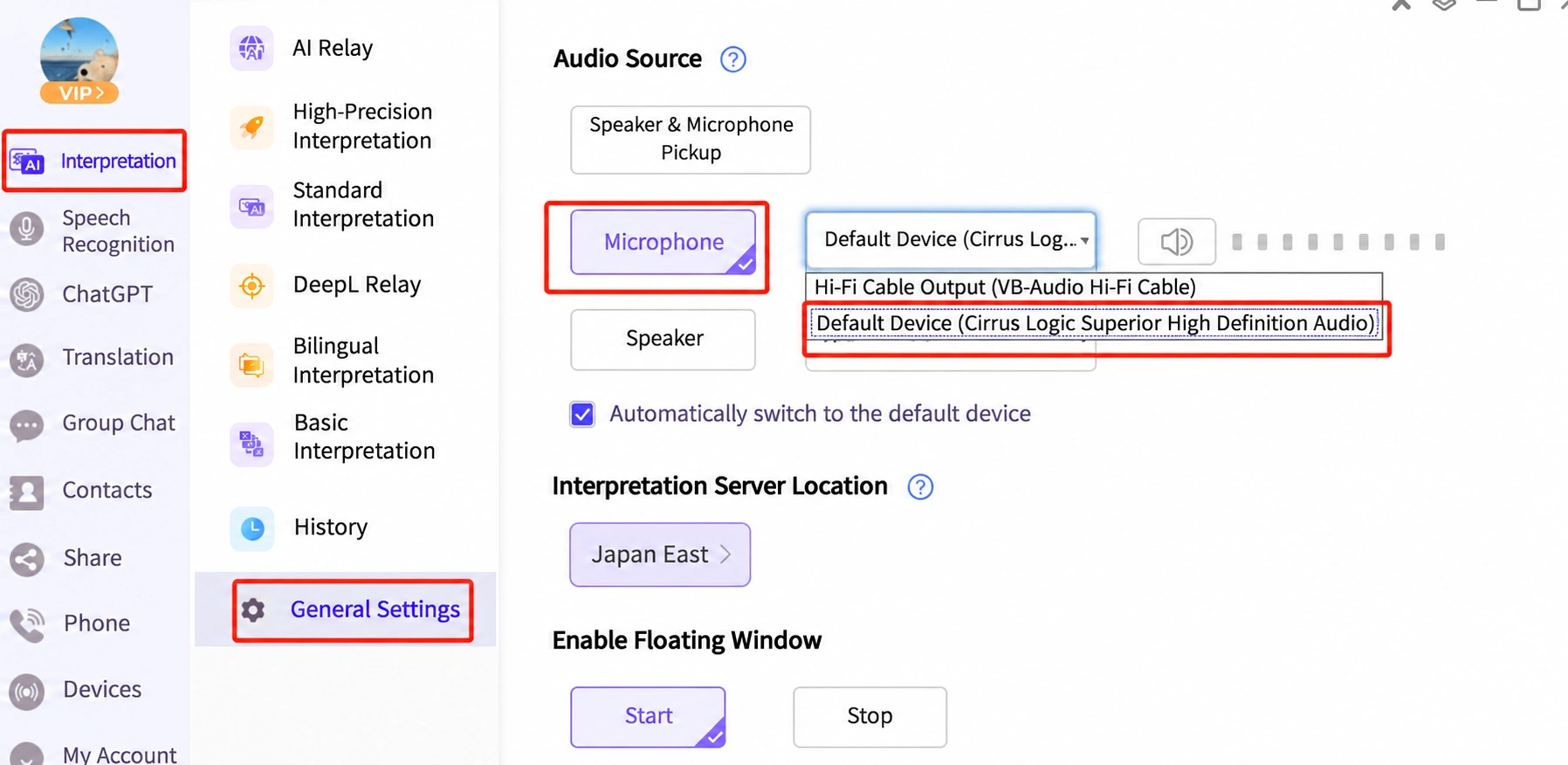
Step 2: Check the computer system sound settings
Go to System Settings → Sound → Input and check whether the selected device is “Hi-Fi Cable Output”.
➜ If so, switch to your regular microphone.
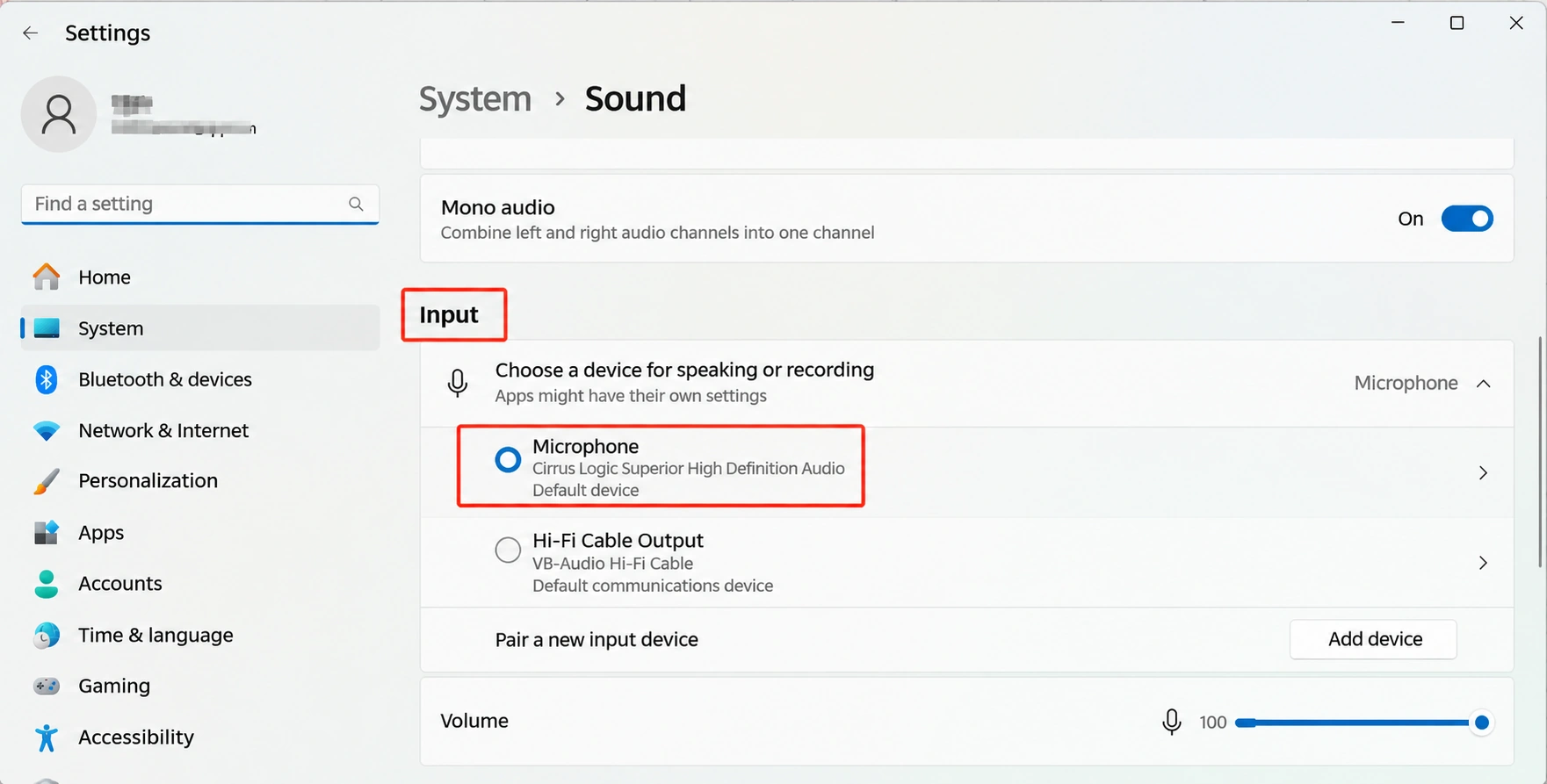
Please note:
- "Hi-Fi Cable Output" should only be selected in the microphone options of the conferencing software when the speech translation function is enabled.
- When not using speech translation, please do not select this option in the microphone settings of the meeting software, otherwise the other party will not be able to hear your voice.
If the problem persists after following the above steps, you can try unplugging and plugging the microphone back in or restarting the relevant software.
Why can't iTour Translator recognize translations after putting on headphones on a Mac?
This is due to macOS system restrictions on microphone permissions Caused. Especially in macOS 13 and earlier versions, some applications downloaded through the App Store may not be able to directly access system internal audio (including the sound transmitted through headphones), resulting in the speech translation function failing.
You can try the following solutions:
✅ Option 1: Reinstall the official version (recommended)
- Uninstall the currently downloaded version from the App Store.
- Go to the official iTour Translator website to download and install the latest version of the software.Click here to go to the official website to download(The official website version usually has more complete system permission compatibility)
✅ Option 2: Upgrade macOS system
If your Mac system version is below 13, you can try upgrading to macOS 14 or later, the system's management of audio permissions will be more comprehensive, which may directly solve this problem.
✅ Option 3: Temporarily Use Speaker Mode
If it is temporarily inconvenient to reinstall or upgrade the system, you can first Unplug the earphones and use the computer speakers for output, the software can usually recognize the microphone sound normally and perform the translation.
iTour Translator Mac computers with systems below version 13, why does the translation content not display after enabling translation?
When using iTour Translator on Mac computers with macOS 13 or earlier, if the translation does not appear after enabling it, you can check and configure it according to the following steps:
Step 1: Confirm that iTour Translator has been correctly switched on for simultaneous interpretation
- In iTour Translator, go to the 'Simultaneous Interpretation' page.
- Select and turn on Any type of simultaneous interpretation(e.g. High-precision SI, DeepL SI, Standard …)
Step 2: Check and set the meeting software speakers
- Open the one you use conference software(such as Zoom, Tencent Meeting, etc.).
- Enter the 'Audio Settings' or 'Sound Settings' of the software.
- in Speaker In the options, select "iTourMulti-Output", as shown in the figure below:
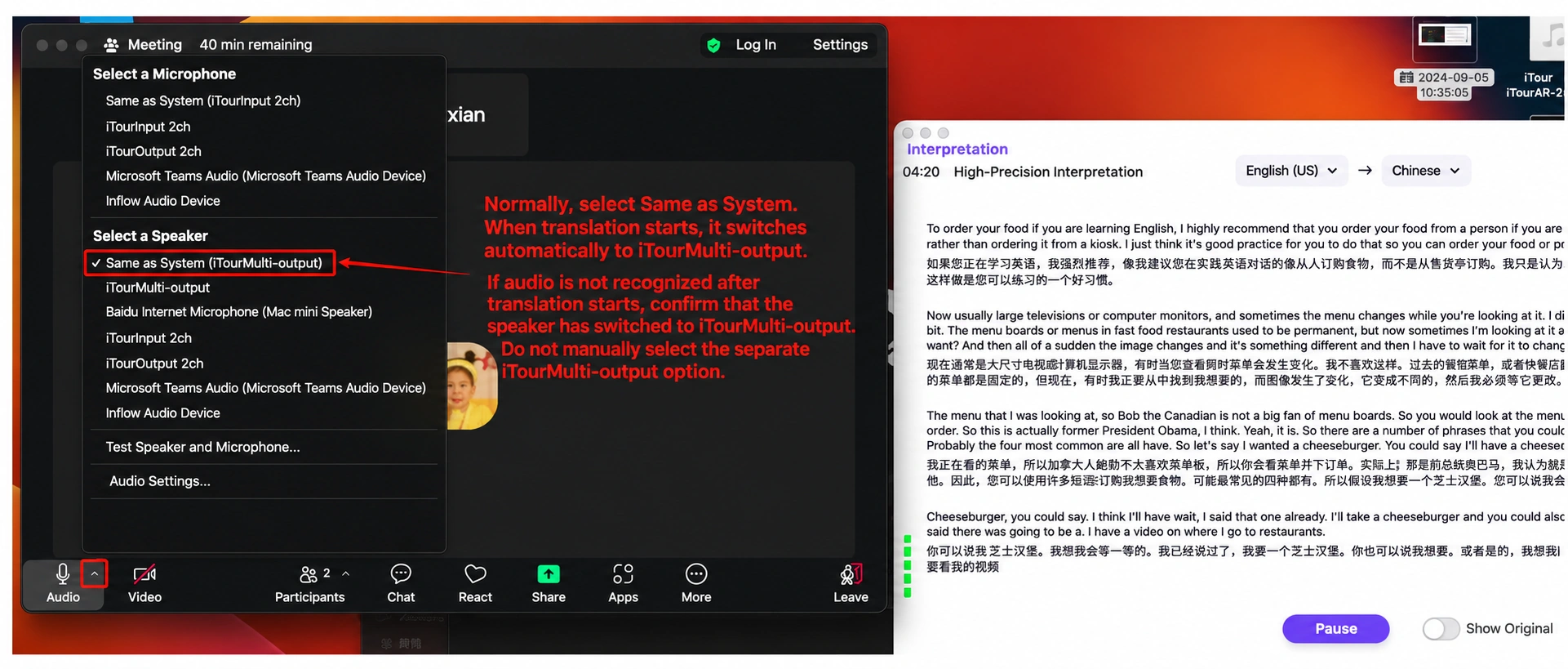
Please note:
Must first In iTour Translator Turn on simultaneous translation, Go to the meeting software again the audio Settings Select the corresponding one Speaker, reversing the order may result in the translation content being unable to display.
iTour Translator on MAC systems above 13, why can't I enable translation? I have already given screen recording permission.
In macOS 13 and later, if iTour Translator has been granted screen recording permissions but still cannot start translation, it is because System permissions require restarting the application after authorization to take full effect.
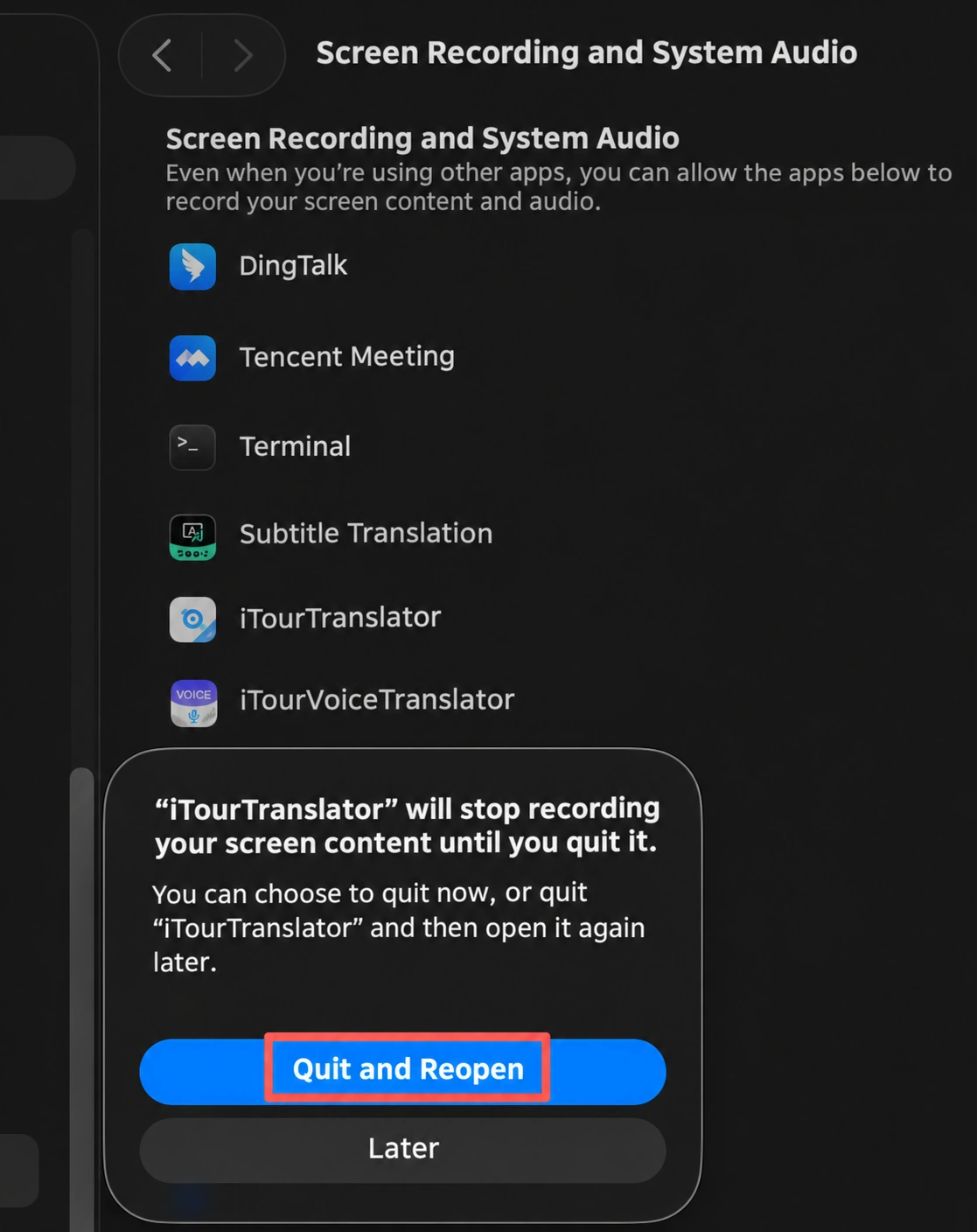
Please follow the steps below:
- Completely exit iTour Translator
Please make sure to right-click the icon in the Dock and select 'Quit', or use the Command (⌘) + Q shortcut to completely close the application.
- Restart the application
Open iTour Translator again and try to turn the translation function back on.
If the problem still exists after restarting, it is recommended that you:
- Check whether the permissions are granted correctly: Go to System Settings > Privacy & Security > Screen Recording, make sure the iTour Translator permission toggle in the list is turned on (the button on the right is blue ✅).
- Try re-authorizing: You can temporarily turn off this permission switch, then turn it back on, and then restart the application again.
Usually, the permissions take effect after completing the restart steps, and the translation function will return to normal. If the problem persists, please check whether the software is up to date, or contact Customer Support
iTour Translator Mac computer: After PPT or meeting software goes fullscreen, the translation floating window disappears. What's going on?
This is because macOS system of Design Constraints, when an application (such as PPT or conferencing software) enters full-screen mode, the system treats it as an exclusive 'desktop space,' and other applications (including translation pop-ups) will not be able to display above that full-screen window.
You need to resolve it using the following method:
Exit full screen mode: In PPT or meeting software, click the green 'Full Screen' button in the upper left corner of the window, or press the ESC key on the keyboard to exit full screen, change to Windowed mode You can use it, and the translation pop-up will display normally.
When using the PC version of iTourTranslator for simultaneous translation, how can I pause the refresh and view the previous translation content?
You can use the “Meeting Minutes” feature to view and review the complete translation history. The specific operation location is shown in the figure below:
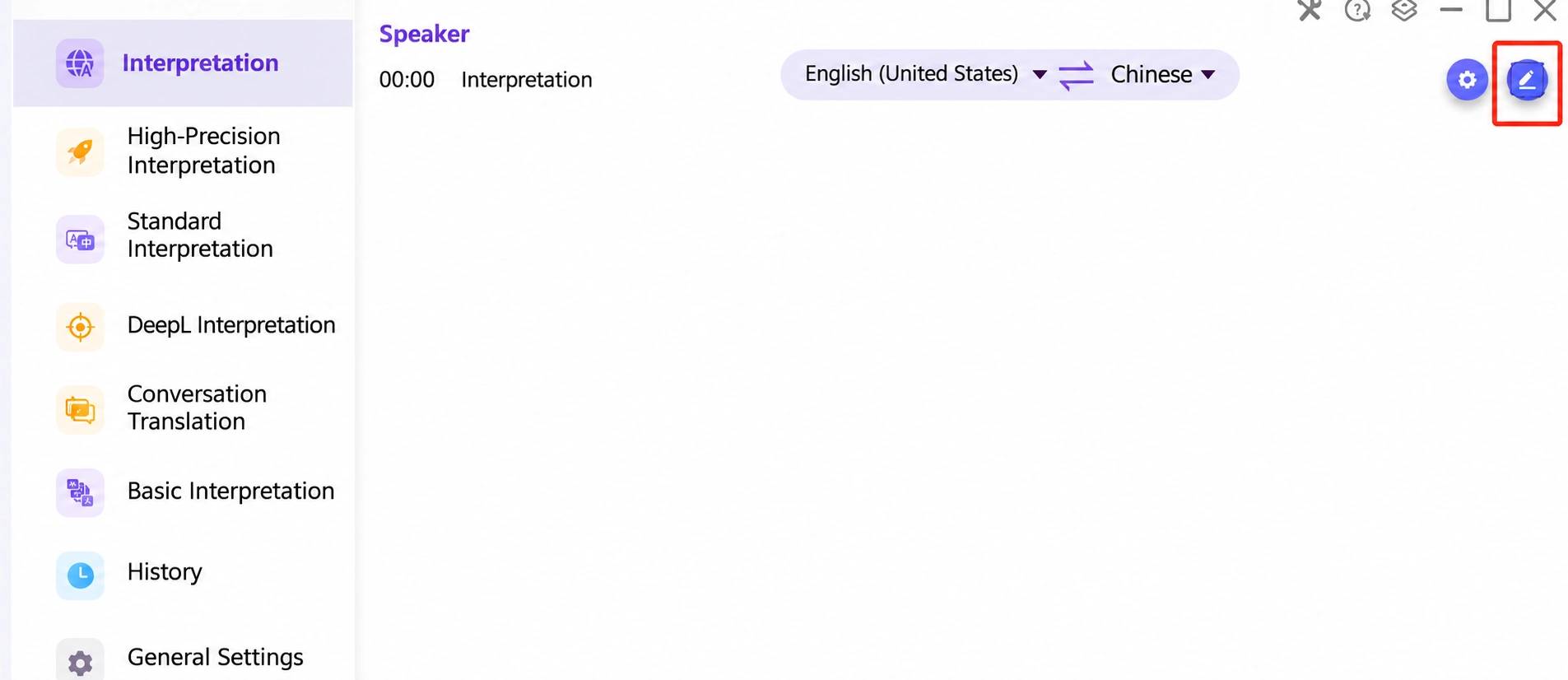
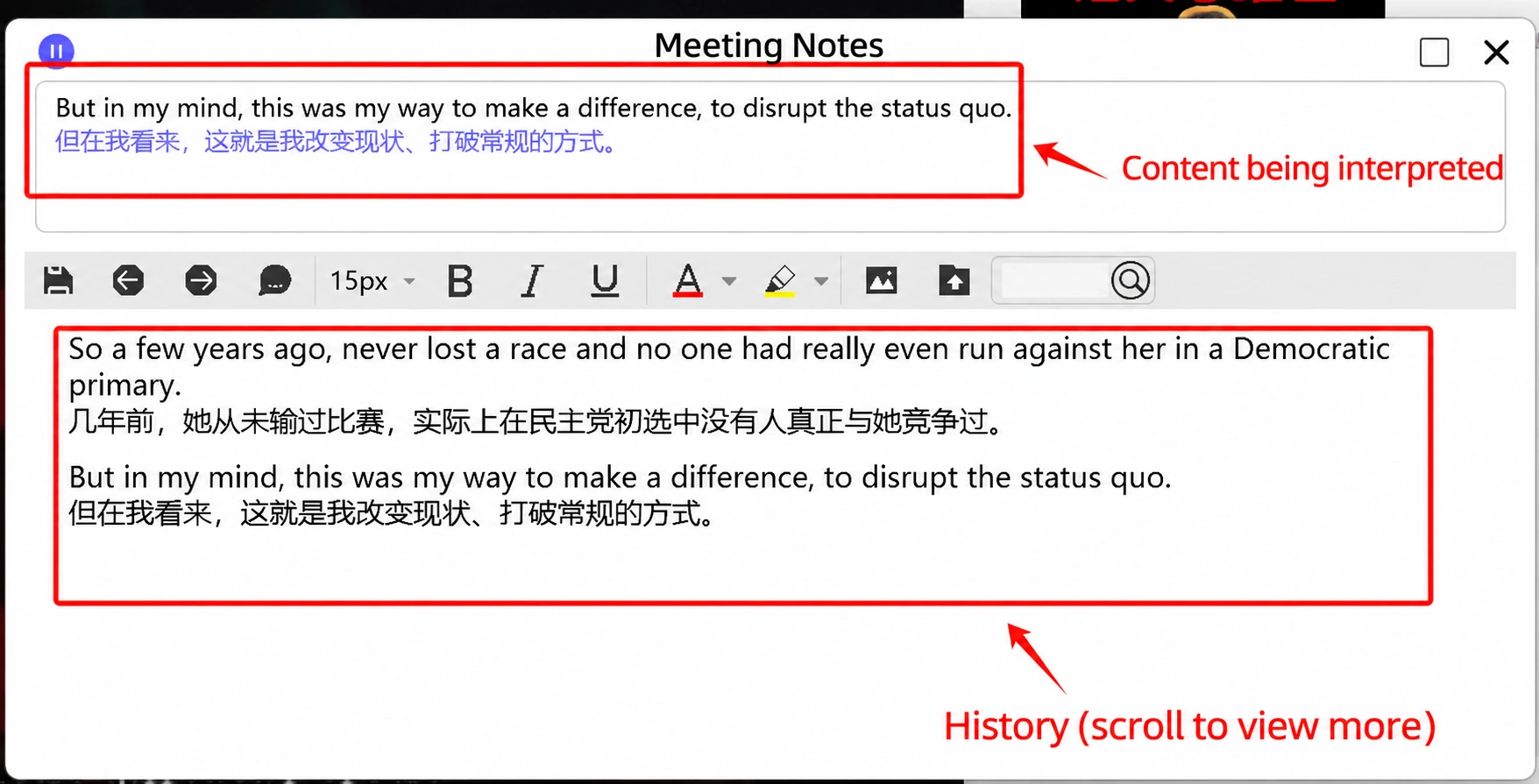

This feature will fully preserve all translation content during the conversation, allowing you to pause the real-time scrolling at any time and scroll up to view previous translation records.
iTourVoiceTranslator13 questions
Open in a separate page →Why can't iTour Voice Translator recognize translations when I wear headphones on a Mac computer?
This is caused by macOS restrictions on microphone and system audio access. In macOS 13 and earlier, some apps downloaded from the App Store may be unable to capture system audio, including audio played through headphones.
You can try the following:
Option 1: Install the version from the official website (recommended)
- Uninstall the version downloaded from the App Store.
- Download and install the latest version from the official website. This version may provide better compatibility with system permissions.
Option 2: Upgrade macOS
If you use a version earlier than macOS 13, try upgrading to macOS 14 or later, which may resolve the audio access issue.
Option 3: Use the computer speakers temporarily
If you cannot reinstall the app or upgrade macOS right away, unplug your headphones and use the computer speakers, then test translation again.
iTour Voice Translator on MAC systems above 13, why can't translation be enabled even though screen recording permission has been granted?
In macOS 13 and later, if iTour Translator has been granted screen recording permissions but still cannot start translation, it is because System permissions require restarting the application after authorization to take full effect.
Please follow the steps below:
- Completely exit iTour Translator
Please make sure to right-click the icon in the Dock and select 'Quit', or use the Command (⌘) + Q shortcut to completely close the application.
- Restart the application
Open iTour Translator again and try to turn the translation function back on.
If the problem still exists after restarting, it is recommended that you:
- Check whether the permissions are granted correctly: Go to System Settings > Privacy & Security > Screen Recording, make sure the iTour Translator permission toggle in the list is turned on (the button on the right is blue ✅).
- Try re-authorizing: You can temporarily turn off this permission switch, then turn it back on, and then restart the application again.
Usually, the permissions take effect after completing the restart steps, and the translation function will return to normal. If the problem persists, please check whether the software is up to date, or contact Customer Support
iTour Voice Translator Mac computer: After PPT or meeting software is in full screen, the translation floating window disappears. What’s going on?
This is due to the design limitations of the macOS system. When an application (such as PPT or meeting software) enters full-screen mode, the system treats it as an exclusive 'desktop space,' and other applications (including translation floating windows) will not be able to appear above that full-screen window.
You can try the following methods to solve it:
Exit full screen mode
In PPT or meeting software, click the green 'Full Screen' button in the upper left corner of the window, or press the ESC key on the keyboard to exit full screen, change to Windowed mode You can use it, and the translation pop-up will display normally.
On a Windows computer, why is there no translation sound after connecting a Bluetooth headset or wired headset when using software like Zoom, Tencent Meeting, or Teams?
This problem is usually caused by the audio output path between the headset and the translation software not being correctly matched. Please check and set it according to the following steps:
Step 1: Confirm the connection sequence and software settings
- Please make sure that the headphones are successfully connected to the computer before turning on the translation function.
- If you connect or switch headphones during the translation process, please first turn off the translation, go to the software [Settings] → [Audio Source Settings] → [Speaker], confirm that the speaker option is set to your connected headphone device, and then turn the translation back on.
Step 2: Unify the audio output devices of the meeting software and translation software
- In the meeting software you are using (such as Zoom, Tencent Meeting, Teams, etc.), go to the audio settings and confirm the selection of 'Speaker' or 'Output Device'.
- Make sure that the device selected in the meeting software is exactly the same as the device chosen in iTourVoiceTranslator “Settings”→“Audio Source Settings”→“Speaker” (for example, both select 'XXX Bluetooth Headset' or the same wired headset device).
If the above steps are all set correctly and there is still no translation voice, this may be due to a system audio driver or device recognition anomaly. It is recommended that you restart the translation software and reconnect the headphones before trying again. If the problem persists, you can contact Customer Support for further troubleshooting.
Why does iTourVoiceTranslator not translate when using headphones on a Windows system, but works normally after unplugging the headphones?
This is usually because the software fails to correctly recognize your headset device at startup. Please try to resolve it in the following order:
Step 1: Ensure the correct startup sequence
- Correct order: First plug in the headphones → then turn on iTour translation.
- If the order is wrong: Please turn off translation → keep the headphones connected → turn translation back on.
Step 2: Manually lock the output device (if Step 1 is ineffective)
- Turn off translation.
- Please confirm whether the device selected in [Settings → Sound Source Settings → Speakers] is the headphone device you are currently wearing.
- If not Please manually change to your headphone device, then go to the function page and restart the translation.
- If it is: Please go directly to the function page to restart the translation.
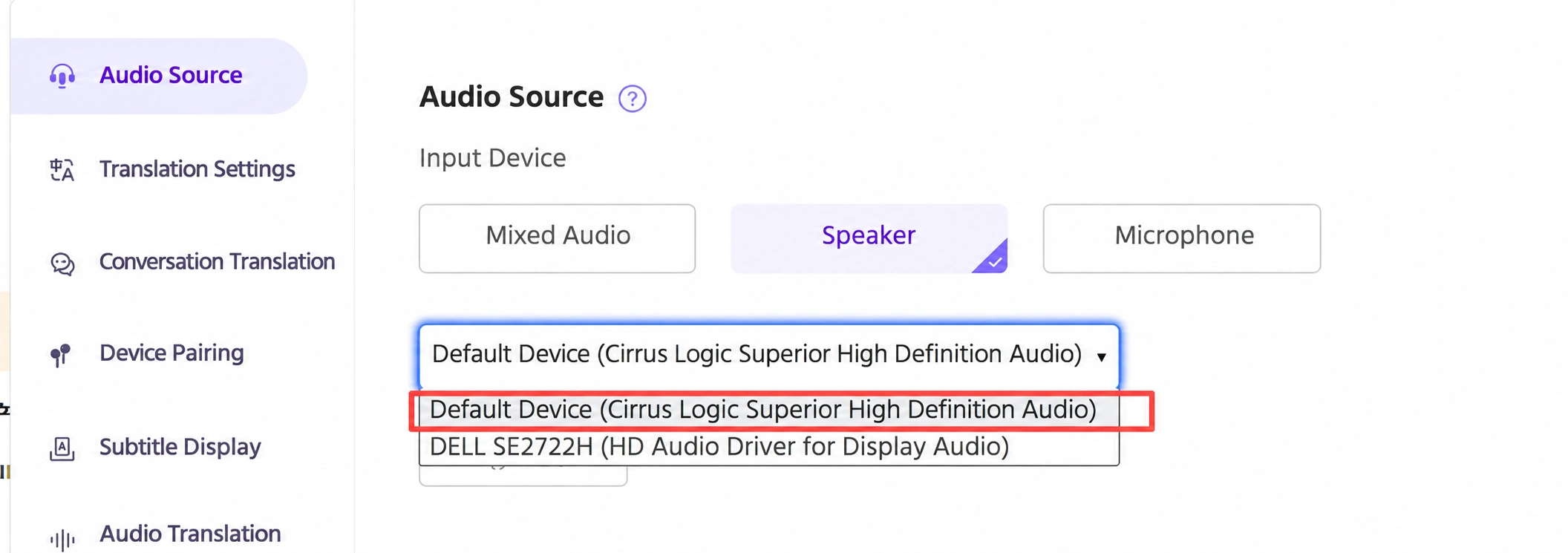
iTour Voice Translator Windows Computer: How to Use the Speaking Translation Function?
The speech translation feature allows you to translate your own speech during a meeting and play it back to the other party. Currently, this feature requires High-precision Interpretation or DeepL Interpretation. Follow the steps below on Windows:
1. Function Description
- Only recognize and translate your own speech, and the translation result can be broadcast to the meeting counterpart through a virtual driver.
- You need to purchase in advance and install a virtual microphone driver to use it.
2. Operating Steps
① Turn on speech translation:Function floating window → Top right corner settings → Speech translation
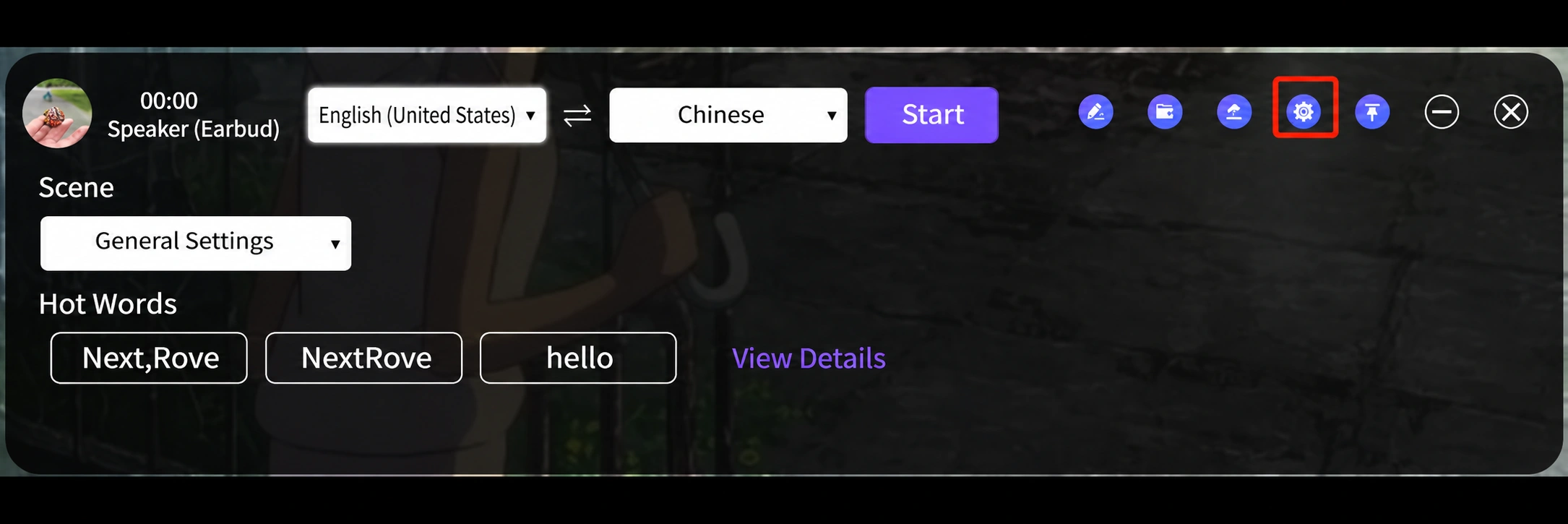
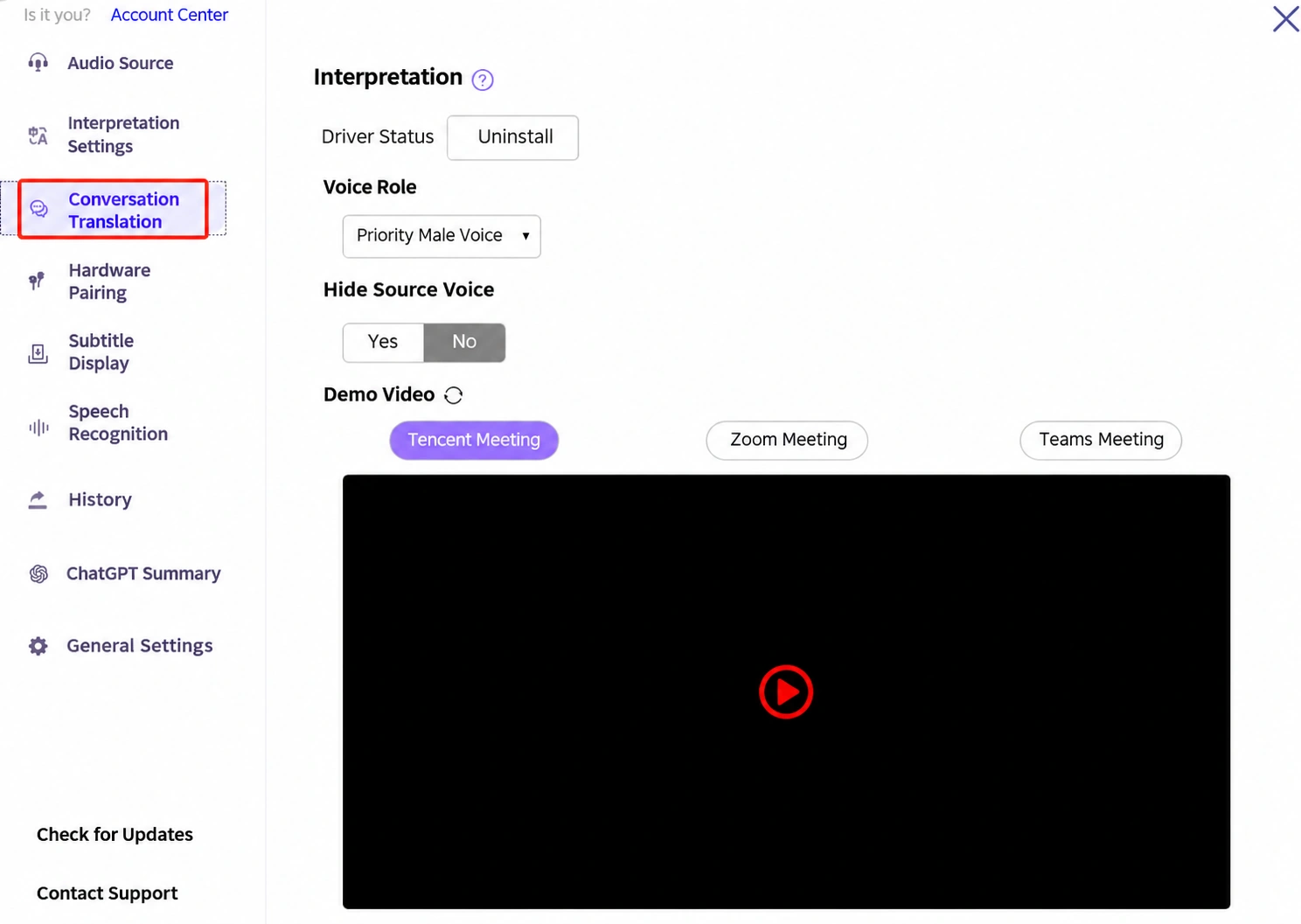
② Purchase and install the driver: If you have not purchased the virtual audio driver, follow the on-screen instructions to purchase it, then click “Install” in Speech Translation settings.
③Effective after restarting the software: After the installation is successful, please restart the software. The translation page will display the 'Speech Translation' button.
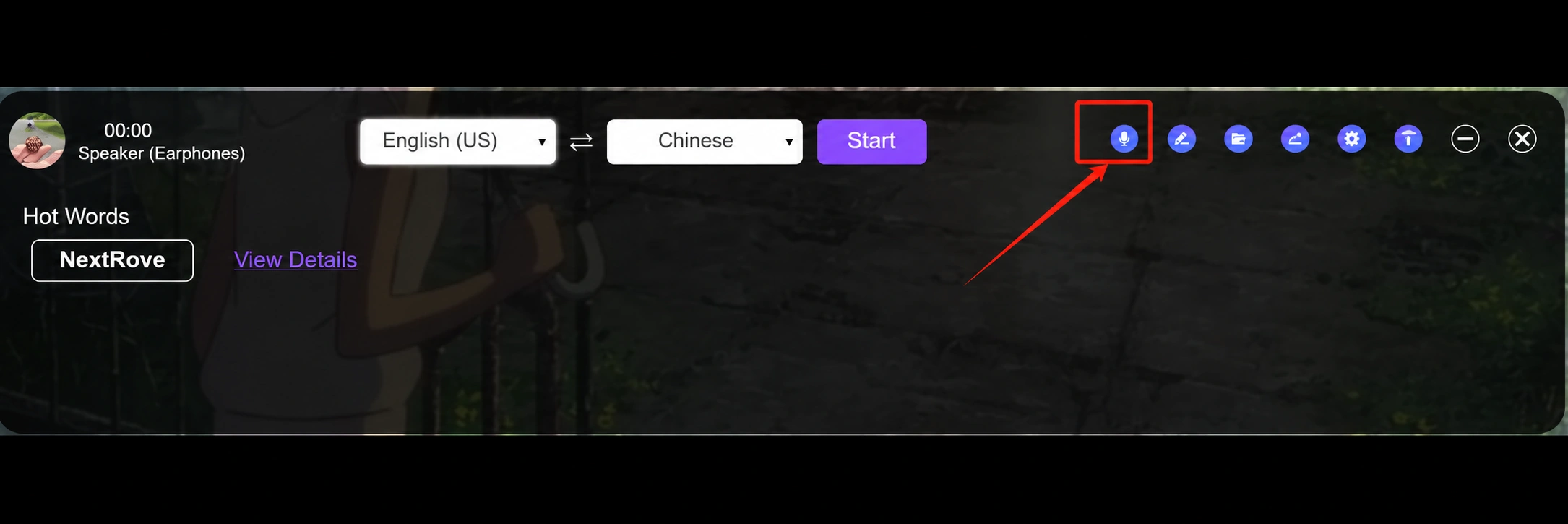
④ Meeting software settings: In software like Zoom, Tencent Meeting, Teams, set the microphone to: Hi-Fi Cable Output (VB-Audio Hi-Fi Cable)
Note: Order of use:
- Open the speech translation floating window
- Start translation
- Click the [Mute/Microphone] icon button in the meeting software
- Make sure the meeting microphone is set to the virtual audio driver: Hi-Fi Cable Output (VB-Audio Hi-Fi Cable).
- Speak into the computer microphone
- The recognition result will be automatically translated and announced to the other party.
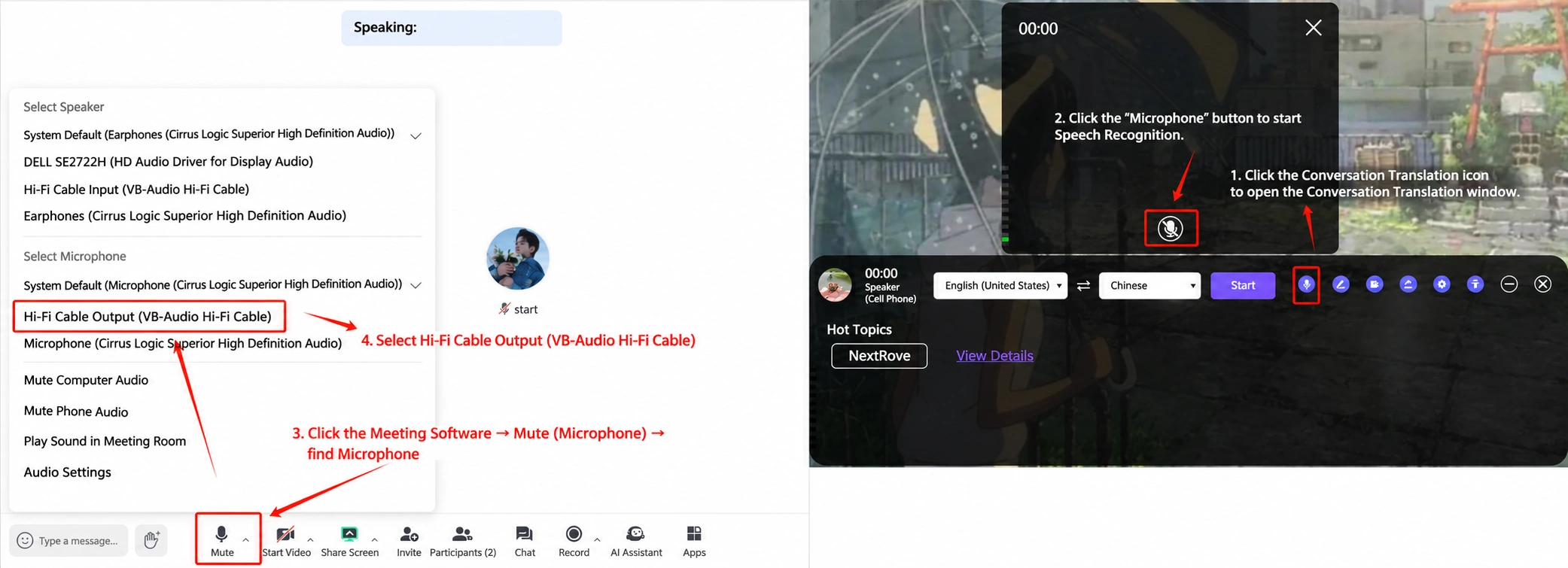
3. Precautions
- Please follow the above order strictly, otherwise it may not broadcast properly.
- If you encounter recognition or broadcasting issues, please check whether the virtual driver is installed successfully, or reselect the meeting microphone device.
- It is recommended to test in advance
If you have any other questions, you can contact Customer Support.
iTour Voice Translator MAC Computer: How to Use the Speaking Translation Function?
The speech translation feature is currently only supported High-precision Interpretation and Deepl simultaneous interpretation Two modes, mainly used to recognize and translate your own speech content.
Please note before use:
This feature is only available in Audio Input Mode is set to Speaker . It is unavailable with other audio sources.
Operating steps:
- Turn on the speech translation switch:Function Floating Box — Top Right [Settings] — Speech Translation
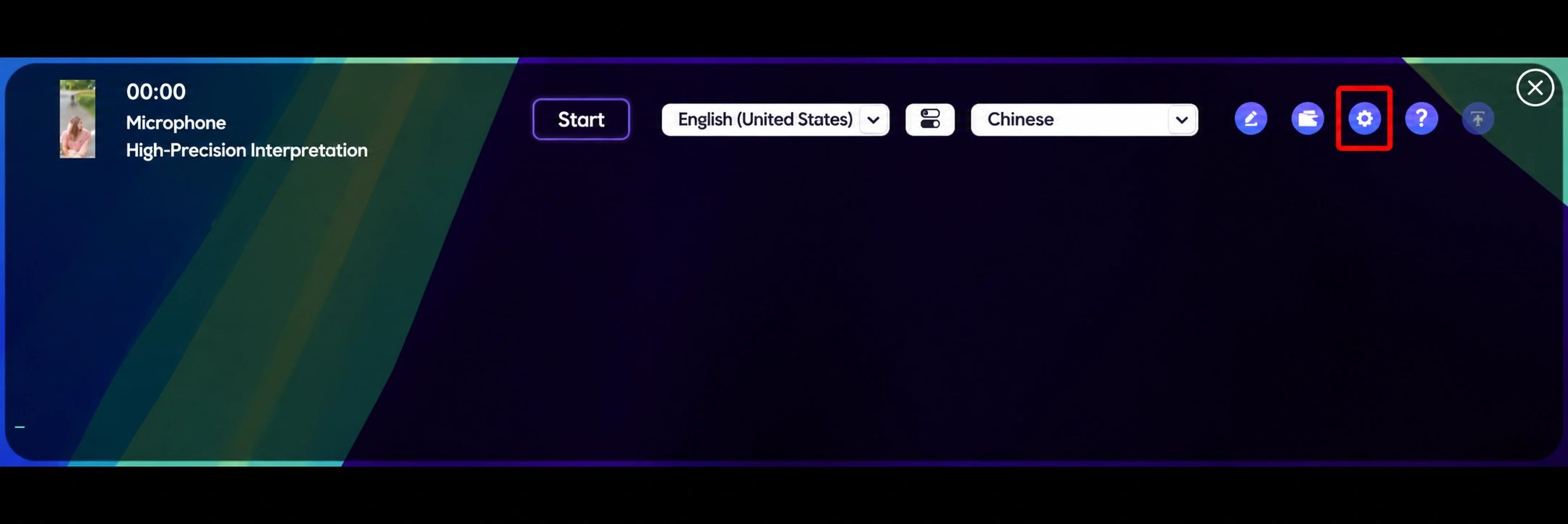
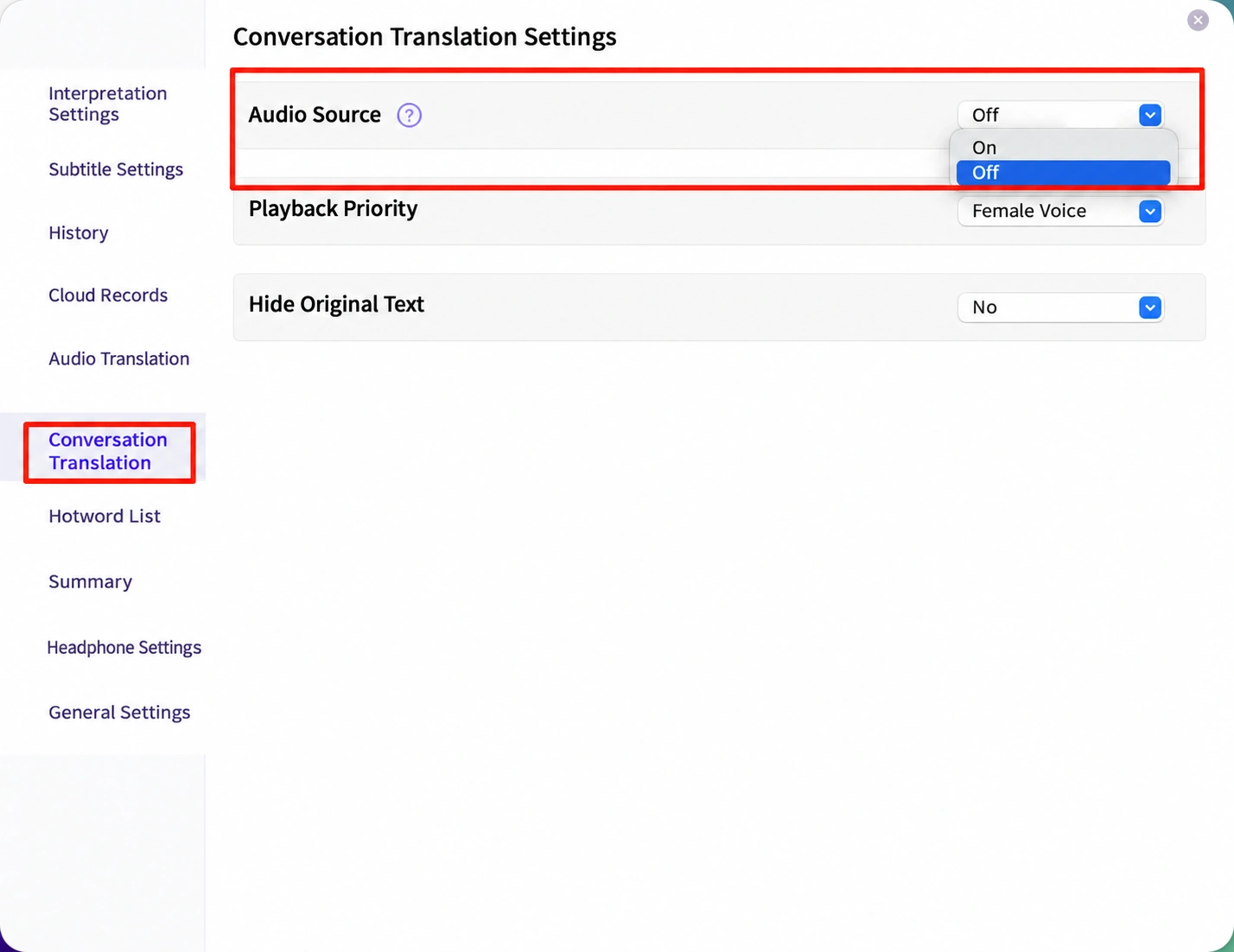
2. Return to the simultaneous interpretation interface
After setting it, the top right corner of the page will display "Speech translation” button.
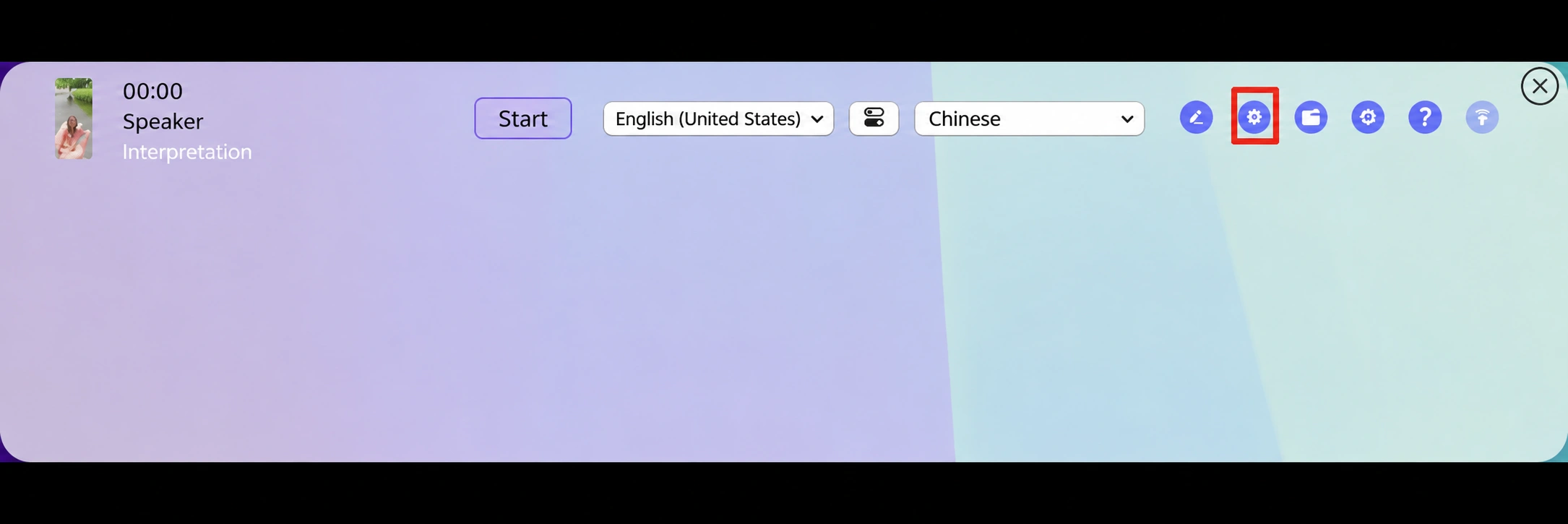
3. Start translating and using
- Click "Speech translation” to enable the feature, then start translation.
- In meeting software such as Zoom, Tencent Meeting, and Teams, set the microphone to 'itourInput 2ch'.
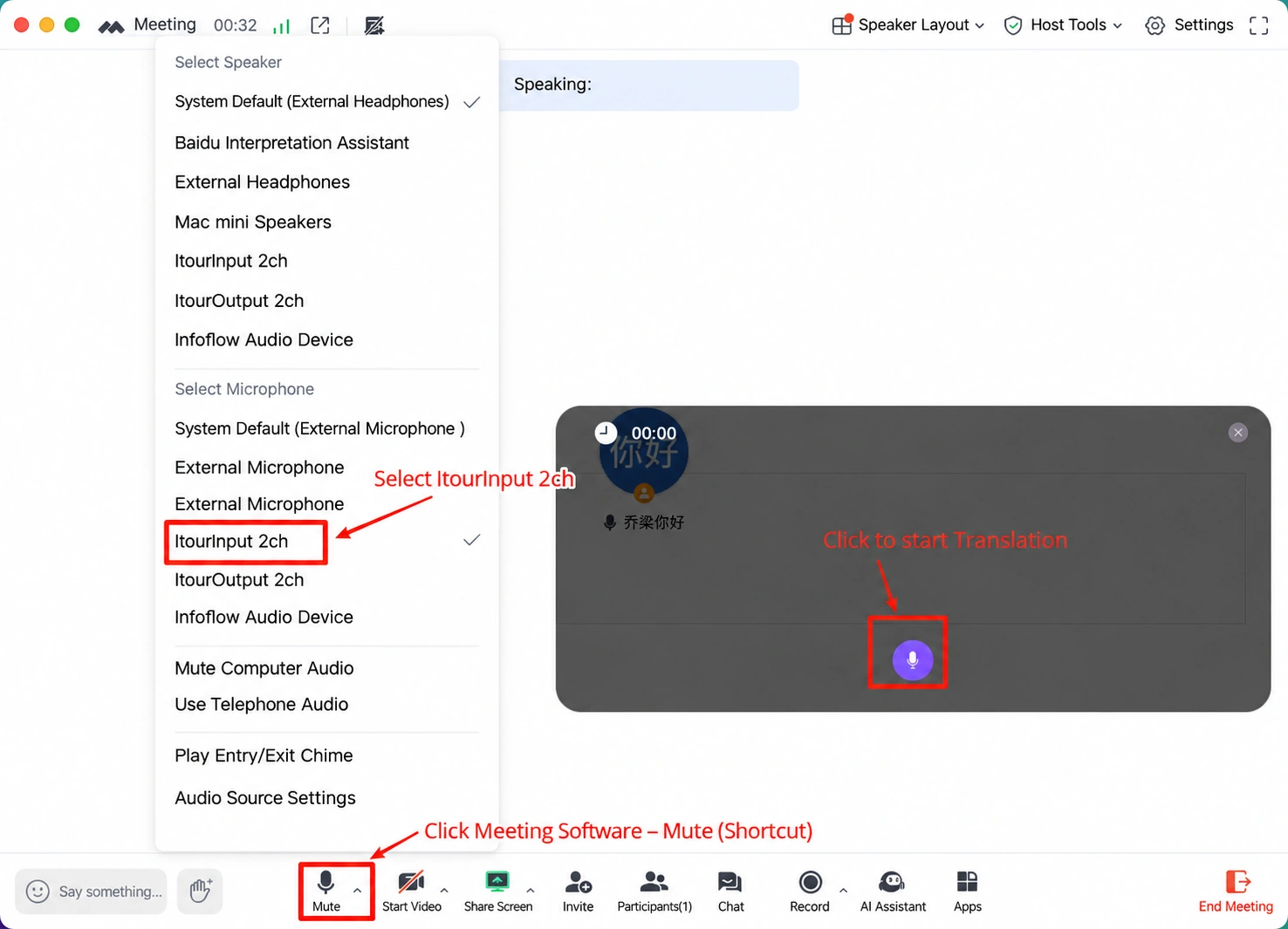
4. Speak into the microphone
Speak directly into the computer microphone, and the system will recognize your voice and translate it. The translation will be played to the other party through the speakers.
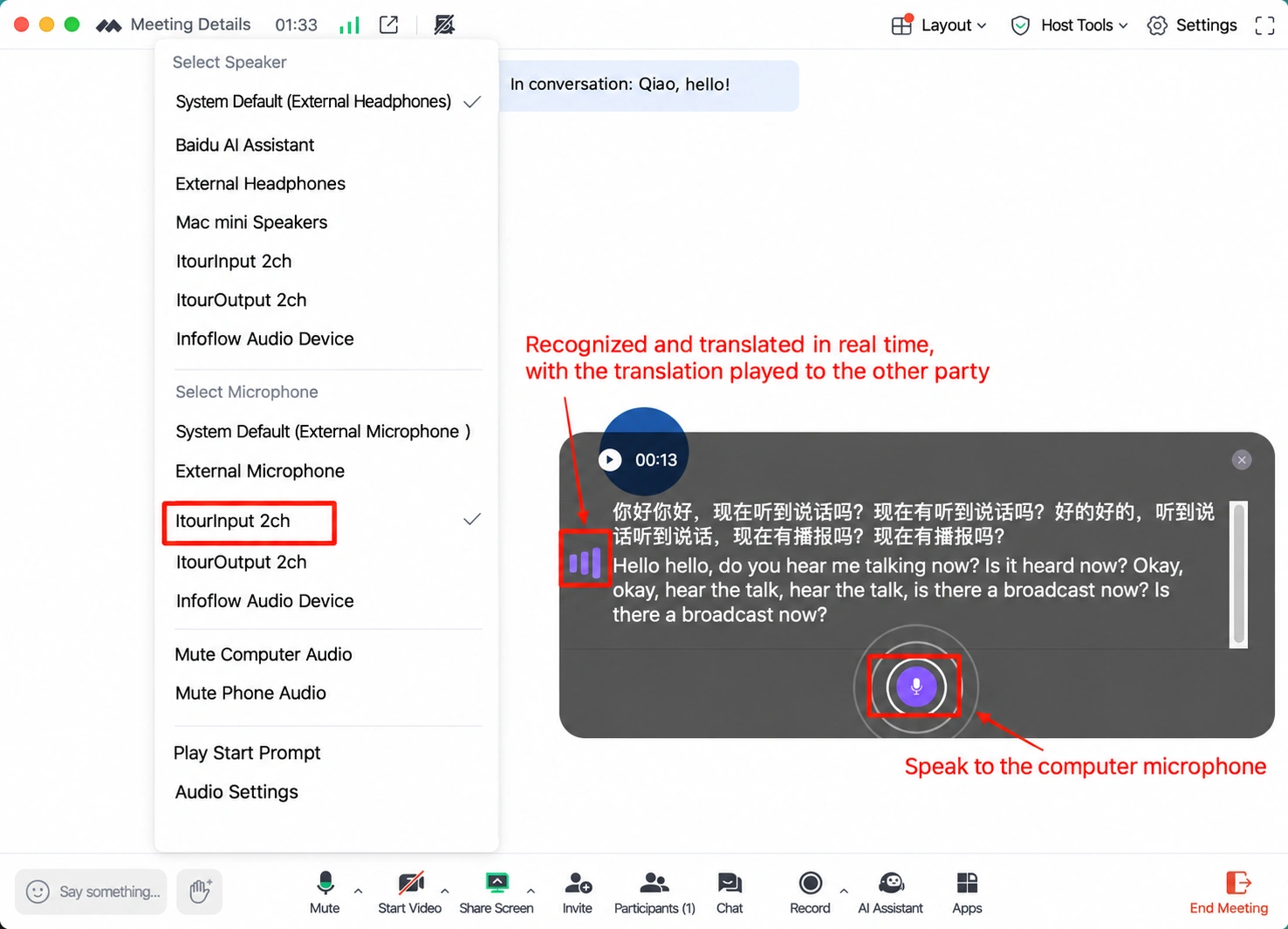
After using the 'Speak Translation' feature of iTour Voice Translator, why wasn't what the other person said translated?
This is because The 'speech translation' feature is mainly used for one-way translation. Its design is: to recognize and translate what you say, and then broadcast the translation to the other person.
If you need to understand what the other person is saying, you need to make the settings as shown in the following diagram:
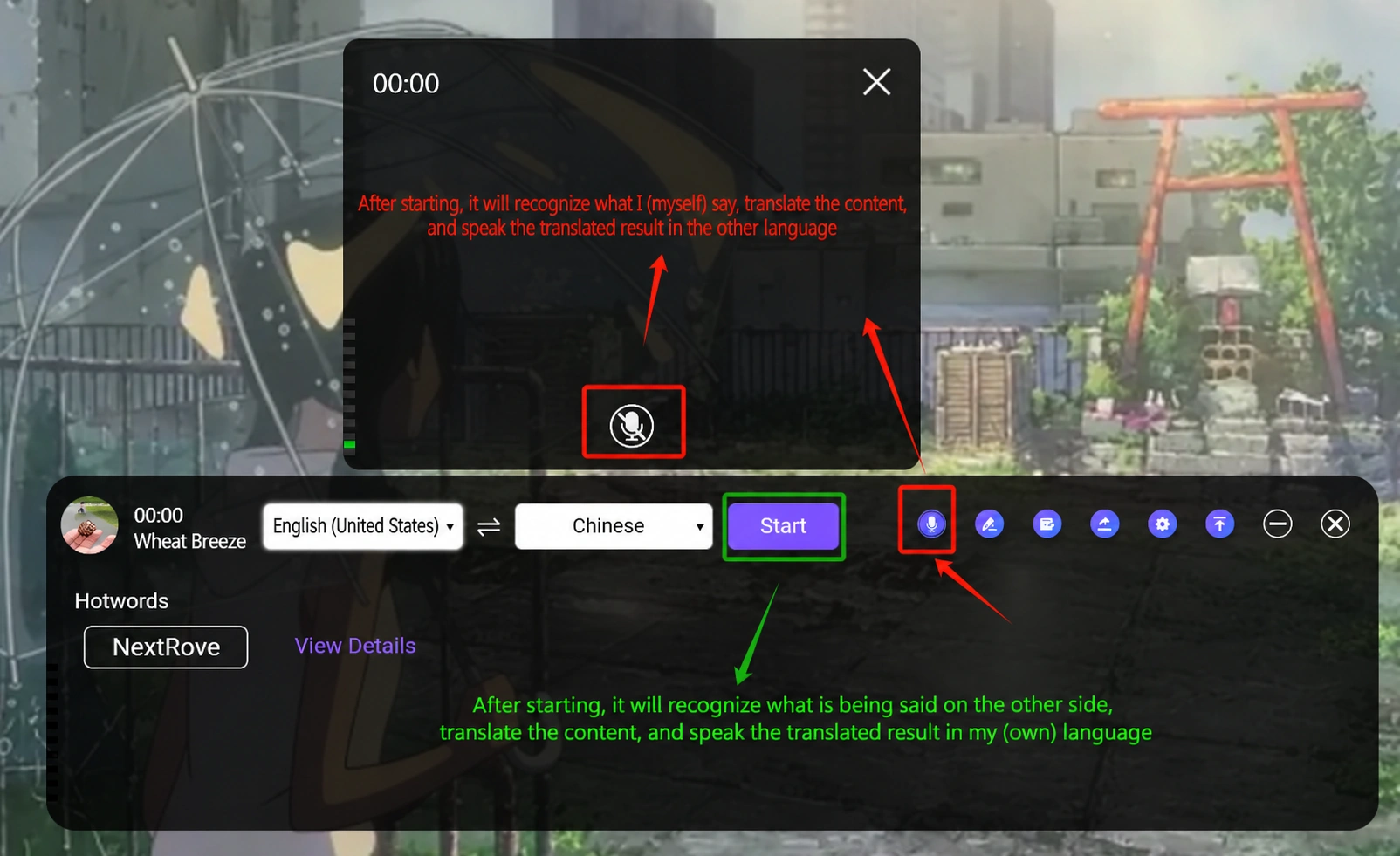
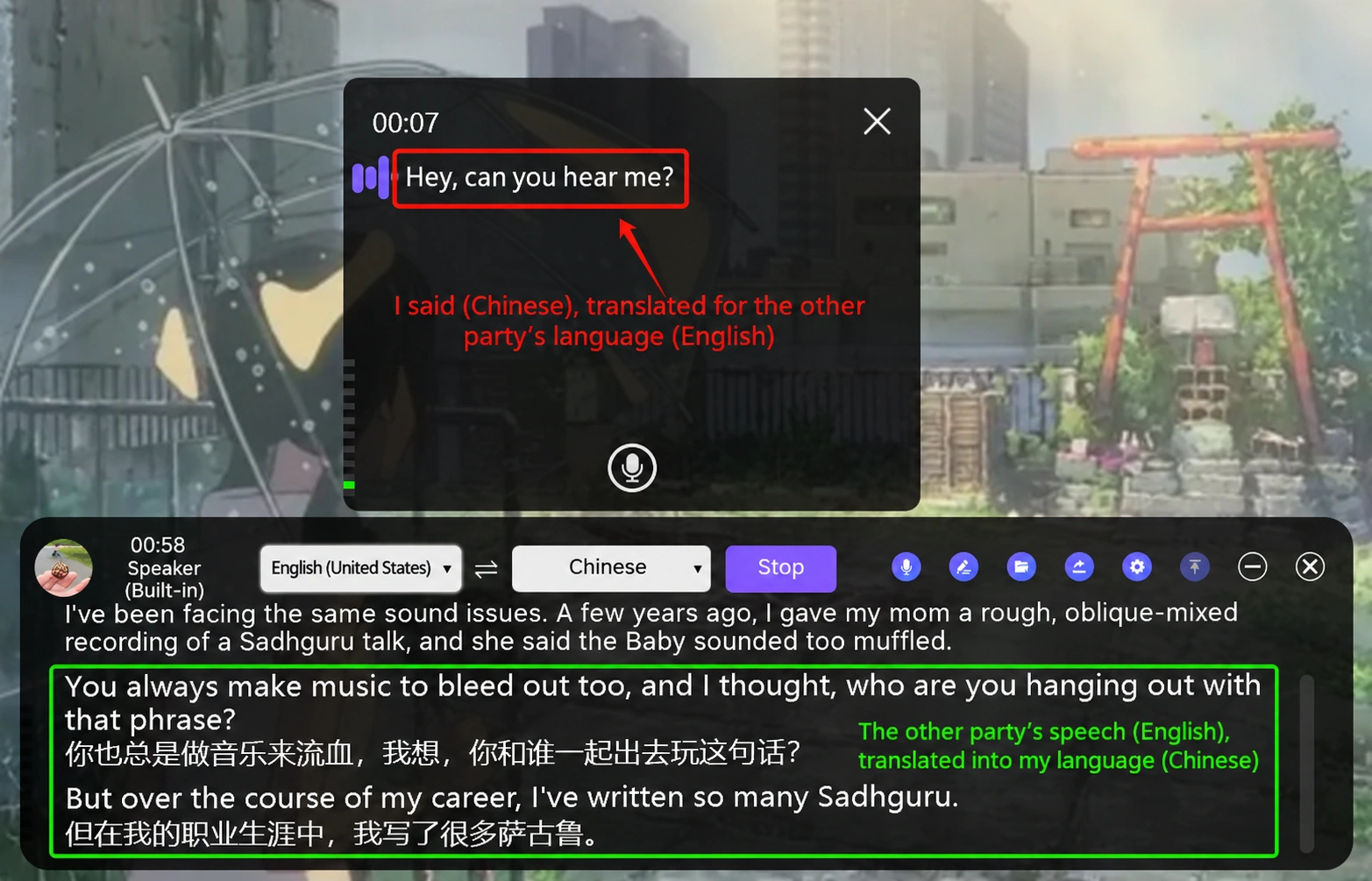
When using the 'Speak Translation' feature of iTour Voice Translator, is it possible to prevent the other person from hearing my original voice?
Yes, you can achieve this by enabling the 'Hide Original Sound' feature.
Settings Path:
Click the “Settings” icon in the upper right corner of the main software interface to enter the “Speech Translation” settings page, find the 'Hide Original Voice' option, and switch it to yes That's all.
What to Expect:
After enabling this feature, the other party will only be able to hear the content of what you say Translated Speech, and will not hear your original voice.
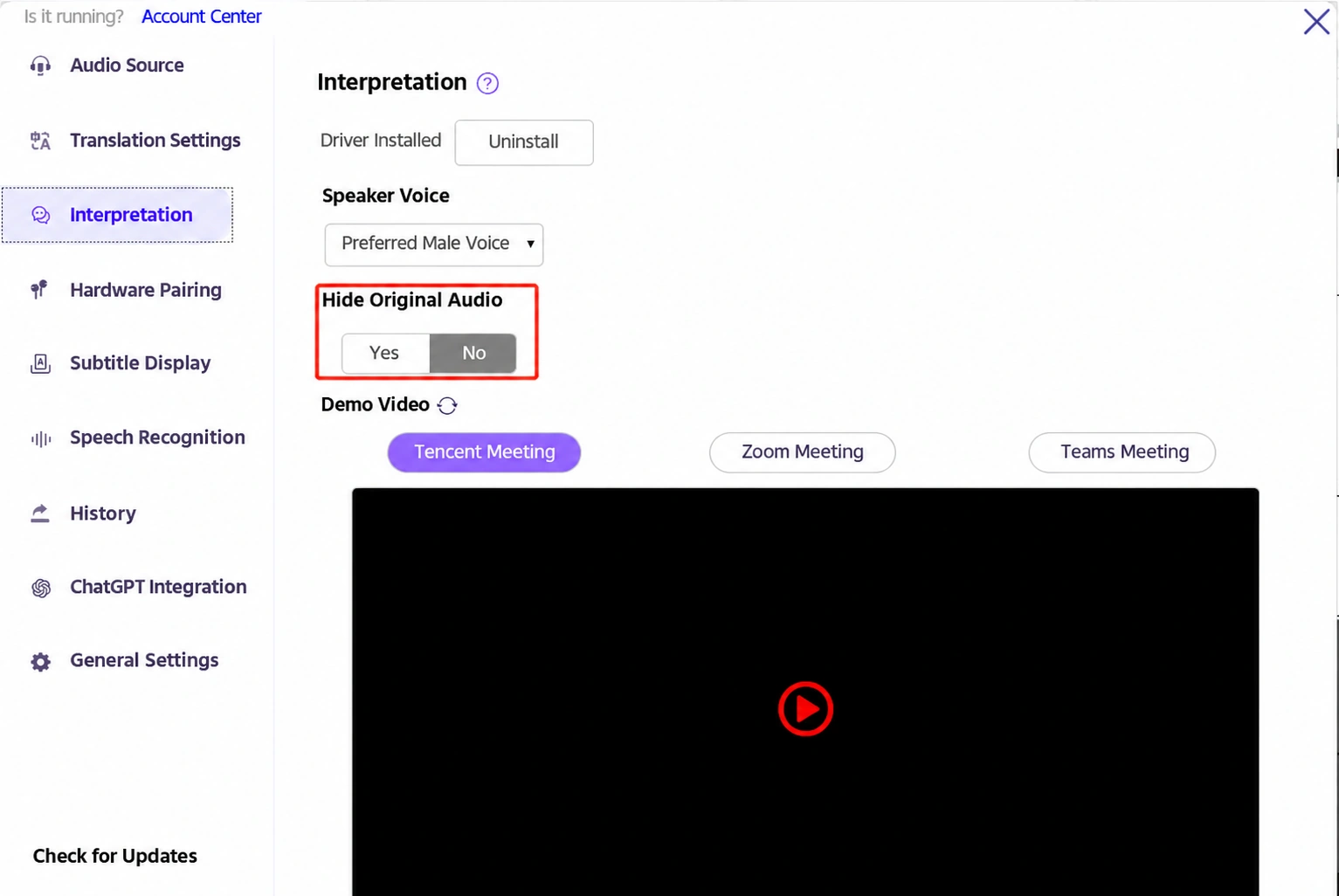
After installing the speaking translation driver for iTour Voice Translator on a Windows computer, the other party in the meeting cannot hear my voice. How should I resolve this?
This issue is usually caused by a conflict in the audio routing settings. Please follow the steps below to check and adjust them in order, and you will be able to restore your microphone sound:
Option 1: Check the microphone settings within the software
- Open iTour Voice Translator.
- Go to Settings → Audio Source Settings.
- Check whether the 'Microphone' option has been mistakenly selected as 'Hi-Fi Cable Output (VB-Audio Hi-Fi Cable)'.
- If so, please change it to the actual microphone device on your computer (such as 'Built-in Microphone' or the name of your external microphone).
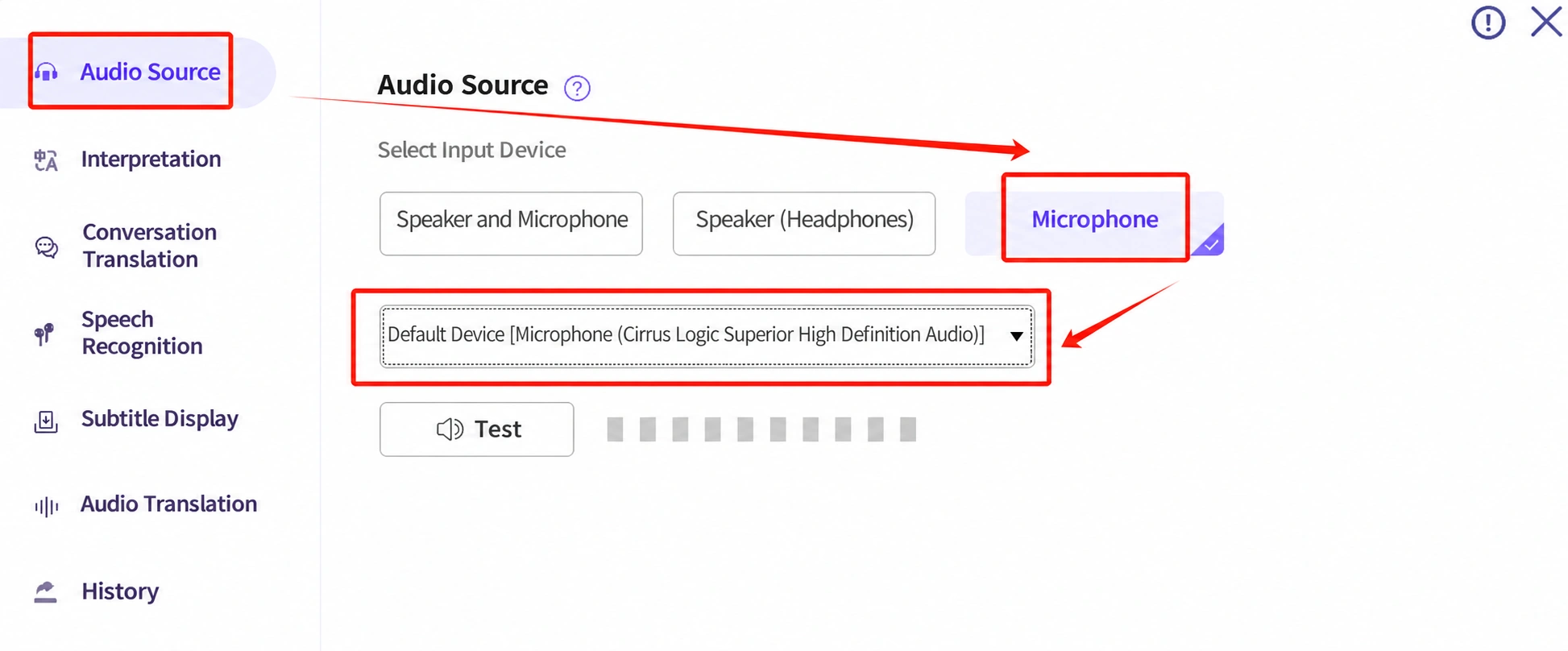
Option 2: Check Windows system recording devices
- Right-click the speaker icon at the bottom right corner of the computer screen, and select [Sound settings].
- In the 'Input' device list, confirm whether 'Hi-Fi Cable Output (VB-Audio Hi-Fi Cable)' is selected.
- If so, please switch it to the correct microphone device.
Important Notes:
- Only when using the speech translation function, you only need to select " in the microphone settings of the meeting software (such as Zoom, Tencent Meeting, etc.)Hi-Fi Cable Output", so that the software can take over and translate your voice.
- When not using the speech translation function, please be sure to switch the microphone in the meeting software back to your normal microphone device, otherwise the other party will not be able to hear your voice.
Why does iTour Voice Translator not display the translation content after enabling translation on Mac computers with macOS versions below 13?
This issue is usually caused by the audio output not being correctly directed to the translation channel. Please check and set it in the following order:
Step 1: Make sure the translation is turned on correctly
- In iTour Voice Translator, click [Start] to begin translation.
Step 2: Set up the speaker in the conferencing software
- Open the meeting software you are using (such as Zoom, Tencent Meeting, etc.).
- Enter the audio settings (or 'sound settings') interface of the software.
- In the Speaker/Output Device options, select the 'iTourMulti-Output' device.
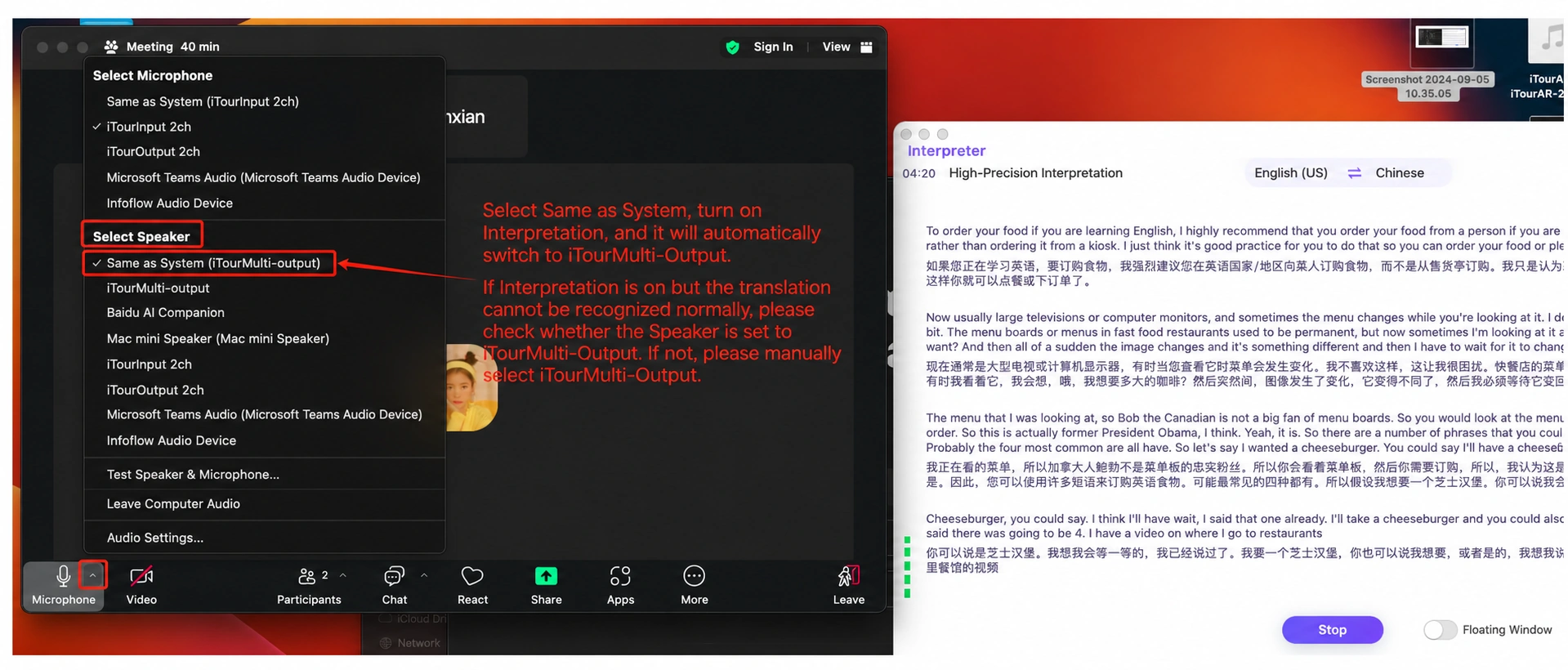
Please pay attention to the operation sequence:
Be sure to first Turn on simultaneous translation in iTour Voice Translator,again Select the corresponding speaker device in the meeting software. Reversing the order will cause the system to fail to correctly route the translation audio.
When using iTour Voice Translator for simultaneous interpretation, how can you pause the real-time refresh to view previous translation content?
You can view the complete translation history through the 'Meeting Minutes' feature. This feature saves all translation records, allowing you to browse them at any time without being affected by real-time updates.
The specific operation interface is shown in the figure below:
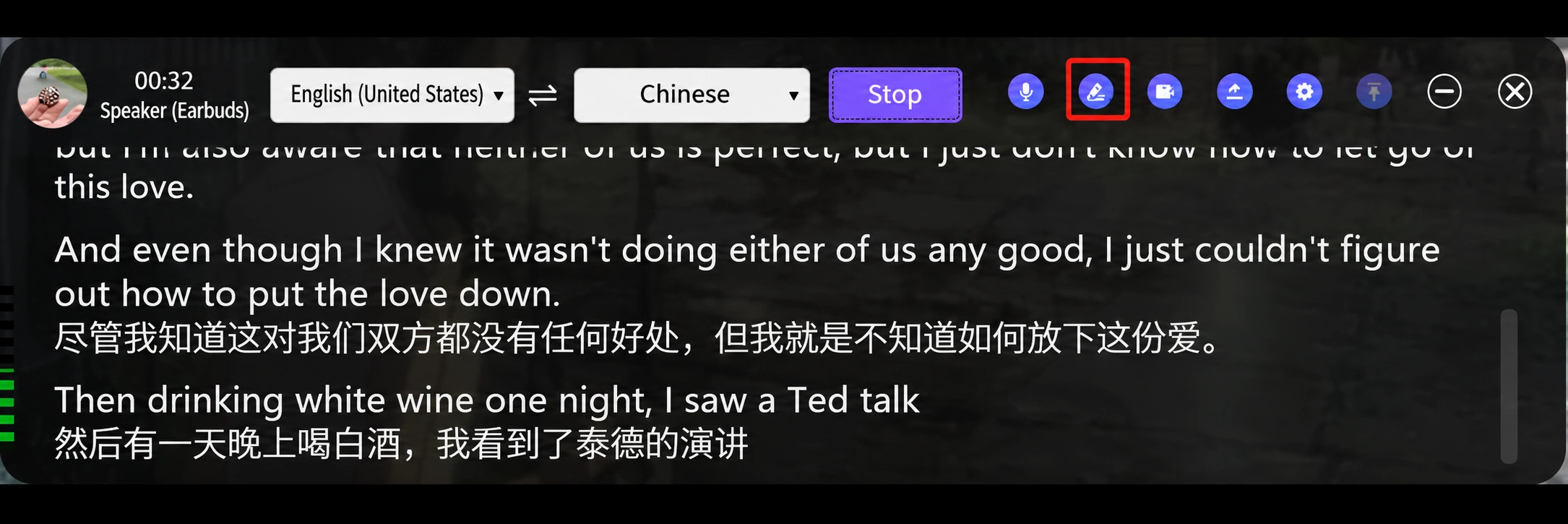
I have purchased and installed the speaking translation driver for iTour Voice Translator. Why doesn't the 'Speaking Translation' icon appear on the floating window?
This situation usually occurs because the corresponding simultaneous translation type has not been activated in the software. Please follow the steps below:
Operating steps:
- Click the “ at the top right corner of the main interface Settings” Icon (⚙️).
- Enter [Translation Settings”.
- In the translation engine, select to enable "High-precision Interpretation" or "Deepl simultaneous interpretation Any one of the items in
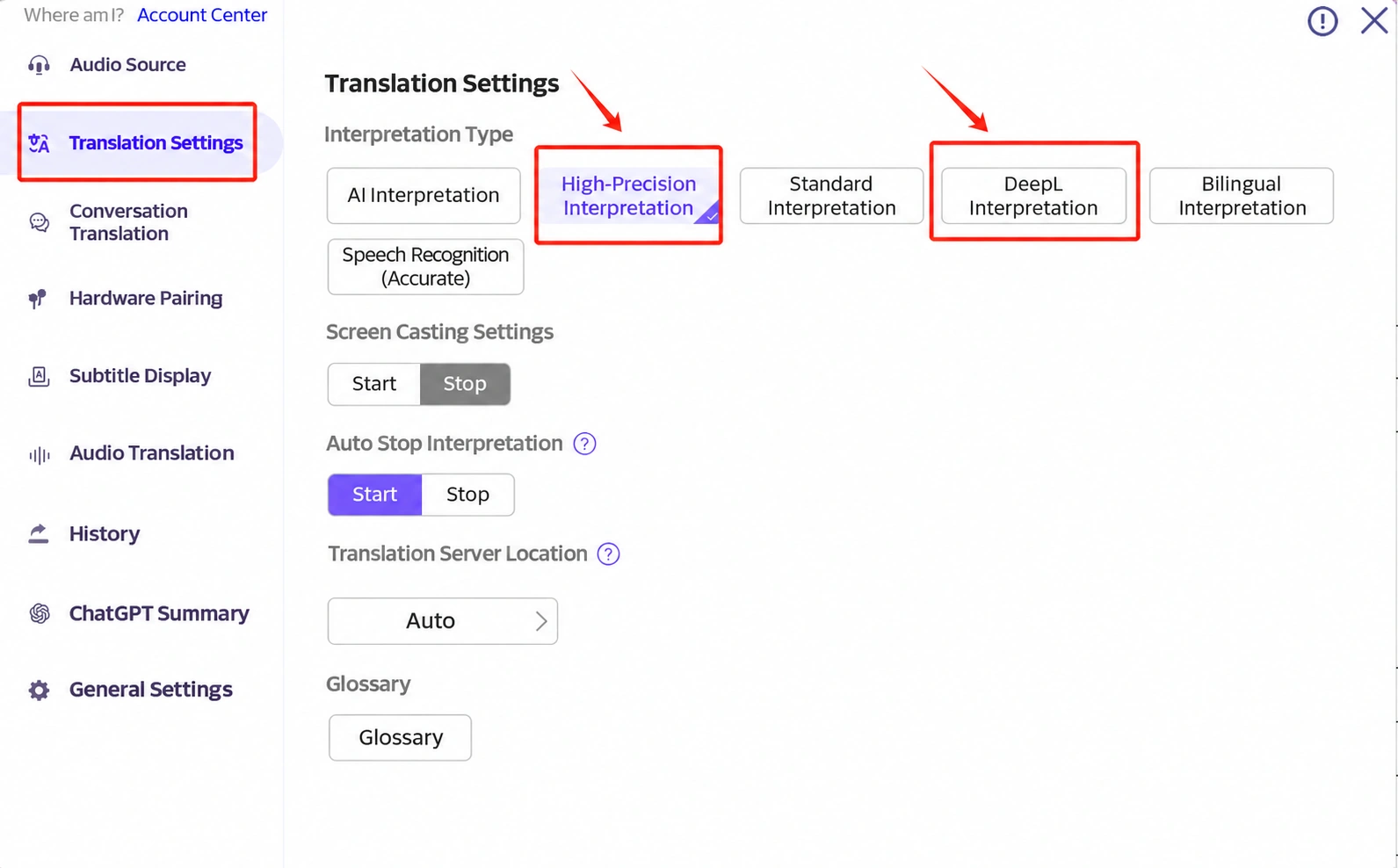
Explanation:
"Speech Translation" is an enhanced feature that operates based on the above-mentioned simultaneous interpretation translation types. Only after activating any of the above translation types will the system load and display the microphone icon for "Speech Translation" in the floating window, after which you can use this feature normally for voice input and real-time translation playback.
Video Translation Browser Extension6 questions
Open in a separate page →Why can't the Video plugin be used? After clicking [Start Translation], nothing happens.
1. If the plugin was installed after opening the webpage, pleaseRefreshThis webpage orRestartRetry in the browser
2. IfRefreshwebpage orRestartAfter the browser, if the problem still cannot be resolved, it may be the current webpageNot supportedGenerate plugin floating window, it is recommended to use the desktop client[Click here]
How do you use the browser extension features?
Click[Start Translation], you can choose from the following two options:
1) If you need translation Web video, you can select the Chrome tab, choose the video tab you want to translate, and click[Share]can do
2) If you need translation Voice content on desktop platforms like Zoom, then you need to choose[The entire screen”— Click the middle of the screen — Select “Share system audio” — Click to share
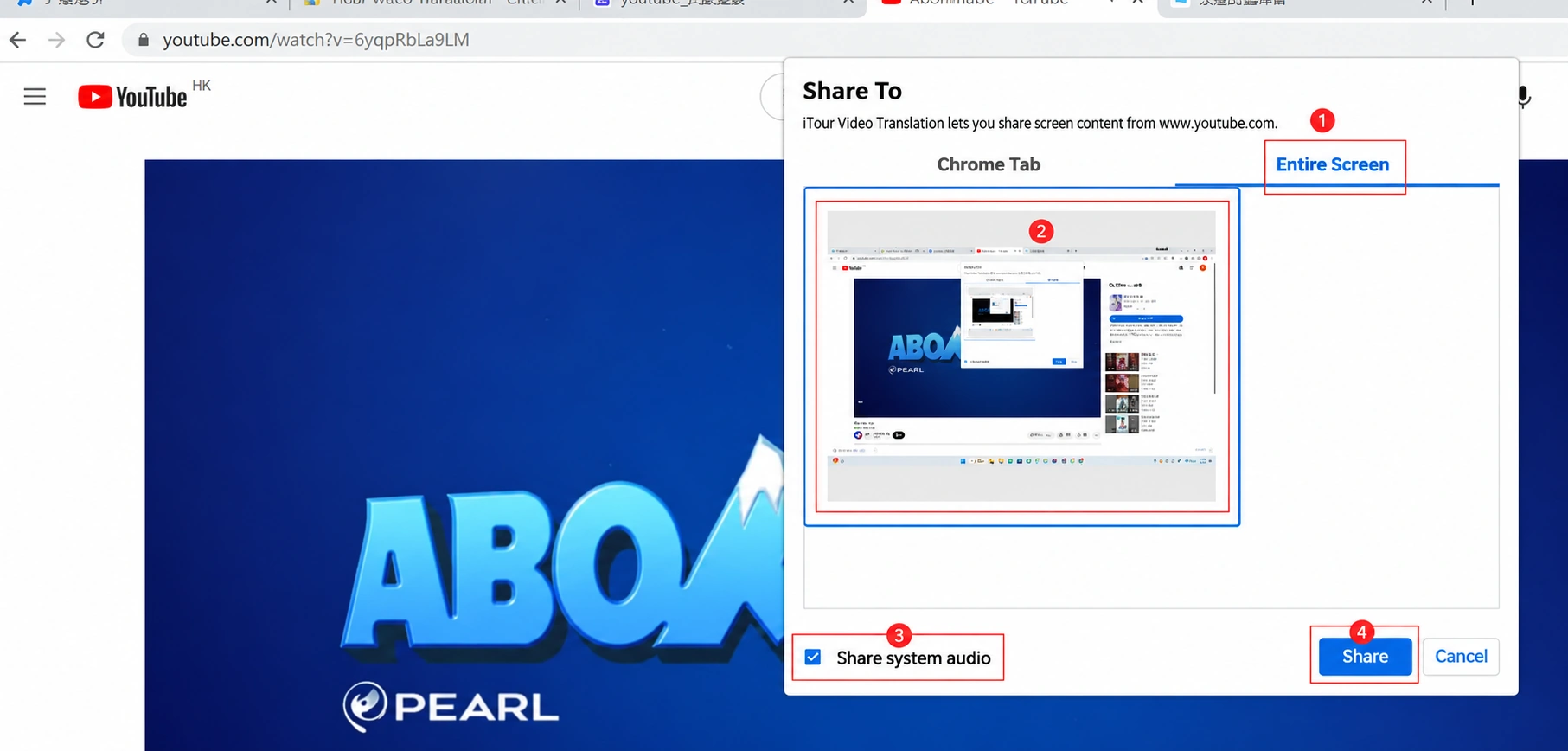
Audio Source Selection
Web: Online meetings, courses, web videos, etc., sound source selection Web
Microphone: For in-person meetings and speech, select the audio source Microphone
Note:
If the page you want to use was opened before iTour Video was installed, you need to reload this page in order to use the iTour Video translation feature.
How do you install a plugin?
Google Chrome:
1) In overseas/with a VPN situation, you can go to the Google Play Store to install [Click here to download”
2) In mainland China without using a VPN“Click to download locally ”
Local download and installation operation steps (Taking Chrome browser as an example):
1.First, click download iTourVideoTranslation-vx.x.x.zip, unzip it to the current folder, enter chrome://extensions in the address bar or click the top right corner -> More tools -> Extensions to open the Chrome Extensions interface
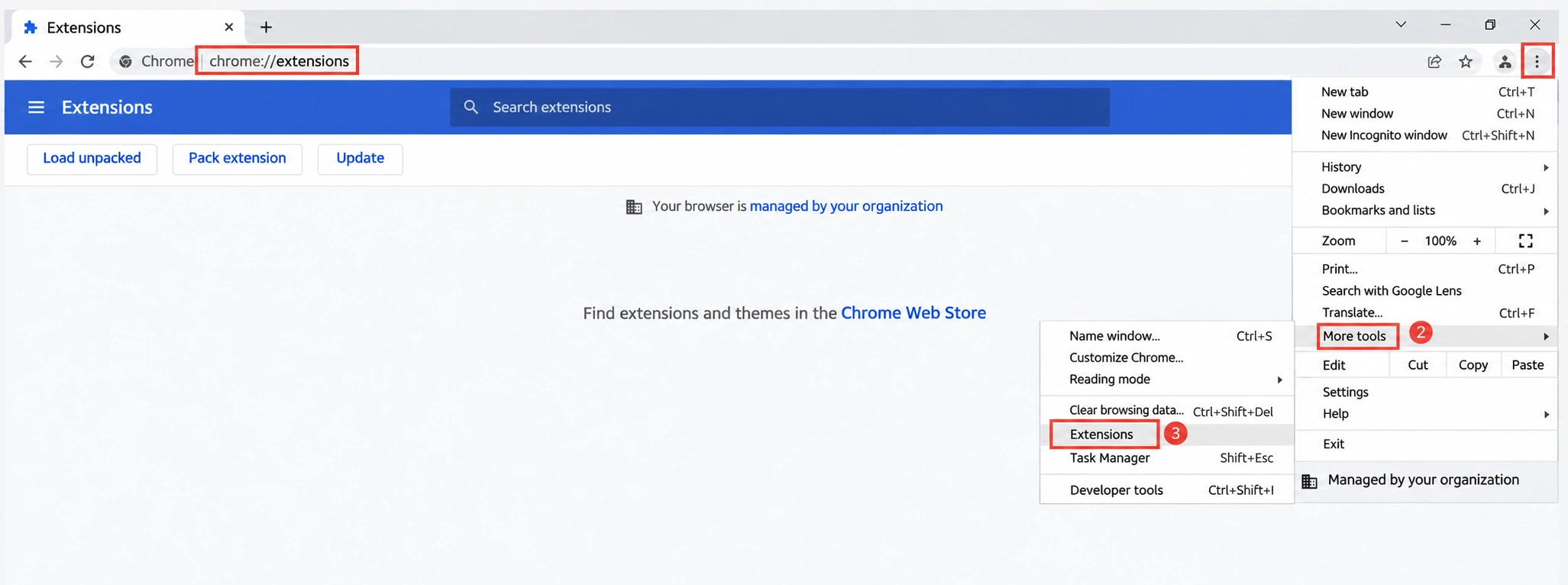
2. Enable Developer Mode
3. Click 'Load unpacked extension' and select the folder that you have extracted.
4. Click on the extensions in the browser and select Pin
5. Once fixed, the iTour logo will appear in the upper right corner of the browser. Click this logo to pop up the iTour video translation plugin window, then click[Login”You can then jump to the login page to register and log in.
Suggestion: After installation, please restart the browser before use
Top Up: After successfully logging in, you can go to the wallet page to top up. You can top up directly or choose a package to top up.
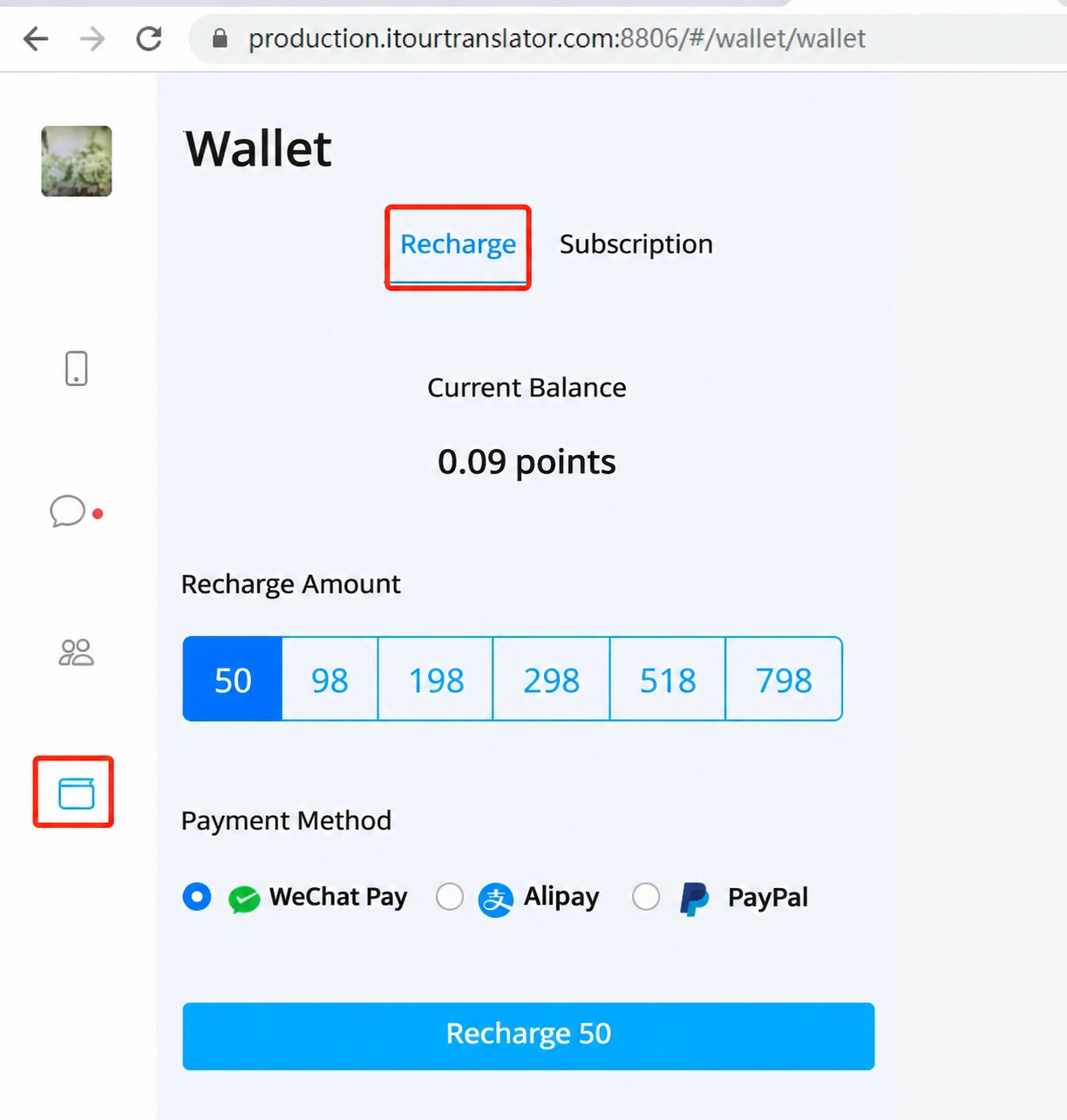
Edge Browser:Install from the Microsoft Edge Add-ons store“Click here to download”
Plugin side: Can it translate Zoom, Teams, and Tencent clients?
Sure, the specific operation steps are:
1. Click[Start Translation]
2. Choose[The entire screen]–> Click the middle of the screen –> Select “Share system audio” –> Click to share
Note: The plugin translation pop-up cannot be used outside the browser
Does the browser extension save audio recordings?
Plugin versionNoneAudio recording
Where do I find translation history in the browser extension?
Open the plugin page — HistorySearch
iTour Subtitle1 question
Open in a separate page →How to use video subtitles?
Translate the video subtitles and add them to the video, following these steps:
Add video → Transcribe the original audio in the video subtitles → Translate into subtitles in other languages → Export video subtitles
The specific operation is as follows(The original spoken language of the following demo images and videos is English, translate into Chinese):
1. Add video: Click on position 1 or 2 in the image below to upload a video
2. Transcribe the video’s original audio into subtitles:
2.1 After uploading the video, you can choose video–Audio to text (itour)
Or click the red box in the image below, or you can use the shortcut key Ctrl+Shift+R
2.2 Select the language to recognize in the following Figure 1, and click[Recognition]
Note:
·This step is just transcribing the original voice subtitles in the video, selected Language Needs to be with the video Audio language is consistent
·During recognition, if closed or canceled, the recognition fee will still be deducted and is non-refundable
2.3 After the recognition and transcription are successful, the recognized content will be displayed as shown in the following figure
3. Translate subtitles (choose the XX language to translate into):
3.1 Select Auto-translate — Auto-translate
Or click the red box in the picture below, you can also use the shortcut key ctrl+shift+G
3.2 Enter the following interface, select the from language and to language, then click[Translation], after the translation is completed, click Confirm can do
How Translations Are Displayed:
4. Export subtitle video: In Video — Generate video with burned-in subtitle — set the parameters and export the video.
Exported video:
iTour Document Translator9 questions
Open in a separate page →PC Client — iTour Document Translation Software, how to log in?
The iTour document translation desktop client uses a 'mobile app QR code scan' secure login method.Important prerequisite: Please make sure your phone has installed and logged into the 'iTourTranslator' app. The specific process is as follows:
💻 Step 1: Get the QR code on the computer client
- Open 'iTour Document Translation Software' on the computer.
- The software will automatically display the login interface, with a dynamic QR code in the center.
📱 Step 2: Use the mobile app to scan the QR code to log in
- Open the 'iTourTranslator' app on your phone and make sure you are logged in.
- On the app's home page, click the 'Scan' icon in the top right corner.
- Scan the QR code displayed on the computer screen.
✅ Step 3: Complete Login
After scanning the QR code, the computer client will automatically log in, and you can start using it.
⚠️ Troubleshooting Login Issues
If the mobile app prompts 'Login information expired' when scanning the QR code, please follow the steps below:
- Completely exit the mobile app (close the background).
- Reopen the app.
- Use the 'Scan' function to scan the computer QR code again.
Computer Client — iTour Document Translation How to link the original and translated text when viewing the translation
Enter View Translation On the page, click screen association, and scroll the mouse wheel to synchronize the original and translated text.
PC Client — Does iTour Document Translation support editing the translated text?
Editing is allowed, but attention must be paid to document format restrictions.
📄 Editing Support
- Editable: Translations of documents such as Word (.docx), Excel (.xlsx), and plain text (.txt) all support direct modification.
- Cannot be edited directly: The translation of PDF format documents cannot be directly modified in the software due to file format limitations.
✏️ How to edit the translation
Regarding Supported documents, you can edit the translation or add notes in the following two ways:
- Toolbar Editing: On the translation page, directly use the formatting toolbar at the top of the page to make modifications.
- Right-click menu editing: Right-click on the translated text and use the pop-up function menu to edit or select 'Add Note'.
All edits and notes will be saved automatically.
PC Client — iTour Document Translation Where can I view the translated text?
You can see the translated files and related translation information in the translation records on the homepage.
PC Client — How to operate iTour document translation collaborative online editing?
My Documents –> Select the file to share — > Right-click the file with the mouse or click the three dots on the file — > Click to share and go to the sharing page
Enterprise User Sharing:Click to add a collaborator –> Click to copy link — > Share with collaborators.
Shared by regular users: Only supports copying the link –> Share with collaborators
Note:
1. Added collaborators, others cannot open the document even if they have the link
2. Enterprise users support setting collaborators' operational permissions, while regular users are not supported for now.
PC Client — How to Use the iTour Document Translation Terminology Database?
After adding a terminology database, when you enable the terminology database while using full-text translation or side-by-side translation, the translation results willPrioritize based onAdd terms for translation.
Enter the terminology library page:
1. Add a single term
Enter your own defined terms in the source language and target language boxes. InputThe character limit is 100.Character.
2.Batch import and export
Import:Batch ImportSupports Excel spreadsheets, and the table content must be the same as the template style; you can download the template to check the style
Export:Select the file to export, and then export it.
PC Client — What is the purpose of the iTour Document Translation Model Library?
Model Library: Customizable translation for documents
Needs to be imported manually Over 10,000 lines Train the model with content files. After the training is completed, enabling the model will add a 'Custom Translation' option in the translation engine, at which point you can make a selection. Custom Translation — >Trained model library, carry out Custom Document Translation
Note: After the model training is completed, a training fee will be charged. Each model will incur an additional hosting fee every month (whether the model is activated or not). To stop the charges, the corresponding trained model library files must be deleted.
Follow these steps to train a model:
1. Create a project
Click to create a project, you need to customize the project's name and choose the target language and source language.
The interface after creating the project is shown in the figure below.
2. Import File
Imported file Only supports Excel Table, table Content no less than 10,000 lines For reference data, the table content style can be downloaded as a template and the required data can be directly added.
After the file is uploaded successfully, click[Train Now]
PS: You can check the file upload status at the location shown in the picture. If it hasn’t changed for a long time, you can click the refresh button to check the file upload status.
3. Enable Model
After the model training is completed, it will display[Enable], click[Enable]to enable this model
After enabling the model, you can go to the translation engine to select it."Custom Translation"— > Corresponding model file
Why can't a Mac computer open iTour document translations properly?
The iTour Document Translator app supports only Mac computers with Apple chips. If you see the message shown below, your computer does not support this software.
You can use the iTourTranslator PC version -> Translate -> Document Translation feature,Click here to download
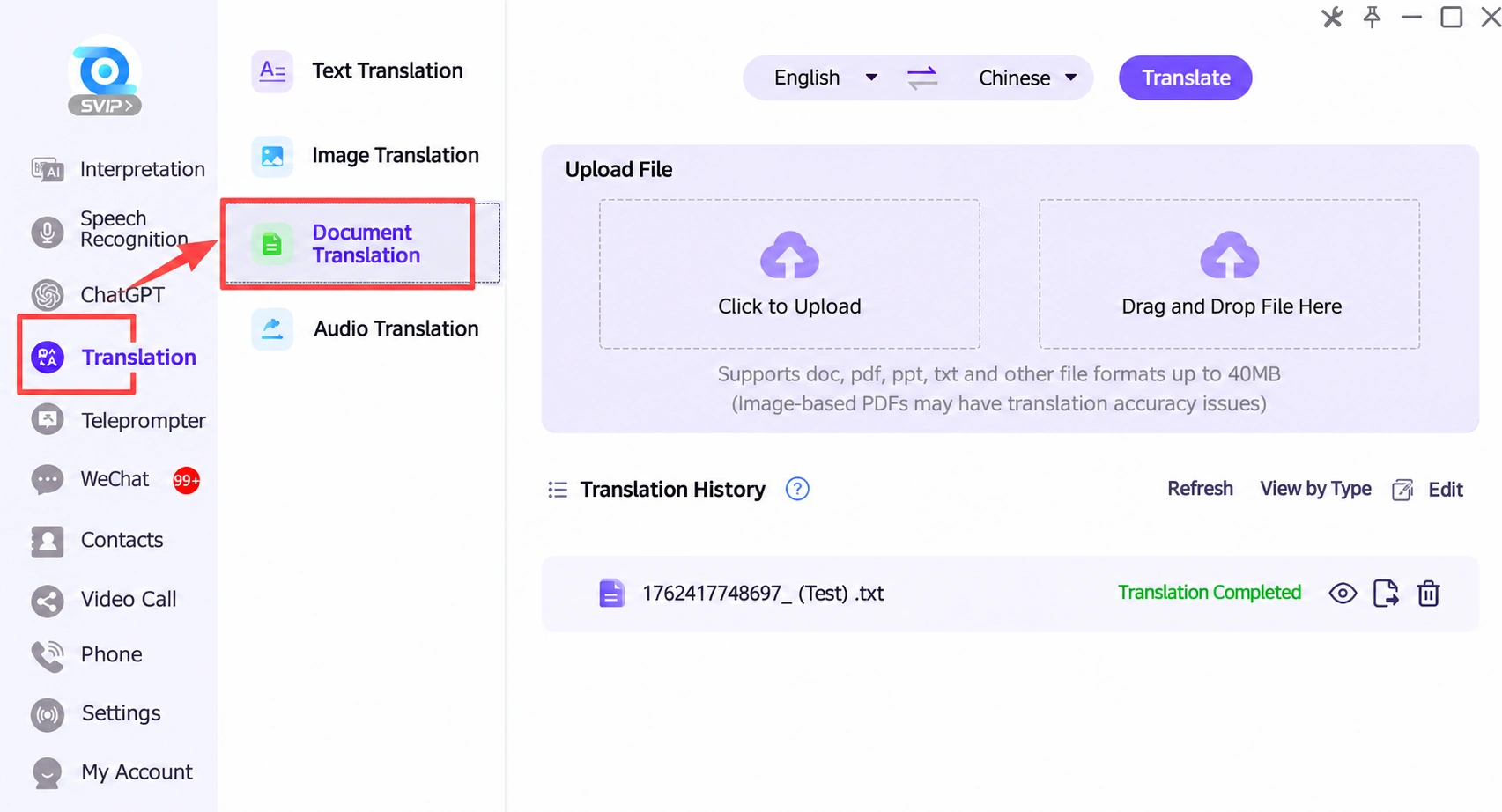
Computer Client — How to Translate Documents with iTour?
Document Translation Steps:
1. Upload/Add document file, click[Import File]:
Supports formats such as pdf, doc, docx, txt, pptx, ppt, xlsx, xls. The interface is shown in the picture.
2. Click on the file you want to translate to view its content, select the corresponding source language and target language, you can choose to translate selected parts or the entire document, and you can also add Engine 2 for comparison translation.
The page supports zooming in, zooming out, and refreshing. For related fee information, see the bottom right corner of the interface. As shown in the picture below.
When performing full-text translation and side-by-side translation, enabling the terminology database will prioritize translating according to the added terms. As shown in the figure.
Note: The terminology database is only supported for use with the Microsoft engine.
Full-document / Side-by-side Translation:
The document is being translated. A progress bar will be displayed in the lower right corner. Once the translation is complete, the interface will show a prompt indicating that the translation is finished, and the translation button will be updated to 'View Translation'.
Click[View Translation], Open the side-by-side original and translated text
Translate Selected Text:
Select the content you want to translate, and you can see the translation and the original text of the selected content on the right. Copying the selected content and the translation is supported.
PS: Choosing different translation engines results in different translation quality and different pricing standards.
iTour A11 question
Open in a separate page →On an Android phone, when using the 'iTourAR — Conversation' feature, is it impossible to adjust the broadcast volume?
iTourAR — Dialogue feature, involving 'mobile phone speaker broadcast' and 'A1 glasses broadcast'
Due to compatibility issues with certain phones, it is not possible to simultaneously adjust the broadcast volume of the 'phone speaker' and 'A1 glasses' when using the conversation feature.
If the broadcast volume is too low during use, you can adjust the volume as follows:
1. Disconnect all Bluetooth devices connected to the phone / Turn off Bluetooth, and adjust the phone's media volume to 80%
2. After connecting the A1 glasses via Bluetooth, adjust the A1 volume to 80%
3. Enter the iTour AR app and use the chat feature
iTour-Clip11 questions
Open in a separate page →What is the standby time of the iTour-Clip translation glasses?
When powered on but not using any functions (such as translation, audio playback, etc.), the device can stay on standby for approximately 1.5 hours.
How to connect and use the iTour-Clip translation glasses with the app
1. Identify/scan the following QR code to download the iTourAR APP

2. Open the iTourAR App and selectiTour-Clip
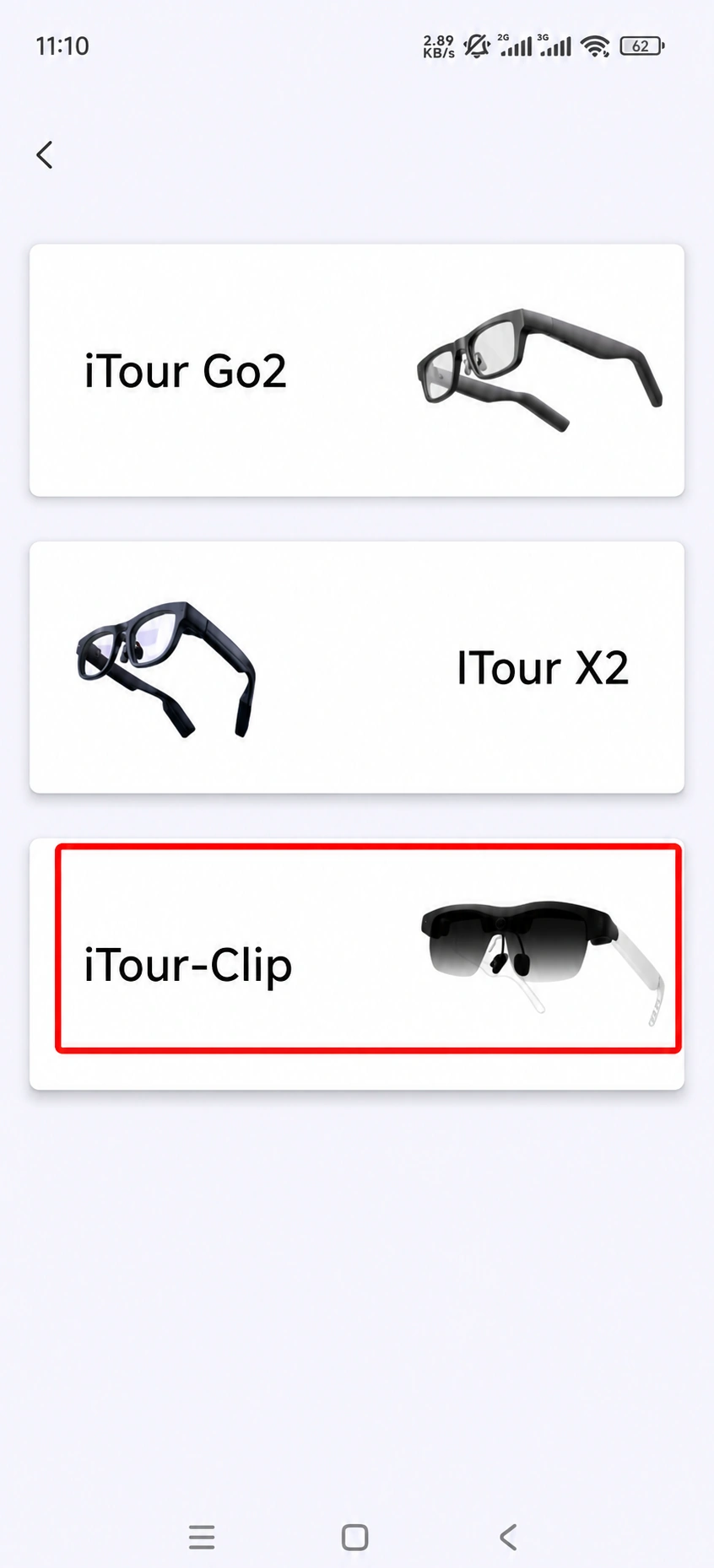
3. Ensure the glasses arePower on and screen lights upStatus, click[Connect]
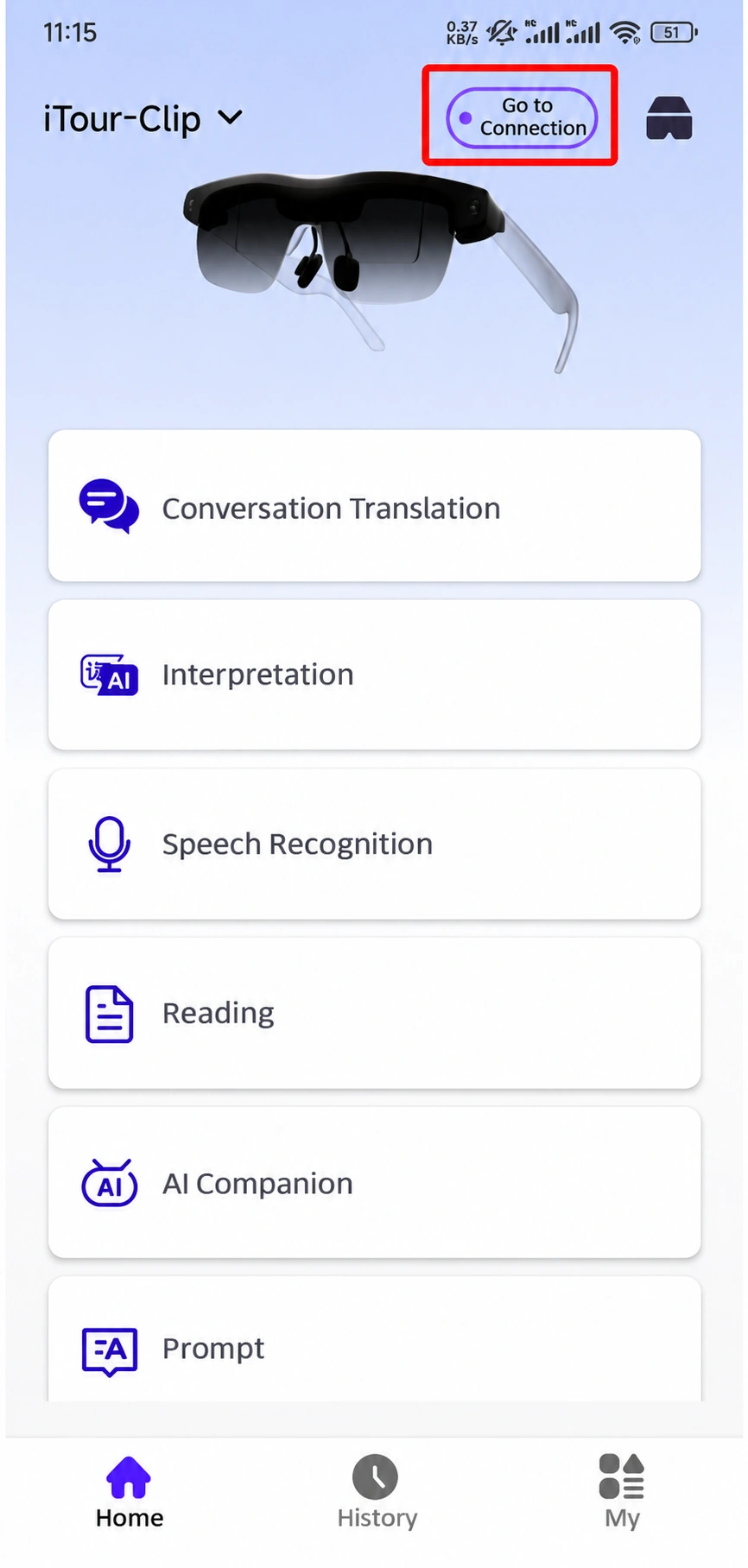
4.First connection, click[Connect], the glasses will automatically connect
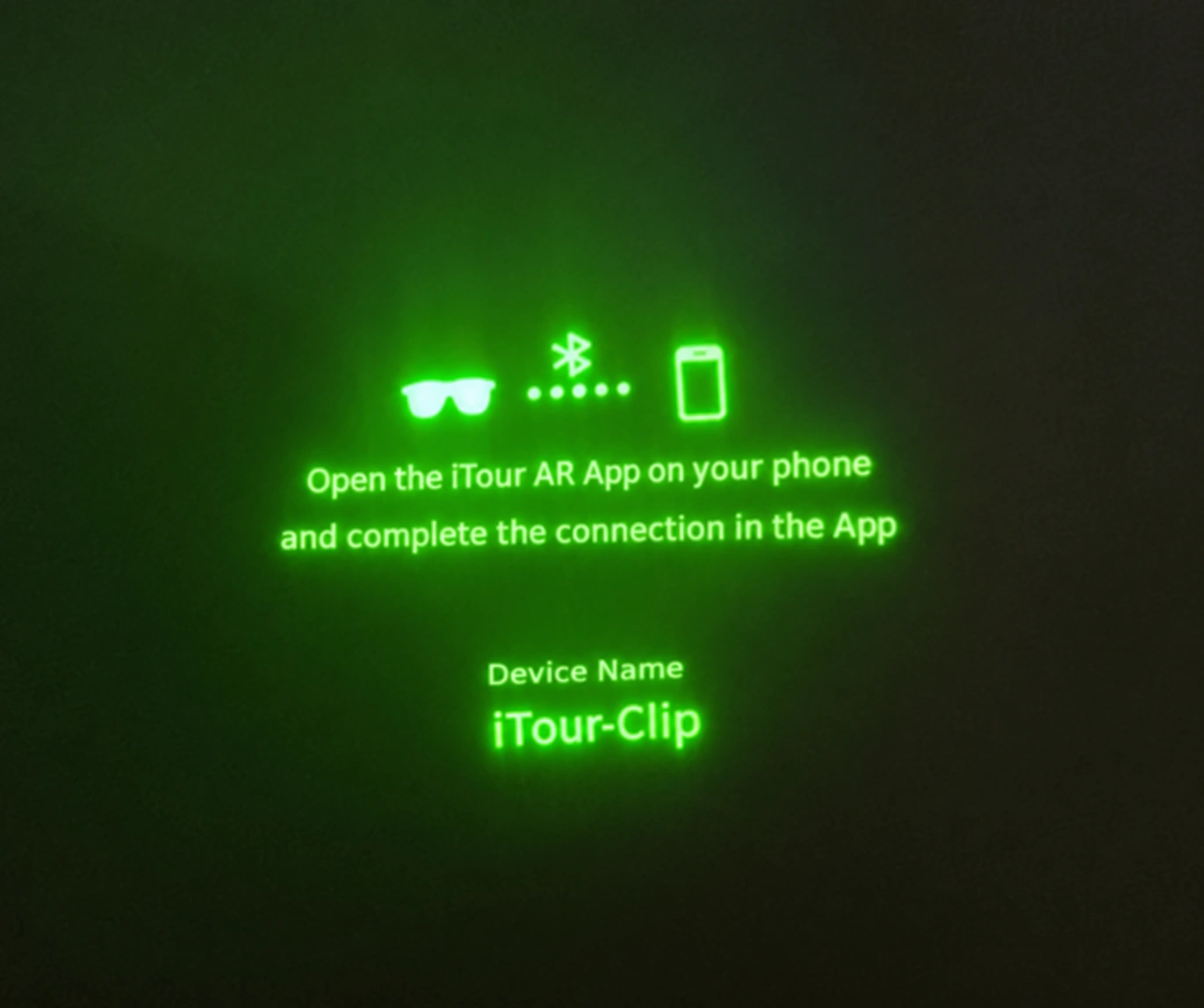
5. After a successful connection, both the glasses end and the mobile end will display"Connected"At this state, the corresponding function can be used.
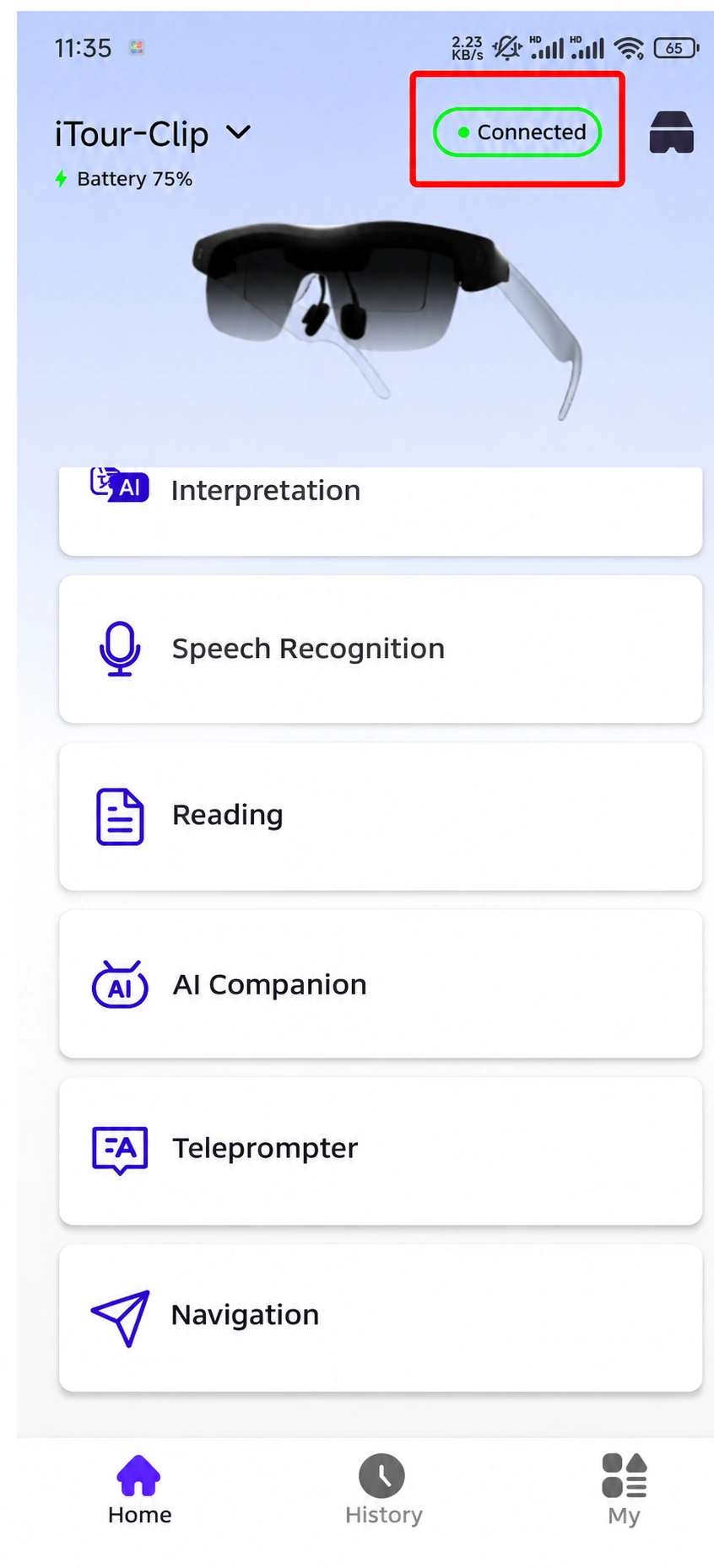
How to use the iTour-Clip translation glasses conversation function
Dialogue: Online Real-TimeBilingual translation, with the translation results able to be cast to a display on glasses,Supports bilingual subtitlesDisplay, when translated into the language on the left, the phone speaker will play it. Applicable toFace to faceCommunication scenario
1. Supports audio input from the glasses
2. Support setting the subtitle size and color on mobile devices
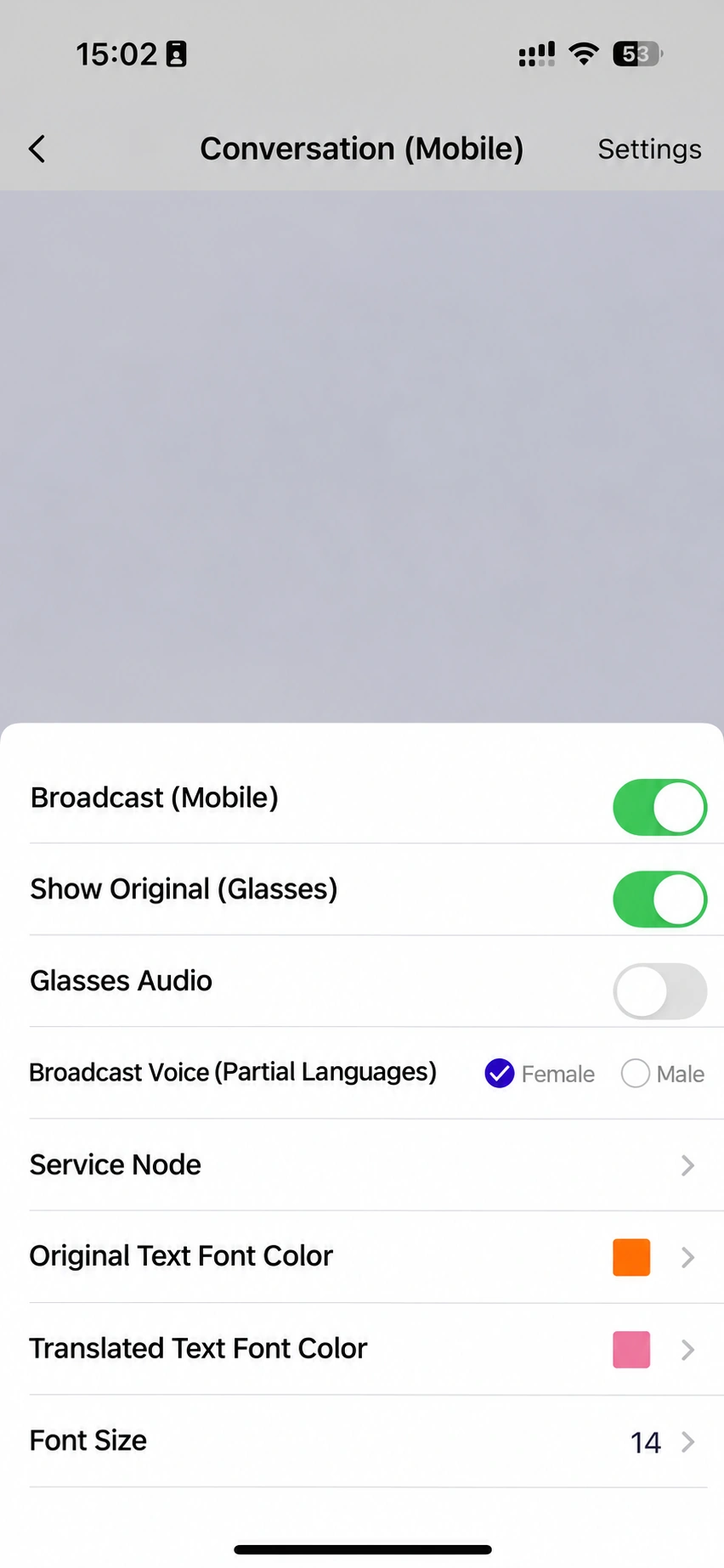
How to use the iTour-Clip translation glasses listening and translation function
Listening Translation:OnlineReal-time One-way TranslationTranslate, and the translation results can be cast to the glasses display.Supports bilingual subtitlesDisplay, suitable for classroom use for international students and translation records for international business meetings
1. Supports audio input from the glasses
2. Support setting the subtitle size and color on mobile devices
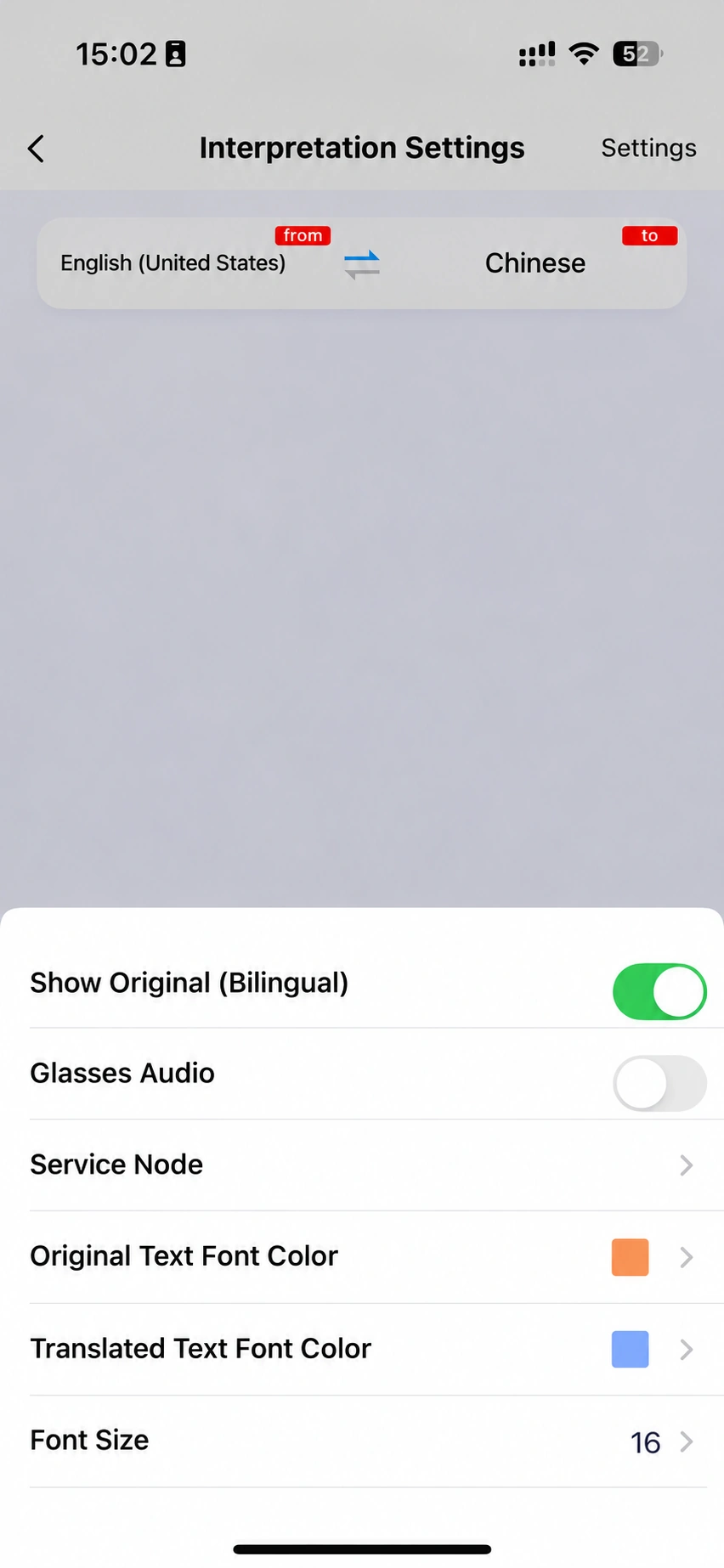
How to Use iTour-Clip Translation Glasses for Offline Translation
Offline translation:can doOnlineAlso possibleOfflinereal-timeOne-wayTranslate, and project the translation results onto the glasses display.Supports bilingual subtitlesDisplay, suitable for use when the network is unstable or the signal is poor
1. Click the microphoneAutomatic downloadthe offline resource packs for the default language pair. You can also go to the language selector toManual download, supportBatch queue downloadResource pack
2. SupportGlasses Microphone
3. Support setting up on mobile devicesSubtitle size and color
4. SupportSave HistoryRecord
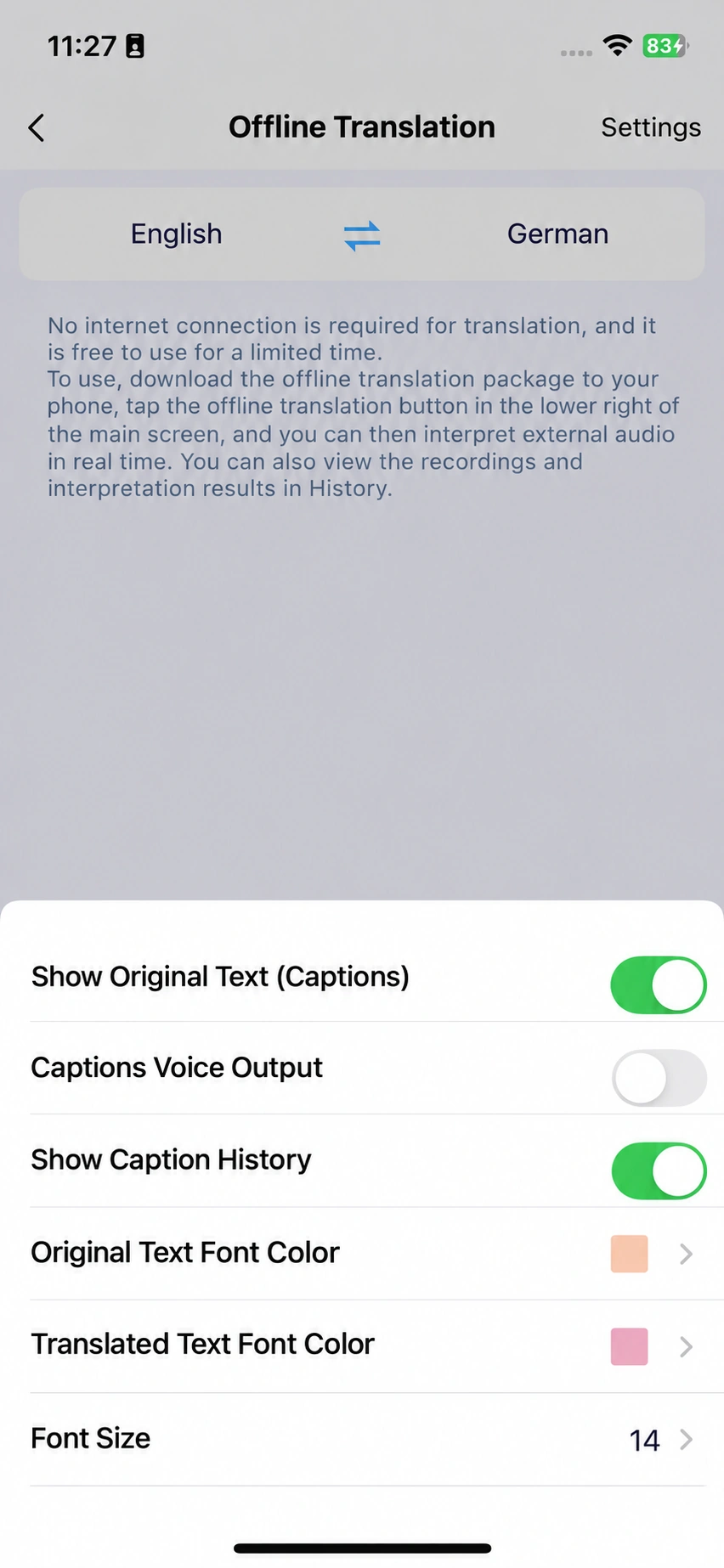
iTour-Clip Translation Glasses Voice Recognition Feature Introduction
Speech Recognition: Online Real-Time Recognition Display, Recognition results are projected onto glasses for display, suitable for recording text recognized in meetings
1. SupportGlasses Microphone
2. Support setting up on mobileSubtitle size and color
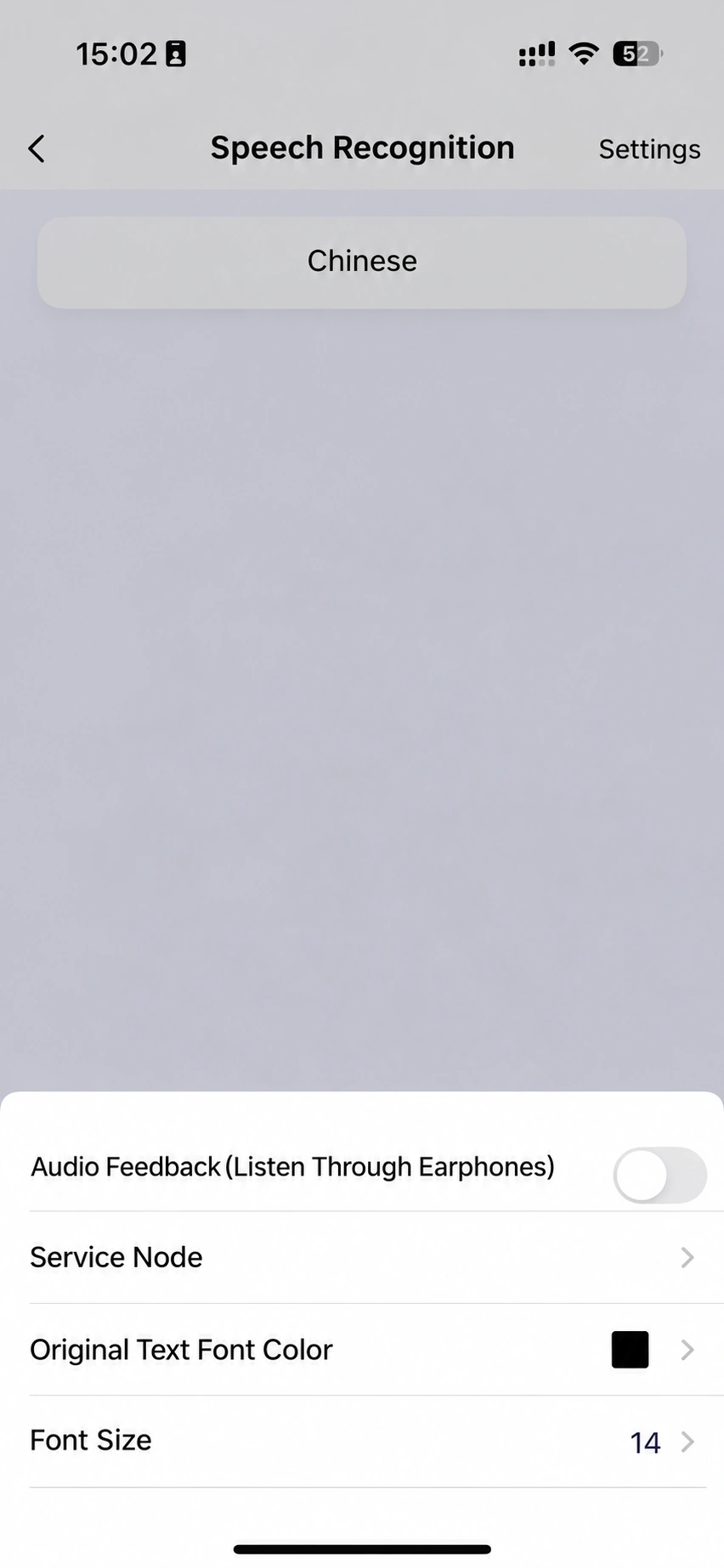
How to use the iTour-Clip translation glasses reading function
Read:Upload a text file from your mobile phone, and cast the text content to the glasses display. To cast it to the glasses for reading, the specific steps are as follows:
1. First click the add file button in the upper right corner to upload the file you need to read.(The Android version supports searching for books in the bookstore)
2. Open the file, click the glasses button on the page, and you can directly cast the screen to the glasses display
3. Click the settings button in the top right cornerAdjust on your own: font size, line spacing, screen brightness, and display mode
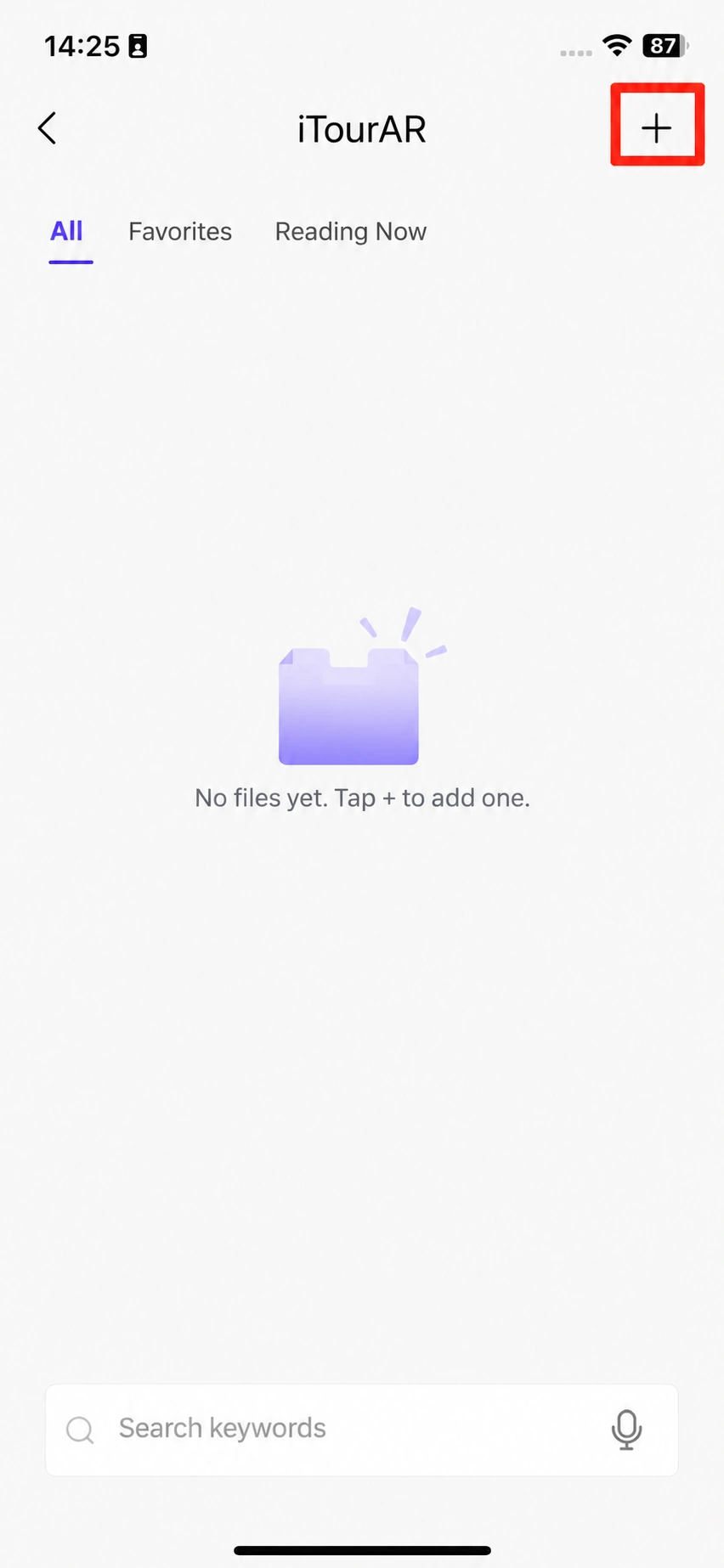
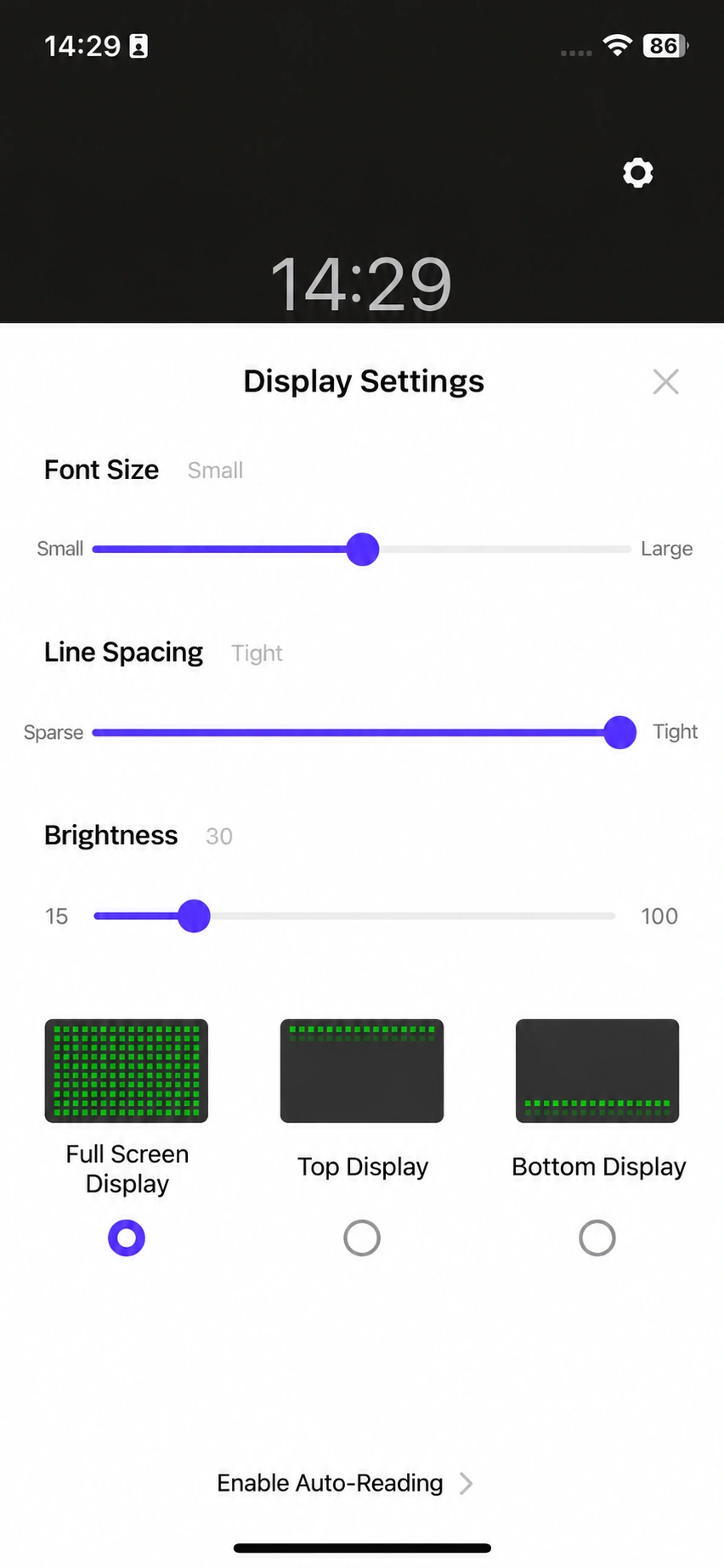
How to use iTour-Clip Translation Glasses AI Companion
AI Companion:Ask it questions to get answers and explanations.
How to turn onStart a new conversation or switch AI engines, the specific operation is as follows:
1. Click the plus button in the top right corner to create a new conversation page, or you can exit and re-enter the feature page to start a new conversation.
2. Click the AI conversion button in the top right corner to switch and select the AI engine.
3. Support asking questions by voice
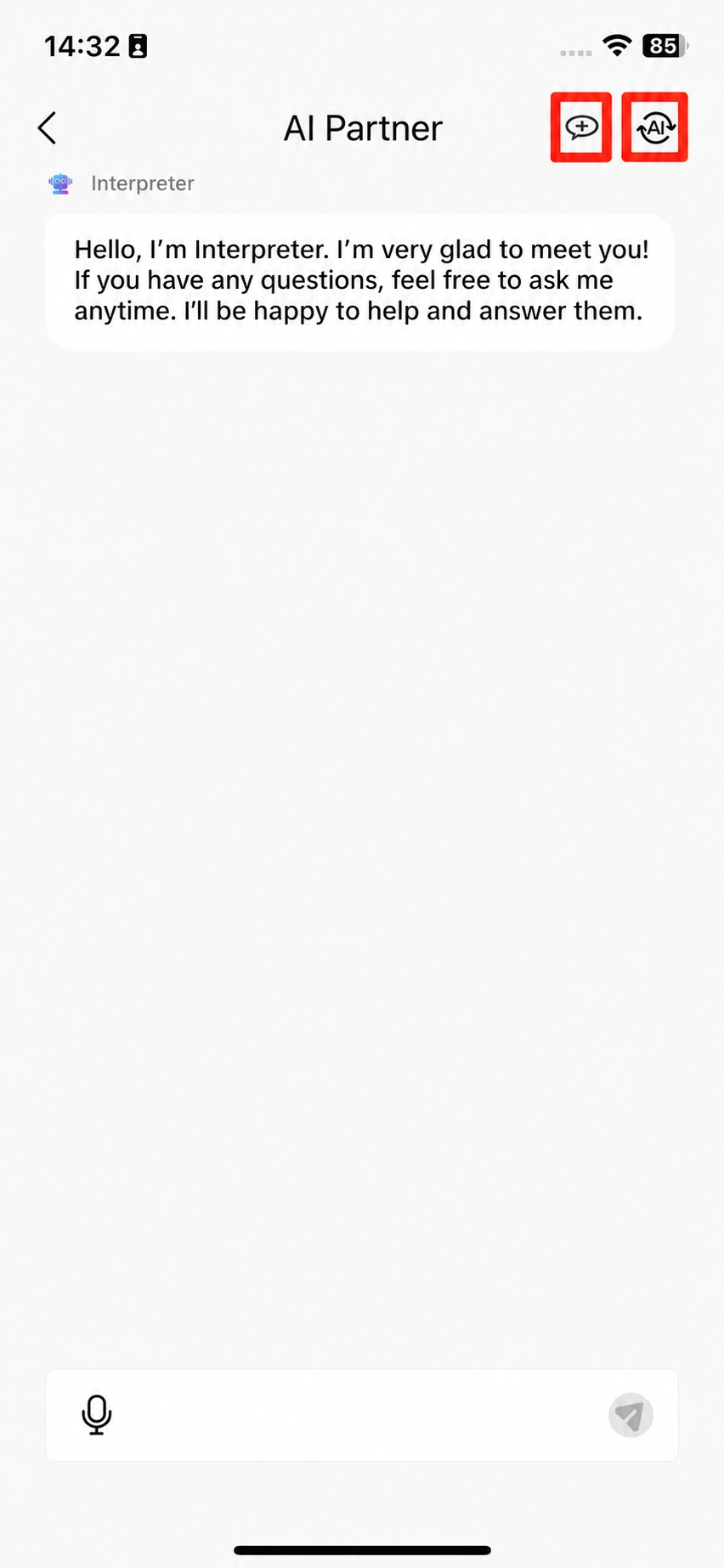
How to use the iTour-Clip translation glasses teleprompter function
Teleprompter:By projecting text content onto the glasses, you create your invisible teleprompter, suitable for speeches, live streaming, and meeting scenarios.
How to use the teleprompter function, the specific steps are as follows:
1. Click the add button in the upper right corner to add the files you need to use, file sizeNo more than 100KB
2. Click the added file, and the file will automatically be cast to the glasses display, default isAutomatic page turningMode, can also be switched toManual translation
3. You can also set the font size displayed on the glasses
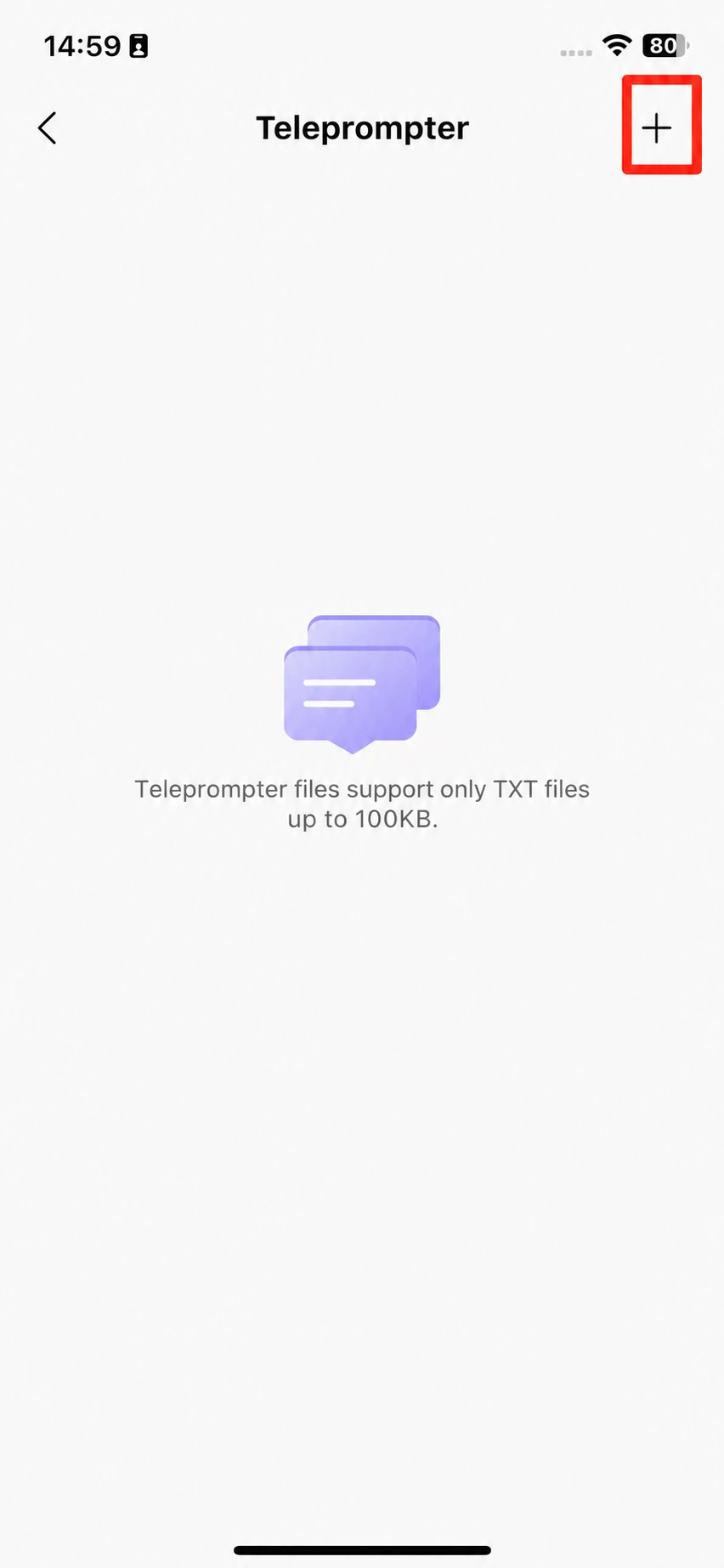
How to use the iTour-Clip translation glasses navigation function
The specific operations are as follows:
1. Click the input bar and enter the address you want to navigate to
2. Click Start Navigation to project the navigation onto the glasses display, and you can also preview the route.
3. You can also add some common addresses and home addresses, etc.
What are the requirements for the iTour-Clip translator glasses charger?
Type – CEither is fineUse
iTour TX06 Audio Glasses9 questions
Open in a separate page →How should the newly purchased iTour TX06 translation headphones be started?
Please follow the steps below to start the device and connect it to your phone:
1.Wear and turn on the device
When the audio glasses are worn correctly, the device will turn on automatically
2.Bluetooth connection
Go to your phone's system settings → Bluetooth, and select from the list of available devices “iTour TX06” Establish a connection.
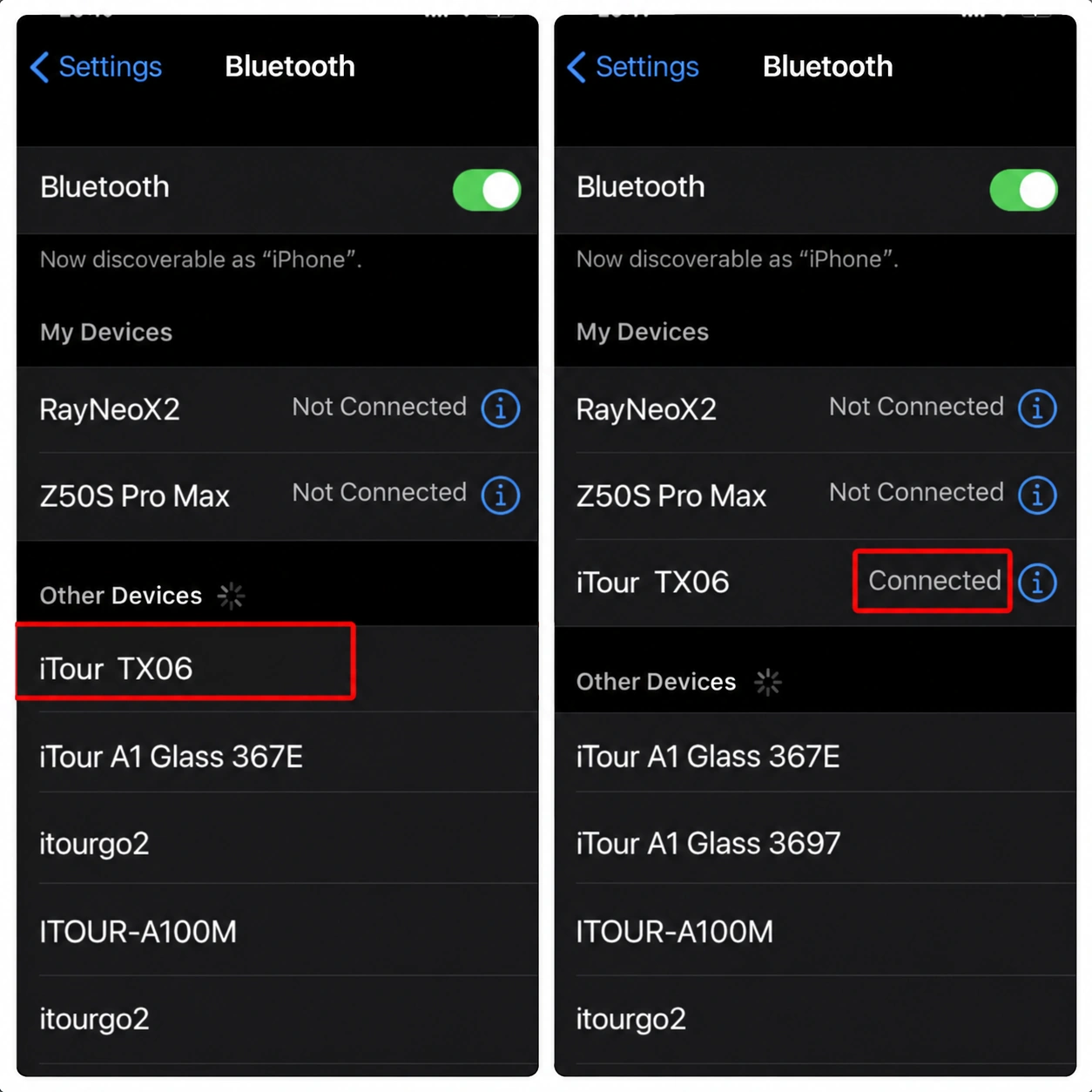
3.App pairing
After the Bluetooth connection is successful, turn on iTourBuds APP, click on the homepage or the device page [Start Connecting], the app will automatically search and complete the pairing with the headphones.
4. Get Started
Once paired successfully, you can use all the functions corresponding to the earphones normally..
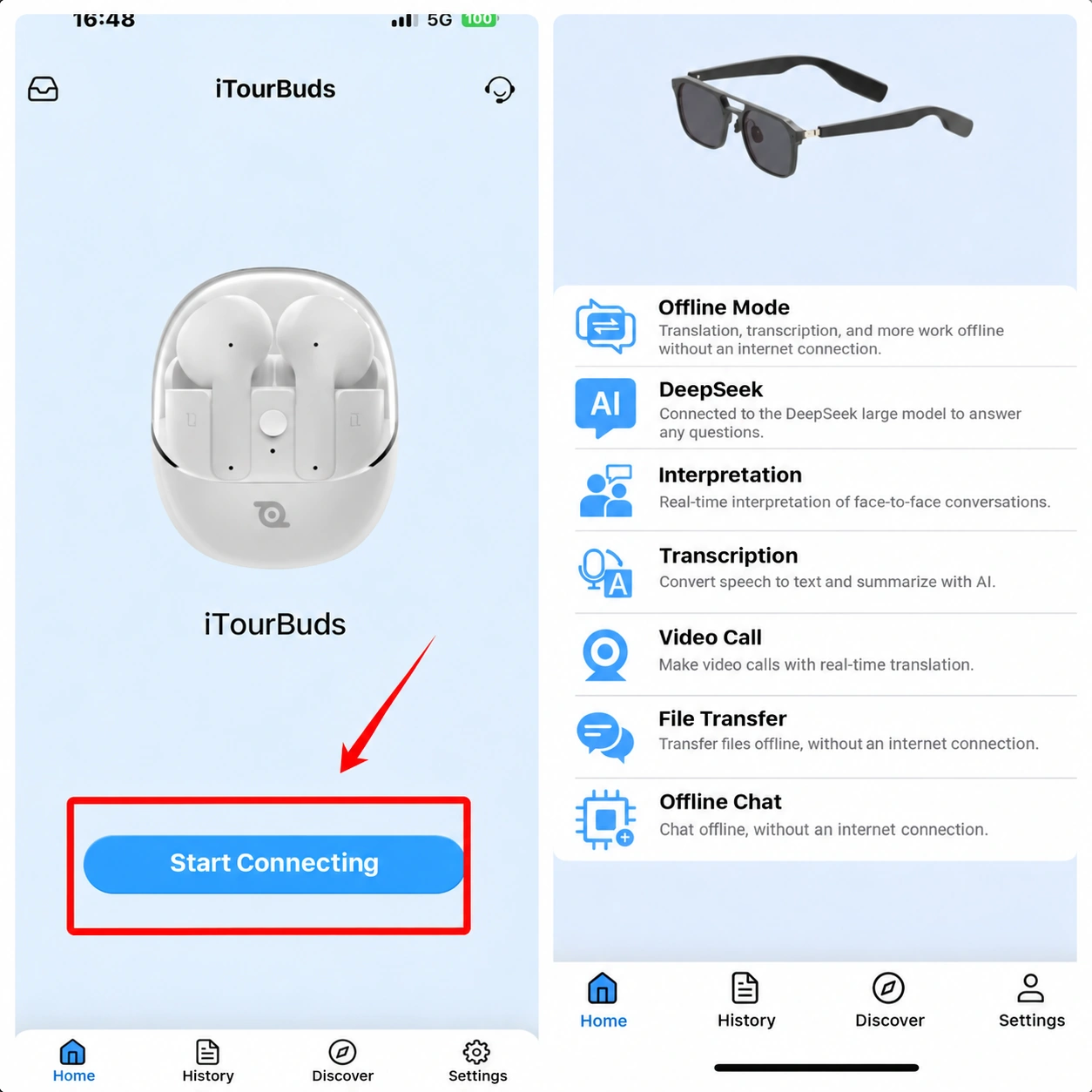
How to use the iTour TX06 headphones in speaker mode?
Bilingual translation, the other partyThe content of the speech after translationEarbudsplay it aloud,your sideThe content of the speech after translationPhone SpeakerAudio Playback
Click the image below microphoneButton, just clickEnable recognitionTranslate
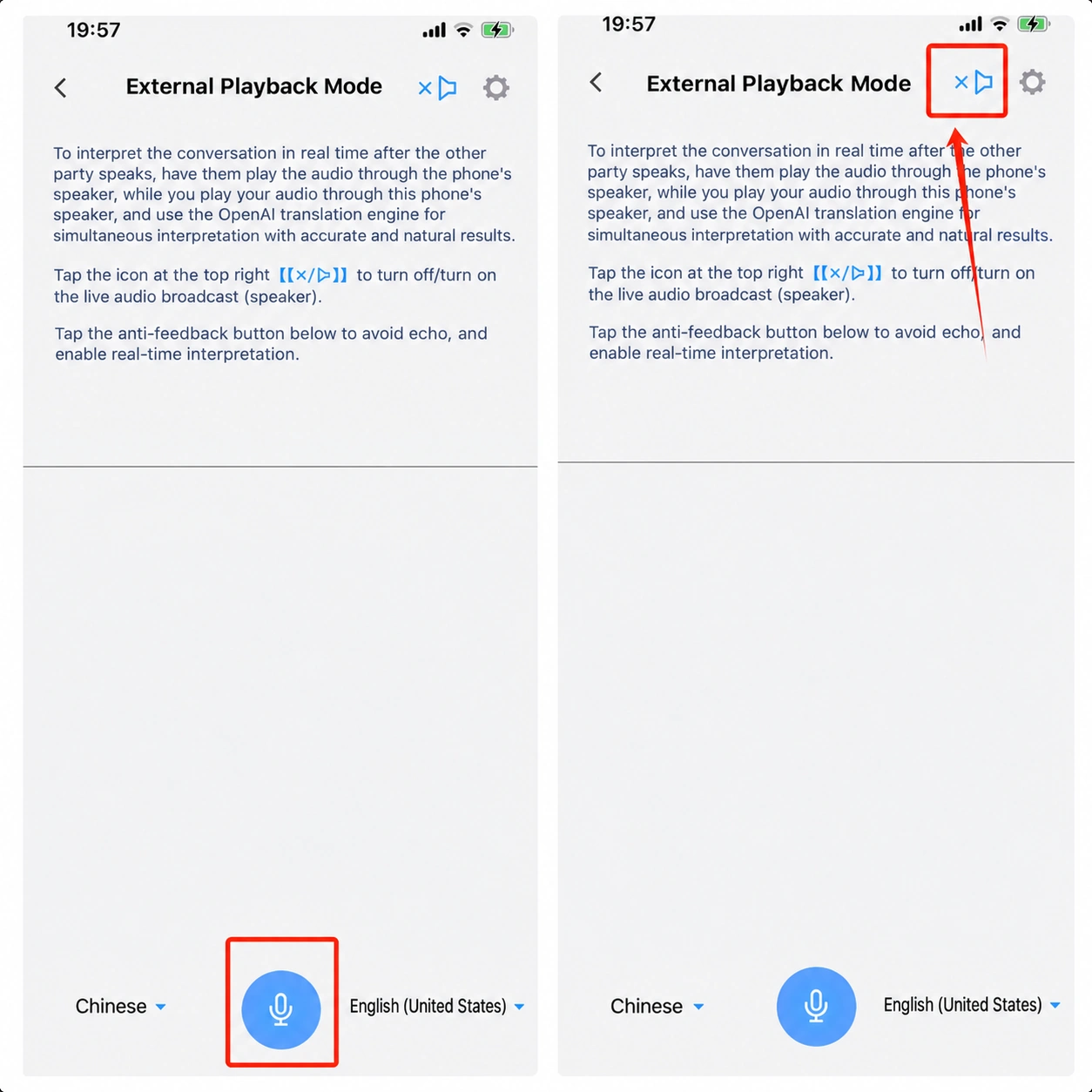
Phone SpeakerAudio PlaybackCan Be Turned Off
How to use iTour TX06 headphones DeepSeek?
IntegrationDeepseekA large model, you can ask any questions, for example: writing assistance, copy editing, language translation, code problem troubleshooting, travel itinerary planning, and it can also chat with you.Supports text input and voice input
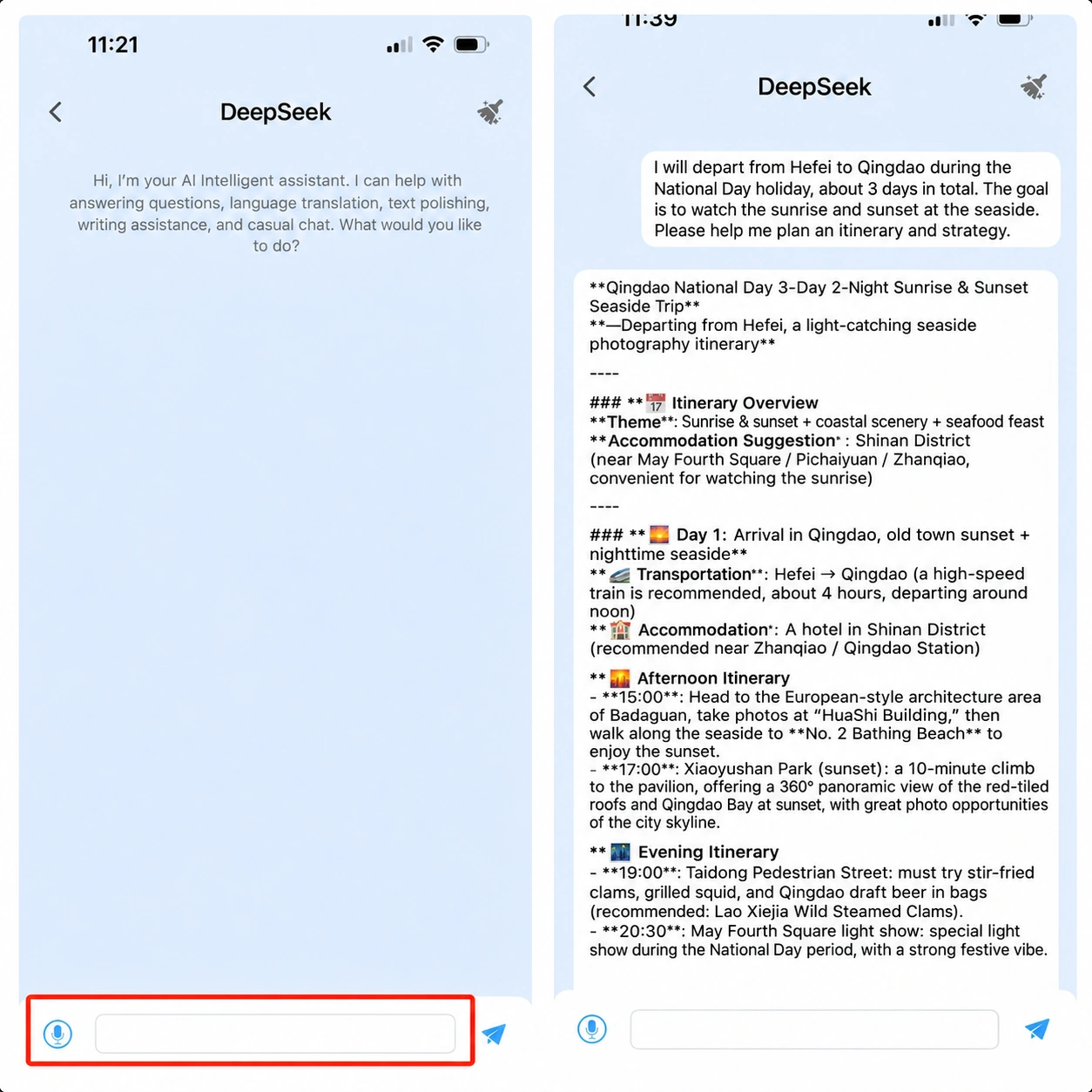
How to use the iTour TX06 headphones listening mode?
Listening Mode:Suitable forFace to facecommunication,Left sideButton recognitionthe other partyLanguagetranslate into the language on the rightLanguage and pass throughHeadphone announcementto you. After playback,Automatically turn on Right sideThe button recognizes this language, translation and broadcasting passPhone Speaker Audio PlaybackLet the other person hear,Tap to open.
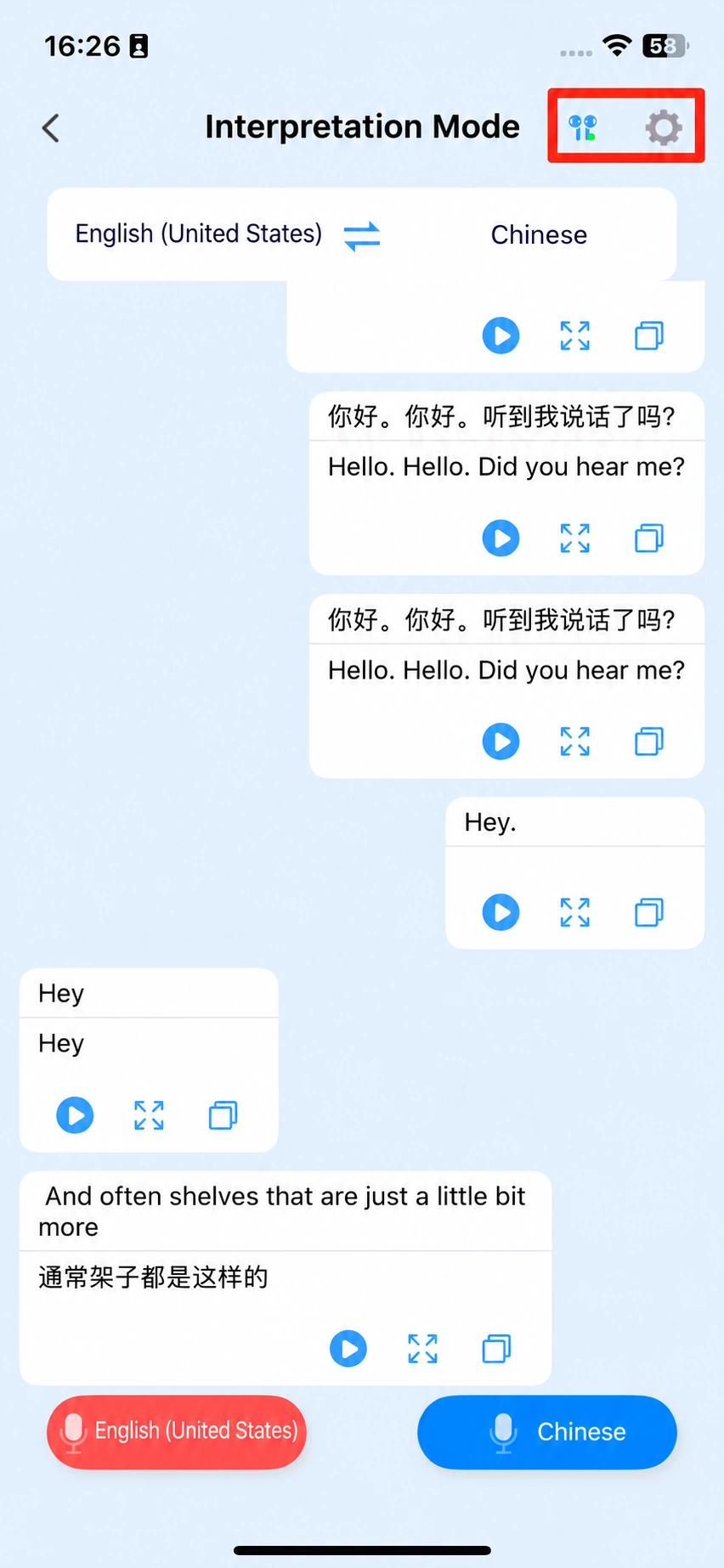
How to use iTour TX06 headphones for meeting transcription?
ClickMicrophoneButton, OnReal-time transcription, Transcribe without translating.
How to use the iTour TX06 headphones for video calls?
Video call:By sending an invitation link to a friend and the friend clicking the link,Join CallAfterwards, it canReal-time call and chat translation, Supports voice calls, video calls, and text chat, the specific operation steps are as follows:
1. EnterVideo CallOn the page, select the third-party social platform you need to call.
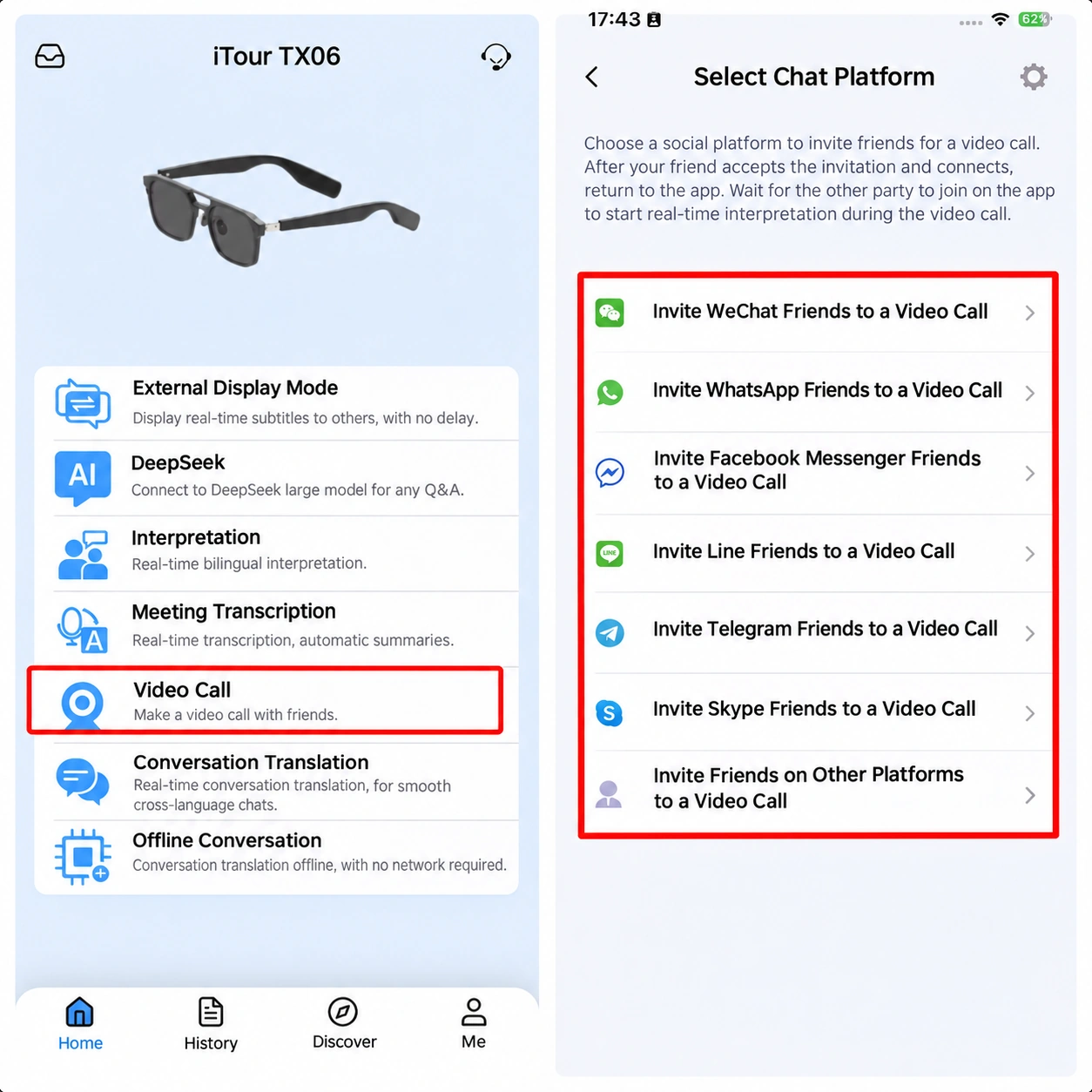
2. ChooseLanguages of both parties, call type, click[Invite]
3. Click"Go to XXX to paste to a friend"
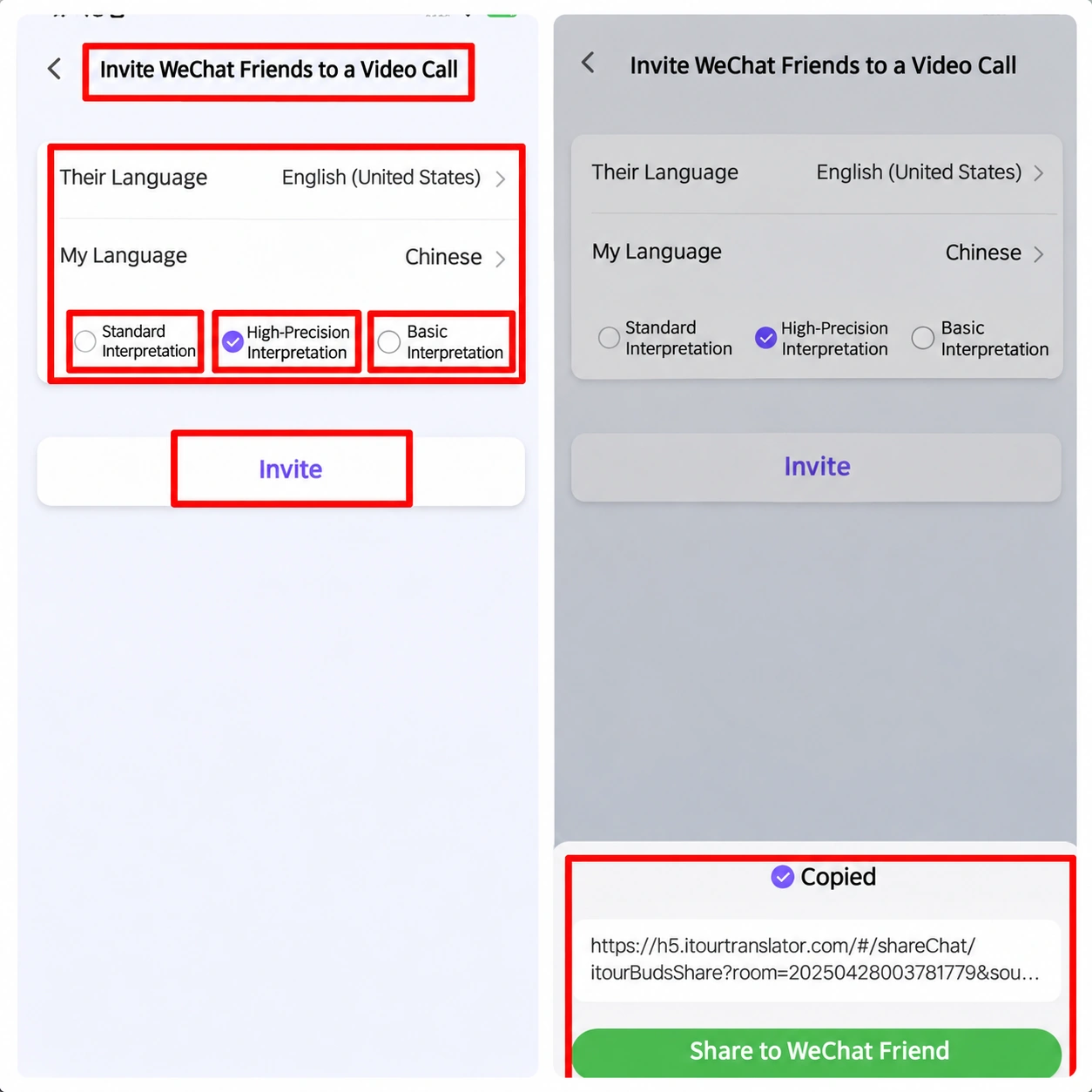
4. After pasting the link to a friend, go back to iTourBuds APP Dial page,Waiting for the other party to joincan doReal-time call and chat translation
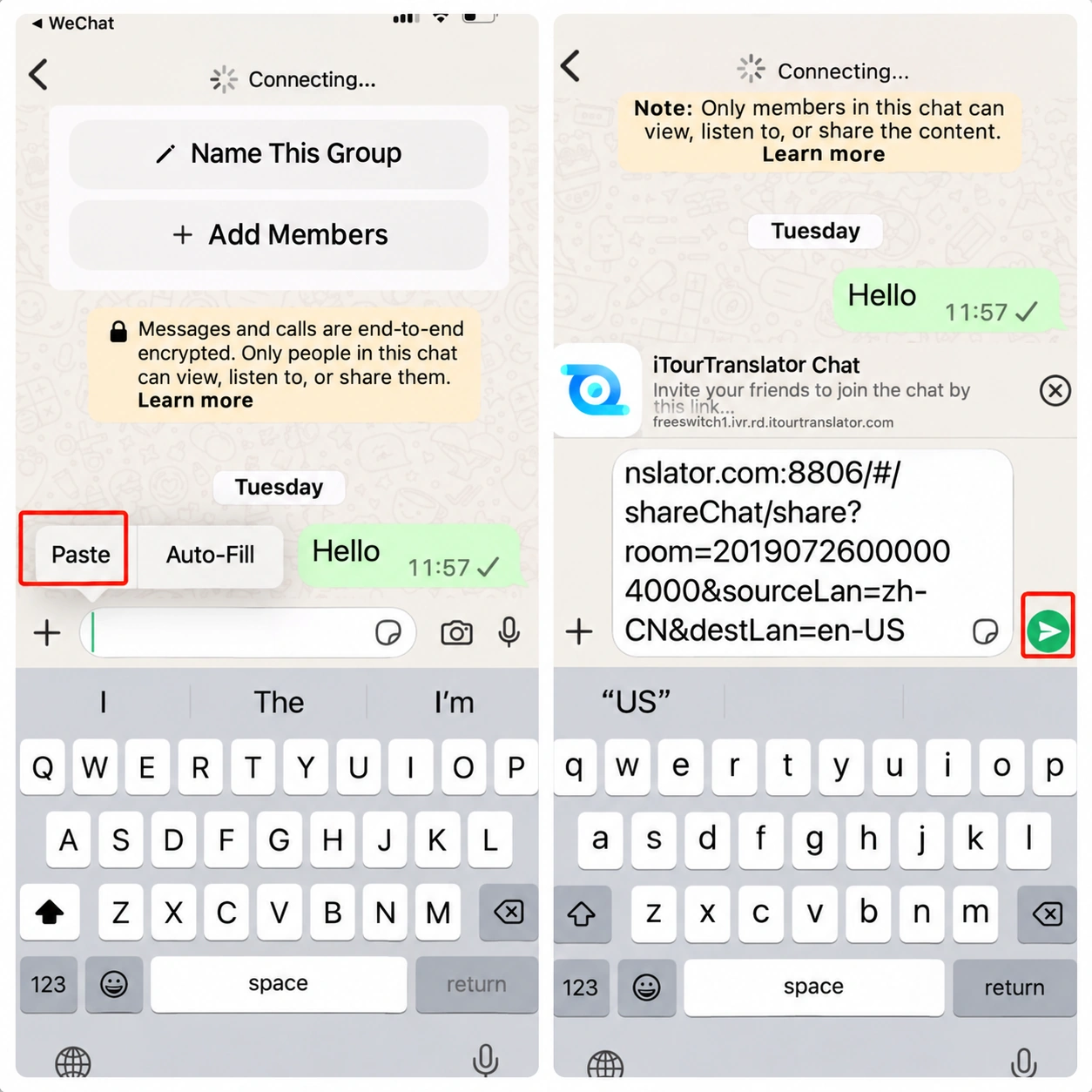
Introduction to iTour TX06 Headphone Offline Simultaneous Interpretation Function
Offline simultaneous interpretation:After downloading the offline language pack,In an offline environmentYou can also enable simultaneous interpretation, the specific steps are as follows:
1. ClickMicrophone, prompt to download offline resource package
2.First timeDownloadDefault language pairOffline resource pack
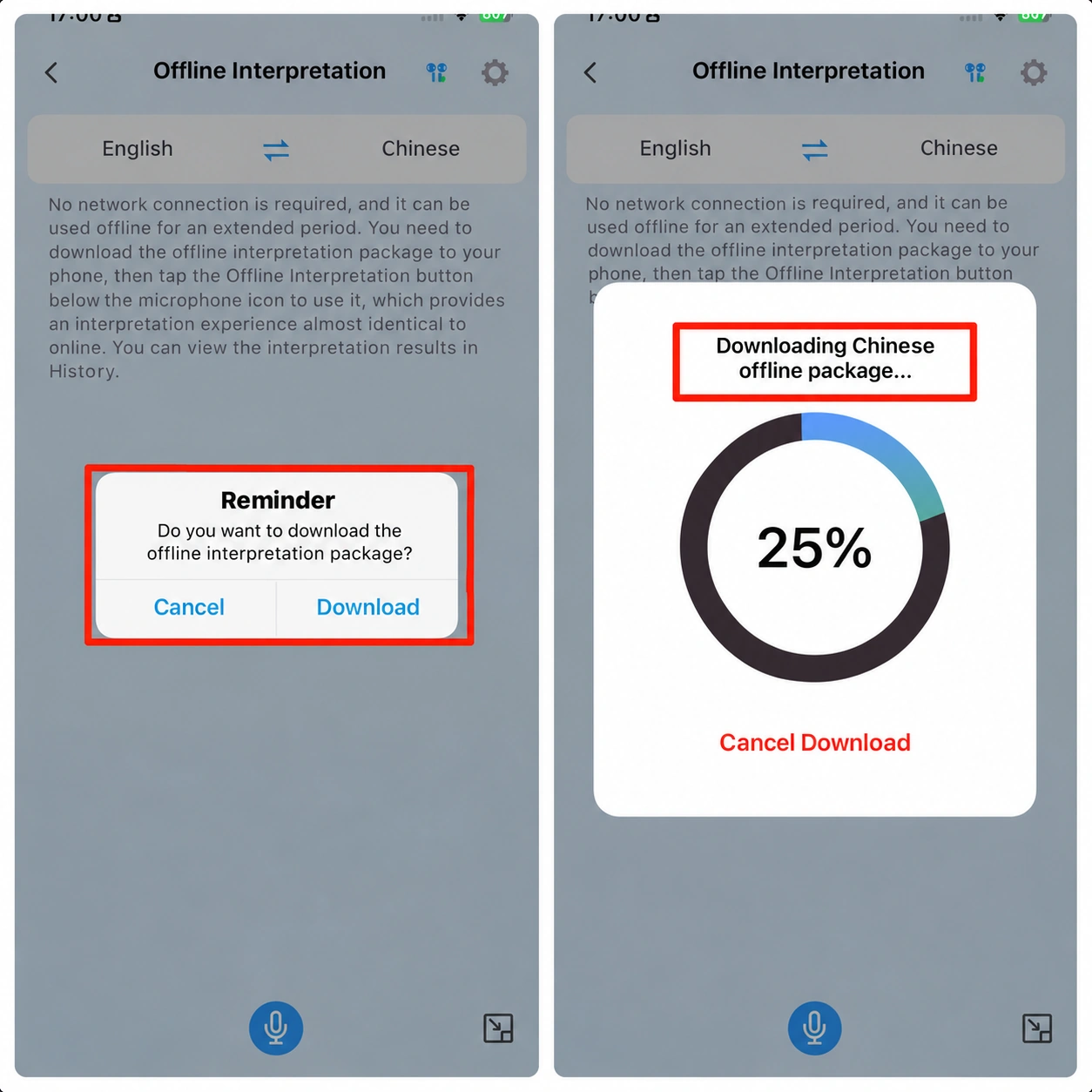
3. You can also clickLanguage barDownload the required offline resource pack
4. Click after enabling simultaneous interpretationFloating in the bottom right cornerWindow button, can display simultaneous interpretation content in a floating window
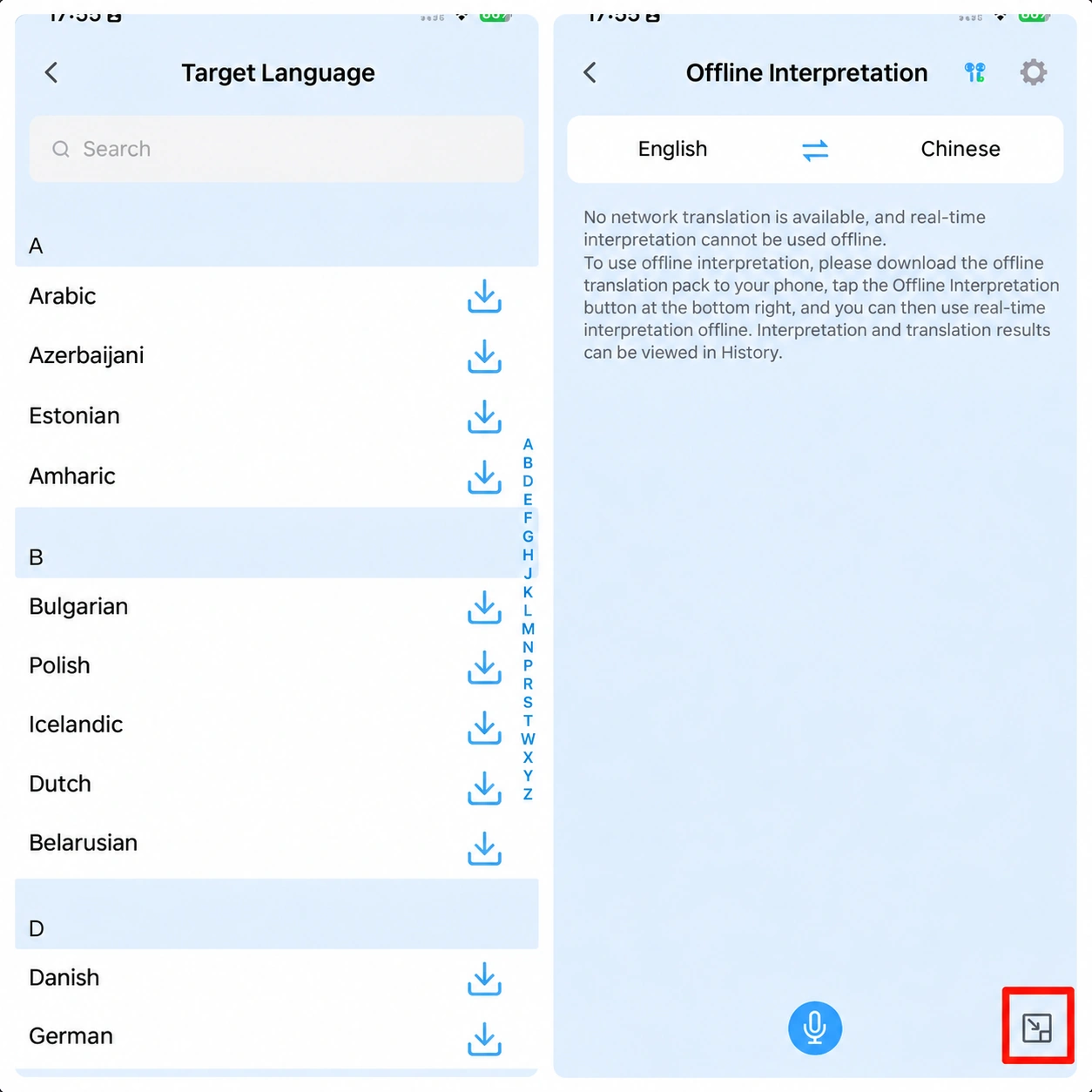
Introduction to iTour TX06 Headphone Offline Conversation Function
Offline conversation:After downloading the offline language pack,In an offline environmentYou can also start a conversation, the specific steps are as follows:
1. ClickMicrophone, prompt to download offline resource package
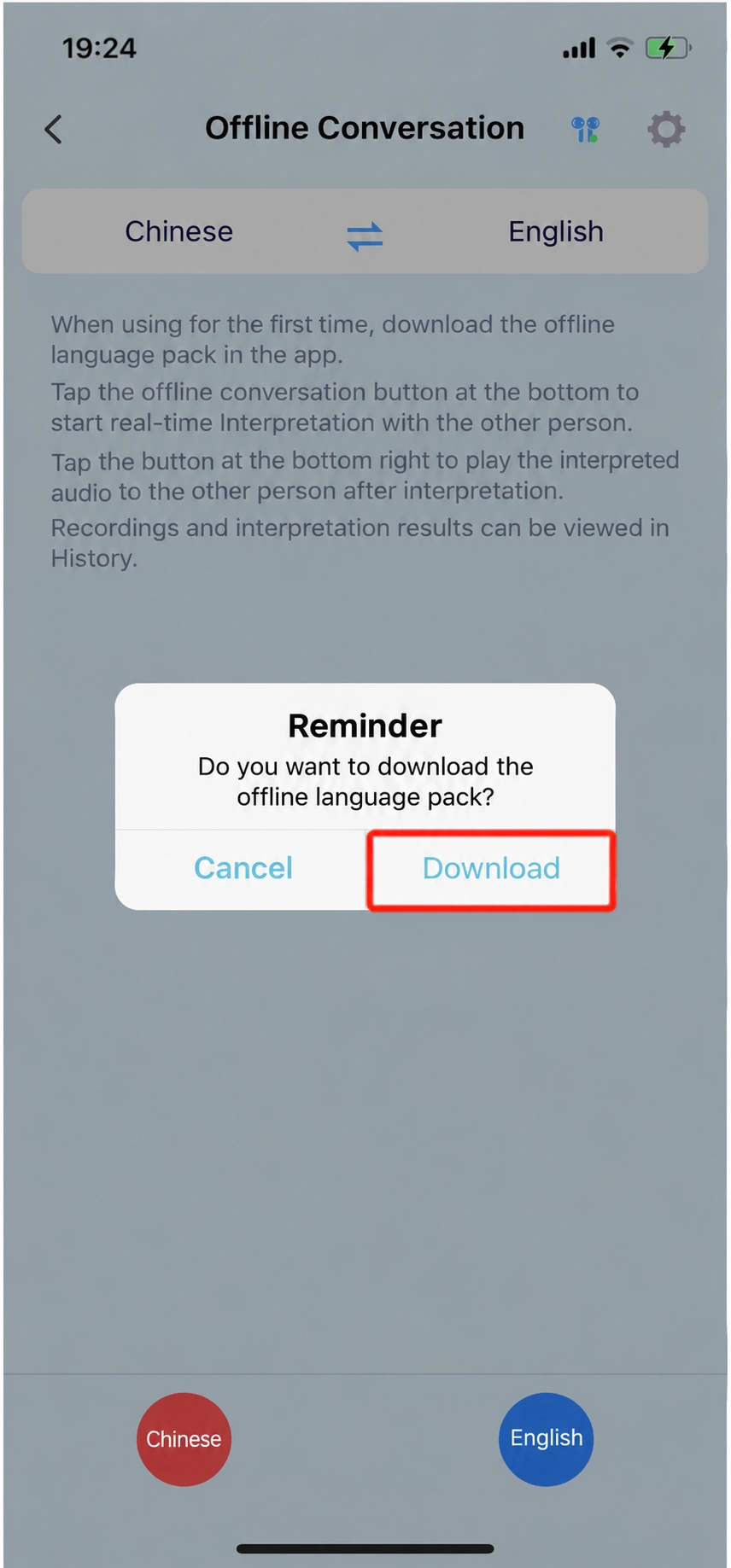
2.First timeDownloadDefault language pairOffline resource pack
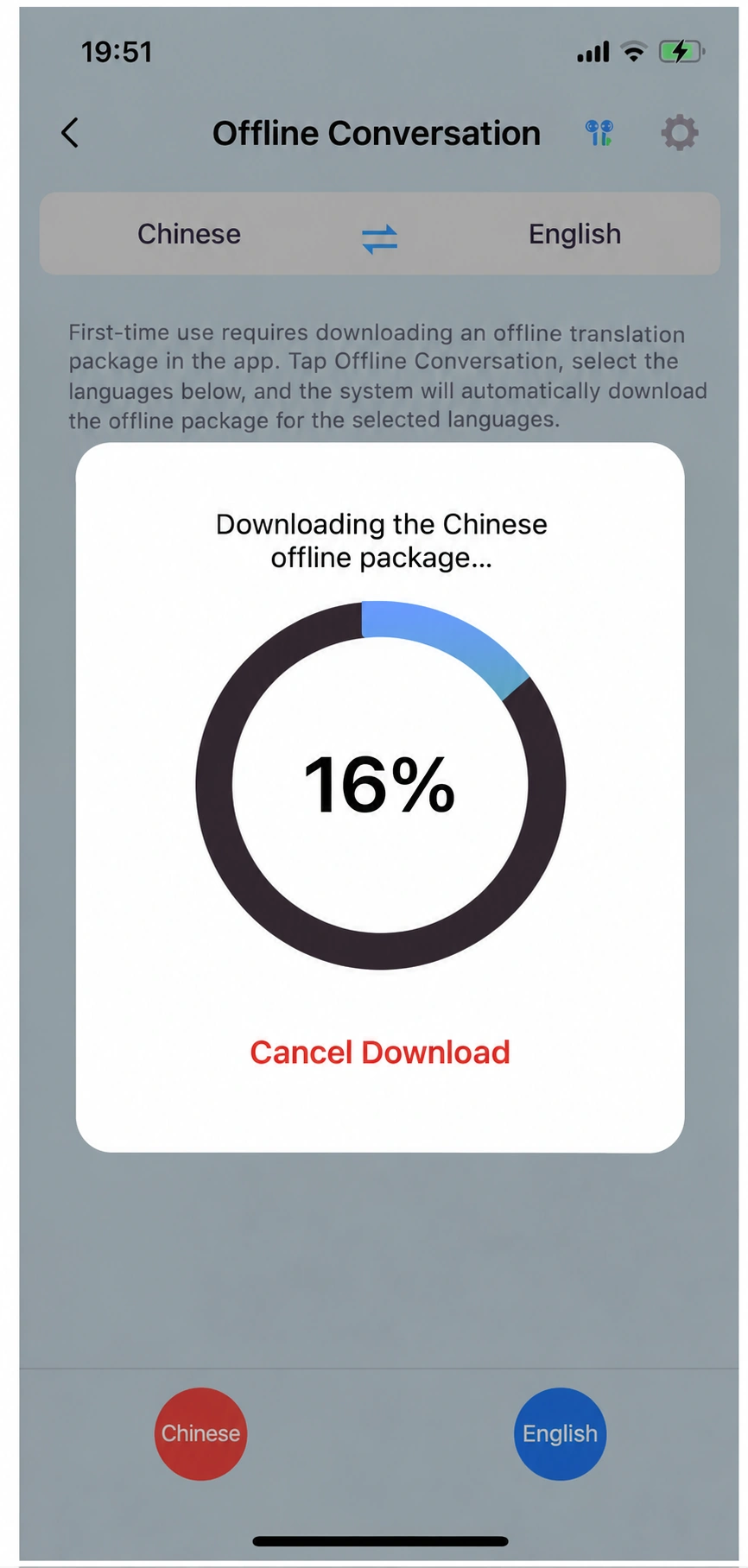
3. You can also clickLanguage barDownload the required offline resource pack
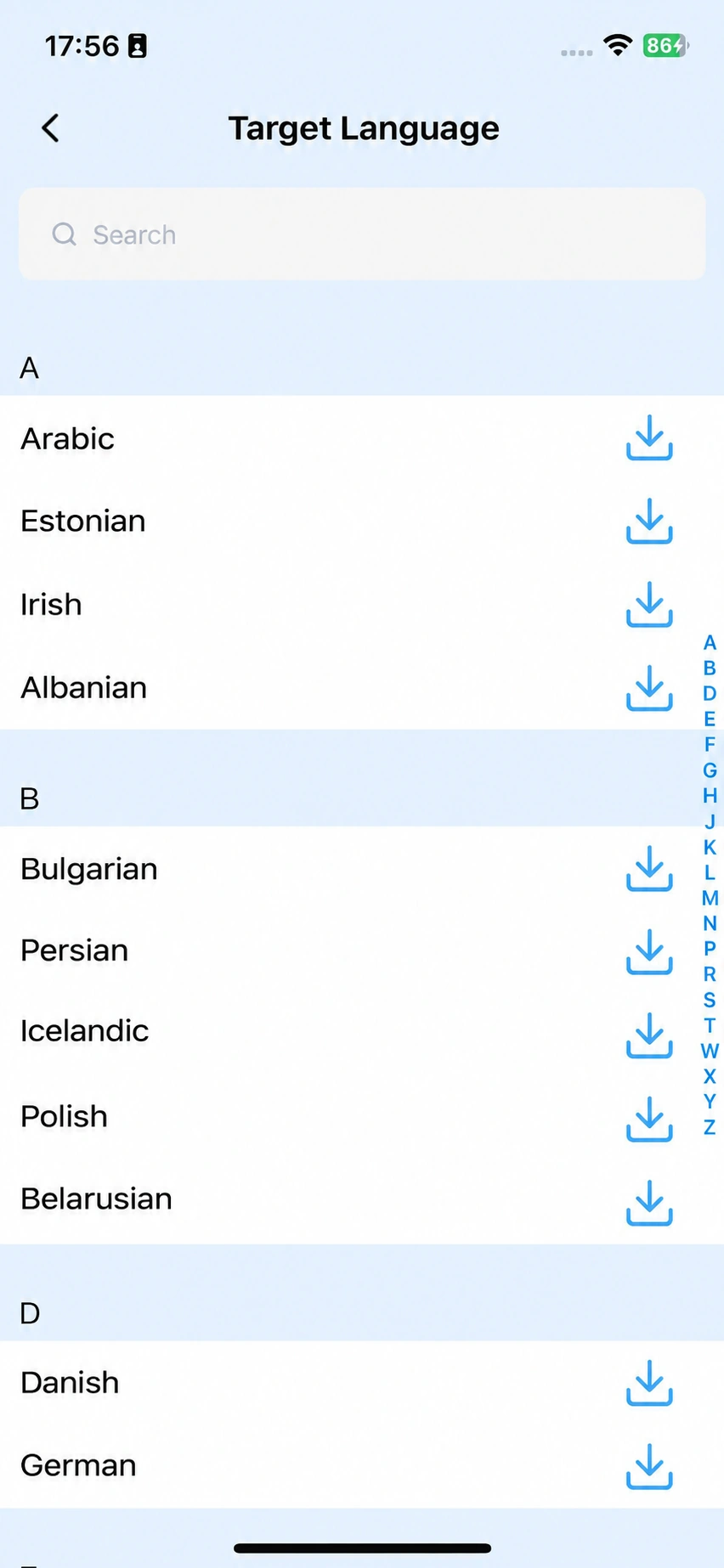
4. After the offline language pack is downloaded successfully, you can click the language buttons on the left/right.Start conversation / Click again to turn off recognition, send the translation and play it aloud
5.Left sideButton recognitionthe other partyLanguagetranslate into your languageLanguage, translated contentHeadphone announcement, Right sideButtonIdentify our sideLanguageTranslate into the other party's language, translation contentPhone SpeakerAudio Playback
Why does one arm of the iTour TX06 headphones have no sound?
1. Please make sure that the batteries in both temple arms are sufficiently charged.
2. Adjust the wearing posture to ensure both temple arms are felt.power on andLeft channelandRight channelup to
3. The contact points at the ends of the Bluetooth temple arms are prone to sweat and other dirt, which may cause them to malfunction. You can try wiping them clean with a glasses cloth before wearing them again.
iTour 22 Pro Earbuds21 Questions
Open in a separate page →Why can't the iTour 22 Pro (T2) headphones translate properly when using the audio and video simultaneous translation feature?
Please make sure the phone Audio output device The selected device is the iTour 22 Pro headset. Using the phone speaker or other Bluetooth devices will result in translation failure.
🔊 Key: Choose the right audio output device
✅ Use iTour 22 Pro headphones → Normal recognition and translation
❌ Using the phone speaker or other Bluetooth devices → Translation cannot be recognized
Note: An unstable network or using a VPN may also affect the translation quality.
View output devices in the iOS Control Center, as shown in the figure below:
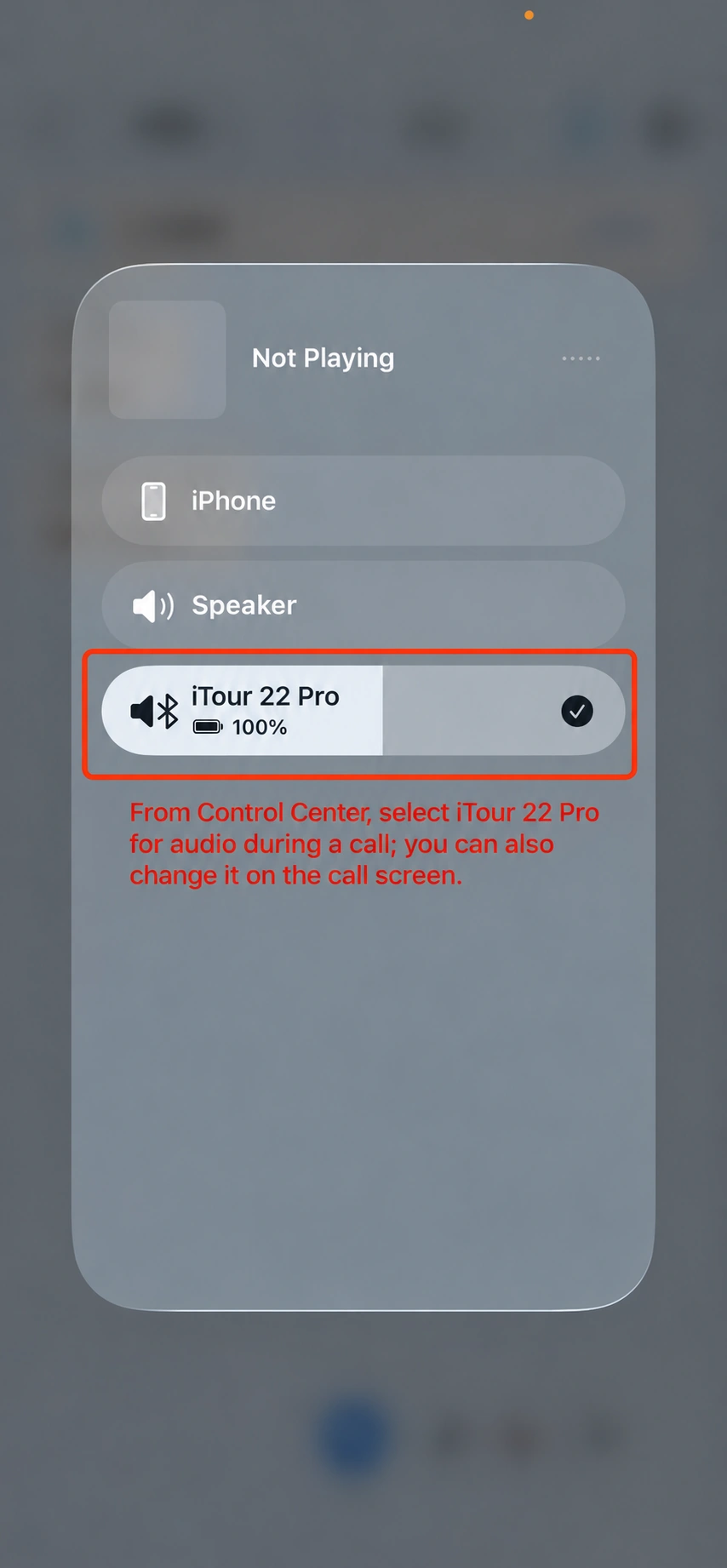
What can the iTour 22 Pro translation earphones help me do?
It can serve as your personal translator and meeting assistant, mainly addressing the following scenarios:
Scenario 1: Direct conversation with foreigners
- Recommended functions: binaural conversation, listening mode, system/VOIP call translation.
- What can (one) do? In face-to-face meetings or phone calls, real-time translation works as if it eliminates language barriers.
Scenario 2: Attending meetings, taking classes, or watching foreign-language videos
- Recommended features: on-site simultaneous interpretation/conference translation, audio-visual simultaneous interpretation.
- What can (one) do?: Provide real-time translation of live speeches, video dialogues, or narration, and offer text transcription records.
Scenario 3: Traveling abroad or outdoors without internet
- Recommended feature: offline translation.
- What can (one) do? Download the language pack in advance to carry out basic conversations without a mobile signal.
Scenario 4: Need to quickly look up information
- Recommended feature: intelligent Q&A.
- What can (one) do? Directly ask about the weather, translate simple sentences, and conduct encyclopedia queries using voice.
All features work through “iTourBuds” APP Perform operations and switch. Please select the corresponding mode on the APP homepage according to your needs to start using it.
I purchased the iTour 22 pro (T2) translation earphones. How do I use them?
Before use, please install the official app on your phone. “iTourBuds” APP, and complete the Bluetooth pairing between the headset and the phone as well as account binding. You can complete the setup through the following two equivalent paths:
Path 1: Connect via app guidance
- Download the App: Use your mobile phone to scan the QR code below to download and install iTourBuds APP.

- Sign Up / Log In: Open the app and complete account registration and login.
- Starting connection: After logging in successfully, click “ on the app home page Start connecting”.
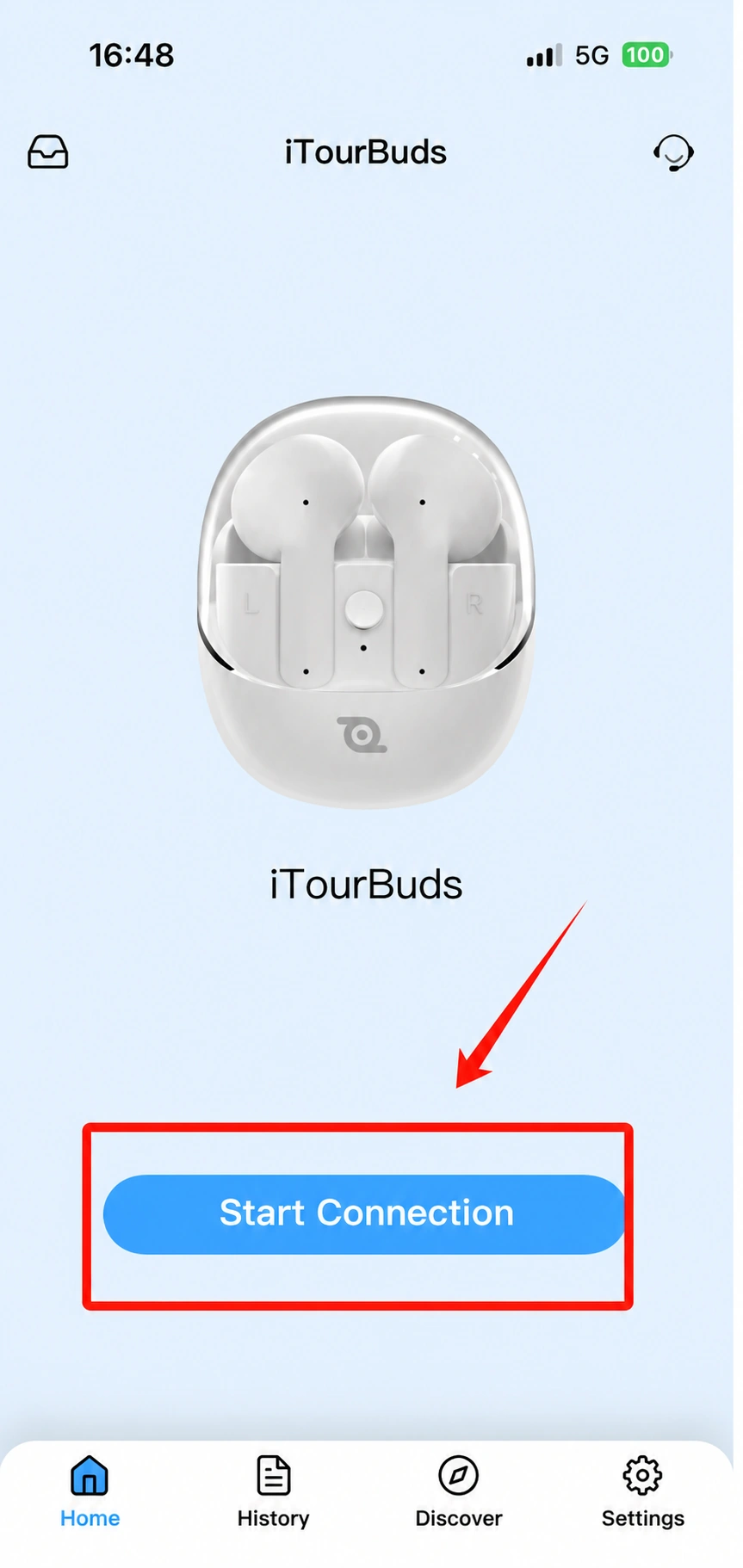
- Select Product: On the device list page, select "iTour 22 Pro Headphones.
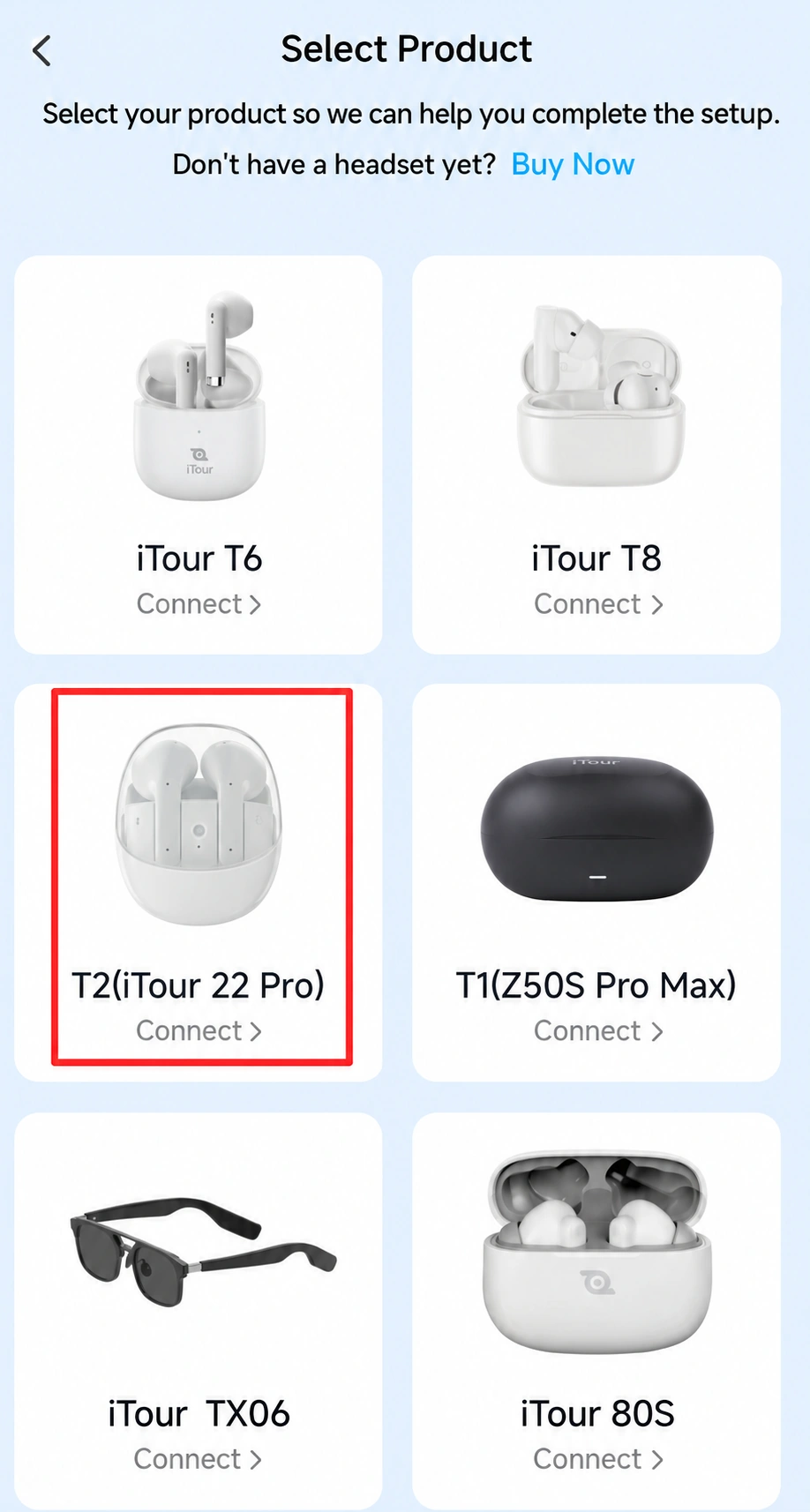
- Open Bluetooth Settings: Click “Go to settings”, and your phone’s Bluetooth settings will open automatically.
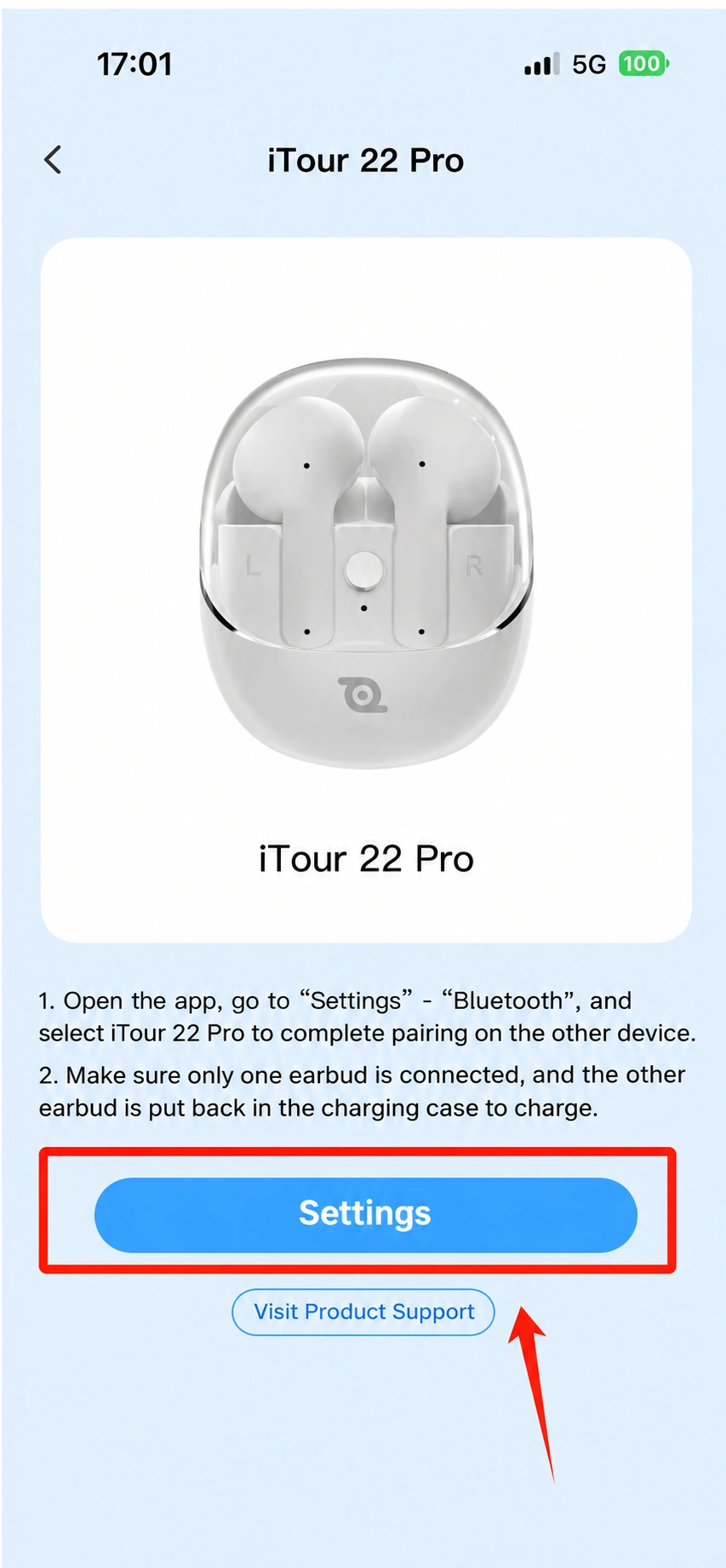
- Connect device: In the Bluetooth device list, find and click "iTour 22 Pro Pairing completed.
- Complete Pairing: After the connection is successful, return to the APP page. When the page displays the headset function list, it indicates The headphones have been successfully paired with your account, you can start using various translation functions.
Path Two: Connect to Bluetooth first, then bind the APP
- Manual Bluetooth pairing: Enter phone System Settings > Bluetooth, turn on Bluetooth and search for devices, then manually select "iTour 22 Pro Connection completed.
- Open the app to pair the account: After the Bluetooth connection is successful, turn on iTourBuds APP, click on “ on the homepage Start connecting”.
- Completed Automatically: The app will automatically search for connected headphones and complete account binding. Once the binding is successful, all functions can be used.
Tip: Both methods yield the same result. If you encounter connection issues, you can try switching the path or restarting Bluetooth before trying again.
After completing the above steps, you can experience all the features in the APP, including real-time conversation, meeting translation, and offline translation.
Tip:
- Before Connecting for the First Time: When pairing the headphones via Bluetooth for the first time, both earbuds need to be taken out of the charging case to enter pairing mode so that they can be detected by the phone. This requirement does not apply during subsequent normal use.
Why can't an iTour 22pro connect to one of the headphones?
When a headset cannot connect, the most common reason is The earphones themselves have run out of battery or were not properly placed in the charging case to charge. Please follow the steps below to quickly troubleshoot:
Step 1: Check the charging status
1. Put the headphones that cannot connect back into the charging case, observe the indicator light status.
2. Situation 1: The indicator light is flashing red normally
- This indicates that the headphones are currently charging. It is recommended to charge them continuously in the case for at least 30 minutes to ensure sufficient power before taking them out and trying to reconnect.
3. Scenario 2: The indicator light does not turn on at all
- This usually indicates that the headphones are not making good contact with the charging points and have not started charging.
- Solution: Please gently press the tail of the earphone with your hand and place it firmly into the charging case, making sure to see the indicator light start flashing red, which indicates that charging has begun.
Step 2: Re-pair
If you still cannot connect after ensuring the headphones are fully charged, you can try:
- Place both earphones back into the charging case, close the lid, and wait for 10 seconds.
- Open the case again, take out both earbuds, and wait for them to automatically enter pairing mode.
- In the phone's Bluetooth settings, ignore or forget "iTour 22 Pro"This device, and then reconnect it according to the initial pairing process."
Step 3: Restore to Factory Settings
If the above still does not solve the problem, you can try:Restore factory settings View Detailed Instructions
If the above steps still cannot resolve the problem, there may be a hardware fault in the headphones, and you can contact Customer Support Conduct further testing.
The iTour 22 Pro headphones have sufficient battery, but one earphone has no sound. How should this be handled?
When encountering this problem, it is usually between the headphones A temporary interruption in internal pairing or Software state conflict Caused by this, it can be attempted to resolve through the following methods:
Solution (please try in order)
Step 1: Reset pairing between headphones
- Place both earphones back into the charging case, close the lid, and wait for about 10 seconds.
- Reopen the box lid and take out both earphones to allow them to reconnect with each other. This operation can resolve most cases of one-sided silence caused by an interrupted internal pairing.
Step 2: Restore factory settings (if Step 1 is ineffective)
If the above methods do not work, you can try resetting the headphones to factory settings to clear possible software faults:View Detailed Instructions
Precautions
- Restoring to factory settings will Clear all paired device records, you need to go to the Bluetooth settings on your phone Forget this device, and then re-pair it as if using a new headset.
- If neither of the above two methods can solve the problem, it is possible that the speaker hardware of that earphone has a fault. You can contact the customer service of the purchasing platform for inspection.
It is recommended that you try the first step first, as this usually solves the problem quickly.
Why can't the phone find the iTour 22pro headphones via Bluetooth?
Confirm whetherConnected to a phoneEquipment, replaceNew DeviceConnect or the deviceConnected beforeHeadphones, with options to ignore this device / unpair.
If the above operations are performed, it can be resolved in the following way:
1) After taking the earphones out of the box,Wait for 1 minuteapproximatelyAfter the red and blue flash, then goPhone Settings — Bluetoothsearch within iTour 22 Pro
2) If the above does not solve the problem, you can tryRestore factory settings
How to operate the iTour 22 pro earphones to restore factory settings?
Please strictly follow the steps below to complete the factory reset of the iTour 22 Pro headphones:
🔧 Step 1: Prepare the equipment
- Place both earphones into the charging case.
- Keep the box lid open.
▶️ Step 2: Perform the recovery operation
- Press and hold the touch controls on both earbuds while they are in the charging case, as shown below.
- Press and hold for 5 seconds or more until both earphones show a purple indicator light.
- At this time, release your fingers, and restoring to factory settings is considered successful.
✅ Step 3: Operation Confirmation
The purple indicator light is on steadily It is a clear signal that the factory reset was successful.
🔄 Step 4: Subsequent Pairing (First Use)
After recovery, the headphones will enter pairing standby mode.Please take both earphones out of the case at the same time, then search for and connect to 'iTour 22 Pro' in your phone's Bluetooth list.
⚠️ Important Notice:
After restoring factory settings, for the first pairing, both earphones need to be taken out of the case.
How do you use the 'System Call Translation' feature of the iTour 22 Pro headphones?
This feature supports when you answer or make a regular Native Phone App At that time, perform real-time bilingual translation. The operation process is as follows:
Operating steps:
- Answer the call: As usual, answer or make a call on your phone.
- Start translation:
- Keep the call on, turn on iTourBuds APP.
- Enter "T2(iTour 22 Pro)Device page -> Select "Native Phone Call Translation" function.
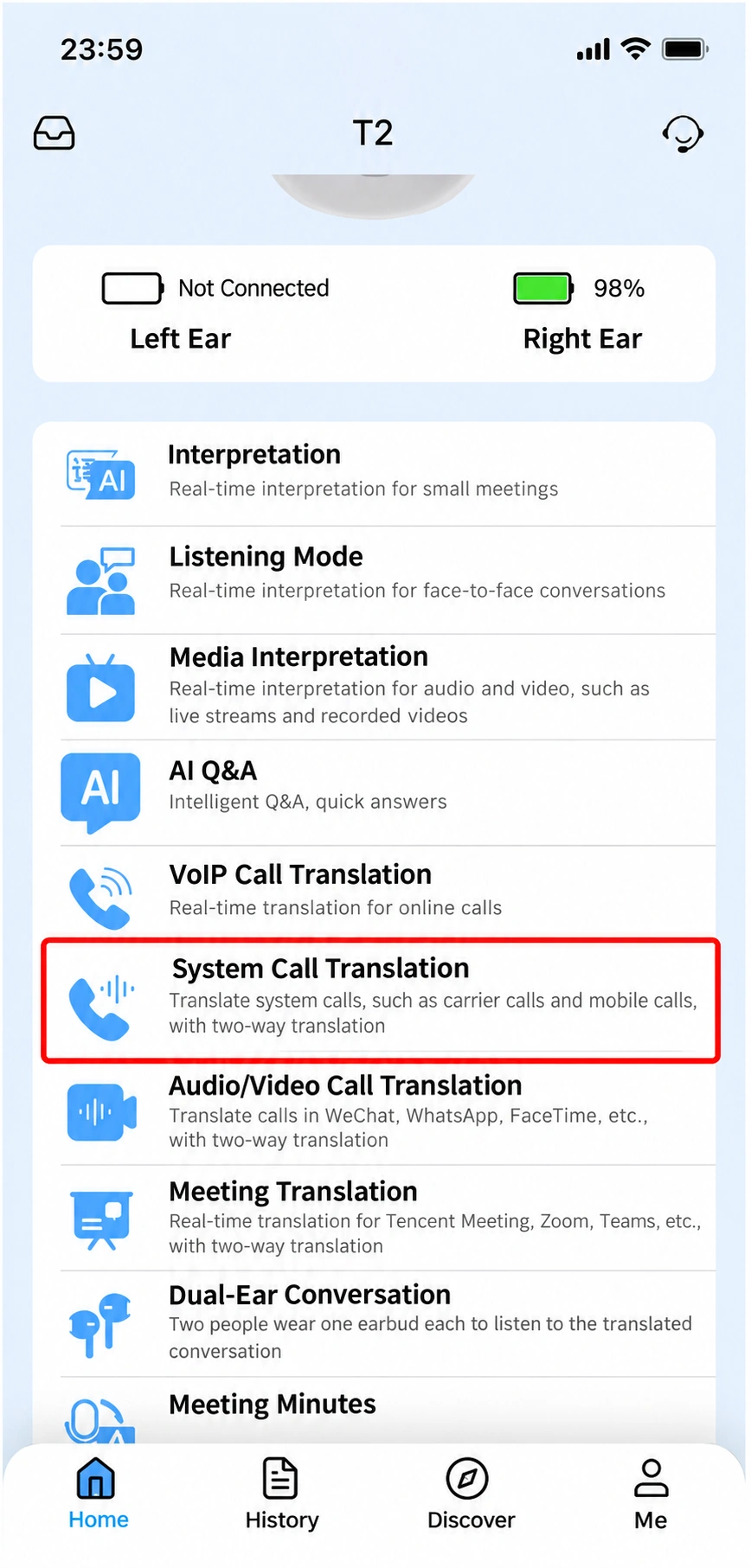
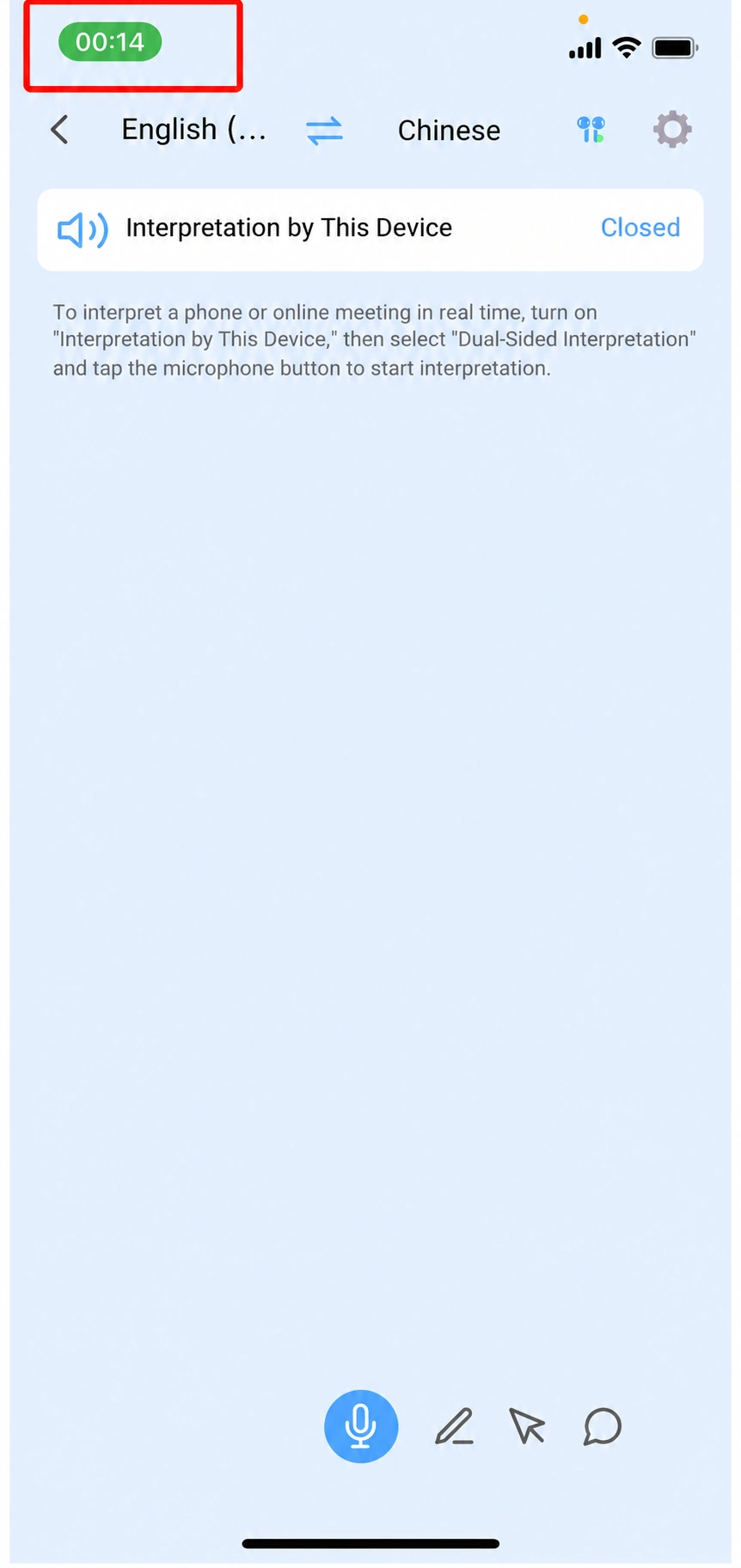
3. Enable Translation:
Click in the page Microphone icon Start translating. At this moment,By default, only translate the other party The spoken content will be displayed in real time on the APP page.
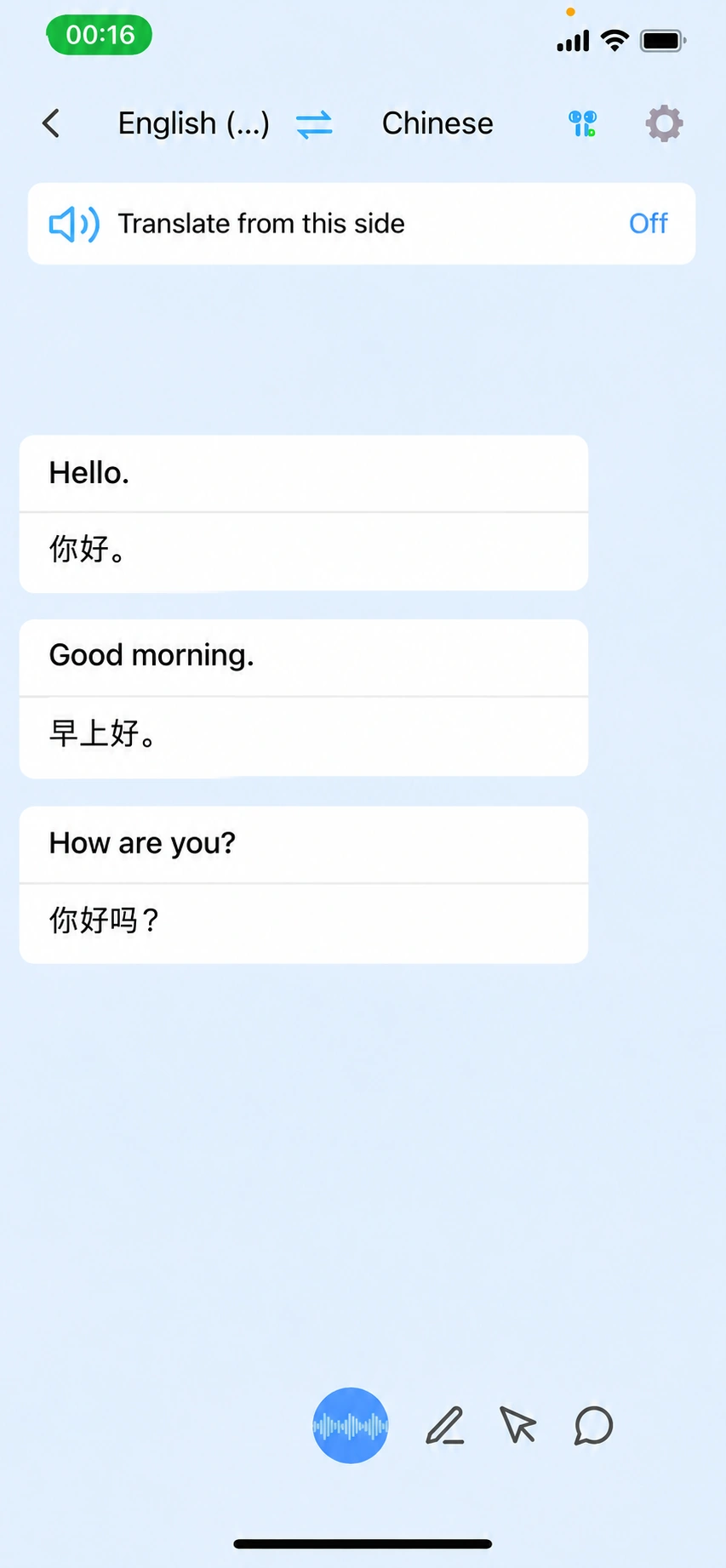
4. Enable two-way translation (if needed):
1) If you need to translate your own words for the other party, please click to turn on [Translation of Your Speech Switch.
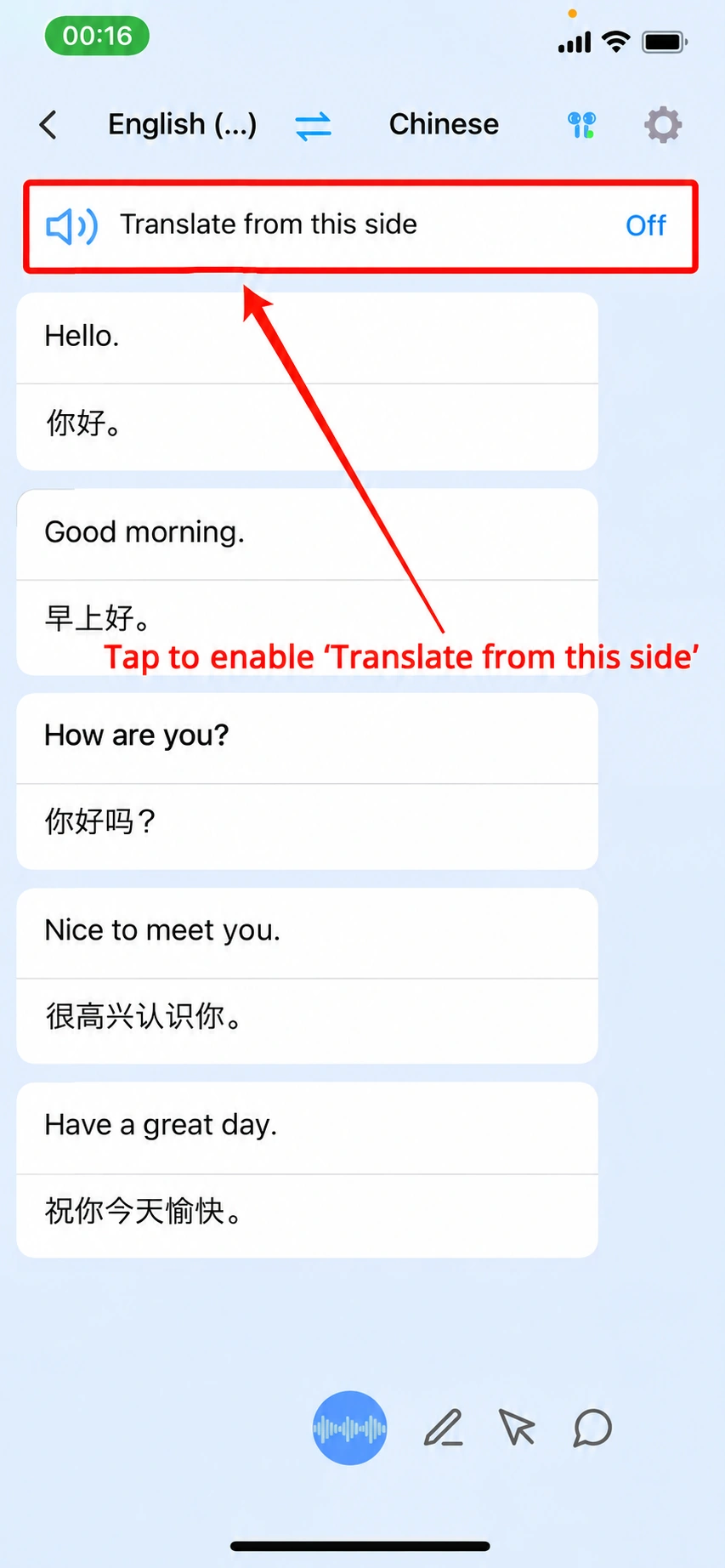
2) Once activated, the content of your speech will be translated and transmitted over the telephone line.play the translated speech to the other participant.
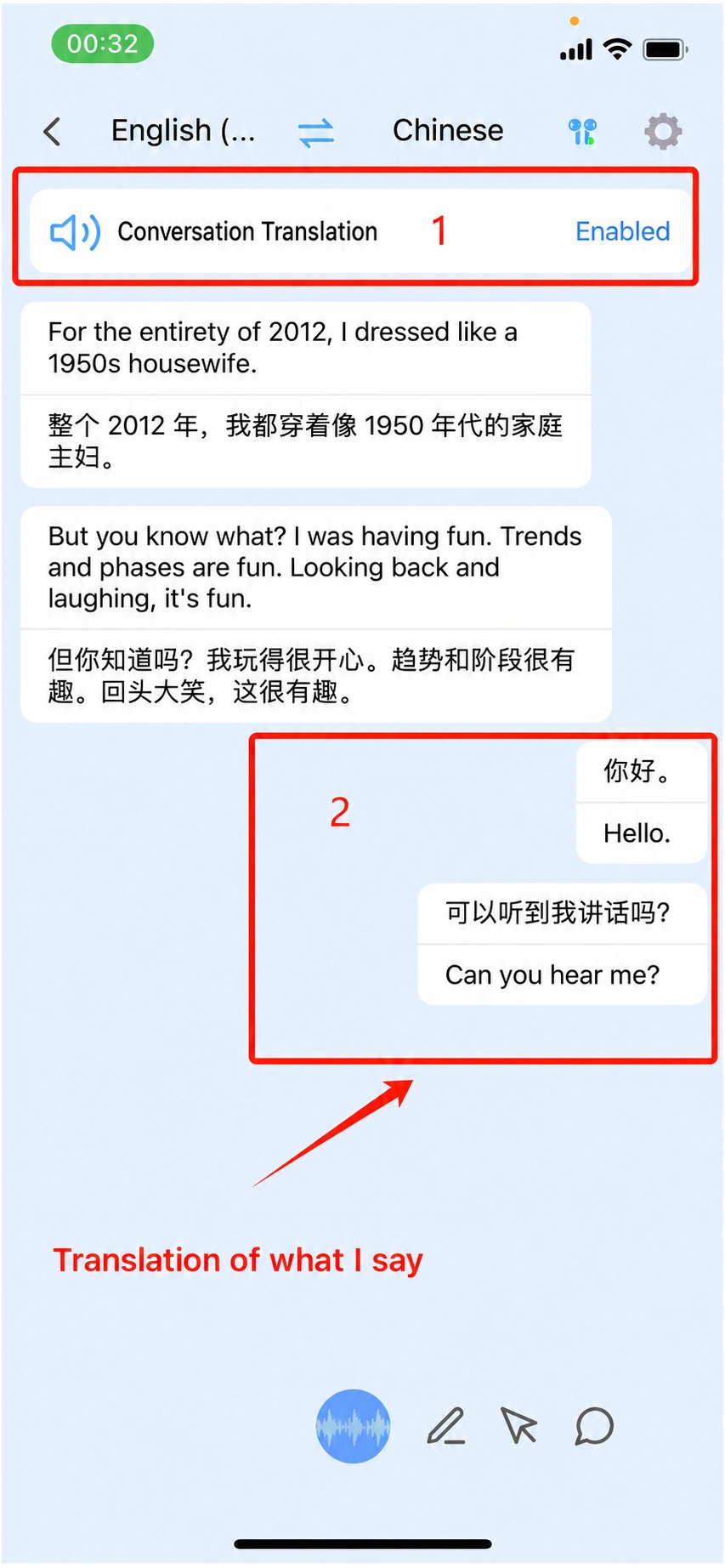
⚠️ Important Version Requirements
- Use “Translation of Your Speech Function, must meet the following conditions:
- App version: Not lower than 1.3.20
- Headphone Firmware Version: Not lower than 0.0.1.30
- Please make sure that both your app and headphone firmware are updated to the required version, otherwise this feature may not function properly.
Function Tip This feature will convert your phone call in real time into a 'three-way call' (you, the other party, and the translator). Before starting, please make sure your network connection is stable.
Is the iTour 22pro headset translation feature permanently free?
Yes. You through the official app iTourBuds APP All translation functions supported by the headset, such as system phone translation, face-to-face conversation, offline translation, etc., are Permanently free, does not charge any service or subscription fees.
Tip:
- This free benefit is limited to this Functions supported by the headphones themselves If you need to use other translation app services, you will need to adapt to other billing rules.
- Please make sure to download through official channels iTourBuds APP And use genuine headphones to ensure your right to free use.
How do you use the "Live Simultaneous Interpretation" feature of the iTour 22 Pro headphones?
The 'on-site simultaneous interpretation' function is applicable to Small in-person meetings, business discussions or lectures and other scenarios. Once enabled, it will be through Phone Microphone Audio Input, recognize the speech content of the speaker on site in real time, and translate it into the target language you have set.
Core Functions and Operations:
- Start: Select " in the iTourBuds APP On-site simultaneous interpretation Mode, click to enable translation.
- Display: The original text and the translation will scroll in real-time on the mobile screen, just like meeting subtitles.
- Audio Playback: The translation results can be played in real-time through headphones (can be set to off), allowing you to listen clearly.
Usage recommendations:
- Place the phone near the speaker to achieve the best sound pickup.
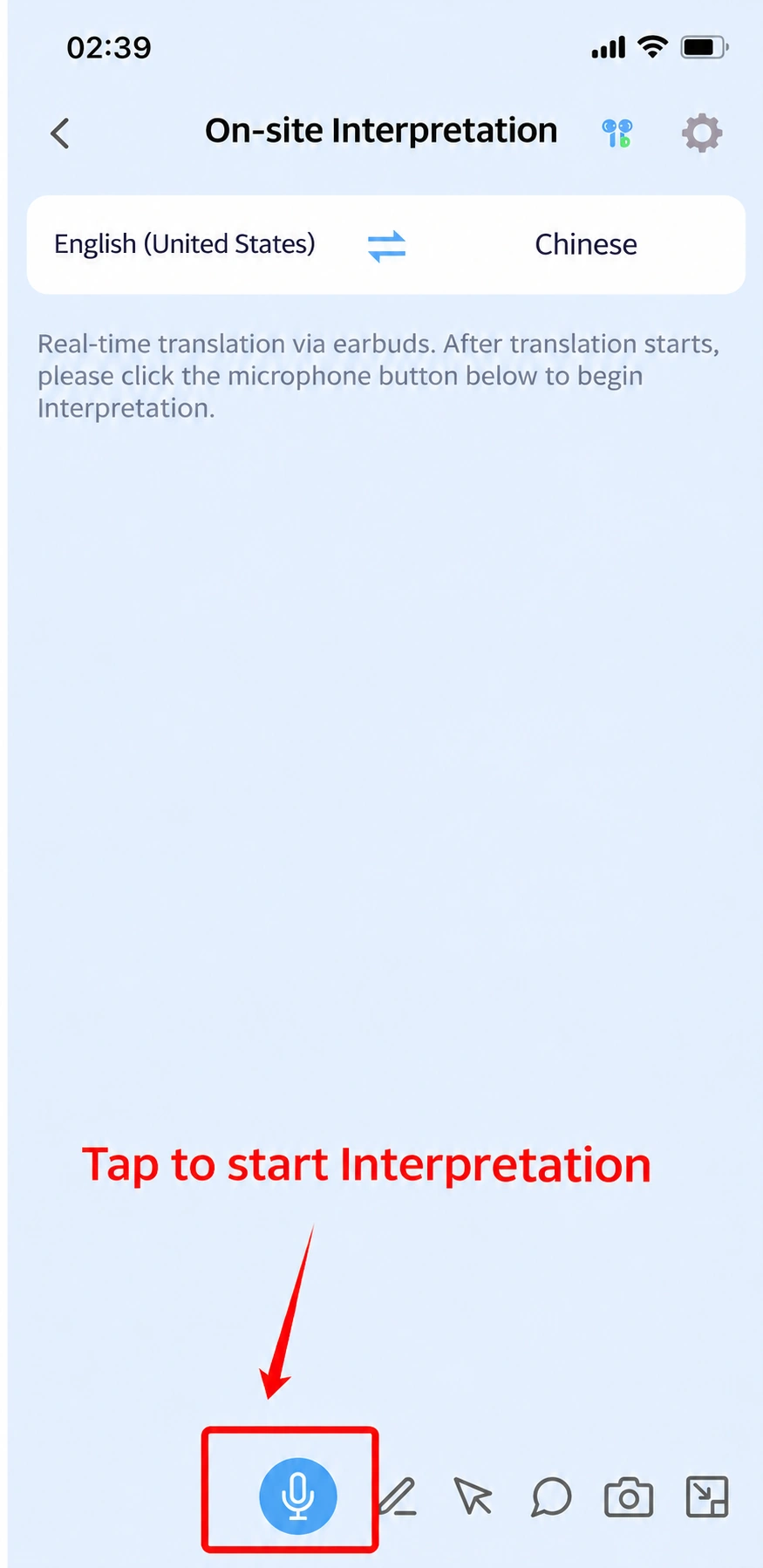
How to use the 'Listening Mode' of the iTour 22 Pro headphones?
Listening mode is specifically designed for Face-to-face alternating conversation Designed to automatically recognize the direction of conversation and achieve natural and smooth bidirectional translation.
The workflow is as follows:
- Listen to the other person speaking: After the mode is activated,The button on the left automatically enables audio input., identify the other party's language and translate in real time, with the translation transmitted through Your headphones played aloud so you can hear it clearly.
- Speak to the other party: When you need to respond,Tap the button on the right Speak, the device will recognize your language and translate it, and the translation will be delivered through Phone Speaker play it aloud to the other participant.
Mode Features: This mode provides "Automatic listening, press the button to speak" Intelligent interaction eliminates the hassle of manual switching, making cross-language conversations as simple and natural as everyday communication.
How do you use the 'Audio-Visual Simulcast' feature on the iTour 22 Pro headphones?
The audio and video simultaneous transmission feature is suitable for what is currently playing on a mobile phone or tablet Foreign language videos, audio, live broadcasts and other content, translated in real time and displayed as subtitles. Please note, this feature Provide text translation only, no speech playback.
You can start in any of the following ways, with the same effect:
Method One: Start the translation first, then play the audio and video (it is recommended to set it up in advance)
- in iTourBuds In the app, enter "T2" > "Audio-Visual Simultaneous Translation", click to start translation.
- Click “Floating By pressing the button, the app will automatically move to the background and display a floating window.
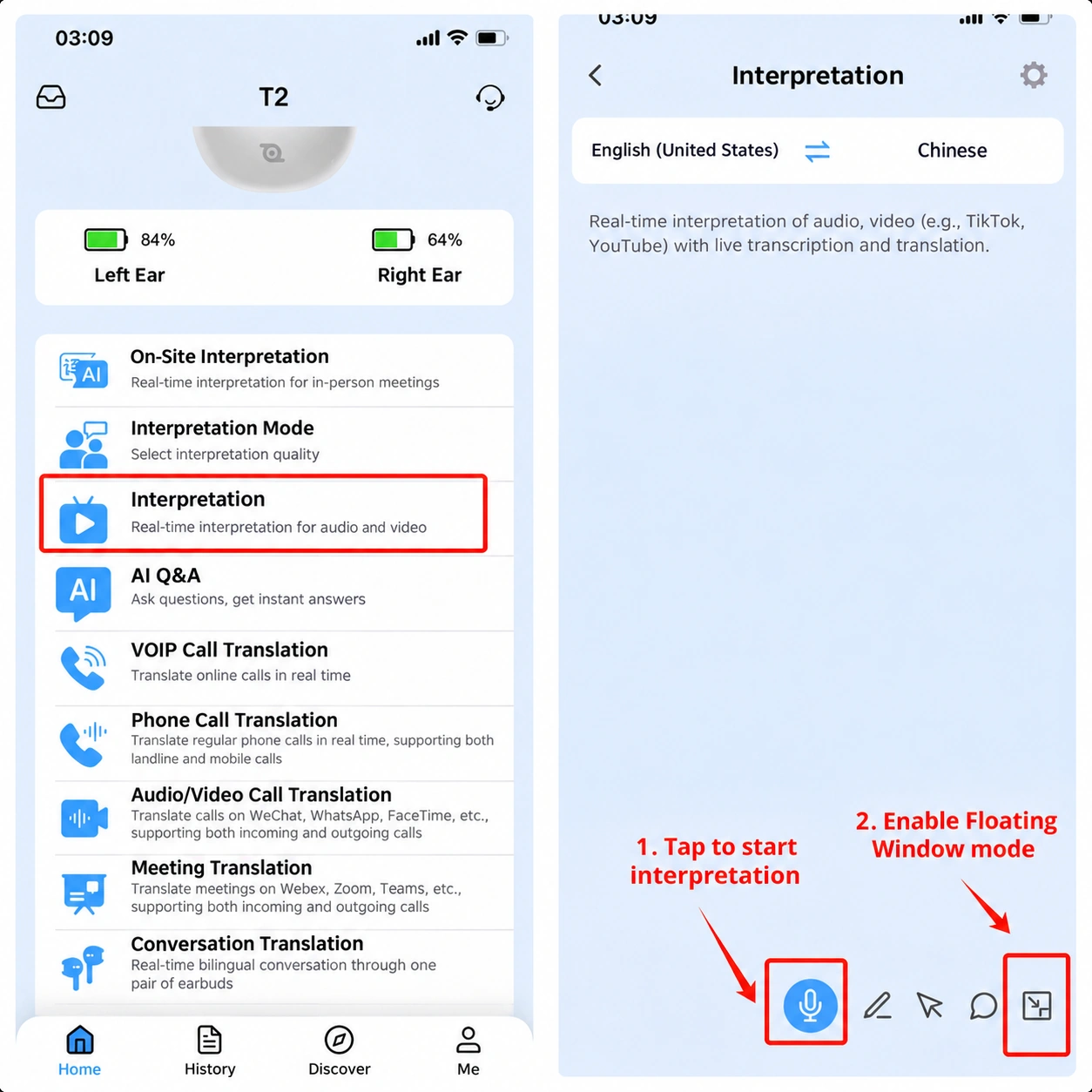
- At this time, open any video, music, or live streaming app (such as Bilibili, YouTube, online course software, etc.) and start playing, and the translated subtitles will be displayed in real-time in the floating window.
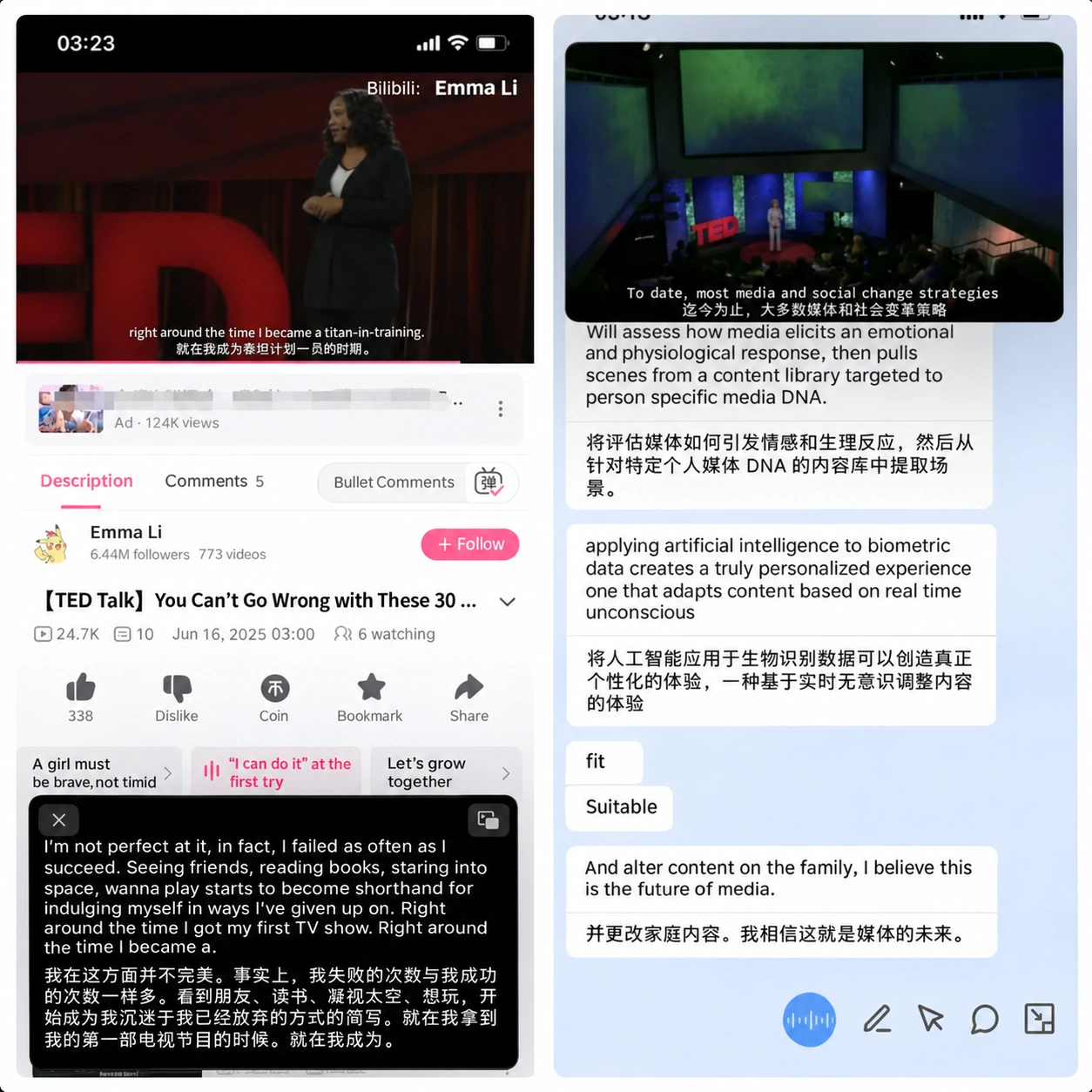
Method 2: Play audio and video first, then start translation (suitable for temporary use)
- First, normally open your video or audio app and start playing content.
- Switch to without stopping playback iTourBuds APP, enter "T2" > "Audio-Visual Simultaneous Translation".
- Click Start translation Once the button is pressed, the system will immediately start recognizing and translating the currently playing audio content, and the translation will also be displayed on the function page.
How do you use the "Smart Q&A" feature of the iTour 22 Pro headphones?
To be precise, 'intelligent Q&A' is integrated into iTourBuds APP one inside Built-in AI text assistant feature. It itself Not interacting with the headphones via voice, the user needs to manually enter questions in the app interface for plain text Q&A.
How the Feature Works
- How It Works: This is an intelligent chat robot based on the DeepSeek model, built into a mobile app. Its main form is text-based conversation, rather than a voice assistant realized through headphones.
- Operation method (completed entirely within the app):
- Input: The user needs to manually input text/voice transcription to ask questions in the 'Intelligent Q&A' interface of the app.
- Output: The AI's responses will be displayed in plain text in the app's chat interface.
- Headphone Role: In this function, the headphones do not participate in voice picking or broadcasting, and their core translation and audio functions are not applicable in this scenario.
3.Core Features:
- Can conduct multi-turn text conversations and answer questions in various fields.
- Can assist with translation comparison, content summarization, creative writing, and more.
How to use the iTour 22pro 'VOIP Phone Translation' feature?
VoIP phone translation is an internet phone, only supportedMake a call to the United States,by default, only the other party is translated; if you want to translate your own side, you need to click the translation button to enable translation
The specific operations are as follows:
1. Select the languages of both parties, choose the country and area code for the number to be dialed, enter the number to be called, and click[Dial]can do
2. Enter the call page, the other party's spoken content,Real-time displayOn the call page, the translation of our spoken content needs to be enabled[Translation]After the button, it can normally recognize the translation and broadcast it.
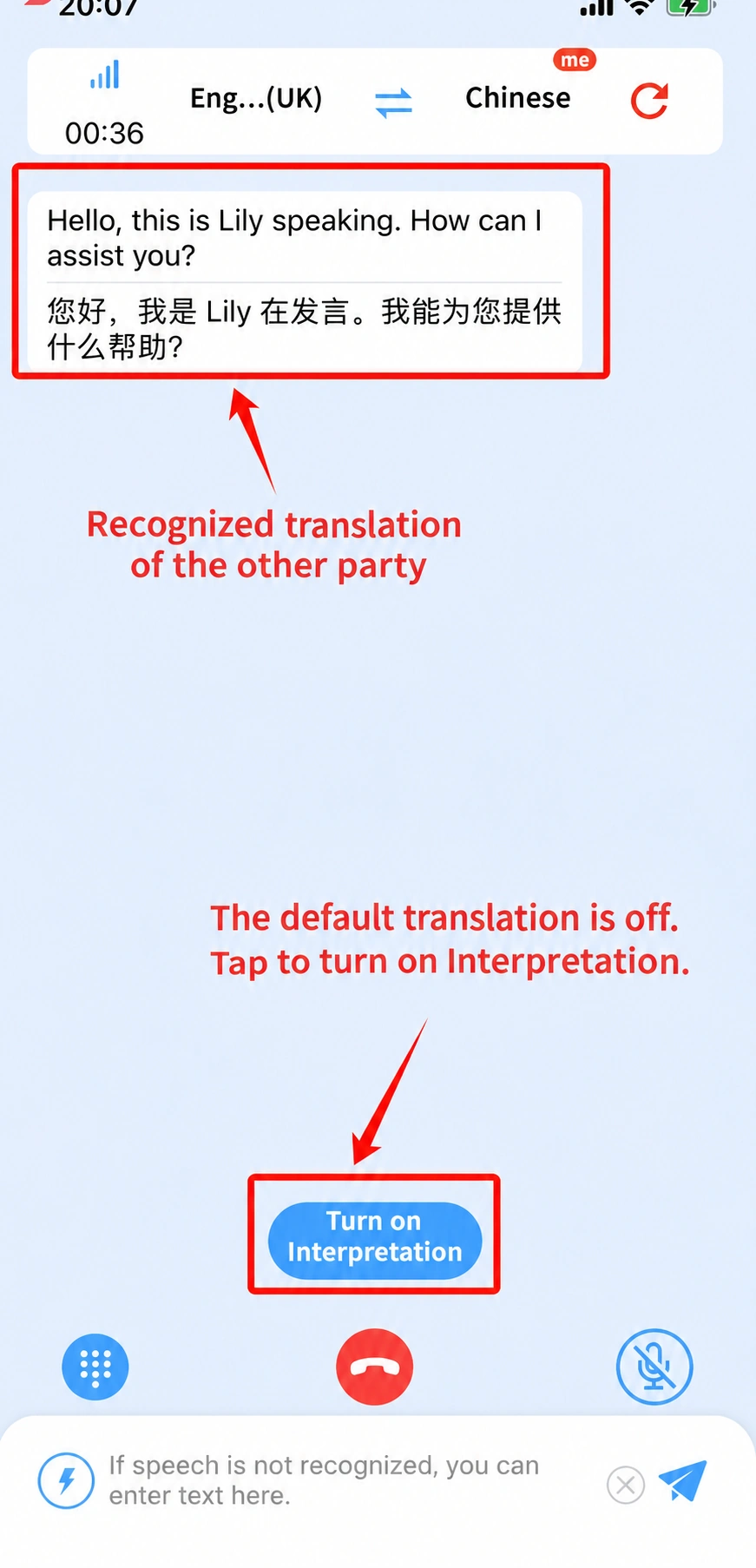
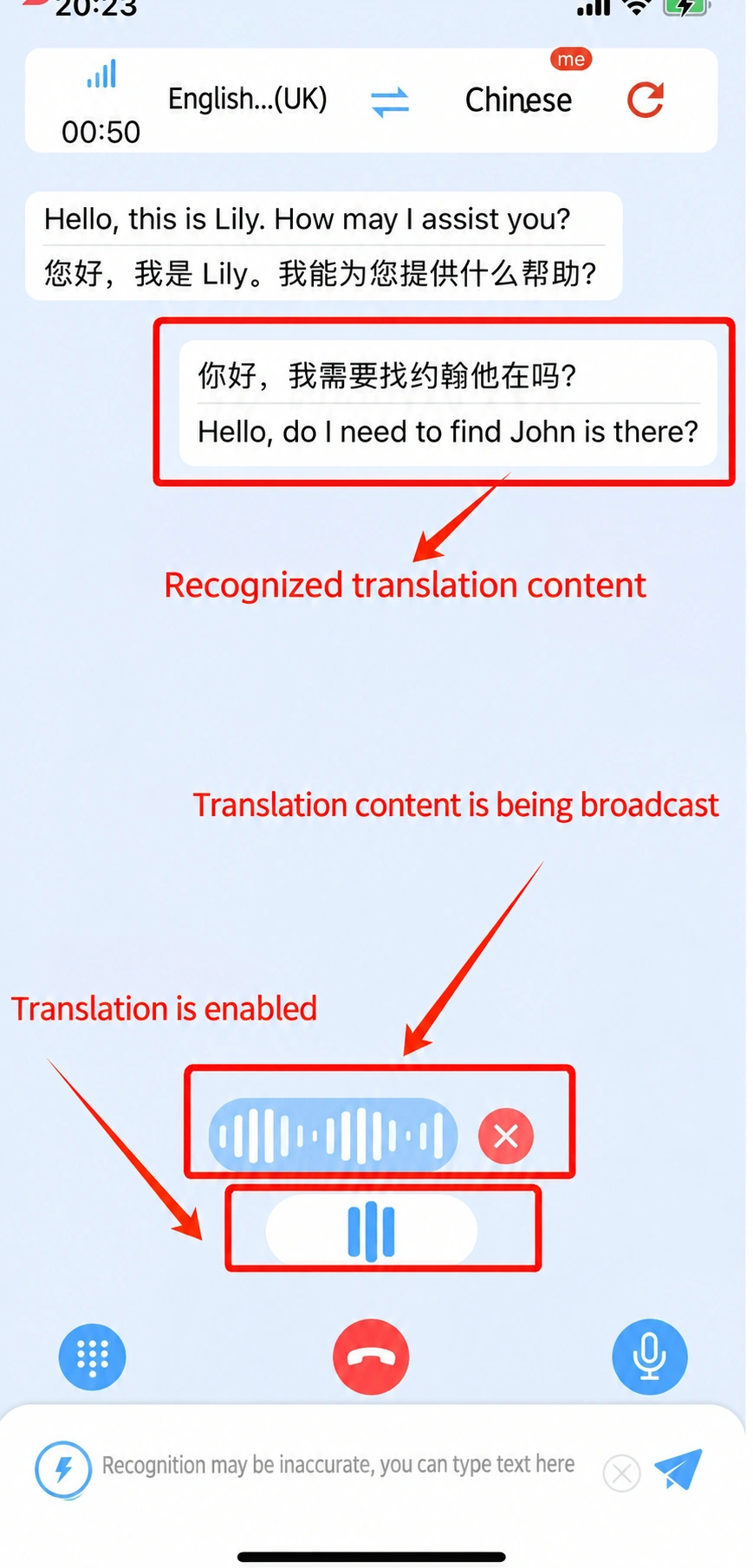
3.Support editing textSend translation andplay the translated speech to the other participant
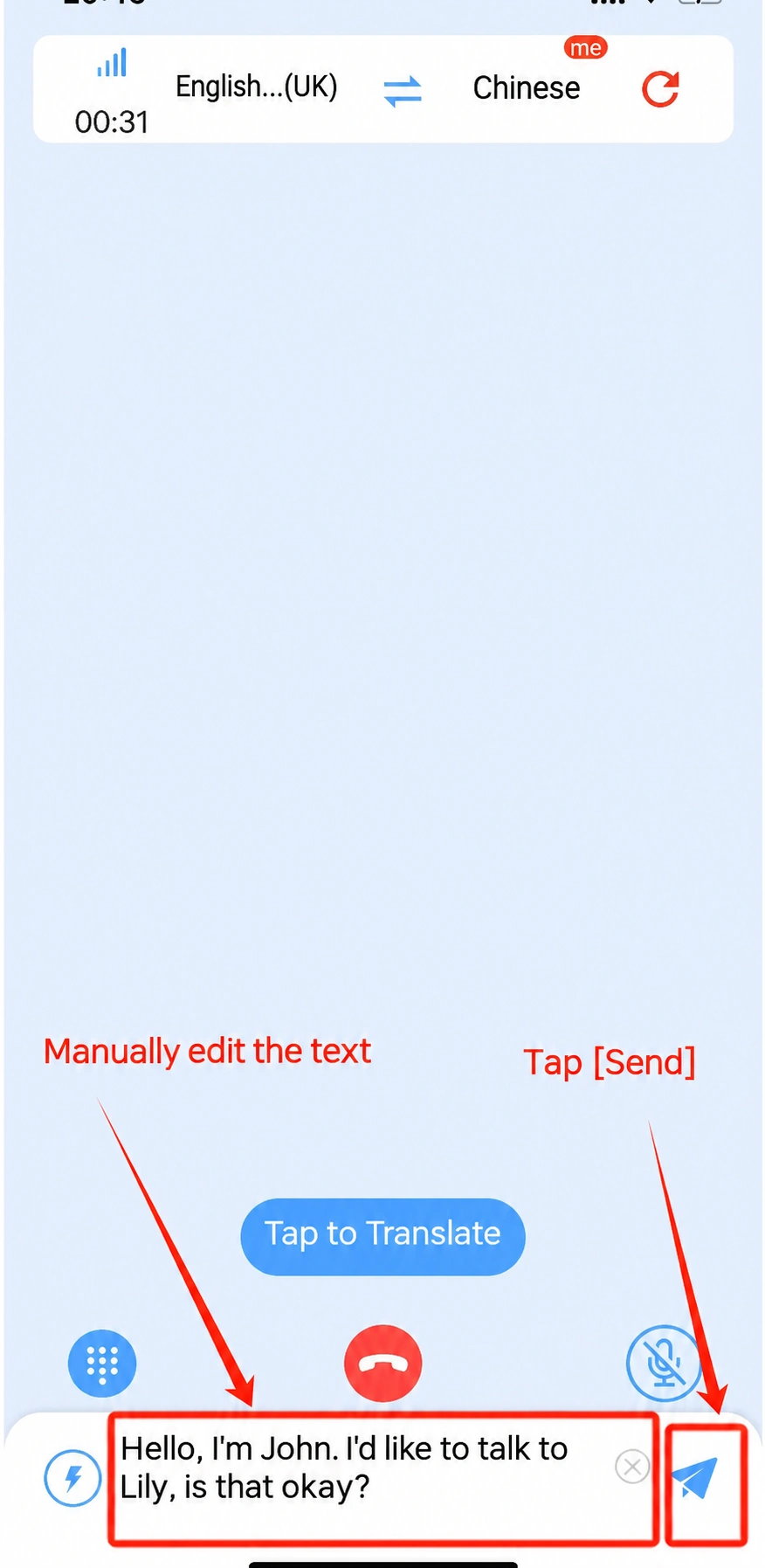
Button Description:
 Dial the keypad. If you are calling a service platform such as a bank or hotel and need to operate an extension number, you can click this icon to perform key operations.
Translate key,Default off, after clicking to enable, it will recognize the speech content on your side andtranslate and play the speech to the other participant,As shown in the figure below:
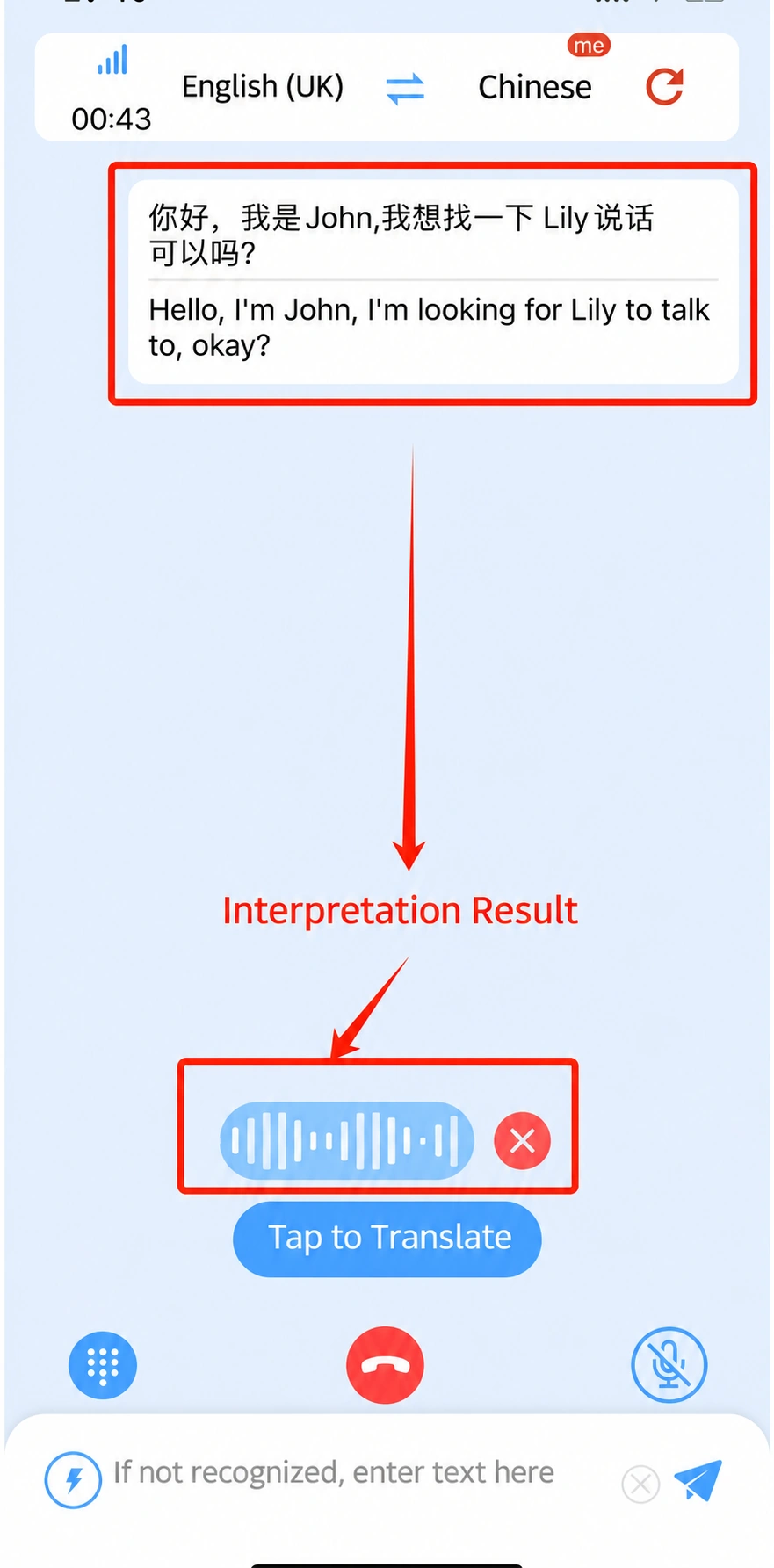
 Preset phrases can be set in advance according to different scenarios. During a call, you can choose the preset phrases and click send to improve communication efficiency.
How to use the iTour 22pro 'Video Call Translation'?
Video call:By sending an invitation link to a friend and the friend clicking the link,Join CallAfterwards, it canreal-timeCall and chat translation, supportedVoice call, video call and Text chat, the specific operation steps are as follows:
1. EnterVideo CallOn the page, select the third-party social platform you need to call.
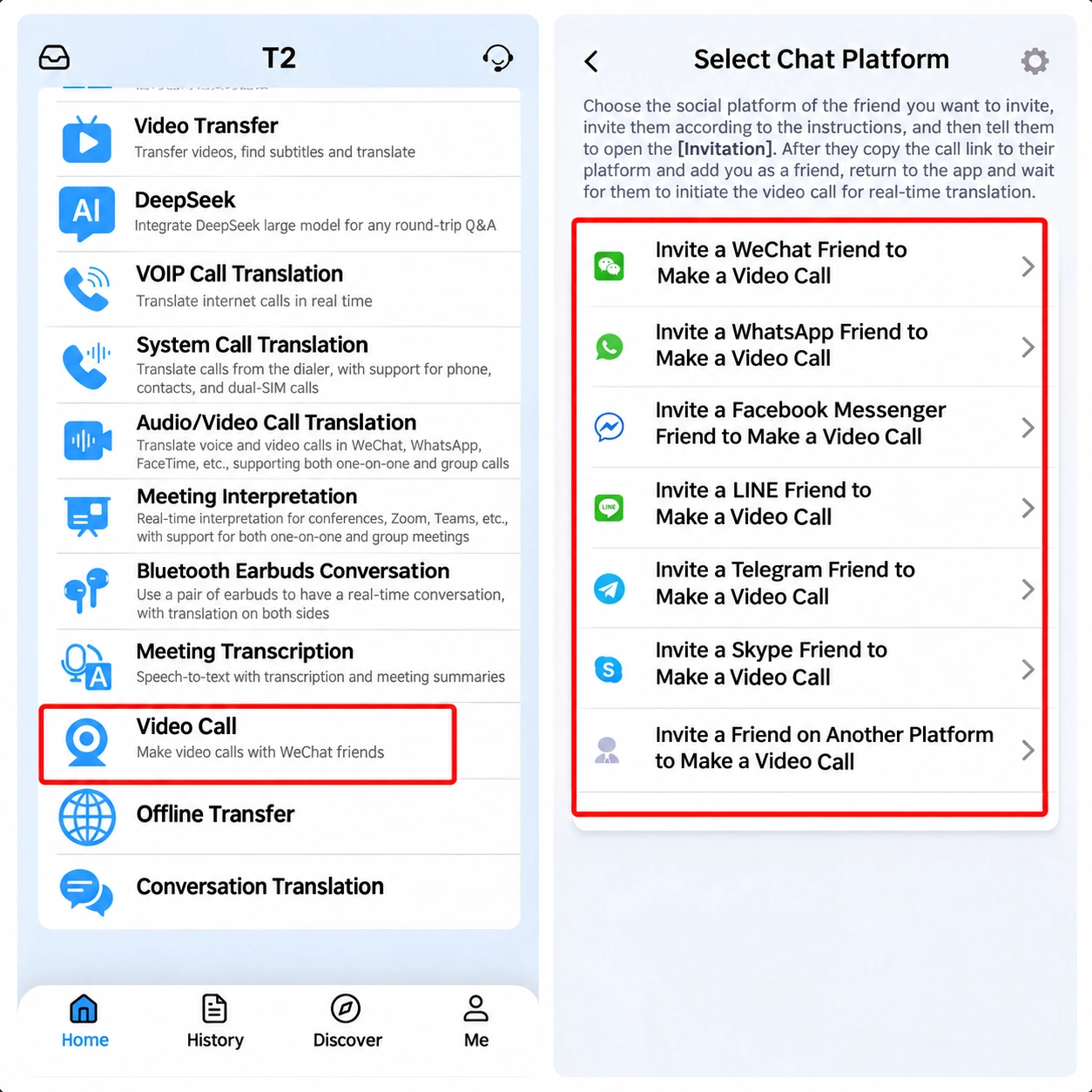
2. ChooseLanguages of both parties, call type, click[Invite]
3. Click"Go to XXX to paste to a friend"
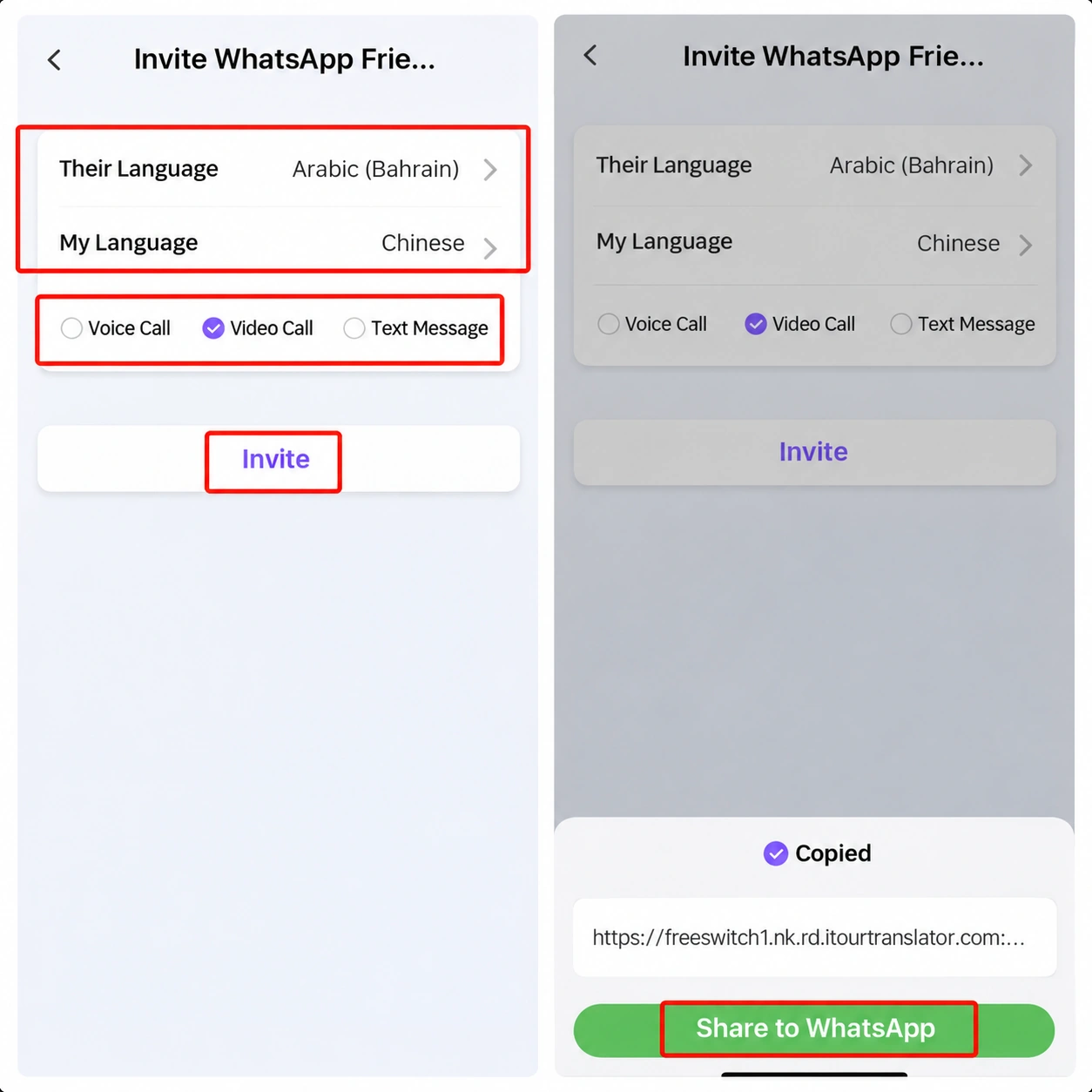
4. After pasting the link to a friend,Return to the iTourBuds APP dial page, waiting for the other partyJoin to chat and make calls in real timeTranslate
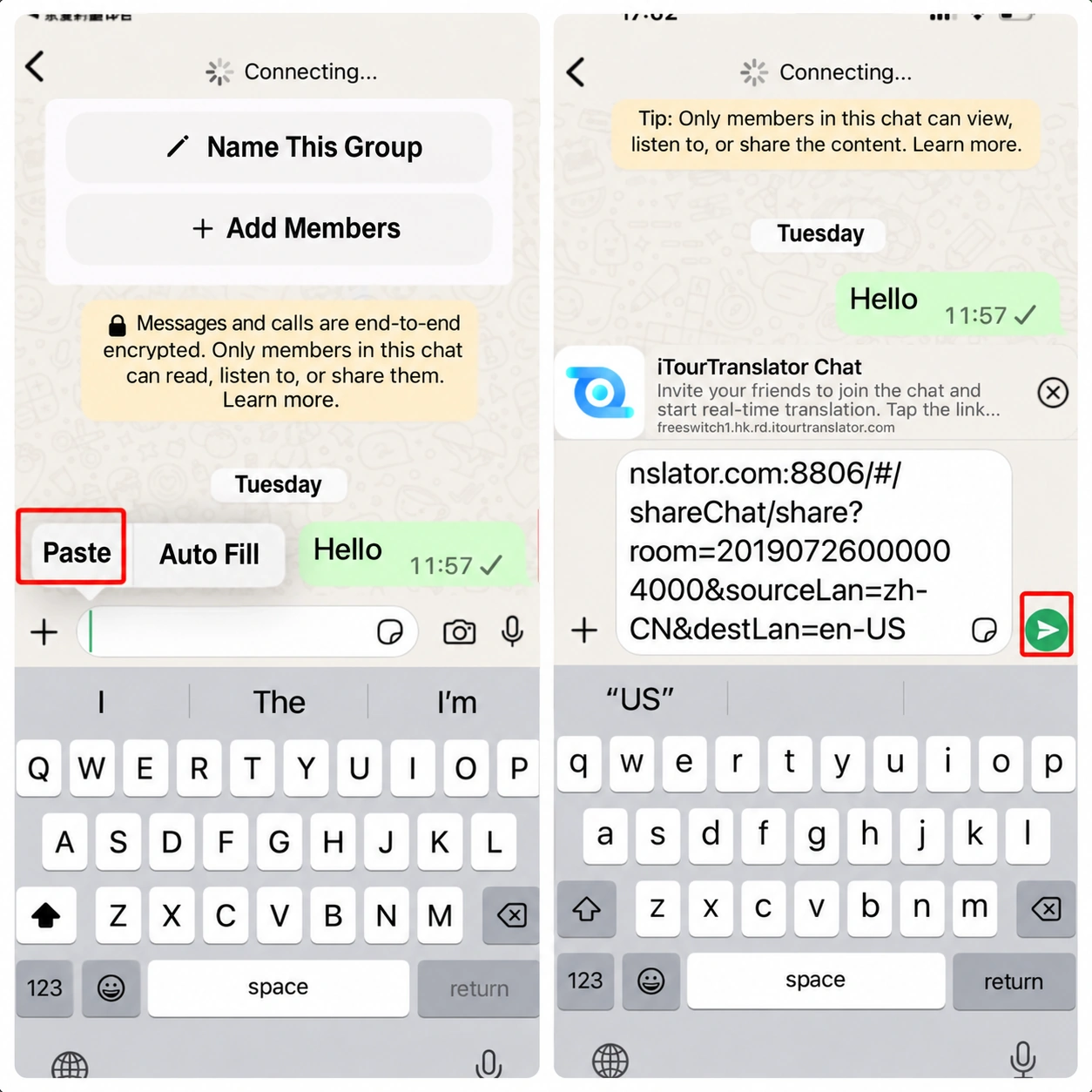
How to use the 'Conference Translation' feature of iTour 22pro?
The 'Meeting Translation' feature is specifically designed for Zoom, Teams, Tencent Meeting Waiting for online video conference design, it can provide you with real-time bilingual translation during the meeting, making cross-national and cross-language communication barrier-free.
Operating Steps
- Enter the meeting: On your phone, normally join or start a Zoom, Teams, or Tencent meeting.
- Start translation:
- Keep the meeting going, open it on your phone iTourBuds APP.
- Enter "T2Device page -> Select "Conference interpretation" function.
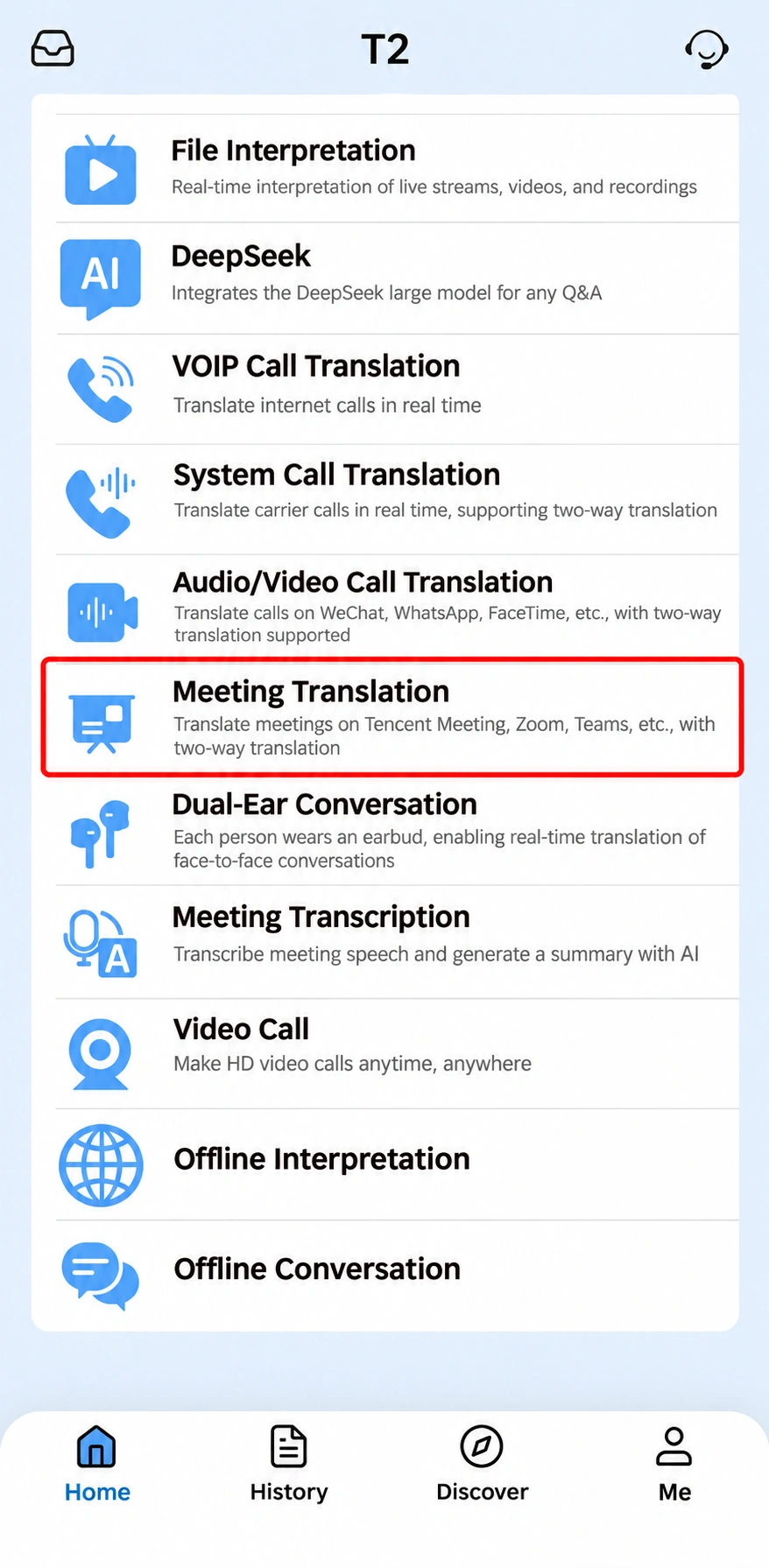
3.Start translation:
- Click in the page Microphone Icon Turn on translation. At this time, default Translate only the other party and other participants speech, the translation will be displayed in real-time on the app page.
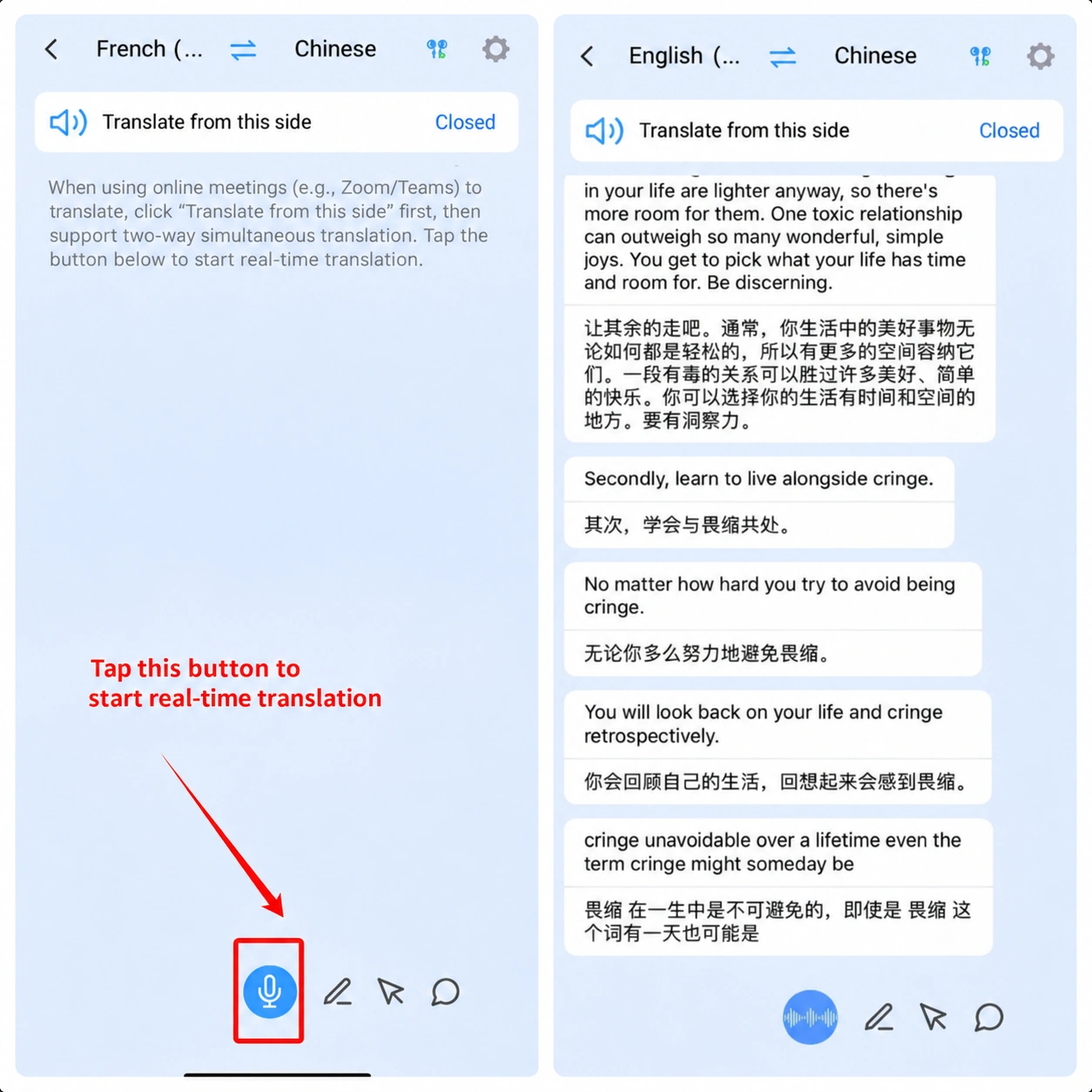
4. Enable two-way translation (if needed):
- If you need to translate your own speech to the other party, please click to enable [Translation of Your Speech Switch.
- Once activated, what you say will be translated and transmitted through the headset to all participants in the meeting.
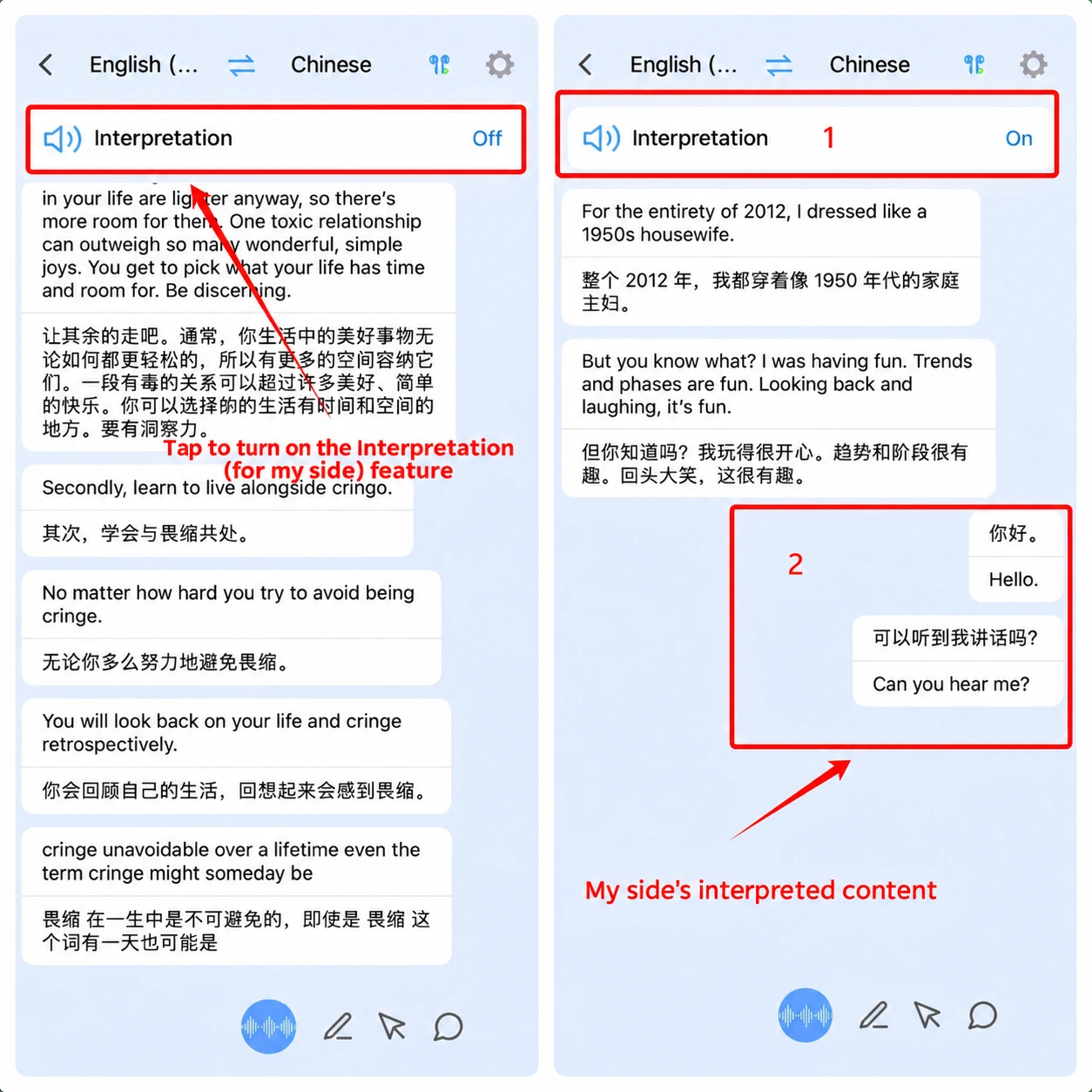
Important Versions and Configuration Requirements
- Use “Translation of Your Speech Function, must meet the following conditions:
- App Version: Not lower than 1.3.20
- Earbud Firmware Version: Not lower than 0.0.1.30
How to enable and use the 'Audio and Video Call Translation' feature of iTour 22 Pro?
This feature allows real-time voice translation during calls on chat apps such as WeChat, WhatsApp, and Facebook. The steps are as follows:
- During a call on chat apps (such as WeChat, WhatsApp, Facebook), enter iTourBuds App → T2 → Audio and Video Call Translation;
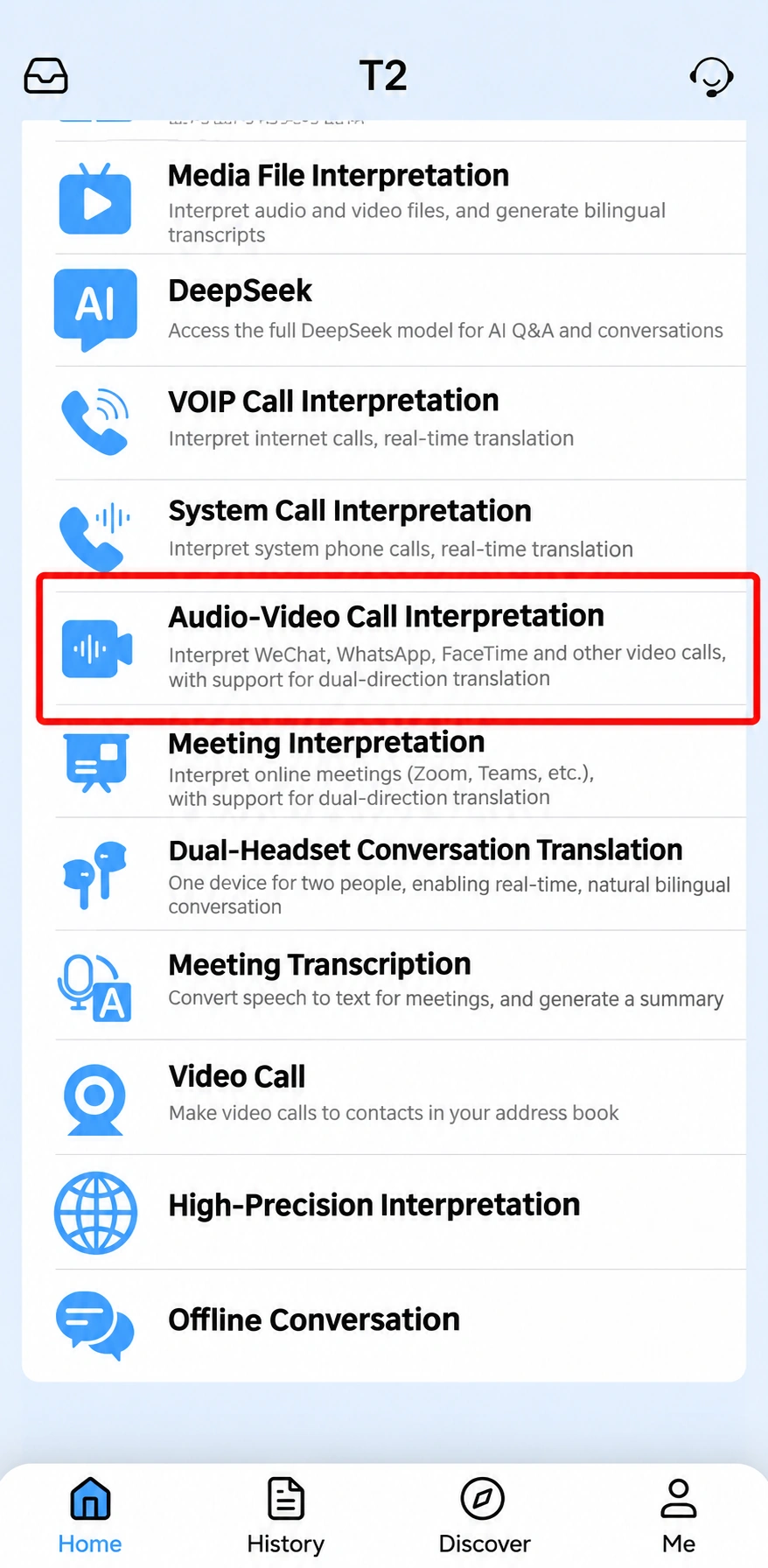
2. Click on the page Microphone Icon Turn on translation, the system will default Translate the other party's language The audio and text translation results will be displayed on the current page;
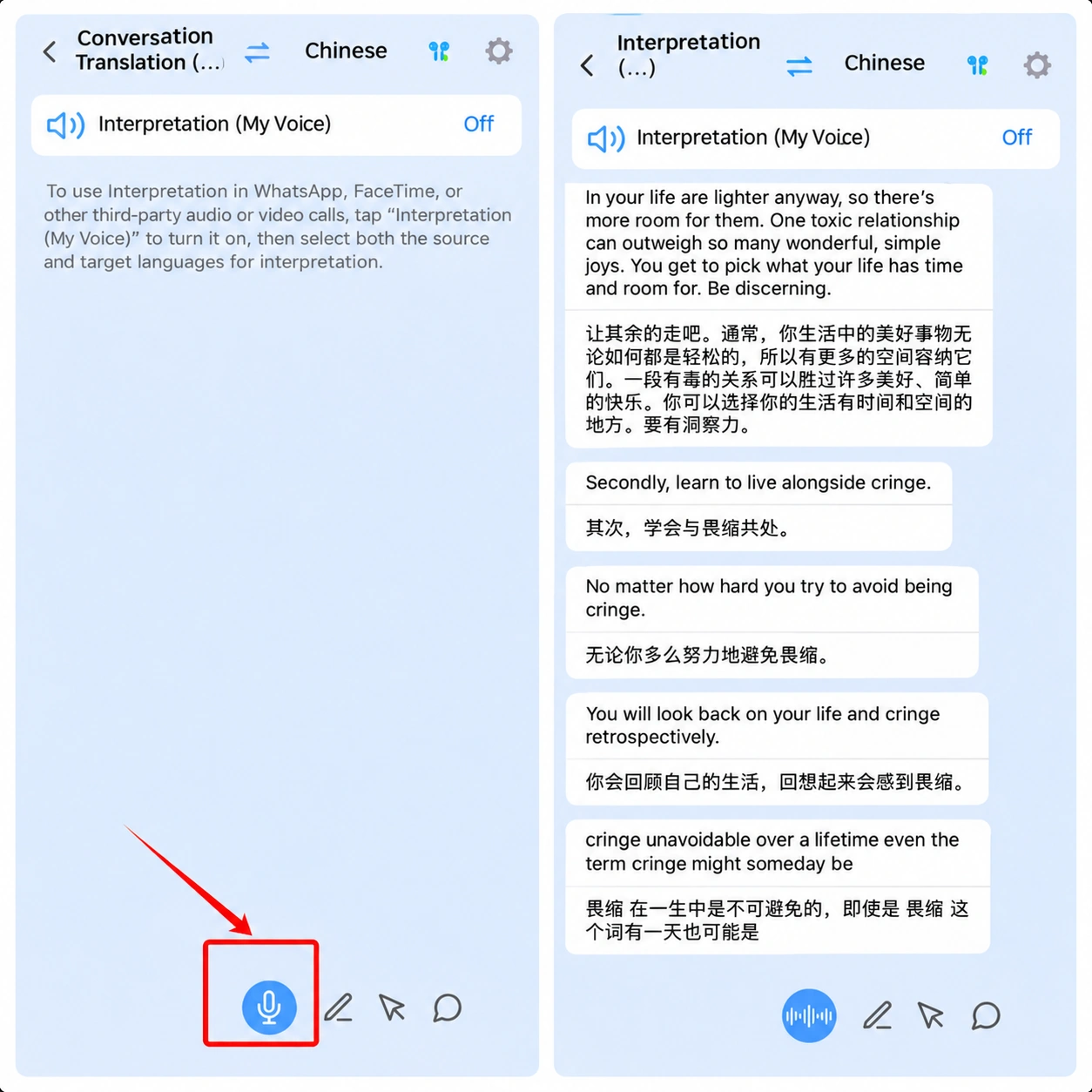
3. If you need to translate the dialogue between both parties, please enable [Translation of Your Speech Function;
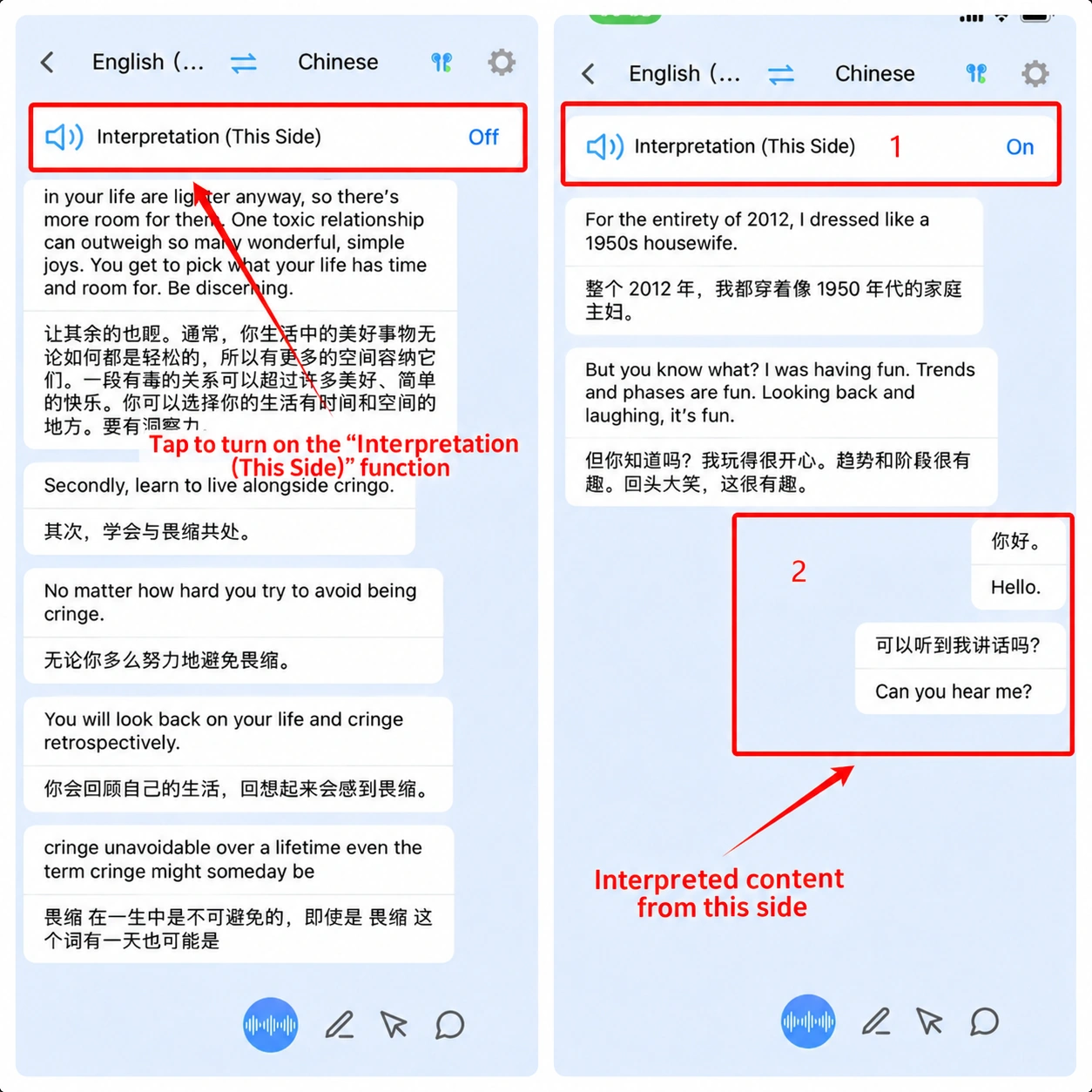
4. Open [Translation of Your Speech Afterwards, the speech you make will also be translated into the other party's language and broadcast to them through the device.
Prompt: To translate your own speech, the following conditions must be met:
App version ≥ 1.3.20 and Headphone firmware version ≥ 0.0.1.30.
How do you use the 'dual earphone conversation' translation feature of the iTour 22 Pro?
This feature supports Online real-time bilingual translation, suitable for scenarios where two people communicate face-to-face.
Usage Steps:
- Each participant wears one earbud.
- After enabling translation, the system will automatically recognize speech and translate it, and the translation results will be broadcast through the headphones.
- Click the microphone button in the picture below to start using the translation function.
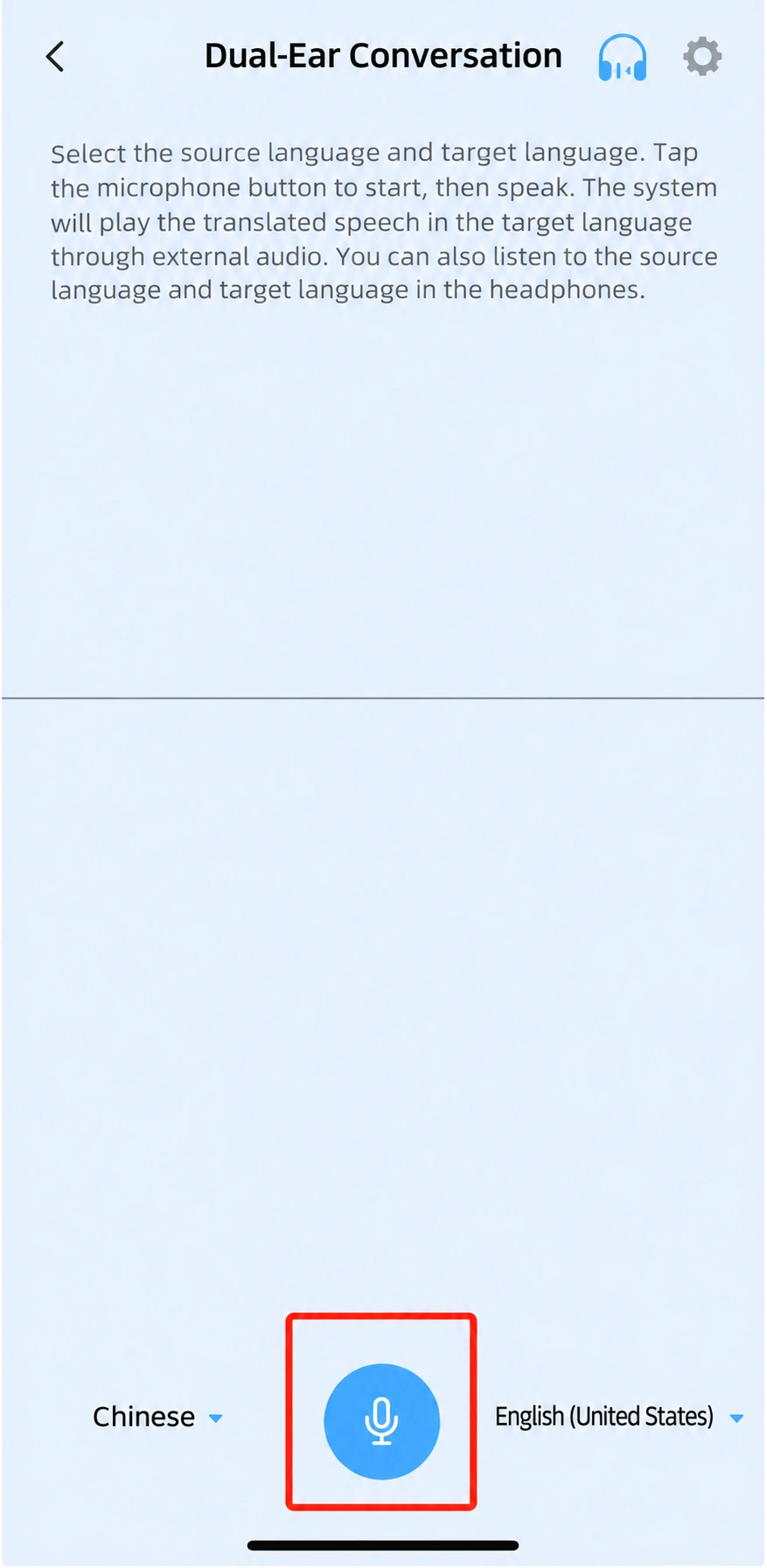
Earbud Audio Playback Modes:
- Android system version 1.4.42 and above, iOS system version 1.7.00 and above:
- Identify the language on the left (English) and translate it into the language on the right (Chinese).Left-ear Audio Playback.
- Identify the language on the right (Chinese) and translate it into the language on the left (English).Right-ear Audio Playback.
- On the feature page, the left- and right-ear translated audio can be Top right → Settings → Audio Playback Mode Modify
- iOS system versions below 1.7.00, Android versions below 1.4.42:
- Simultaneously broadcast the translation results of two languages in both ears, without distinguishing between left and right ear
Supports switching to Phone Speakeraudio playback. Select to switch as shown below
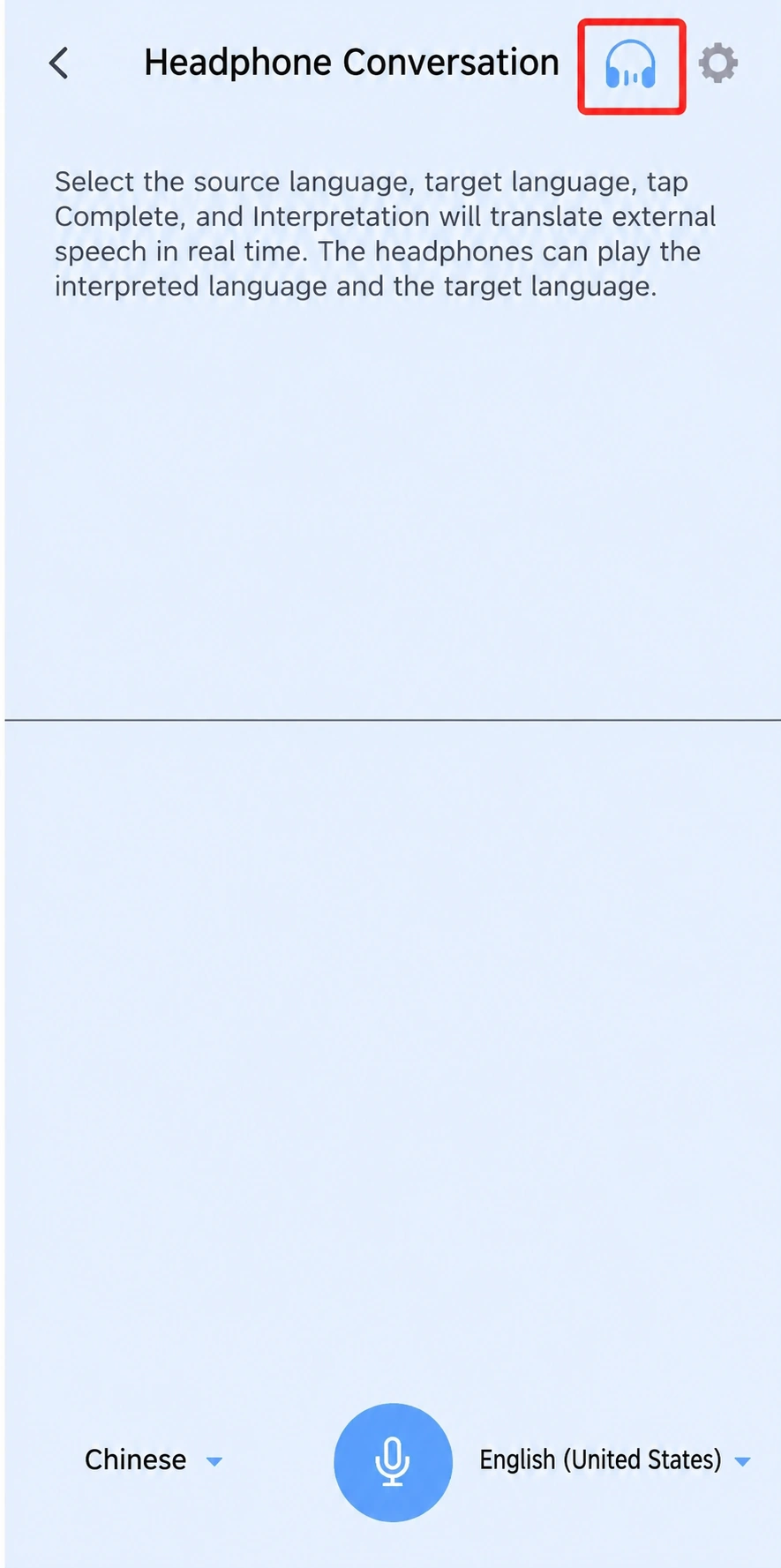
iTour 22 Pro headphones are connected via Bluetooth, but why can't the app connect?
Please check whether the following situations exist:
1. The phone connects to multiple Bluetooth devices simultaneously
Solution:Please temporarily disconnect other Bluetooth devices in your phone's system settings, and then try connecting to the app again.
2. The Bluetooth name of the headphones has been changed
Solution:Please restore the earphone Bluetooth name to the default iTour 22 Pro, restart the APP and try again after making changes.
How to use the 'offline simultaneous translation' feature of iTour 22pro headphones?
Offline simultaneous interpretation: when there is no internetYou can also enable simultaneous interpretation, the specific steps are as follows:
1. Click the microphone, a prompt indicates that you need to download the offline resource pack
2.First timeDownloadDefault language pairOffline resource pack
3. You can also clickdownload from the language selectorthe required offline resource pack
4. Click after enabling simultaneous interpretationFloating window in the bottom right cornerButton, can display simultaneous translation content in a floating window
How to use the 'Offline Conversation' feature on the iTour 22pro headphones?
Offline conversation:After downloading the offline language pack,In an offline environmentYou can also start a conversation, the specific steps are as follows:
1. ClickMicrophone, prompt to download offline resource package
2.First timeDownloadDefault language pairOffline resource pack
3. You can also clickLanguage barDownload the required offline resource pack
4. After the offline language pack is downloaded successfully, you can click the language buttons on the left/right.Start a conversation/Click again to turn off recognition, send the translation and play it aloud
5.Left sideButtonIdentify the other partyLanguagetranslate into your languageLanguage, translated contentHeadphone announcement, Right sideButtonIdentify our sideLanguagetranslate into the other participant’s language, translation contentPhone SpeakerAudio Playback
Z50S Pro Max Earbuds12 questions
Open in a separate page →Is the translation feature fee for the Z50S Pro Max translation earphones permanently free?
Yes. After you purchase the Z50S Pro Max, Corresponding functionPermanently free, Just download the official app iTourBuds All functions can be used once the earphones are connected.
Can the Z50S Pro Max headphones be used independently of the phone?
This headset cannot be used independently from the phone and must remain connected to the phone at all times.
To ensure the stable operation of the translation function, there are the following two key requirements when using it:
- Must connect to the phone All translation functions of the earphones rely on the iTourBuds App. They must be connected to the phone and the app via Bluetooth in order to be used normally.
- Keep the Phone Screen On: It is recommended to use during translation,Do not manually lock the screen The phone screen turning off may cause the translation service to be interrupted or the connection to be unstable.
How do you use the Z50S Pro Max headphones' conversation mode for translation?
The conversation mode is used for face-to-face communication scenarios. In this mode, you and the other party can conduct two-way voice translation through your phone and headphones, just like a normal conversation.
The specific workflow is as follows:
- When the other person is speaking: After the content is recognized and translated by the phone, the translation result will be delivered through Your headphones play the translated speech.
- When you speak: After the content is recognized and translated by the headphones, the translation result will be transmitted through The speaker of your phone play the translated speech aloud to the other participant.
Operating instructions:
- Start translation: In the corresponding interface of the iTourBuds App, click Microphone”Button You can start recognizing and translating (as shown in the picture below).
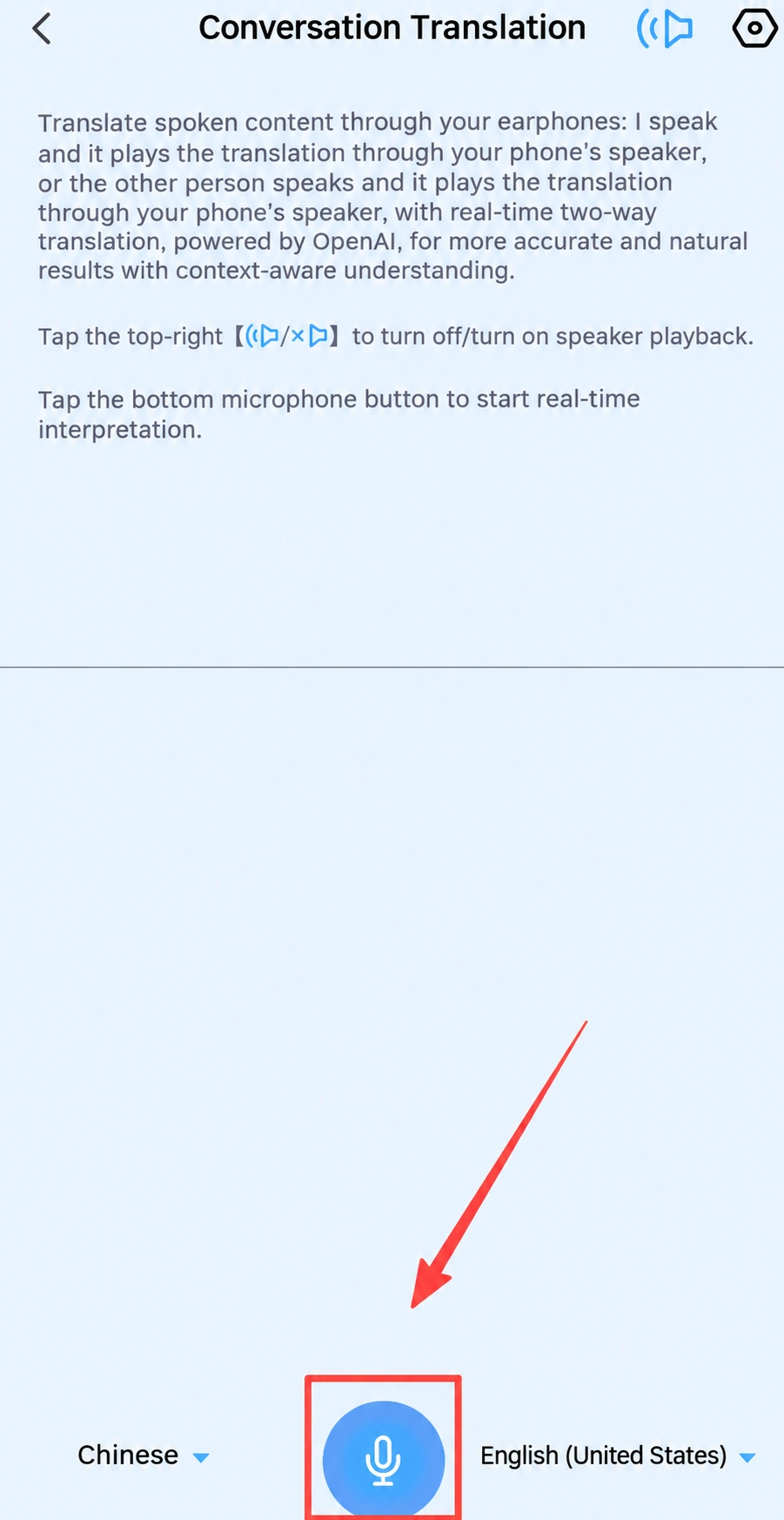
- Turn Off Phone Audio Playback: If you do not want our translated content to be played through the phone's speaker, you can turn off the speaker broadcast at the location shown in the image below.
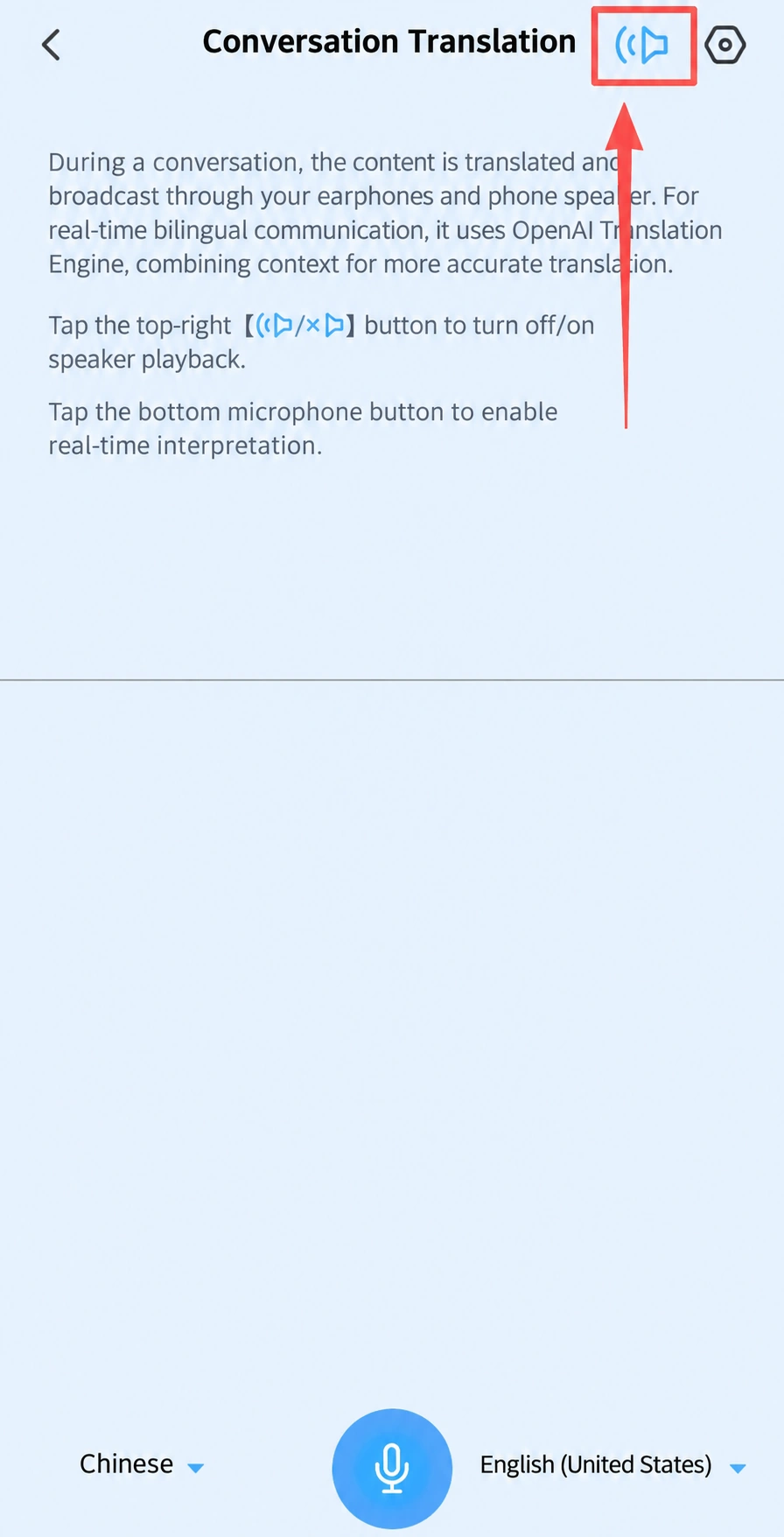
What DeepSeek features does the Z50S Pro Max headset have?
This feature integrates the advanced DeepSeek large model, making the headphones not only capable of real-time translation but also a powerful portable AI assistant. You can use it to Text or voice Ask it questions at any time.
The main help it can provide for you includes:
- Creation and Copywriting: Writing assistance, copy polishing, creative generation.
- Programming and Code: Code problem solutions, error debugging, logic explanation.
- Translation and Language: Multilingual translation (as a supplement to simultaneous interpretation) and language learning.
- Life and Planning Plan travel itineraries, provide strategy suggestions, and answer everyday knowledge questions.
- Dialogue and Companionship: Engage in open-topic intelligent chat.
Simply put, besides professional translation, it can also handle various problems in work, study, and life.
If you need to use it, please connect the headphones and find the DeepSeek feature entry in the iTourBuds App to experience it.
How do you use the VOIP call translation feature on the Z50S Pro Max headphones?
This feature allows you to make international calls directly over the internet and achieve real-time translation. After using it,The other party will hear your original voice and the translated voice in turn.
Basic Workflow
- Calls and Translation: After the call is established, the system will translate the other party's language into your language (default English → Chinese) and broadcast it in your headphones.
- Translate this prescription(Activate proactively): If you need to translate your Chinese into English for the other party to hear, you need to manually click the [Enable Translation] button in the call interface. Once enabled, the other party will first hear your original Chinese voice, followed by the English translation.
Important Notice of Limitations
- Supported Regions: This VOIP phone feature currently only supports calling phone numbers in the United States and Canada; calls to other countries and regions are not supported at this time.
- Two-way translation Translation services are bidirectional, but translating the content spoken by the user's side needs to be manually enabled and is not enabled by default.
How do you use the listening function on the Z50S Pro Max headphones?
The 'Listen' feature is specifically designed for real-time environment translation, allowing you to flexibly control the language of recognition and translation as well as the playback method.
Core function: Select voice recognition and playback channel
You can control the entire audio path with a simple 'switch':
- Enable left-side recognition (identify the other person's voice)
- Audio Input Source: Mainly identify the content of what the other person is saying (the language on the left) and translate it into your language (the language on the right)
- Audio Playback Method: The translation result will be broadcast through your headphones, and only you can hear it.
- Enable right-side recognition (recognize the sound of your voice)
- Audio Input Source: Mainly recognizes and translates the voice you speak (right-side language) into the other person's language (left-side language).
- Audio Playback Method: The translation result will be played aloud from the phone speaker so that the other party can hear it.
Personalized settings
You can adjust the way translation results are presented in detail in the settings according to your personal preferences:
- Display Settings: Adjust the font size of the translated text.
- Speech Playback Settings:
- Switch control: One-button to turn on or off the headphone's speech playback.
- Voice Adjustment: Customize the speech speed and the speaker's gender (male/female).
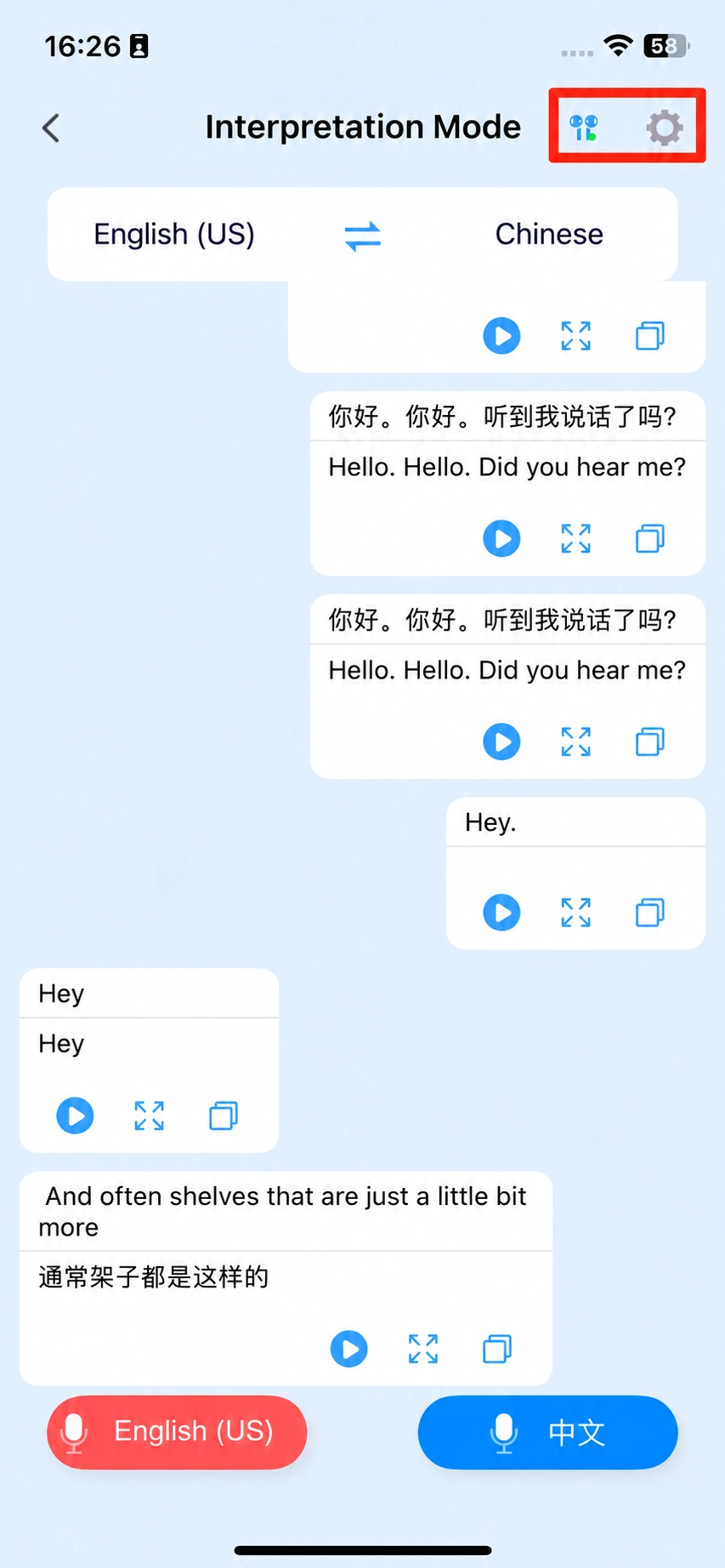
How to use the Z50S Pro Max headphone audio-visual simultaneous translation function?
The audio and video simultaneous translation function is specifically designed for real-time translation of videos, live broadcasts, and other content played on mobile phones. The following are detailed usage steps and precautions.
Steps for using an Android phone
- Start translation: Tap the “Microphone” button in the app to enable the feature, and confirm by selecting “Start Now”.
- Enable floating window permission (key step):
- When using it for the first time, the app will prompt you to enable permissions. Please click [Enable].
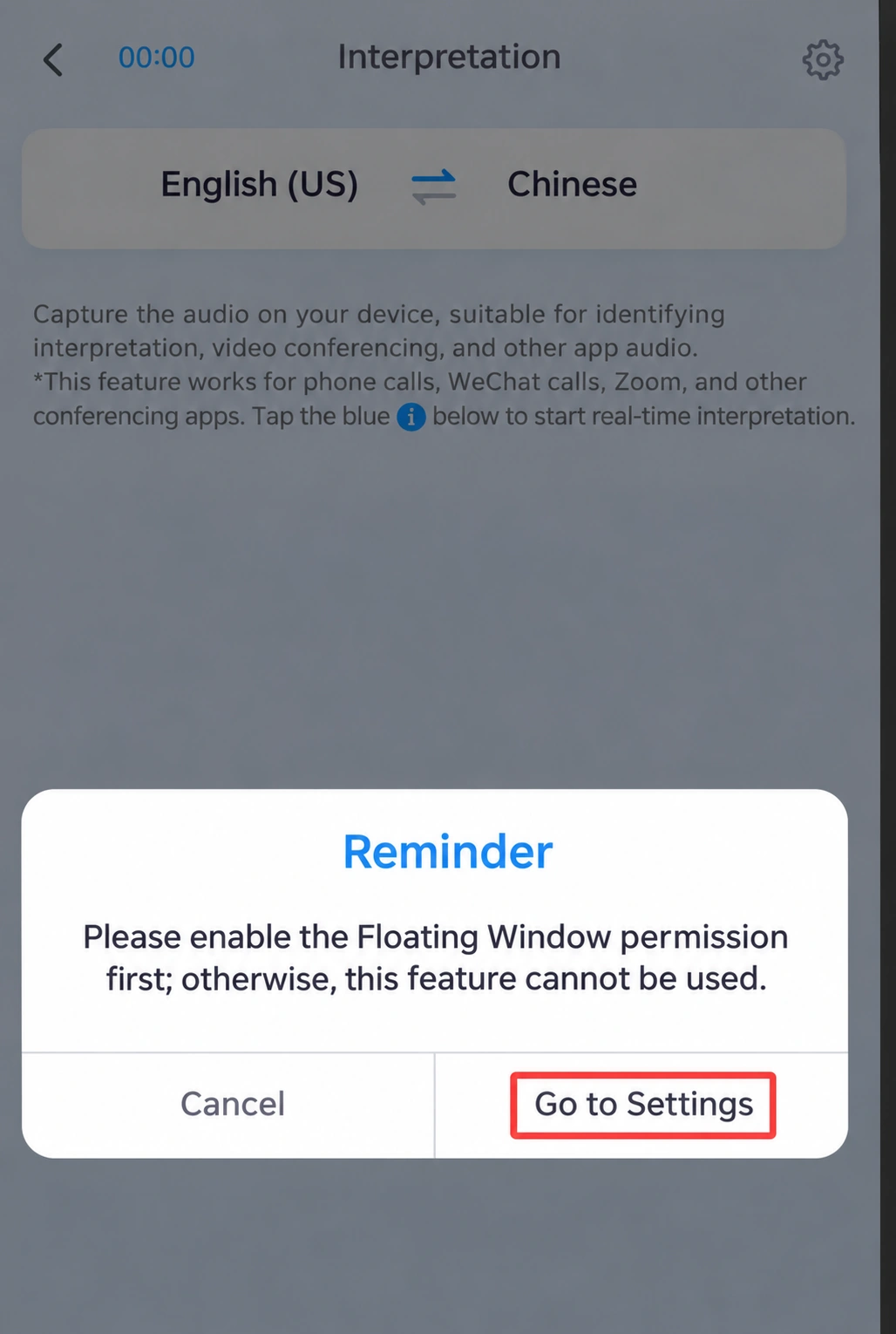
- Go to 'Display over other apps' or a similar permission option, select 'iTourBuds' (or the name the app shows on your phone) in the app list, and enable 'Allow display over other apps'.
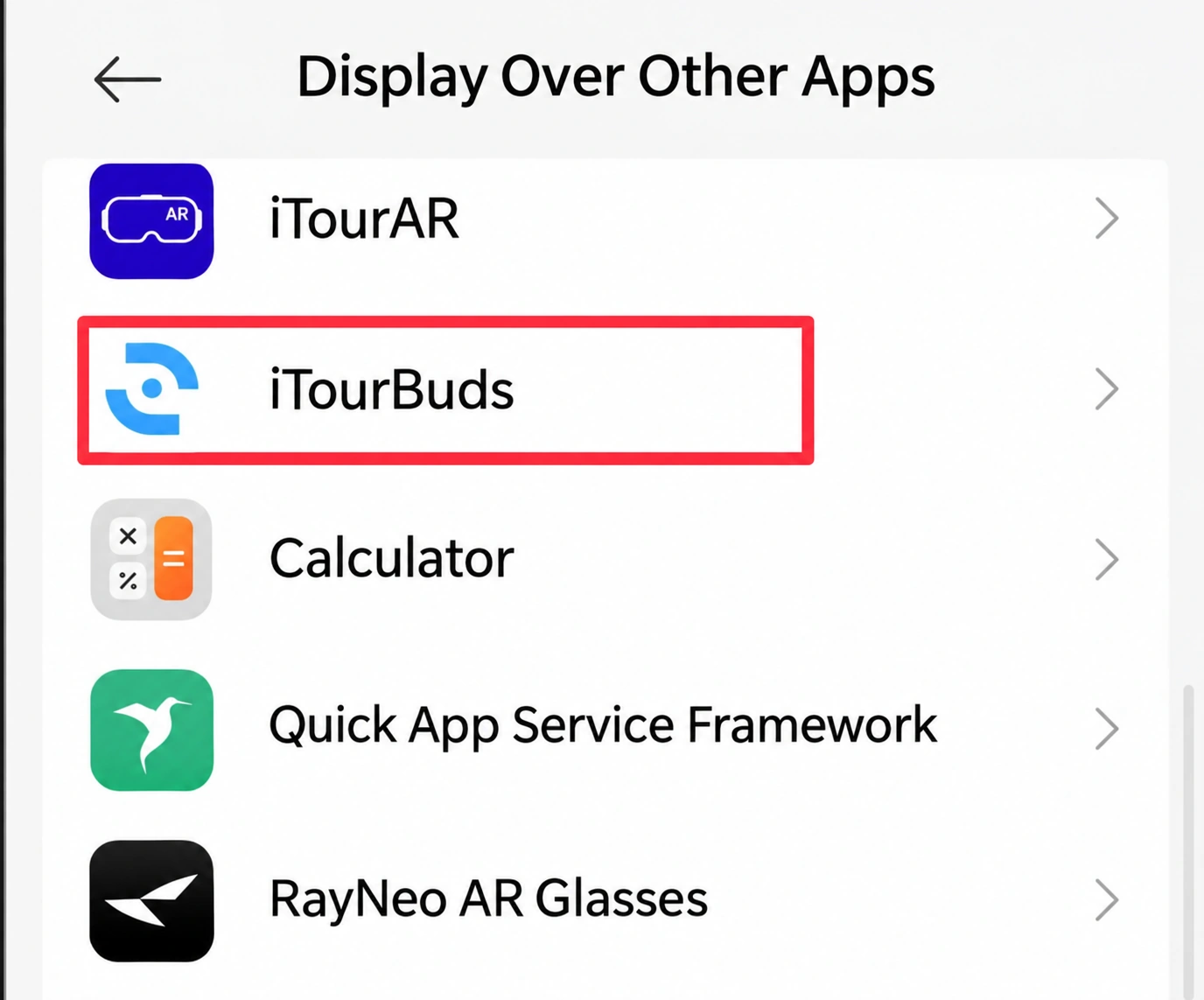
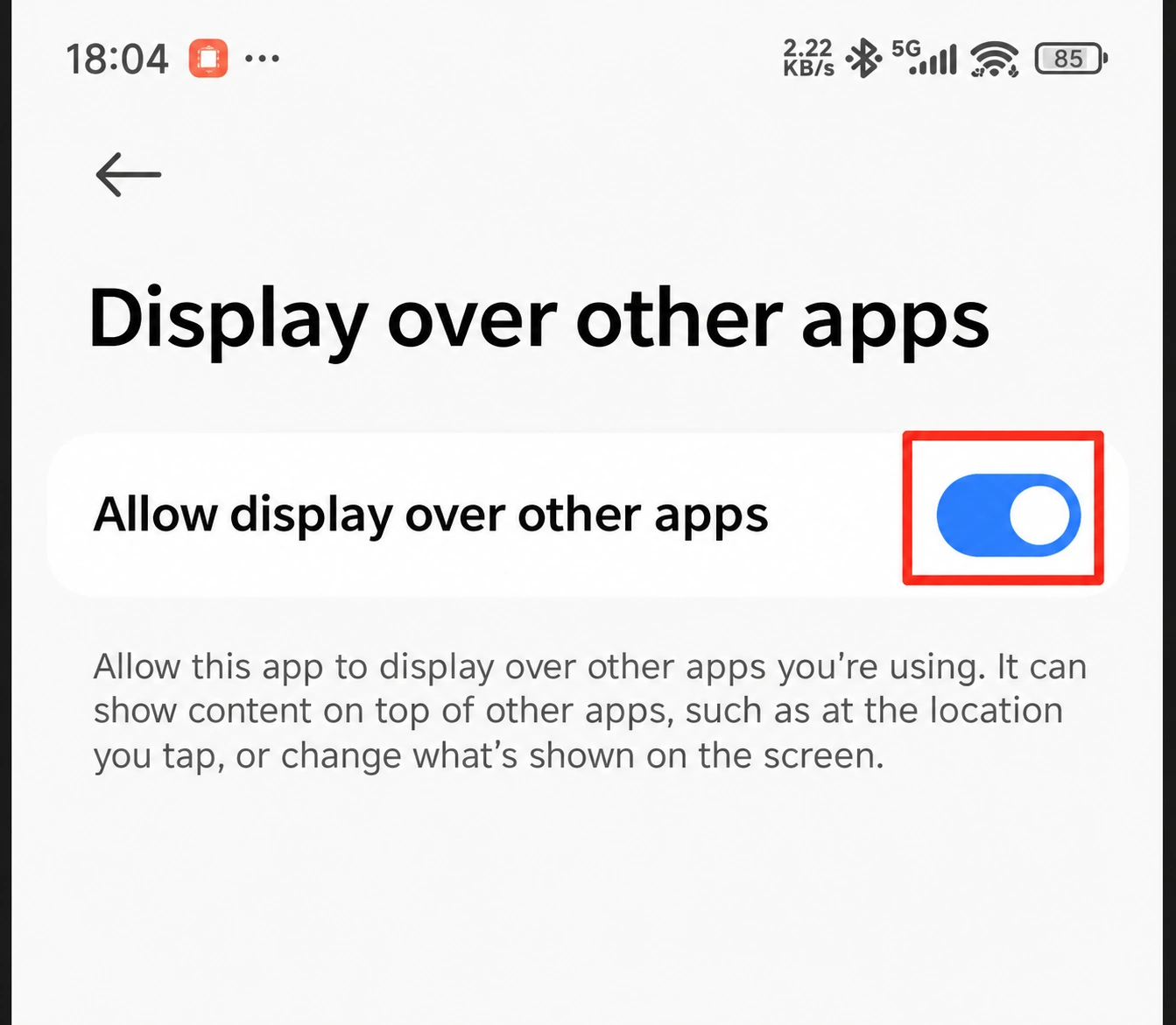
3. Get Started: Return to the app, and the function will start immediately.
Then open any video app (such as YouTube, Bilibili, etc.) to play a video, it will recognize the audio played within the phone (such as the sound from the video app), and the translation results will be displayed in the floating window.
iOS phone usage steps
- Enable feature: Tap the “Microphone” button in the app to turn on 'Live' mode.
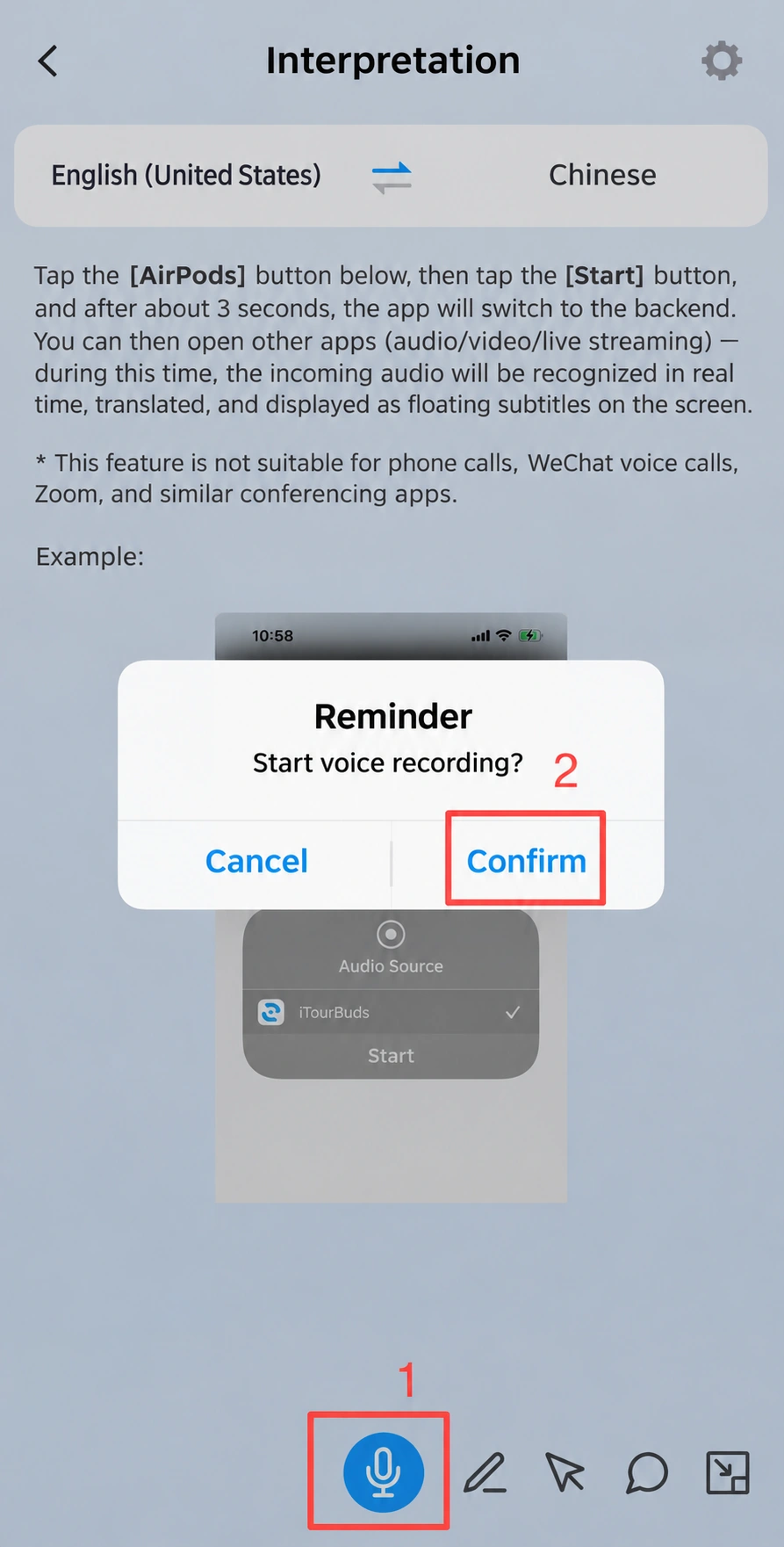
- Switch App: Wait for about 3 seconds, let the app go to the background, and then open any video app (such as YouTube, Bilibili, etc.) to play a video.
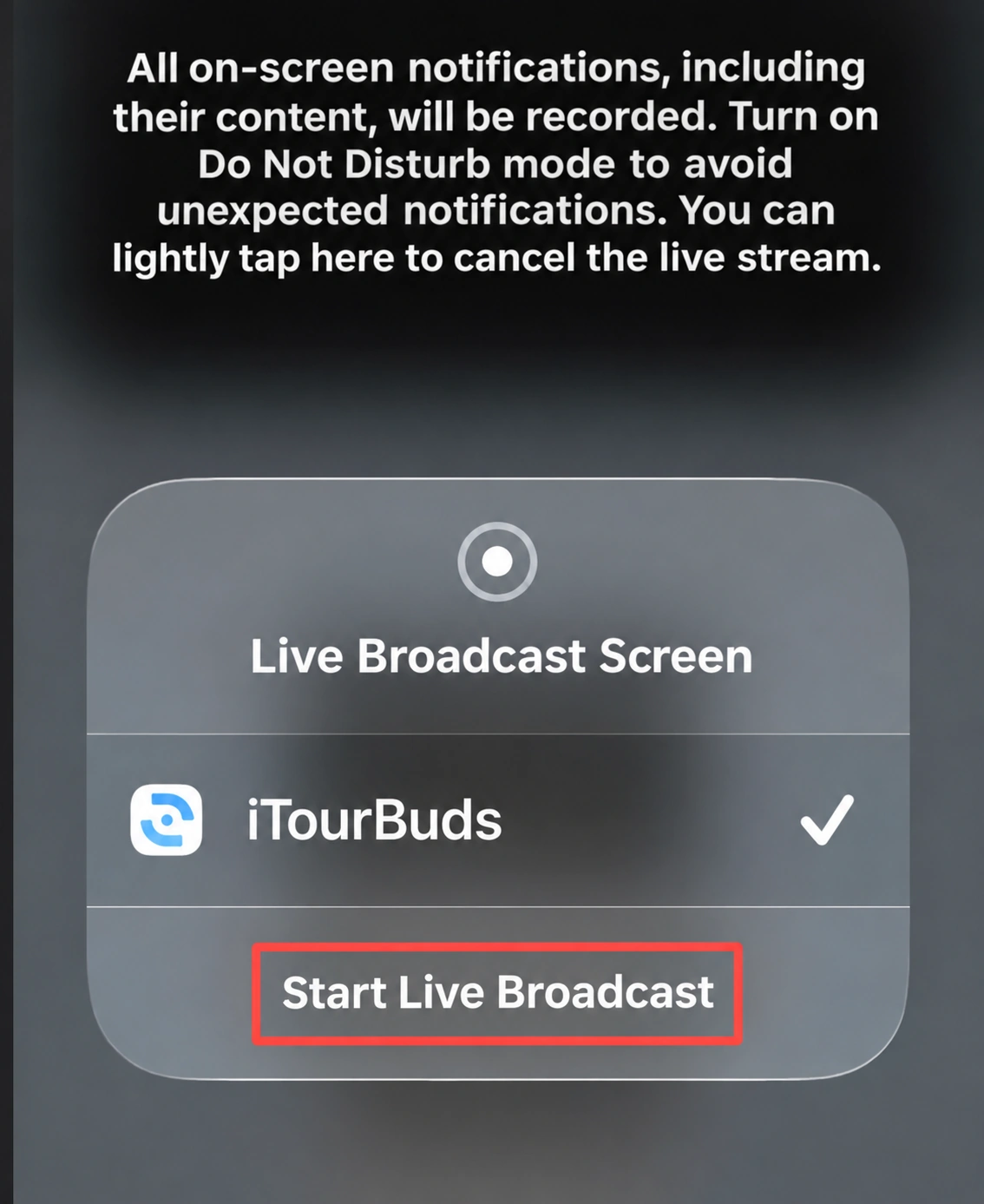
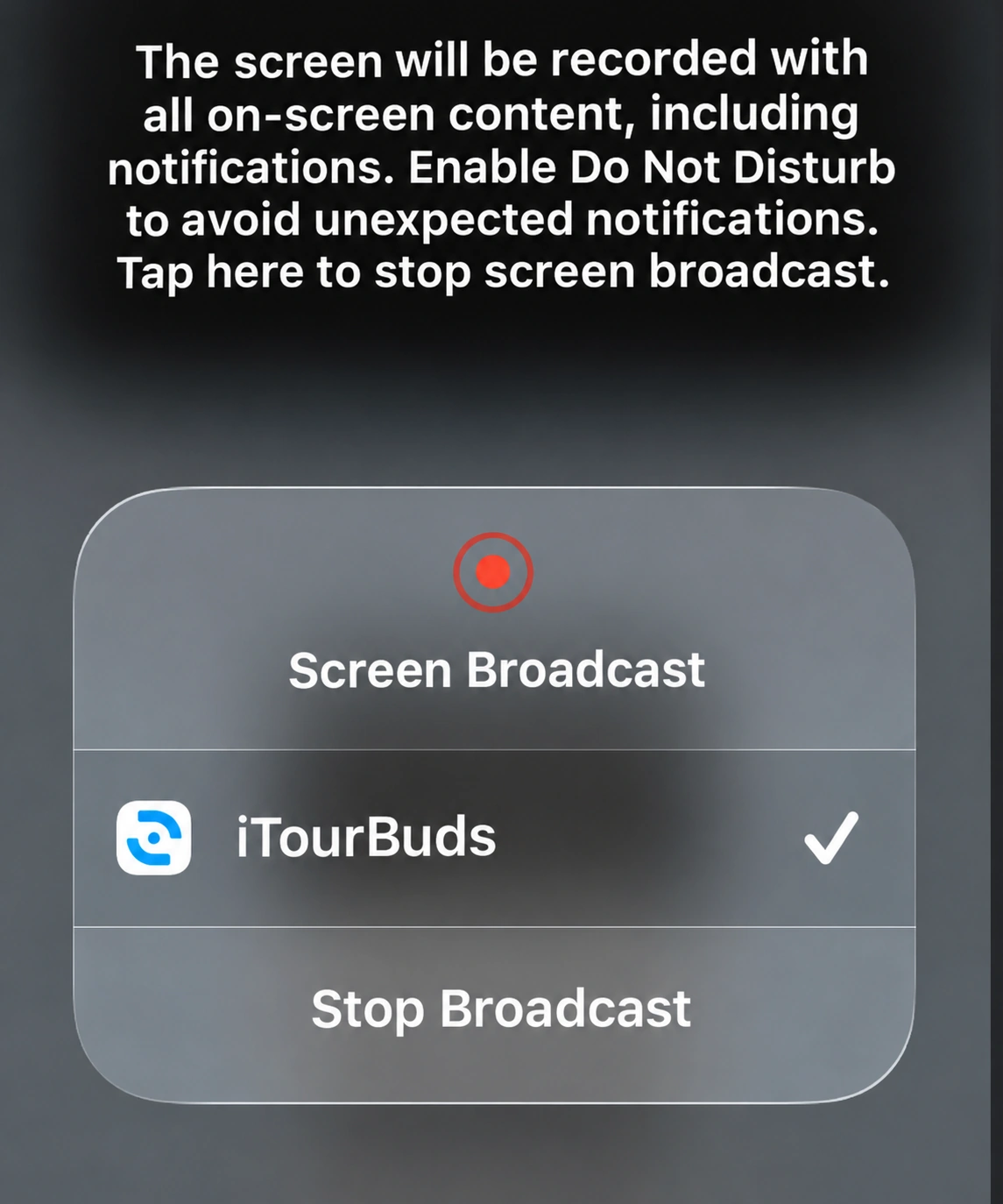
- Watch translation: The system will automatically recognize the video's voice, and the translated text will be displayed in a floating window.
📌 Important Note about Unification
- Core Uses: This feature is specifically designed to translate media audio played on the phone (videos, live broadcasts, audio content).
- Unsupported scenarios: It cannot be used for any real-time call scenarios, including: system calls, WeChat/social software calls, Zoom/Teams and other meeting software. For these scenarios, please use the dedicated 'call translation' mode.
- Permissions and Background Operation: Please ensure that all necessary permissions are enabled according to the instructions (especially the floating window permission on Android), and allow the app to run in the background to avoid interruptions in translation.
How do you use the dual-earphone mode function on the Z50S Pro Max headphones?
Online real-time bilingual translation
Core Features Online real-time bilingual translation, enabling barrier-free communication across languages.
Main Features and Operations:
- Earbud Audio Playback Mode
- After starting the conversation, the translated content is played through the headphones by default.
- Independent output for left and right ears:
- Left earphone:Report the content translated from the language on the left (such as English) to the language on the right (such as Chinese).
- Right earphone: Report the content translated from the language on the right side (such as Chinese) into the language on the left side (such as English).
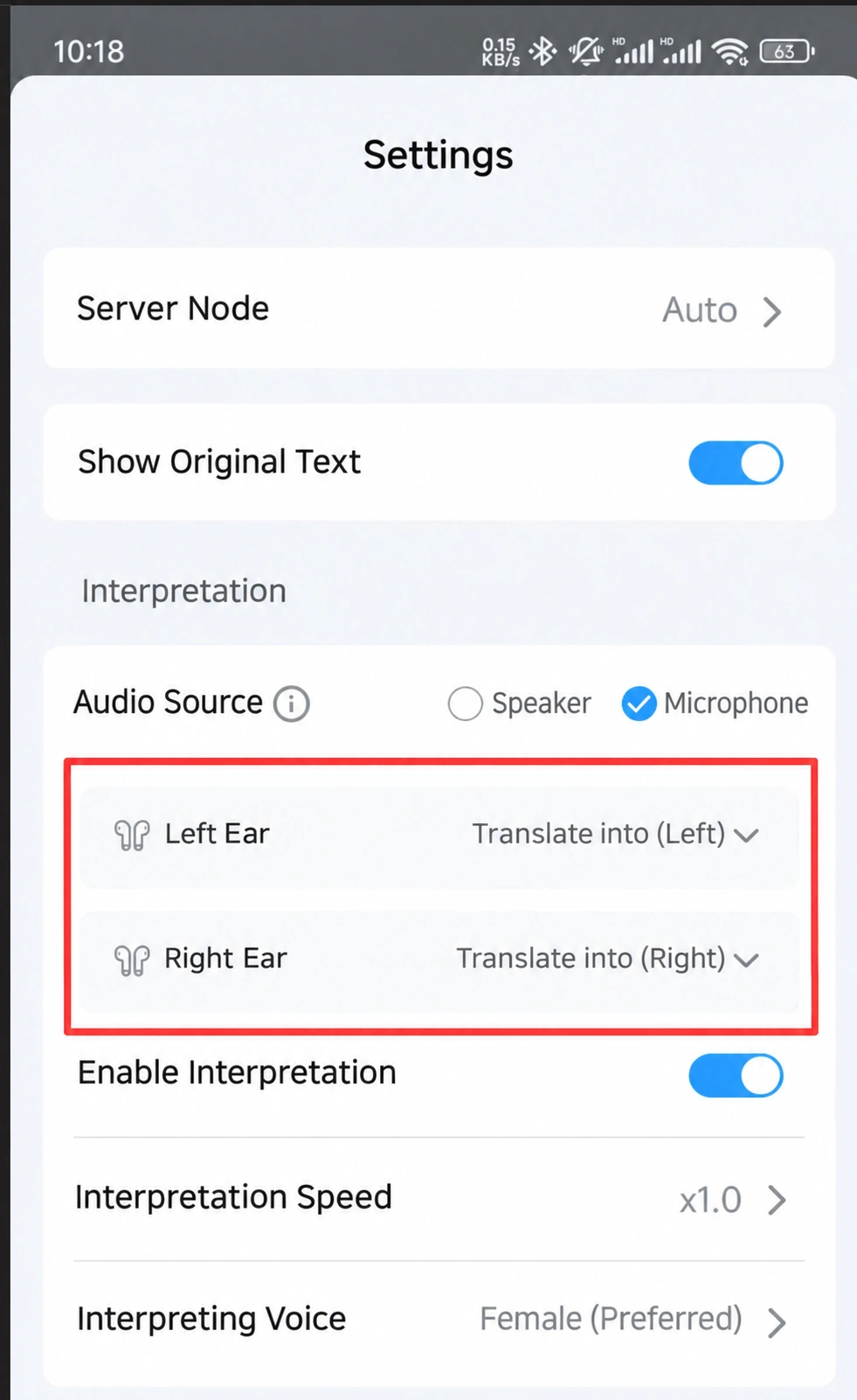
- Note:
- Supports switching the broadcast language between the left and right ears, but does not support broadcasting two languages in a single ear or the same language in both ears simultaneously.
- Currently only Android app version 1.4.42 or later,iOS app version 1.7.00 or later Support
2. Speaker Audio Playback Mode
- By clicking the mode switch button, you can switch the translation broadcast from the headphones to the phone speaker at any time, making it convenient to share the conversation content with people nearby.
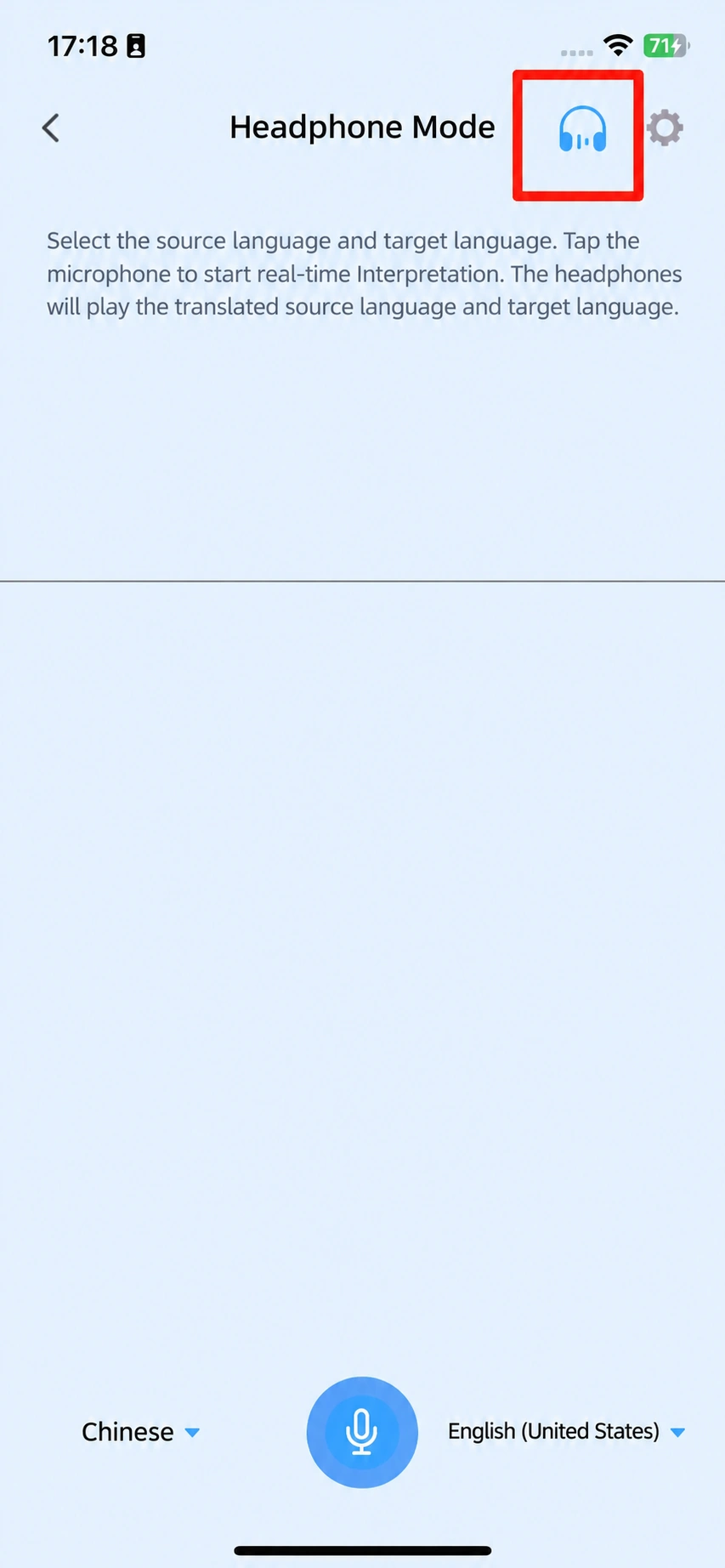
How to use the meeting transcription feature on the Z50S Pro Max headphones?
It's very simple. When you need to record, go to the 'Meeting Transcription' page → click the 'microphone' icon to start. It will transcribe the spoken words into text in real time, making it easier for you to organize later. Please note, this feature For speech recognition transcription only, does not include translation.
How to use the Z50S Pro Max headset video call function?
The video call feature allows you to connect with friends Real-time cross-language video, voice, and text chat By sending an invitation link to a friend, once the friend clicks to join, you can start a real-time call and synchronized translation.
Operating Steps
- Initiate Call: Enter the app's "Video call"On the page, select the social platform you want to use (such as WhatsApp, WeChat, etc.)."
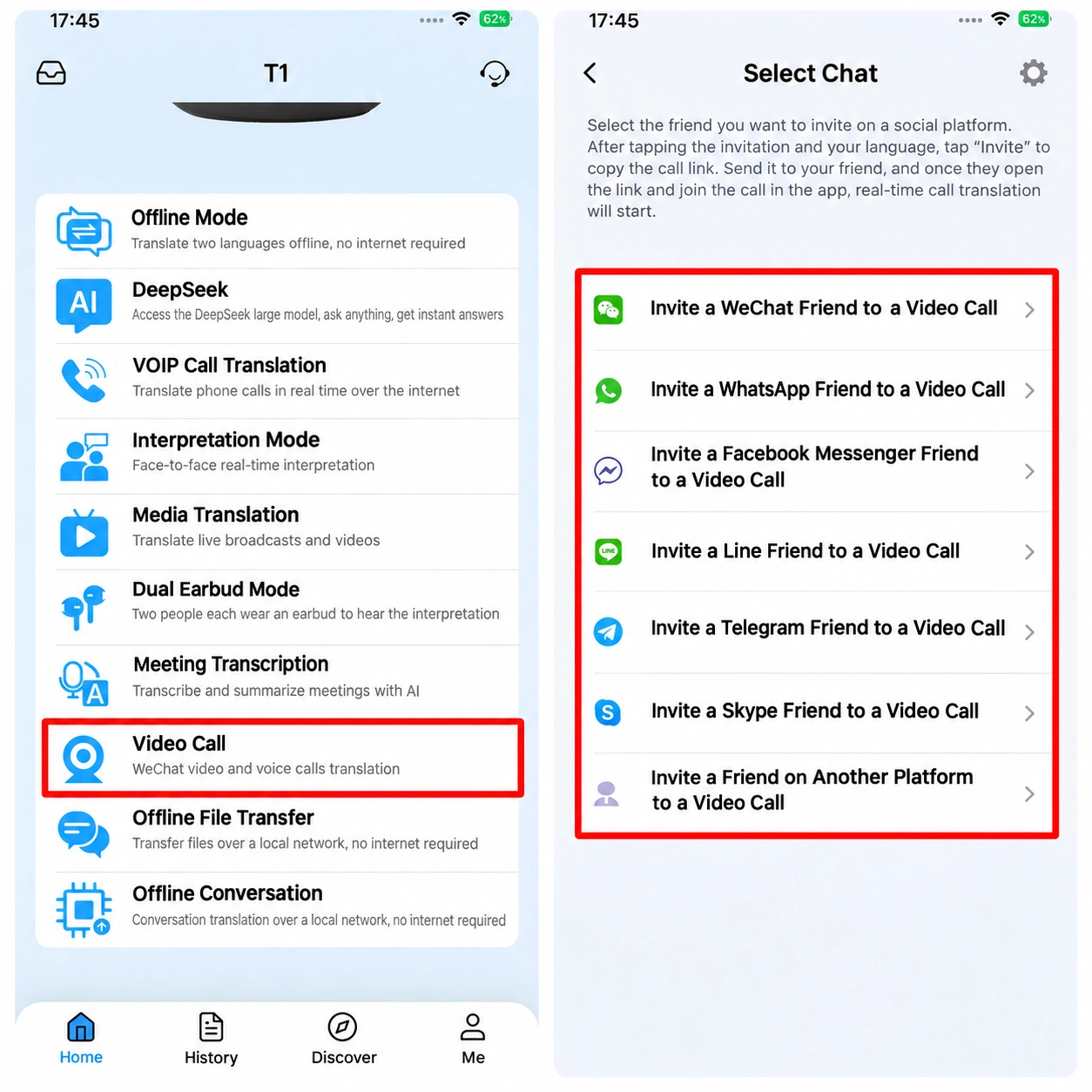
- Set up call: Select your language and your friend’s language Languages and call types of both parties(voice or video), then click [Invite”→Click “paste it into a message to your friend At this time, we will by default copy the corresponding link.
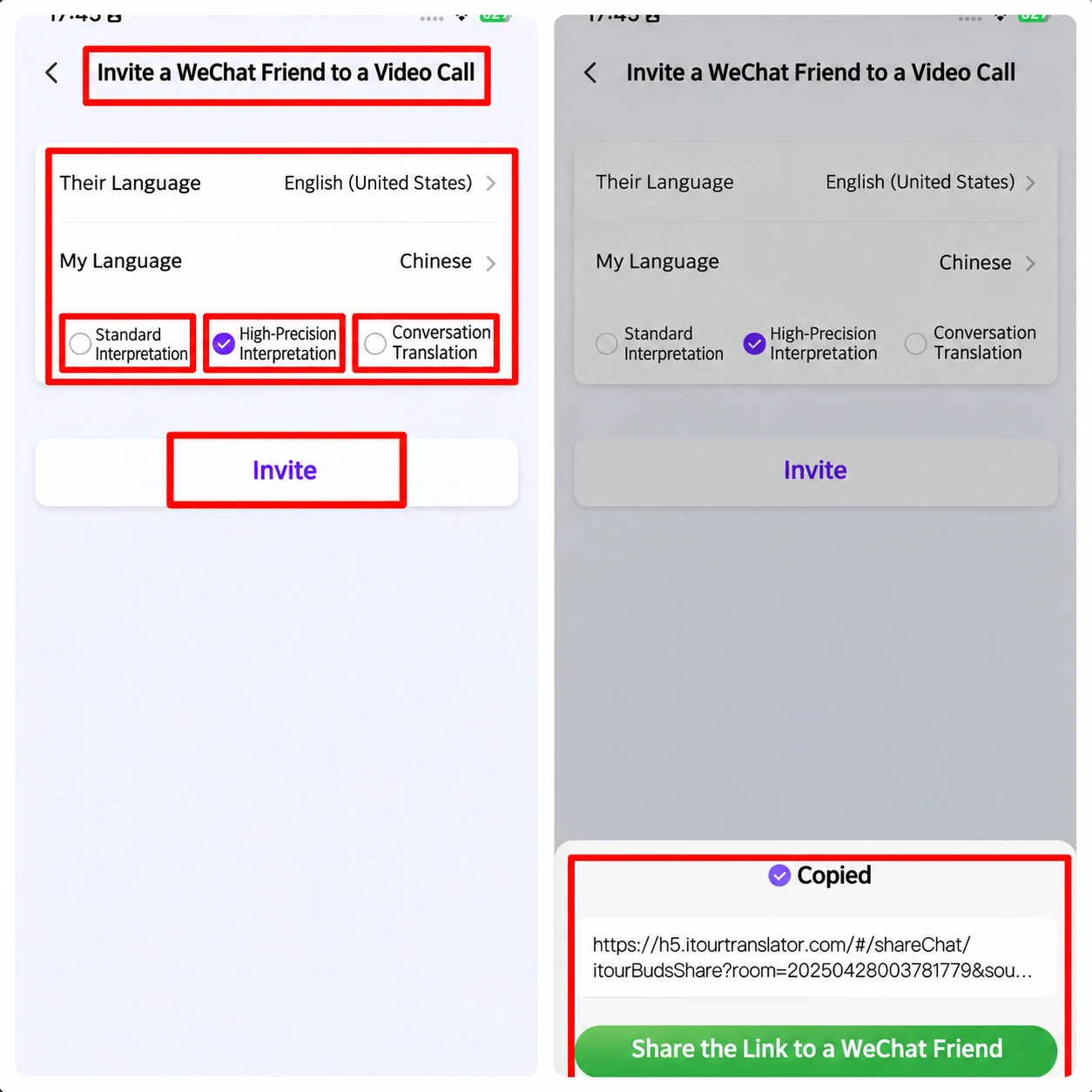
- Share link: Share the copied link to the chat window of the friend you choose.
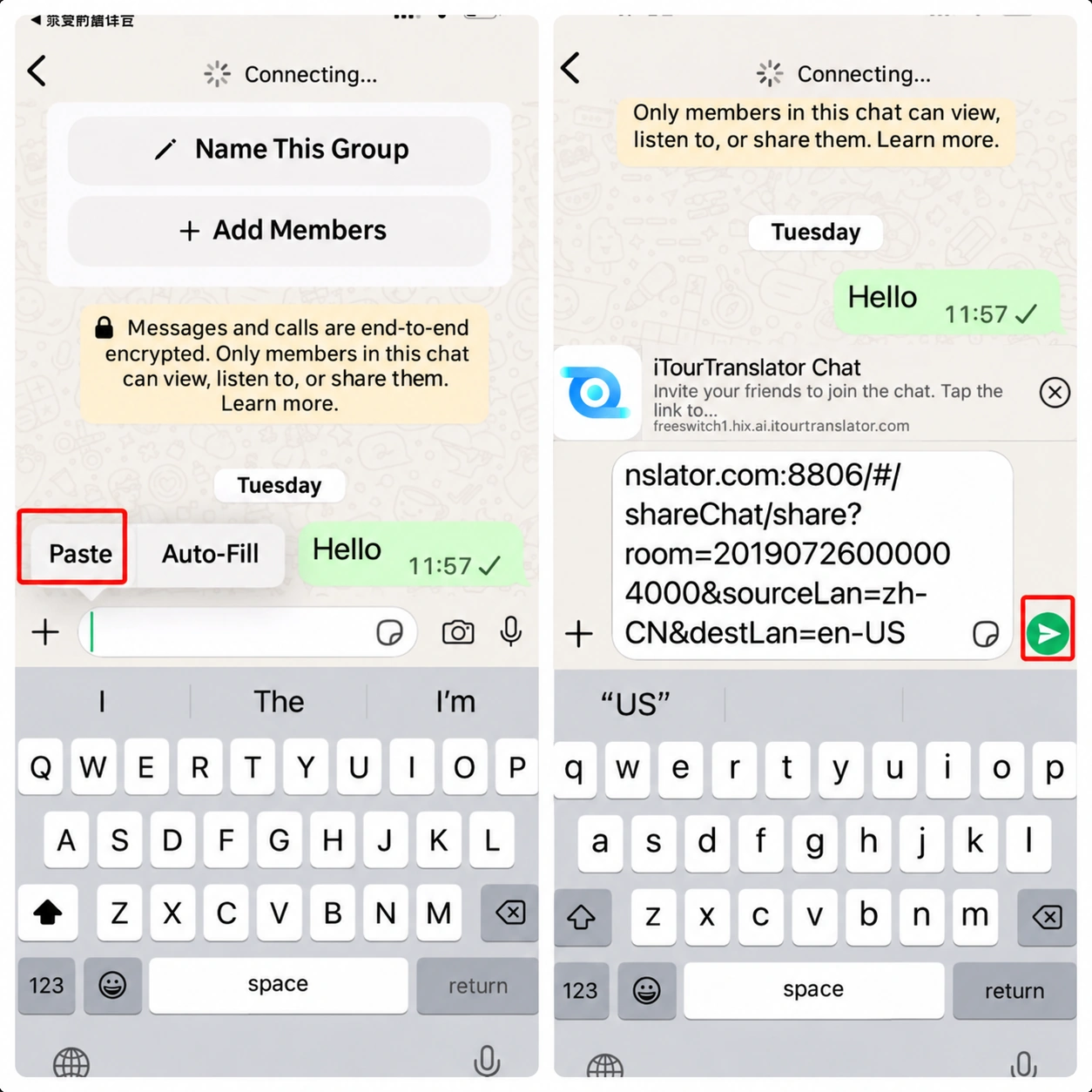
- Waiting to join: After sharing, return to iTourBuds APP the call page, wait for your friend to click the link to join. Once they join, you can start leading Real-time translation video/voice call.
Tip
- Network requirements: To ensure call and translation quality, it is recommended to use in a stable Wi-Fi or mobile network environment.
Z50S Pro Max Offline Simultaneous Translation Feature Introduction
Offline simultaneous interpretation:After downloading the offline language pack,In an offline environmentYou can also enable simultaneous interpretation, the specific steps are as follows:
1. ClickMicrophone, prompt to download offline resource package
2.First timeDownloadDefault language pairOffline resource pack
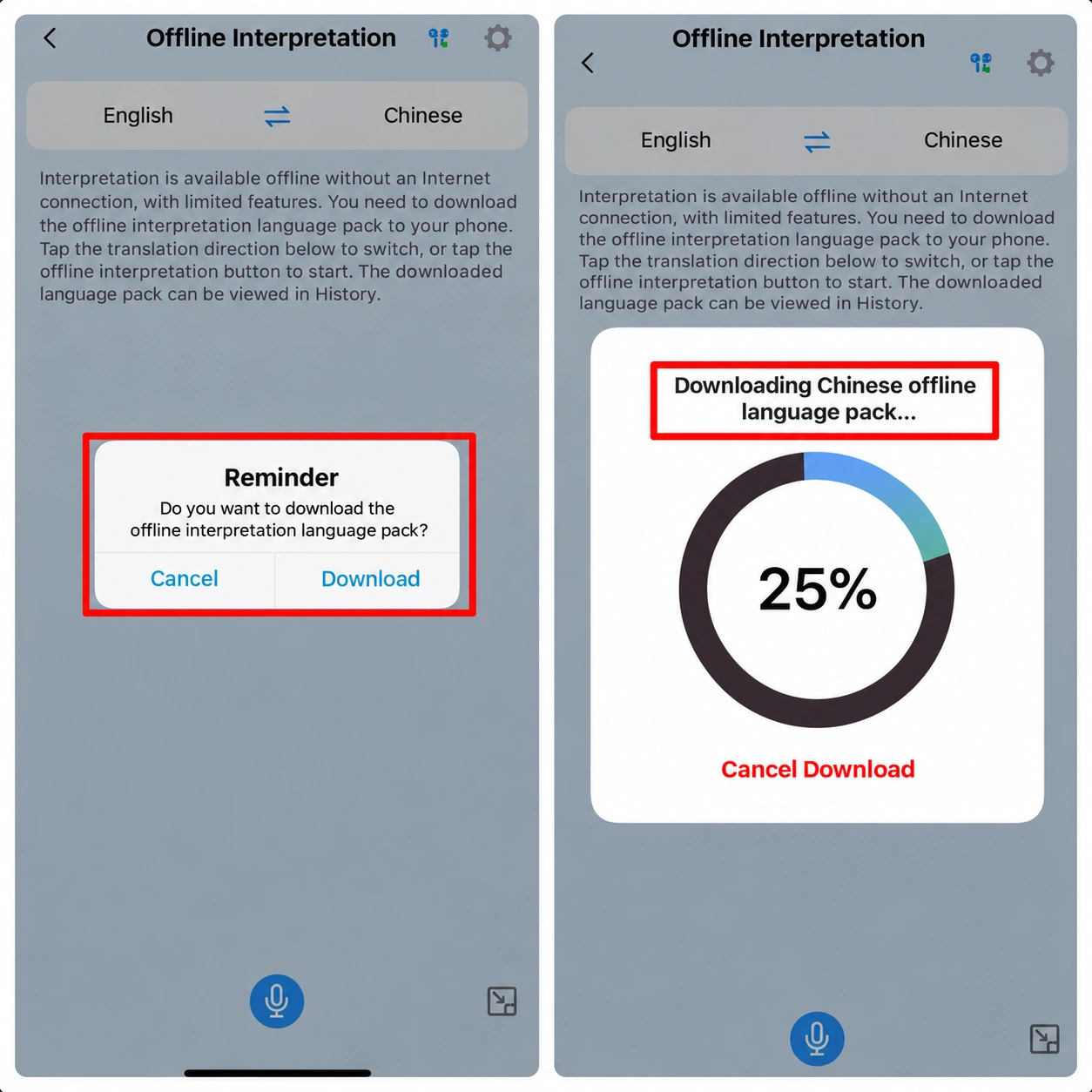
3. You can also clickLanguage barDownload the required offline resource pack
4. Click after enabling simultaneous interpretationFloating window in the bottom right cornerButton, can display simultaneous translation content in a floating window
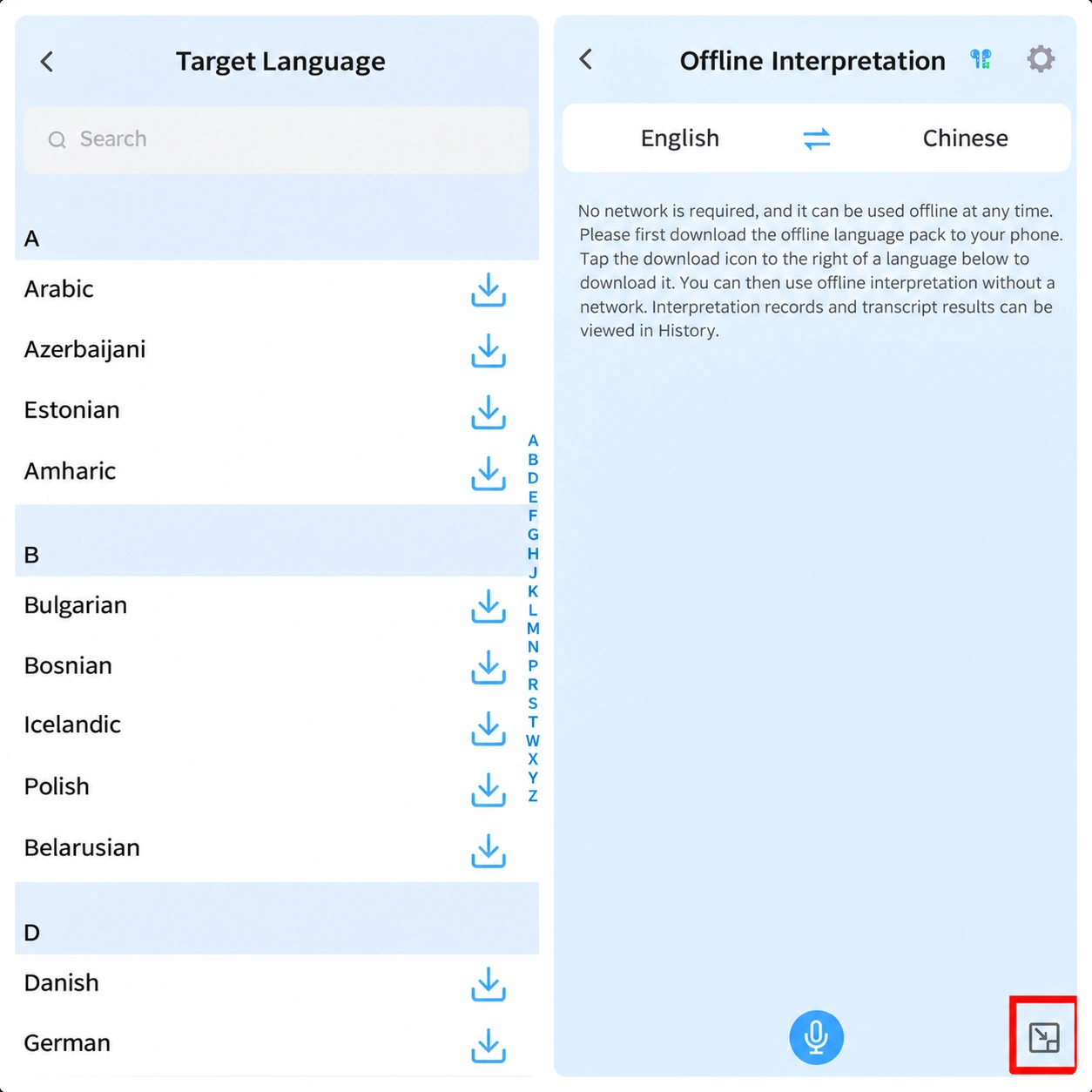
Z50S Pro Max Offline Chat Feature Introduction
Offline conversation:After downloading the offline language pack,In an offline environmentYou can also start a conversation, the specific steps are as follows:
1. ClickMicrophone, prompt to download offline resource package
2.First time Download Default language pairOffline resource pack
3. You can also clickLanguage barDownload the required offline resource pack
4. After the offline language pack is downloaded successfully, you can click the language buttons on the left/right.Start conversation / Click again to turn off recognition, send the translation and play it aloud
5.Left sideButtonIdentify the other party Language translate into your language Language, translated content Headphone announcement, Right side Button Identify our side Language translate into the other participant’s language, translation content Phone SpeakerAudio Playback
iTour 80s / iTour 19 Earbuds3 questions
Open in a separate page →When trying to pair the iTour 80S / iTour 19 headphones, it prompts 'Can only be paired once'. How should this be resolved?
If you encounter this prompt, it means that the device has already been bound. We recommend that you contact the official customer service of the purchase platform directly, so that the customer service staff can assist you.
How should the newly purchased iTour 80S / iTour 19 translation headset be started?
Please follow the steps below to complete device connection and binding:
1.System Bluetooth Connection
In the phone's Bluetooth settings, search for 'iTour 80S' and click to connect
2.Open the app and connect the device
Open the iTourBuds App, click 'Start Connecting' on the main interface, and follow the prompts to complete the connection between the earphones and the App.
3.Bind device (order number required)
On the binding interface,Enter your order number on the purchasing platform, once confirmed, the binding will be completed and you can start using it normally.
If iTour 80S / iTour 19 headphones were previously paired, how should they be re-paired now that a new phone has been replaced?
Currently, this series of headphones uses a 'one-to-one' account binding mechanism:A single earphone only supports being paired with one iTourBuds account, does not support changing to bind to another account.
Therefore, if you have only changed your mobile device,Simply download the iTourBuds App on your new phone and log in with the account that was previously linked to the headset., the binding relationship between the headphones and the account will automatically sync, no need to rebind.
Translation Earbuds6 questions
Open in a separate page →Why does the Chinese voice playback turn into Cantonese when using the translation function on an iPhone?
This is because the default voice reading settings of the iOS system are incorrect. You only need to adjust the settings in the following two places in order to resolve this:
Step 1: Check the Device’s Region Setting
Go to [Settings] > [General] > [Language & Region], confirm that the "Region" option is set to "Mainland China".
Step 2: Adjust the Spoken Language
- Go to [Settings] > [Accessibility] > [Spoken Content].
- Click to enter [Sound] Option.
- Find " in the language list Chinese" and click open.
- Under “Spoken Language”, select “Mandarin" or "Default”.
After completing these two steps, the Chinese translation broadcast will return to standard Mandarin.
How to switch the translation earphones to use with a new device?
Replacing the device requires two steps: first unpair it from the old device, then reconnect it with the new device. Follow these steps:
Step 1: Unpair (disconnect) on the old device
This is the most crucial step. Please make sure the headphones are currently connected or can be detected by the old device, then proceed according to the type of device:
- Android phone/computer:
- Enter the system [Settings] > [Bluetooth].
- Find your headphones (such as Z50 Pro Max) in the list of paired devices.
- Click the settings icon on the right side of the device to enter the details page.
- Select [Unpair] or [Forget this device”.
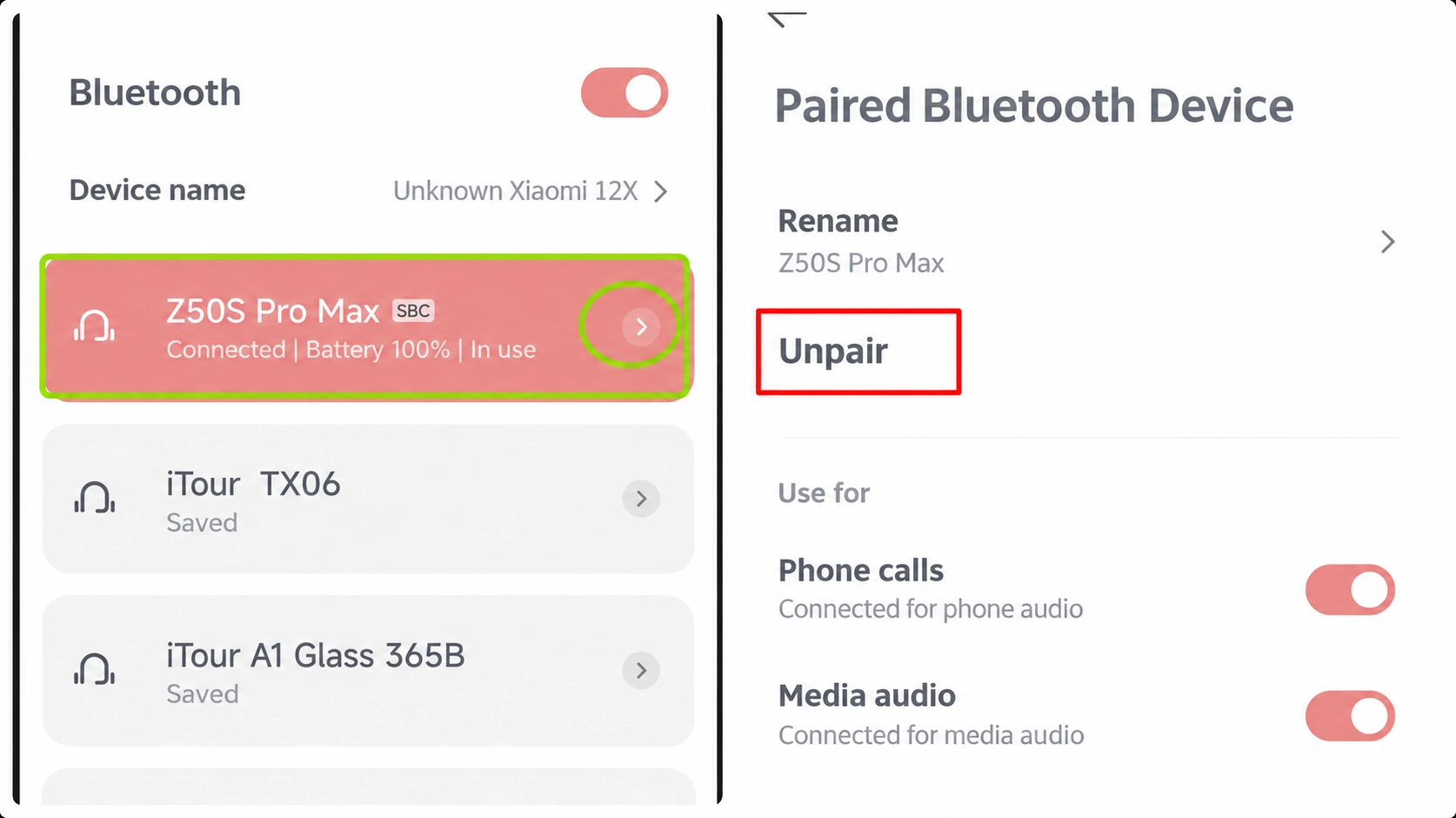
- iPhone/iPad:
- Enter the system [Settings] > [Bluetooth].
- Find your headphones in the 'My Devices' list.
- Click the right side of the device “i” Information icon.
- Click the bottom-most “Forget This Device”.
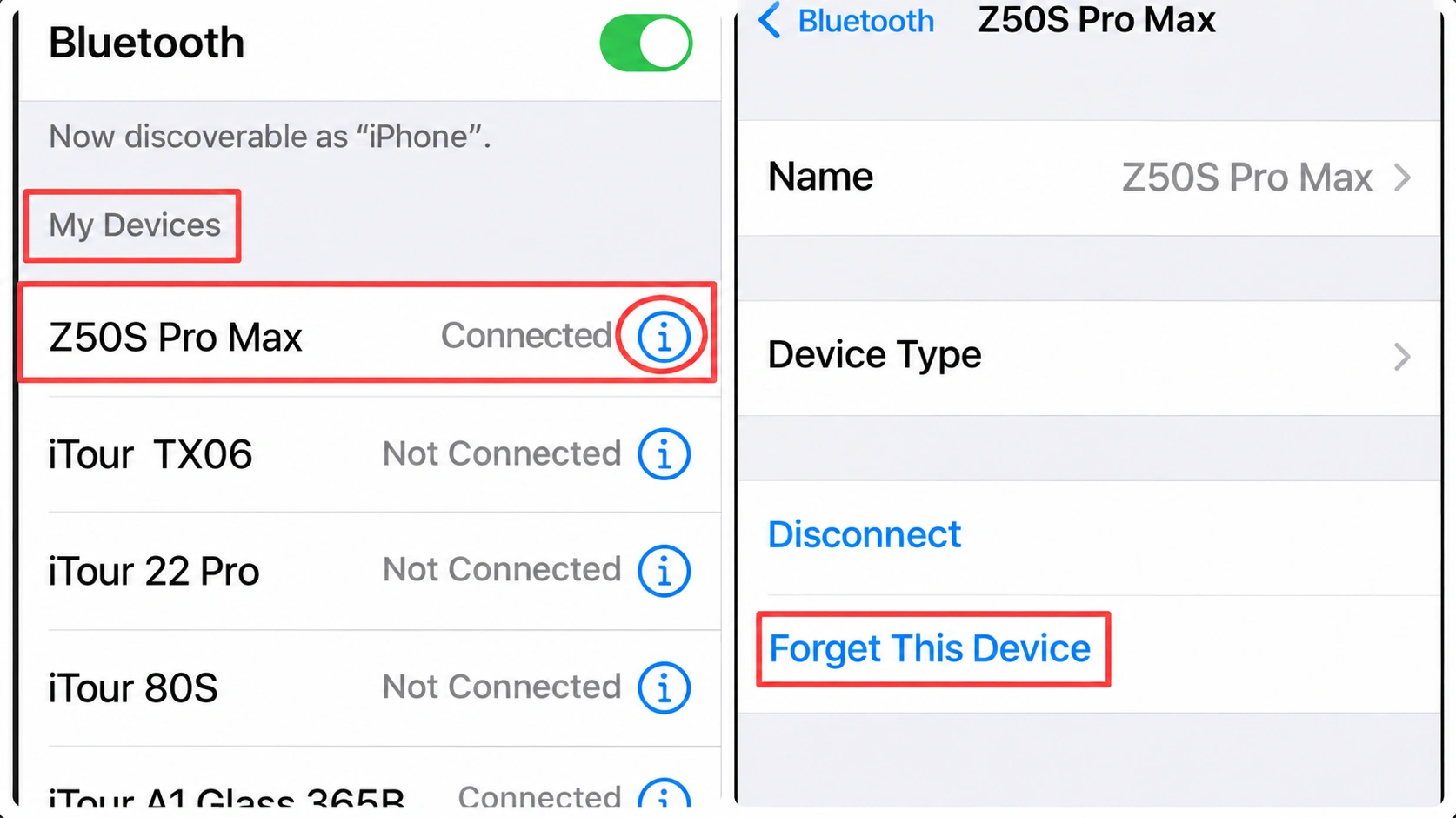
- Windows/Mac Computer: The operation logic is similar: find the device in the system Bluetooth settings and select 'Remove' or 'Forget'.
Translate Earphones: How to adjust earphone broadcast volume and phone speaker playback volume in speaker mode/listening mode/offline conversation mode?
iPhone:
Adjusting the Phone Speaker Volume:
With the speaker broadcast turned on → In the phone's speaker speech playback → Use the phone's volume +/- buttons to adjust the phone's speaker volume
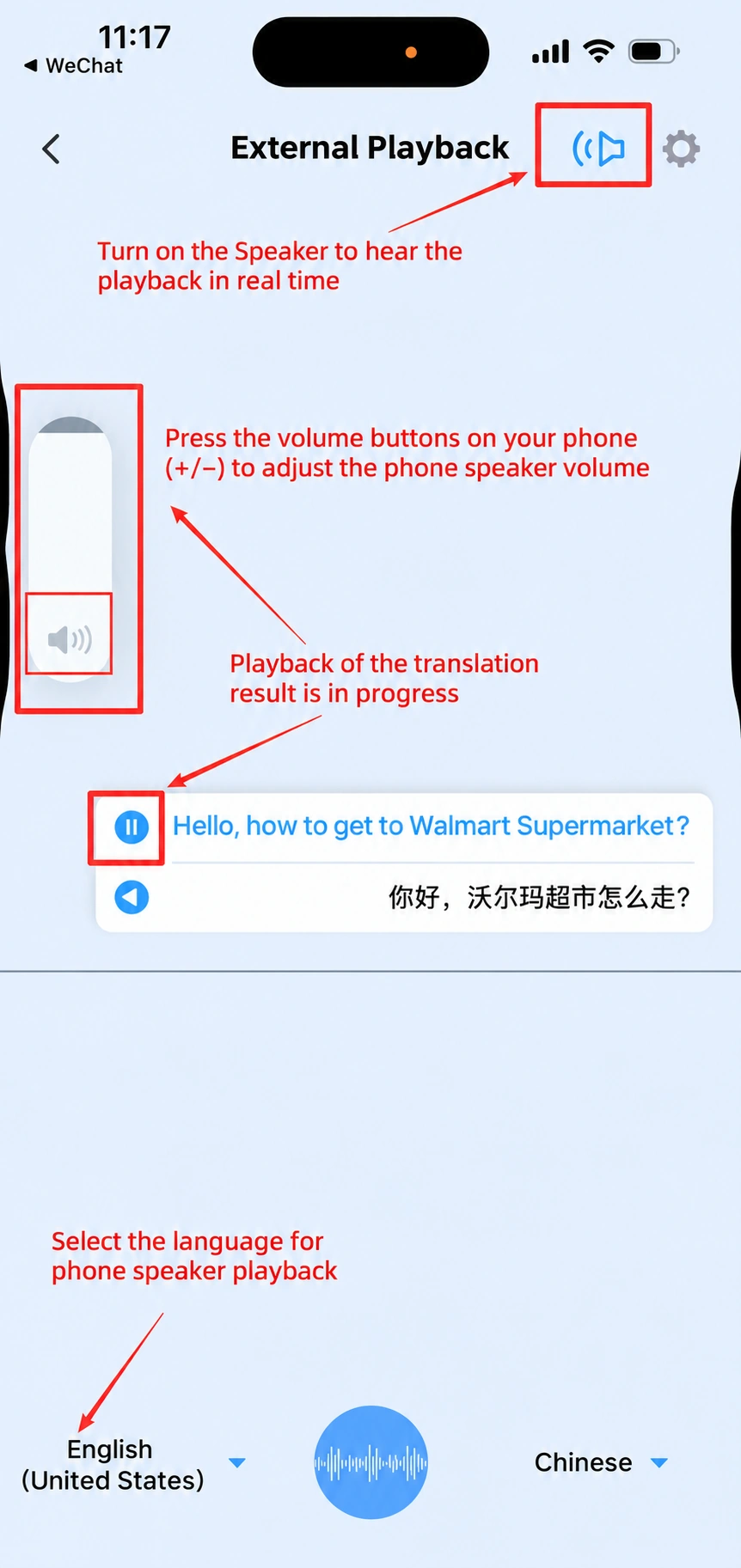
Adjusting Earbud Volume:
During the headphone's corresponding translation language broadcast → Use the phone's volume +/- buttons to adjust the headphone volume
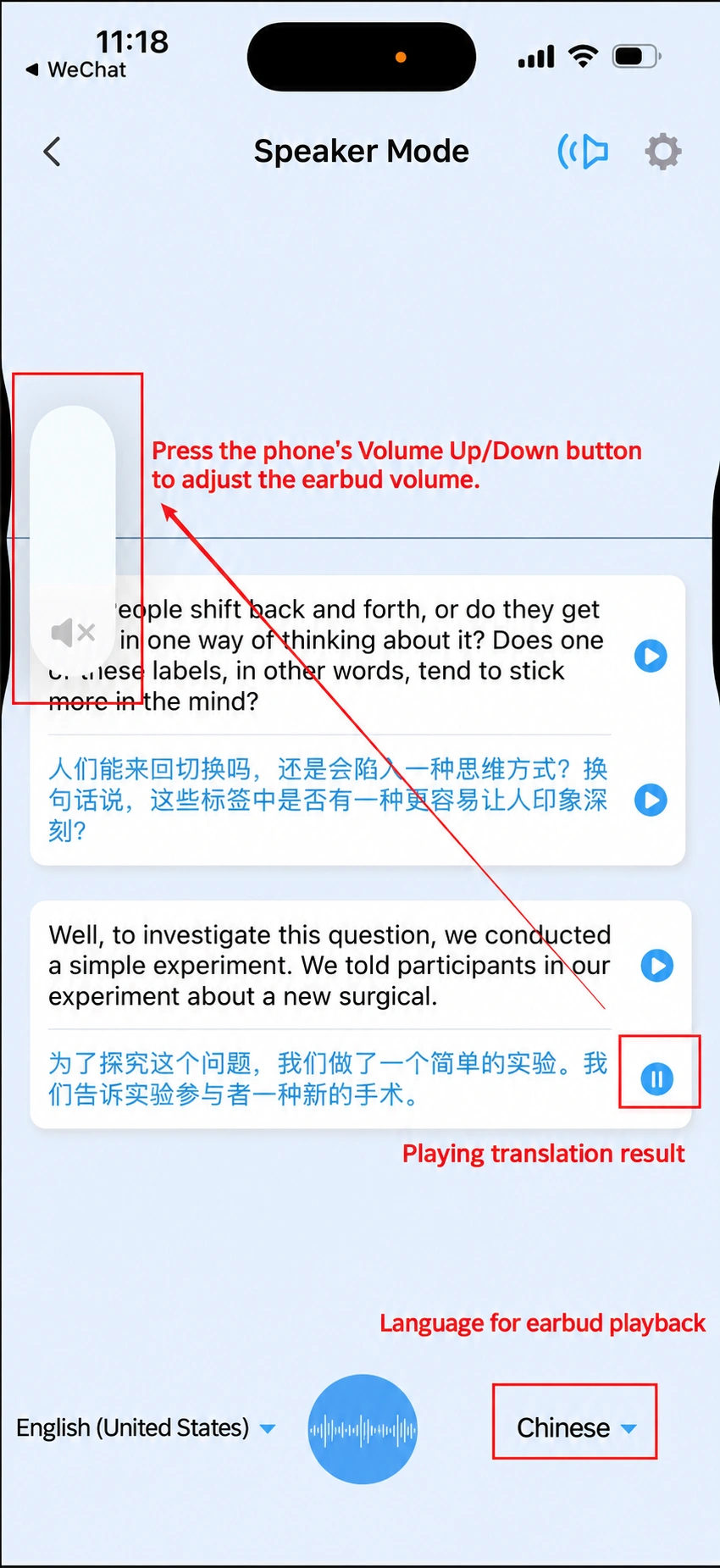
Android phones (hereinafter taking Xiaomi phones as an example):
When using headphones/mobile phone speakers for playback, if briefly pressing the phone volume +/- does not work, you can pull down the phone taskbar → control center, and adjust the media volume as shown in the figure below:
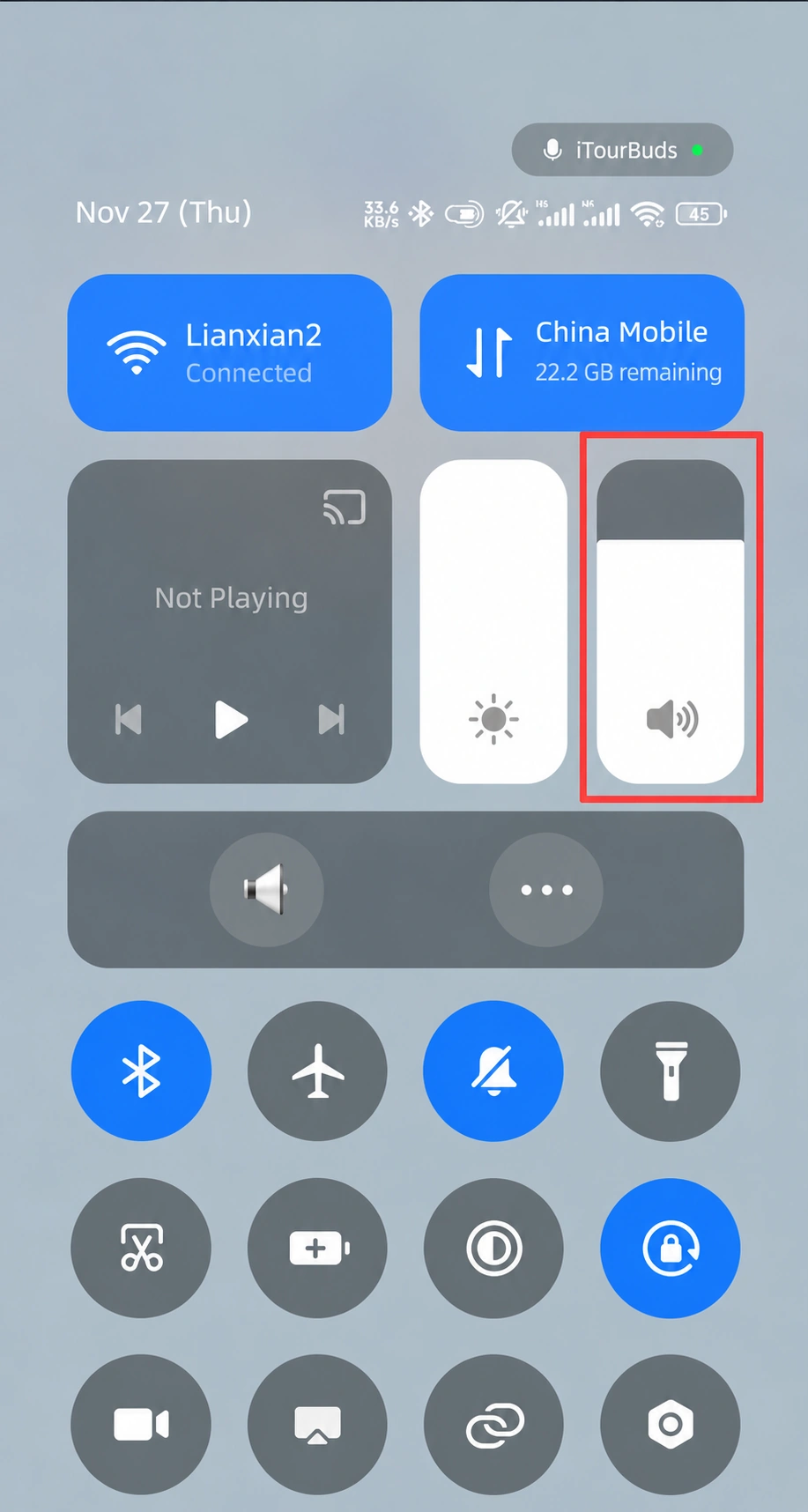
Note:
1.When broadcasting the translation results, please swipe down to enter the Control Center to adjust the volume. Here, you can adjust the volume separately for the ongoing broadcast Headphones or mobile phone speaker Set different volume levels.
2. If the page translation result is in the left language, it will be played through the phone speaker; if the translation result is in the right language, it will be played through the headphones.
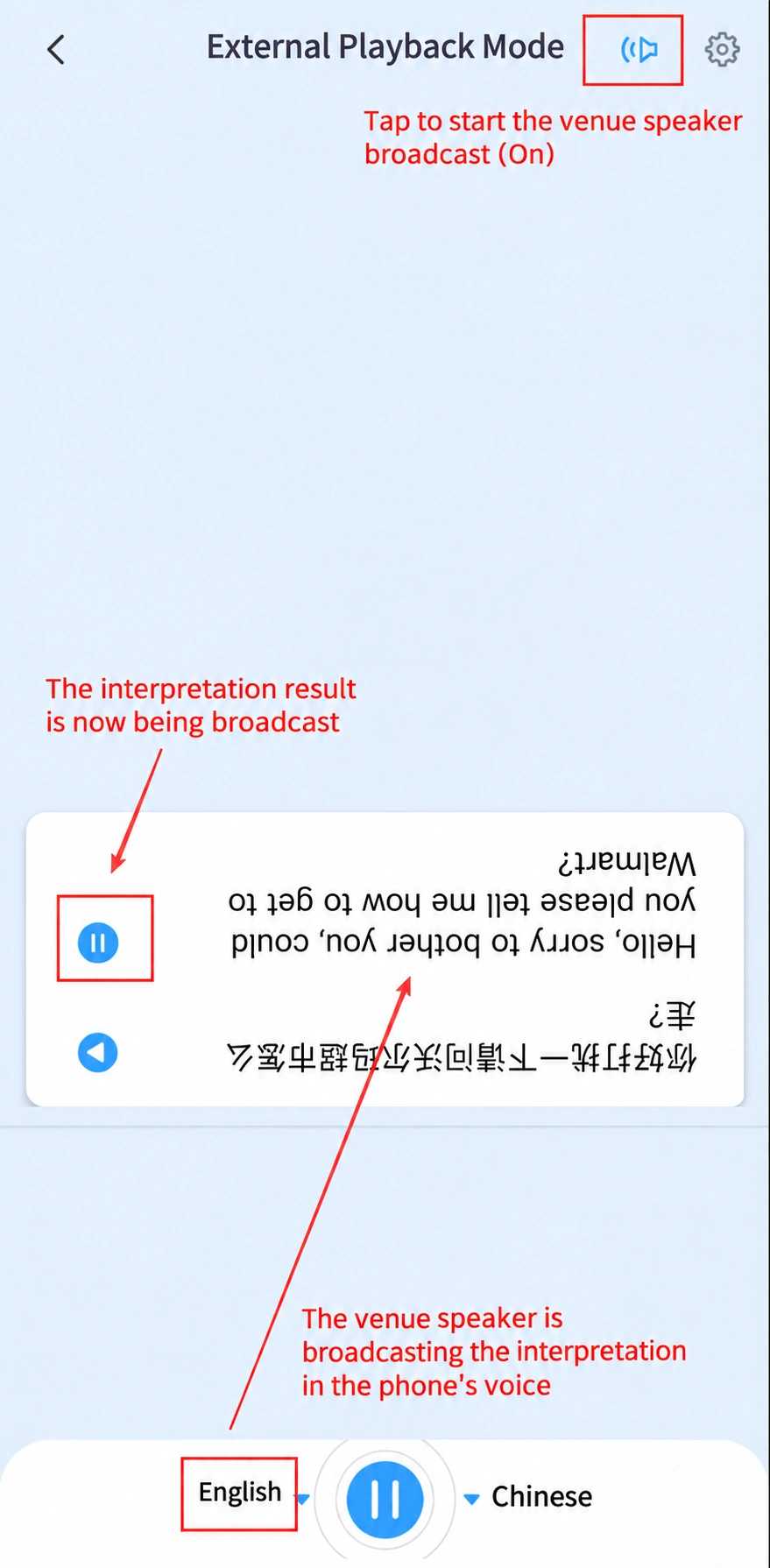
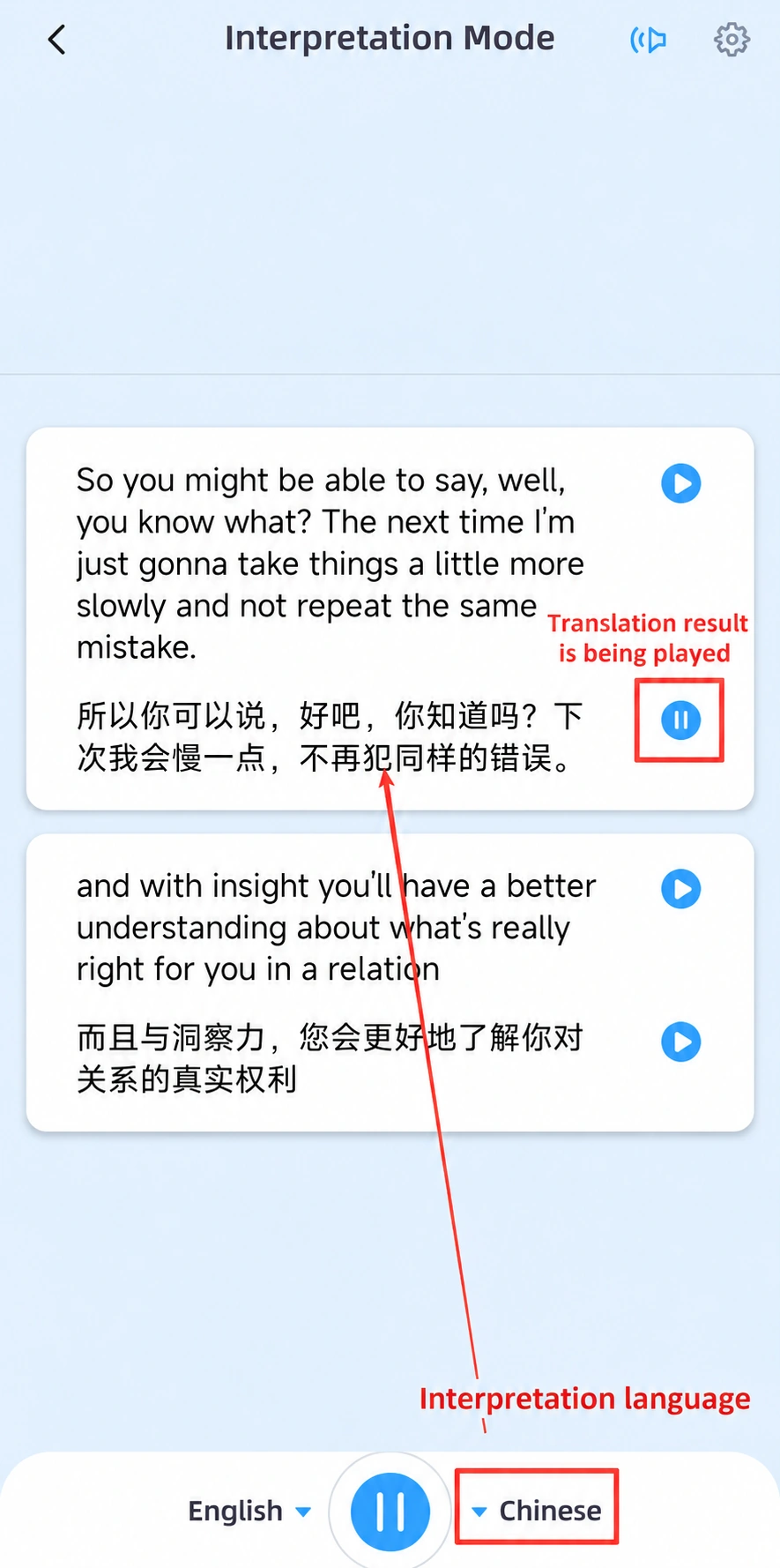
The dual-ear headset conversation is set to report separately in the left and right ears, but in practice, both ears play the translation of both sides.
This problem is usually related to the phone system Mono audio Settings related. Please follow the steps below to turn it off.Mono audio Function:
Apple iPhone:
1. Open “Settings”
2. Go to [Accessibility]
3. Click “Audio and Visual”
4. Simply turn off the 'Mono Audio' switch
Android phone:
The paths for different brands of Android phones vary slightly, but they are generally located within “Settings” > “Accessibility”.
Quick operation method:
Open the phone's “Settings”, enter 'Mono' or 'Mono Audio' in the search box at the top, and the system will automatically locate this option. Just turn it off.
Note: In some newer iOS versions (such as iOS 16 and above), the search bar is located at the bottom of the Settings page; scroll down to find it.
Is the translation fee for the translation earphones permanently free?
The free policy for translation services varies depending on the headphone model, as follows:
✅ Permanently Free Model
- T1, T2, T8 headphones: All of their translation functions and services are permanently free of charge.
⚠️ Limited-time free + point-based model
- T6 Earbuds: Its services are divided into two categories, with different free policies.
- AI Translation(Basic Service): Includes 2 years of free usage; after expiration, an annual package must be purchased to continue using it.
- VIP Service (High-precision translation)A certain amount of free points are given. After the points are used up, additional recharge is required to continue using them.
📱 Instructions for Use
- Please download through the official app store “iTourBuds Use the app to connect and use the headphone translation function.
- Please note: Another software 'iTourTranslator'Not supported pair or use the translation earbuds.
Does the translation headset support making and receiving calls on a mobile phone system?
Yes, currently iTour 22 Pro (T2) Translation Earphones Support this feature. You can, during a call, through the accompanying iTourBuds App Achieve real-time two-way translation.
For detailed operation methods, please refer to the following guidelines:
Dual-screen Translator17 questions
Open in a separate page →How long can the dual-screen translation device be used continuously?
The battery life of the dual-screen translator varies depending on the main unit and the sub-unit, as detailed below:
| Device | Typical battery life | Explanation |
|---|---|---|
| Main Unit | About 3 to 4 hours | As the main operating and display device, it has a relatively long battery life. |
| Secondary Unit | About 1.5 hours | As an auxiliary device, it is usually used for handing over to the other party. |
Tips and Recommendations:
- Battery life variables: The above times are typical values. Actual usage time will vary depending on factors such as screen brightness, volume level, network connection status (if online translation is required), and usage frequency.Both low and high temperature environments may lead to reduced battery life.
- Charging plan: For long periods (e.g., all-day) of meetings or outings, it is recommended to prepare a portable power bank for the handset, or plan charging times during the day.
- Power-saving tips: appropriately lower the screen brightness, reduce the volume in quiet environments, and lock the screen promptly when not in use, which helps extend usage time.
- Usage in combination: The handset is mainly used for real-time interaction, and its battery life can basically meet the needs of most single meetings or conversations. For longer use, the main unit can be used as the primary translation interface.
Overall, the main unit can support intermittent use for most of the day, while the sub-unit is suitable for a single in-depth conversation. It is recommended to plan your power usage in advance based on your specific itinerary.
What does the secondary unit of the dual-screen translator do?
The sub-device of the dual-screen translator has the core function of realizing "One device, two screens, dual display" .
Main Uses:
When communicating face to face, you hold Main Device, the other party holds Secondary Unit. Both parties can On your own screen, simultaneously see the other person's speech and the translated subtitles for yourself., no need to pass around devices or huddle together to watch the same screen.
Supported features:
Dual-screen conversation, listening, offline translation, remote conversation
Key Features:
- Two-way independent display: Provides a private and clear conversation view.
- Detachable design: convenient for handing directly to others.
- Suitable scenarios: business meetings, in-depth social interactions, medical consultations, and other situations that require smooth and formal conversations.
Simply put, the sub-device upgrades cross-language conversations from 'sharing a single screen' to 'each having its own screen,' making the experience more natural and efficient.
How to Use Group Translation on the Dual-screen Translator
of the dual-screen translator Group Translation Function, supports multiple devices (multiple dual-screen translators) to create temporary group chats, realizing Real-time translation conversations for multiple people and multiple languages, suitable for team meetings, group discussions, and other scenarios.
Core functional process
Step 1: Create or join a group
- On the group translation function page of one of the devices, click [Create].
- Add members by entering the 'Group Translation ID' of other devices, and the group can be created once this is completed. Other devices can join the group using the same ID.
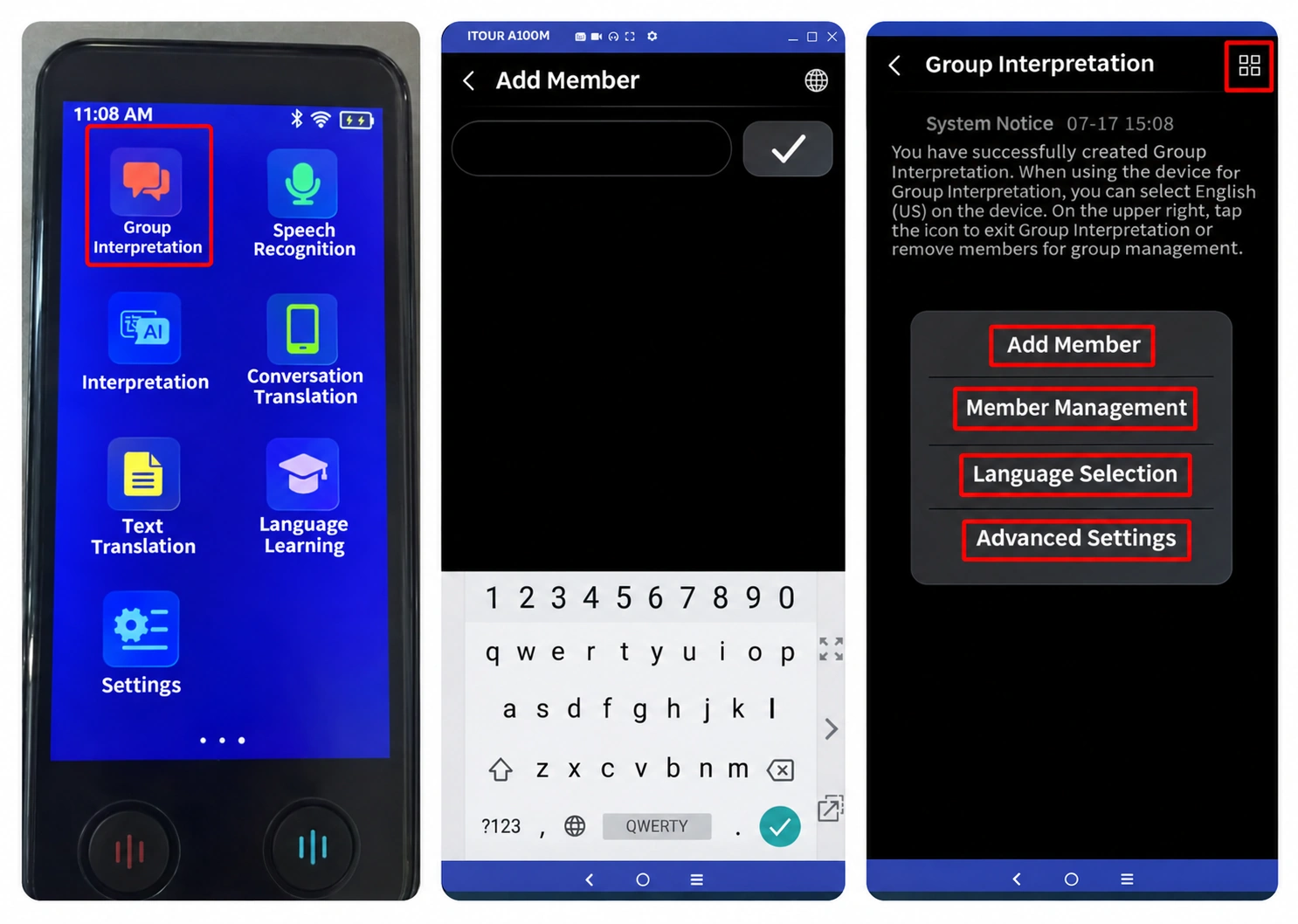
Step 2: Speak and listen within the group
3. When speaking,Long Press on the side of the device Speak button Start talking,Let go Afterwards, your voice and translation content will be automatically sent to the group chat.
4. On the screens of all other devices in the group, it will Real-time display The one you sent Original text and translated text, and play the translated speech at the same time.
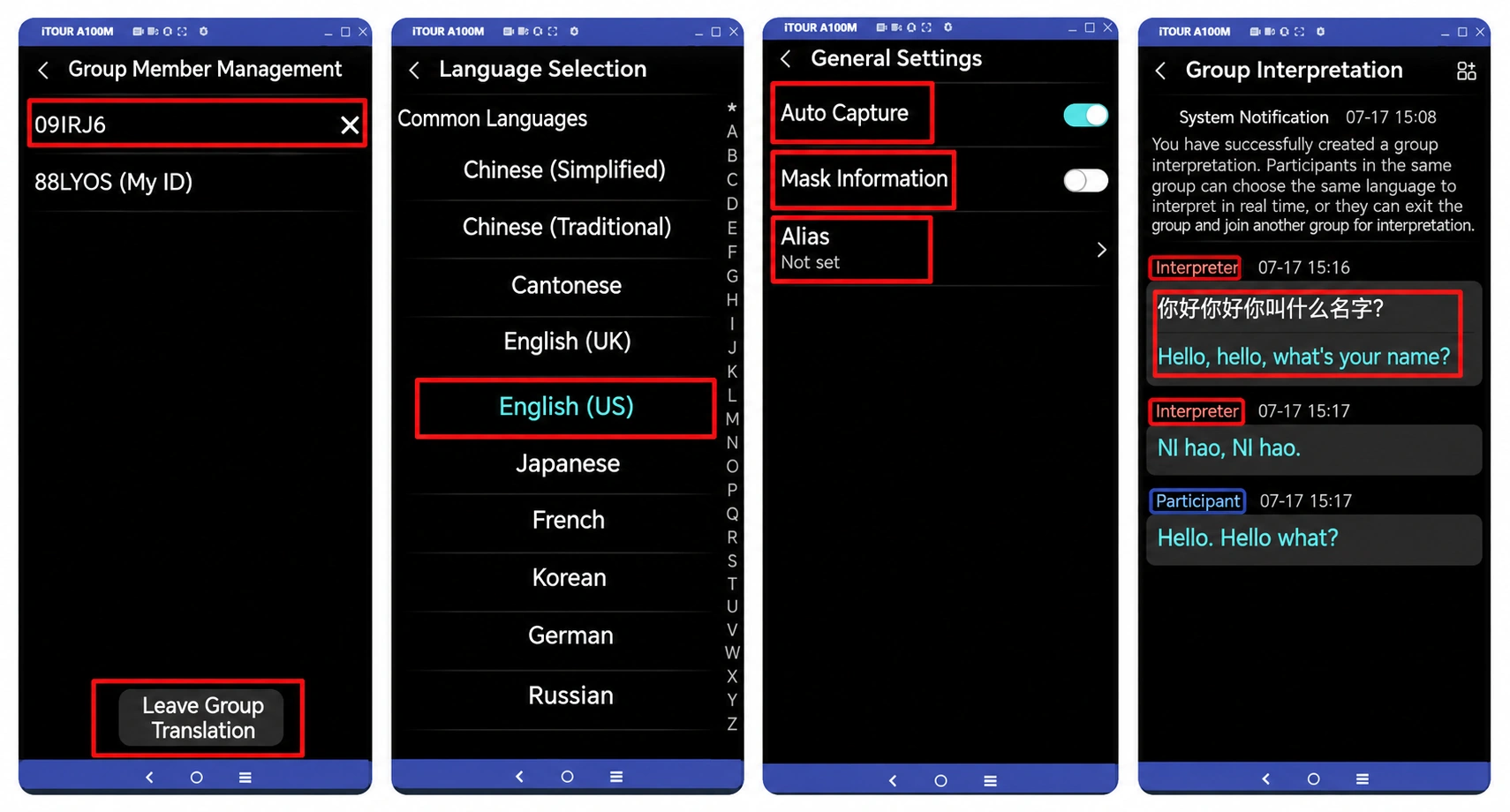
Effect: Each participant can clearly see the bilingual content of all speeches on their own device screens and hear the broadcast, as if having a Real-time, multilingual meeting captioning system.
In what scenarios can a dual-screen translator be used for single-screen conversations?
of the dual-screen translator Single-screen conversation mode, used for Face-to-face bilingual communication. It will transmit the translation results through a screen and Speaker Provide separately to both parties to achieve real-time translation.
Work Modes and Use Scenarios
- Screen display: Real-time display of the other party's speech content and translation.
- speech playback: Plays the translation of what you say through the device's speaker for the other person to hear.
- Typical scenarios: Suitable for temporary, light face-to-face interactions, such as asking for directions, ordering food, or simple inquiries.
Operation Overview
- Turn the translator screen to face both parties in the conversation.
- When you speak, the device will recognize and announce the translation.
- When the other person is speaking, you look at the translation subtitles on the screen.
Core Features
This mode No need to pair with a secondary device, a single person can hold a device and complete a two-way conversation, which is Fastest and portable Face-to-face translation solution.
How to Use Dual-screen Conversation on the Dual-screen Translator
of the dual-screen translator Dual-screen conversation is specially designed for Efficient, private face-to-face cross-language conversation Design. It needs to be used with the sub-device, providing both parties with independent translation screens.
Core functional process
Step 1: Connect the Secondary Unit
- Enter the 'Dual Screen Conversation' feature on the main screen (host device).
- The first time you use it, you will be prompted to scan the QR code displayed on the sub-device screen to complete Bluetooth pairing.
- After pairing successfully, subsequent use will automatically connect, without the need to scan the code again.
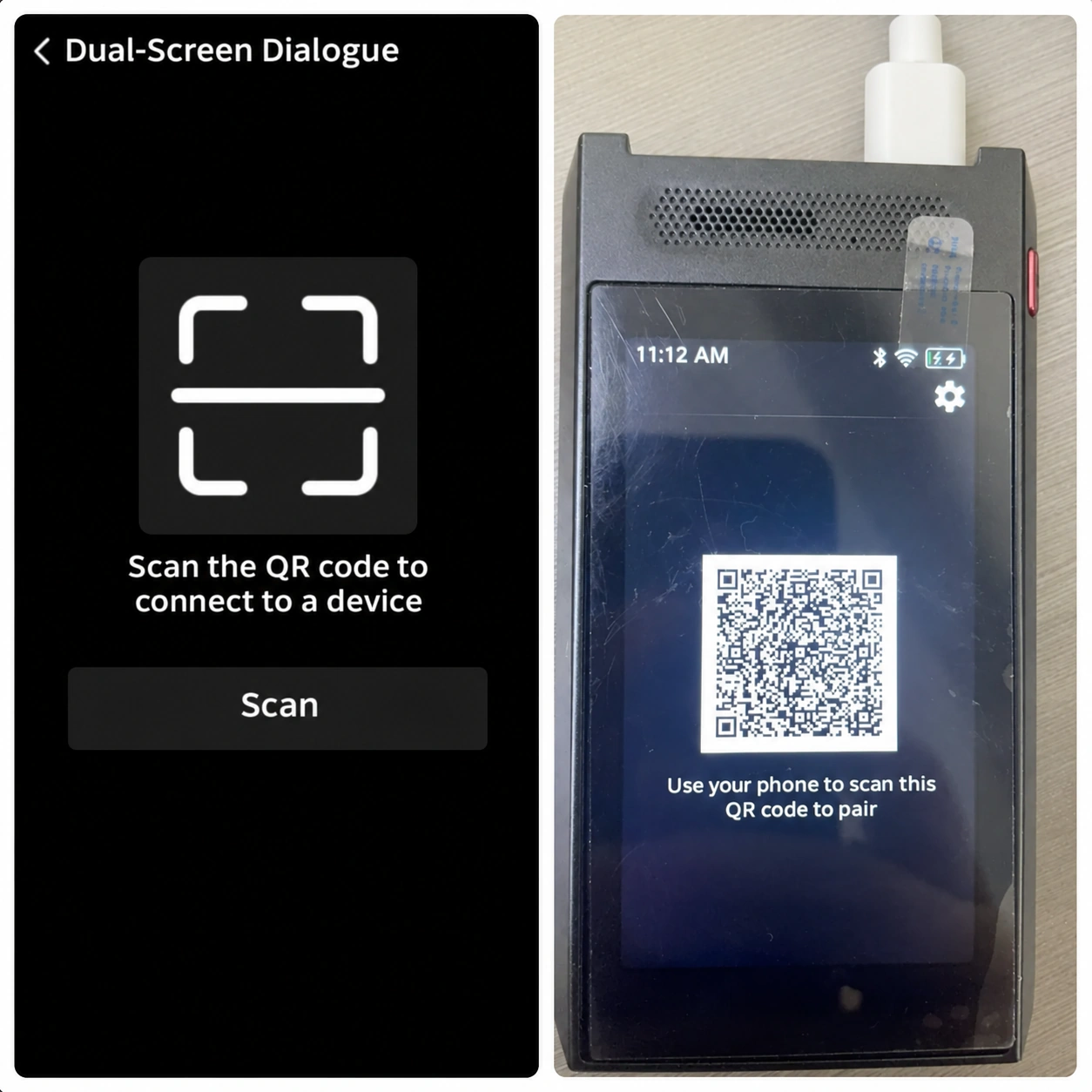
Step 2: Start the conversation
4. Once connected, the main and secondary devices automatically enter translation standby.
5. Either Party Tap any button at the bottom of your device's screen, and you can start speaking. The device will recognize and translate in real time, and provide the translation results Displayed on the screen of the other device, and play it aloud.
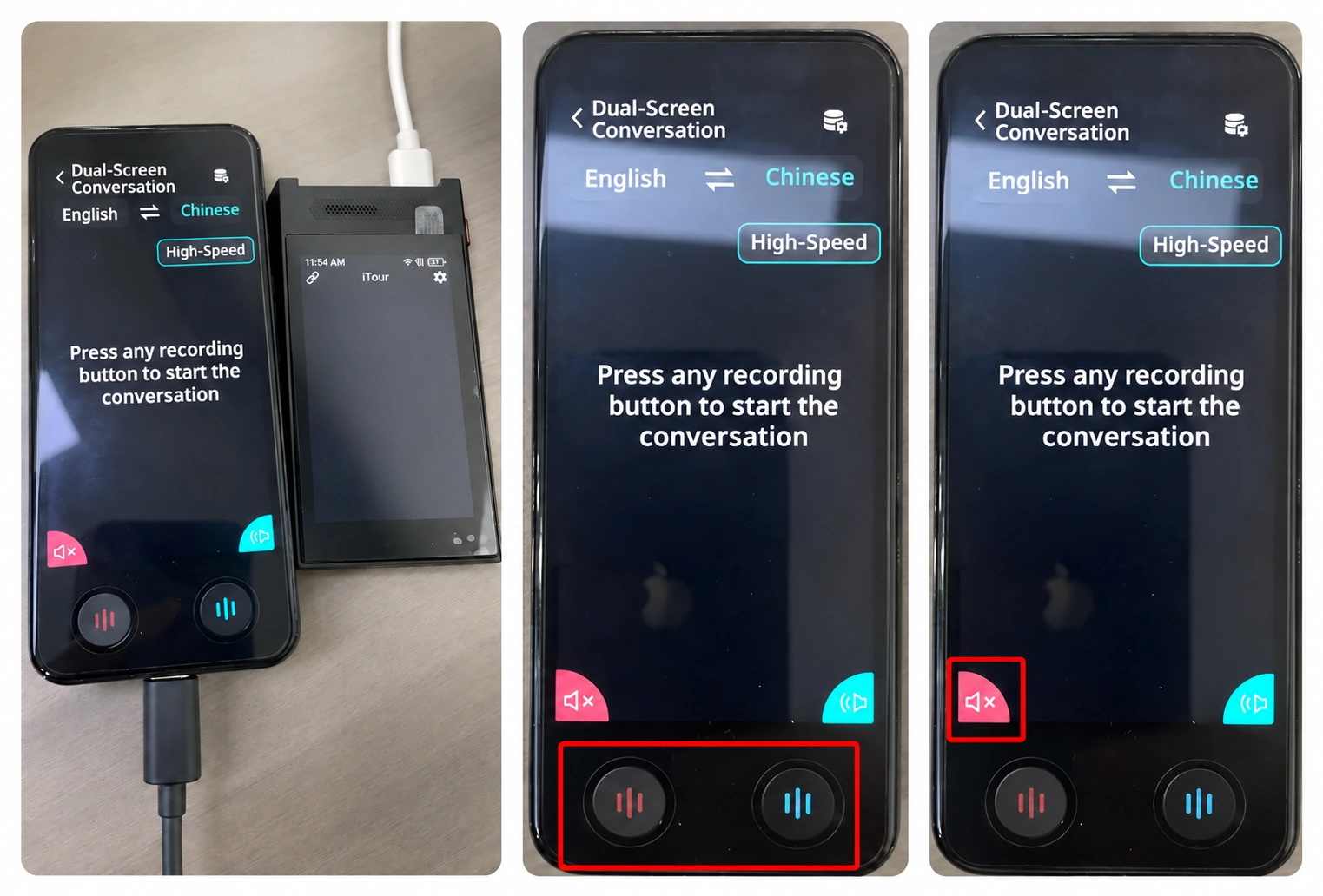
Key Settings and Options
- Broadcast switch: The broadcast of the translation into the language on the left (usually the language set on the host device) is turned off by default. You can manually click to turn it on to enable two-way speech playback.
- Translation Mode: The default is 'Fast Mode' (focuses on speed), which can be switched to 'Balanced Mode' (balances speed and accuracy) or 'Accurate Mode' (focuses on accuracy in complex contexts) as needed.Click to learn about the differences between the three modes]
Features and Scenarios
- Bidirectional independent display: Both parties can clearly view the translation on their own screens without sharing devices.
- Natural dialogue experience: follows the natural conversation rhythm of 'you speak, I listen; I speak, you listen.'
- Core applicable scenarios: business meetings, in-depth social interactions, medical consultations, guided tours, and all other occasions that require smooth, accurate, and formal conversations.
How do you operate the single-screen conversation function on a dual-screen translator?
Operating Steps:
- On the main device’s home screen, open “Single-screen Conversation”.
- Tap any button at the bottom of the screen to start speaking, and the system will recognize and translate in real time. Your translated content will be played to the other party, and the other party's translated content will be displayed on your screen.
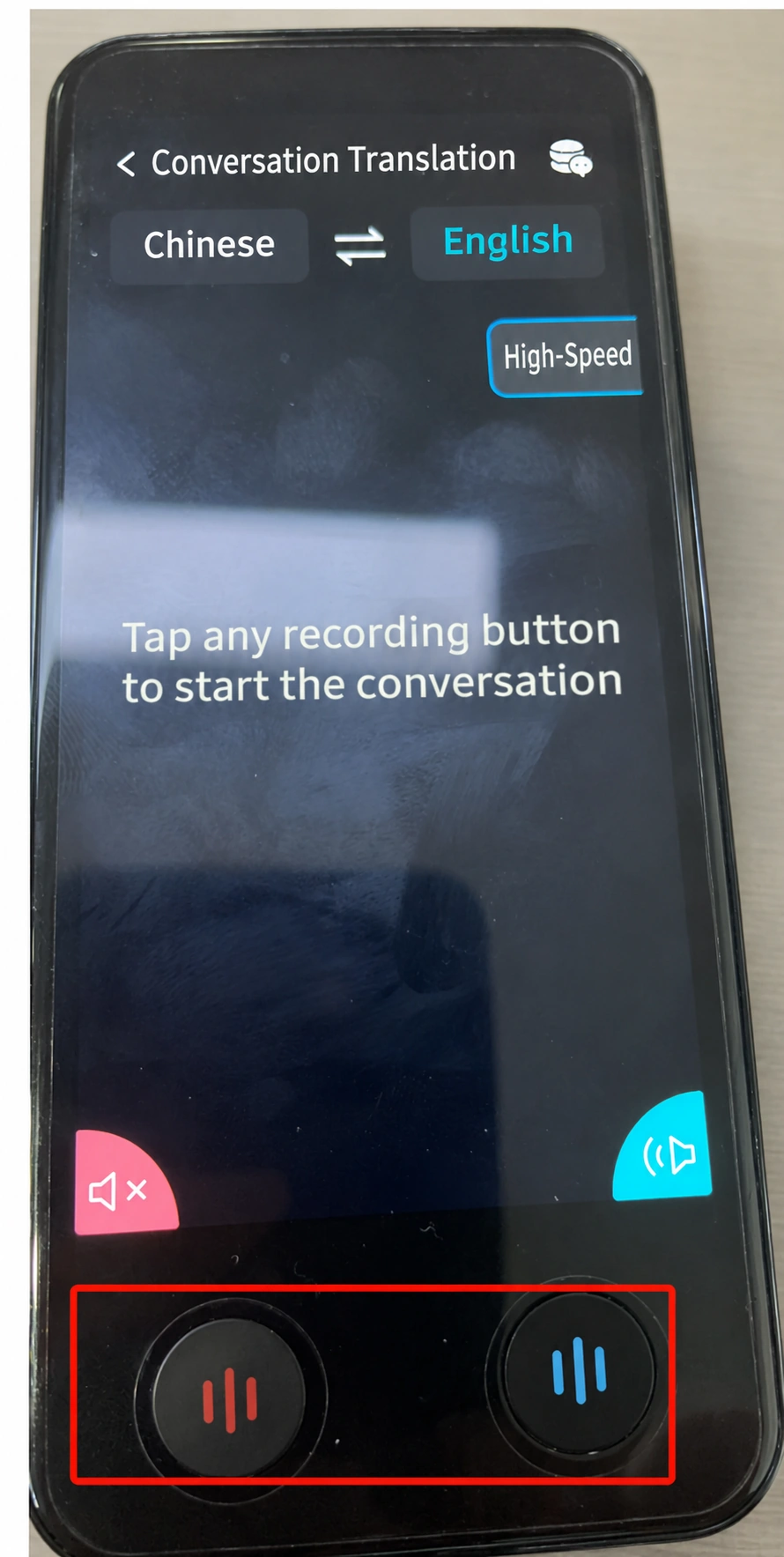
Key Settings
- Broadcast switch: The result translated into the language on the left is broadcasted by default as off. If you need two-way speech playback, you can manually turn it on.
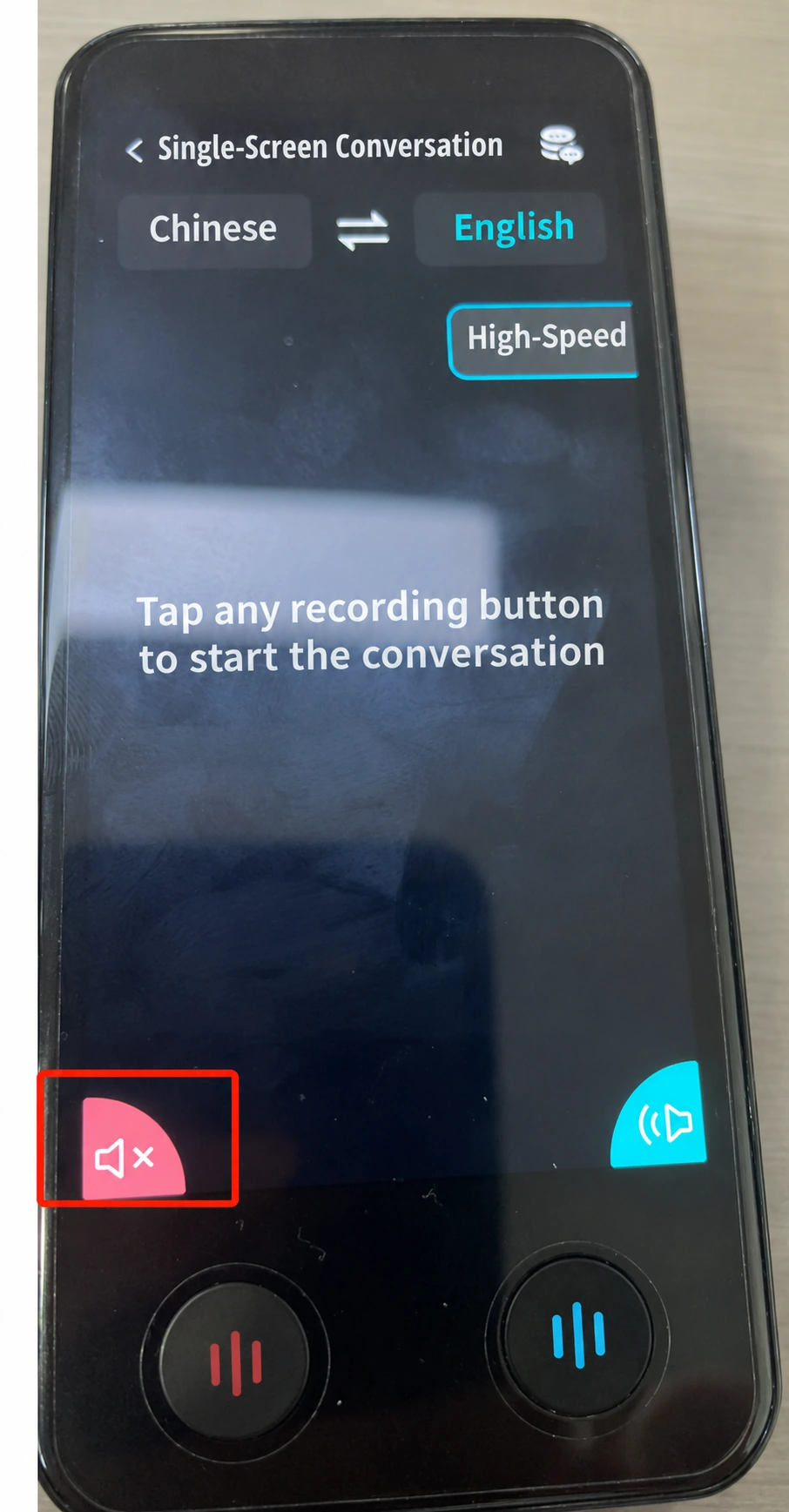
- Translation mode: The default is 'Fast Mode', which can be switched to 'Balanced Mode' or 'Accurate Mode' in the settings depending on the complexity of the conversation.Click to learn about the differences between the three modes]
What are the differences between the three translation modes of the dual-screen translator?
The dual-screen translator provides three translation modes, mainly in Translation speed and Translation Accuracy You can achieve different balances and flexibly choose according to the complexity of the conversation scenario.
Comparing Modes and Choosing One
| Mode | Core Features | Translation speed | Translation Accuracy | Recommended use scenarios |
|---|---|---|---|---|
| Turbo Mode | Priority is given to speed, responds the fastest | ⚡ fastest | Relatively low, sufficient for basic understanding | Daily simple conversations, asking for directions, ordering food, etc.Requires Low Latency scenario |
| Smooth Mode | Balance Speed and Accuracy, using the optimization model | ⏱ Medium | ✅ Higher | General discussions, social chats, work communications, etc.Most everyday situations |
| Precision Mode | Prioritize accuracy, using large language models | ⏳ slowest | ✅✅ The best | Business negotiations, professional seminars, medical terminology, etc.Requires extremely high precision in word choice scenario |
Operational recommendations
- For first-time users or when unsure, it is recommended to start with the default 'Smooth Mode,' which offers a more balanced experience.
- You can click to switch between these three modes at any time on the settings page for single-screen or dual-screen conversations.
According to the importance and professionalism of the conversation, choosing the appropriate mode can significantly enhance your translation experience.
Number of online and offline languages supported by the dual-screen translator
The number of languages supported by the dual-screen translator varies depending on whether it is connected to the internet, as detailed below:
Online and offline language support
| Mode | Number of supported languages | Explanation |
|---|---|---|
| Online translation | About 130 languages | Requires an internet connection. Covers the vast majority of commonly used languages worldwide, some dialects, and languages, with a very wide range of applications. |
| Offline Translation | 17 languages | No internet required Covers the most commonly used core languages (such as Chinese, English, Japanese, Korean, Spanish, French, German, etc.) to ensure basic conversation. |
Usage Recommendations
- Daily Life and Travel: In environments with internet access, you can freely use 130 languages for translation, handling various complex scenarios.
- Offline emergency: In situations without internet, such as on airplanes, outdoors, or abroad with no signal, you can download offline packages in advance to conduct basic conversations such as asking for directions, ordering food, or seeking help in 17 core languages.
Please note: Some offline language packs require you Download in advance when the device is connected to the internet You can find and manage these offline language packs in the device [Settings → Offline Resource Packs].
Introduction to the Offline Function of the Dual-Screen Translator
of the dual-screen translator Offline Translation feature, allowing you to Without an internet connection It can also carry out basic cross-language conversations in situations such as on airplanes, outdoors, or in areas abroad without signal. It supports Chinese, English, Japanese, Korean, German, French, Spanish, Russian and so on, total17The most commonly used core language.
Key Operation: One-tap Conversation
Offline translation uses an intuitive Push-to-talk Conversation Method, operation is very simple:
- Press and hold the button on the left: recognize and translate the left-side language → into the right-side language.
- Press and hold the button on the right: recognize and translate the language on the right → into the language on the left.
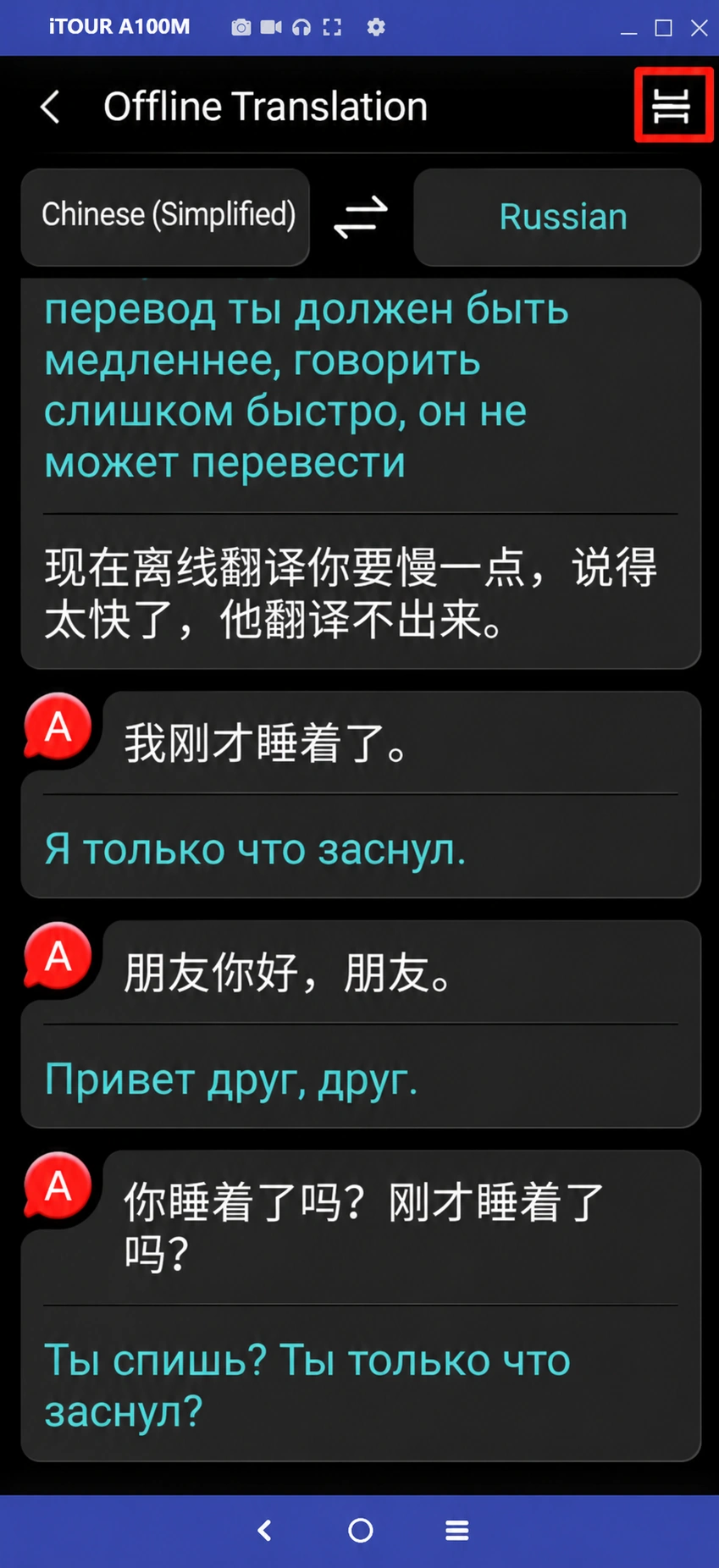
Feature Notes
- Prepare in advance: Some offline language packs need to be downloaded to your device in advance when you have internet access. It is recommended to test them beforehand.
Why can't the dual-screen translator be found and connected to the hotspot?
The dual-screen translator fails to search for or connect to the phone's hotspot, usually due to the phone's Hotspot frequency band or compatibility settings Caused by a mismatch. Please follow the steps below according to your phone's system to troubleshoot:
Android phone setup steps
- Open "Settings」 > 「Personal hotspot"(or "Network Sharing and Portable Hotspot")".
- Enter "Set up a WLAN hotspot") (or "configuration hotspot")."
- Find "AP band") (or "frequency band") option.
- Set it to "2.4 GHz Frequency band (please be sure Do not choose 5 GHz).
- After saving the settings, turn the hotspot back on, and then use the translator to search for a connection.
Note: Supports 6th generation technology standards, required for Close Status
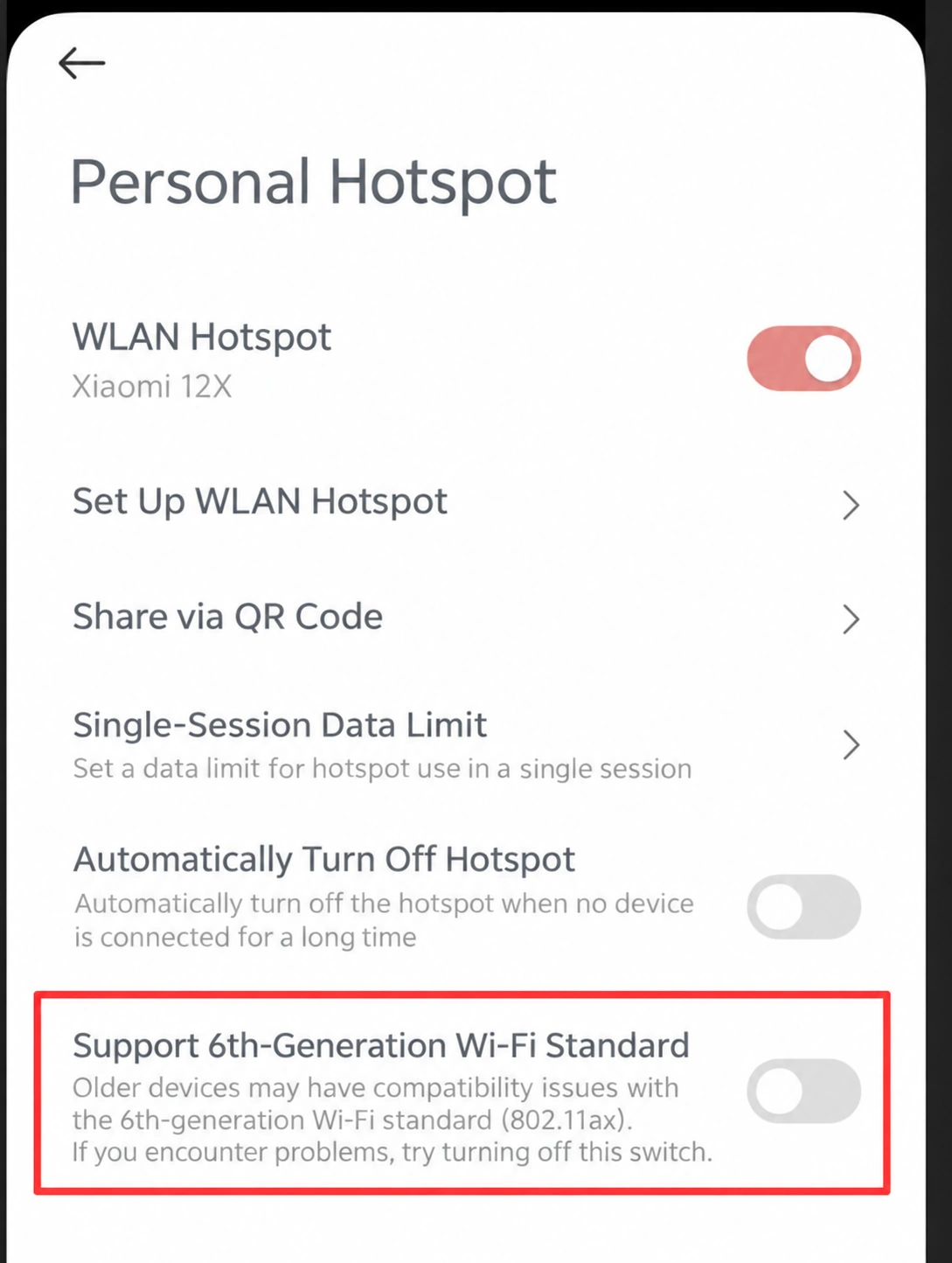
iPhone (iOS) Setup Steps
- Open "Settings」 > 「Cellular network」.
- Click "Personal hotspot」.
- Ensure "Allow others to join" has been turned on, and Turn on「Maximum Compatibility"Switch.
- Prerequisite: When turning on the personal hotspot, be sure to confirm "Settings」>「Wi-Fi" Already in place On state(Even if not connected to Wi-Fi). This is a necessary condition for iOS devices to be discoverable by the hotspot.
- After completing the above settings, use the translator to search for the connection again.
Problem Summary and Tips
| Possible cause | Android solution | iOS Solution |
|---|---|---|
| Hotspot frequency bands are not compatible | Manually set to 2.4 GHz Frequency band | Turn on Maximum Compatibility |
| The hotspot cannot be detected | Make sure the hotspot is turned on and visible | Ensure The wireless LAN switch is turned on |
General Advice: After completing the setup, it is recommended Restart the dual-screen translator's Wi-Fi → Rescan, then try again. If the problem persists, please try setting the mobile hotspot name to pure English and check if there is a limit on the number of connected devices.
Does the dual-screen translator support a SIM card?
Dual-screen Translator SIM card not supported, unable to use cellular mobile networks directly like a phone.
This device No independent mobile internet function All of its translation services that require the internet (such as online translation and language downloads) must connect to the internet through the following two methods:
- Connect to a Wi-Fi network
- Connect to the phone's personal hotspot (share the phone's mobile data)
Usage Recommendations for You
- Indoors or fixed locations: Can connect to a stable Wi-Fi to use online features.
- Outdoor mobile scenario: The most convenient way is to turn on your phone's personal hotspot and let the translator connect to the internet.
- Completely offline environment: Can rely on its offline translation function (supports 17 languages) for basic conversations.
The dual-screen translator is connected to Wi-Fi, but it prompts: unable to access the Internet. What’s going on?
When the dual-screen translator prompts 'Cannot access the Internet' while connecting to Wi-Fi, it is usually a normal detection process of network handshake or connection status. Please follow the steps below to determine and handle it:
Step 1: Distinguish between normal and abnormal states
Situation 1: Returns to normal after a brief prompt (usually not a problem)
- Phenomenon: The 'No Internet Access' prompt appears immediately after connecting to Wi-Fi, but Automatically disappears after 6-8 seconds and displays 'Connected'.
- Reason: This is the process during which the device obtains an IP address and completes network authentication.Normal detection status.
- Operation: As long as it ultimately displays "Connected", and you can use all the online features of the translator normally, without any further actions.
Scenario 2: Continuous notifications of inaccessibility (needs troubleshooting)
- Phenomenon: Prompt continuously, Do not disappear, or online translation remains unavailable.
- Reason: The currently connected Wi-Fi network itself Unable to access the external network, or the device did not successfully pass verification.
Step 2: Targeted Investigation and Resolution
If it belongs to the above Situation Two, please check in order:
- Verify the network itself: Please use your Mobile phone or computer connected to the same Wi-Fi, test whether you can access the internet normally. If other devices also cannot access the internet, the problem lies with the router or broadband line, and you need to contact your internet service provider to resolve it.
- Reconnect: On the translator‘Forget’ this network, and then re-enter the password to connect.
- Check the router settings: Some routers (such as public networks) may be configured with Limit on the number of connected devices、MAC address filtering or may need Web Authentication Please check whether the translator is restricted or if you need to open a browser to complete the authentication.
- Try another network: Connect to another known good Wi-Fi or mobile hotspot to rule out whether the issue is with this particular network.
The dual-screen translator connects to Wi-Fi, but shows: authentication failed. What does this mean?
When the dual-screen translator connects to Wi-Fi and prompts 'authentication failed', this clearly indicates The connection request was rejected at the 'password' or 'access permission' stage.
Please check step by step according to the following steps:
Main Causes and Solutions
1. Incorrect password entry (most common reason)
- Symptom When manually entering the password, errors may occur due to case sensitivity, special characters, or incorrect number of digits.
- solve: Please carefully check the Wi-Fi password, and after entering it, click the 'Show Password' option to verify it a second time. After confirming it is correct, select "Forget this network" and reconnect.
2. The hotspot has reached the maximum number of connections
- Symptom: the router or phone hotspot has Maximum number of connected devices, once the limit is reached, new devices will not be able to join.
- Solution: If it is Router, please log in to the management backend and disconnect some unused devices. If it is Mobile hotspot, please go to the 'Personal Hotspot' settings on your phone to view and manage connected devices.
Other Possible Causes (Advanced Troubleshooting)
If the above two points are correct, the issue may involve more complex network settings:
- 3. Incompatible encryption/security mode
- In rare cases, if the router uses outdated or uncommon encryption methods (such as WEP), it may cause compatibility issues.
- solve: Try changing the router's wireless encryption method to a more common one WPA2-PSK(AES).
- 4. MAC Address Filtering
- Some advanced routers have enabled the 'MAC address filtering' feature, allowing only devices on the list to connect.
- Solution: Log in to the router's backend, in the wireless settings or security settings, find the 'MAC Address Filtering' option, add the translator's MAC address (which can be viewed in the translator's network settings) to the allowed list, or temporarily disable this feature.
What is the difference between the high-end version and the low-end version of the dual-screen translator?
The high-end version and the low-end version of the dual-screen translator mainly differ in Target scenarios, translation engine, recording methods, and terminology support There are fundamental differences in existence to meet the needs of different users.
Key Differences
| Feature Dimension | Advanced Model | Base Model |
|---|---|---|
| Positioning and Scenario | High-end business and professional scenarios (such as formal negotiations, international conferences, academic seminars) | Daily Communication and Basic Situations (such as tourism shopping, simple directions, and daily social interactions) |
| Translation Engine and Accuracy | Powered by Large AI Models, regarding Complex sentence structure Optimize,The official claim is that accuracy reaches 98.6% | Optimized General engine, meet the accuracy requirements for daily conversations |
| Core Features | 1. Smart Audio Input: One-Touch Start Continuous Automatic Audio Input, no need to operate by hand 2. Terminology Database: Built-in100,000+ Business and industry terminology 3. Meeting minutes: Support translation content recording and export | 1. Push-to-talk Audio Input: Tap to speak, release translation, support60 seconds Continuous conversation 2. Lightweight and easy to use: Intuitive operation, focused on core conversation functions |
Selection Recommendation
- Choose the advanced model, if you: primarily use it in serious professional settings such as business, academic, or medical contexts, with very high requirements for translation accuracy, specialized terminology, and handling of complex sentence structures, and also need efficiency functions such as automatic recording and meeting transcription.
- Choose the base model, if you: mainly use it for traveling abroad, daily social interactions, basic business trips, and other scenarios, need a solution that is lightweight, easy to use, and cost-effective, with conversation content focused on everyday common language.
How do I adjust speech playback speed on the dual-screen translator?
The broadcasting speed of the dual-screen translator can be adjusted in specific functions. Currently,Only in single-screen conversation, dual-screen conversation, and listening functions Supports adjusting the playback speed of translated speech.
Navigation Path: When you use any of the above functions, go to the translation page and click The 'Settings' icon in the top right corner, can be found Speech Playback Speed Adjust the options.
Can the dual-screen translator set the broadcast voice gender (male/female)?
The speaking voice gender (male/female) of the dual-screen translator can be independently set in specific functions.
Adjustable functions and operations
- Supported features: Currently, this setting is only available in the three core dialogue functions: single-screen dialogue, dual-screen dialogue, and listening.
- Operation path: On the translation page of any of the above functions, click The 'Settings' icon in the top right corner. In the settings menu, find “Left-side Voice Settings" and "Right-side Voice Settings"). After clicking to enter, select the corresponding language (such as Chinese or English), and you can in "Speaker Choose different ones from the list Male voice or Female voice Voice.
Settings Features
- Set independently: You can set different voices for the left and right languages (for example, a female voice for Chinese and a male voice for English) to better distinguish them in conversations.
- Adjust as needed: You can make changes at any time according to personal preference or usage scenarios (for example, a business setting may prefer a calm male voice).
- use these premium custom voices(Usually a non-default standard sound) is not free indefinitely. The system usually provides one Initial Allowance(for example 1 million characters). After the quota is used up, custom voice settings may Automatic expiration, the system will Switch back to the default standard voice, but the basic translation function is not affected.
Why does the secondary unit not play translations automatically in Remote Conversation / Main–Secondary Mode on the dual-screen translator?
When using Remote conversation or Main–Secondary Mode At this time, the translation result of the child device may not be played automatically by default. This is normal, because this feature requires you On the secondary device, manually enable.
Solution:
- solve: Configure the following settings on the secondary unit:
- On the secondary unit’s translation page, select The 'Settings' in the top right corner Icon.
- Find " in the settings menu Audio Playback Mode"After entering, change the Audio Playback Mode from 'Manual' or 'Off' to 'Automatic'."
After completing this setup, the handset will automatically perform voice playback during translation.
Single-screen translator3 questions
Open in a separate page →Steps to Export History Records (Windows Version)
Complete the device side[History Records]After the export operation, please follow the steps below to obtain and save the file on your computer:
1. Use a data cable to connect the translation device to a Windows computer.
2. Open 'This PC' on the computer, find and click on the device disk Z3Pro, then enter 'Shared Memory Storage Space' in sequence → History Folder.
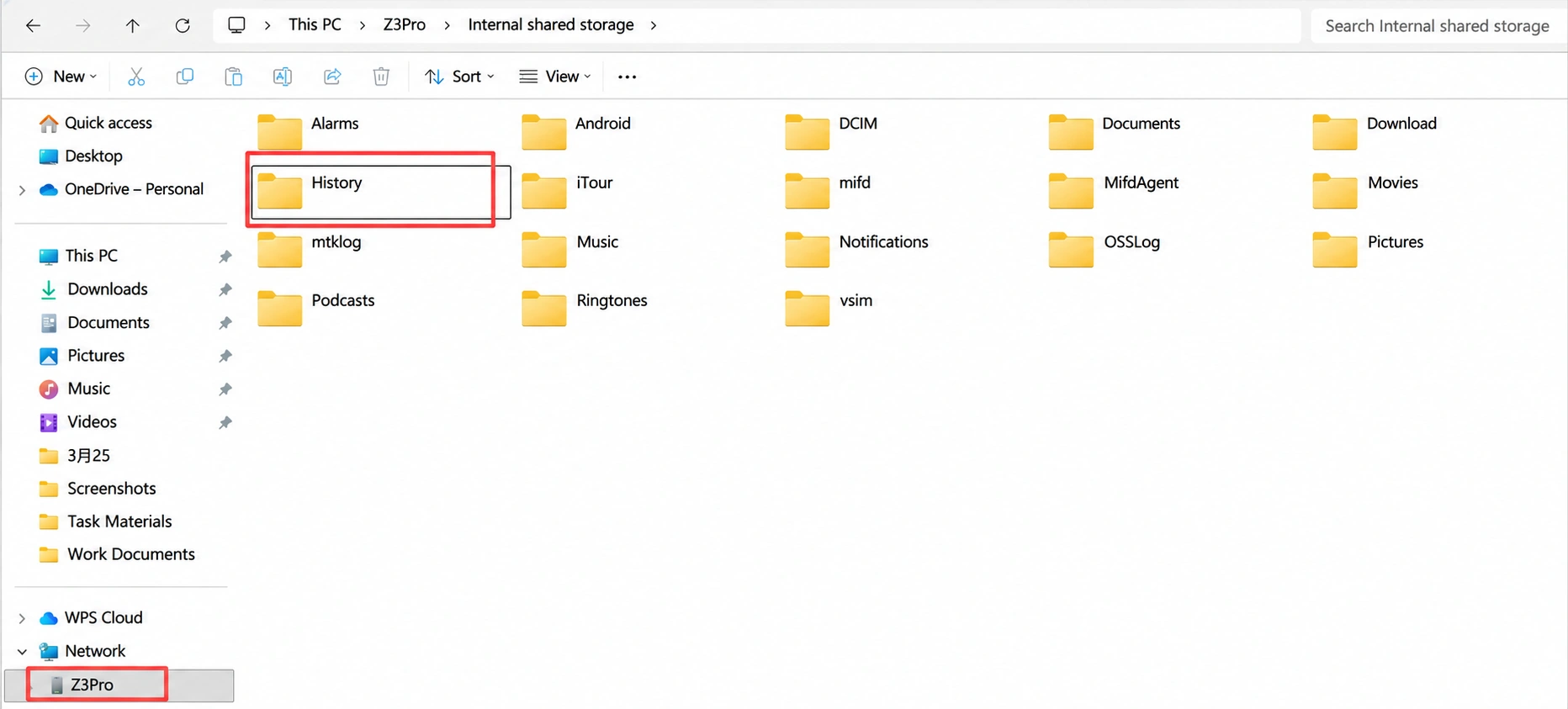
3. Selected History Copy and paste all the exported history files in the folder to a local folder on the computer for proper backup.
Two-way delete sync rule:
- Only delete files in the History directory on the computer: the history within the device's app will not be deleted and will still display normally
- Delete history directly within the device app: the corresponding files in the History directory on the computer will be permanently deleted synchronously
Important advice: To avoid accidental data loss, it is recommended that you back up and copy the files in the History directory to another location on your computer after exporting the history records.
Steps to Export History Records (Mac)
First, complete the 'History' export on the device side, then follow the steps below on the Mac computer to obtain and back up the exported files:
1. Install software
1) Click the link below to download"Android File Transfer"Tool installation package
Download link: https://www.tranzi.cn/help/AI-ssd/file/AndroidFileTransfer.dmg.zip
2)After the download is complete, unzip the compressed file and double-click to open the extracted installer.
3)will Android File Transfer Assistant Icon, manually drag to"Applications (Applications)"The folder, and the installation can be completed
2. Connect the device and export the file
1) Use a data cable to connect the device to the Mac computer
2) Open Mac Launchpad, find and double-click to run"Android File Transfer"Software
3)In the software window, select and open History Folder
4) Drag or copy the record files and audio files in the folder to the Mac Specify a local folder and just keep it as a backup
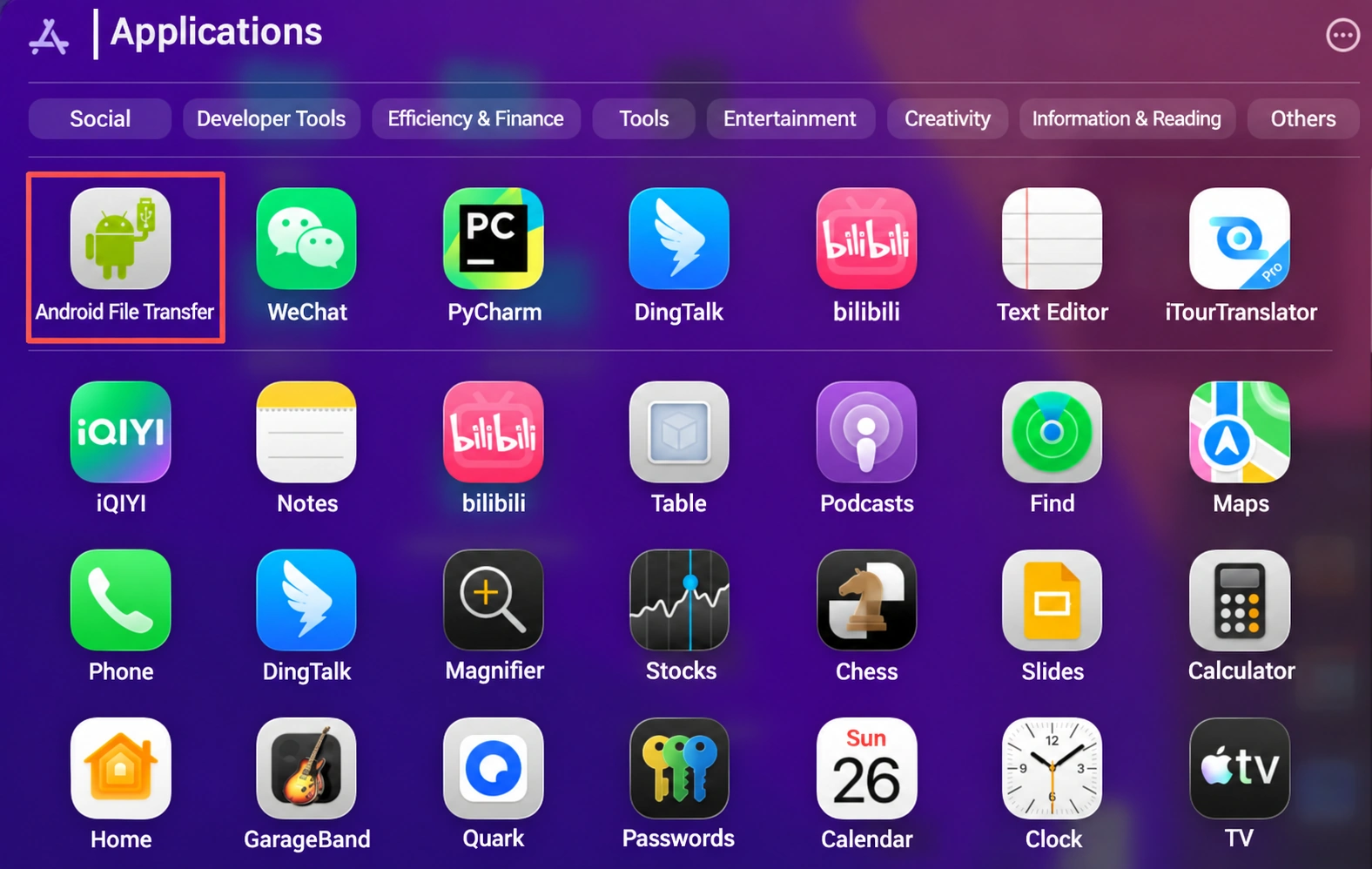
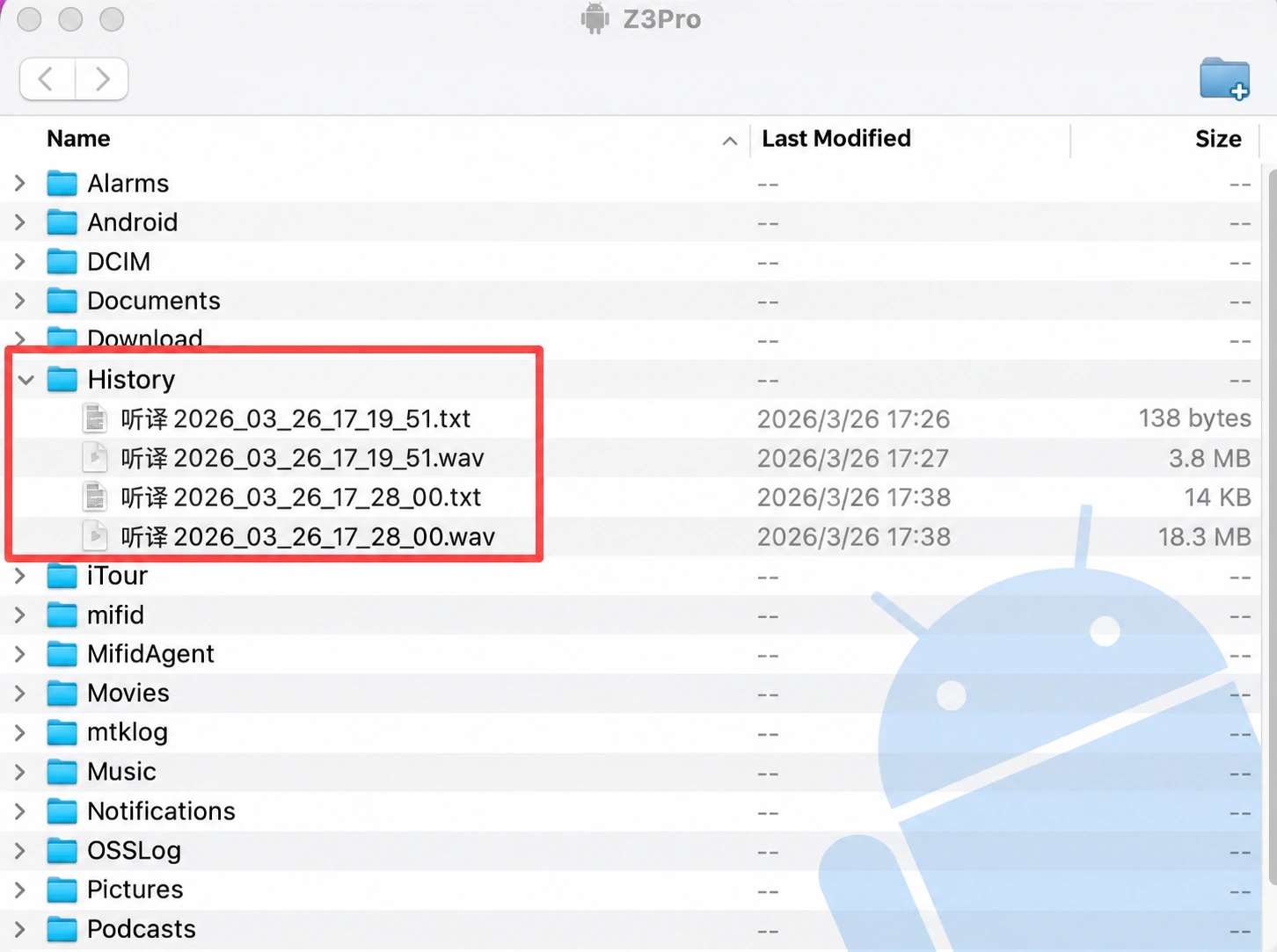
Two-way delete sync rule:
- Only delete files in the History directory on the computer: the history within the device's app will not be deleted and will still display normally
- Delete history directly within the device app: the corresponding files in the History directory on the computer will be permanently deleted synchronously
Important advice: To avoid accidental data loss, it is recommended that you back up and copy the files in the History directory to another location on your computer after exporting the history records.
How long is the battery life of a single-screen translator?
🔋 Continuous use About 3-4 hours(Actual battery life varies with usage.)
Smartwatch4 questions
Open in a separate page →Why does using the offline translation feature of the iTour smart watch prompt: Offline resources are incomplete?
This prompt usually occurs because the pre-installed offline resource files are corrupted, causing the extraction to fail. Please follow the steps below to re-download:
1. Enter the offline language list

2. Long press the corresponding language and select delete
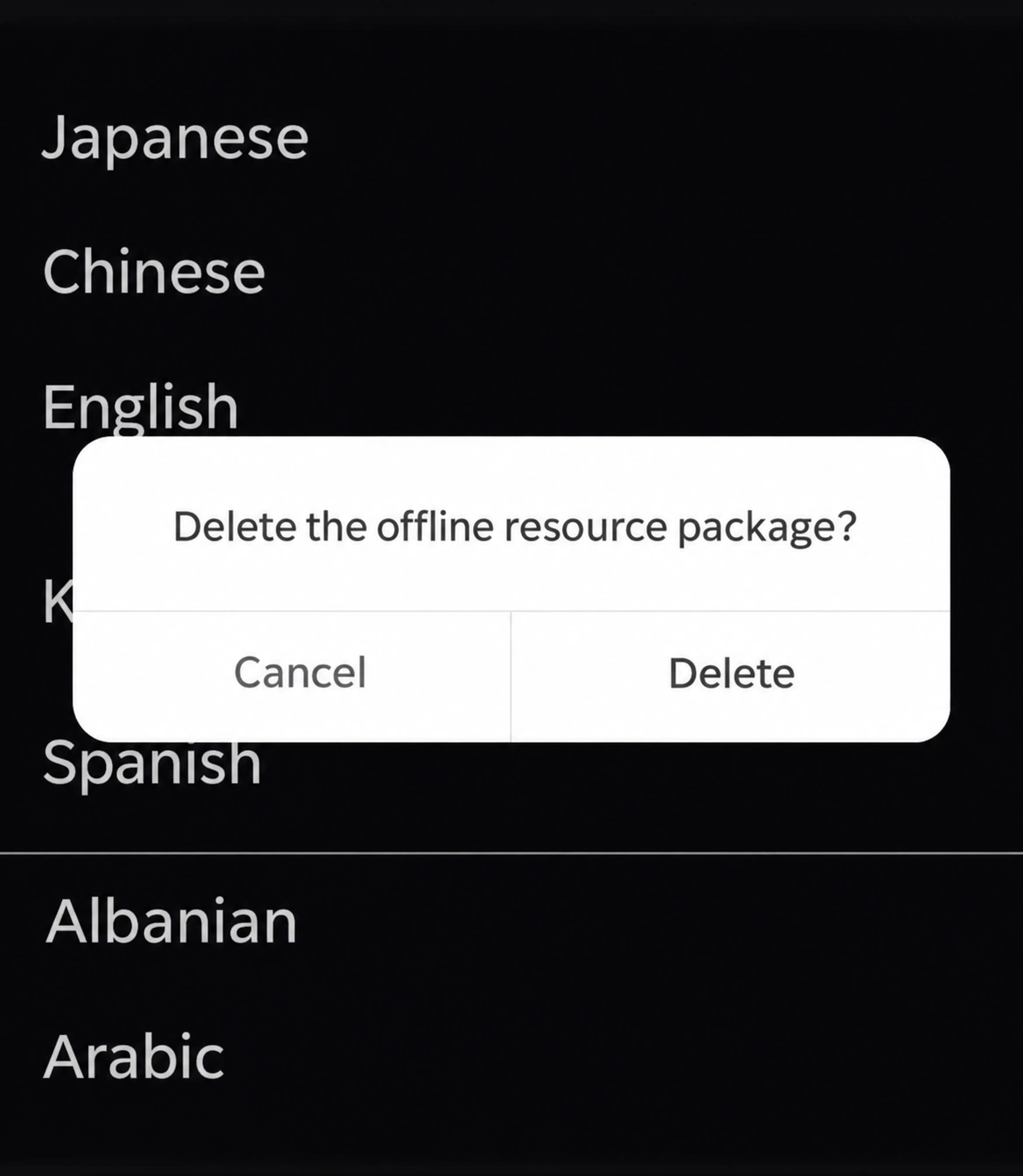
3. Just re-download the resource pack
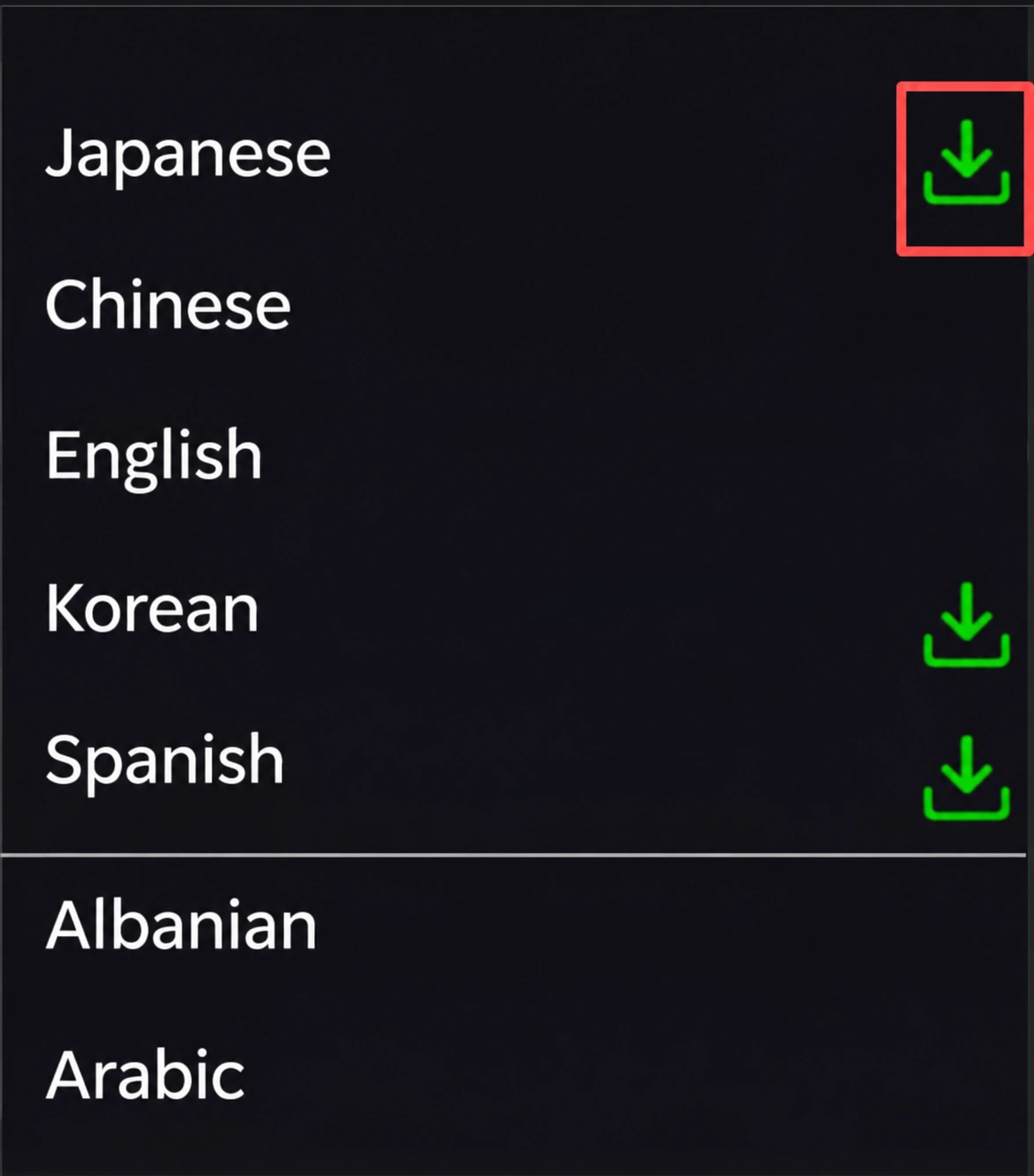
What should I do if the watch cannot automatically change the time zone after crossing borders?
Since the watch runs on the native Android 9.0 system, it currently does not support automatically obtaining the local time zone through a hotspot (Wi-Fi, mobile network, etc.).
You can make adjustments in the following two ways:
Method 1: Manually Set the Time Zone
1. Enter the watch[Settings]>[System]>[Date and Time];
2. Turn off first[Set Time Zone Automatically]Switch;
3. Click after closing[Select Time Zone], manually switch to the time zone corresponding to your current location.
Method 2: Synchronize Time Zone via GaoFit APP
1. Download and install the GaoFit APP on your mobile phone
You can obtain the app by downloading it:
(1) Method 1: Guided installation via the watch
Open the watch's [Phone Assistant] feature → Click 'Phone Connection' → Click the question mark icon at the top of the screen, scan the QR code to download and install.
(2) Method 2: Search and install from the store
iPhone users: search for 'GaoFit' directly in the App Store to download;
Android users: Search for 'GaoFit' in the mobile app store or Google Play to download
2. Bind and add a watch device
(1) Open the GaoFit APP, click 'Add Device' on the [Health] page, and enter the scan code mode;
(2) Open the watch's [Phone Assistant] → click 'Connect Phone', and the watch will display the pairing QR code;
(3) Use the APP to scan the QR code on the watch to complete the pairing connection (when connecting an Android phone, if a permission authorization notification pops up, please click 'Allow').
3. Sync Time Zone
Adjust the phone's time zone to the correct local time zone, and the watch will automatically sync with the phone's current time zone.
What should I do if a HarmonyOS phone cannot use the GaoFit APP to connect to a watch?
Currently, the HarmonyOS system has some permission restrictions.The GaoFit APP downloaded from the Huawei store is temporarily unavailable.
You The following steps can be used to resolve this (using WeChat Scan as an example):
1. Open the watch's [Mobile Assistant] → Tap [Phone Connection] → Tap the question mark icon at the top of the screen to get the QR code.
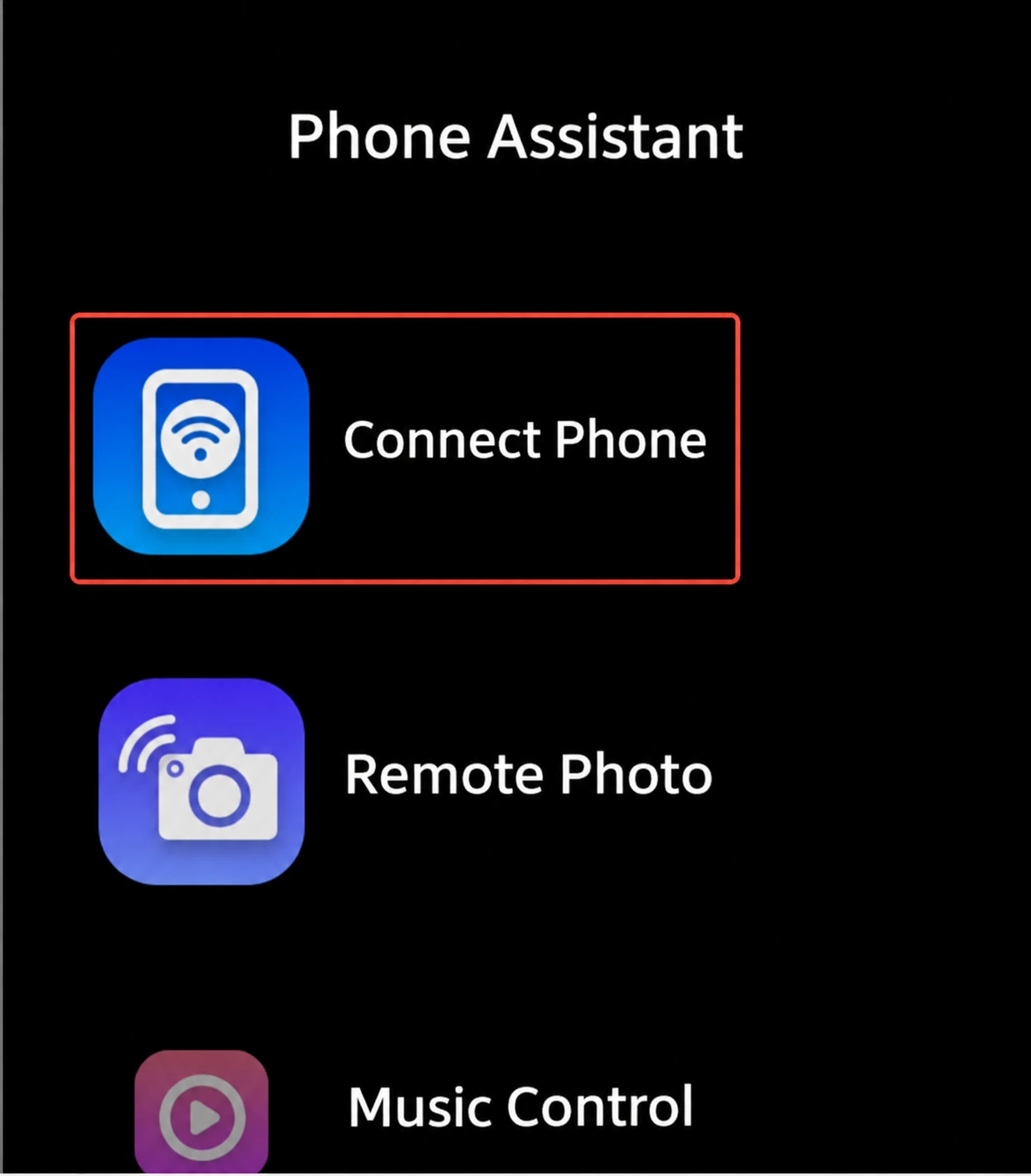
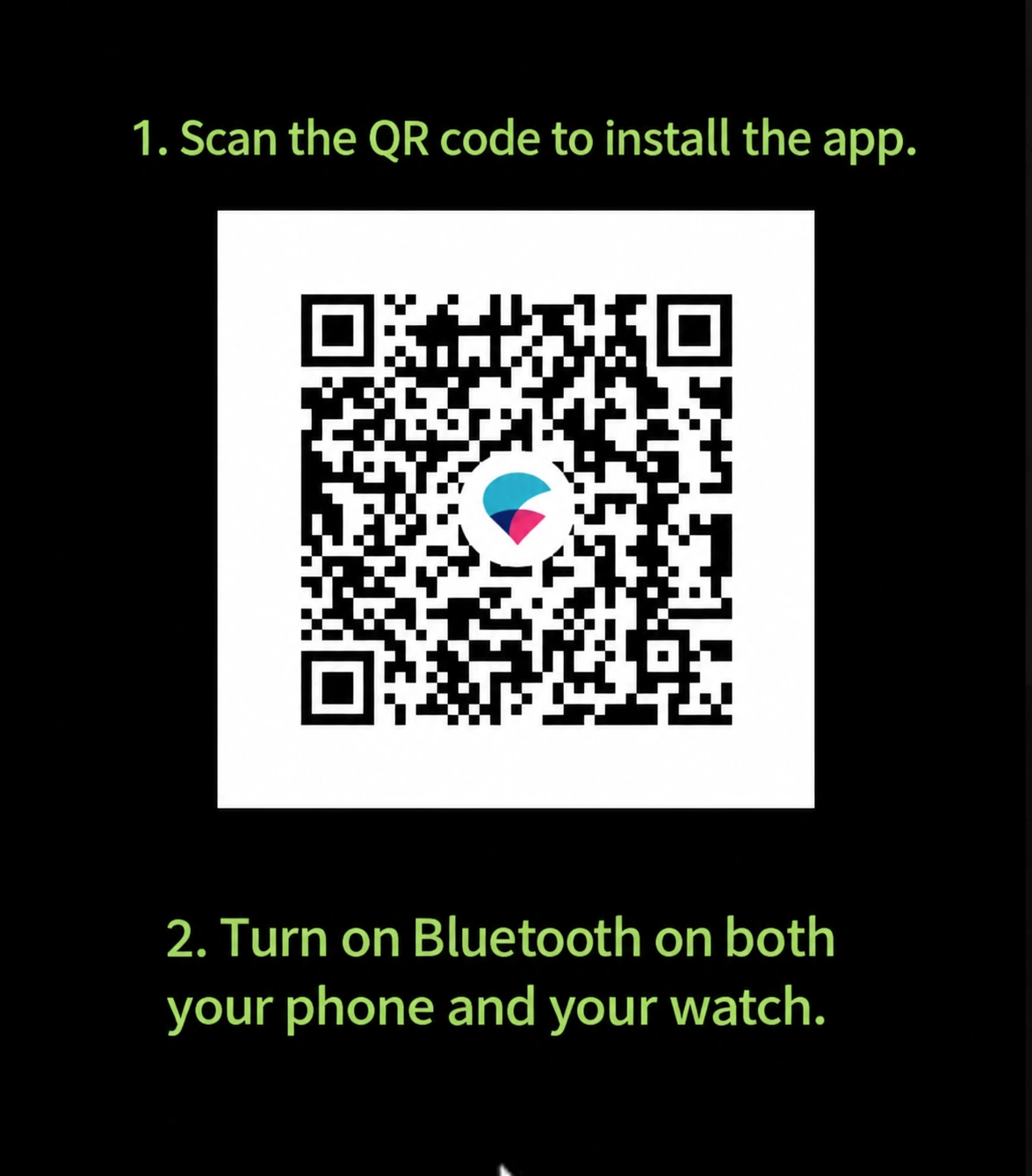
2. Use WeChat to scan this QR code, click the '···' in the top right corner, and select 'Open in Browser.'
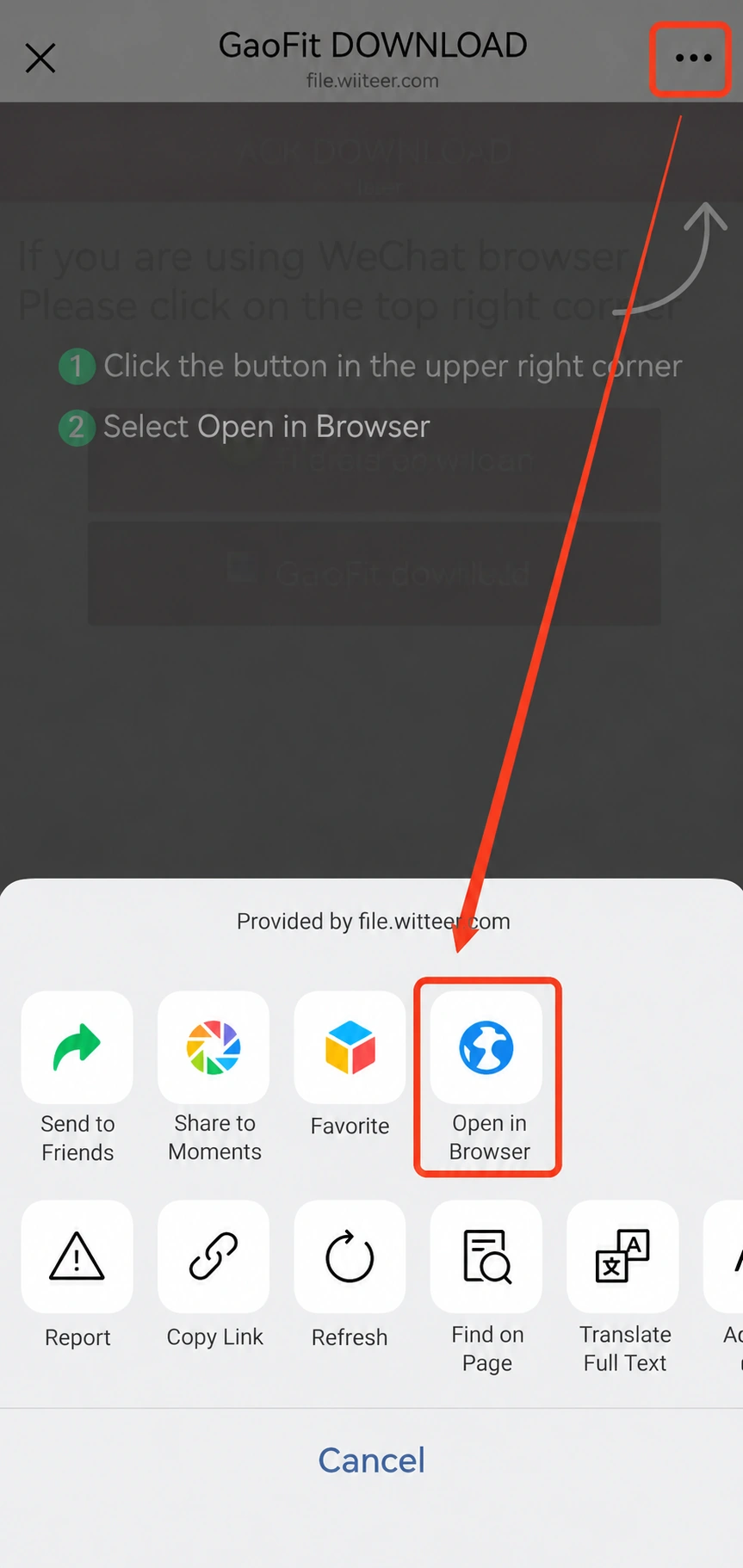
3. On the opened page, click Android download, and in the pop-up prompt box, click 'Still want to download'.
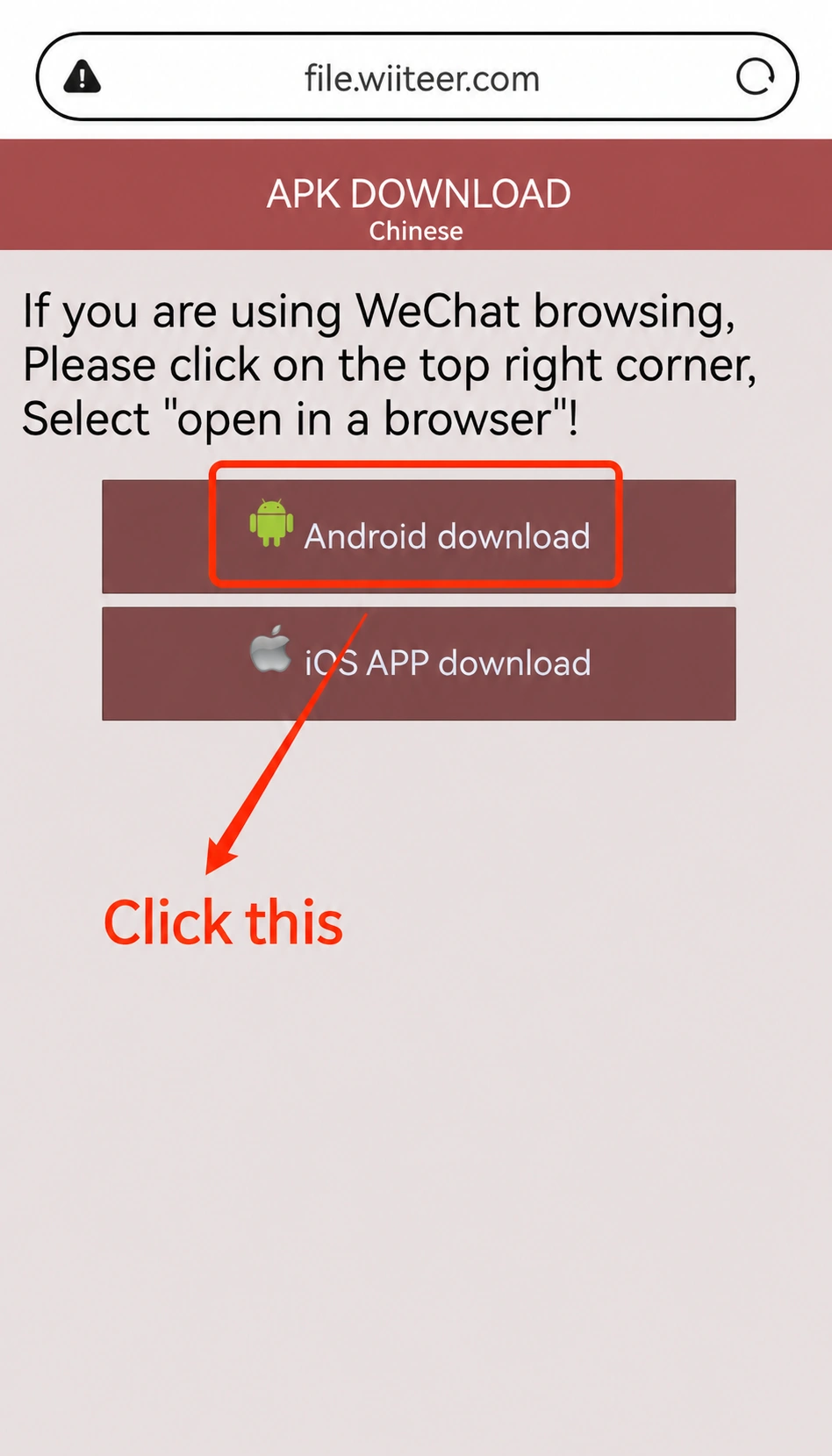
4. During the download process, you can view the files being downloaded and their progress in the browser's 'Download Manager'.
5. After the download is complete, find the installation package in the download list and click Install (the specific operation is shown in the figure below):
6. After the installation is successful, open the GaoFit APP, add and bind the watch
(1) Open the GaoFit APP, go to the [Health] page and click [Add Device] to enter the scanning mode;
(2) Open the watch [Mobile Assistant] and click [Connect to Phone], the watch will display a pairing QR code:
(3) Use the app to scan the QR code on the watch to complete pairing and connection.
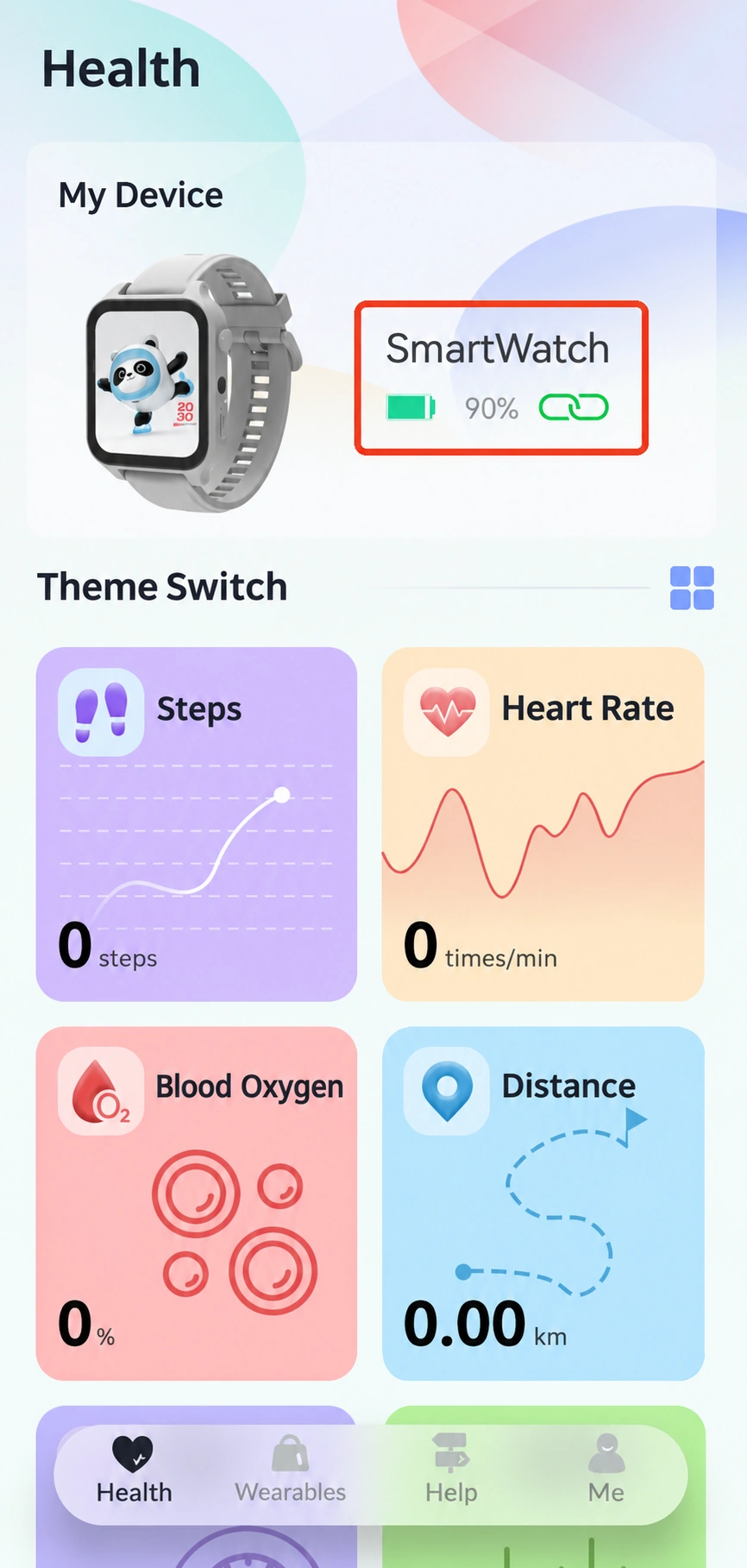
Why can't the iTour smart watch be found or connect to a hotspot?
iTour smartwatch fails to search for or connect to the mobile hotspot, usually due to the phone's Hotspot frequency band or compatibility settings Caused by a mismatch. Please follow the steps below according to your phone's system to troubleshoot:
Android phone setup steps
- Open "Settings」 > 「Personal hotspot"(or "Network Sharing and Portable Hotspot")".
- Enter "Set up a WLAN hotspot") (or "configuration hotspot")."
- Find "AP band") (or "frequency band") option.
- Set it to "2.4 GHz Frequency band (please be sure Do not choose 5 GHz).
- After saving the settings, turn on the hotspot again, and then use the watch to search and connect.
Note: Supports 6th generation technology standards, required for Close Status
iPhone (iOS) Setup Steps
- Open "Settings」 > 「Cellular network」.
- Click "Personal hotspot」.
- Ensure "Allow others to join" has been turned on, and Turn on「Maximum Compatibility"Switch.
- Prerequisite: When turning on the personal hotspot, be sure to confirm "Settings」>「Wi-Fi" Already in place On state(Even if not connected to Wi-Fi). This is a necessary condition for iOS devices to be discoverable by the hotspot.
- After completing the above settings, search for the connection again using the watch.
Problem Summary and Tips
| Possible cause | Android solution | iOS Solution |
|---|---|---|
| Hotspot frequency bands are not compatible | Manually set to 2.4 GHz Frequency band | Turn on Maximum Compatibility |
| The hotspot cannot be detected | Make sure the hotspot is turned on and visible | Ensure The wireless LAN switch is turned on |
General Advice: After completing the setup, it is recommended Restart the watch's Wi-Fi → Search again, then try again. If the problem persists, please try setting the mobile hotspot name to pure English and check if there is a limit on the number of connected devices.
Discontinued Product1 product · 16 questions
iTour Go216 questions
iTour GO2 translation glasses standby time
iTour GO2 can last the longest in standby mode 4 days. Under continuous high-intensity use of major functions such as translation and internet connectivity, the battery life is approximately 2 hours, the specific duration may fluctuate depending on usage conditions such as screen brightness and network connection strength.
It is worth noting that these glasses support local independent computing, which provides a faster and smoother user experience, but will also increase power consumption accordingly. It is recommended that you reasonably plan charging based on your actual usage.
iTour GO2 AR Translation Glasses User Operation
These AR glasses are alone device,Turn on the glasses — after connecting to the network, enter the corresponding function to use the feature. For specific usage of the function, please refer to the corresponding function introduction.
How to use iTour GO2 with a smartwatch
in Conversation Feature used in combination Smartwatch, can be used for On-site dialogue and communication Scenario, the specific operation is as follows:
1. Glasses and watch devices Bluetooth is on in a state
2. Turn on the glasses' conversation function
3. The smartwatch enters the iTourTranslator APP–Audio Playback on AR Glasses Interface
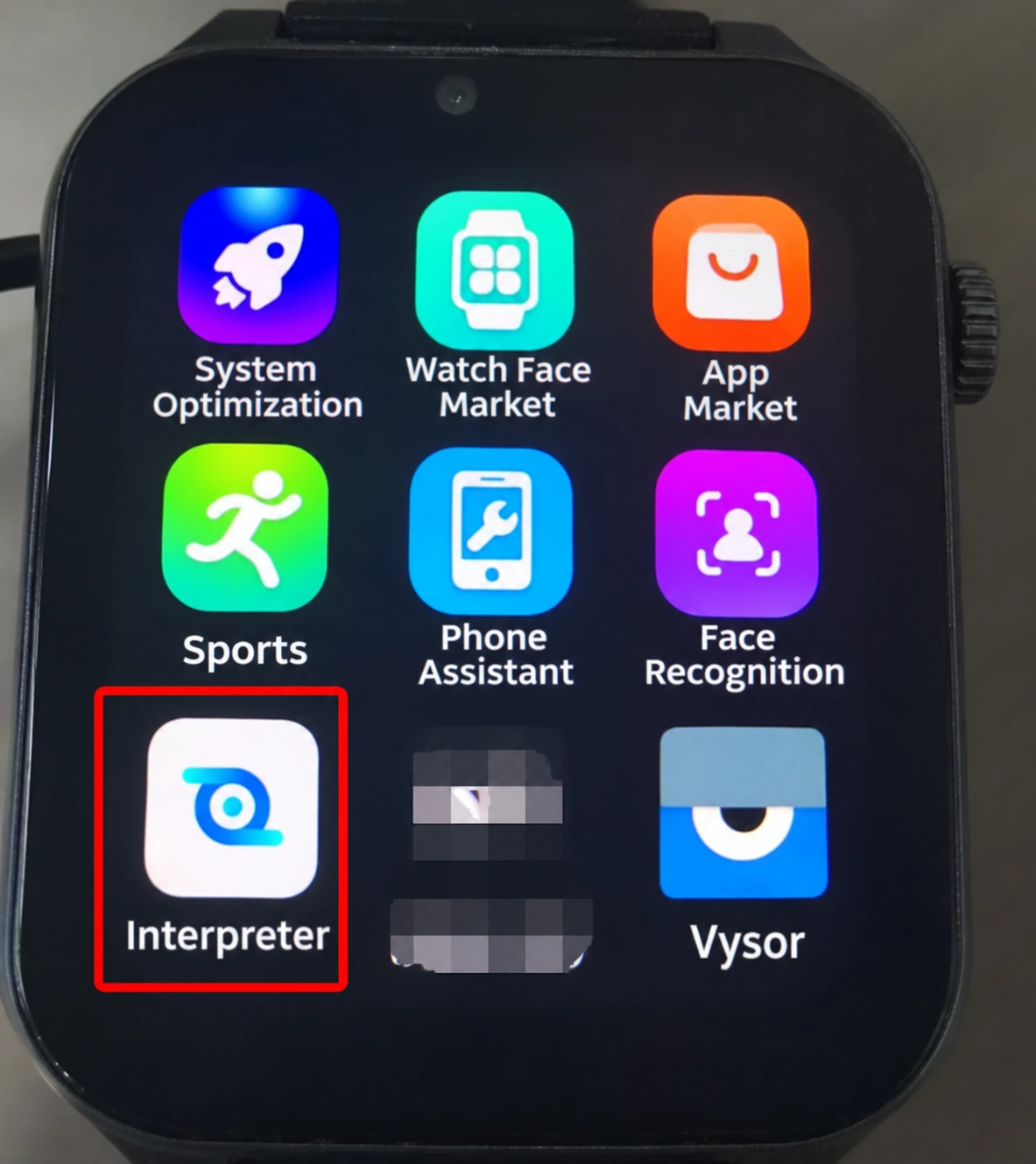
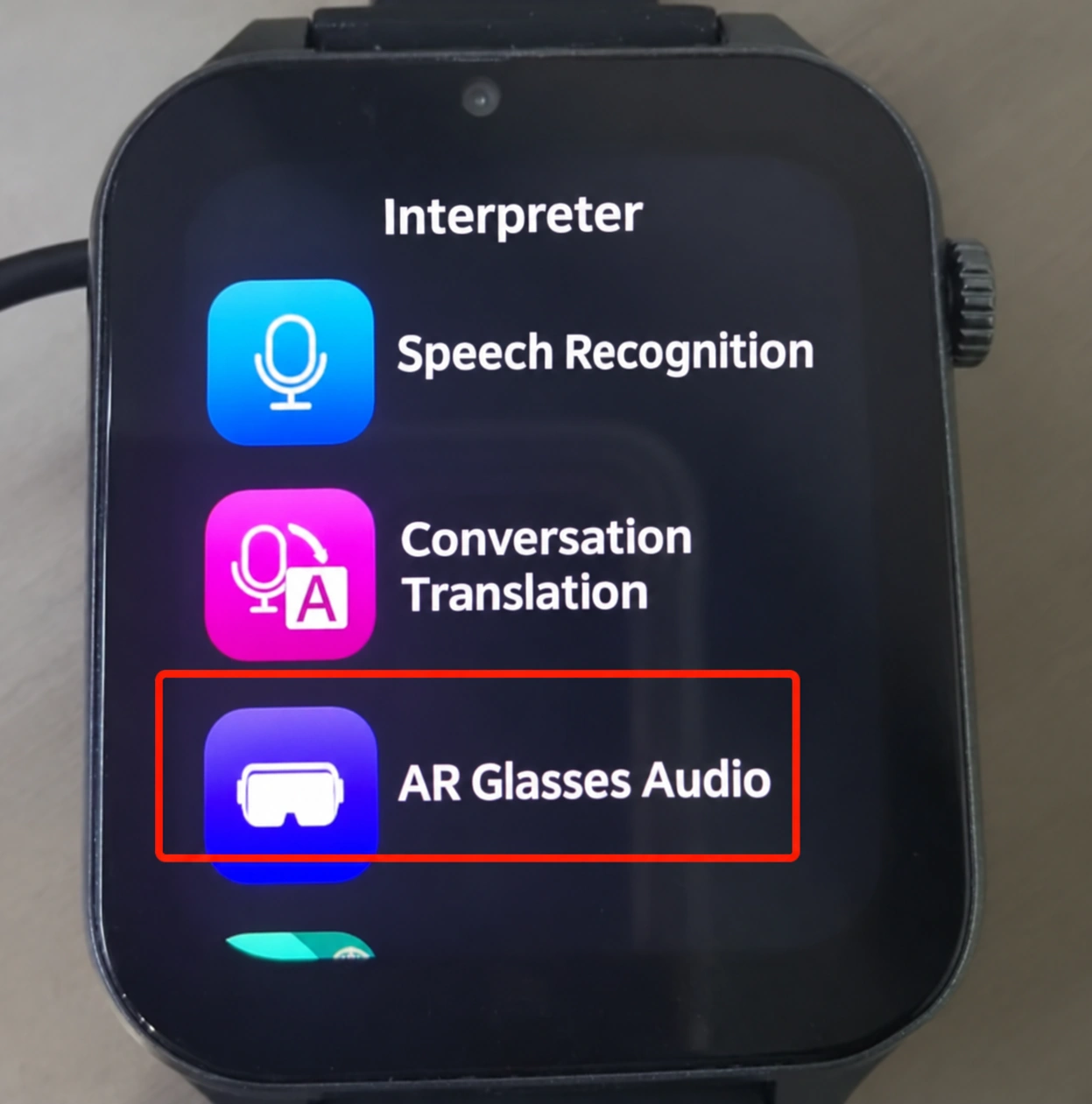
4. Waiting for glasses and watch Automatic connection Done (connection successful, as shown in the picture below)
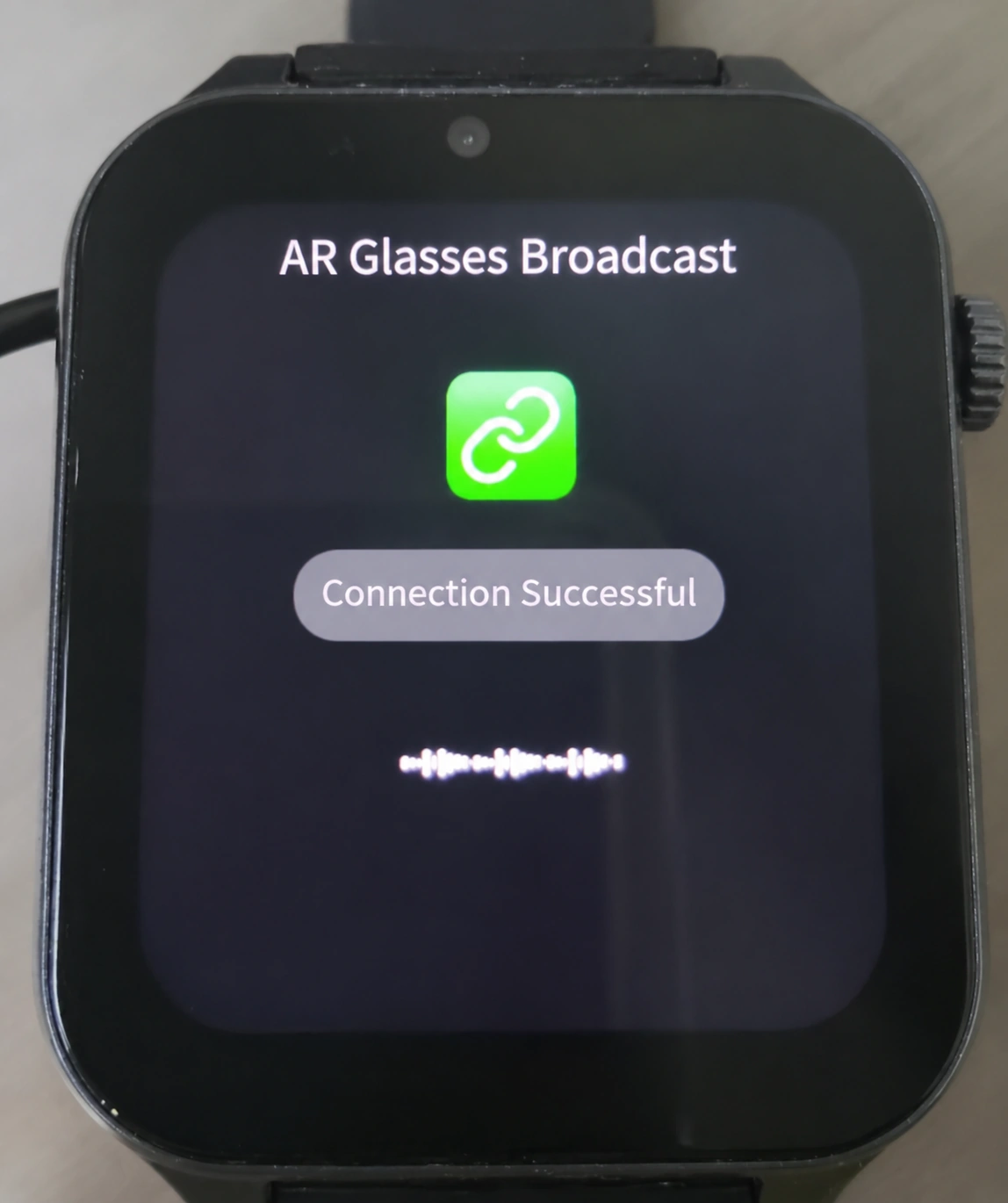
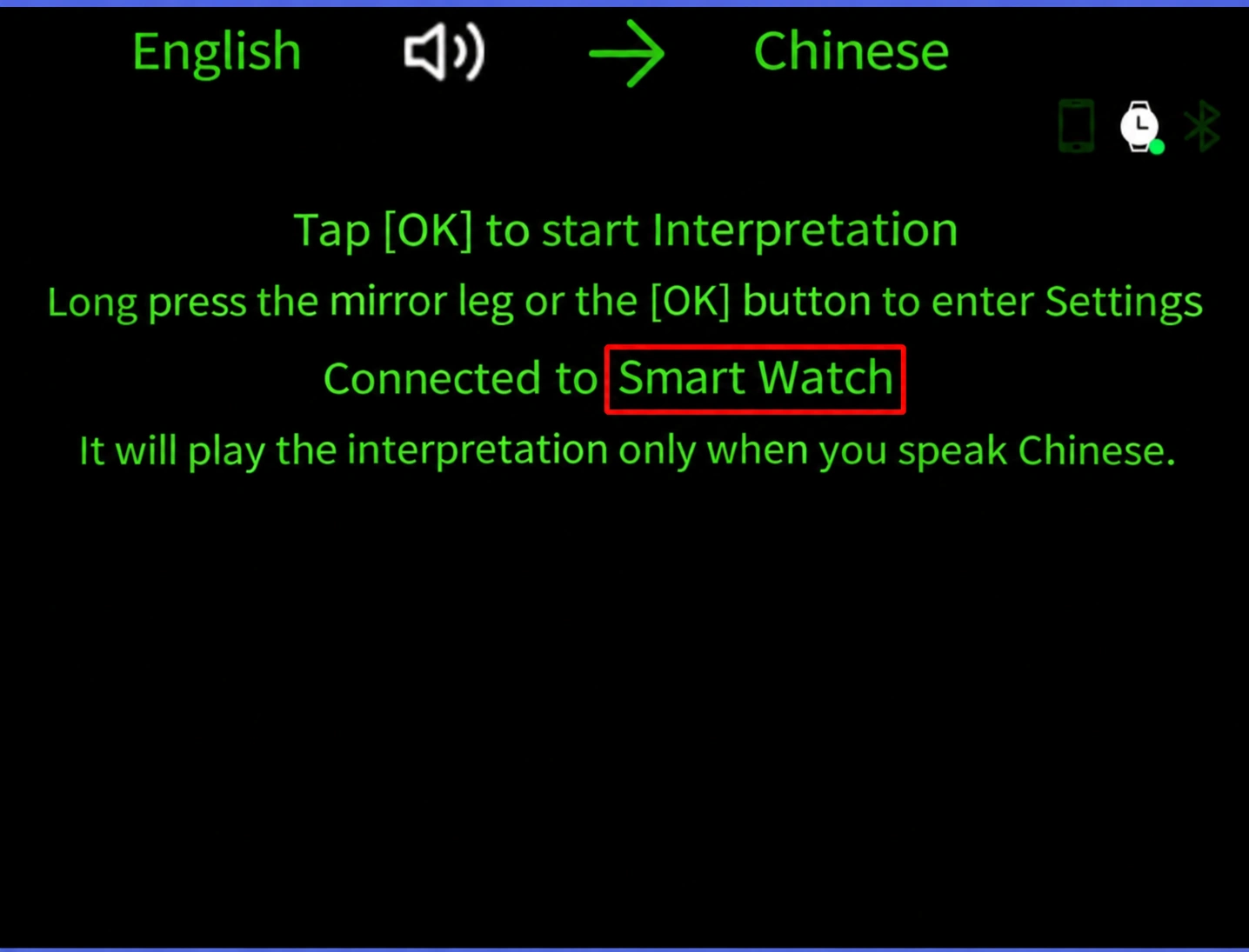
How to Use iTour GO2 with a Broadcasting Watch (U6)
in Conversation Feature used in combination Audio Playback Watch (U6), can be used in on-site conversational scenarios, the specific operation is as follows:
1. at Settings – Headphones/Speakers, search Connection Audio Playback Watch (U6)
2. After the connection is successful, in AR glasses Enable translation for the chat function
3. After identifying the language on the right and translating it into the language on the left, it will be in Audio Playback Watch (U6) carried out on Audio Playback
Introduction to iTour GO2 Conversation Function
can Automatic recognition translate between the two selected languages.
Applicable to:
1. Bilingual meeting minutes, interpreter translation assistance scenarios
2. After connecting the iTour with the paired/sold watch (see specific operation) How to use with a smartwatch、How do I use it with the U6 audio playback watch?), can be used for on-site dialogue communication scenarios click Right temple/ring [OK]Key to Enable Translation
Introduction to iTour GO2 Transcription and Translation Function
Only recognize and translate one language, Identify the language on the left and translate it into the language on the right, showing both languages
Applicable to:
1. International students attending classes
2. International Business Monolingual Conference
Pair with Earbuds supplied or sold by iTour, you can hear the translated speech
iTour GO2 Offline Function Introduction
No connection / Poor connection In such cases, the offline translation function can be used,First-time use requires connecting to the internet to download the offline resource package., the operation is as follows:
1. You can enter the offline translation page Long Press Ring“OK” Key / Right Temple, go to the settings page, select the source language for download and the target language for translation (if you do not need to change the language, click Right temple/ring [OK] button Automatically download the currently selected language)
2. After the download is successful, you can operate it to enable translation, recognize the spoken content, and translate it.
iTour GO2 Voice Recognition Feature Introduction
Transcription only Speech content subtitle display, no translation, can be used for meeting minutes, click to save audio and text Right temple/ring [OK] button Start translation
iTour GO2 Intelligent Q&A Function Introduction
Integration Deepseek The large model can answer the questions you raise, with the specific operations as follows:
1. Click Temple/ Ring [OK] Button, start recognizing your speech content
2. Click again Temple/ Ring [OK] Button, end recognition,Deepseek Will provide a corresponding reply based on your question
iTour GO2 Spoken Language Learning Feature Introduction
The translation officer (iTour) will role-play with you according to the scenario you choose to complete the dialogue practice. After the dialogue, the system will automatically correct your grammar and give a score based on your dialogue content. The specific operations are as follows:
1. Enter the chat page,Press the ring’s OK button or tap the glasses’ temple, start recognition
2. Click again“OK” key or temple (of glasses)End recognition. At this time, the system will perform error correction scoring based on the recognized content.
3. You canLong Press Temple/ Ring [OK] ButtonGo to the settings page and turn on conversation translation and conversation prompts
Note:
1. Currently only English speaking learning is supported
2. This feature only supports go2 glasses version 1.0.31 and above. You can check the current version or upgrade in Settings — About Us.
iTour GO2 Teleprompter Function Introduction
Glasses display teleprompter content, suitable for speeches/live broadcasts/meetings, requiringConnect to the mobile iTourAR
App Usage:
1. Connection steps, see Direct Subtitle Projection — Steps to Connect the Mobile App
2. After a successful connection, you can add prompt content on the mobile device and then upload it to the glasses for use.
3. Select a teleprompter script to open its details,Automatically turn onTeleprompter
4. Page-turning settings can be adjusted in the mobile app, with the default set to follow the reading.
5. Delete the prompt from the glasses terminal, in the prompt list — select the prompt to delete — Long Press Ring [OK] button/temple — Delete
The function of the earphones that come with iTour GO2
1. Audio playback on the glasses may haveSound leakageQuestion
2. Adding broadcasts on the glasses will reduce the glassesBattery life
EarbudsCan solve the above problems
Note:Headphones connected to AR translation glassesOfficial onlyearbuds sold by iTour. Other earbuds cannot connect
What are the main differences between the iTour GO2 translation glasses and other styles of glasses?
The main difference lies in Usage mode:
- iTour GO2 supports independent use without a phone, allowing core functions such as translation to be performed without the phone app.
- Models such as iTour-Clip and iTour A1 need to be connected and operated with a mobile app, allowing functions such as translation to be realized through the phone.
What is iTour GO2 subtitle direct projection?
Direct subtitle projection:Needs to be pairedApp Usage, cast the content recognized and translated by the app to the glasses for display
Steps:
1. Download the iTourAR App on your phone, download link

2. Open the iTourAR App and select iTour Go2
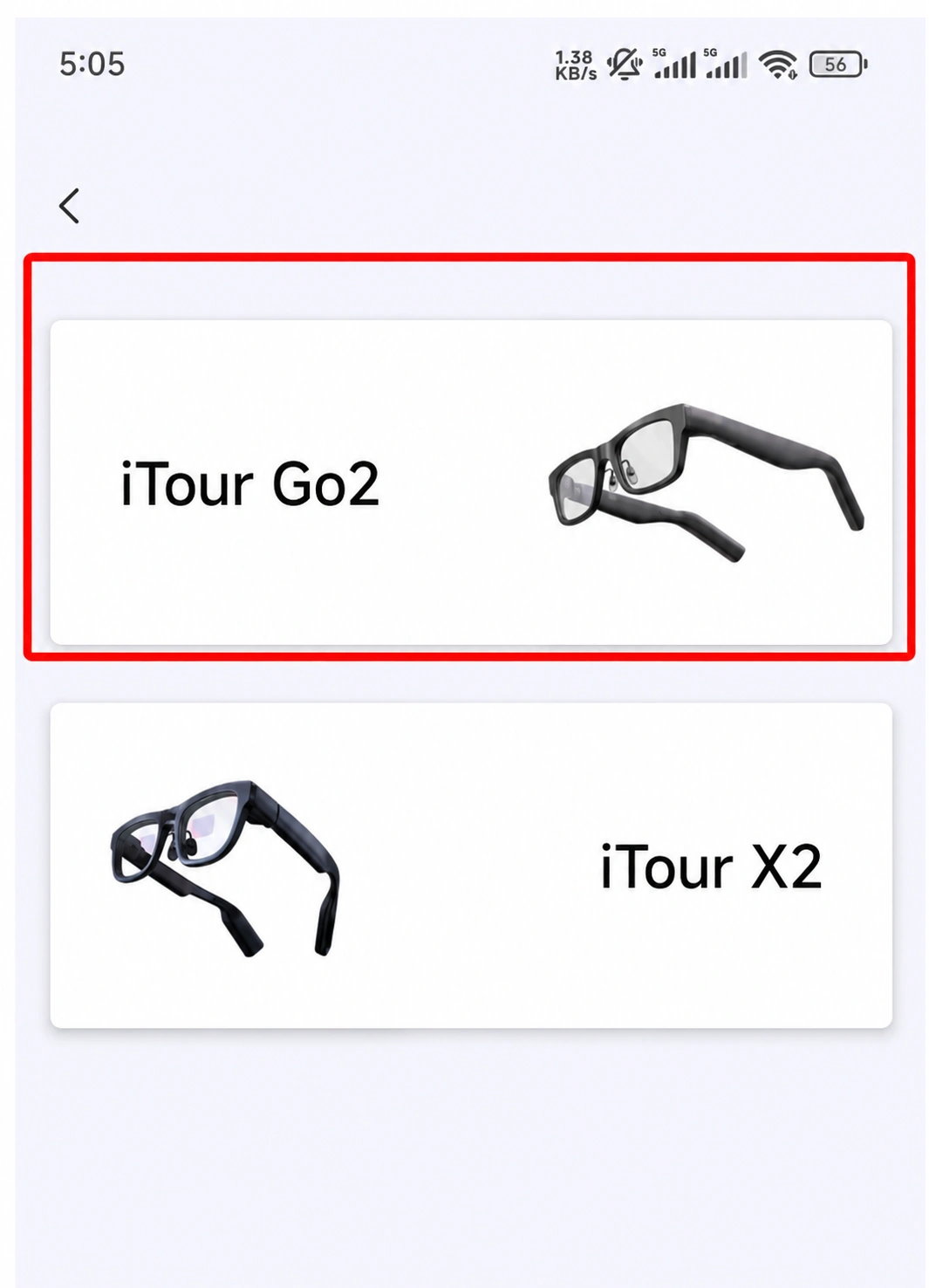
3. Open the glasses end — Direct subtitle projectionFeatures
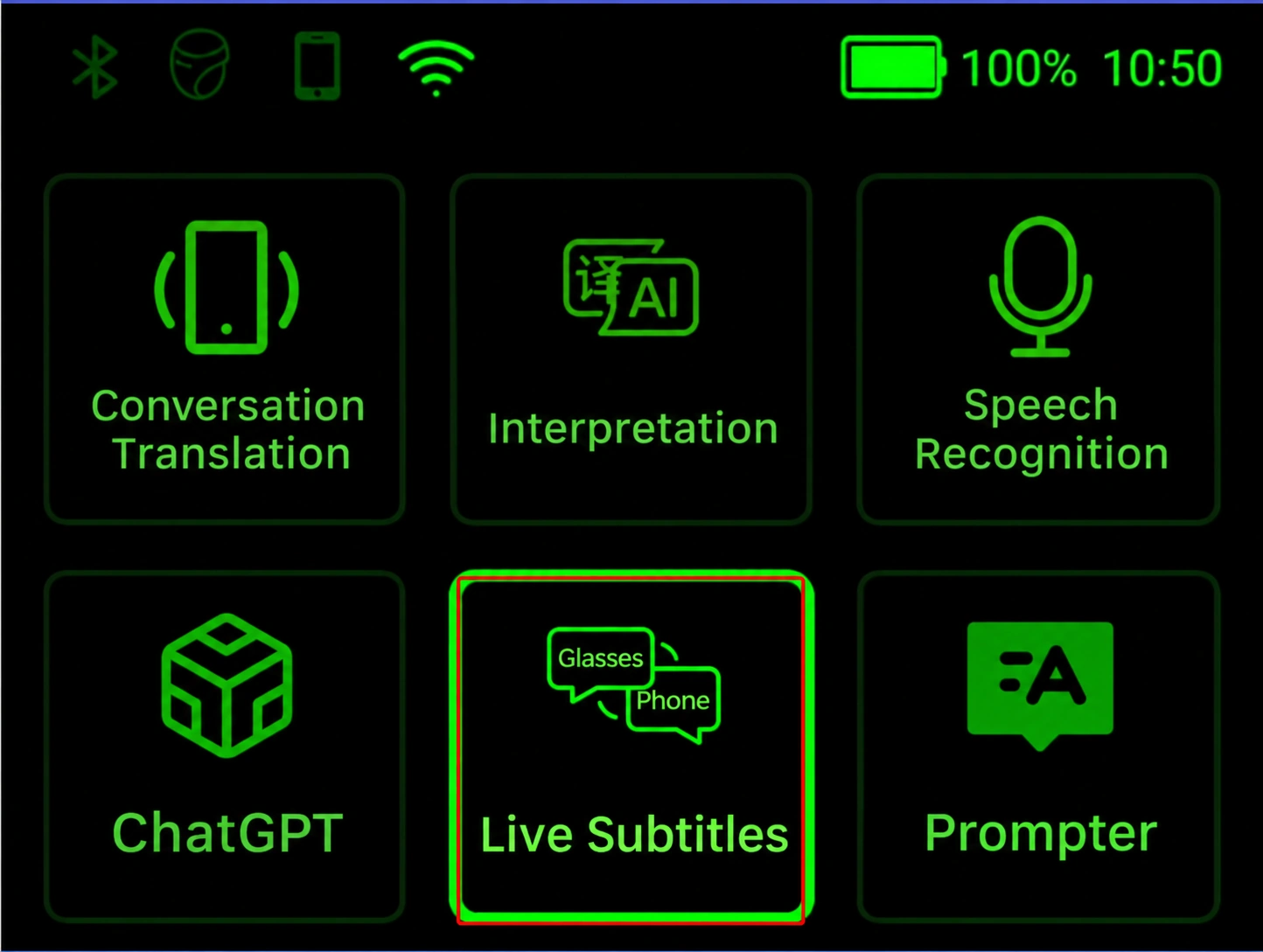
4. Follow the prompts on the phone to connect. Once the connection is successful, the glasses' subtitle projection page will display the connection.Phone model
5. After the connection is successful, enterMobile app — Conversation (Mobile)After enabling translation, the content recognized and translated on the mobile device will be projected in real-time to the go2 glasses display.
How does the iTour GO2 ring connect to glasses?
inSettings — Ring page,Long PressUntil the ringBlinking blue lightAfterwards, wait for the glasses to search(iTour Go2 Ring)Just connect
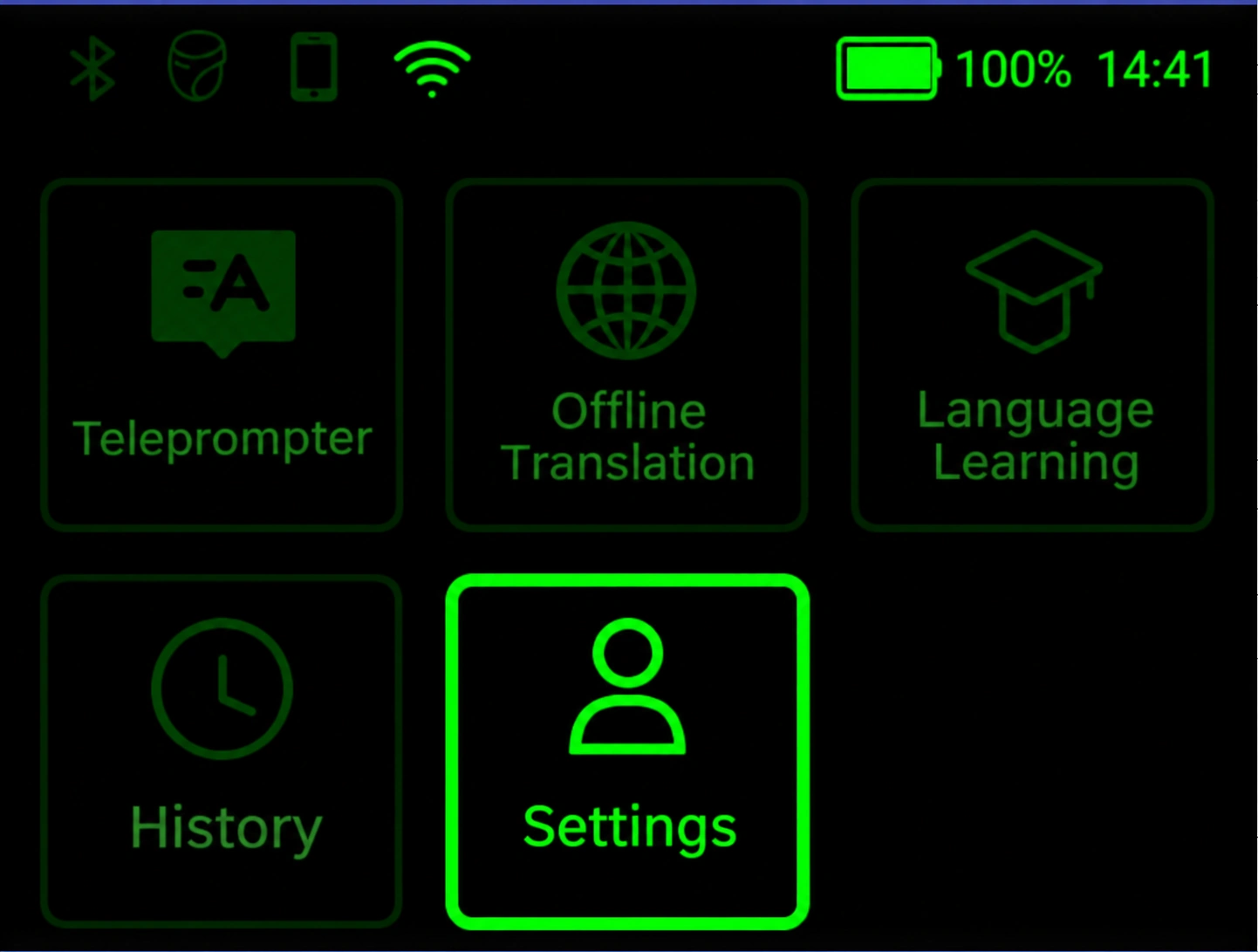
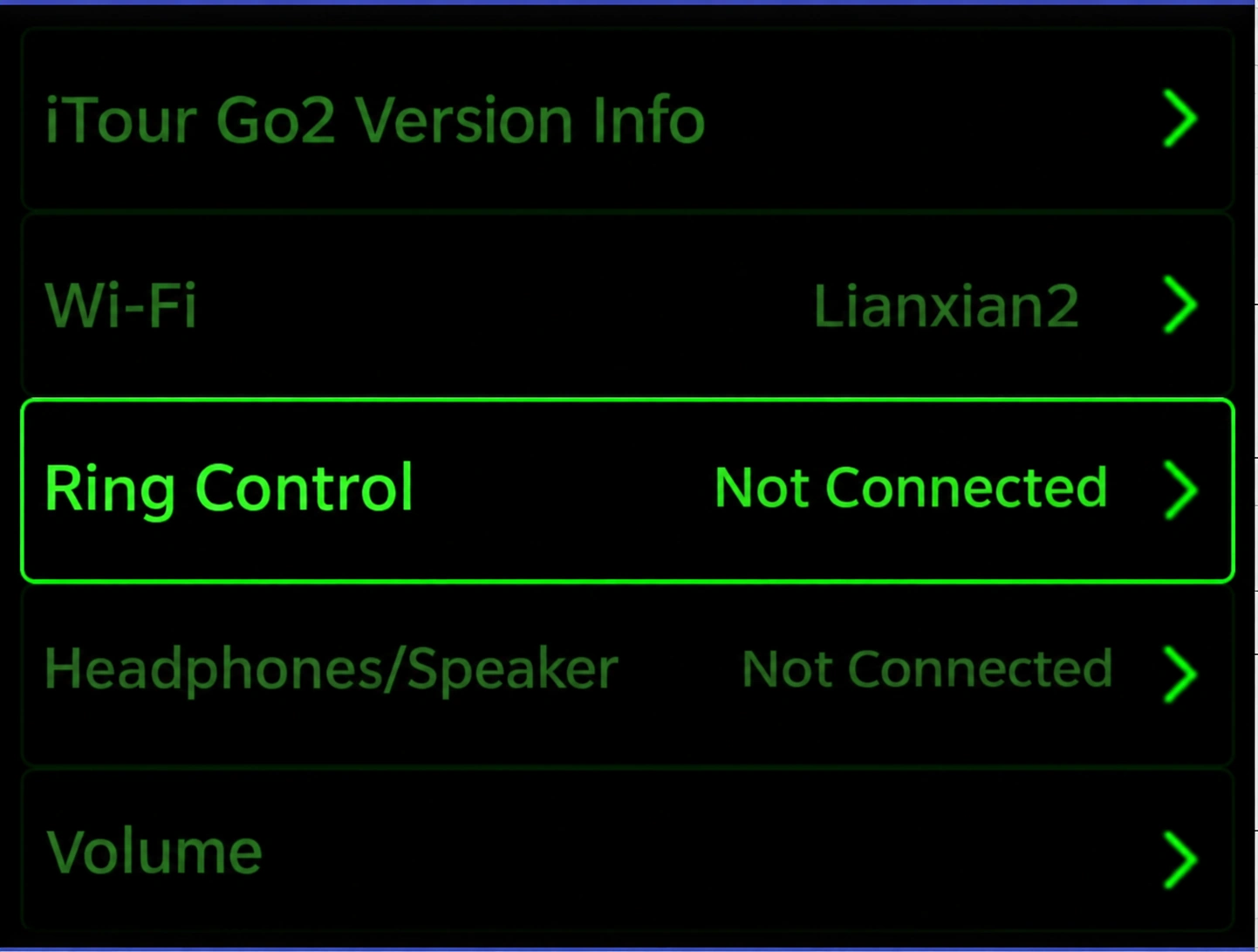
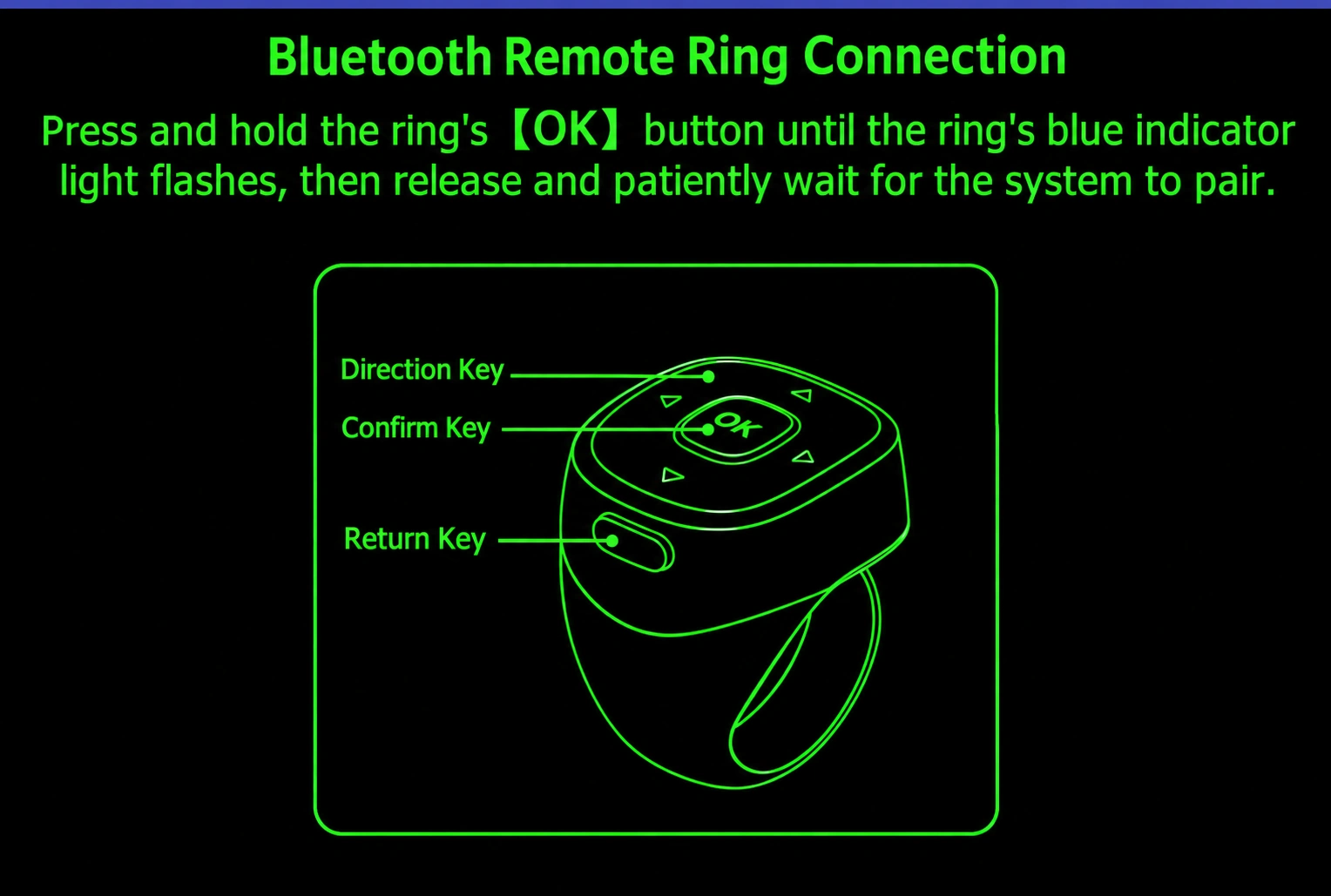
How do you connect the iTour GO2 glasses to the app?
iTour GO2 is an AR smart glasses, which requires a dedicated app. “iTourAR” You can connect and use it, but connecting to other applications is not supported for now.
For specific connection steps and operational instructions, please refer to the app. “Direct subtitle casting → Connect mobile app” for detailed instructions.
Didn't find the answer?Contact Online Customer Service ↗ · Contact us
Still haven't found the answer?
Contact our customer service team.

 Support