


Help Center
Welcome to iTour Translator, AI service with full support~
- 21 offline languages
- 100+ online languages
- Global HQ: Seattle, USA
- China HQ: Hefei
Browse by product
Choose your product to see its frequently asked questions (14 products, 208 questions).
Frequently Asked Questions
Click a question to see the answer.
iTourTranslator APP 73 questions
How to use the iTourTranslator app to translate phone system calls (outgoing or incoming).
The app cannot directly translate native system calls (calls made or received on your own phone). However, you can achieve call translation using the following methods:
Option 1: Two-Device Method (Applicable to both outgoing and incoming calls)
Prepare two devices:
- Device A: Use it to make or receive calls normally, with the speakerphone turned on.
- Device B: Run the Dear Translator app, enable Simultaneous Interpretation, and set the Audio Input Mode to “External Sound/Microphone” to pick up the call audio from Device A for translation.
👉 This option requires no additional purchase or headphones and is suitable for temporary use.
Option 2: Use iTour 22Pro Translation Earbuds (Supports both outgoing and incoming calls)
Purchase the iTour 22Pro earbuds, which can directly translate native system calls on your phone.
👉 For detailed instructions, refer to the “System Call Translation” feature guide for the earbuds.
Option 3: In-App Features or Dedicated Number (Separate methods for outgoing and incoming calls)
- For outgoing calls: Use the Phone Translation feature within the app, enter the recipient’s number to place the call with real-time translation. The other party does not need to install the app. Supports calls to 200+ countries. Please turn off VPN when using this feature.
- For incoming calls: Purchase a dedicated translation number. When the other party calls that number, you can answer the call in the app and receive real-time translation. For purchase and activation, please contact Customer Service support
iTour Translator Mobile App: How is the functionality charged?
Please check the details of the expenses
What is the difference between "Premium Translation" and "Bilingual Translation" in the iTourTranslator app?
“Premium Translation” and “Bilingual Translation” are two different real-time translation modes. The main differences lie in the language direction and output results. The detailed comparison is as follows:
| Comparison Item | Premium Translation | Bilingual Translation |
|---|---|---|
| Core Function | Monolingual recognition, one-way translation | Bilingual recognition, two-way mutual translation |
| Workflow | Recognizes one language → translates it into another target language in real time | Recognizes two languages simultaneously → displays translations of both languages in real time |
| Output Result | Provides side-by-side original and translated text (e.g., Chinese and English displayed together) | Provides side-by-side original and translated text (e.g., Chinese and English displayed together) |
| Typical Scenarios | • International students listening to foreign language lectures • Attending monolingual international conferences • Listening to foreign language podcasts/videos | • Bilingual meetings or negotiations • Interpreters using translation assistance and verification |
💡 How to choose?
- If you need to immerse yourself in understanding content in one foreign language, choose “Premium Translation”.
- If you need precise comparison and mutual translation between two languages, choose “Bilingual Translation”.
iTour Translator Mobile App:What is the difference between Bilingual Translation and Bilingual Conversation?
“Bilingual Translation” and “Bilingual Conversation” both provide online real-time bilingual translation.
Bilingual Translation: Does not support voice broadcasting, making it suitable for conference transcription scenarios.
Bilingual conversation: The translation results are broadcast via the phone’s speaker, making it ideal for face-to-face communication scenarios.
iTour Translator Mobile App:What is the difference between DeepL Translation and AI Translation?
“DeepL Translation” and “AI Translation” : Both provide online, real-time, one-way translation.
In terms of recognition and translation speed, “DeepL Translation” is slightly faster than “AI Translation” and “DeepL” also has a higher recognition accuracy.
“DeepL Translation”: Integrated with DeepL’s text translation.
“AI Translation”: Integrated with GPT large language model text translation.
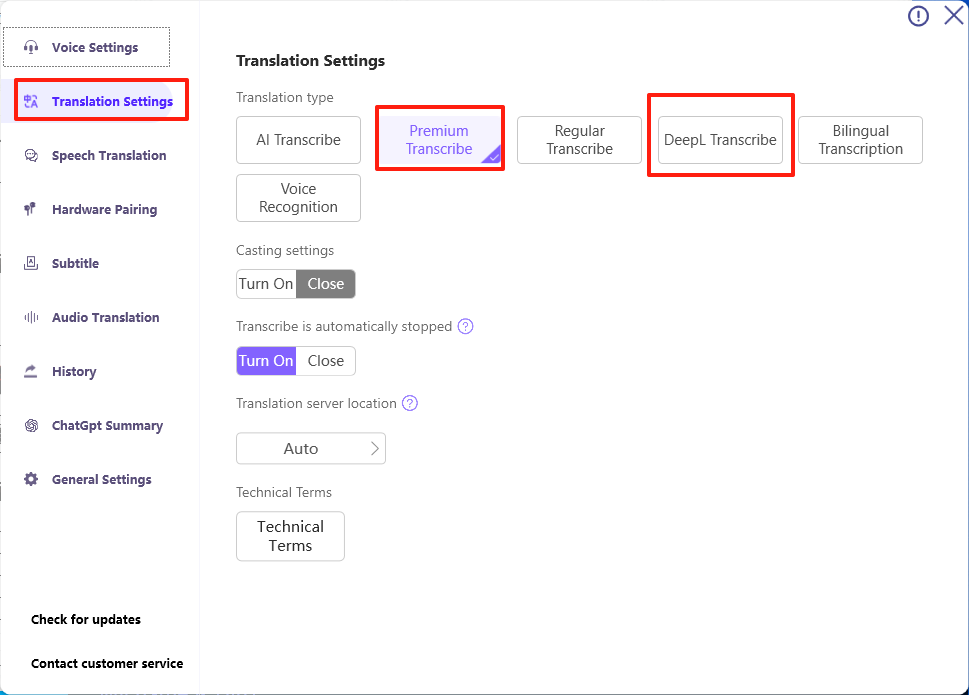
iTour Translator Mobile App:What are the differences between Premium Translation and DeepL Translation?
” Premium Translation” and ” DeepL Translation”: Both provide online, real-time, one-way translation.
DeepL Translation: It integrates DeepL’s text translation engine, offering higher accuracy in minor language translations compared to” Premium Translation” For English recognition and translation, the performance is similar for both. However, for specialized English courses with strong technical content, it is recommended to use ” DeepL Translation”
iTour Translator Mobile App:What are the differences between the various types of Translation?
Premium Translation / Deepl Translation / AI Translation / Standard Translation / Basic Translation: Both provide online, real-time, one-way recognition and translation.
Premium Translation: Utilizes end-to-end speech translation technology, categorized as machine translation, offering high accuracy and rapid translation.
Deepl Translation: Integrates the Deepl text translation engine, providing the highest accuracy for translations of minor languages.
AI Translation / Standard Translation: Integrates OpenAI’s large model for translation; relatively high accuracy for specialized courses and meetings.
AI Translation: Translation recognition speed is the slowest among the options.
Basic Translation: Supports fewer languages, has short recognition distance, and performs the worst in noisy environments.
Bilingual Translation: Online real-time bilingual mutual translation.
iTour Translator Mobile App:Does purchasing SVIP allow for unlimited free use of Premium Translation/Basic Translation?
Purchasing an SVIP membership does not grant unlimited free use of Premium Translation/Basic Translation.
SVIP benefits include:
○ 128 general points per month,
○ 600 minutes of Basic ,
○ Support for manually uploading history to the cloud.
Additionally:
○ A 10% bonus on points recharges is provided.
○ Points and minutes are valid for one month, and any unused points or minutes will expire at the end of the month.
○ For quarterly and annual subscription packages, points and minutes will reset at the beginning of each new month during the subscription period.
iTour Translator Mobile App:How to redeem recharge cards purchased through WeChat Mini Programs/Taobao?
Android Phone: Go to “My” → “Recharge Card” page, and enter the card number to redeem.
Windows PC: Go to “My Account” → “Card Voucher Redemption” → “Recharge Card” page, and enter the card number to redeem.
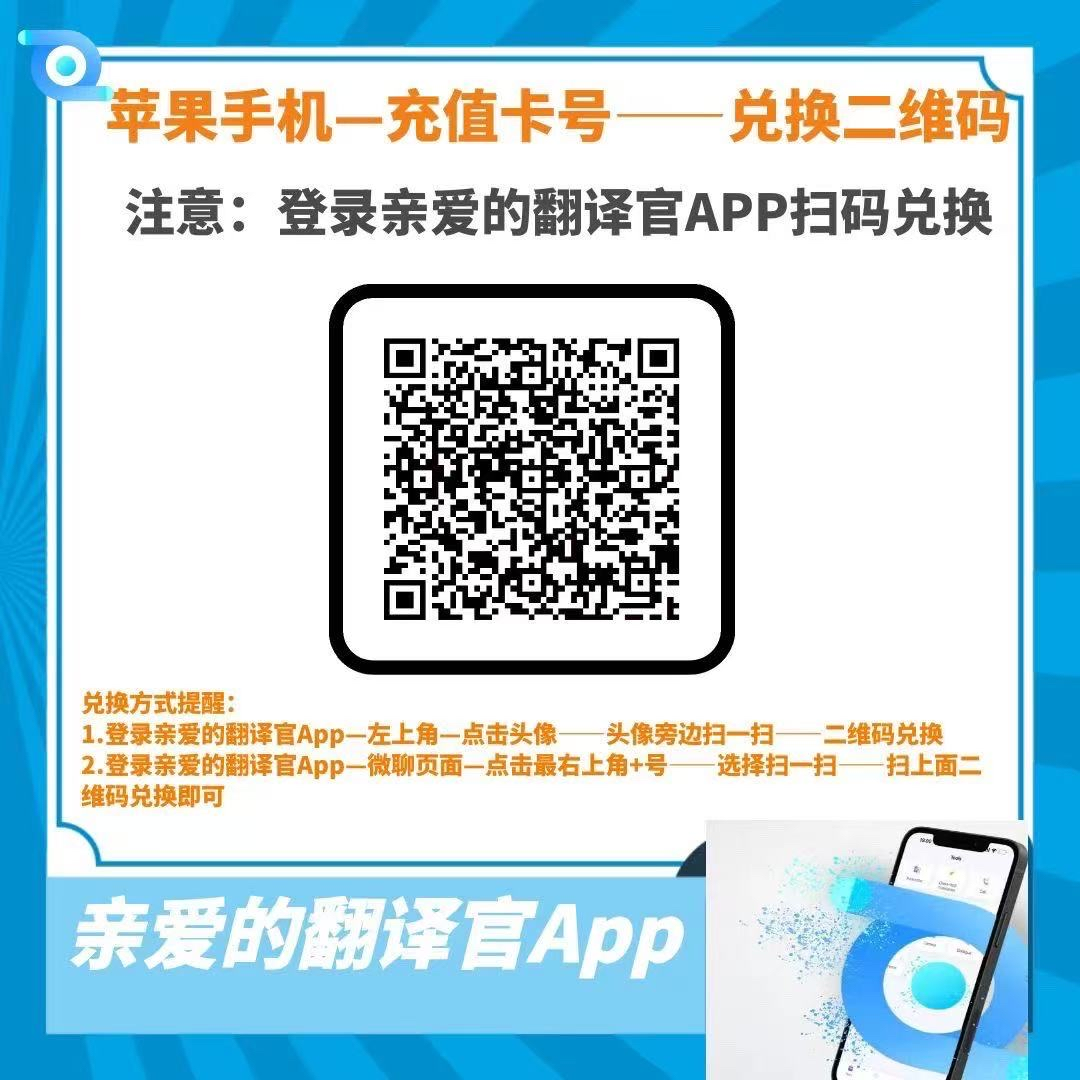
iOS/Mac PC: Open the Dear Translator App/ iTourTranslator, scan or identify the QR code below to access the redemption page, and enter the card number to redeem.
(image to be added)
iTour Translator Mobile App:How to request a refund?
Please contact Customer Service
iTour Translator Mobile App:Which feature should I use in the iTour Translator app to chat with WhatsApp friends?
You can use our Video call feature. The specific steps are as follows:
1. Go to the homepage → Video Call page, and select “Invite WhatsApp friends for a video call.”
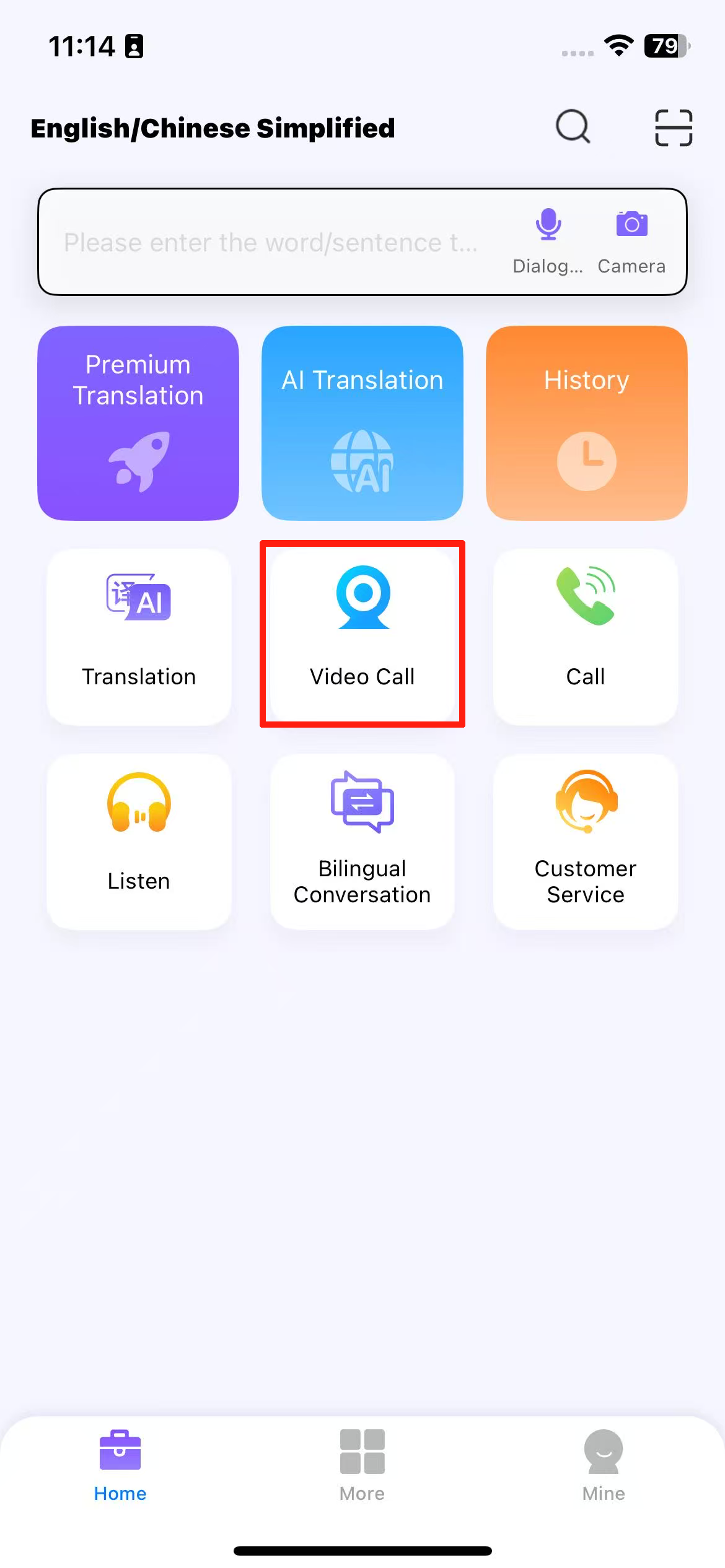
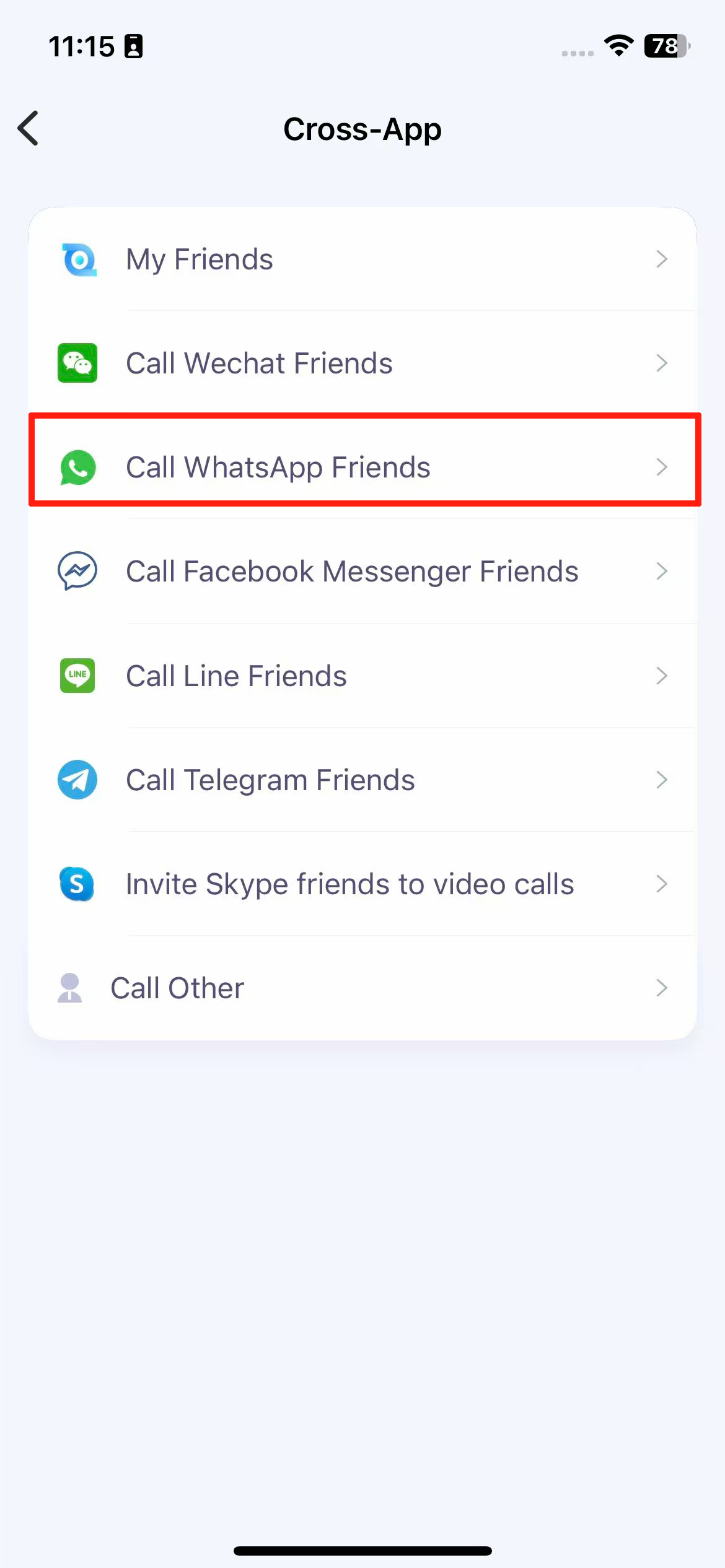
If the “Video Call” page on the homepage does not have this option, you can select “Friends from other social platforms” or “Invite other video calls.”
(image to be added)
2. Go to the invitation page, select both languages and the call method, then click [Invite].
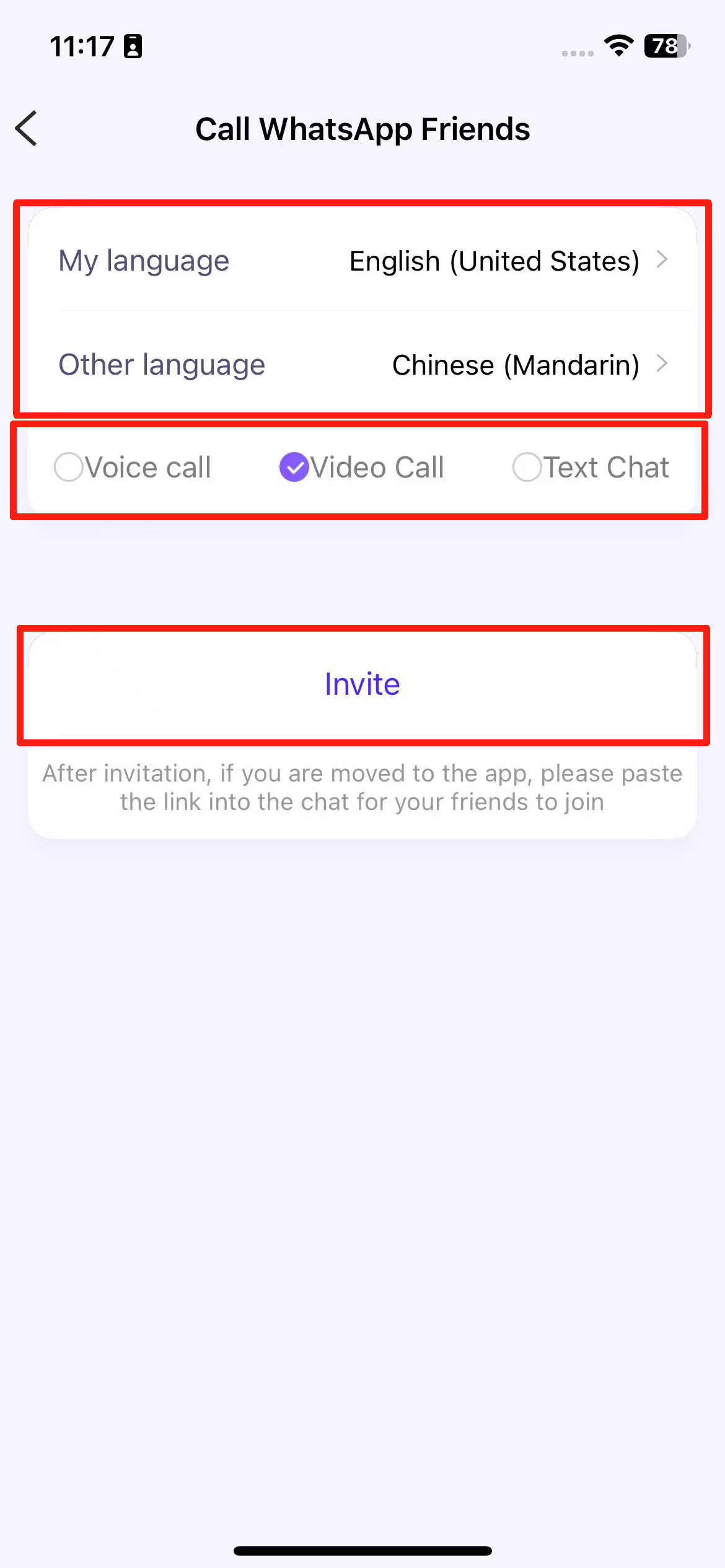
3. Click [Paste to Friend] or [Got it], then proceed to the dialing page.
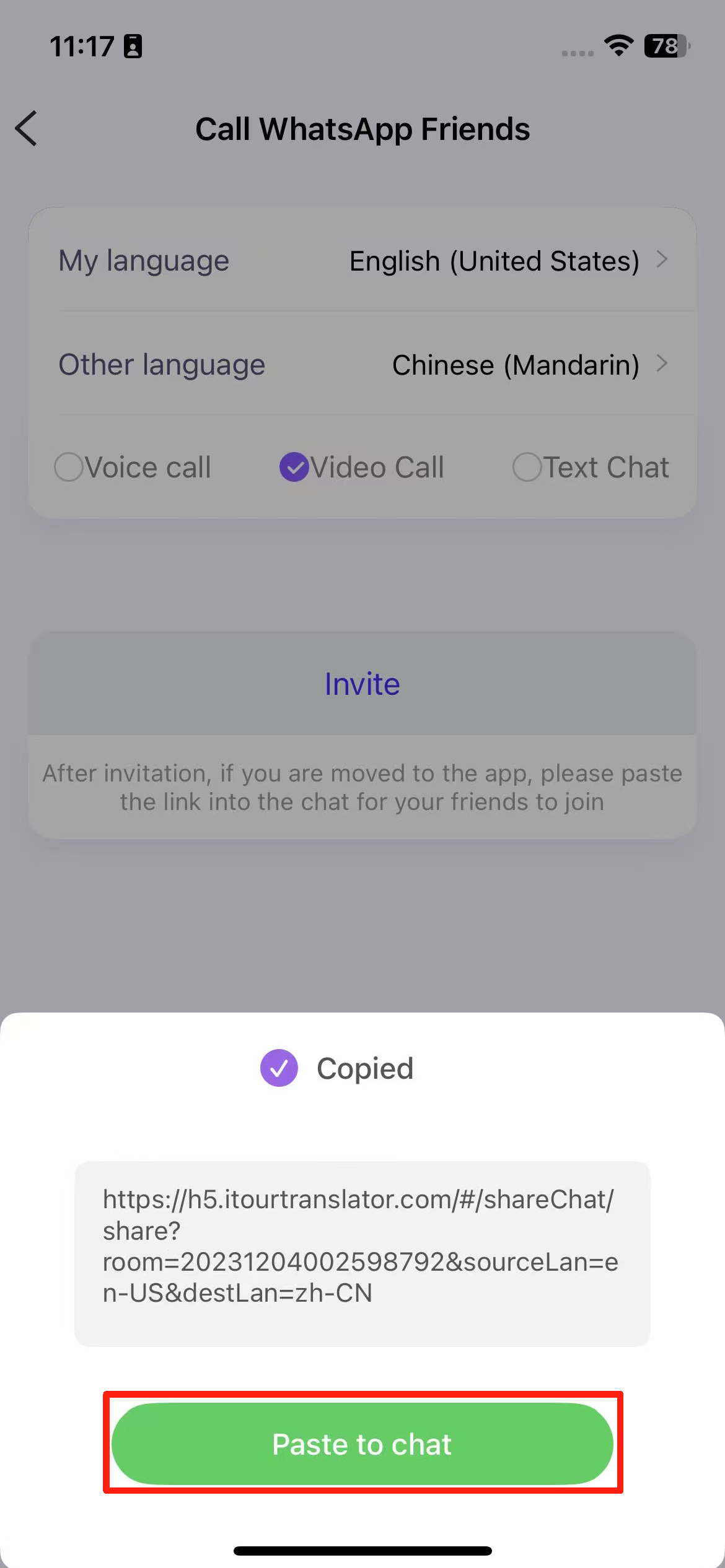
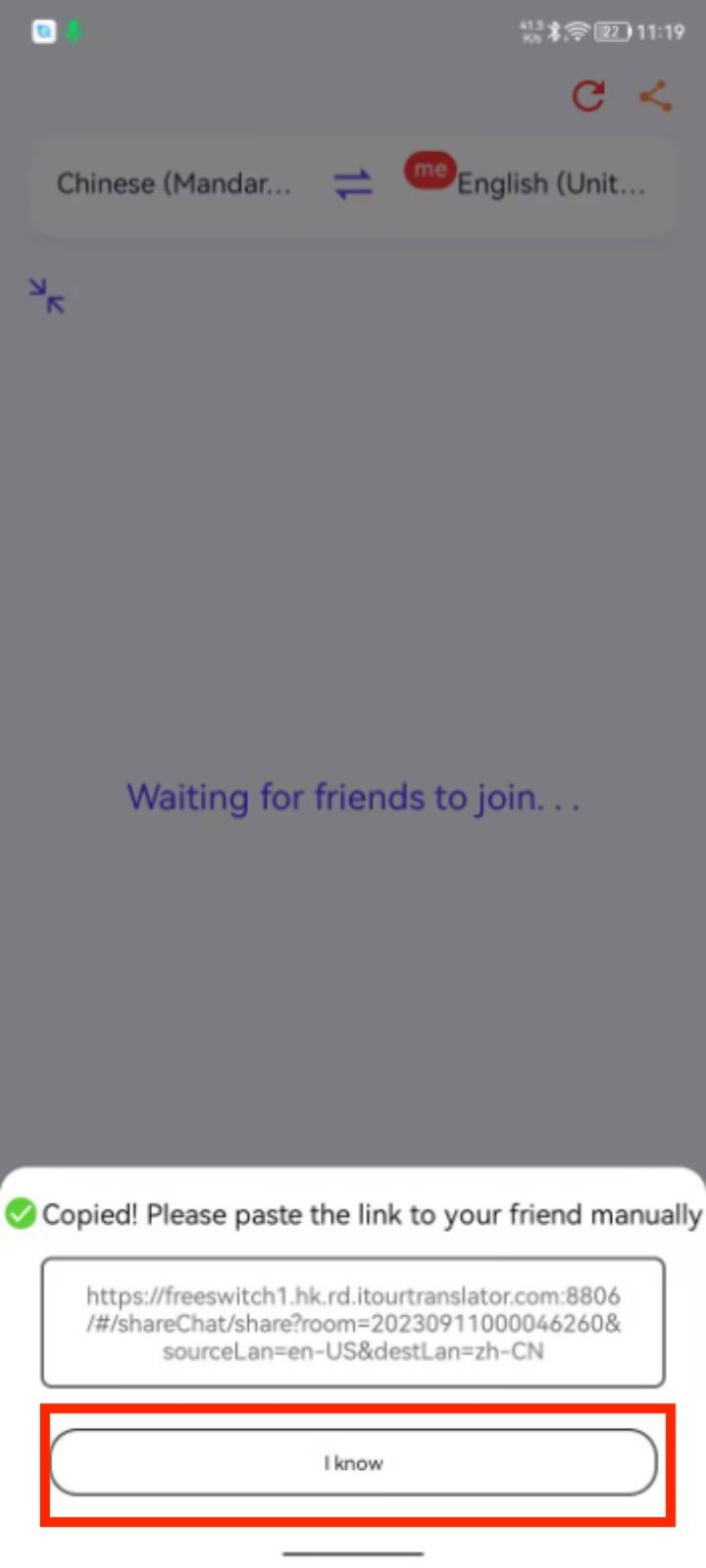
4. Switch the app to the background, find “WhatsApp” or “Other messaging apps,” and open the chat page of the friend you want to invite.
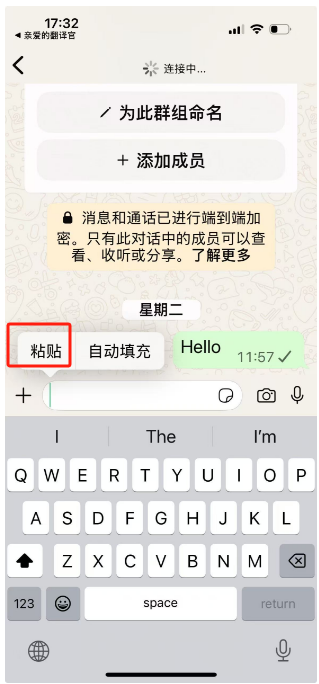
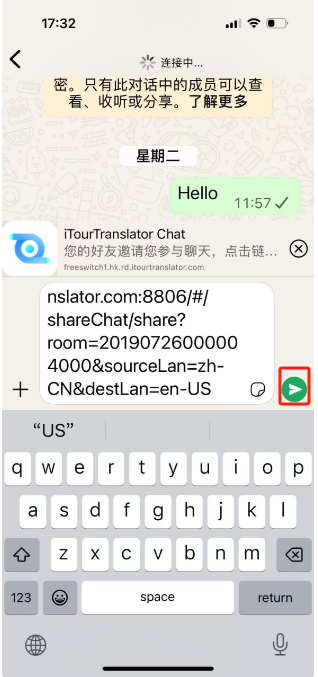
5. Long press in the input box, select “Paste” → click [Send].
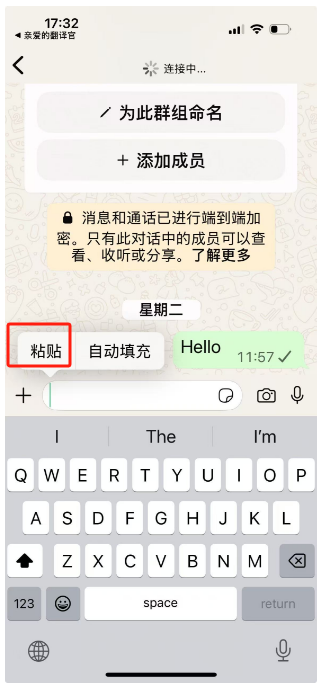
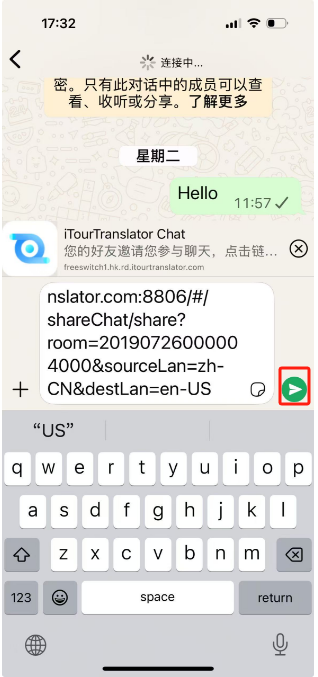
6. Return to the iTour Translator dialing page and wait for the other party to join to start the call.
iTour Translator Mobile App:Where is cross-app simultaneous interpretation?
In “More” → “Cross-App Speech Transcription,” you can also use “Simultaneous Interpretation” → “Premium Translation” and then → “Sound Source Selection”: Internal audio recording.
(image to be added)
How can I translate Zoom, Tencent, and other meeting software using a iTour Translator Mobile App?
Mobile apps do not support using Zoom or Tencent Meeting along with translation on a single device. You can resolve this issue using the following methods:
Method 1: Use two devices—one for the meeting and one for translation.
Method 2: Download iTourTranslator for PC and use it on your computer.
Method 3: Purchase the Dear Translator iTour 22 Pro (T2) earbuds to use the meeting translation feature.(Specific feature introduction: iTour 22 Pro Meeting Translation)
How to use the iTour Translator mobile app to translate videos and live streams?
Without earphones: You can use simultaneous interpreting –– Premium Translation/AI Translation/DeepL Translation/Standard Translation/Basic Translation/Bilingual Translation, and select the external sound mode for audio input.
With earphones: You can use simultaneous interpreting –– Premium Translation/AI Translation/DeepL Translation/Standard Translation/Basic Translation/Bilingual Translation, and select the internal sound mode for audio input or go to “More” –– Cross-App Interpretation (Specific feature introduction: Cross-App Interpretatio).
Where can I find the history records of Premium Translation/Standard Translation/AI Translation/DeepL Translation used in the iTour Translator Mobile app?
In “Simultaneous Interpretation” → History Records / “Mine” → History Records.
How can the records of Premium Translation/Standard Translation/Basic Translation/AI Translation/DeepL Translation be saved in the iTour Translator mobile app?
The history records are automatically saved. To view the history records, go to “Simultaneous Interpretation” → History Records / “Mine” → History Records.
When using the iTour Translator Mobile App for simultaneous interpretation, is it possible to save the records and audio?
Simultaneous interpretation allows you to save records and audio. To view the history records, you can go to “Simultaneous Interpretation” → History Records / “Mine” → History Records.
Can the history records saved in the iTour Translator Mobile App be synced to the computer or other device login platforms?
History records are saved locally and do not support syncing to the computer or other devices.
You can purchase our SVIP service, which allows manual upload to the cloud, enabling synchronization and viewing on the computer or other devices.
iTour Translator Mobile App:Can simultaneous interpretation (Premium Translation/Standard Translation/DeepL Translation/AI Translation) be listened to using regular earbuds for translation broadcast?
It is not supported. Translation broadcasts can only be accessed using the official earphones sold by Dear Translator.
iTour Translator Mobile App:Phone translation: Why is the call failing to connect?
Please confirm the following:
1. If the first digit of the entered number is “0,” please remove “0” and try again.
2. Ensure the entered number is correct, and try switching networks before attempting again.
3. Local emergency numbers and certain service hotlines do not support internet calls.
4. If the above solutions do not resolve the issue, please contact Customer Service support to check if the number can be dialed.
iTour Translator Mobile App:When using phone translation, do I speak in Chinese and the other party hears English?
Phone Translation: I speak in Chinese, and the other party will first hear the original Chinese, followed by the translated English broadcast.
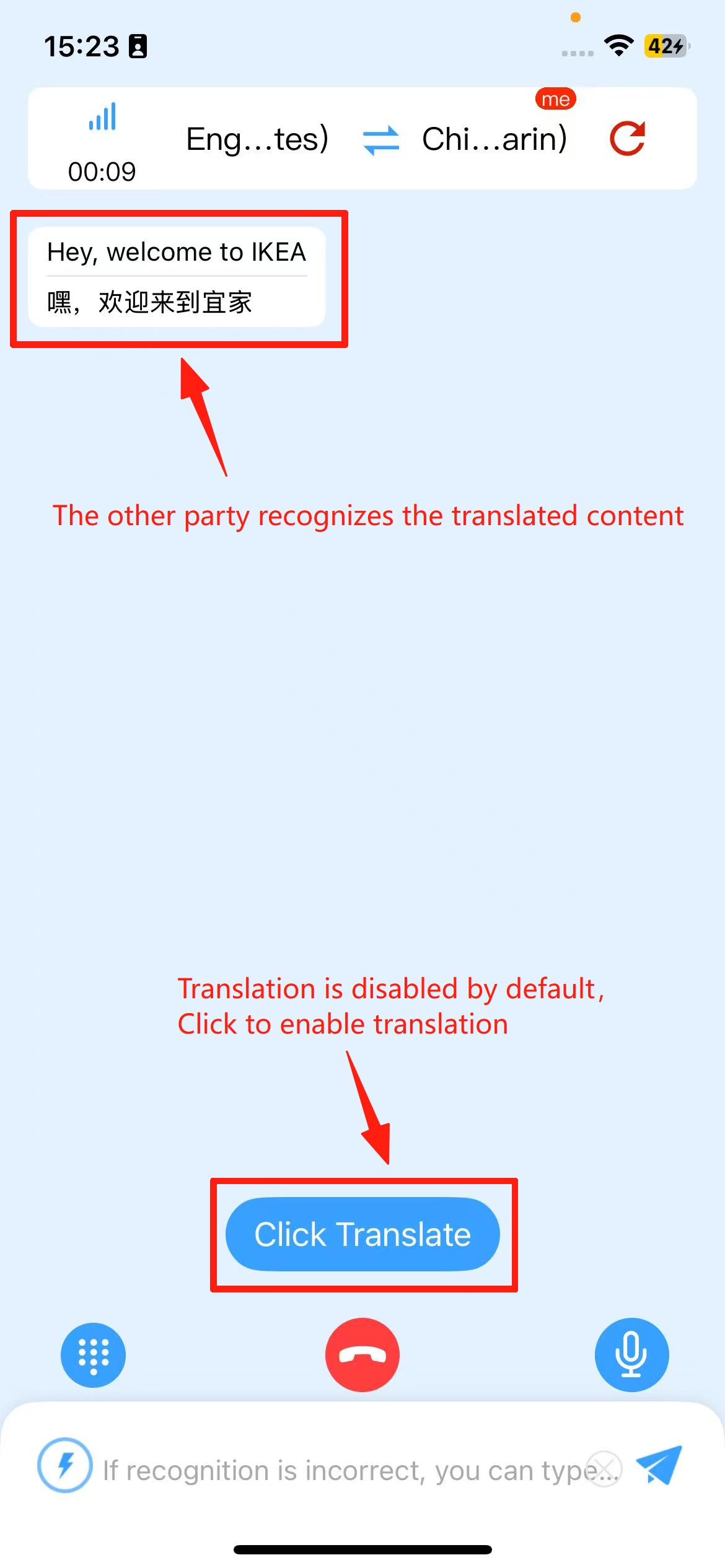
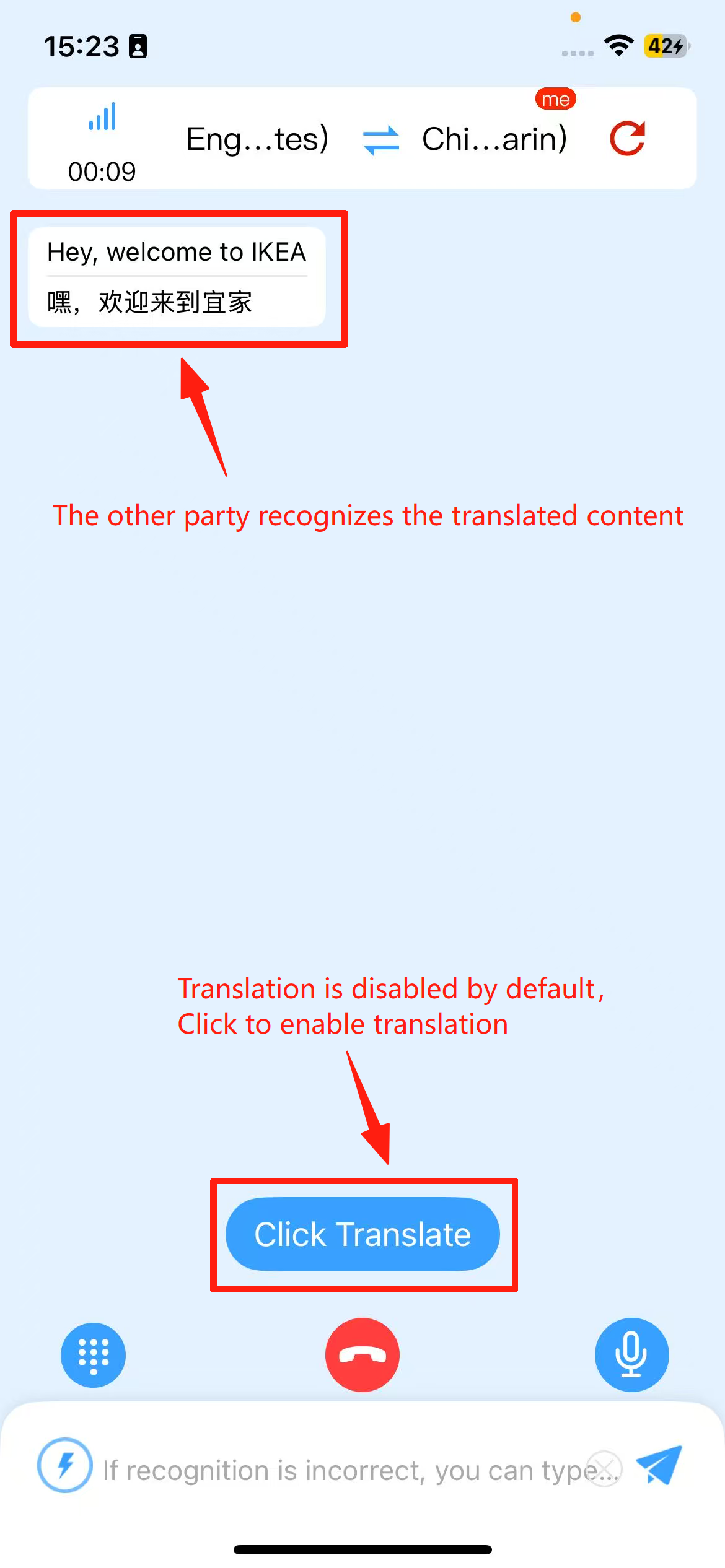
Friendly Reminder: By default, speech from your side is not recognized or translated. Translation must be enabled for speech to be properly recognized and broadcast.
(image to be added)
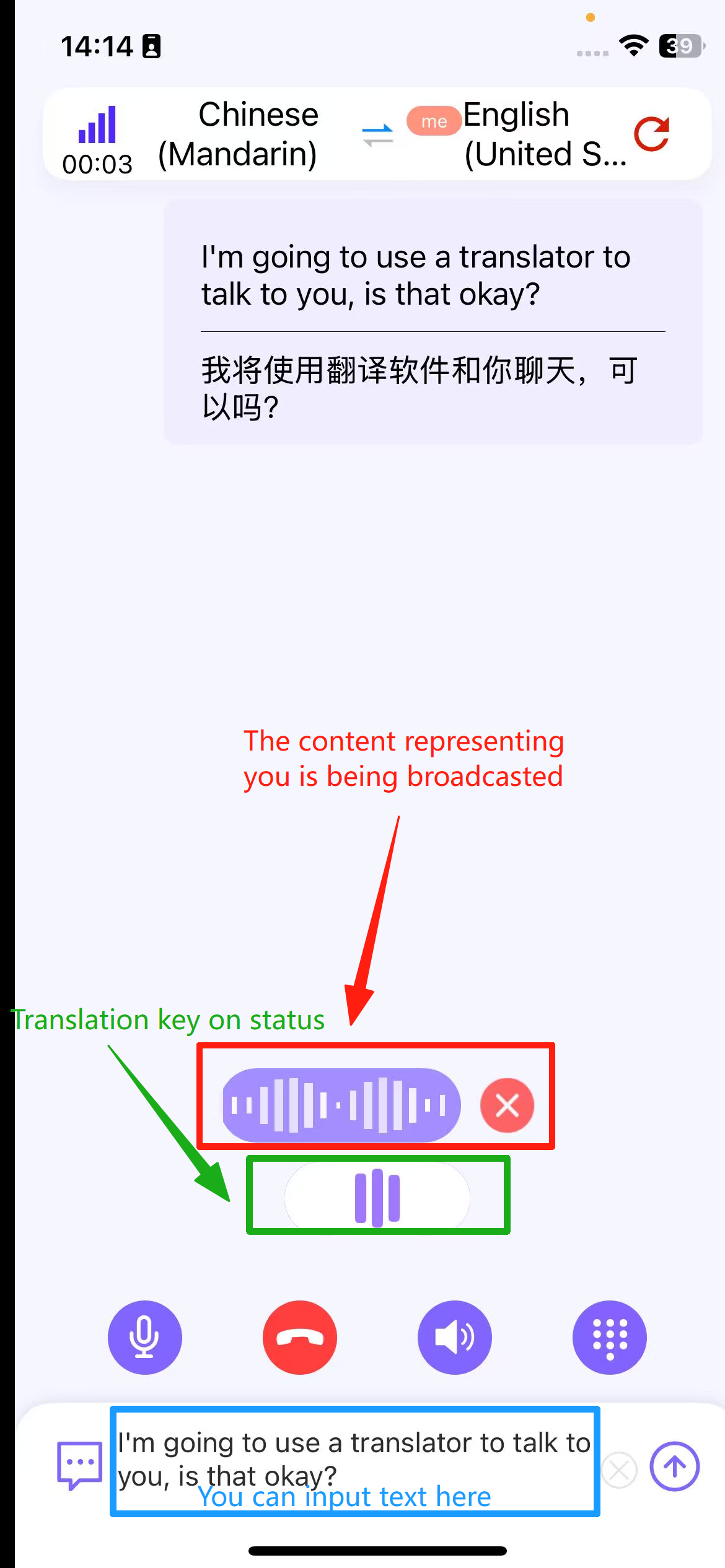
iTour Translator Mobile App:Why is my speech not being translated when using the phone translation feature?
Phone translation: By default, only the other party’s speech is translated. If you need to translate your own speech, you must manually enable the translation feature.
(image to be added)
iTour Translator Mobile App:How to use the iTour Translator mobile app to translate/transcribe WhatsApp or WeChat calls?
The mobile app do not support translating/transcribing WhatsApp or WeChat calls on a single device. You can try the following solutions:
Method 1: Use two devices—one for the meeting and one for translation.
Method 2: Download iTourTranslator for PC and use it on your computer.
Method 3: Purchase the iTour Translator iTour 22 Pro (T2) earphones to use the audio and video calls translation feature(Specific feature introduction: iTour 22 Pro audio and video calls )
How to use the iTour Translator mobile app to communicate with foreigners?
If communicating face-to-face in real-time, you can use the “Bilingual Conversation” feature, and the translation results will be broadcast through the phone’s speaker.
iTour Translator Mobile App:Is there a monthly membership available?
Currently, there is no monthly membership available. You can purchase:
1.SVIP Membership Package: It includes 128 general points and 600 minutes of basic simultaneous translation time, valid for one month. The remaining points and time will be reset in the following month. During the membership validity period, you will receive a 10% bonus on points when you recharge.
2. Go to “My” → “Recharge Points” to purchase points for use.
iTour Translator Mobile App:Is there an unlimited package available?
Currently, there is no unlimited package available. You can consider the following options:
1. For high-accuracy simultaneous interpretation features, you can purchase monthly, quarterly, annual, or hourly packages.
2. For other features,you can opt for SVIP Membership Package: It includes 128 general points and 600 minutes of basic simultaneous translation time, valid for one month. The remaining points and time will be reset in the following month. During the membership validity period, you will receive a 10% bonus on points when you recharge.
2. Go to “My” → “Recharge Points” to purchase points for use.
iTour Translator Mobile App:Why can't I find my history?
History records are stored locally. You need to search on the device you used them on. If the records are deleted or the app is uninstalled, the history cannot be recovered.
Friendly reminder: It is recommended to export and save your records as soon as possible. Once lost, they cannot be retrieved.
iTour Translator Mobile App:The call translation feature does not support making calls to phone numbers in mainland China (domestic).
Due to restrictions on internet calls in mainland China (domestic), making calls to phone numbers in mainland China is currently not supported.
iTour Translator Mobile App:How to change the registered phone number?
Accounts registered with a phone number do not support changing the phone number.
For accounts registered through third-party platforms such as WeChat or Apple ID, you can change the phone number by navigating to:
“Me” → “Profile Picture”/“Account Nickname” → “Phone Number” and clicking on “Edit.”
iTour Translator Mobile App:How to change the login password?
Currently, only accounts registered with a phone number support password changes. You can go to “Me”→“Change Password” to modify it.
Other login methods do not support password changes at this time.
iTour Translator Mobile App:What are the benefits of subscribing to SVIP?
Provides 128 general points and 600 minutes of basic real-time translation duration, valid for one month. Remaining points and duration will be cleared at the end of the month.
During the membership period, a 10% bonus is given for point top-ups. Additionally, it supports manually uploading historical records to the cloud (after uploading, they can be viewed on other devices).
iTour Translator Mobile App:Can it be used abroad?
It can be used abroad as long as the network is stable.
iTour Translator Mobile App:Can it be downloaded abroad? What is the search name?
It can be downloaded abroad. Search name: iTourTranslator.
iTour Translator Mobile App:Is the recharge amount fixed? I want to recharge a smaller amount to try it out first.
The amounts are fixed. The minimum recharge in the app is 118 yuan, while the WeChat mini program allows a recharge of 50 yuan.
WeChat → Search for the mini program → Dear Translator iTour → Select the product you need.
iTour Translator Mobile App:How do I top up for Video Calls/Bilingual Conversations/Listening features? Are there any packages available?
Currently, the video call/bilingual conversation/listening features only support point top-ups and do not have any packages available.
To top up via the app: Go to “My” — “Point Top-up”.
Alternatively, you can purchase and redeem through the WeChat Mini Program:
○ Open WeChat.
○ Search for the Mini Program “Dear Translator itour”.
○ Select and purchase the product you need.
iTour Translator Mobile App:How long can 118 points be used for?
The duration depends on the specific feature you use. The exact usage time is calculated as 118 / the unit price of the feature. Below is the pricing table for each feature:
iTour Translator Mobile App:How to issue an invoice?
Please contact Customer Service
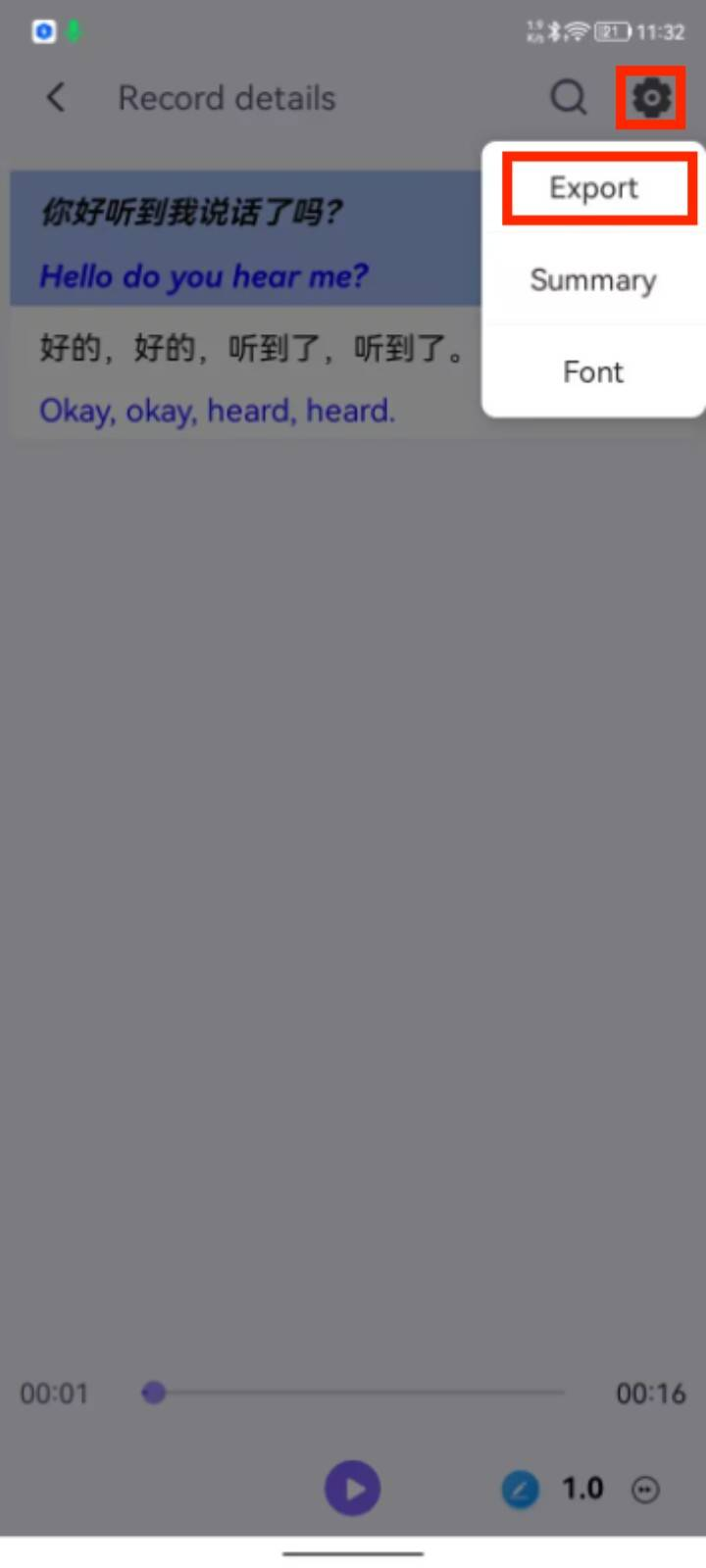
iTour Translator Mobile App:How to export records for Premium Translation/AI Translation/Standard Translation/DeeplTranslation/Basic Translation/Bilingual Translation ?
Premium Translation/AI Translation/Standard Translation/DeeplTranslation/Basic Translation/Bilingual Translation can be found under “Simultaneous Interpretation”→ “History” or “My”→ “History”. To export, go to the record’s detail page: iOS device → Tap the top-right corner to export the record.
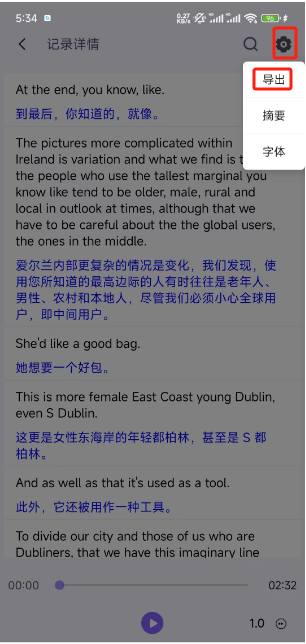
Android device → Top right corner settings → Export
iTour Translator Mobile App:Answering the call shows "Number not purchased," what does that mean?
You need to purchase an internal number from Dear Translator to support call translation. For more details, please contact Customer Service.
iTour Translator Mobile App:I purchased a package, so why does the balance still show as 0?
The purchased package displays minutes under “My Package” and will not appear in the balance.
iTour Translator Mobile App:I recharged points, why didn't it arrive?
Please provide the recharge bill to the Customer Service for inquiry processing
iTour Translator Mobile App:I deposited money before, how do I show the balance now that the balance is 0?
It may be that the logged in account is not the corresponding account for recharge, and you can provide the recharge account to Customer Service for inquiry
iTour Translator Mobile App:How is document translation priced?
Document translation is charged per page at 0.8/page.
iTour Translator Mobile App:I purchased the SVIP, why haven't the points been credited to my account?
The points granted with SVIP are part of the package points and are displayed on the SVIP page.
(image to be added)
(image to be added)
iTour Translator Mobile App:How do I use the video call feature in the iTour Translator mobile app?
Steps to operate:
1. Enter the video call page, select the social app you want to chat with, and click to enter.
2. Set the languages for both parties, choose the call method, and click “Invite.”
3. Click “Paste to Friend” / “Got it,” and enter the dialing page.
4. Switch the app to the background and go to the chat page of your friend in the other social app.
5. Long press in the input box, select “Paste” and click “Send.”
6. Return to the Dear Translator dialing page, and start the call and translation once the other party joins.
iTour Translator Mobile App:What feature should I use for live meeting translation in the iTour Translator mobile app?
For live meeting one-way translation, you can use simultaneous interpretation — Premium Translation,AI Translation, Standard Translation, Basic Translation, or DeepL Translation.
For English translations, it is recommended to use Premium Translation. For translations in non-English minor languages, DeepL Translation is suggested.
For English translations with strong specialization, AI Translation is recommended. If you’re looking for a more budget-friendly option, Standard Translation can be used.
If the translation requirements are not very high and you’re looking for more affordable options, Basic Translation is suitable.
For bilingual translation, you can use simultaneous interpretation — Bilingual Translation.
iTour Translator Mobile App:What is the difference between recharge points and the Premium Translation interpretation package?
Points: These are the general balance within the app and can be used for all functions except for the hardware-specific features.
Premium Translation Package: This can only be used for the Premium Translation feature and cannot be used for other functions.
iTour Translator Mobile App:The monthly/quarterly/annual subscription package I purchased has already been used up. Why can't I purchase it again?
The monthly/quarterly/annual package is a subscription-based package and cannot be repurchased during its validity period. To continue using the services, you can purchase the corresponding hourly package or general points.
Where is the offline translation feature in the iTour Translator app?
The offline translation feature: is currently only available when you purchase the official iTour Translator headphones. You can access it under “More” →“Hardware”→ the features corresponding to the purchased headphones.
iTour Translator Mobile App:Why does voice recognition only detect the spoken content without displaying the translation results?
Voice recognition: Only transcribes the speaker’s content without translating it. For translation, you need to use the simultaneous interpretation feature.
iTour Translator Mobile App:Where can I find the call translation history?
iOS devices: Home → Phone →Call History → Click on the corresponding call time → View
Android devices: Home → Phone→ Call History → Enter the call history page for the corresponding number→ Click on the corresponding call time→ View
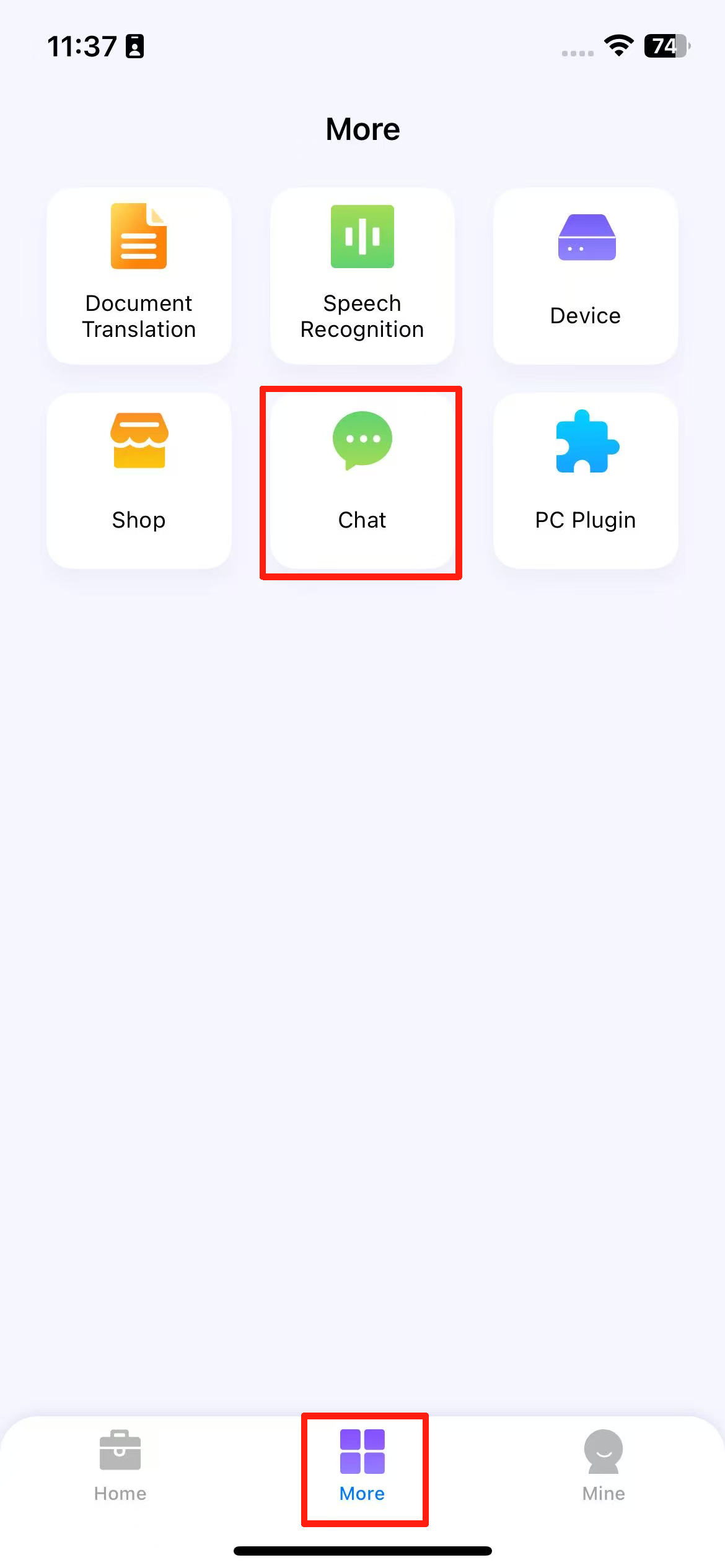
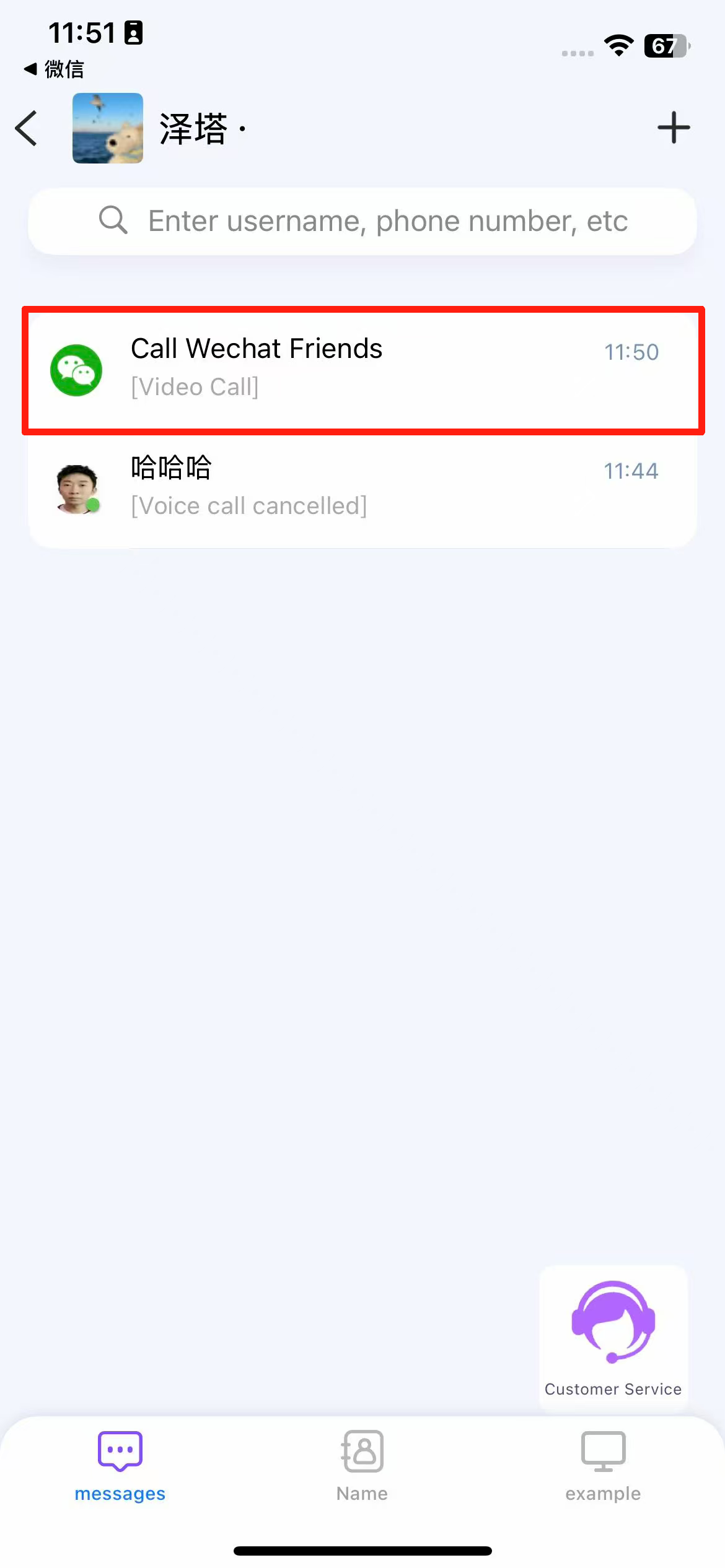
iTour Translator Mobile App Video call:Is there a record of calls saved on WeChat/WhatsApp?
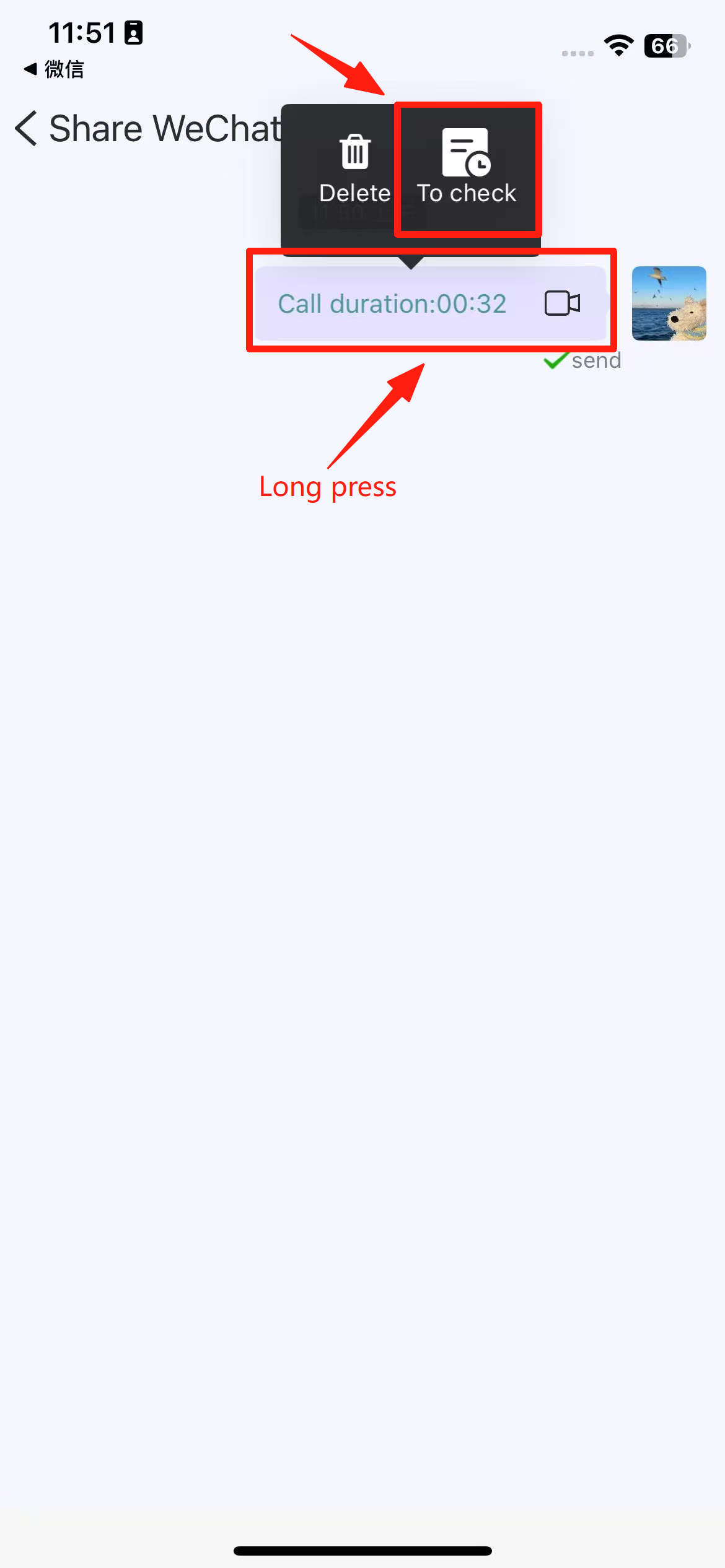
Text records are saved. The saving path is as follows:
1.More → WeChat→ Chat List→ Access the corresponding chat detail page
2.Long press the call record at the corresponding time point→ View
iTour Translator Mobile App:How to purchase a number?
Currently, the number can only be used to answer calls through the Dear Translator app and cannot receive SMS for registering other applications. If you need to purchase, please contact Customer Service
iTour Translator Mobile App: How can I share the translation results with colleagues/classmates for them to view together?
1. Simultaneous interpretation –Premium /Standard/DeepL/AI/Basic Translation→Top right corner, three dots→Share
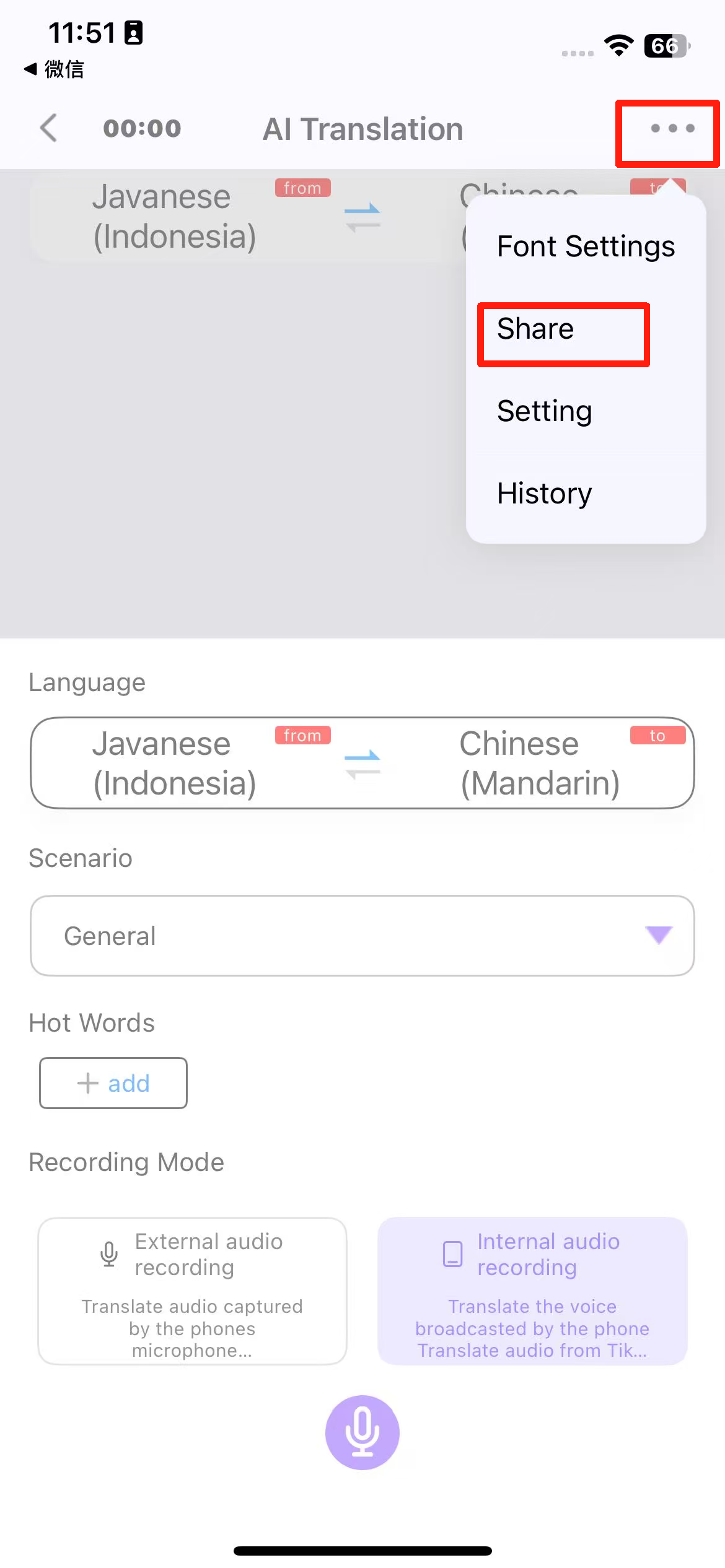
2. After starting the translation, your colleagues/classmates can click on the link you shared to view the translation content on your mobile device simultaneously.
ps:
The page opened through the shared link for high-precision simultaneous interpretation supports adding multiple languages. However, each additional language will incur an extra charge of 6 RMB per hour (modifications are only supported when there is a points balance available).
iTour Translator Mobile App: How to use cross-application simultaneous interpretation?
Suitable for real-time simultaneous translation of audio and video playback, does not support translation result broadcasting.
Steps:
1. Click the microphone icon and tap “Confirm” to agree to start voice recording.
(image to be added)
(image to be added)
2. Click “Start Live” and wait for 3 seconds.
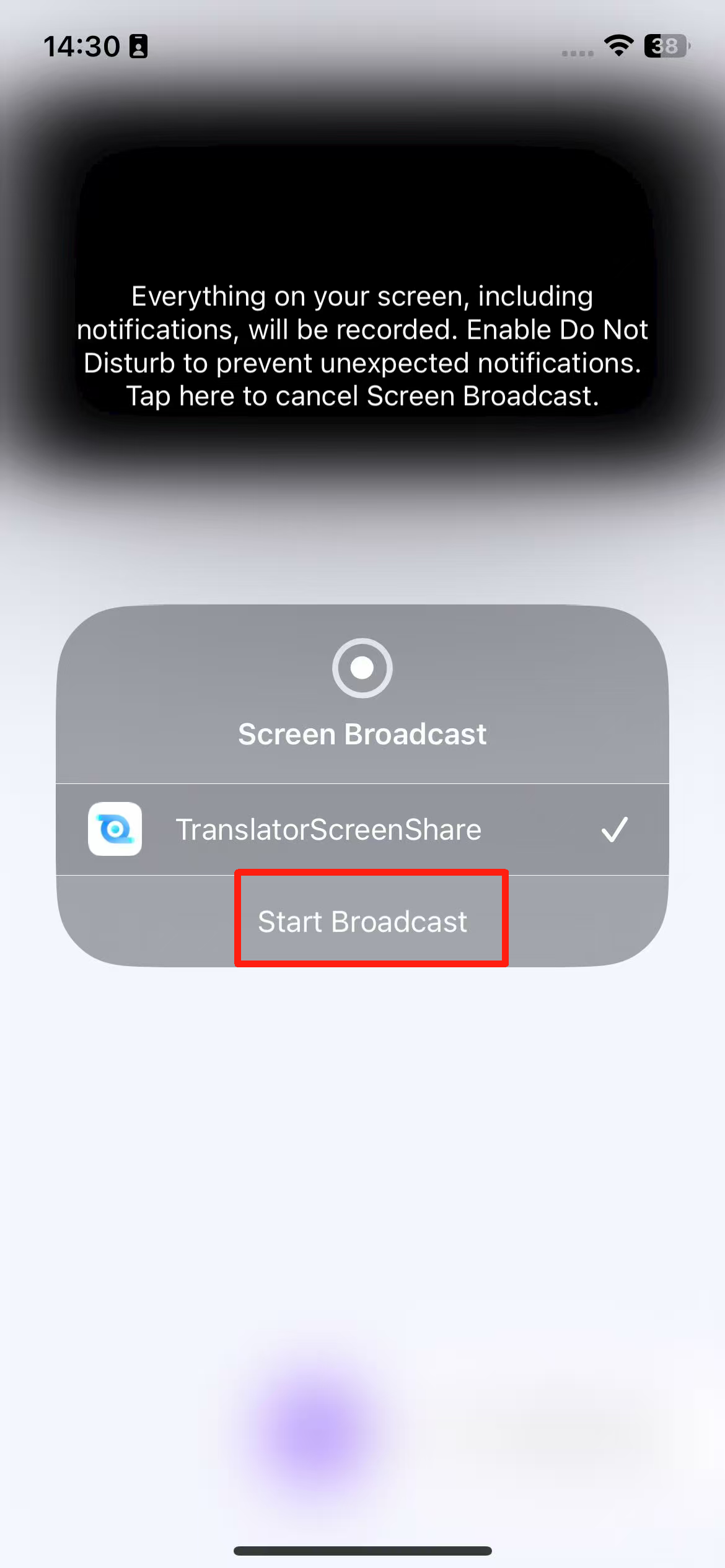
3. The live screen displays the following status.
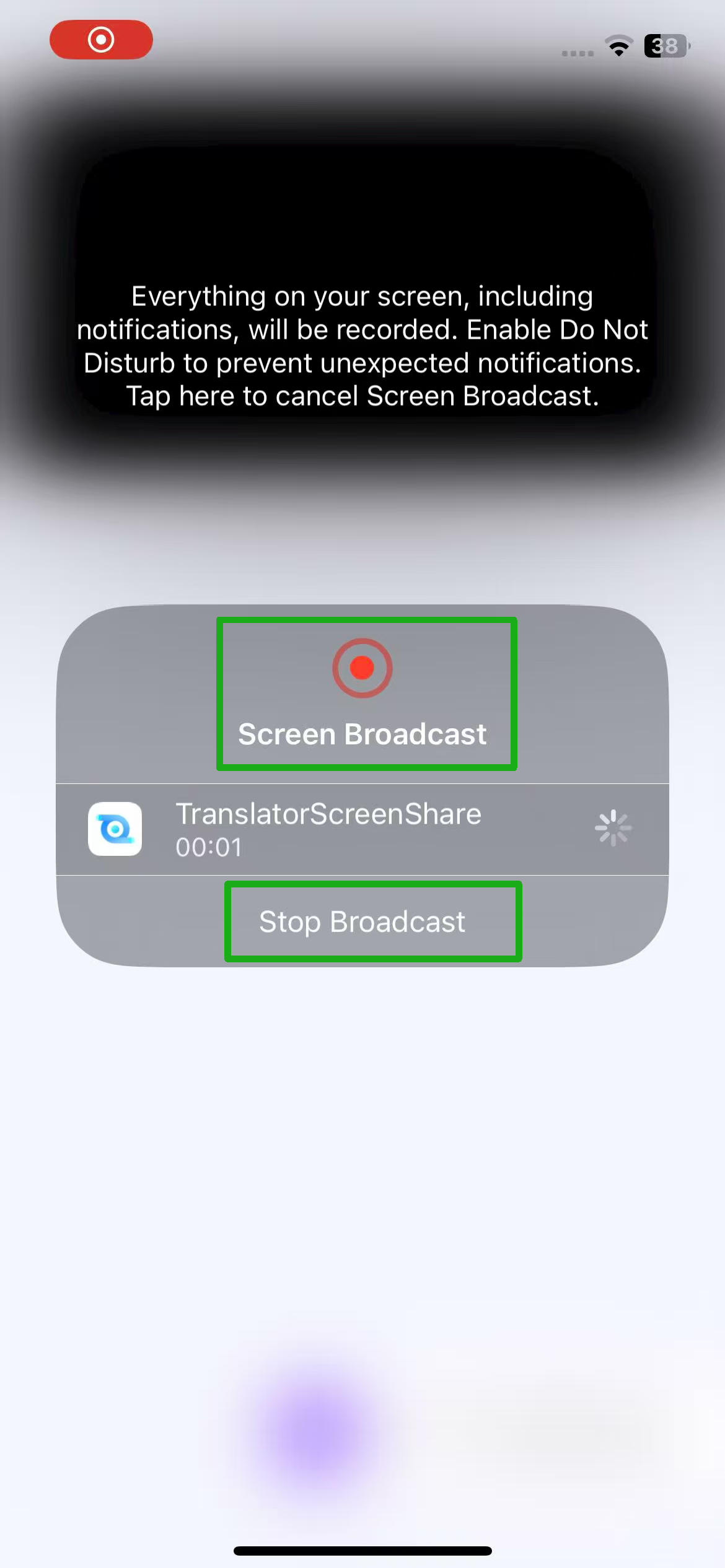
4. Run the program in the background, then open video applications such as Bilibili or YouTube to play videos. The recognition and translation results will be displayed in a floating window.
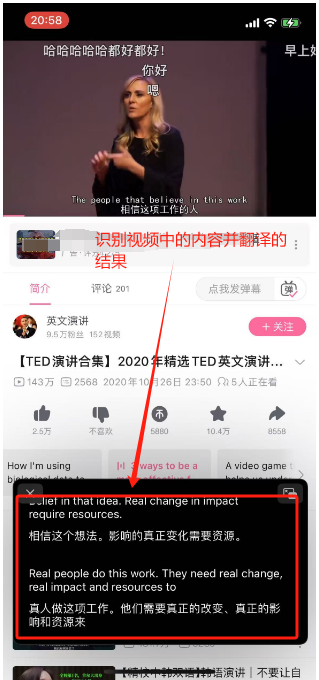
iTour Translator Mobile App:I purchased points/a package, do I still have the free 10 minutes?
After purchasing points/a package, the gifted free duration is still available. The trial time will be consumed first, and once the trial time is exhausted, the purchased points/duration will be used automatically.
iTour Translator Mobile App:I purchased points/a package, if the free duration is used up, will the translation be interrupted?
After purchasing points/a package, the translation will not be interrupted once the free duration is used up. It will directly deduct from the purchased points/package duration.
please note: the high-precision package can only be used for the high-precision simultaneous interpretation feature.
iTour Translator Mobile App:I purchased a package, why does it show that I have 10 minutes remaining when using the feature?
When purchasing a package, you must use the corresponding feature.
For example, if you purchase the Premium Translation package, you can only use the Premium Translation feature. For other features such as AI simultaneous interpretation, listening, or bilingual conversation, you are only provided with 10 minutes of gifted trial duration.
iTour Translator Mobile App:Using phone translation for about 30 seconds, it automatically disconnects.
Currently, using VPN software may cause calls to be automatically disconnected after about 30 seconds.
Solution: Turn off the VPN and try again.
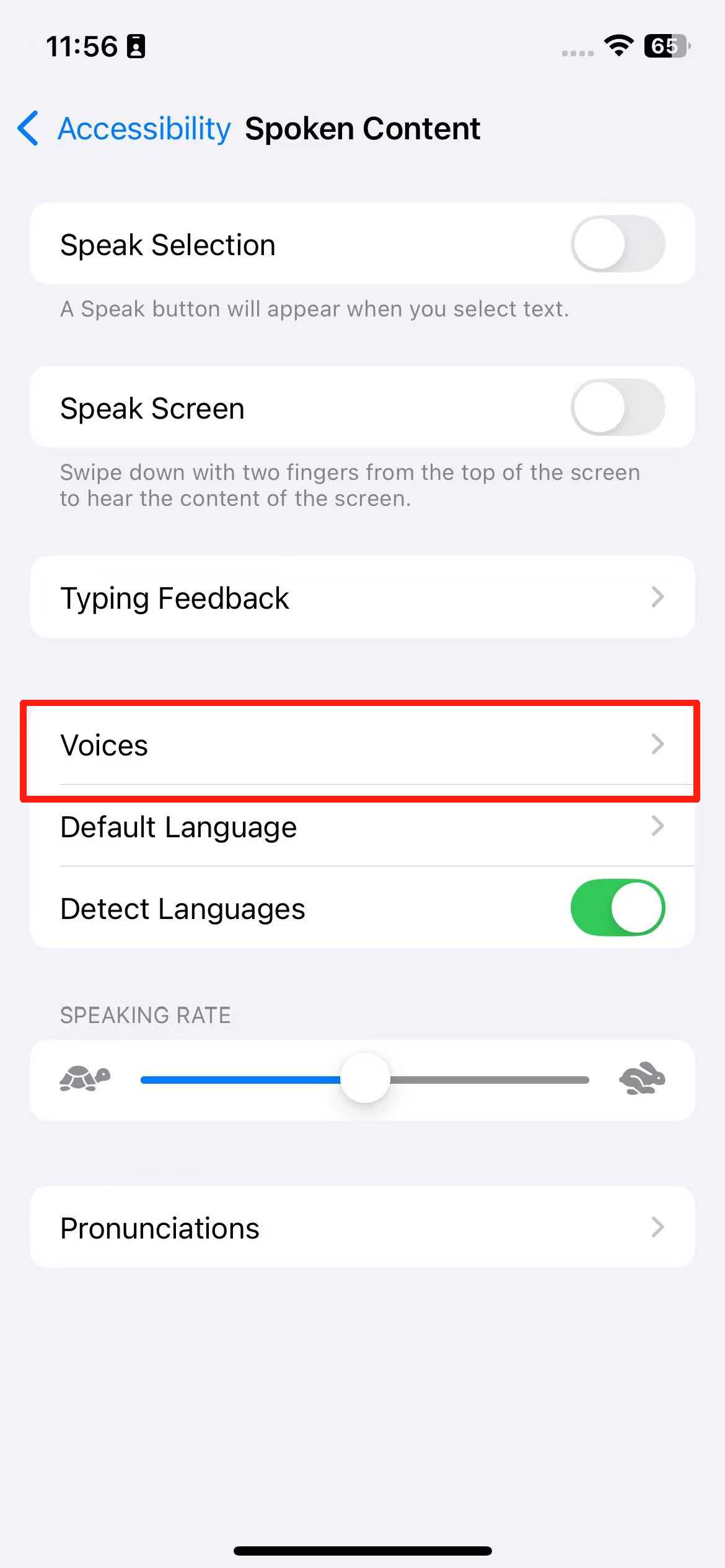
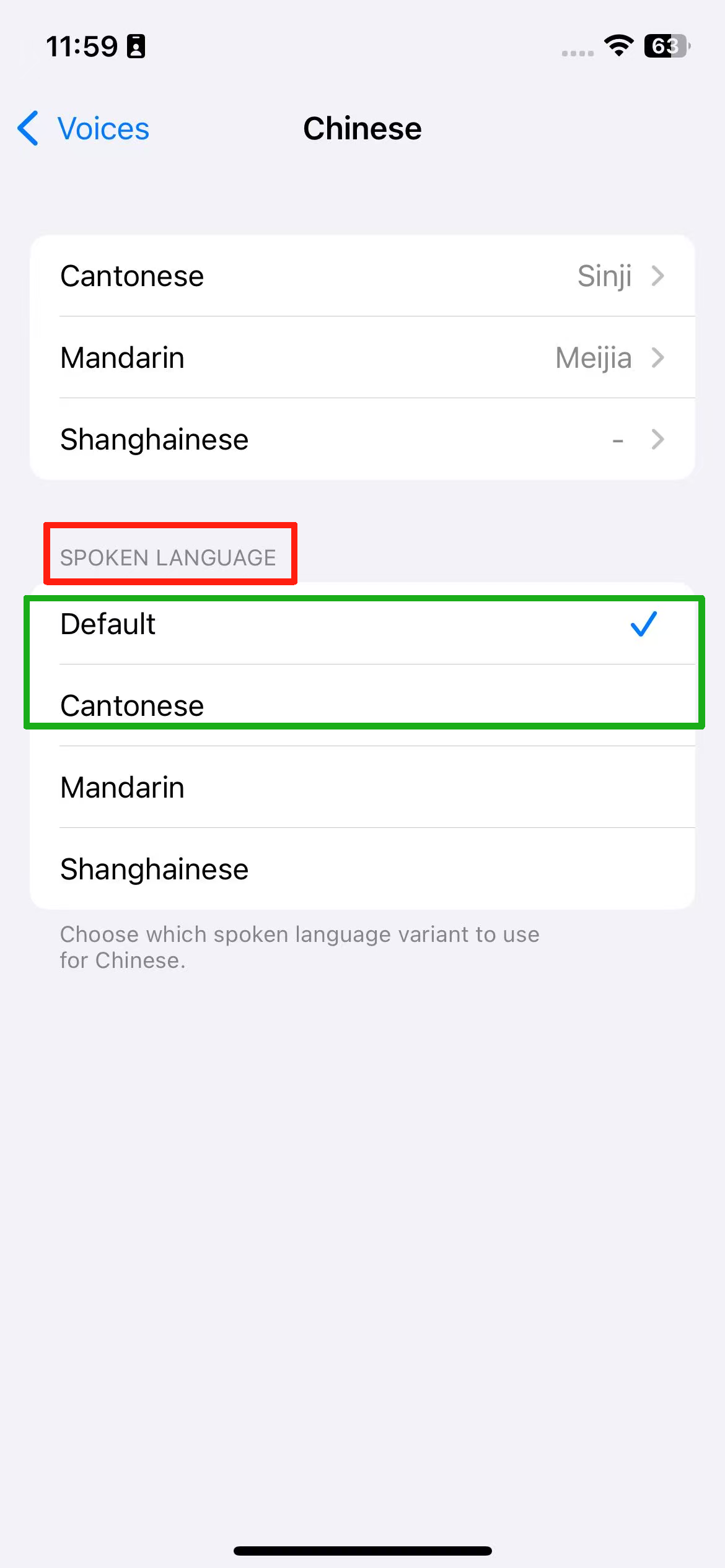
iTour Translator Mobile App iPhone: Why is it broadcasting in Cantonese when translating into Chinese?
Simply modify the phone settings:
1. Verify the phone system settings — Search for “Language & Region,” and set the region to Mainland China.
2. Verify the phone system settings — Search for “Text-to-speech” → Voice→ Chinese →Spoken language, and select Default/Mandarin.
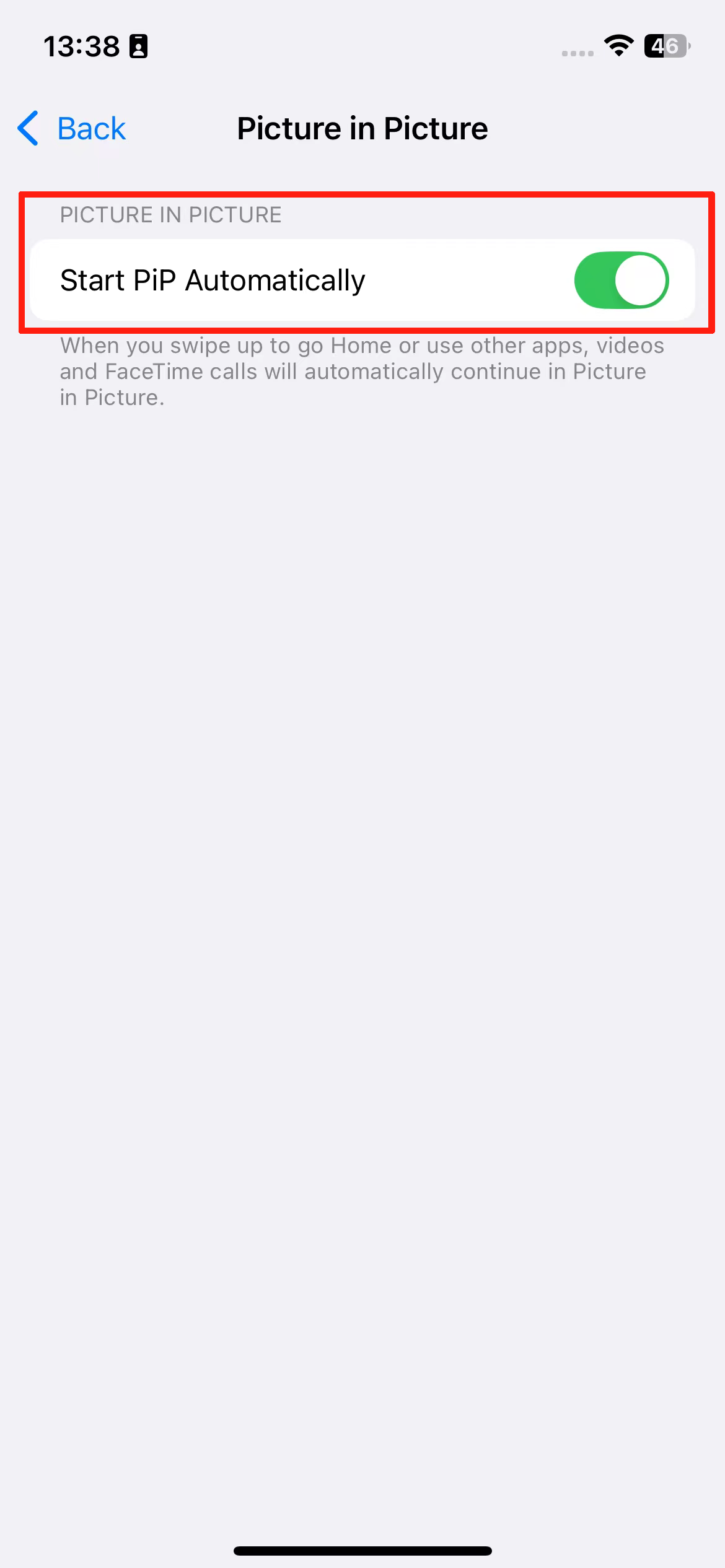
iTour Translator Mobile App iPhone: For Premium Translation/Standard Translation/AI Translation/DeepL Translation/Basic Translation/Bilingual Translation, why is there no floating translation window when the app is running in the background?
Please go to Phone System Settings –> General –> Picture in Picture –> Enable the “Start PiP Automatically“ feature.
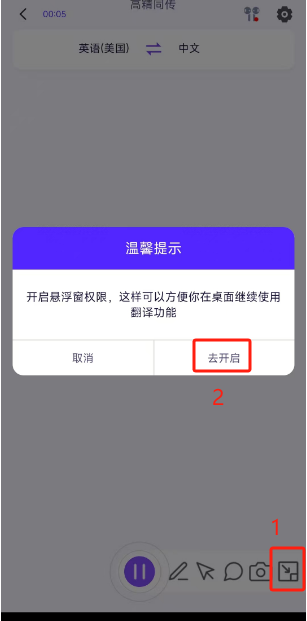
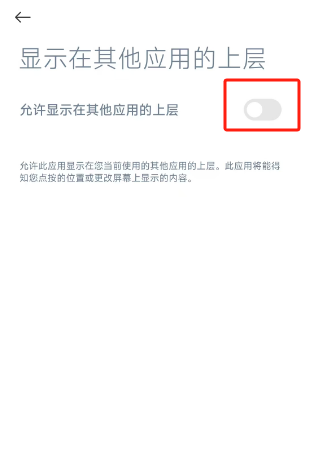
iTour Translator Mobile App Android Phone: How to set up so that when using Premium Translation / Standard Translation / AI Translation / DeepL Translation / Basic Translation / Bilingual Translation features, translation can continue to function properly even when switching to other apps or when the phone screen is off.
On the feature page, click on the floating icon as shown in the image –> Go to “Enable” –> Find “iTour Translator” –> Enable the “Allow to appear on top of other apps” permission.
(image to be added)
iTour Translator Mobile App:Can the simultaneous interpretation feature on the mobile app be cast to other displays?
iPhones support screen mirroring.
To mirror the screen to an Apple device, you can directly use Apple’s built-in screen mirroring feature.
To mirror the screen to a non-Apple device, you can use an external cable and an external display.
After mirroring, once the simultaneous interpretation feature is activated, the mirrored device will display the recognized translation content from the phone in full screen and in real-time.
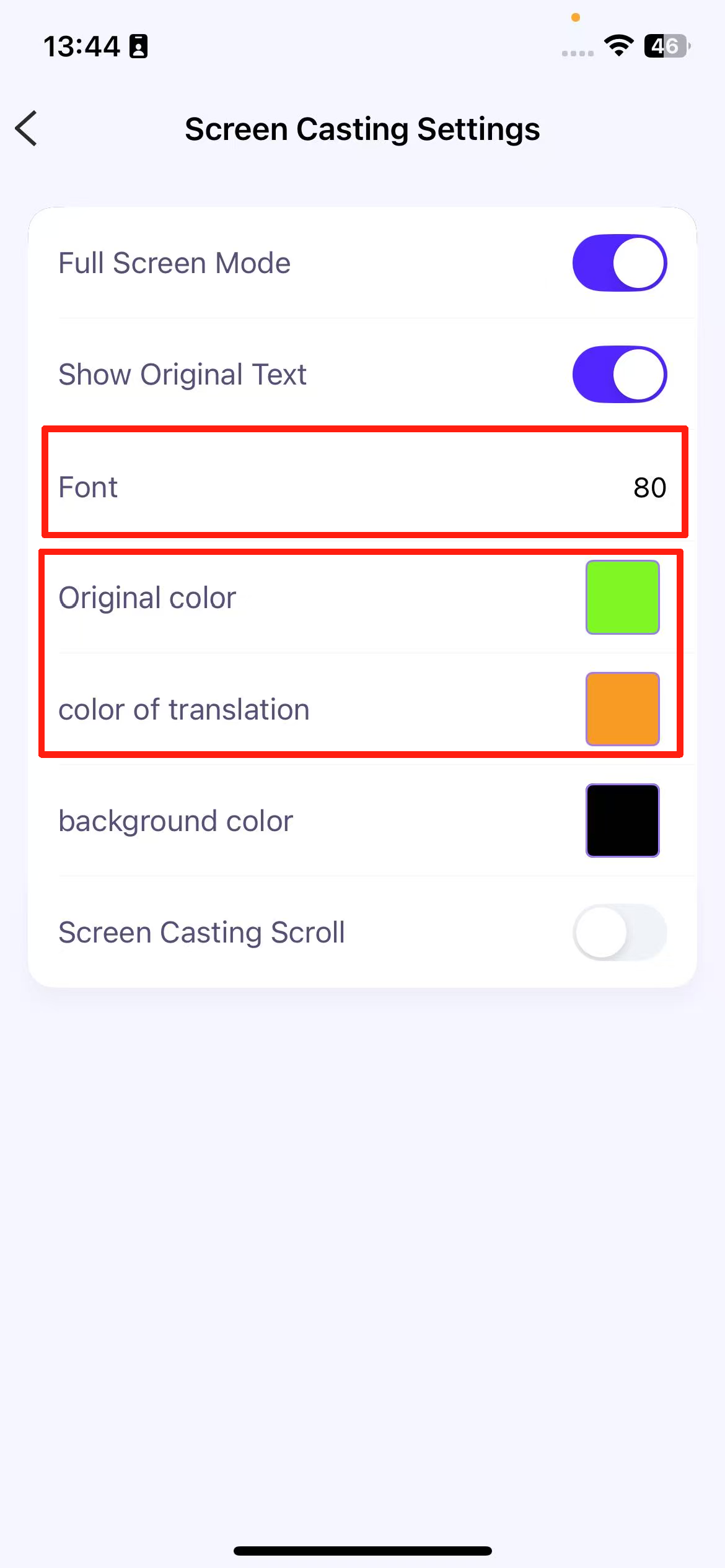
iTour Translator Mobile App:After screen mirroring on an iPhone, how can the font size and color on the mirrored device be adjusted?
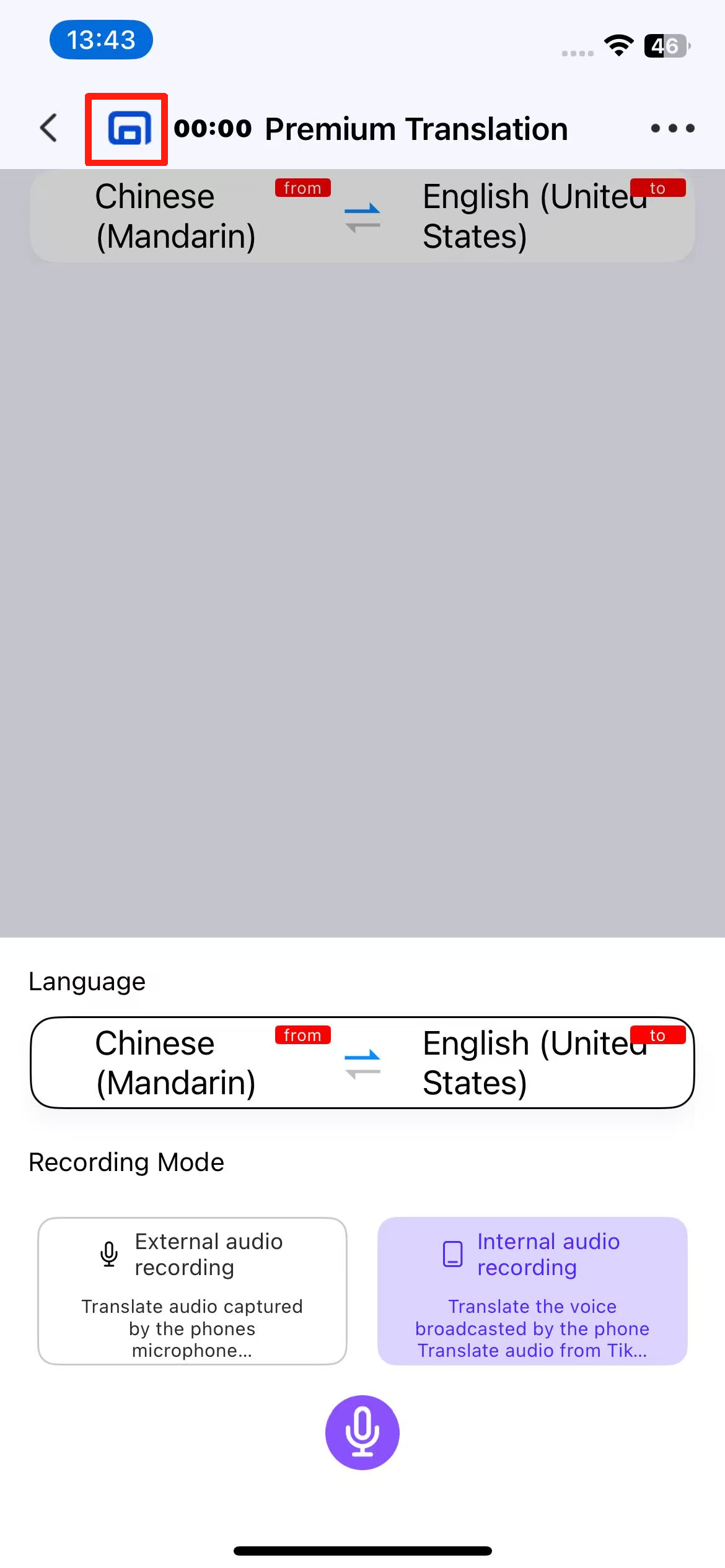
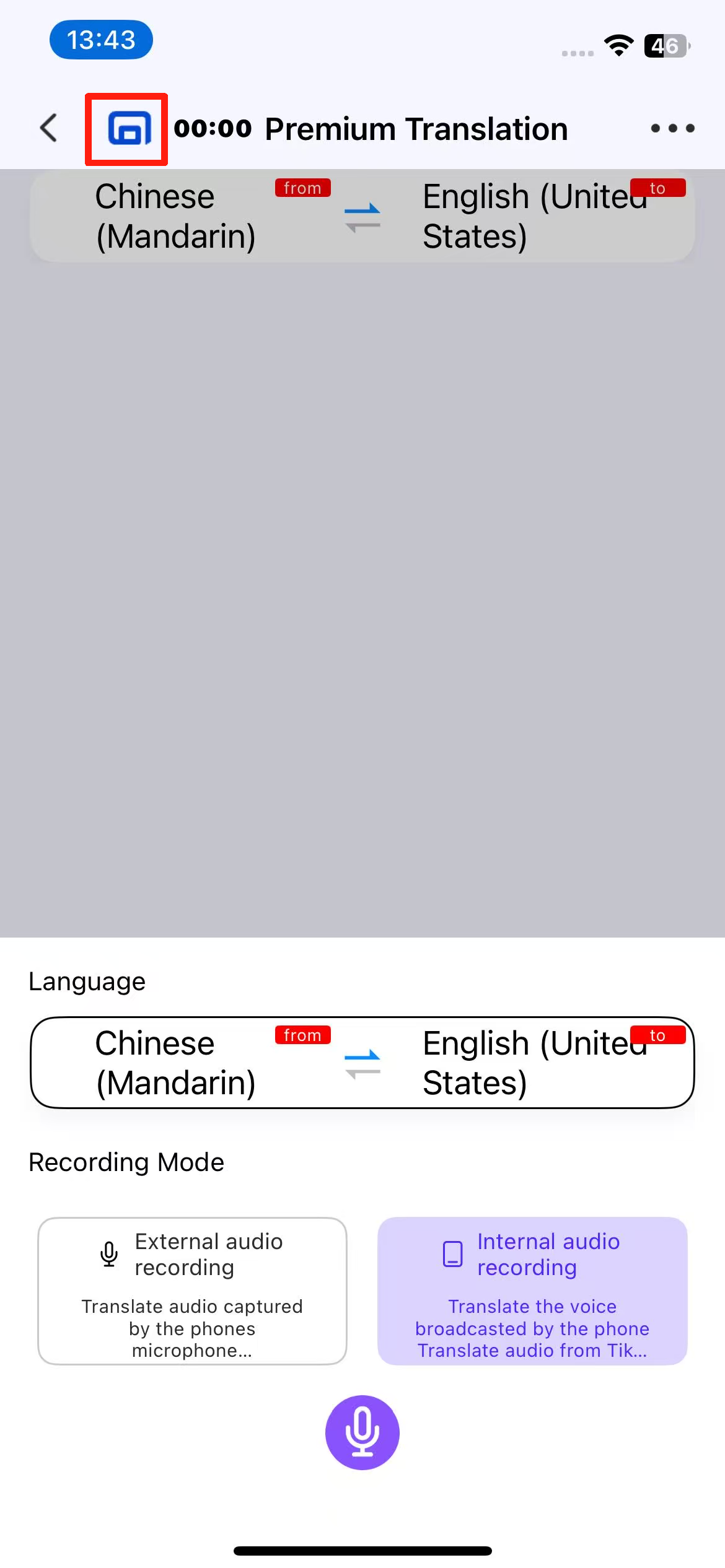
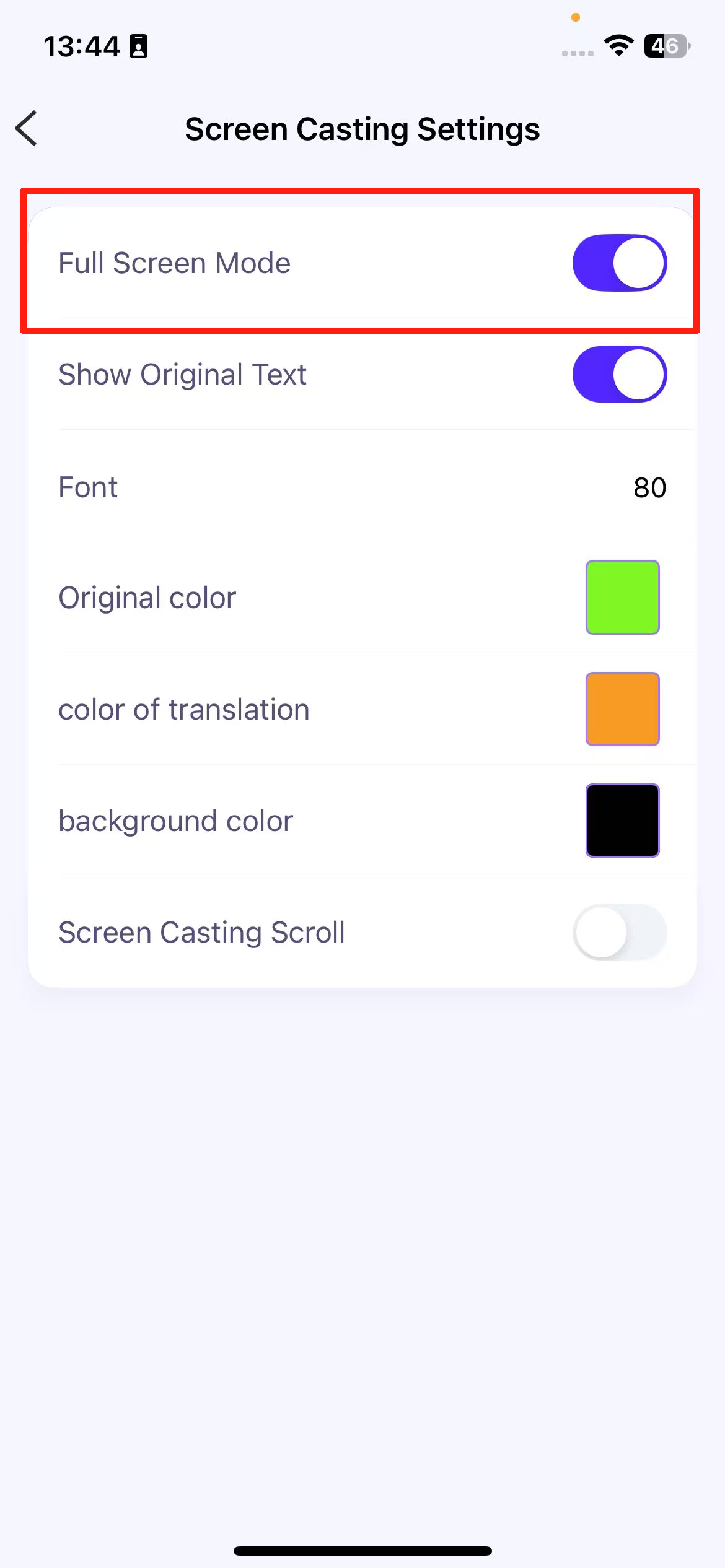
After the device is mirrored, on the simultaneous interpretation function page → [Back Button] on the right side → Screen Mirroring Icon, you can enter to adjust the font size and color of the mirrored device.
iTour Translator Mobile App:After screen mirroring with an iPad/iPhone, how can the simultaneous interpretation feature be set to not display in fullscreen?
After the device is mirrored, on the simultaneous interpretation function page –> [Back Button] on the right side –> Screen Mirroring Icon, click to enter and find the option to turn off fullscreen display.
iTour Translator Mobile App:Can video files be uploaded for translation?
Currently, only the PC client→ Video Subtitles supports uploading video translations. Download link: Video subtitles
iTour Translator Mobile App:Can audio files be uploaded for translation?
Currently, only the PC client — iTourTranslator/iTourVoiceTranslator — supports uploading audio for translation.
Click on the PC version: iTourTranslator Download,iTourVoiceTranslator Download
iTour Translator Mobile App:Can files/documents be uploaded for translation?
Currently, all smartphones except Huawei support the document translation feature. You can also download our PC client — the document translation software — for use. Download link:Documents
iTour Translator Mobile App:How to deactivate an account?
1.iOS devices: Me → Profile Picture/Nickname/Account → Account → Delete Account
2.Android devices: Me → Profile Picture/Nickname/Account → Cancel Account
iTour Translator Mobile App:How to change the linked phone number?
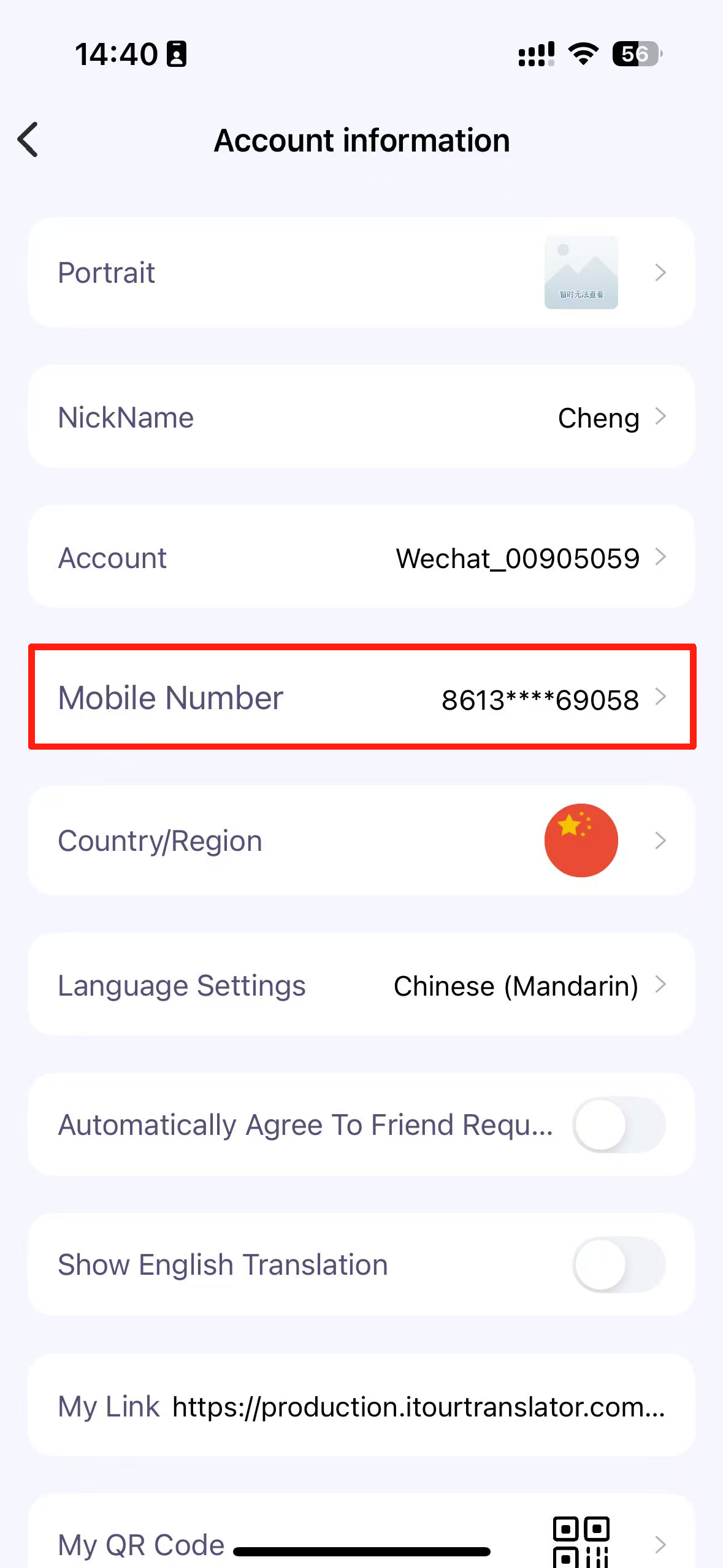
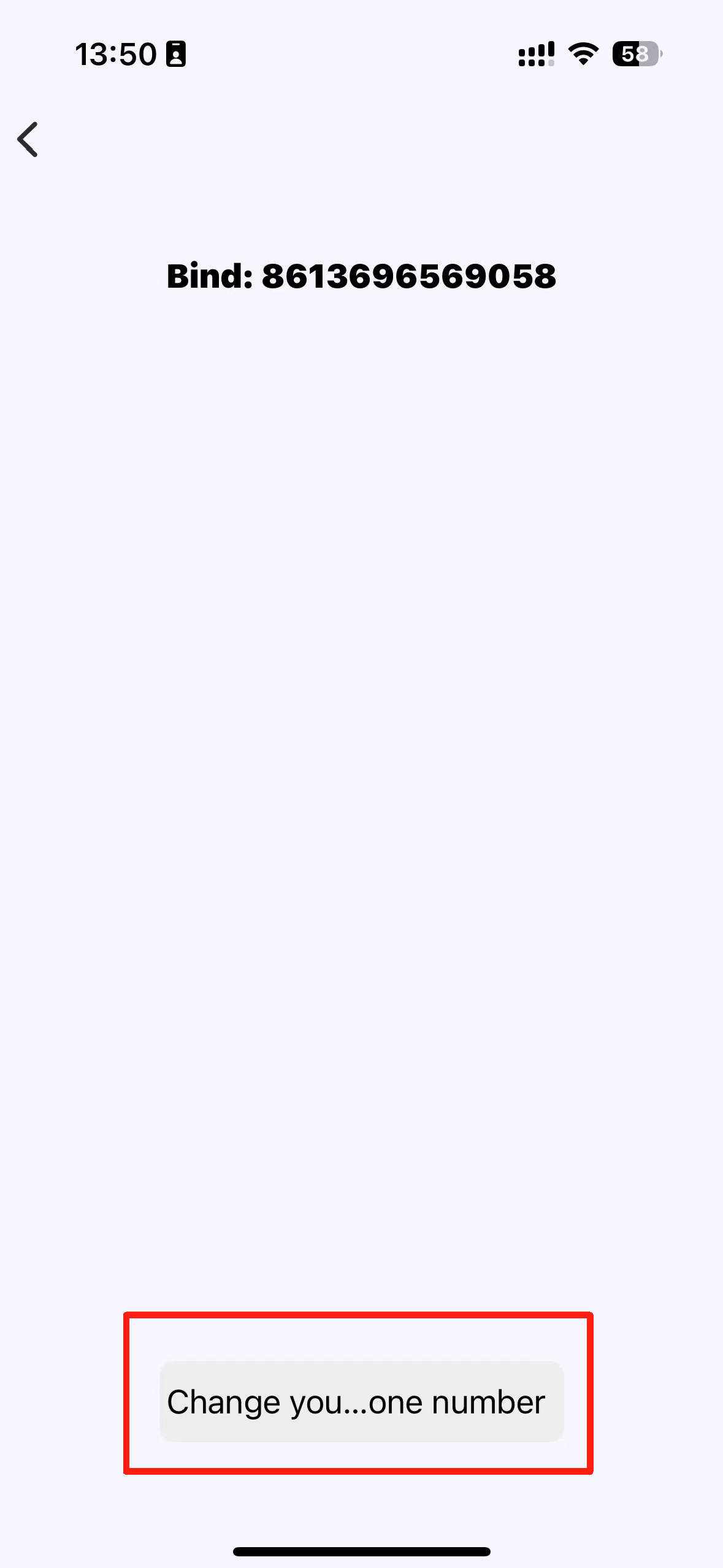
Go to “Me” → Profile Picture/Nickname/Account → Phone Number → Change Phone Number.
iTour Translator Mobile App:Can the account be restored after deactivation?
The account can be automatically restored within 7 days after deactivation. After 7 days, a restoration request will be required.
iTour Translator Mobile App:What functions should I use for Facebook and WhatsApp Video calls?
Mobile APP on one device does not support translating/transcribing WhatsApp or Facebook calls. You can try the following methods:
Method 1: Use two devices – one for the call and the other for translation.
Method 2: Download and use iTourTranslator on the PC, Download address: iTourTranslator
Method 3: Purchase the Dear Translator iTour 22 Pro (T2) earbuds to use the audio and video call translation feature.(Specific feature introduction:iTour 22 Pro audio and video call)
Method 4: Download and use the iTour Chat Translation client, Download address: iTour Chat Translation
iTour Translator Mobile App simultaneous interpretation feature: How to set font size/font color?
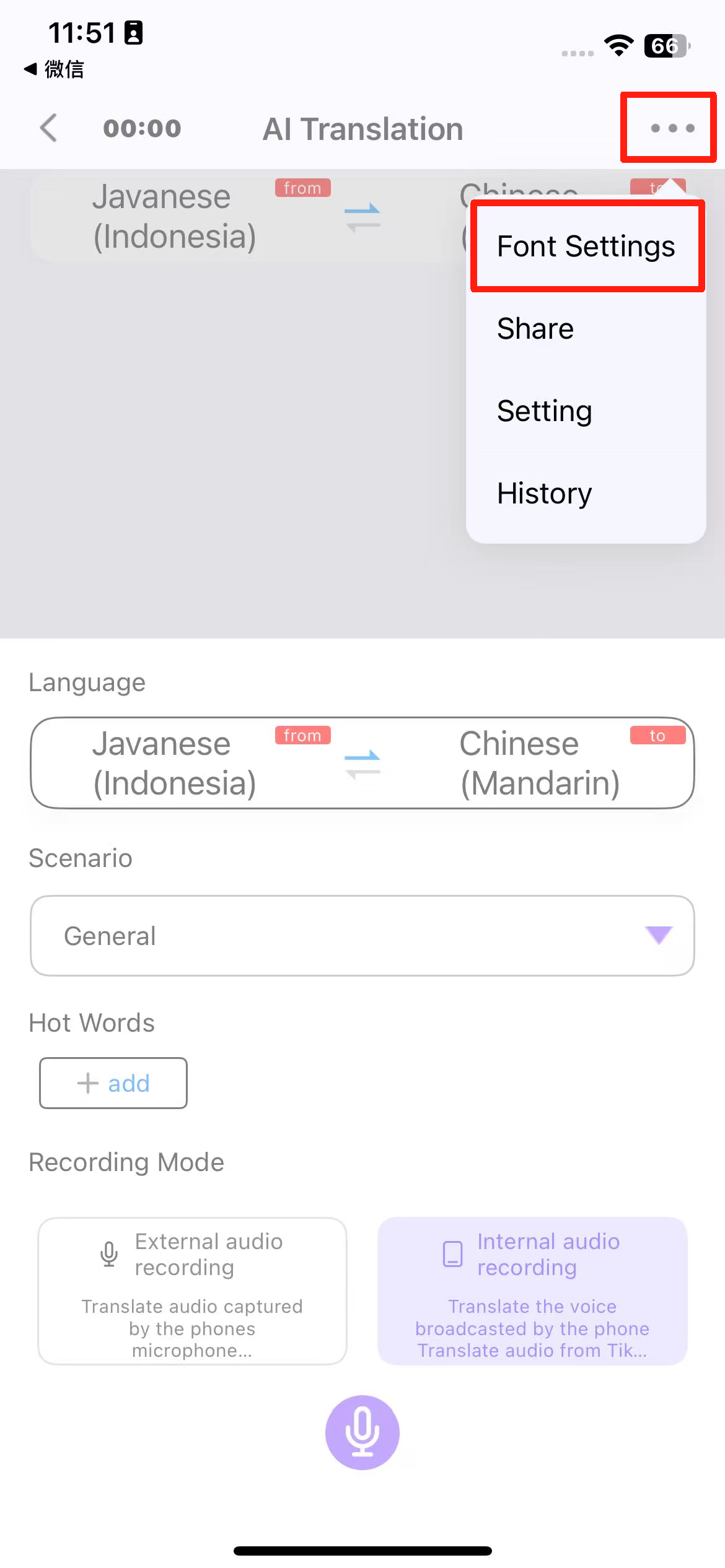
On the Simultaneous Interpretation page — Premium Translation/AI Translation/Basic Translation/Standard Translation/Bilingual Translation/DeepL Translation feature → Top right corner settings → Font Settings
iTourTranslator PC terminal 18 questions
Where can I download iTourTranslator Desktop Version?
Download link for iTourTranslator: iTourTranslator
For Mac computers, you can also search for “iTourTranslator” in the App Store to download.
For Windows computers, you can search for “iTourTranslator” in Tencent PC Manager or Microsoft Store to download.
Does the iTourTranslator Desktop Version support translation for meeting software such as Zoom, Teams, Tencent Meeting, and Webex?
Zoom, Teams, Tencent Meeting, Webex, etc. support translation. Once the meeting starts, simply click on the “Start” button on the Simultaneous Interpretation → Function page to translate into English.
Why is there no translation displayed after enabling translation on the iTourTranslator Desktop Version?
1.Online meeting translation: Please ensure that the speaker of the meeting software matches the speaker of iTourTranslator.
2.On-site meeting translation: Please confirm whether the computer microphone is working properly.
What feature should be used for Chinese-English translation on the iTourTranslator Desktop Version?
For Chinese-English bilingual translation, please use the Simultaneous Interpretation – Bilingual Translation feature.
How do I redeem the recharge card I purchased in the WeChat Mini Program/Taobao on the iTourTranslator Desktop Version?
Windows PC: Go to My Account → Coupon Redemption –> Recharge Card Redemption
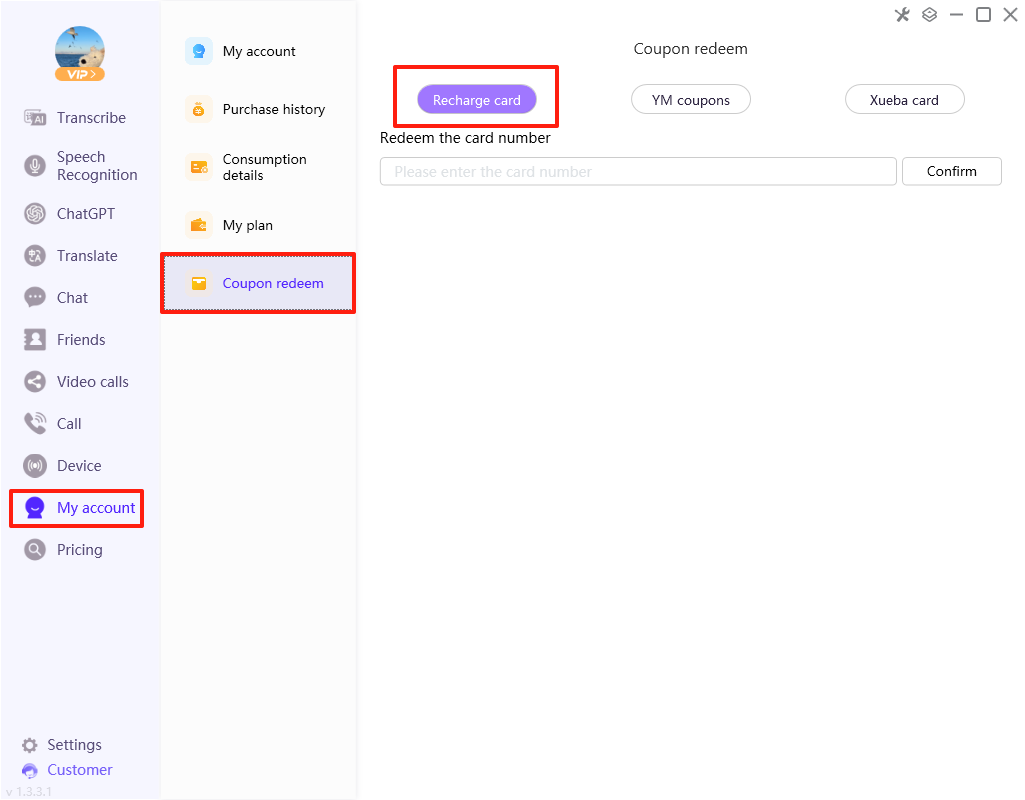
Mac Computer: For software downloaded from the Dear Translator official website, please go to My Account → Coupon Redemption → Recharge Card Redemption. For software downloaded from the App Store, please scan the redemption QR code to redeem coupons,Please identify the software downloaded from the APP Store
Can iTourTranslator Desktop Version record meeting content while recognizing it at the same time?
Yes, the recording and text are both documented. In the simultaneous interpretation history, it is translated into English.
What is the difference between iTourTranslator and iTour Voice Translator?
The iTour Voice Translator client is a simplified version of the iTourTranslator client, offering only simultaneous interpretation (real-time translation) and audio translation features. On the other hand, the iTourTranslator client not only supports simultaneous interpretation and audio translation but also includes GPT-related functions (such as chat, interviews, text refinement), as well as text translation, document translation, cross-application audio and video calls, telephone translation, and more. Its functionality is more comprehensive compared to iTour Voice Translator.
During an online meeting on the iTourTranslator Desktop Version, where both parties' speech content needs translation—translate Chinese into English and English into Chinese—how should this be operated?
The following methods can be adopted:
1. Use simultaneous interpretation — The Bilingual Translation function supports automatic recognition and translation of the selected two languages. However, the translated content cannot be broadcast. You can use screen sharing to provide the translated content for the other party to view.
2. Use a combination method — Premium Translation/DeepL Translation + speech translation function.Premium Translation/DeepL Translation translates the other party’s speech content, while speech translation translates your own speech content and supports broadcasting to the other party to hear. For specific operations, refer to Windows speech translation and Mac speech translation .
iTourTranslator Desktop Version for Windows: How to use the speech translation feature?
The speech translation feature only supports Premium Translation and DeepL Translation functions, and it only recognizes and translates the user’s own speech content.
For Windows computers: A virtual microphone driver must be purchased, installed, and used. The specific steps are as follows:
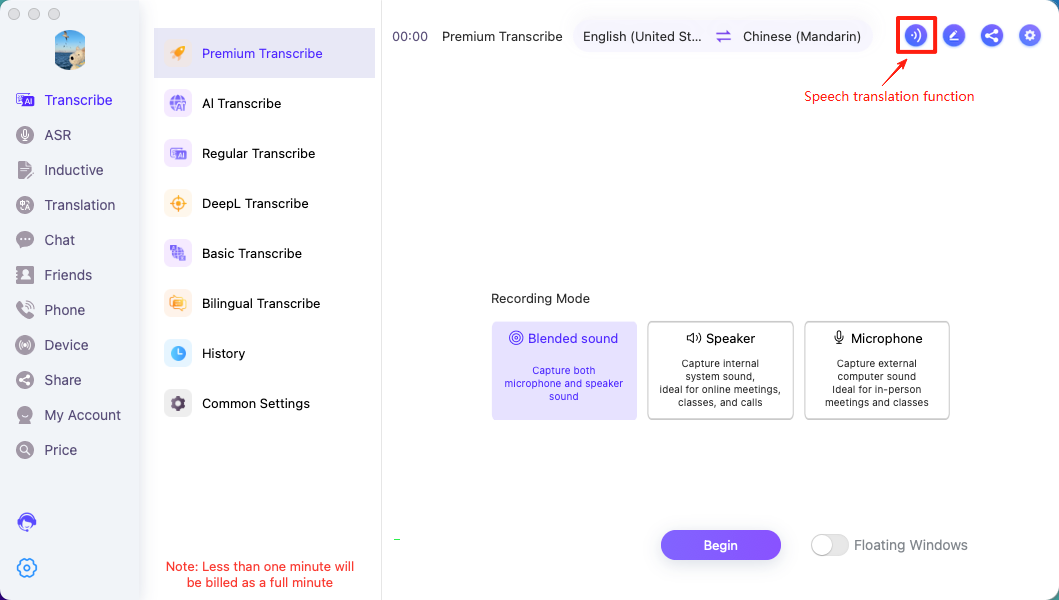
1.Premium Translation 、DeepL Translation — Top Right Corner Settings — Speech Translation
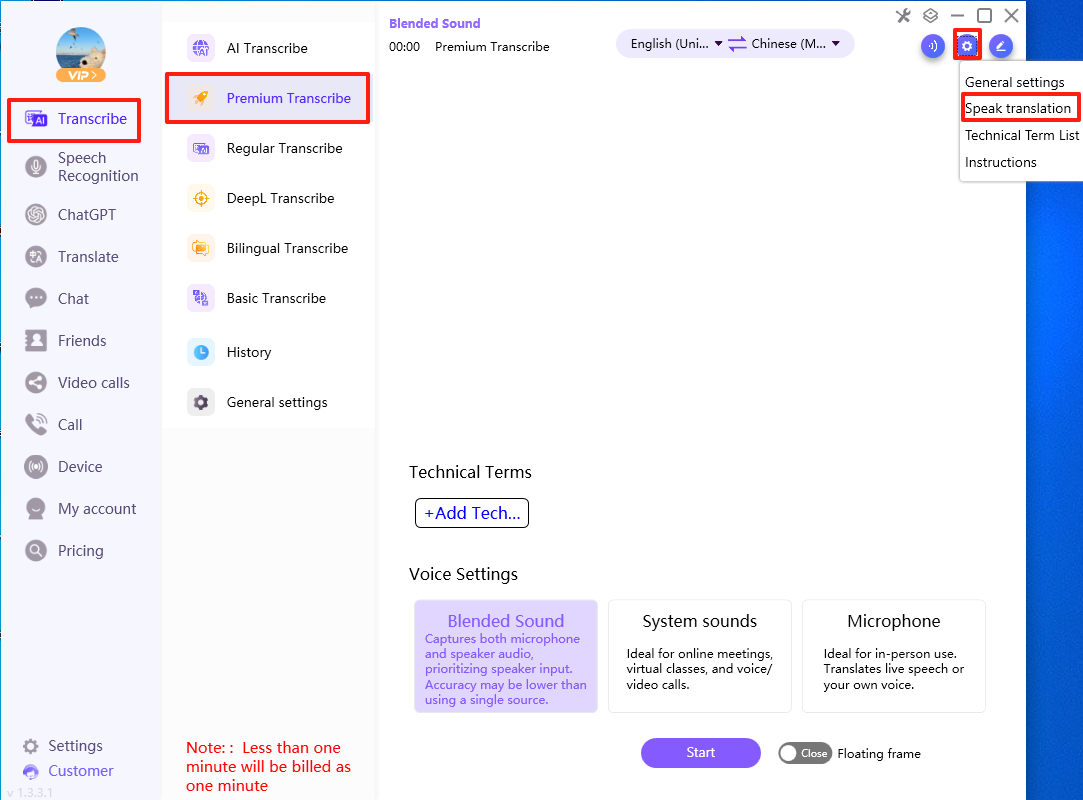
2.If the virtual driver has not been purchased, it must be purchased before installation and use are supported.
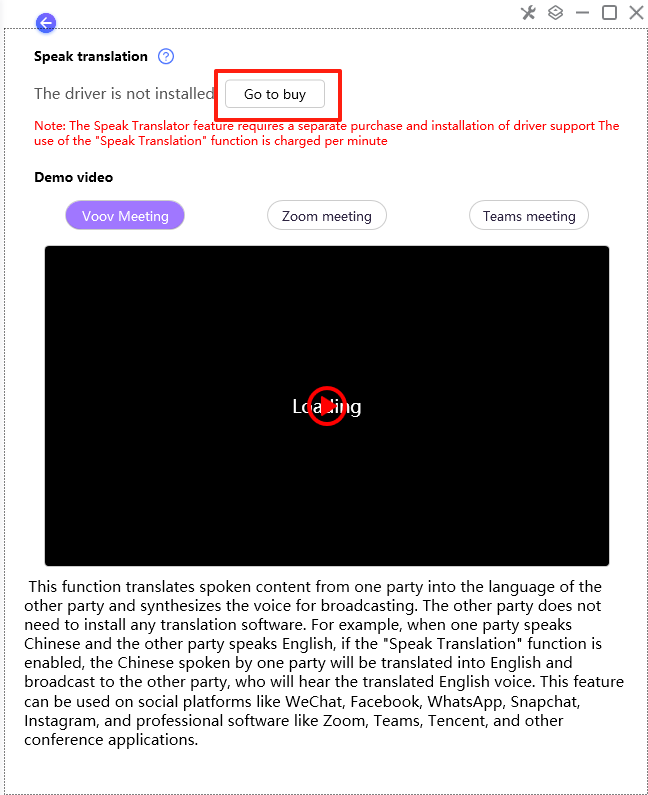
3. After a successful purchase, go to the speech translation settings page and click [Install].
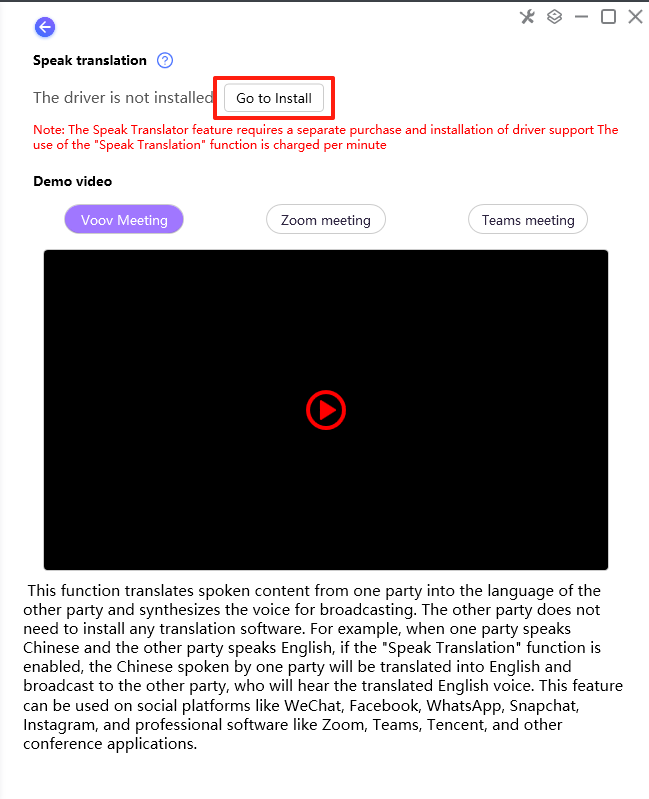
4. After successful installation, the software needs to be restarted for it to take effect. Once active, the “Speech Translation” button will appear in Premium Translation 、DeepL Translation
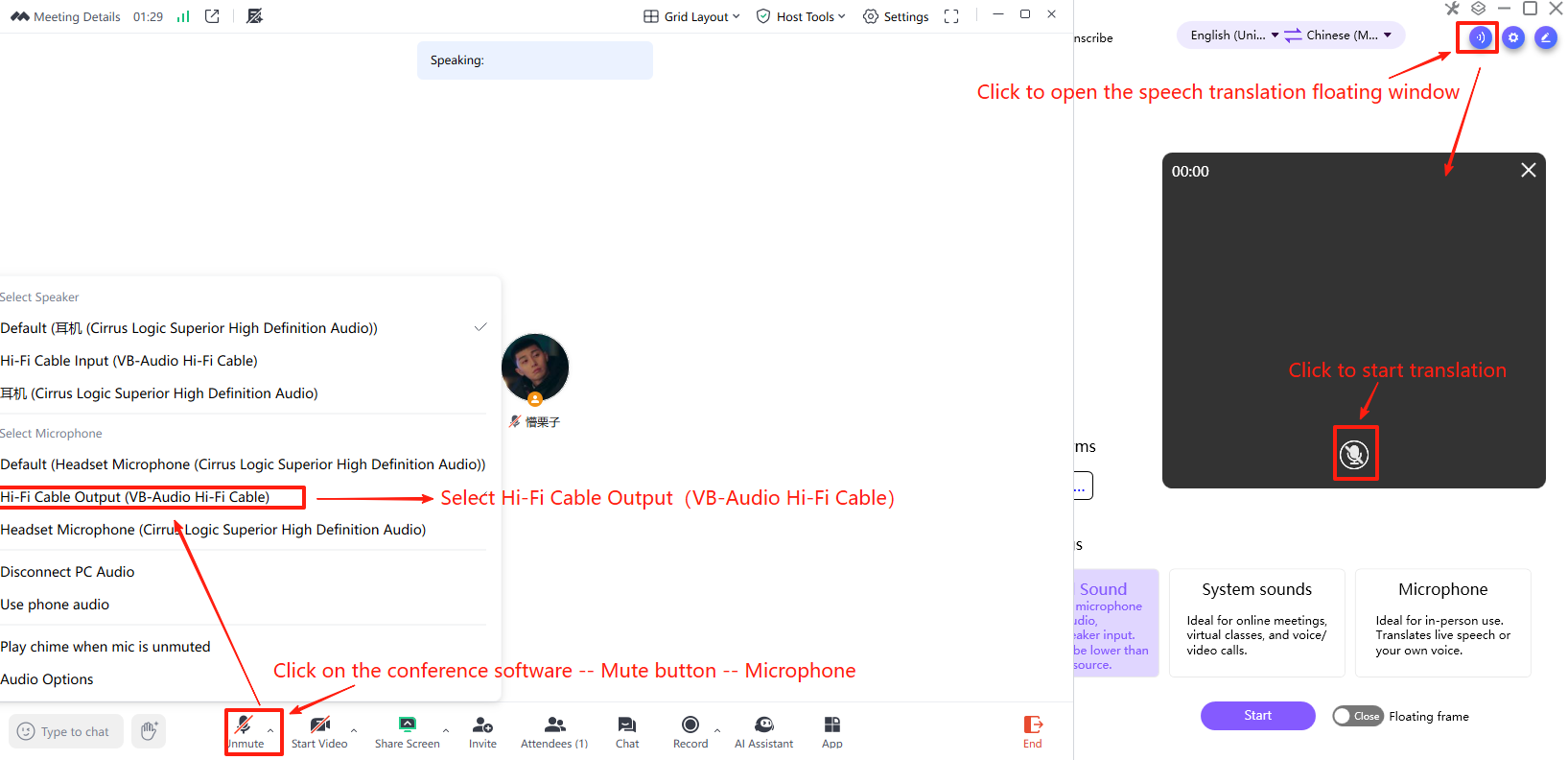
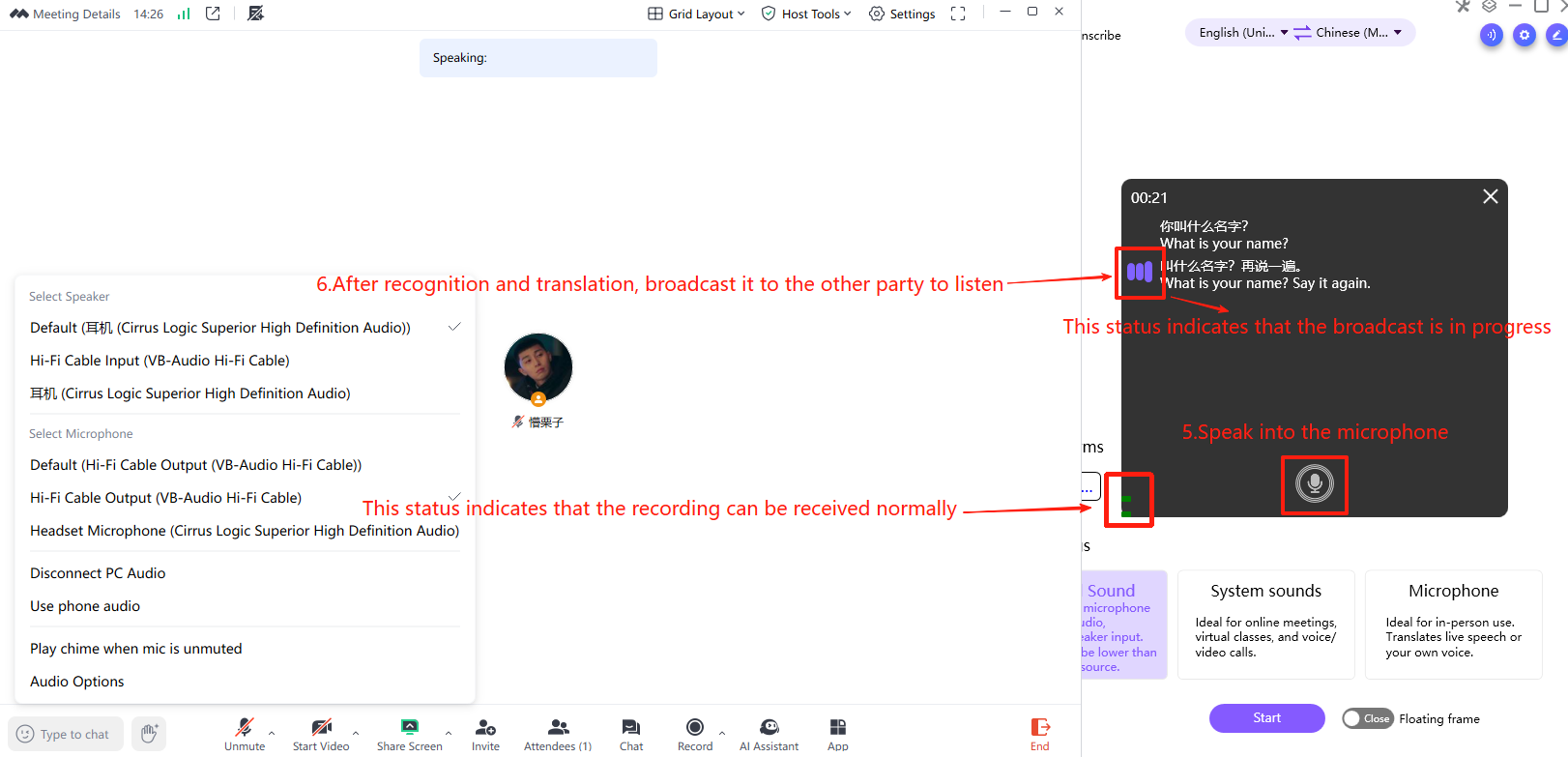
5. After enabling the speech translation feature, ensure that the microphone selected in Zoom, Tencent, Teams, and other meeting applications is: Hi-Fi Cable Output (VB-Audio Hi-Fi Cable).
Note: The operation sequence is as follows:
1. Open the speech translation floating panel.
2. Enable translation.
3. Click the “Mute” icon button in the meeting software.
4. Select the microphone: Hi-Fi Cable Output (VB-Audio Hi-Fi Cable).
5. Speak into the computer microphone.
6. Recognize the translation results and broadcast them to the other party.
iTourTranslator Desktop Version for Mac: How to use the speech translation feature?
The speech translation feature is only supported in Premium Translation and DeepL Translation. It only recognizes and translates the user’s own speech.
Specific steps for Mac are as follows:
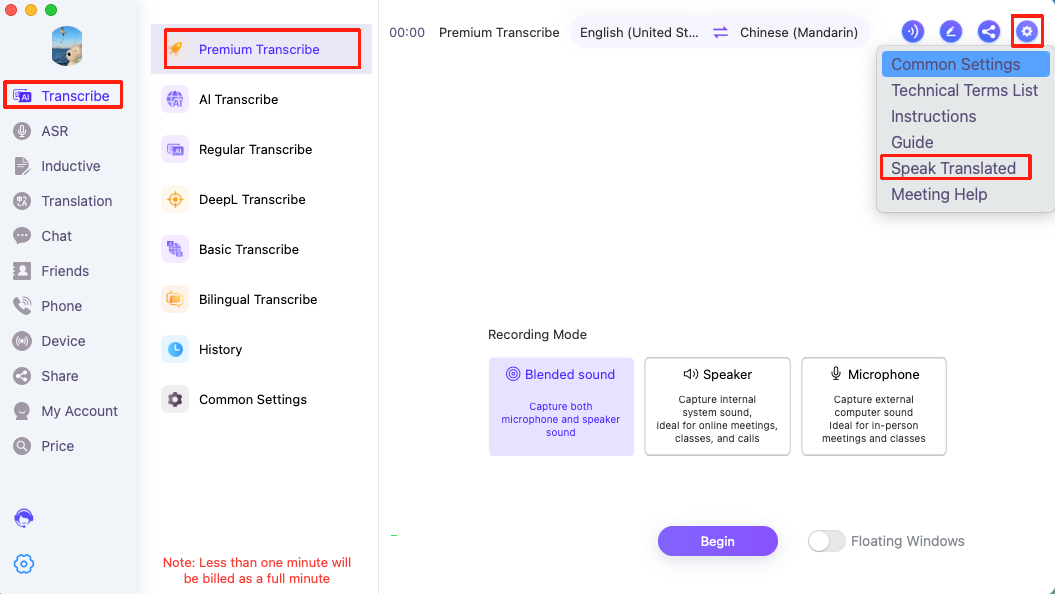
1. Simultaneous Interpretation — Premium Translation and DeepL Translation — Top right corner settings — Speech Translation
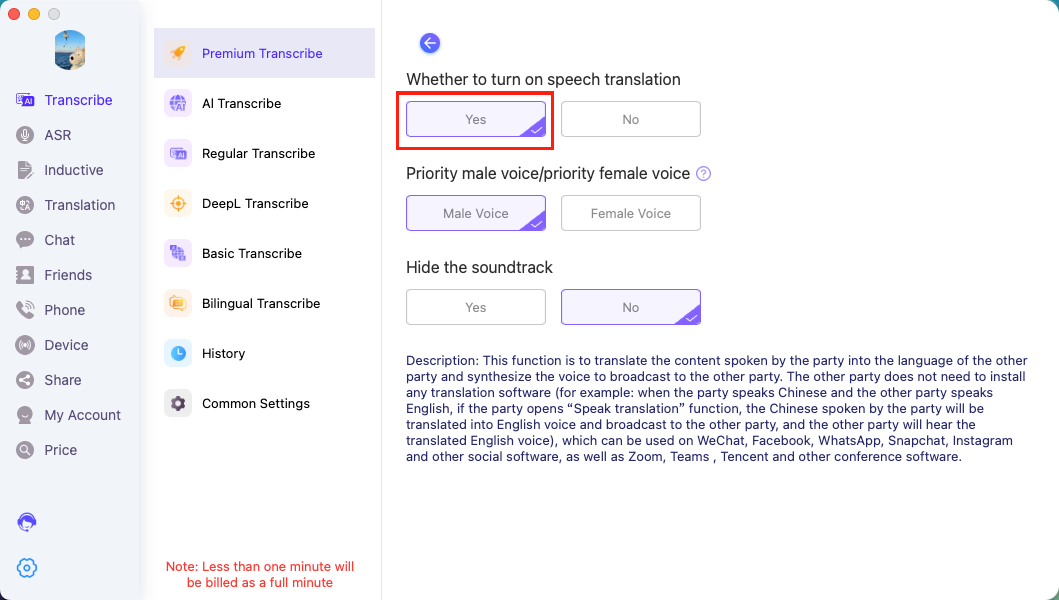
2. Enable speech translation
3. Return to the Premium Translation and DeepL Translation page, and a “Speech Translation” button will appear in the top right corner.
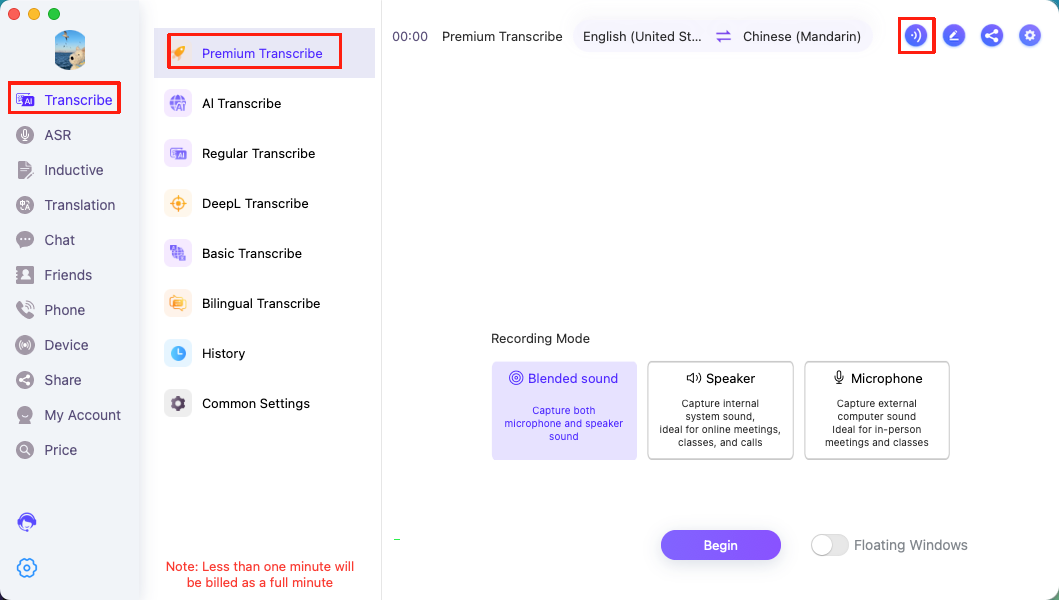
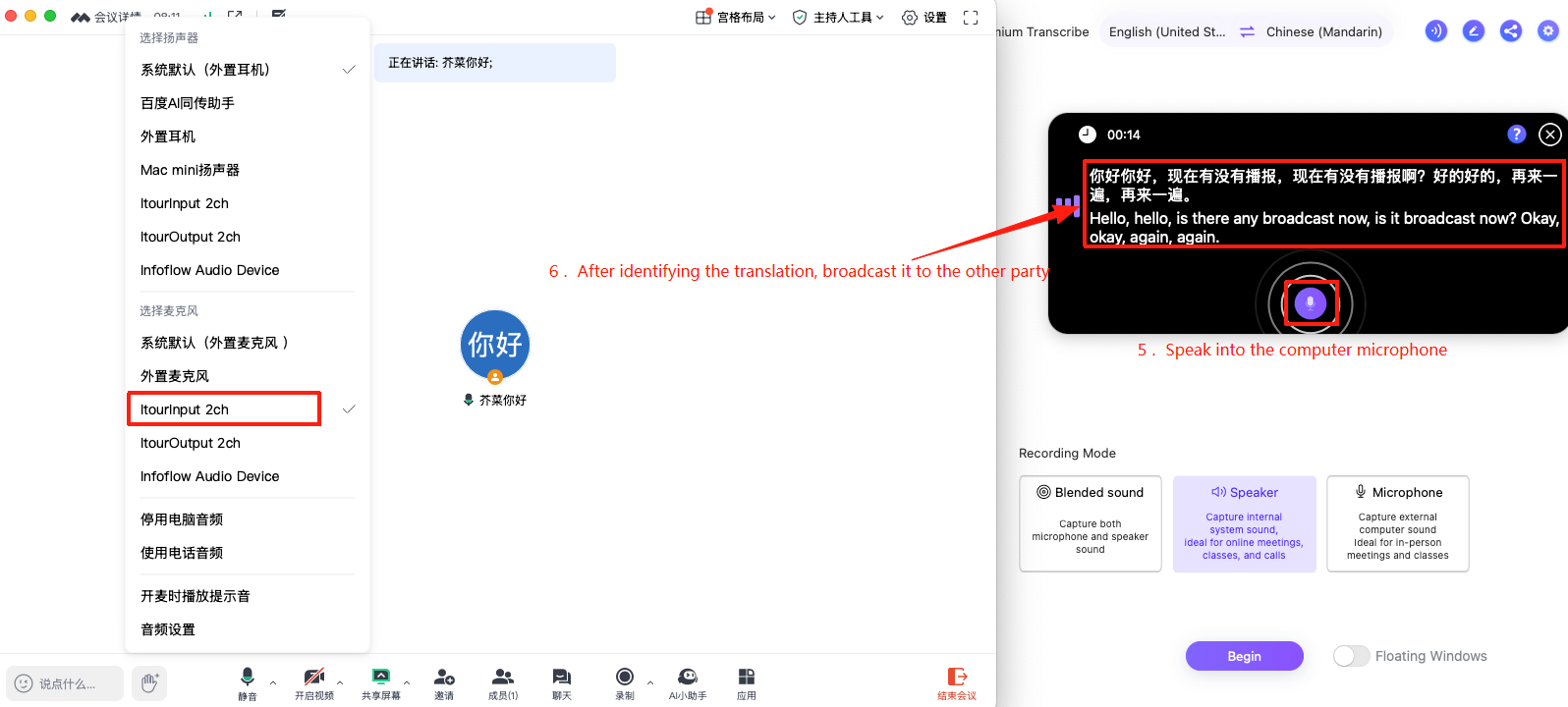
4. Click to enable the Speech Translation feature and start translation. Confirm that the microphone in meeting software such as Zoom, Tencent Meeting, or Teams is set to: iTourInput 2ch.
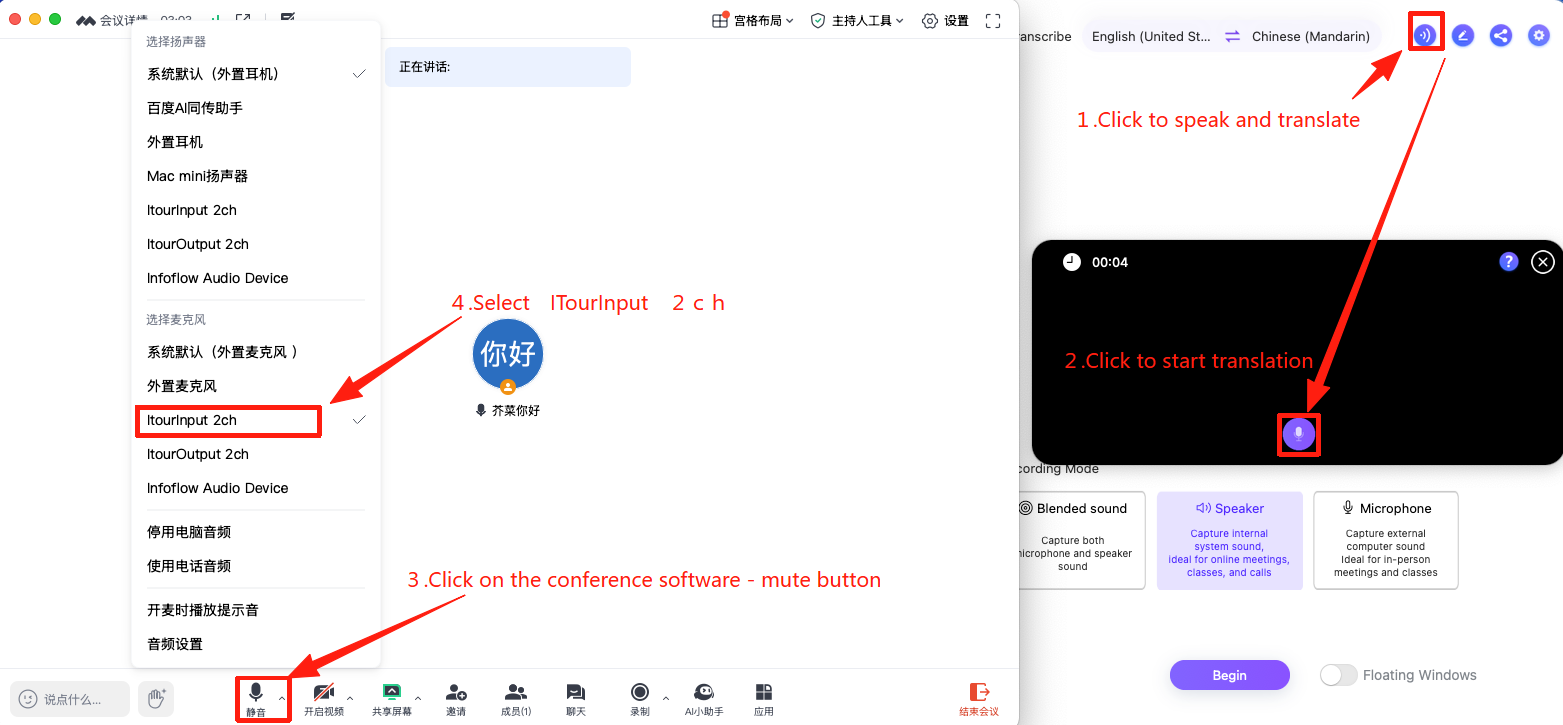
5. Speak into the computer microphone, and the translated result will be broadcast to the other party.
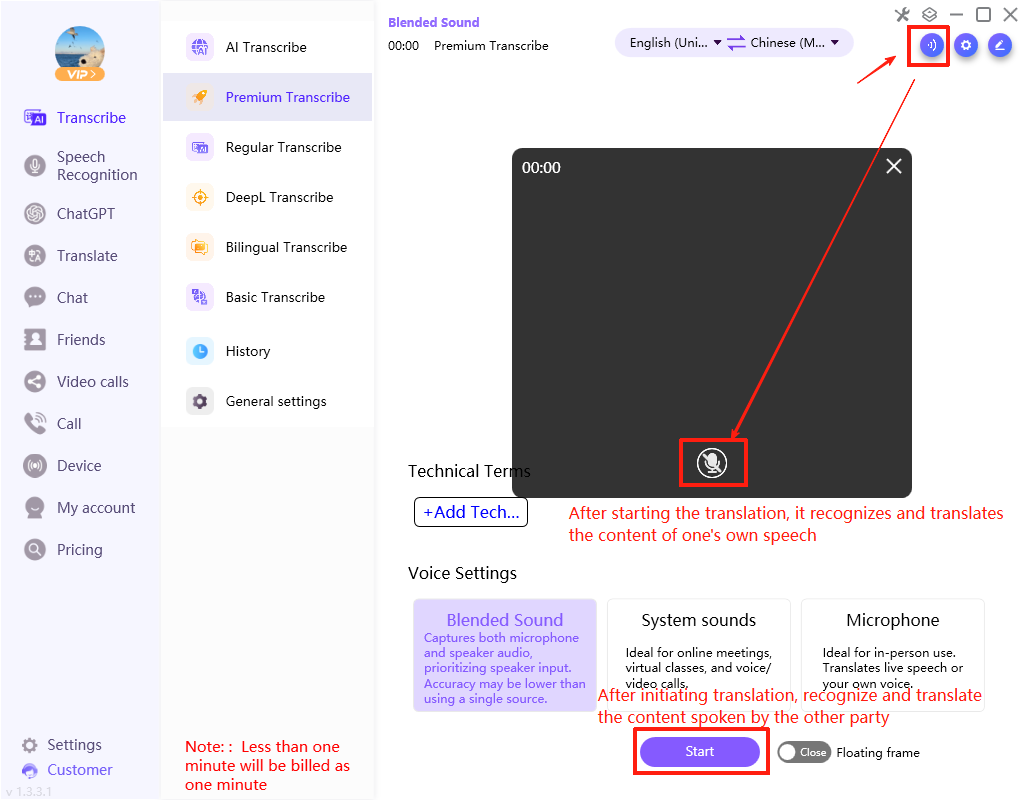
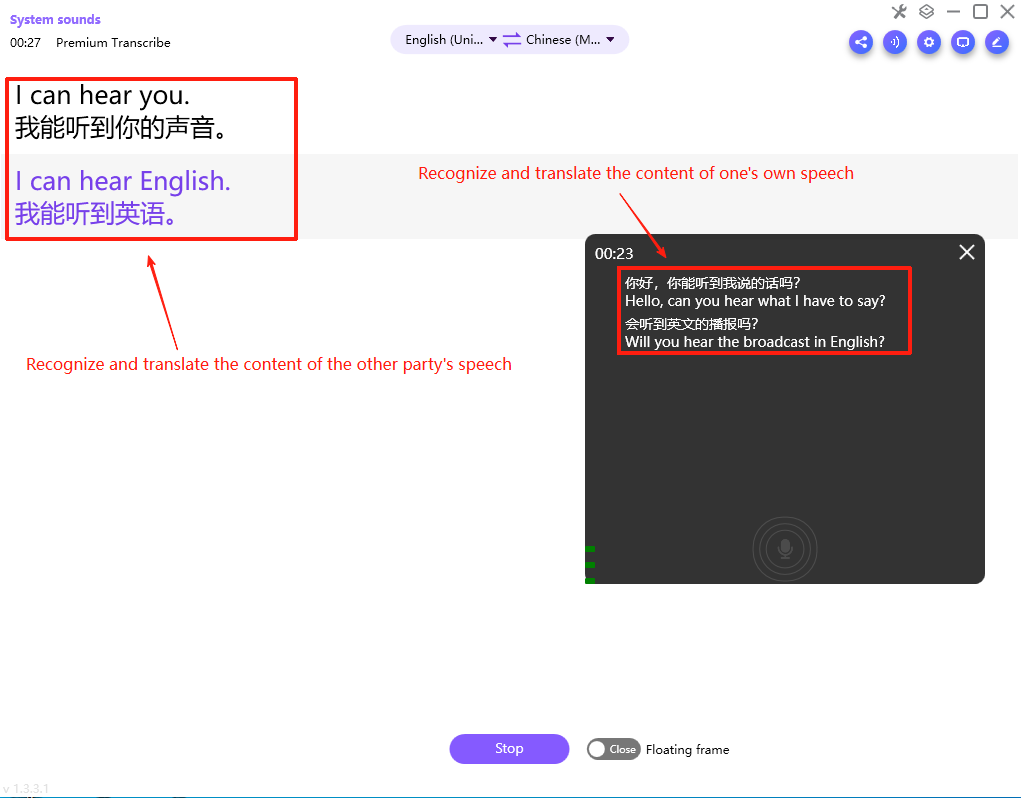
Why does the iTourTranslator Desktop Version not translate the other person's speech after using the speech translation function?
The speech translation function only recognizes and translates the user’s speech content and broadcasts it for the other person to hear. If translation for the other person’s speech is needed, the simultaneous interpretation feature — Premium Translation/DeepL Translation – must be enabled separately. Details are shown in the image below.
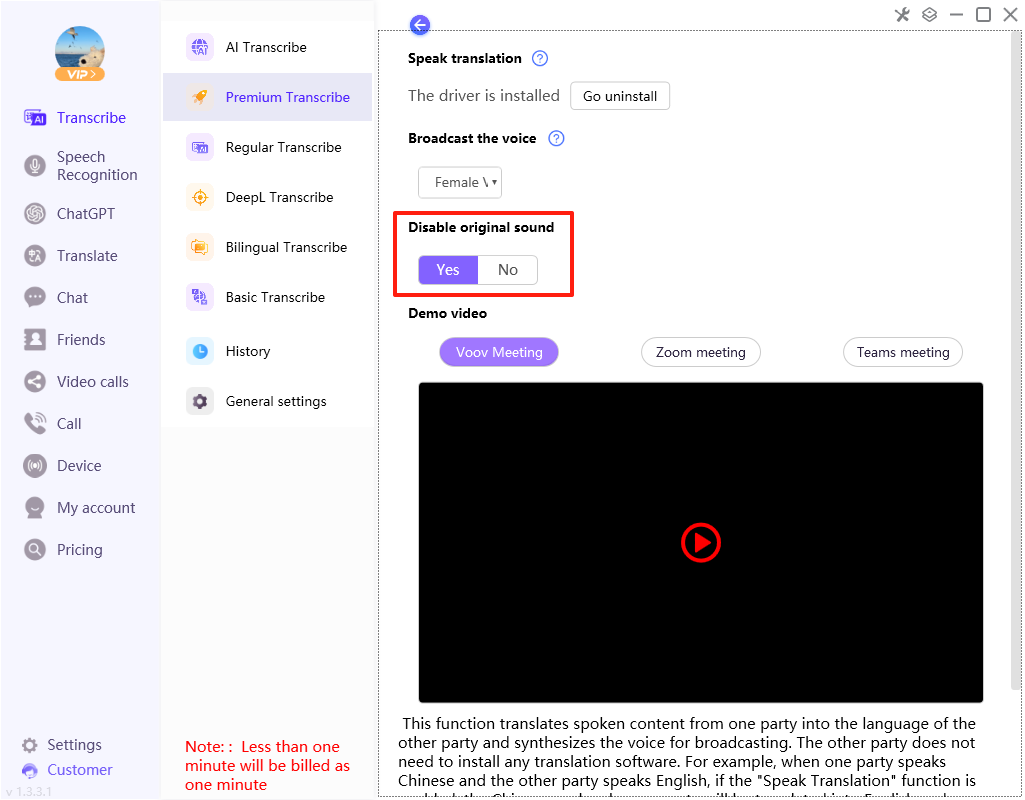
In the iTourTranslator Desktop Version, when using the speech translation function, is it possible to set it so that the other person does not hear your voice?
Yes, it can be set. In the Premium Translation/DeepL Translation section — go to the settings in the top right corner — on the Speech Translation page, switch “Hide Original Voice” to “Yes.”
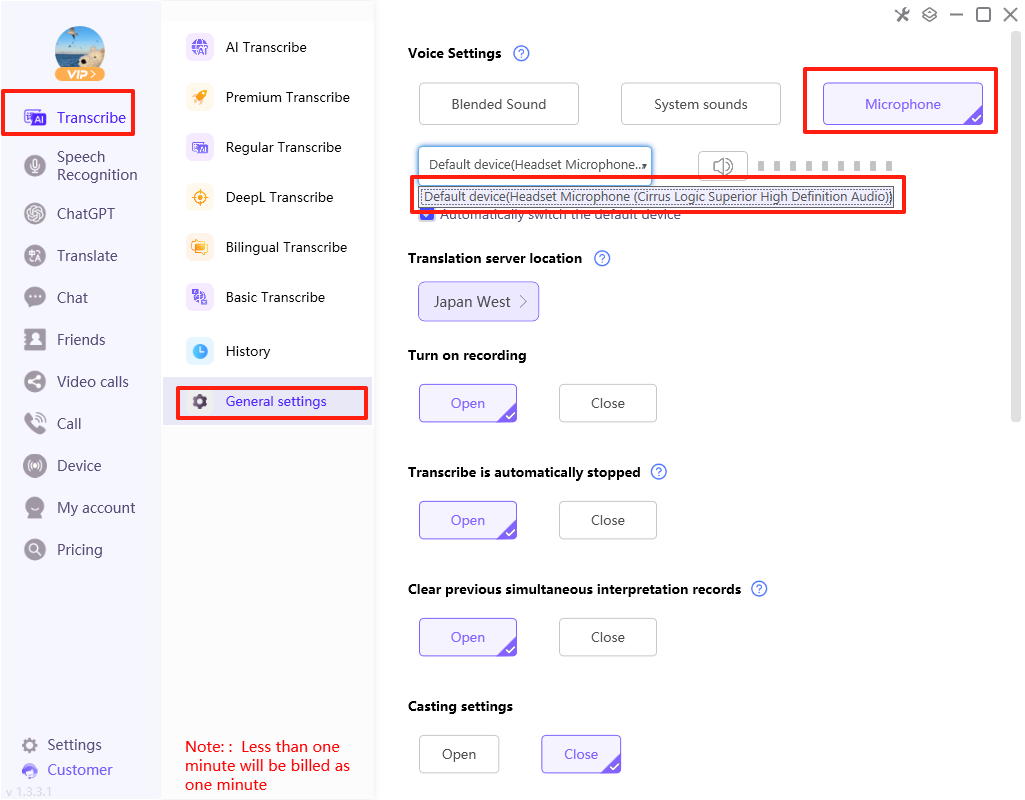
After installing the speech translation driver on the iTourTranslator Desktop Version for Windows, the other party in the meeting can no longer hear my voice. What should I do?
You can confirm and resolve the issue using the following method:
Method 1: Check the iTourTranslator software — Simultaneous Interpretation — Common Settings — Sound Source Settings — Microphone. Is it set to Hi-Fi Cable Output (VB-Audio Hi-Fi Cable)? If yes, please change it to another microphone driver.
Method 2: Go to your computer — System Settings — Sound — Input: Is it set to Hi-Fi Cable Output? If yes, please change it to another microphone driver.
Driver 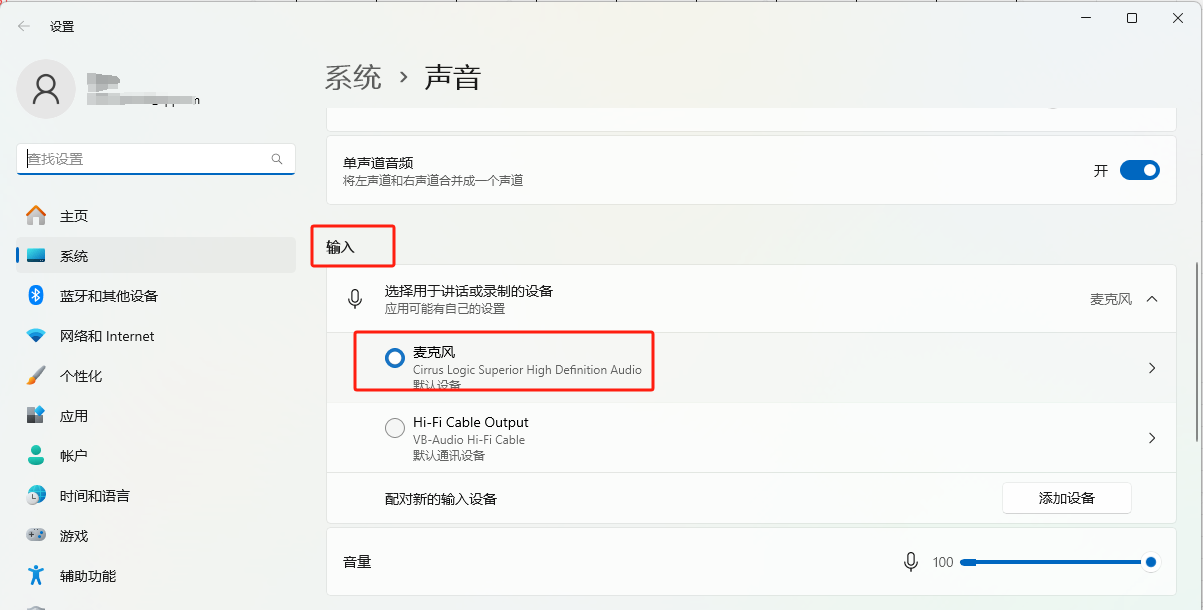
Additionally, please note: In the meeting software — Microphone options, Hi-Fi Cable Output (VB-Audio Hi-Fi Cable) should only be selected when the speech translation function is enabled. If you are not using the speech translation function, make sure the meeting software — Microphone does not select Hi-Fi Cable Output (VB-Audio Hi-Fi Cable).
Why does the iTour Translator Desktop Version on a Mac computer fail to recognize and translate when headphones are plugged in?
For Mac computers running systems below macOS 13, the software downloaded from the App Store does not support capturing internal computer sound. You can try the following solutions to resolve the issue:
Option 1: Uninstall the currently installed software and visit the official website of “Dear Translator” to download and install the software for use.
Option 2: Upgrade your Mac operating system.
Option 3: Use external speakers and avoid wearing headphones.
Why does the iTour Translator Desktop Version on Mac systems below version 13 fail to display translation content after enabling translation?
You can follow the steps shown in the diagram below to check:
(image to be added)
Note: You need to first enable iTourTranslator — Simultaneous Interpretation — XX Simultaneous Interpretation for translation, then go to the conference software — Audio — Speaker to check and select.
The iTour Translator Desktop Version on macOS 13 or later is unable to start translation despite already being granted screen recording permissions.
In macOS 13 and later, if iTour Translator has been granted screen recording permission but still cannot start translation, this may be because the system permission requires restarting the app to take full effect.
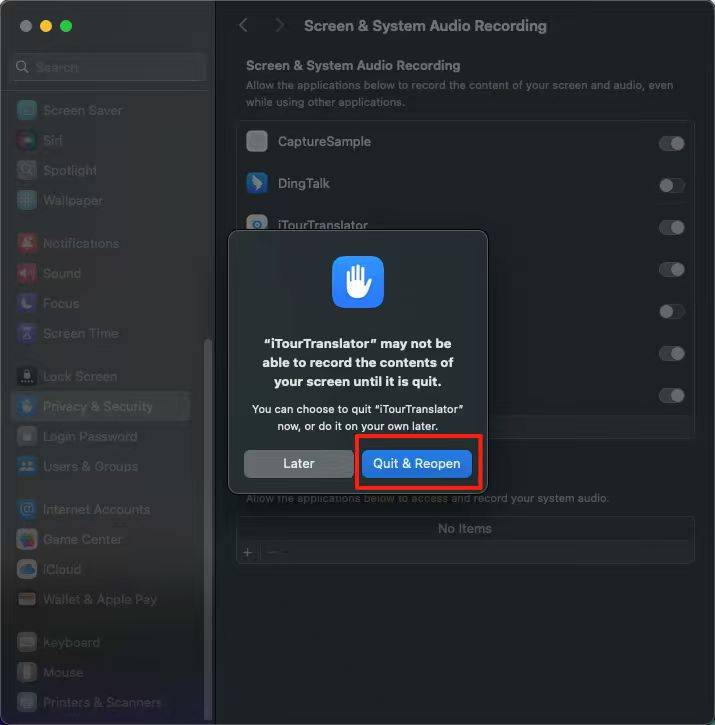
Please follow the steps below:
- Fully exit iTour TranslatorRight-click the app icon in the Dock and select “Quit”, or use the shortcut Command (⌘) + Q to completely close the app.
- Restart the appOpen iTour Translator again and try to enable the translation feature.
If the issue persists after restarting, we recommend you:
- Check if the permission is correctly granted:Go to System Settings > Privacy & Security > Screen Recording, and confirm that the switch next to iTour Translator is enabled (button is blue ✅).
- Re-grant the permission:Temporarily turn off the permission switch, then turn it back on, and restart the app again.
In most cases, completing the restart steps will allow the permission to take effect and the translation feature to work properly. If the issue continues, please check if the app is updated to the latest version, or contact online customer support.
iTour Translator Desktop Version on Mac: When the PPT or meeting software is in full-screen mode, the translation floating window disappears. What’s the reason for this?
This is due to the design limitations of the macOS system. When an application (such as PowerPoint or conferencing software) enters full-screen mode, the system treats it as an exclusive ‘desktop space,’ and other applications (including the translation floating window) cannot be displayed over the full-screen window.
You can try the following methods to resolve this:
Exit full-screen mode:
In PowerPoint or your conferencing software, click the green ‘Full Screen’ button in the top-left corner of the window, or press the ESC key on your keyboard to exit full-screen mode and switch to windowed mode. The translation floating window will then be able to display normally
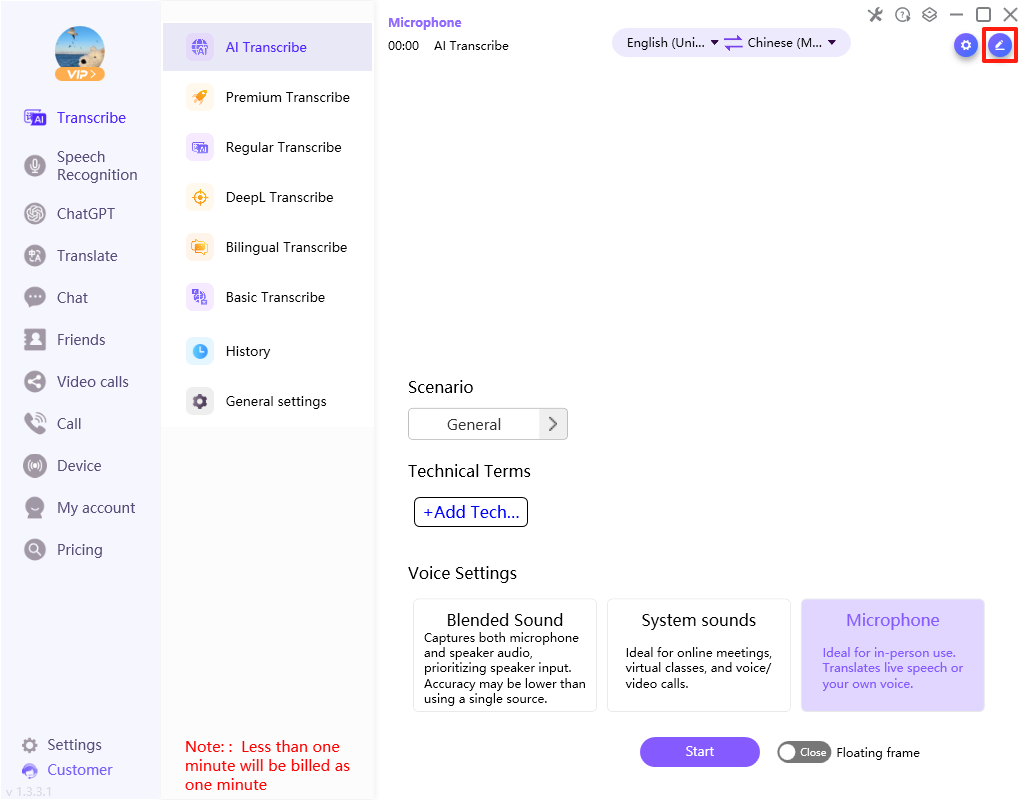
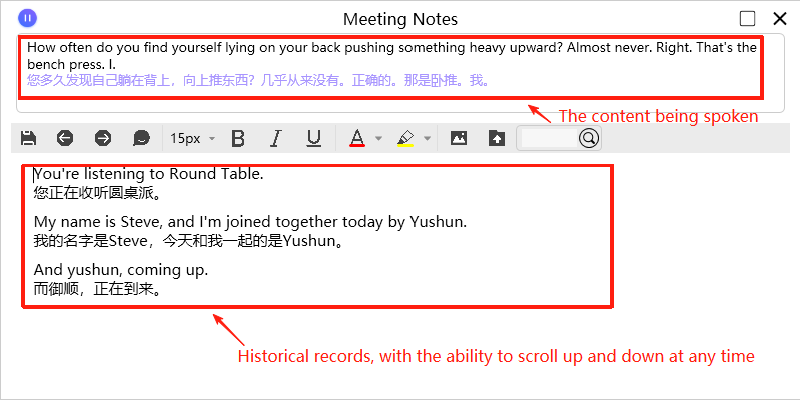
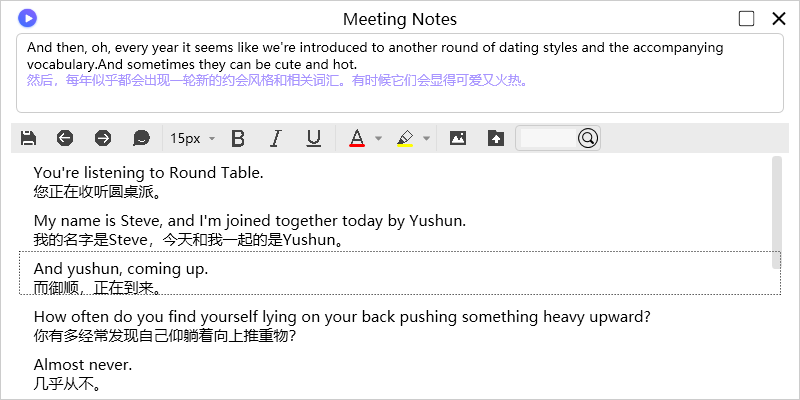
When using iTourTranslator Desktop Version for simultaneous translation on a computer, how can you review the previous translated content without it constantly refreshing to display the latest content?
You can use the meeting minutes feature, as shown in the image below.
iTourVoiceTranslator 11 questions
Why can't iTour Voice Translator enable translation on macOS 13 and later, even after screen recording permission has been granted?
In macOS 13 and later, if iTour Translator has been granted screen recording permission but still cannot start translation, this may be because the system permission requires restarting the app to take full effect.
Please follow the steps below:
- Fully exit iTour TranslatorRight-click the app icon in the Dock and select “Quit”, or use the shortcut Command (⌘) + Q to completely close the app.
- Restart the appOpen iTour Translator again and try to enable the translation feature.
If the issue persists after restarting, we recommend you:
- Check if the permission is correctly granted:Go to System Settings > Privacy & Security > Screen Recording, and confirm that the switch next to iTour Translator is enabled (button is blue ✅).
- Re-grant the permission:Temporarily turn off the permission switch, then turn it back on, and restart the app again.
In most cases, completing the restart steps will allow the permission to take effect and the translation feature to work properly. If the issue continues, please check if the app is updated to the latest version, or contact online customer support.
iTour Voice Translator on Mac: Why does the translation floating window disappear after the PPT or conference software goes into fullscreen mode?
This is due to the design limitations of the macOS system. When an application (such as PowerPoint or conferencing software) enters full-screen mode, the system treats it as an exclusive ‘desktop space,’ and other applications (including the translation floating window) cannot be displayed over the full-screen window.
You can try the following methods to resolve this:
Exit full-screen mode:
In PowerPoint or your conferencing software, click the green ‘Full Screen’ button in the top-left corner of the window, or press the ESC key on your keyboard to exit full-screen mode and switch to windowed mode. The translation floating window will then be able to display normally
Why does iTour Voice Translator on Mac computers fail to recognize and translate after wearing headphones?
For Mac computers running systems below macOS 13, the software downloaded from the App Store does not support capturing internal computer sound. You can try the following solutions to resolve the issue:
Option 1: Uninstall the currently installed software and visit the official website of “Dear Translator” to download and install the software for use.
Option 2: Upgrade your Mac operating system.
Option 3: Use external speakers and avoid wearing headphones.
iTour Voice Translator on Windows PC: How to use the Voice Translation feature?
The voice translation feature only supports Premium Translation and DeepL Translation, and it only recognizes and translates your own spoken content.
For Windows PC: You need to purchase and install a virtual microphone driver to use this feature. The specific steps are as follows:
1.Function floating box→ Top-right corner Settings→ Voice Translation.
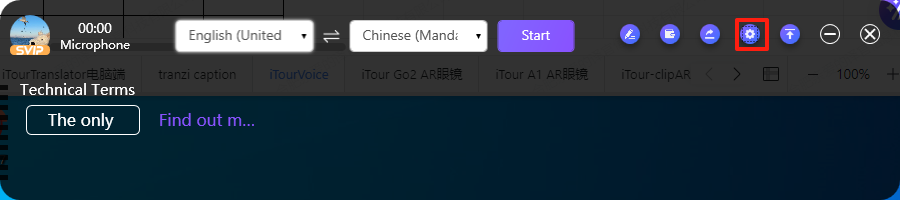
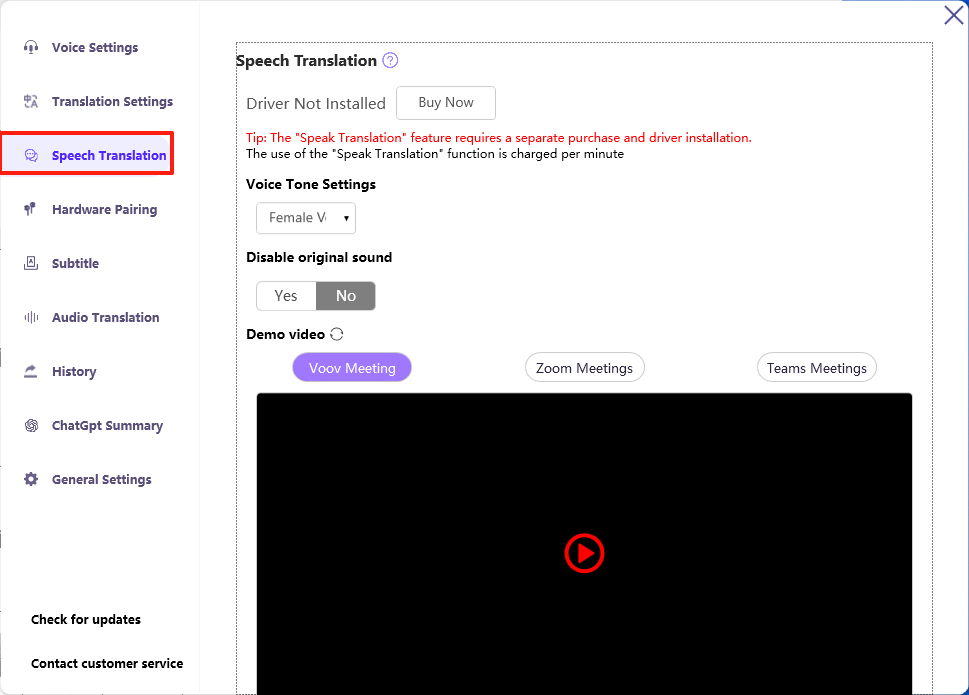
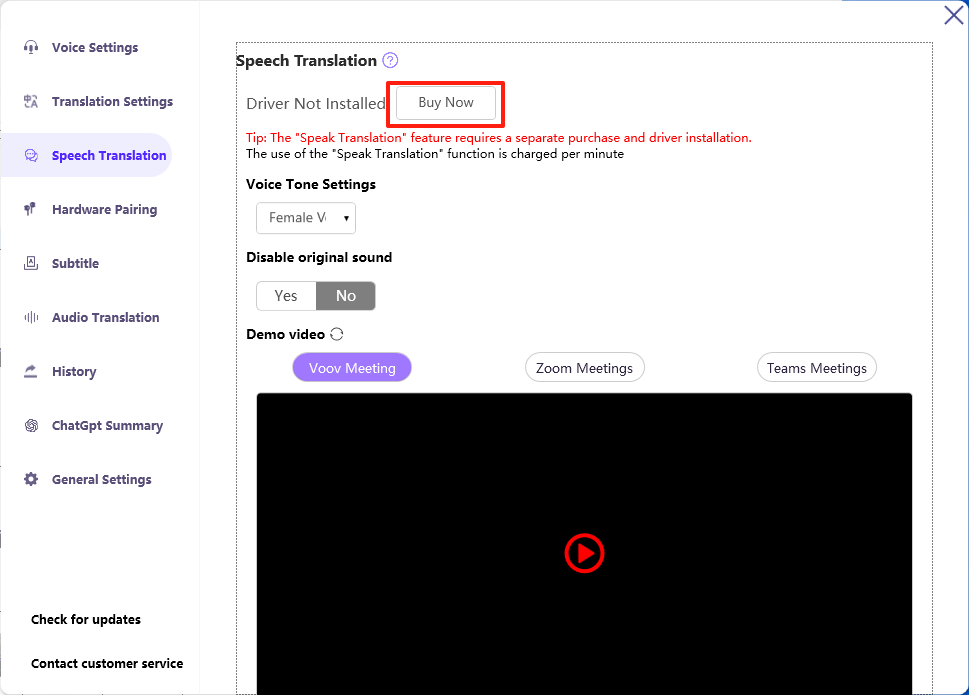
2. If the virtual driver has not been purchased, you need to buy it first in order to install and use it.
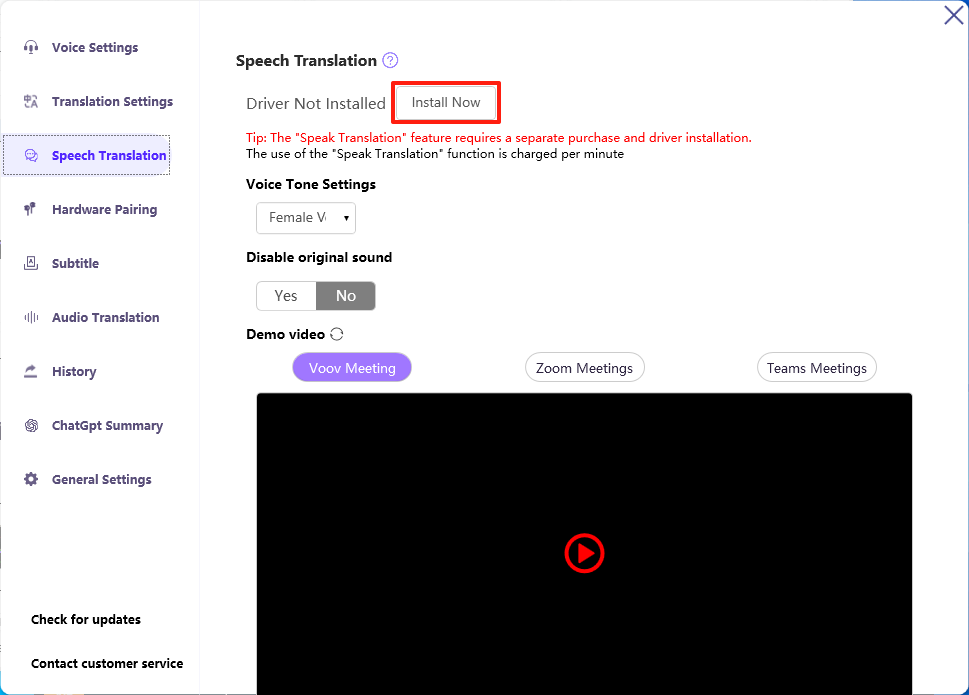
3. After the purchase is successful, go to the voice translation settings page and click [Install].
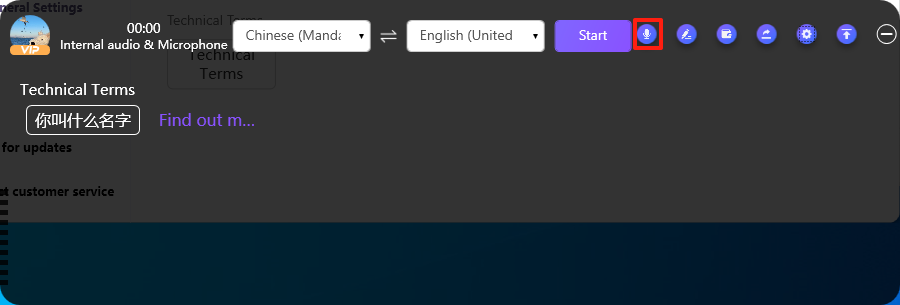
4. After the installation is successful, the software needs to be restarted for it to take effect. Once activated, a “Speak Translation” button will appear on the right side of the translation floating window.
5. After enabling the voice translation feature, ensure that the microphone selection for Zoom, Tencent, Teams, and other meeting software is set to: Hi-Fi Cable Output (VB-Audio Hi-Fi Cable).
Note: The operation steps are as follows:
1. Open the voice translation floating window.
2. Enable translation.
3. Click the “Mute” icon button in the meeting software.
4. Set the microphone to: Hi-Fi Cable Output (VB-Audio Hi-Fi Cable).
5. Speak into the computer microphone.
6. Recognize, translate, and broadcast the results to the other party.
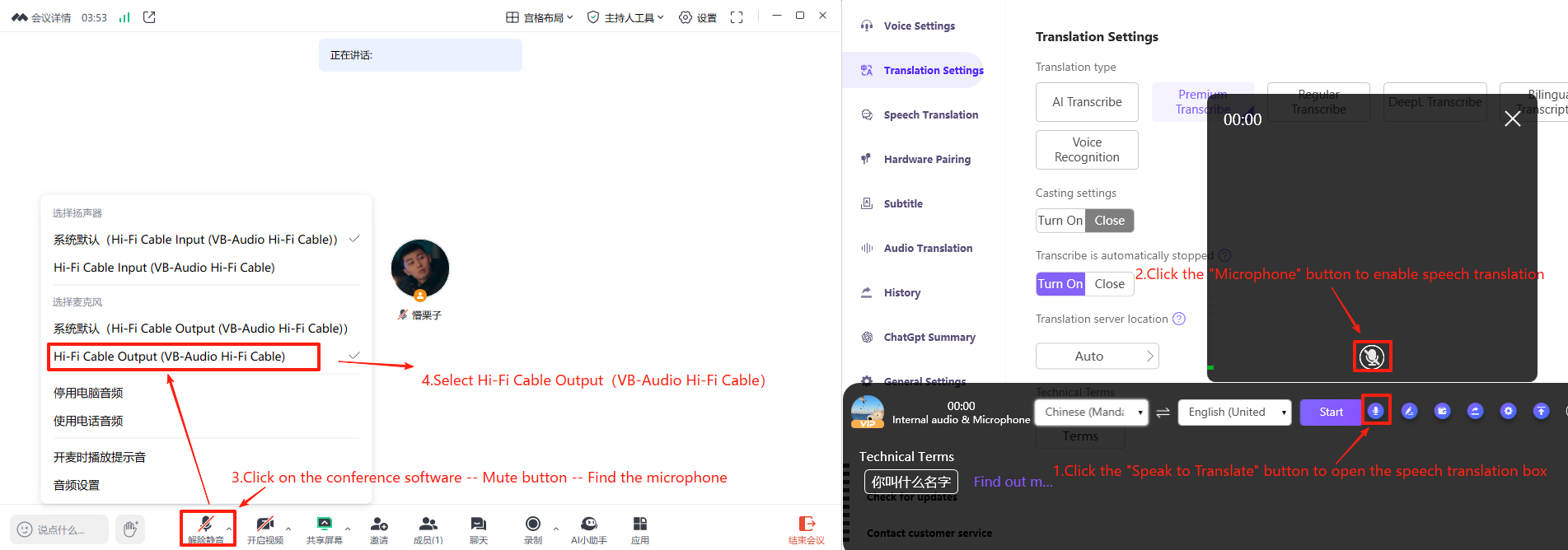
MAC Computer: How does the Speak Translator function work?
The voice translation feature only supports Premium Translation and Deepl Translation functions, and it only recognizes and translates the user’s own speech.
Specific steps for Mac computers are as follows:
1.Feature floating window — Top right corner settings — Voice Translation.
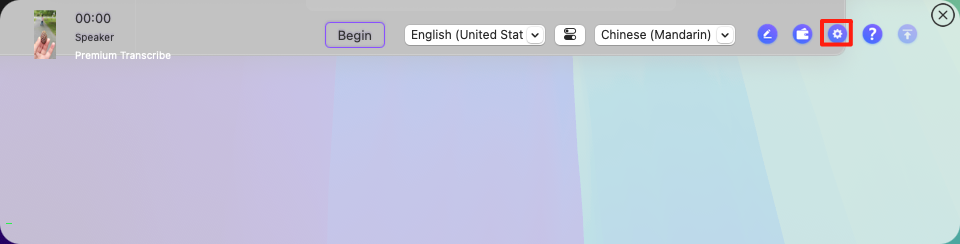
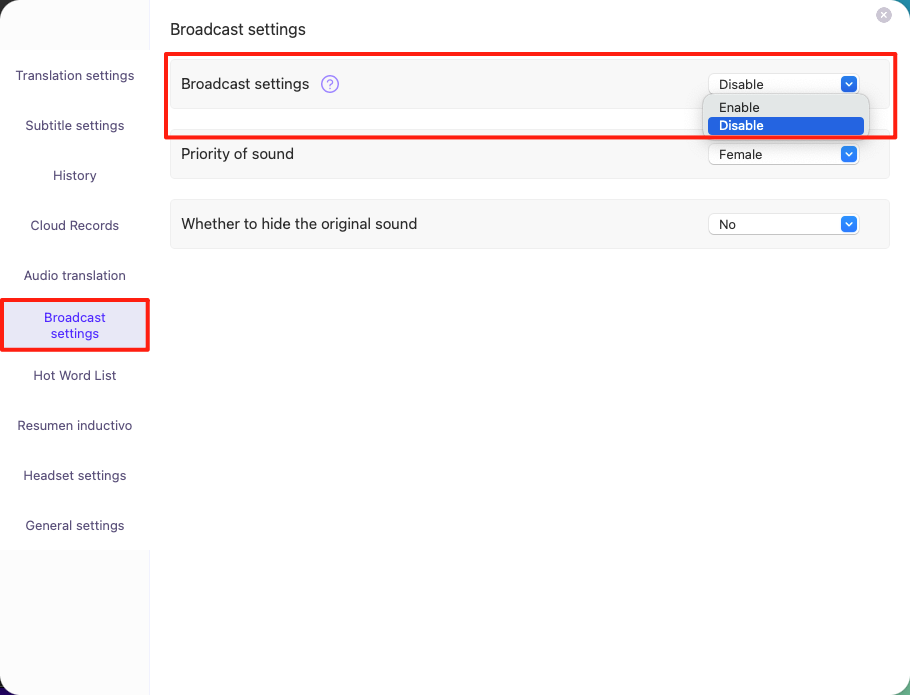
2. Enable voice translation
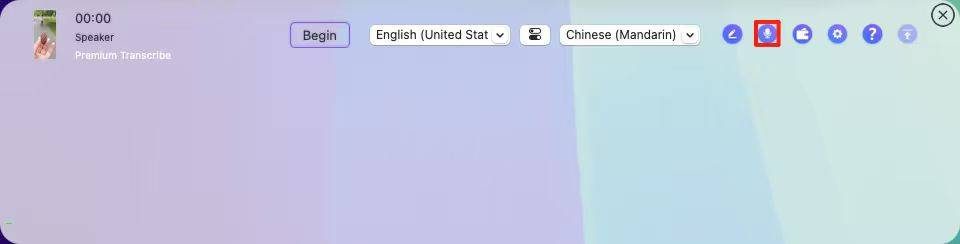
3. Return to the function floating window page, and the “Voice Translation” button will appear in the upper right corner.
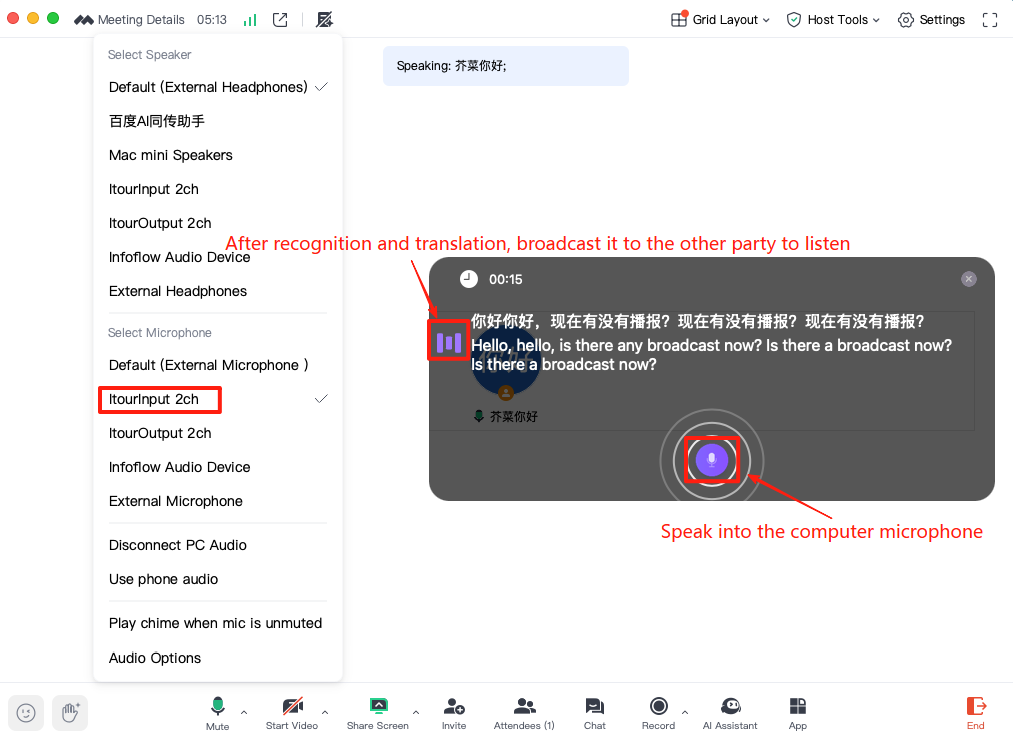
4. Click to enable the voice translation feature, turn on translation, and ensure that the microphone in Zoom, Tencent, Teams, and other meeting software is set to: itourInput 2ch.
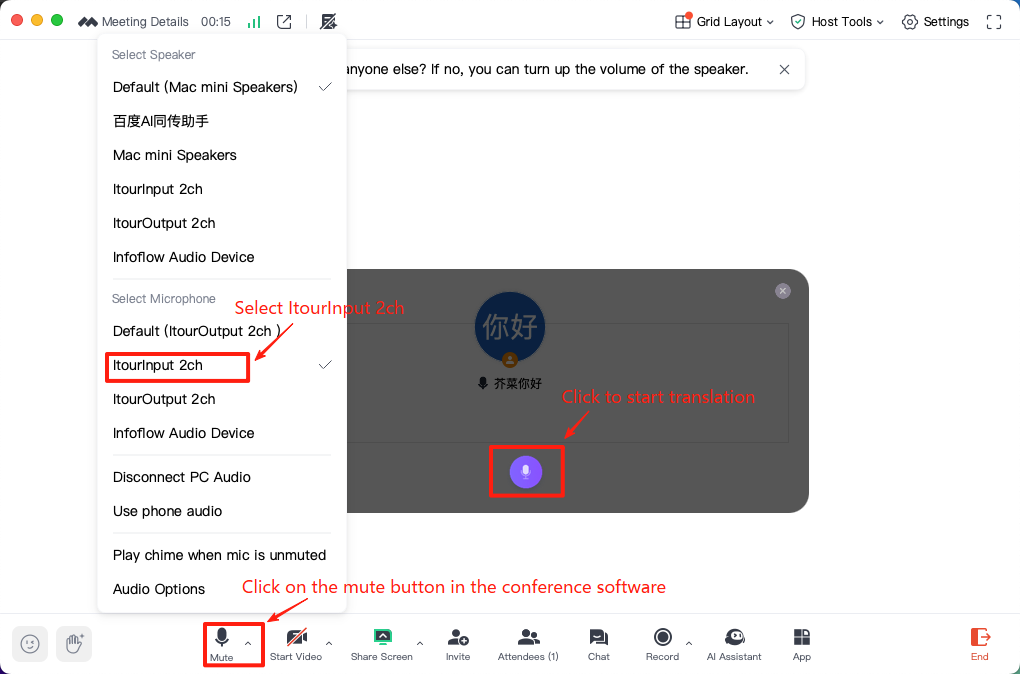
5. Speak into the computer’s microphone, and the recognized and translated result will be broadcast to the other party.
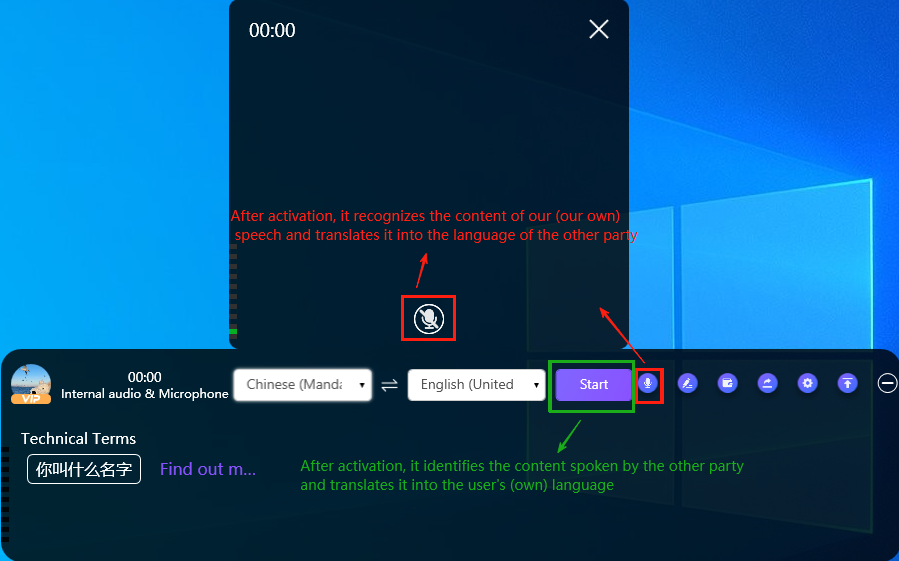
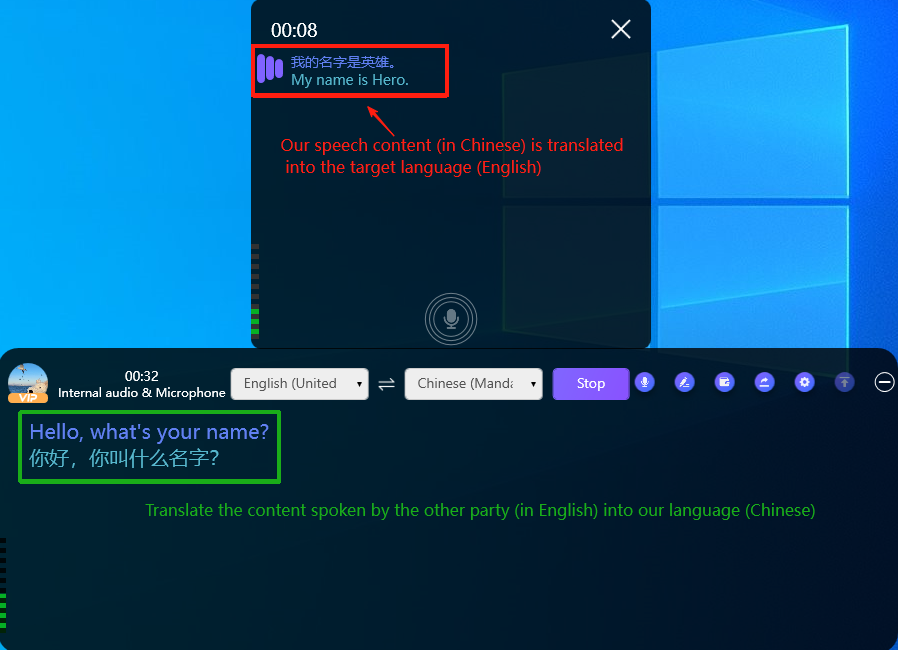
Why is the other party's speech not translated after using the iTour Voice Translator's voice translation feature?
The voice translation feature only recognizes and translates your own speech and broadcasts it to the other party. If you need to translate the other party’s speech, simultaneous interpretation must be enabled separately, as shown in the diagram below:
Can I use the speaking translation feature of iTour Voice Translator without letting the other party hear my voice? Is there a setting for this?
It can be configured. In the top right corner under Settings — Voice Translation page, switch “Hide Original Voice” to “Yes”.
(image to be added)
(image to be added)
After installing the speech translation driver for iTour Voice Translator on my Windows computer, the other party in the meeting can no longer hear my voice. What should I do?
The issue can be identified and resolved as follows:
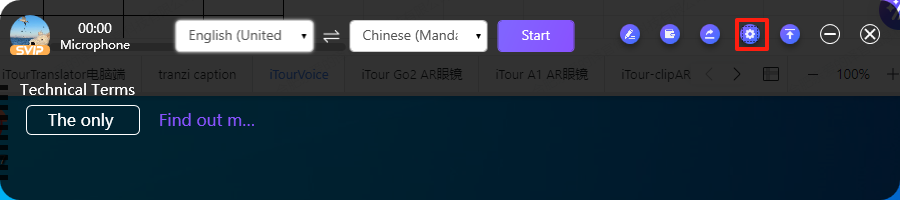
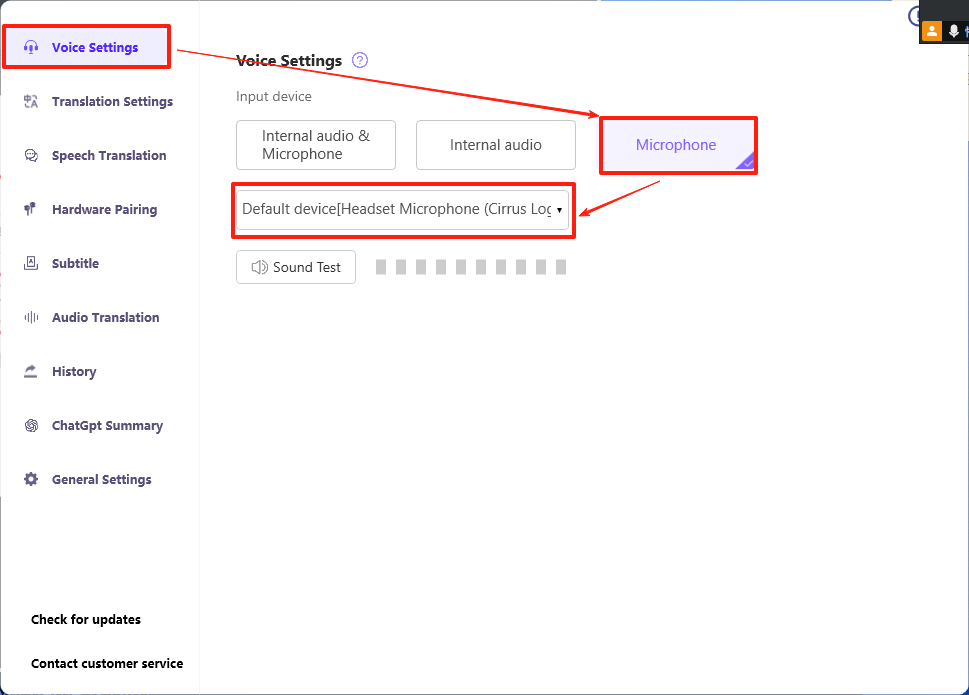
Method 1: Check in the iTourVoiceTranslator software → Settings→ Sound Source Settings → Microphone, whether it is set to Hi-Fi Cable Output (VB-Audio Hi-Fi Cable)? If yes, please change it to a different microphone driver.
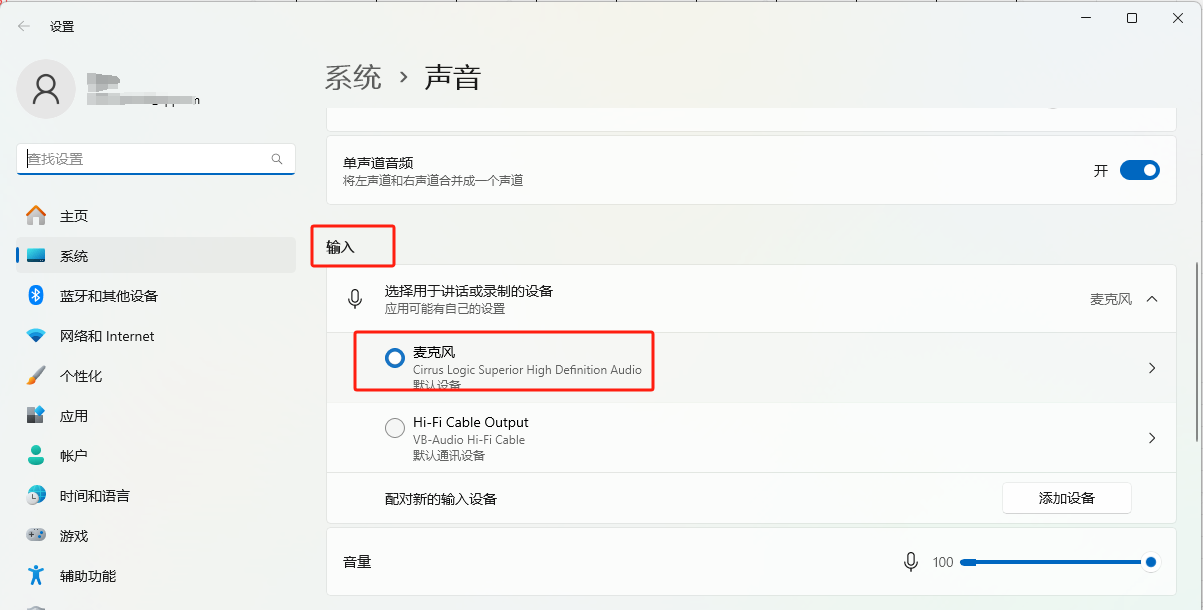
Method 2: Go to the computer→ System Settings→Sound → Input: Is it set to Hi-Fi Cable Output? If yes, please change it to a different microphone driver.
Additionally, please note:
In the conferencing software → Microphone option, Hi-Fi Cable Output (VB-Audio Hi-Fi Cable) can only be selected after enabling the voice translation feature.
When the voice translation feature is not in use, do not select Hi-Fi Cable Output (VB-Audio Hi-Fi Cable) in the conferencing software — Microphone.
Why does iTour Voice Translator on Mac computers with systems below version 13 not display the translation content after enabling translation?
You can follow the steps shown in the diagram below to check.
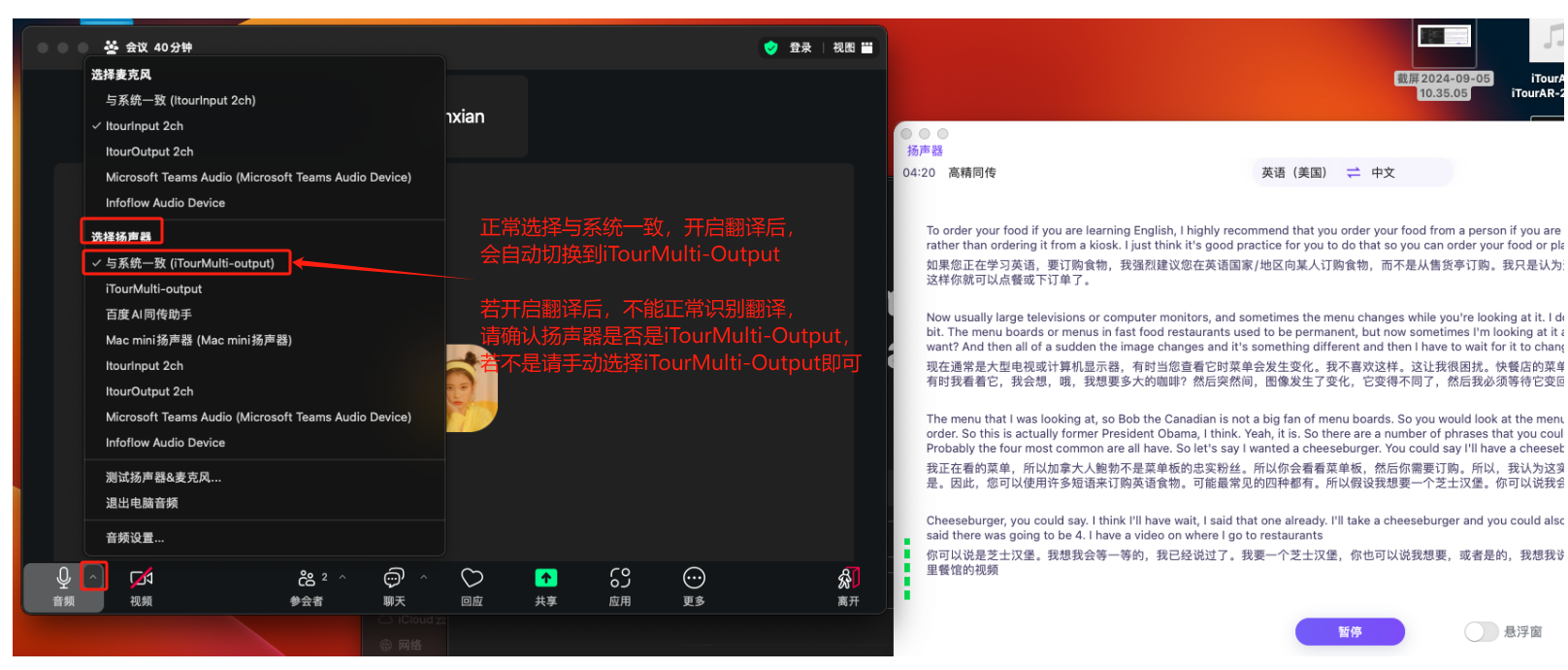
Note: First, enable iTourVoiceTranslator — Simultaneous Translation, then go to the conference software — Audio — Speaker to check and select.
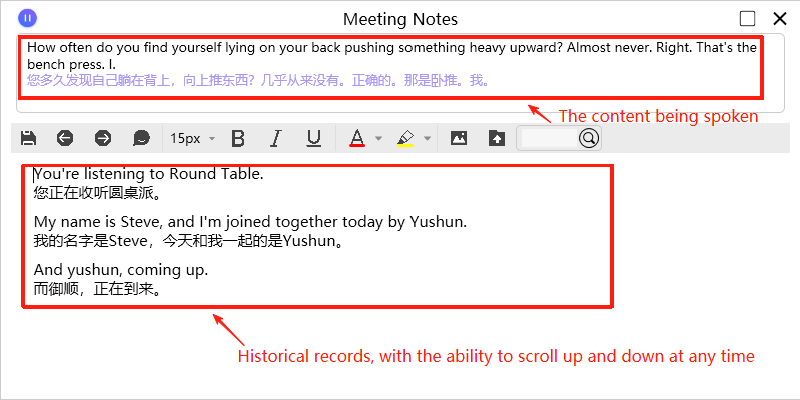
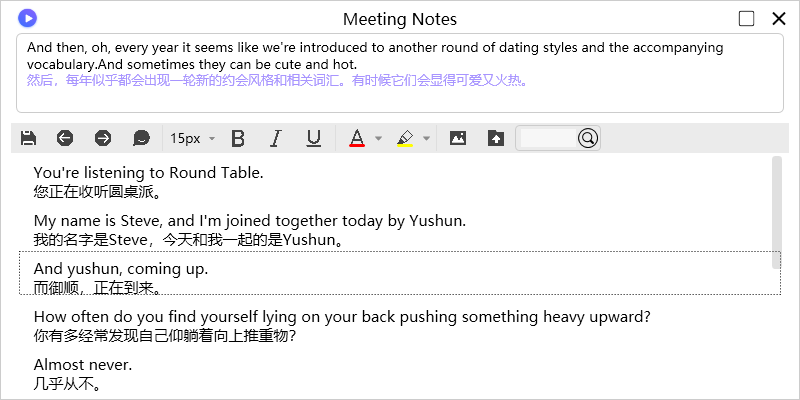
When using iTour Voice Translator for simultaneous translation, how can I view the previous translation content without it being refreshed to display the latest content in real-time?
You can use the meeting minutes feature, as shown below.
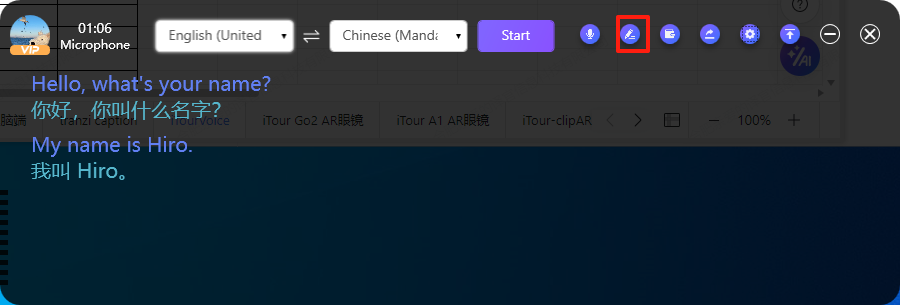
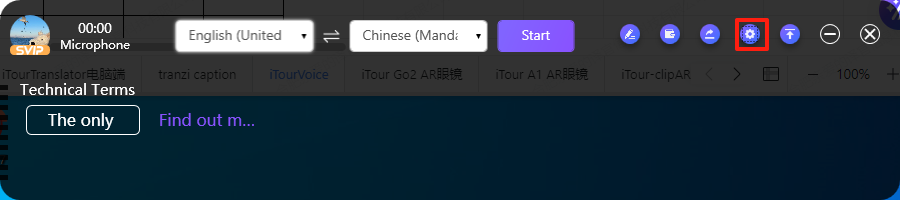
I have purchased and installed the speech translation driver for iTour Voice Translator. Why does the floating window page not display the "Speech Translation" icon?
You can go to the top right corner settings — Translation Settings: select Premium Translation or Deepl Translation.
Video-Plug-in 6 questions
Why isn't the Video plugin working? After clicking "Start Translation," nothing happens.
1.If the plugin was installed after opening the webpage, please refresh the webpage or restart the browser and try again.
2.If refreshing the webpage or restarting the browser does not resolve the issue, it is possible that the current webpage does not support generating a plugin floating panel. It is recommended to download the desktop client and use it. [Click here]
How to use the Browser Plugin features?
Specific feature introduction: Click Here
How to install Plugins?
Google Chrome:
In the case of overseas/wall circumvention, it can be installed on the Google Play Store, download : Click here
In Chinese mainland and without going through the wall, download : Click Here
local download: Click Here
Edge browser: Please go to the Edge browser application market to install. download: Click Here
Can the Plug-in translate Zoom, Teams, and Tencent client?
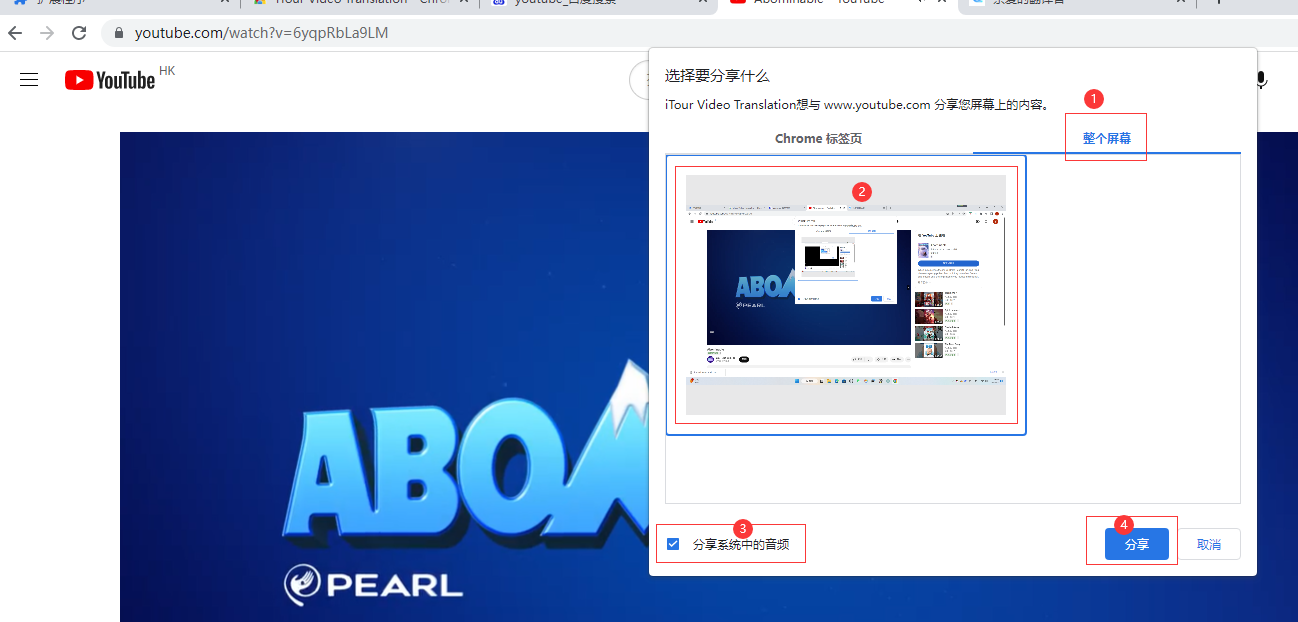
Yes, it can. The specific steps are as follows:
1. Click [Start Translation].
2. Select [Entire Screen]→ Click on the screen in the middle → Check “Share system audio”→ then click [Share].
Note: The translation floating window of the plug-in cannot be used outside of the browser.
Plugin Side: Is there an audio recording feature?
The plugin version does not have an audio recording feature.
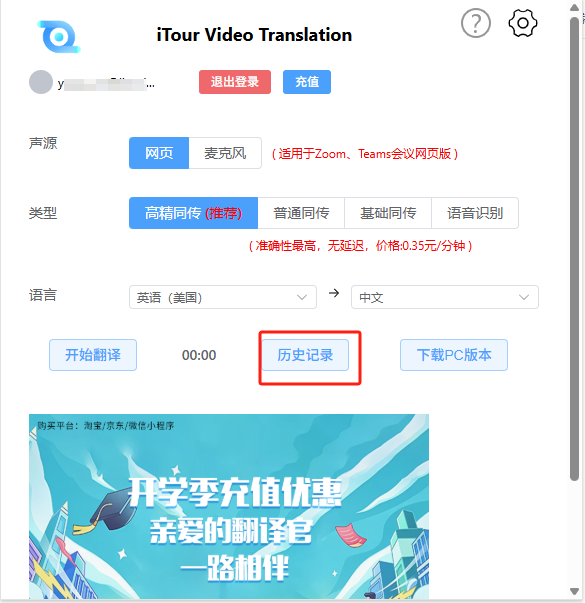
Plugin Side: How to find the history records?
Open the plugin page — Find the history records.
Document Translation 8 questions
Computer Client — iTour document translation software, how to log in?
1. After opening the software, the login interface displays a QR code login page.
(image to be added)
1. Open the “Dear Translator” mobile app –> Home page –> Tap the scan icon in the upper right corner to scan the QR code and log in to the obstetrics and gynecology hospital.
(image to be added)
To log in to this software, you need to first download the mobile app — “Dear Translator.” After logging into your account on the mobile app, use “Dear Translator” to scan the QR code for login.
If the mobile app prompts that the login information has expired during the QR code login process, you can try closing the app and reopening it to scan again.
Computer Client — In iTour document translation, how can I associate the original text with the translated text when viewing the translation?
Go to the ‘View Translation’ page, click on screen association, and scroll the mouse wheel to synchronize the original text and the translated text.
(image to be added)
Computer Client — Does iTour document translation support editing the translated text?
PDF documents do not support direct modification of translated text, but other document formats are supported. On the translation page, you can right-click with the mouse or use the toolbar at the top of the page to edit the translated content and take notes, allowing modifications to the translated text.
(image to be added)
Computer Client — In iTour document translation, where can I view the translated text?
In the translation records on the homepage, you can see the translated files along with the related translation information.
(image to be added)
Computer Client — How to operate collaborative online editing in iTour document translation?
My Documents –> Select the file you want to share –> Right-click on the file or click the three dots on the file –> Click ‘Share’ to enter the sharing page.
(image to be added)
For enterprise users sharing: Click ‘Add Collaborator’ –> Click ‘Copy Link’ –> Share it with the collaborator.
(image to be added)
For regular users sharing: Only link copying is supported –> Share it with the collaborator.
(image to be added)
Note:
1.After adding a collaborator, others who obtain the link will not be able to access the document.
2.Enterprise users can set the permissions for collaborators, while regular users do not have this feature for now.
How to use the iTour document translation terminology library on the Computer Client?
After adding the terminology library, enable the terminology library when using full-text translation or comparative translation. The translation results will prioritize the added terms.
To access the terminology library page:
1.Add terms individually:
Enter your custom-defined terms in the source language and target language boxes. The input character limit is 100 characters.
(image to be added)
2.Batch Import and Export
Import: Batch import supports Excel files, and the content of the file must match the template format. You can download the template to check the style.
(image to be added)
Export: Select the file you want to export, and then export it.
What is the function of the iTour document translation model library on the Computer Client?
Model Library: Enables customized translation for documents.
You are required to import a file with more than 10,000 rows of content for training. Once the training is completed and the model is activated, a “Custom Translation” option will be added to the translation engine. At that point, you can select Custom Translation –> Trained Model Library to perform customized document translation.
Note: After the model training is completed, training fees will be charged. Additionally, a monthly hosting fee is required for each model, regardless of whether the model is activated. To stop the charges, you need to delete the corresponding trained model library file.
Steps for Model Training:
1.Create a Project
Click on “Create Project,” customize the project name, and select the target language and source language.
(image to be added)After creating the project, the interface will look as shown in the image below.
(image to be added)2.Import Files
Only Excel spreadsheets are supported for importing files. The content of the spreadsheet must include at least 10,000 rows of corresponding data. You can download the template to add the required data directly.
(image to be added)After successfully uploading the file, click “Start Training”.
P.S.: You can check the file upload status in the section shown in the image below. If the status does not change for a long time, you can click the refresh button to check the file upload status.
(image to be added)3.Activate the Model
Once the model training is completed, the “Activate” option will be displayed. Click “Activate” to enable the model.
(image to be added)After activating the model, go to the translation engine and select “Custom Translation” –> corresponding model file.
(image to be added)
Computer Client — How does the document translation function work?
Specific feature introduction: Click Here
Video Subtitles 1 question
How to use Video Subtitles?
Specific feature introduction:Click Here
Dual-Screen Translator 16 questions
The function of the sub-device of a Dual-Screen translator.
It supports dual-screen translation and remote conversation functions. This feature displays the translation results for both parties on the main device and the sub-device, allowing both parties to see the translation subtitles during face-to-face communication. The sub-device supports detachment.
Introduction to the Group Interpreting Function of the Dual-Screen Translator
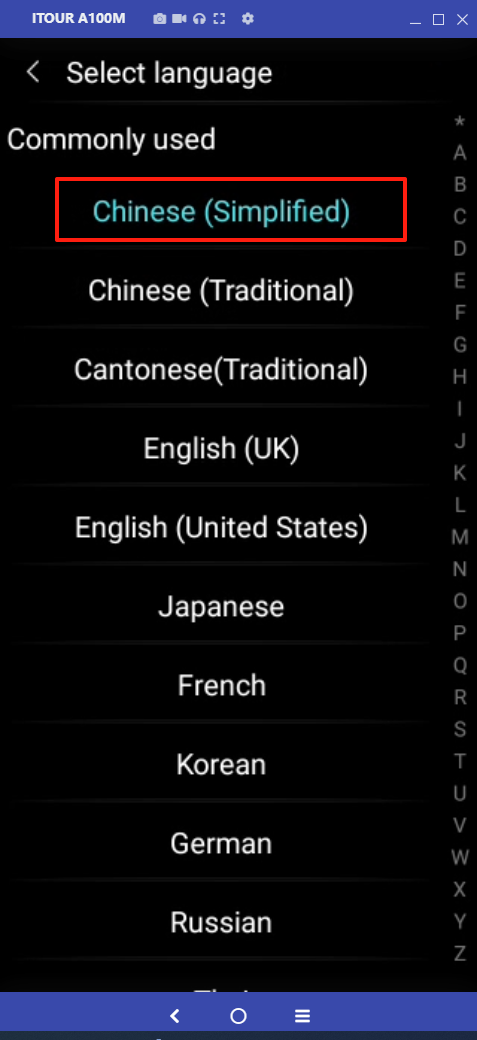
Multiple main and sub-devices support the creation of group chats for group translation. The specific steps are as follows:
1.Enter the group interpreting function page and click [Create].
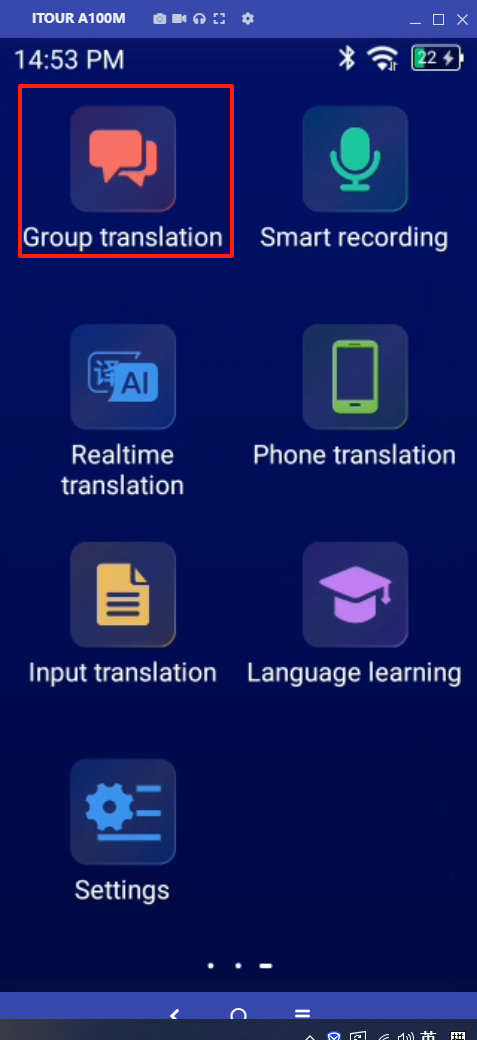
2. Add members by entering the group interpreting ID of other dual-screen translators, then click [Finish]. The group will be successfully created.
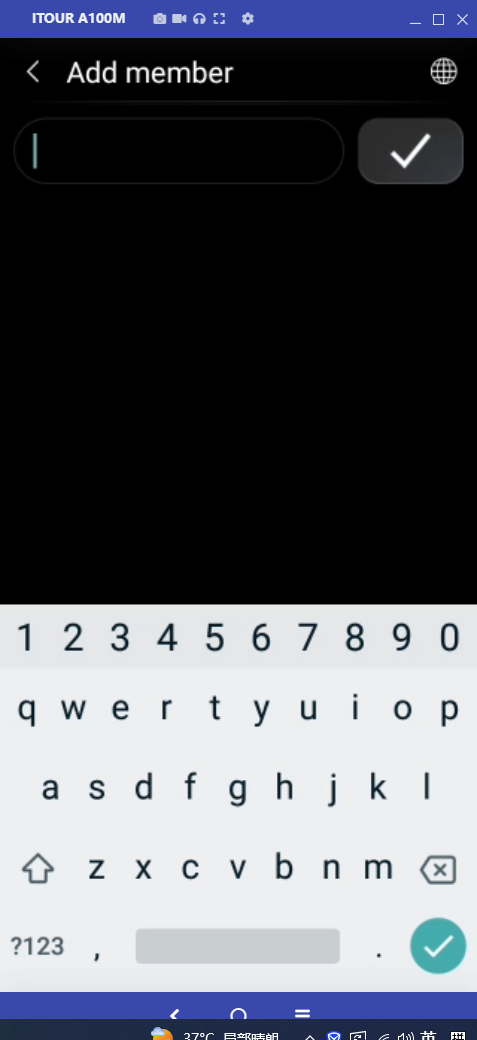
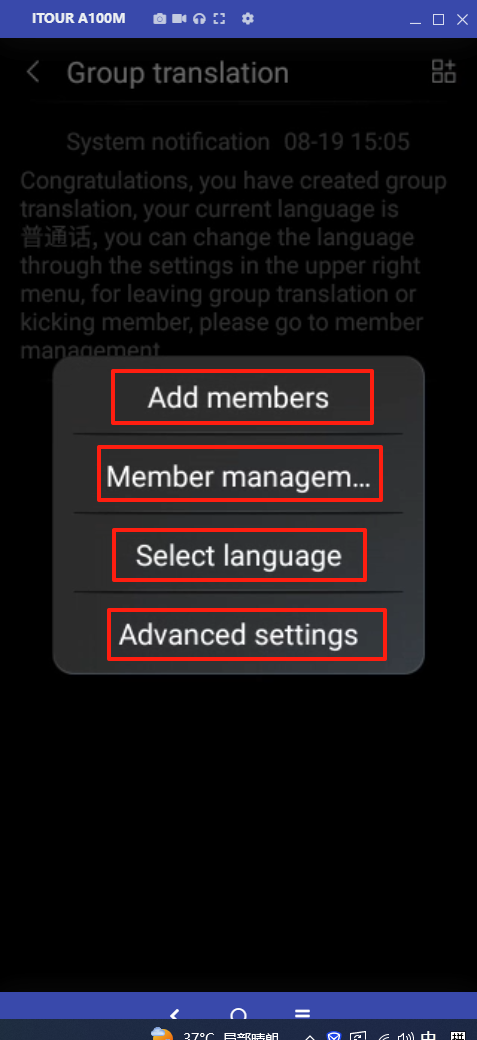
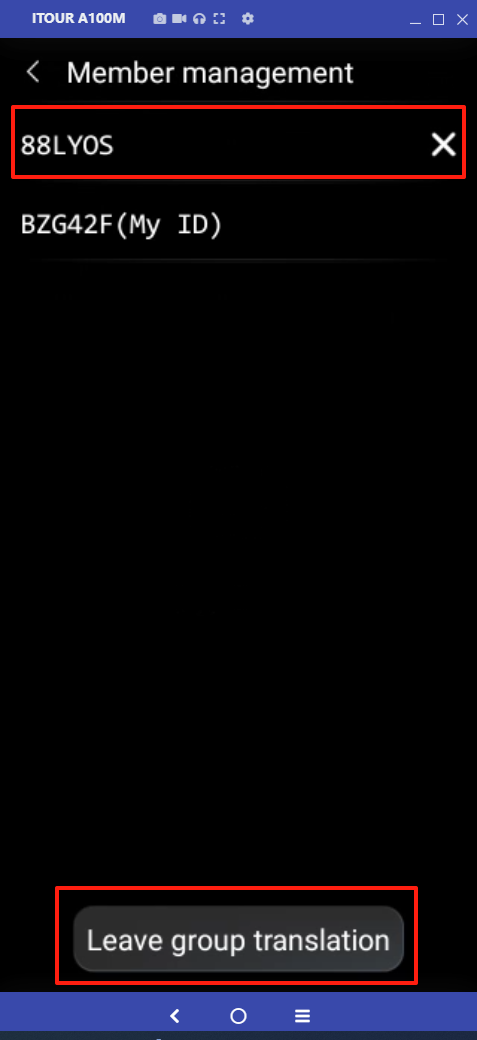
3. At this point, press and hold the button on the left side of the dual-screen translator to start speaking. After releasing the button, your spoken content will be sent to the group chat. The group interpreting page on other dual-screen translators will display the content you sent along with its translation and broadcast it in real-time.
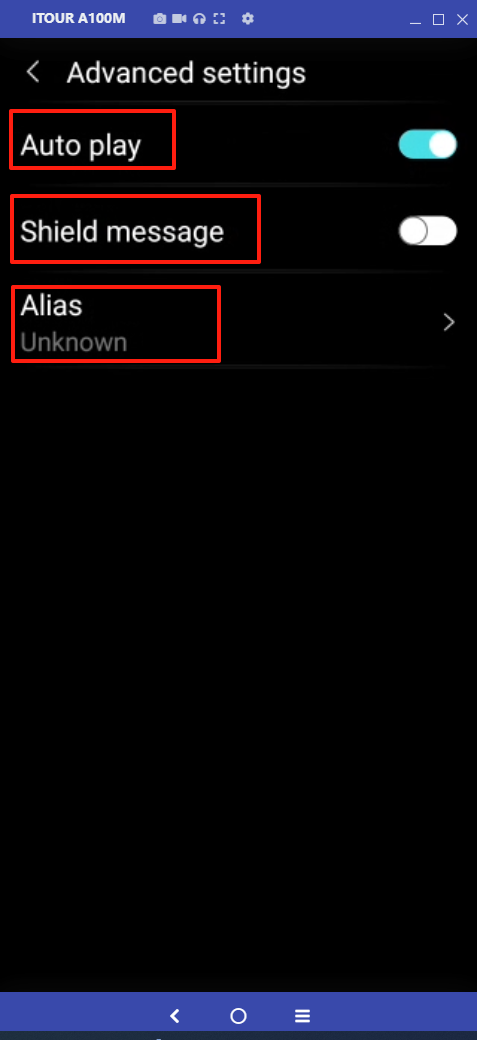
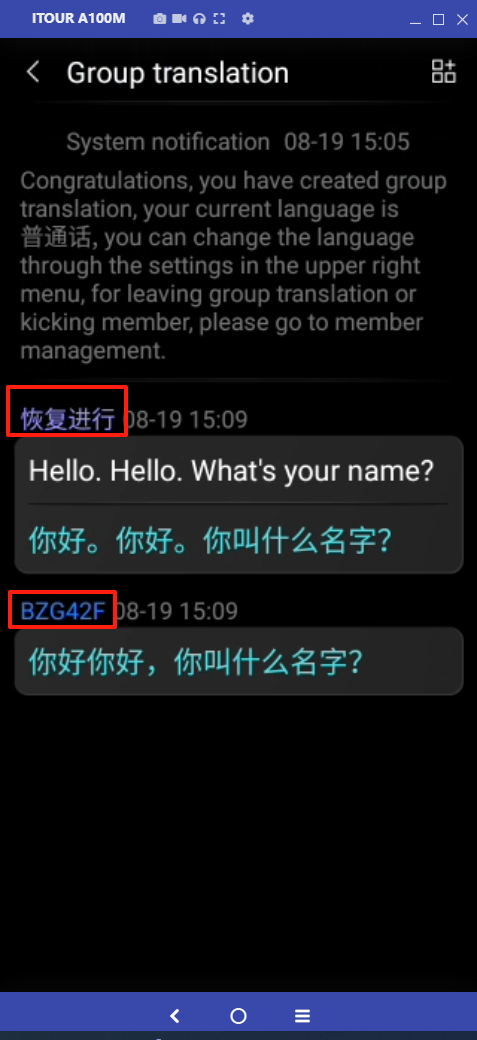
Single-Screen Conversation on the Dual-Screen Translator
Real-time online bilingual translation: the other party’s spoken content is translated and displayed on the translator’s screen, while your spoken content is translated and broadcast through the speaker for the other party to hear, making it suitable for face-to-face communication scenarios.
Introduction to the Dual-Screen Conversation Function of the Dual-Screen Translator
Supports face-to-face communication with automatic recognition of two selected languages, real-time translation, and broadcasting of the translated content. It requires the use of a sub-device. The specific operation is as follows:
1.Click on the Dual-Screen Dialogue function. The first time you enter, you will be prompted to scan the QR code of the sub-device to connect it.
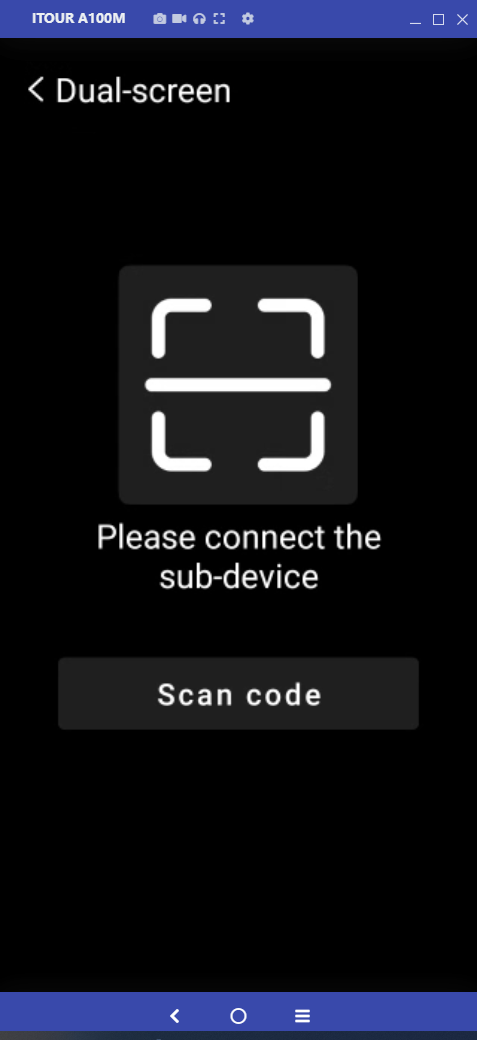
2. When the sub-device is turned on, it will display a QR code for connection. After scanning the QR code, the connection will be successful. The next time the main device and sub-device are used together, they will connect automatically.
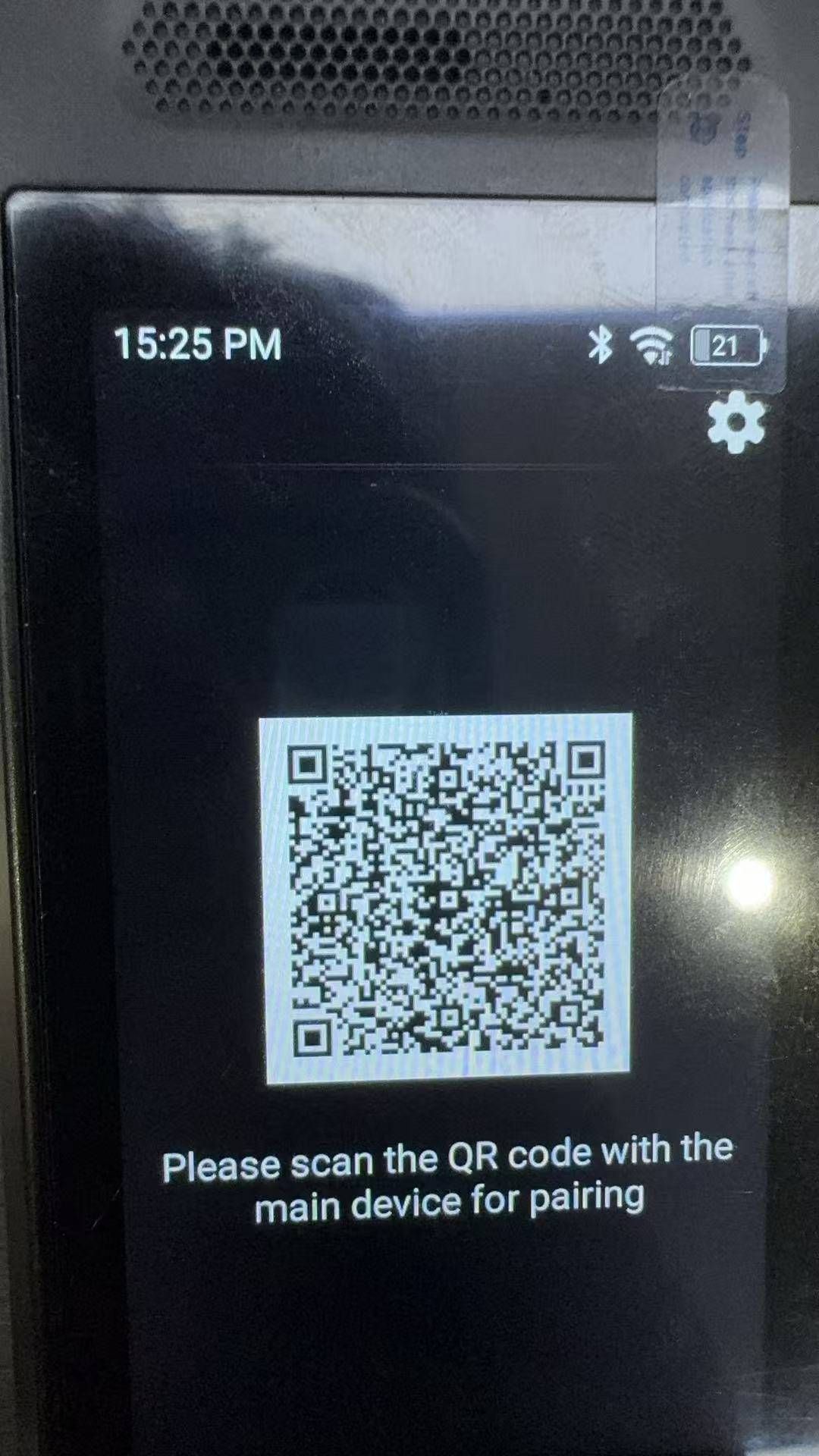
3. After successfully connecting to the sub-device, press any button on the translator’s screen to instantly recognize and translate spoken content in real-time.
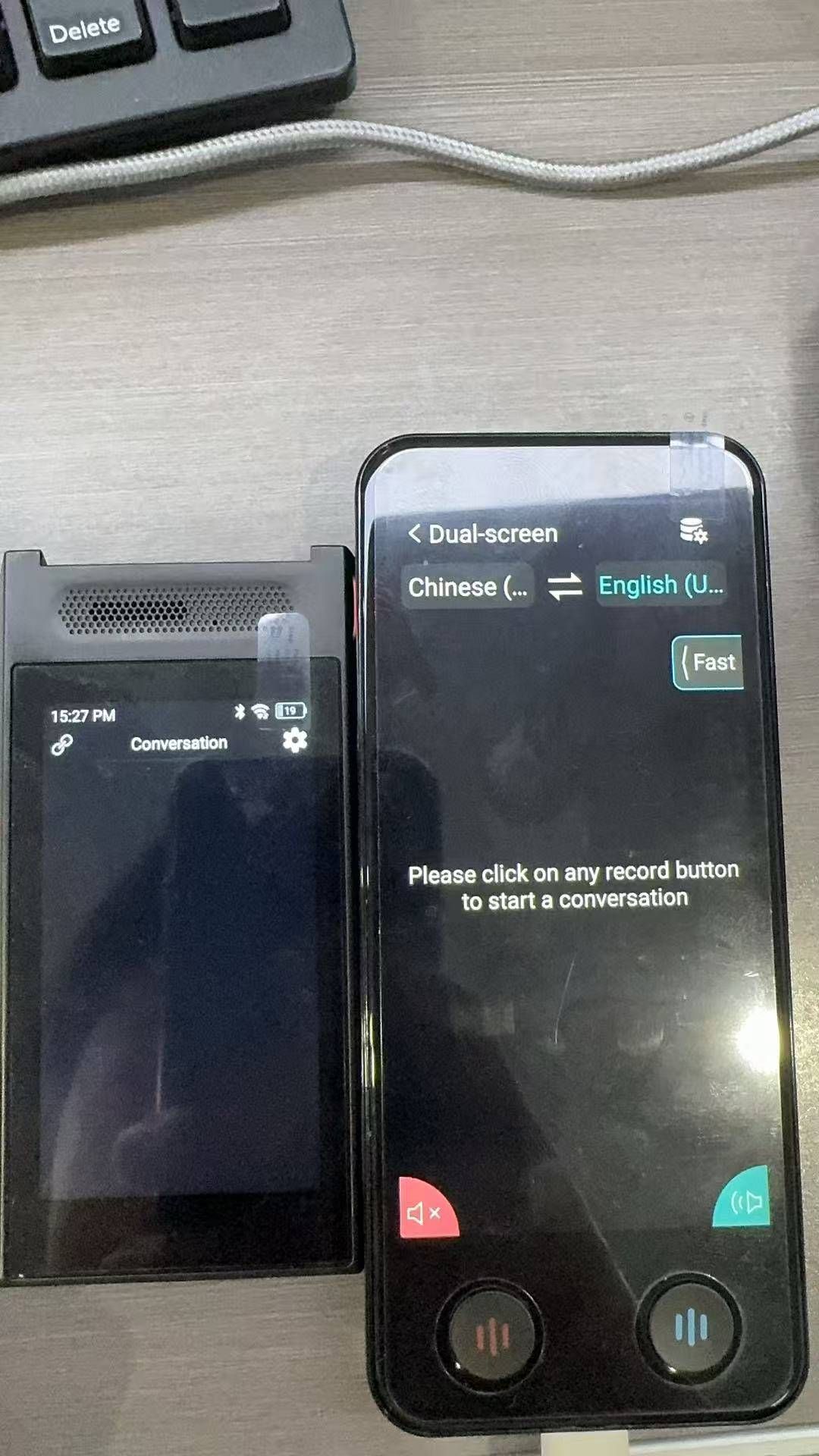
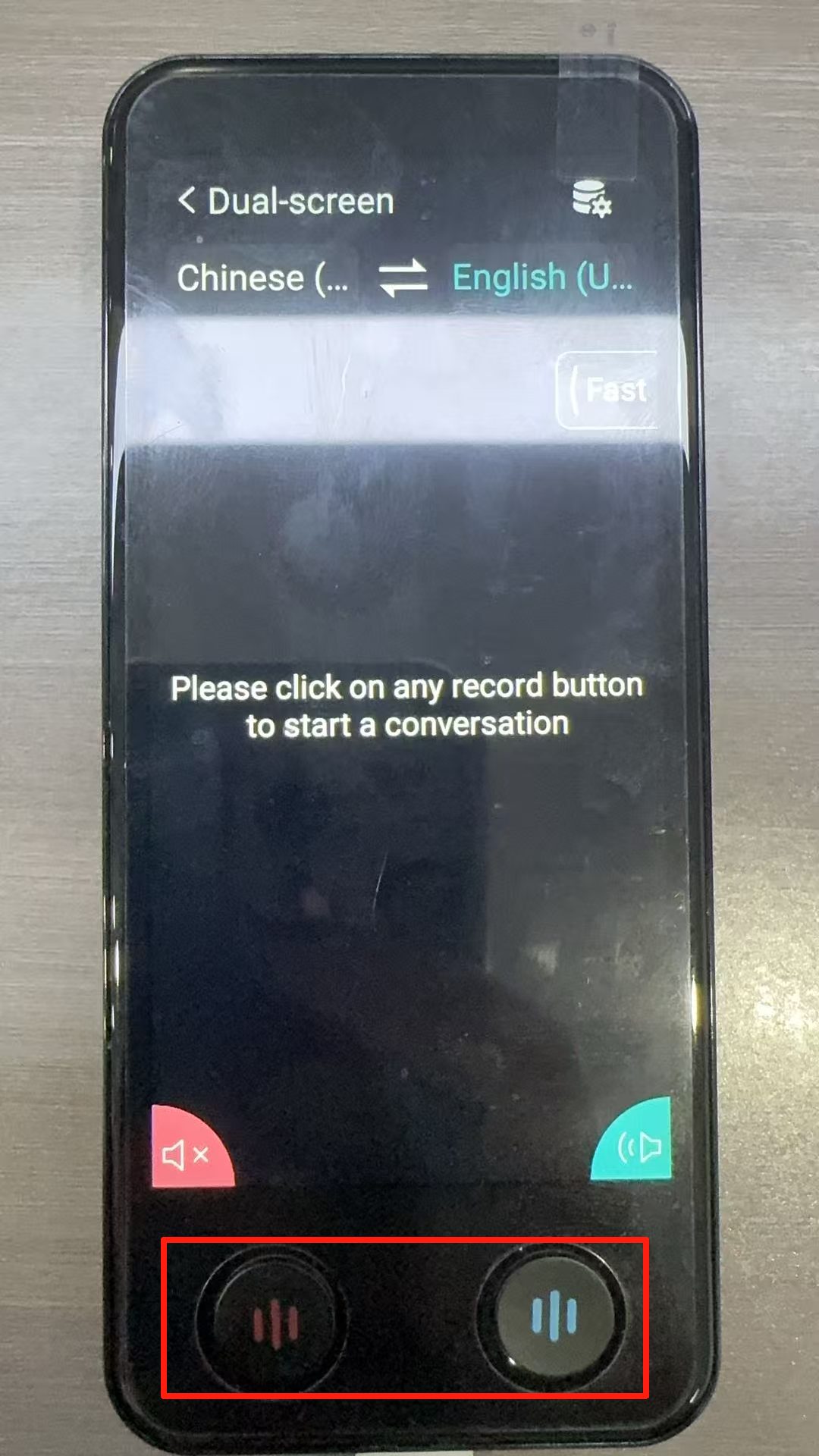
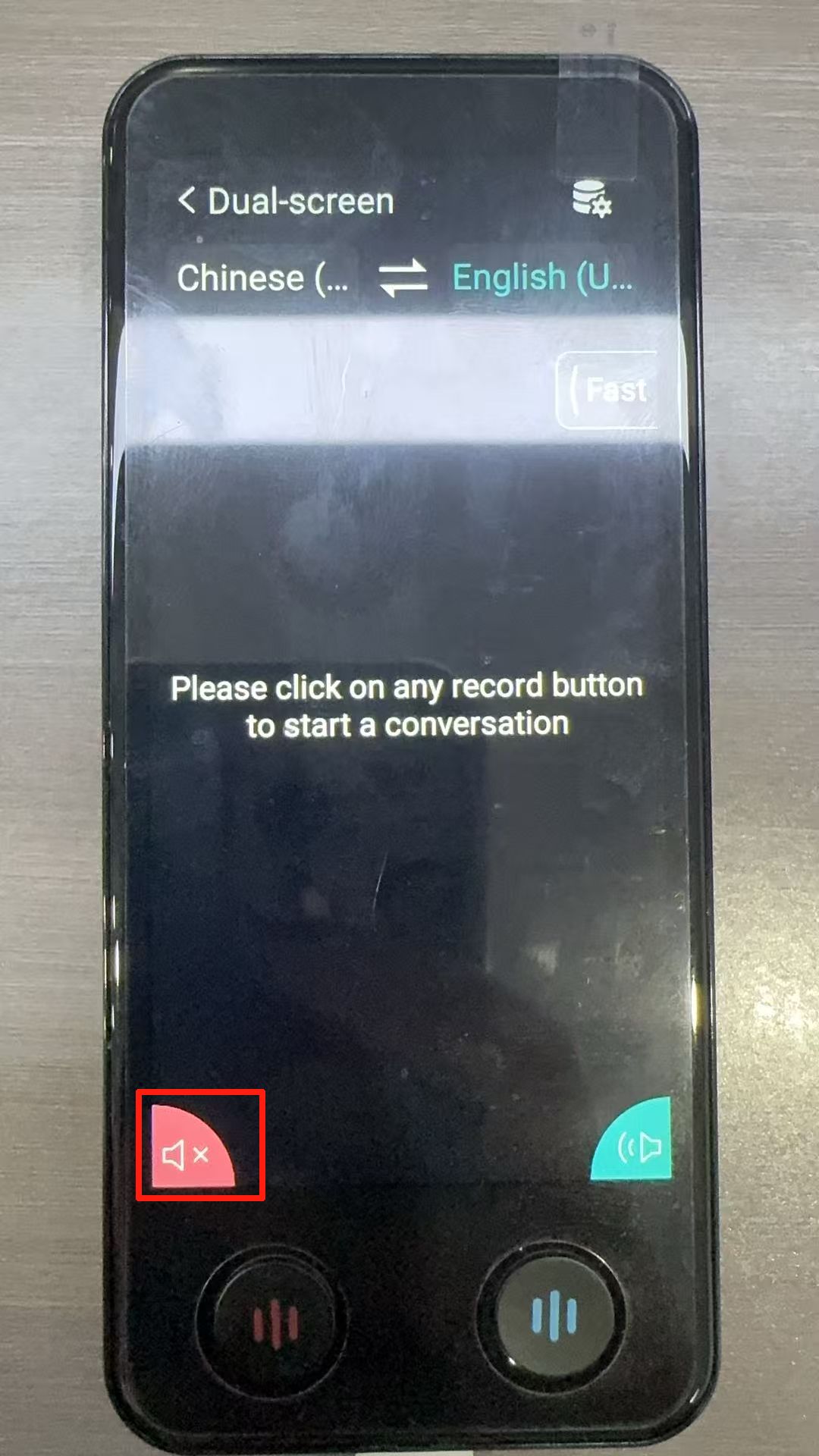
PS: 1.The broadcast of translation results into the left-side language is turned off by default and can be enabled by clicking.
2. The translation mode can be modified. The default is the fast mode (click here to learn the differences between the three modes).
Introduction to the Single-Screen Conversation Function of the Dual-Screen Translator.
Supports face-to-face communication with online automatic detection of the two selected languages, real-time translation, and voice output of the translated content. The main device operates in single-screen mode.
The specific steps are as follows:
1.Click on the single-screen conversation function to enter the feature page.
2.Press any key below the translator’s screen to enable online real-time recognition and translation of spoken content.
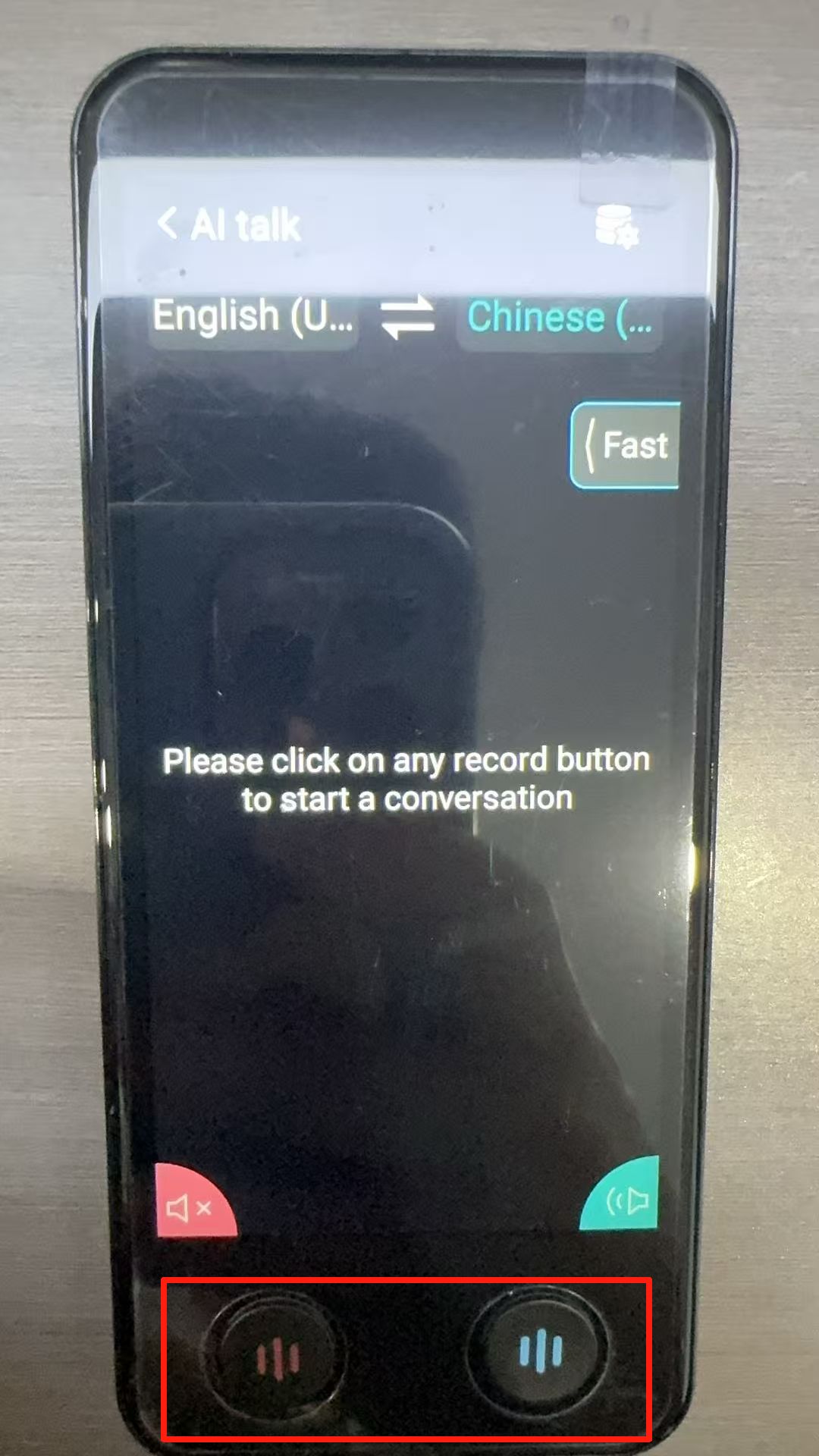
Note: 1.The voice output for the translation result in the left-side language is turned off by default. You can click to enable it.
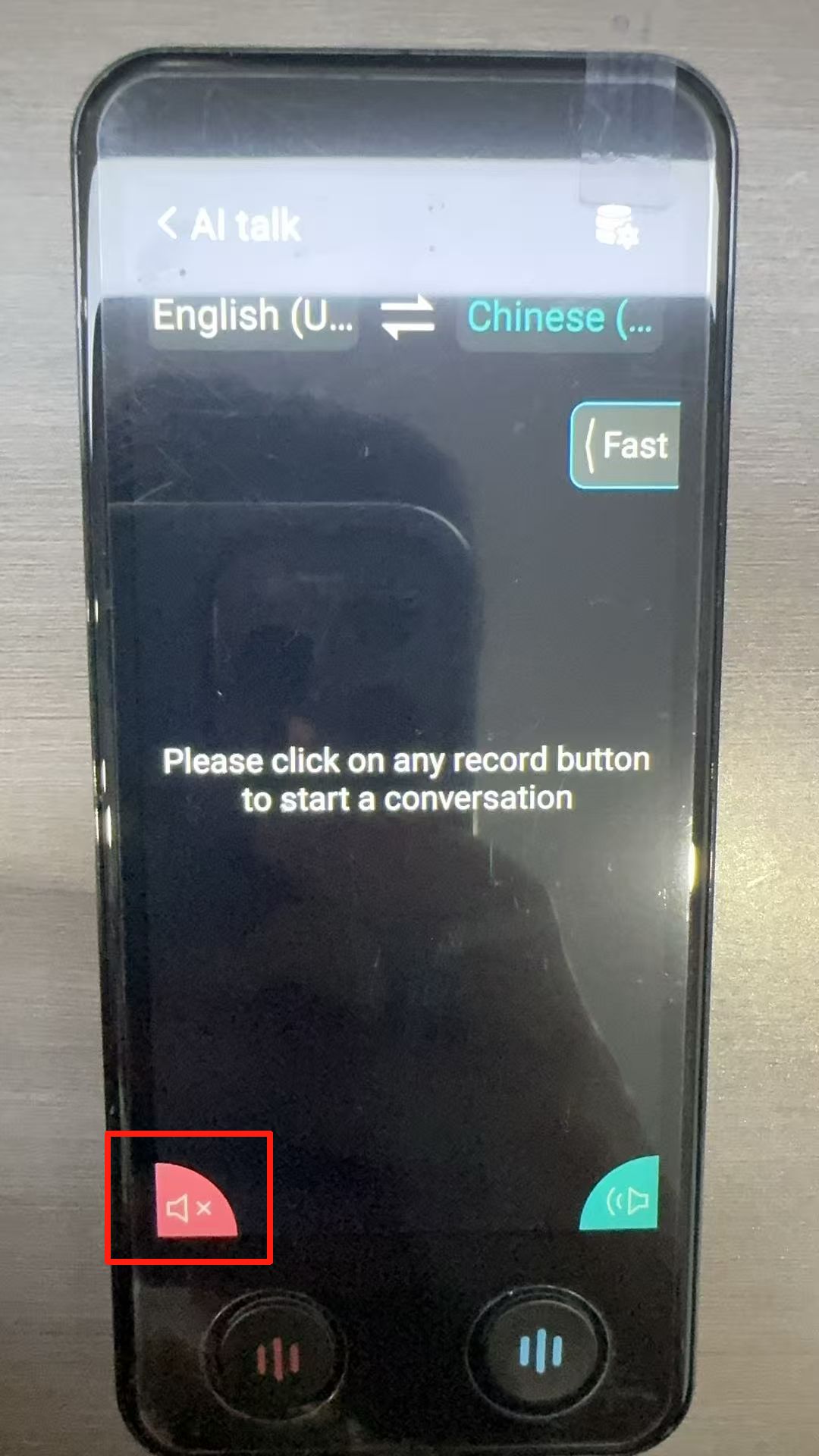
2. The translation mode can be changed, with the default set to Fast Mode (click here to learn the differences between the three modes).
What are the differences between the three translation modes of the Dual-Screen Translator?
Fast Mode: Offers faster recognition and translation speed, but the accuracy is relatively lower compared to other modes.
Smooth Mode: Utilizes the GPT mini model, providing higher translation accuracy than Fast Mode with moderate translation speed.
Precise Mode: Utilizes the GPT large model, delivering the highest translation accuracy among all modes, but with the slowest translation speed.
The number of Online and Offline languages supported by the Dual-Screen Translator.
Online languages support 130 languages.
Offline languages support 17 languages.
Introduction to the Offline Function of the Dual-Screen Translator
Supports 17 offline languages including Chinese, English, Japanese, Korean, German, etc., and can function normally for translation in environments without an internet connection.
Press and hold the left button: Recognizes the language on the left and translates it into the language on the right.
Press and hold the right button: Recognizes the language on the right and translates it into the language on the left.
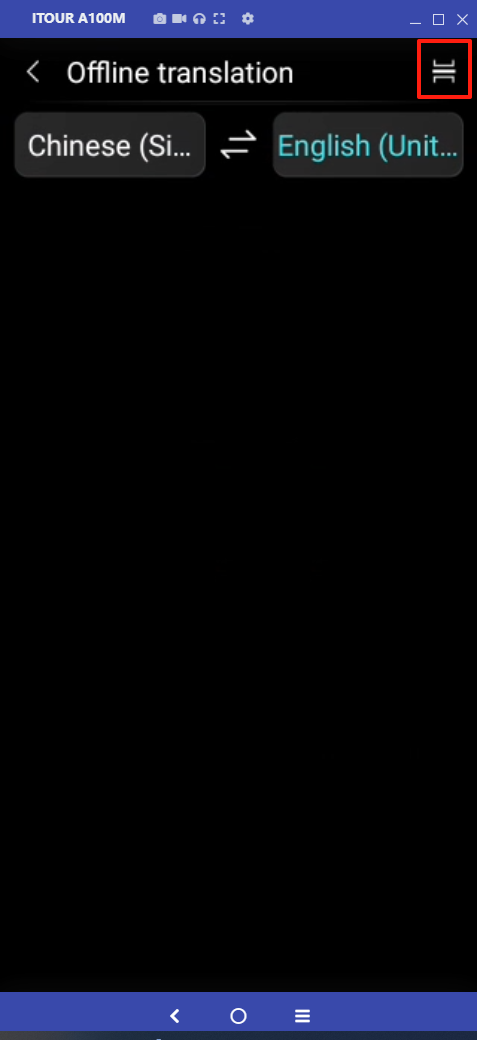
Why can't the Dual-Screen Translator search for or connect to the hotspot?
Android Phone: Settings –> Personal Hotspot –> Set up WLAN Hotspot –> Select AP Band, change it to the 2.4GHz band, and then search again.
iOS Phone: Settings –> Cellular –> Personal Hotspot –> Turn on “Maximize Compatibility,” and then search again.
Can the Dual-Screen Translator support a SIM card?
This translator does not support SIM cards.
The Dual-Screen Translator is connected to WiFi, but it shows a message: "Unable to access the internet." What could be the issue?
1. If it prompts “Unable to access the Internet” initially when connecting to the network, but changes to “Connected” after 6-8 seconds, it is normal. If it shows “Connected,” the network can be used normally.
2. If it continuously shows “Unable to access the Internet,” first confirm whether the currently connected network is available.
The Dual-Screen Translator is connected to WiFi, but it shows a message: "Authentication failed." What could be the issue?
Message: Authentication failed
1. The WiFi password is incorrect. Please confirm whether the entered password is correct.
2. The hotspot has exceeded the maximum number of connections.
What is the difference between the high-end version and the low-end version of the Dual-Screen Translator?
Premium Version: Designed for high-end business scenarios, featuring an integrated database of over 100,000 professional terms and advanced AI-driven large language model translation. It supports specialized professional contexts such as business negotiations and meeting transcription. Includes a newly added intelligent voice capture function to enable continuous recording with just one click, eliminating the need for manual operation. Achieves a real-time translation accuracy of up to 98.6%, capable of parsing complex sentence structures.
Basic Version(D-Lite ): Tailored for everyday communication, suitable for basic business interactions, travel, shopping, and asking for directions. Utilizes a button-activated voice capture mode, allowing users to start translation with a simple press. Supports continuous dialogue for up to 60 seconds.
How can the broadcasting speed of the Dual-Screen Translator be adjusted?
Currently, only the single-screen conversation, dual-screen conversation, and listening functions support adjusting the playback speed. The operation path is as follows: Function Page –> Settings in the top right corner –> Playback Speed.
Can the Dual-Screen Translator set the broadcast voice gender (male/female)?
Currently, only the single-screen conversation, dual-screen conversation, and listening functions support setting the broadcast voice gender. The operation path is as follows: Function Page –> Settings in the top right corner –> Left/Right Side Speaker Settings for XX Language –> Speaker, click to modify.
When using the remote conversation/sub-main mode function of the Dual-Screen Translator, why doesn't the sub-device automatically broadcast after translation?
The sub-device’s automatic broadcasting requires manual setup. Go to the sub-device’s function page, click on Settings in the top right corner –> Broadcast Mode, then select “Automatic.”
Translation Earbuds 4 questions
Apple phone: Why is it broadcasting in Cantonese when translating into Chinese?
You can fix this issue by modifying your phone settings:
1. Confirm your phone’s system settings →Search for “Language & Region,” and set the region to Mainland China.
2. Confirm your phone’s system settings →Search for “Spoken Content”→Voice → Chinese → Dialect, and choose Default/Mandarin.
How do translation earphones switch to a different device for use?
1. If the current earphone device is connected to another phone/computer, please first disconnect the current Bluetooth connection.
2. Detailed steps (screenshots use the Z50S Pro Max as an example):
For Android phones: Go to the phone/computer system Settings → Bluetooth, find the corresponding earphone device in the Bluetooth connection history list, enter the details page, and select Unpair.
(image to be added)
(image to be added)
iOS phones: Go to the phone/computer system Settings→ Bluetooth→ “My Devices,” find the corresponding earphone device, click to enter the details page, and select Forget This Device.
(image to be added)
(image to be added)
Is the translation service for the translation earphones completely free of charge?
Dear users, the earphones officially sold by Translation Master and the corresponding earphone features in the iTourBuds APP are free to use permanently.
Do the translation earphones support translating phone calls on mobile systems?
Currently, the iTour 22 Pro (T2) earphones support translation for making and receiving phone calls on mobile systems. For detailed instructions, refer to iTour 22 Pro — System Call Translation Function.
iTour 22 Pro Earbuds 20 questions
What features does the iTour 22pro earphone support?
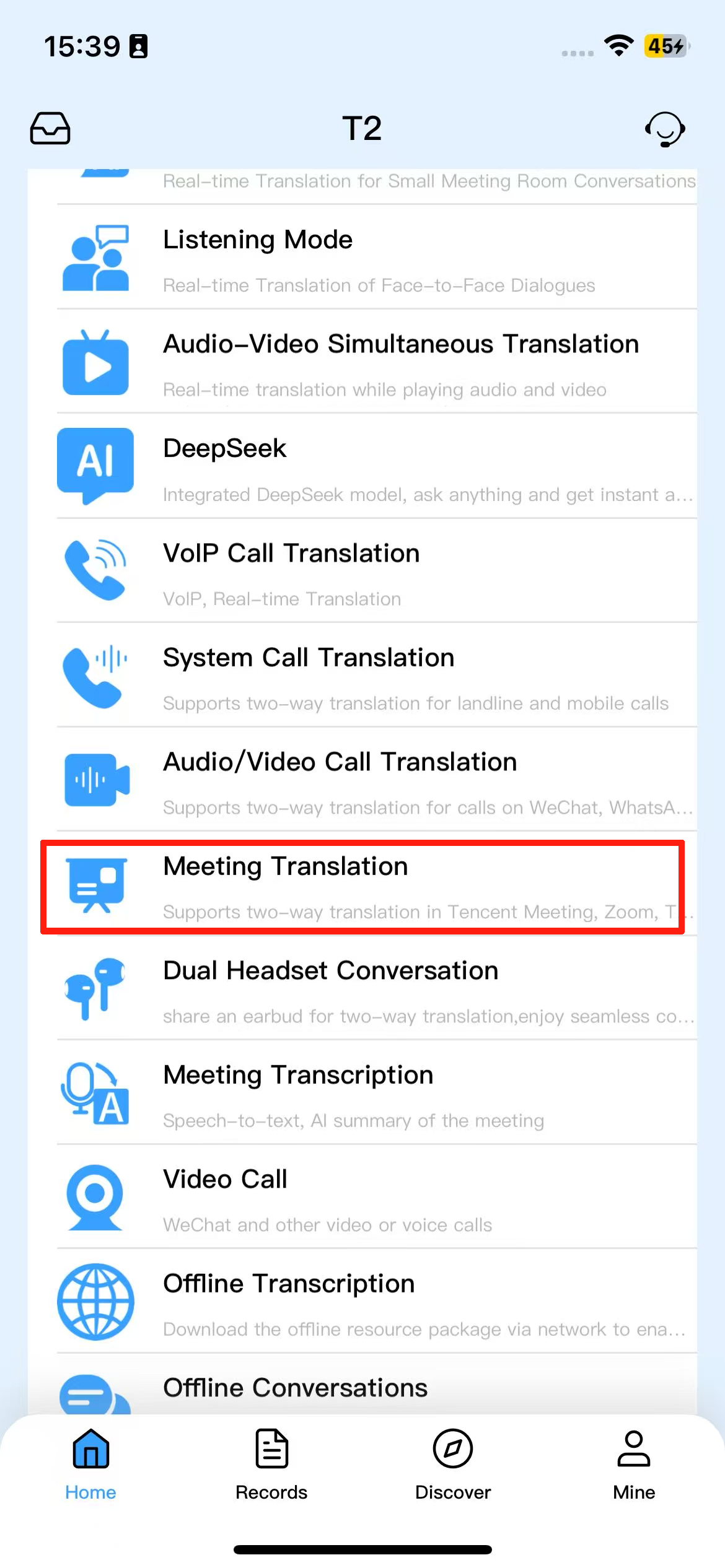
Supported features: Simultaneous interpretation, Listening Mode, Audio-Video Simultaneous Translation, Intelligent Q&A, VOIP Call Translation,System Call Translation, Audio /Video Call Translation, Meeting Translation, Dual-Headset Conversation, Meeting Transcription, Video Calls, and Offline Translation functionality.
Purchased the iTour 22 Pro (T2) translation earbuds, how to use them?
Download the iTourBuds app to use. The specific steps are as follows:
1.Scan the QR code below to download the iTourBuds app.

2. Register and log in.
3.After successfully logging in, go to the homepage and click [Start Connecting].
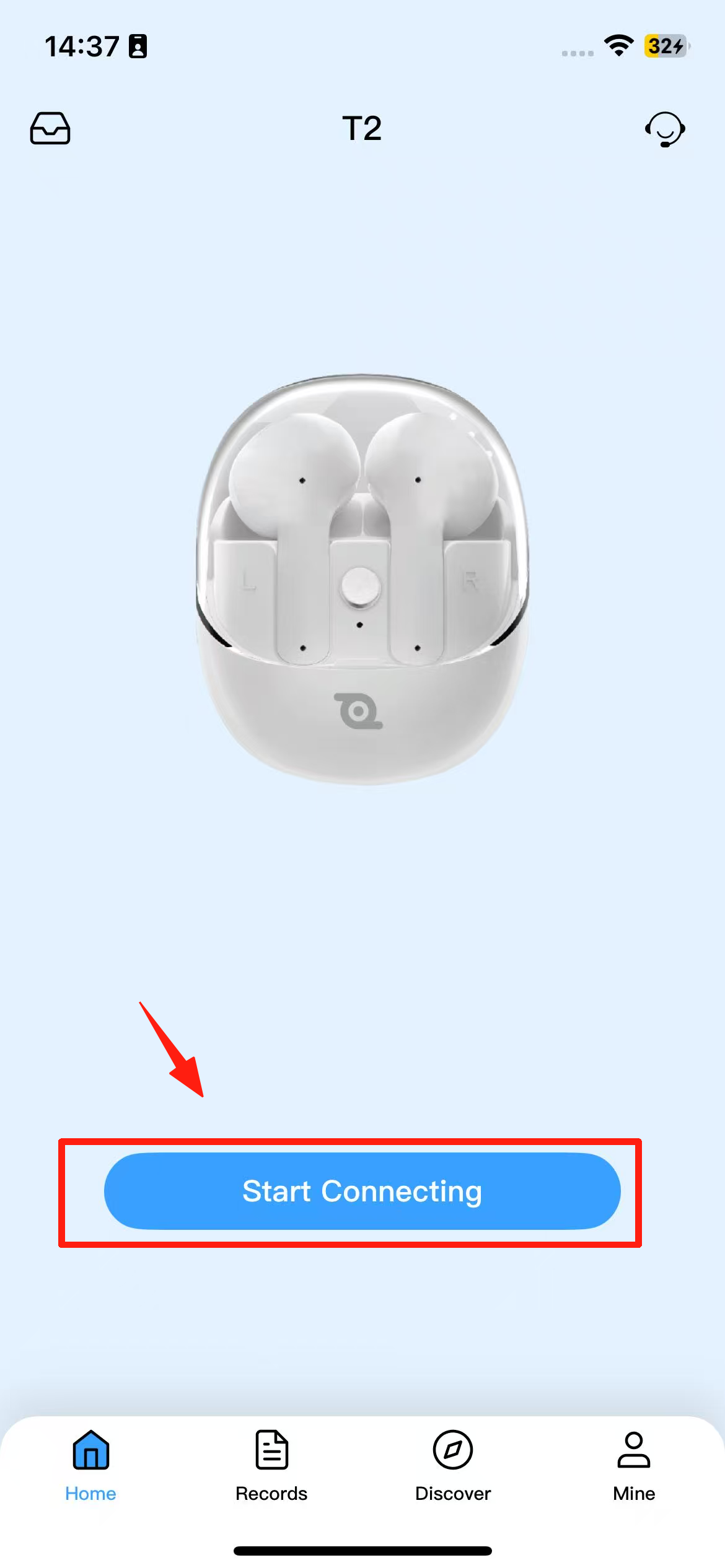
4. Go to the product selection page and select iTour 22 Pro earbuds.
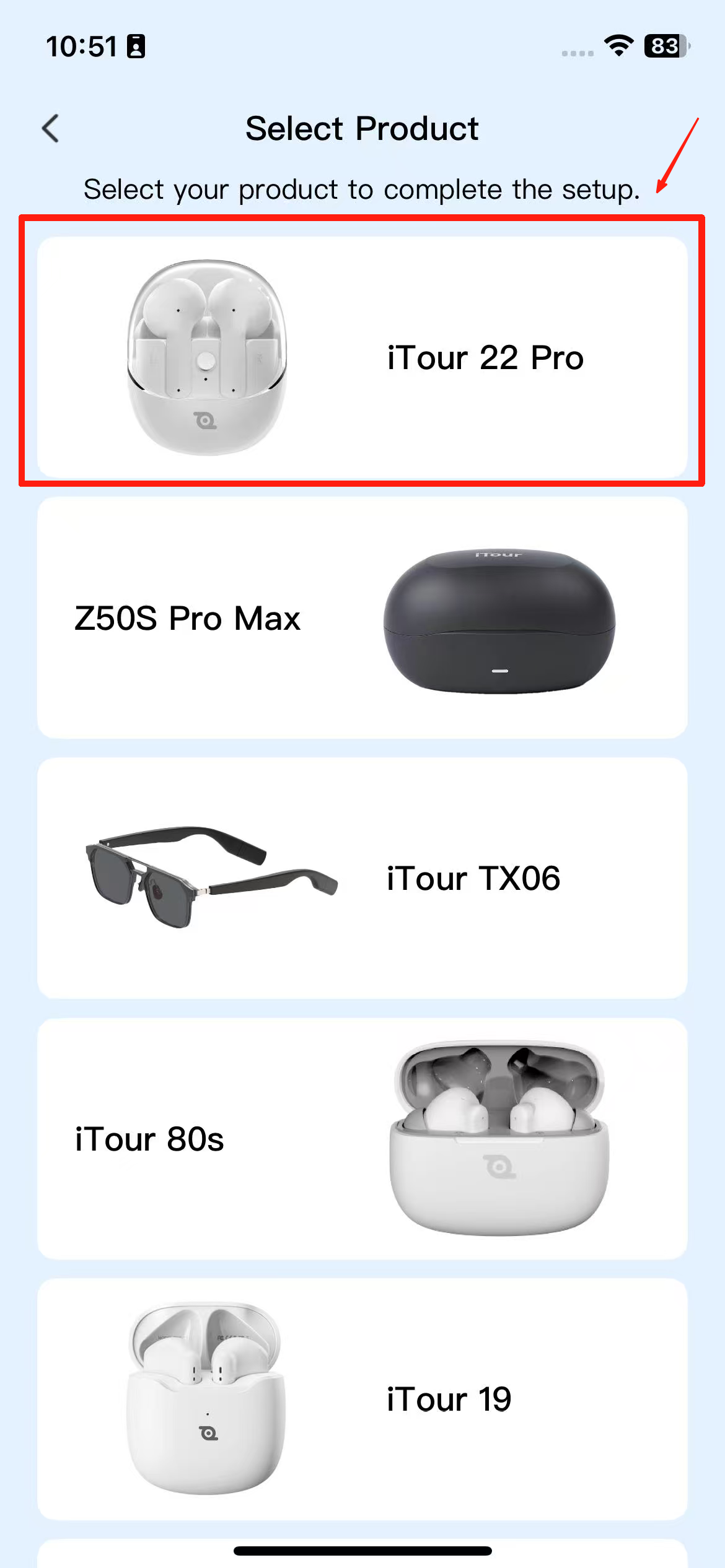
5. Click [Go to Settings] to enter the phone’s system settings — Bluetooth page.
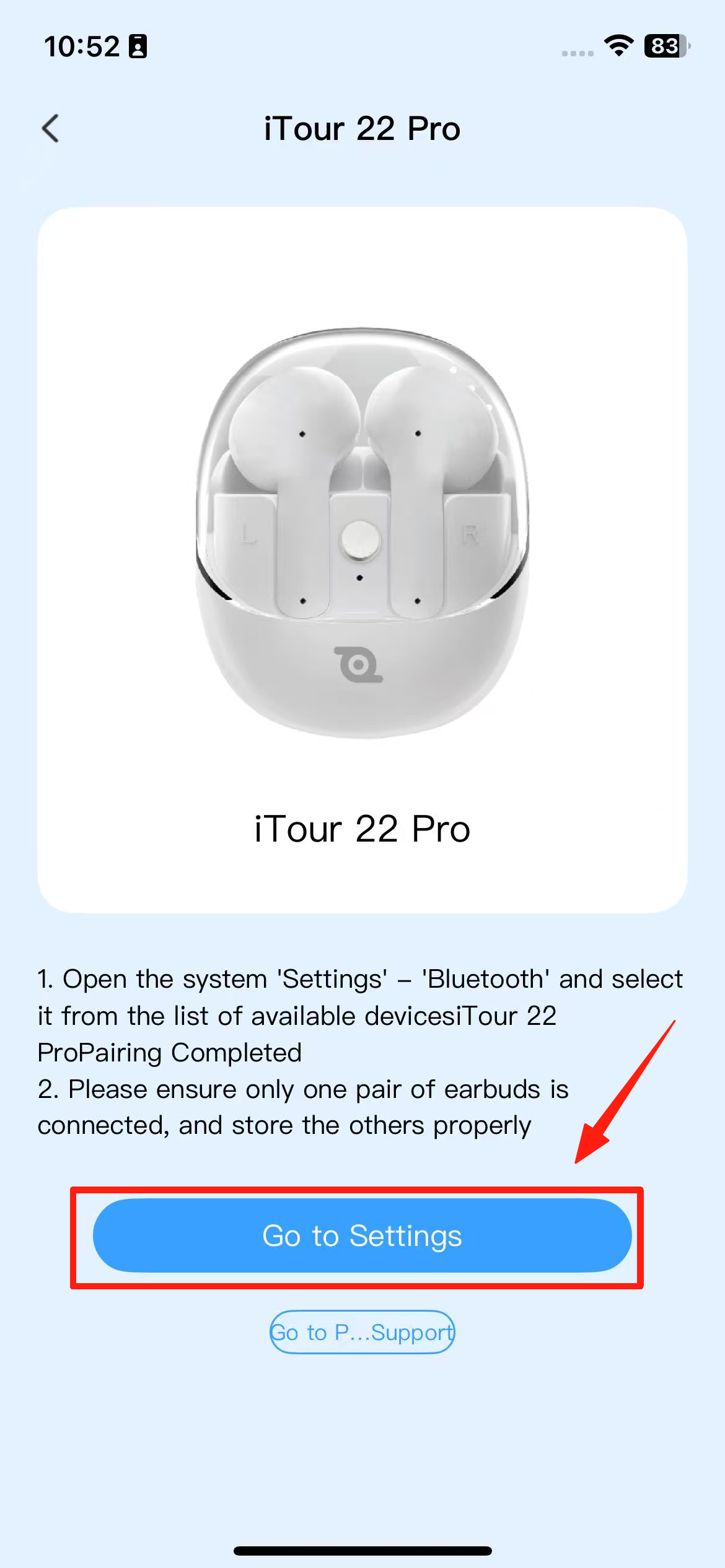
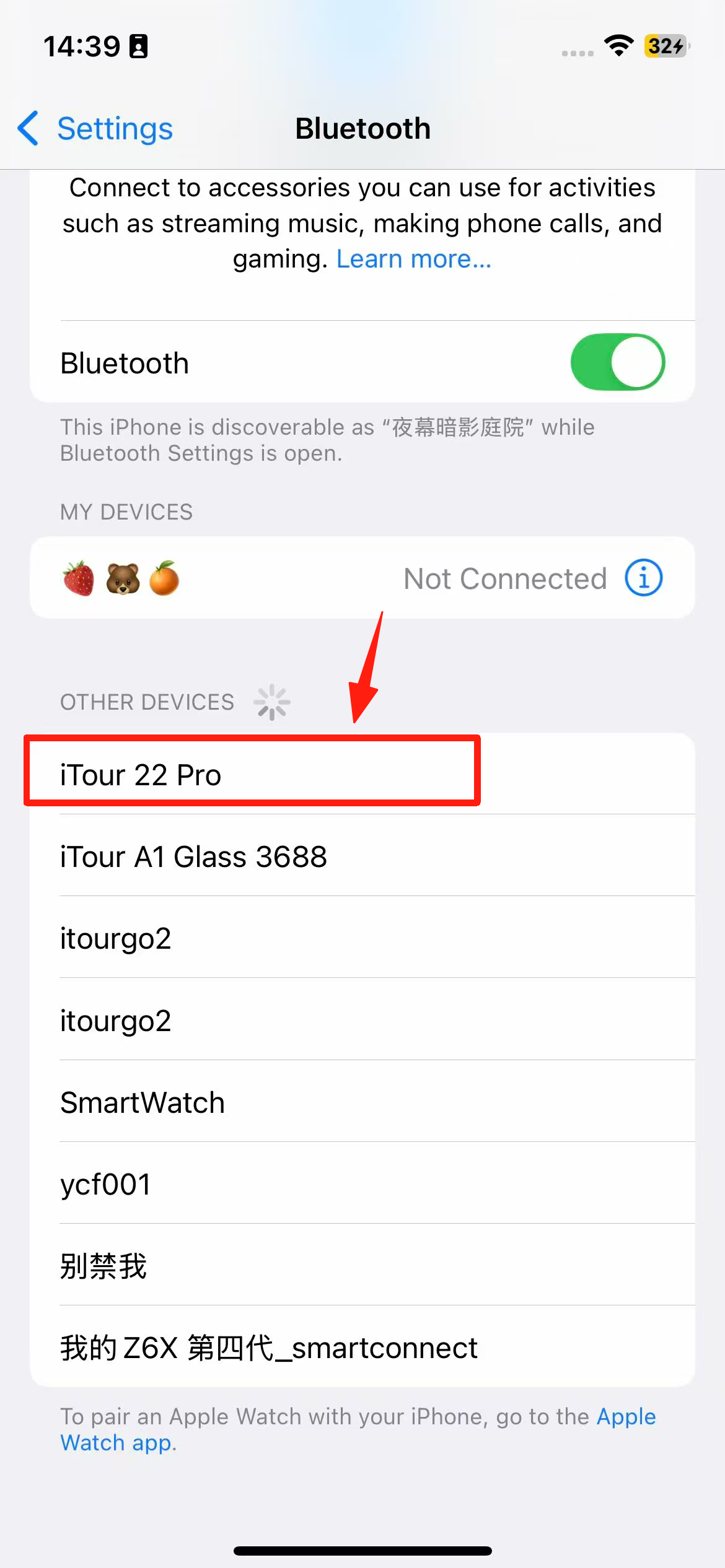
6. Select iTour 22 Pro earbuds and click to connect.
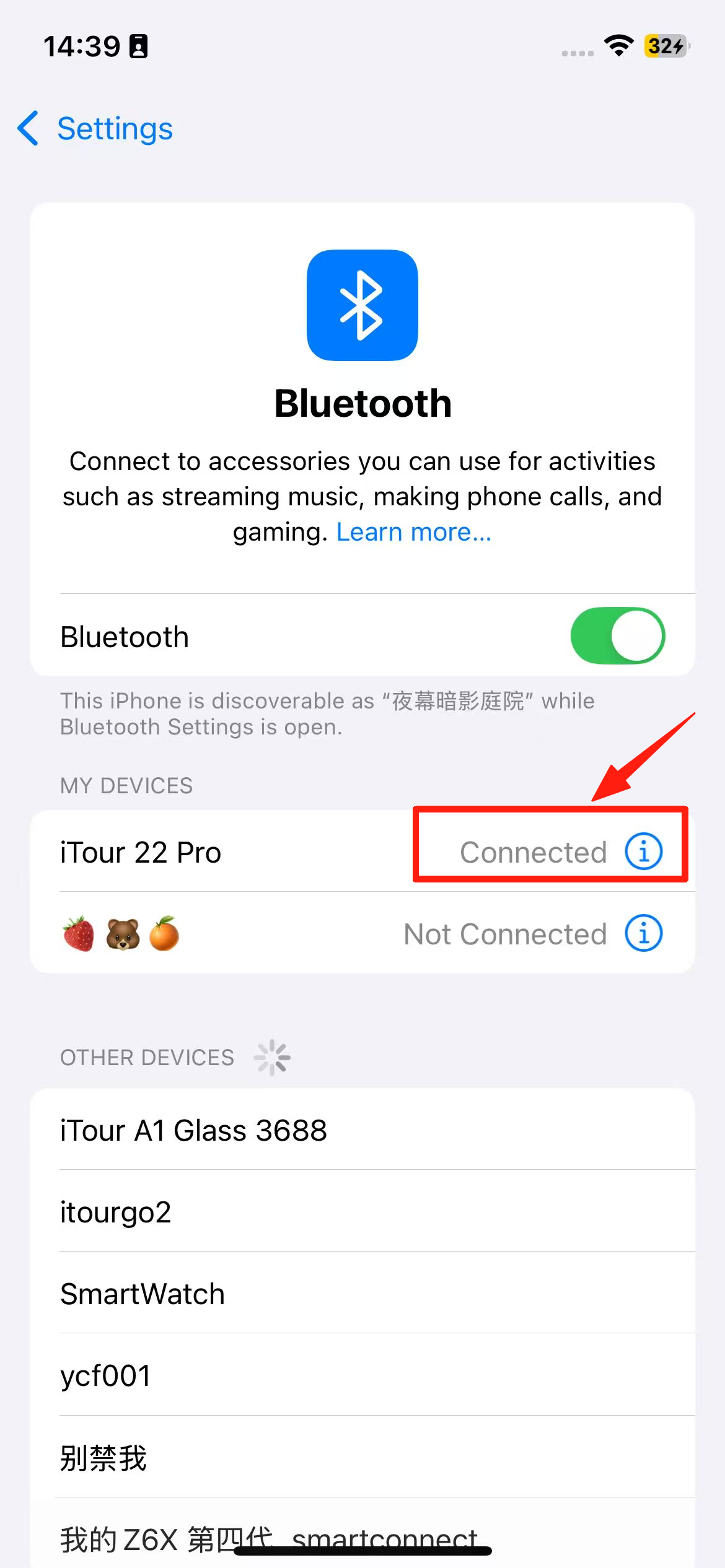
7. After the connection is successful, return to the APP page. At this time, the page functions are displayed as follows, indicating that the earbuds are successfully paired and connected with the account and the corresponding functions can now be used.
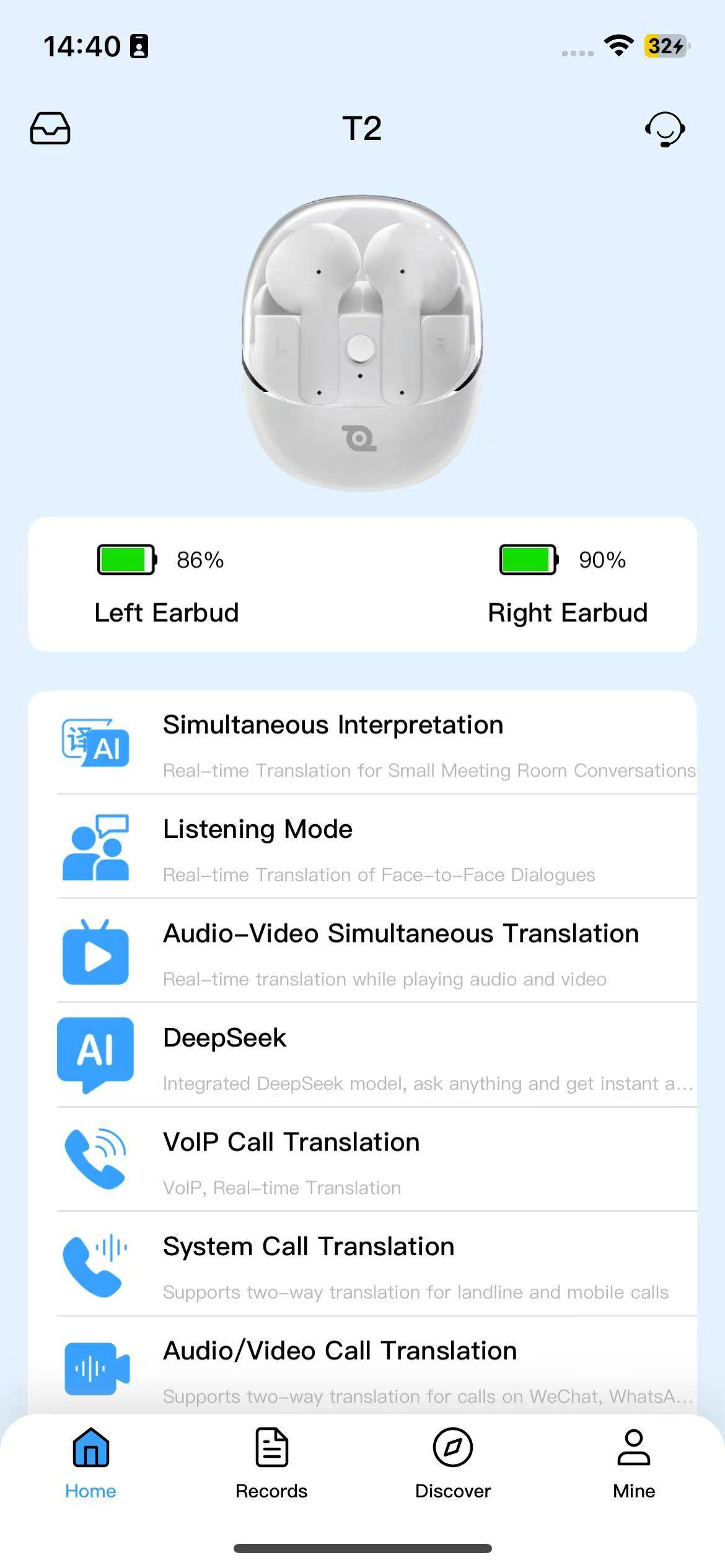
Steps 3, 4, 5, 6, and 7 above can also be done as follows:
3.Go to the phone’s system settings — Bluetooth, search for iTour 22 Pro, and click to connect.
4. After the Bluetooth connection is successful, open the iTourBuds APP and go to the homepage, then click [Start Connecting].
5.The program will automatically search, connect, and pair. Once pairing is successful, the corresponding functions can be used.
Why is one of the iTour 22 Pro earbuds unable to connect?
Please first confirm whether the earbud has power. Place it in the charging case and check if the red light is flashing:
1. If the red light flashes normally –– it means the earbud is charging. It is recommended to charge for more than half an hour before using it again.
2. If the light does not flash –– it means the earbud is not properly placed in the case. Try pressing the earbud’s tail gently to see if the red light flashes normally.
The iTour 22 Pro earbuds have power, but one of the earbuds has no sound.
You can try the following solutions:
1.Place both earbuds back into the case and then take them out to allow them to pair again.
2.If the above does not resolve the issue, try performing a factory reset.
Why can't the phone find the iTour 22 Pro earbuds via Bluetooth?
Confirm whether the earbuds have been connected to a phone before. If connecting to a new device or the earbuds were previously connected to the device but were forgotten/removed, follow these steps to resolve the issue:
1) Take the earbuds out of the case and wait for about 1 minute until the red and blue lights flash quickly. Then, go to your phone’s settings — Bluetooth, and search for and select “iTour 22 Pro.”
2) If the issue persists, try performing a factory reset.
How to perform a factory reset for the iTour 22 Pro earbuds?
After placing the earbuds in the case, open the lid and simultaneously press and hold the touch control areas on both earbuds for 5 seconds or more until both earbuds light up purple, indicating that the factory reset has been successfully completed.
The touch control areas are shown below:
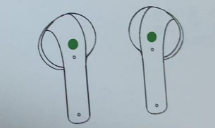
Note: After performing the factory reset, it is necessary to take both earbuds out of the case for the initial pairing.
The iTour 22Pro Earphones System Phone Introduction Translation:
Supports making and receiving mobile system phone calls translation, with detailed steps as follows:
1.After making or receiving a mobile system phone call.
2.Go to iTourBuds — T2 — System Phone Translation.
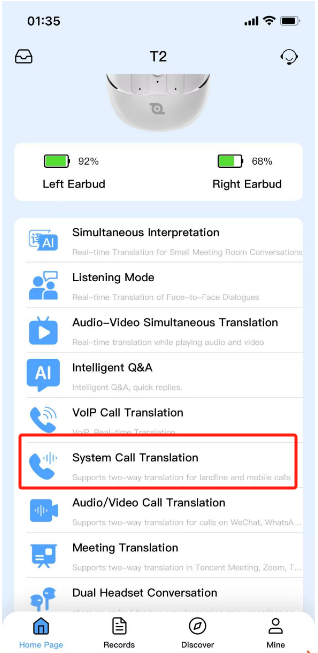
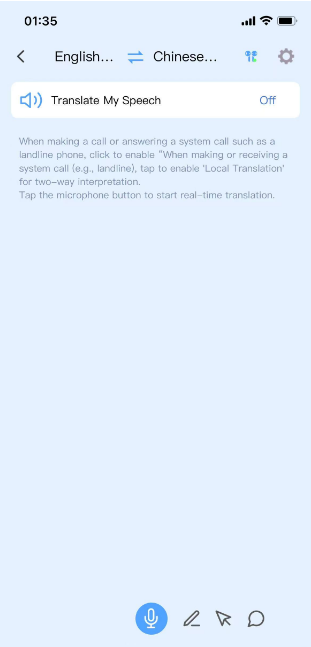
3. Click the microphone icon to start translation. By default, only the other party is translated, and the translation content is displayed on the translation page.
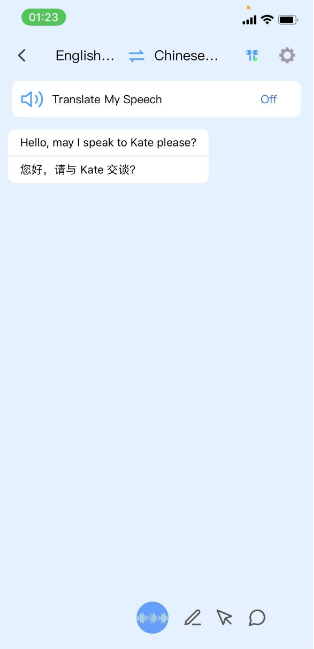
4. If you need to translate both parties, you need to enable “Own Translation.”
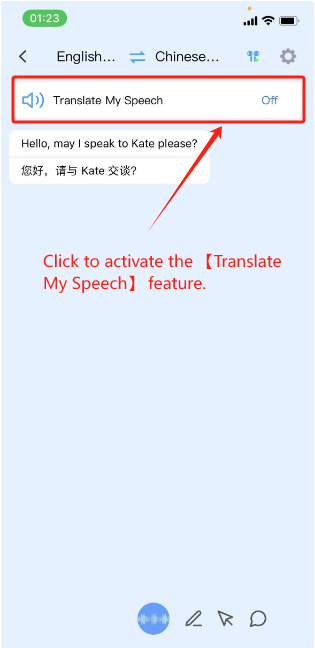
5. After enabling “Own Translation,” the content you speak will be translated and broadcast to the other party.
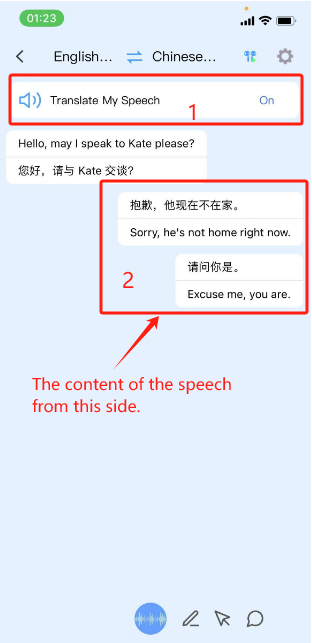
Note: The “Own Translation” feature is only supported for app versions 1.3.20 and above, and earphone firmware 0.0.1.30 and above.
Is the translation service for the iTour 22 Pro earphones permanently free?
All the features supported in iTourBuds are permanently free.
How to use iTour 22pro for Simultaneous interpretation?
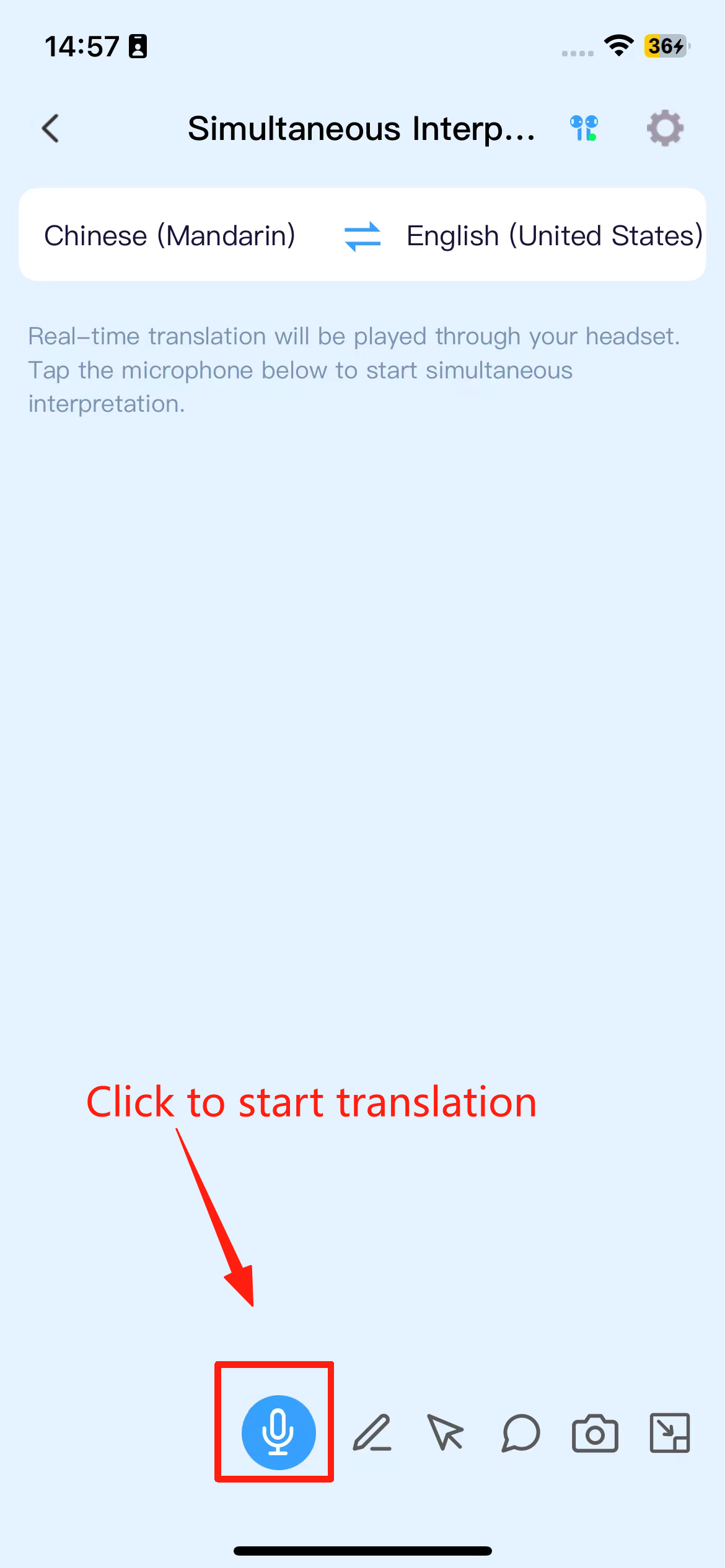
Simultaneous interpretation (mobile microphone recording): Suitable for small offline meetings. After activating the translation button, recognition and translation content are displayed in real-time. The translation results can be broadcast via headphones in English.
How to use the Listen Mode of iTour 22 Pro?
Listen Mode: Suitable for face-to-face communication. The left button recognizes the other person’s language and translates it into the language on the right side, broadcasting it to you through the headphones. After the broadcast is complete, the right button automatically activates to recognize your language, and the translation is broadcasted through the phone’s speaker for the other person to hear. Press the button to activate.
How to use the Audio and Video Interpretation feature of iTour 22pro?
Audio and Video Interpretation: Suitable for real-time translation of audio and video playback. Broadcast of translation results is not supportedOperation steps:
1. First, enable the audio and video interpretation feature by clicking the [Floating] button.
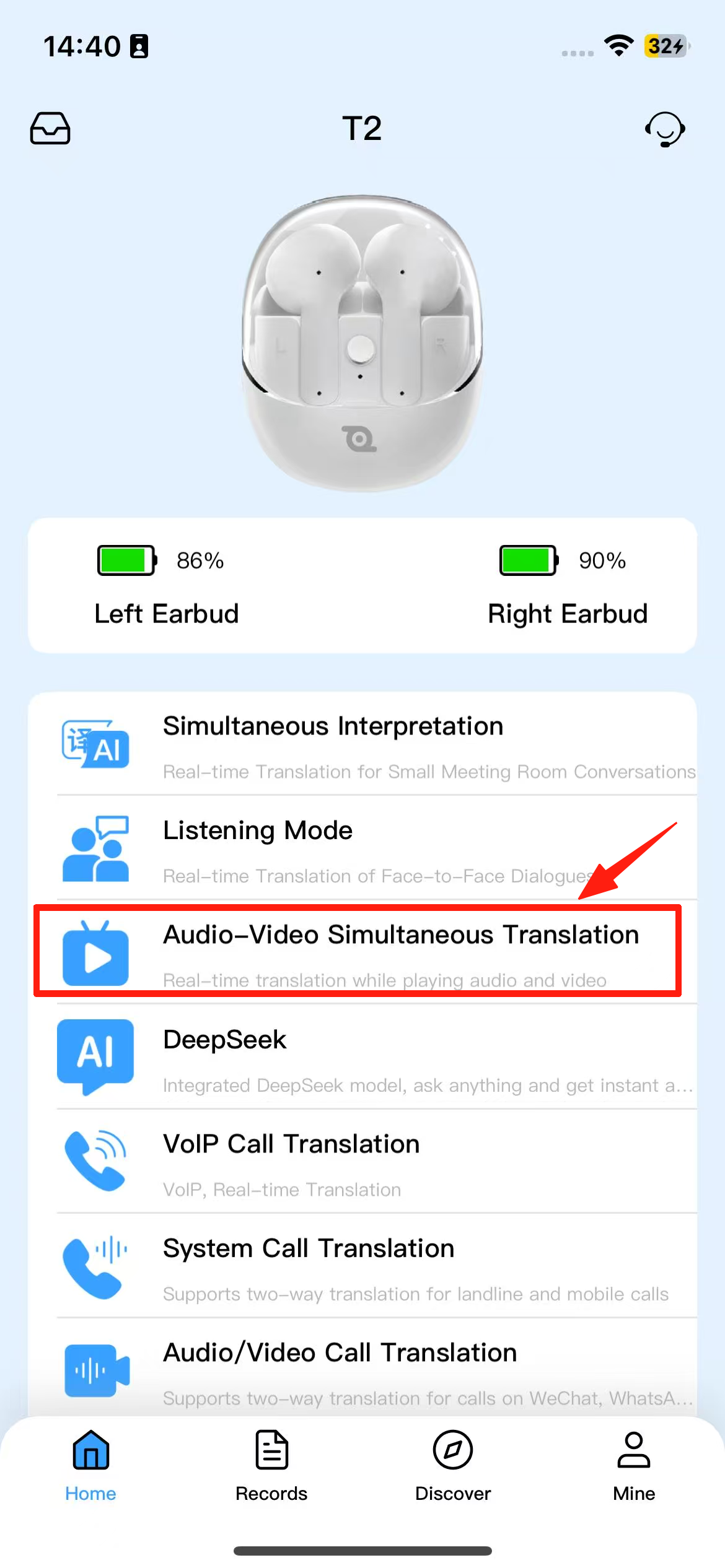
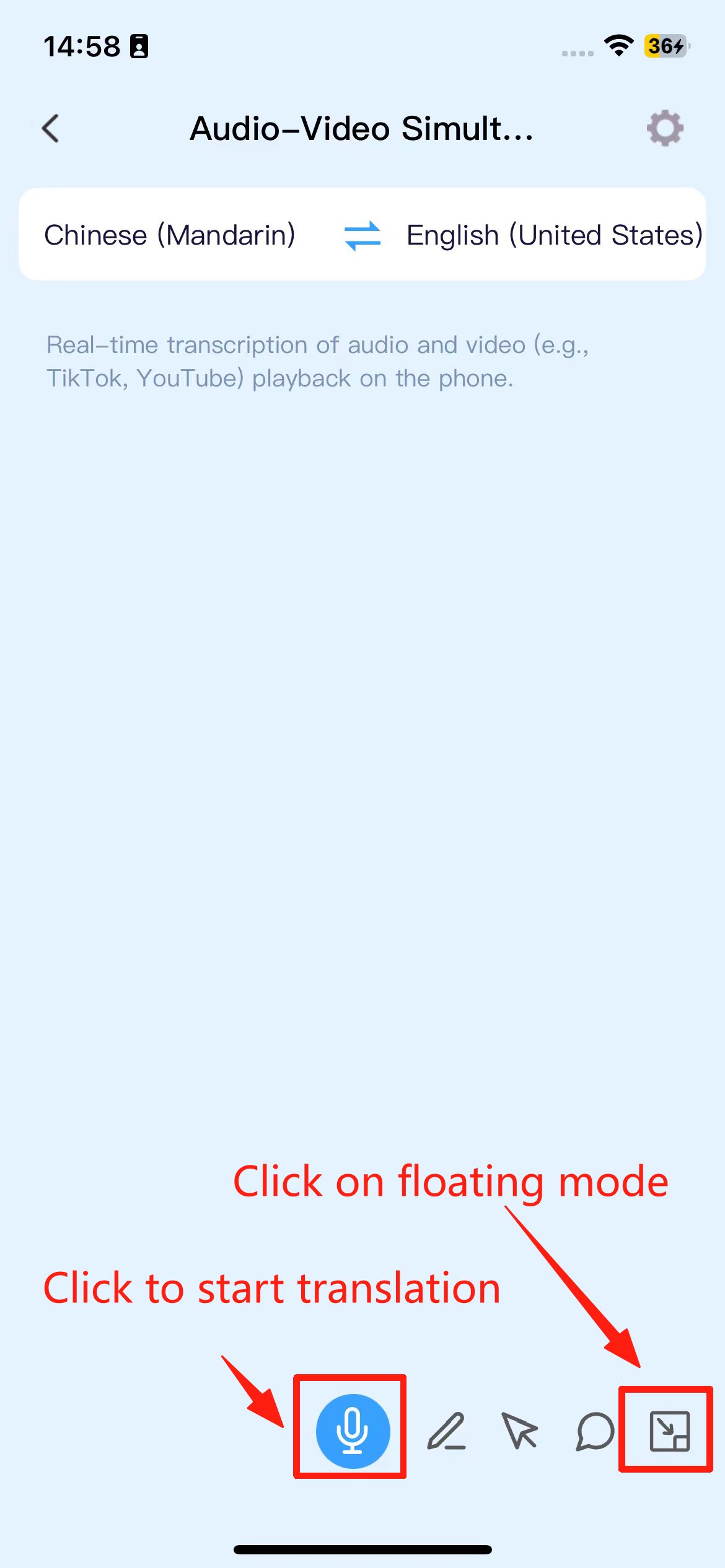
2. At this point, the app will automatically run in the background and display a floating window. Then, open the audio, video, or live streaming software you want to translate, and play the audio or video. The translation results will be displayed in real-time in the floating window.
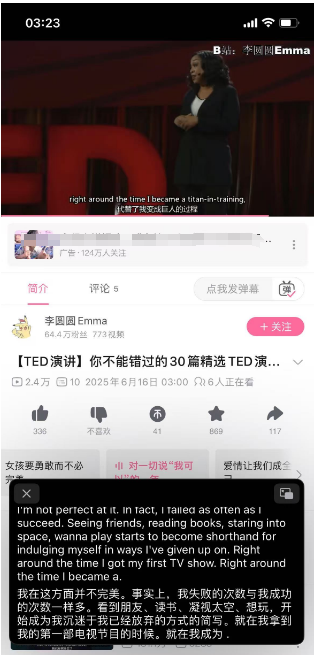
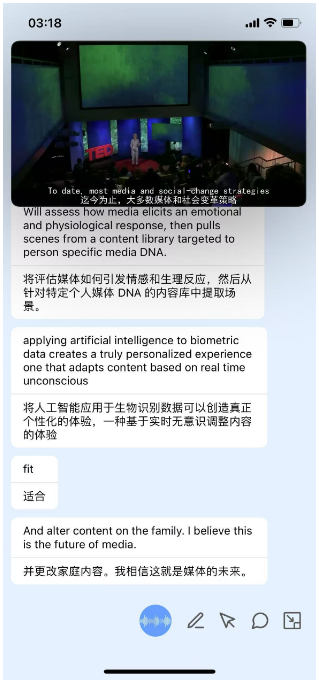
You can also proceed as follows:
1. First, open the audio, video, or live streaming software and play the audio or video. Then open iTourBuds→ T2→ Audio and Video Interpretation.
2. Turn on the translation button to enable real-time recognition and translation of the content in the audio or video.
How to introduce iTour 22pro Intelligent Q&A features (AC)?
Intelligent Q&A: Integrated with Deepseek, it can answer your questions, chat with you, and solve all problems in daily life or technical fields.
1. Supports voice recognition input and manual text input.
iTour 22pro VOIP Call Translation Introduction
It is an internet phone service that only supports calls to the United States. By default, it translates the other party’s speech. If you wish to translate your own speech, you need to enable translation by clicking the translation button.
The specific steps are as follows:
1. Select the languages for both parties, choose the country and area code of the number you wish to call, then input the phone number and click [Call] to initiate the call.
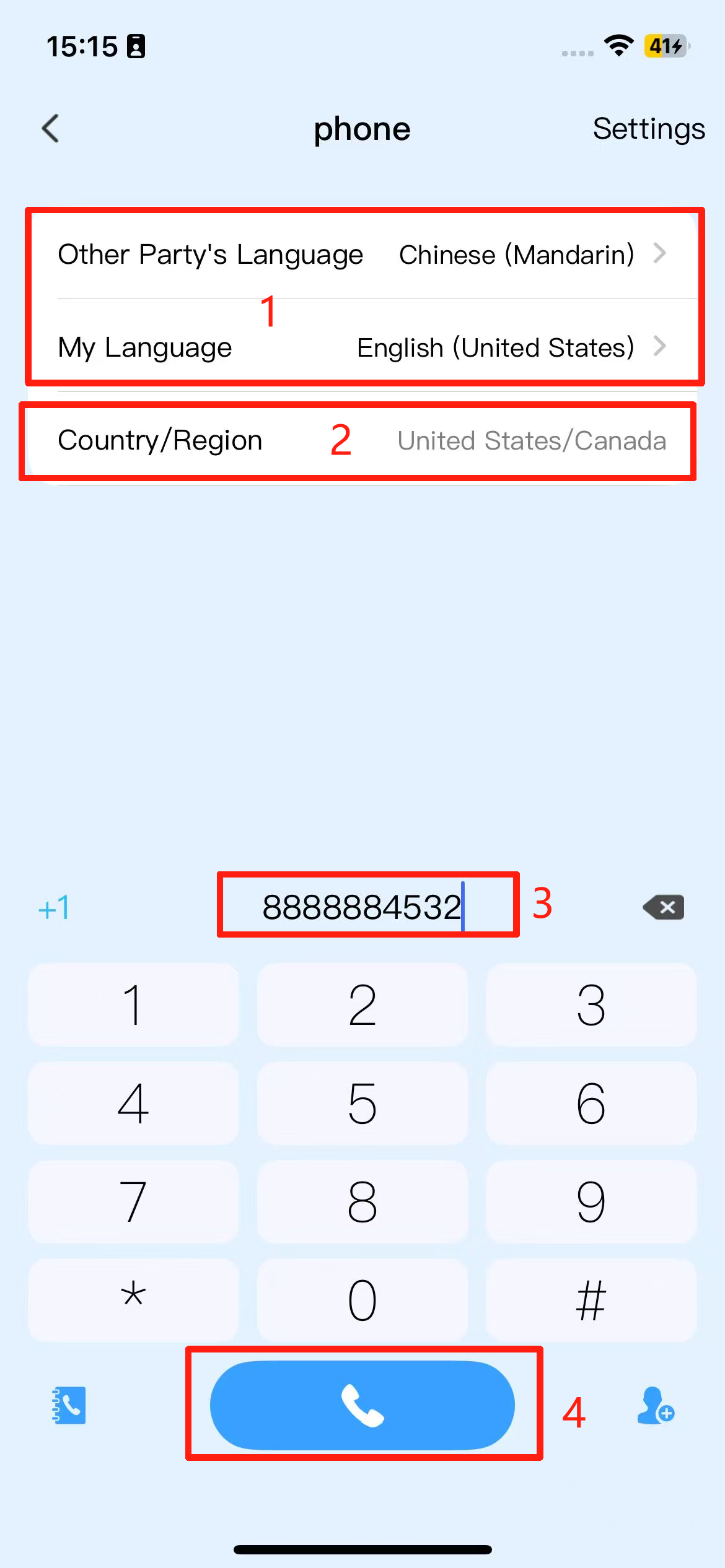
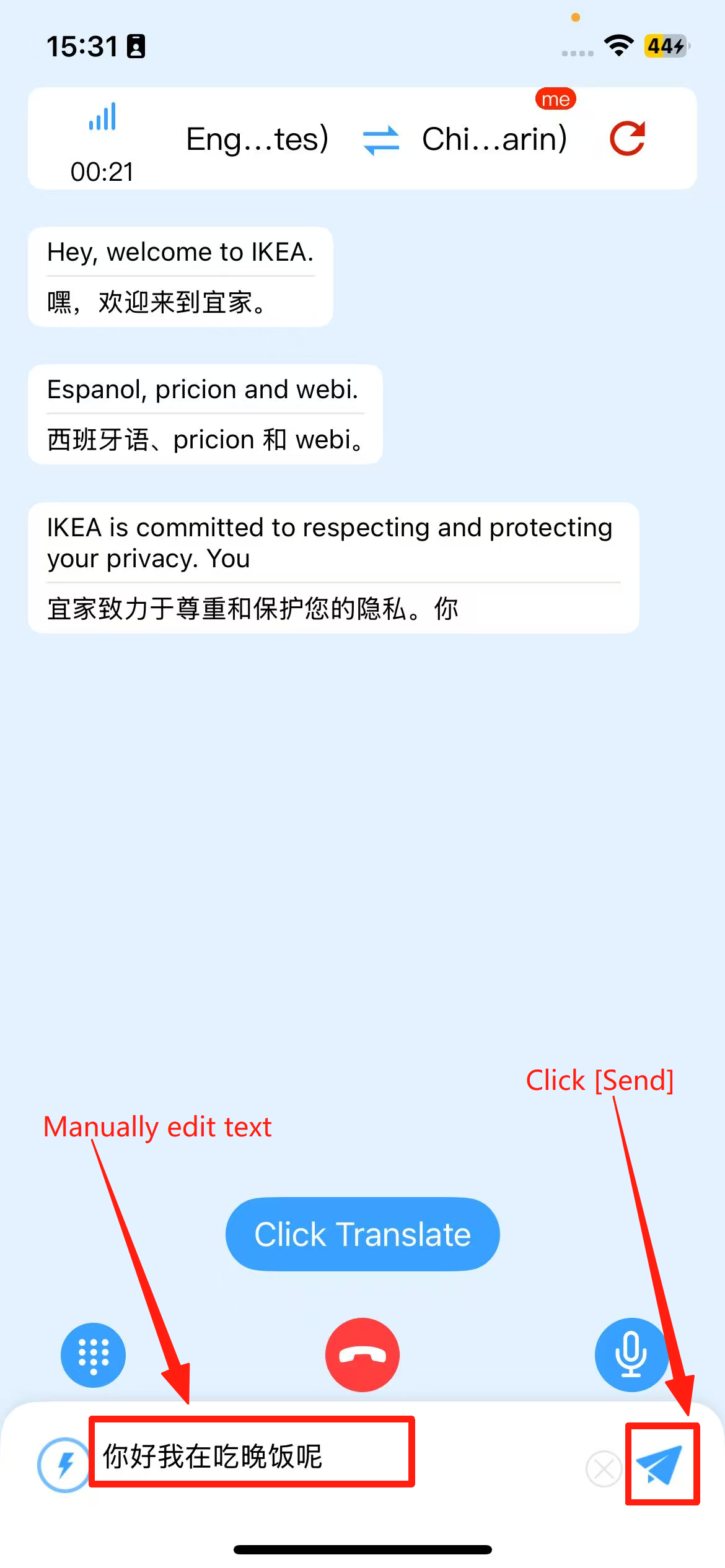
2. On the call page, the other party’s speech will be displayed in real-time on the call screen. To translate your own speech, you need to enable the [Translate] button. Once activated, your speech can be accurately recognized, translated, and broadcast.
3. Supports editing text to send, translate, and broadcast to the other party.
Button Description:
Figure 5: Dial pad keys. If calling a service platform such as a bank or hotel that requires extension number operations, you can click this icon to proceed with the key operations.
(image to be added)
Figure 6: Translation Key. It is turned off by default. After clicking to turn it on, it will recognize your speech, translate it, and broadcast it to the other party.
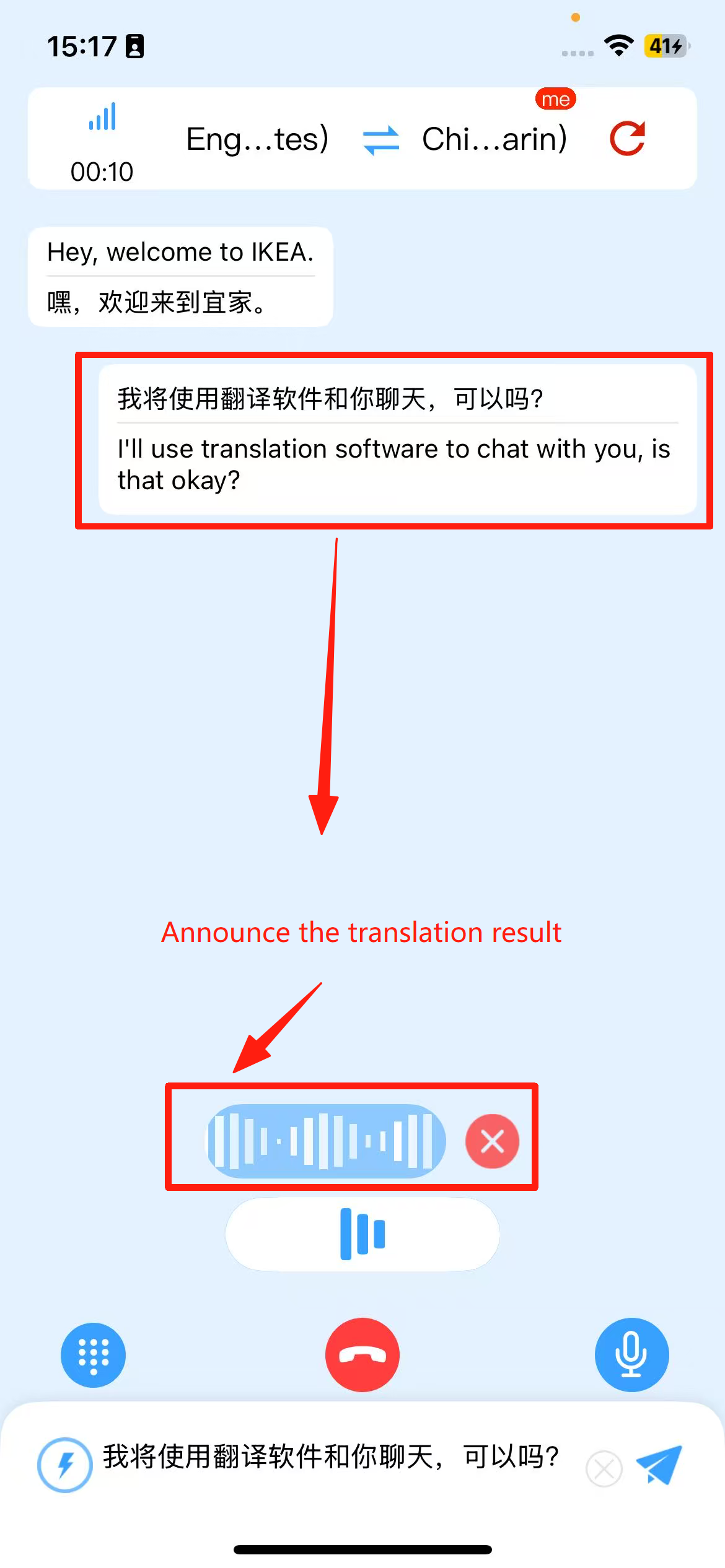
Figure 7: Pre-set Phrases. You can set different phrases in advance based on various situations. During a call, you can select the pre-set phrases and click to send them, improving communication efficiency.

Introduction to iTour 22 Pro Video Call Translation
Video Call: By sending an invitation link to a friend, the friend can click on the link and select “Join Call” to start real-time voice or video call translation as well as text chat. It supports voice calls, video calls, and text chat. The specific operation steps are as follows:
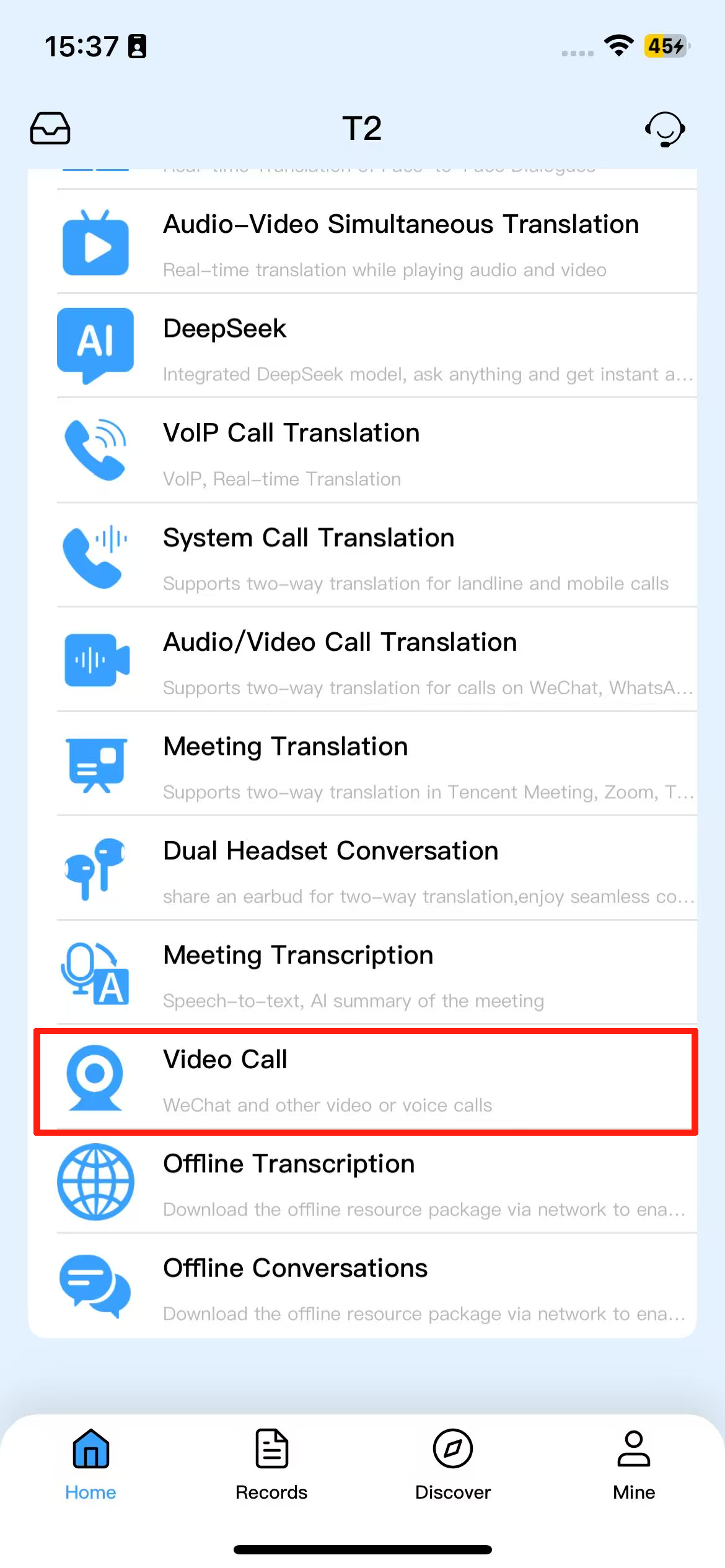
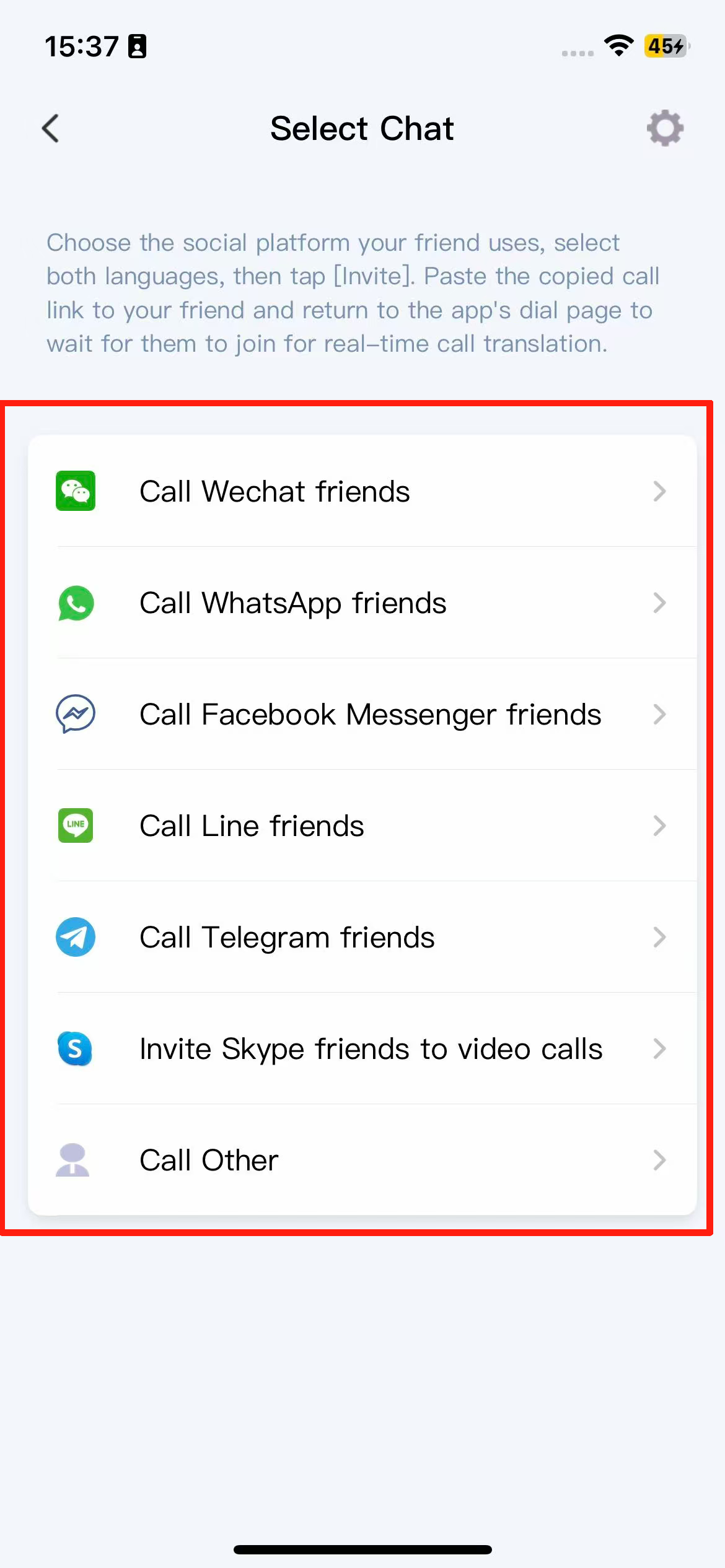
1. Go to the “Video Call” page and choose the third-party social platform you would like to use for the call.
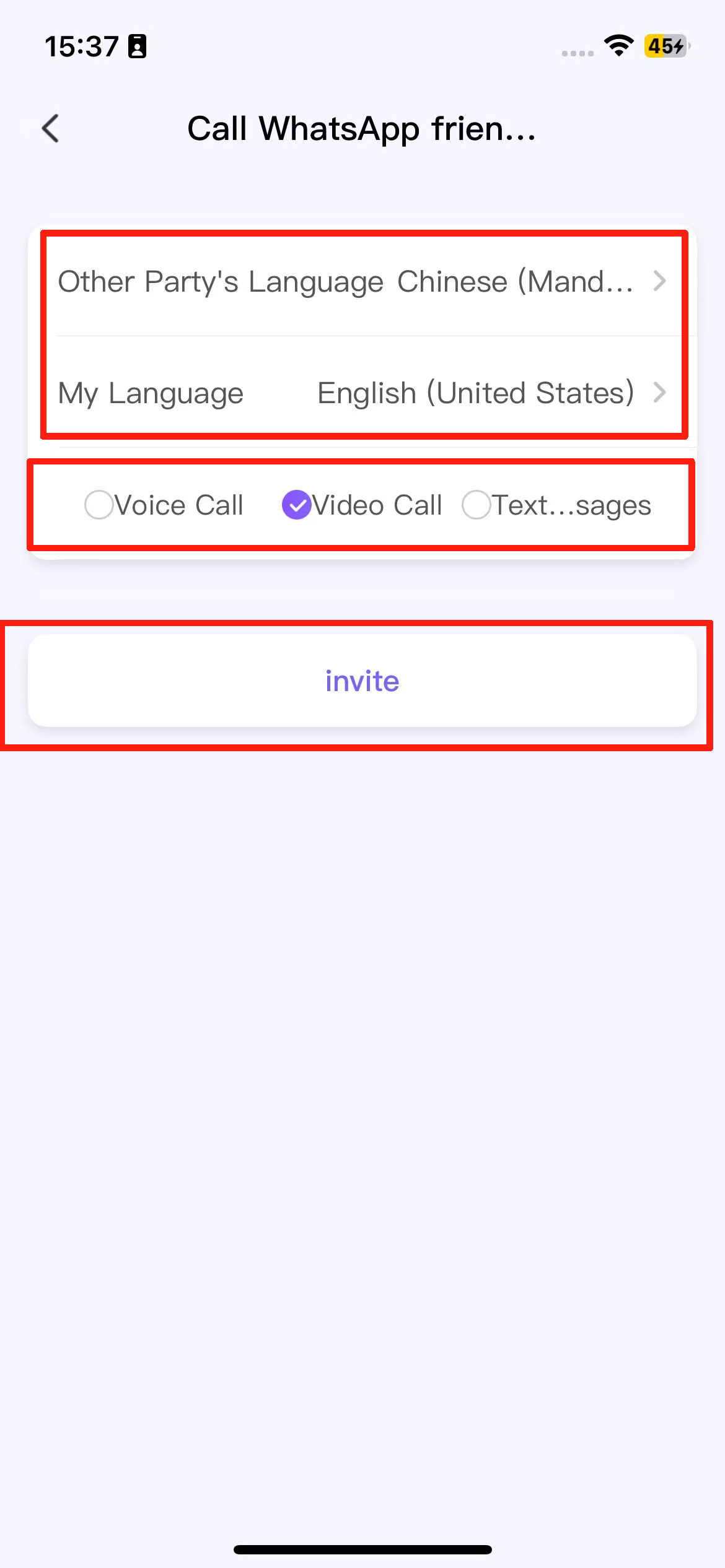
2. Select both languages and the call type, then click [Invite].
3. Click “Go to XXX to paste for your friend.”
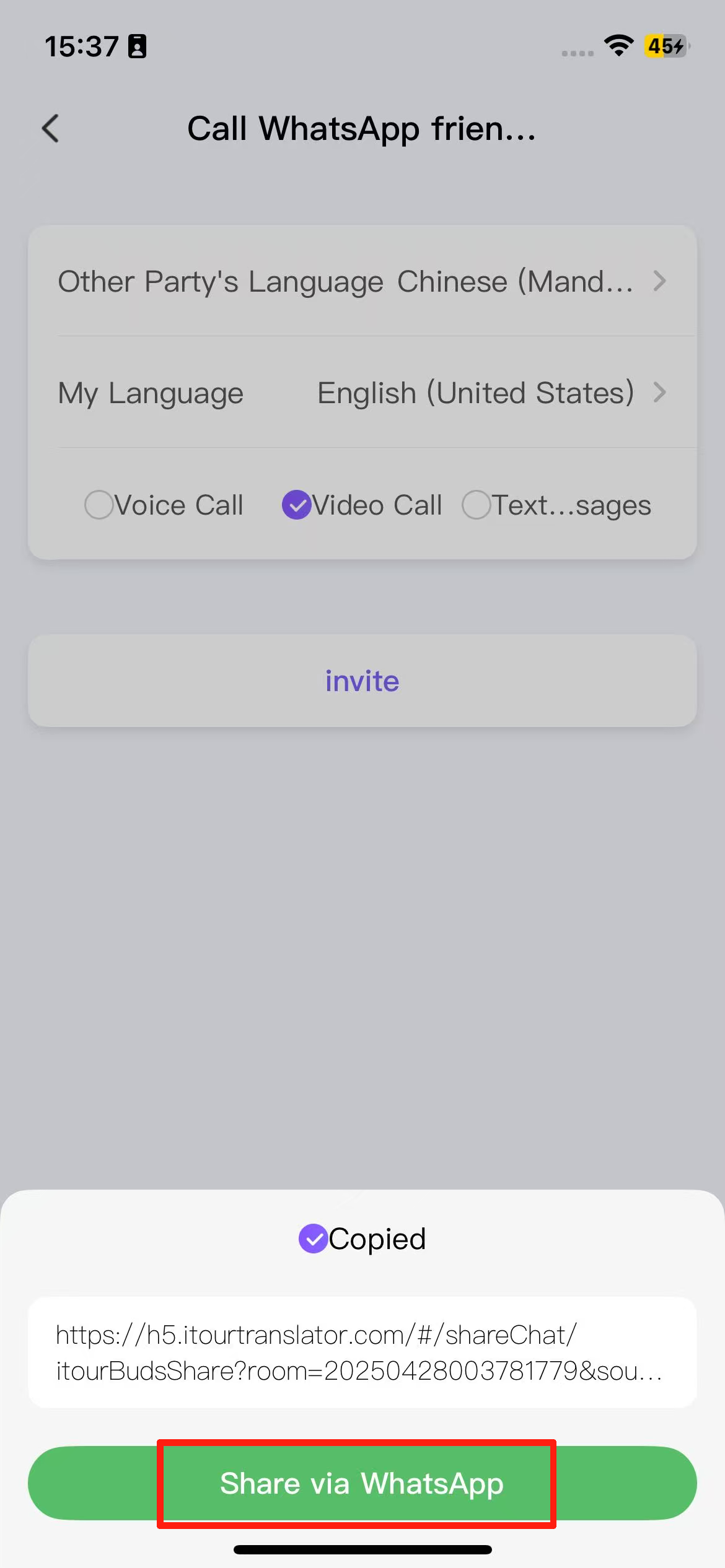
4. After pasting the link to your friend, return to the iTourBuds app call page and wait for the other party to join to start real-time call and chat translation.
The introduction of iTour 22Pro Conference Translation.
Supports conference translation for Zoom, Teams, Tencent, and other platforms. The specific operation is as follows:
1. During a meeting on Zoom, Teams, Tencent, etc., go to iTourBuds — T2 — Conference Translation.
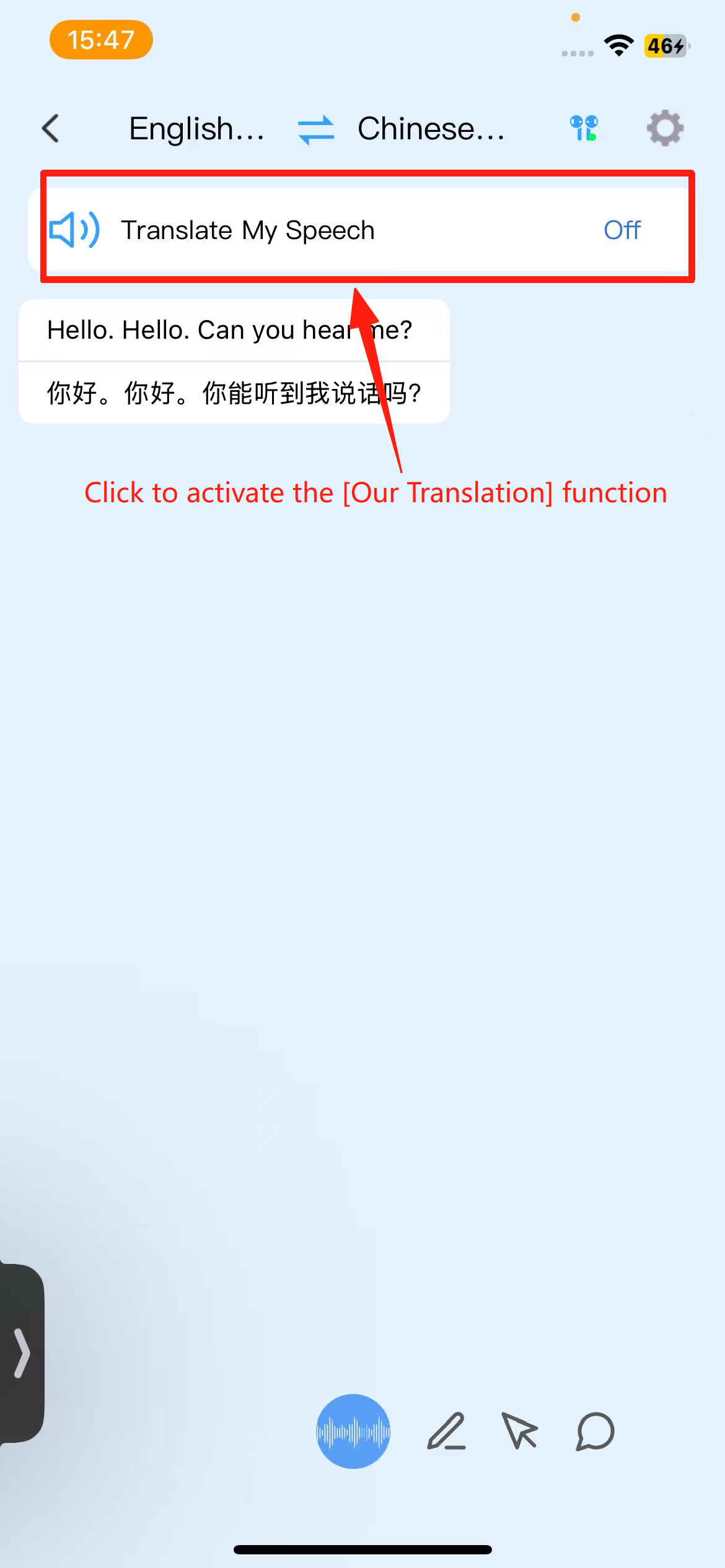
2. Click the microphone icon to activate translation. By default, only the other party’s speech is translated, and the translated content is displayed on the translation page.
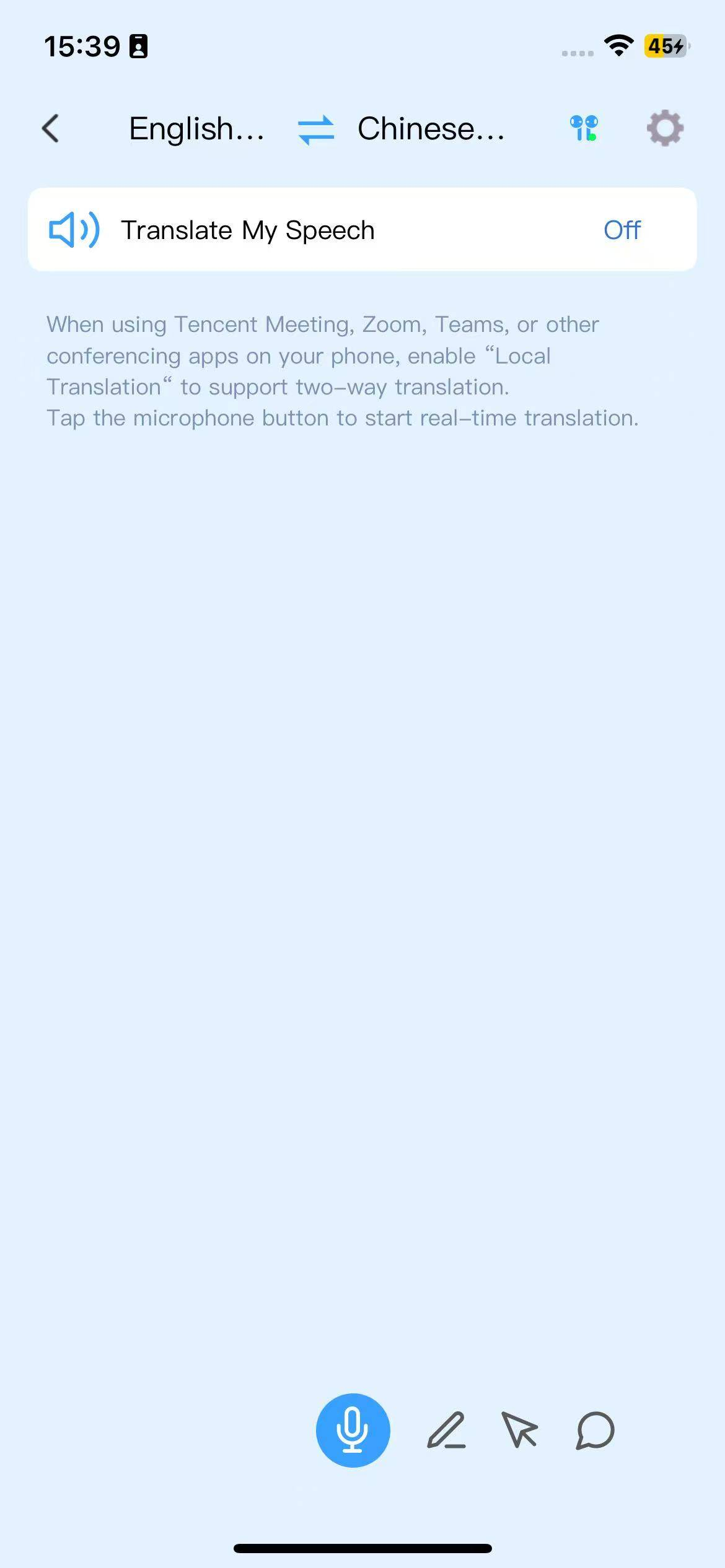
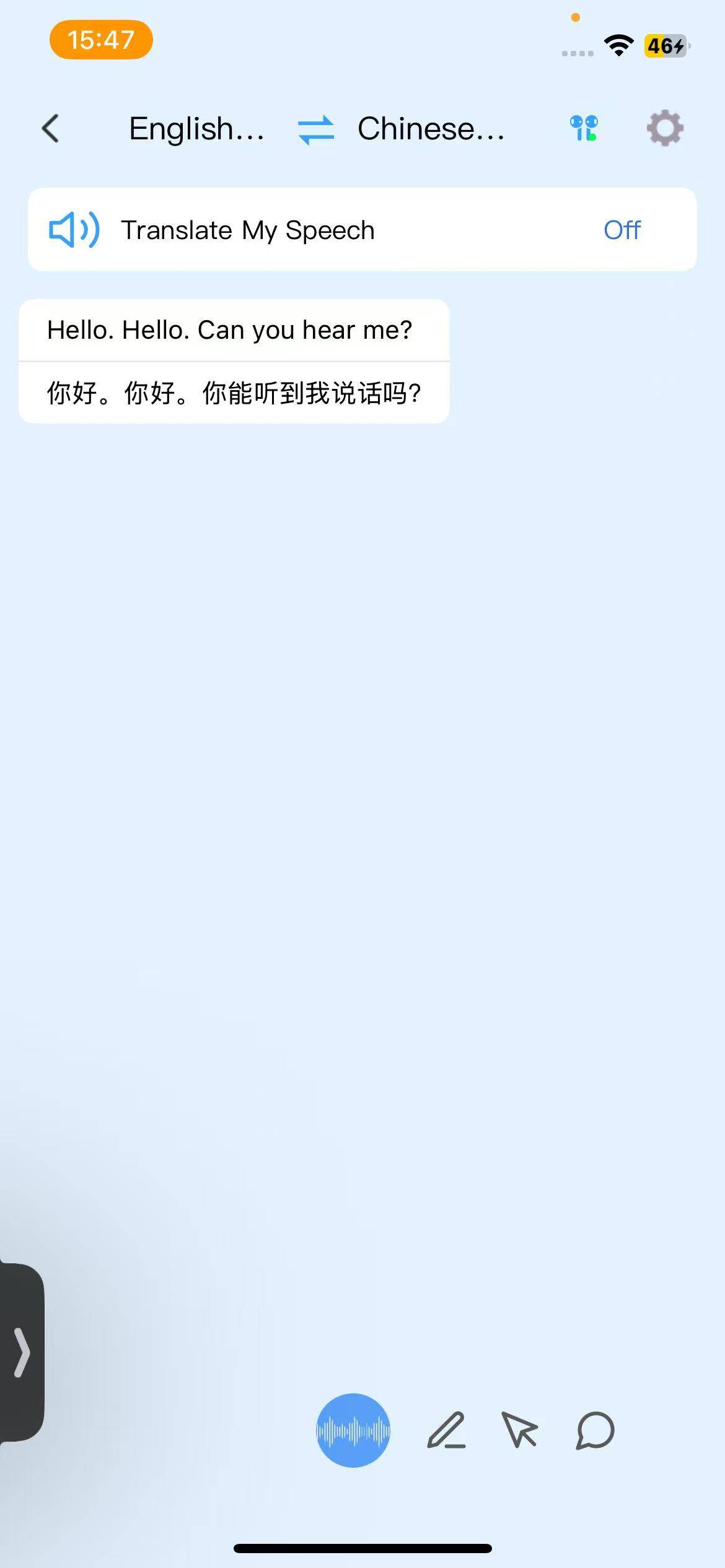
3. If translation for both parties is required, you need to enable “Self Translation.”
4. After enabling “Self Translation,” the content you speak will be translated and broadcasted to the other party.
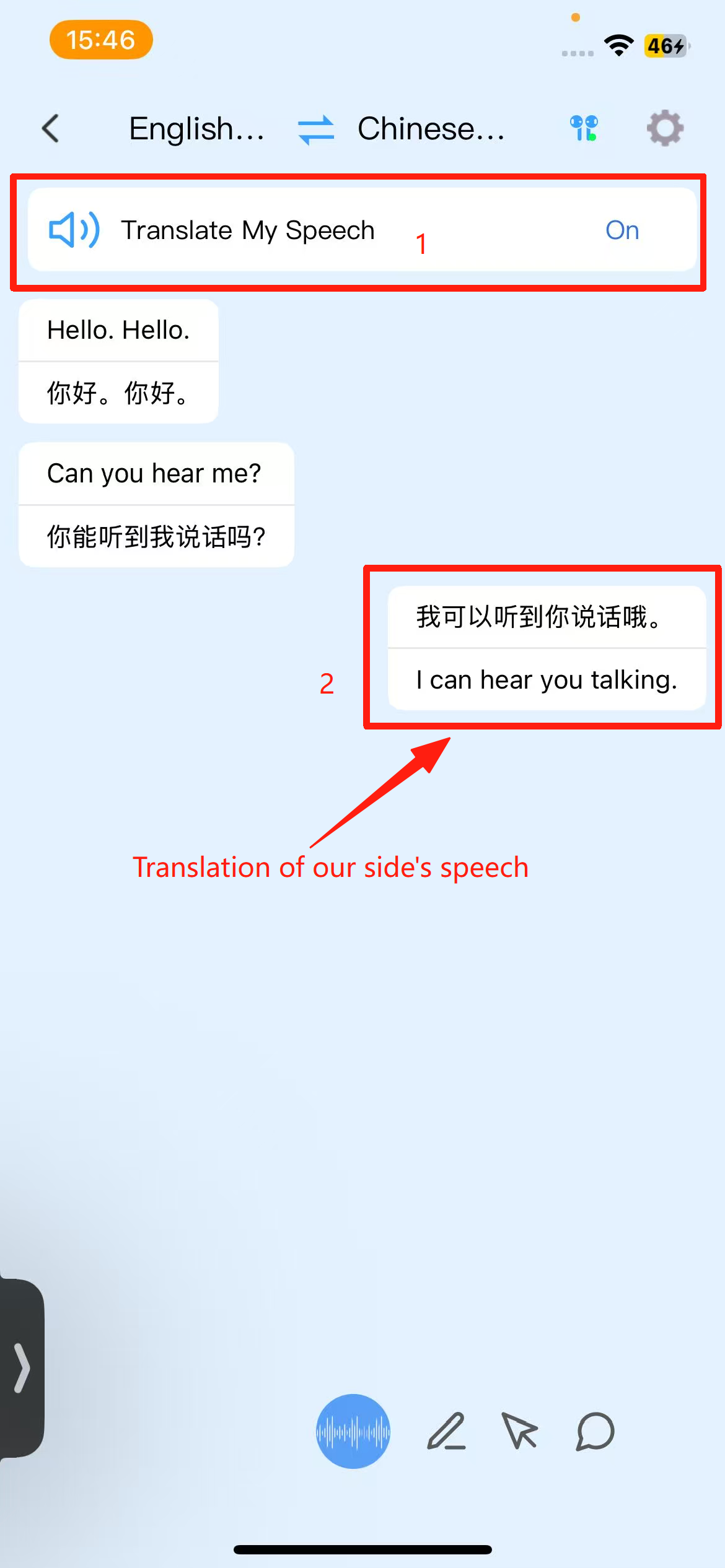
Note: The “Self Translation” feature is only supported on app version 1.3.20 and above, and earphone firmware version 0.0.1.30 and above.
Introduction to iTour 22pro Audio and Video Call Translation
Supports calls on chat applications such as WeChat, WhatsApp, Facebook, etc. The specific operations are as follows:
1. During a call on WeChat, WhatsApp, Facebook, etc., go to iTourBuds — T2 — Audio and Video Call Translation.
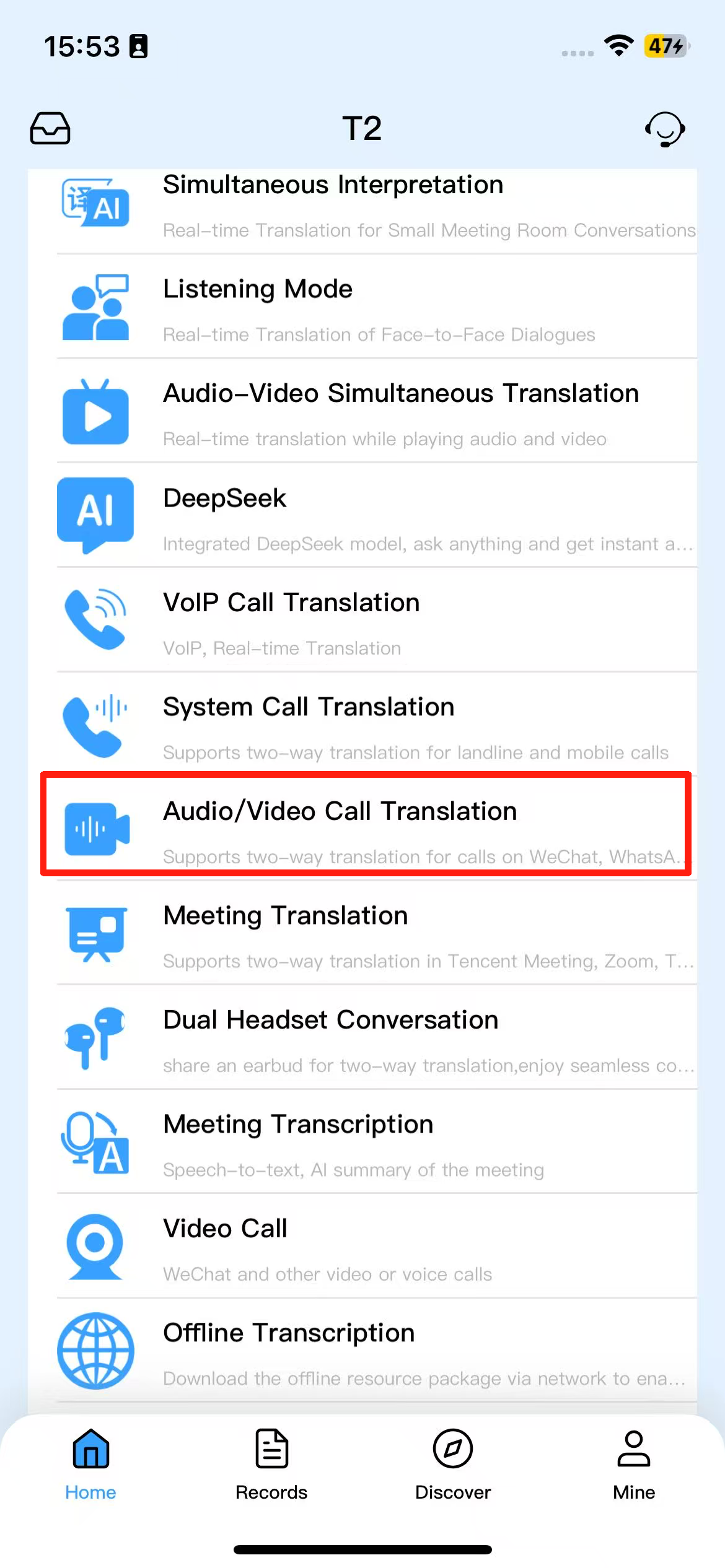
2. Click the microphone icon to enable translation. By default, only the other party’s speech will be translated, and the translated content will be displayed on the translation page.
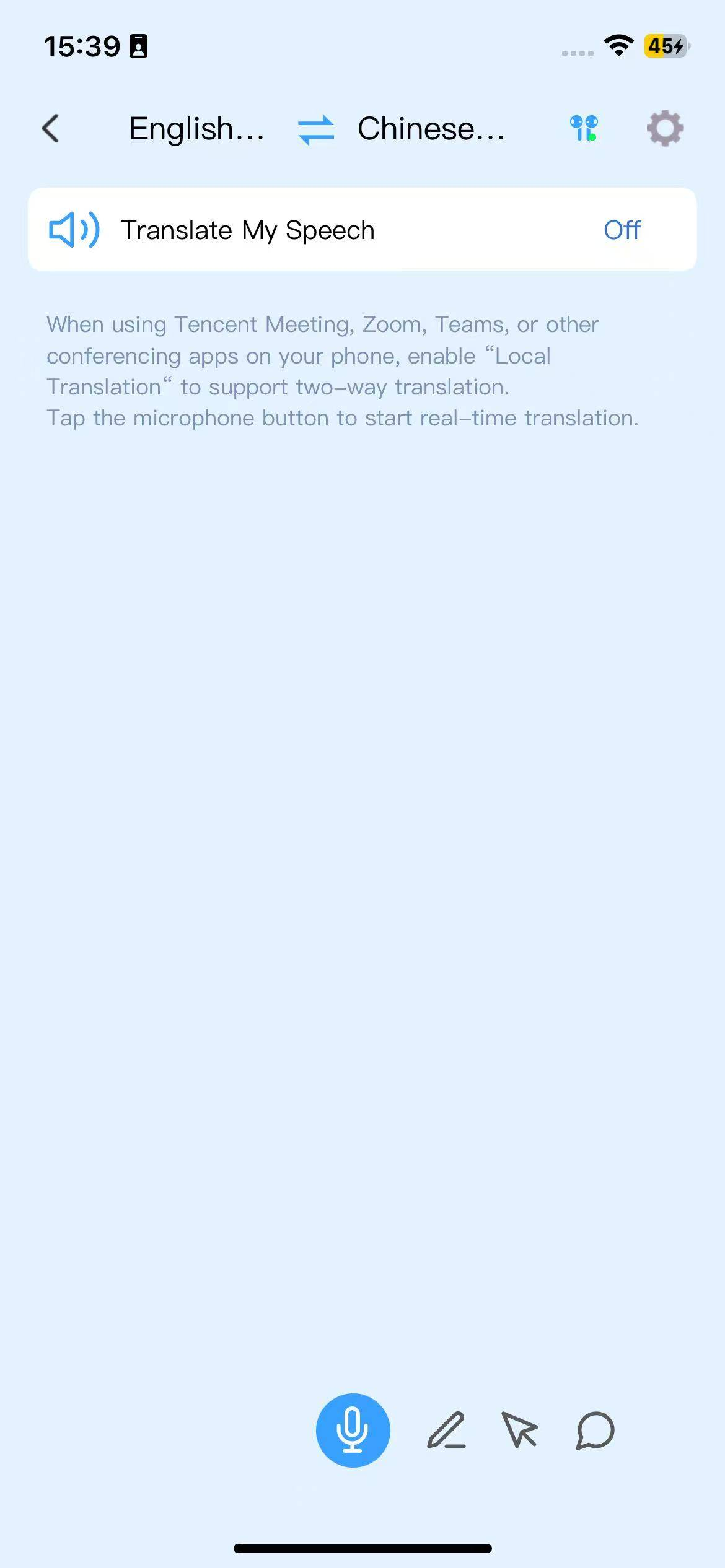
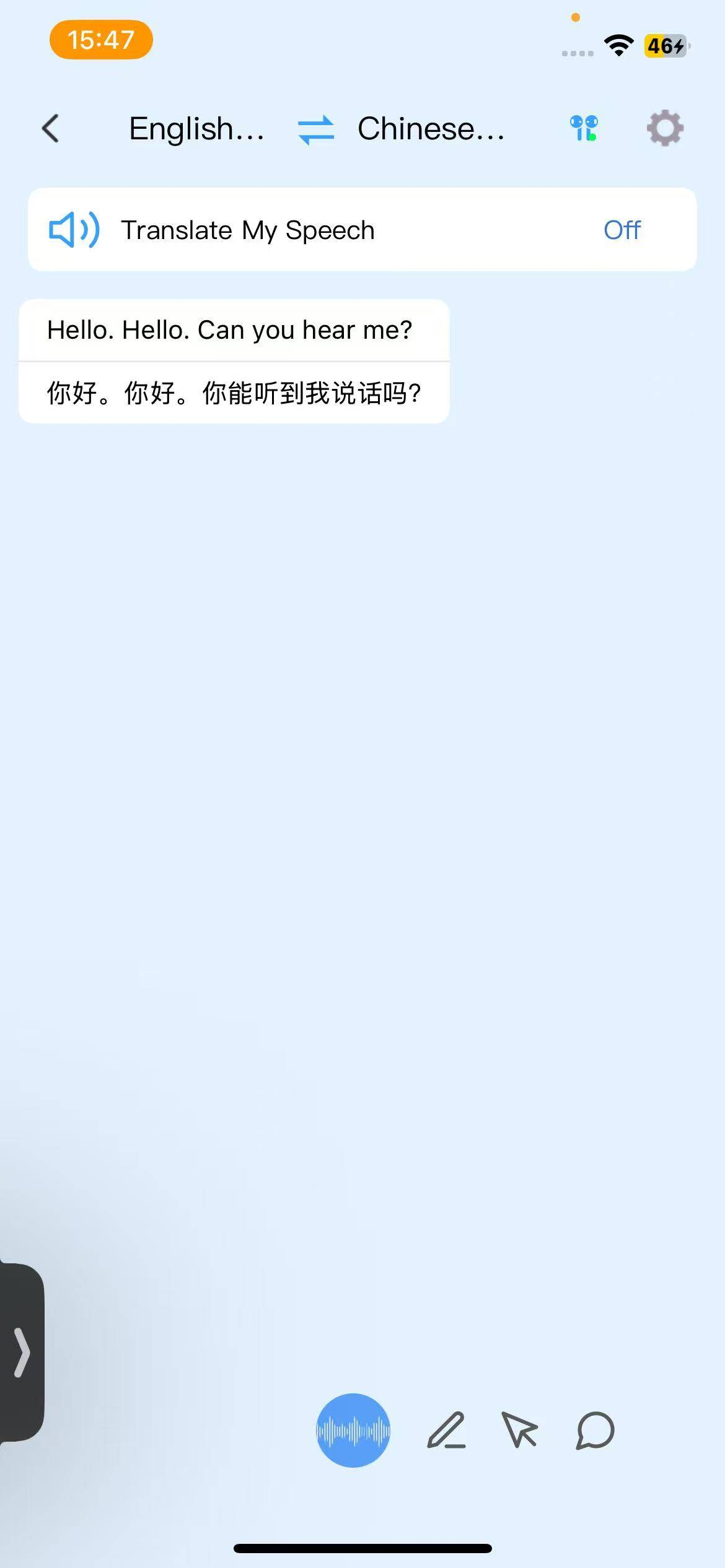
3. If you need to translate both parties, you must enable “Self Translation.”
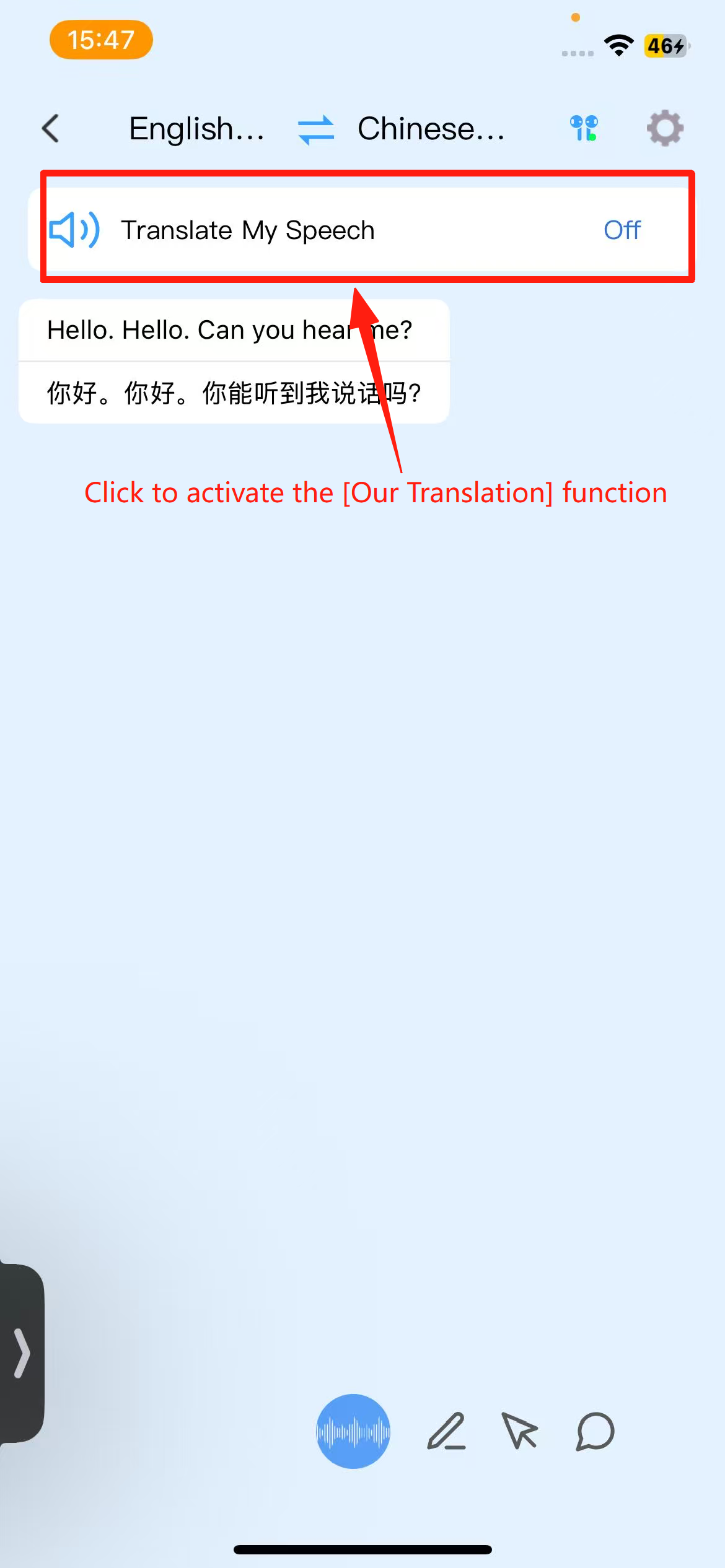
4. After enabling “Self Translation,” the content you speak will be translated and played to the other party.
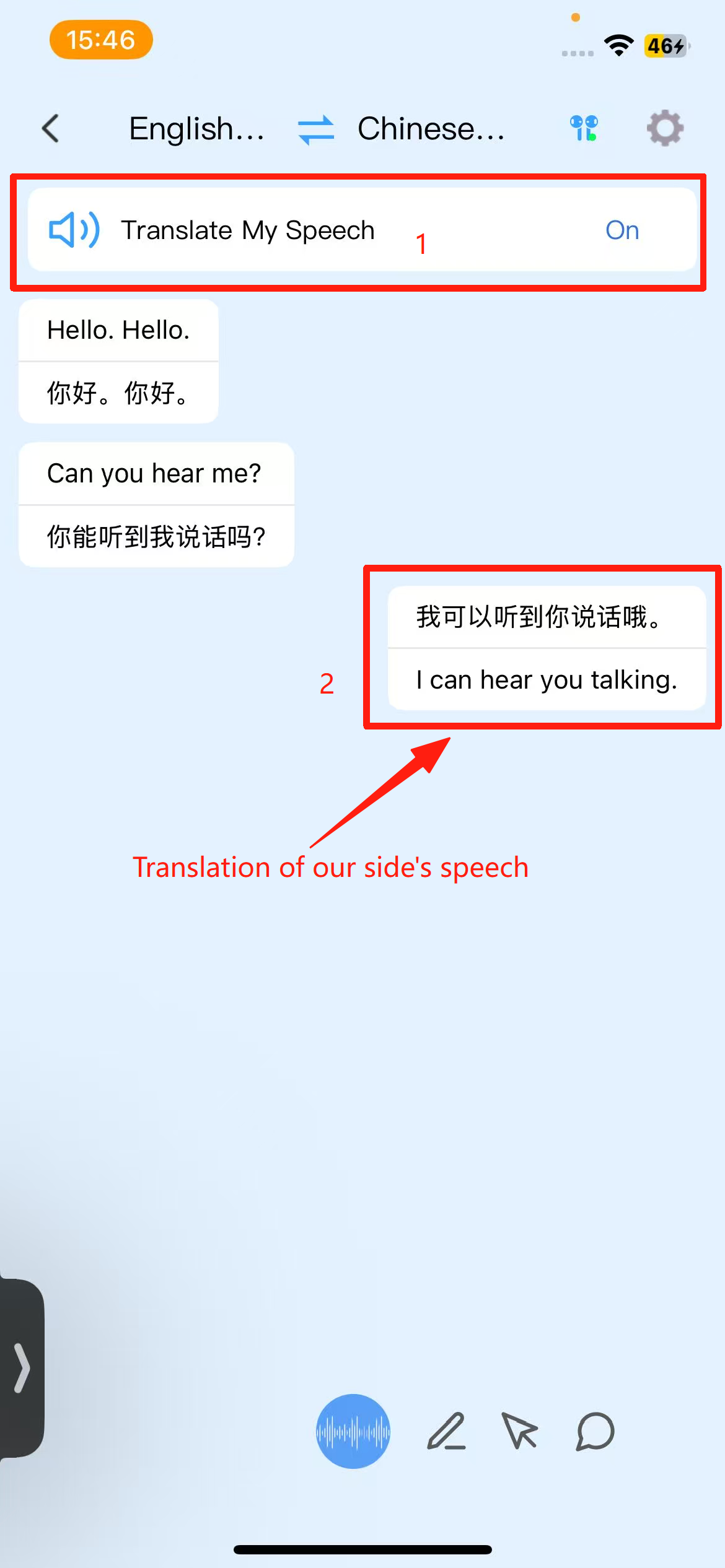
Note: The Self Translation feature is only supported on app version 1.3.20 and above, and earphone firmware version 0.0.1.30 and above.
Introduction to iTour 22Pro Dual Earbuds Conversation Translation.
Each person wears one earbud, and the translation result is broadcasted through the earbud. Click the microphone button in the image below to start the translation.
(image to be added)
Supports switching to phone speaker for broadcasting.
(image to be added)
iTour 22Pro earbuds are already connected via Bluetooth. Why can't the app connect?
Please confirm if the following situations apply:
1. Multiple Bluetooth devices are connected in the phone system settings under Bluetooth.
Solution: Remove the connections of other Bluetooth devices and try again.
2. Has the Bluetooth name of the earbuds been changed?
Solution: Rename it back to the original earbud Bluetooth name, iTour 22 Pro. After renaming, restart the app and try again.
The introduction of the offline simultaneous interpretation feature of the iTour 22Pro earphones.
Offline Interpretation: The interpretation function can be used even without an internet connection. Specific steps are as follows:
1. Click on the microphone, and a prompt will appear indicating the need to download the offline resource package.
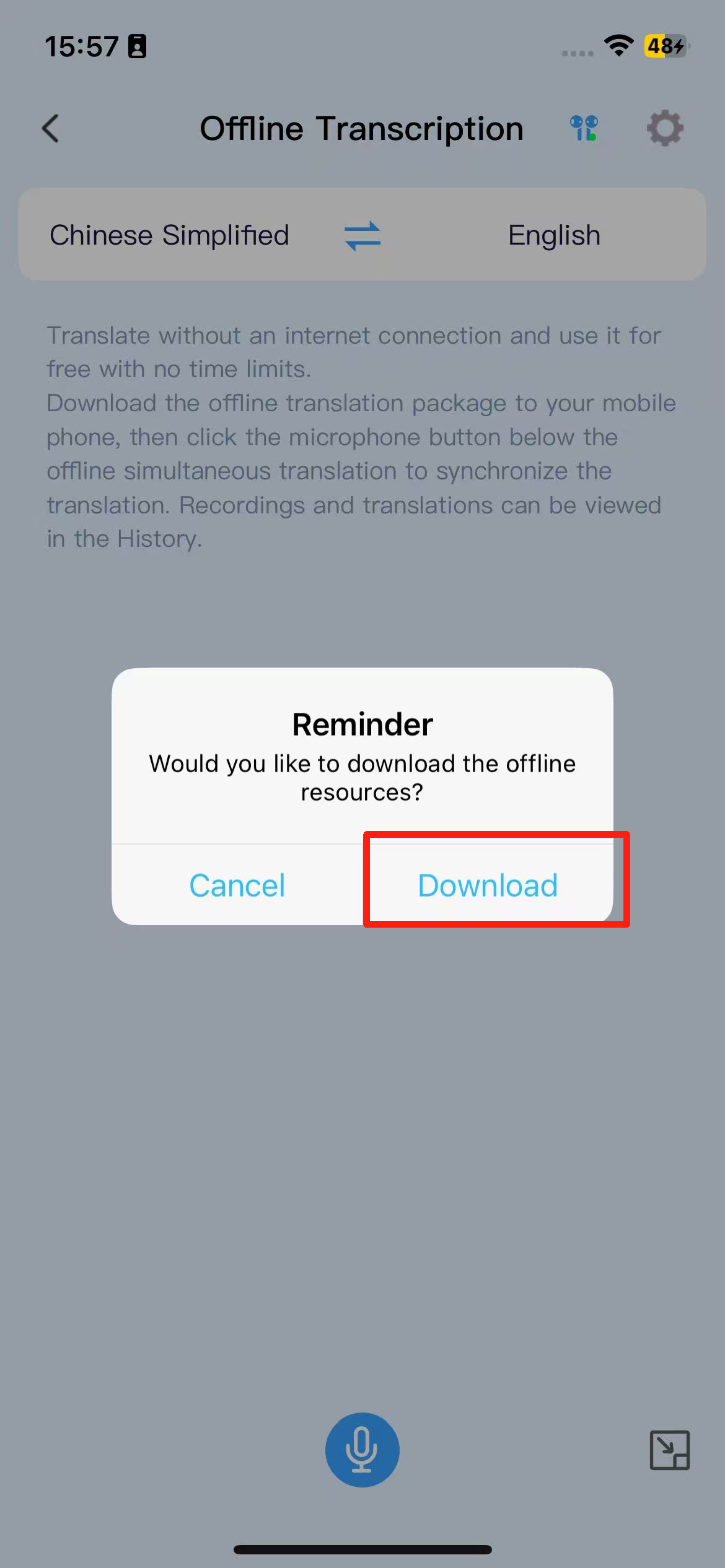
2. The default language pair offline resource package is downloaded for the first time.
3. You can also click on the language bar to download the required offline resource package.
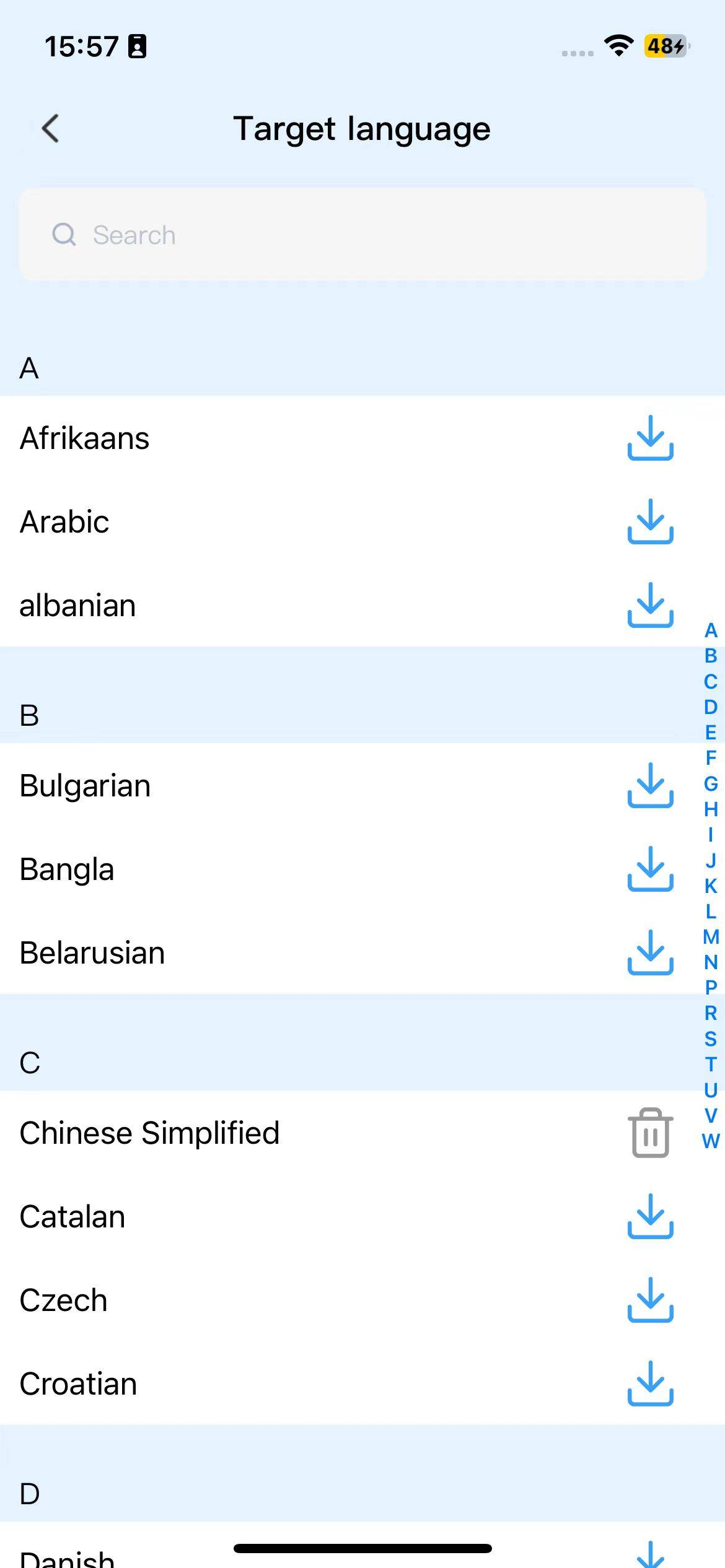
4. After enabling interpretation, click the floating window button in the bottom right corner to display the interpretation content in a floating window.
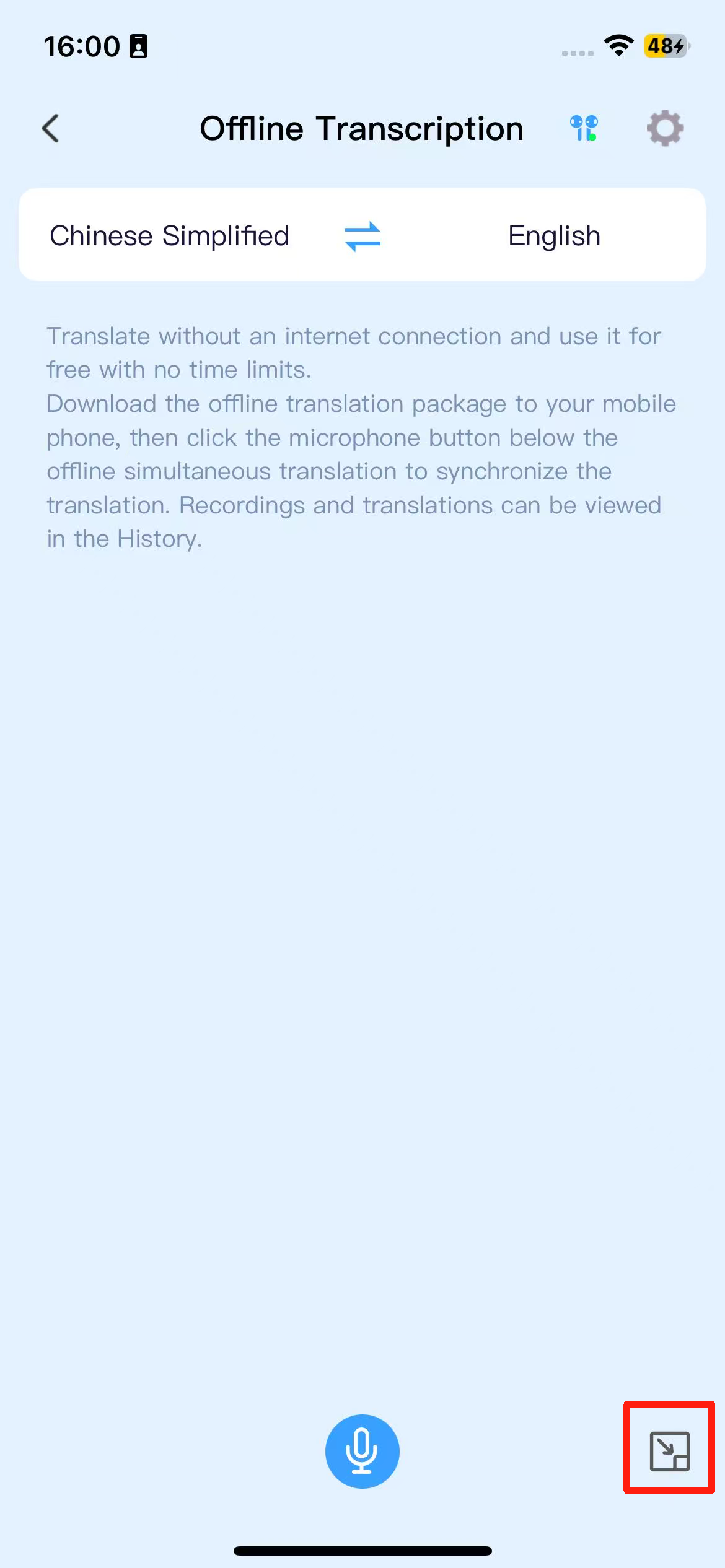
Introduction to the offline conversation feature of the iTour 22Pro earphones.
Offline Conversation: After downloading the offline language package, you can start conversations even in a no-network environment. The specific steps are as follows:
1. Click on the microphone and it will prompt you to download the offline resource package.
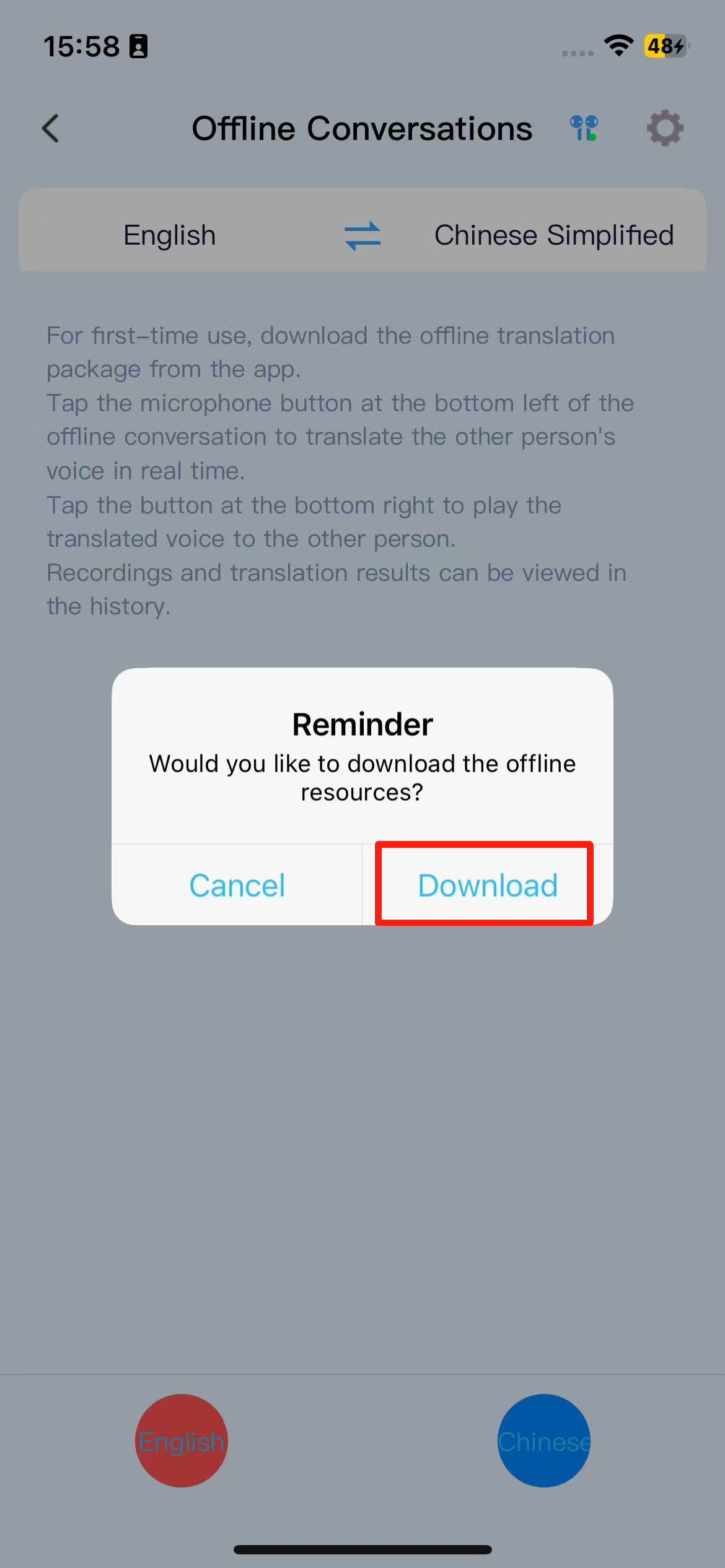
2. The offline resource package for the default language pair is downloaded for the first time.
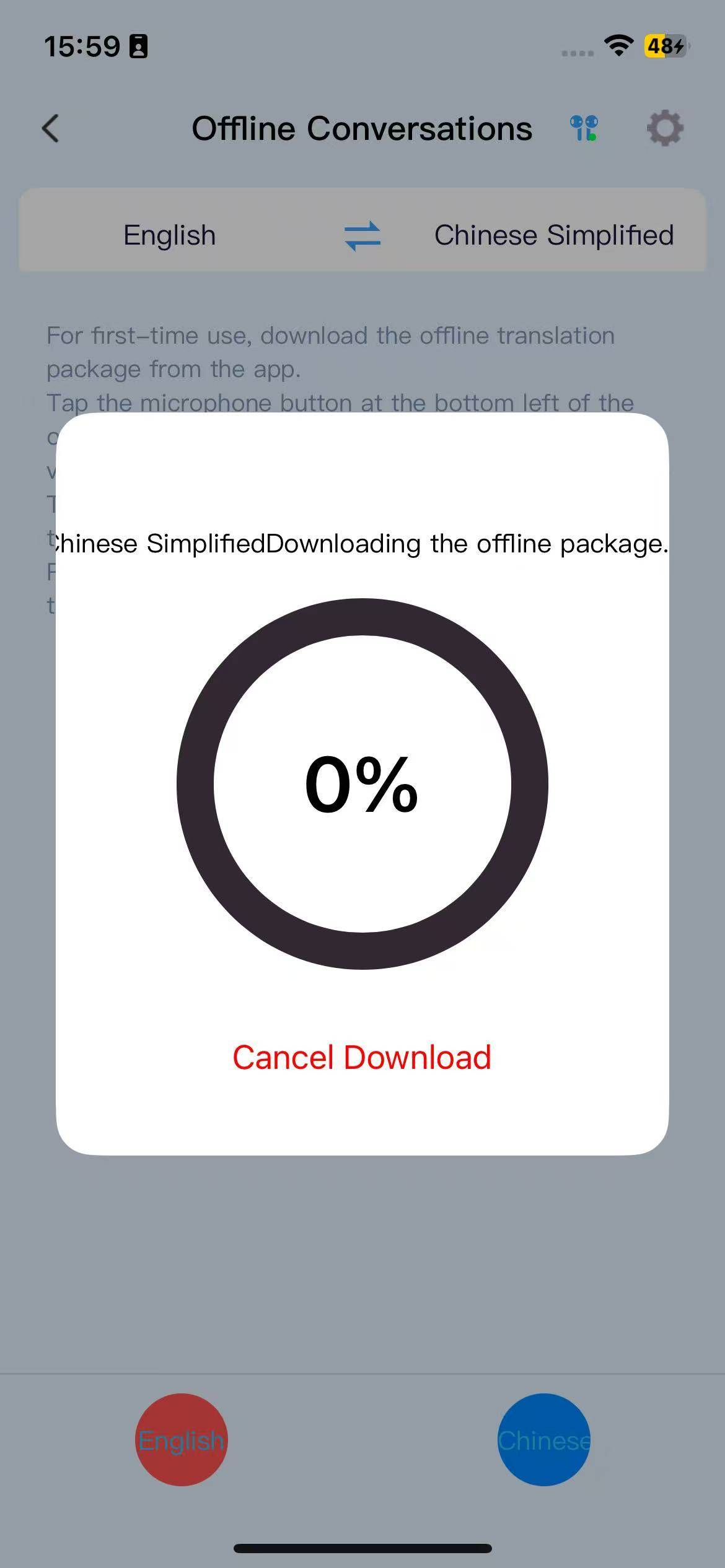
3. You can also click on the language bar to download the required offline resource package.
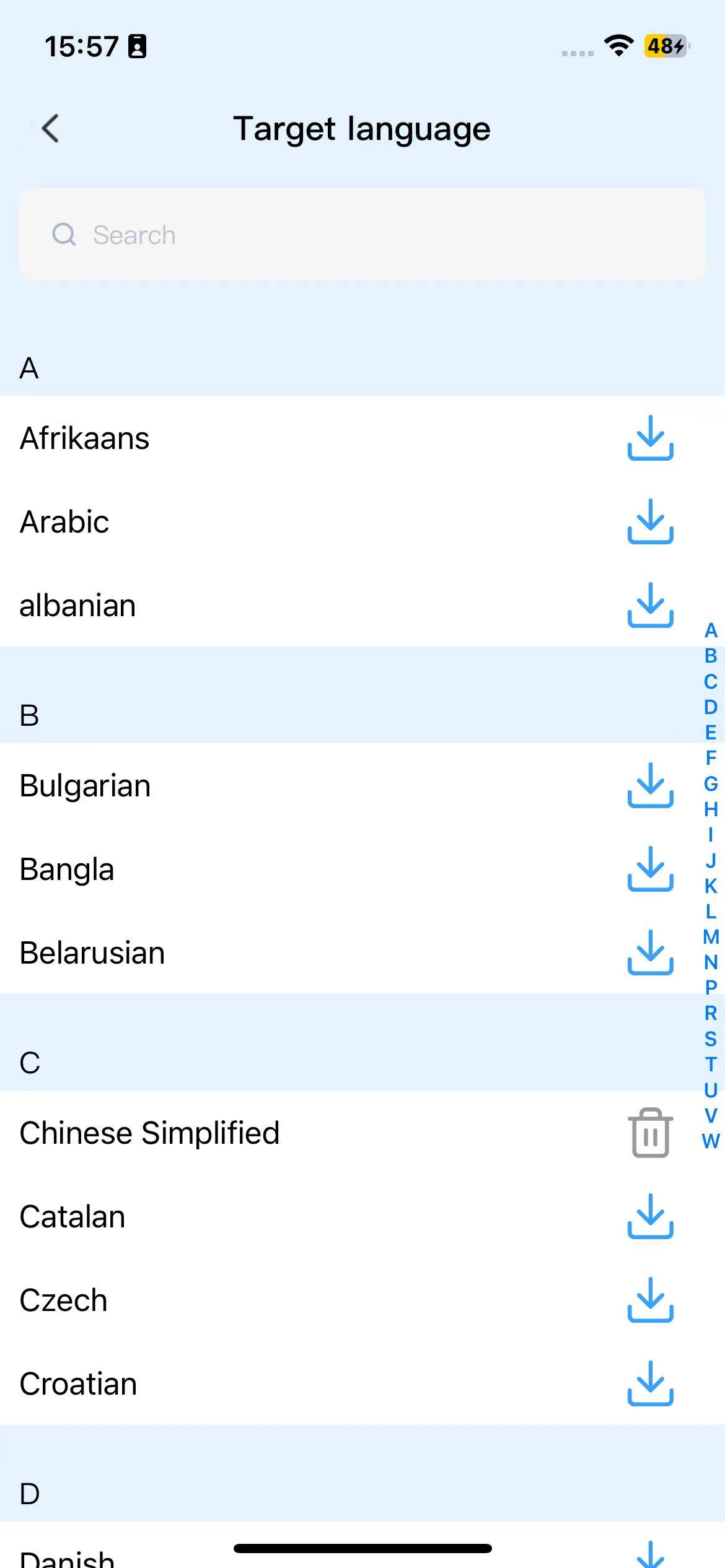
4. After successfully downloading the offline language package, you can click the left/right language button to start a conversation. Click again to stop recognition, send the translated content, and play the voice output.
5.The left button recognizes the other party’s language and translates it into our language, with the translation content played through the earbuds. The right button recognizes our language and translates it into the other party’s language, with the translation content played through the phone speaker.
Z50S Pro Max Earbuds 12 questions
Is the translation service for the Z50S Pro Max translation earbuds permanently free?
The earbuds need to download iTourBuds for connection and use, and the corresponding functions are free to use permanently.
Can the Z50S Pro Max earbuds be used independently without a phone?
1. The earbuds cannot be used independently; they must be connected to a phone.
2. During use, the phone screen must remain active.
Z50S Pro Max earbuds speaker mode
Bilingual translation: The content spoken by the other party is translated and broadcast through the earbuds, while the content spoken by you is translated and broadcast through the phone’s speaker.
Click the “Microphone” button in the image below to enable recognition and translation.
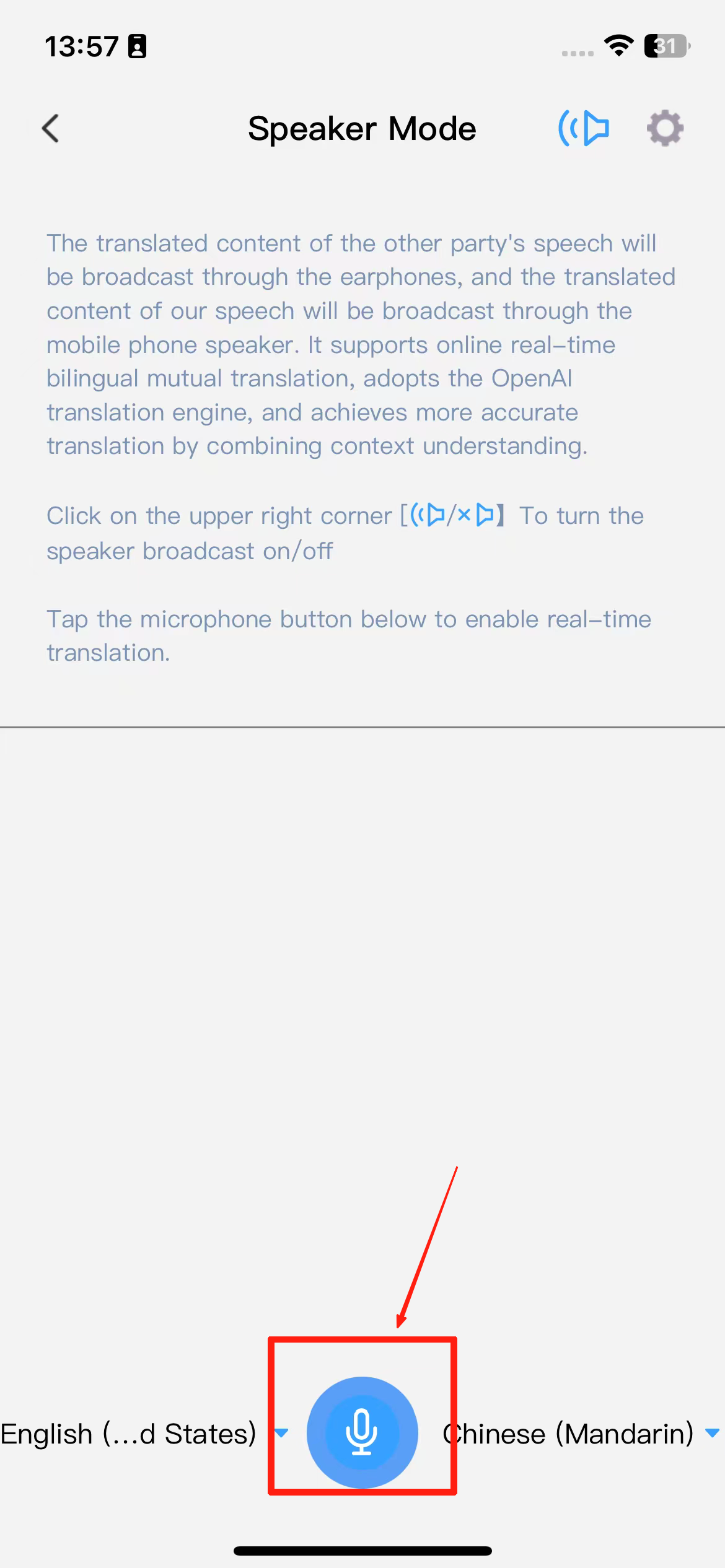
The phone speaker broadcast can be turned off.
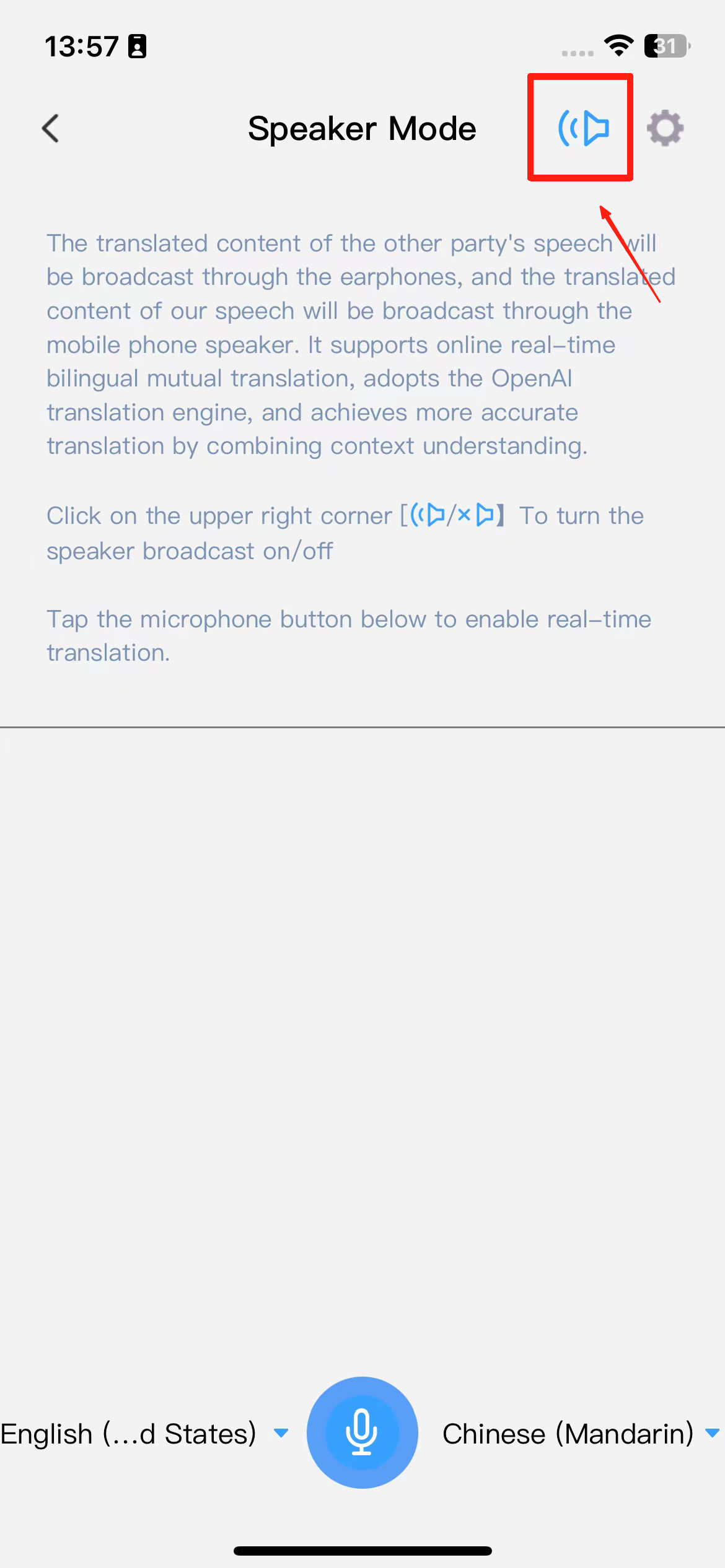
Introduction to the Deepseek Feature of Z50S Pro Max Earbuds
Integrated with the Deepseek large model, you can ask any questions, such as writing assistance, text polishing, language translation, debugging code issues, travel itinerary planning, and even casual chatting.Supports both text input and voice input.
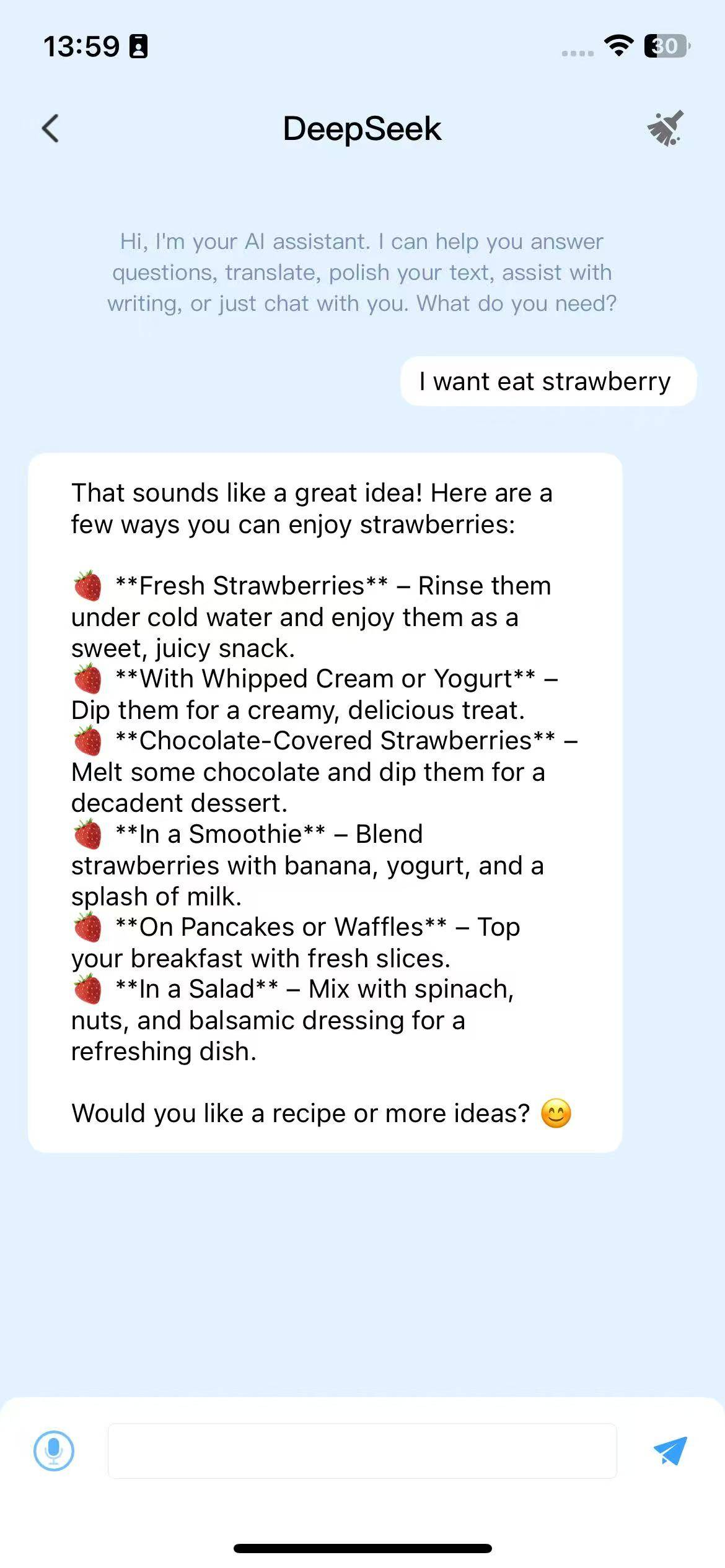
Introduction to the VOIP Call Feature of Z50S Pro Max Earbuds
Internet Call + Translation: When the caller speaks in Chinese, the recipient will first hear the original Chinese audio, followed by the translated English playback.
Supports calls to the US/Canada only; calls to other countries or regions are not supported.
Note: By default, the system translates the recipient’s speech. If you need to translate the caller’s speech, please click “Enable Translation.”
Introduction to the Listening Feature of Z50S Pro Max Earbuds
When the left-side detection is enabled, the broadcast content will be played through the earbuds. When the right-side detection is enabled, the broadcast content will be played through the speakers. You can also adjust the font size, toggle the earbud broadcast on or off, and configure the broadcast speed and voice gender settings.
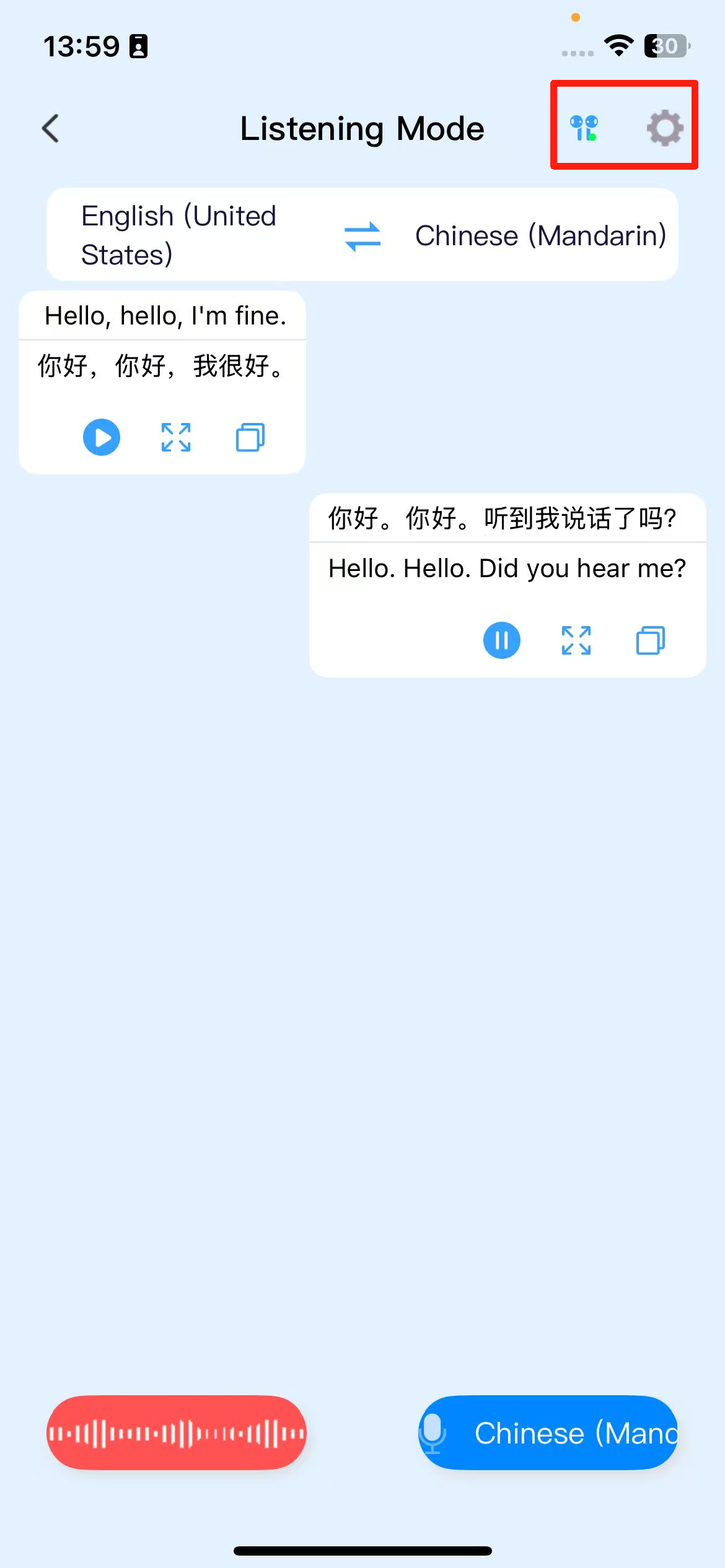
Introduction to the Audio-Video Synchronization Feature of Z50S Pro Max Earbuds
Click the microphone button to start live streaming. After three seconds, it will return to the desktop. Open another video application and play a video to recognize its content, which will be displayed in a floating window.
Note: This feature does not support recognition of system calls, WeChat calls, Zoom, or other conferencing software.
Introduction to the Dual-Earbud Mode Feature of Z50S Pro Max Earbuds
Start a conversation with the default conversation broadcast mode set to earbud mode. The conversation content is broadcast through the earbuds. When the mode switch button is clicked, the translated conversation broadcast will be played through the phone’s speaker.
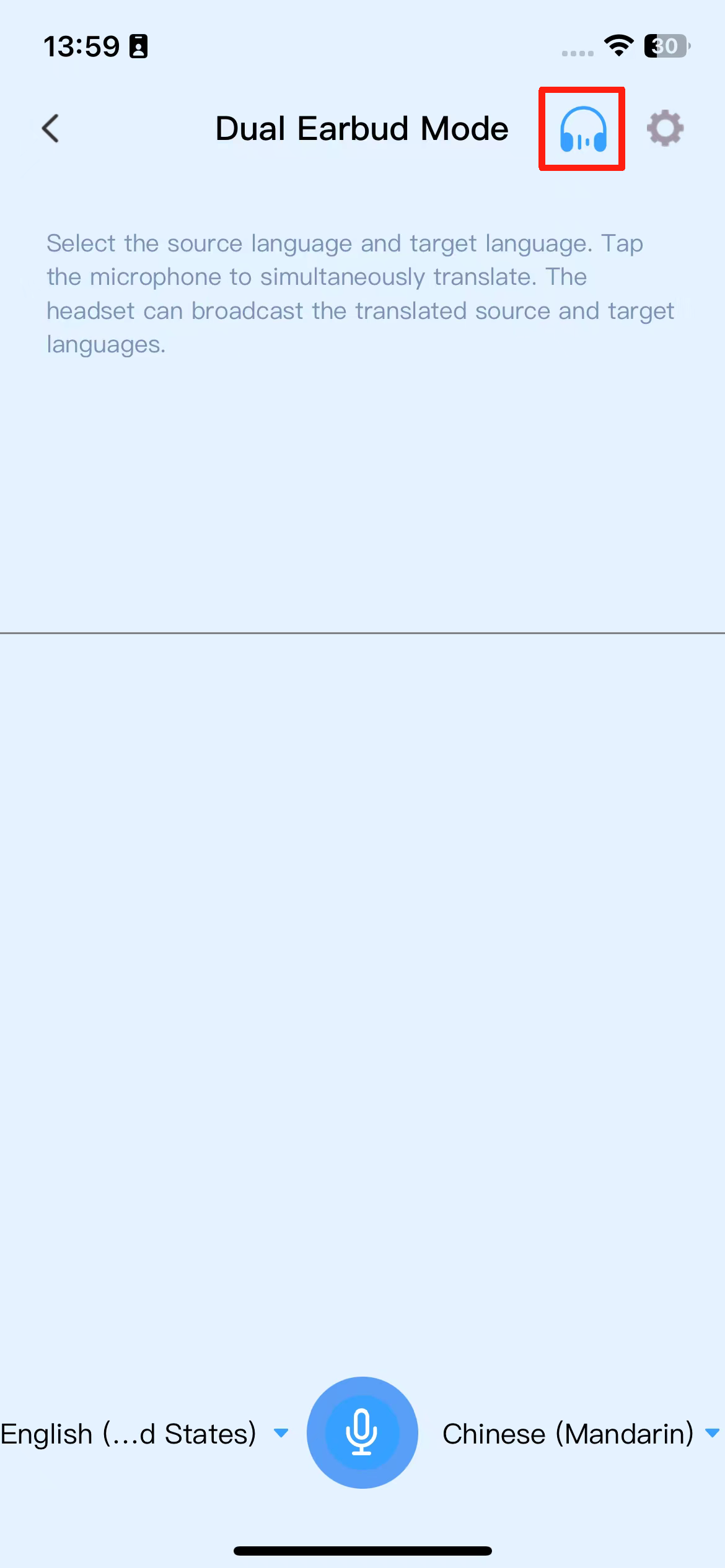
Introduction to the Meeting Transcription Feature of Z50S Pro Max Earbuds
Click the microphone button to start real-time transcription, only recognizing without translating.
Introduction to the Video Call Feature of Z50S Pro Max Earbuds
Video Call: Send an invitation link to a friend, and once the friend clicks the link and selects “Join Call,” you can chat in real-time with translation. This feature supports voice calls, video calls, and text chats. The specific steps are as follows:
1. Go to the “Video Call” page and select the third-party social platform you want to use for the call.
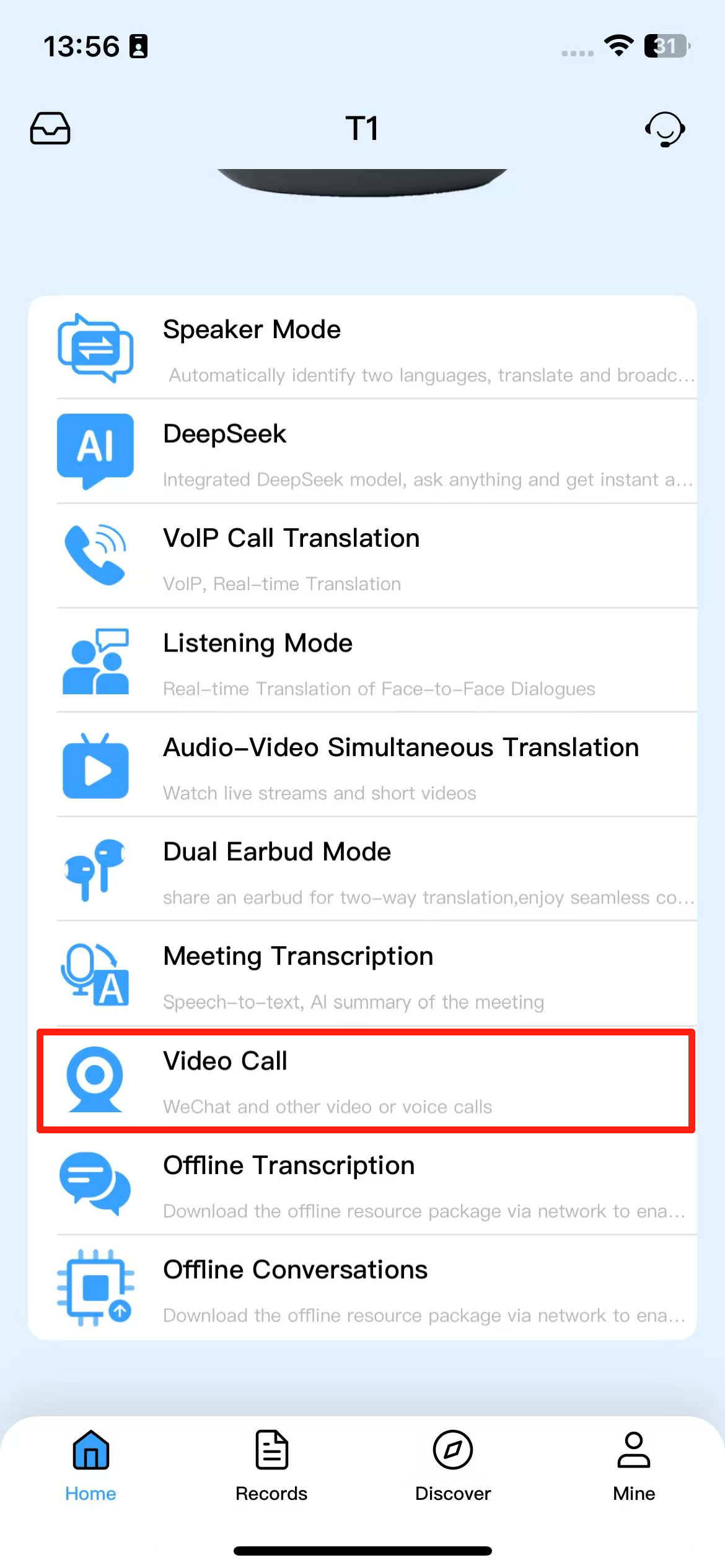
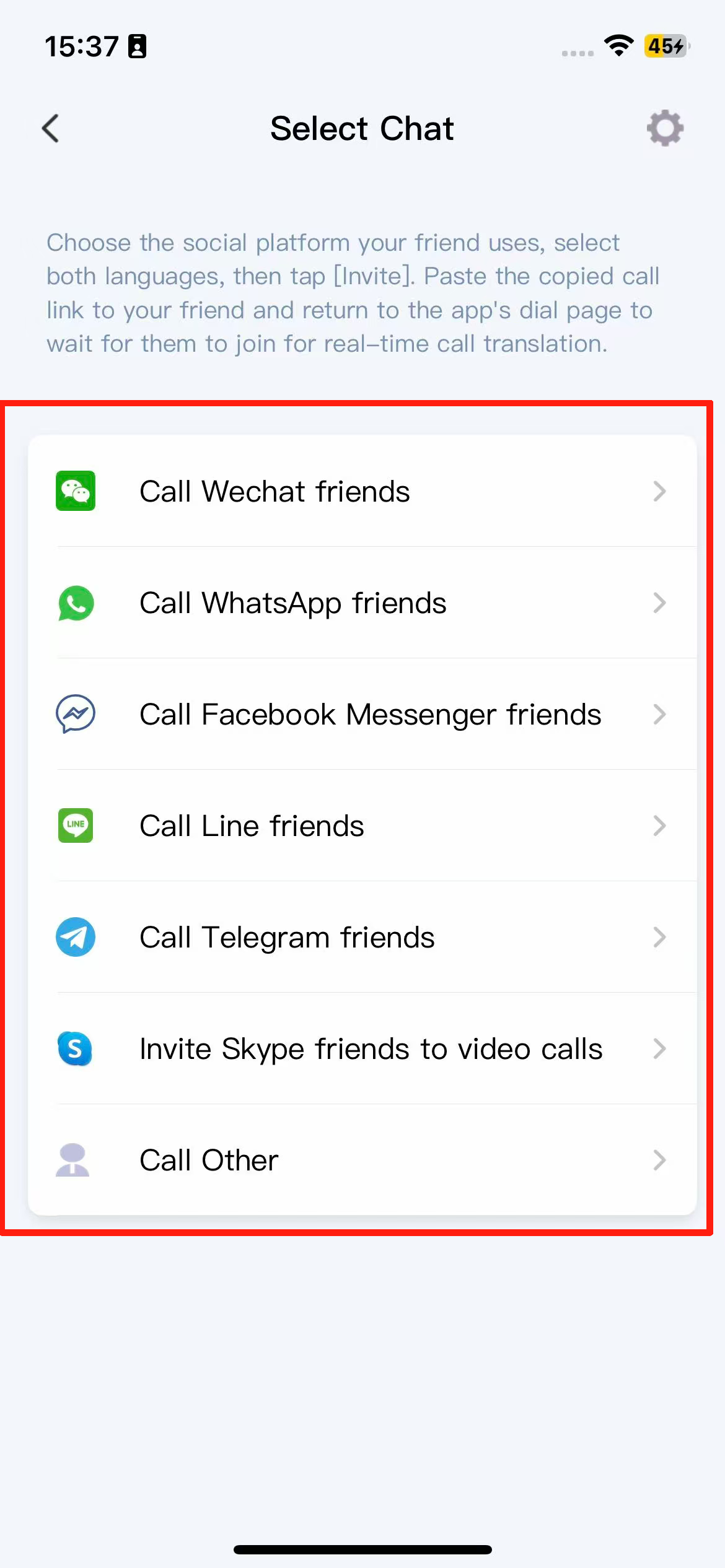
2. Select the languages for both parties and the call type, then click [Invite].
(image to be added)
3. Click “Go to XXX and paste it to your friend.”
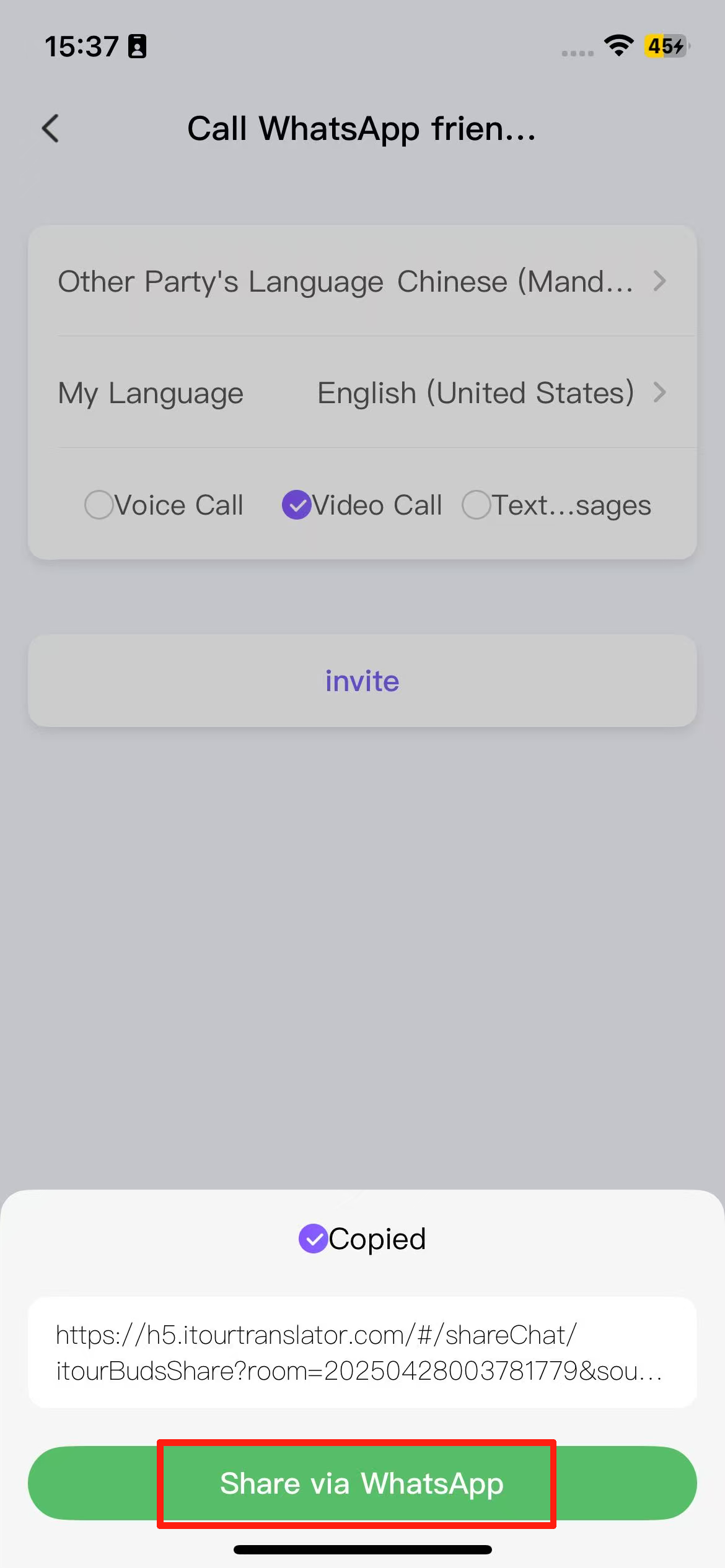
4. After pasting the link to your friend, return to the call page in the iTourBuds app and wait for the other party to join to start real-time call and chat translation.
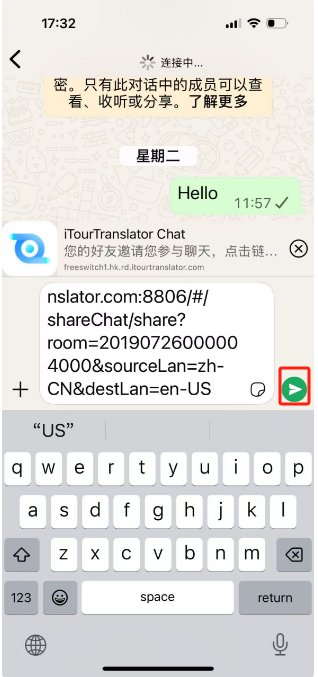
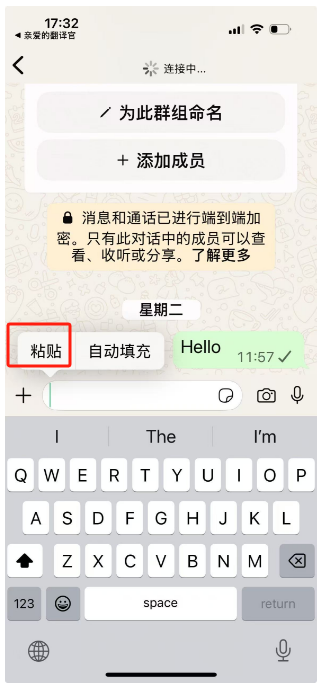
Offline Simultaneous Interpretation Feature Introduction for Z50S Pro Max
Offline Simultaneous Translation: After downloading the offline language package, you can use the simultaneous translation feature even in a network-free environment. The specific steps are as follows:
1. Click the microphone, and a prompt will appear indicating that an offline resource package needs to be downloaded.
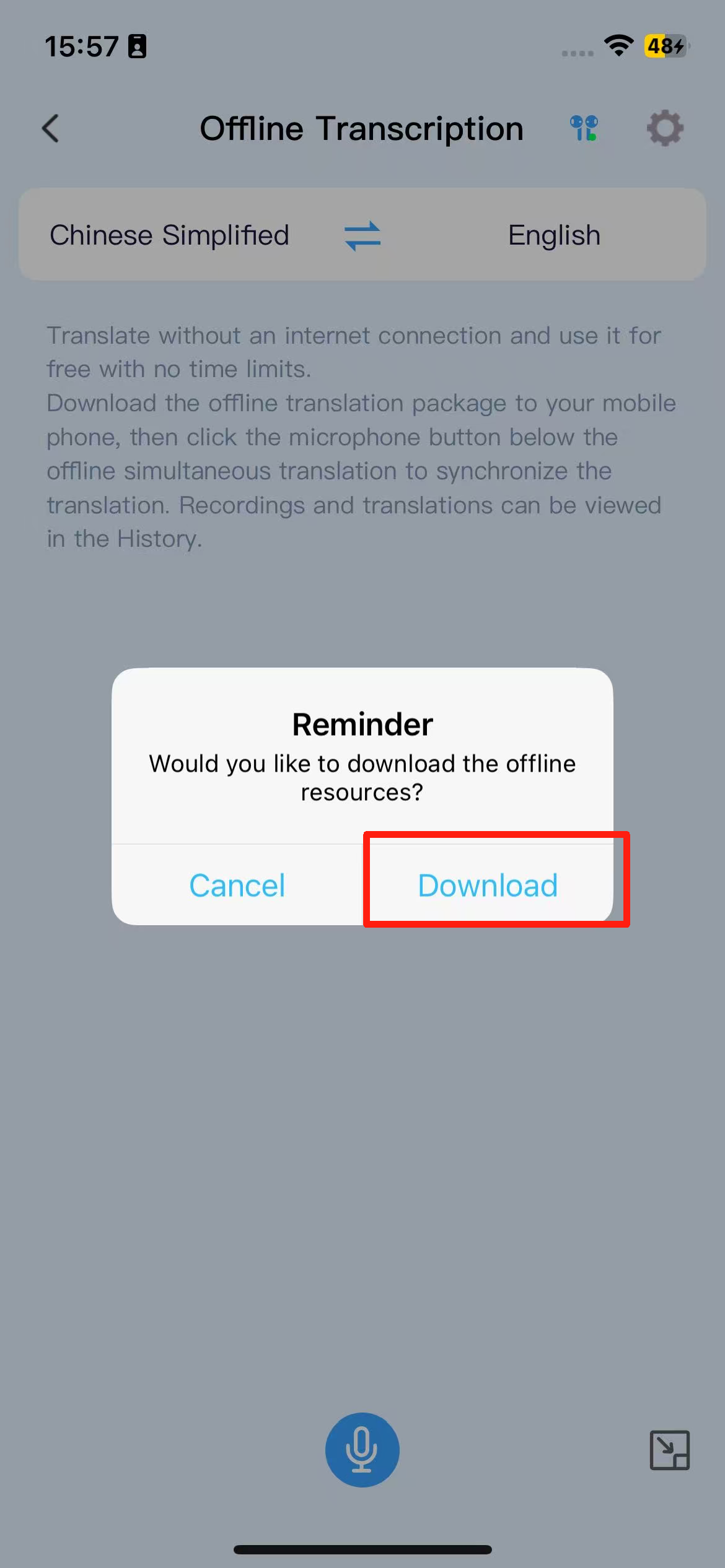
2. Download the default language pair offline resource package for the first time.
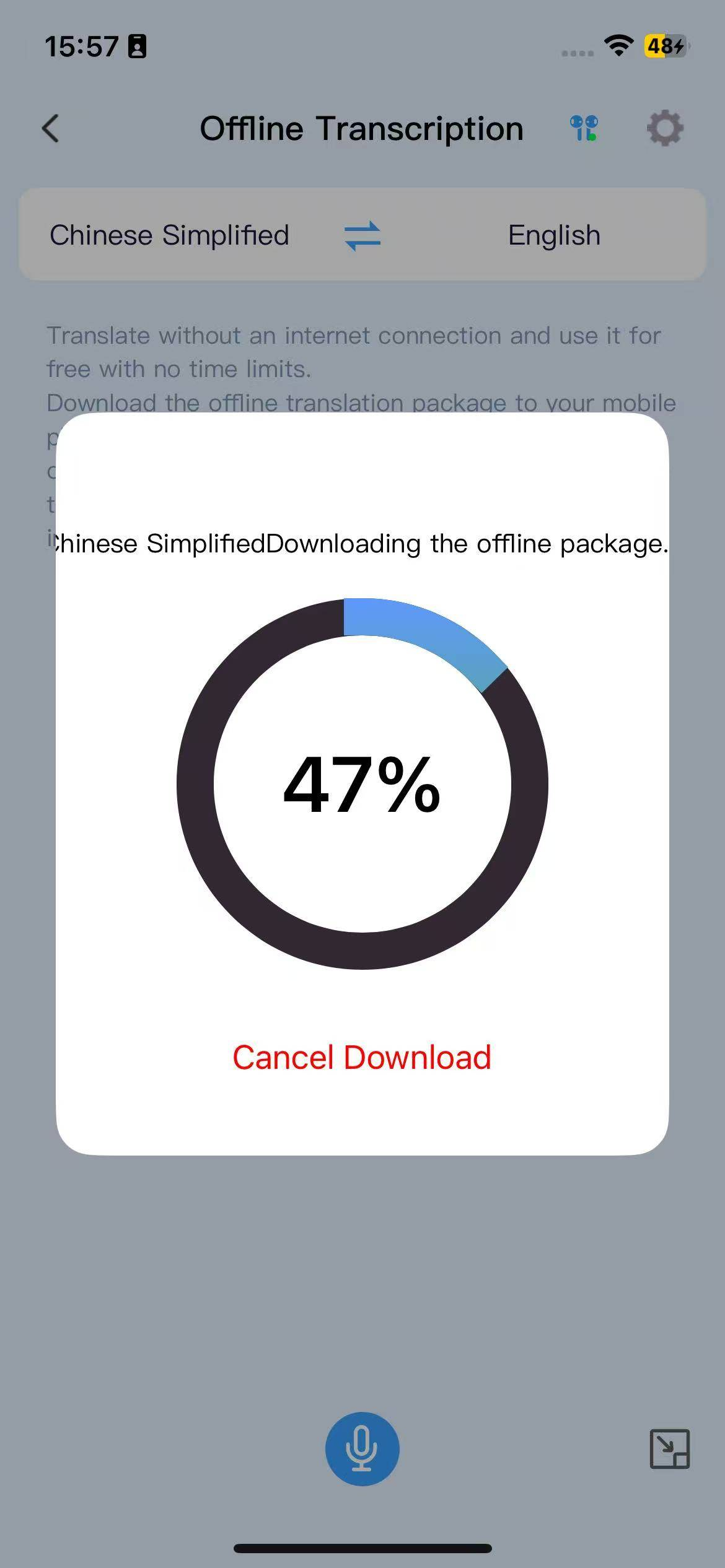
3. You can also click on the language bar to download the required offline resource package.
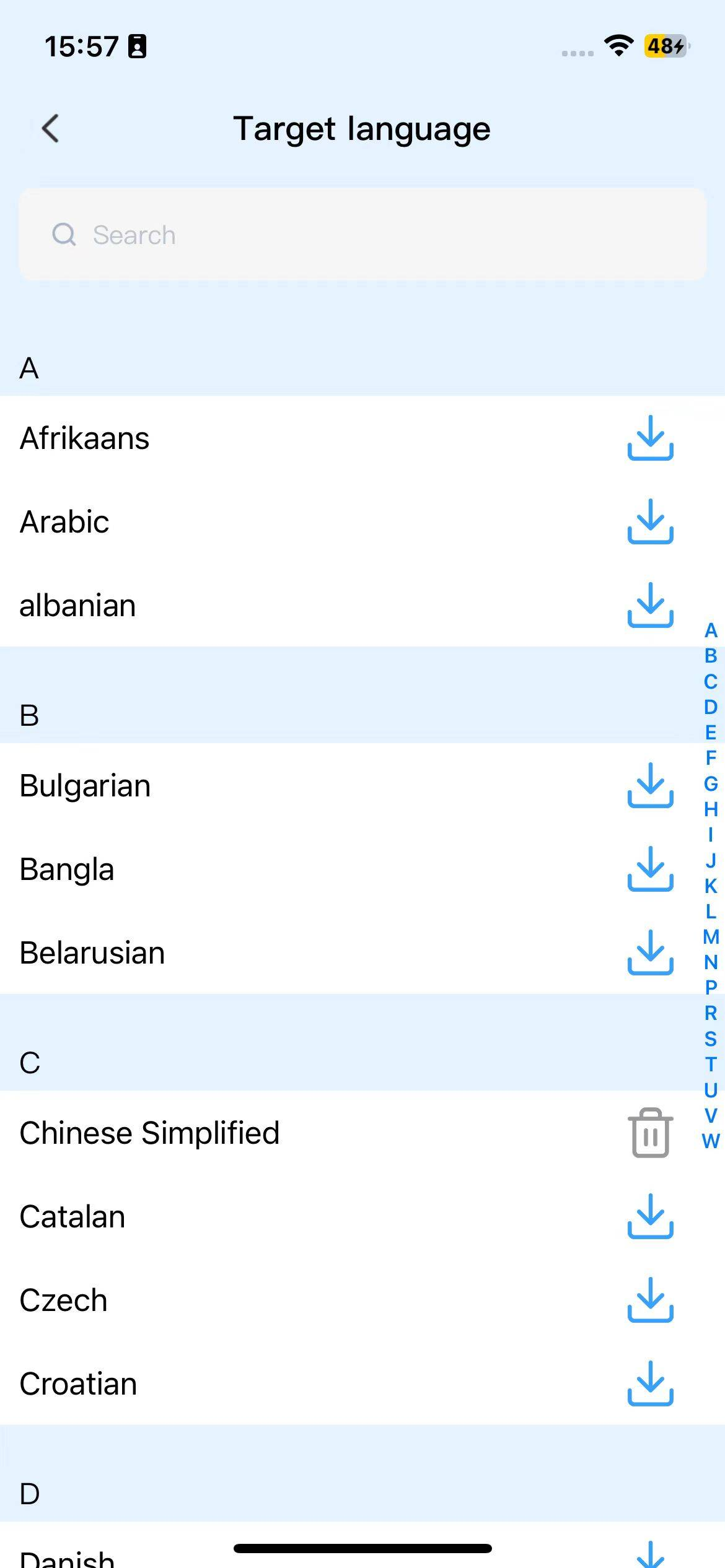
4. After enabling simultaneous translation, click the floating window button in the bottom right corner to display the translation content in a floating window.
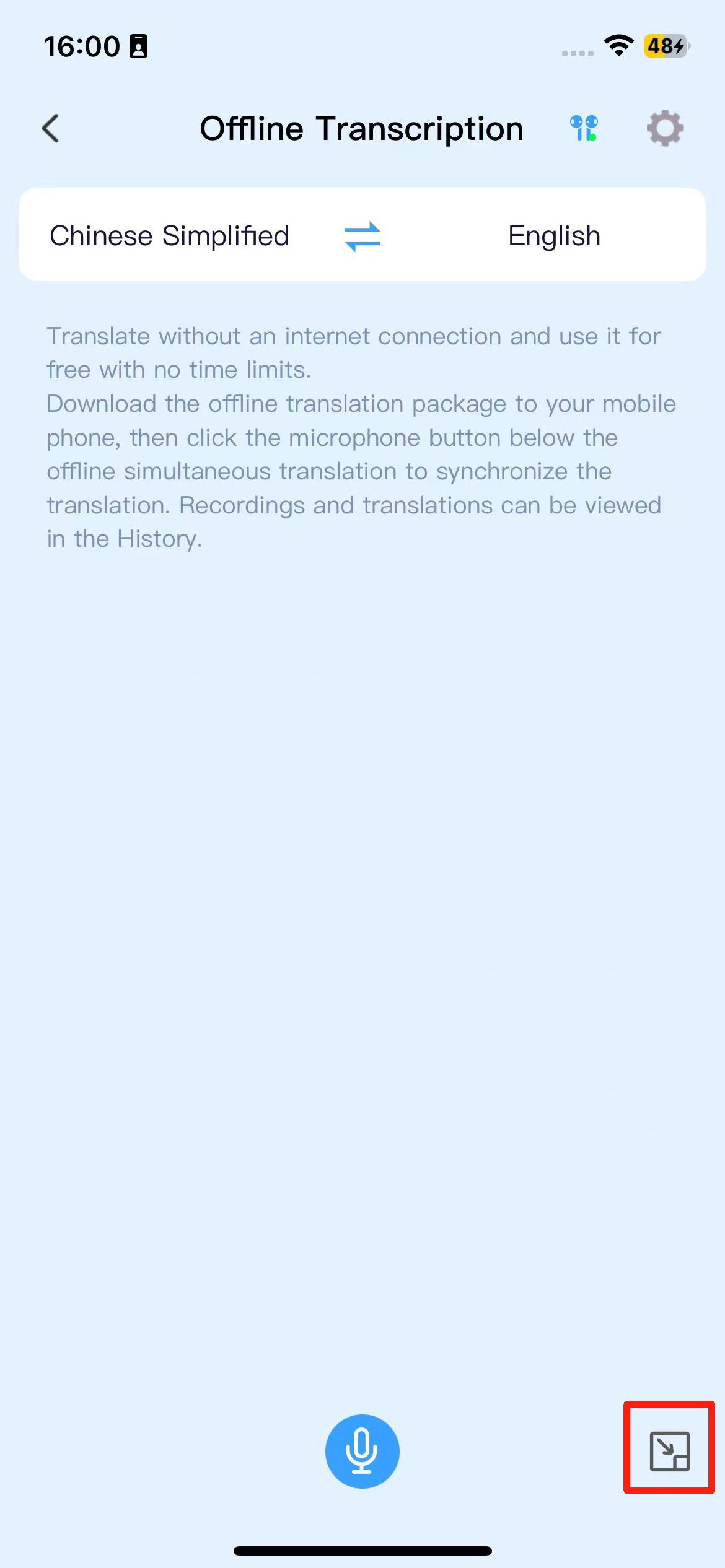
Offline Conversation Feature Introduction for Z50S Pro Max
Offline Conversation: After downloading the offline language package, you can initiate conversations in a no-network environment. The specific steps are as follows:
1. Click on the microphone, and a prompt will appear indicating the need to download the offline resource package.
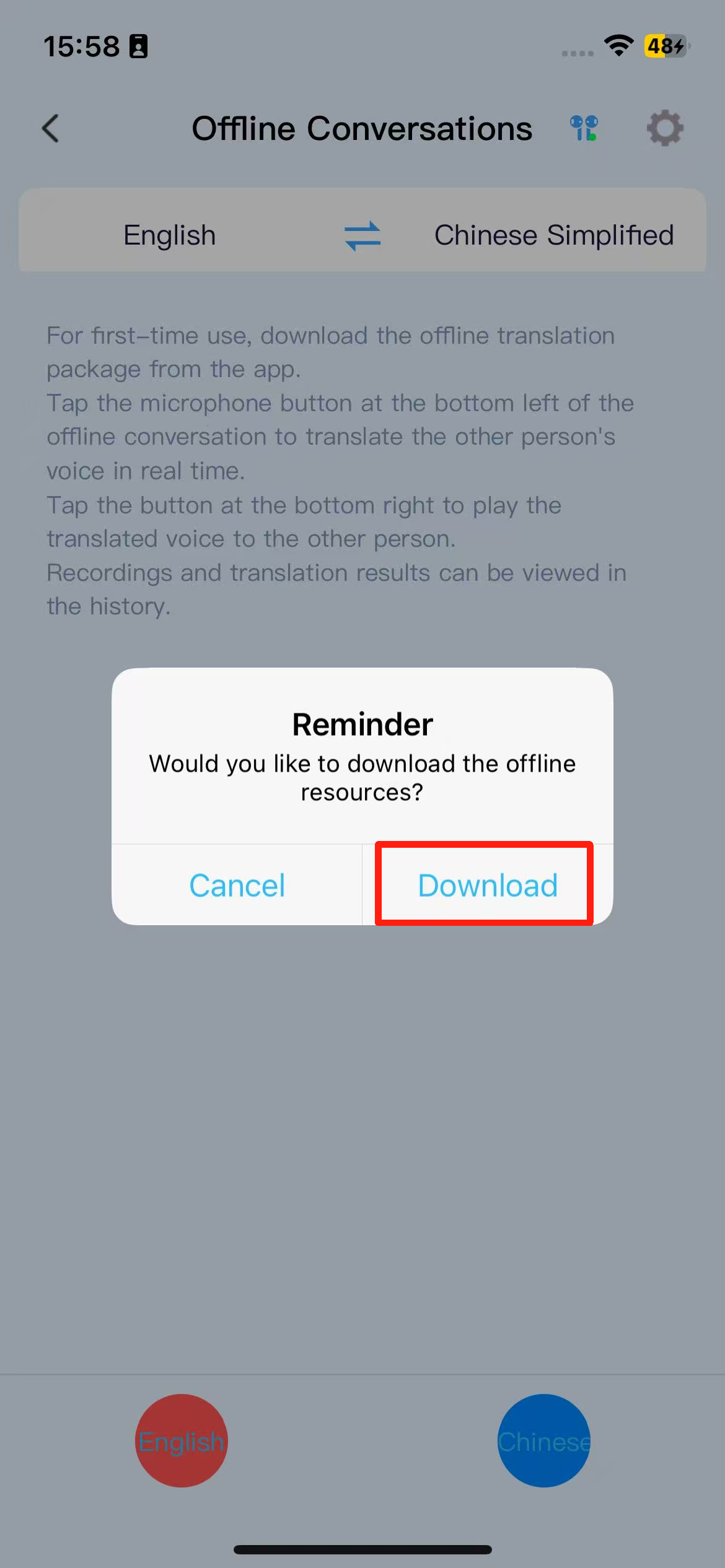
2. The default language pair offline resource package is downloaded for the first time.
3. You can also click on the language bar to download the required offline resource package.
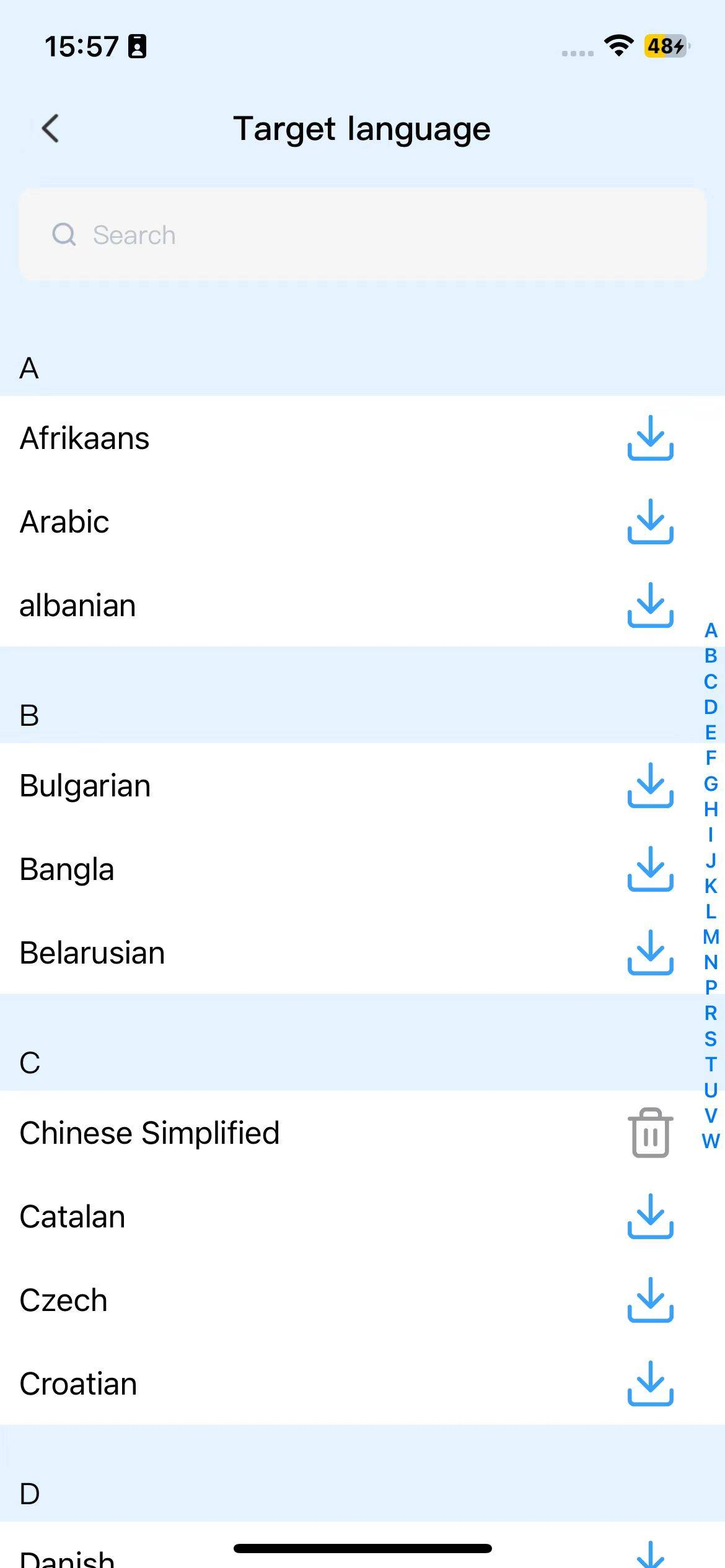
4. Once the offline language package is successfully downloaded, you can click the left/right language button to start a conversation. Click again to stop recognition, send the translated content, and play the translation.
5.The left button recognizes the other party’s language and translates it into your own language, with the translation played through the earbuds. The right button recognizes your own language and translates it into the other party’s language, with the translation played through the phone’s speaker.
iTour 80s/iTour 19 Earbuds 3 questions
iTour 80S/iTour 19 earphones pairing issue: "Can only pair once" – what to do?
Contact the customer service of the purchase platform for assistance.
How to use the iTour 80S/iTour 19 translation earphones after purchase?
1. Search for “iTour 80S” in your phone’s Bluetooth settings and click to connect.
2. Open the iTourBuds app and start the pairing process.
3. Enter the order number from the purchasing platform (store) and click “Confirm” to complete the binding.
iTour 80S/iTour 19 was previously paired, but now I've switched to a new phone. How can I pair it again?
Currently, one earphone can only be linked to one account and does not support switching accounts. If you are just changing devices, simply log in to the previously linked account.
Discontinued Products 3 products · 36 questions
iTour Go2 AR Glasses 16 questions
Sure! Please provide the text you'd like me to translate into English.
4 days of ultra-long standby, approximately 2 hours of intensive continuous use. The actual usage time may vary depending on factors such as the brightness of the glasses and network connection. Additionally, with the glasses’ local independent processing capabilities, the user experience will be enhanced, but power consumption will also relatively increase.
Operating Instructions for iTour GO2 AR Translation Glasses
This AR glasses are a standalone device. After turning on the glasses and connecting to a network, you can access the corresponding features to use them. For detailed instructions on how to use specific features, please refer to the respective feature descriptions.
How to Pair and Use iTour GO2 with a Smartwatch
In the conversation function, pairing with a smartwatch can be used for live dialogue and communication scenarios. The specific steps are as follows:
1.Ensure the Bluetooth is enabled on both the glasses and smartwatch devices.
2.Open the conversation function on the glasses.
3.On the smartwatch, open the Dear Translator app and navigate to the AR Glasses Broadcast interface.
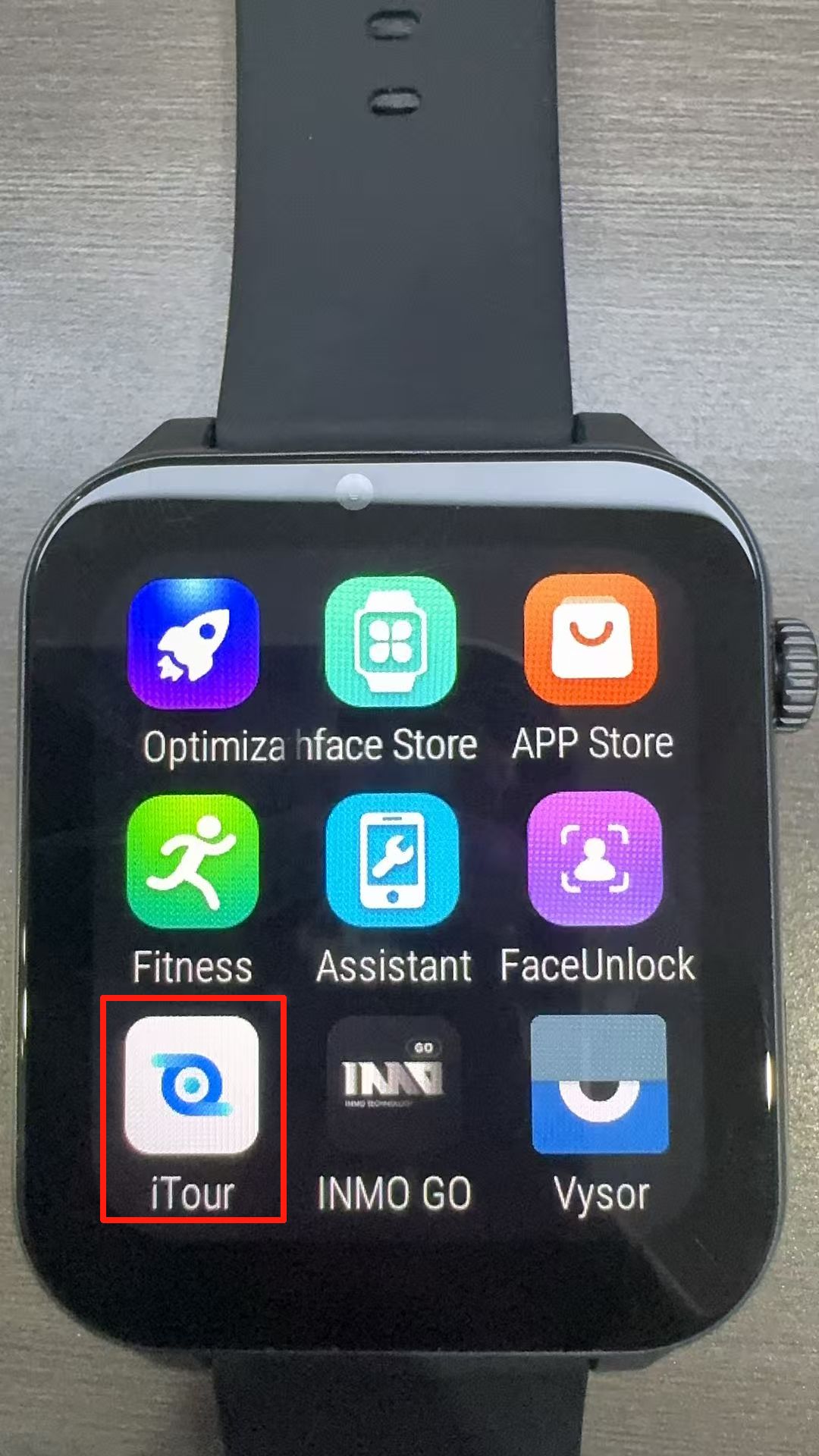
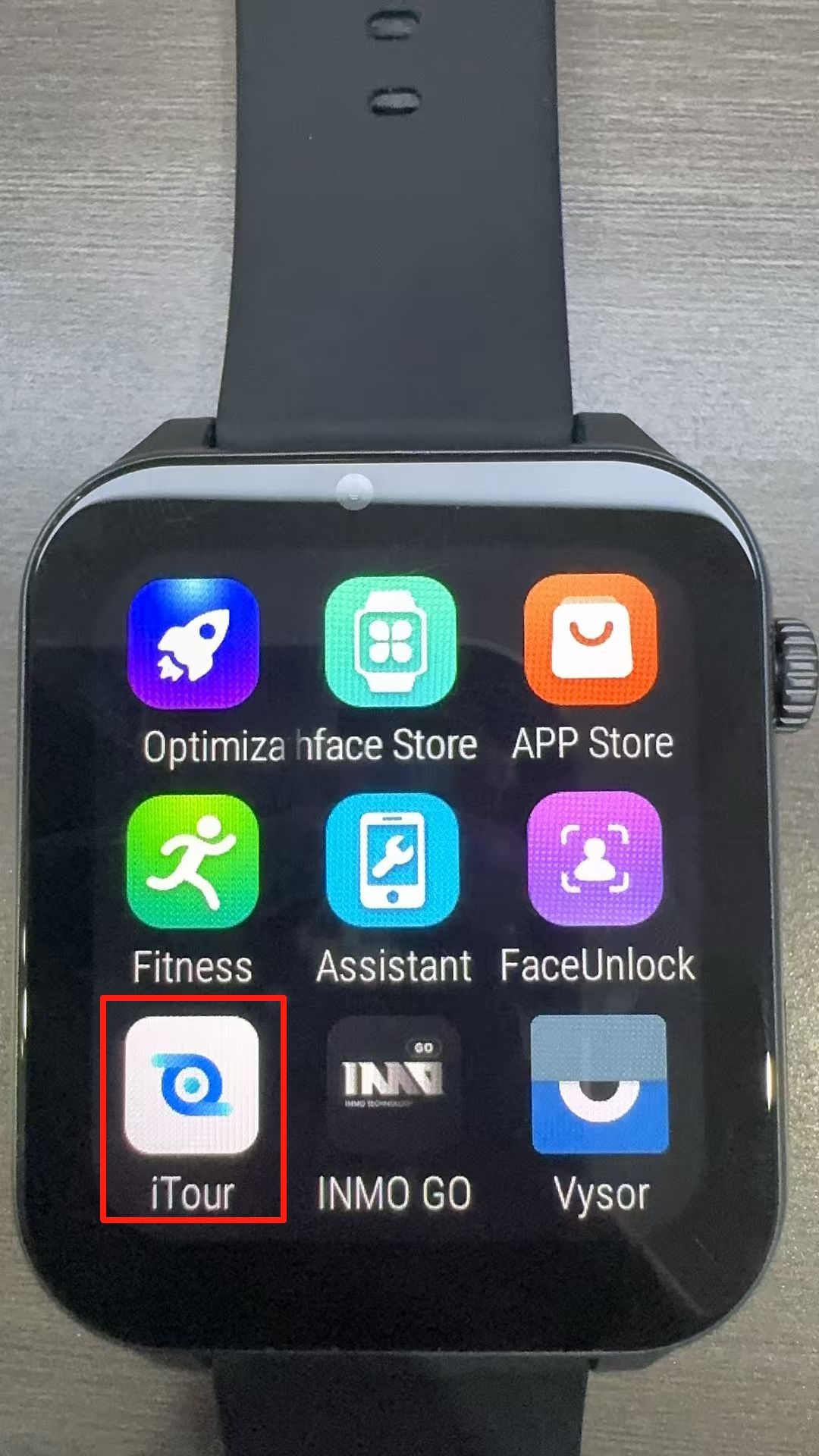
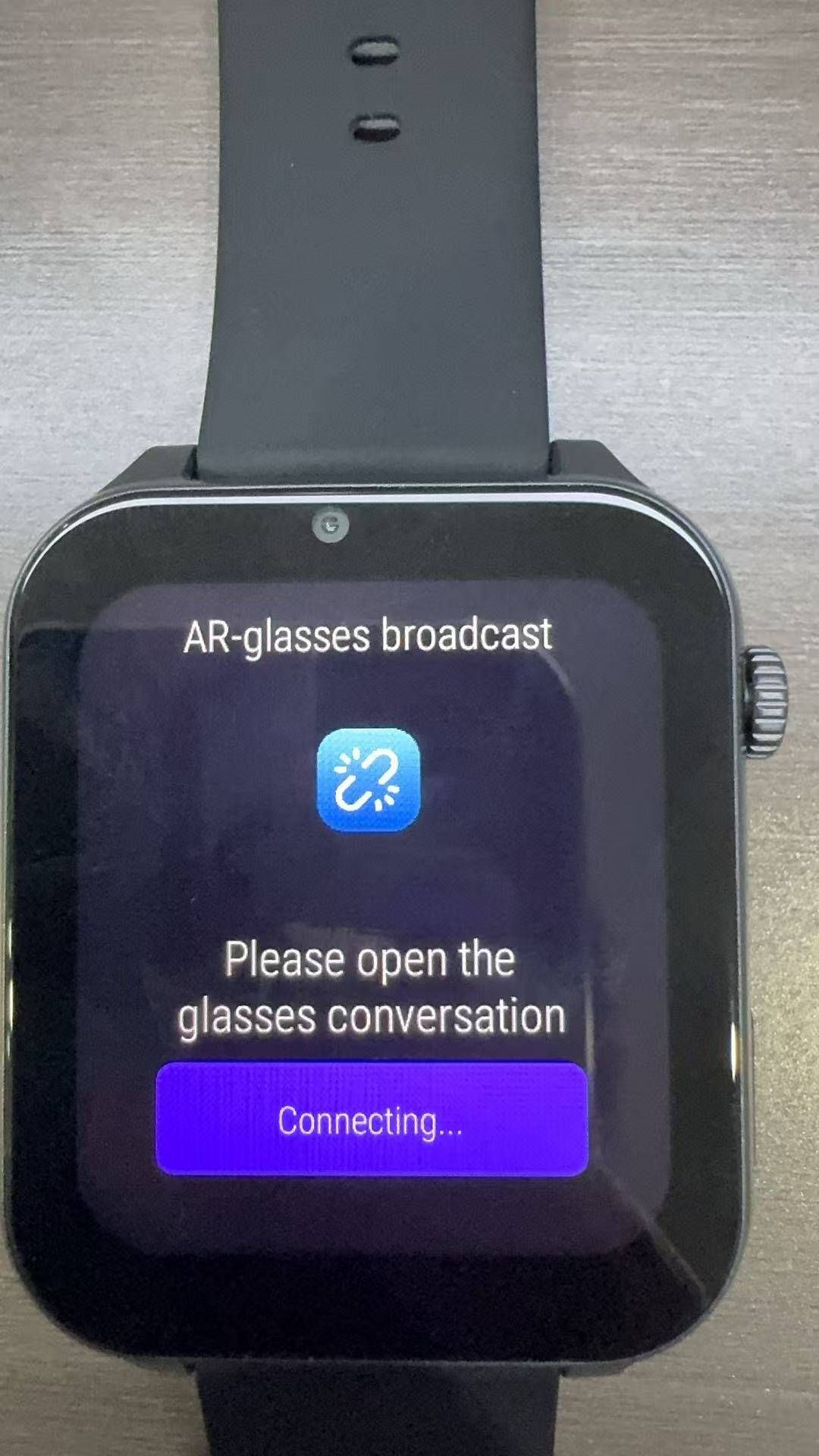
4. Wait for the glasses and smartwatch to connect automatically (connection successful, as shown in the image below).
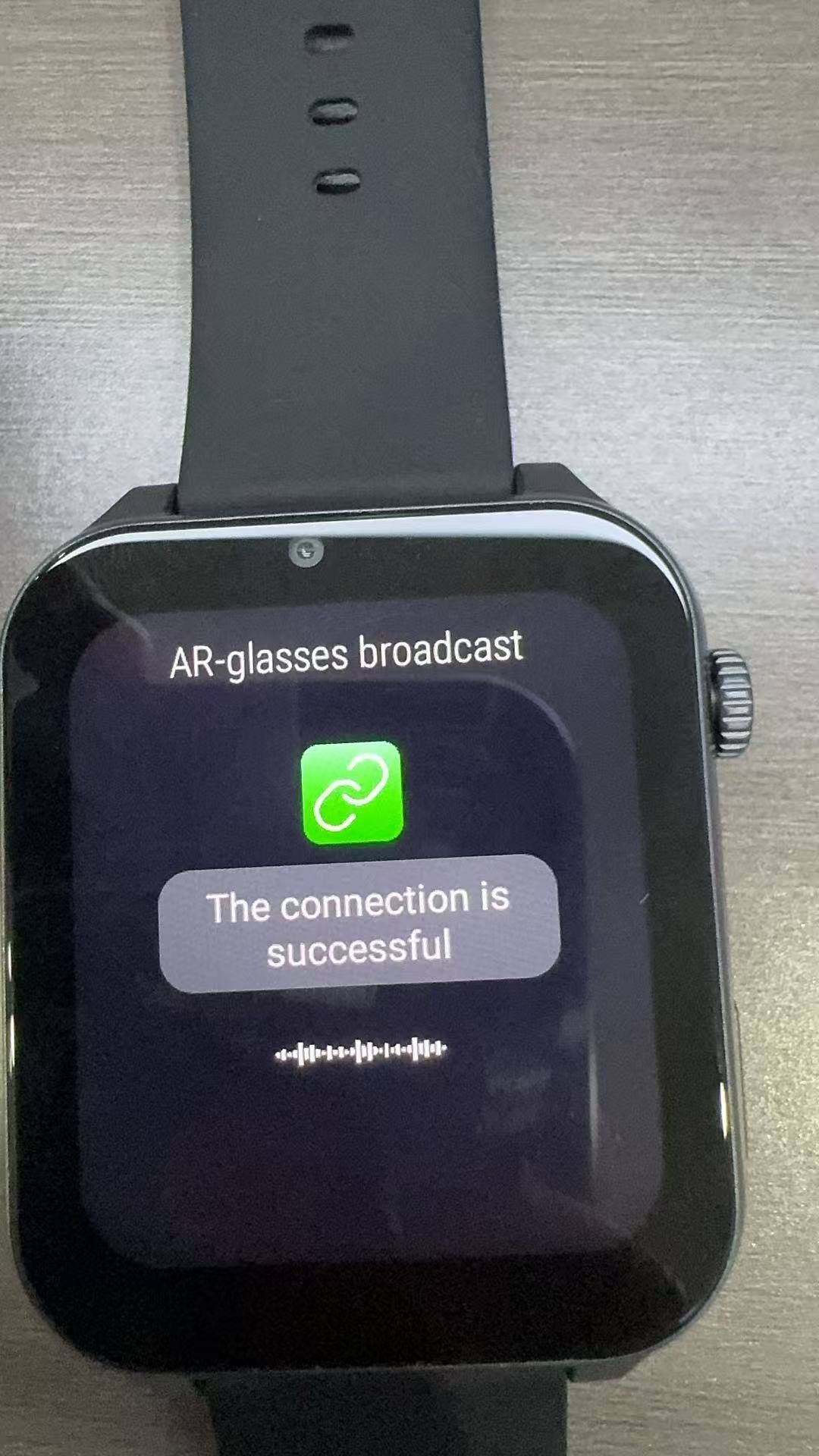
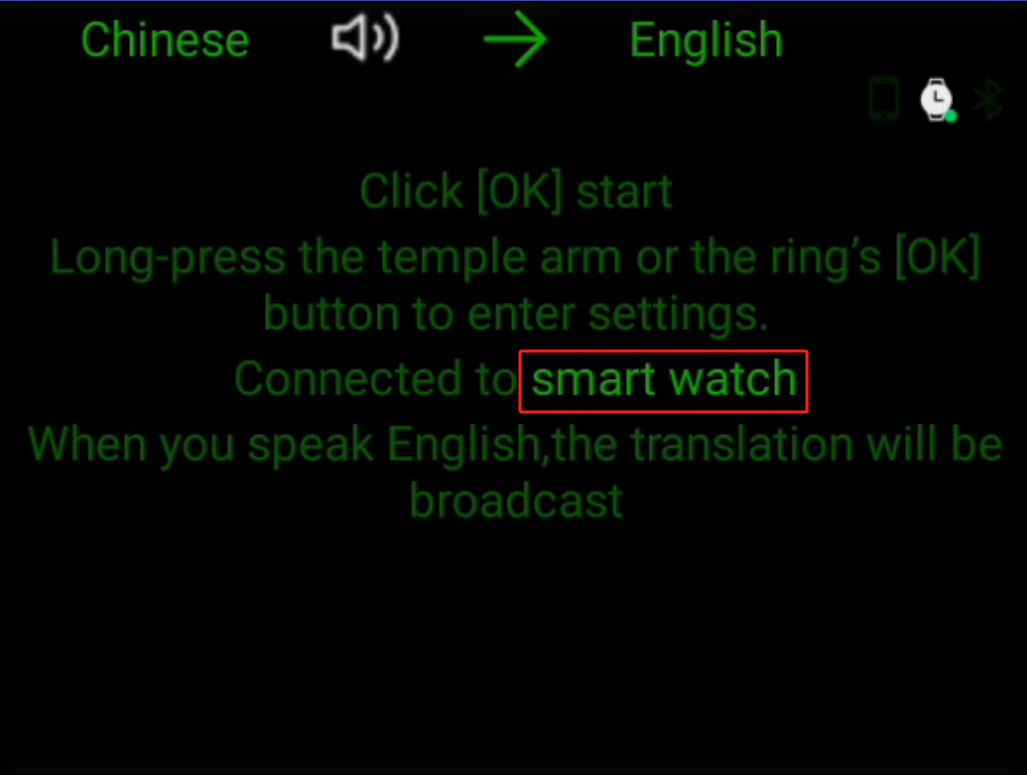
How to Pair and Use iTour GO2 with the Broadcast Smartwatch (U6)
When using the broadcast smartwatch (U6) together with the conversation function, it can be applied in live dialogue and communication scenarios. The specific steps are as follows:
1. Go to Settings -> Headset/Speaker, and search for and connect the broadcast smartwatch (U6).
2. After a successful connection, enable translation in the conversation function on the AR glasses.
3. Once the language on the right is recognized and translated into the language on the left, it will be broadcast on the broadcast smartwatch (U6).
Introduction to iTour GO2 Conversation Function
Can automatically recognize and translate between the two selected languages.
Applicable for:
1. Bilingual meeting transcription and interpreter translation assistance scenarios.
2. After connecting to the iTour smartwatch (specific instructions can be found in “How to Use with a Smartwatch” and “How to Use with the Broadcast Smartwatch (U6)“), it can be used in live conversation and communication scenarios. Press the [OK] button on the right temple arm of the glasses or the ring to activate translation.
Introduction to iTour GO2 Transcription and Translation Function
Only recognizes and translates one language, identifying the language on the left and translating it into the language on the right with bilingual display.
Applicable for:
1. International students attending lectures
2. Single-language international business meetings
When paired with iTour headphones (purchased separately or bundled), users can hear the translation results broadcast.
Introduction to iTour GO2 Offline Function
In cases of no network or weak network, the offline translation function can be used. For the first-time use, you need to connect to the internet to download the offline resource package. The steps are as follows:
1. Enter the offline translation page. Press and hold the ring’s 【OK】button or the right temple of the glasses to access the settings page. Select the source language and target translation language to download (if you don’t need to modify the languages, simply click the right temple button or the ring’s 【OK】button to automatically download the currently selected languages).
2. Once the download is successful, you can begin using the translation feature to recognize spoken content and translate it.
Introduction to iTour GO2 Speech Recognition Function
Only transcribes spoken content for subtitle display without translation, making it suitable for meeting transcription purposes. It allows saving both voice and text.Press the right temple of the glasses or the ring 【OK】 button to start transcription.
Introduction to iTour GO2 Smart Q&A Function
Integrated with the DeepSeek large model, it can answer the questions you pose. The specific operation is as follows:
1. Press the temple of the glasses or the ring 【OK】 button to start recognizing your spoken content.
2. Press the temple or ring 【OK】 button again to end recognition, and DeepSeek will provide a corresponding response based on your question.
Introduction to iTour GO2 Spoken Language Learning Function
The Translator (iTour) will role-play with you based on the selected scenario to complete a scene-based dialogue practice. After the conversation, the system will automatically perform grammar correction and scoring based on your dialog content. The detailed operation is as follows:
1. Go to the conversation page and “click” the ring 【OK】 button or the temple of the glasses to start speech recognition.
2. Click the 【OK】 button or glasses temple again to stop recognition. At this point, the system will perform correction and scoring based on the recognized content.
3. Press and hold the 【OK】 button on the temple or the ring to enter the settings page, where you can enable dialogue translation and conversation prompts.
Notes:
1. Currently, only English-speaking learning is supported.
2. This function supports only iTour GO2 glasses version 1.0.31 and above. You can check the current version or upgrade via Settings → About Us.
Introduction to iTour GO2 Teleprompter Function
The smart glasses display teleprompter content, suitable for speeches, live streaming, or meetings as an invisible teleprompter. To use this feature, you need to connect to the iTourAR mobile app:
1. Connection Steps: Refer to “Subtitle Casting — Connecting to the mobile app” for operation instructions.
2. Once connected successfully, you can add teleprompter content via the mobile app and upload it to the smart glasses for use.
3. Select the desired teleprompter content and enter the teleprompter details page to automatically start the teleprompter.
4. Page turning settings can be adjusted in the mobile app. Page turning is set to follow-read mode by default.
5. To delete teleprompter content on the glasses, go to the teleprompter list — select the item you wish to delete — long press the ring 【OK】 key or the temple — delete.
The purpose of the iTour GO2 paired earphones
1. The glasses’ built-in audio playback may have sound leakage issues.
2. Adding playback on the glasses reduces the battery life of the glasses.
The earphones can solve the above problems.
Note: The AR translation glasses only support earphones officially sold by the manufacturer; other earphones are not compatible.
What is the difference between iTour GO2 glasses and other styles of glasses?
These glasses can be used independently without the mobile app, whereas other models like iTour-clip and iTour A1 glasses require pairing with the mobile app for use.
What is iTour GO2 Subtitle Direct Projection?
Subtitle Direct Projection: Requires use with the app to project the translated content recognized by the app onto the glasses display.
Specific steps:
1. Download the iTourAR app on your phone. Download link:

2. Open the iTourAR app and select iTour GO2.
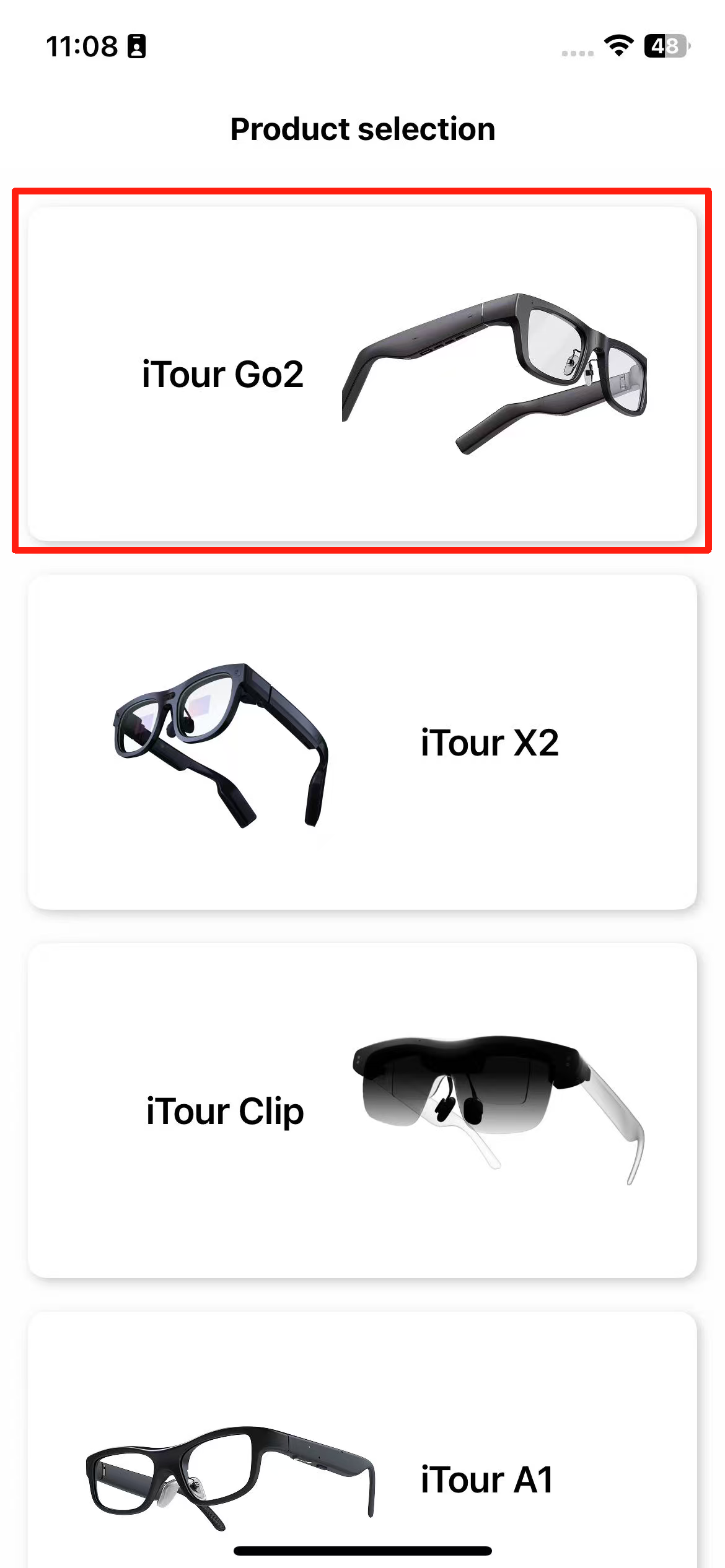
3. Open the glasses and enable the Subtitle Direct Projection feature.
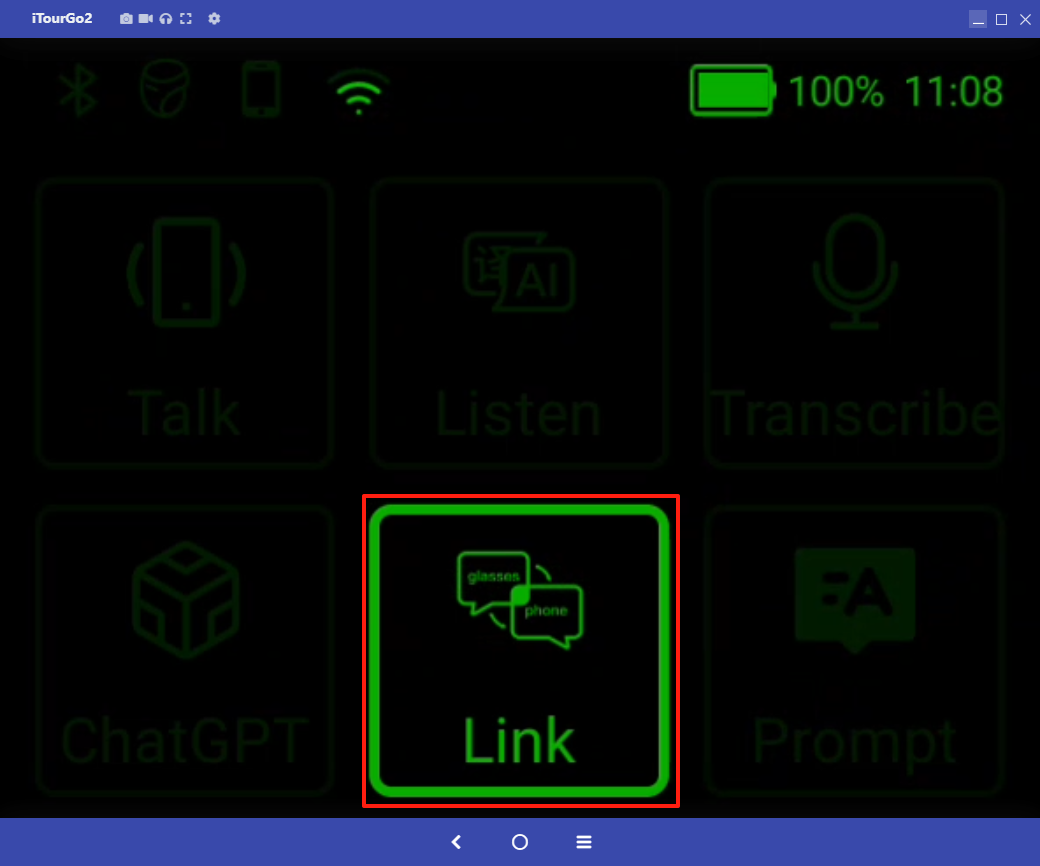
4. Follow the instructions on your phone to connect. Once the connection is successful, the Subtitle Direct Projection page on the glasses will display the connected phone model.
5. After the connection is successful, enter the mobile app — Conversation (Mobile). Once translation is enabled, the content recognized and translated by the mobile device will be projected in real-time onto the GO2 glasses display.
How to connect the iTour GO2 Ring to the glasses?
In the Settings — Ring page, press and hold the ring until the blue light starts flashing, then wait for the glasses to search for “iTour Go2 Ring” to connect.
(image to be added)
(image to be added)
(image to be added)
(image to be added)
How to connect iTour GO2 glasses to the app for use?
The AR glasses only support connection with the 【iTourAR】 app and do not support other apps.
For the steps to connect the AR glasses to the iTourAR app, refer to: Subtitle Casting — Steps to Connect to the Mobile App
iTour-ClipAR Glasses 11 questions
The standby time of the iTour-Clip translation glasses.
When powered on without using any functions, it can stay on standby for one and a half hours.
How to connect the iTour-Clip translation glasses to the app for use.
1. Identify/scan the QR code below to download the iTourAR app.

2. Open the iTourAR app and select iTour-Clip.
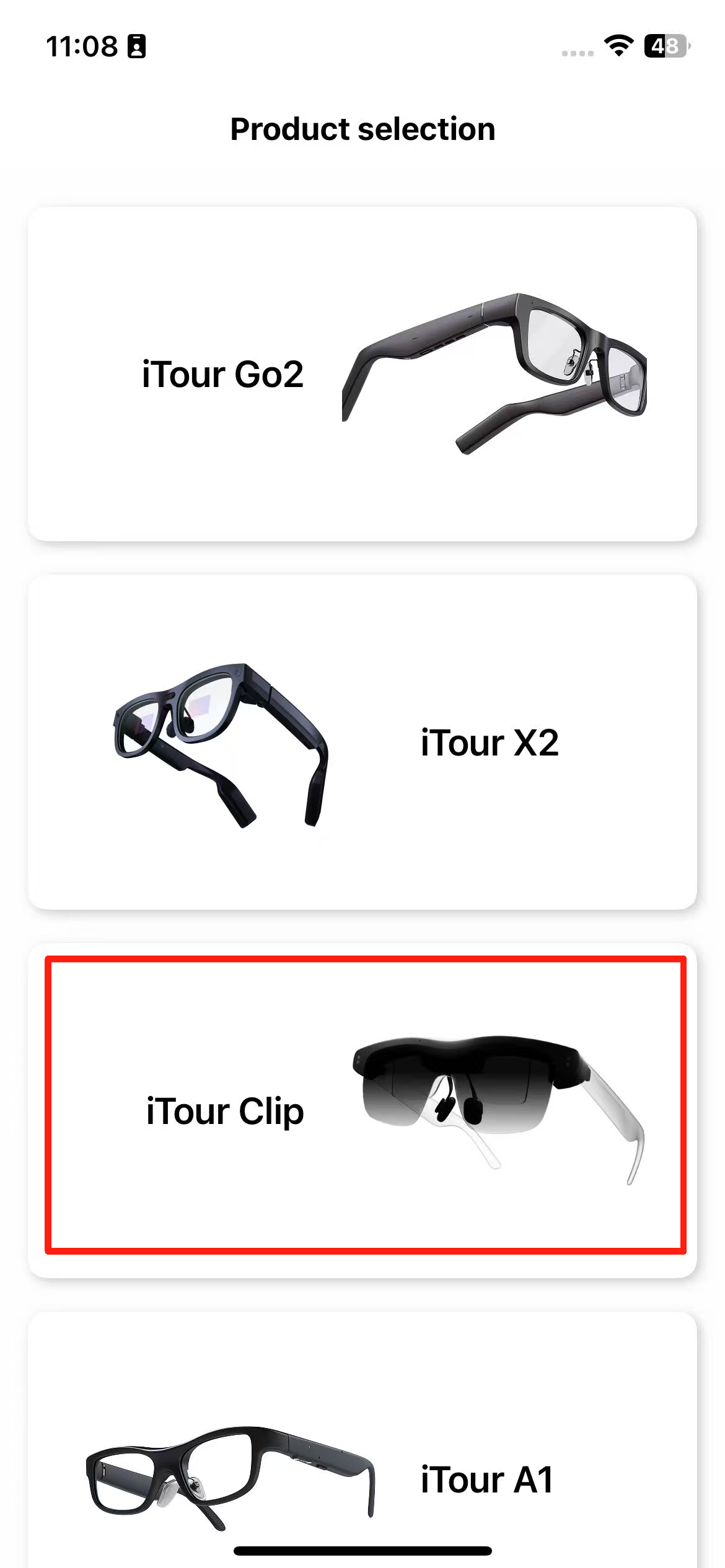
3. Ensure the glasses are powered on and the screen is lit, then click “Connect”.
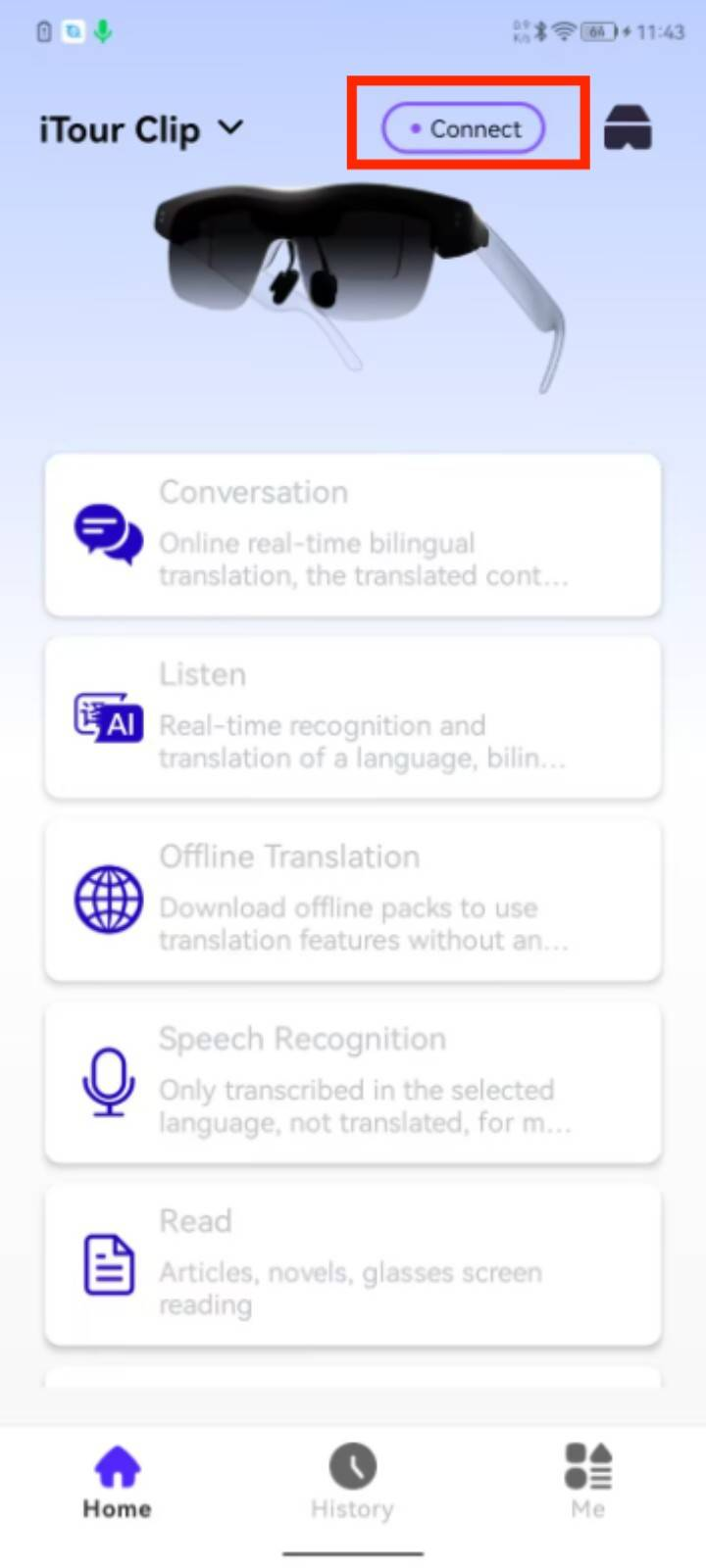
4. For the first connection, click “Connect,” and the glasses will automatically connect.

5. Once connected successfully, both the glasses and the mobile app will display a “Connected” status, and the corresponding functions can be used.
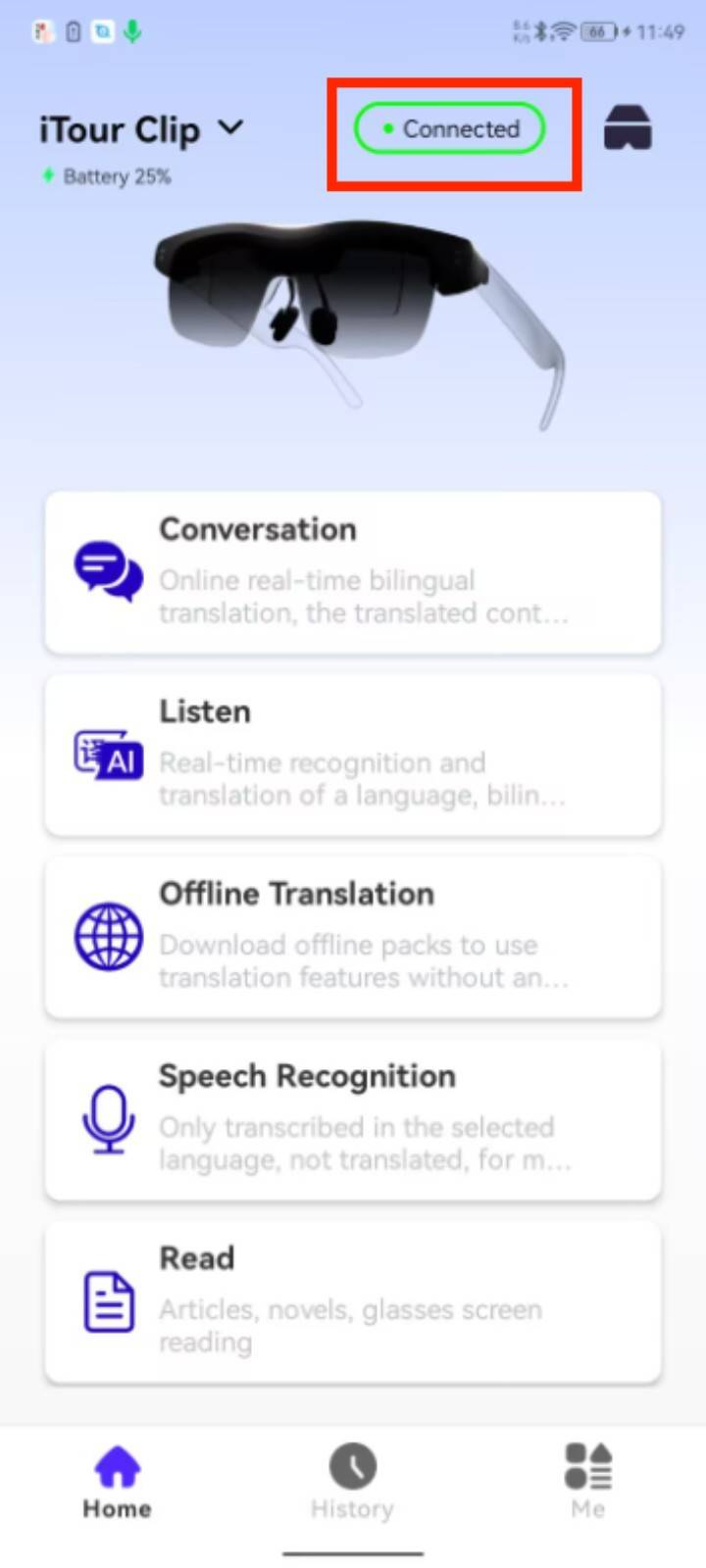
How to use the iTour-Clip translation glasses dialogue feature?
Dialogue: Online real-time bilingual translation, with translation results projected onto the glasses display. Supports bilingual subtitle display. When translating into the left-side language, the translation is broadcast through the phone’s speaker. Suitable for face-to-face communication scenarios.
1. Supports audio input via glasses.
2. Allows customization of subtitle size and color on the mobile app.
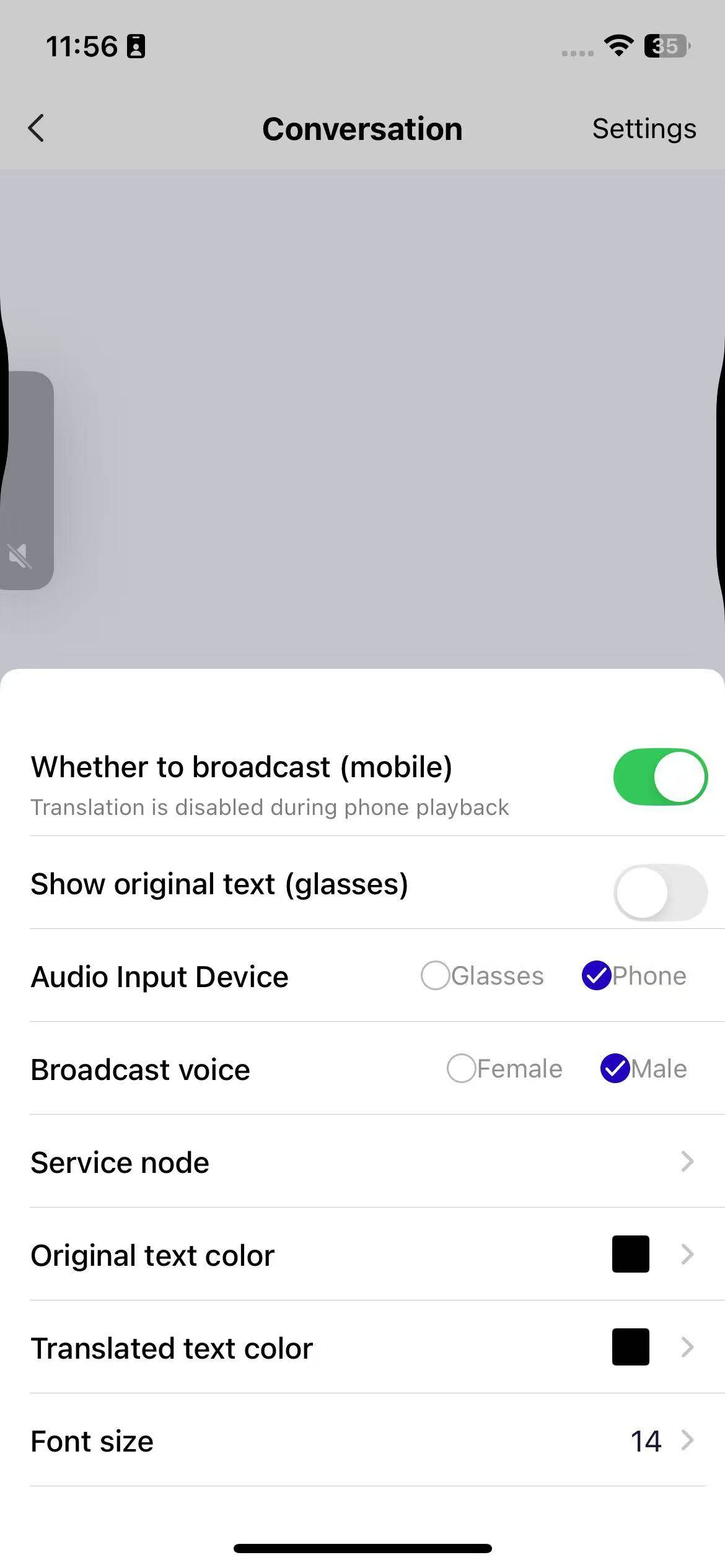
How to use the transcription feature of iTour-Clip translation glasses?
Transcription: Online real-time one-way translation, with translation results projected onto the glasses display. Supports bilingual subtitle display. Suitable for scenarios such as international students attending classes or recording translations during international business meetings.
1. Supports audio input from glasses.
2. Allows setting the font size and color of subtitles on the mobile app.
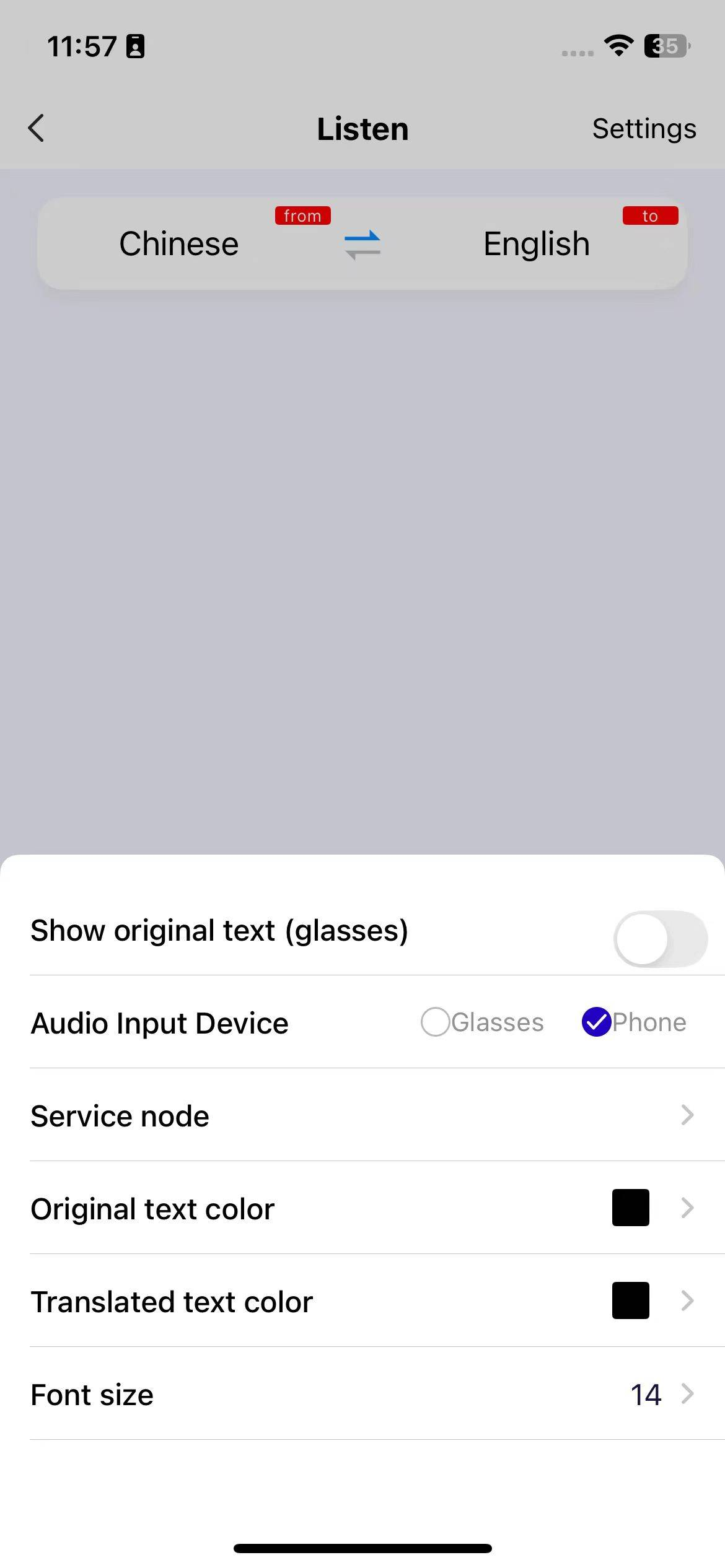
How to use the offline translation feature of iTour-Clip translation glasses?
Offline Translation: Provides both online and offline real-time one-way translation, with translation results projected onto the glasses display. Supports bilingual subtitle display, suitable for use in scenarios with poor network connection or signal.
1. Click the microphone icon to automatically download the default language pair offline resource pack, or manually download it from the language menu. Bulk queue downloading of resource packs is supported.
2. Supports audio input via the glasses.
3. Allows customization of subtitle size and color on the mobile phone display.
4. Supports saving translation history.
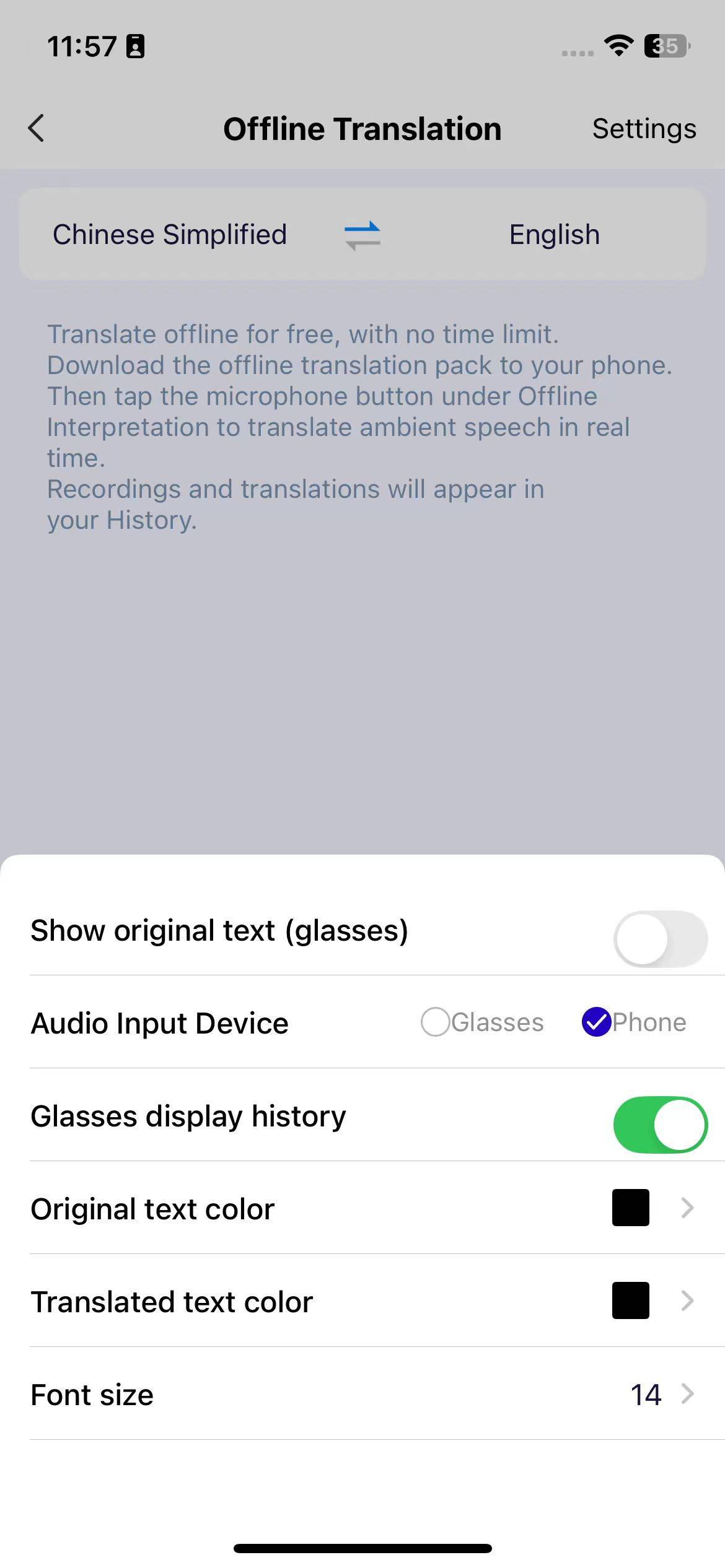
Introduction to the voice recognition feature of iTour-Clip translation glasses.
Voice Recognition: Real-time online recognition and display, with recognition results projected onto the glasses display. Suitable for meeting transcription and text recording.
1. Supports audio input through glasses.
2. Allows customization of subtitle size and color on the mobile app.
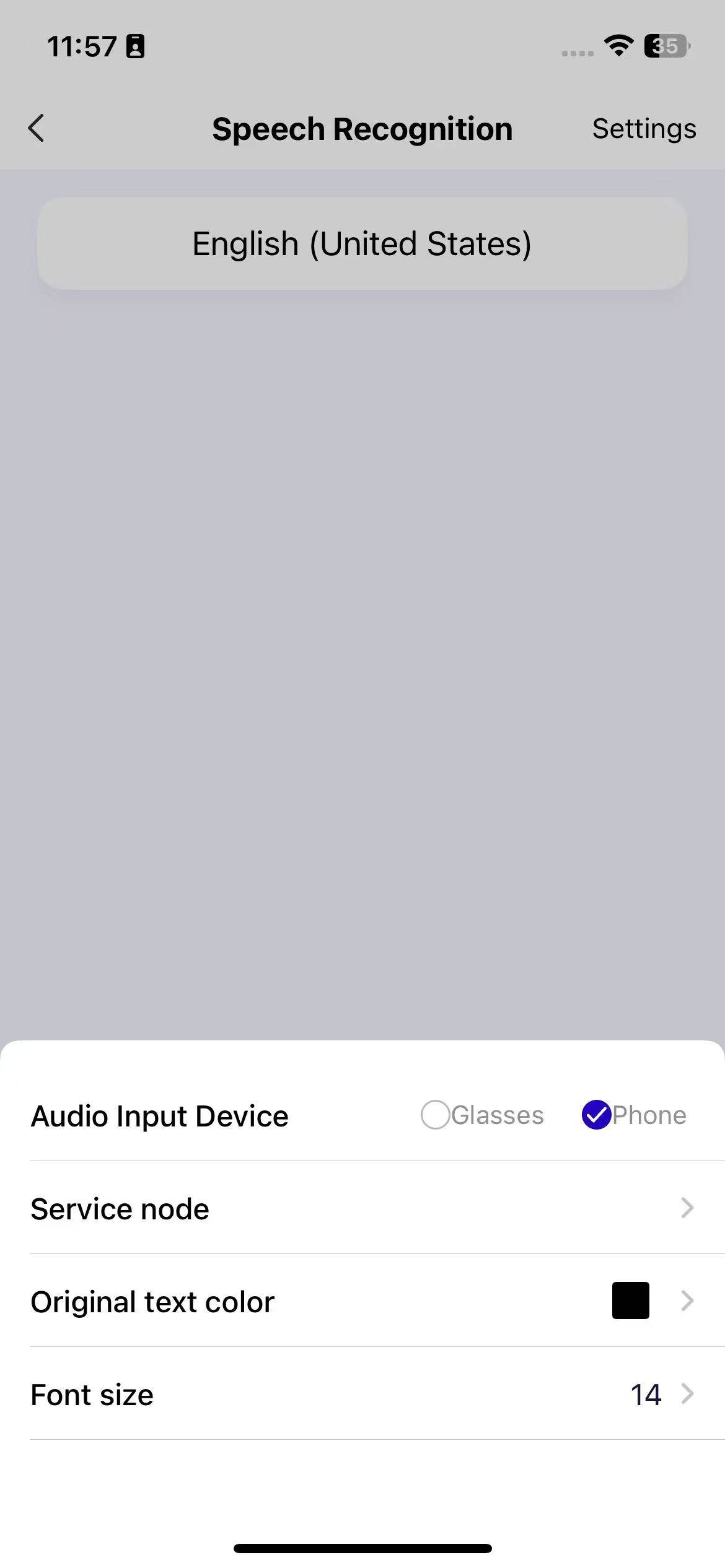
How to use the reading feature of iTour-Clip translation glasses.
Reading: Upload text files via your phone, and the text content will be projected onto the glasses display. Steps to project content onto the glasses for reading are as follows:
1. First, click the “Add File” button in the upper-right corner to upload the file you want to read (Android version supports searching for books in the bookstore).
2. Open the file and click the glasses button on the page to directly project the content onto the glasses display.
3. Click the “Settings” button in the upper-right corner to adjust font size, line spacing, screen brightness, and display mode according to your preferences.
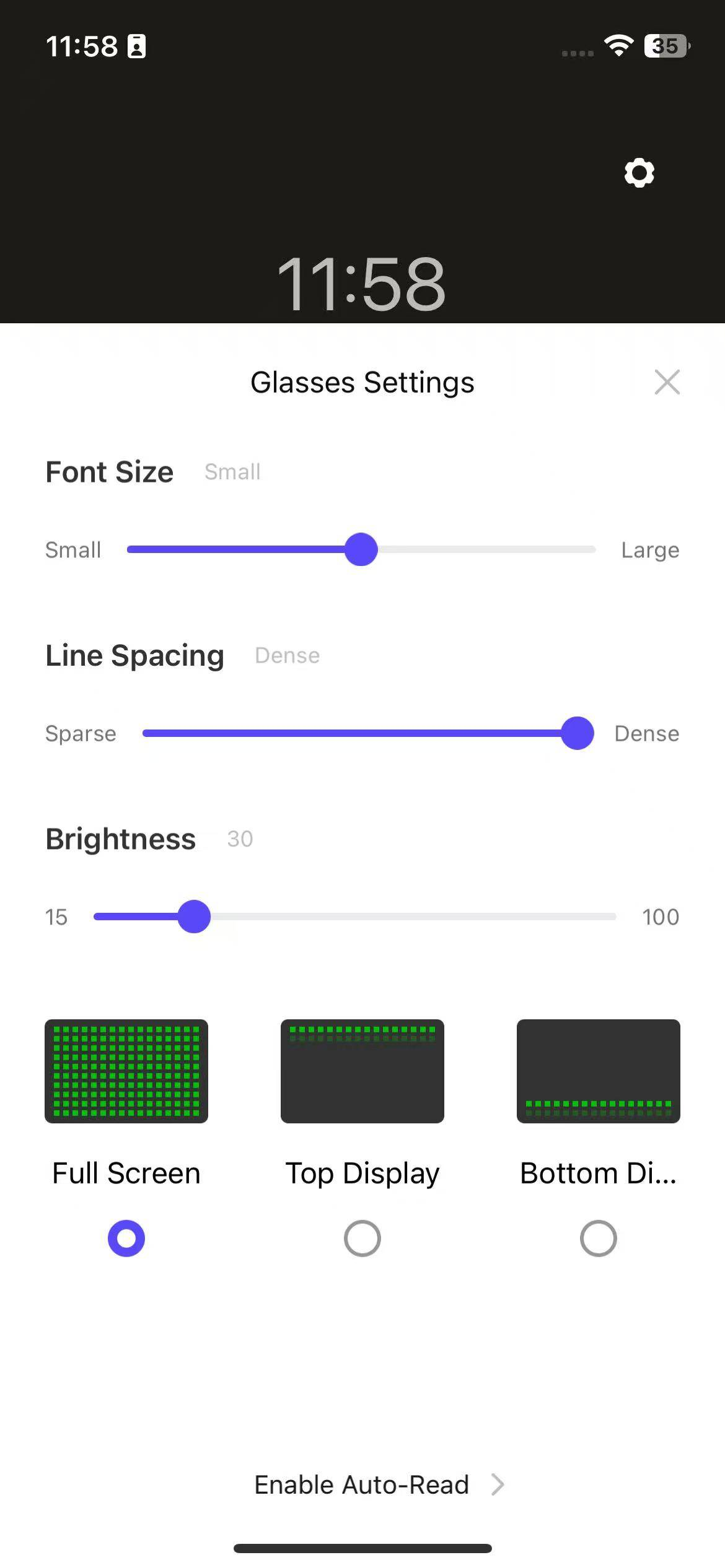
How to use the AI Companion feature of iTour-Clip translation glasses.
AI Companion: By asking it questions, it can help answer your inquiries and solve your doubts.
Steps to start a new conversation and switch AI engines are as follows:
1. Click the “+” button in the upper-right corner to create a new conversation page, or exit and re-enter the feature page to start a new conversation.
2. Click the AI switch button in the upper-right corner to select and switch between different AI engines.
3. Supports asking questions through voice input.
[Fig. 1] [FAQ/iTourClipAR/8/1755669267074.jpg]
How to use the Teleprompter function of iTour-Clip translation glasses.
Teleprompter: By projecting text content onto the glasses display, it creates your invisible teleprompter, suitable for scenarios like speeches, live streaming, and meetings.
Steps to use the teleprompter function are as follows:
1. Click the “Add” button in the upper-right corner to upload the file you want to use. The file size should not exceed 100KB.
2. Click on the uploaded file to automatically project it onto the glasses display. The default mode is auto-scroll, but you can switch to manual scrolling.
3. You can also customize the font size displayed on the glasses.
How to use the Navigation function of iTour-Clip translation glasses.
Specific steps are as follows:
1. Click the input field and enter the address you want to navigate to.
2. Click “Start Navigation,” and the navigation will be projected onto the glasses display. You can also preview the route.
3. You can add frequently used addresses, such as home addresses, for quick access.
What are the requirements for the charger of iTour-Clip translation glasses?
All Type-C chargers can be used.
iTour TX06 Headset 9 questions
How to use the iTour TX06 translation earbuds after purchase?
1. After properly wearing the audio glasses, they will automatically turn on.
2.Go to the phone’s system settings — Bluetooth — select iTour TX06 to connect.
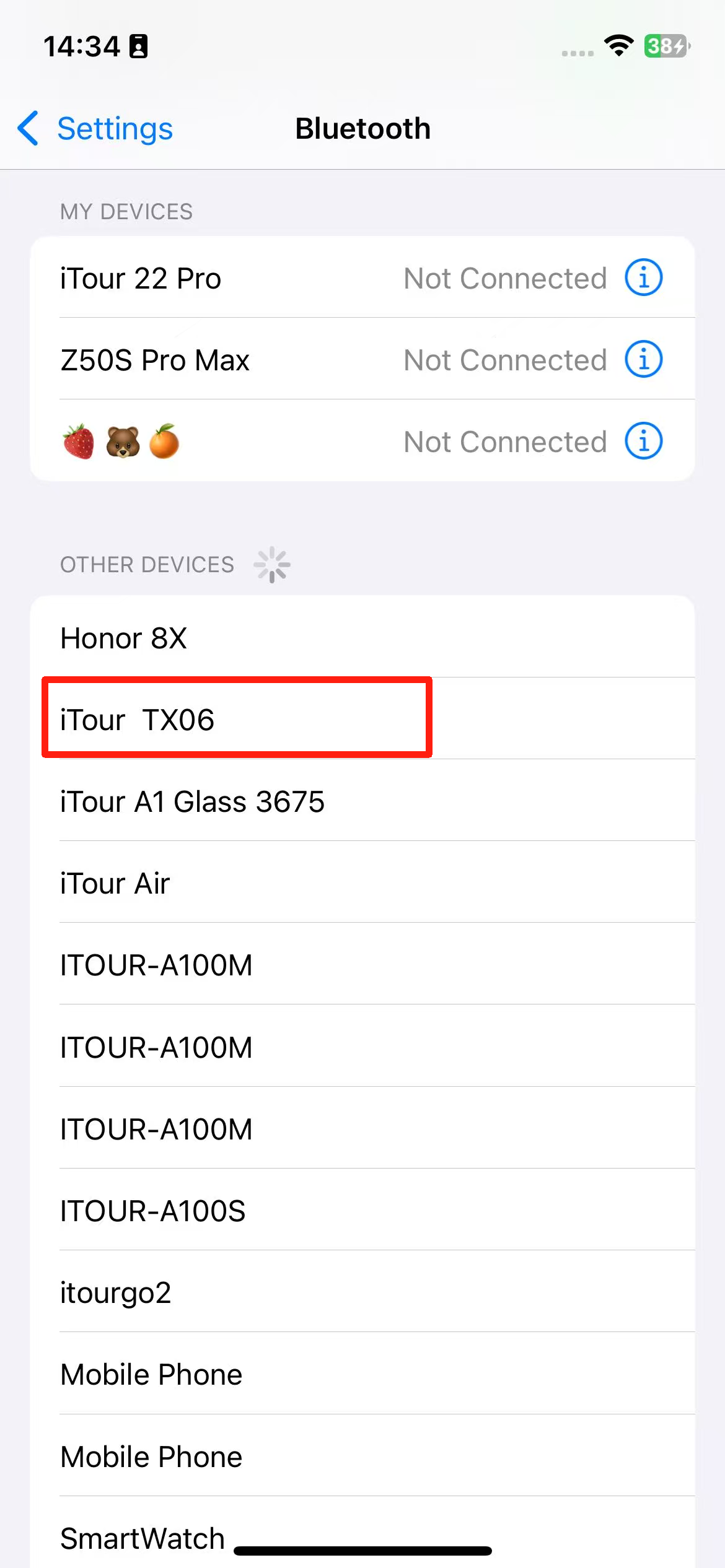
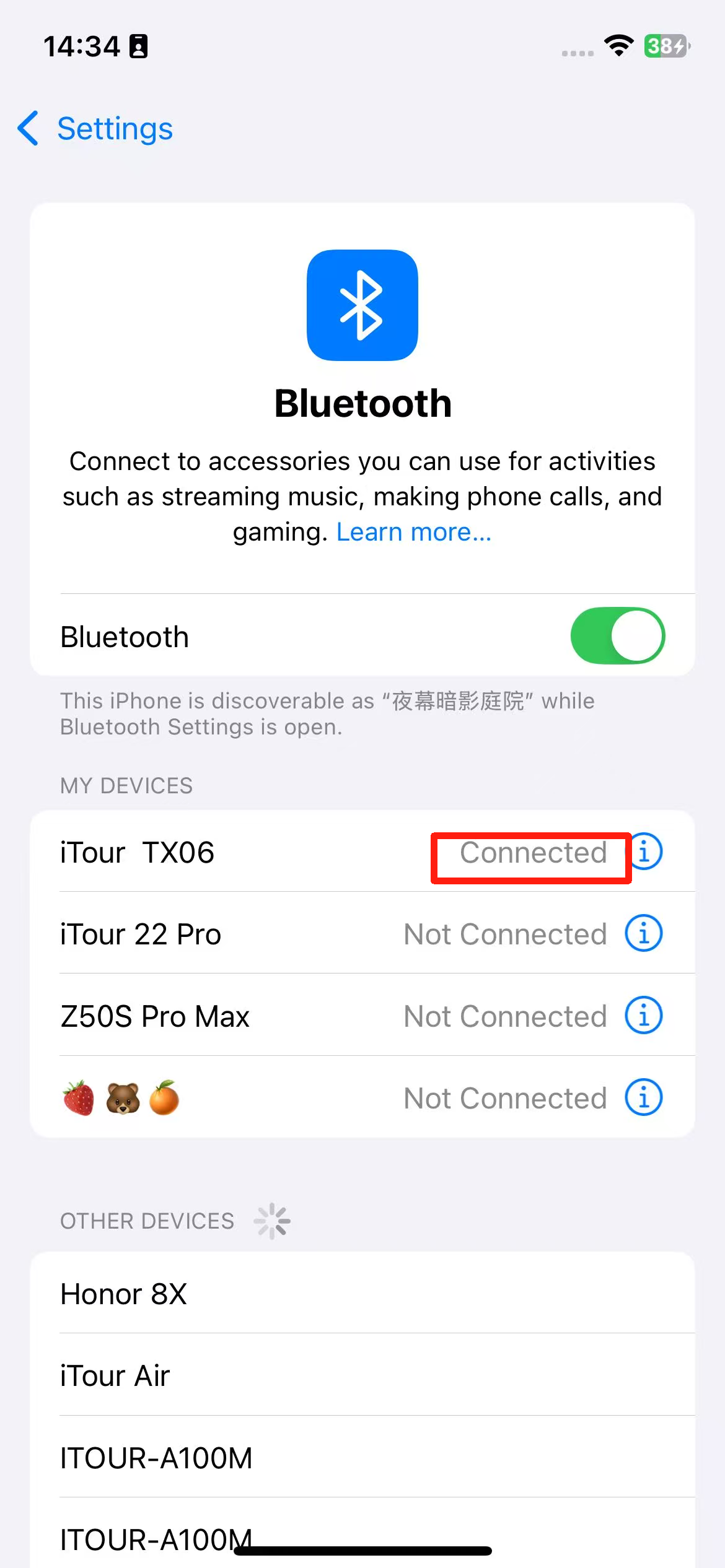
3. After a successful connection, go to the iTourBuds APP page and click “Start Connection.” The APP will automatically search for the corresponding earbuds for pairing and connection.
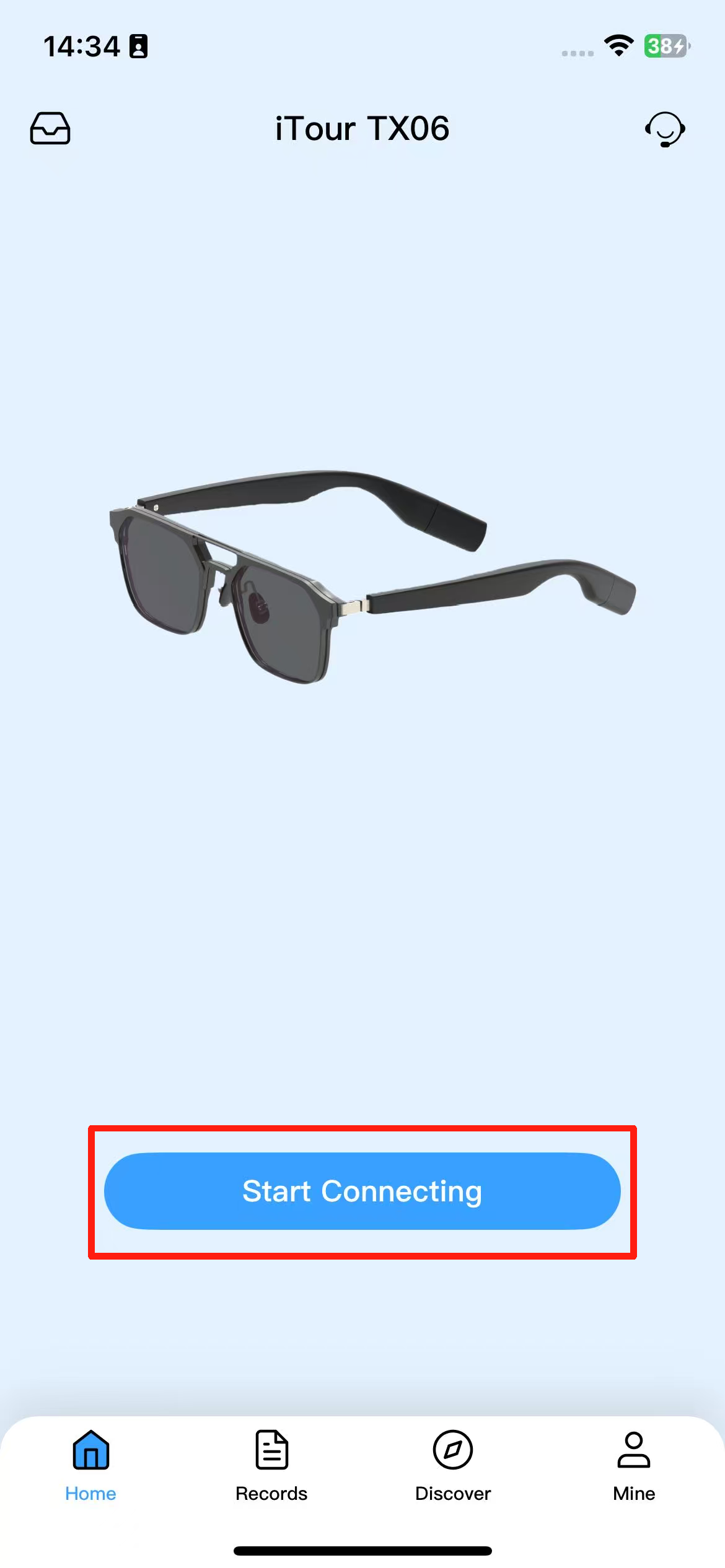
4. Once the pairing and connection are successful, you can use the corresponding functions of the earbuds.
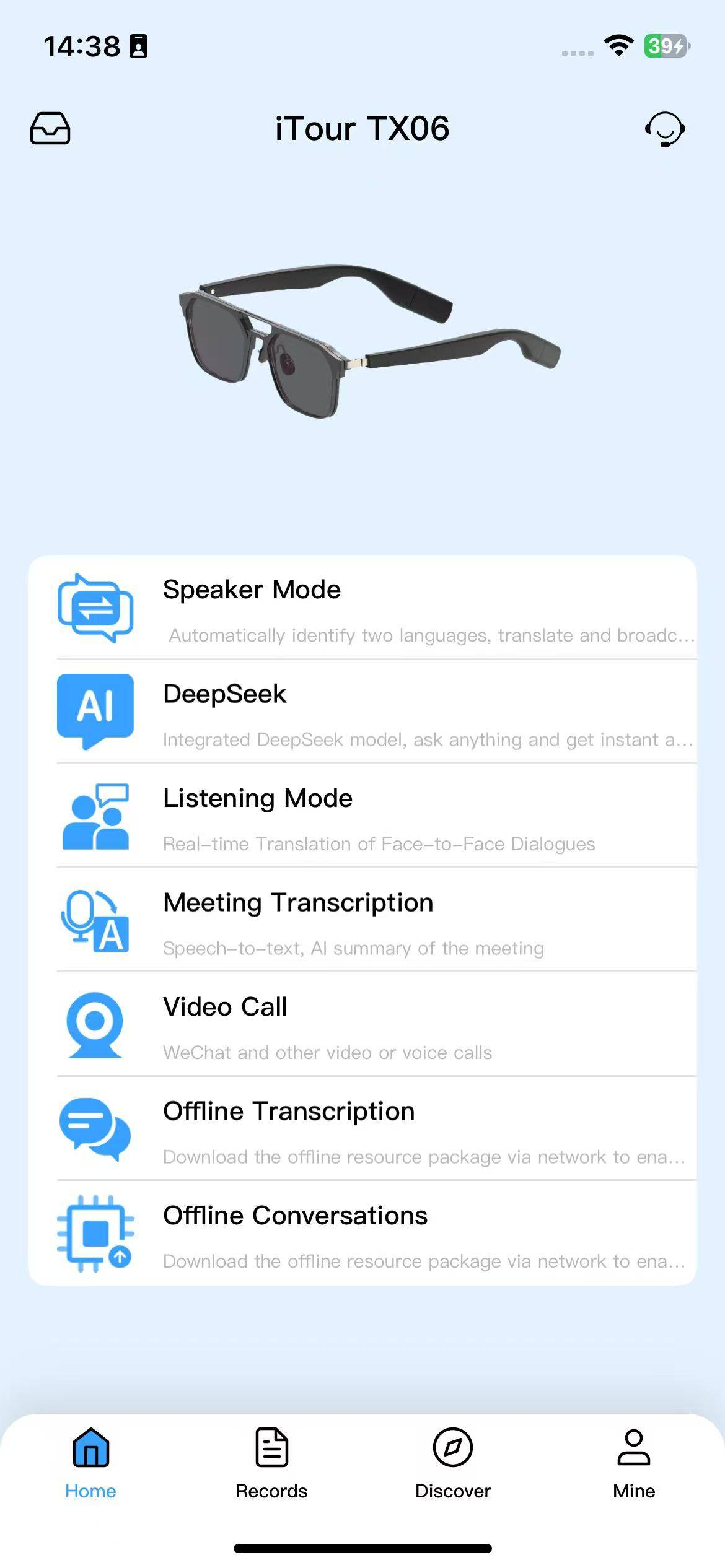
How to use the external speaker mode of iTour TX06 earbuds?
Bilingual translation: The headset broadcasts the translated content of the other party’s speech, while the translated content of your speech is broadcast through the phone’s speaker.
Click the “Microphone” button in the image below to start recognition and translation.
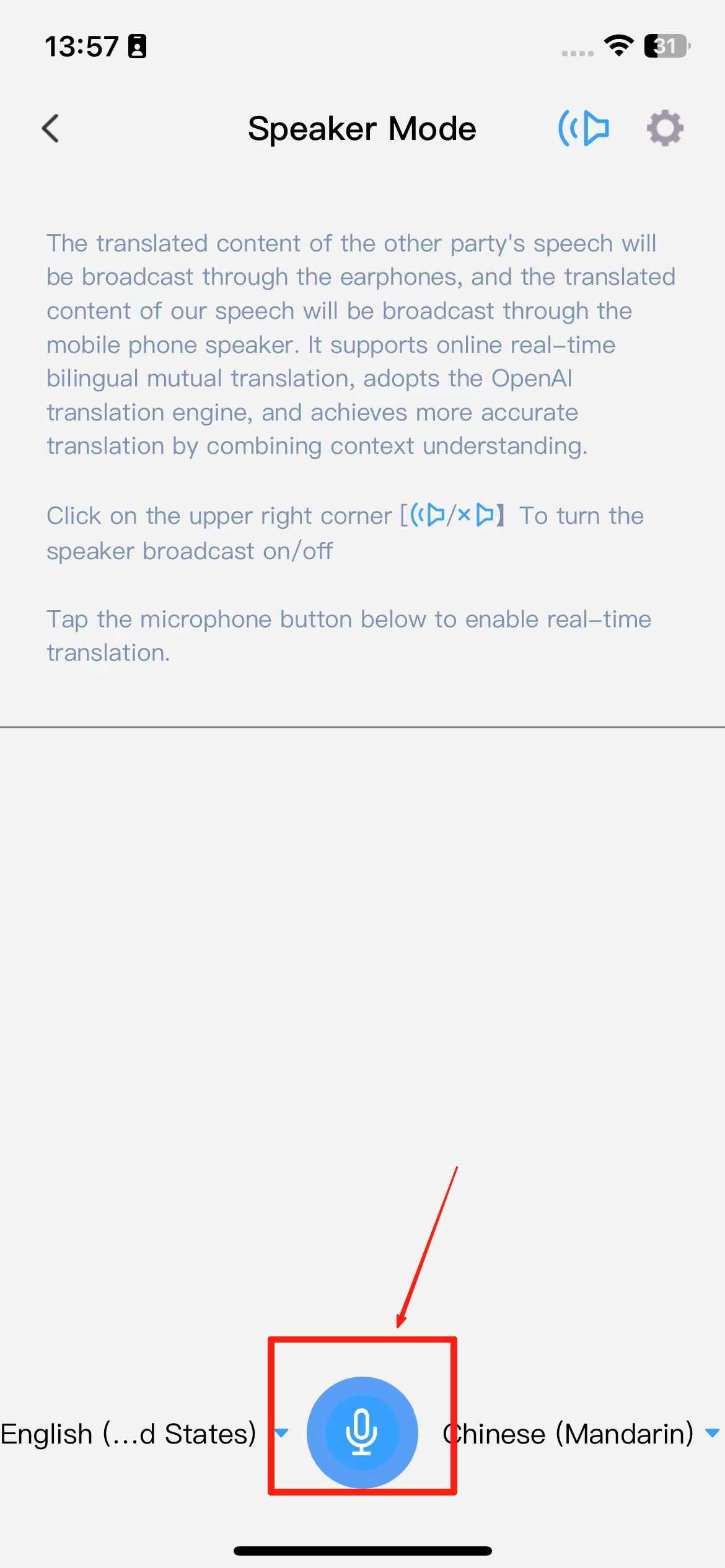
Phone speaker broadcast supports being turned off.
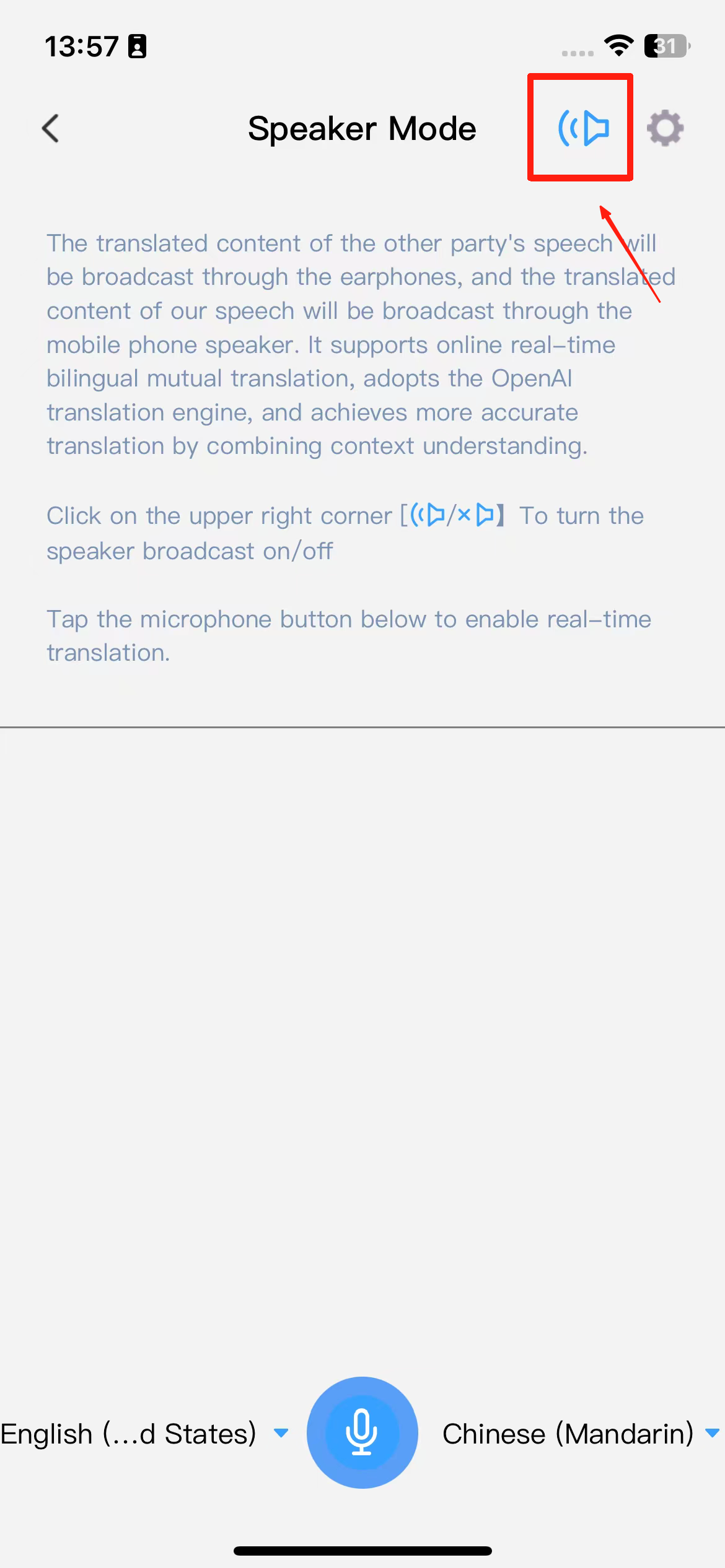
How to use DeepSeek on iTour TX06 earbuds?
Integrated with the DeepSeek large model, you can ask any question, such as: writing assistance, content polishing, language translation, code problem solving, travel itinerary planning, and even chat with you. Supports text input and voice input.
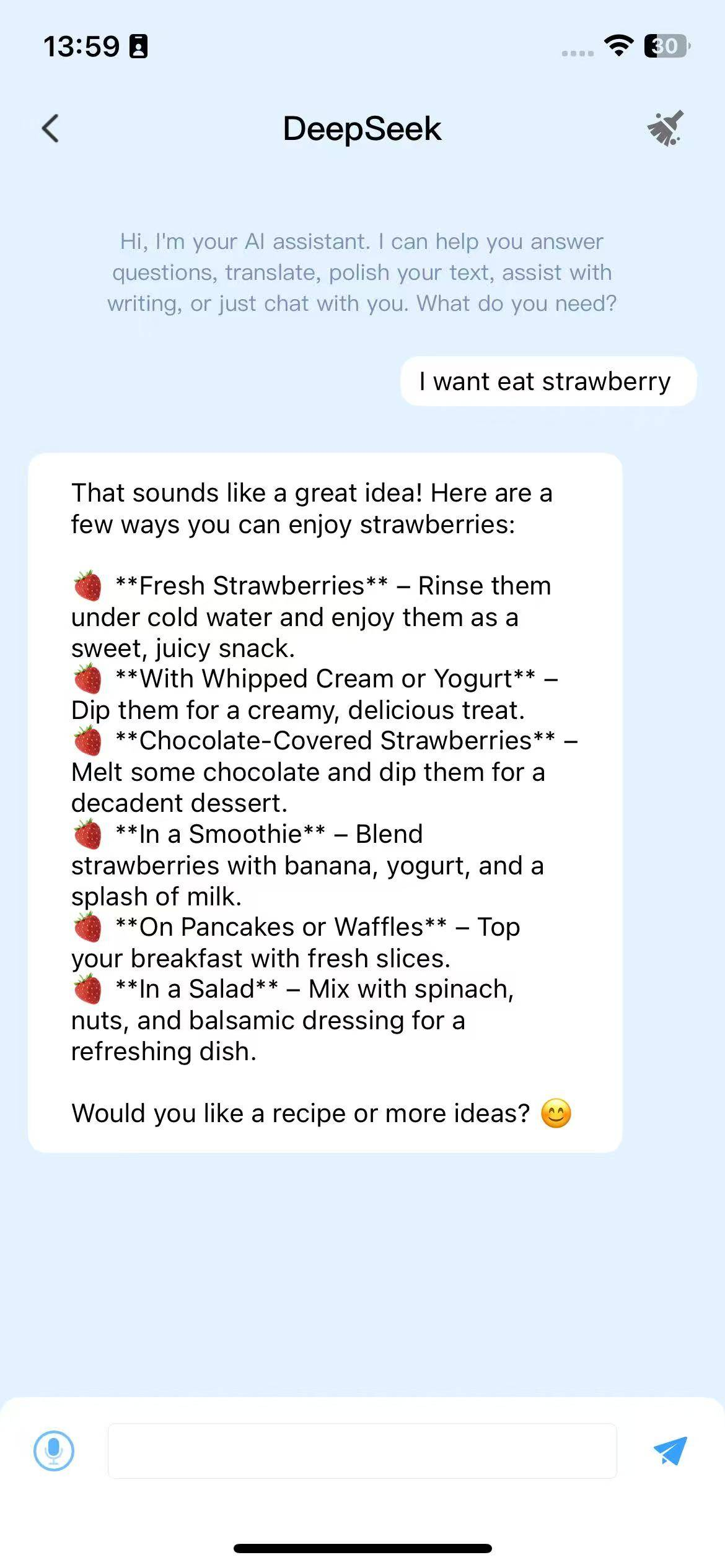
How to use the Listening Mode on iTour TX06 earbuds?
Listening Mode: Suitable for face-to-face communication. The left button recognizes the other party’s language, translates it into the right-side language, and plays it back to you through the earbuds. After playback, the right button automatically activates to recognize your own language. The translation is then broadcast via the phone speaker for the other party to hear. Tap to activate.
(image to be added)
How to use the Meeting Transcription feature on iTour TX06 earbuds?
Click the microphone button to enable real-time transcription. It only recognizes and does not translate.
How to use iTour TX06 earbuds for Video Calls?
Video Call: Send an invitation link to a friend. Once the friend clicks the link and selects “Join Call,” you can enjoy real-time conversation and translation, supporting voice calls, video calls, and text chats. The detailed steps are as follows:
1. Go to the “Video Call” page and select the third-party social platform you wish to use for the call.
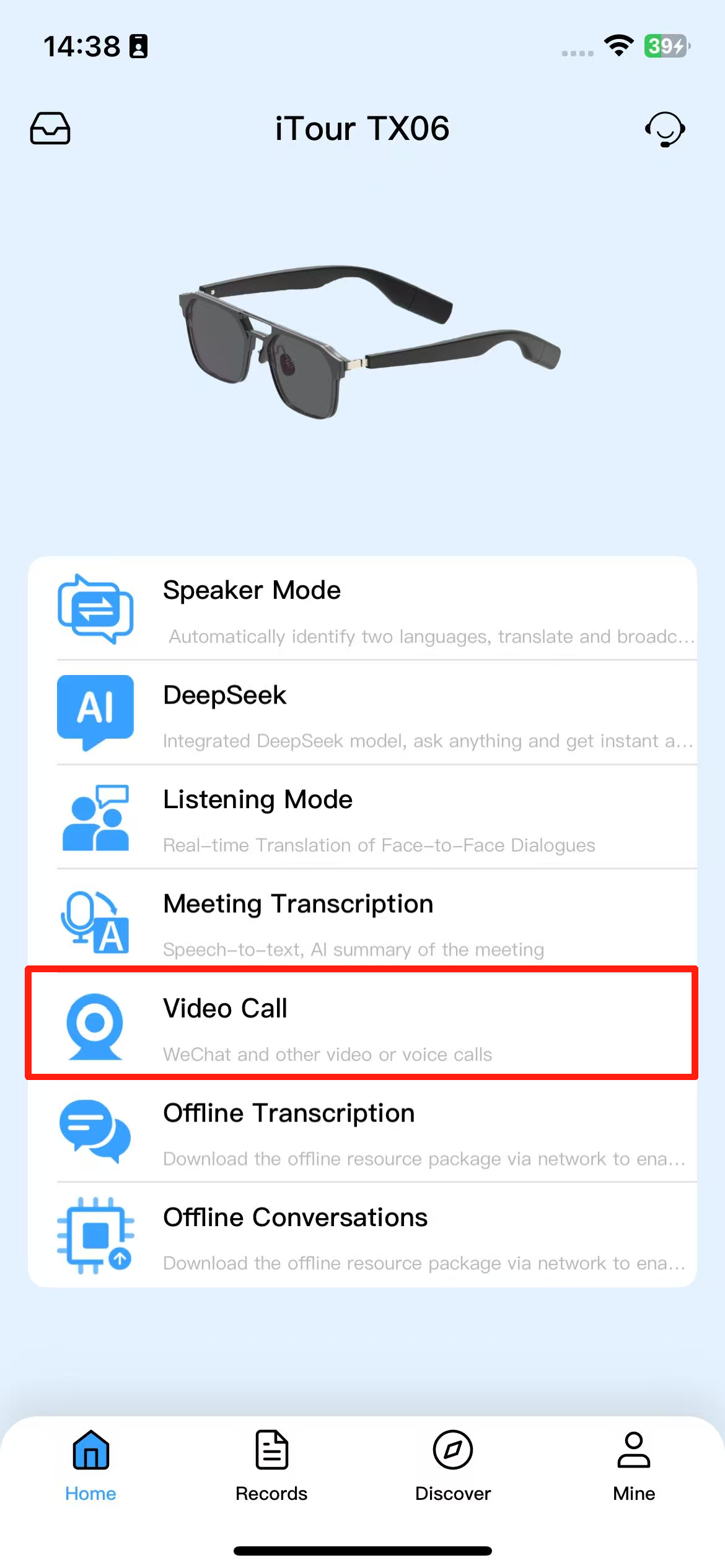
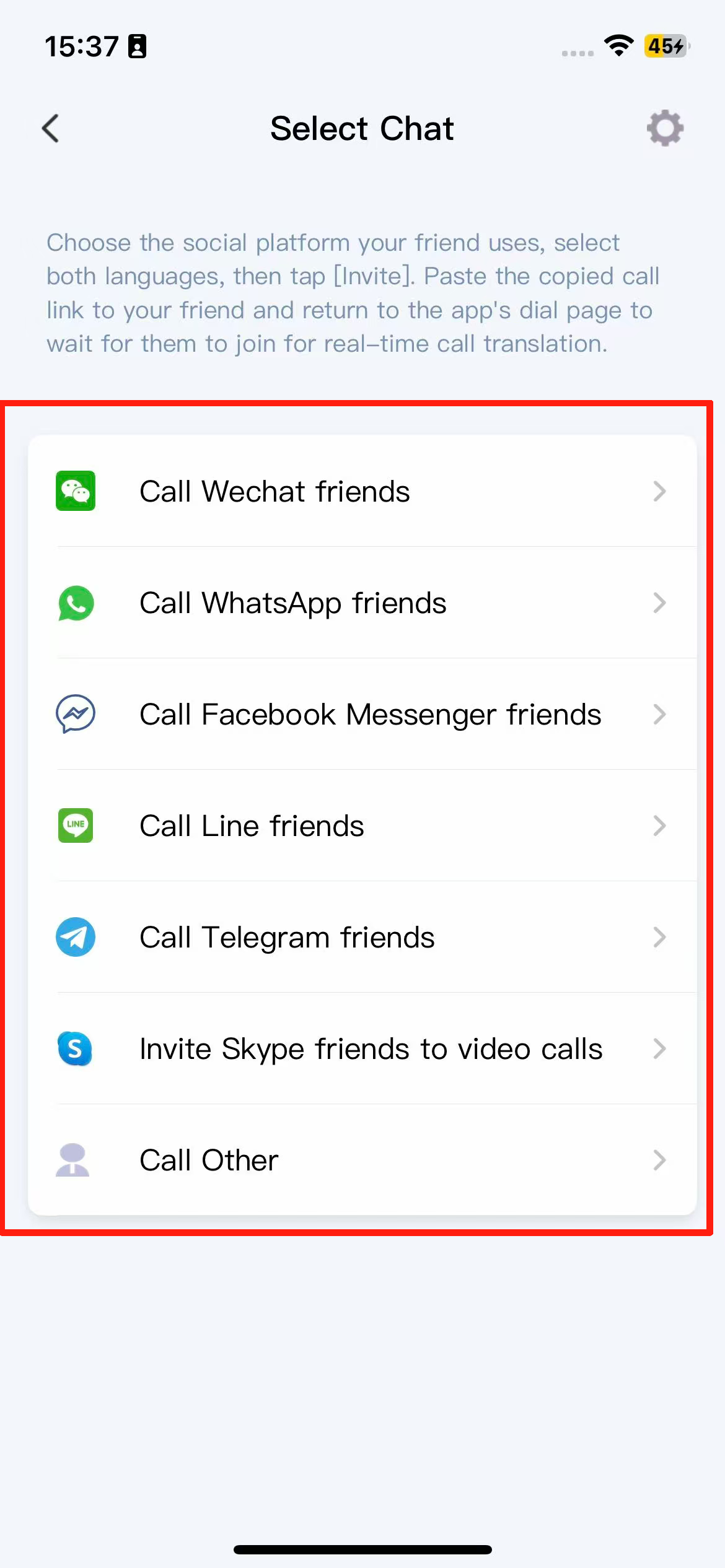
2. Select the languages for both parties, choose the call type, and click [Invite].
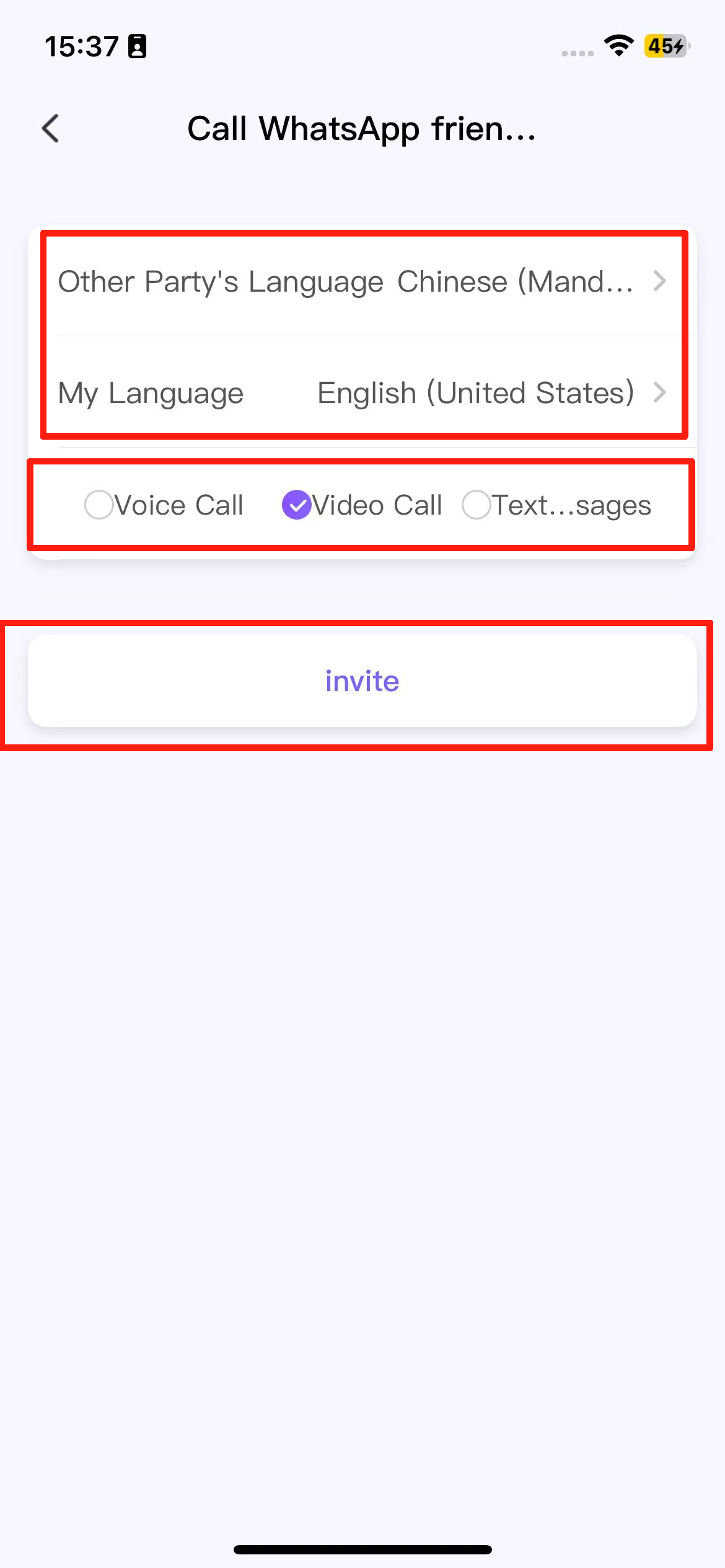
3. Click “Go to XXX to paste for your friend.”
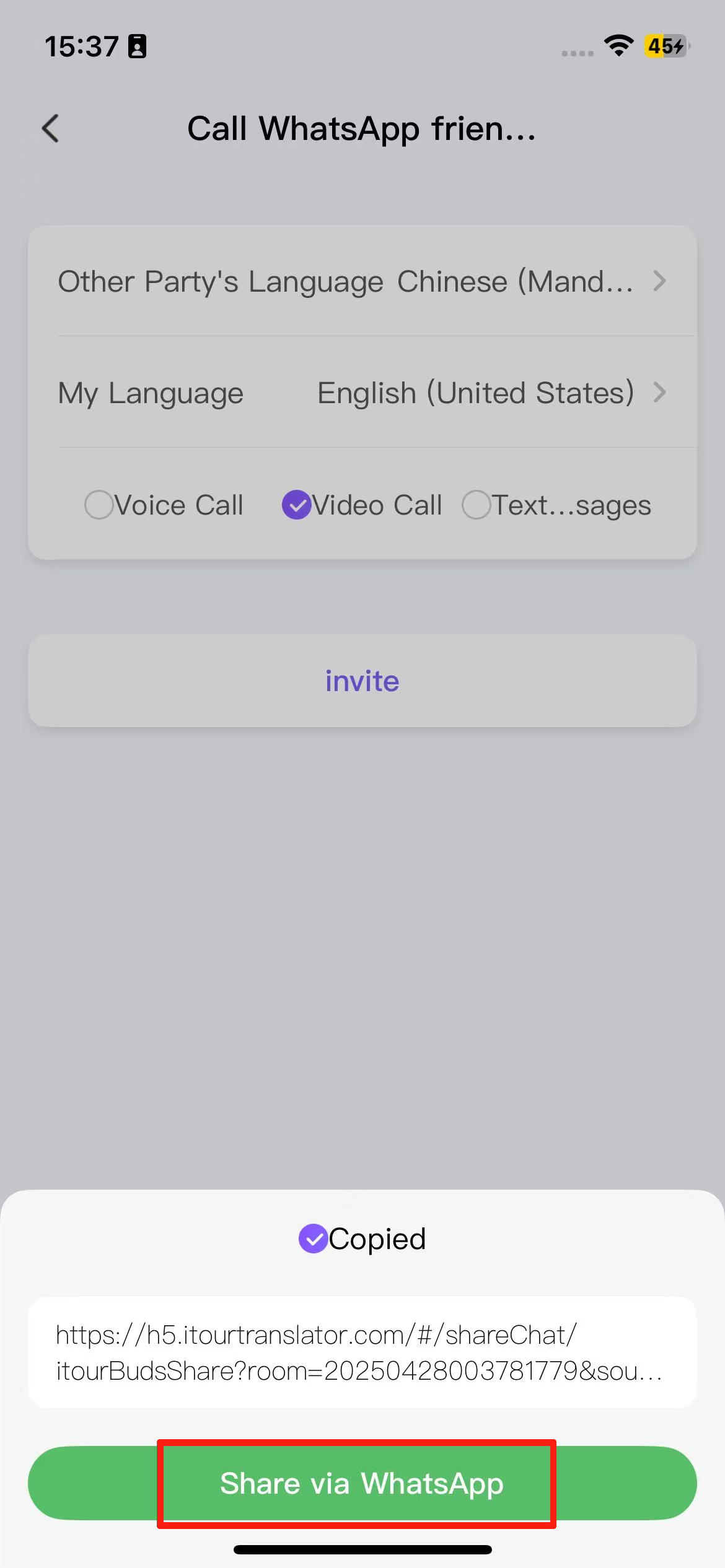
4. After pasting the link to your friend, return to the iTourBuds app’s call page and wait for the other party to join to start real-time conversation and translation.
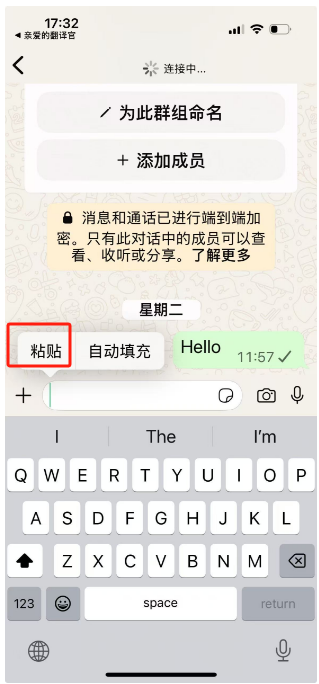
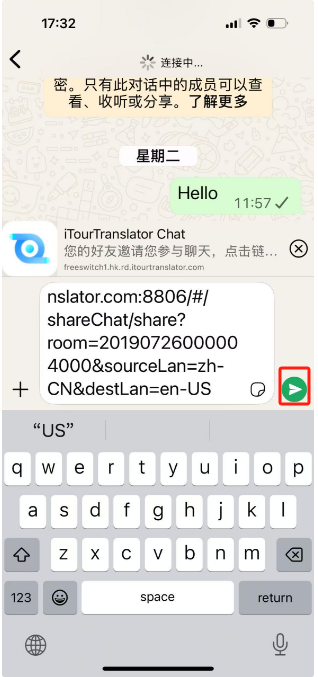
The introduction of the iTour TX06 earphones' offline simultaneous interpretation feature.
Offline Simultaneous Interpretation: After downloading the offline language package, you can enable simultaneous interpretation even in offline mode. The specific steps are as follows:
1. Click the microphone icon, and a prompt will appear indicating that an offline resource package needs to be downloaded.
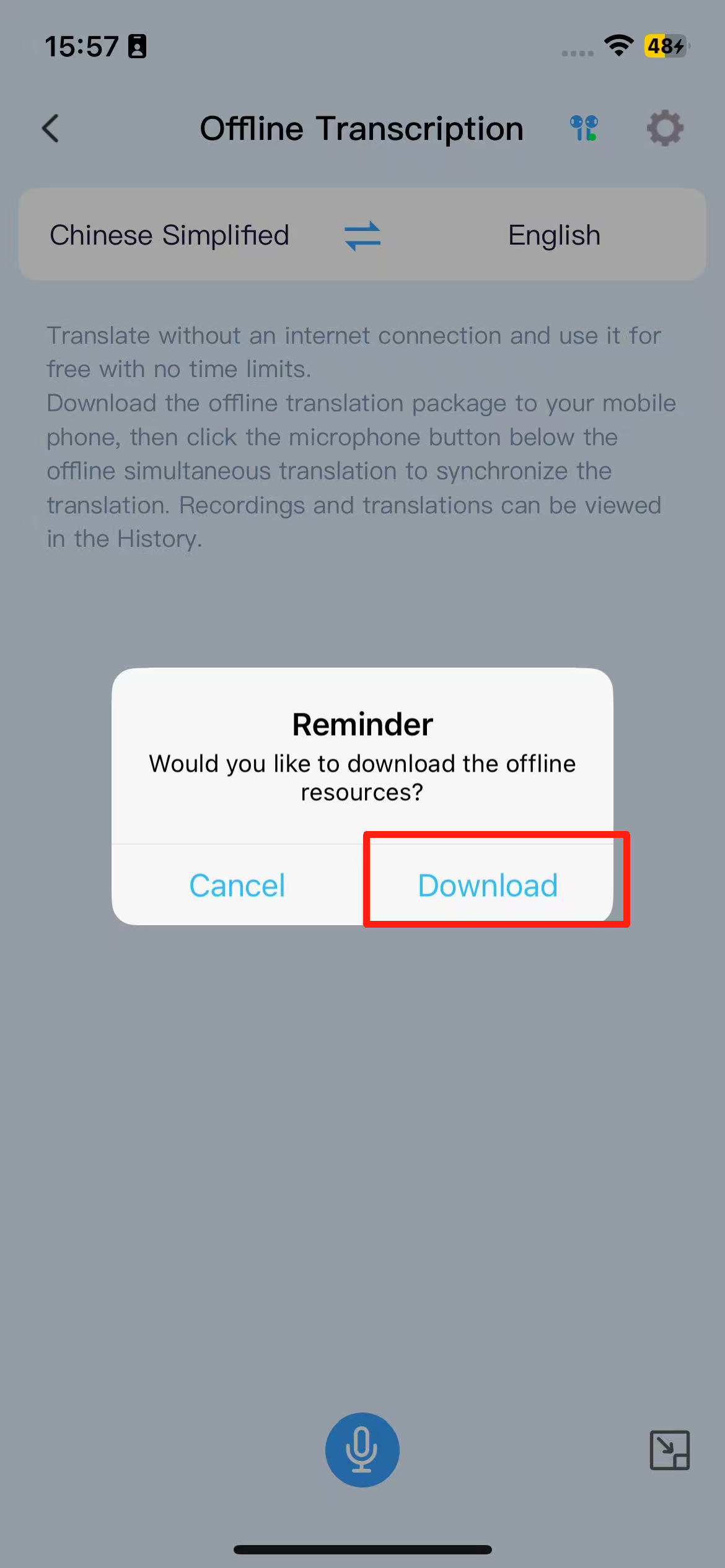
2. The default language pair offline resource package is downloaded for the first time.
3. You can also click on the language bar to download the required offline resource package.
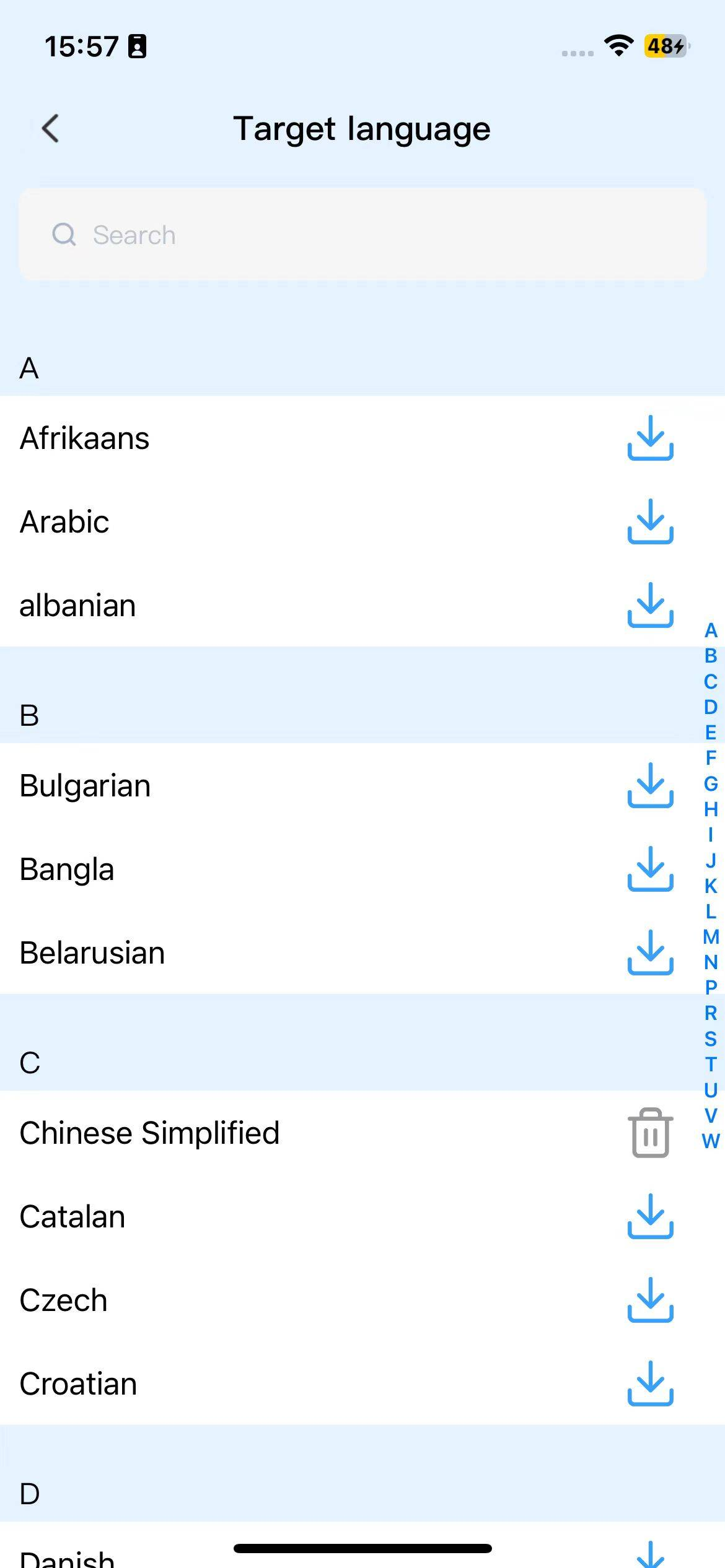
4. After enabling simultaneous interpretation, click the floating window button in the bottom right corner to display the interpretation content in a floating window.
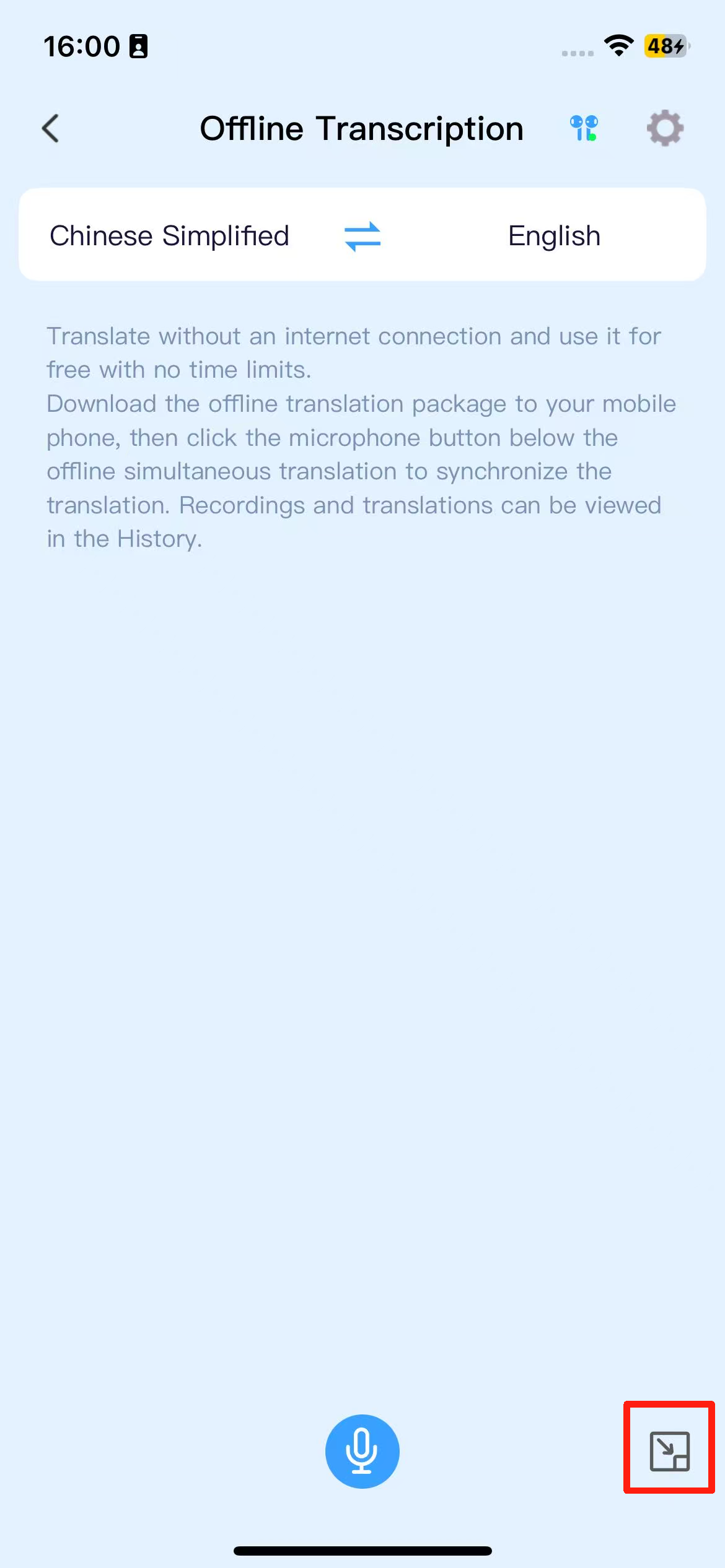
Introduction to the offline conversation feature of iTour TX06 earphones.
Offline Conversation: After downloading the offline language pack, you can initiate conversations even in a network-free environment. The specific steps are as follows:
1. Click on the microphone, and a prompt will appear indicating the need to download the offline resource pack.
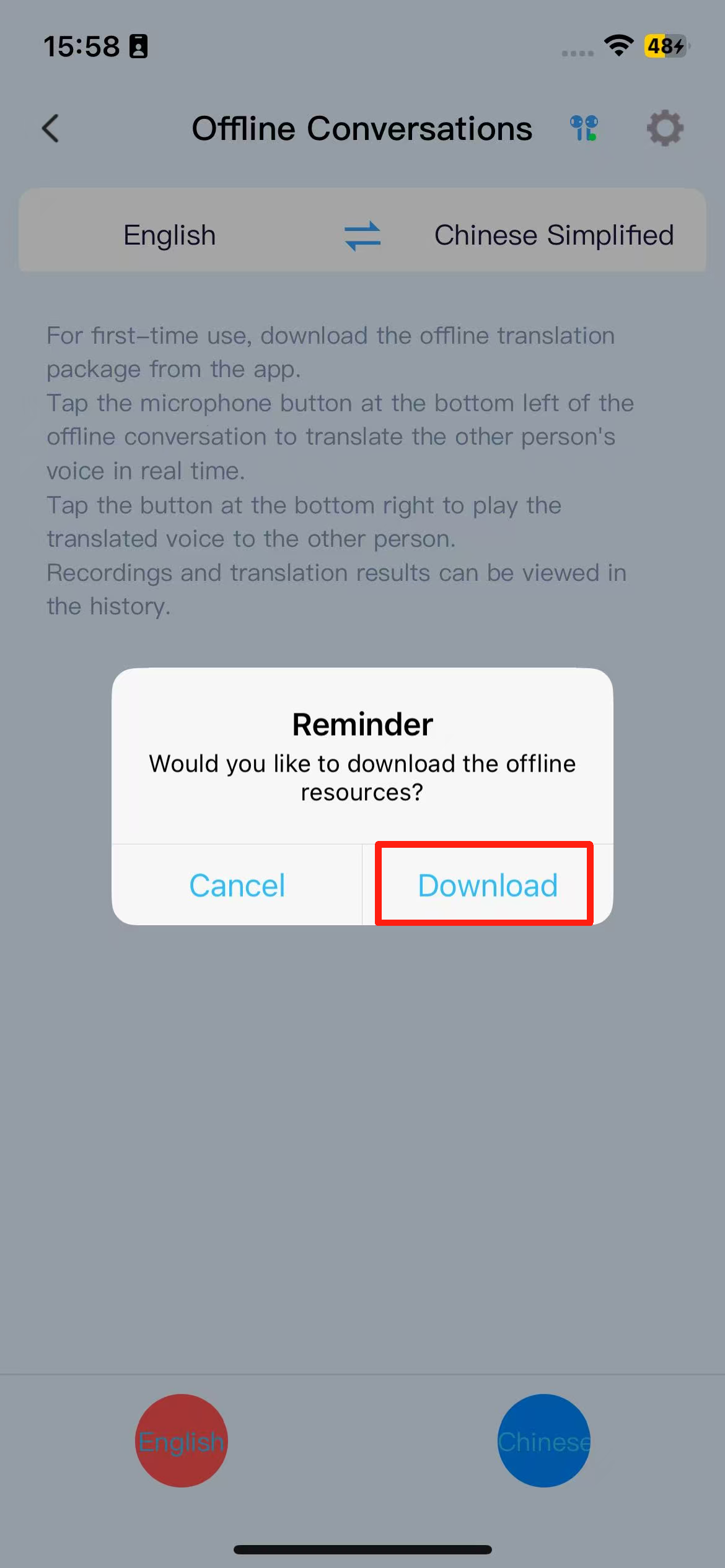
2. The default language pair offline resource pack is downloaded for the first time.
3. You can also click on the language bar to download the required offline resource pack.
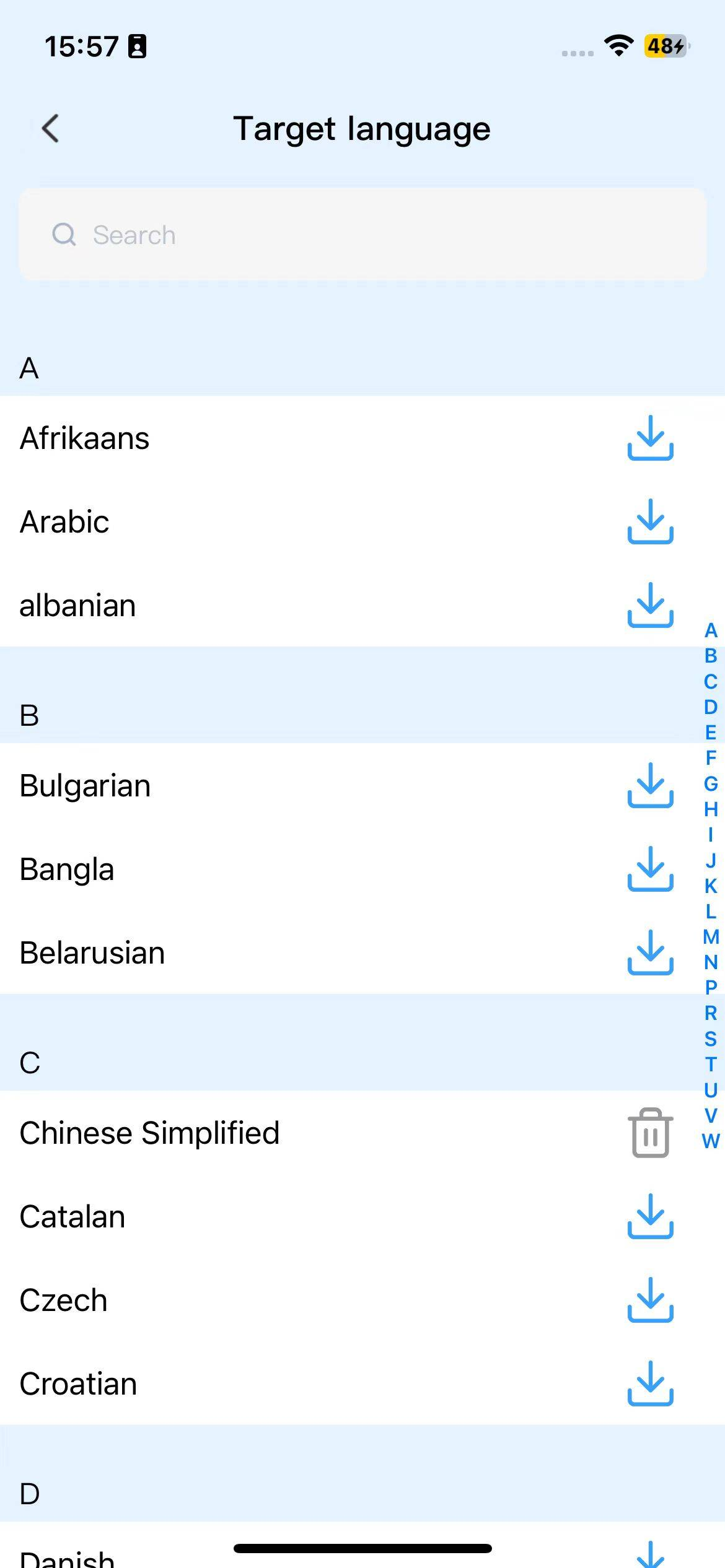
4.After successfully downloading the offline language pack, you can click the left/right language button to start a conversation; click again to stop recognition, send the translated content, and broadcast it.
5.The left button recognizes the other party’s language and translates it into our language, with the translated content broadcast through headphones. The right button recognizes our language and translates it into the other party’s language, with the translated content broadcast through the phone’s speaker.
Why does one temple of the iTour TX06 headphones have no sound?
1. Please ensure that both temples have sufficient battery power.
2. Adjust the wearing position to ensure that both temples hear “power on” as well as “Left channel” and “Right channel.”
3. The contact points at the end of the Bluetooth temples are prone to accumulating sweat or other dirt, which may cause them to malfunction. Try cleaning them with a glasses cloth and then wearing them again.
Software Download
Can’t find your answer?
Send us the issue you ran into, the product and your device model, and our team will reply as soon as possible.
liyt@tranzi.ai- Global HQ
- Seattle, USA
- China HQ
- Hefei
- Languages
- 21 offline, 100+ online
- liyt@tranzi.ai